Alibaba Cloud Container Registry (ACR) supports on-demand loading of container images. You can create accelerated versions of your image and decompress image data online instead of downloading the entire image. Platform for AI (PAI) supports this feature by default, so your Data Science Workshop (DSW) instances, Deep Learning Containers (DLC) jobs, and Elastic Algorithm Service (EAS) services can start faster with no changes to your existing workflows.
This topic explains how to enable image acceleration in ACR and use accelerated images in DSW, DLC, and EAS.
Prerequisites
Before you begin, ensure that you have:
PAI activated with a workspace created. See Activate PAI and create the default workspace
The Container Registry service activated
A Container Registry Enterprise Edition instance created. See Create a Container Registry Enterprise Edition instance The required edition depends on the acceleration mode:
Full Mode: Standard Edition or Advanced Edition
Index-only Mode: Basic Edition, Standard Edition, or Advanced Edition
The virtual private cloud (VPC) of your ACK cluster or ACK Serverless cluster added to the access control list (ACL) of your Container Registry Enterprise Edition instance. Accelerated images run only in VPCs. See Configure a VPC ACL
Limitations
| Limitation | Index-only Mode | Full Mode |
|---|---|---|
| Status | Public preview | — |
| Supported compression formats | tar and tgz only (not zstd or other methods) | All formats |
| Supported runtimes | containerd only | Docker and containerd (_accelerated tag); containerd only (_containerd_accelerated tag) |
| Original image tag deletion | Cannot delete the tag of the original image while accelerated image is in use | Tag of original image can be deleted when using _accelerated tag (full mode is independent); _containerd_accelerated-tagged accelerated images cannot be deleted while in use |
Index-only Mode is in public preview. Test in a non-production environment before deploying to production.
How it works
When you enable image acceleration for a repository, each image pushed to that repository is automatically converted to an accelerated image. The conversion runs in the background and does not affect the original image.
Tag naming: The namespace and repository name of an accelerated image are identical to those of the original image. Only the tag differs:
| Mode | Tag format |
|---|---|
| Index-only Mode | <original-tag>_accelerated |
| Full Mode (Docker + containerd) | <original-tag>_accelerated |
| Full Mode (containerd only) | <original-tag>_containerd_accelerated |
Conversion performance:
| Metric | Full Mode | Index-only Mode |
|---|---|---|
| Accelerated image size | ~130% of original | ~3% of original |
| Time to generate (1 GB image) | ~25 seconds | ~3 seconds |
| Startup acceleration vs. Full Mode | Baseline | ~70% of Full Mode |
| Re-generation | Skipped if layer already generated | Skipped if layer already indexed |
Enable image acceleration
Log on to the Container Registry console.
Log on to the Container Registry console.
In the top navigation bar, select a region.
In the left-side navigation pane, click Instances.
On the Instances page, click the Enterprise Edition instance to manage.
In the left-side navigation pane, choose Repository > Repositories.
Find the repository, then click the repository name or click Manage in the Actions column.
Click Edit in the upper-left corner.
In the Modify Settings dialog box, turn on Enable image acceleration, select a mode, and click Confirm:
Full Mode: Delivers the strongest startup acceleration. Accelerated image size is approximately 130% of the original. Generating an accelerated image for a 1 GB image takes approximately 25 seconds. If an accelerated layer already exists for a given image layer, the system skips regeneration.
Index-only Mode: Delivers approximately 70% of the startup acceleration of Full Mode. Accelerated image size is approximately 3% of the original. Generating an index for a 1 GB image takes approximately 3 seconds. Existing indexes are not regenerated.
After enabling acceleration, every image pushed to the repository is automatically converted. To receive a notification each time a conversion completes, configure an expression-based event notification trigger with the expression _accelerated$. See Event notification.
Use accelerated images in DLC, DSW, or EAS
After conversion, the accelerated image has the same namespace and repository name as the original. Use the full image address with the appropriate tag suffix as the custom image in PAI.
Use an accelerated image to create a DLC job
Create a DLC job in your workspace. For all parameters not listed here, see Create a training job.
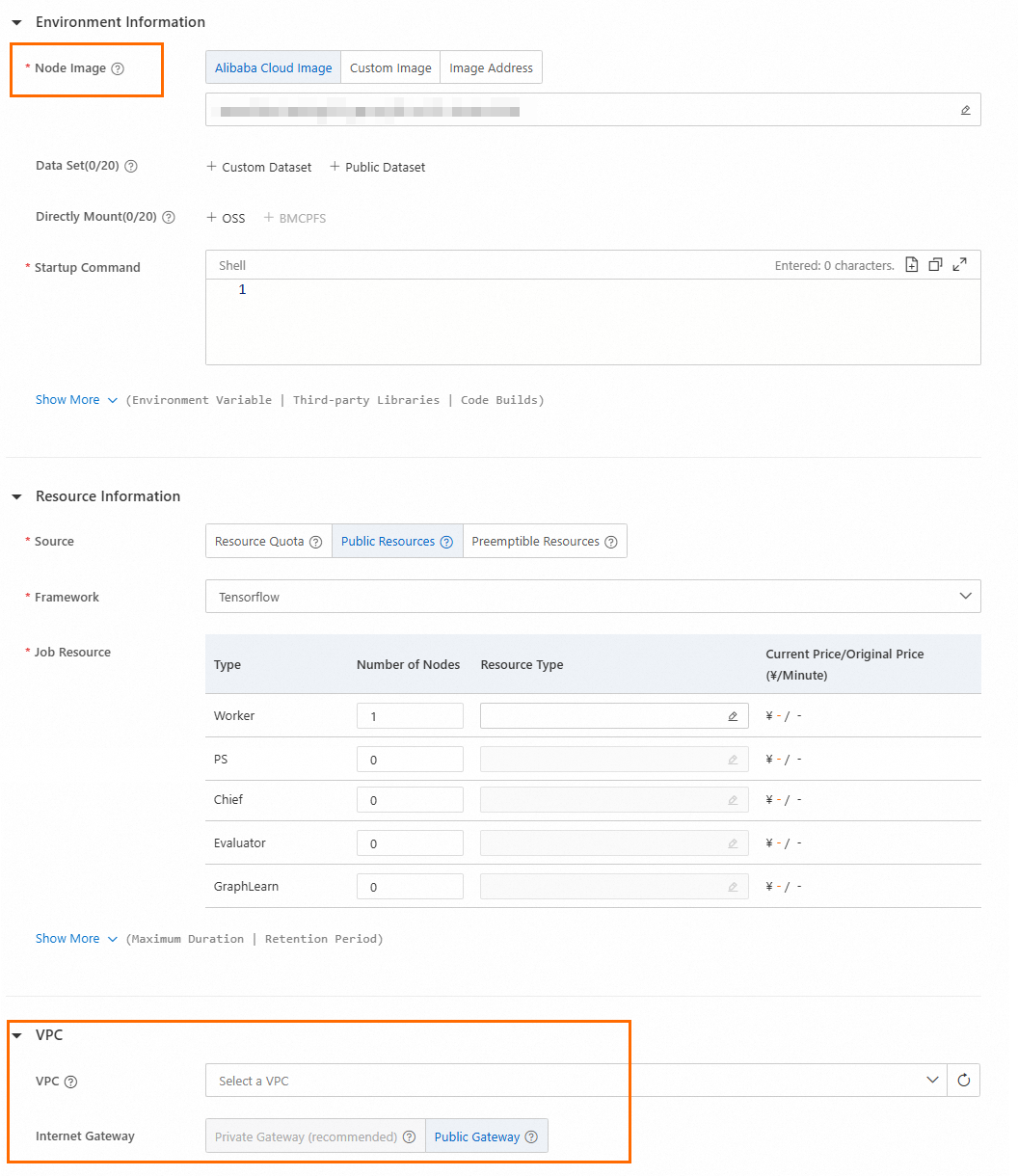
Node Image: Select Image Address and enter the accelerated image address (original image URL with the
_acceleratedsuffix).VPC: If you select Public Resource Group, configure the VPC. Select the VPC referenced in your Container Registry Enterprise Edition instance.
Use an accelerated image to create a DSW instance
Create a DSW instance in your workspace. For all parameters not listed here, see Create and manage DSW instances.
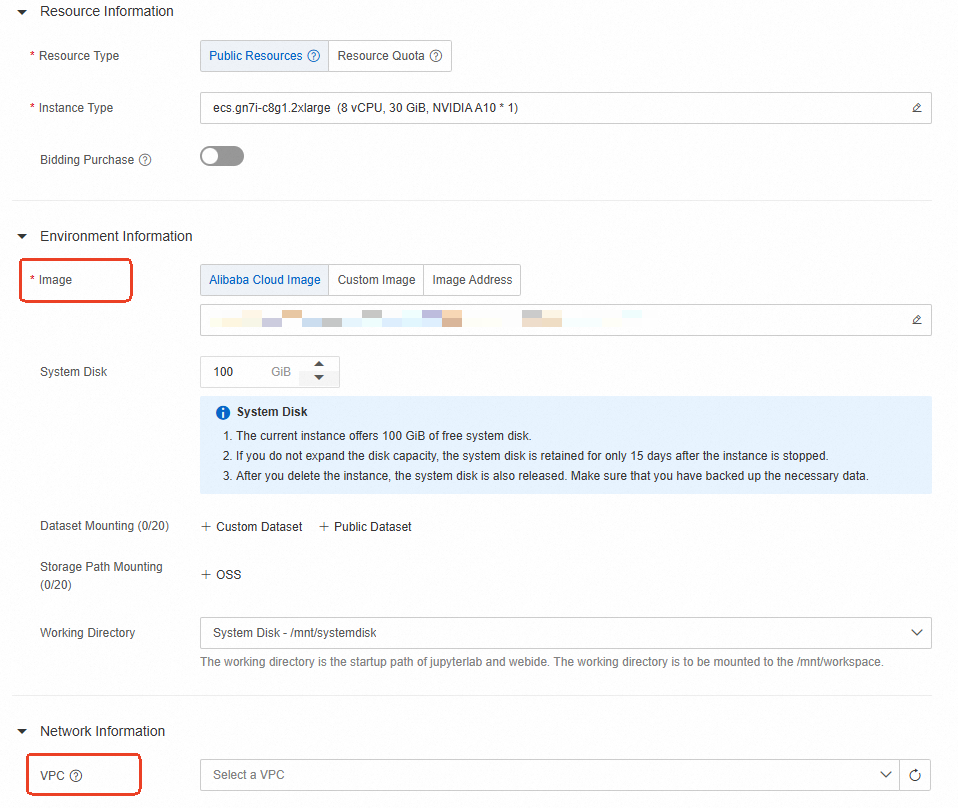
Select Image: Select Image Address and enter the accelerated image address (original image URL with the
_acceleratedsuffix).Networking: If Resource Quota is set to Public Resource Group, configure the network. Select the VPC referenced in your Container Registry Enterprise Edition instance.
Use an accelerated image to deploy an EAS service
Deploy an EAS service in your workspace. For all parameters not listed here, see Deploy a model service in the PAI console.
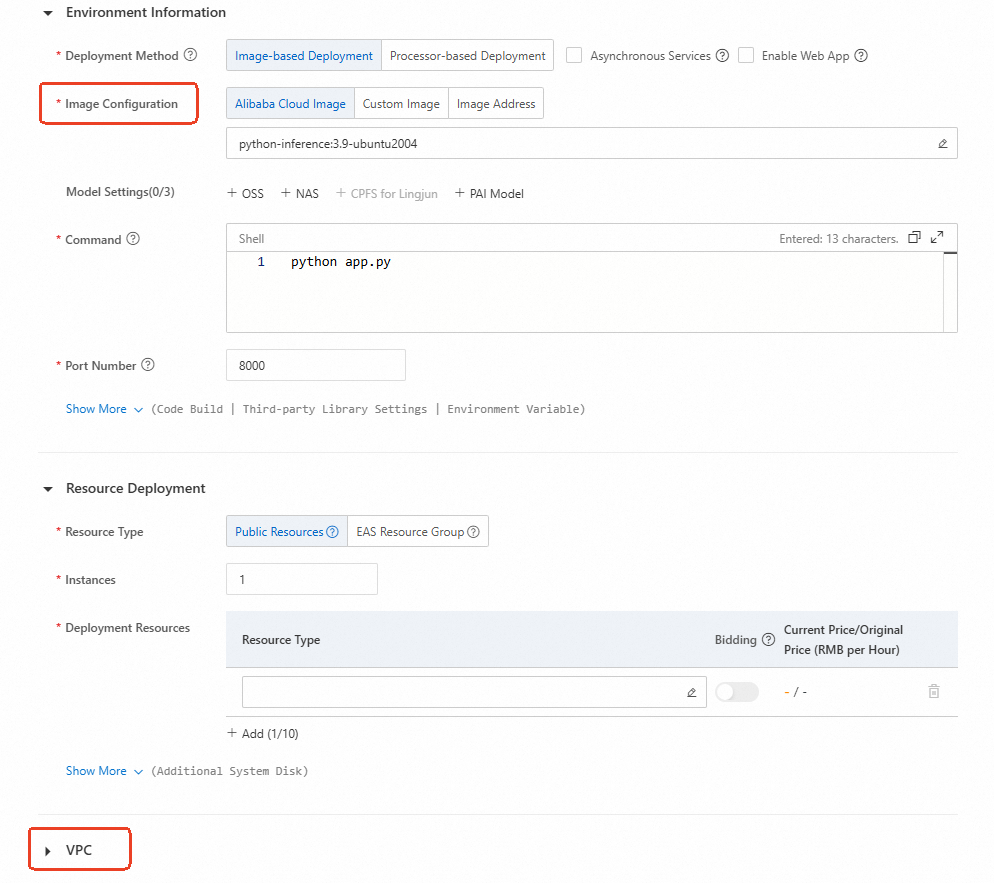
Image Configuration: Select Image Address and enter the accelerated image address (original image URL with the
_acceleratedsuffix).VPC: Select the VPC referenced in your Container Registry Enterprise Edition instance.