Android client integration
This guide describes how to implement integrated authentication in an Android client, including interface examples.
Integration workflow
This section guides you through the SDK integration workflow, from project configuration to feature implementation.
Step 1: Download the SDK
Log in to the Phone Number Verification console. On the Overview page, in the API & SDK section on the right, click Download Now to go to the API & SDK page.
In the form, select Fusion Authentication and Android, and click the SDK Download (with demo) button.
In the form, set Client to APP and Version to Standard.
Step 2: Import the project
In the
build.gradlefile in the project root directory, add the Kotlin Gradle plugin dependency (classpath "org.jetbrains.kotlin:kotlin-gradle-plugin:1.4.0") to thebuildscriptdependenciesblock, and configureallprojectsrepositories:} dependencies { classpath 'com.android.tools.build:gradle:4.1.3' classpath 'com.kezong:fat-aar:1.3.3' classpath 'com.tomgoddy:merge-manifest:1.0.0-SNAPSHOT' classpath "org.jetbrains.kotlin:kotlin-gradle-plugin:1.4.0" // NOTE: Do not place your application dependencies here; they belong // in the individual module build.gradle files } } def ROOT_LIBS = rootProject.getProjectDir().getPath()+'/libs' allprojects { repositories { maven { allowInsecureProtocol=true url "http://mvnrepo.alibaba-inc.com/nexus/content/repositories/snapshots" } jcenter() mavenLocal() maven{ url 'https://maven.aliyun.com/repository/google' } }Set the
minSdkVersion.NoteThe Fusion Authentication SDK requires API level 21 or higher. Ensure your project's minSdkVersion is set accordingly.
In the
build.gradle(:demo)file, confirm thatminSdkVersionis set to 21 or higher. Example configuration:plugins { id 'com.android.application' } android { signingConfigs { debug { storeFile file('./sign/debug/debug.keystore') storePassword 'android' keyAlias 'fusionauth' keyPassword 'android' } release { storeFile file('./sign/debug/debug.keystore') storePassword 'android' keyAlias 'fusionauth' keyPassword 'android' } } compileSdk 33 defaultConfig { applicationId "com.alicom.fusion.auth.demo" minSdkVersion 21 targetSdkVersion 33 versionCode 1 versionName "1.0" buildConfigField "String", "NETURL", '"https://dypns.aliyuncs.com"' testInstrumentationRunner "androidx.test.runner.AndroidJUnitRunner" } buildTypes { debug { minifyEnabled false proguardFiles getDefaultProguardFile('proguard-android-optimize.txt'), 'proguard-rules.pro' } release {Import the AAR file and add a dependency: In the module that uses the Fusion Authentication feature, import the relevant AAR file into the
libsfolder.If your project requires the phone number risk score or endpoint risk setting features, you must also import the UMeng components. For more information, see Configure UMeng component dependencies.
Place
umeng-asms-v1.8.0.aarandumeng-common-9.5.6.aarin thelibsdirectory of the demo module. The complete project directory structure is:Demo ~/Downloads/fusionAuthSDK_APP_Android_v1.2 .gradle .idea demo build libs fusionauth-1.2.7-online-release.aar umeng-asms-v1.8.0.aar umeng-common-9.5.6.aar sign src main assets java com.alicom.fusion.demo res AndroidManifest.xml build.gradle proguard-rules.pro gradleIf your project does not use the phone number risk score or endpoint risk setting features, import only the Fusion Authentication AAR file.
In the module (usually
app/build.gradle, ordemo/build.gradle), find dependencies in thebuild.gradlefile and add the following dependency:implementation fileTree(dir: "libs", include: ["*.aar"]) implementation 'androidx.appcompat:appcompat:1.3.1' implementation "org.jetbrains.kotlin:kotlin-stdlib:1.4.0"
Step 3: Configure the project
Add permissions: Add the necessary permissions to the
AndroidManifest.xmlmanifest file.<uses-permission android:name="android.permission.INTERNET" /> <uses-permission android:name="android.permission.CHANGE_WIFI_STATE" />Declare the activities.
Add the Activity declaration to the
AndroidManifest.xmlmanifest file.// Phone Number Verification activity <activity android:name="com.alicom.fusion.auth.numberauth.FusionNumberAuthActivity" android:exported="false" android:configChanges="orientation|keyboardHidden|screenSize" android:screenOrientation="behind" android:theme="@style/NumberAuthTheme" /> // SMS activity <activity android:name="com.alicom.fusion.auth.smsauth.FusionSmsActivity" android:exported="false" android:configChanges="orientation|keyboardHidden|screenSize" android:screenOrientation="behind" /> // CAPTCHA activity <activity android:name="com.alicom.fusion.auth.graphauth.FusionGraphAuthActivity" android:exported="false" android:configChanges="orientation|keyboardHidden|screenSize" android:screenOrientation="behind"/> // Uplink SMS activity <activity android:name="com.alicom.fusion.auth.upsms.AlicomFusionUpSmsActivity" android:exported="false" android:configChanges="orientation|keyboardHidden|screenSize" android:screenOrientation="behind" /> // Phone Number Verification authorization page activity <activity android:name="com.mobile.auth.gatewayauth.LoginAuthActivity" android:configChanges="orientation|keyboardHidden|screenSize" android:exported="false" android:launchMode="singleTop" android:screenOrientation="behind" android:theme="@style/authsdk_activity_dialog" /> // Phone Number Verification secondary dialog authorization activity <activity android:name="com.mobile.auth.gatewayauth.PrivacyDialogActivity" android:configChanges="orientation|keyboardHidden|screenSize" android:exported="false" android:launchMode="singleTop" android:screenOrientation="behind" android:theme="@style/authsdk_activity_dialog" /> // Activity for displaying agreements for Phone Number Verification, login, and registration. This requires custom implementation. <activity android:name="com.alicom.fusion.demo.CustomWebViewActivity" android:configChanges="orientation|keyboardHidden|screenSize|uiMode|fontScale" android:screenOrientation="sensorPortrait"> <intent-filter> // The action value is fixed and cannot be changed. <action android:name="com.fusion.auth"/> <category android:name="android.intent.category.DEFAULT"/> </intent-filter> </activity>NoteCustom views cannot be added to the CAPTCHA interface. If you do not need this feature, you can disable the CAPTCHA node in the authentication policy settings.
Configure obfuscation.
If you need to obfuscate your code, add the following obfuscation rules to the
proguard-rules.profile:-keep class com.alicom.fusion.auth.**{*;}
Step 4: Get package name and signature
Create a signature file:
Follow the instructions in Sign your app to create a signature file. You will use this file when you create a Scheme Code. Place the signature file in your module. The file name and path are not restricted.
For example, if you place the signature file in the
app/sig-adaptation/debug/directory, you must reference it in the module'sbuild.gradlefile.signingConfigs { debug { keyAlias 'androiddebugkey' keyPassword 'android' storeFile file('sig-adaptation/debug/debug.keystore') storePassword 'android' } }
View the package signature:
In the right-hand panel of Android Studio, navigate to Gradle > {Your Project Name} > {Your Module Name} > Tasks > android > signingReport. Double-click
signingReportto view the MD5 signature value.Demo ├── Tasks ├── app │ └── Tasks │ ├── android │ │ ├── androidDependencies │ │ ├── signingReport ← Highlighted │ │ └── sourceSets │ ├── build │ ├── cleanup │ ├── help │ ├── install │ ├── other │ └── verificationNoteYou can obtain the package signature in one of the following ways:
Method 1: From the MD5 value in the console output, remove the colons (:) and convert all uppercase letters to lowercase to obtain the package signature.
Method 2: Download and install the Android App Signature Generation Tool on your mobile device to get the package signature for your app.
The following example shows the MD5 value from the console output:
MD5: 47:FC:C6:61:54:85:E8:3B:41:00:43:3E:C9:A1:D2:78View the package name:
You can find the package name in the
android.defaultConfig.applicationIdproperty of your app/build.gradle file.
Step 5: Create an authentication scheme and obtain the Scheme Code
When you integrate the SDK or call APIs, you need parameters such as the scheme code. Follow these steps to create a solution and get these parameters.
Sign in to the Phone Number Verification Service console.
In the left-side navigation pane, select .
Click Add Fusion Authentication Scheme.
Enter the package name and package signature that you obtained in the previous step.
Complete the following fields in the form:
Scheme Name: Enter 1–10 characters.
Client: Select Android or iOS.
App Name: Enter the app name (maximum 20 characters).
Click OK.
Scenarios
The Integrated Authentication SDK supports five scenarios. To invoke a scenario, use its corresponding scenario ID.
Scenario | Scenario ID |
100001 | |
100002 | |
100003 | |
100004 | |
100005 |
To configure policies for these scenarios, see global policy.
Interaction flow
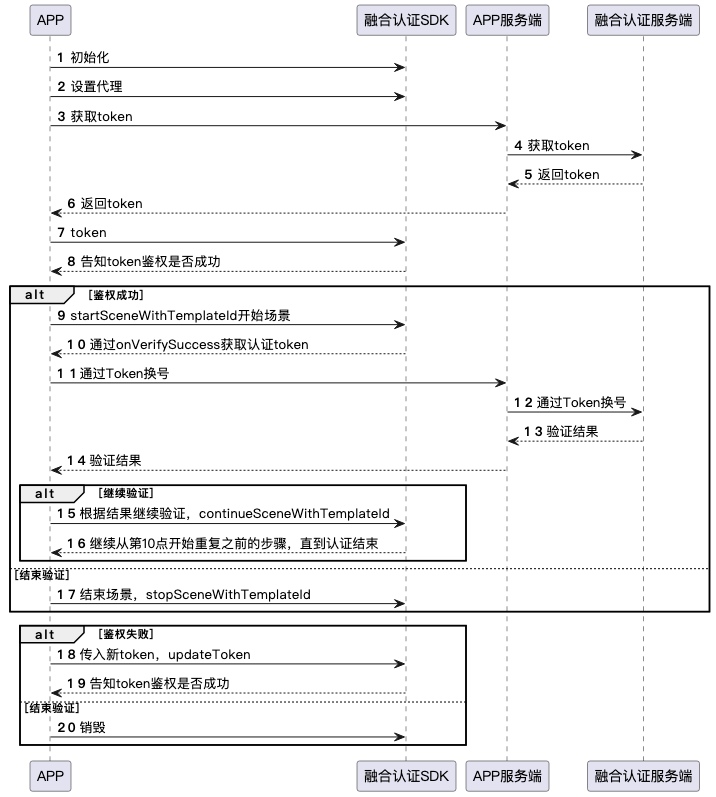
The client initializes the Alibaba Cloud Fusion Authentication SDK.
The server calls the GetFusionAuthToken API to obtain an authentication token. It then sends this token to the client, which provides it to the SDK.
The client displays the scenario authorization page. Some scenarios require user consent, such as accepting the Privacy Policy or requesting an SMS verification code.
After the user grants consent, the client obtains a unified authentication token from the SDK's callback API and uploads it to the server.
The server calls the VerifyWithFusionAuthToken API to exchange the token for the user's mobile number.
SDK methods
Create an instance
// Creates a new instance. This constructor performs initial SDK setup.
AlicomFusionBusiness mAlicomFusionBusiness = new AlicomFusionBusiness();
Initialize the authentication token
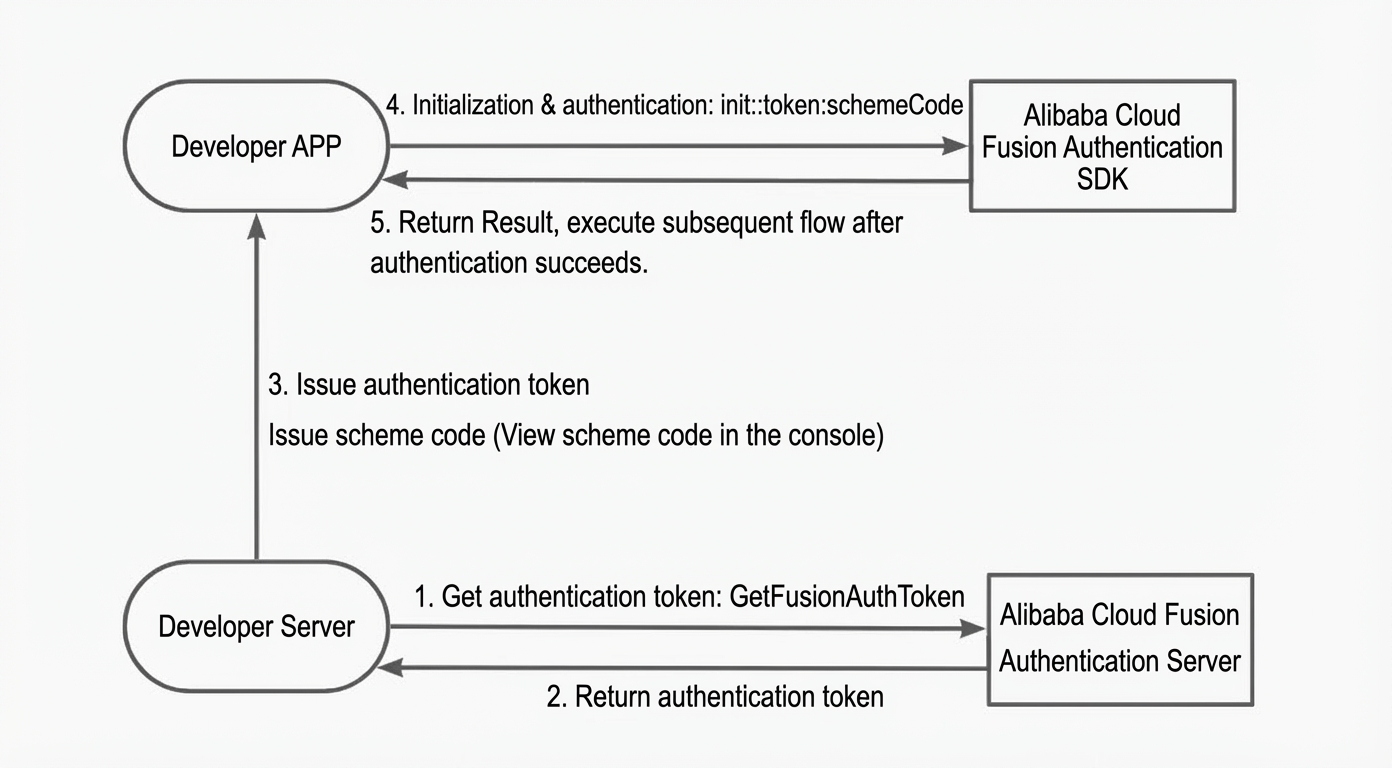
The SDK requires an authentication token at startup to validate requests.
The authentication token must be obtained from your server. For more information, see the GetFusionAuthToken API.
You can get the scene code after creating an authentication scheme in the console. For instructions, see Create an authentication scheme.
/**
 * @param mContext  The application context.
 * @param sceneCode The scene code.
 * @param token     The authentication token.
 */
public void initWithToken(Context mContext, String sceneCode, AlicomFusionAuthToken token)Successful, failed, or expired authentication triggers the main process callback (AlicomFusionAuthCallBack). You must implement the following callbacks:
Successful authentication: Triggers the
onSDKTokenAuthSuccess()callback. You can perform scene operations only after this callback is called.Failed authentication: Triggers the
onSDKTokenAuthFailure()callback.Token update: Triggers the
onSDKTokenUpdate()callback five minutes before the token expires. You must implement this callback to get a new token.
Set callbacks
The SDK uses callbacks to notify you of the status of each node in the process. You must implement the main process callback, AlicomFusionAuthCallBack.
Main process callback AlicomFusionAuthCallBack
/**
 * Called when the token needs to be updated.
 *
 * @return A token object. Your app must obtain the latest token, package it into a token object, and return it.
 * Your implementation must return the token synchronously. The SDK attempts to retrieve it twice, with a 30-second timeout for each attempt. If the SDK does not receive a token within 60 seconds, a timeout error occurs.
 * @note This is a required callback. The SDK calls this callback during handler initialization and five minutes before the token expires to manage the token lifecycle.
 */
AlicomFusionAuthToken onSDKTokenUpdate();

/**
 * Called when the initial token authentication succeeds.
 *
 * @note This is a required callback. You can call the `startScene` API to start a scene only after token authentication is successful.
 * @note We recommend that you do not call the `startScene` API directly in this callback. This callback is triggered by the token authentication event and may be invoked multiple times. Call the `startSceneWithTemplateId` method after this callback returns. For a detailed example, see the demo.
 */
void onSDKTokenAuthSuccess();

/**
 * Called when token authentication fails.
 *
 * @param failToken The incorrect token.
 * @param error     The error definition.
 * @note This is a required callback. It is triggered when initial token authentication fails and when authentication fails after a token update.
 * @note After token authentication fails, you cannot continue to use SDK features. You must destroy and re-initialize the SDK.
 */
void onSDKTokenAuthFailure(AlicomFusionAuthToken failToken, AlicomFusionEvent error);

/**
 * Called when authentication for a node in a scene succeeds.
 *
 * @param token    The unified authentication token.
 * @param nodeName The name of the node that obtained the token.
 * @param event    The event for a successful verification.
 *                 This indicates that the node has obtained its token. You can use this token for operations like changing a phone number or logging in. Based on the operation's result, you can choose to continue or interrupt the process. For a detailed example, see the demo.
 * @note This is a required callback.
 * @note You can use the token for final server-side validation to exchange it for the real phone number. If exchanging the token for the phone number fails, you can use the SDK's `continue` API to proceed with the scene.
 */
void onVerifySuccess(String token, String nodeName, AlicomFusionEvent event);


/**
 * Called when a mid-process node requires validation to continue.
 *
 * @param nodeName     The name of the node that obtained the token.
 * @param maskToken    The unified authentication token.
 * @param event        The event.
 * @param verifyResult The callback.
 *                     This callback is used in the "change phone number" scene to validate the token obtained for the currently logged-in account. Based on the validation result, call the `verifyResult` method of the `HalfWayVerifyResult` callback to determine the next step in the process. For a detailed example, see the demo.
 * @note This is a required callback.
 * @note You can use the `maskToken` for final server-side validation to exchange it for the real phone number. Inform the SDK of the validation result through the `verifyResult` callback. If validation fails, the SDK takes no action. If it succeeds, the process moves to the next node.
 */
void onHalfWayVerifySuccess(String nodeName, String maskToken, AlicomFusionEvent event, HalfWayVerifyResult verifyResult);

/**
 * Called when authentication for a node fails.
 *
 * @param error    The event indicating a token acquisition failure.
 * @param nodeName The name of the node where the token acquisition failed.
 *                 This callback is triggered when authentication fails. Examples include: failing to open the authorization page during phone number verification, failing to get a token, failing to get an SMS message, or an input phone number mismatch when phone number validation is enabled. It is also triggered if an invalid phone number (less than 11 digits) is passed when auto-fill is enabled, or if uplink information cannot be obtained from the uplink SMS interface. After an authentication failure, you can choose to continue or interrupt the process. For a detailed example, see the demo.
 * @note This is a required callback.
 * @note When you receive this callback, it means a token acquisition has failed in the current scene. You can control whether to continue the process.
 */
void onVerifyFailed(AlicomFusionEvent error, String nodeName);

/**
 * The scene process has ended, either normally or due to an error.
 *
 * @param event The error definition.
 *              The internal flow of the Fusion Authentication SDK has ended. You must call `stopSceneWithTemplateId` to stop the flow.
 * @note This is a required callback. The authentication process has ended. If it failed, the failure is irreversible.
 */
void onTemplateFinish(AlicomFusionEvent event);

/**
 * Scene event callback.
 *
 * @param event A click event or user action record.
 *              This callback reports the status of key internal SDK nodes to help with development and quick problem diagnosis.
 * @note This is an optional callback. It handles UI-related events within the SDK scene, such as clicks on various interfaces and page navigations.
 * @note This callback is for event notification only. Do not handle business logic within it.
 */
void onAuthEvent(AlicomFusionEvent event);

/**
 * Called to get the phone number for verification. This can be used to check if the phone number matches user input, or to auto-fill the phone number in a "bind new phone number" scene.
 *
 * @param nodeId The node ID.
 * @param event  The event.
 * @return Returns the phone number currently in use for the next operation.
 * If auto-fill or auto-verification is enabled, you must return a phone number to continue the flow. For a detailed example, see the demo.
 * @note This is a required callback for phone number fields in the SDK's built-in UI.
 */
String onGetPhoneNumberForVerification(String nodeId, AlicomFusionEvent event);

/**
 * Called when the authentication process is interrupted.
 *
 * @param event The reason for the interruption.
 *              The process cannot proceed and is paused on the current screen. While in this state, the SDK ignores calls to start, continue, or stop methods.
 * @note This is a required callback.
 * @note The authentication process is temporarily interrupted. Your app can display corresponding prompts based on different events.
 * @note Trigger conditions: 1. Attempting to authenticate without checking the privacy policy checkbox. 2. Entering an invalid phone number format. 3. The SDK starting or finishing loading a node. 4. Related API availability checks.
 */
void onVerifyInterrupt(AlicomFusionEvent event);
After you implement the main process callback (AlicomFusionAuthCallBack), you must use the following method to set the callback.
/**
 * @param callback The main process callback.
 */
public void setAlicomFusionAuthCallBack(AlicomFusionAuthCallBack callback)While a node is running and awaiting a callback, the SDK ignores calls to Start Scene (startSceneWithTemplateId), Continue Scene (continueSceneWithTemplateId), and Stop Scene (stopSceneWithTemplateId).
Start a scene
Call this API only when no other scene is running. Otherwise, the SDK returns error 100003.
Call this API only after token authentication succeeds.
For scene IDs (
templateId), see Use cases.
/**
 * @param mContext   The application context.
 * @param templateId The scene ID.
 * @param callback   (Optional) The callback for custom UI implementations. Omit this parameter to use the default UI.
 */
public void startSceneWithTemplateId(Context mContext, String templateId, AlicomFusionAuthUICallBack callback)
Default UI
If you use the default UI, you cannot modify it. The following code shows an example:
mAlicomFusionBusiness.startSceneWithTemplateId(<YOUR_CONTEXT>, "100001");Custom UI
You can modify the UI by using the UI process callback (AlicomFusionAuthUICallBack). For more information, see UI process callback. The following code shows an example:
mAlicomFusionBusiness.startSceneWithTemplateId(<YOUR_CONTEXT>, "100001", new AlicomFusionAuthUICallBack() {
    @Override
    public void onPhoneNumberVerifyUICustomView(String templateId, String nodeId, FusionNumberAuthModel authConfig) {
    // Customize one-click logon UI parameters.
    }

    /**
     * Provides the root view of the SMS logon page, allowing for full customization. You must implement the specific appearance and code yourself.
     */
    @Override
    public void onSMSCodeVerifyUICustomView(String templateId, String nodeId, boolean isAutoInput, AlicomFusionVerifyCodeView view) {
      // Remove all default built-in components from the SDK's SMS logon page.
      view.getRootRl().removeAllViews();

      // The SDK's built-in API to get a verification code.
      view.verifyCodeBtnClick("");
      // The SDK's built-in API to submit a verification code.
      view.submitVerifyCodeBtnClick("","");

      // Get the privacy policy TextView object.
      TextView privacyTV = view.getInputView().getPrivacyTV();

      // Customize SMS authentication UI parameters.

    }

    @Override
    public void onSMSSendVerifyUICustomView(String templateId, String nodeId, AlicomFusionUpSMSView view, String receivePhoneNumber, String verifyCode) {
    // Customize uplink SMS authentication UI parameters.
    }
});
Scene process
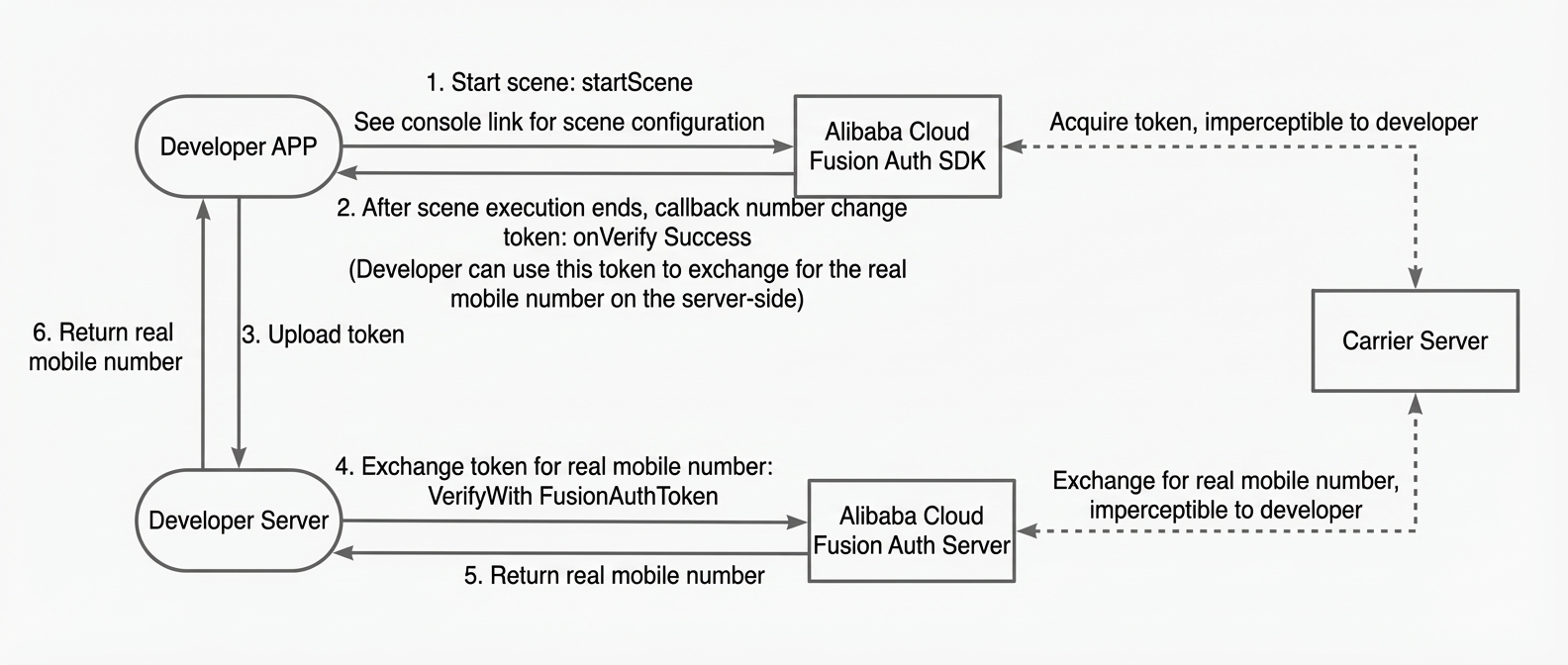
Executing a scene triggers the main process callback (AlicomFusionAuthCallBack). You must implement the following callbacks:
Successful token acquisition: Triggers the
onVerifySuccess()callback, which returns the unified authentication token for the current node. After you obtain this token, you can exchange it for a phone number by using the VerifyWithFusionAuthToken API.Failed token acquisition: Triggers the
onVerifyFailed()callback. After receiving this callback, you can either continue the scene to proceed to the next verification node or stop the scene.Successful mid-process token acquisition: Triggered for scene ID 100002 when verifying the current phone number node. This triggers the
onHalfWayVerifySuccess()callback. After you validate the current phone number, inform the SDK of the result by usingverifyResult. The SDK then proceeds based on this result.Scene process finished: Triggers the
onTemplateFinish()callback. You must call the method to stop the scene.
Continue a scene
Use this API to resume an interrupted scene. For example, if server-side validation of the unified authentication token fails, call this API to resume the scene.
Call this API only after a scene has started.
/**
 * @param templateId The scene ID.
 * @param isSuccess  Whether the current scene validation was successful. This determines the subsequent process flow. For example, if a number retrieval operation fails and you need to proceed to the next authentication step, you can use this parameter to control the flow.
 */
public void continueSceneWithTemplateId(String templateId, boolean isSuccess)Stop a scene
Call this API to stop the current scene.
Call this API only after a scene has started. After you stop a scene, you can start the next scene. The SDK does not support running multiple scenes concurrently.
/**
 * @param templateId The scene ID.
 */
public void stopSceneWithTemplateId(String templateId)
Destroy the service
Destroying the service synchronously destroys all internal SDK modules. You must re-initialize the SDK to use it again.
public void destroy()Additional methods
UMeng component dependencies
To use the endpoint risk detection and phone number risk score features, configure the AAR for the UMeng component and call the following method to control its initialization.
This is an optional dependency. You must import the AAR for this setting to take effect.
/**
 * Sets whether the SDK initializes the UMeng analytics component.
 * @note The SDK manages the UMeng component by default. You can ignore this method if your app does not use the UMeng component.
 * However, if your app already integrates a UMeng component, set isUseSupply to false to prevent duplicate initialization.
 * In this case, ensure you initialize your app's UMeng component before using this SDK.
 * @param isUseSupply true to use the UMeng component supplied by the SDK; false to use your app's existing UMeng component. Defaults to true.
 * @param channel The channel name.
 */
public static void useSDKSupplyUMSDK(boolean isUseSupply,String channel)Authentication token update
This is an optional method. The SDK automatically monitors the token's lifetime and notifies your app through the AlicomFusionAuthCallBack callback before the token expires.
The authentication token has a limited lifetime. You can call this method to proactively update the token before it expires. For details on token updates, see initWithToken.
/**
 * @param token The authentication token.
 */
public void updateToken(AlicomFusionAuthToken token)SDK version
/**
 * @return The SDK version.
 */
public static String getSDKVersion()Scene ID
/**
 * @return The ID of the currently running scene.
 */
public String getCurrentTemplateId()Logging
/**
 * @param logEnable true to enable logging; false to disable it. Logging is enabled by default.
 */
public static void setLogEnable(boolean logEnable)Notched screen adaptation
/**
 * @param adapterPageShape true to adapt the UI for notched screens; false to disable adaptation. Defaults to false.
 */
public void adapterPageShape(boolean adapterPageShape)Screen orientation
You must call this method after initWithToken. Otherwise, this setting has no effect.
// 1: portrait; 2: landscape. Default: 1 (portrait).
private volatile int screenOretation = 2;Built-in CAPTCHA module
/**
 * Sets whether to use the SDK's built-in CAPTCHA module.
 * @note By default, the SDK uses its built-in CAPTCHA module. If your app does not have a CAPTCHA component, you can ignore this method.
 * If your app already includes a CAPTCHA component, set `isUseCaptcha` to `false` to use your existing component.
 * Ensure you initialize your component before using this SDK.
 * @param isUseCaptcha true to use the SDK's built-in CAPTCHA module; false to use your app's existing CAPTCHA component. Defaults to true.
 */
public static void useSDKSupplyCaptchaModule(boolean isUseCaptcha)Console API
UI callback AlicomFusionAuthUICallBack
/**
 * Customizes the UI for one-click login.
* @note The one-click login UI supports limited customization through the FusionNumberAuthModel parameter. * Important: Do not modify any view ID attributes, as this may cause some features to malfunction. * @param templateId The template ID. * @param nodeId The node ID. * @param authConfig The configuration for custom UI properties. */ void onPhoneNumberVerifyUICustomView(String templateId, String nodeId, FusionNumberAuthModel authConfig); /** * Customizes the UI for SMS verification code authentication. * @note The entire AlicomFusionVerifyCodeView object is fully customizable. * Important: Do not modify any view ID attributes, as this may cause some features to malfunction. * @param templateId The template ID. * @param nodeId The node ID. * @param isAutoInput Specifies whether to autofill the phone number field. * If true, the SDK autofills the field with the phone number from the onGetPhoneNumberForVerification callback. * @param view The view for the SMS verification code UI. You are responsible for its implementation. */ void onSMSCodeVerifyUICustomView(String templateId, String nodeId, boolean isAutoInput, AlicomFusionVerifyCodeView view); /** * Customizes the UI for uplink SMS authentication. * @note Important: Do not modify any view ID attributes, as this may cause some features to malfunction. * @param templateId The template ID. * @param nodeId The node ID. * @param view The view for the uplink SMS authentication UI. * @param receivePhoneNumber The receiving phone number. * @param verifyCode The SMS content. */ void onSMSSendVerifyUICustomView(String templateId, String nodeId, AlicomFusionUpSMSView view, String receivePhoneNumber, String verifyCode);FusionNumberAuthModel: Custom UI parameters for one-click login
public class FusionNumberAuthModel {
    // Enables an alternative phone number login.
    public void otherPhoneLogin()

    // Adds a custom XML layout.
    @AuthNumber
    public void addAuthRegisterXmlConfig(AuthRegisterXmlConfig xmlConfig)

    // Adds a custom View.
    public void addAuthRegistViewConfig(String viewID, AuthRegisterViewConfig viewConfig)

    // Removes the custom XML layout.
    public void removeAuthRegisterXmlConfig()

    // Removes the custom View.
    public void removeAuthRegisterViewConfig()

    /**
     * Sets a listener for UI control click events.
     *
     * @param uiClickListener The listener that handles click events.
     */
    public void setUiClickListener(AuthUIControlClickListener uiClickListener)

    /**
     * Sets the callback for a click on the switch component.
     *
     * @param callBack The callback to invoke when the switch component is clicked.
     */
    public void setSwitchLoginBack(AlicomFusionSwitchLogin callBack)

    // Returns the builder instance. For its methods, see the following table.
    public Builder getBuilder()
}
Authorization navigation bar
Authorization logo
Slogan
Number field
Login button
Authorization page privacy bar
Switch control
Page configuration
Parameters
Xml for login screen
/**
 * @param xmlConfig
 */
@AuthNumber
public void addAuthRegisterXmlConfig(AuthRegisterXmlConfig xmlConfig)View for login screen
/**
 * @param viewID     The ID of the view.
 * @param viewConfig The dynamic configuration for the view.
 */
public void addAuthRegistViewConfig(String viewID, AuthRegisterViewConfig viewConfig)Xml for pop-up screen
/**
 * @param xmlConfig
 */
public void addPrivacyRegisterXmlConfig(AuthRegisterXmlConfig xmlConfig)View for pop-up screen
/**
 * @param viewID The ID of the view.
 * @param viewConfig The dynamic configuration for the view.
 */
public void addPrivacyAuthRegistViewConfig(String viewID, AuthRegisterViewConfig viewConfig)SMS authentication custom UI parameters AlicomFusionVerifyCodeView
public class AlicomFusionVerifyCodeView {
    // Title area.
    private RelativeLayout titleRl;
    // Back button.
    private ImageView returnImg;
    // Title text.
    private TextView titleContentTV;
    // Phone number auto-fill area.
    private AlicomFusionAutoInputView autoInputView;
    // Phone number manual input area.
    private AlicomFusionInputView inputView;
    // Verification code input and sending area.
    private AlicomFusionSendVerifyCodeView sendVerifyCodeView;

    // Sends a verification code.
    public void verifyCodeBtnClick(String phoneNumber)

    // Verifies the verification code.
    public void submitVerifyCodeBtnClick(String phoneNumber, String code)
}
Auto-fill
public class AlicomFusionAutoInputView {
    /** Layout that displays the phone number and hint message in the auto-fill view. */
    private RelativeLayout autoInputMsgRL;
    /** TextView that displays the phone number in the auto-fill view. */
    private TextView autoInputPhoneNumTV;
    /** TextView that displays the hint message in the auto-fill view. */
    private TextView autoInputPhoneHintTV;
     /** A button that requests a verification code in the auto-fill view. */
    private TextView autoInputRequestCodeTV;
}
Manual input
public class AlicomFusionInputView {
    /** Layout that contains the country code and phone number input field. */
    private RelativeLayout inputNumberContentRL;
    /** TextView that displays the country code. */
    private TextView mCountryTV;
    /** The phone number input field. */
    private EditText inputNumberET;
    /** A button that requests a verification code in the manual input view. */
    private TextView inputNumberRequestCodeTV;
    /** Layout for the agreement section. */
    private RelativeLayout privacyRL;
    /** The agreement checkbox. */
    private CheckBox agreePrivacy;
    /** TextView that displays the agreement text. */
    private TextView privacyTV;
}
Verification code
public class AlicomFusionSendVerifyCodeView {
    /** TextView that displays a hint message. */
    private TextView sendSmsHint;
    /** Layout for the verification code input fields. */
    private RelativeLayout sendSmsCodeRL;
    /** Input field for the first digit of the verification code. */
    private EditText firstCode;
    /** Input field for the second digit of the verification code. */
    private EditText secondCode;
    /** Input field for the third digit of the verification code. */
    private EditText thirdCode;
    /** Input field for the fourth digit of the verification code. */
    private EditText fourCode;
    /** Input field for the fifth digit of the verification code. */
    private EditText fifthCode;
    /** Input field for the sixth digit of the verification code. */
    private EditText sixthCode;
    /** A button that submits the verification code. */
    private TextView sendSmsCode;
}
Custom UI parameters AlicomFusionUpSMSView
public class AlicomFusionUpSMSView {
    // Layout for the top navigation area.
    private RelativeLayout titleRl;
    // Back button.
    private ImageView returnImg;
    // Title text view.
    private TextView titleContentTV;
    // Layout for the prompt message area.
    private RelativeLayout remindRl;
    // Displays the prompt message.
    private TextView smsRemindTV;
    // Layout for the SMS content area.
    private RelativeLayout smsContentRl;
    // Displays the SMS content.
    private TextView smsContentTV;
    // Layout for the recipient number area.
    private RelativeLayout receiveSmsNumberRl;
    // Displays the recipient number.
    private TextView receiveSmsNumberTV;
    // Sends the SMS.
    private TextView sendSmsTV;
    // Confirms that the SMS has been sent.
    private TextView HadSenTSmsTV;

    // Sends an uplink SMS.
    public void gotoSendUpSms(String receivePhoneNumber, String verifyCode)

    // Verifies that the SMS has been sent.
    public void upSmsAlreadySend()
}