Build a cloud knowledge base with PolarSearch and Dify
Dify is an open-source Large Language Model (LLM) application development platform. Its simple interface lets you manage models, build retrieval-augmented generation (RAG) and Agent applications, and provides observability features. The PolarSearch vector database now seamlessly integrates with Dify (Define + Modify). Powered by the elastic computing capabilities of PolarSearch, the system intelligently adapts to your business scale, providing efficient, on-demand retrieval services for large-scale data processing.
Prerequisites
Cluster configuration requirements
-
Product Edition: Enterprise Edition.
-
Database engine:
-
PostgreSQL 18 (kernel minor version 2.0.18.3.2.0 or later)
-
PostgreSQL 17 (kernel minor version 2.0.17.9.6.0 or later)
-
PostgreSQL 16 (kernel minor version 2.0.16.11.15.0 or later)
-
PostgreSQL 15 (kernel minor version 2.0.15.17.8.0 or later)
-
PostgreSQL 14 (kernel minor version 2.0.14.22.43.0 or later)
-
Supported regions and availability zones
PolarSearch is supported in the following availability zones:
|
Region |
Availability zone |
|
China (Hangzhou) |
Zone B, Zone I, Zone J, Zone K |
|
China (Shanghai) |
Zone E, Zone F, Zone L, Zone N |
|
China (Shenzhen) |
Zone C, Zone D, Zone F |
|
China (Beijing) |
Zone F, Zone L, Zone I, Zone K |
|
China (Zhangjiakou) |
Zone A, Zone B, Zone C |
|
China (Ulanqab) |
Zone B, Zone C |
|
China (Hong Kong) |
Zone B, Zone C, Zone D |
|
Singapore |
Zone A, Zone B |
|
Japan (Tokyo) |
Zone B, Zone C |
|
South Korea (Seoul) |
Zone A, Zone B |
|
Germany (Frankfurt) |
Zone A |
|
US (Silicon Valley) |
Zone B |
|
US (Virginia) |
Zone A, Zone B |
|
Philippines (Manila) |
Zone A |
If you need support for additional availability zones, submit a ticket.
Procedure
Create a PolarSearch cluster
-
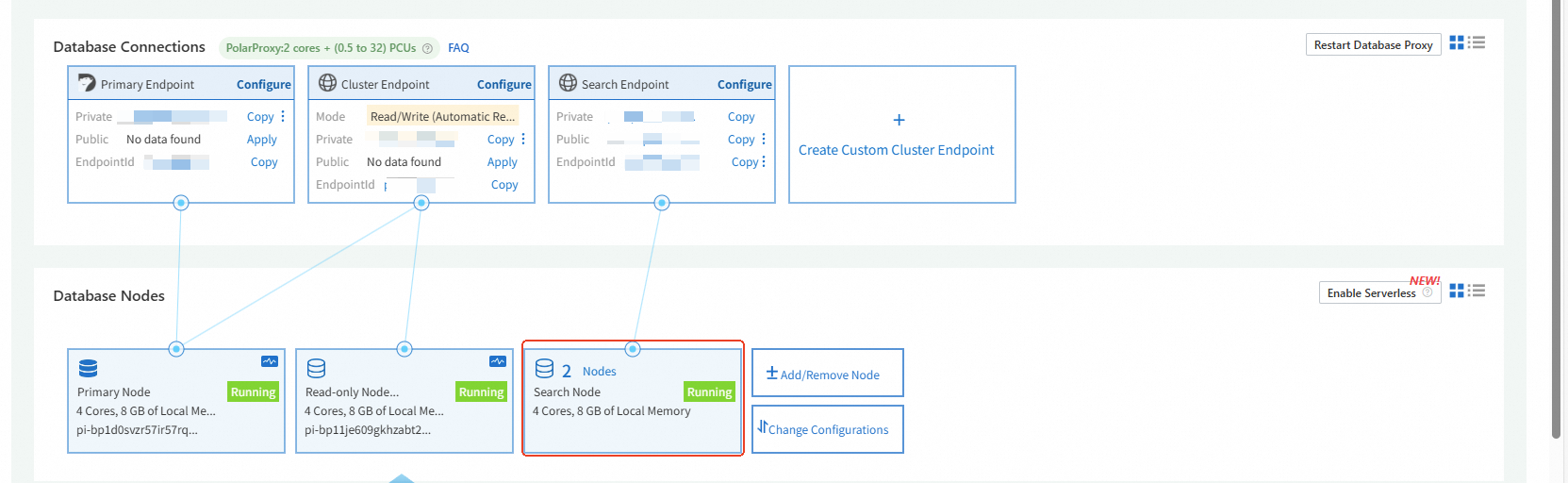
Add PolarSearch search nodes and create a Create search node accounts.
-
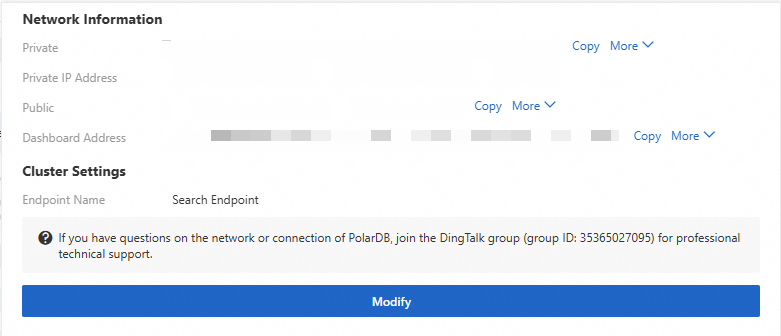
View the connection information and dashboard address for PolarSearch.
Obtain an embedding model service
You can use an embedding model service from Model Studio or another platform. This example shows how to get an API key from your Model Studio account.
On the Key Management page, select the API-Key tab and click + Create API-KEY in the upper-right corner to create a key. After creation, click the copy icon next to the key value in the API Key list to copy the API key.
Deploy Dify
Dify offers two deployment options: a cloud service and a self-hosted community edition. The cloud service uses Weaviate as the default vector database. To use PolarSearch, you must deploy the self-hosted community edition of Dify.
-
To deploy Dify quickly, use Docker Compose. The required docker-compose.yaml file is available in the Dify open source repository.
-
Configure PolarSearch as the vector database.
-
Modify the
.envconfiguration file.vim .env -
Set the vector database to opensearch.
NotePolarSearch is a high-performance, distributed data retrieval and analysis engine developed by PolarDB based on OpenSearch. Therefore, you must set the
VECTOR_STOREtoopensearchin the Dify configuration file.VECTOR_STORE=opensearch -
Configure the connection parameters for PolarSearch:
# OpenSearch configuration, only available when VECTOR_STORE is 'opensearch'
OPENSEARCH_HOST=********public.polardbsearch.rds.aliyuncs.com
OPENSEARCH_PORT=****
OPENSEARCH_USER=*****
OPENSEARCH_PASSWORD=*****
OPENSEARCH_SECURE=false
-
-
Run the startup command.
docker compose up -d
Configure model providers
You must configure the API key for each provider before you can use its services.
Example
This example shows how to obtain the API key for Qwen.
-
Log in to the Dify management console.
-
Click your profile picture and select Settings.
-
On the Workspace page, select Model Providers.
-
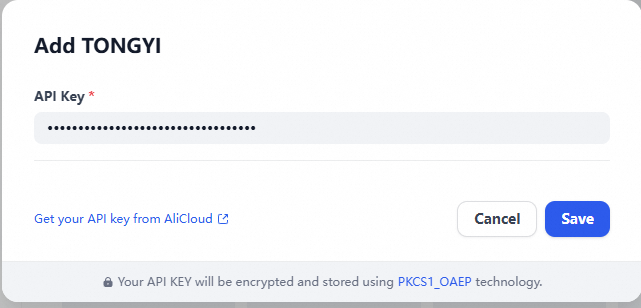
In the Models list, find the Qwen model and click Set.
-
On the configuration page, enter your API key.
Build a cloud knowledge base
To create a knowledge base, you will upload documents and configure text processing and retrieval settings.
-
In the top navigation bar, select Knowledge Base, and then click
 Create Knowledge Base.
-
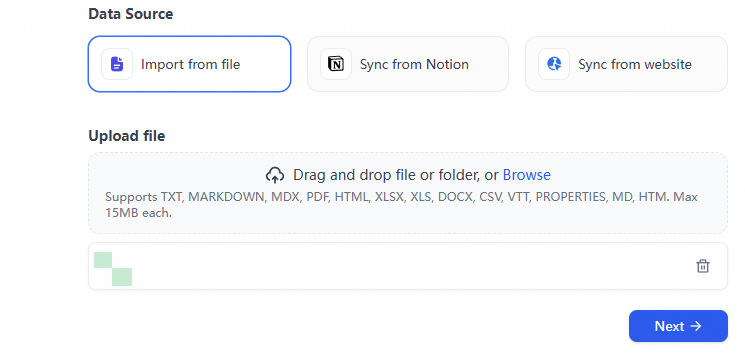
Import and process the document.
-
Import text data.
-
Specify the text pre-processing rules. Select the General mode and configure the following parameters:
-
Segment Identifier:
\n\n -
Maximum Segment Length:
1024characters -
Segment Overlap Length:
50characters
In the text preprocessing rules, select Replace consecutive spaces, line breaks, and tabs.
-
-
Specify the index method. On the Retrieval Settings page, select a retrieval mode. The options include:
-
Vector Retrieval: You can enable a Rerank model (such as
gte-rerank) and set Top K (default: 3) and Score Threshold. -
Full-Text Retrieval: Indexes all words in documents and returns text segments that contain the query words.
-
Hybrid Retrieval (recommended): Performs both full-text retrieval and vector retrieval, and applies reranking.
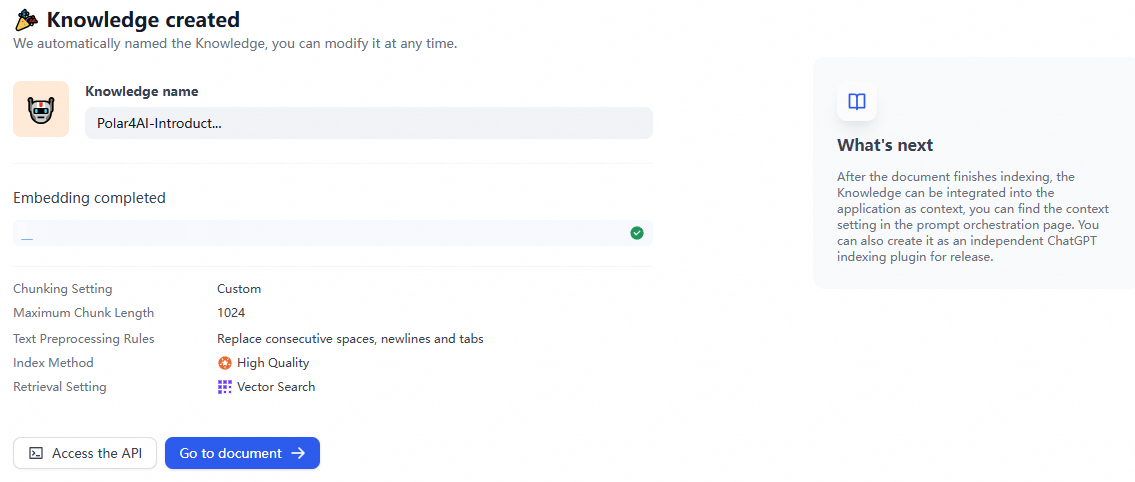
After the configuration is complete, click Save & Process.
-
-
Specify the retrieval settings and click Save & Process. The retrieval methods include Vector Retrieval, Full-Text Retrieval, and Hybrid Retrieval (recommended). When you select Vector Retrieval, you can enable a Rerank model (such as gte-rerank) and set Top K (example value: 3) and Score Threshold (example value: 0.5).
-
After processing is complete, click Go to document ->.

-
-
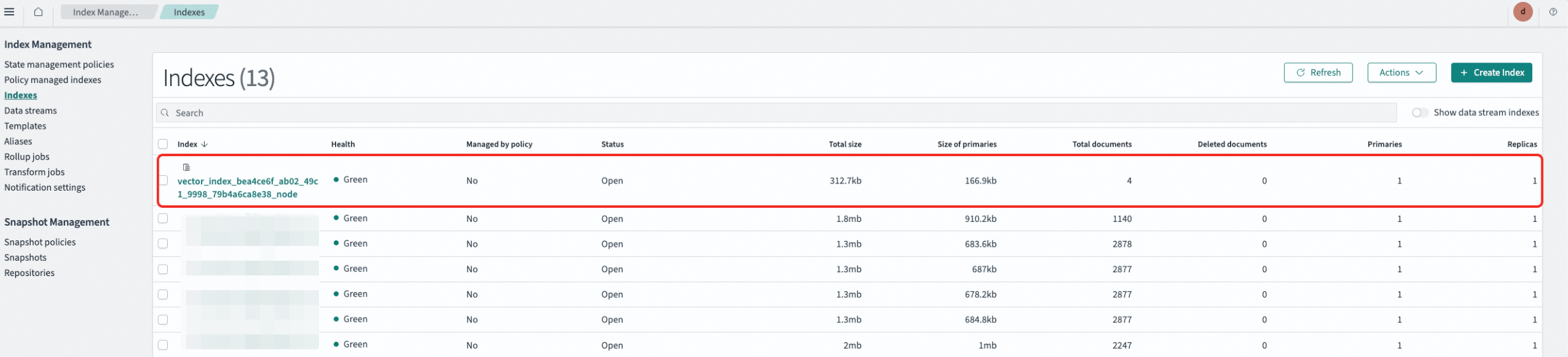
Return to PolarSearch to view the vector index data.
-
Click
, select Index Management, and then click Indexes to view the vector index. -
Click
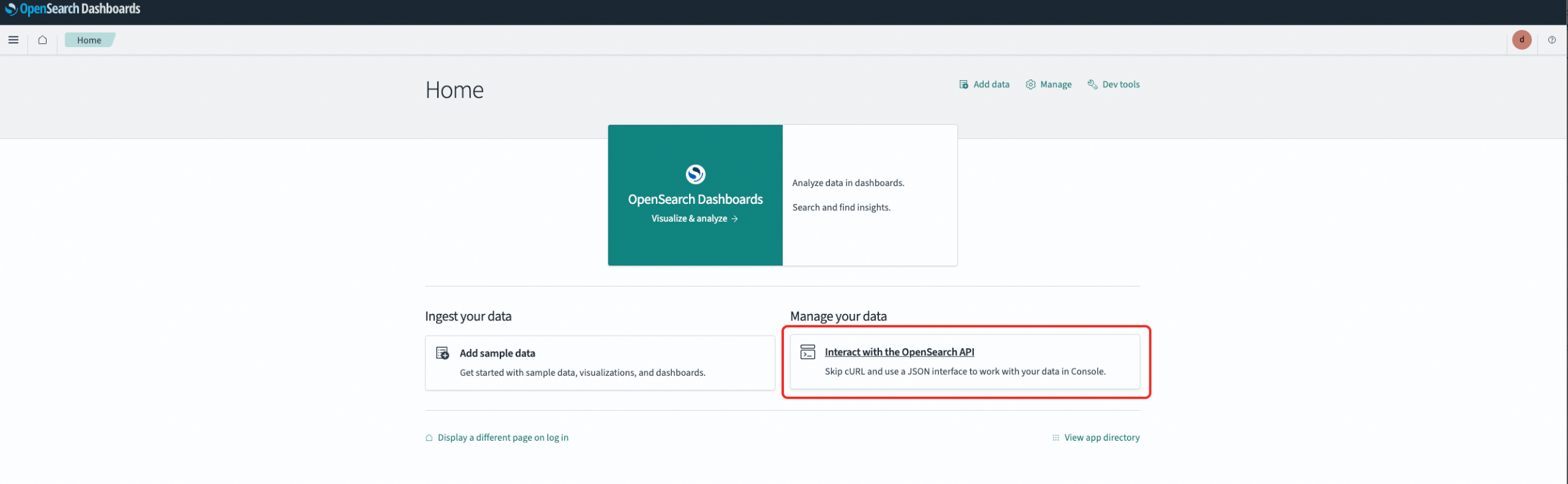
in the upper-left corner to return to the home page, and then click Interact with the OpenSearch API to go to the API interaction page. -
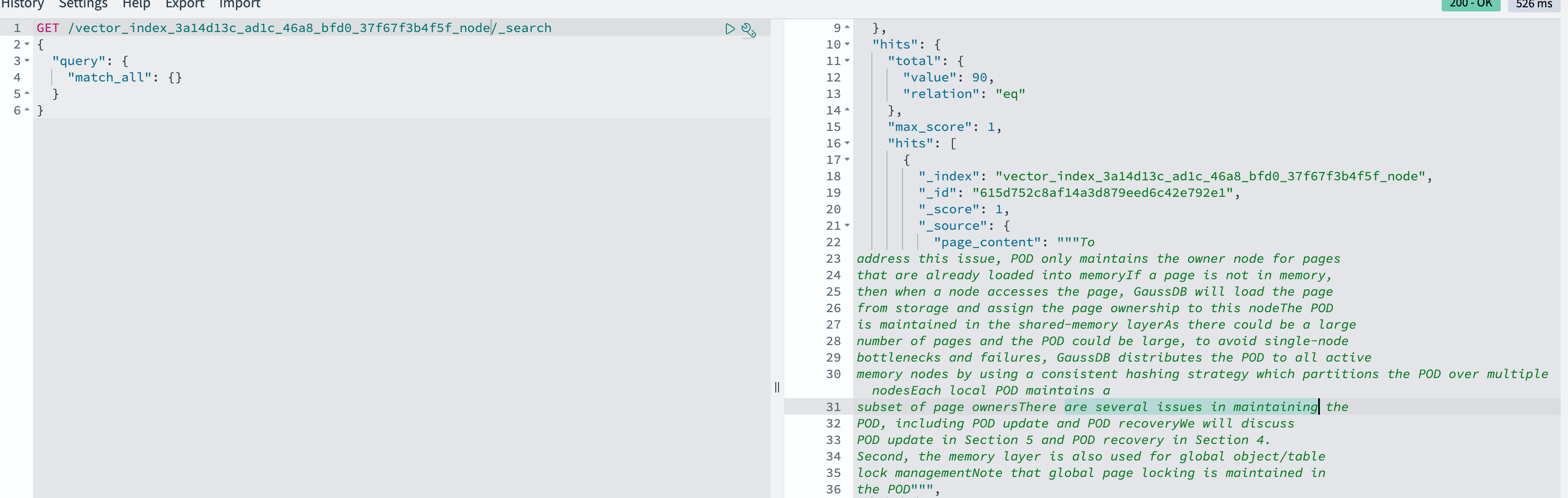
Query the vector index to verify that the data was written successfully.
-
 , select Index Management, and then click Indexes to view the vector index.
 in the upper-left corner to return to the home page, and then click Interact with the OpenSearch API to go to the API interaction page.