Customize alert recipients with a webhook

更新时间:
复制 MD 格式

When you create a notification policy, you can send alert notifications to a custom webhook URL. The alert management feature lets you send alerts to third-party services through a webhook integration. This topic uses Lark as an example to show how to create and configure a webhook for alerts.

Step 1: Get a webhook URL

  1. Open and log on to Lark.

  2. Click the + icon, and then click Create Group to create a group for receiving alerts.

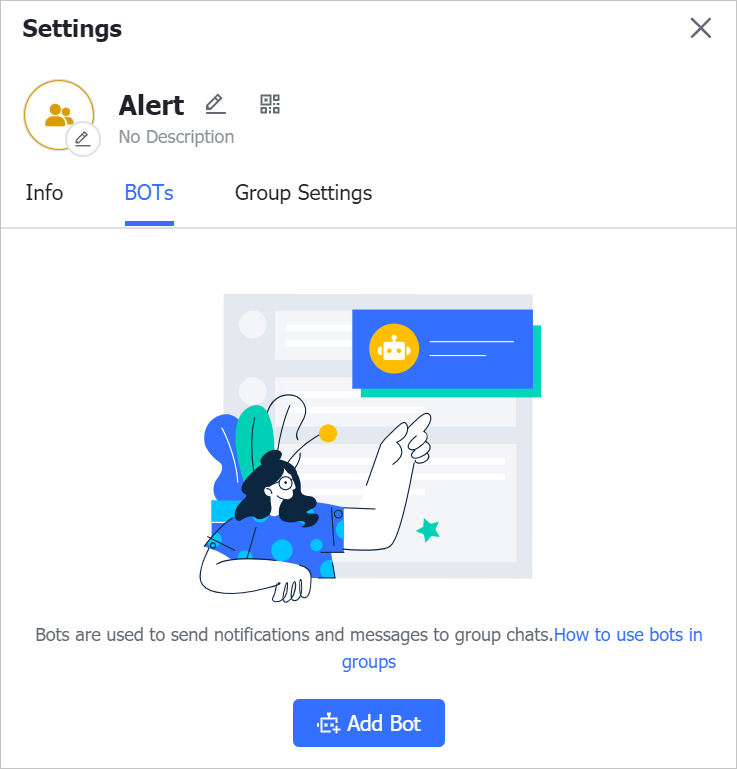
  3. Click the group settings icon, and then click the Bots tab.

  4. On the Bots tab, click Add Bot.

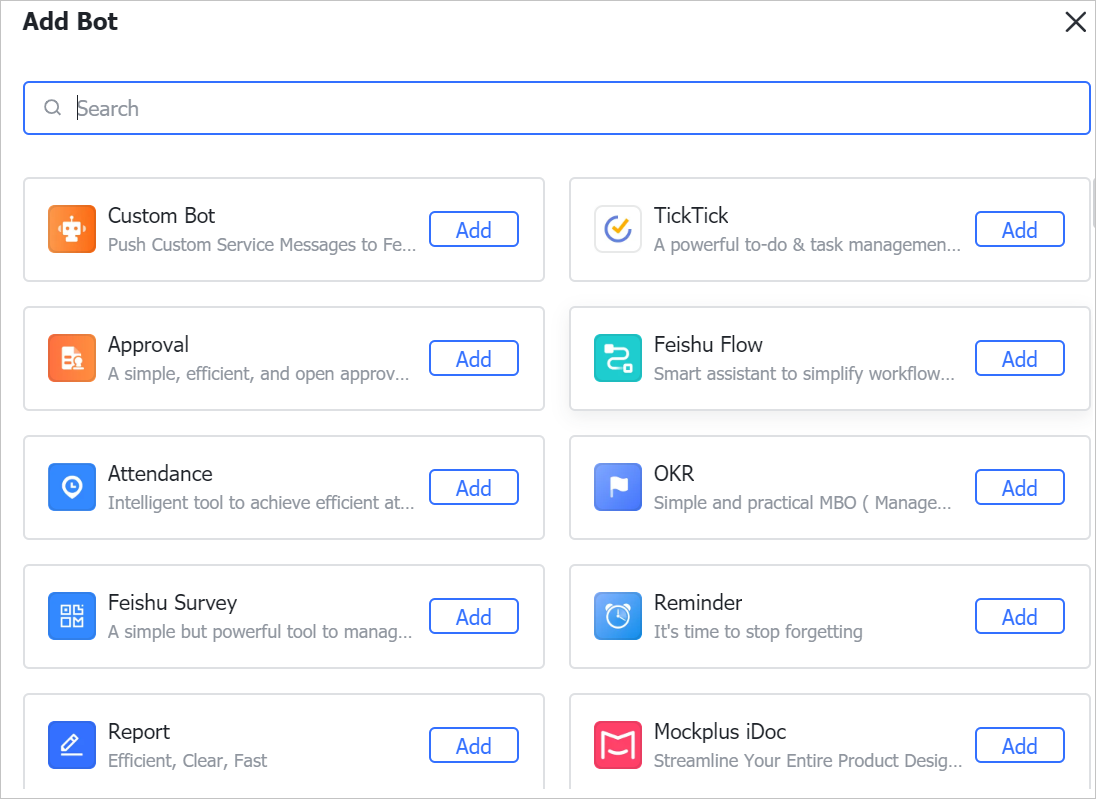
  5. In the Add Bot panel, select Custom Bot.
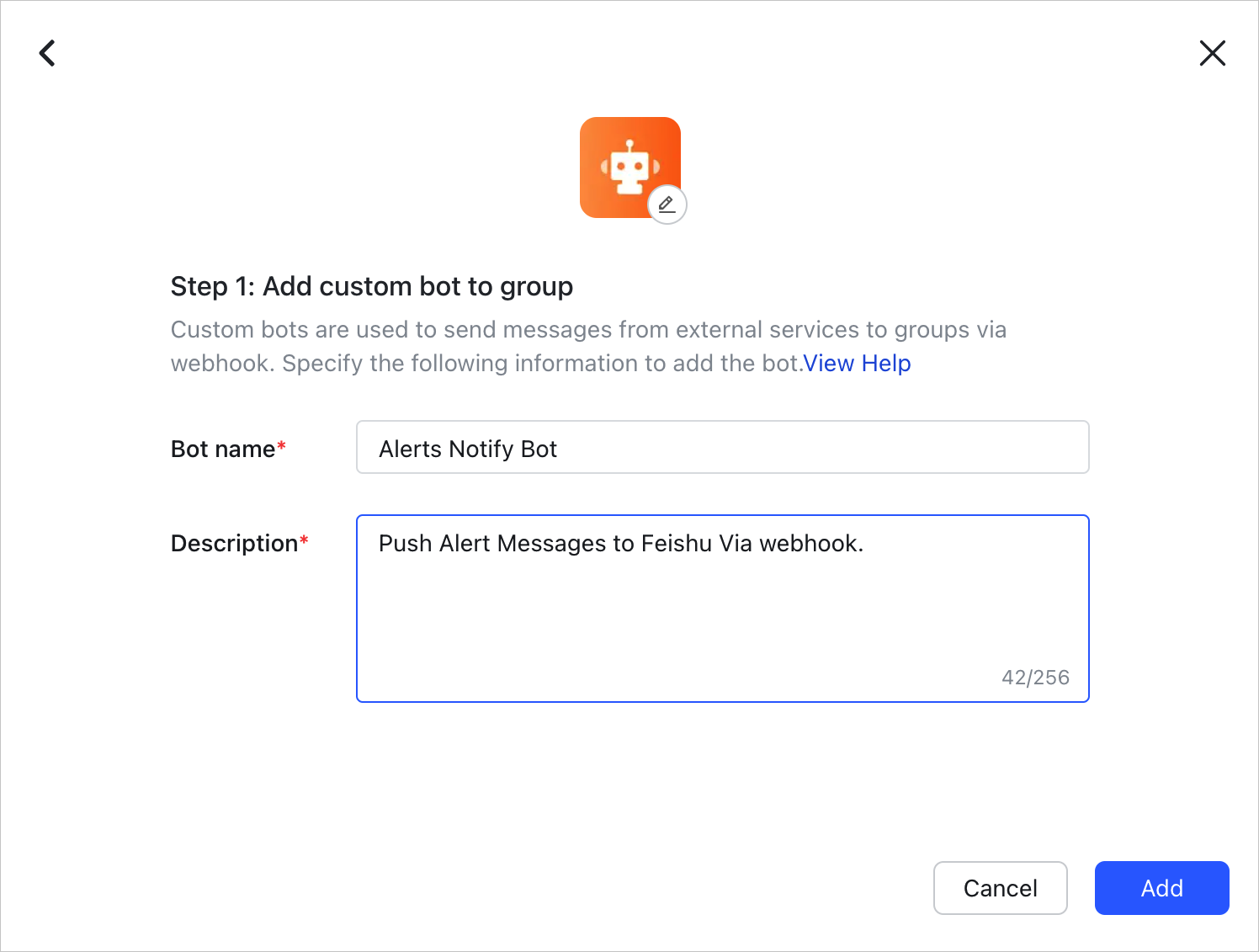
  6. On the configuration page, set the Display name and Description, and then click Add.

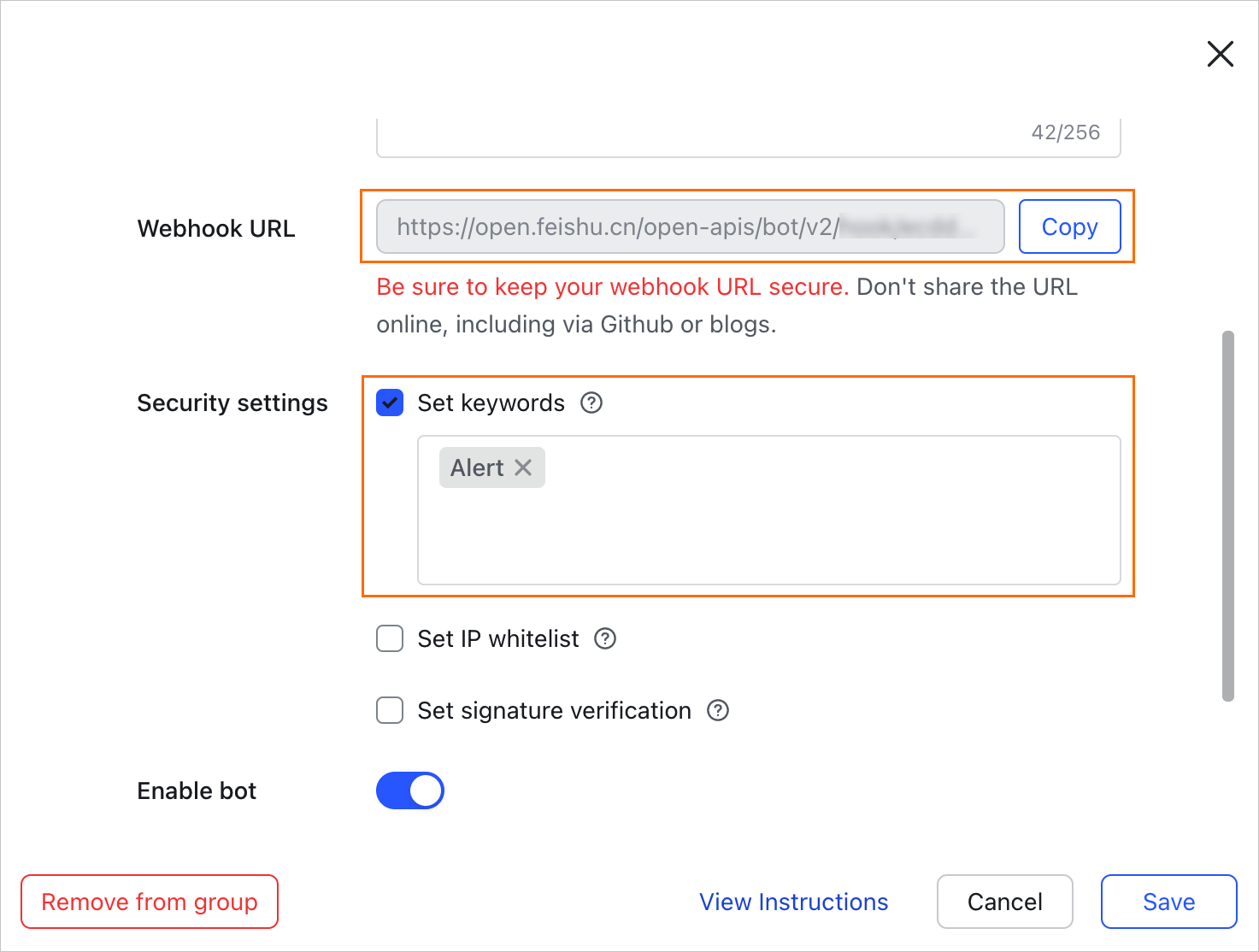
  7. In the Webhook URL section, click Copy Link, and then click Finish.

    In the Security Settings section, select the Custom Keywords checkbox and add the keyword alert.

Step 2: Create a webhook integration

  1. Log on to the Managed Service for Prometheus console. In the left navigation pane, choose Alert Management > Notification Objects.

  2. Click the Webhook integration tab, click Create webhook in the upper-right corner, and configure the following parameters in the Create webhook panel.

    Parameter

    Description

    Webhook name

    Enter a custom name for the webhook.

    Request method

    Select the request method, POST or GET, and enter a URL that starts with http:// or https://. The URL cannot exceed 100 characters.

    For this example, select POST and paste the webhook URL that you obtained in Step 1: Get a webhook URL into the text box on the right.

    Header, param

    Set the request header and parameters. Each header and parameter cannot exceed 200 characters.

    Click + Add to add more header or parameter information. The default request header is Content-Type: text/plain; charset=UTF-8. The total number of headers and parameters cannot exceed six.

    For this example, set the following two headers:

    • Arms-Content-Type : json

    • Content-Type : application/json

    If you select POST as the request method, you must also configure the following parameters.

    Notification template

    The template for notifications of triggered alerts. You can use the $content placeholder to output the notification content. The template cannot exceed 500 characters. For more information, see Configure notification templates and webhook templates.

    The following is a sample notification template:

    {
    "Alert name":"{{ .commonLabels.alertname }}{{if .commonLabels.clustername }}",
    "Cluster name":"{{ .commonLabels.clustername }} {{ end }}{{if eq "app" .commonLabels._aliyun_arms_involvedObject_kind }}",
    "Application name":"{{ .commonLabels._aliyun_arms_involvedObject_name }} {{ end }}",
    "Notification policy":"{{ .dispatchRuleName }}",
    "Alert time":"{{ .startTime }}",
    "Alert content":"{{ for .alerts }} {{ .annotations.message }} {{ end }}"
    }

    For the Lark example, you can set the following text format:

    {
      "msg_type": "text",
      "content": {
        "text": "Alert name: {{ .commonLabels.alertname }}\n{{if .commonLabels.clustername }}Cluster name: {{ .commonLabels.clustername }}\n{{ end }}{{if eq "app" .commonLabels._aliyun_arms_involvedObject_kind }}Application name: {{ .commonLabels._aliyun_arms_involvedObject_name }}\n{{ end }}Notification policy: {{ .dispatchRuleName }} \nAlert time: {{ .startTime }} \nAlert content: {{ for .alerts }} {{ .annotations.message }}\n {{ end }}"
      }
    }

    Template to Clear Alerts

    The template for notifications sent when an alert is resolved. You can use the $content placeholder to output the notification content. The template cannot exceed 500 characters. For more information, see Configure notification templates and webhook templates.

    The following is a sample:

    {
    "Alert name":"{{ .commonLabels.alertname }}{{if .commonLabels.clustername }}",
    "Cluster name":"{{ .commonLabels.clustername }} {{ end }}{{if eq "app" .commonLabels._aliyun_arms_involvedObject_kind }}",
    "Application name":"{{ .commonLabels._aliyun_arms_involvedObject_name }} {{ end }}",
    "Notification policy":"{{ .dispatchRuleName }}",
    "Recovery time":"{{ .endTime }}",
    "Alert content":"{{ for .alerts }} {{ .annotations.message }} {{ end }}"
    }

    For the Lark example, you can set the following text format:

    {
      "msg_type": "text",
      "content": {
        "text": "Alert name: {{ .commonLabels.alertname }}\n{{if .commonLabels.clustername }}Cluster name: {{ .commonLabels.clustername }}\n{{ end }}{{if eq "app" .commonLabels._aliyun_arms_involvedObject_kind }}Application name: {{ .commonLabels._aliyun_arms_involvedObject_name }}\n{{ end }}Recovery time: {{ .startTime }} \nNotification policy: {{ .dispatchRuleName }} \nResolved alert content: {{ for .alerts }} {{ .annotations.message }}\n {{ end }}"
      }
    }
  3. (Optional) Click Test to verify your configuration.

  4. Click OK.

Step 3: Set up a notification policy

Create or edit a notification policy. For Notification objects, select Universal webhook, and then select the webhook integration that you created. For more information, see Notification policy.

Note

The timeout for a webhook request is 5 seconds. If the endpoint does not respond within this time, the notification delivery fails.