View alert sending history
On the Alert Sending History page, you can filter and view alerts dispatched by notification policies and manage them.
Access the feature
Log on to the Managed Service for Prometheus console. In the left navigation pane, choose .
Alerts
The Alerts page displays basic information about alerts, such as alert level, name, and handler.
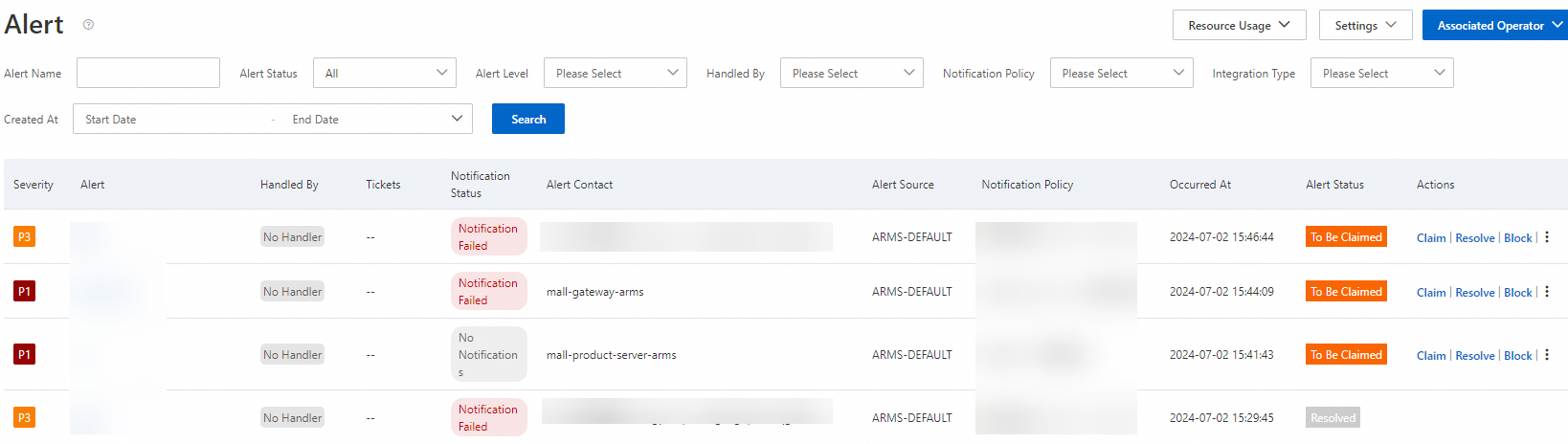
For unresolved alerts, you can claim, resolve, block, specify a handler, or modify the alert level. For more information, see Manage alerts.
Filter alerts
Specify one or more filter conditions and click Search to find specific alerts.
|
Parameter |
Description |
|
Alert name |
The name of the alert rule that triggered the alert. |
|
Alert status |
The current status of the alert. Possible statuses are:
|
|
Alert level |
The severity level of the alert. When you create a Prometheus alert rule, you can specify the level for alerts triggered by the rule. The following alert levels are available:
|
|
Handler |
The handler of the alert. |
|
Notification policy |
The notification policy associated with the alert. |
|
Integration type |
The integration type for the alert event.
|
|
Creation time |
The time range during which the alert was generated. |
View alert details
Click an alert name to view its details. The Alert Details page displays the alert level, dispatch information, status, basic information, associated events, and activity records.
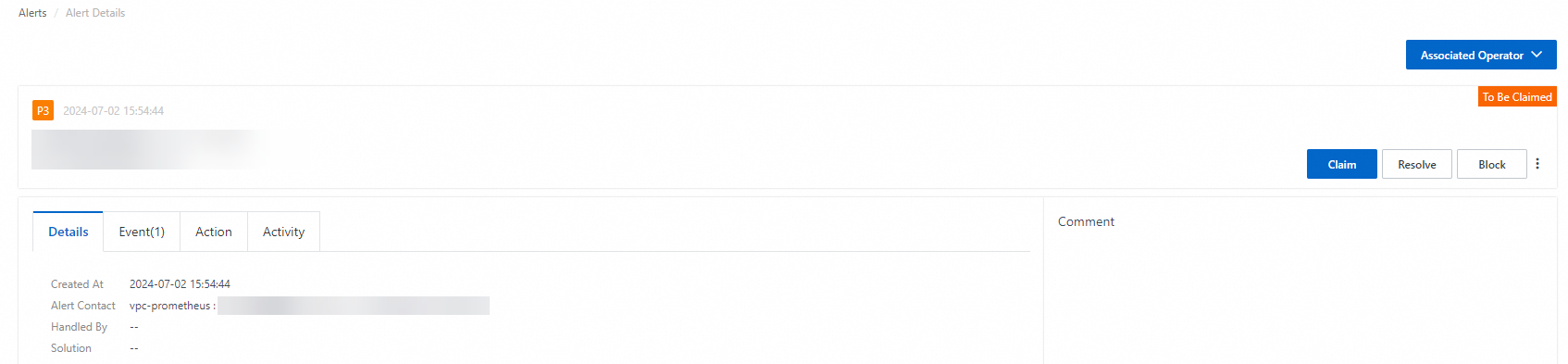
On the Alert Details page, you can perform the following operations:
For unresolved alerts, you can claim, resolve, block, specify a handler, or modify the alert level. For more information, see Manage alerts.
On the Details, Event, Action, and Activity tabs, you can view the following information:
-
The Details tab displays the alert creation time, alert object, handler, and notification recipients.
-
The Event tab displays associated events, event creation times, and event statuses. You can click an event name to view its details. For more information, see View event details.
-
The Action tab displays the action records of the alert.
-
The Activity tab displays the activity records of the alert.
View event details
On the Event tab, click the event that you want to view. The Event Details panel displays the basic information, monitoring data, and extended fields.
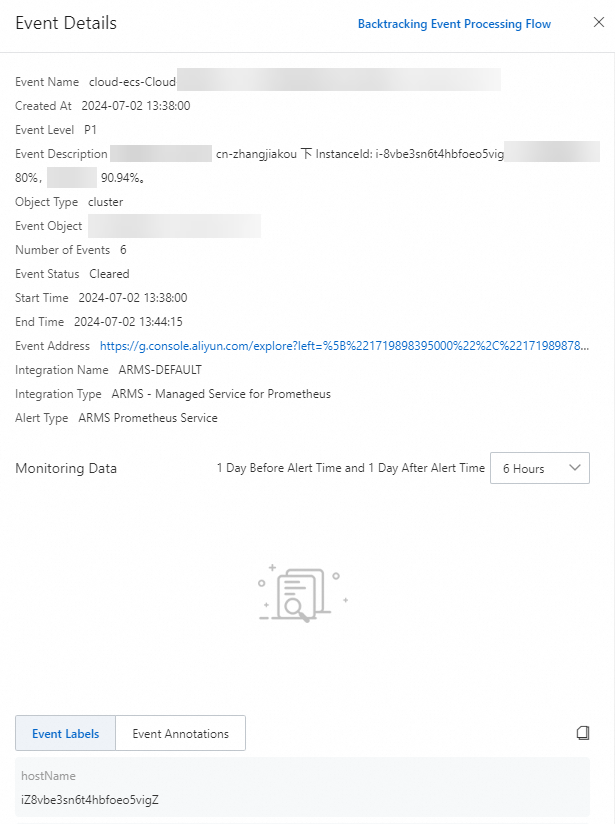
In the Monitoring Data section of the Event Details panel, you can:
-
In the upper-right corner of the Monitoring Data section, set the time range to 6, 12, or 24 hours before and after the alert occurred.
-
Select a time range to view monitoring data for that period. Click Reset to restore the chart.
Manage alerts
In the console, for unresolved alerts, you can claim, resolve, block, specify a handler, or modify the alert level.
-
On the Alerts page, click Associated Operator in the upper-right corner.
Note-
The operator's name is their DingTalk nickname.
-
Because an Alibaba Cloud account may be used by multiple users, you must associate an operator to identify which user performs each alert operation.
-
-
Select Association by Scanning Code (DingTalk Only), and use DingTalk to scan the QR code that appears. Then, authorize access and bind your mobile number.
-
In the Actions column for a specific alert, click an action to manage it:
-
Click claim to assign yourself as the handler for the current alert.
-
Click resolve to close the alert.
-
Click block to block the alert.
-
Click
 > Specify Alert Handler to assign a contact from a DingTalk group as the handler.
 -
Click
> Modify Alert Level to change the alert level. -
Click
 > Push Alert to send the alert to a specified ticketing system.
-