Get started with JMeter stress testing
Performance Testing Service (PTS) lets you run cloud-based stress tests with Apache JMeter scripts. This guide walks you through creating a JMeter script locally, uploading it to a PTS JMeter scenario, and running your first web page stress test.
Prerequisites
Before you begin, ensure that you have:
Apache JMeter installed on your local machine. This example uses
Apache JMeter 5.6.3to create the script. PTS supports JMeter 5.0 and 5.6.3.
Solution overview
To use JMeter stress testing, first create a stress test script locally with Apache JMeter. The following two steps show how to create the JMeter script, upload it to a JMeter scenario, and start the stress test.
Step 1: Create a JMeter script
-
In Apache JMeter, add an HTTP Request sampler and configure the HTTP request properties, including the server name or IP address, the port number, and the HTTP method. Configure the following parameters on the Basic tab:
Parameter
Description
Example
Protocol
The request protocol.
httpServer name or IP
The domain name of the API.
www.example.comPort Number
The service port number.
80Method
The HTTP method.
GET -
Run the test plan and check the result in the View Results Tree listener. The following response indicates that the request succeeded:
<!DOCTYPE html>
<html lang="en">
<head>
    <meta charset="UTF-8">
    <meta name="viewport" content="width=device-width, initial-scale=1.0">
    <title>Simple Web Page</title>
</head>
<body>
    <h1>Welcome to My Simple Web Page</h1>
    <p>This is a simple web page created using Flask.</p>
</body>
</html>
After the debugging succeeds, export the test plan file. This example names the file
HTTP_Request.jmx.
Step 2: Upload the script and run the stress test
Log on to the PTS console, choose Performance Test > Create Scenario, and then click JMeter.
-
Configure the scenario orchestration. The following table describes the key parameters.
Parameter
Description
Example
Scene
The name of the stress testing scenario.
test-jmxUpload files
On the Scene Assembly tab, add the JMeter script file.
HTTP_Request.jmxJMeter version
The JMeter version. Make sure that it matches the Apache JMeter version used to create the script. Otherwise, the stress test may fail.
5.6.3 -
Configure the load settings. Set the maximum virtual users to
10, and set both the stress testing duration and the increment duration to2minutes. Keep the default values for the other parameters.Starting a stress test incurs fees, so choose a load level that matches your actual needs. For more information, see Billing overview and Configure the stress testing model and level.
-
Debug the scenario.
You can debug the scenario to check whether the configurations are valid and prevent test failures. We recommend that you debug the scenario. For more information, see Debug a stress testing scenario. If the response status code is not
200for an API request, check whether the API request can be initiated as expected. If the debugging succeeds, the response status of the corresponding API in the request log is200.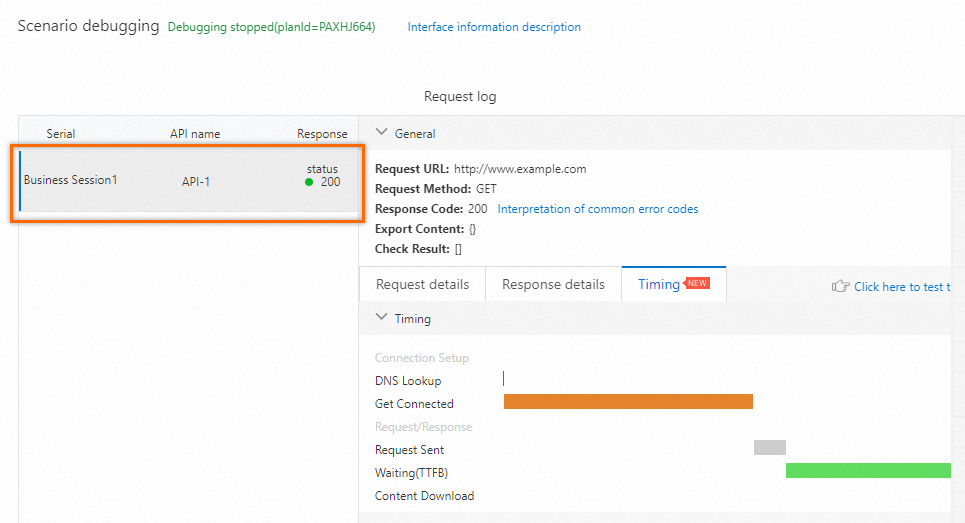
Click Save and Start. On the Note page, select Execute Now, select the The test is permitted and complies with the applicable laws and regulations check box, and then click Start.
Analyze stress test results
After the stress test ends, PTS automatically collects the stress test data, such as the stress testing scenario metrics, the business details, the monitoring details, and the API sampling logs, and generates a stress test report. You can view the report on the Stress Test Report page.
For more information, see View a JMeter Performance Testing report.
FAQ
A JMeter stress test can fail because the JMeter version in the PTS console does not match the local JMeter version, the JAR plugins are not fully uploaded, the script references local file paths, or the load of the JMeter stress test is not allocated as expected. The following sections describe how to resolve these issues.
How do I resolve a JMeter version mismatch?
Later JMeter versions are generally compatible with earlier versions, but hidden issues cannot be ruled out. Make sure that the JMeter version in the PTS console matches the local JMeter version, and debug the script locally before you run the stress test in the cloud. JMeter 4.x is not supported.
Do I need to upload JAR plugins and data files with the script?
Yes. On the Scene Assembly tab, upload every JAR plugin and data file that you used during local debugging to the JMeter scenario together with the .jmx script. Do not omit any of them.
Why does my script fail with file path errors?
If the script references files, remove every local file path that you wrote during local debugging and keep only the file name. The PTS load generators do not share your local file system, so leaving the paths in place causes errors.
How does PTS allocate the load across thread groups?
To make the load reach the target configured in the console, PTS rewrites the script during the stress test. The original script is not overwritten. The rewrite works as follows:
PTS subtracts the threads configured in setUp Thread Group and tearDown Thread Group from the concurrency configured in the PTS console. PTS does not rewrite these two thread group types, and rewrites only regular thread groups.
The remaining threads are then allocated across the regular thread groups.
If the remainder is less than 0, it is treated as 0.
For example, assume that a script contains three regular thread groups whose thread counts are in the ratio a:b:c, and that the scenario is configured with 500 concurrent threads and contains no setUp Thread Group or tearDown Thread Group. PTS allocates the 500 concurrent threads across the three thread groups in the a:b:c ratio.
Confirm the thread group types in your script before the stress test:
|
Scenario |
Thread count setting |
|
The script contains a single thread group. |
Set the thread count to |
|
The script contains multiple thread groups that must receive an equal load. |
Set the same thread count in each thread group. |
|
The script contains multiple thread groups that must receive a proportional load. |
Set the thread counts of the thread groups in the same ratio. |
References
Create a JMeter scenario - Full reference for scenario configuration options
Use CSV parameter files in JMeter - Parameterize your tests with external data
Configure RPS limits on JMeter - Control request throughput
Notes on using multiple thread groups in JMeter - Advanced thread group configuration
JMeter environment management - Manage JMeter runtime environments
Data sources - Configure data sources for your tests