File data sources
Stress testing scenarios often require unique request data per virtual user -- for example, distinct usernames and passwords for login simulations. File data sources supply this external test data. Upload a CSV file to Performance Testing (PTS) and map its columns to parameters.
File requirements
PTS accepts CSV and ZIP files. A ZIP archive must contain exactly one CSV file.
| Constraint | Limit |
|---|---|
| Maximum file size | 60 MB |
| Maximum characters per row | 20,000 |
| Supported formats | CSV, ZIP (containing a single CSV) |
Do not rename an XLSX file extension to .csv. Export the file in CSV format using Excel, Numbers, or Apache Commons CSV instead.Prepare a parameter file
CSV structure
Place column headers in the first row, followed by data rows:
username,password
user1,Password1
user2,Password2
user3,Password3
If the first row contains data instead of headers, you must specify a parameter name for each column when you configure the data source.
One-to-one parameter mappings
If parameters have mandatory one-to-one relationships (for example, a username must always pair with the same password), store all related parameters in a single file and properly configure the mappings. Make sure every column in each row contains complete data. Empty fields can cause unexpected stress testing results.
Upload a parameter file
Prerequisites
Before you begin, make sure that you have:
A CSV or ZIP file that meets the file requirements
Access to the PTS console
Upload steps
Log on to the PTS console. In the left-side navigation pane, choose Performance Test > Create Scenario, and then click JMeter.
Click Data Sources. On the Files tab, click + Upload File and select a local parameter file.
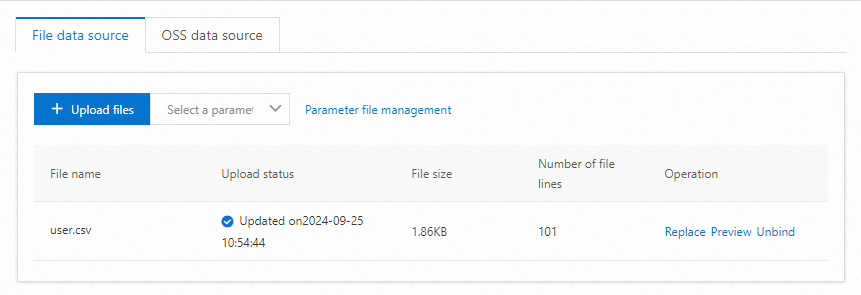
Click Save.
Return to the JMeter Scenario page and click Save Settings. The uploaded file appears in the Scenario Settings section.

Combine data from multiple files
A single parameter node can reference data from multiple files. Add each file on the Data Source Parameters tab of the parameter node, and PTS merges them into one parameter set.
Baseline column
When parameters come from multiple files, you can designate one parameter as the Baseline Column. The file that contains the baseline parameter is used as the benchmark file.
| Configuration | Behavior |
|---|---|
| Baseline Column selected for a parameter | The file containing that parameter is used as the benchmark file. |
| Neither Baseline Column nor Use Once selected | PTS assigns a random parameter as the baseline column. |
For details on how PTS reads multi-file parameters, see PTS read method of multi-file parameters in virtual user or RPS mode.