Customizing download controls for exported files
Quick BI supports saving files from general exports and ad-hoc queries to local and server storage:
When the Export Channel is set to local, users can download the exported files directly to their local computers.
When the Export Channel is set to server, the exported files are stored on a specified server, such as an OSS or SFTP server. Users must access this server to download them.
For scenarios that require strict control over exported files, such as preventing direct downloads to local machines and managing user download permissions, exporting to a server is the recommended approach. To support this, Quick BI provides an integration solution that combines the configuration of general exports and ad-hoc queries with the Quick BI OpenAPI. This allows you to customize file download behavior.
Limitations
Currently, only standalone deployment environments (version 5.4.1 and later) support exporting to SFTP servers.
Procedure
Assume Company A has developed its own data download platform and wants to implement the following export workflow: employees first export the required data files from Quick BI and are then redirected to the company's own data download platform. They can download the exported files only after the platform verifies their identity and permissions.
To achieve this, Company A must configure data export settings in Quick BI and use the relevant Quick BI APIs on its data download platform to authenticate employees and control file download permissions. The detailed procedure is as follows.
Step 1: Configure Quick BI export settings
Configure the export channel, storage location, and redirect prompt for downloads on the Quick BI platform.
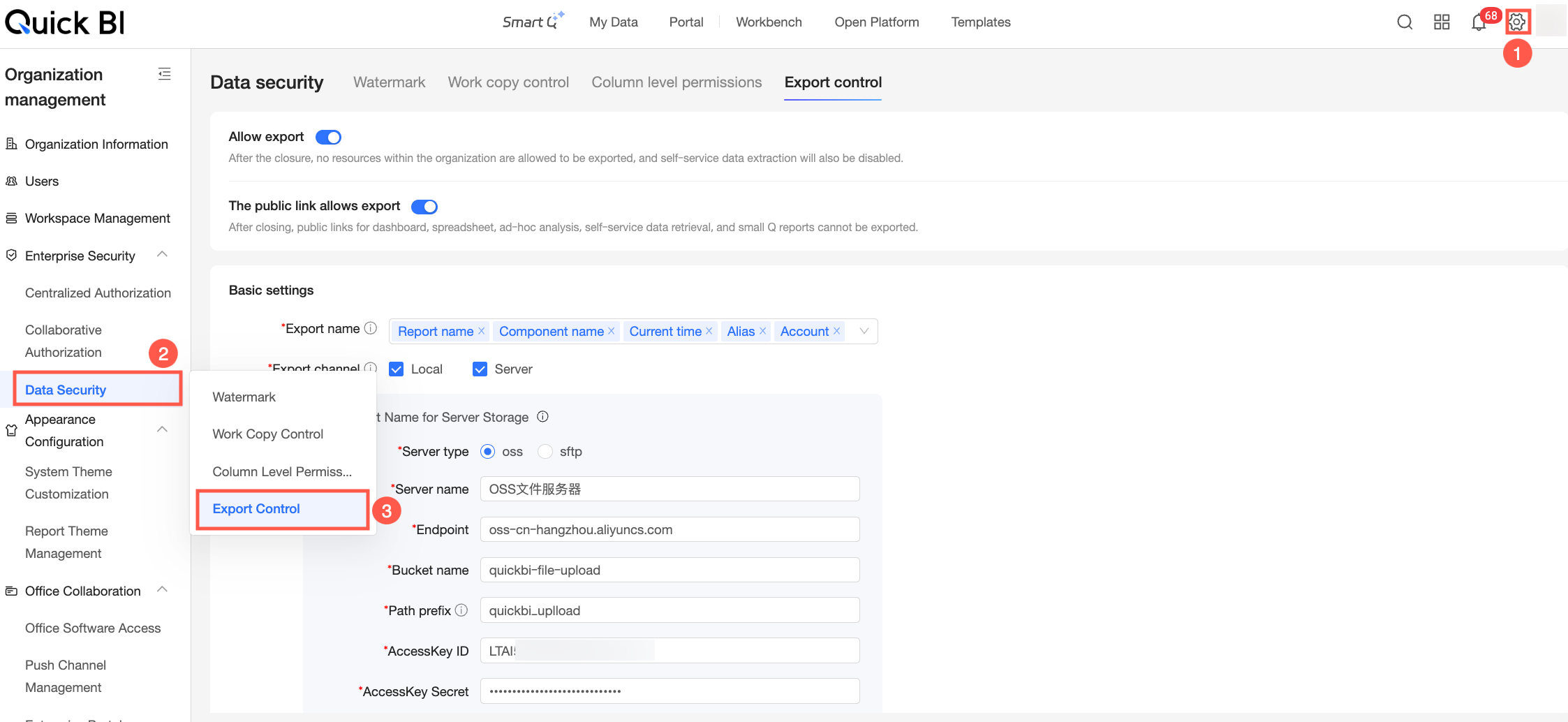
Log on to the Quick BI console and navigate to the Export Control page as shown in the following figure.
In the Basic Settings section, under Export Channel, select server. Then, configure the information for the server that will store the exported files. For details about each configuration item, see Export Control > Basic Settings. In this example, Company A's file server is OSS, so the company configures its OSS server details.
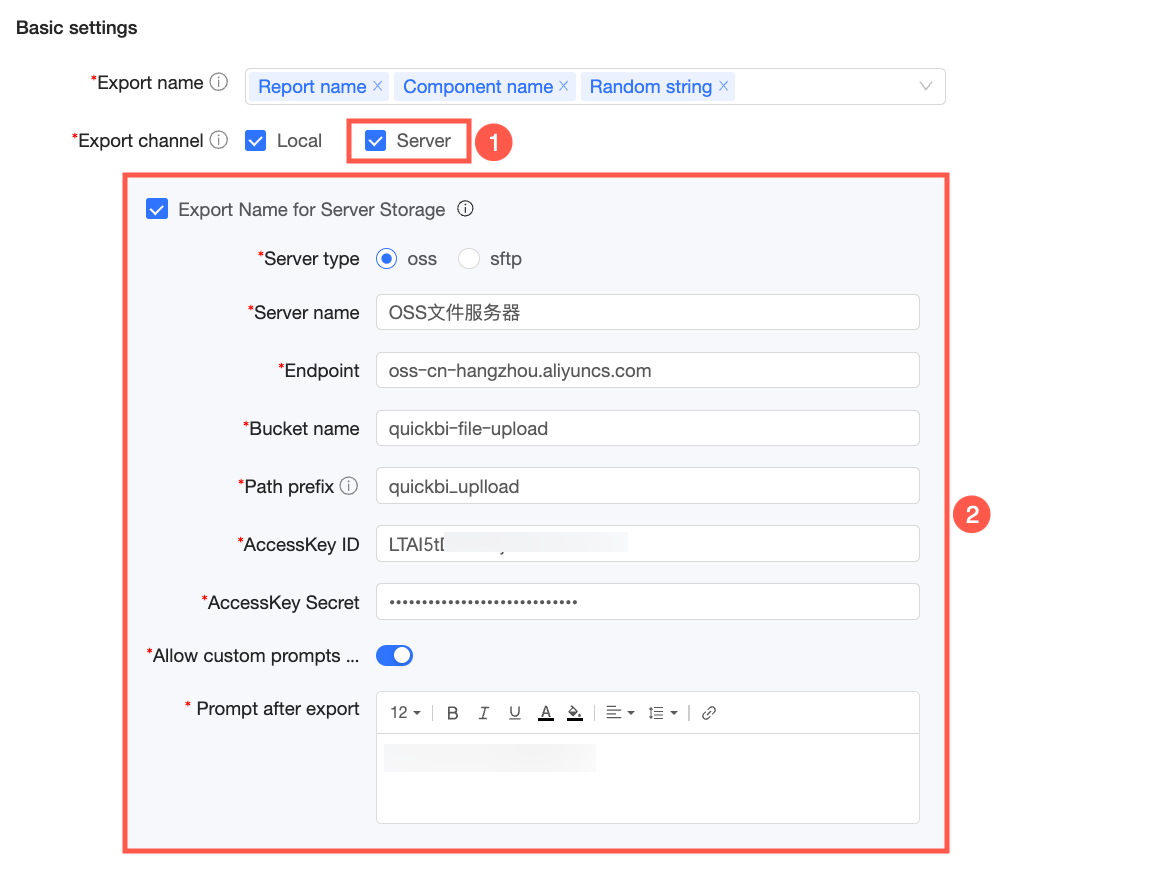
To implement the workflow where employees are redirected to the company's own data download platform after exporting a file, you must enable Allow Custom Prompt After Export and configure the redirect prompt text. After this is configured, files are not downloaded directly. Instead, a dialog box prompts the employee to redirect to the download platform.
For this example, assume the data download platform URL is
https://data.xxx.com. After a file is successfully exported to the server, the following prompt appears. The employee can click Click here to redirect to go to the data download platform athttps://data.xxx.comand retrieve the exported file.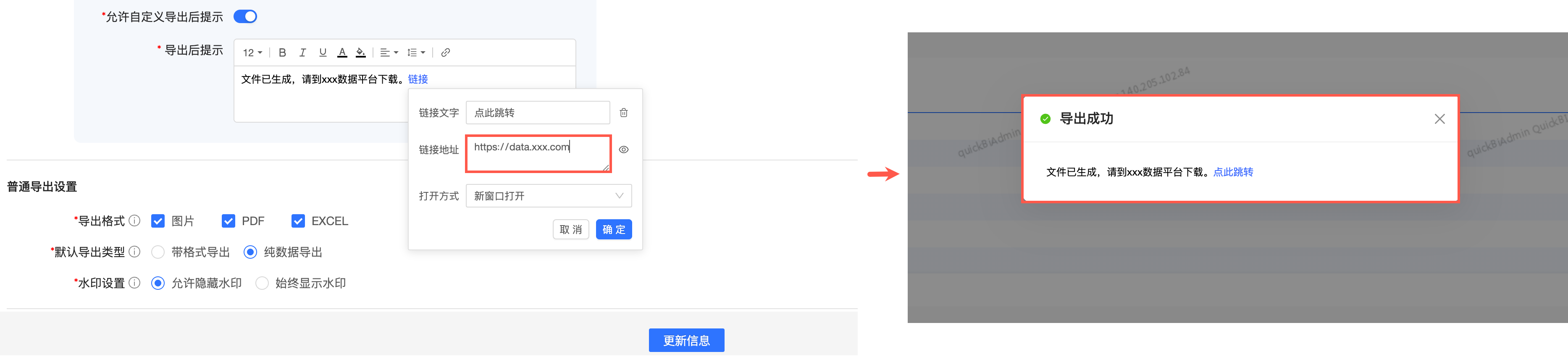
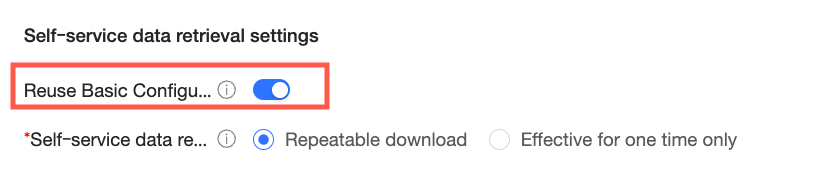
(Optional) By default, the preceding configuration applies only to general exports. If you want this configuration to also apply to files exported from ad-hoc queries, enable Reuse Basic Settings under Ad-hoc Query Settings. After you do this, the same redirect prompt configured in Basic Settings will appear after an ad-hoc query completes.
Step 2: Implement platform controls
After the export settings are configured, employees can save exported files from Quick BI to the specified server and are then redirected to the company's internal data download platform to retrieve the files. At this stage, the data download platform must display key information about the exported files (such as the work name and work type), provide a download option, and verify the employee's identity and download permissions. This process lets you control access to exported files. The detailed procedure is as follows.
When an employee is redirected from Quick BI, the data download platform can obtain the employee's identity if it is integrated with Quick BI through single sign-on (SSO).
The data download platform uses the employee's identity to call the Quick BI QueryExportRecords (/openapi/v2/works/exportRecords ) API. This API retrieves all general export and ad-hoc query records for that user within a specified time frame. Key information returned by this API includes:
The full storage path of the data file on the file server
work name and work ID
workspace ID of the work
work type
download type, which can be general export or ad-hoc query
task time
Display the key information returned by the API to the employee on the data download platform, for example, in a list format, and provide a download option for each item. The employee can then find and download the required files.
On the data download platform, implement custom download permission controls and audit download activities based on the employee's identity and your specific business logic.