Embed reports into a third-party system
Quick BI allows you to embed reports, including dashboards and workbooks, from a group workspace into other systems. This integration helps you build unified business applications. This topic describes how to embed a report into a third-party system.
This solution is deprecated and no longer maintained.
Step 1: Obtain an access token via HTTPS API
This topic uses embedding a dashboard from a group workspace into a third-party system as an example.
An account with developer or analyst permissions can only embed dashboards that it has created.
An account with administrator permissions can enable embedding for all reports in the workspace.
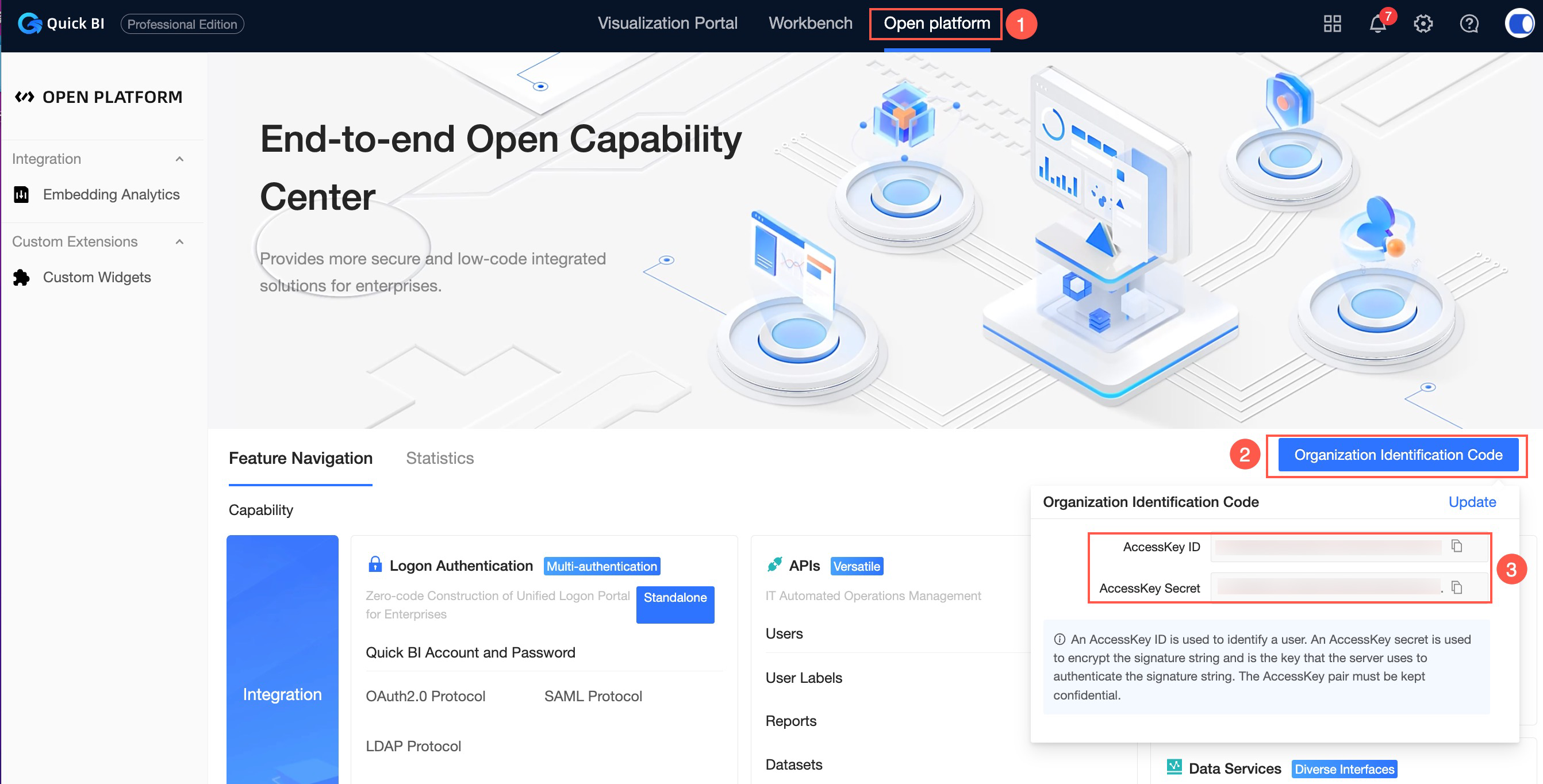
Obtain an AccessKey ID and AccessKey Secret.
Log on to the Quick BI console.
Follow the steps shown in the figure to obtain the AccessKey ID and AccessKey Secret.
Obtain the Alibaba Cloud ID.
If you use an Alibaba Cloud account, the logon name is the Alibaba Cloud ID.
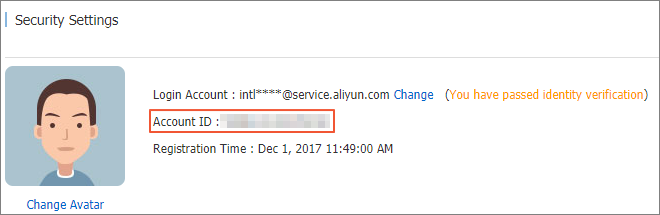
On the Security Settings page, the Account ID is your Alibaba Cloud ID.
If you use a RAM user, the Alibaba Cloud ID uses the format <Alibaba Cloud account name>:<RAM user name>.
For example, if the Alibaba Cloud account name is 'test' and the RAM user is 'zhangsan@xxx123.xxaliyun.com', the Alibaba Cloud ID is 'test:zhangsan'.
NoteContact your administrator to obtain the Alibaba Cloud account associated with your RAM user.
Obtain the token.
Append your AccessKey ID, AccessKey Secret, and Alibaba Cloud ID to the following request URL and send a GET request to obtain the token.
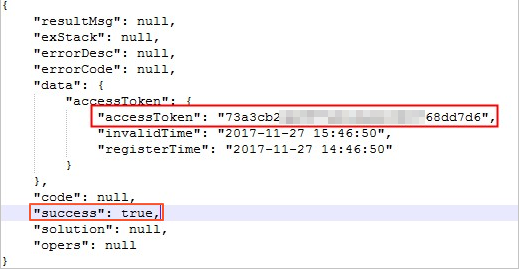
https://das.base.shuju.aliyun.com/api/ac3rdservice/token.json?accessId=xxx&accessKey=xxx&aliyunId=xxx&validityTime=60If the value of the success field in the response is true, the request is successful. The value of the accessToken field is your access token.
 Note
NoteIf you request or access the report again before the access token expires, its validity period automatically extends by the configured duration.
The maximum value for the
validityTimeparameter is 240 minutes.For example, if you set
validityTimeto 10 minutes on your first request, and then make another request within that 10-minute window, the validity period extends by another 10 minutes.The token's content changes only when you request a new one after the current token expires.
To invalidate the token immediately, send a POST request to the following URL. Replace the placeholders for
aliyunIdandaccessTokenwith your actual values.https://das.base.shuju.aliyun.com/api/ac3rdservice/tokenInvalid.json?aliyunId=XXX&accessToken=XXX
Step 2: Select a dashboard to embed
You can enable report embedding only for published dashboards.
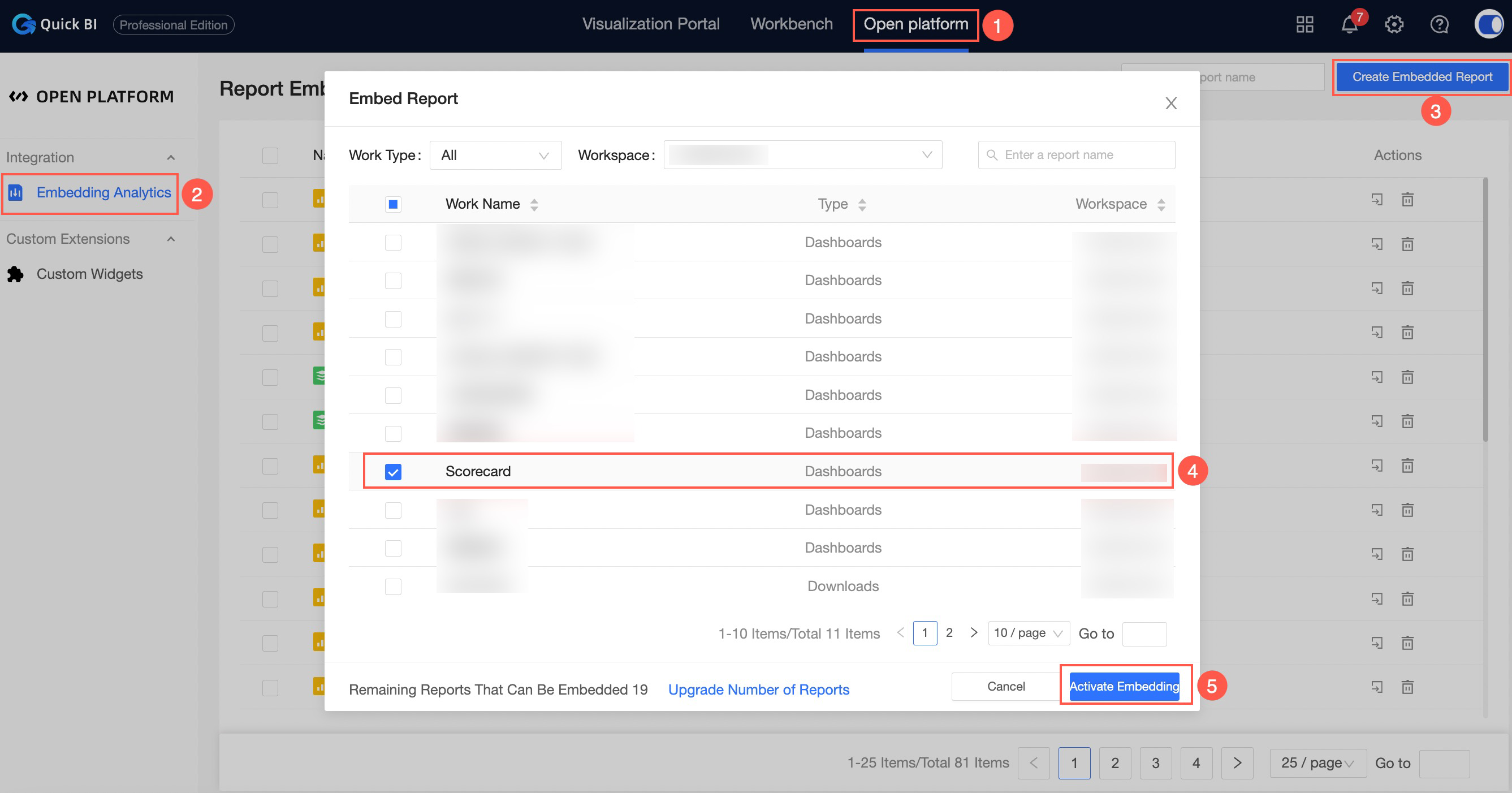
On the Quick BI homepage, perform the steps shown in the following figure.
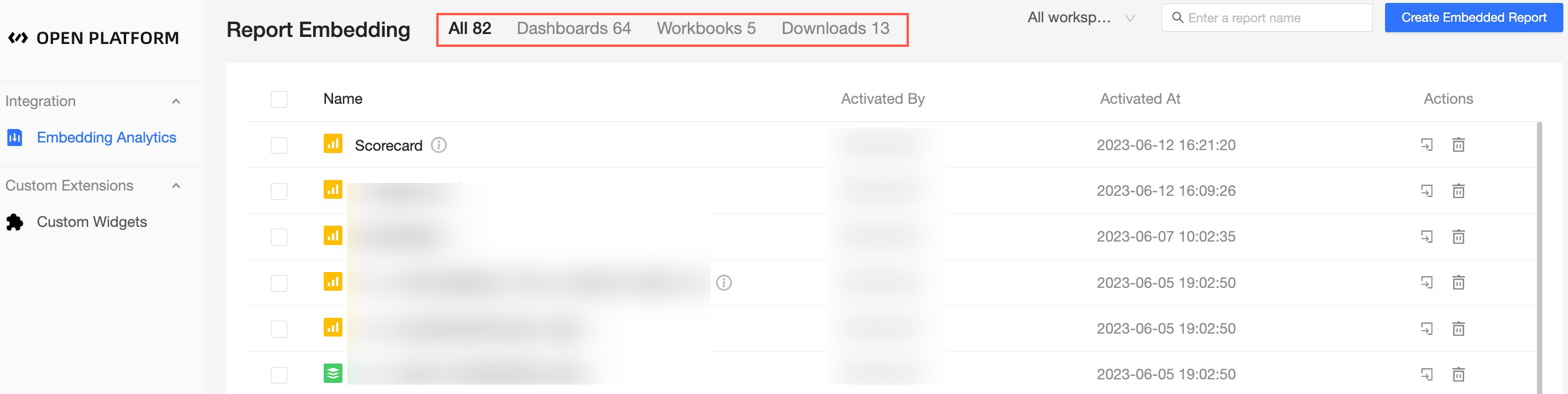
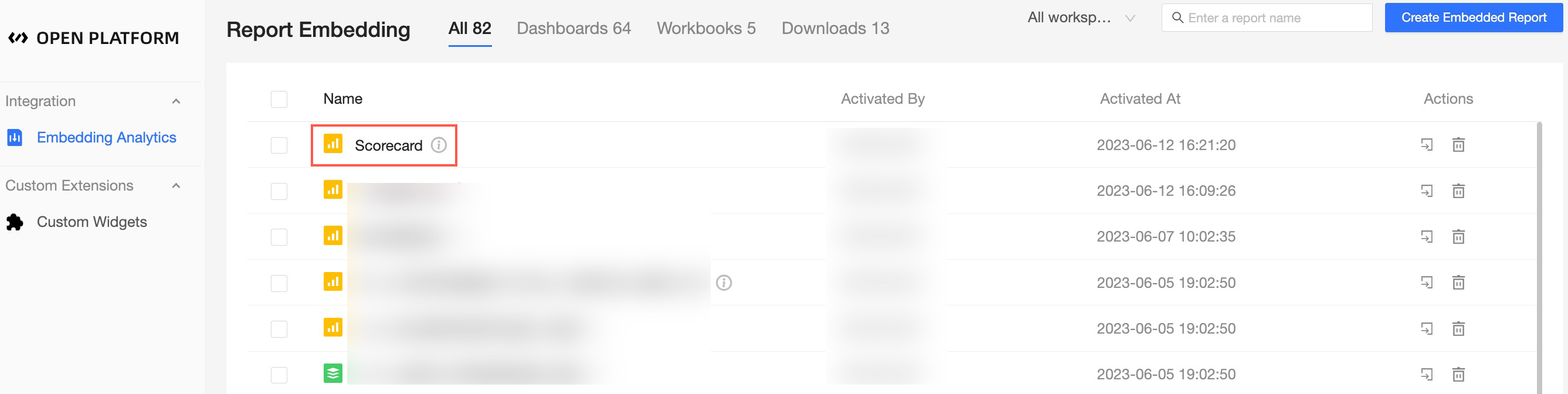
The newly embedded report appears in the list on the Report Embedding page.
Configure embedding settings.
In the actions column for the report, click the
 icon. In the Report Embedding Configuration dialog box, configure the following parameters.
Parameter
Description
Embed object
Select the object to embed.
Select Entire Page to embed the current dashboard.
Select a specific component to embed only that component.
Display configuration
Determines whether the dashboard title is included in the embedded view.
Authentication type and Ticket link
Select Ticket authentication and generate a Ticket link.
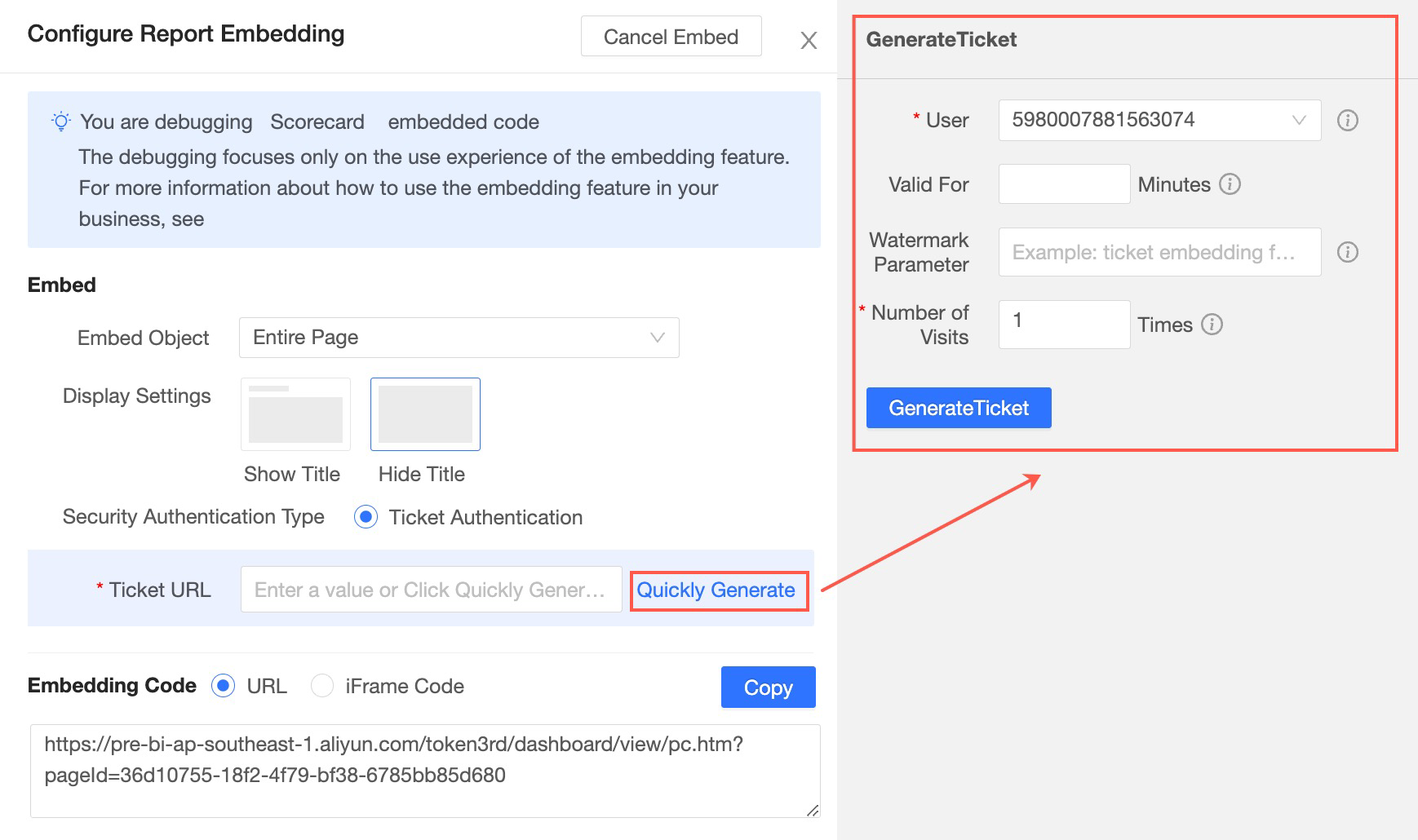
You can enter a Ticket link manually or click Quick Generate to create a new ticket.
On the ticket generation page, you can set the Bound user, Validity period, Watermark parameters, and Number of visits.
Get embed code
Generates a URL and an IFrame code snippet.
 icon. In the Report Embedding Configuration dialog box, configure the following parameters.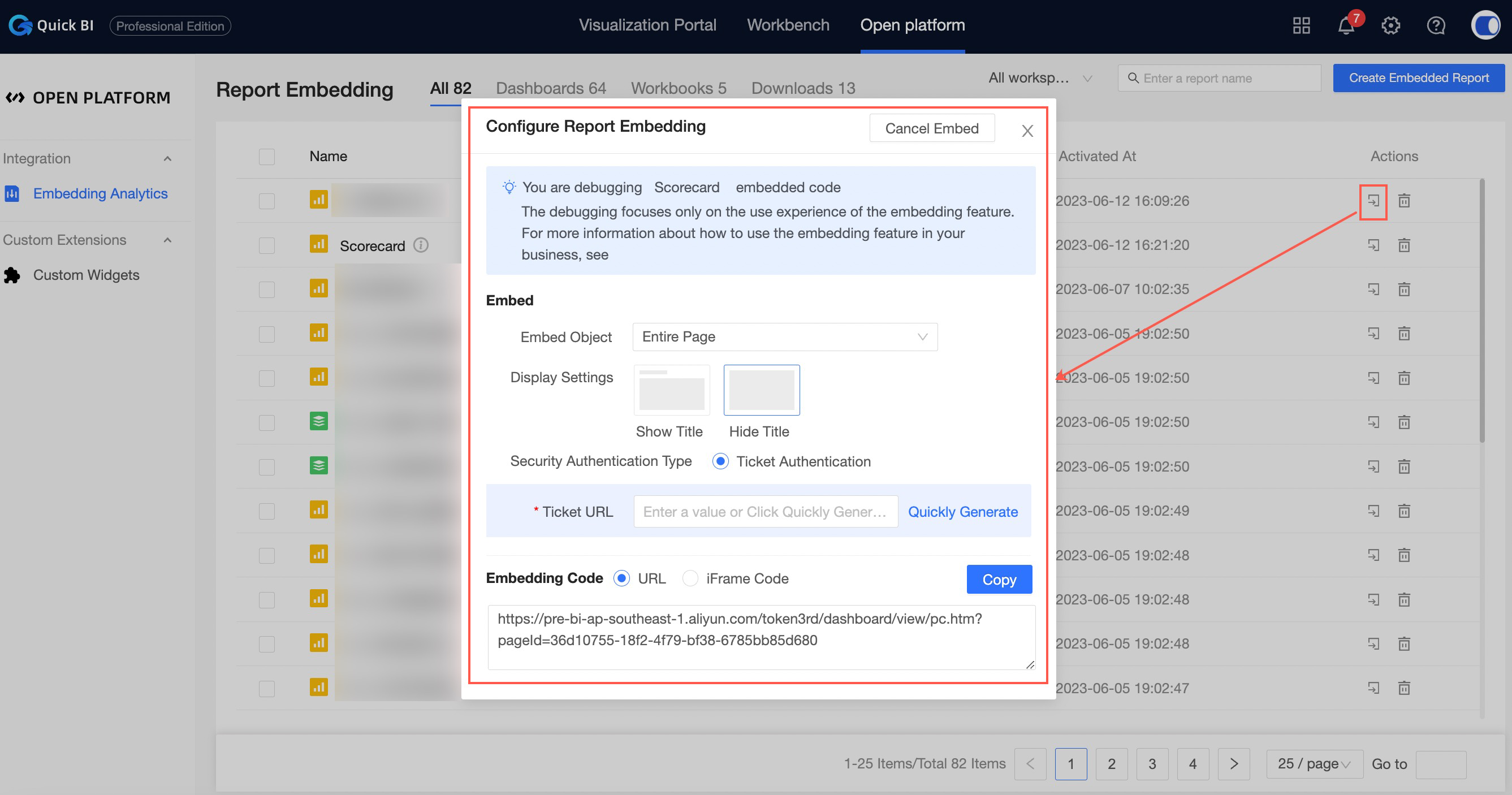
Step 3: Construct the logon-free URL
On the Quick BI homepage, click Workbench and then select Dashboards.
On the dashboard management page, find the report that you configured for embedding in Step 2, and click the
icon.The URL in the address bar is the report's access URL.
NoteYou can change the domain name in the preview URL. For example, you can change the domain from das.base.shuju.aliyun.com to bi.aliyun.com.
Append the access token from Step 1: Obtain an access token via HTTPS API to the report URL. This allows users to view the report without logging in.
Example:
https://das.base.shuju.aliyun.com/token3rd/dashboard/view/pc.htm?pageId=703d6621-7aa0-4716-bcc1-515e3da794c2&accessToken=XXXXX
 icon.
icon.Manage embedded reports
For reports enabled for embedding, you can perform the following actions:
Search for an embedded report: In the search box on the report list page, enter a keyword from the report name and click the
icon.You can narrow the search by selecting a workspace or report type.
View the number of embedded reports. For more information, see View the embedded report count.
Delete an embedded report: Click the
icon next to the report to delete it.
 icon.
icon. icon next to the report to delete it.
View the embedded report count
On the Quick BI homepage, click Open Service.
In the left-side navigation pane, click Report Embedding.
On the Report Embedding page, you can view the total number of embedded reports.