(Public cloud) Activate the DingTalk mini app
To help enterprise users view reports on their mobile devices, Quick BI provides a DingTalk mini app. A DingTalk enterprise administrator can activate this mini app for a team. After team members bind their accounts to the DingTalk mini app, they can view reports in the DingTalk mobile app. This topic describes how to activate the DingTalk mini app service and authorize the DingTalk interface.
Prerequisites
You must be a DingTalk enterprise administrator and meet the following requirement:
You have created a team with at least one member.
Limitations
Due to limitations from DingTalk, the standard edition of the DingTalk interface has a cumulative call limit of 5,000 times per month. If this call volume is insufficient, you can upgrade to the DingTalk professional edition or exclusive edition to increase the limit. For more information, see the DingTalk PaaS Capability Adjustment Announcement.
The Quick BI professional edition allows you to authorize up to five different enterprises. This feature is useful if your organization has multiple independent entities, like subsidiaries or branch offices, that need to access the same Quick BI instance.
If you have purchased multiple Quick BI subscriptions, you can bind the same authorized application to multiple tenants. By default, a single authorized application can be bound to a maximum of five tenants.
Procedure
On the DingTalk Interface Authorization page, click Add Authorization. In the Add New Authorization dialog box, follow the steps below to authorize your enterprise.

Step 1: Activate the Quick BI mini app
Install the Quick BI mini app on your DingTalk mobile app.
Open the DingTalk mobile app and scan the QR code in the Add New Authorization dialog box.
NoteThe activation QR code varies across different public cloud and international sites. Ensure you scan the QR code provided for your specific environment.
On the Select Team page, find and select the team for which you want to activate the Quick BI mini app.
NoteEnsure that you are an administrator of this team.
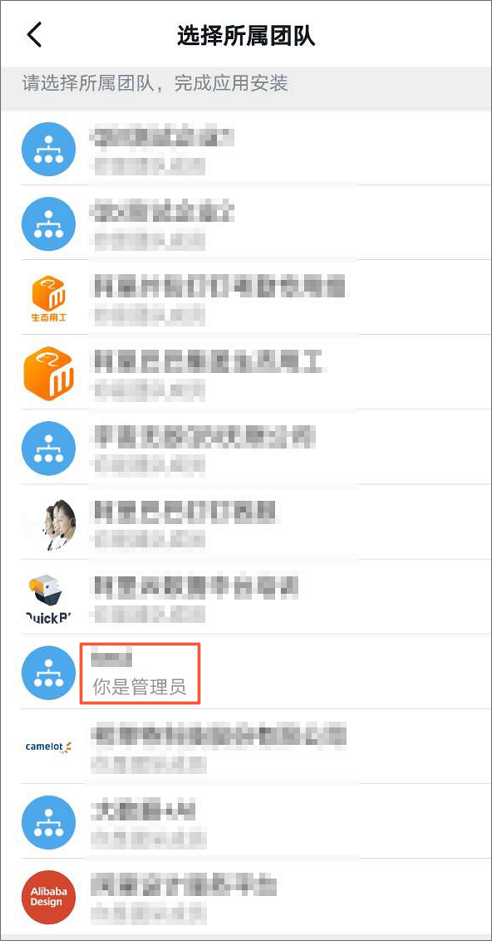
Follow the on-screen instructions to activate the Quick BI mini app.
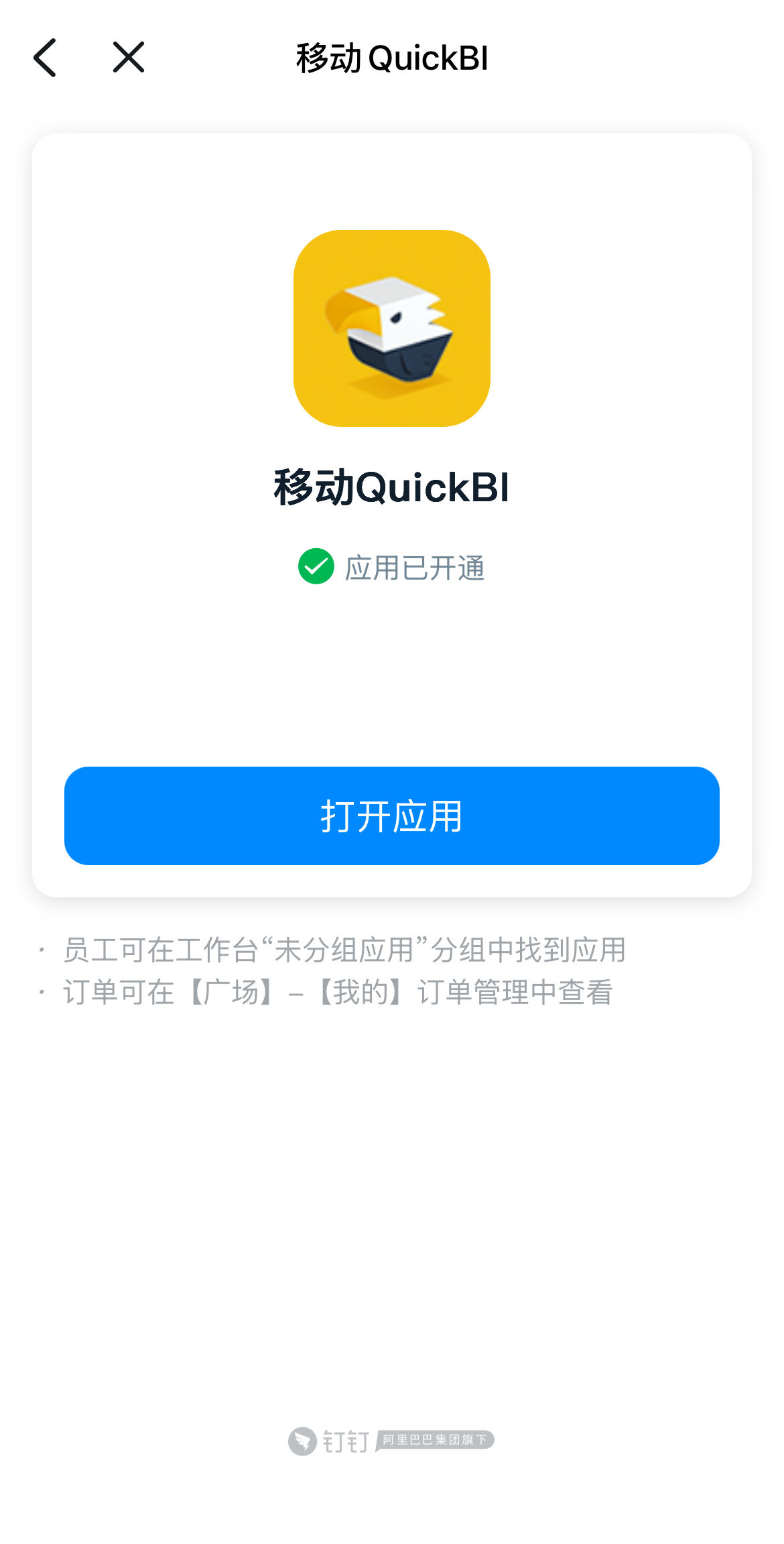
Step 2: Authorize the DingTalk API
After the mini app is installed, click Next in the Add New Authorization dialog box. The process moves from the Scan to Activate stage to the Enter CorpId stage. Follow these steps.
A single authorized application can be bound to a maximum of five tenants.
Obtain your organization's CorpId
Log in to the DingTalk Open Platform as an organization administrator and copy your organization's CorpId from the Home page.
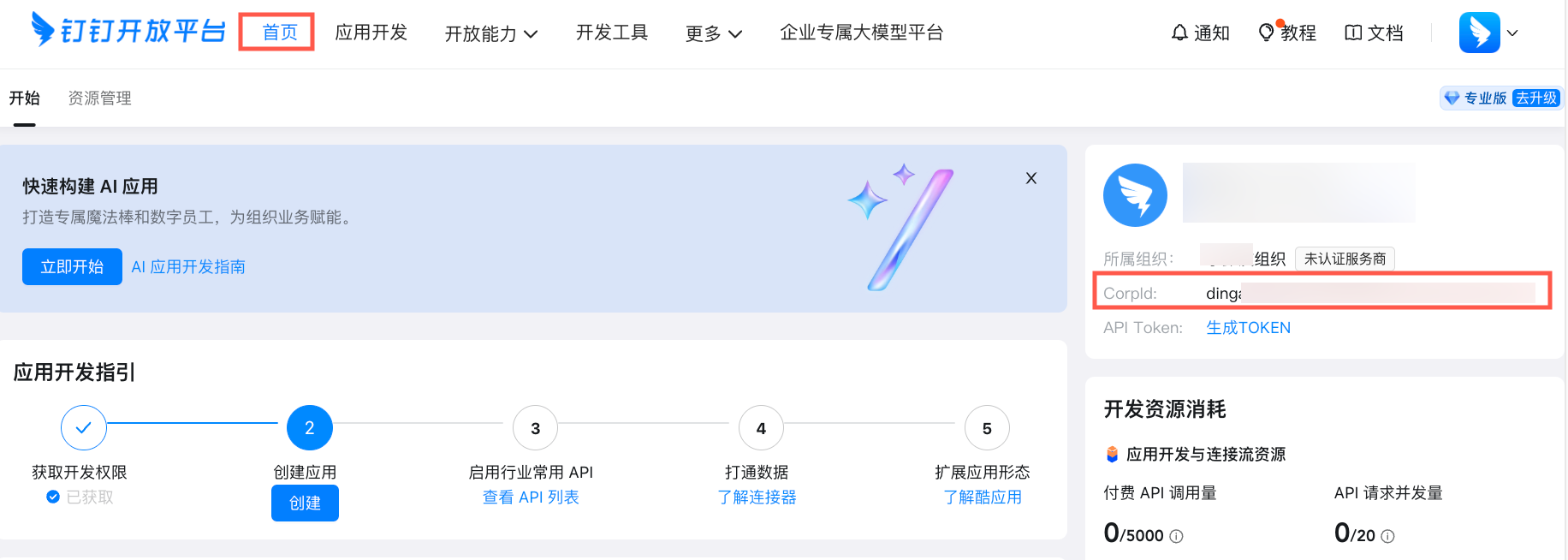
Enter the CorpId
In the Add New Authorization dialog box, paste the CorpId into the CorpId field and click Verify. The system automatically identifies and displays your organization's name.
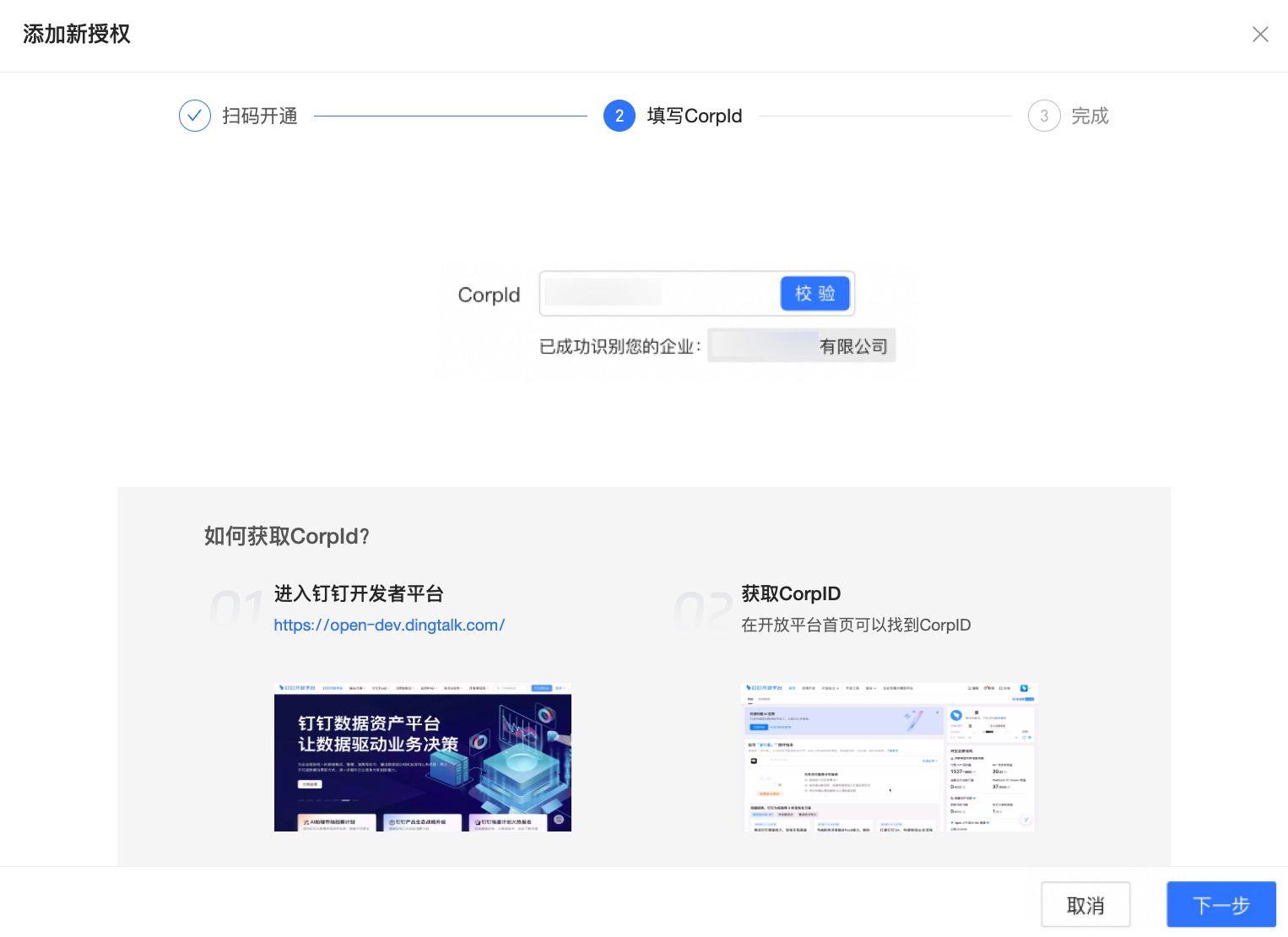
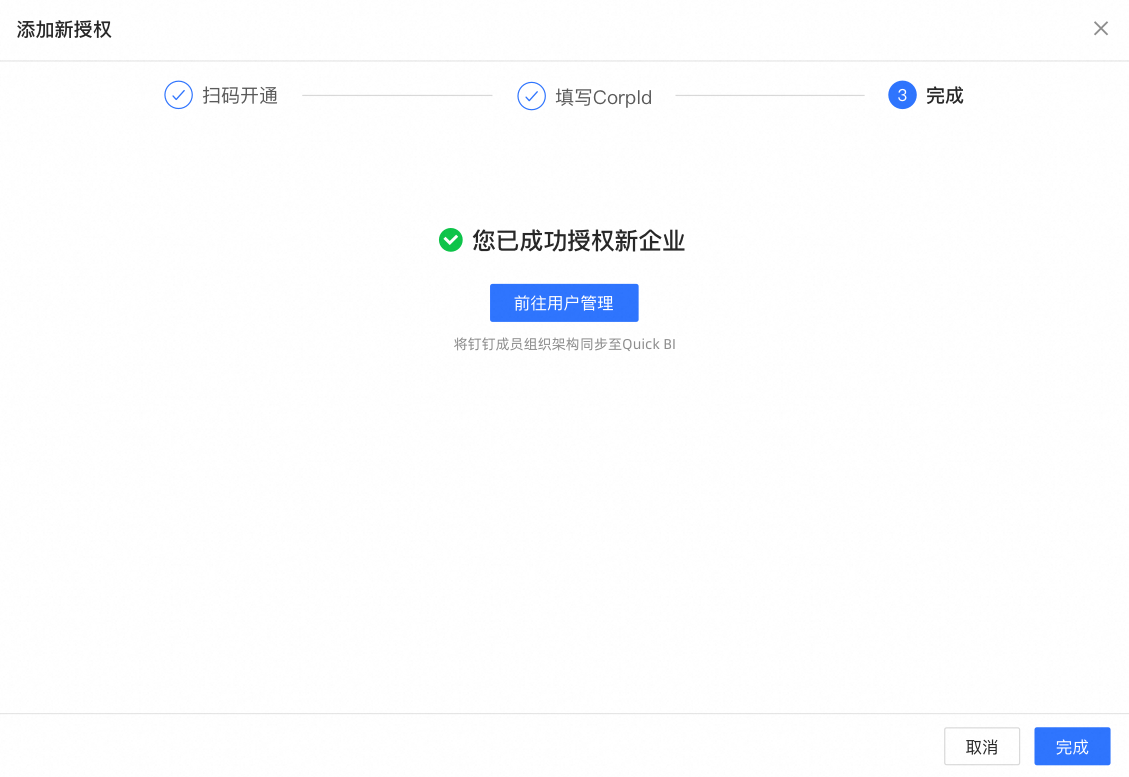
Confirm that the organization is correct and click Next to complete the authorization.
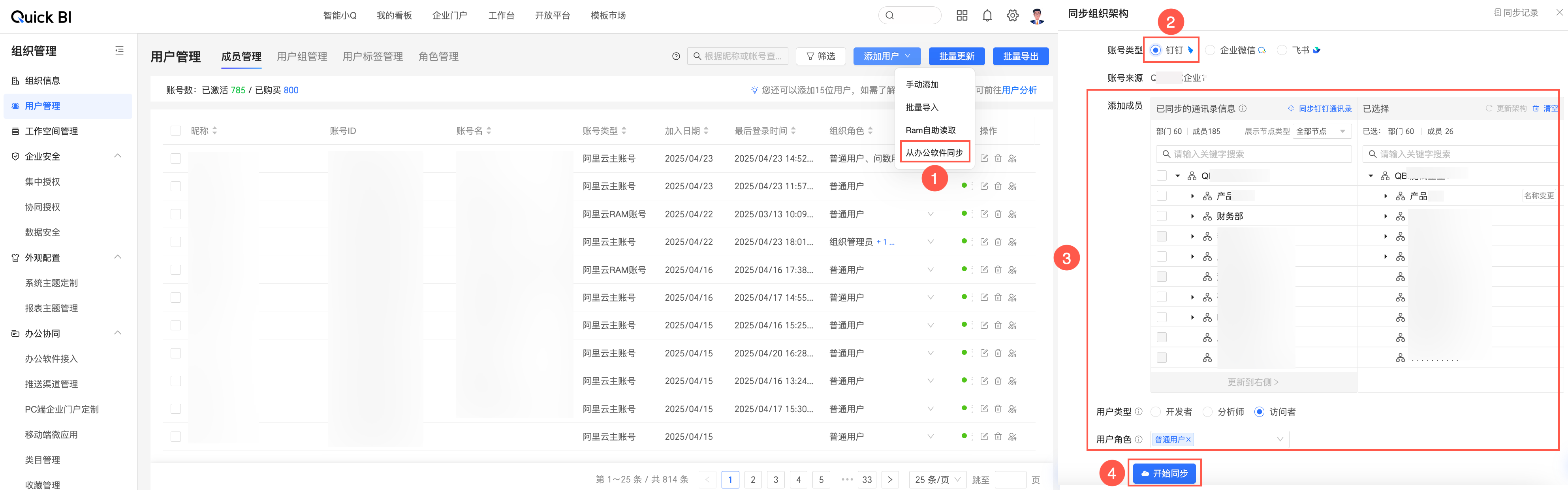
This action syncs your DingTalk organization's information to Quick BI. You can click Go to User Management to navigate directly to the Member Management page and quickly sync members from your organization. For detailed instructions, see Add DingTalk Users.

Step 3: Configure the mini app
Accounts synced from office software (such as DingTalk, WeCom, or Lark) with edit permissions can create and edit reports in the mini app on a PC client.
By default, the mini app opens in the workbench. You can change this setting to Open in Browser if needed.
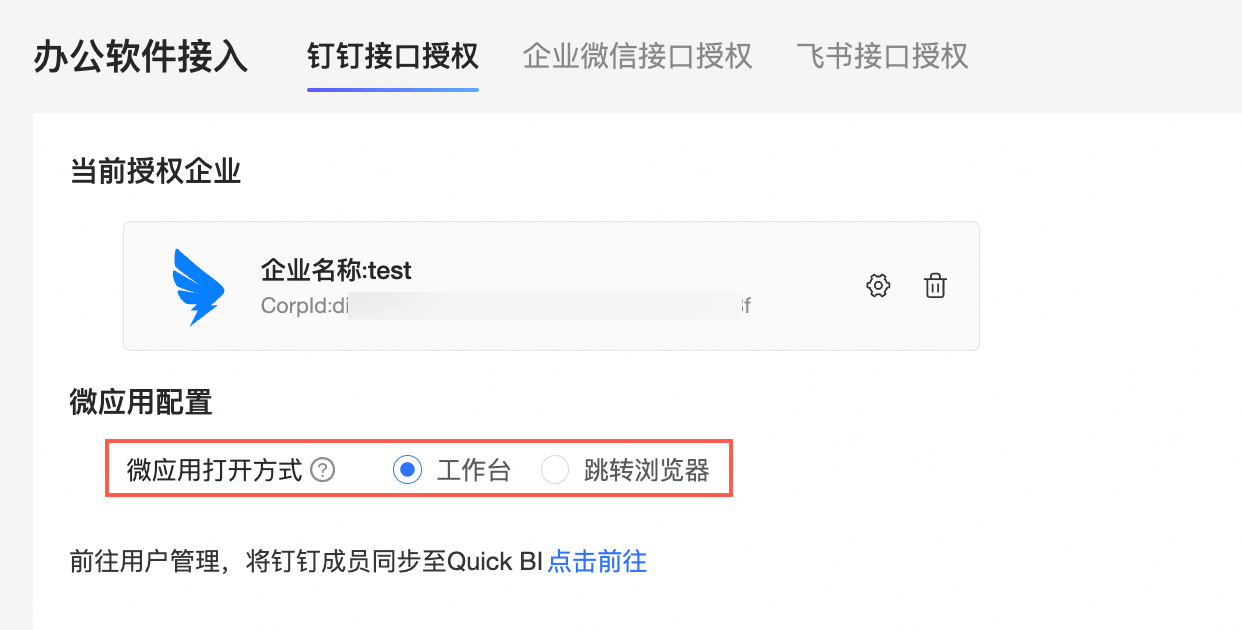
This open-method configuration only affects the PC client.
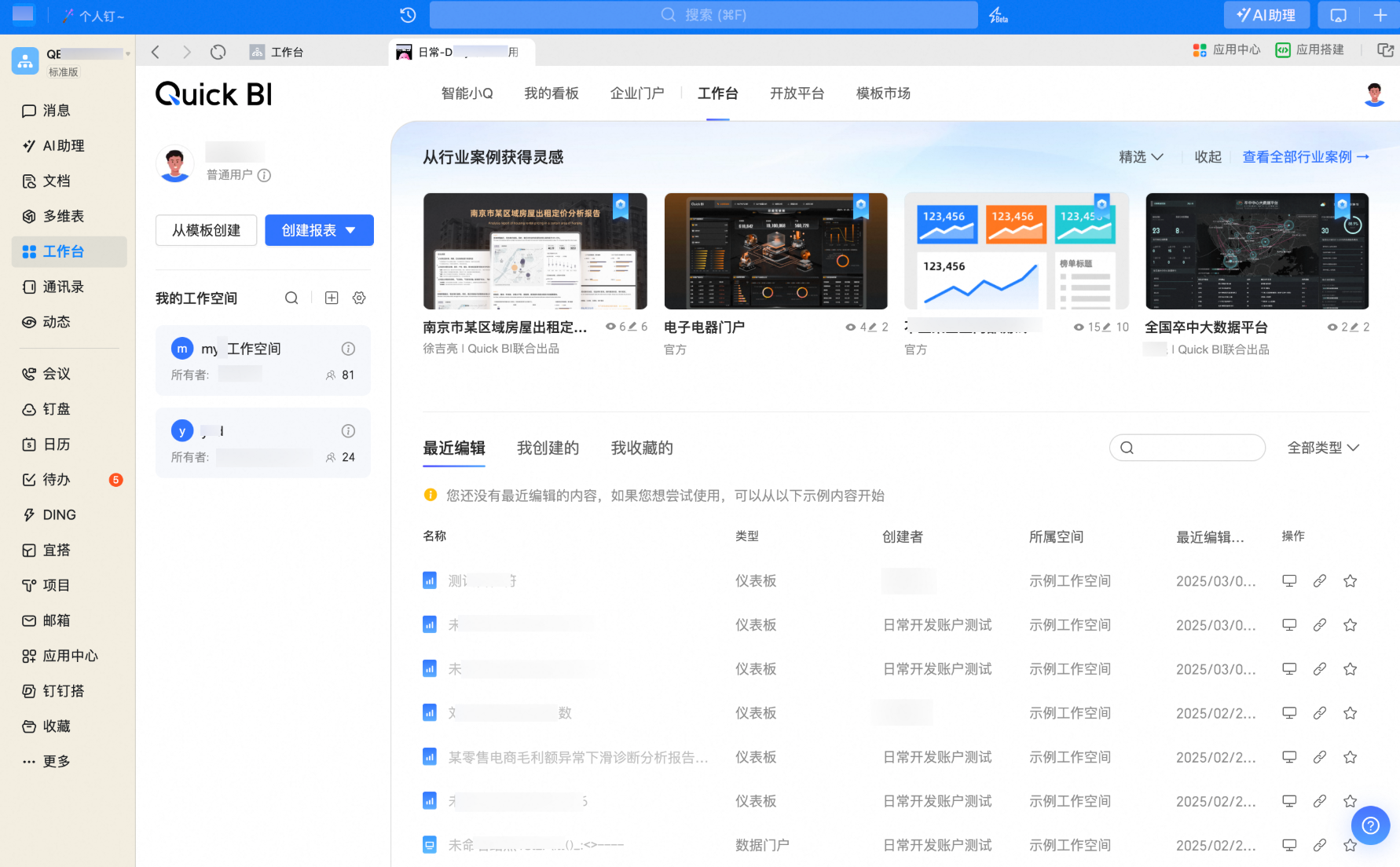
If the mini app is set to open in the workbench, you can view and edit reports directly within DingTalk.
If you select Open in Browser, the mini app opens in your web browser, where you can view and edit reports.
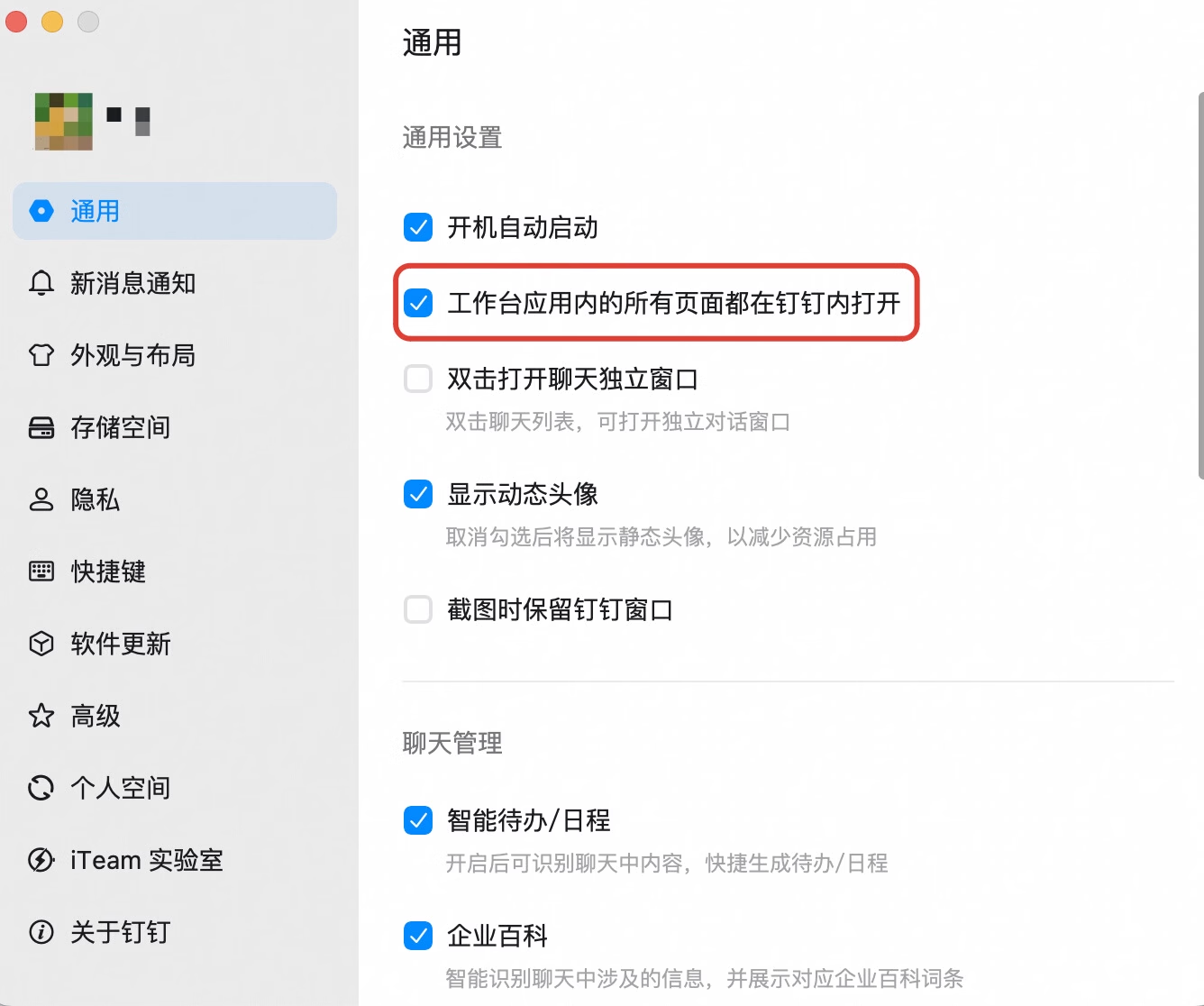
NoteThe page opening settings in the DingTalk client override the mini app's open-method configuration in Quick BI.
If the Open all Workbench pages within DingTalk switch is enabled in your DingTalk settings, the Open in Browser option is ignored, and pages open only in the workbench.
Next steps
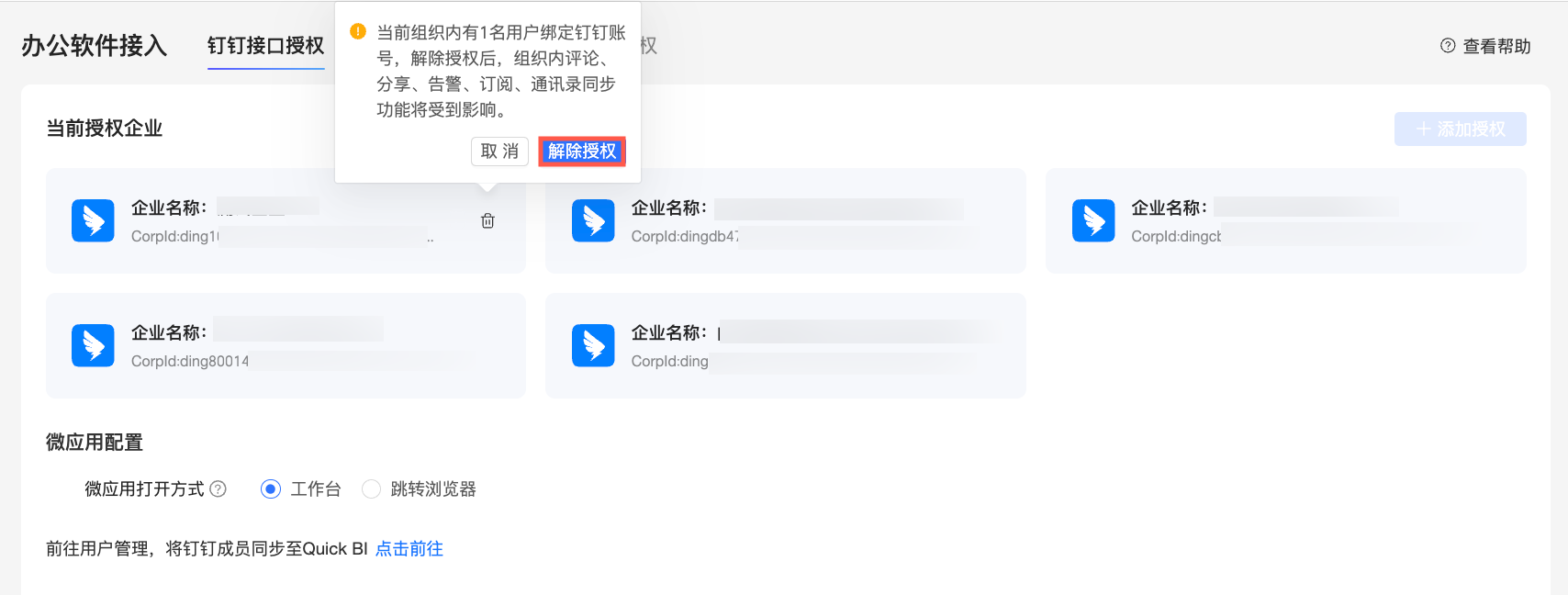
After authorizing an enterprise, you can perform additional operations, such as editing the authorized enterprise's information, removing the authorization, or syncing DingTalk members.
Remove authorization for an enterprise
Click the  icon on the right side of the target enterprise's card and select Remove Authorization.
Sync DingTalk members
You can directly add DingTalk users by using the Sync from Office Software option on the Add User page.
Bind a DingTalk account
After you authorize the DingTalk interface, you can go to Personal Settings and use the Bind DingTalk Account option to scan a QR code and bind your account.
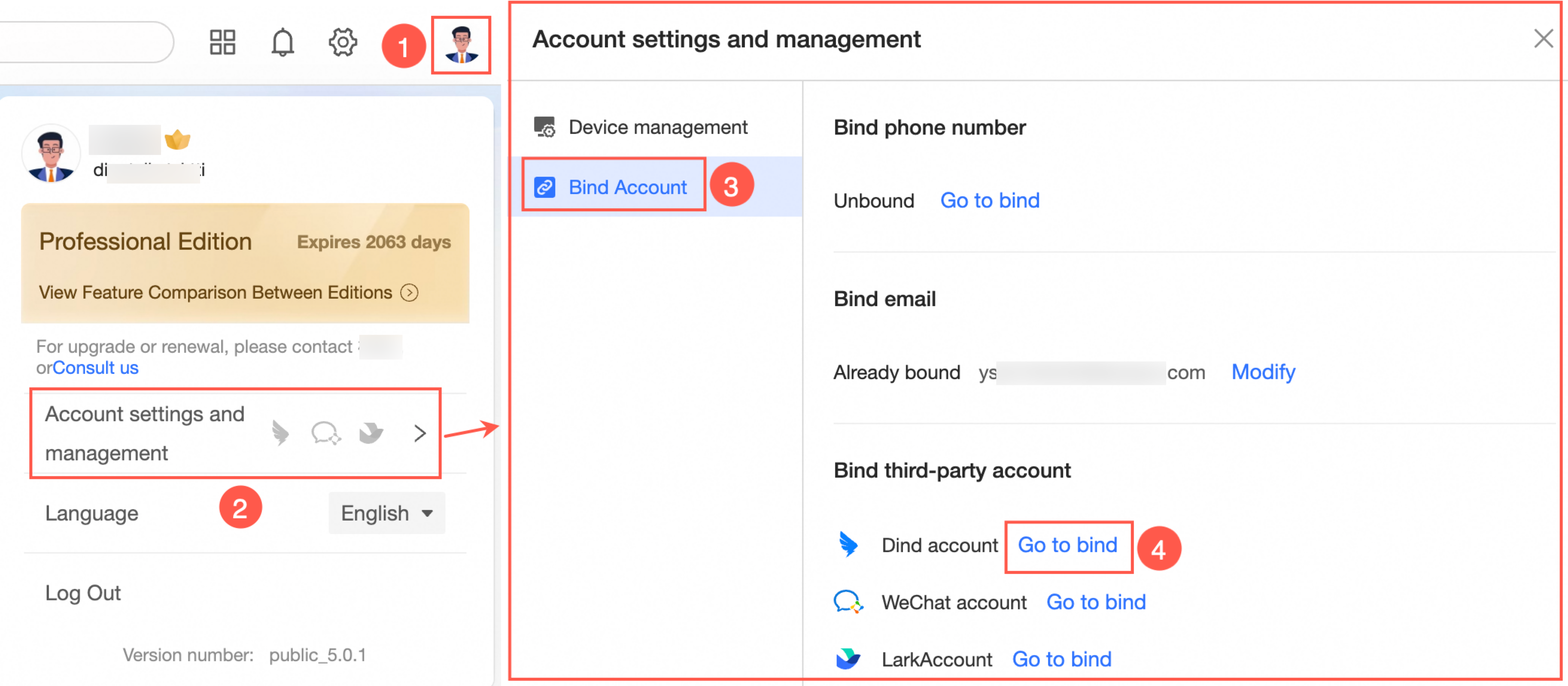 Organization administrators can bind DingTalk accounts for other users in member management.
