Tencent Cloud PostgreSQL data source
Create a PostgreSQL data source in Quick BI by connecting to your Tencent Cloud PostgreSQL database.
Prerequisites
-
A Tencent Cloud PostgreSQL database is created.
-
The username and password for your Tencent Cloud PostgreSQL database are obtained.
Limitations
Only PostgreSQL 8.2 and later are supported.
Procedure
-
Add IP addresses to the allowlist.
To connect to Tencent Cloud PostgreSQL, add the IP addresses of Quick BI to the allowlist of your Tencent Cloud PostgreSQL instance. For more information, see Manage security groups.
-
Verify the connection and create the data source.
-
Log on to the Quick BI console.
-
To add the data source:
-
Go to the Create Data Source page.
-
On the Tencent Cloud databases tab, select TencentDB for PostgreSQL.

-
-
-
In the Configure connection dialog box, set the following parameters.
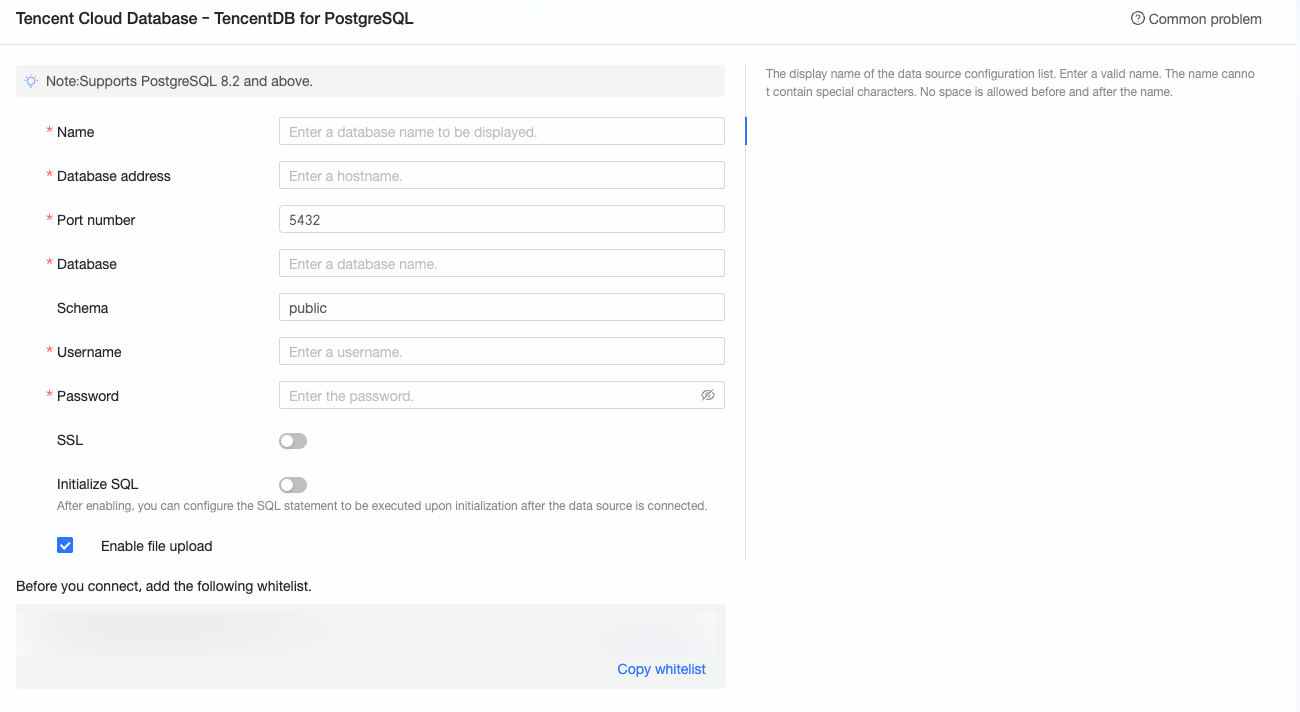
Parameter
Description
Display name
The display name of the data source.
The name cannot contain special characters or leading or trailing spaces.
Database address and Port
The public endpoint of your PostgreSQL database. To obtain it, log on to the Tencent Cloud PostgreSQL console, enable the public endpoint, and view it in the Basic Information section of the instance details page.
Database
The name of the database to connect to.
Schema
The database schema to use.
Username and Password
The credentials used to access the PostgreSQL database.
SSL
Select this option to encrypt the connection and protect data in transit if your data source supports SSL.
Initial SQL
Specifies SQL statements to run each time a connection is established.
Only
SETstatements are allowed. Use a semicolon (;) to separate multiple statements.Enable uploading files
Enables file uploads to the data source.
-
Click Test connection to verify the connection.

-
After a successful connection test, click OK to create the data source.
Next steps
After the data source is created, you can create a dataset to start analyzing your data.
-
To add a table from your PostgreSQL database or use custom SQL to create a dataset in Quick BI, see Create a dataset.
-
To add visual charts and analyze data, see Create a dashboard and Overview of visual charts.
-
To drill down and perform in-depth data analysis, see Step 3: Configure and display drill down settings.