User-created data source: Spark SQL
Add a Spark SQL data source to connect a Spark SQL database to Quick BI. After connecting, you can analyze and visualize your data. Quick BI supports connecting to Spark SQL version 3.1.2 databases over the public network or through an Alibaba Cloud VPC. This topic shows how to add a user-created Spark SQL data source.
Prerequisites
Ensure that you have network connectivity:
If you connect to your Spark SQL version 3.1.2 database over the public network, you must add the IP addresses of Quick BI to the database whitelist. For more information, see Use security groups.
If you connect to your Spark SQL version 3.1.2 database over an internal network, use one of the following methods to connect to Quick BI:
If your Spark SQL database is deployed on an Alibaba Cloud ECS instance, you can connect to it through an Alibaba Cloud VPC.
You can also set up a bastion host and use an SSH tunnel to access the database.
You have the username and password for your user-created Spark SQL version 3.1.2 database.
Limitations
Quick BI supports Spark SQL version 3.1.2. The underlying Hive MetaStore must be Hive version 2.0 or later.
Procedure
Log on to the Quick BI console.
Go to the data source creation page. For more information, see Create a data source.
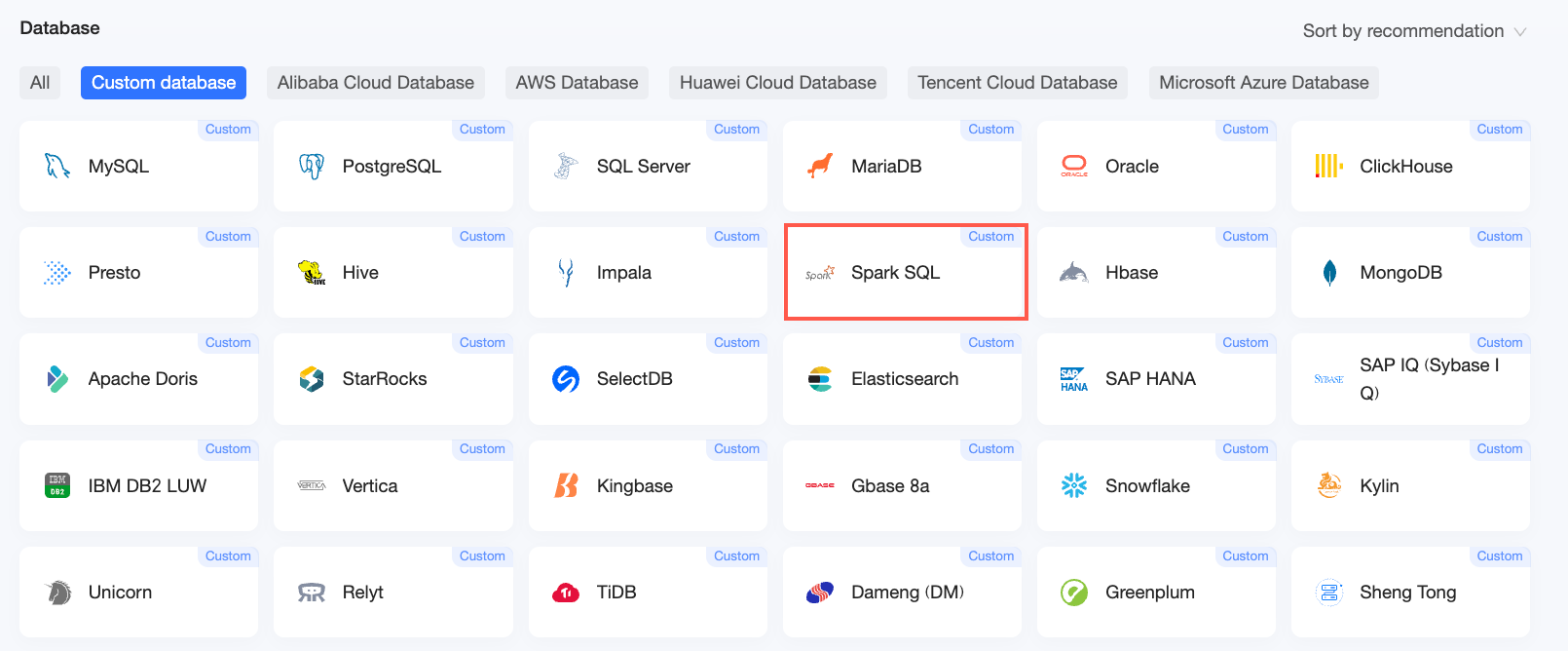
On the User-Created Data Source tab, select Spark SQL.
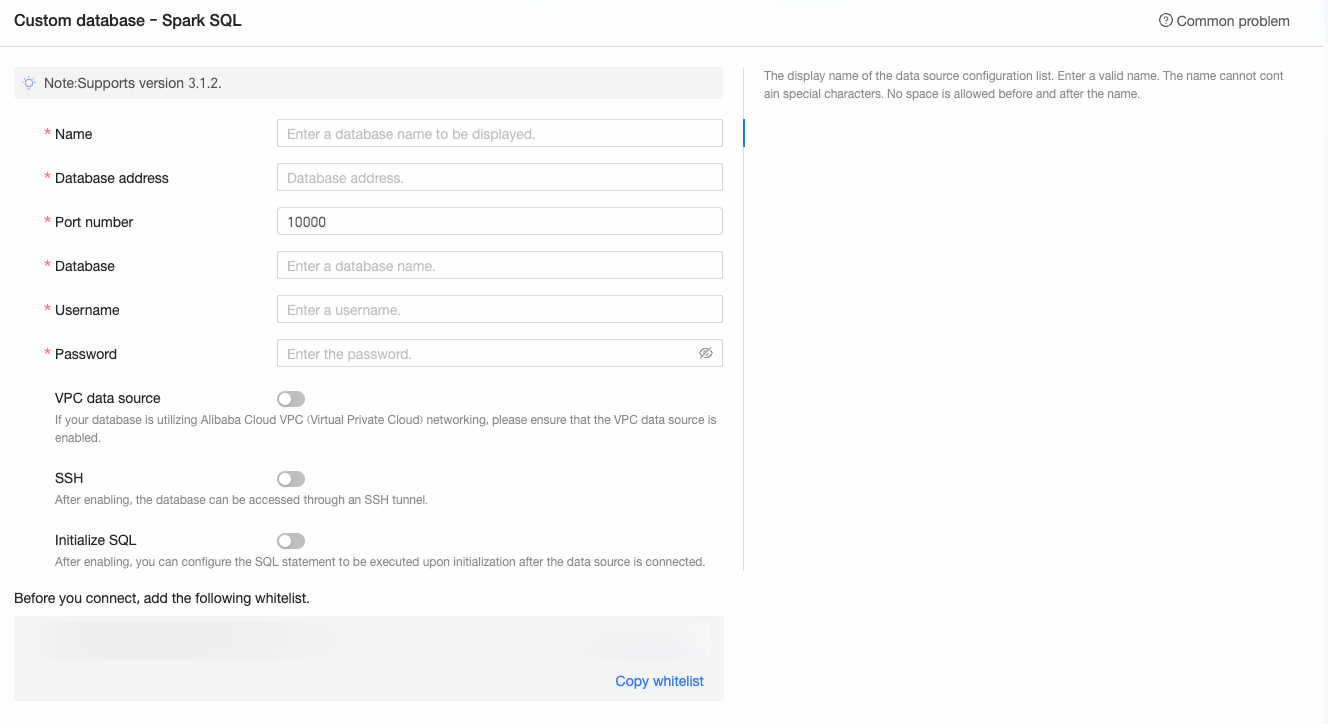
In the Configure Connection dialog box, configure the parameters as required.
Parameter
Description
Display name
The display name for the data source.
Enter a descriptive name. The name cannot contain special characters or leading or trailing spaces.
Database address
The IP address or domain name of the Spark SQL database.
Port
The database connection port.
Database
The name of the database that you specified during deployment.
Username and Password
The username and password for the Spark SQL database. Ensure that the user has CREATE, INSERT, UPDATE, and DELETE permissions on the tables in the database.
VPC data source
If your database uses an Alibaba Cloud VPC network, enable VPC data source.
If your database is deployed on an Alibaba Cloud ECS instance, select "Instance". If you connect through a Classic Load Balancer (CLB), select "CLB".
Instance
AccessKey ID: The AccessKey ID for the account that owns the instance.
For more information, see Create an AccessKey.
NoteEnsure that this AccessKey ID has read permissions on the target instance. If the AccessKey ID also has write permissions for the corresponding security group, the system automatically adds the required IP addresses to the whitelist. Otherwise, you must add the IP addresses manually. For more information, see Create a custom policy.
AccessKey Secret: The AccessKey Secret that corresponds to the AccessKey ID.
For more information, see Create an AccessKey.
Instance ID: The ID of the ECS instance. To find the instance ID, log on to the ECS console and go to the Instances page.
For more information, see View instance information.
Region: The region where the ECS instance is located. To find the region, log on to the ECS console and check the upper-left corner.
For more information, see View instance information.
CLB
AccessKey ID: The AccessKey ID for the account that owns the CLB instance. Ensure that this account has read permissions on the CLB instance. To find the AccessKey ID, log on to the RAM console. For more information, see View the AccessKey information of a RAM user.
AccessKey Secret: The AccessKey Secret that corresponds to the AccessKey ID. The AccessKey Secret is displayed only when you create it and cannot be retrieved later. If you lose it, you must create a new AccessKey.
Instance ID: The ID of the CLB instance. To find the instance ID, log on to the CLB console and go to the Instances page.
Region: The region where the instance is located. To find the region, log on to the CLB console and check the upper-left corner of the Instances page.
SSH
If you select SSH, you must configure the following parameters:
You can set up a bastion host and use an SSH tunnel to access the database. Contact your O&M engineer or system administrator for the bastion host details.
SSH host: The IP address of the bastion host.
SSH username: The username used to log on to the bastion host.
SSH password: The password for the SSH username.
SSH port: The port of the bastion host. The default port is 22.
For more information, see Connect to a Linux instance by using a password or key.
Initialize SQL
If enabled, you can specify SQL statements to run for initialization each time a connection is established.
Only SET statements are allowed. Separate multiple statements with semicolons (;).
Click Connection Test to test the data source connectivity.

After a successful connection test, click OK.
The new data source appears in the data source list.
Next steps
After you create the data source, you can create datasets and analyze data.
Add data tables from your Spark SQL database or custom SQL queries to Quick BI to create datasets. For more information, see Create a dataset.
Create charts on a dashboard to visualize and analyze your data. For more information, see Create a dashboard and Overview of chart types.
Use the drill-down feature for in-depth data analysis. For more information, see Step 3: Configure and use the drill-down feature.