Add users by syncing RAM users
Quick BI lets you automatically sync RAM users from the RAM directory based on your business needs. You can sync all RAM users from your Alibaba Cloud account or the account associated with your RAM user.
Prerequisites
You must meet the following requirements:
You are logged on to the Quick BI console with an Alibaba Cloud account or a RAM user.
You must be an organization administrator in Quick BI.
The RAM automatic read feature is available only in the Pro edition.
Background information
Because synchronizing the address book requires that a RAM user has the API permission to Query the basic information of all RAM users:
If you use an Alibaba Cloud account to access Quick BI, you have this permission by default and can directly sync its RAM directory.
If you access Quick BI as a RAM user, you need organization administrator permissions in Quick BI. Additionally, your Alibaba Cloud account must grant your RAM user the ListUserBasicInfos API permission in the RAM console.
The AliyunRamReadOnlyAccess permission policy includes the permission for the ListUserBasicInfos API operation. After you grant the AliyunRamReadOnlyAccess permission to the RAM user in the RAM console, proceed with the following steps:
Enable RAM user synchronization
Log on to the RAM console as a RAM administrator.
In the left-side navigation pane, choose .
On the Permission page, click Grant Permission.
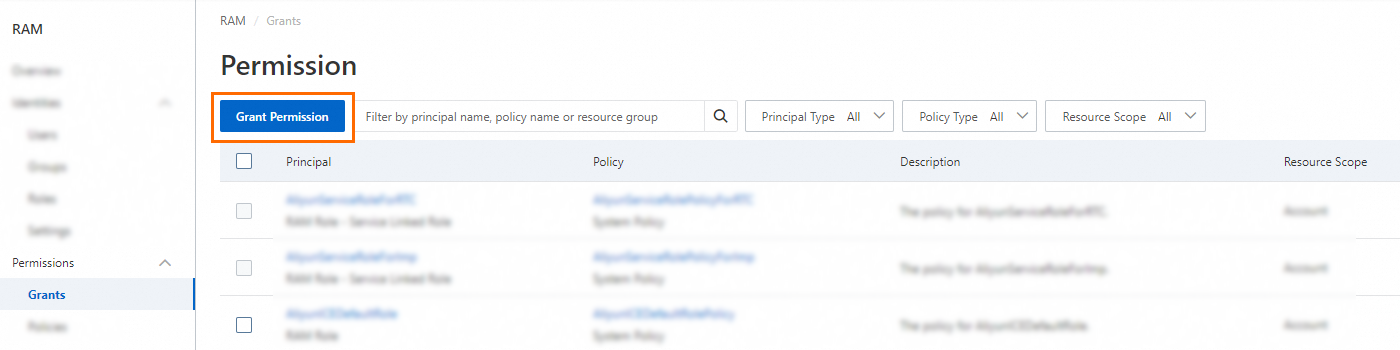
In the Grant Permission panel, grant permissions to the RAM user.
Configure the Resource Scope parameter.
Account: The authorization takes effect on the current Alibaba Cloud account.
Resource Group: The authorization takes effect on a specific resource group.
ImportantIf you select Resource Group for the Resource Scope parameter, make sure that the required cloud service supports resource groups. For more information, see Services that work with Resource Group. For more information about how to grant permissions on a resource group, see Control ECS access for RAM users using resource groups.
Configure the Principal parameter.
The principal is the RAM user to which you want to grant permissions. You can select multiple RAM users at a time.
Configure the Policy parameter.
A policy contains a set of permissions. Policies can be classified into system policies and custom policies. You can select multiple policies at a time.
System policies: policies that are created by Alibaba Cloud. You can use but cannot modify these policies. Version updates of the policies are maintained by Alibaba Cloud. For more information, see Cloud services that support RAM.
NoteThe system automatically identifies high-risk system policies, such as AdministratorAccess and AliyunRAMFullAccess. We recommend that you do not grant unnecessary permissions by attaching high-risk policies.
Custom policies: You can manage and update custom policies based on your business requirements. You can create, update, and delete custom policies. For more information, see Create a custom policy.
Click OK.
Click Close.
Sync from RAM
Use the Sync from RAM feature to retrieve your account's RAM directory. You can then select RAM users from this directory to add to your Quick BI organization.
Log on to the Quick BI console.
On the Quick BI homepage, navigate to the User Management page.
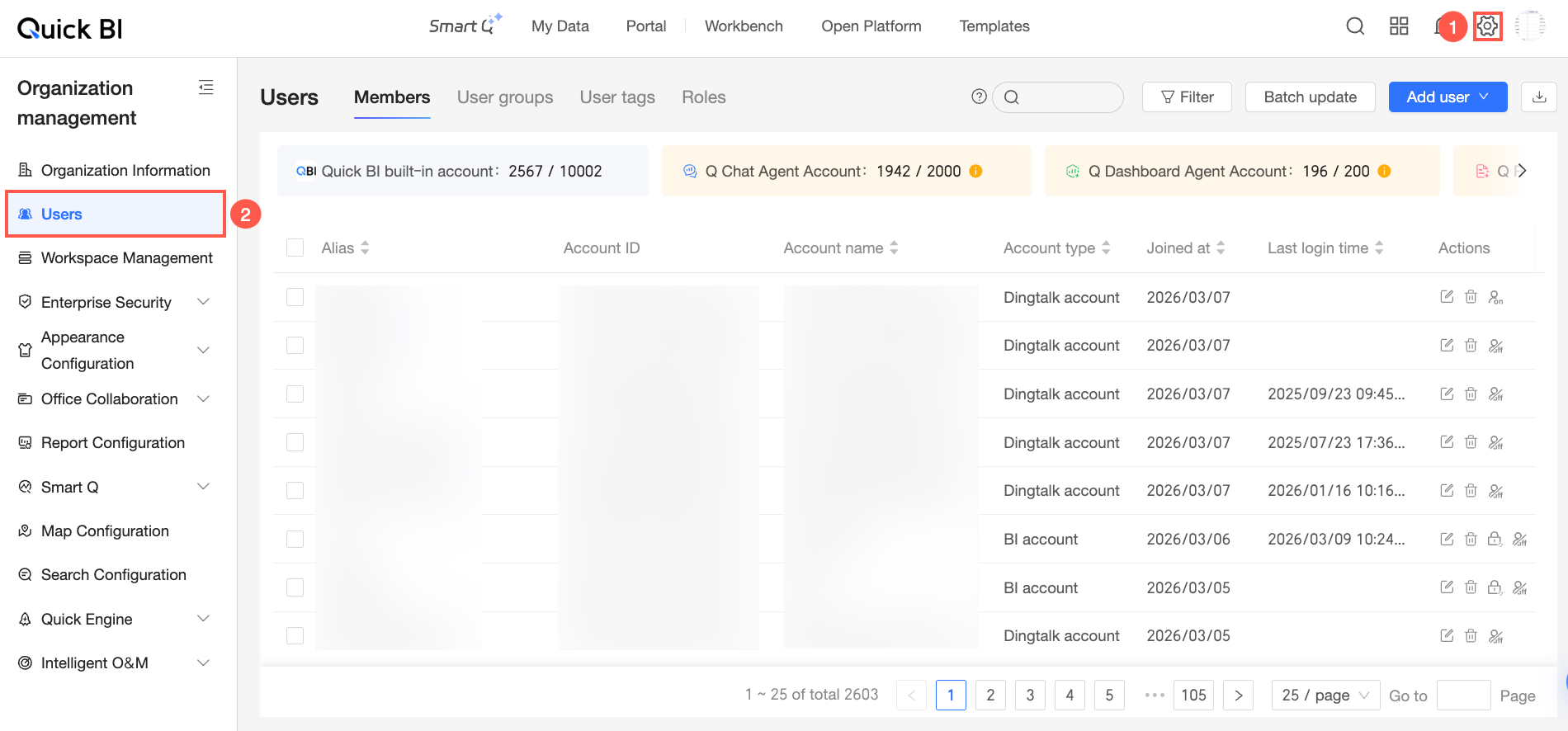
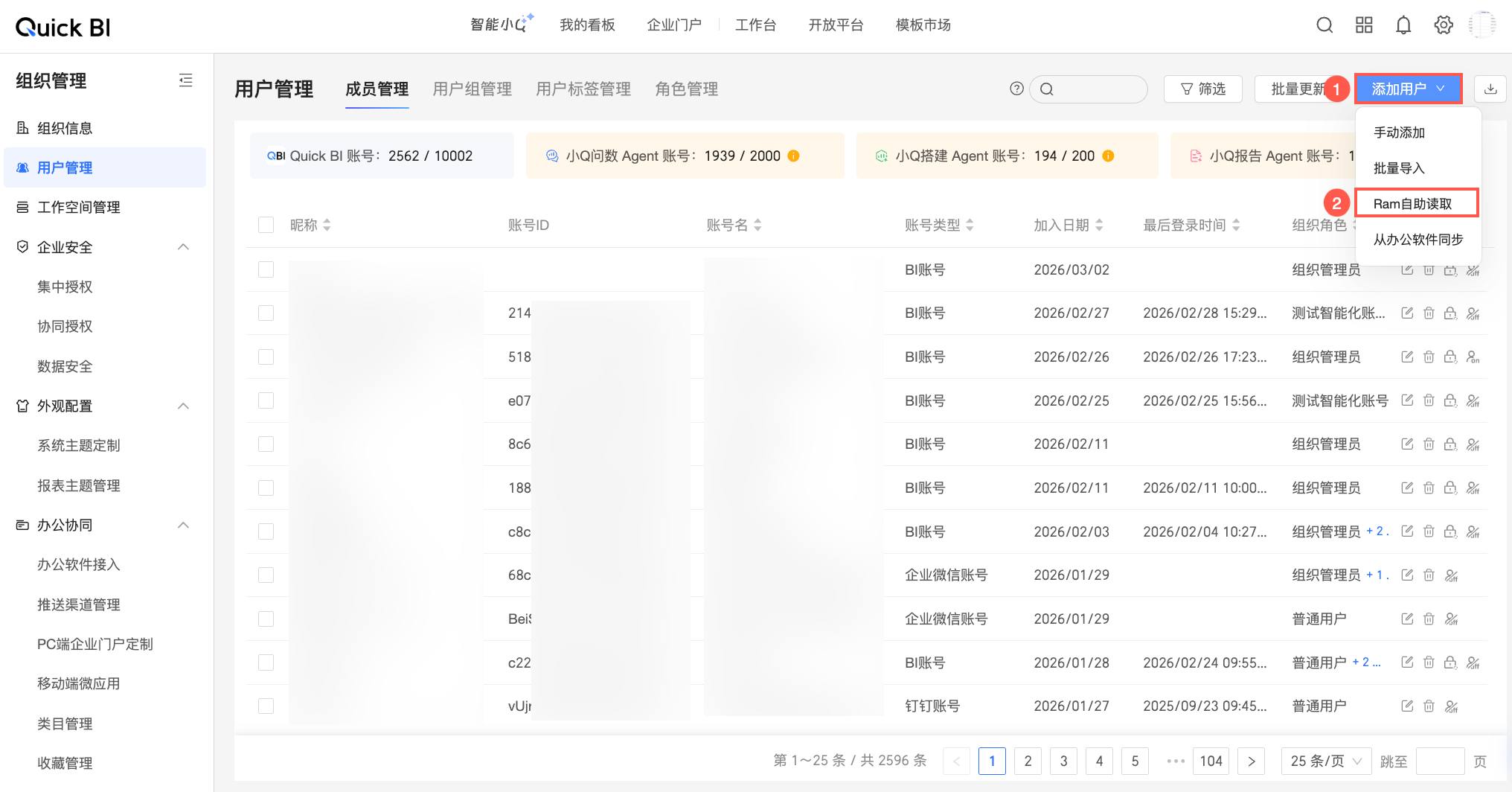
On the Member Management tab, in the upper-right corner, choose Add User > Sync from RAM.
In the Sync from RAM dialog box, select the RAM users that you want to add and configure the following parameters.
Parameter
Description
Account type
The RAM directory of the current account.
User type
Two types are supported: Developer and Viewer.
Developer: Can be added as a workspace member and given development and management permissions.
Viewers cannot be added as workspace members and can only view authorized reports.
User role
Quick BI provides three predefined organization roles at the organization level. You can also create custom roles.
Organization Administrator: Manages organization information, status, and members. An organization administrator can assign the Organization Administrator role to other users.
This role is recommended for 1 to 3 users, typically project managers (PMs) or personnel responsible for the BI platform.
Security Admin: Manages permissions for organization resources. This role is recommended for 1 to 3 users, typically personnel responsible for the BI platform.
Regular User: A user who is not an Organization Administrator or a Security Admin.
Custom organization role: You can create custom roles based on your business needs. For more information, see Role Management.
Available agents
If your organization has purchased additional Q-Bot Agents, you can assign Agent seats to the new users.
To assign an Agent seat, turn on the switch (
 ) next to the Agent.Note
If User Type is set to Viewer, users cannot use Q-Bot to build Agents.
Ensure that:
The remaining quota for the Agent must be sufficient. You can view the remaining quota for each Agent in the current window.
The organization role you assign must have the required permissions to use the Agent. Otherwise, users cannot use the Agent even if a seat is assigned. For more information about organization role permissions, see Organization Roles.
For information about purchasing Agent seats, see Quick BI Billing Methods (China Site).
Click OK to add the users to the organization.
FAQ
Problem
The system displays the message "Failed to retrieve the RAM directory. Please log on again and try."
Solution
Click Log On Again to return to the Quick BI console.