AIPro Skill User Guide
AIPro Skill integrates the data analysis capabilities of Quick BI AIPro with your enterprise's own or third-party agent tools, such as Qwen, Claude Code, or Codex. This integration allows you to perform data queries and analysis using natural language without switching between applications. This topic describes the core capabilities, limitations, prerequisites, installation, configuration, and basic workflow of AIPro Skill.
Overview
The AIPro Skill configuration contains a key and a user identity token. Do not share this configuration with unauthorized personnel, commit it to public code repositories, or expose it in client-side code or public logs.
Core capabilities
AIPro Skill supports the data analysis capabilities exposed by Quick BI AIPro. It currently supports data queries, AI-generated reports (visualized reports), and document report generation.
Capability | Description |
Data query | Performs data queries and analysis using natural language based on prepared data assets, metric definitions, and business knowledge in AIPro, without needing to write SQL. |
AI-generated report | Generates visualized reports from natural language prompts. Supports one-click dashboard creation based on prepared data assets. |
Report generation | Generates document analysis reports using natural language. |
Session management | Creates and ends a session, maintains context, and supports multi-turn follow-up questions. |
Task management | Initiates analysis tasks, queries task status, retrieves task results, and cancels tasks. |
Result output | Returns results as text, tabular data, or generated artifacts like reports, which can be easily displayed and processed by the integrated application. |
Users and permissions | Verifies permissions for the mapped AIPro user identity to ensure users can access only authorized data and data assets. |
Limitations
AIPro Skill does not currently support the following operations:
Synchronizing data assets, uploading local files, creating datasets, or creating data sources.
Performing data preparation, data modeling, or configuration tasks, such as modifying dataset fields or configuring user permissions.
To perform these operations, go to Quick BI AIPro.
The data assets and business knowledge a user can analyze depend on their permissions in AIPro.
Prerequisites
Before you use AIPro Skill, complete the following:
Ensure that you have activated Quick BI AIPro and can access it with your current account.
Prepare the necessary data assets, metric definitions, and business knowledge in AIPro.
Grant the required data asset permissions to the AIPro user who will be invoking the skill.
Confirm that your target agent tool supports skill installation or registration.
Confirm that your organization administrator has enabled the Get Personal Access Token toggle in the settings of Open Platform. If this toggle is disabled, you cannot obtain a personal access token, and calls to the skill or MCP will fail.
Install and configure AIPro Skill
Install the skill
After installation, you need to obtain the access configuration for the current user. In Personal Settings, click Get Personal Access Token. The Personal Access Token panel provides the following installation methods:
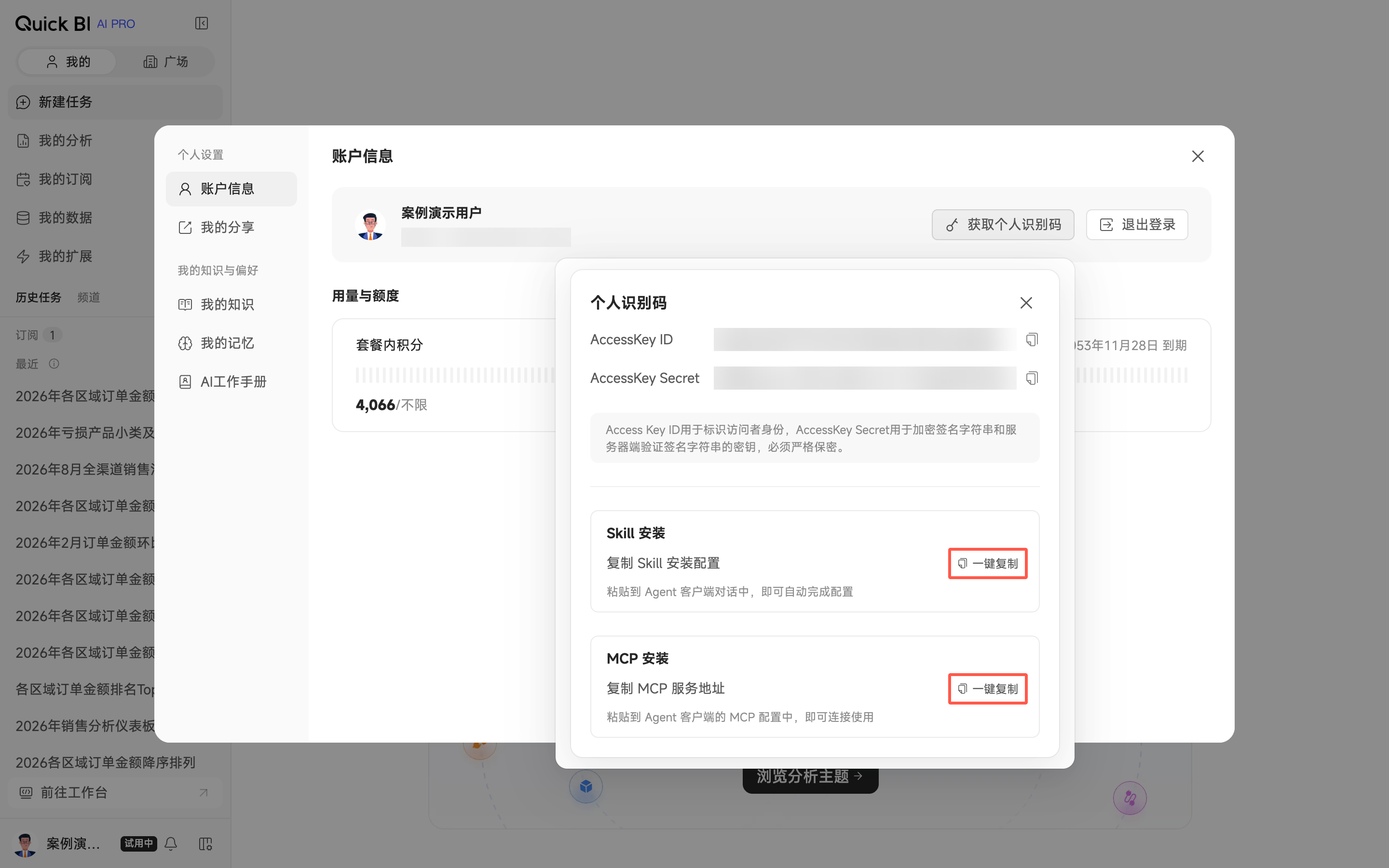
One-click skill installation (Recommended): On the Skill Installation card in the Personal Access Token panel, click Copy. Paste the copied text directly into the chat window of your target agent client. The client automatically downloads the skill and configures the key.
One-click MCP installation: On the MCP Installation card in the Personal Access Token panel, click Copy. Paste the copied text directly into the chat window of your target agent client. The client automatically adds the Quick BI MCP service configuration.
Manual configuration: Follow these steps to manually obtain and enter the skill configuration.
Log on to Quick BI AIPro.
In the lower-left corner of the page, click your avatar, and then click Personal Settings.
In the Personal Settings dialog box, on the Account Information tab, click Get Personal Access Token. On the Skill Installation card in the Personal Access Token panel, click Copy.
Follow the configuration instructions for your target agent tool to enter or import the copied skill configuration.
The copied configuration includes the following items:
Parameter
Description
api_keyThe caller identity.
api_secretThe key paired with the
api_key.user_tokenThe user identity token for the current user. This token determines the scope of accessible data and data assets.
server_domainThe Quick BI service endpoint. The public cloud endpoint is
https://bi.aliyun.com.
The api_secret and user_token are credentials. Share them only with trusted systems and authorized personnel. Do not distribute them through public channels.
You can also download the latest AIPro Skill installation package from the following code repositories and upload it to your target agent tool:
GitHub: https://github.com/quick-bi/skills.
After installation, confirm that the AIPro Skill is available in your target agent tool.
Verify the configuration
After configuration, we recommend that you test it by asking a simple question about a data asset that the current user has permission to access. For example:
Analyze the month-on-month change in this month's sales and summarize the main reasons.If the system returns text or tabular results and the data scope matches the user's permissions, the AIPro Skill is configured correctly.
Use AIPro Skill
Basic workflow
A user enters a natural language question in the agent.
AIPro Skill validates permissions based on the mapped user identity.
AIPro performs the analysis based on prepared data assets, metric definitions, and business knowledge.
AIPro Skill returns the results in text or tabular format.
The user can ask follow-up questions in the same session. After the analysis is complete, the user can end the session.
Example prompts
"Analyze the year-on-year and month-on-month changes in this month's sales and explain the main contributing factors."
"Break it down by region and find the top three regions by sales contribution."
"Return the results in a table and summarize three key takeaways."
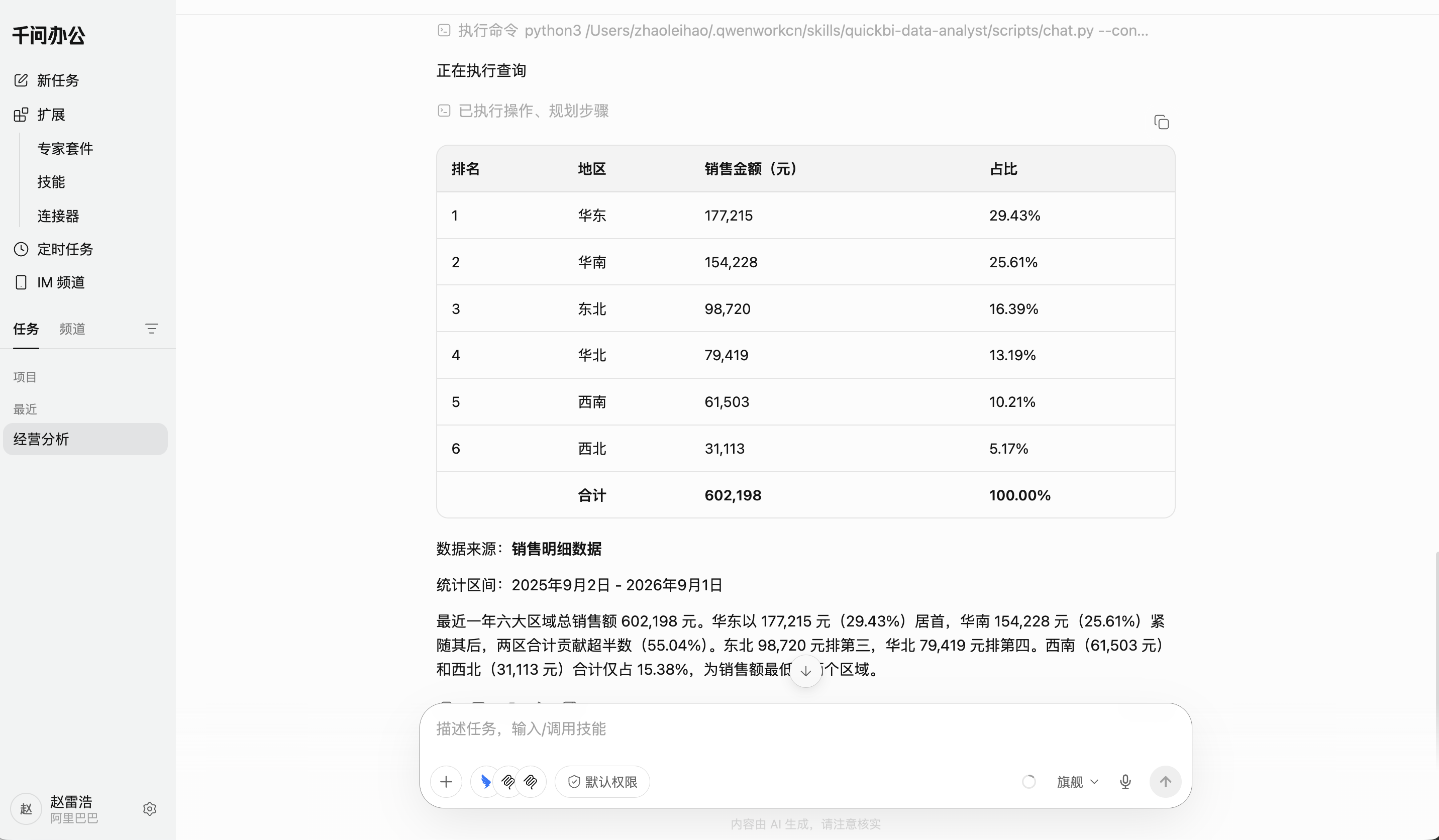
For example, after integrating AIPro Skill with Qwen, you can perform data queries and analysis by using a natural language prompt such as "Break it down by region and find the top three regions by sales contribution."
FAQ
Unable to query expected data
First, check the following:
The mapped AIPro user identity is correct.
The user has permission to access the target data asset.
The target data asset, metric definition, and business knowledge are correctly configured in AIPro, and the specified asset ID is correct.
Context lost in follow-up questions
AIPro Skill uses a session to maintain the necessary context. If each question uses a different session, or if the original session has ended, AIPro cannot link to previous questions and analysis results.
When asking multi-turn follow-up questions, remain in the same session. End the session only after you finish the analysis.
Related operations
User permissions: Confirm the calling account's permissions in AIPro.
Pre-configure data assets: Prepare data assets for users.