Analysis frameworks
Scenarios
Companies often develop analysis frameworks based on their professional experience and business characteristics. However, when you use Q&A for analysis, the underlying Large Language Model (LLM) may not be aware of these standardized frameworks, producing results that are inconsistent with your established practices.
By configuring analysis frameworks in the Quick BI enterprise knowledge base, you can structure your established analysis methodologies, such as competitor analysis or marketing campaign reviews, into standardized templates for Q&A. When you ask a question in a specific business scenario, Q&A uses the specified framework to generate more targeted, professional results.
Accessing the feature
Choose a configuration option based on your requirements.
-
If you have business documents such as review reports or meeting minutes, you can use AI to extract reusable analysis frameworks from them. This method also extracts other types of business knowledge, such as business logic and content templates, from the same document. To get started, upload a knowledge document. For more information, see Add a knowledge document.
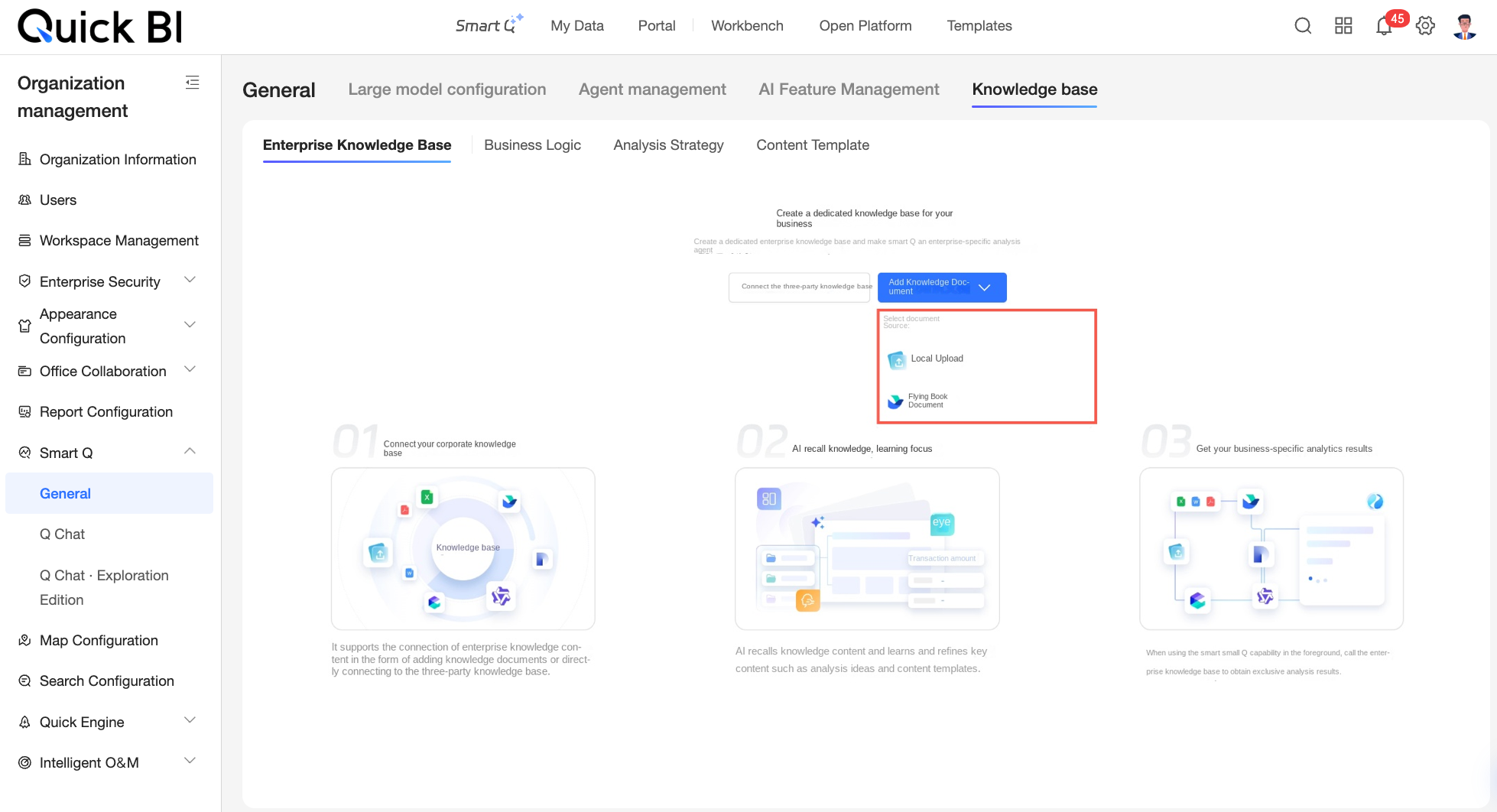
-
If you already have a clear analysis framework, you can configure it as a reusable template on the Analysis Frameworks tab of the knowledge base management page. For instructions, see the Procedure section in this topic.
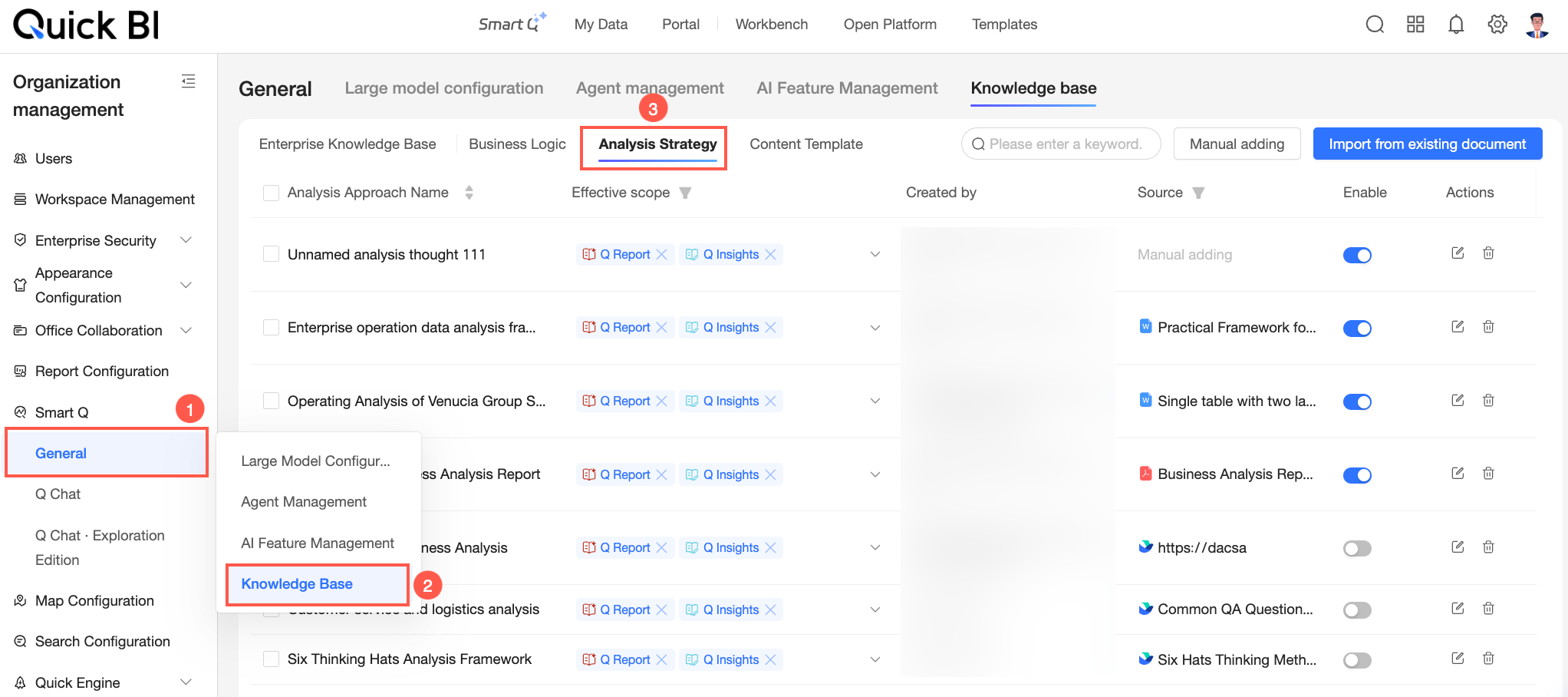
Procedure
You can add analysis frameworks to Quick BI manually or by importing them from existing documents.
Add manually
-
On the Analysis Frameworks page, click Add Manually.
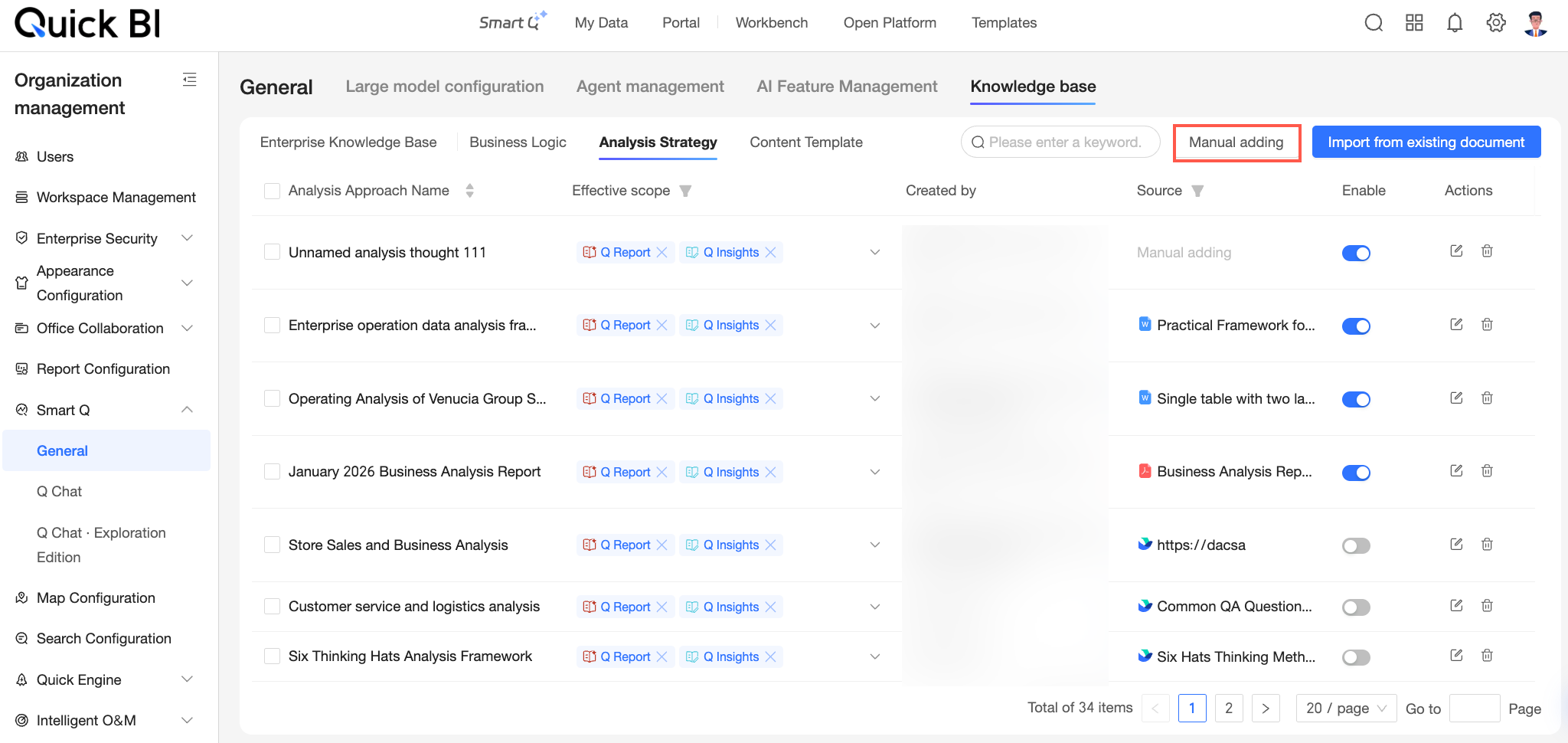
-
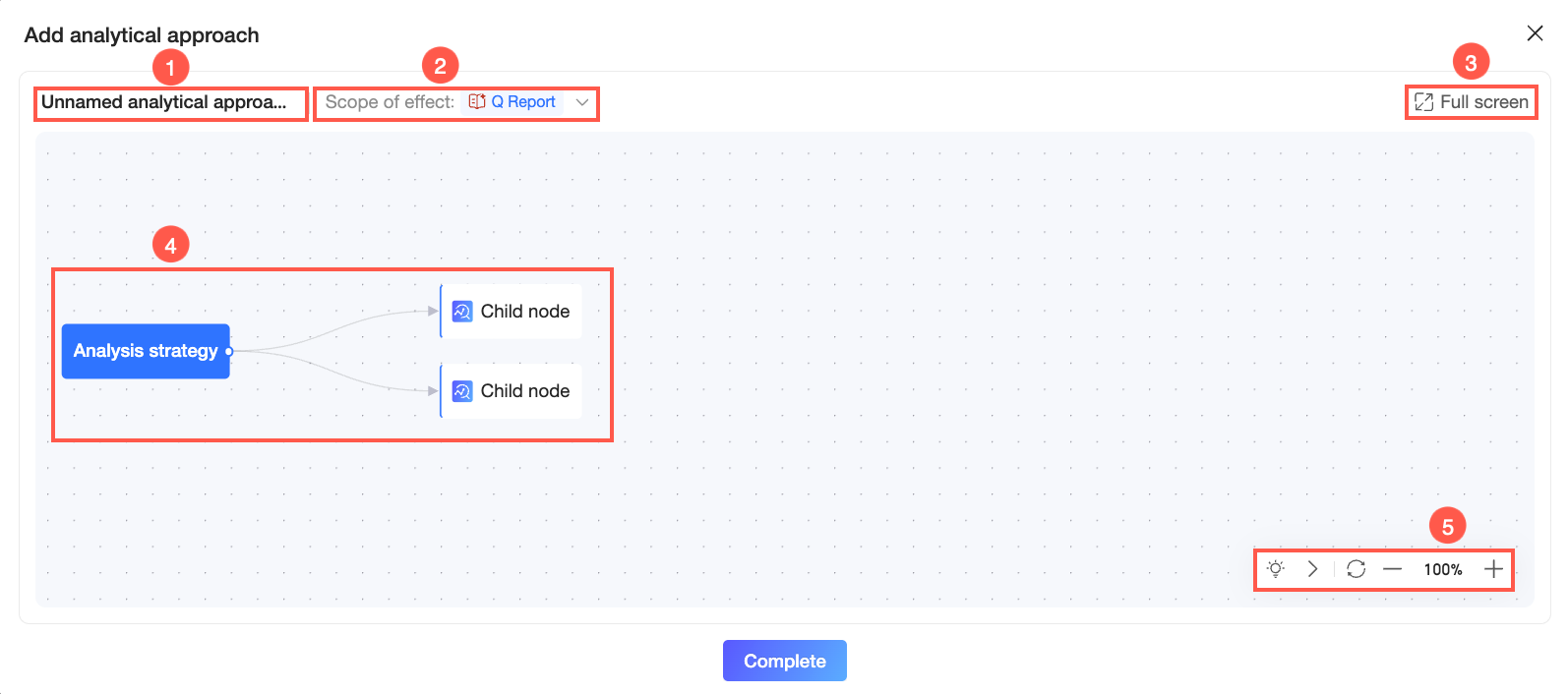
In the Add Analysis Framework dialog box, configure the analysis framework as a mind map.
Available operations
Description
① Edit the analysis name
The system names it Untitled Analysis Framework by default. Hover over the name to turn it into an input box. You can then rename it based on its scenario or business purpose. Ensure the name is unique within your organization.
② View the effective scope
View the agents where the current analysis framework is effective.
NoteXiao Q Report and Xiao Q Interpretation are currently supported.
③ Enter the full-screen canvas
Click Full Screen to enter the full-screen edit mode for the analysis framework in the current browser tab. This maximizes the available editing area. After editing, click Exit Full Screen to return to the Add Analysis Framework dialog box.
④ Edit the analysis logic node
You can perform the following editing operations:
-
Modify node content: Double-click a node to edit its text.
-
Add a child node: Hover over a node and click the
 icon next to it to add a child node.
 -
Delete a node: To delete a node, click to select it and press Delete or Backspace on your keyboard.
-
Collapse child nodes: For a node that has child nodes, click the
 icon next to it to collapse its child nodes.
Note-
An analysis framework can have up to 6 layers, with a maximum of 20 nodes per layer.
-
The root vertex can contain up to 50 characters. A single child node can contain up to 500 characters.
⑤ Use the toolbar
The toolbar supports the following operations:
-
Hover over the
icon to view notes and instructions. -
Click the
icon to collapse the toolbar. -
Click the
or icon to zoom in or out on the canvas. -
Click the
icon to reset the canvas zoom level.
-
-
Click Done. After the framework is added, you can view it on the list page.
 icon next to it to collapse its child nodes.
 icon to view notes and instructions.
 icon to collapse the toolbar.
 or
or  icon to zoom in or out on the canvas.
 icon to reset the canvas zoom level.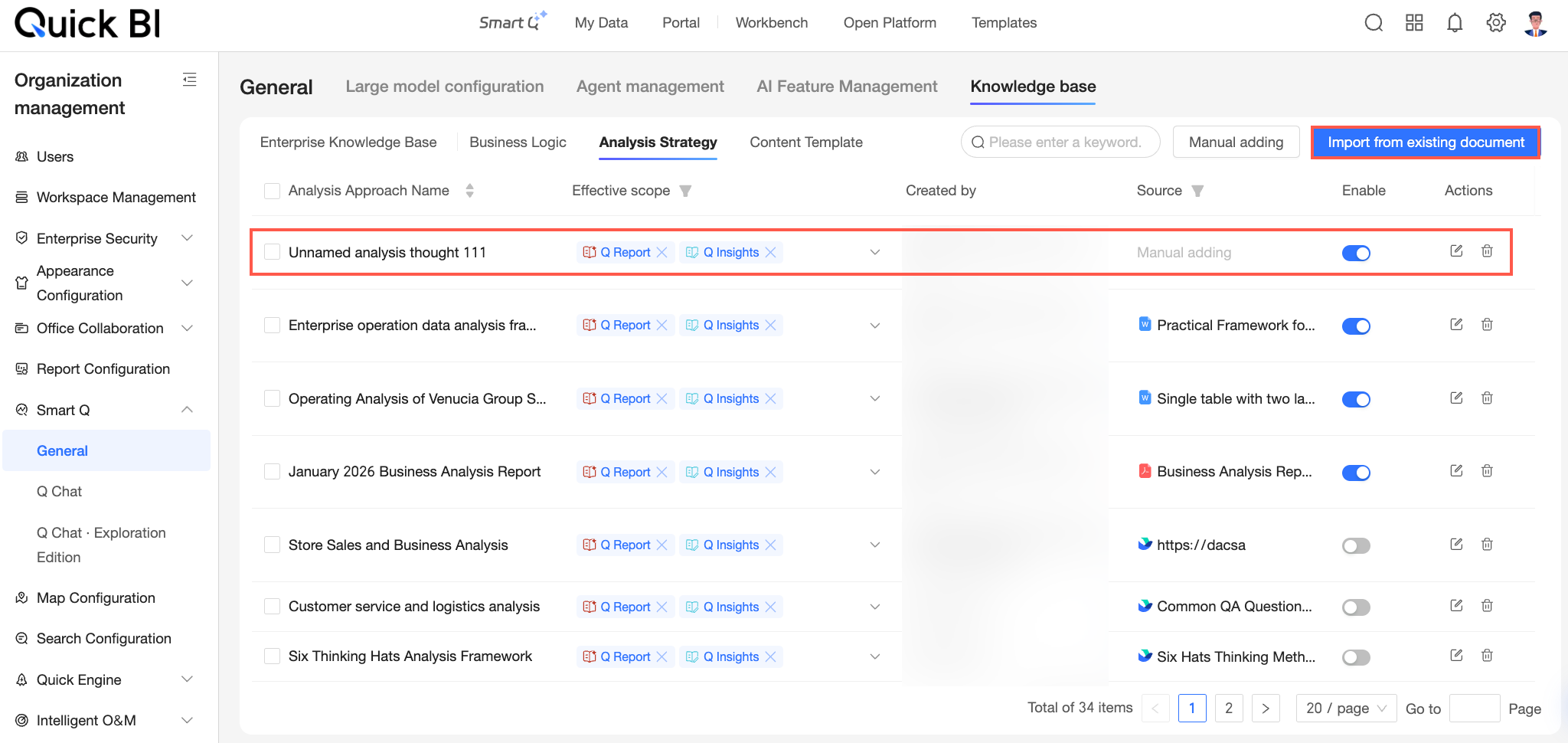
Import from an existing document
-
On the Analysis Frameworks page, click Import from Document.
-
In the Select Document step of the Import Analysis Framework dialog box, select the document type and configure the settings.
-
If the document type is Local File, click or drag a file into area ① to upload it.
Note-
Only local files in DOC, DOCX, or PDF format are supported. The file size cannot exceed 10 MB.
-
To improve parsing accuracy, an analysis framework template is provided. Click the
icon in area ② to download the template. You can use this template as a reference to help the model better parse the analysis framework from your document.
-
-
If the document type is Lark Document, you must configure the Lark application authorization information (①) and the document connection information (②). For more information about these configurations and how to obtain the required information, see Connect to a Lark document.
-
-
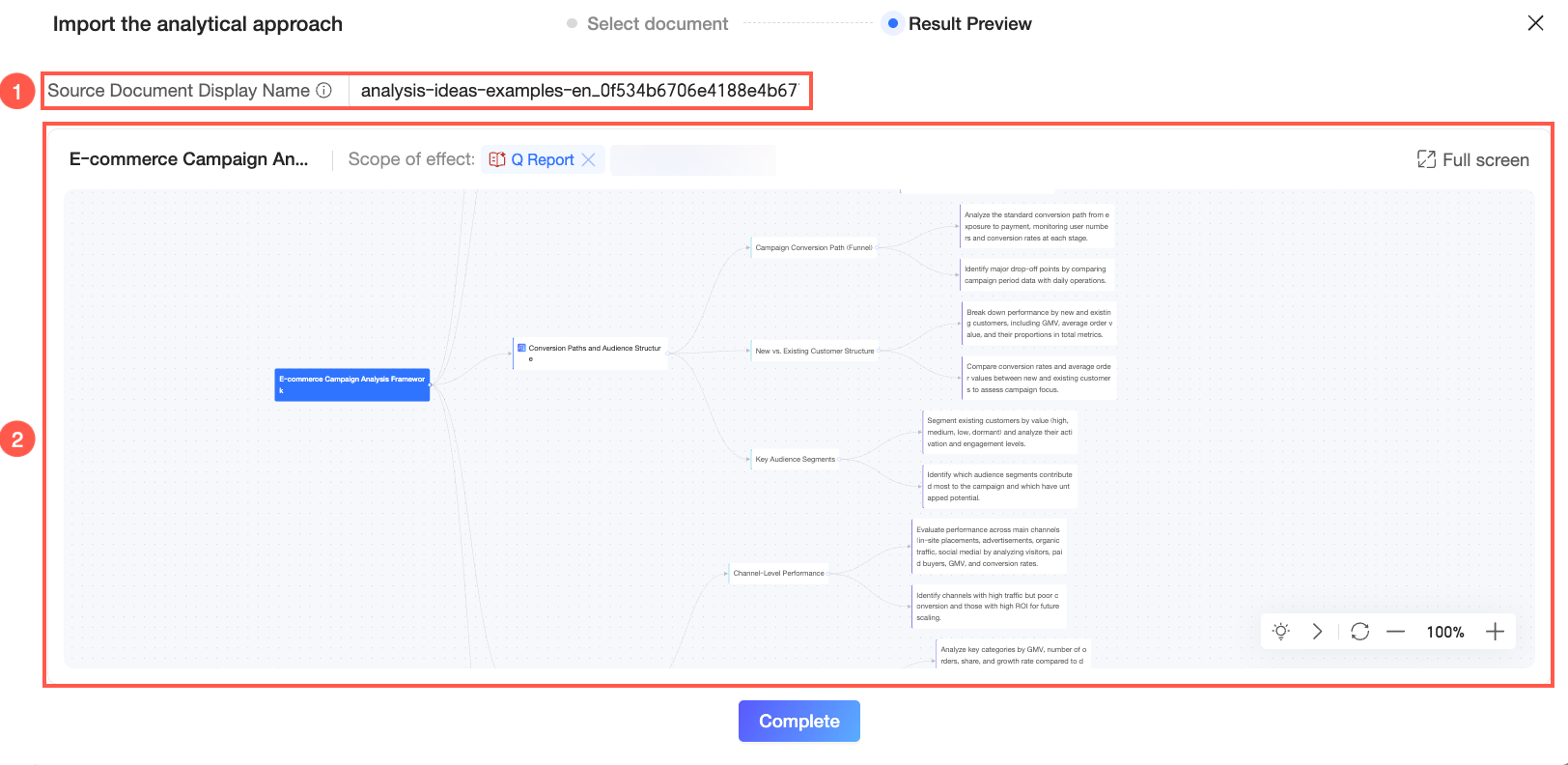
After the upload is complete, AI automatically parses the analysis frameworks in the document. You are then taken to the Result Preview step. This step displays the source document name (①) and renders the parsed analysis framework as a mind map on the editing canvas (②). You can edit the framework on the canvas as needed. For more information, see Edit the analysis framework.
-
Click Done. After the framework is added, you can view it on the list page.
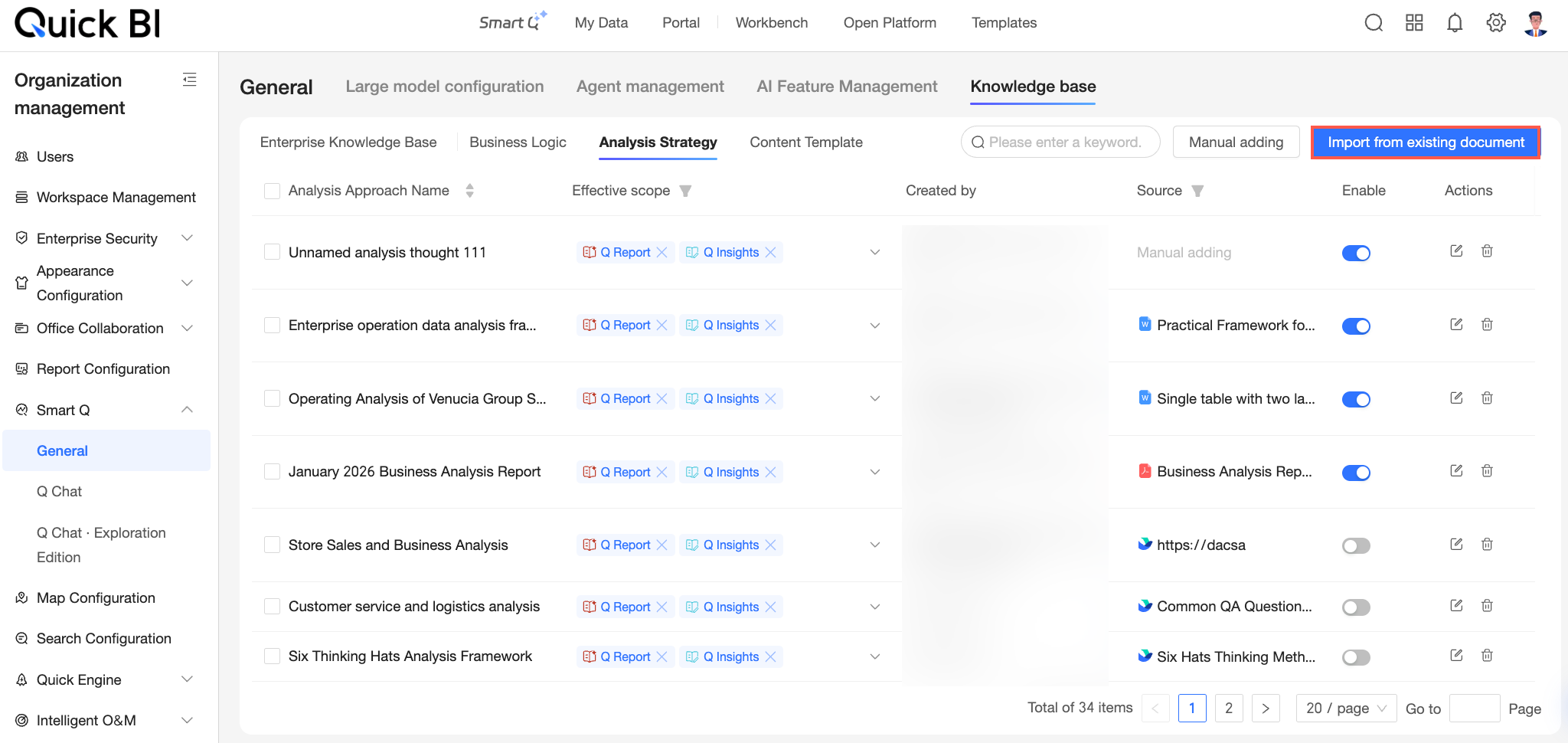
 icon in area ② to download the template. You can use this template as a reference to help the model better parse the analysis framework from your document.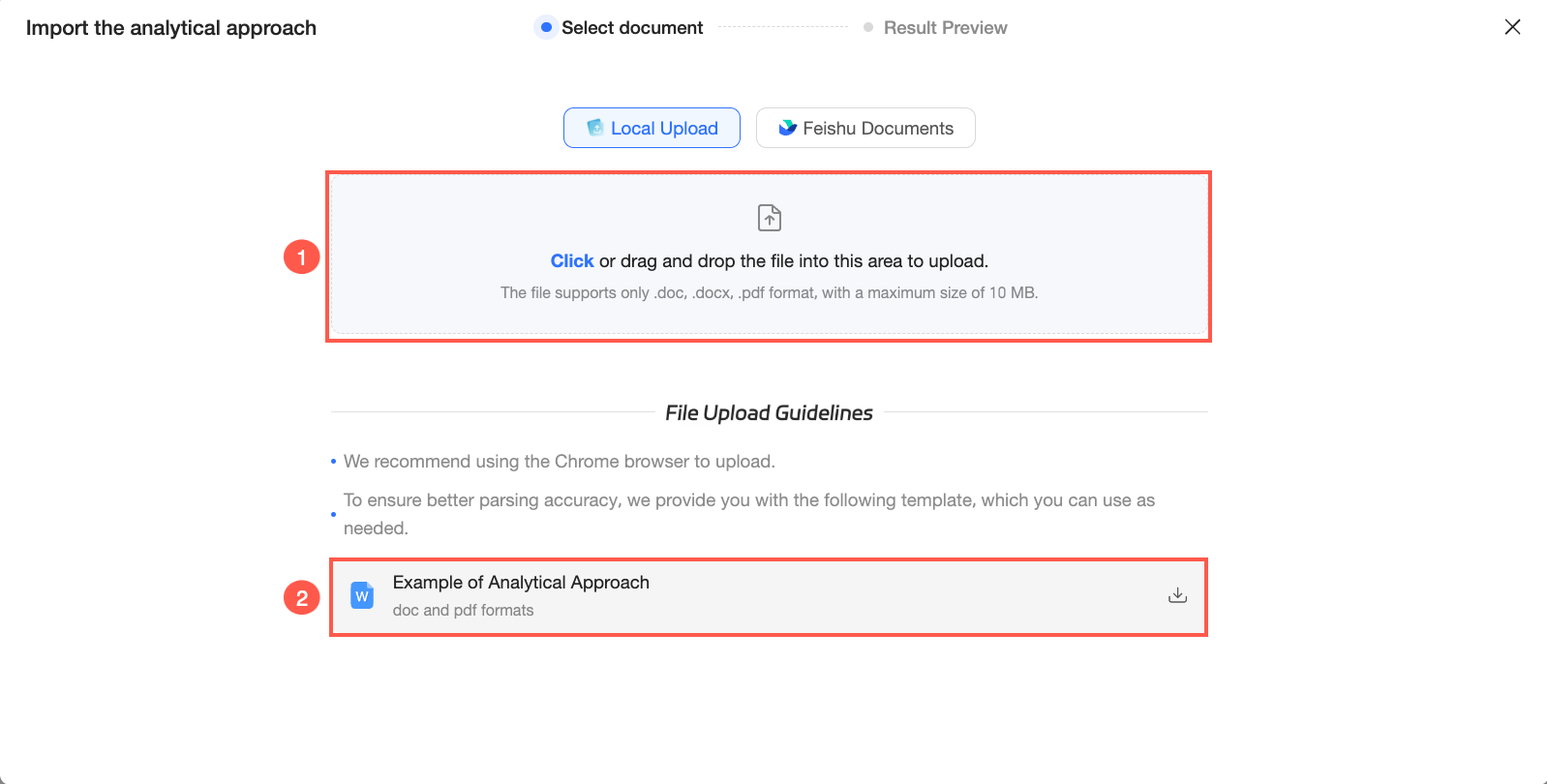
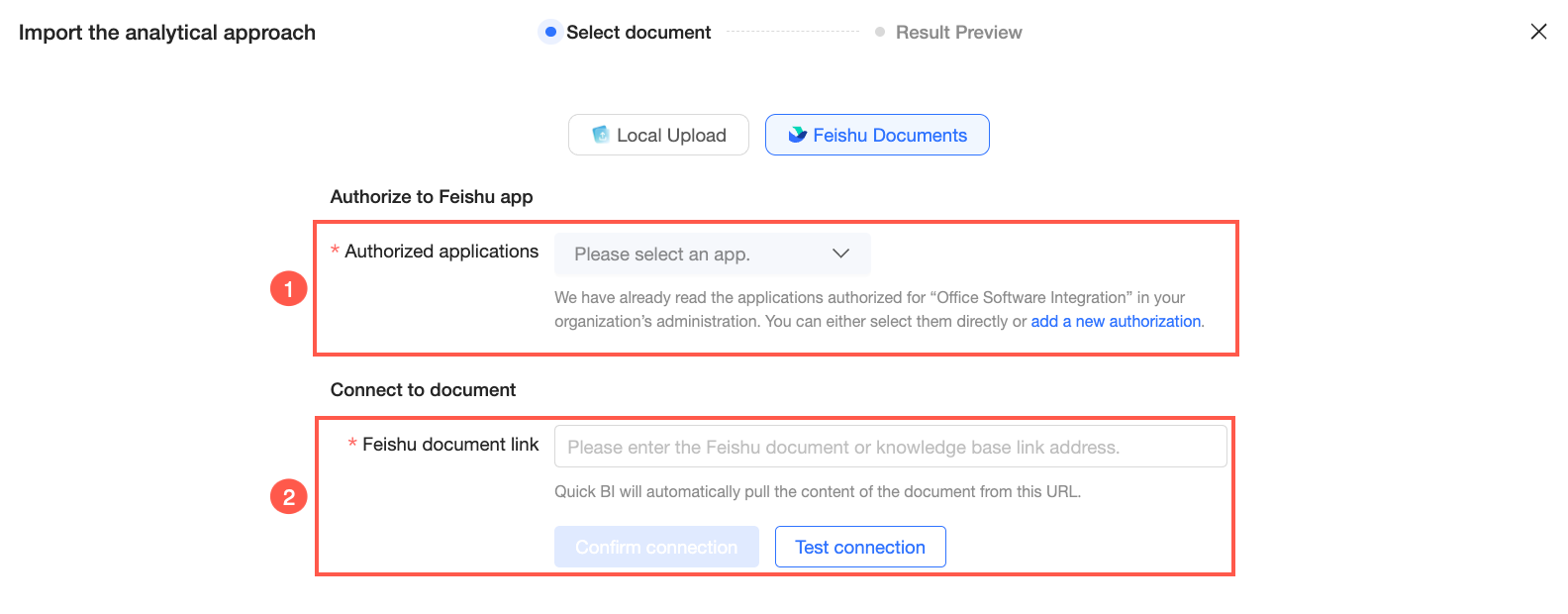
Manage analysis frameworks
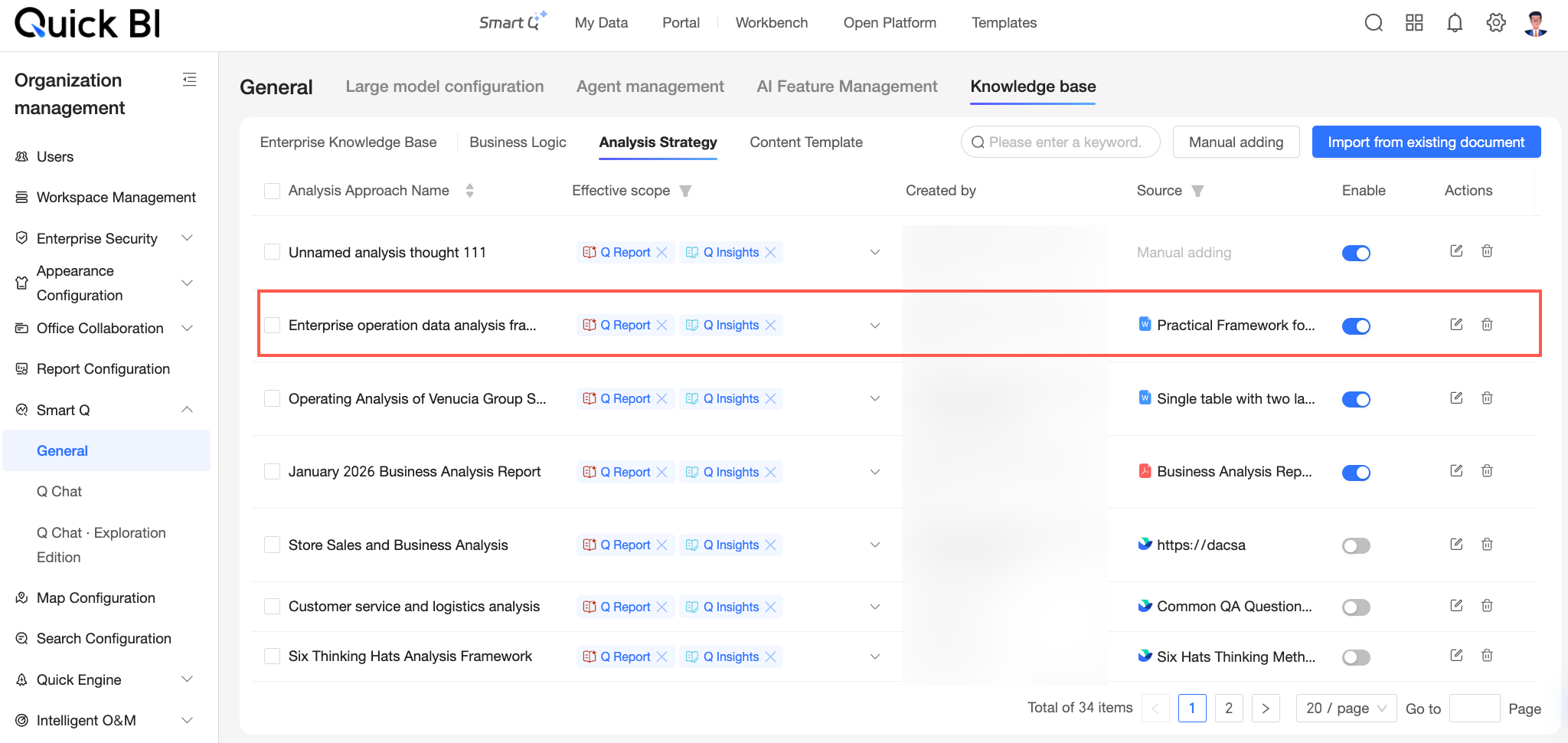
The Analysis Frameworks list page displays all frameworks in your organization, including their effective scope and creator. You can perform the following operations: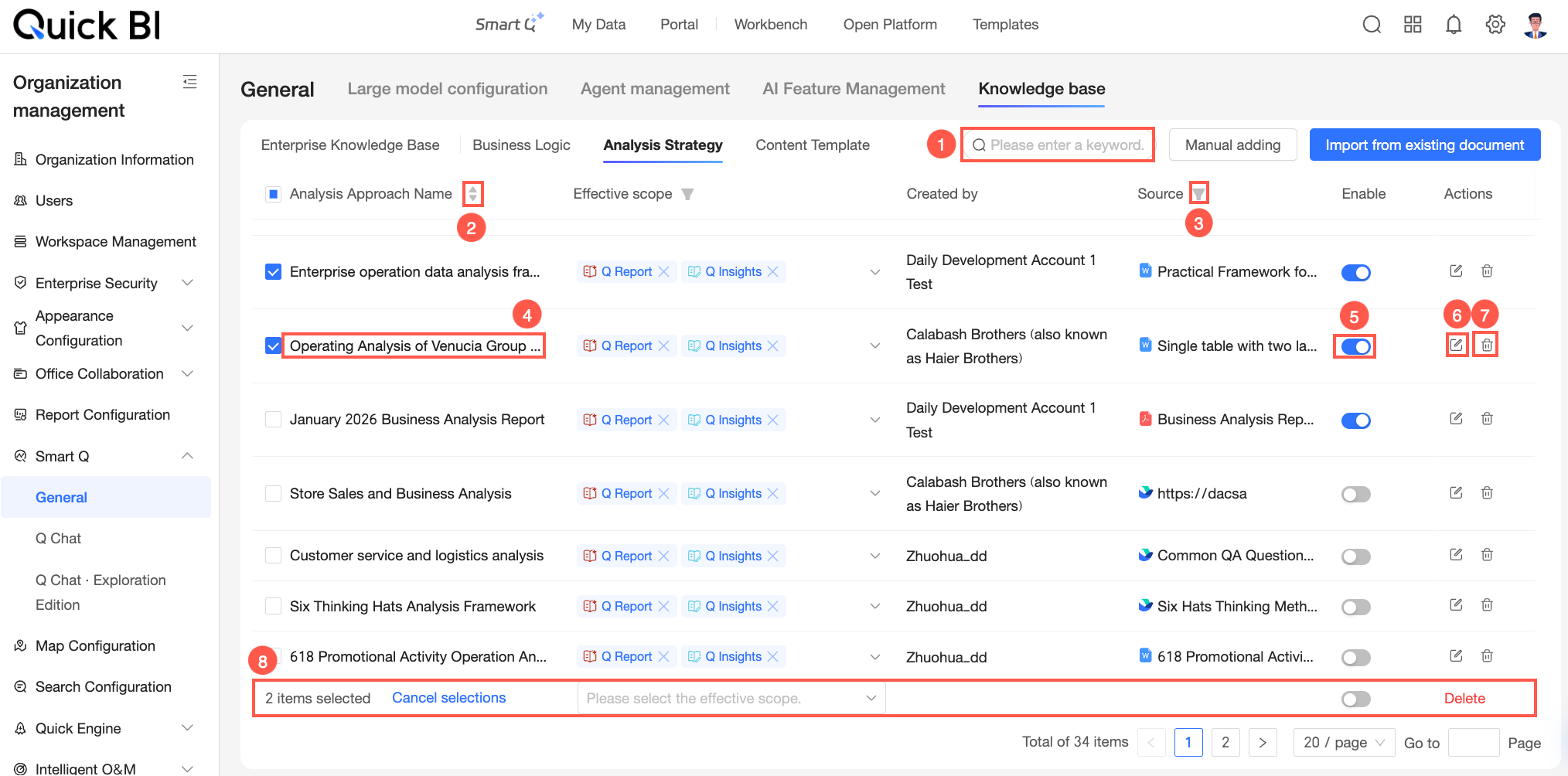
|
Available operations |
Description |
|
① Search analysis approach |
Enter keywords in the search box in the upper-right corner of the list to filter and locate specific frameworks. |
|
2. Sorting |
By default, frameworks are sorted by update time in descending order. Click the |
|
③ Filter |
You can quickly filter frameworks by source document. Click the
|
|
④ View framework details |
Click the name of a framework to go to its details page. On this page, you can:
|
|
5. Enable |
Frameworks are enabled by default after being added. You can change this status using the switch ( |
|
(6) Edit |
Click the |
|
Delete |
Click the |
|
⑧ Perform batch operations |
Select multiple frameworks to enable, disable, or delete them in bulk. |
 icon next to Analysis Idea Name to switch to alphabetical order.
 icon next to Effective Scope and Source, check the relevant documents in the filter panel, and click OK to quickly filter.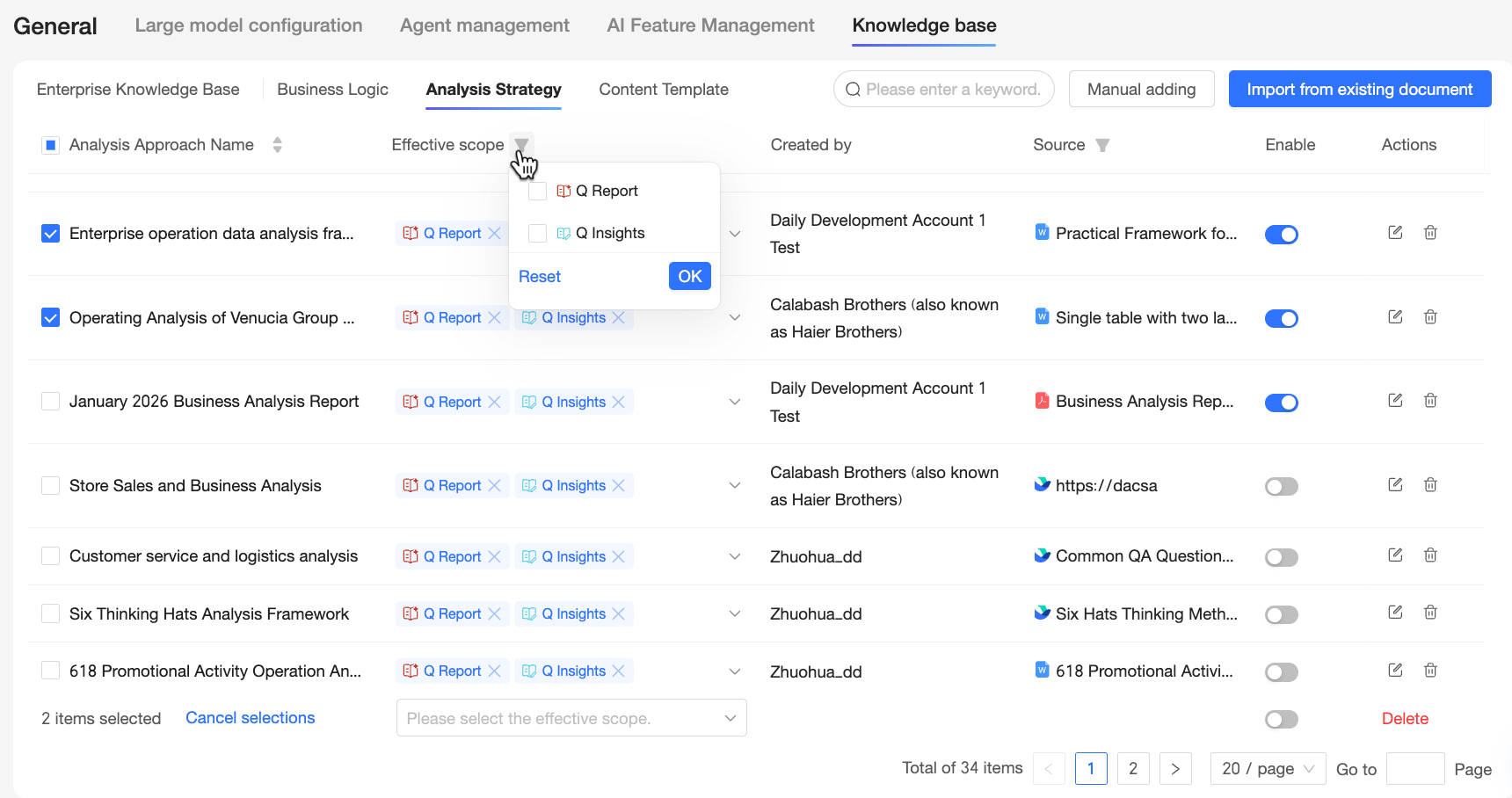
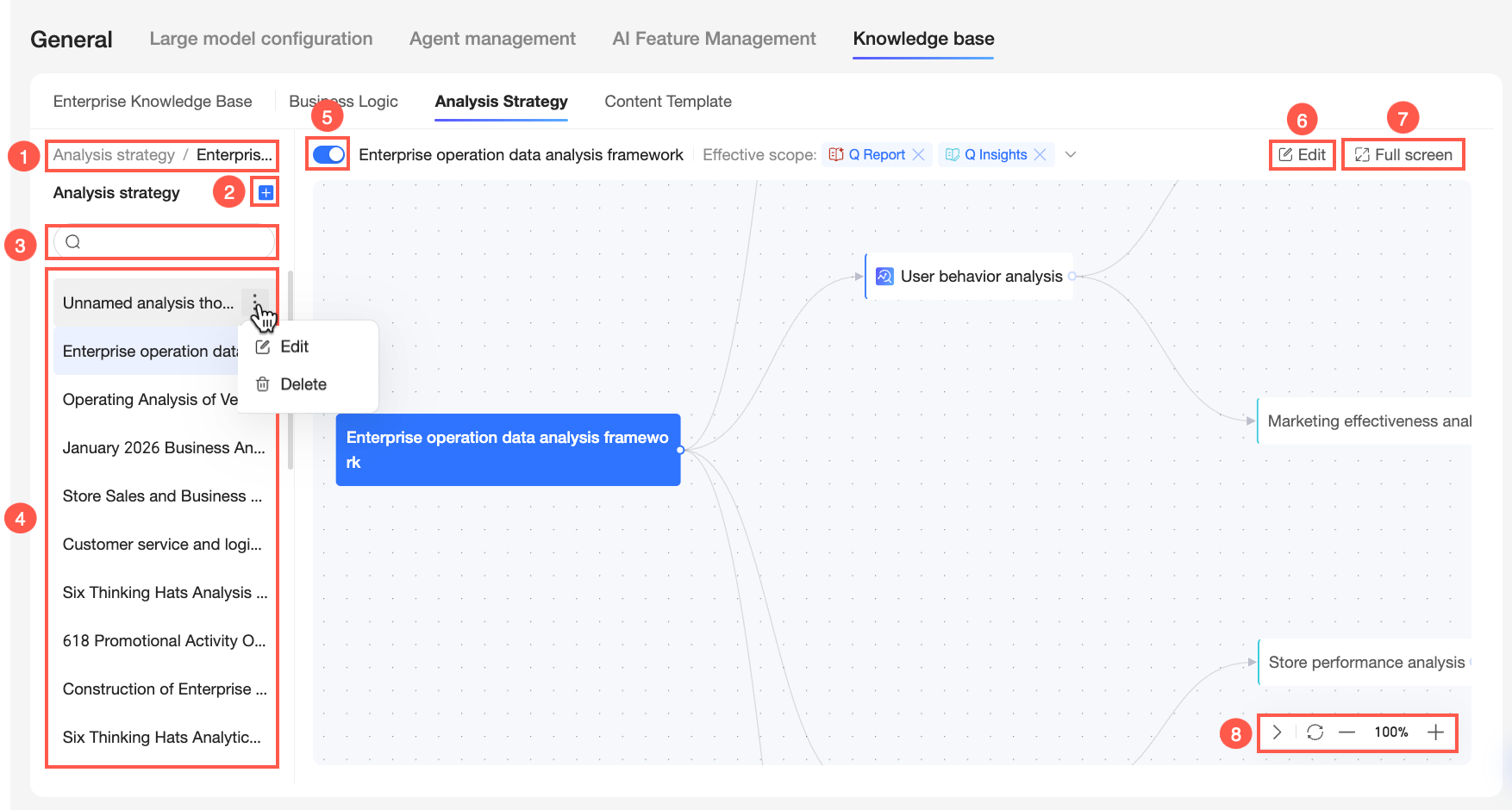
 icon to add a new framework manually.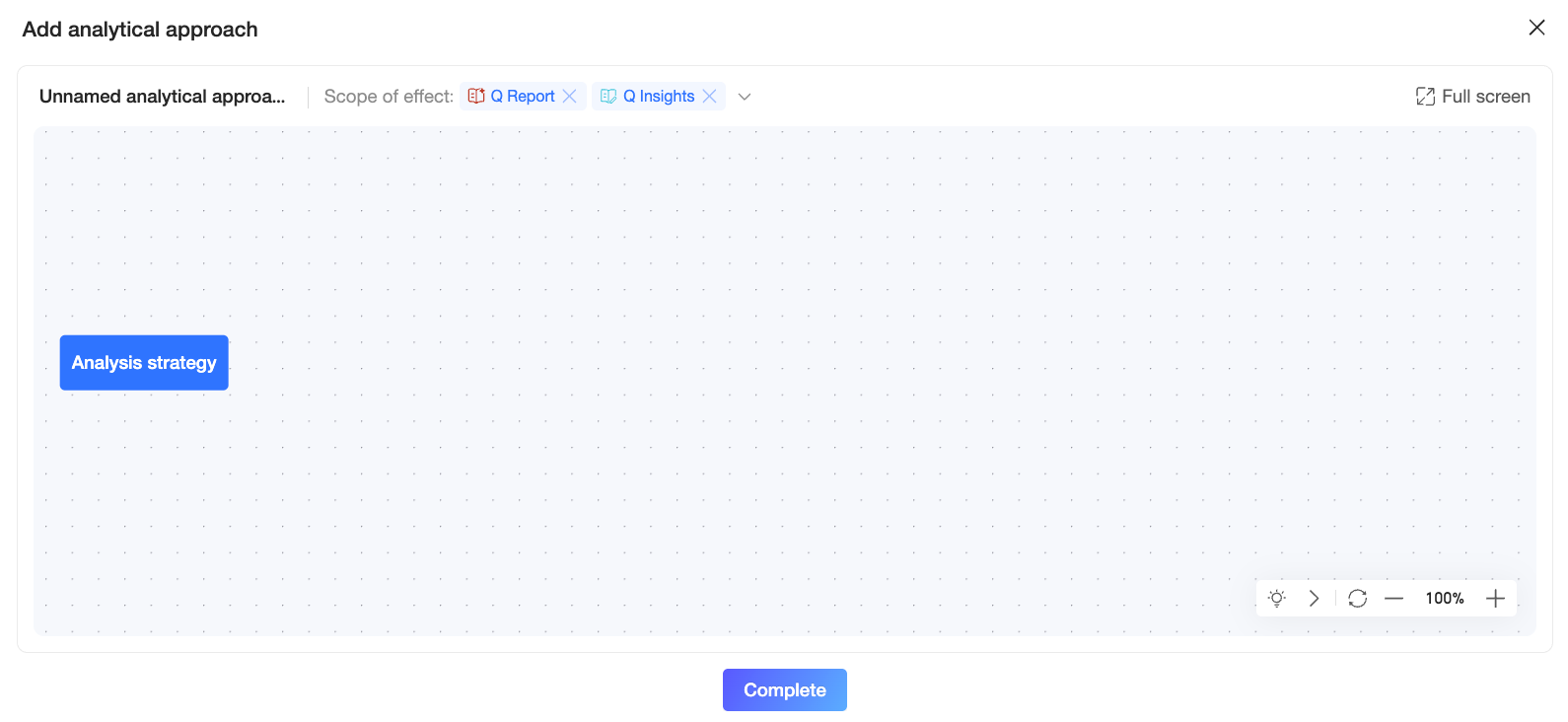
 icon to select Edit or Delete from the drop-down list.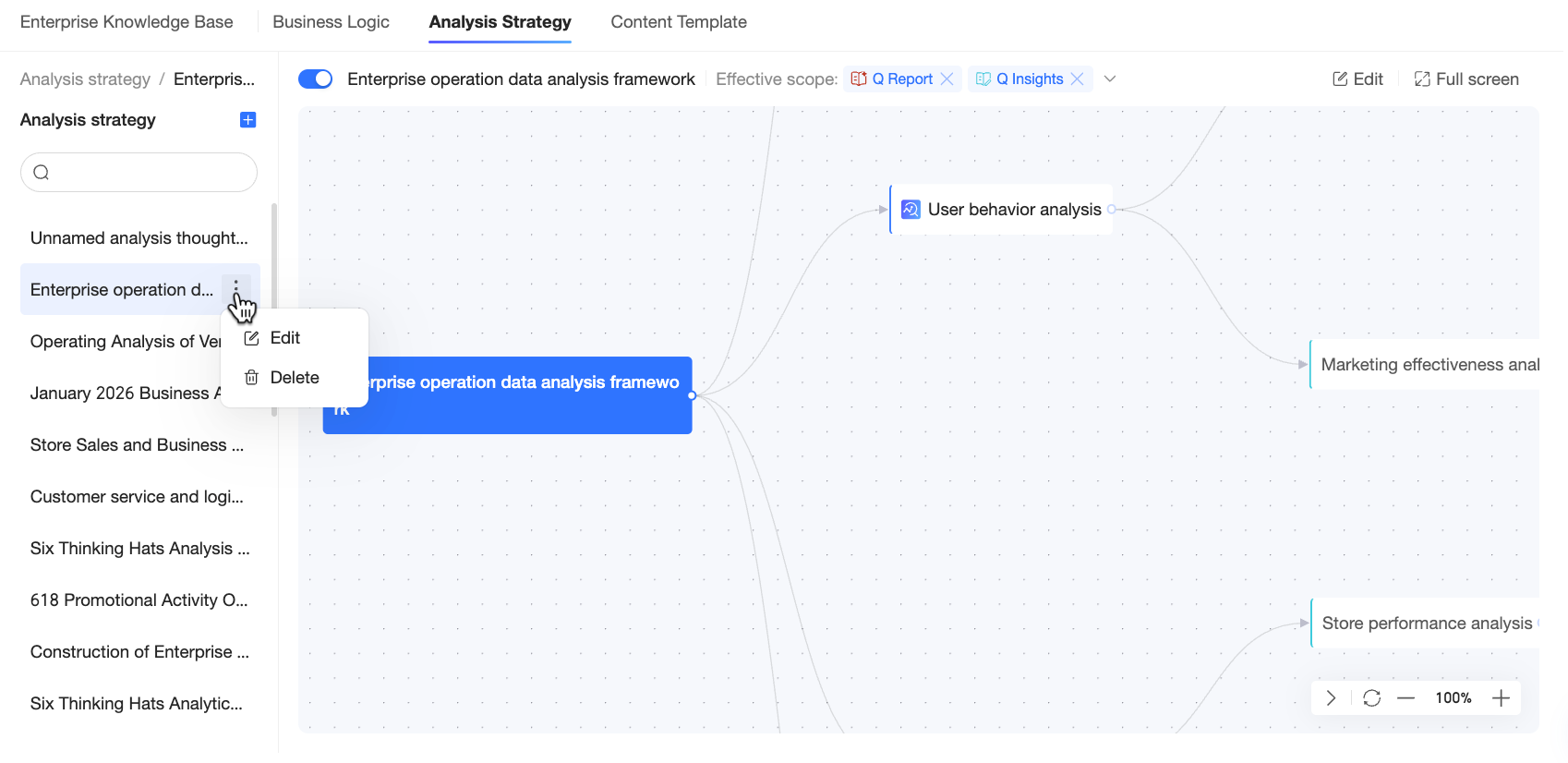
 icon to change the enabled status of the current framework.
 icon to modify the information of the current framework in the Edit Analysis Framework dialog box.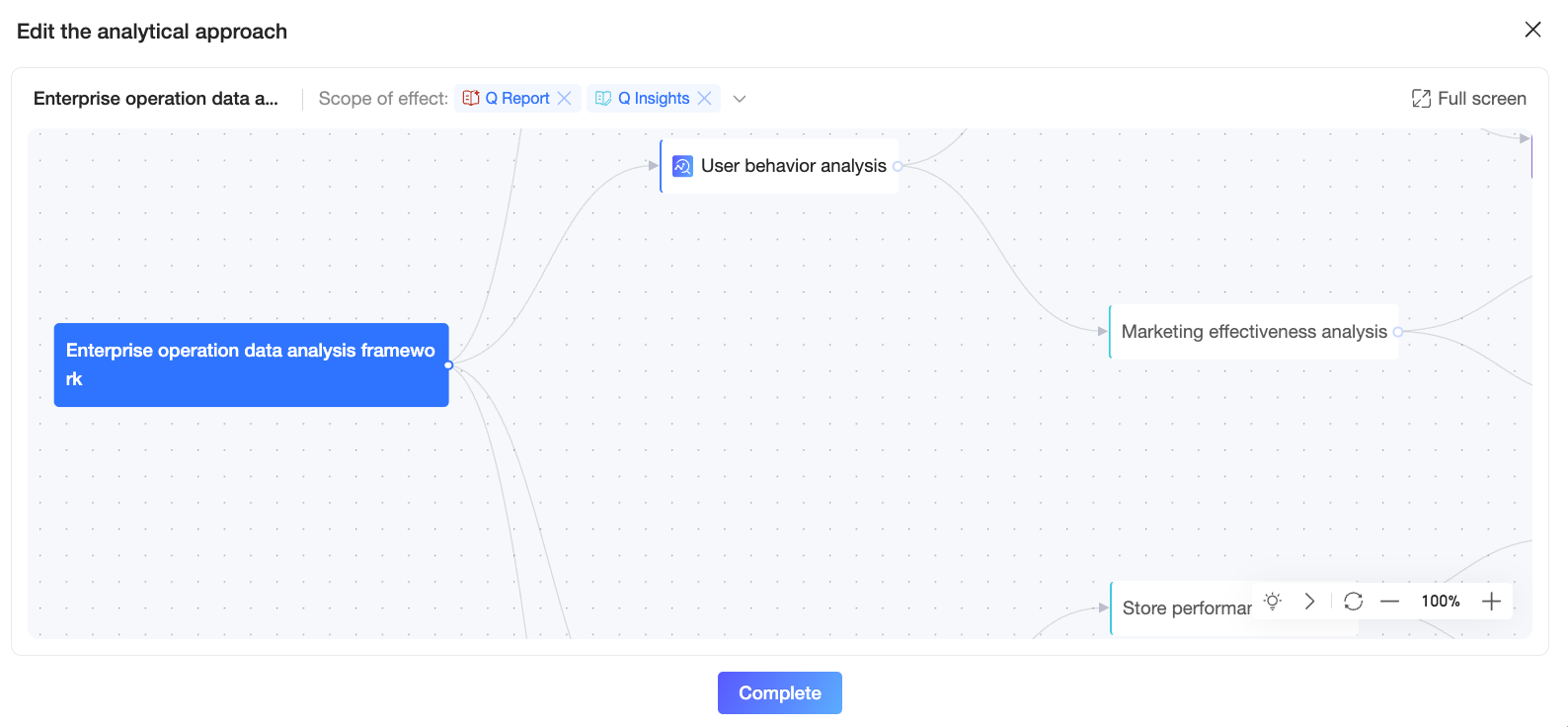
 ) in the Enable column.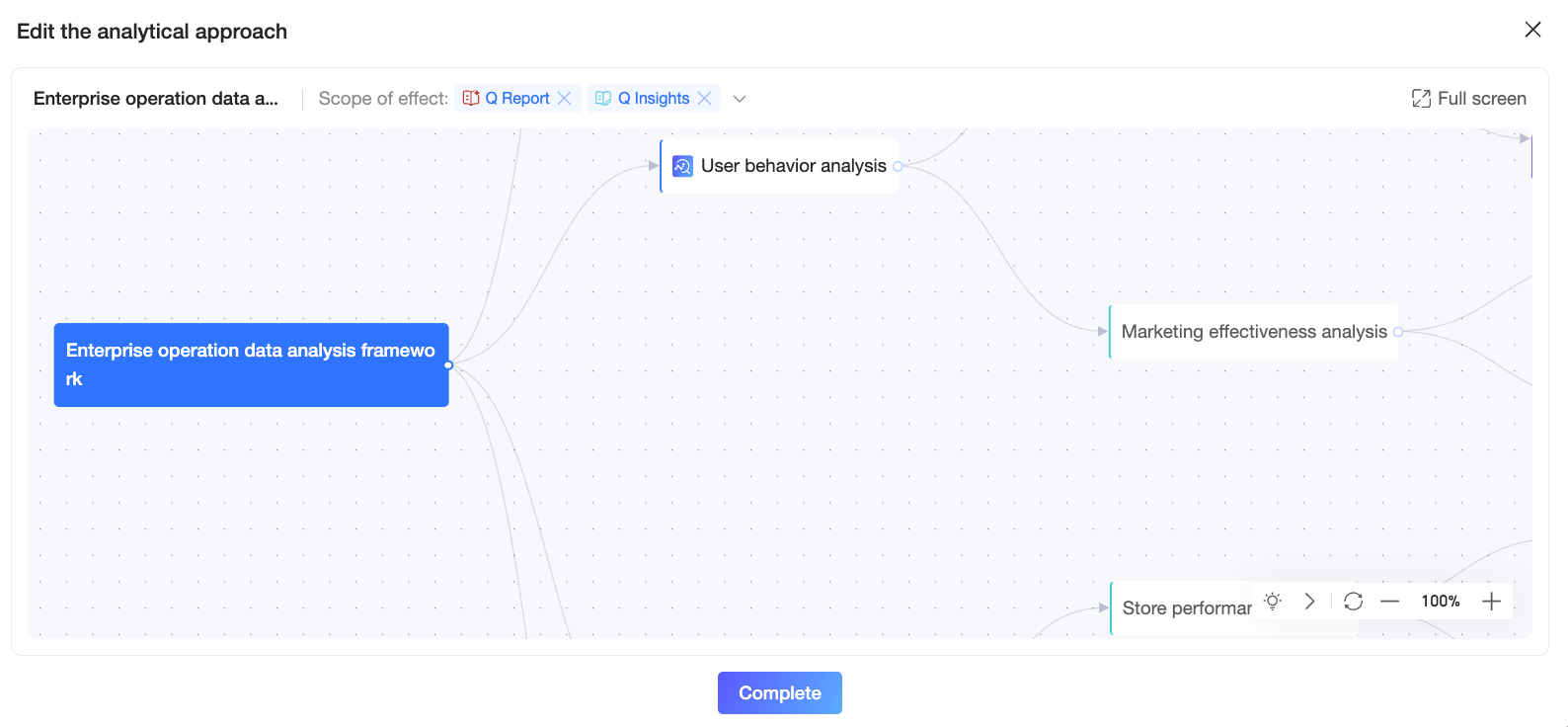
 icon and confirm the action to delete a framework that is no longer needed.