Business insight
The business insight feature gives business teams a unified, global view of their operations. With its real-time, data-driven analysis, users can quickly identify anomalies, investigate root causes, and pinpoint business problems. This provides reliable data for strategic planning and operational optimization.
This value-added module requires a separate purchase.
Prerequisites
You have permission to use the required dataset.
You have the
Create (Edit) business insightpermission.
Configuration entry point
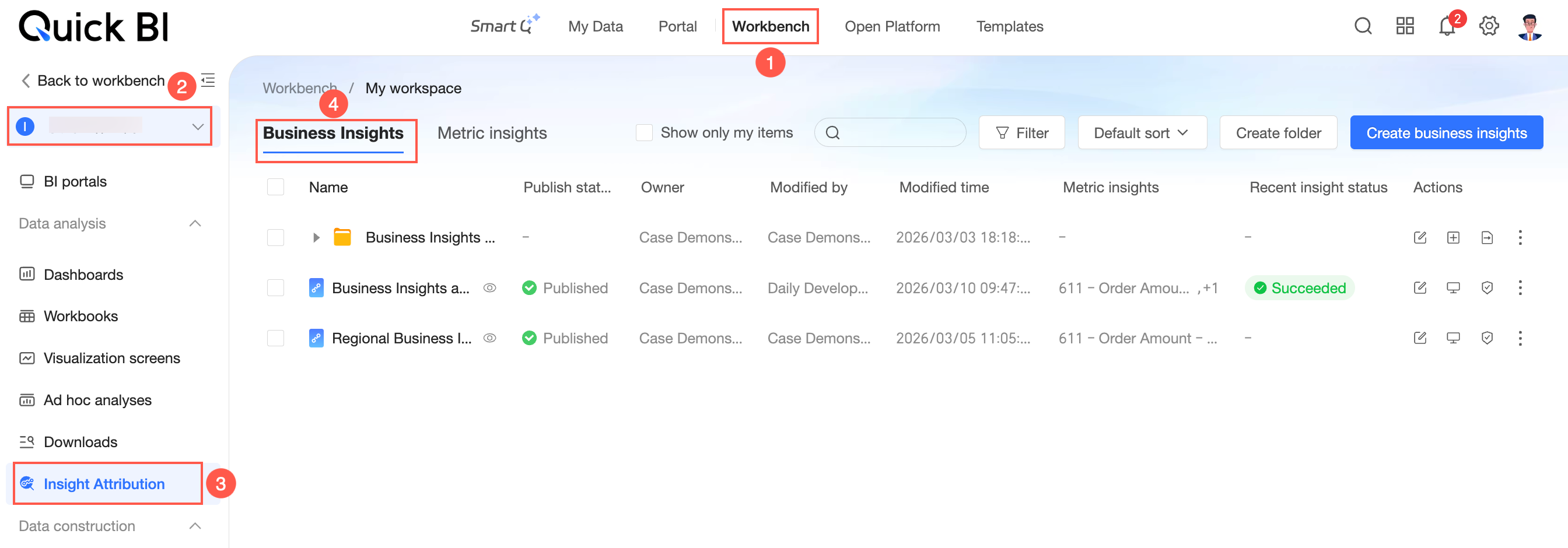
Follow the steps in the figure below to navigate to the Insight Attribution > Business Insight page.
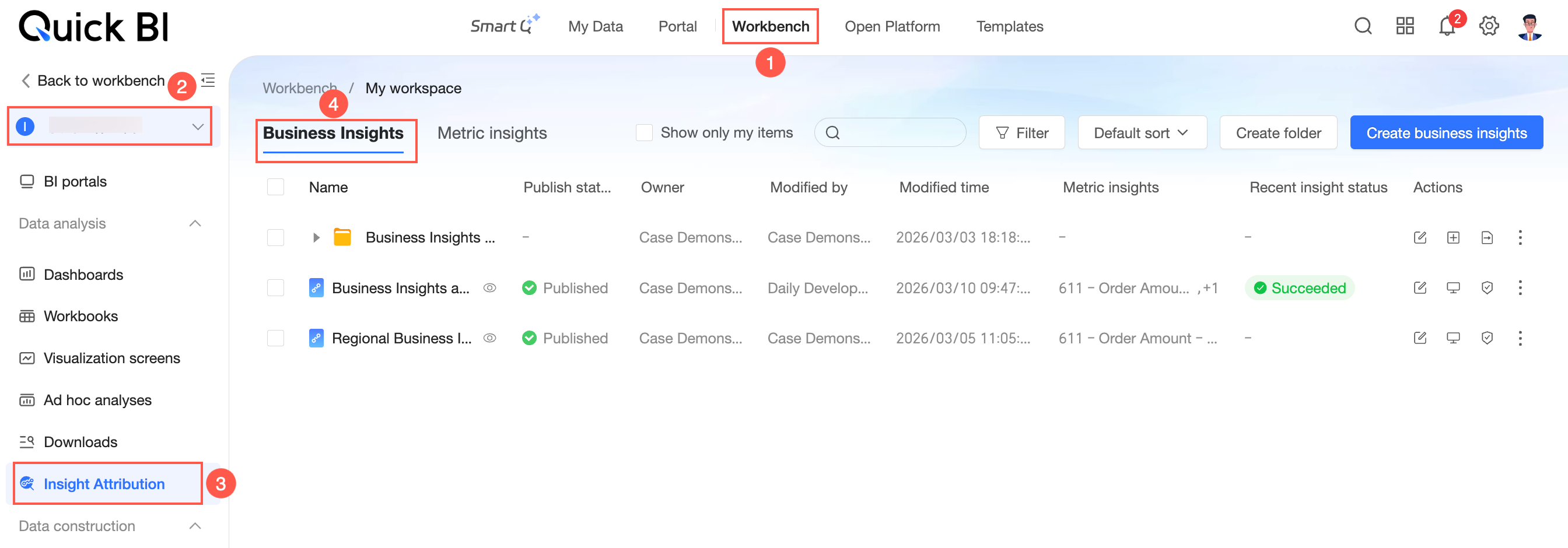
On the Business Insight page, you can create and manage business insights.
Create business insight
Click New Business Insight.
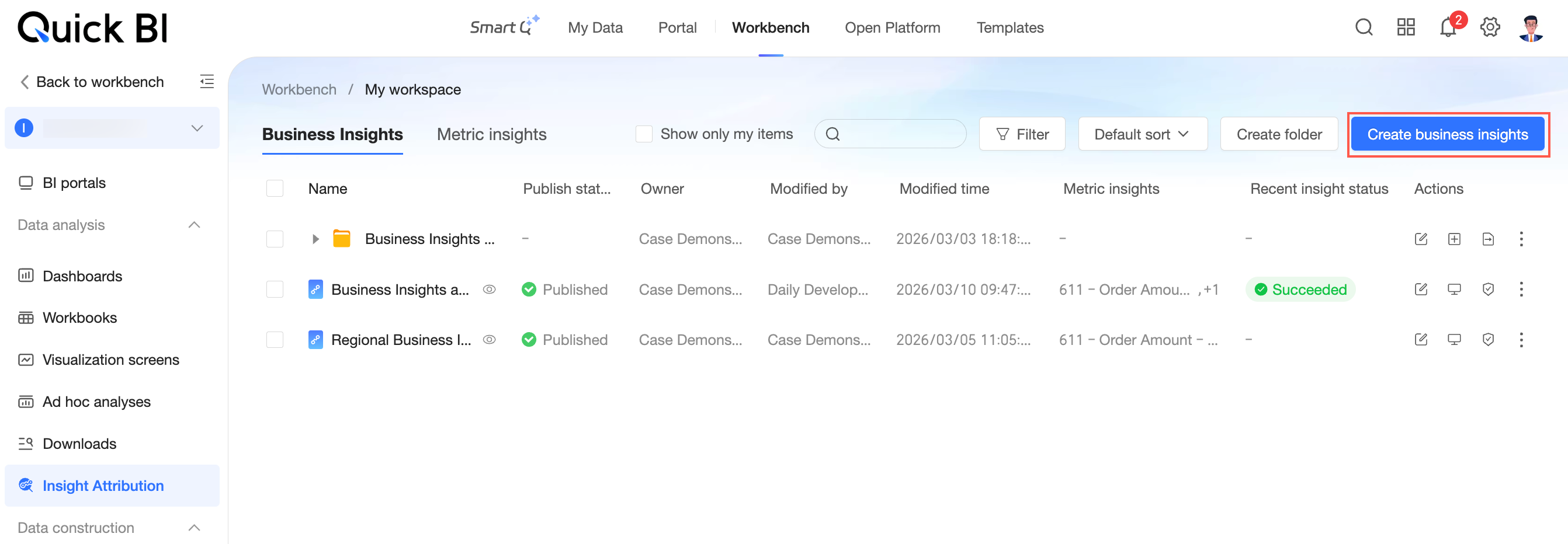
The New Business Insight page opens.
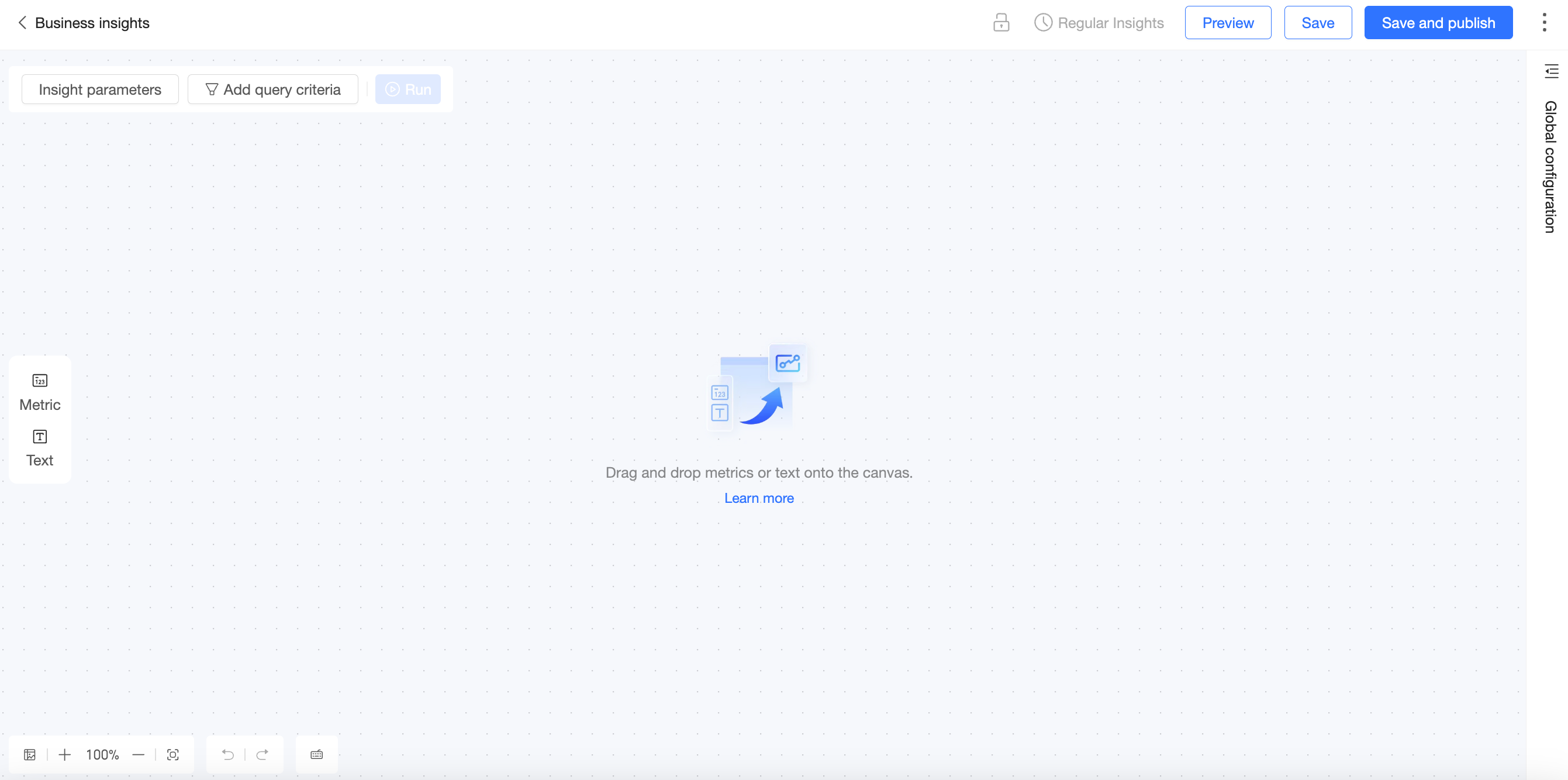
You can create and configure metric nodes and text nodes. For details, see the sections below.
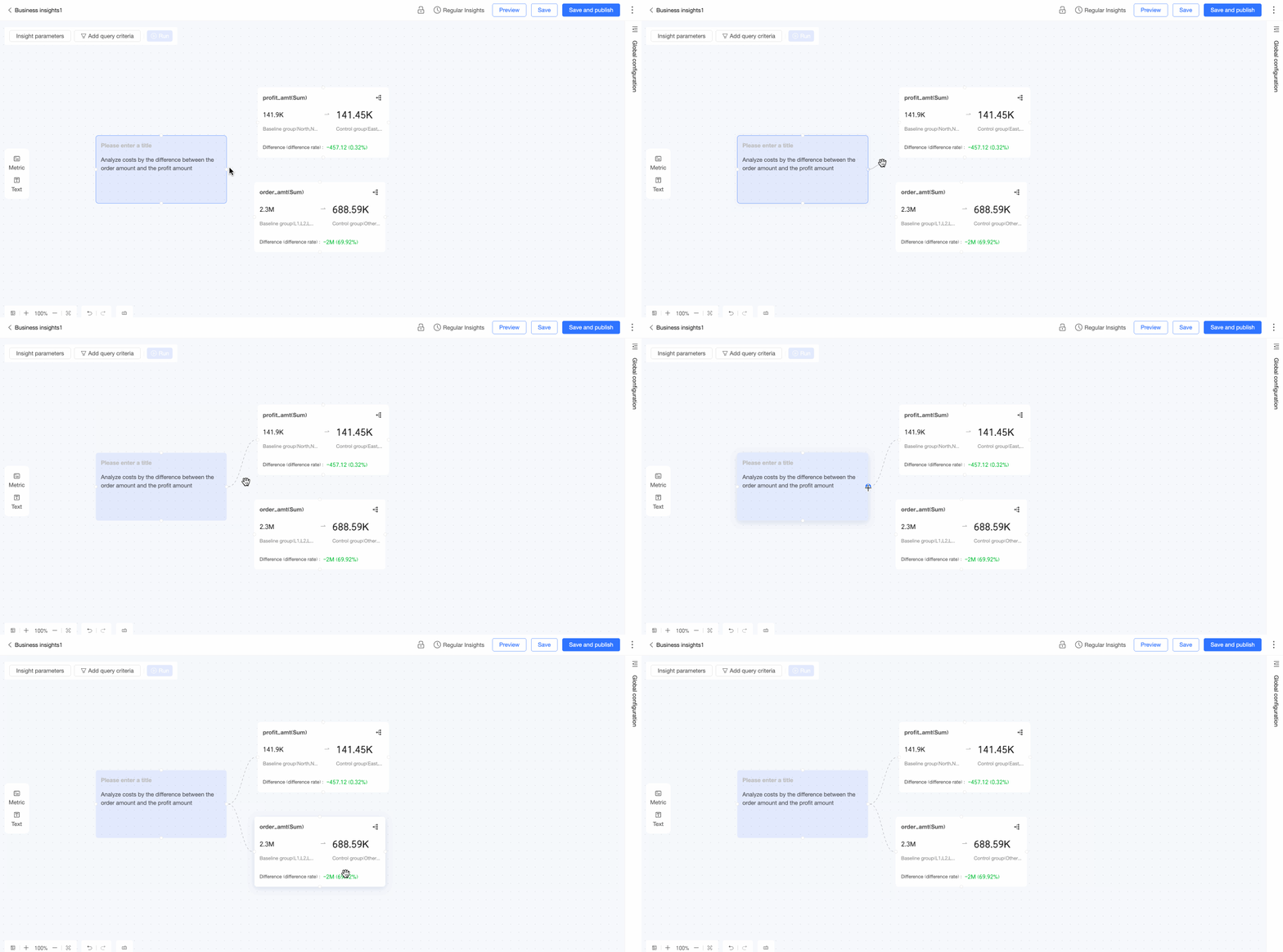
When you create multiple nodes, you can arrange and connect them according to your business logic.
Metric node
Use a metric node to gain deep insights and perform attribution analysis on metrics within a dataset.
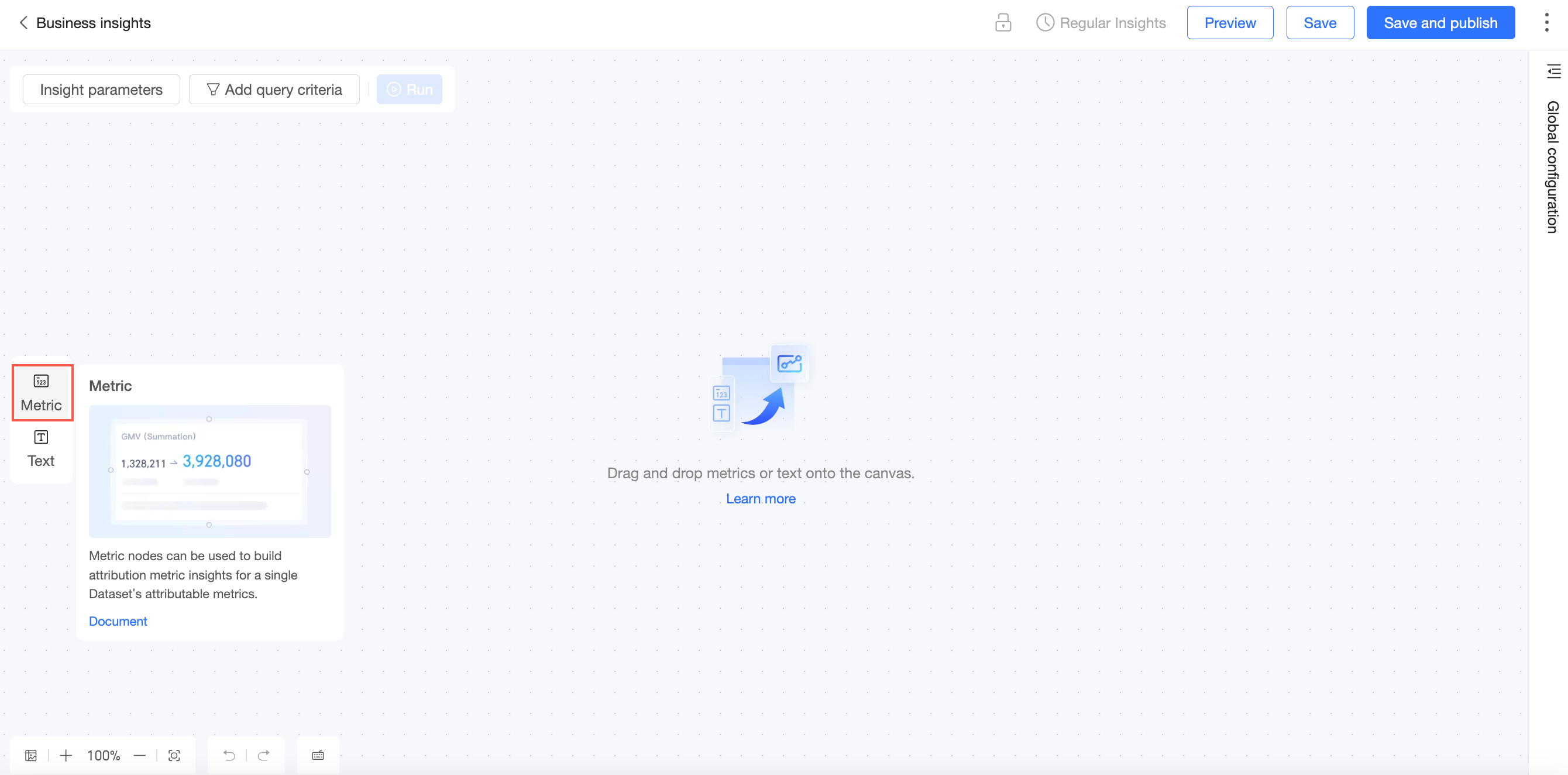
Drag a metric node to the canvas.
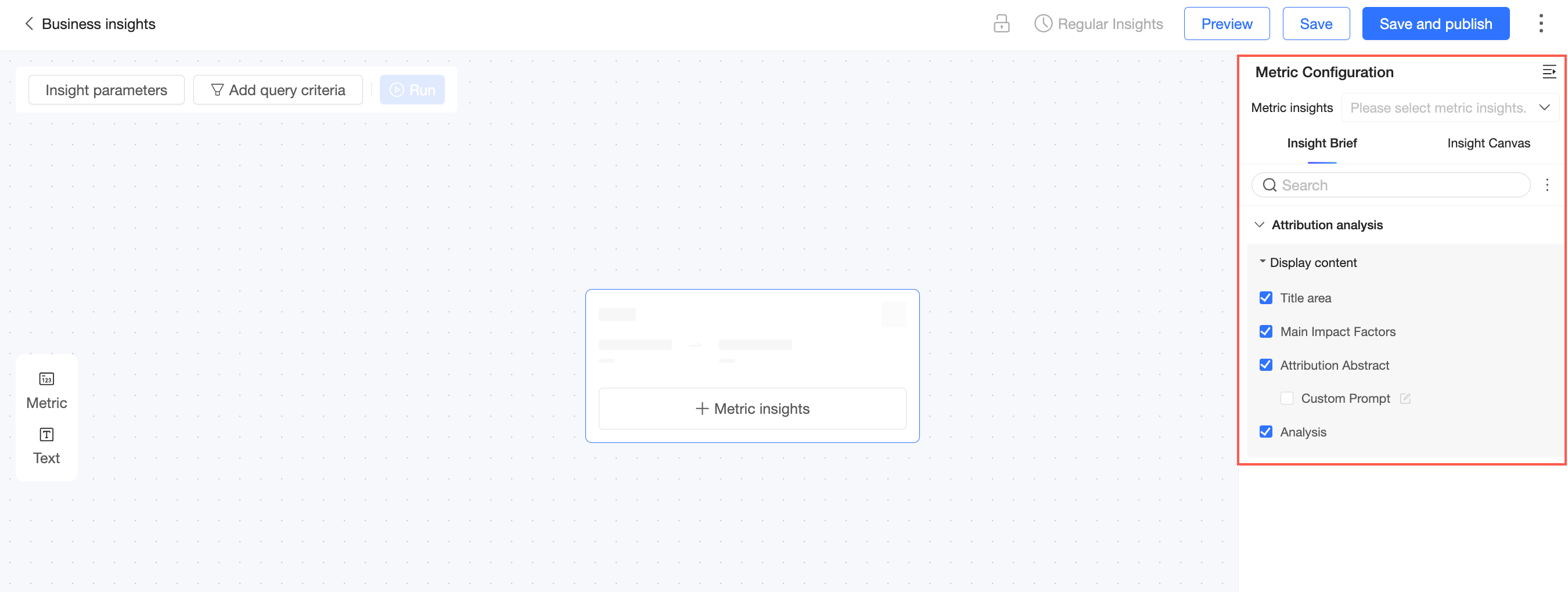
In the metric configuration panel, configure the following settings.

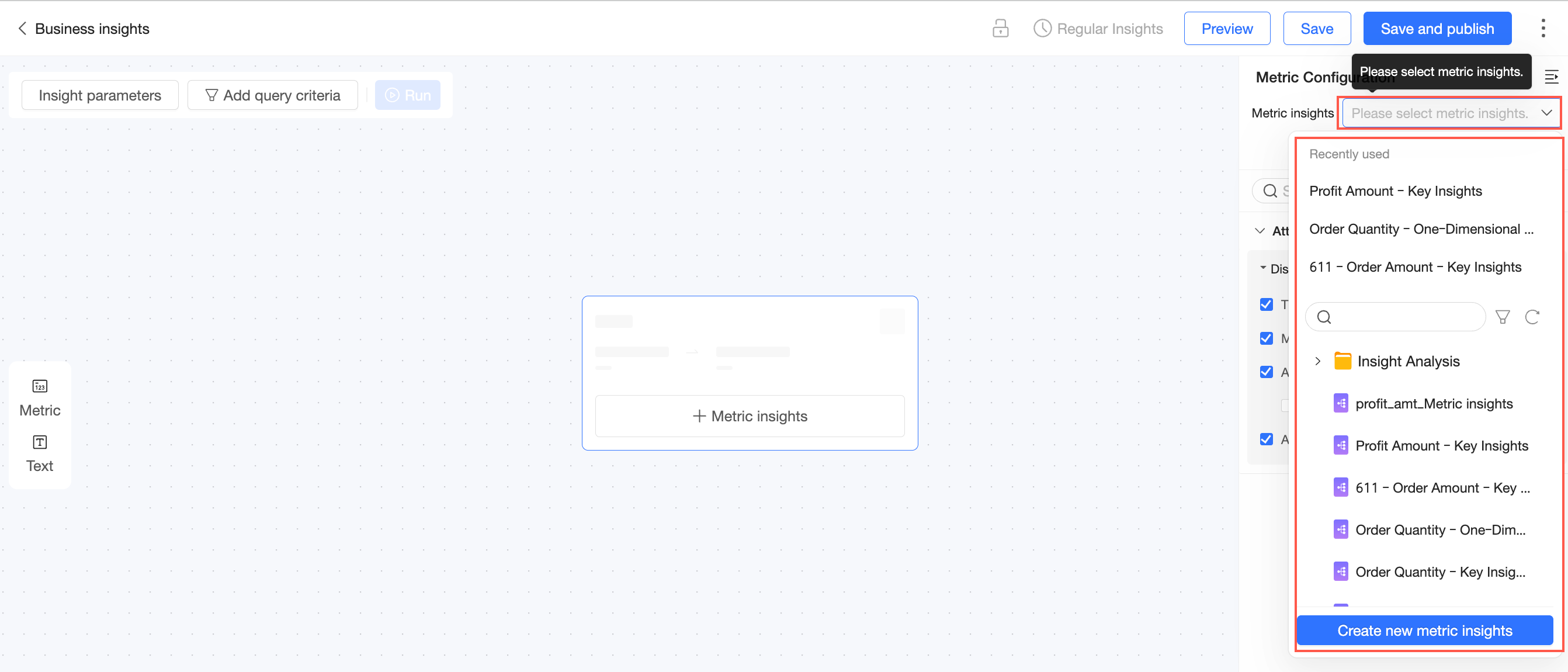
Select a Metric Insight.
You can select a published metric insight.
You can also click New Metric Insight to open the creation page.
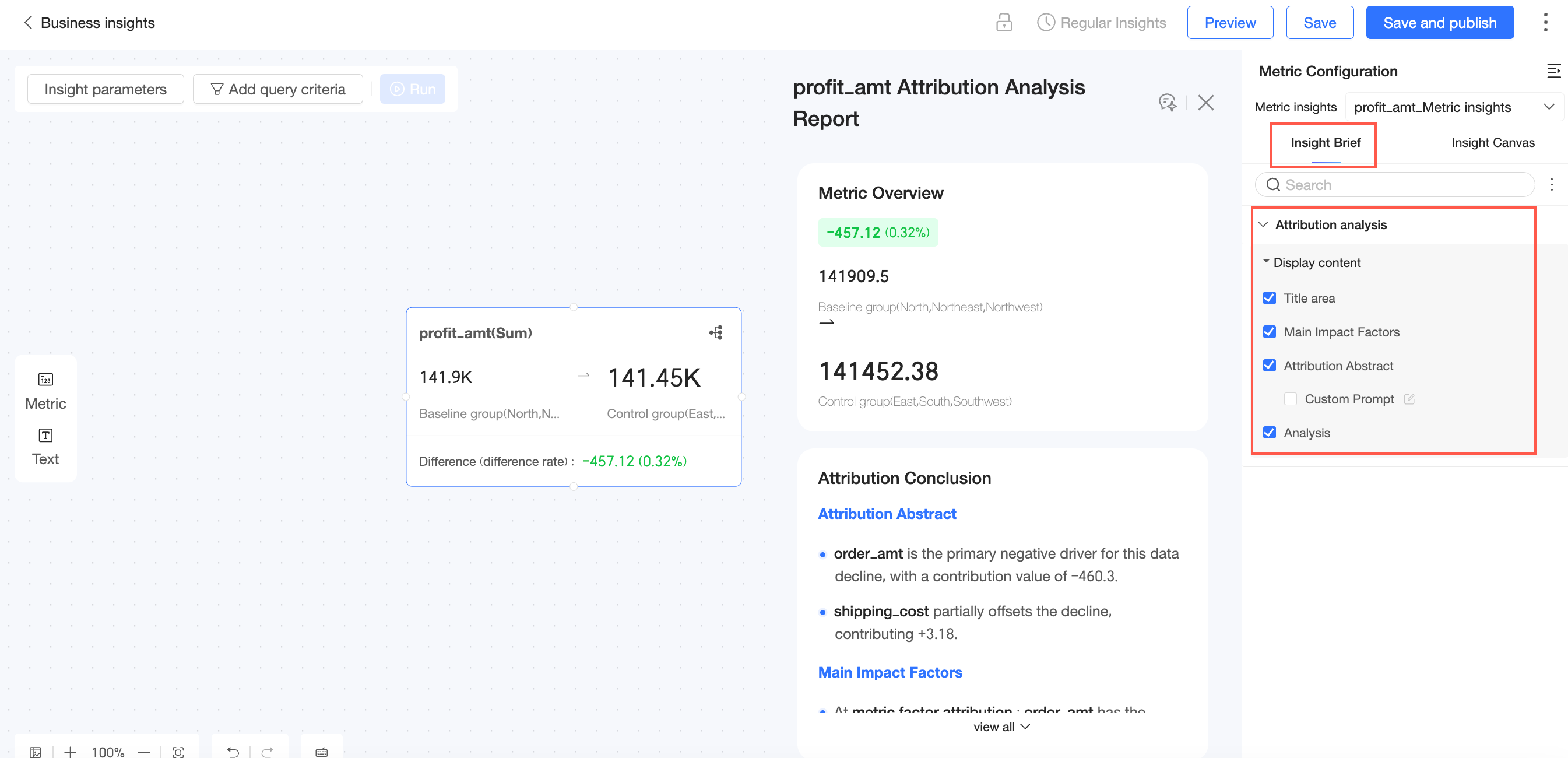
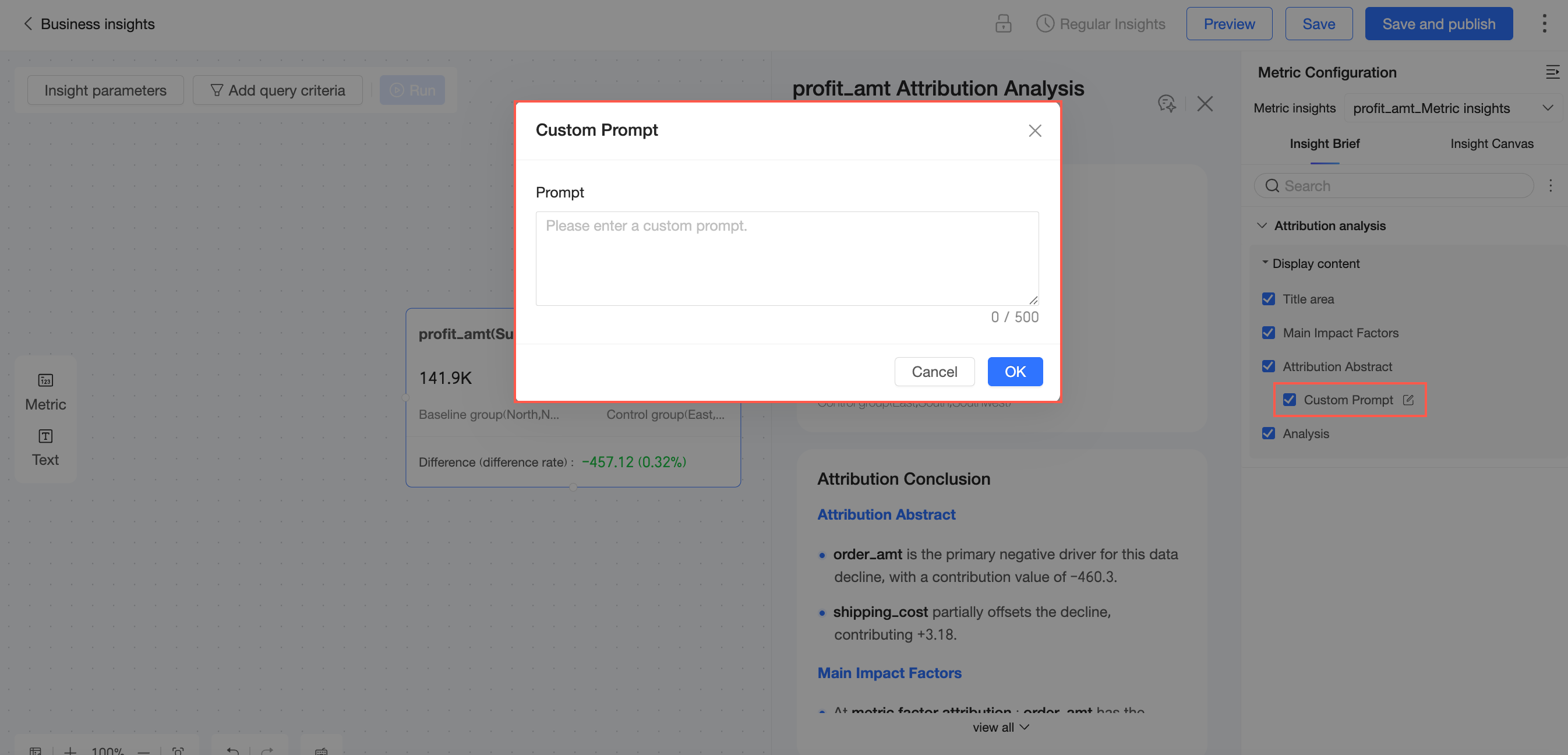
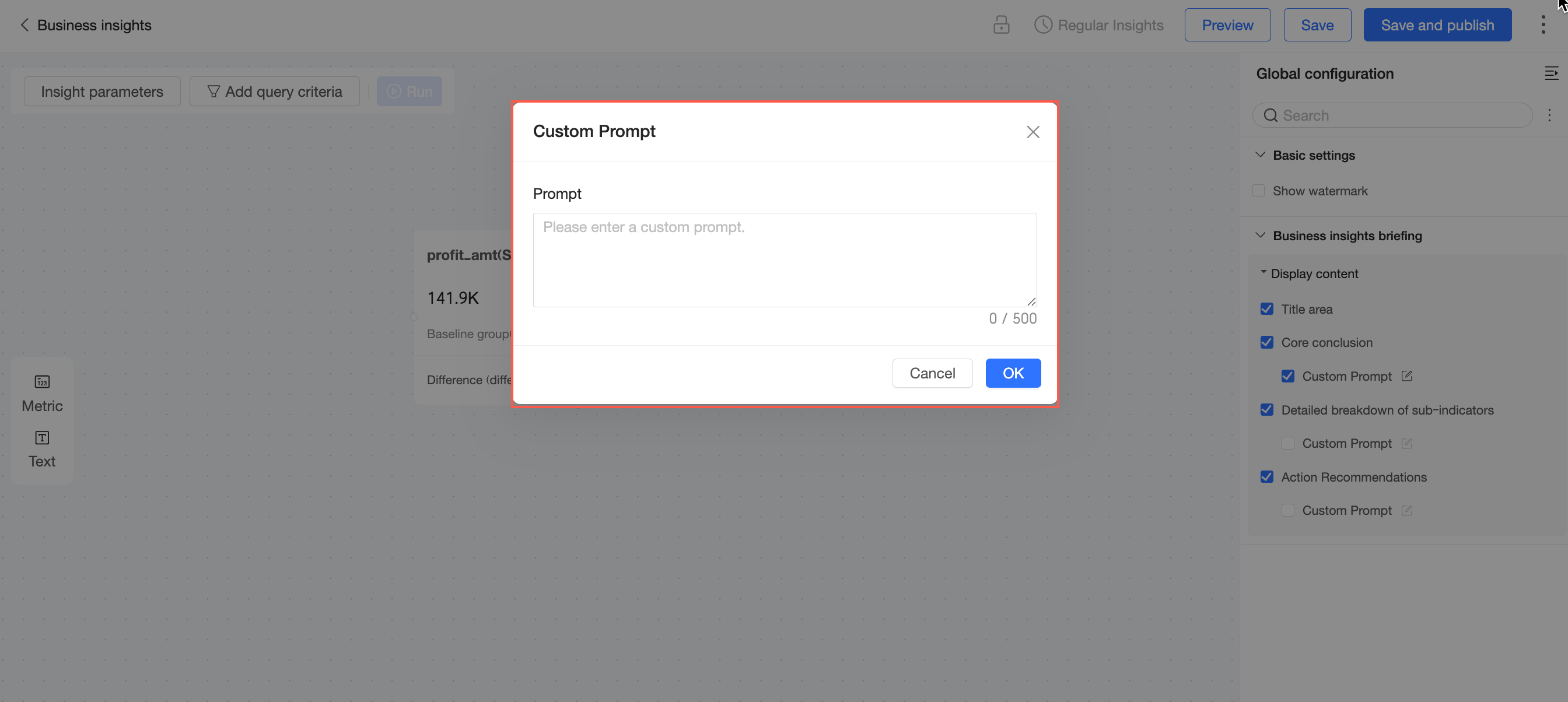
On the Insight Briefing tab, you can show or hide the Title Area, Main Influencing Factors, attribution summary, and Detailed Analysis sections.
You can configure custom prompt settings in the attribution summary section.
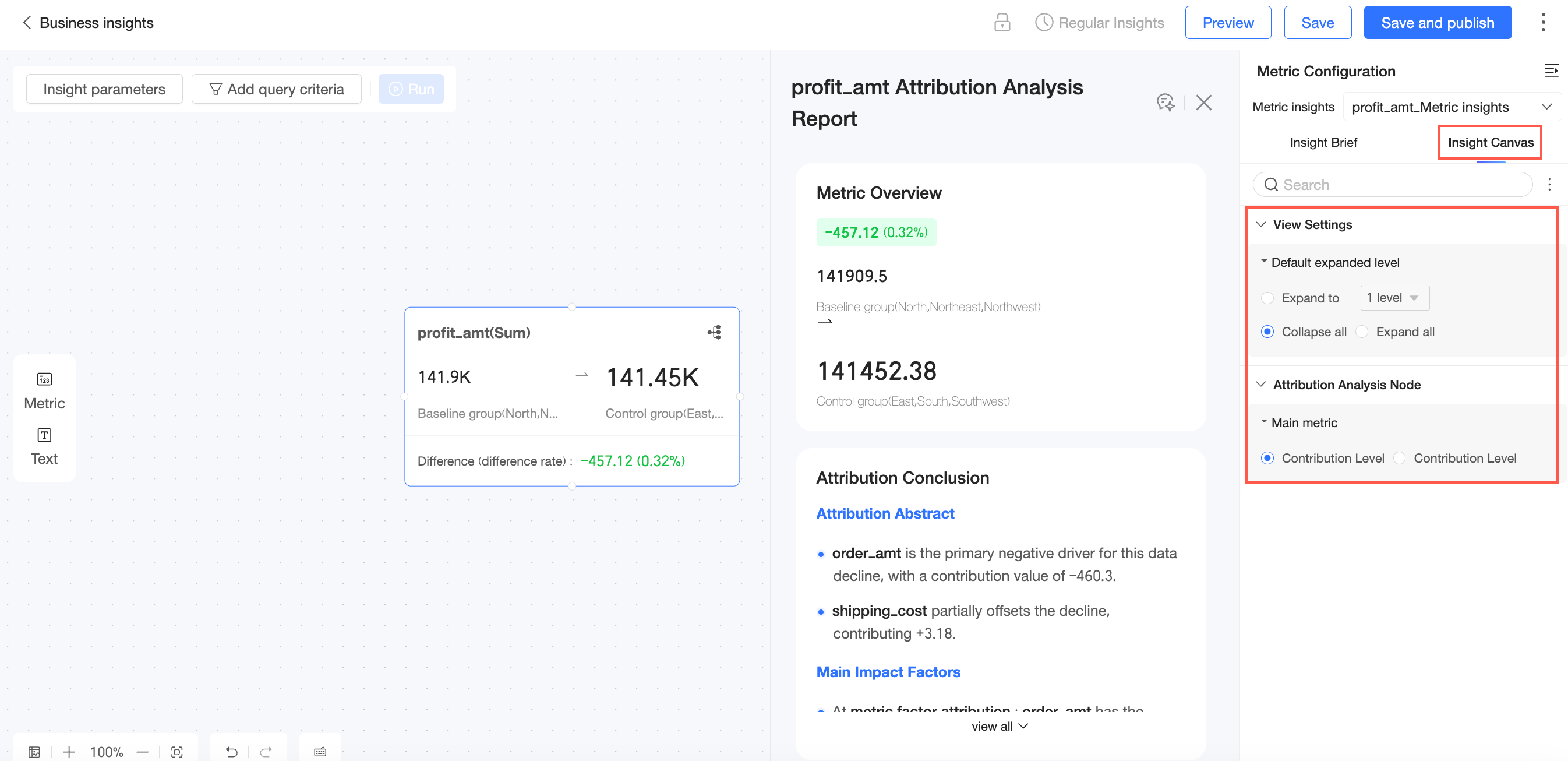
On the Insight Canvas tab, you can configure View Settings and Attribution Node settings.
In the View Settings section, set the Default Expansion Level. You can choose to Expand to Level N (up to 6 levels), or set the default state to Collapse All or Expand All.
In the Attribution Node section, set the Primary Metric to either Contribution Rate or Contribution Amount.
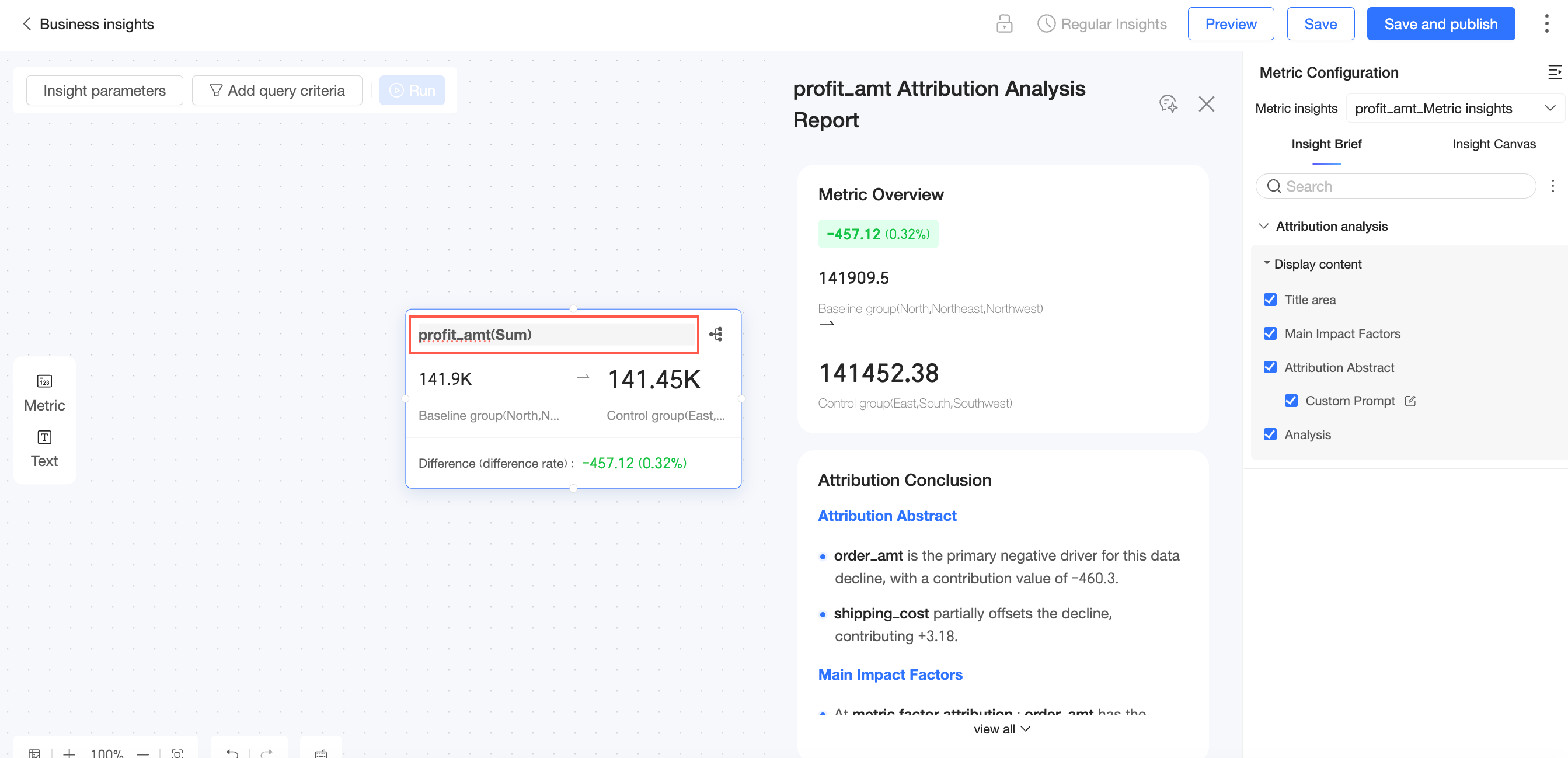
Double-click the metric node name to rename it.
Text node
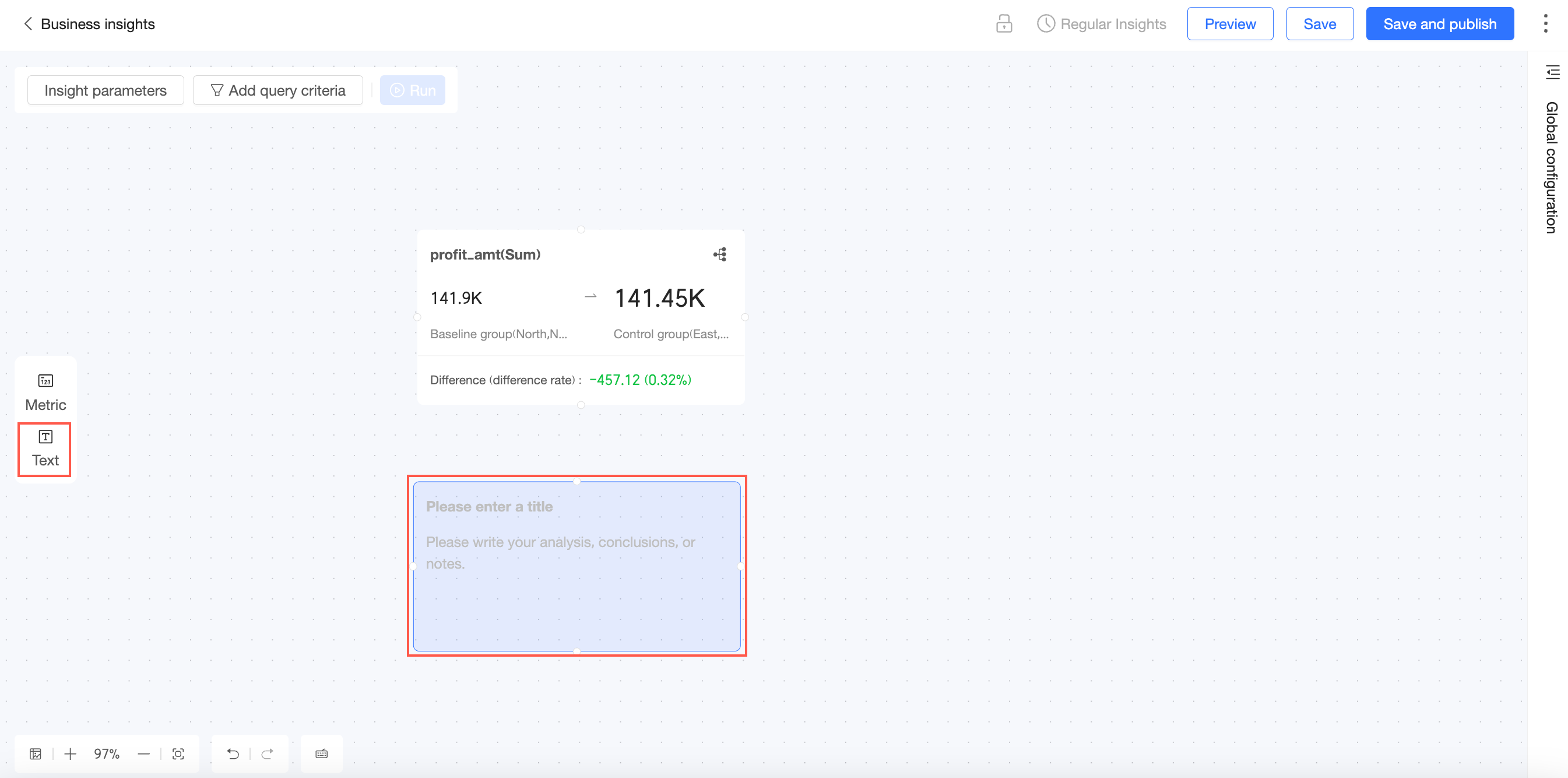
Use a text node to add explanations for the overall business insight or a specific part of the analysis path. You can add your analysis, conclusions, or notes.
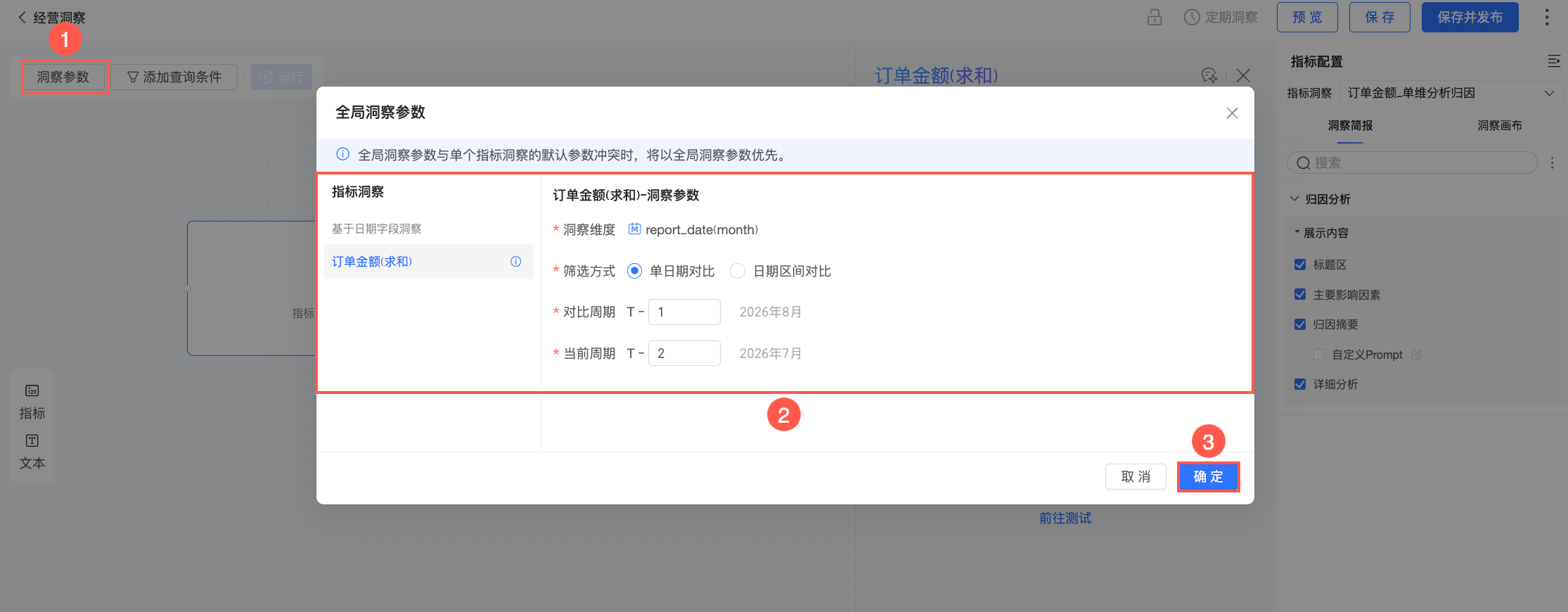
Insight parameters
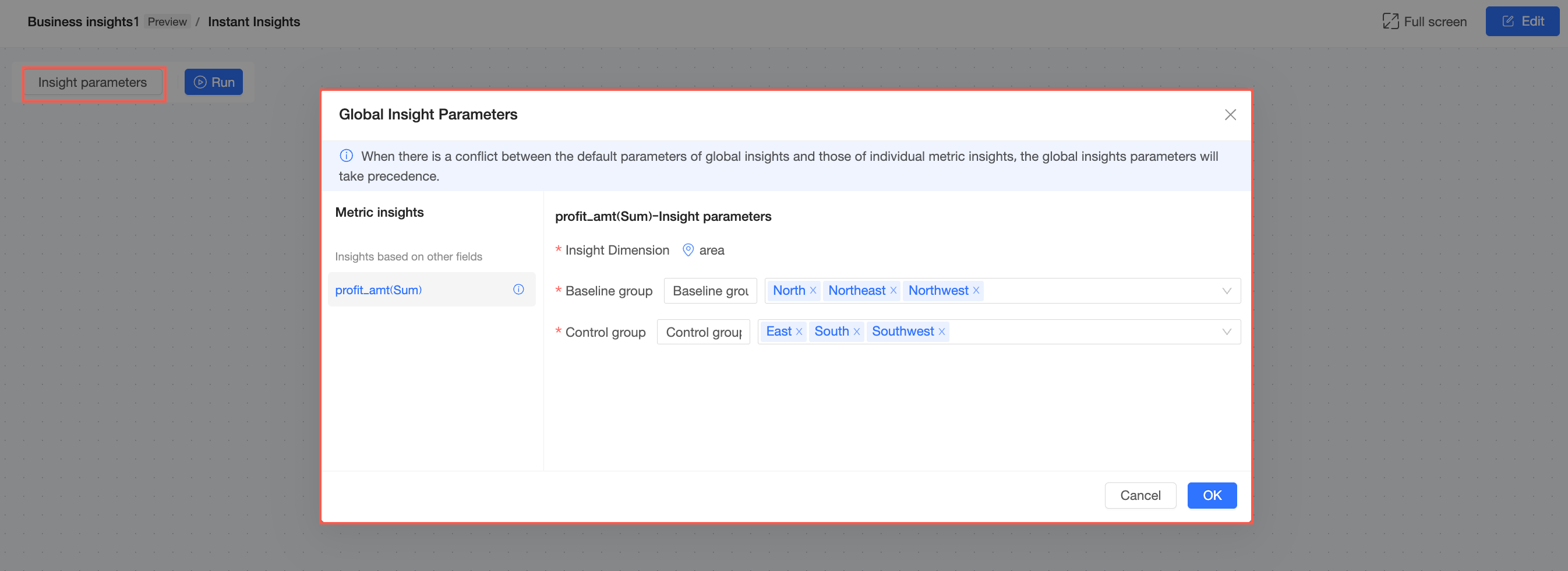
If global insight parameters conflict with the default parameters of an individual metric insight, the global insight parameters take precedence. Follow these steps to configure global insight parameters.
In the upper-left corner, click Insight Parameters.
Modify the names and dimension values for the comparison pairs in the insight dimension. If the insight dimension is a date field, the corresponding options are Current Period and Comparison Period. If it is a text field, the options are Current Group and Comparison Group.
Click OK.
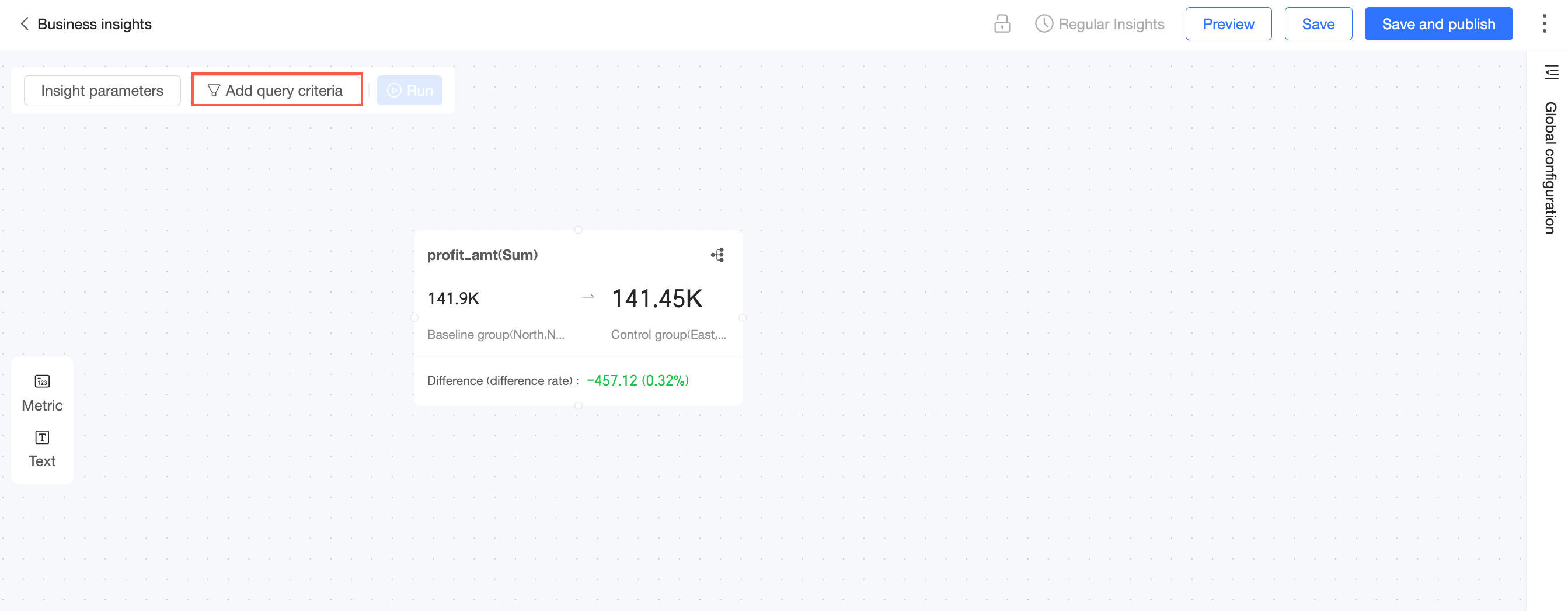
Add query conditions
In the upper-left corner, click the Add Query Condition icon
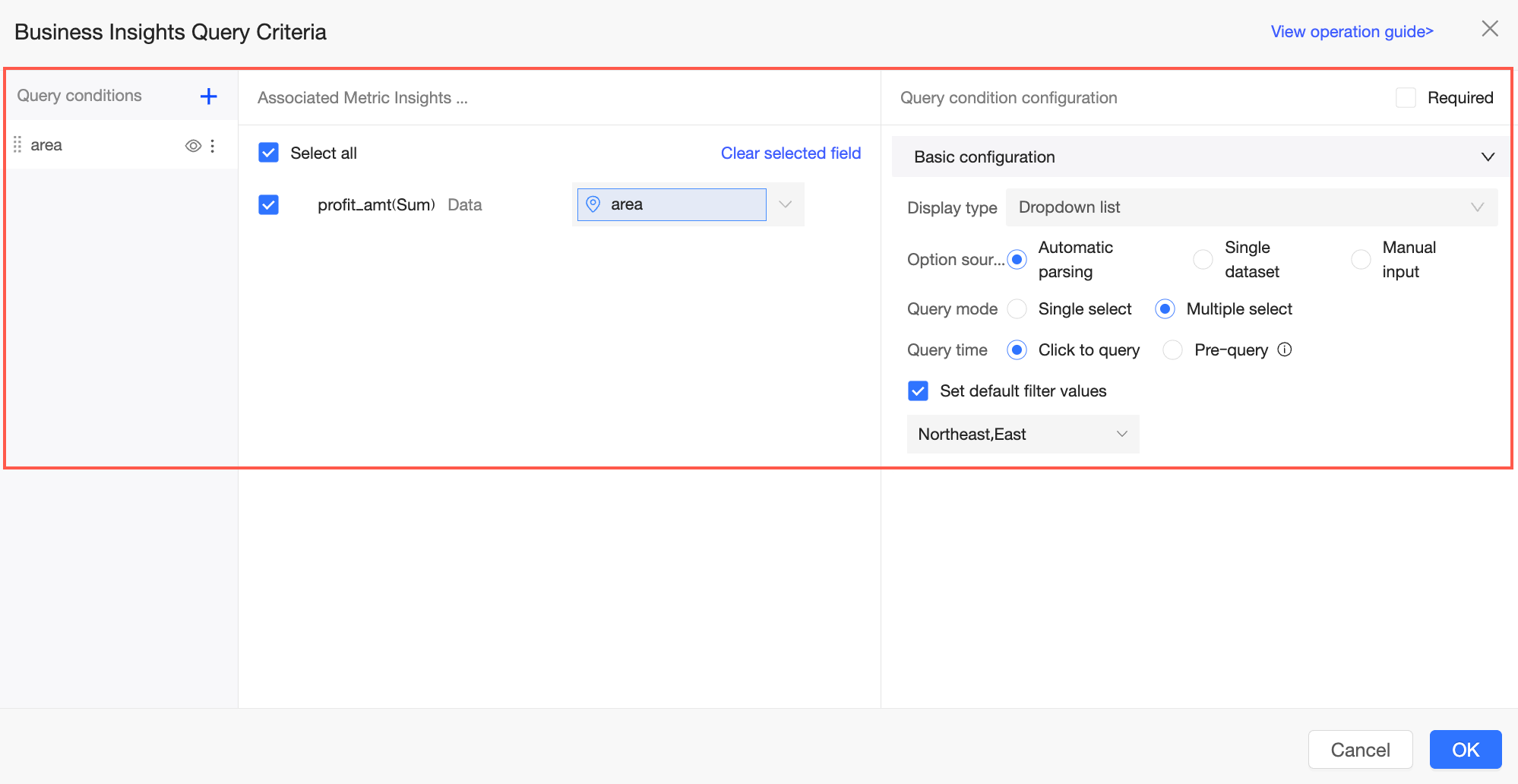
Configure the query conditions.
Click OK.
Global settings
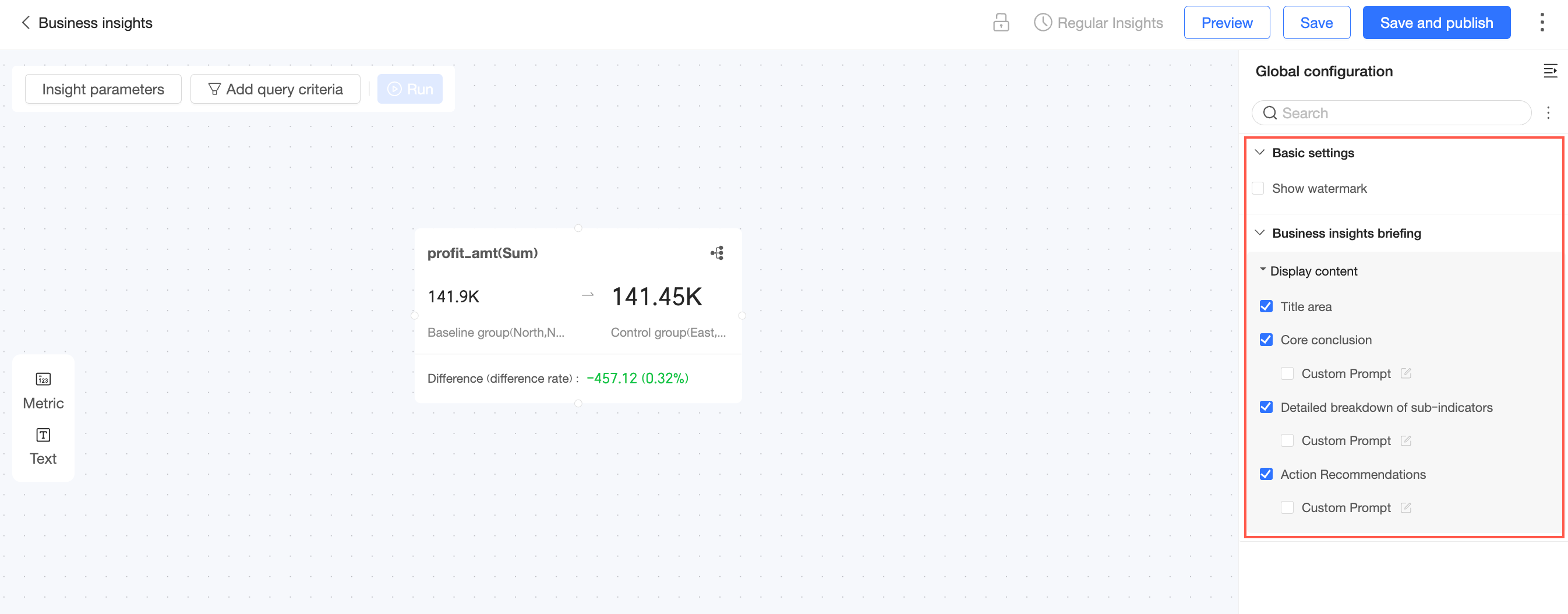
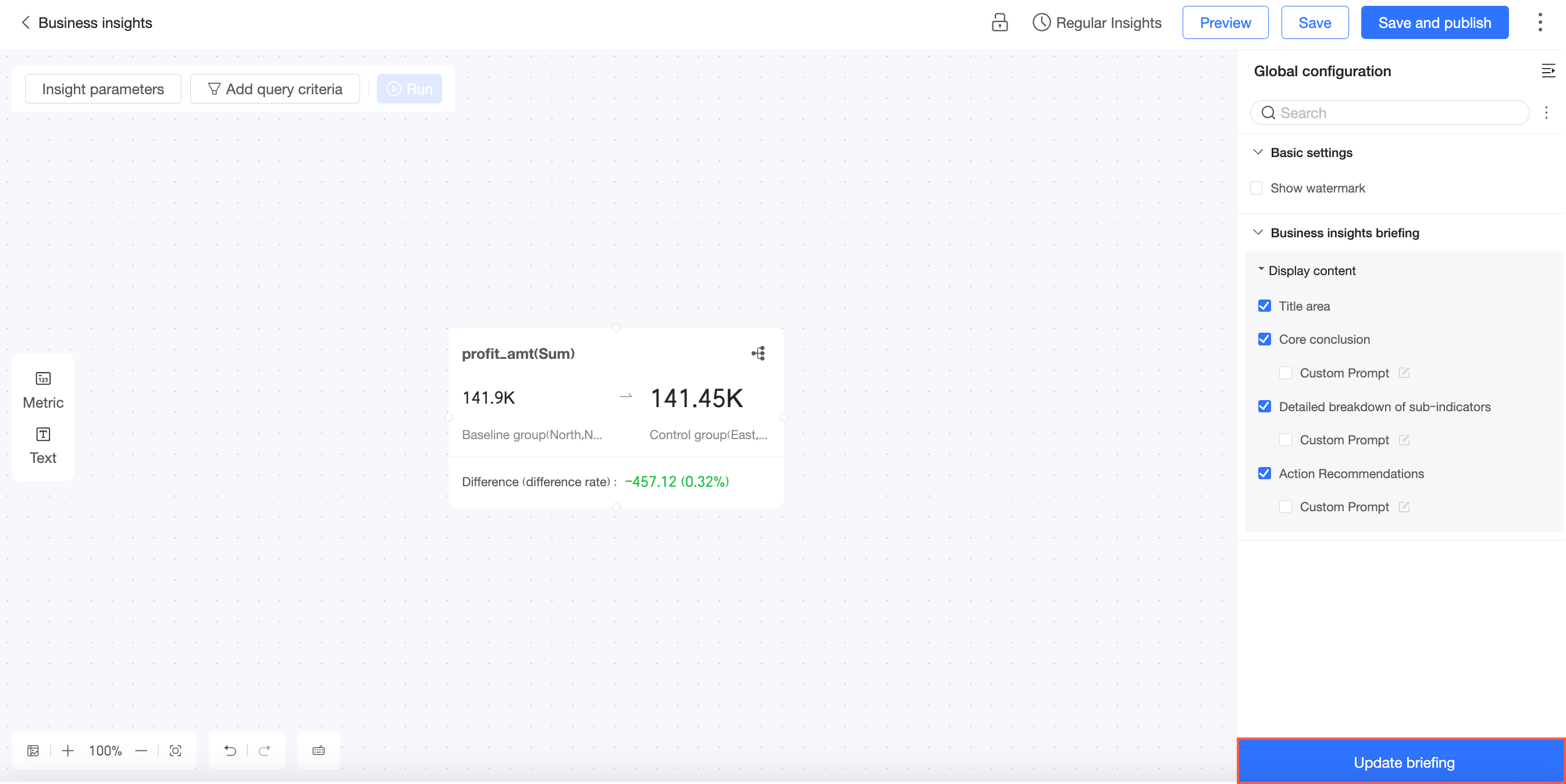
In the upper-right corner, click Global Settings to expand the global settings panel.
In the global settings panel, configure the following settings.
In the Basic Settings section, set whether to Show Watermark.
In the Business Insight Briefing section, set whether to show the Title Area, Core Conclusions, Sub-metric Details, and Action Suggestions sections. You can also configure custom prompt settings in this section.
After configuring the settings, click Update Briefing at the bottom of the panel to update the business briefing.

Manage business insight
Scheduled insight
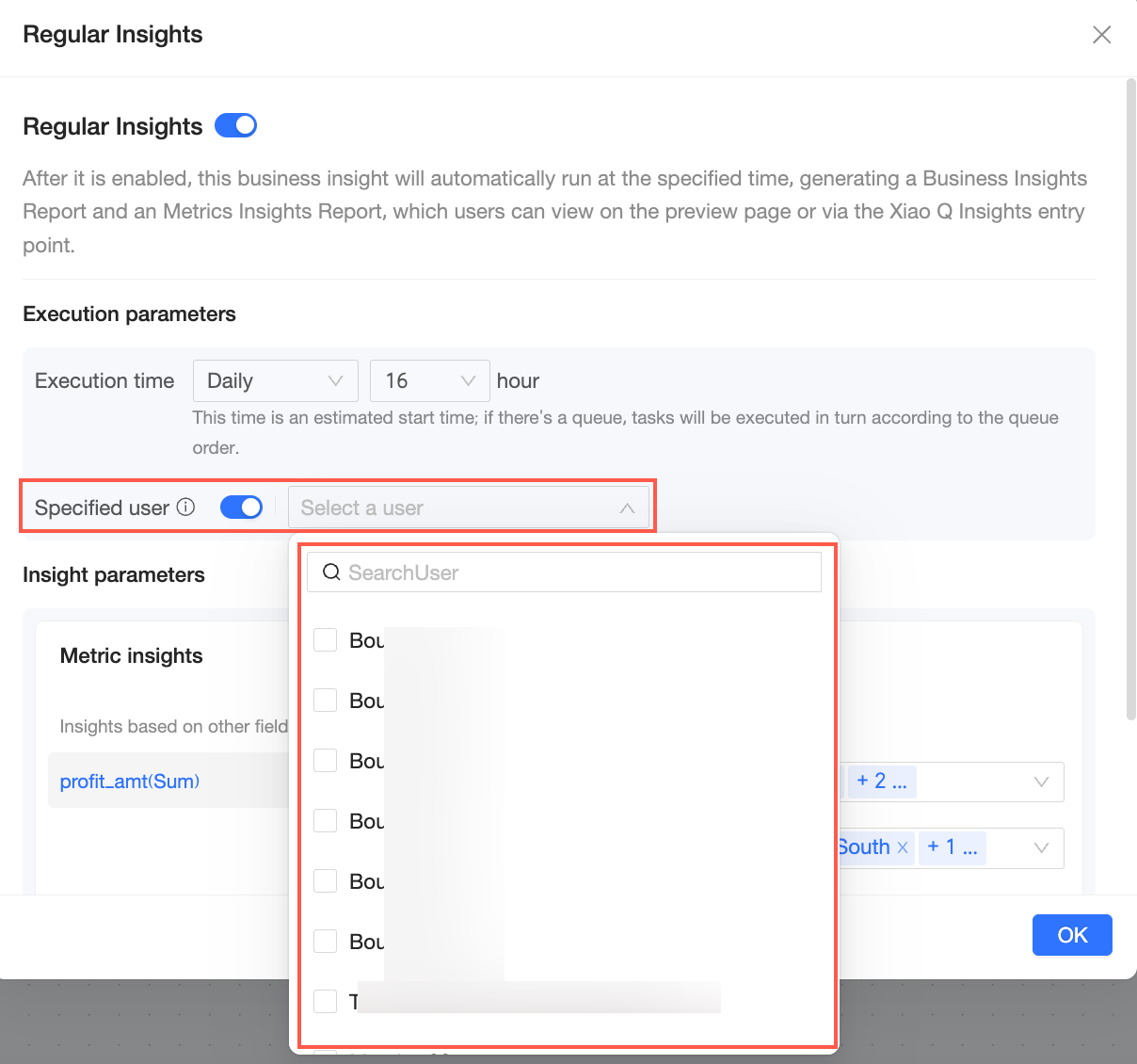
When you enable a scheduled insight, the business insight runs automatically at a specified time to generate business insight briefings and metric insight briefings. You can view the results on the preview page or through the Smart Q Insight entry point.
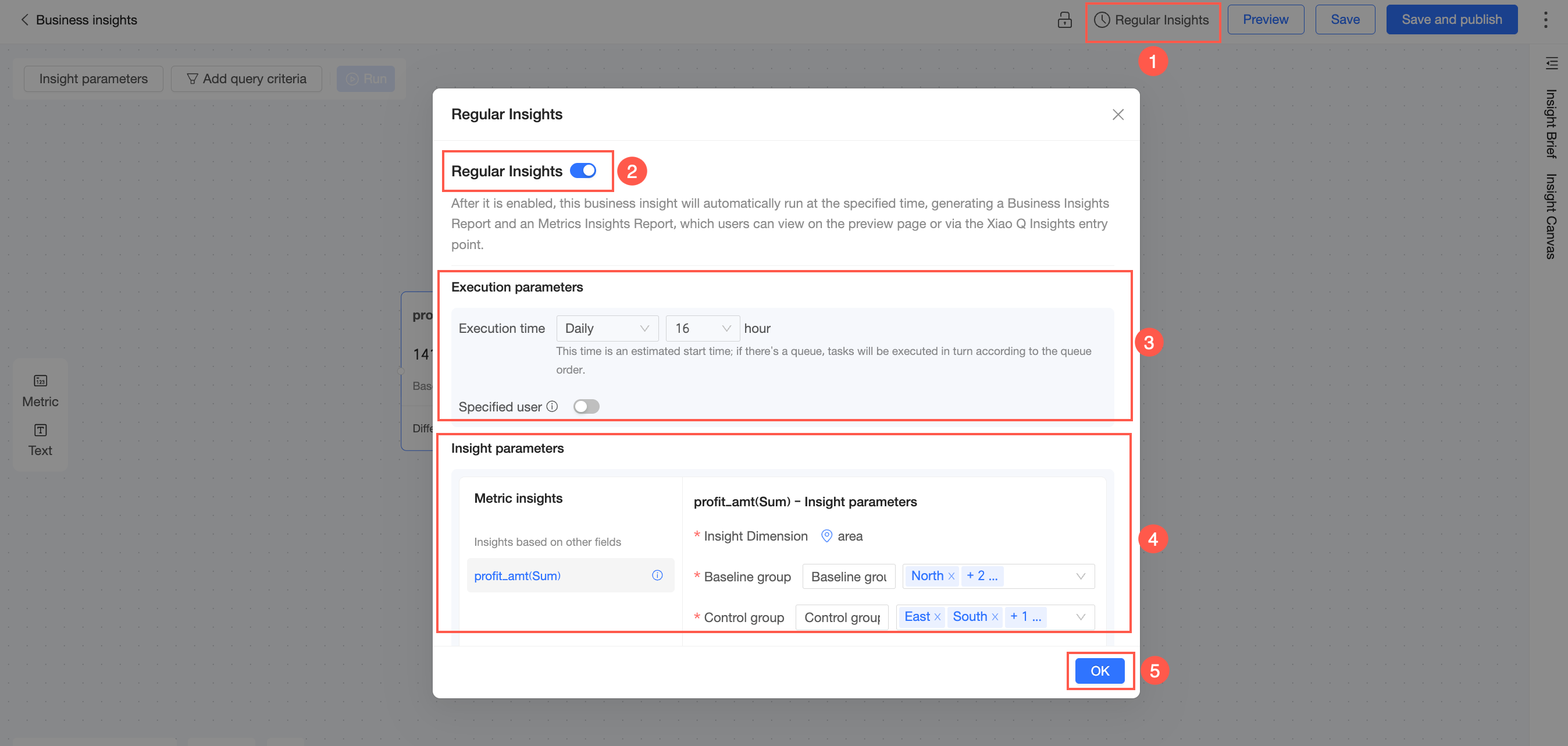
Click Scheduled Insight.
Enable Scheduled Insight.
Set the Execution Parameters.
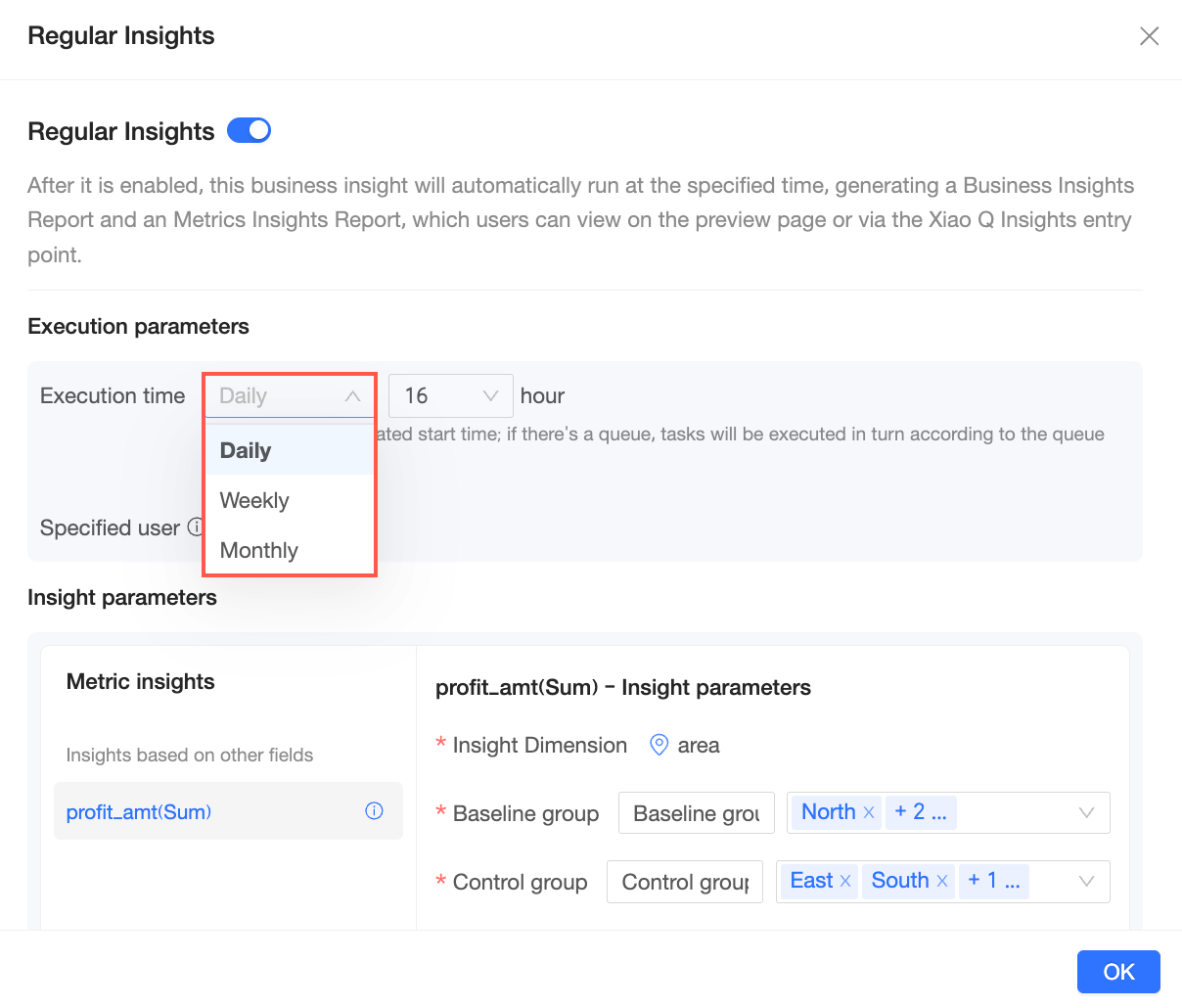
You can schedule the task to run daily, weekly, or monthly.
You can select a Specified User to run the insight task.
NoteThe insight task runs with the permissions of the specified user to generate personalized insight results. Only the specified user can view these results.
Set the Insight Parameters.
Modify the names and dimension values for the comparison pairs. If the insight dimension is a date field, the corresponding options are Current Period and Comparison Period. If it is a text field, the options are Current Group and Comparison Group.
Click OK to save the configuration.
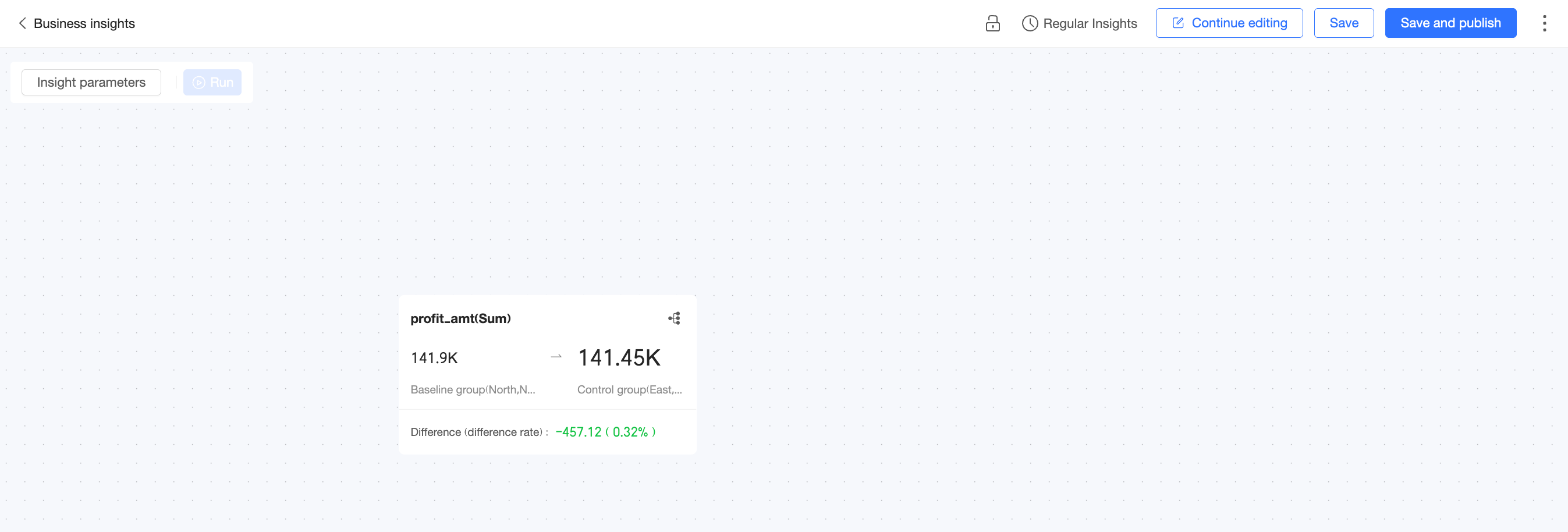
Preview
Click Preview to open the business insight preview page.
On the preview page, you can configure insight parameters, set up scheduled insights, and save your work. You can also click Continue Editing to return to the edit page.
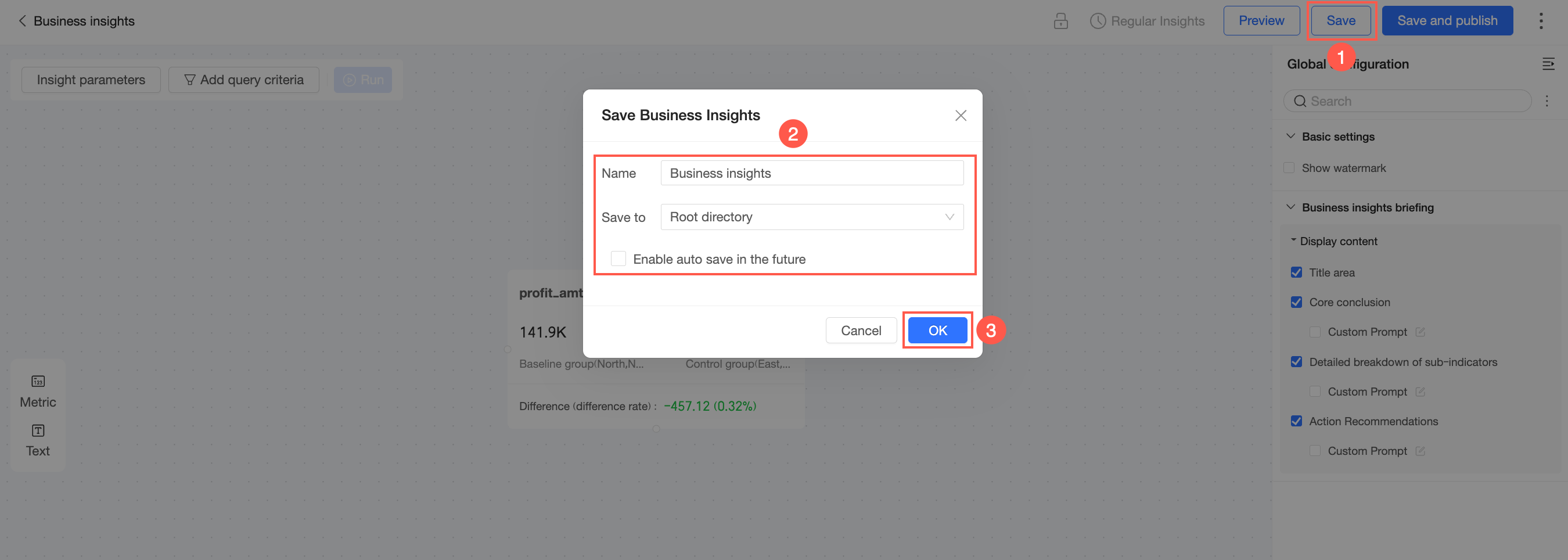
Save
Click the Save button, enter a Name for the business insight, select a Location, and then click OK. You can select the "Enable auto-save for subsequent processes" checkbox.
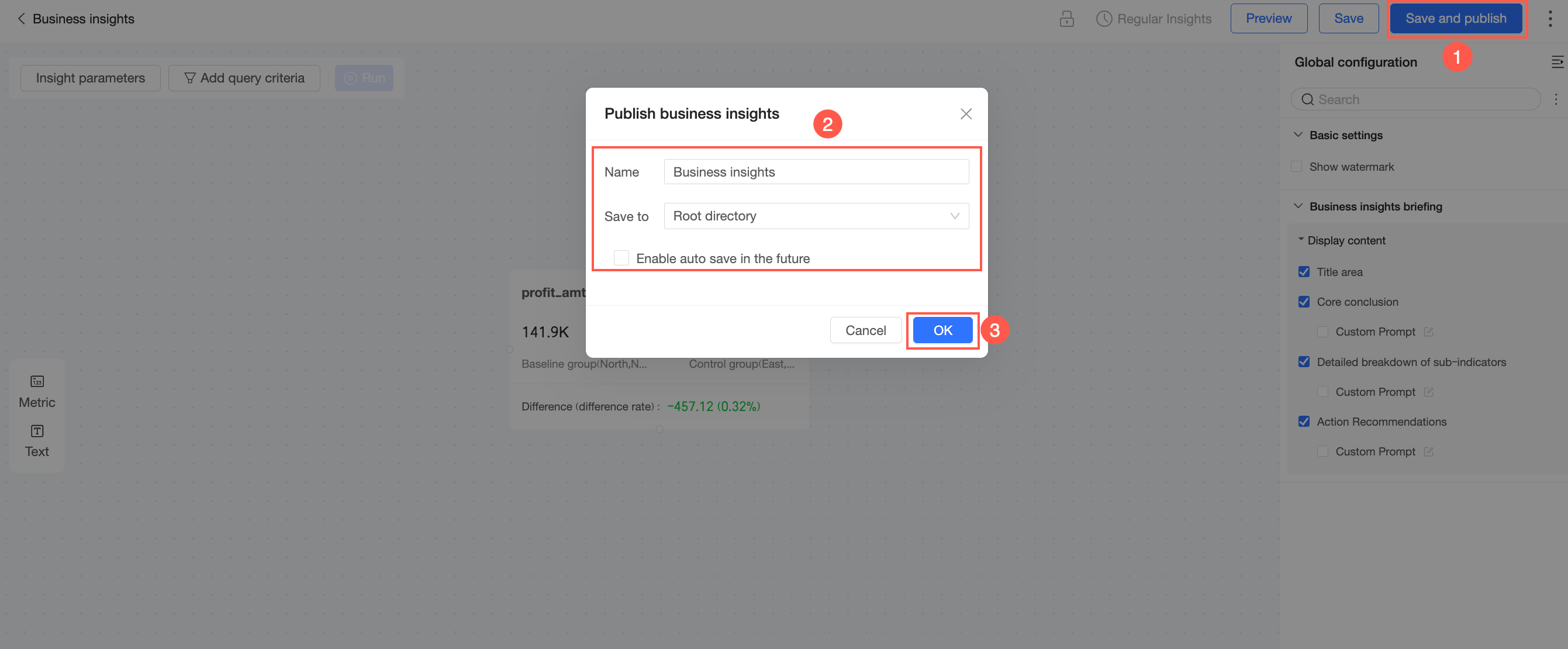
Save and publish
Click the Save and Publish button, and then click OK in the confirmation dialog box.
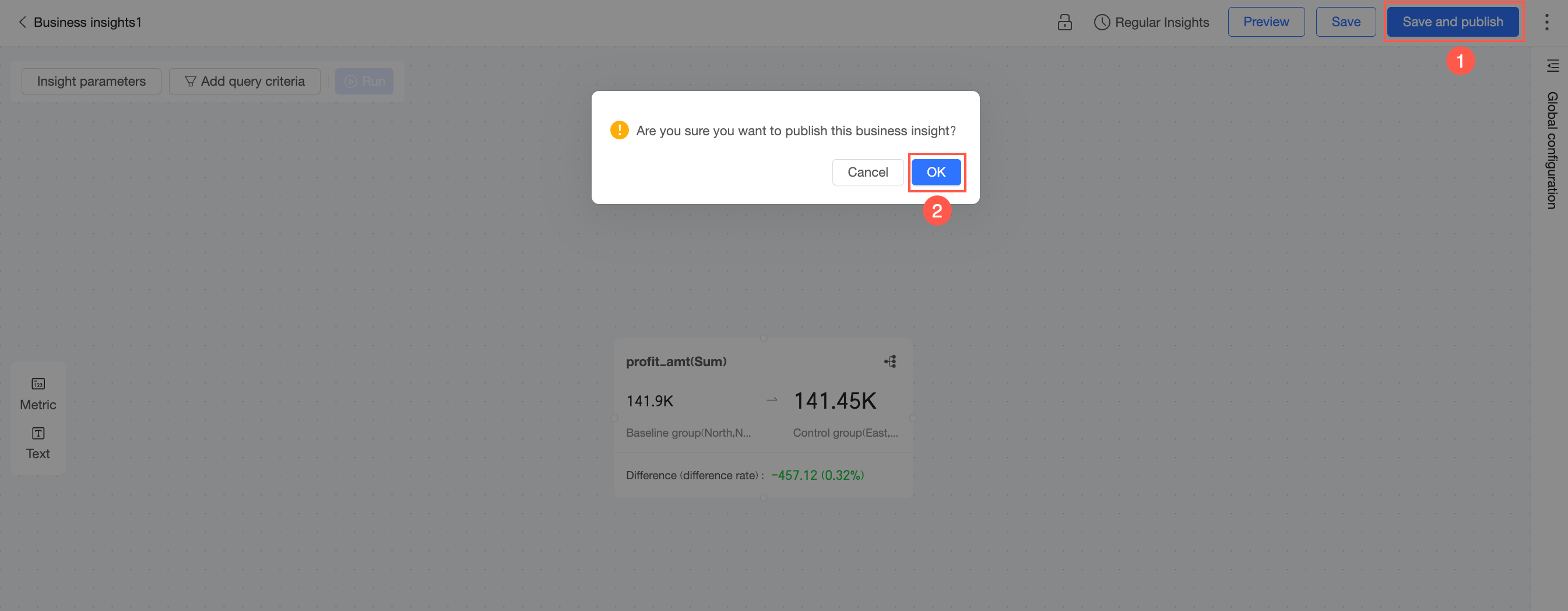
If the business insight has not been saved before, you must enter a Name, select a Location, and then click OK.
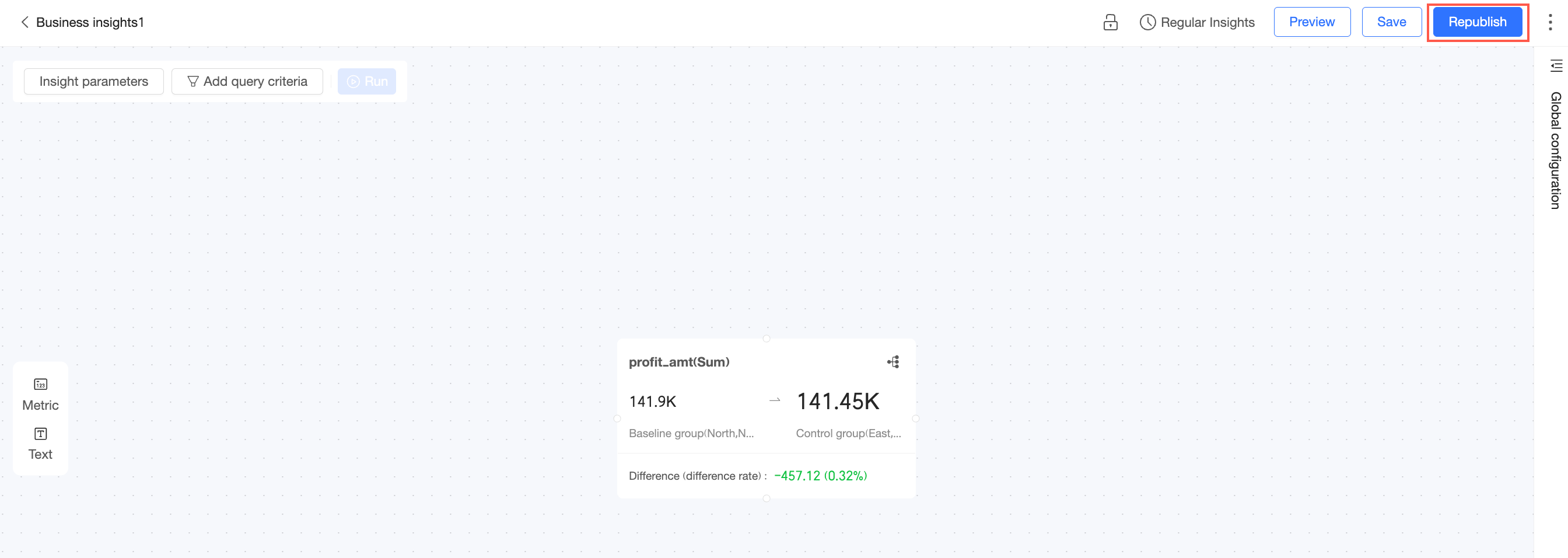
Republish
To deploy changes to a published business insight, click Republish.
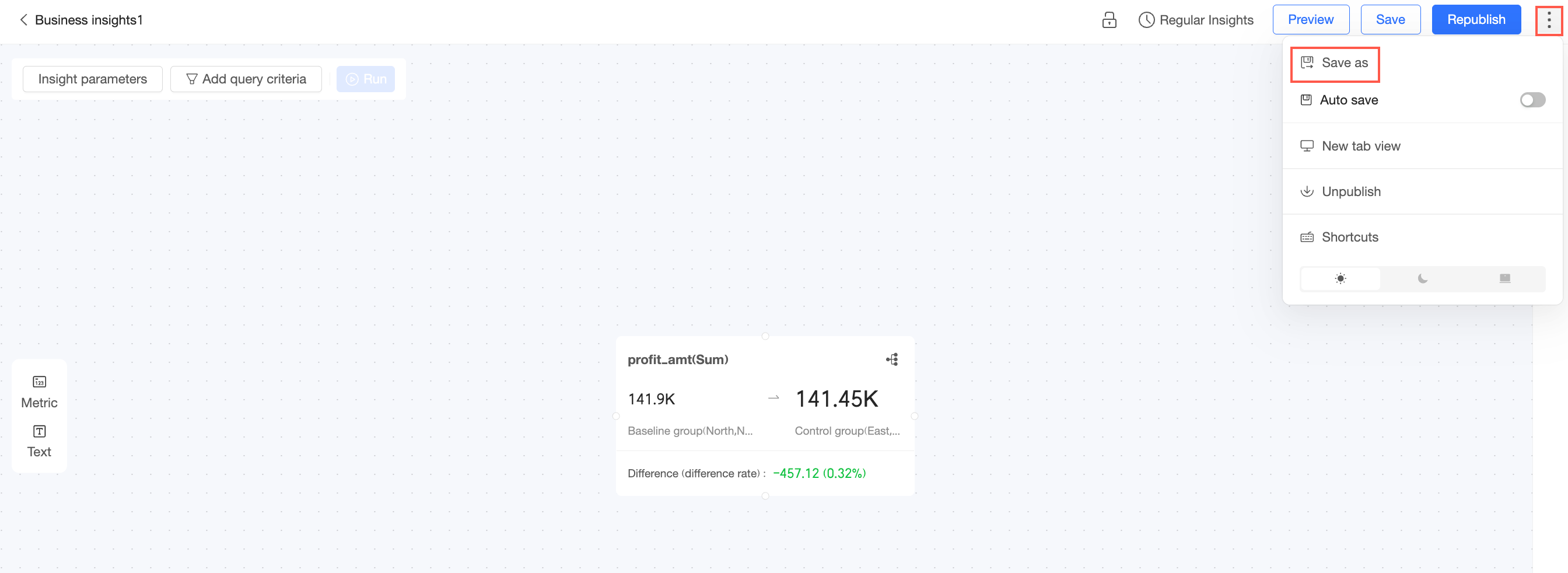
Save as
In the upper-right corner, click the
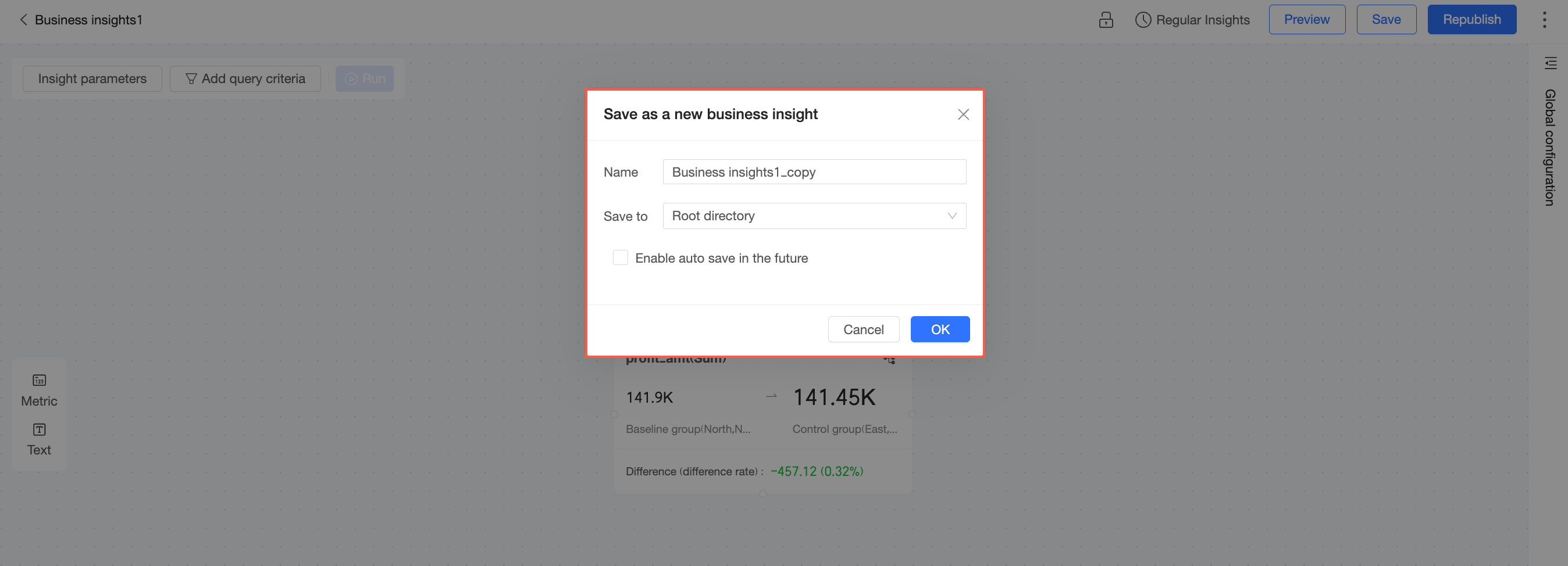
icon and select Save As.Enter a Name for the new business insight, select a Location, and then click OK. You can select the "Enable auto-save for subsequent processes" checkbox.
Auto save
In the upper-right corner, click the  icon and select Auto Save.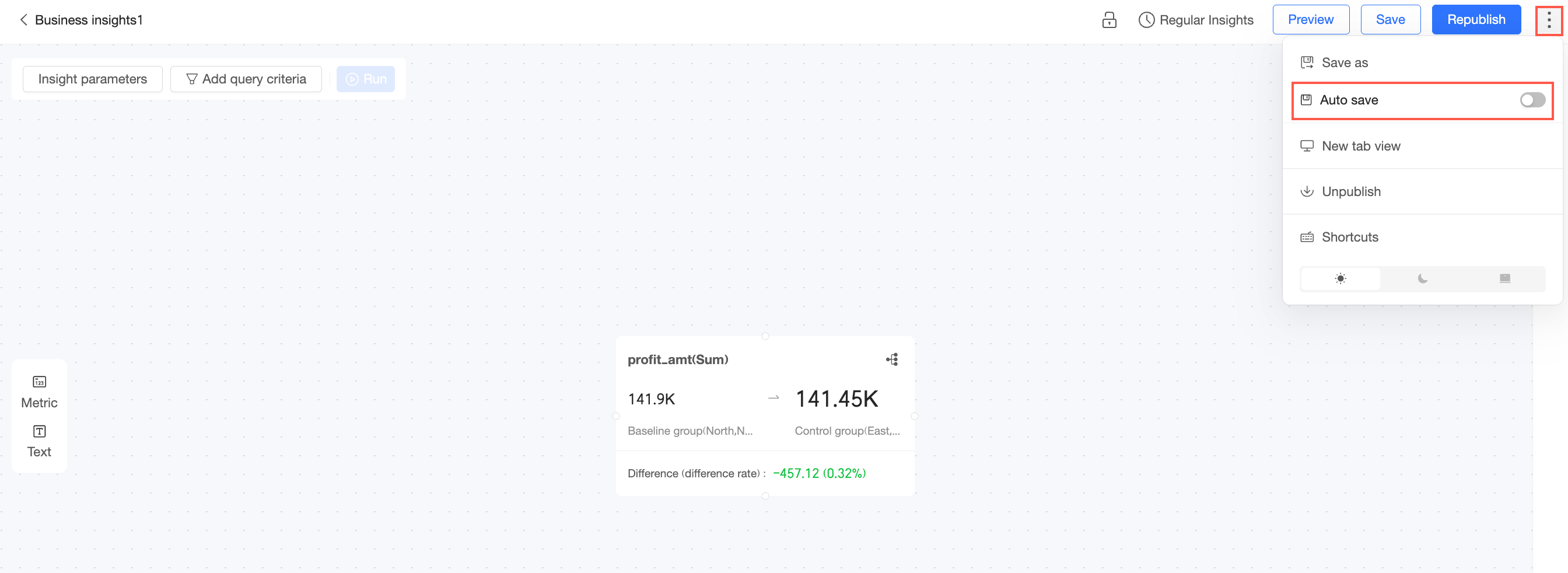
When this option is selected, your business insight is automatically saved during editing.
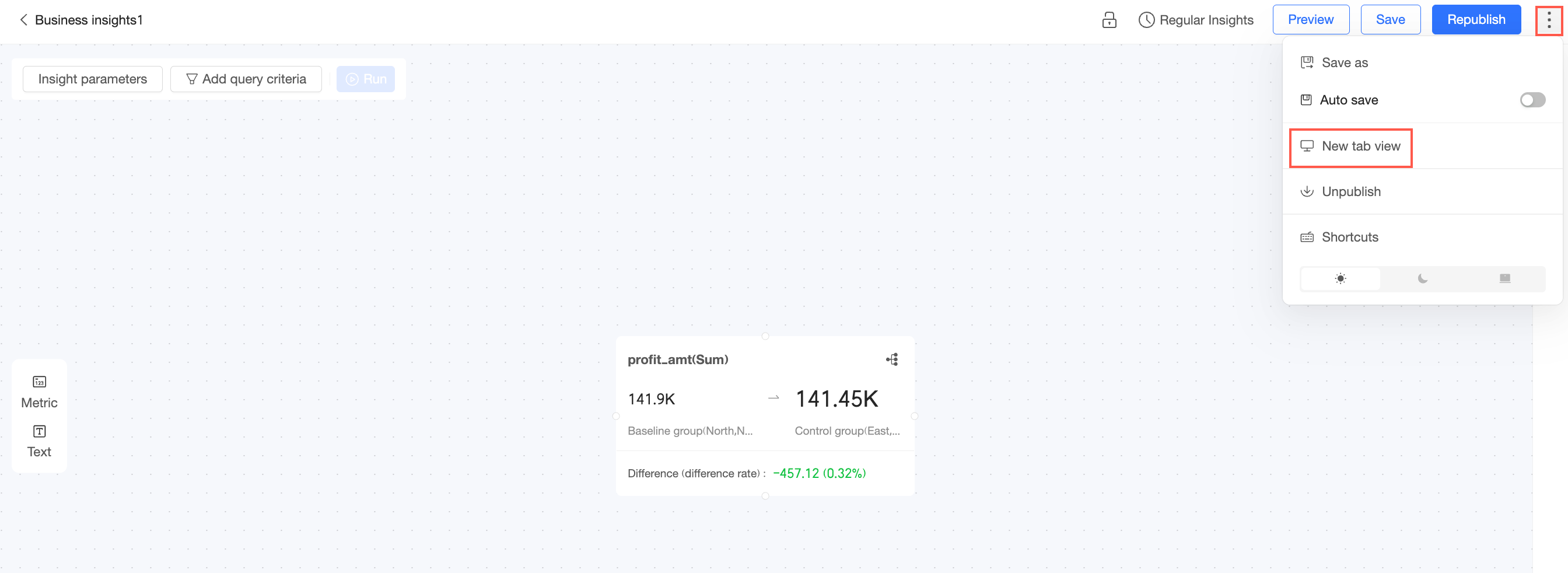
View in new tab
You can only view published business insights in a new tab.
In the upper-right corner, click the
icon and select View in New Tab.The preview page opens in a new tab.
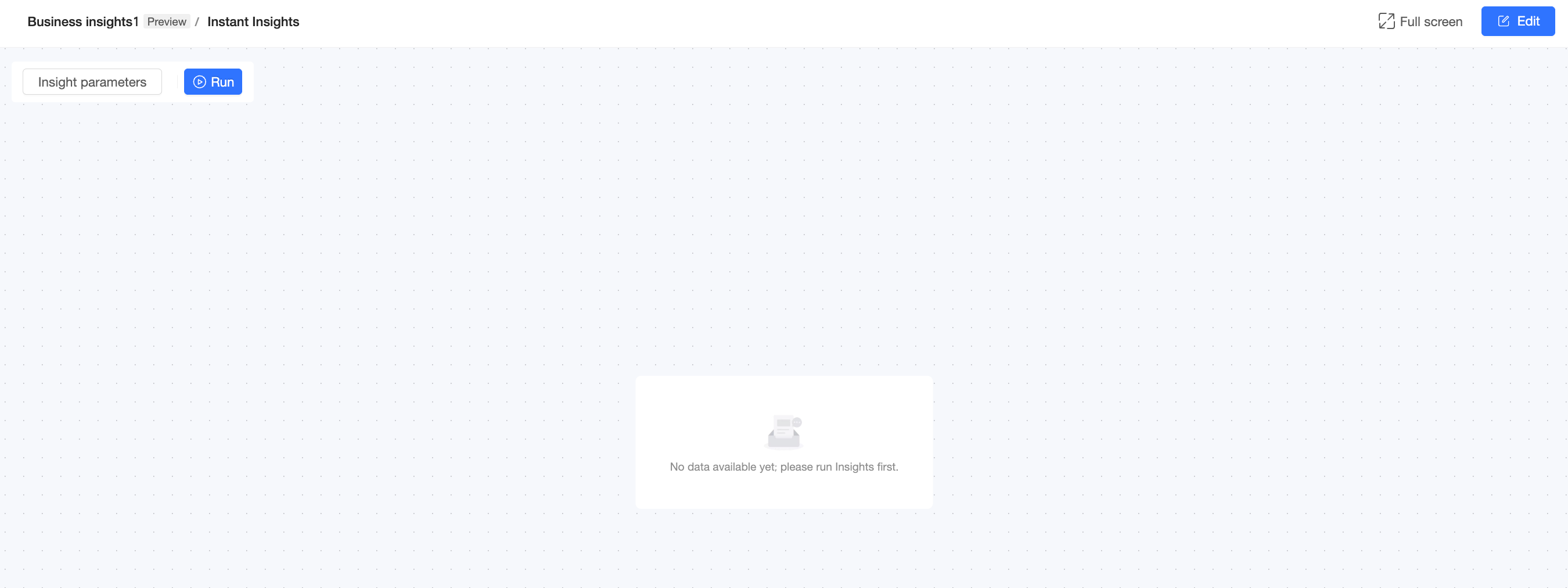
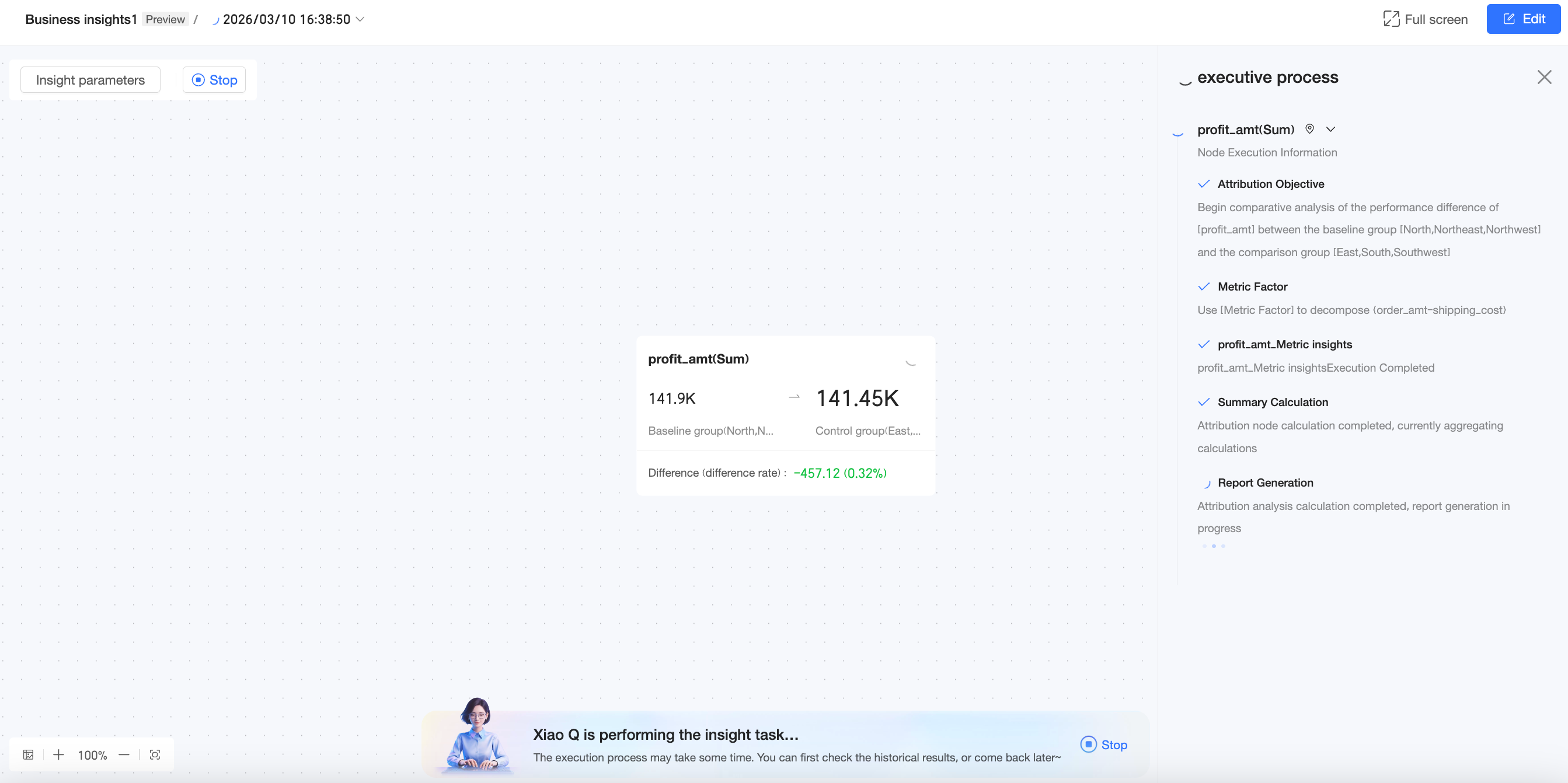
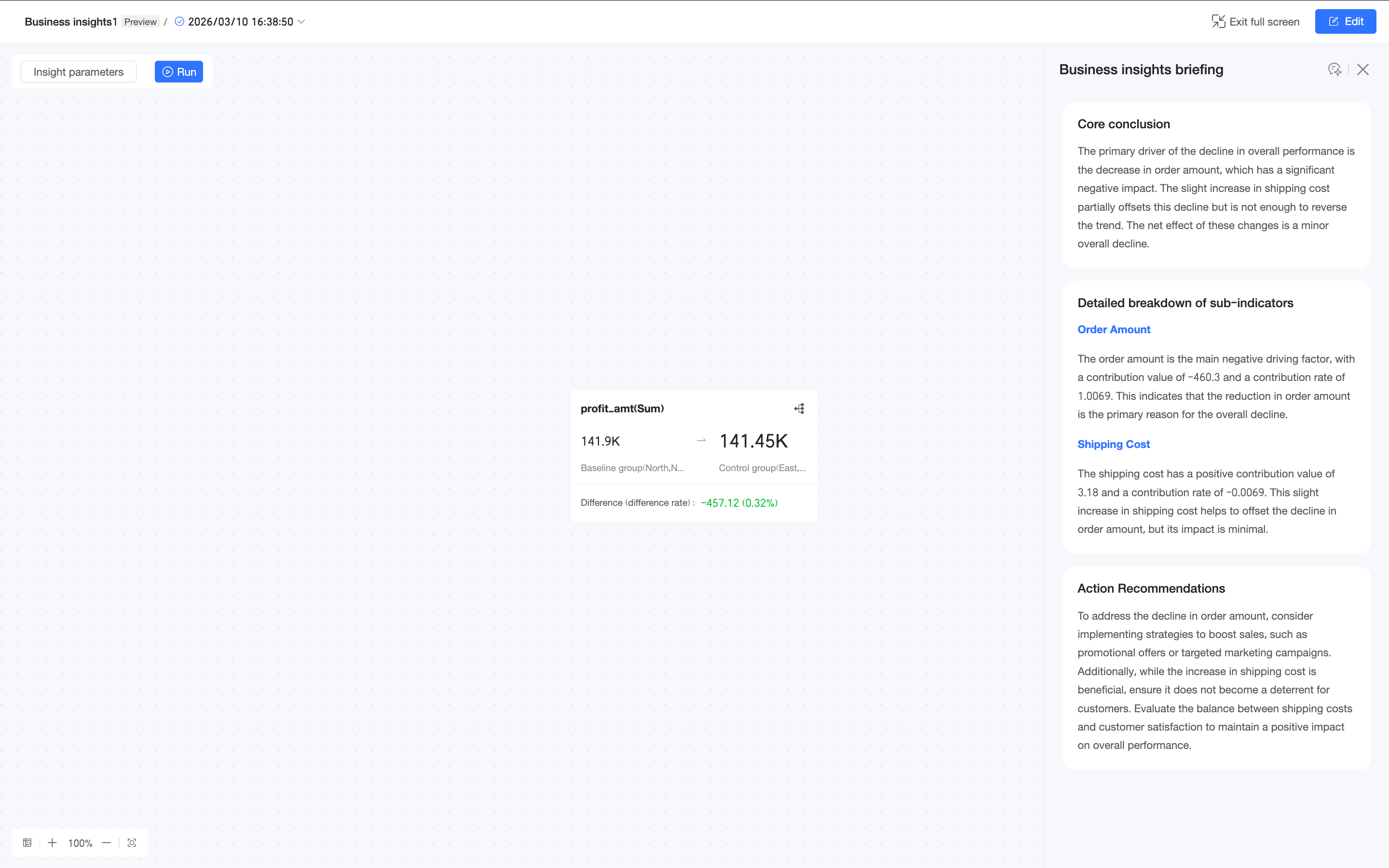
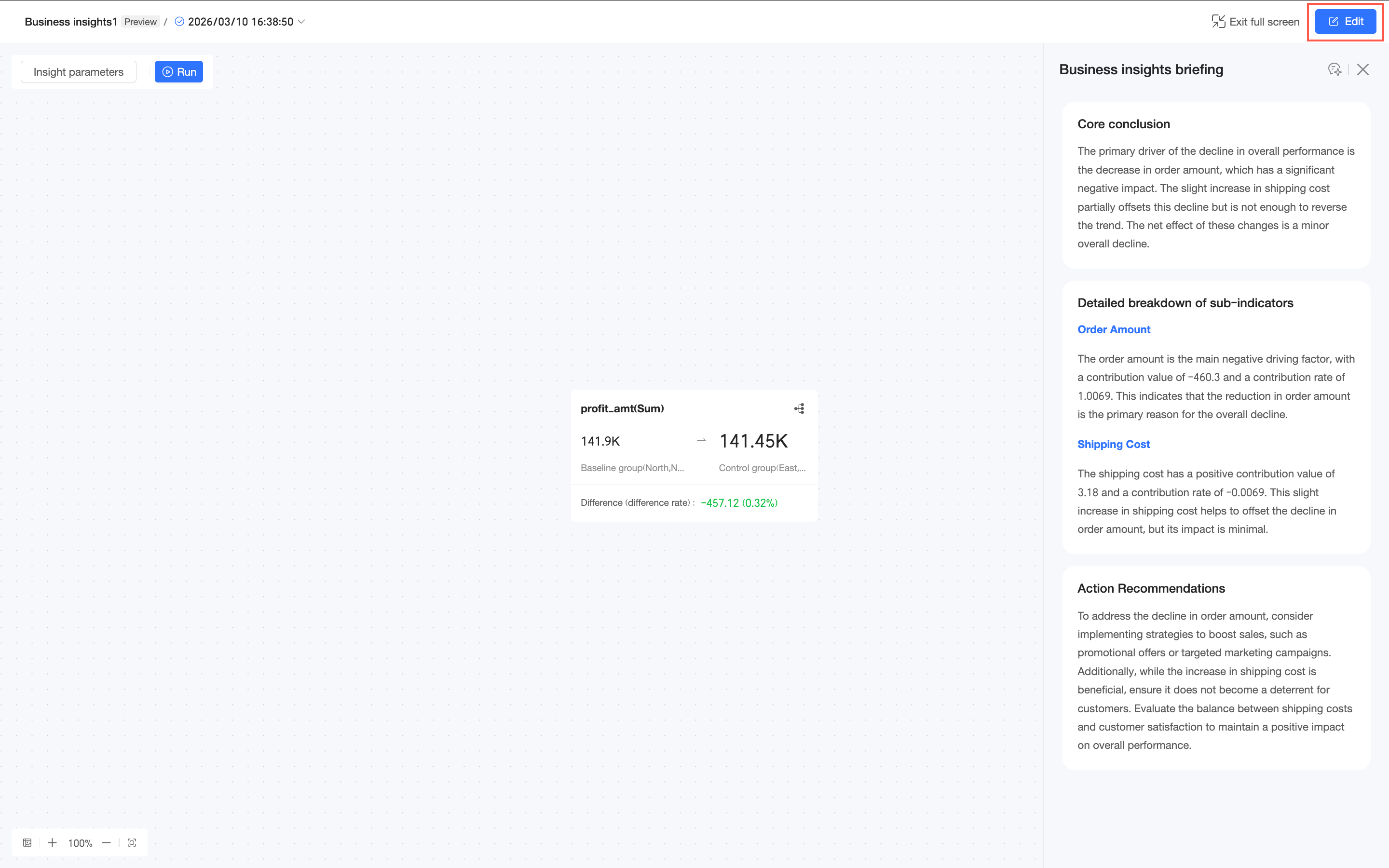
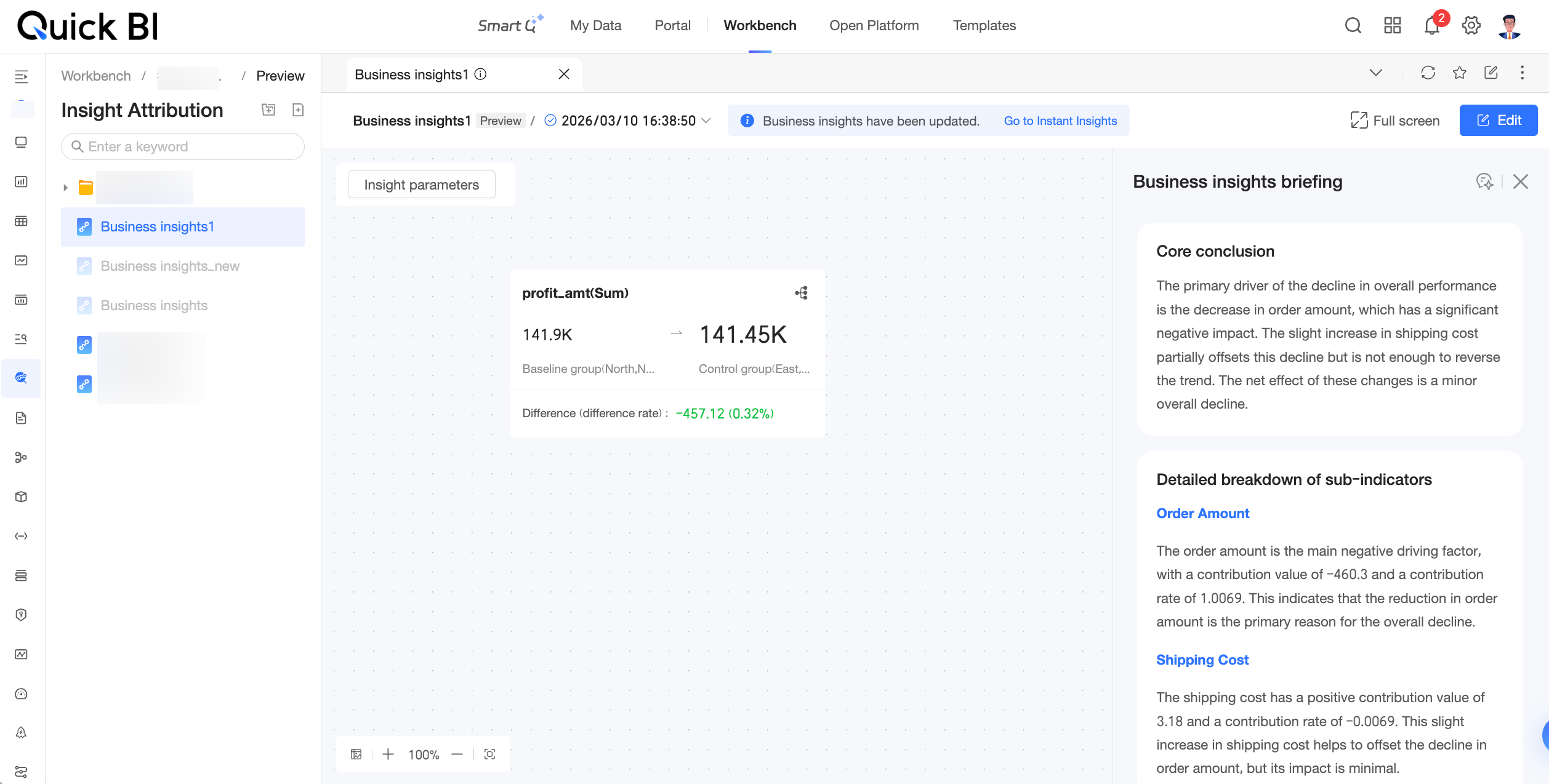
On the preview page, you can perform the following operations:
Configure Insight Parameters.
Click Run to execute the insight task.
View in Full Screen mode.
Click Edit to return to the insight editing page.
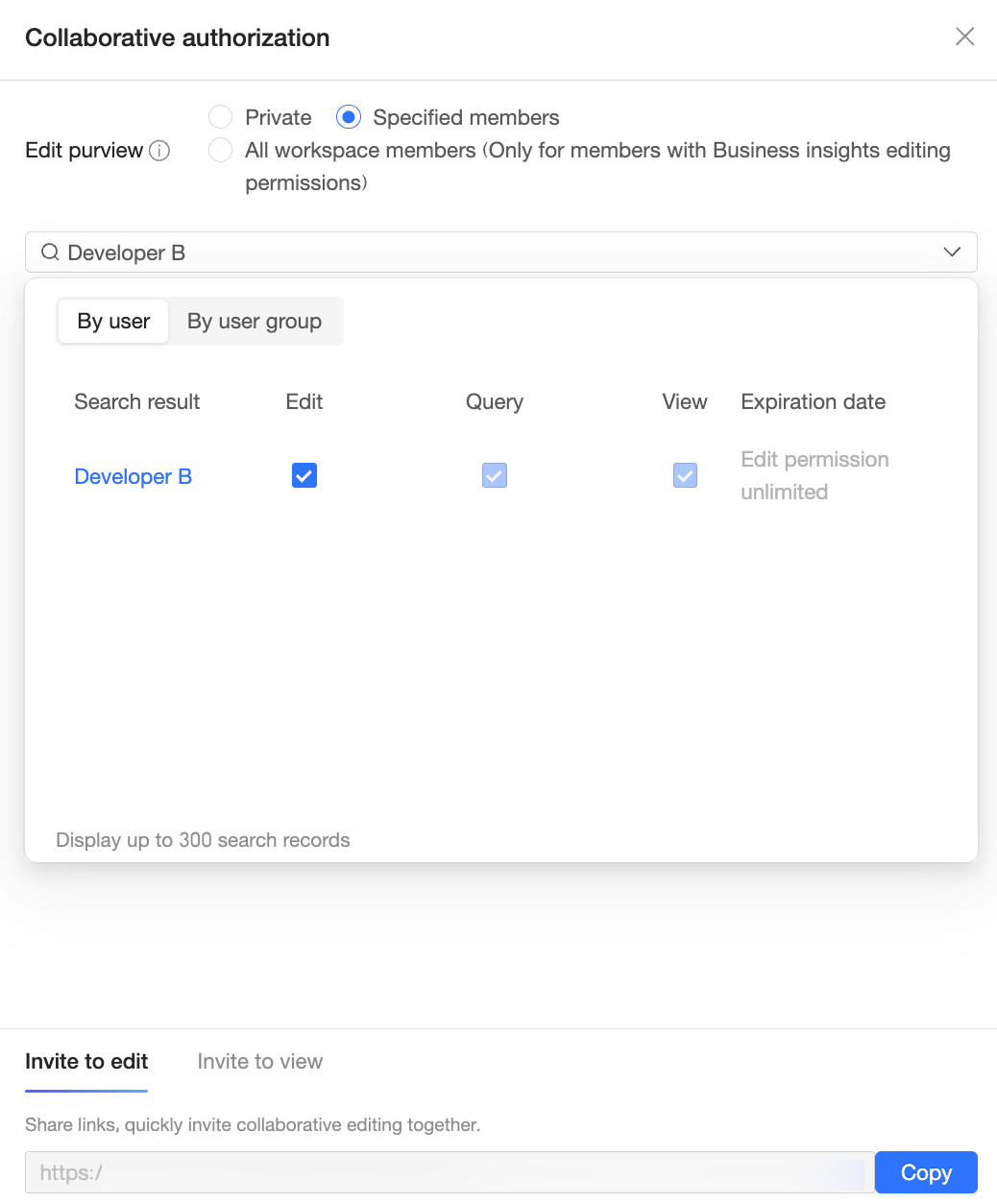
Collaboration and authorization
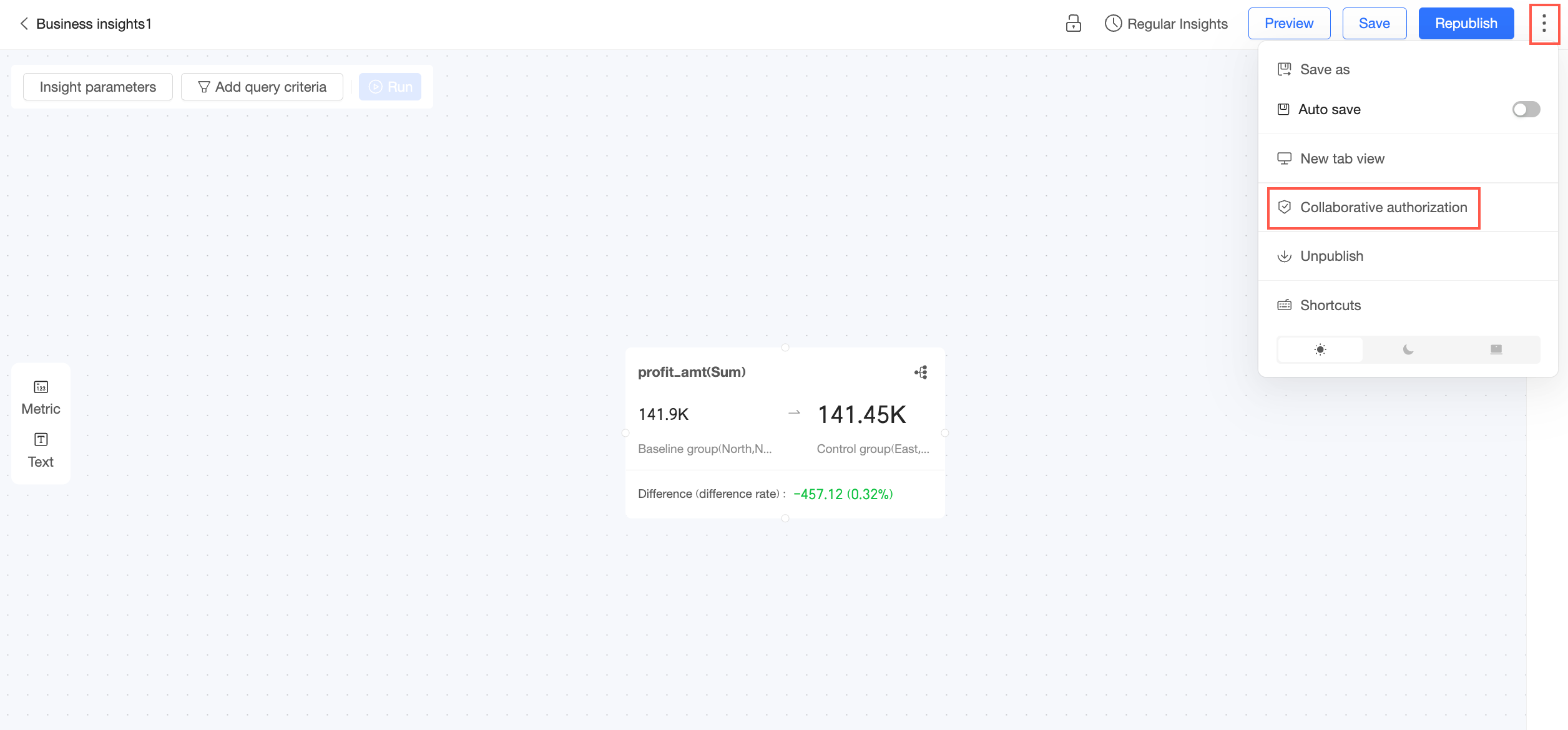
In the upper-right corner, click the
icon and select Collaboration and Authorization.On the Collaboration and Authorization page, grant view or edit permissions to other users.
NoteIn Private mode, only the resource owner and space administrators have edit permissions. To grant edit permissions to specific members, you must first switch to Specified Members mode.
You can grant the Edit permission only to users within the same space who have the Create (Edit) business insight permission.
You can grant the Query and View permissions only to users within the same space who have the Query business insight permission.
Query: Allows users to initiate a business insight from Smart Q > Smart Q Insight.
View: Allows users to view generated business insight briefings.
Unpublish
In the upper-right corner, click the icon and select Unpublish. Unpublishing a business insight makes it unavailable to view or use.

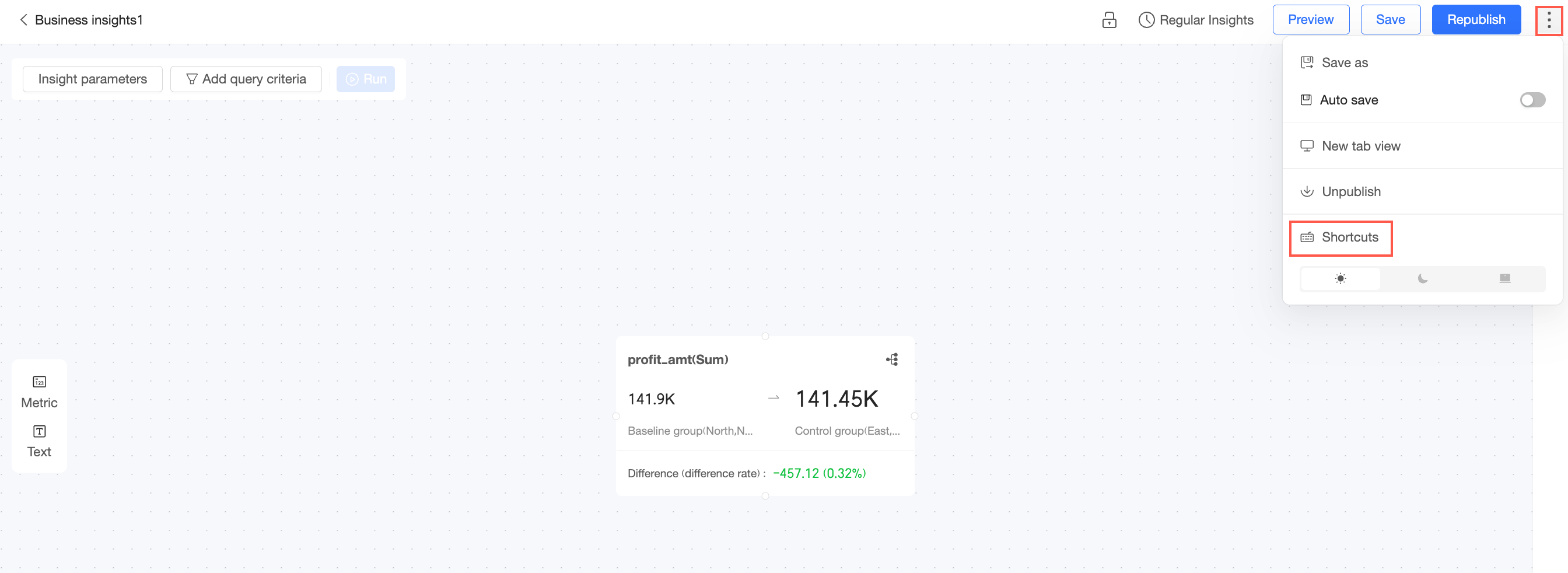
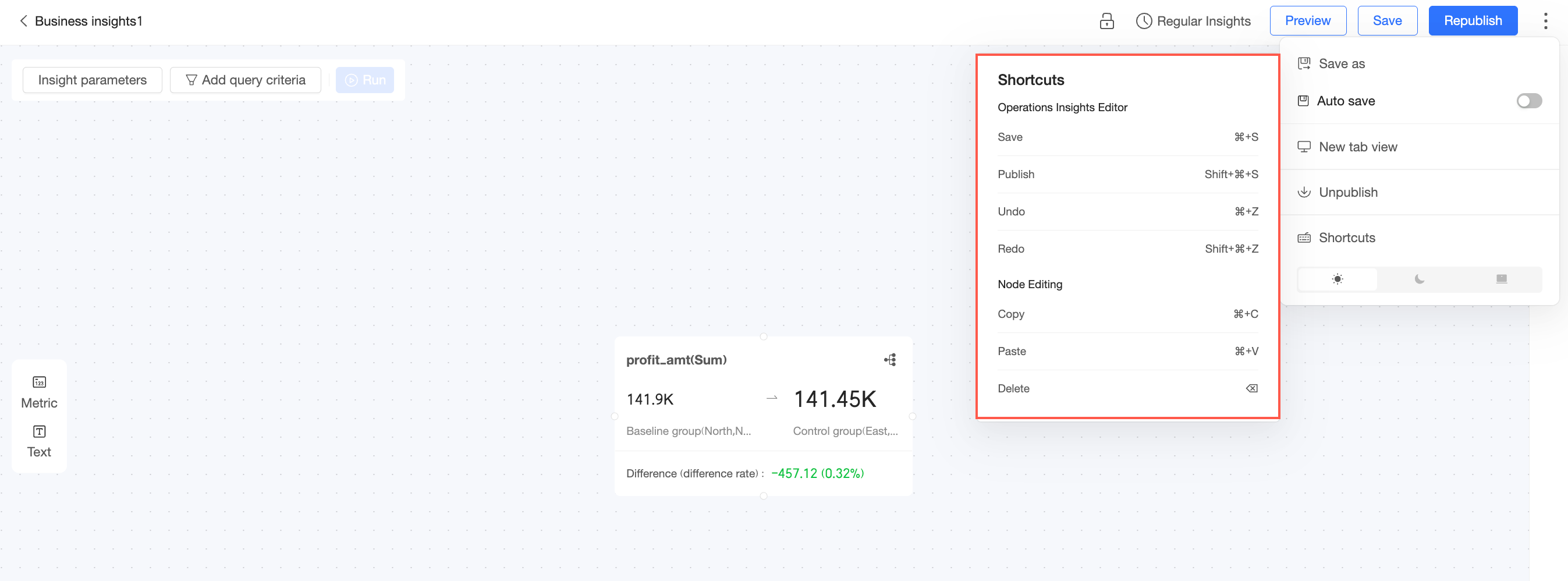
Shortcuts
In the upper-right corner, click the
icon and select Shortcuts.View the list of shortcuts available for business insights.
Switch theme
You can switch the theme to Light Mode, Dark Mode, or Follow Organization Settings.
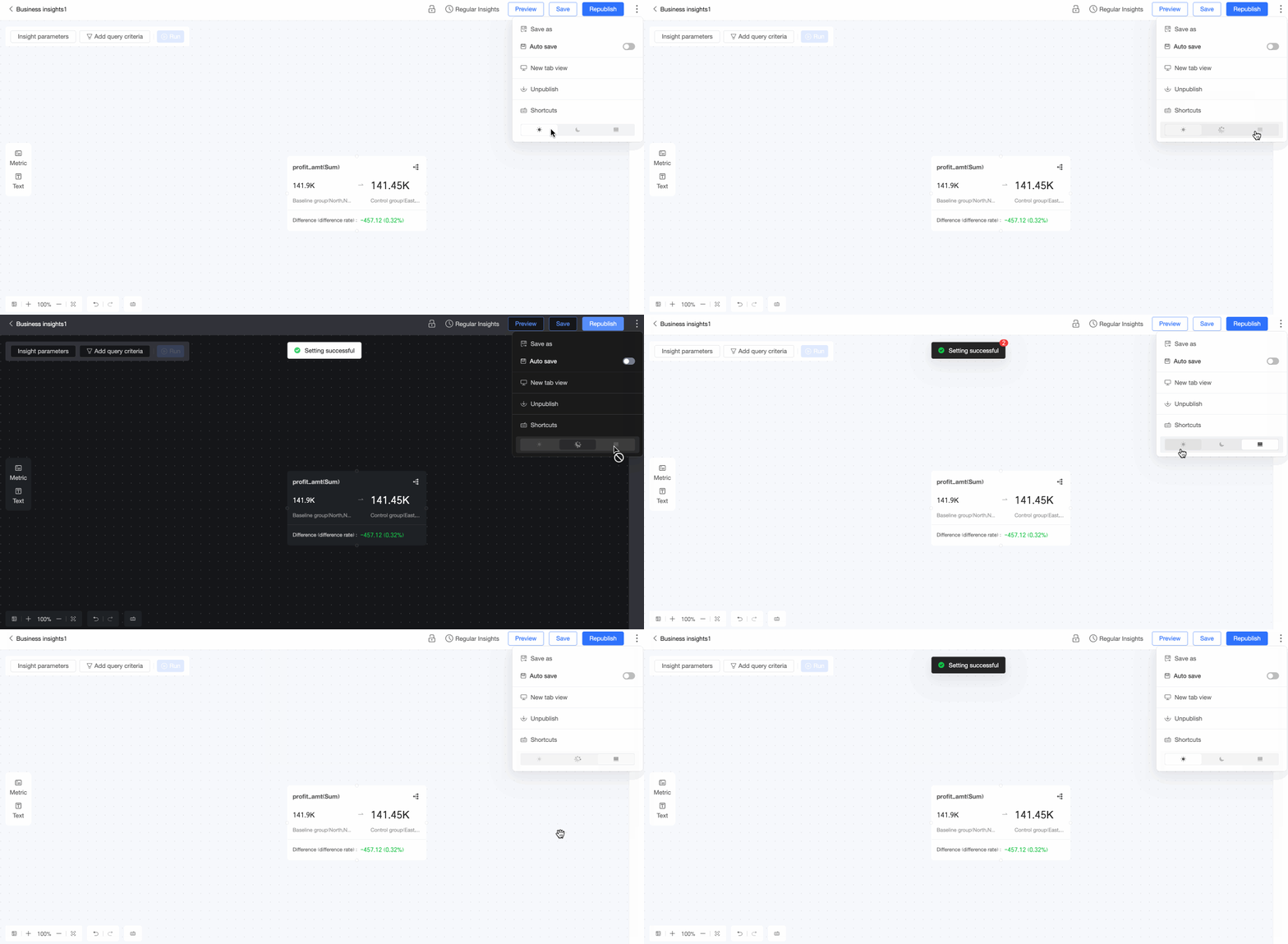
For more information about the system style applied when using Follow Organization Settings, see System Theme Customization.
List page operations
Follow the steps in the figure below to navigate to the Insight Attribution > Business Insight list page.
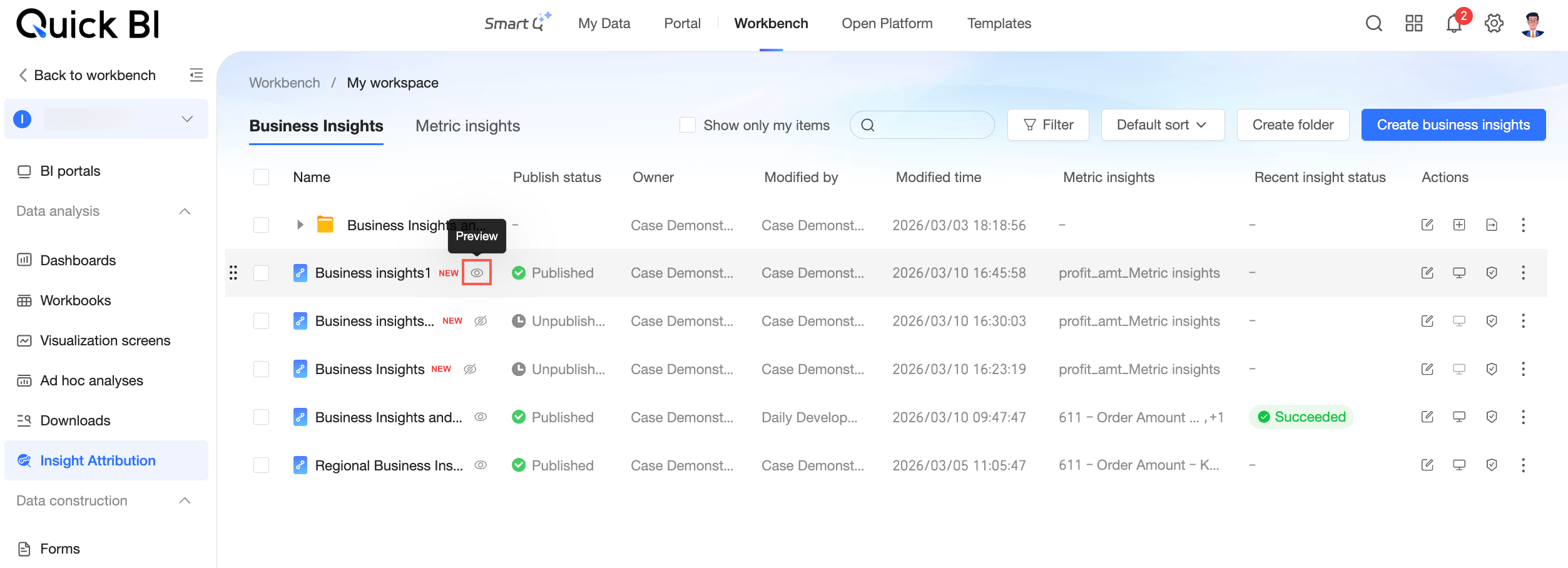
On the Business Insight list page, you can perform the following operations:
Preview
Click the  icon to the right of the target business insight to open the preview page.
On the preview page, you can run insight attribution and perform other operations. These operations are the same as those described in View in new tab.
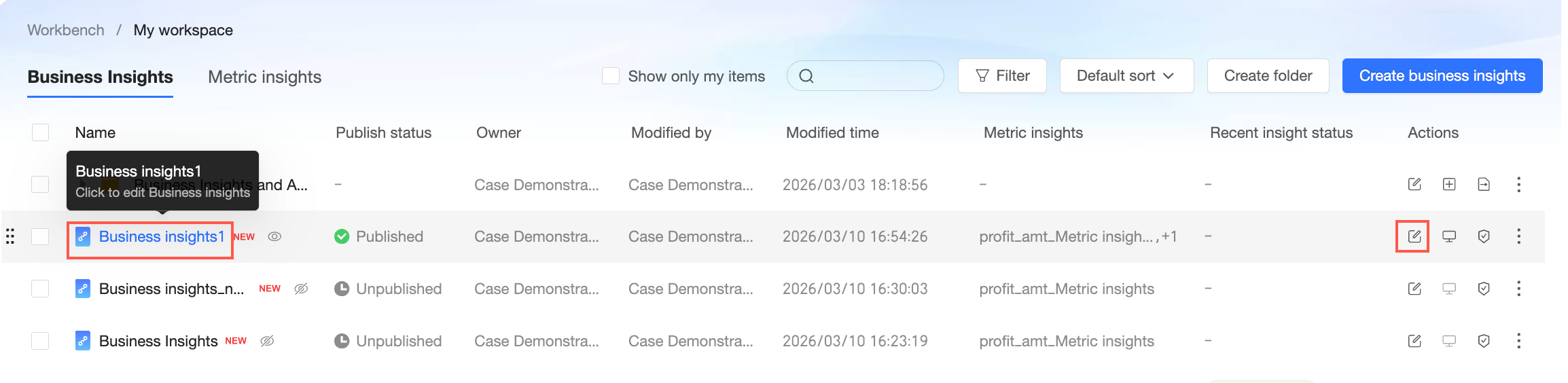
Edit
Click the name of the target business insight or the  icon in the Actions column to open the business insight editing page.
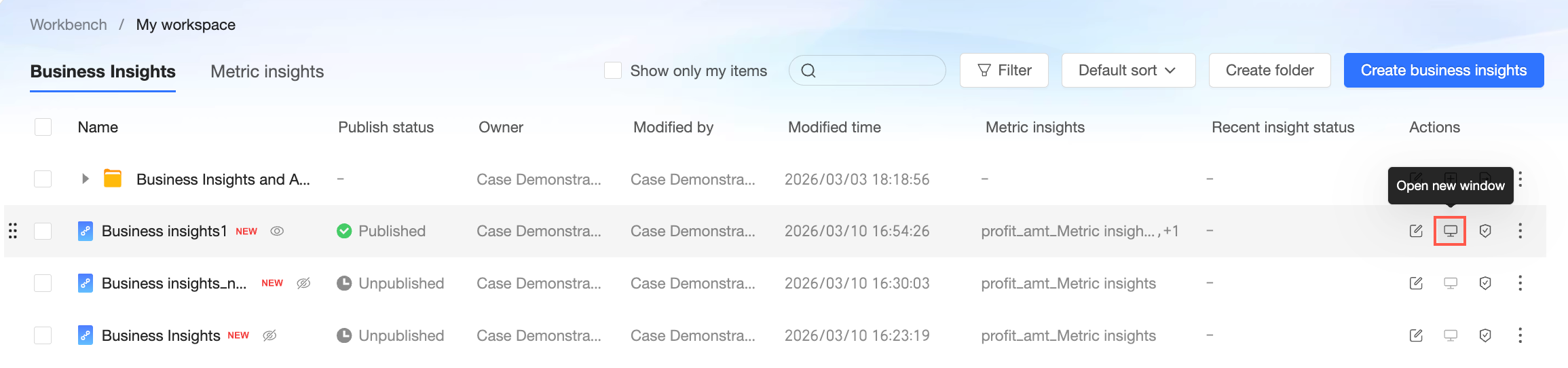
View in new window
Click the  icon in the Actions column to open the view page in a new window.
You can only view published business insights in a new window.
Collaboration and authorization
Click the
icon and select Collaboration and Authorization.On the Collaboration and Authorization page, grant view or edit permissions to other users.
NoteIn Private mode, only the resource owner and space administrators have edit permissions. To grant edit permissions to specific members, you must first switch to Specified Members mode.
You can grant the Edit permission only to users within the same space who have the Create (Edit) business insight permission.
You can grant the Query and View permissions only to users within the same space who have the Query business insight permission.
Query: Allows users to initiate a business insight from Smart Q > Smart Q Insight.
View: Allows users to view generated business insight briefings.
 icon and select Collaboration and Authorization.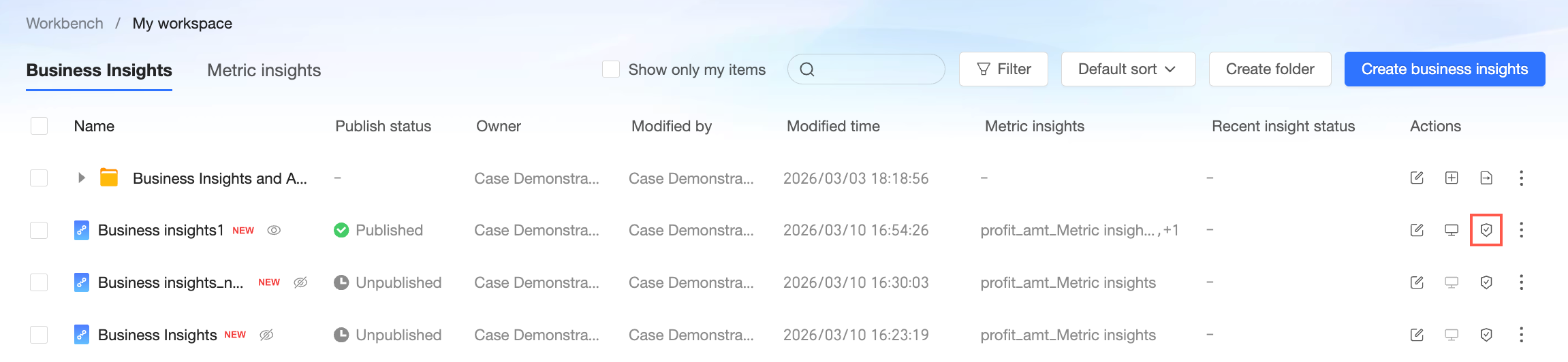
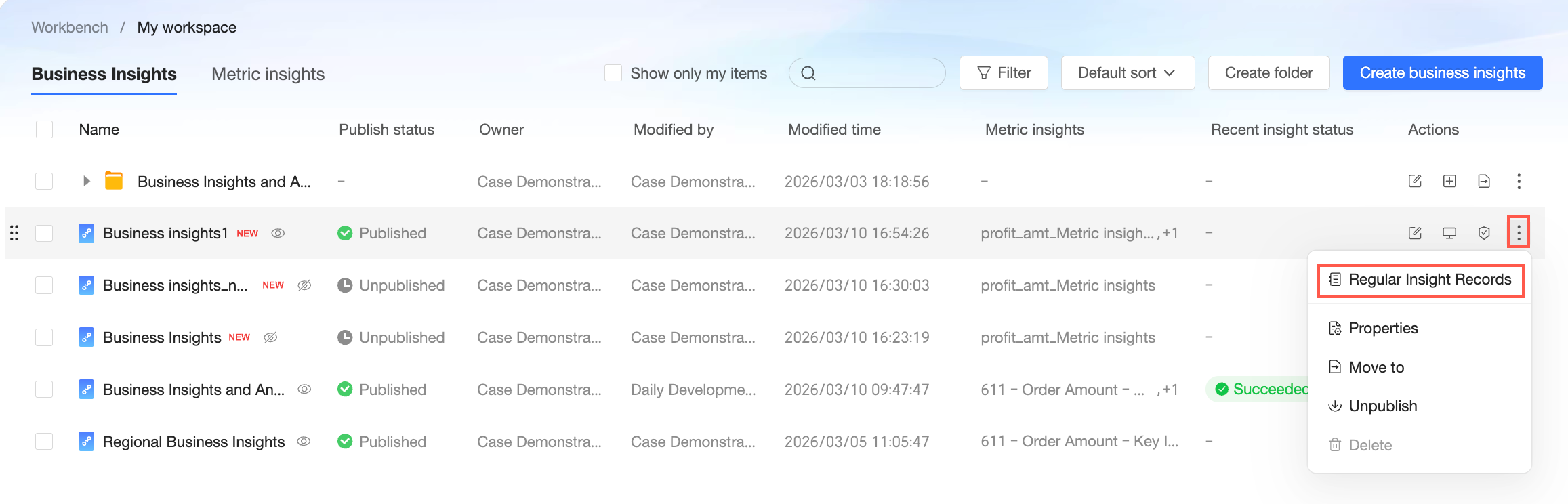
Scheduled insight records
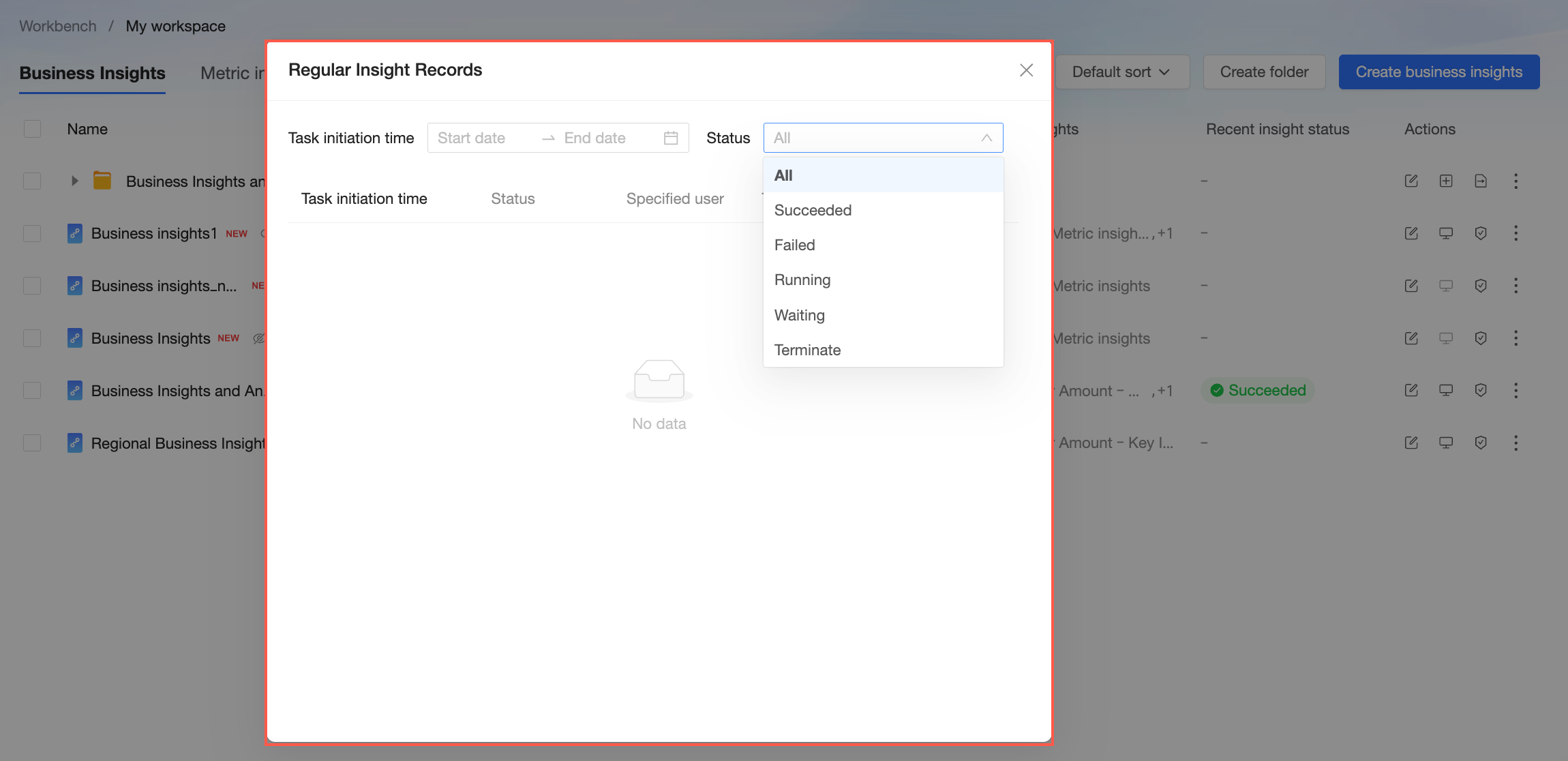
After you enable a scheduled insight, you can view its execution records.
In the Actions column, click the
icon and select Scheduled Insight Records.You can filter the records by Task Start Time and Insight Status.
Properties
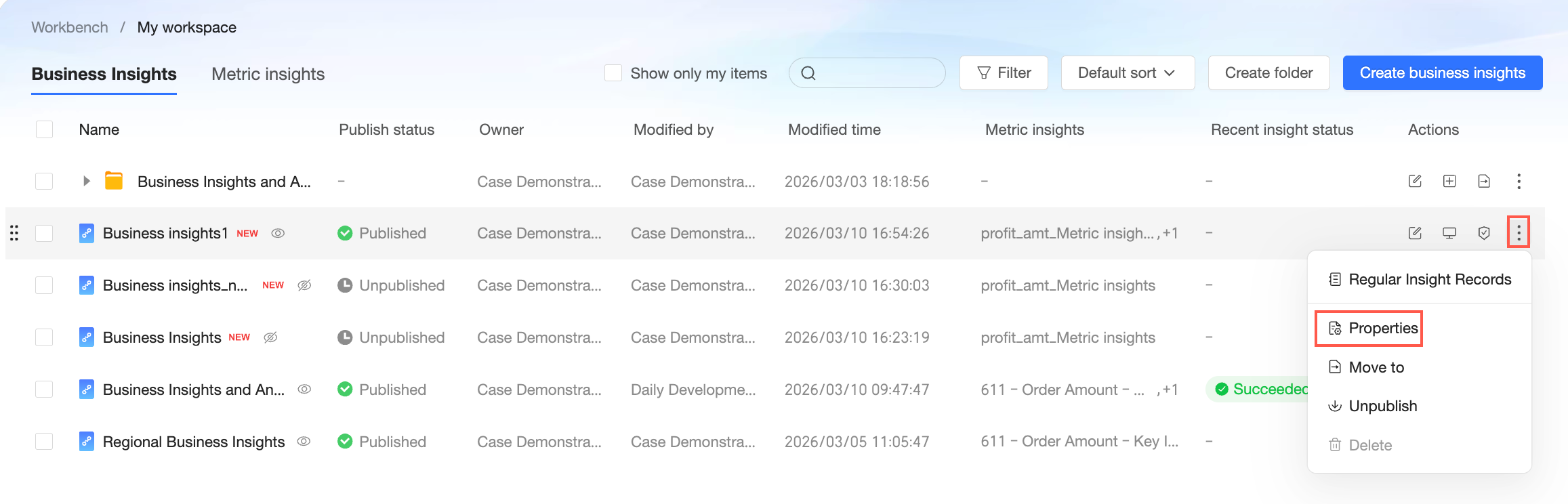
In the Actions column, click the
icon and select Properties.In the properties panel, you can modify the Name of the business insight, transfer the owner, and add a Description.
Click OK to save the properties.

Move to
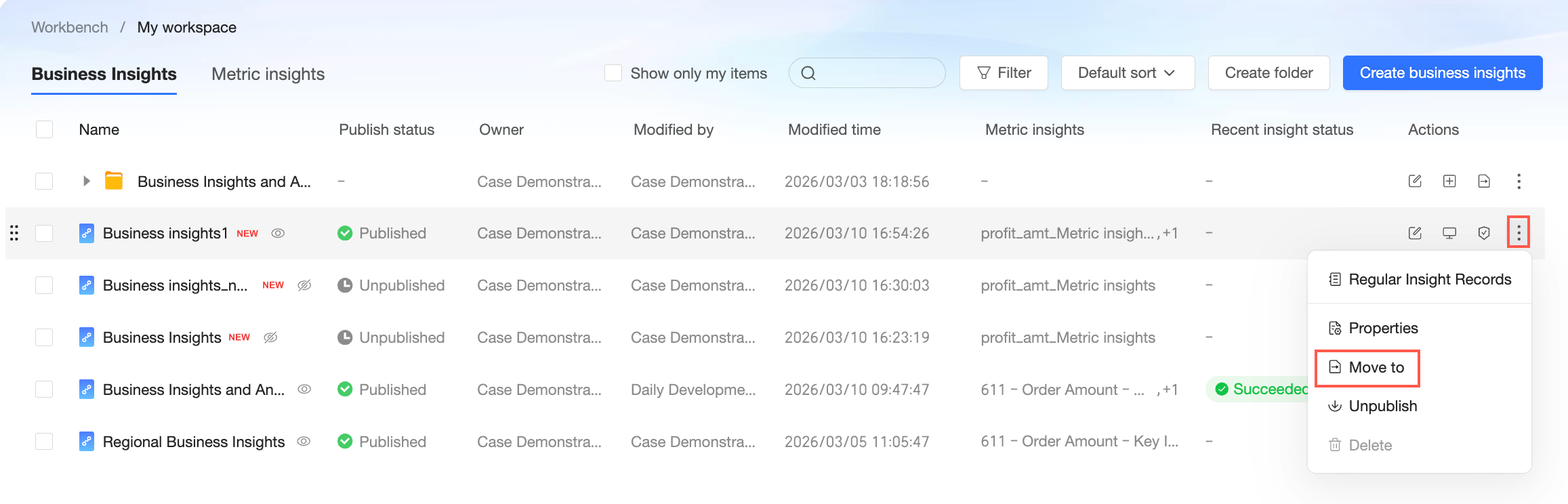
In the Actions column, click the
icon and select Move To.Move the resource to another folder.
Click OK to confirm the move.

Unpublish
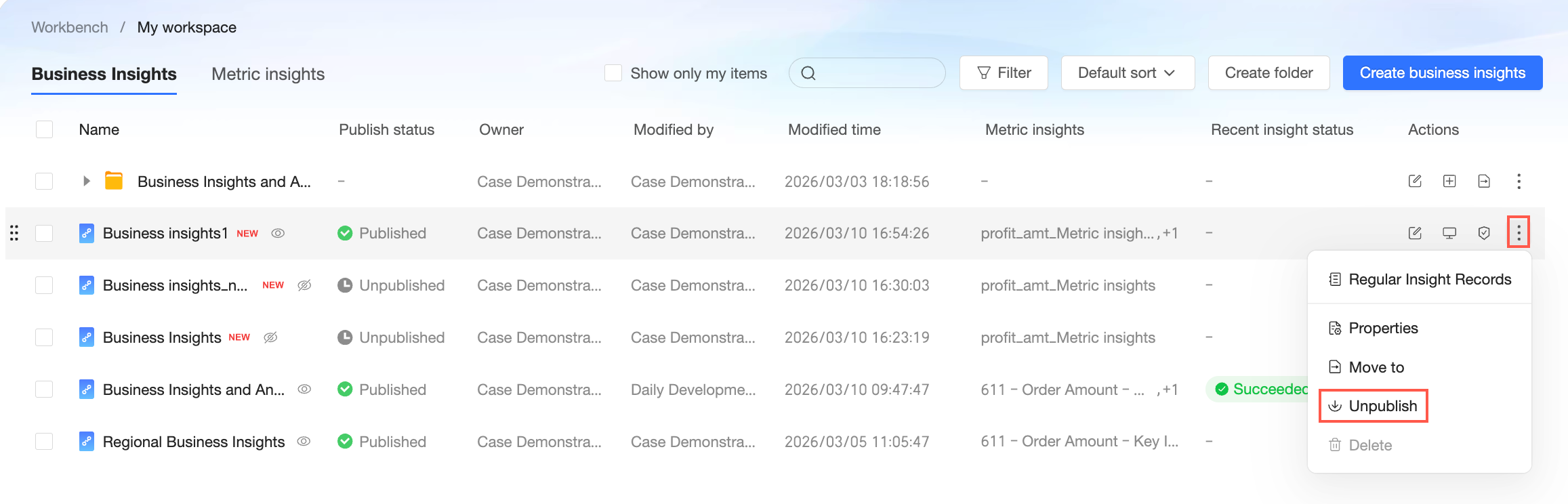
In the Actions column, click the icon and select Unpublish. Unpublishing the business insight makes it unavailable to view or use.
Delete
In the Actions column, click the
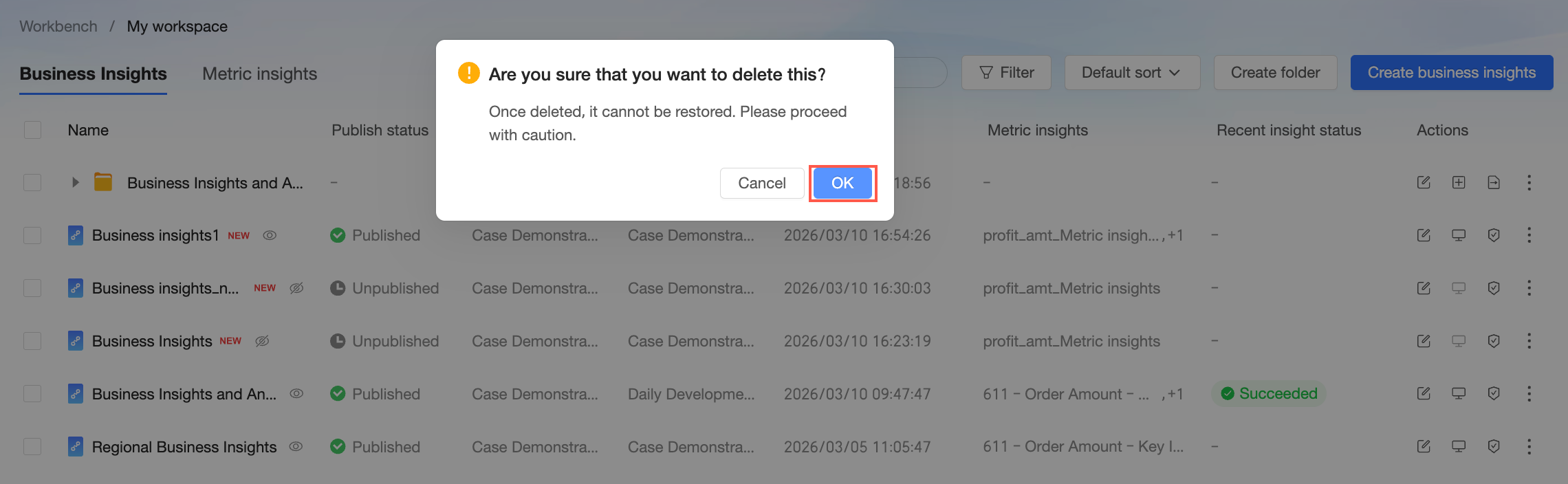
icon and select Delete.NoteYou can only delete business insights that have a status of Unpublished.
In the confirmation dialog box, click OK.

Next steps
After you configure a business insight, you can view and analyze it in Smart Q Insight.