Business Logic
Scenarios
In daily data analytics, analysts often use company-specific business terms when asking questions. However, a Large Language Model (LLM) may misinterpret these terms due to semantic bias or limitations, producing analytical results that do not align with your business context.
By configuring business logic in the Quick BI knowledge base, you can structure and store your organization’s business terms and their association logic. This enhances Q’s ability to understand your specific language. When you ask a question, Q matches it to the corresponding business logic, accurately interprets the business terms, and delivers more precise answers.
If a general business logic configuration in knowledge base management conflicts with an Agent-level knowledge base, such as Data Q&A, the Agent-level knowledge base takes priority.
Access the Feature
Choose a configuration method based on your needs:
-
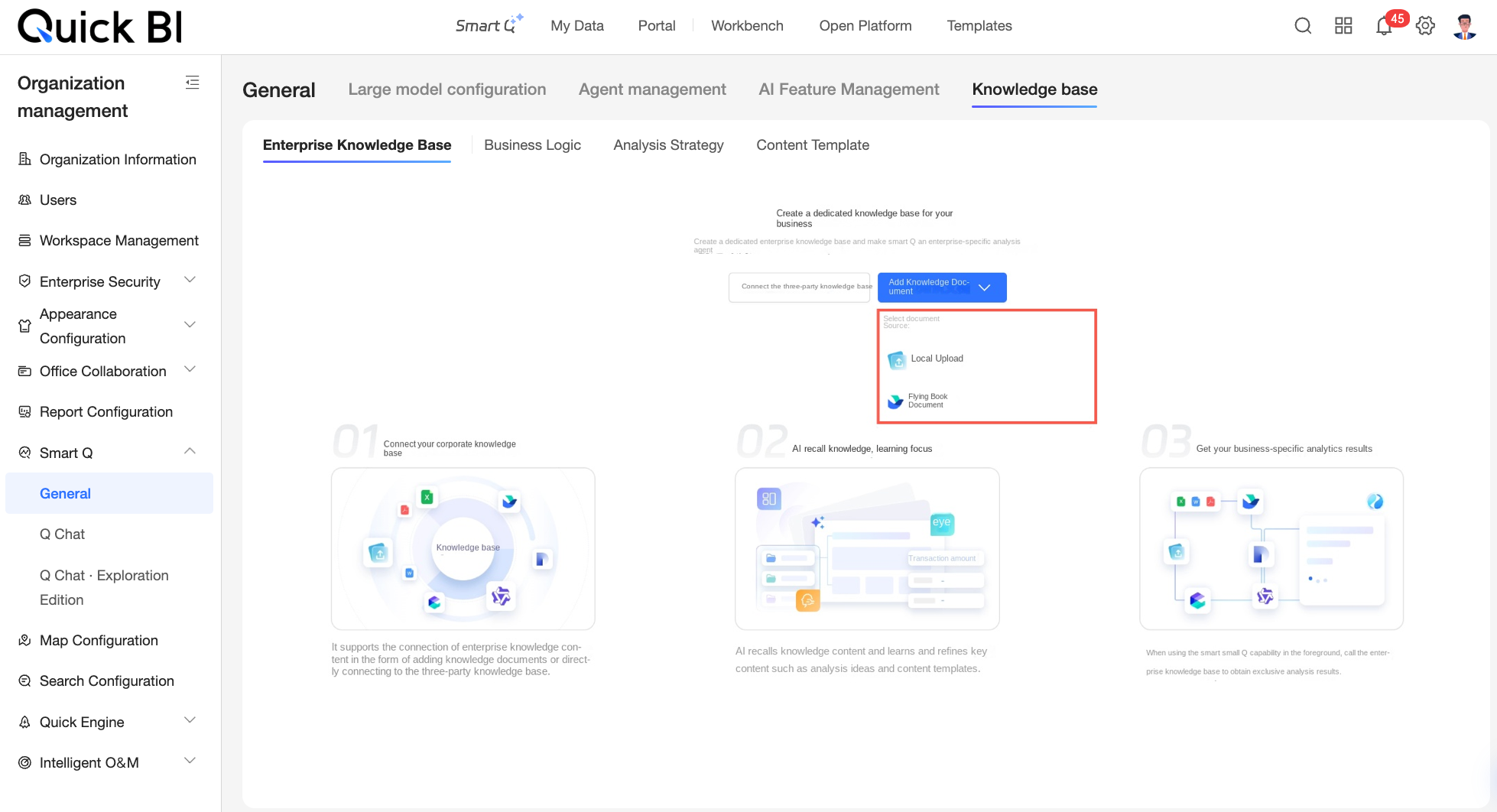
If you have one or more business documents, such as review reports or meeting minutes, and want to use AI to automatically identify and extract reusable business logic, or if you want to extract multiple types of business knowledge—such as business logic, analytical approaches, and content templates—from a single business document, upload a knowledge document to configure business logic. For more information, see Add a knowledge document.
-
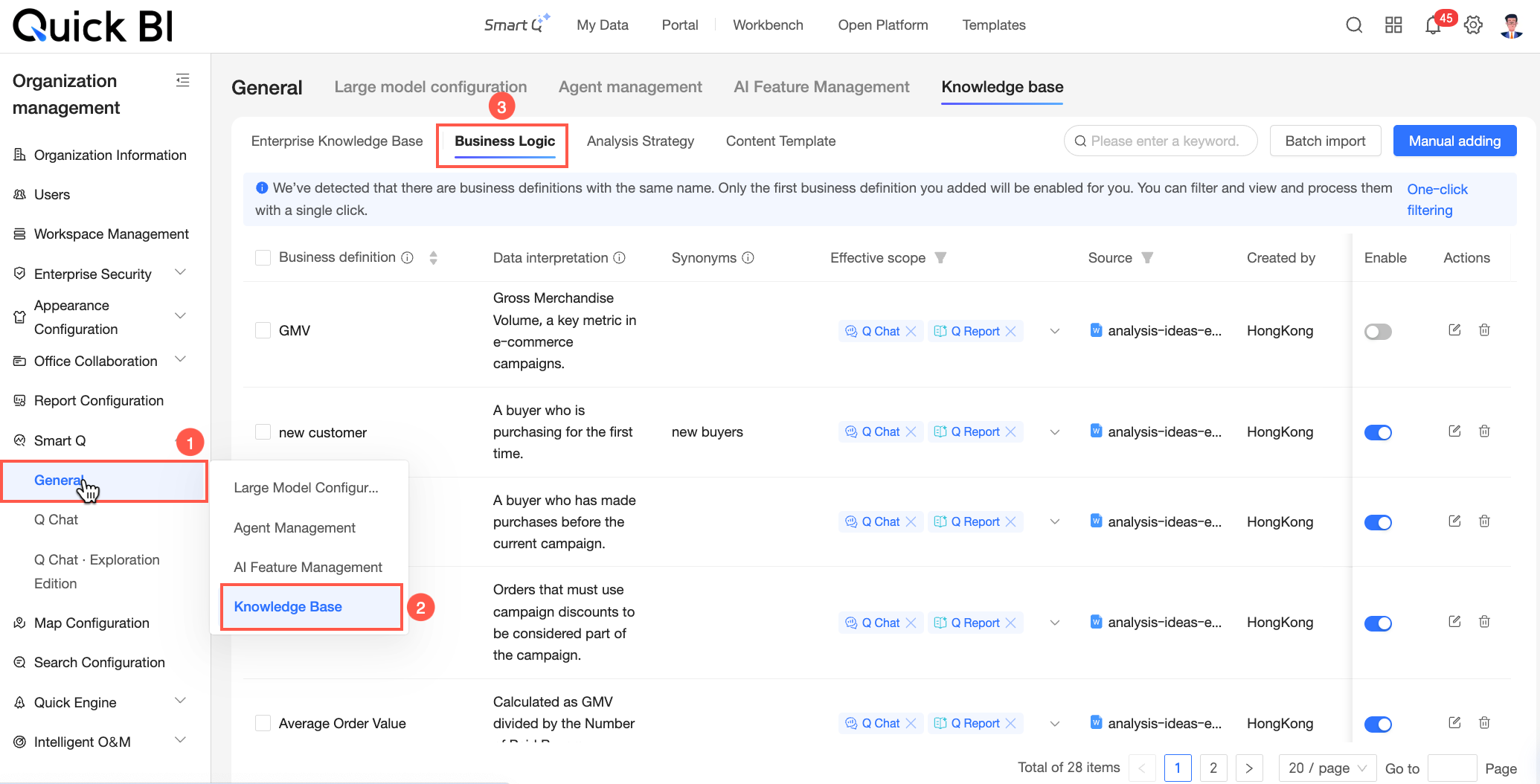
If you have clearly defined business terms and rules and need to quickly build a business semantics system that Q can directly call, configure business logic on the Business logic tab of the knowledge base management page. For specific instructions, see the Procedure section of this topic.
Procedure
On the Business logic page, add business logic to Quick BI using either the Manually add or Batch import method.
Manually Add
-
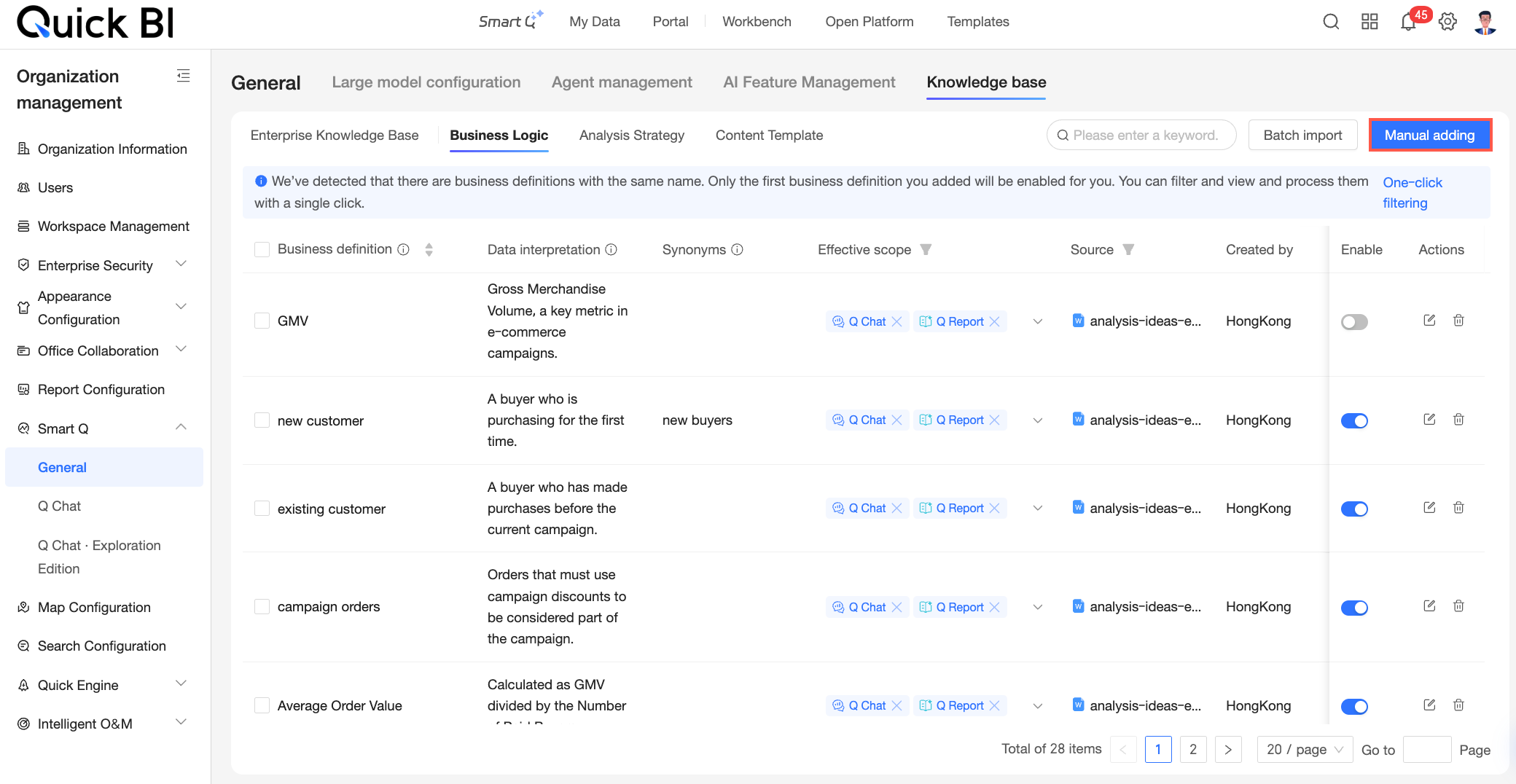
On the Business logic page, click the Manually add button.
-
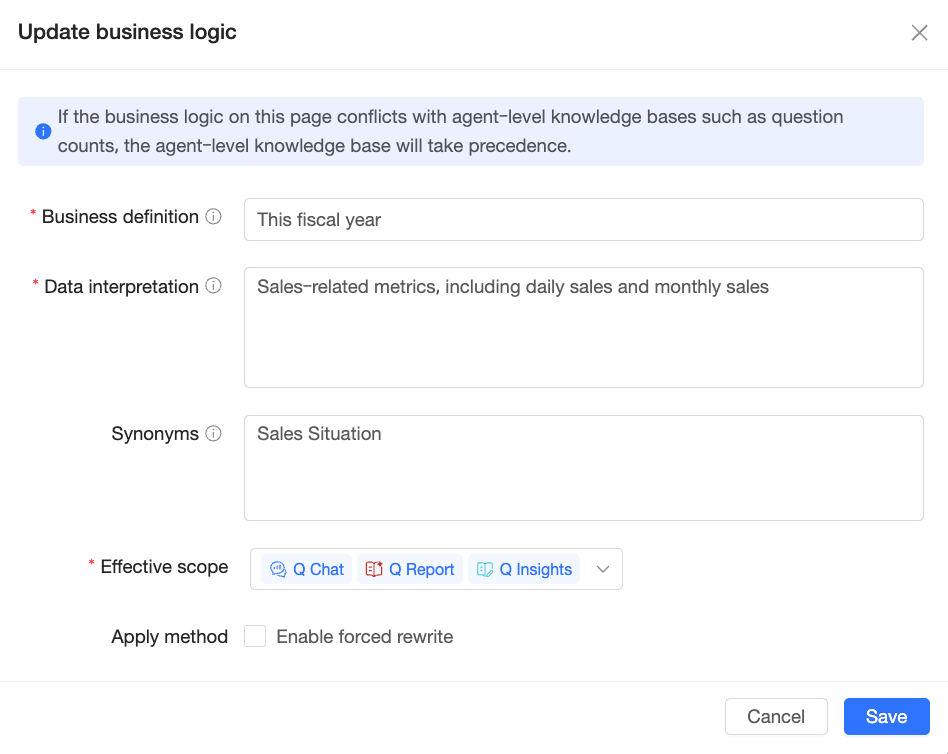
In the Add business logic dialog box, configure the following information.
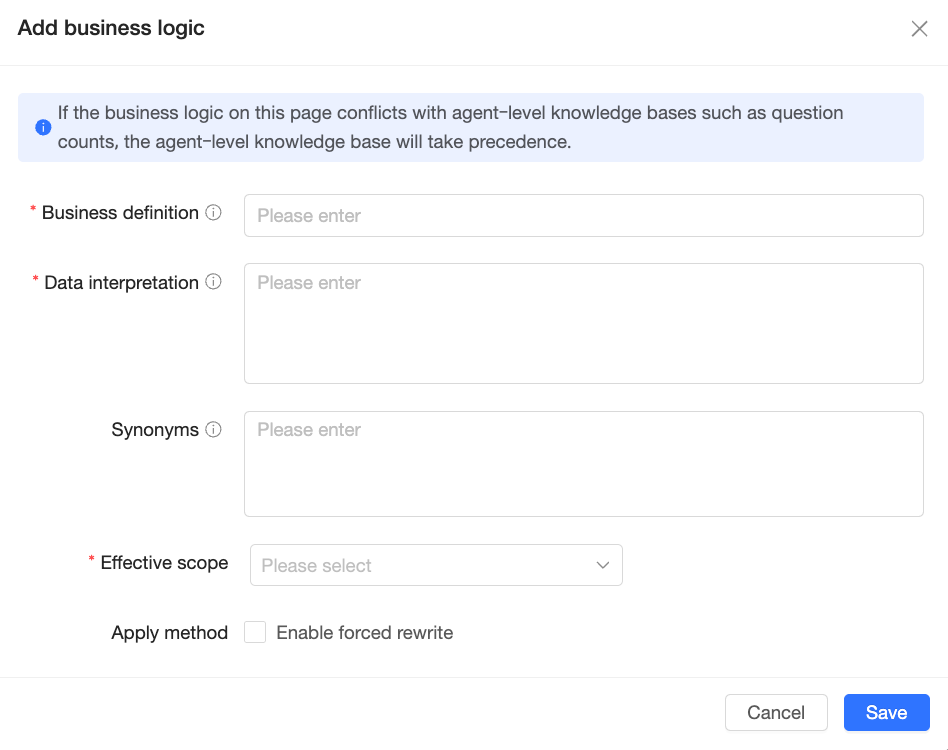
Configuration item
Description
Business definition
Define a general concept within your company.
You can enter commonly used terms from your business operations, such as "sales progress". The term must be 100 characters or less.
Data interpretation
Explain the business definition in detail and associate it with data metrics to help Q understand the definition logic. The explanation must be 1,000 characters or less.
Synonyms
Define alternative names for the business term to help Q recognize different phrasings. Use semicolons (;) to separate multiple synonyms.
Effective scope
Set the effective Agent scope for the current business definition. You can select Q Data Q&A, Q Reports, or Q Insights.
When you ask a question within the effective Agent scope, Q matches your question to the corresponding business logic.
Application method
Select whether to enable forced rewriting.
If you enable this feature, the system automatically rewrites the content to match the Data interpretation when a business definition or synonym is matched. Use this feature with caution.
-
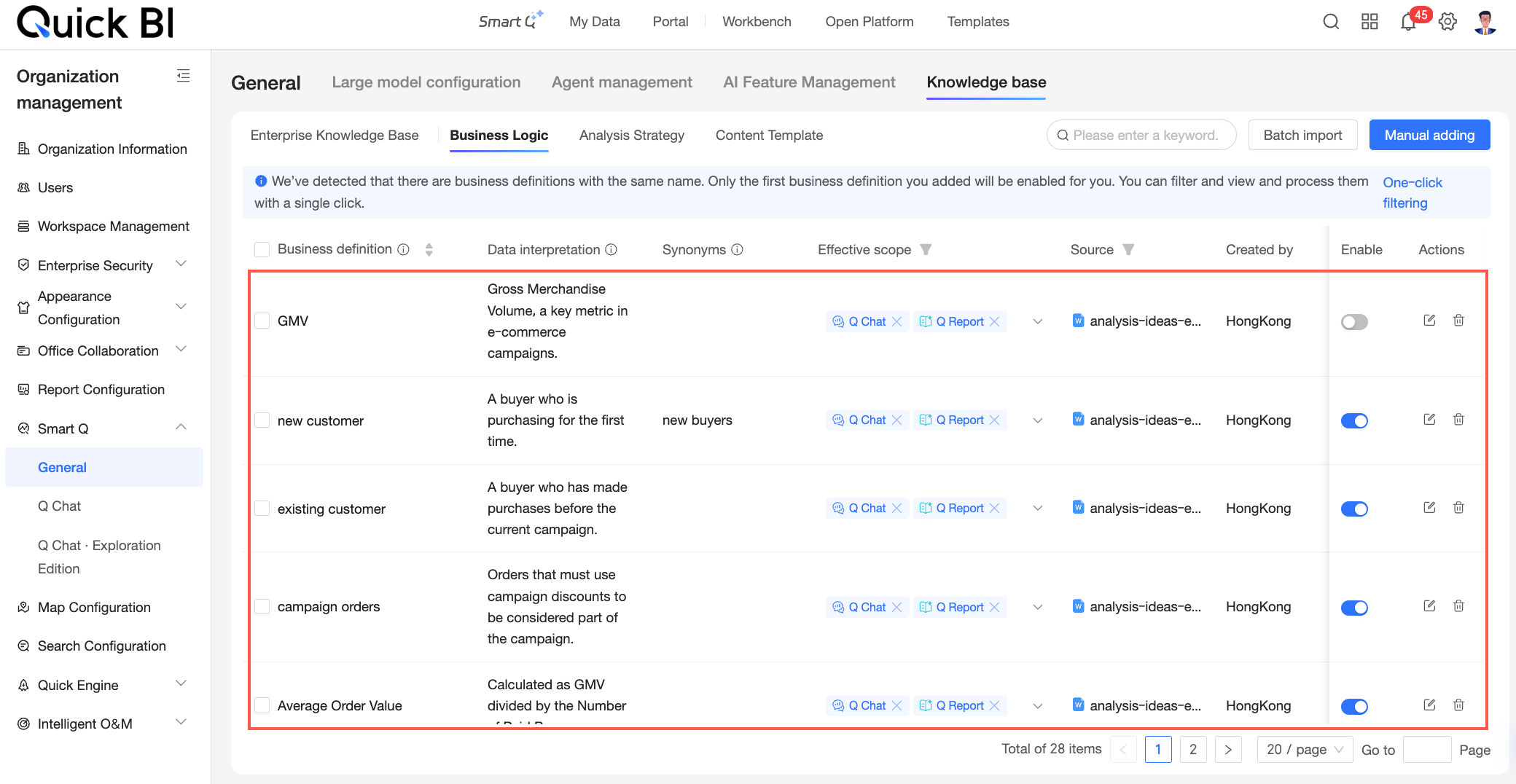
Click Save. After the business definition is added, you can view it on the list page.
 Note
Note-
A business definition is enabled by default after it is added.
-
If a business definition with the same name already exists, the first one added is enabled by default. The one added later is disabled by default.
-
Batch Import
-
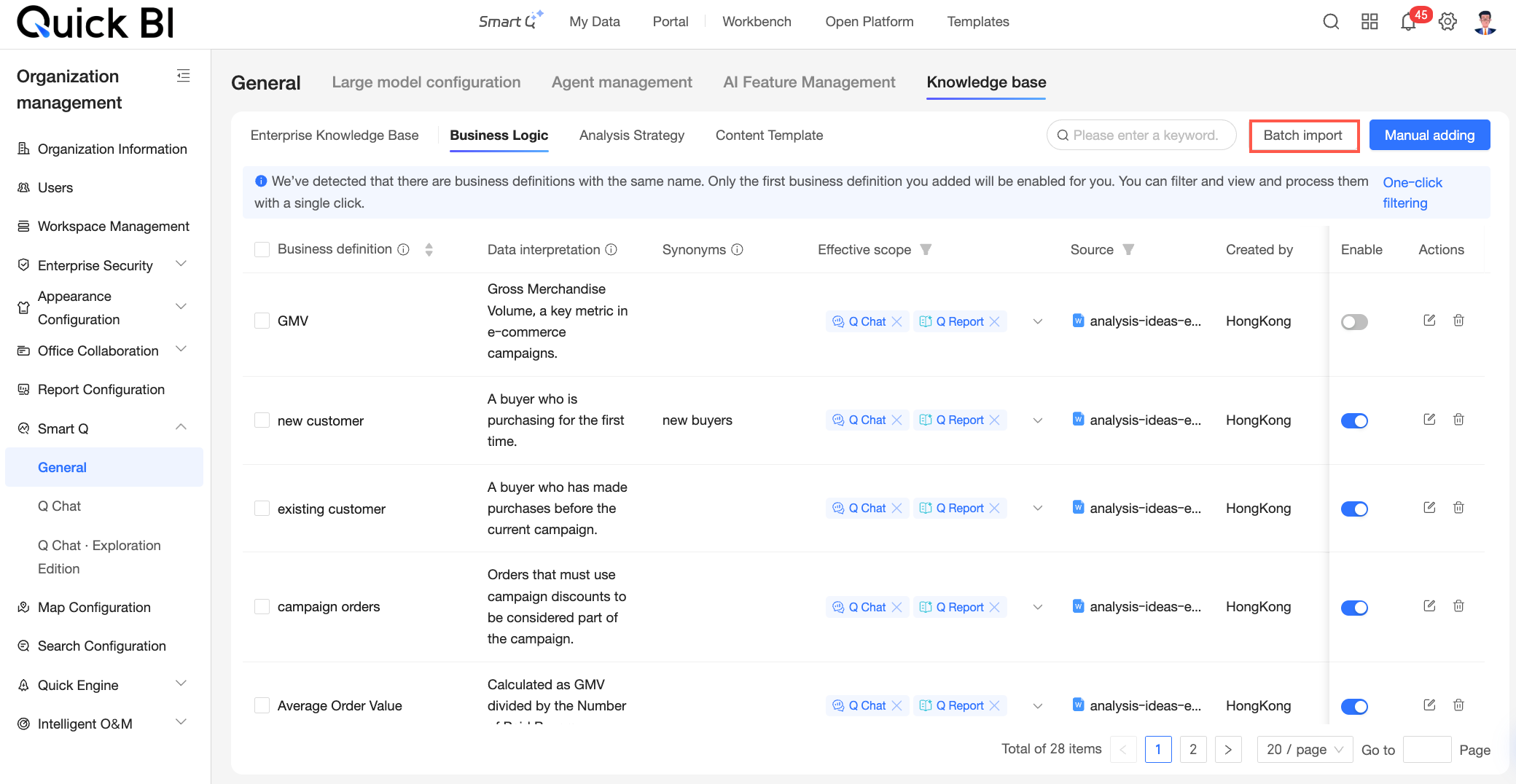
On the Business logic page, click the Batch import button.

-
In the Upload file step of the Batch import business logic dialog box, click or drag a file to area ① to upload it.
Note-
You can only upload local files in CSV, XLS, or XLSX format. The file size must be 10 MB or less.
-
To ensure stable system operation, you can upload a maximum of 1,000 rows of data in a single file.
-
To ensure better parsing accuracy, we provide a business definition template. Click the
icon in area ② to download the template file and use it as needed.
-
-
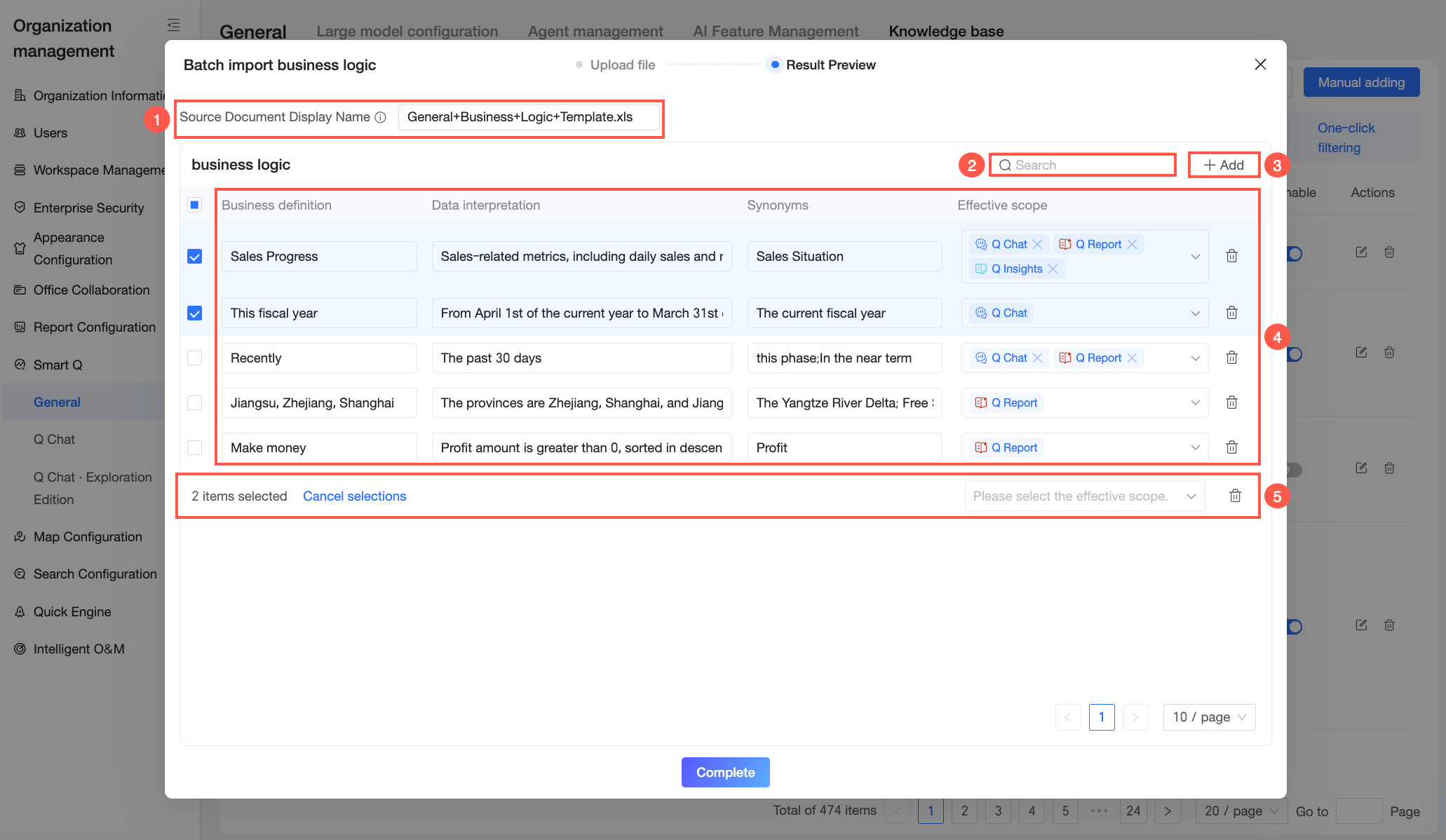
After the upload is complete, the Result preview step appears automatically. You can perform the following operations.
Available operations
Description
① View the display name of the source document
The system automatically recognizes and displays the name of the uploaded file. You cannot modify the name.
② Search for a business definition
Enter keywords in the search box to filter and locate specific business definitions.
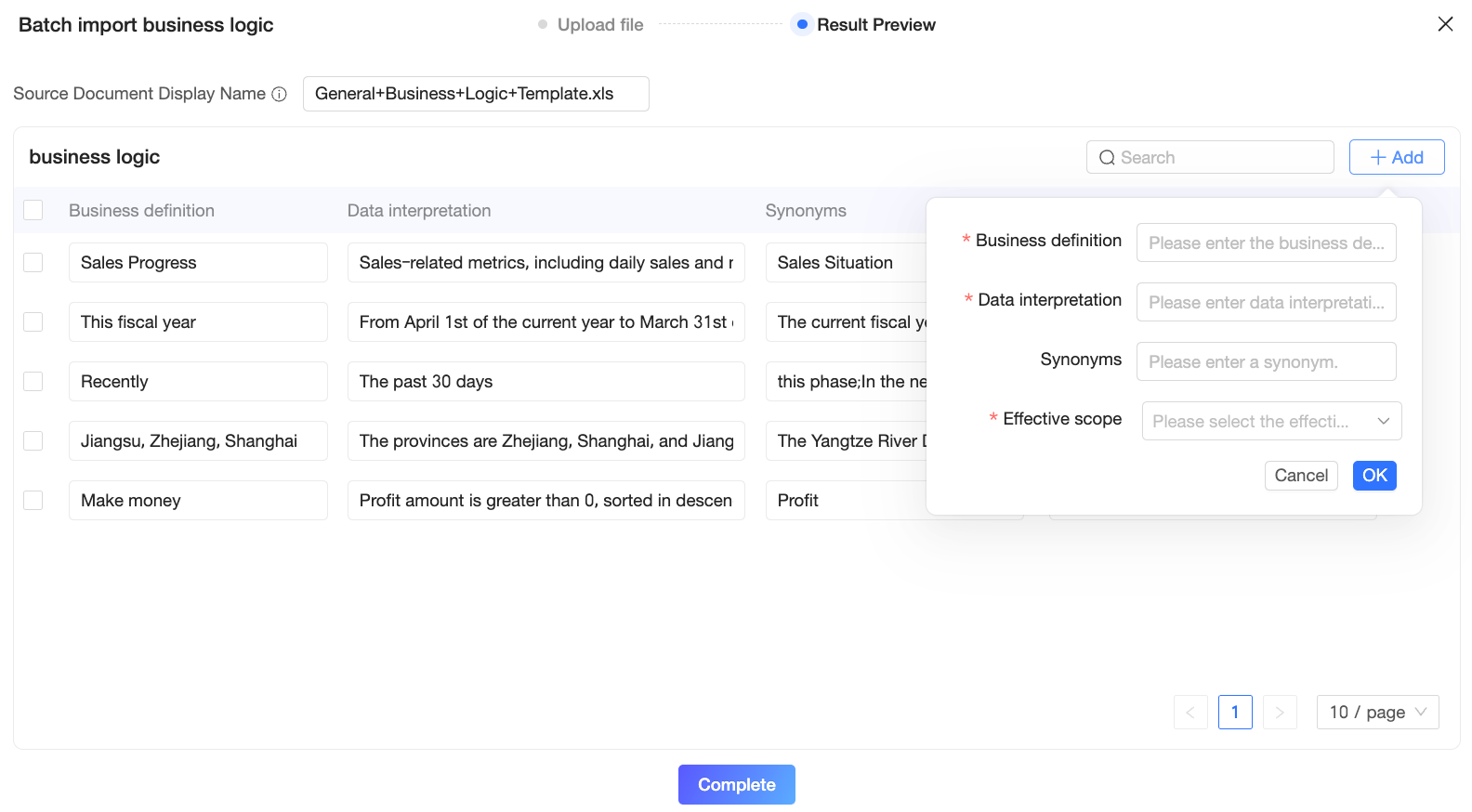
③ Add a business definition
If the local file does not contain the business definition you need, click Add and enter the relevant information in the business definition configuration panel that appears.
For a description of the configuration items in the dialog box, see the Manually Add section of this topic.
④ Edit business definition information
If the recognized business definition information does not meet your expectations, you can manually adjust it to better fit your organization’s situation. To delete a business definition, click the
icon in the row where the business definition is located.⑤ Batch operations
Select multiple business definitions at the same time to modify their effective scope or delete them in a batch.
-
Click Done. The system automatically verifies the submitted content. An error is reported if any business definition names are duplicates, do not comply with writing specifications, exceed the character limit, or lack an effective scope. You can manually adjust the information or click Fix with one click in the error dialog box to resolve the issues quickly.
-
After fixing the issues, click Done again. The successfully imported business definitions appear on the list page.
Note-
Business definitions are enabled by default after a batch import.
-
If a business definition with the same name already exists, the first one added is enabled by default. The one added later is disabled by default.
-
 icon in area ② to download the template file and use it as needed.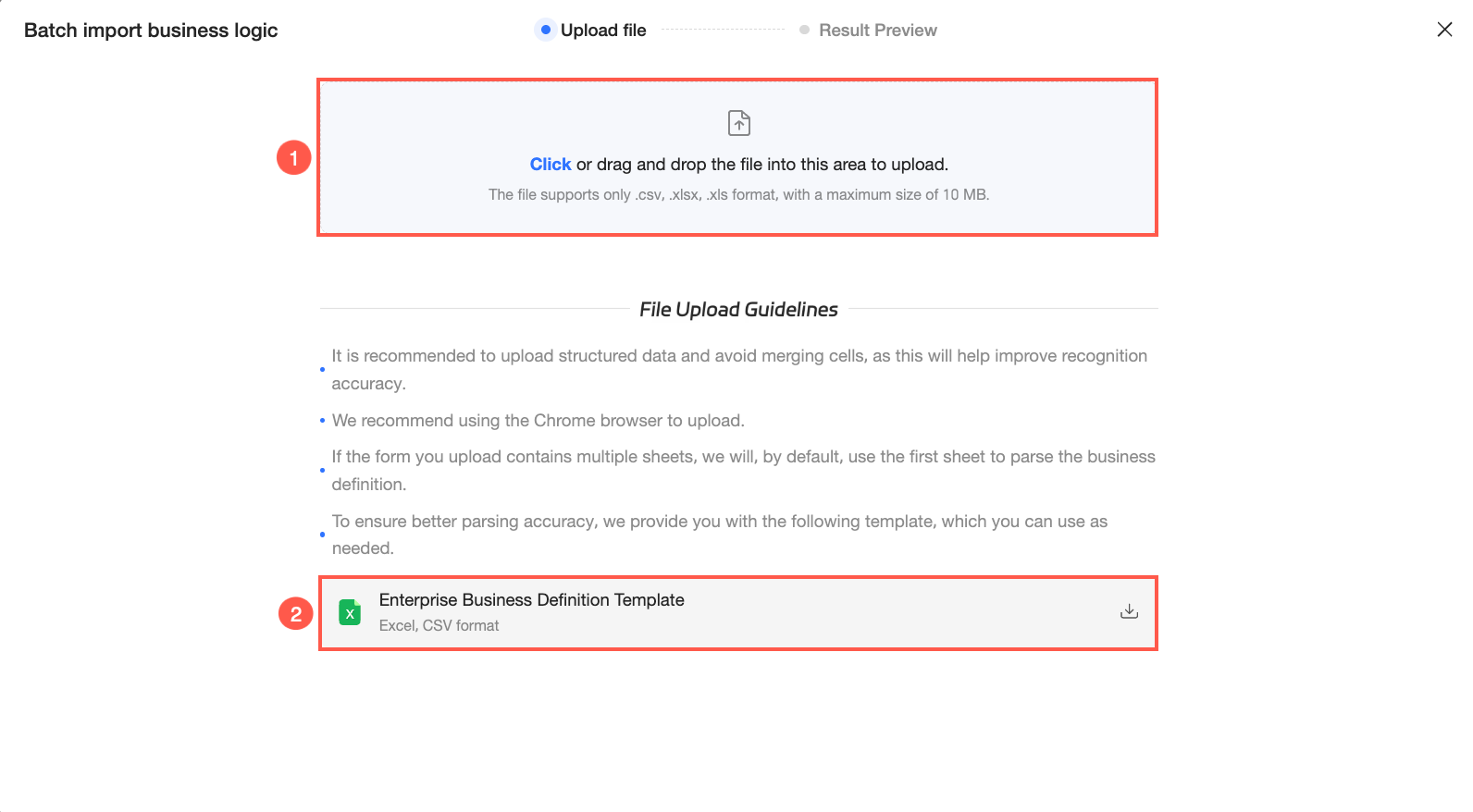
 icon in the row where the business definition is located.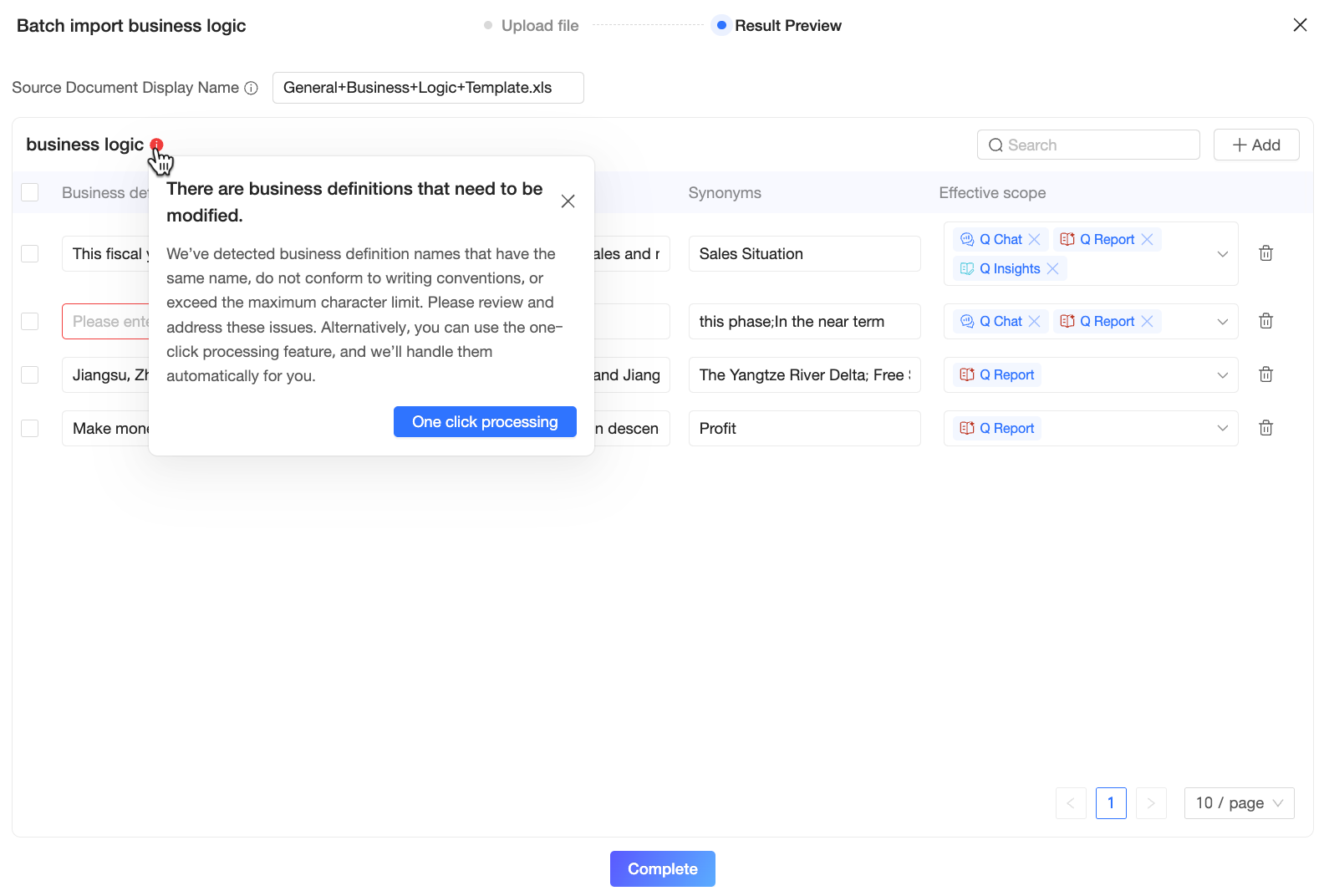
Manage Business Logic
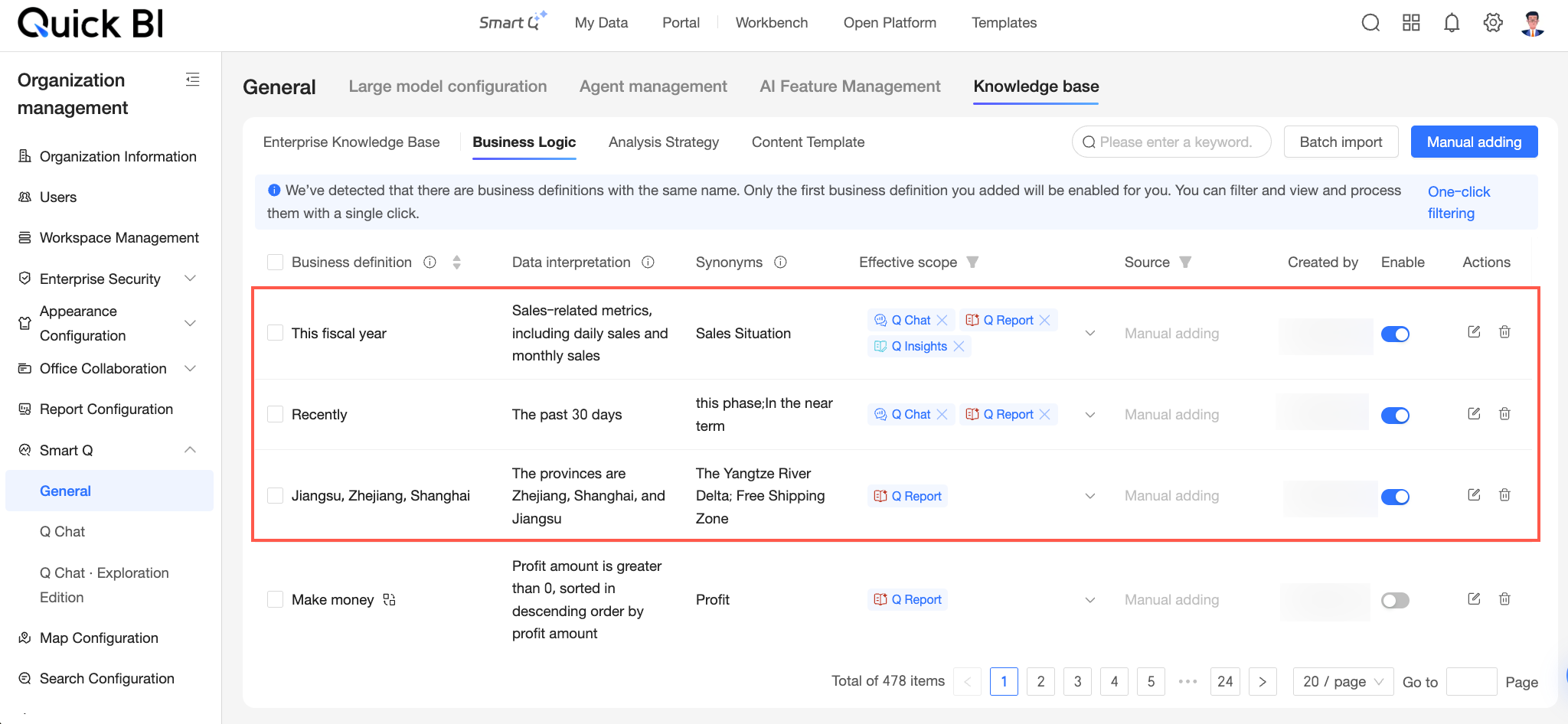
The Business logic list page displays all business definitions in your organization, including their data interpretations, synonyms, and effective scopes. You can perform the following operations: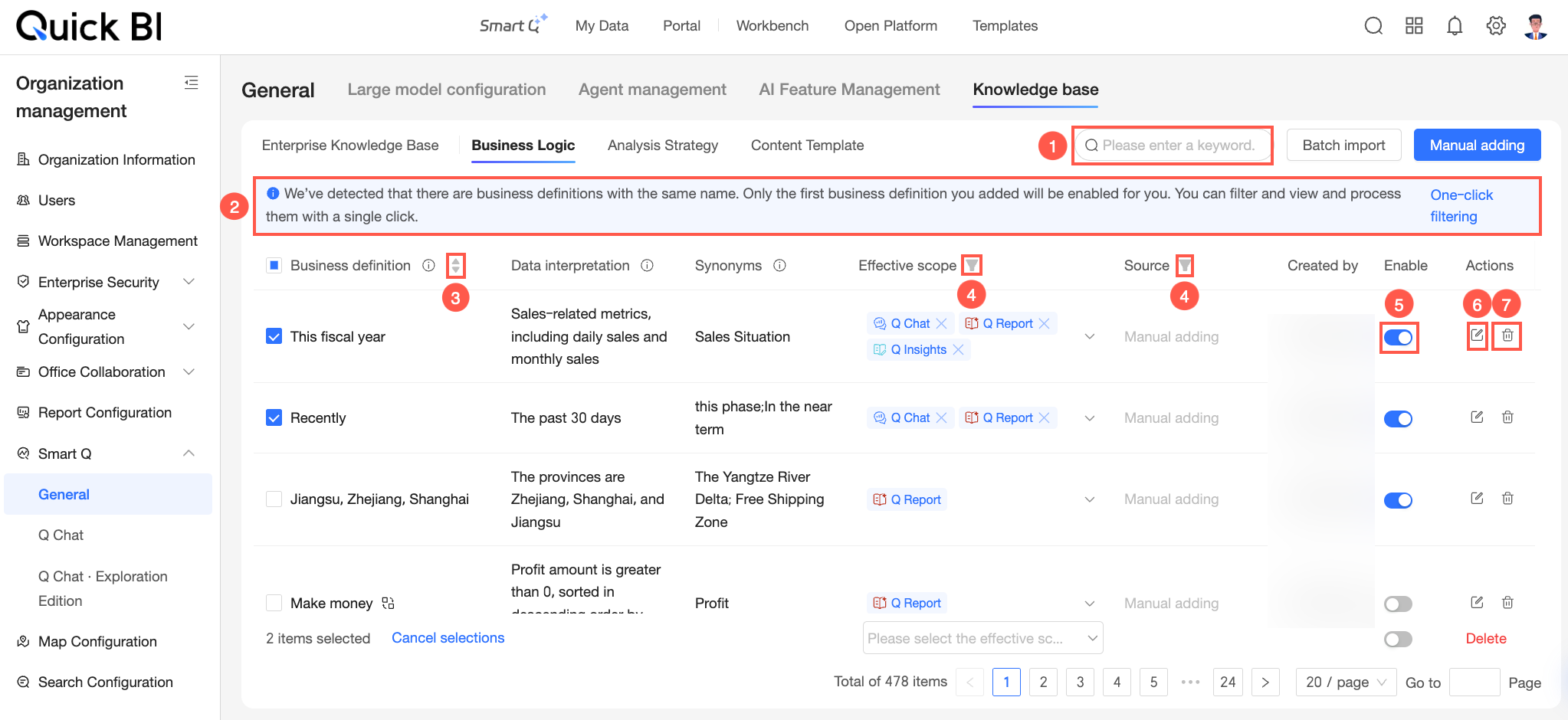
|
Available operations |
Description |
|
① Search for a business definition |
Enter keywords in the search box in the upper-right corner to filter and locate specific business definitions. |
|
② Handle duplicate business definitions |
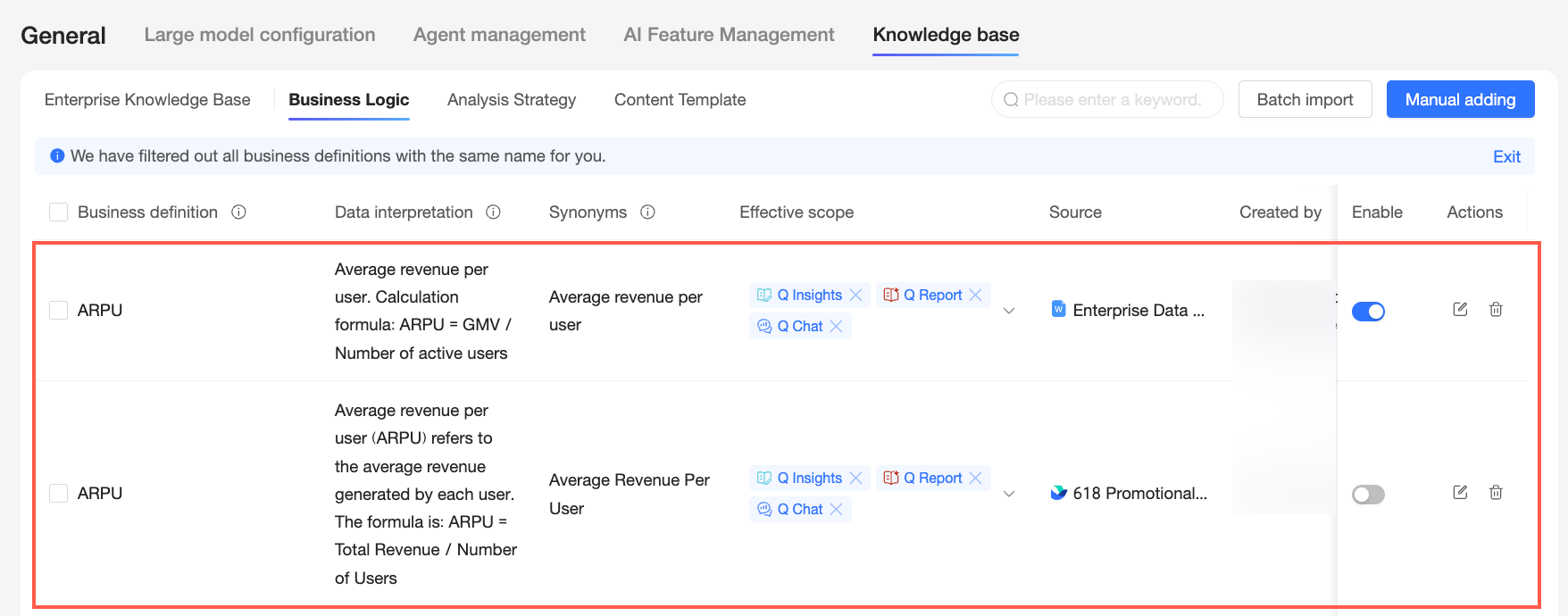
If there are duplicate business definitions, a relevant prompt appears above the list. Click One-click filter in the prompt. The system automatically displays all duplicate business definitions in the current organization. You can view and handle the duplicate business definitions as needed. After you are finished, click Exit to return to the list page. Note
If business definitions have the same name, only one of them can be enabled. When you enable one business definition, the system automatically disables the old definition with the same name to ensure the uniqueness and accuracy of the business logic. |
|
③ Sort |
By default, items are sorted in descending order by update time, meaning the most recently updated business definition appears at the top of the list. You can click the Business Definition |
|
④ Filter |
Click the |
|
⑤ Enable |
A business definition is enabled by default after it is added. You can use the switch in the Enable column to change its status. Note
If there are business definitions with the same name, only one can be enabled. The first one added is enabled by default. The one added later is disabled by default. |
|
⑥ Edit |
Click the |
|
⑦ Delete |
Click the |
|
⑧ Batch operations |
Select multiple business definitions at the same time to modify their effective scope, set their enabled status, or delete them in a batch. |
 icon to switch to sorting alphabetically.
 icon next to Effective Scope and Source to quickly filter business definitions by the Effective Scope and Source Document dimensions.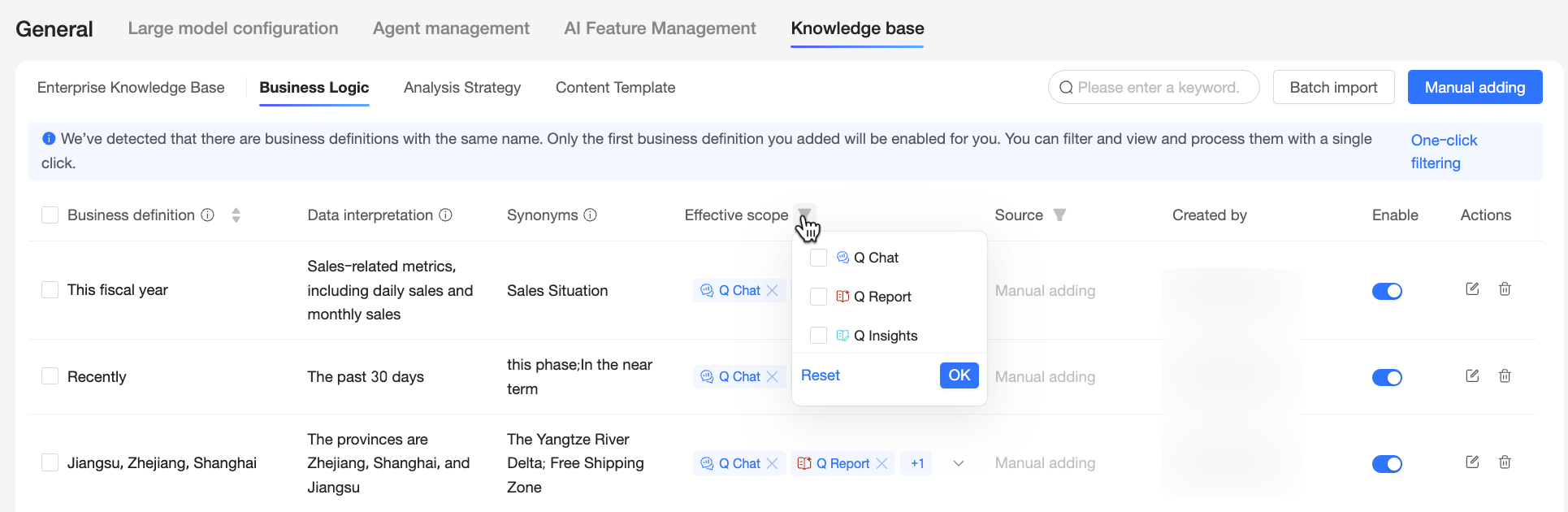
 icon to modify the configuration information of the current business definition in the Update business logic dialog box.