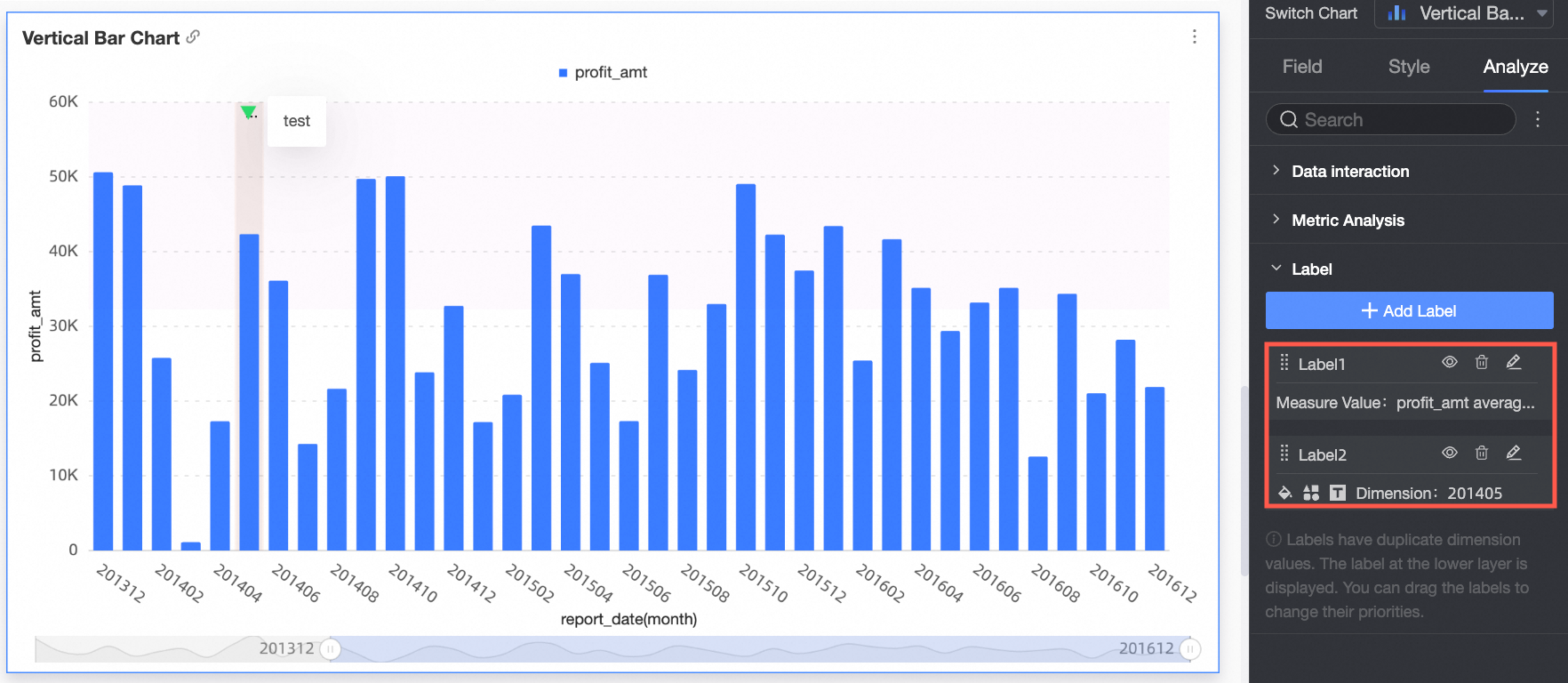
Labels
You can use icons, background colors, and highlighted measures as labels to mark specific parts of a chart.
Prerequisites
A dashboard is created. For more information, see Dashboard creation overview and Create a dashboard.
Limits
Labels are supported for the following chart types:
-
Trend charts: line charts, area charts, stacked area charts, 100% stacked area charts, and combination charts
-
Comparison charts: column chart, stacked column chart, percentage stacked column chart, bar chart, stacked bar chart, 100% stacked bar chart, leaderboard
-
Charts that show relationships between data: scatter charts and bubble charts
-
Maps: colored maps and geo bubble charts
-
Distribution charts: rectangle hierarchy chart and word cloud
Example
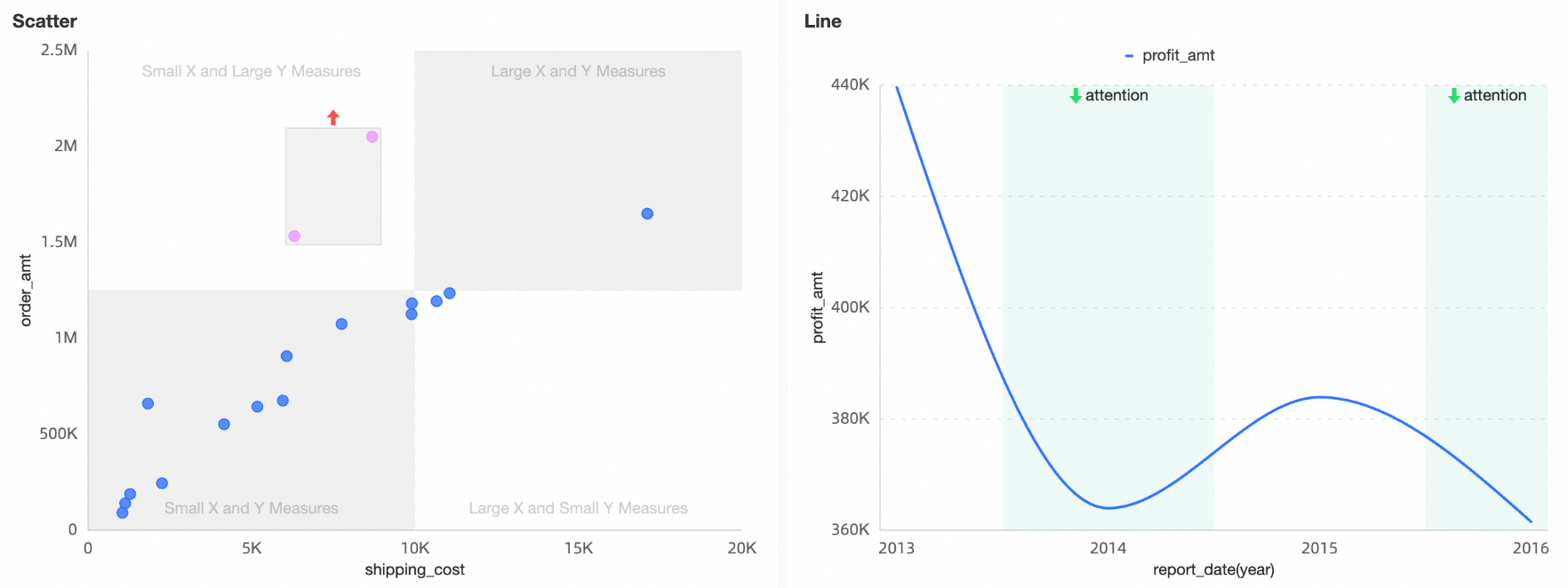
Add a label
-
After you log on to the Quick BI控制台.
-
Follow the steps shown in the following figure to go to the dashboard editing page.
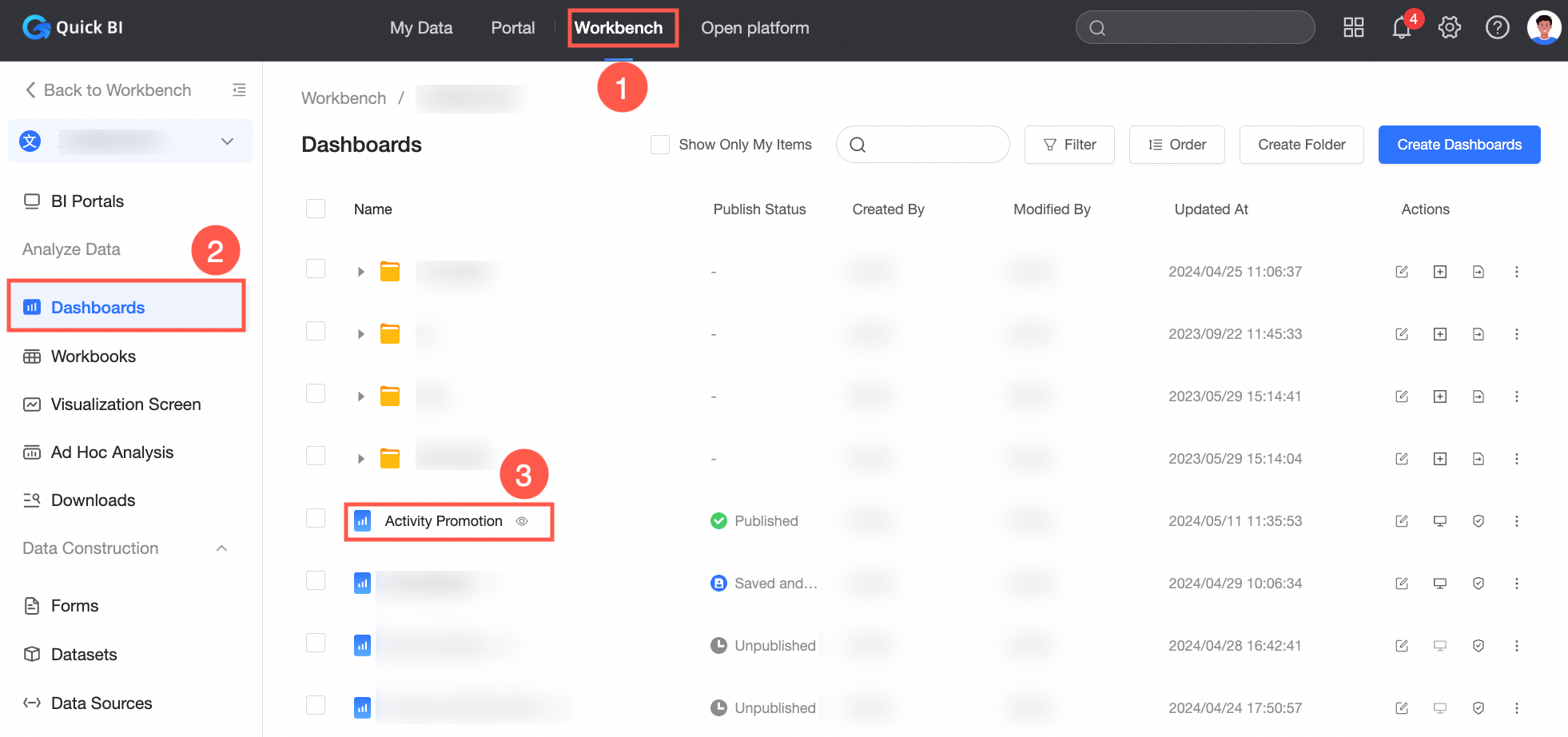
-
On the dashboard editing page, perform the following steps to add a label to a chart:
-
If you need to add inflection point labels, conditional labels, quadrant labels, and manual labels, you can perform these operations in the analysis settings. For more information, see Add labels in analysis settings.
-
If you need to add only manual labels, perform operations on the chart. For more information, see Add labels to charts.
-
Add callouts in analysis settings
-
On the dashboard editing page, select a chart for which you want to add a label.
-
Click the Analysis tab.
-
In the Label section, click Add Label and configure the following parameters.
-
Label Name
The name of the label.
-
Labeling Mode
The following labeling modes are available: inflection point labeling, conditional labeling, quadrant labeling, and manual labeling.
Labeling Mode
Description
Inflection Point Labeling
The system automatically identifies points on the time trend where the slope may change. This helps you spot trend shifts and take timely action.
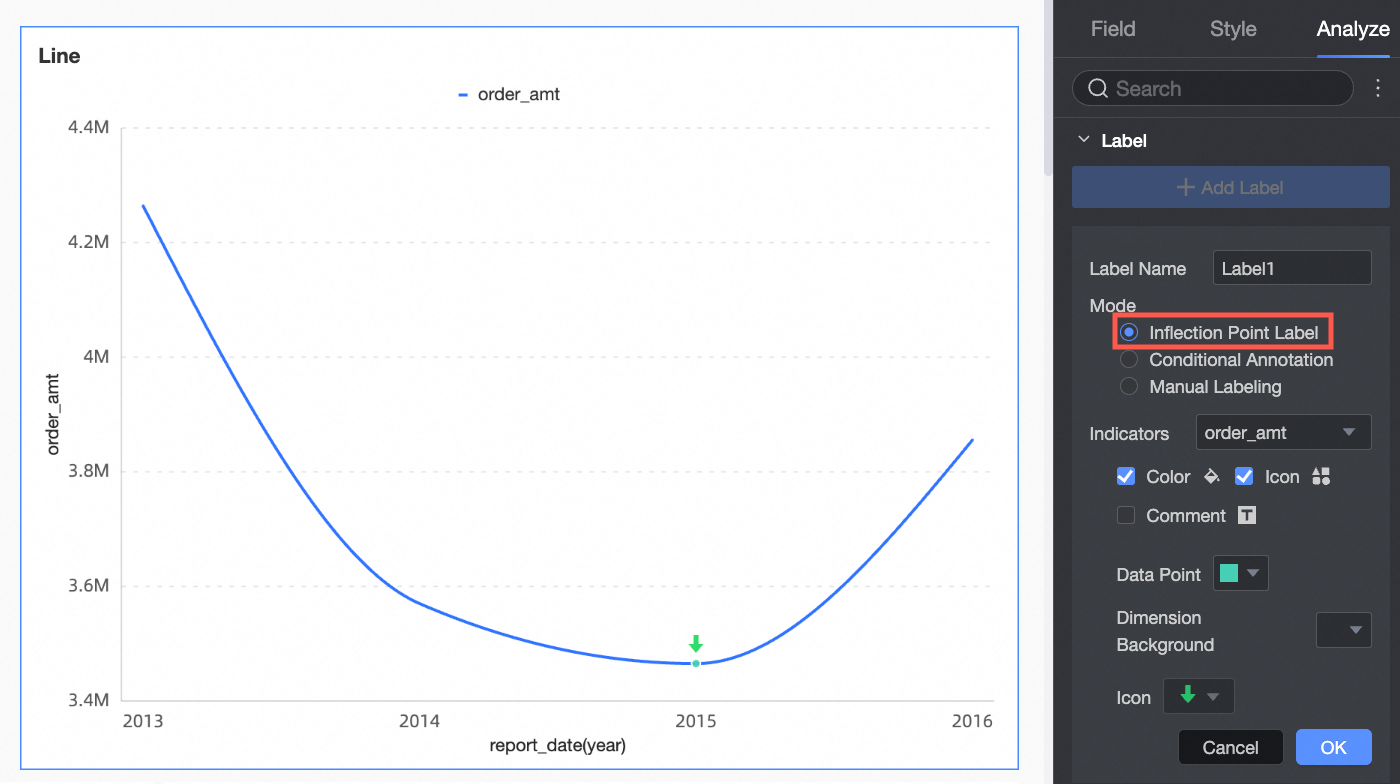 Note
NoteThis parameter can be configured only when a time field is selected as a dimension.
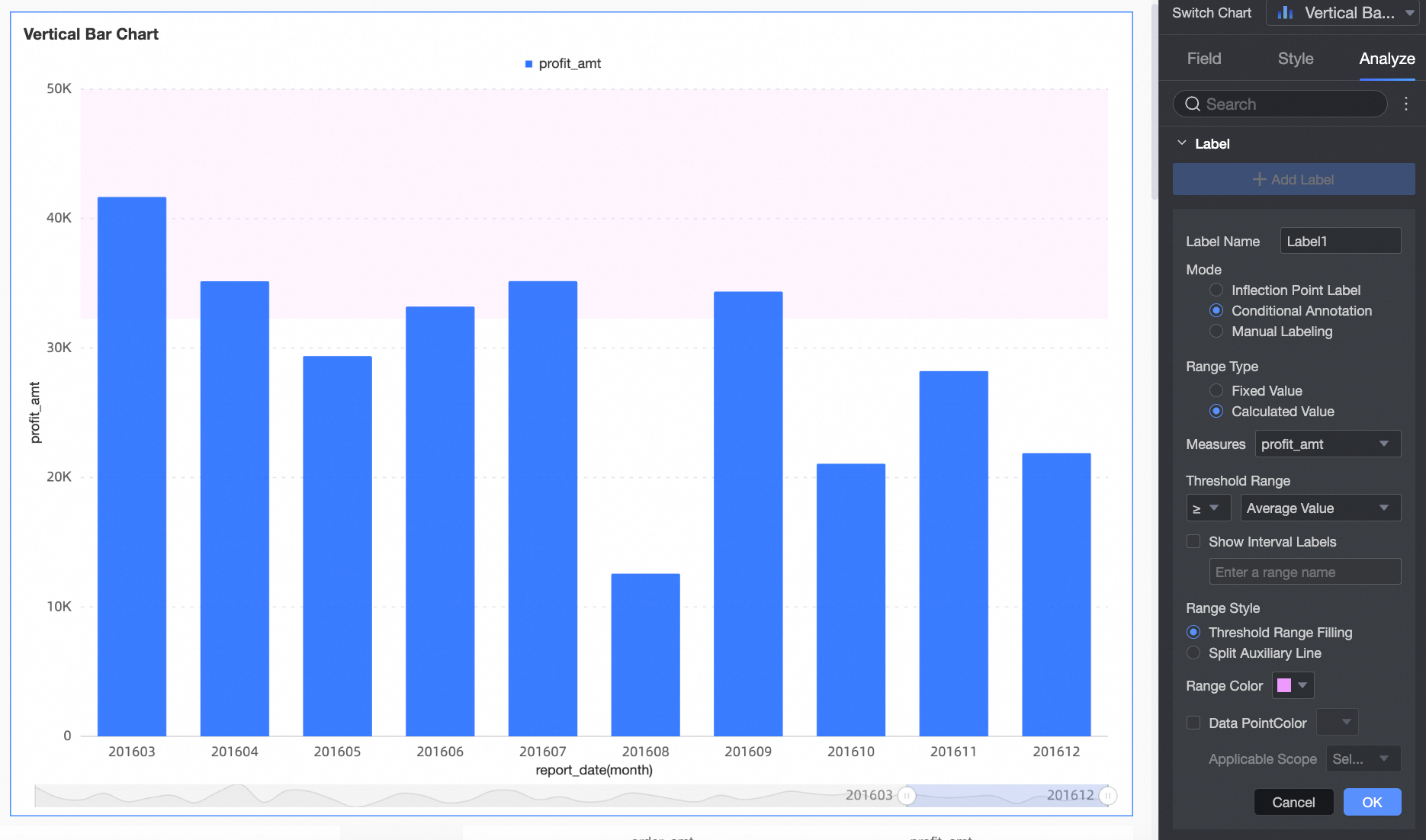
Conditional labeling
Similar to auxiliary lines, conditional labeling supports static fields and calculated values.
Quadrant Labeling
You can select a highlighted quadrant and set the bubble color and icon mark of the chart in this quadrant.
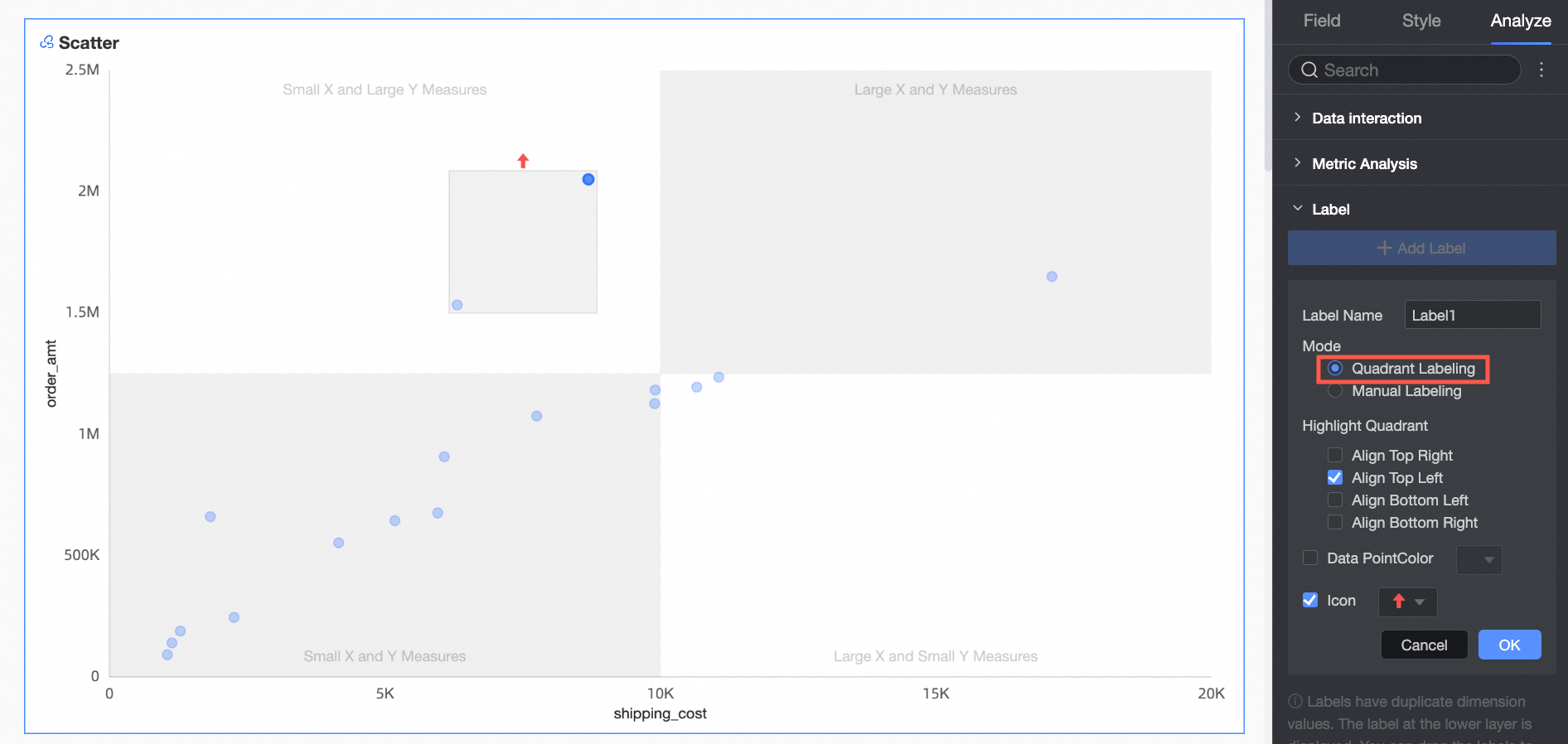 Note
NoteThis parameter can be configured only when the Enable Four-quadrant feature is enabled in scatter charts and bubble charts.
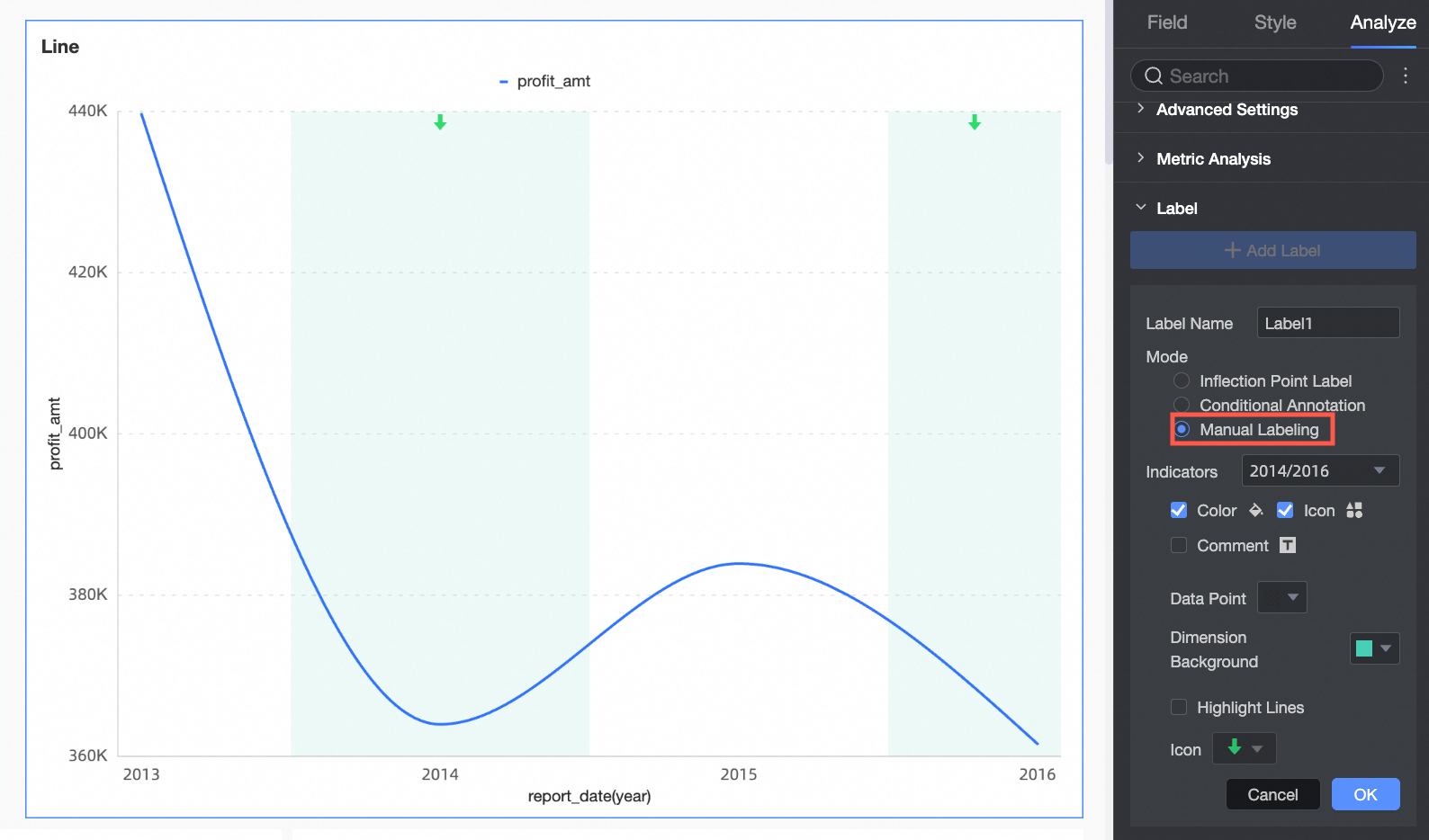
Manual labeling
Select a dimension and identify the parts to display based on the specified dimension.

-
-
Click OK.
Add a label in a chart
You can manually add a label by using either of the following methods:
-
Click the More icon in a chart to add a label
-
On the dashboard edit page, click the
icon in the upper-right corner of the chart and select Label. -
In the dialog box that appears, configure the color, icon, and comment for the chart and click OK.
The following figure shows the result.
-
-
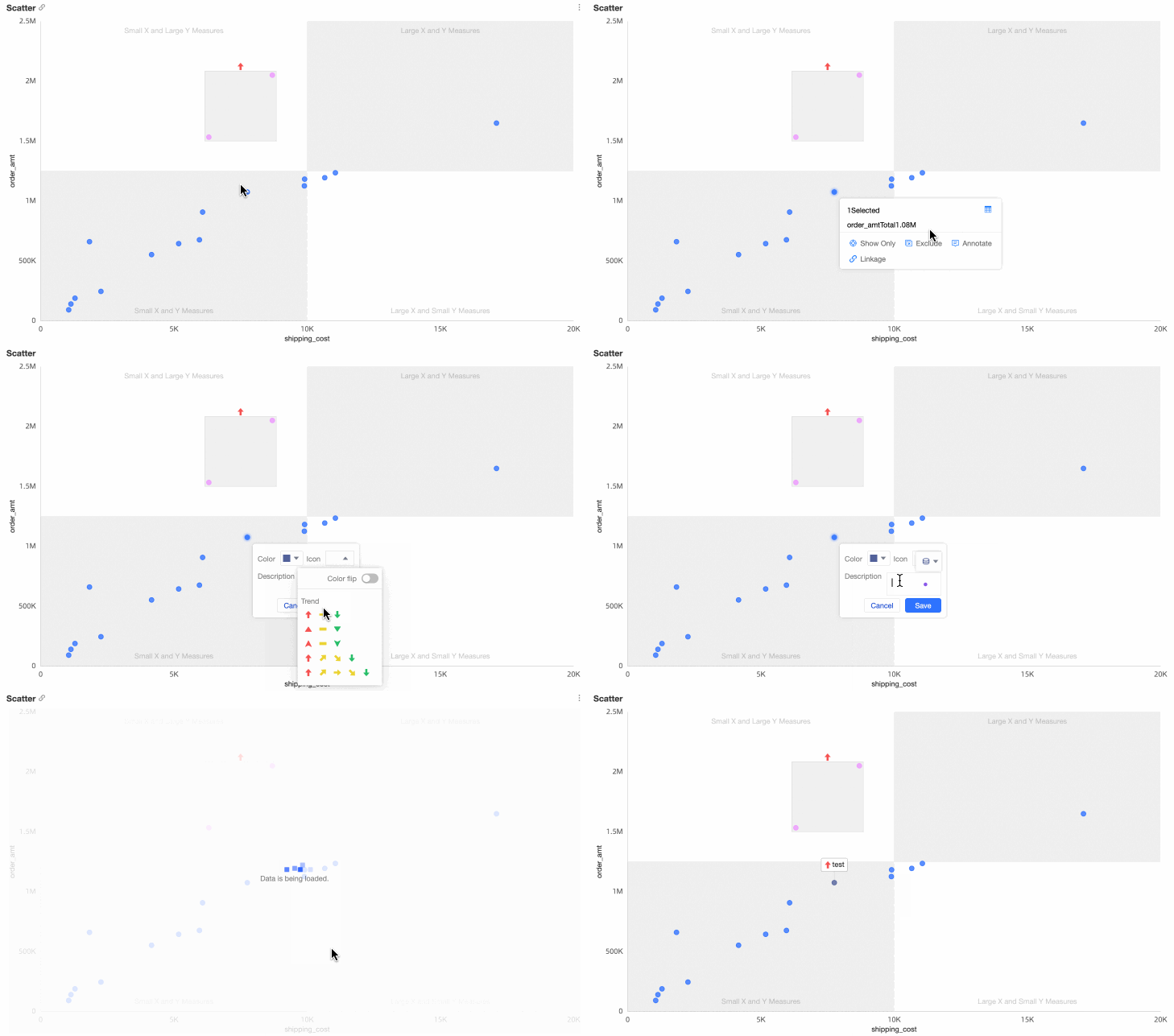
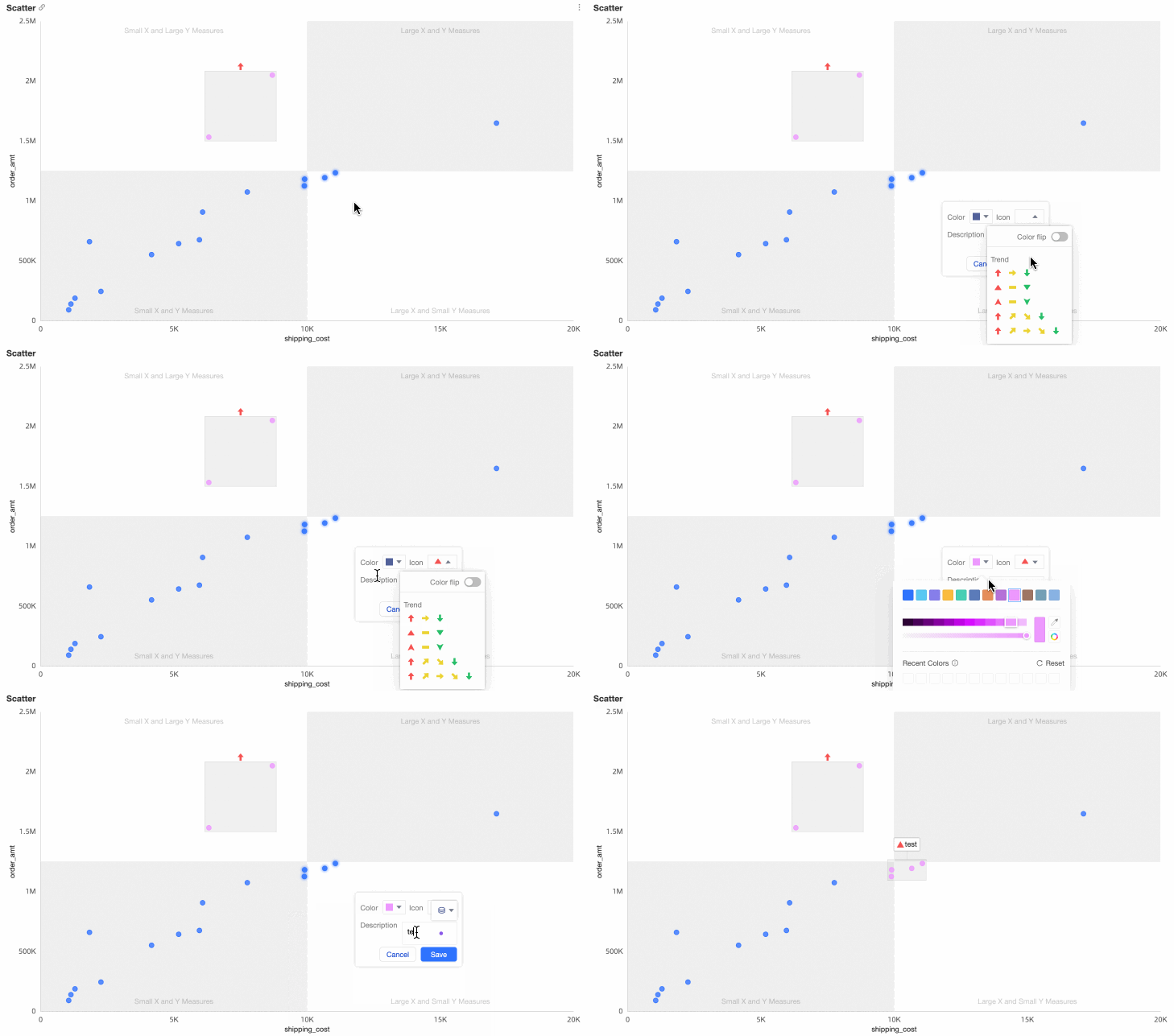
Circle valid areas to add a label
-
On the dashboard editing page, circle the valid areas in the chart for which you want to add a label. In the dialog box that appears, select Annotate.
-
Set the color, chart, and description of the label and click Save.
NoteThe following types of charts allow you to circle areas to add a label:
-
Trend charts: line charts, area charts, stacked area charts, 100% stacked area charts, and combination charts
-
Comparison charts: column chart, stacked column chart, percentage stacked column chart, bar chart, stacked bar chart, 100% stacked bar chart, leaderboard
-
Charts that show relationships between data: scatter charts and bubble charts
-
Distribution charts: rectangle hierarchy chart and word cloud
-
 icon in the upper-right corner of the chart and select Label.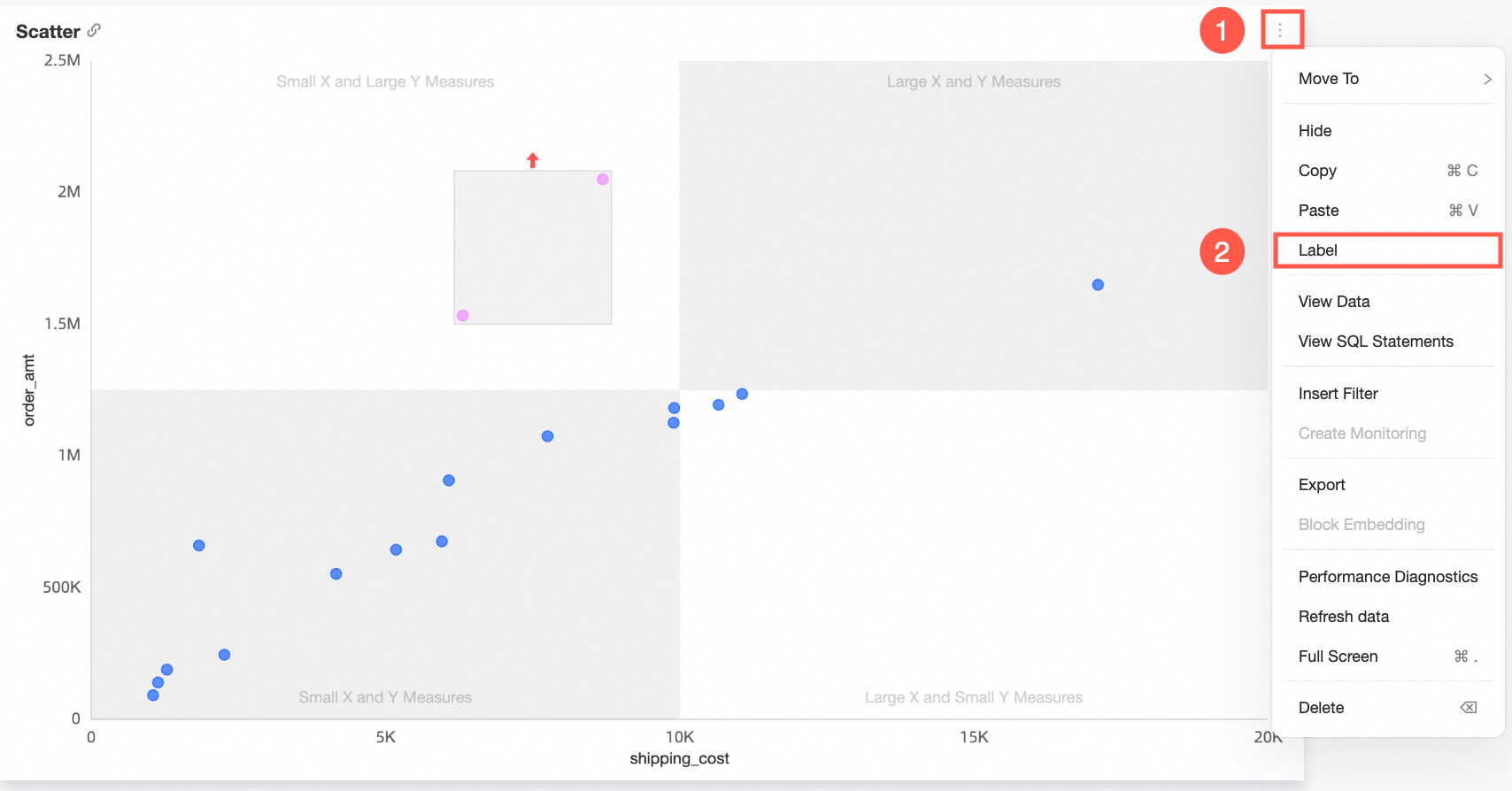
Edit a label
-
On the dashboard editing page, click the chart whose labels you want to edit.
-
Click the Analysis tab of the Data panel.
-
In the Labels section, click the
icon to the right of the target label.
 icon to the right of the target label.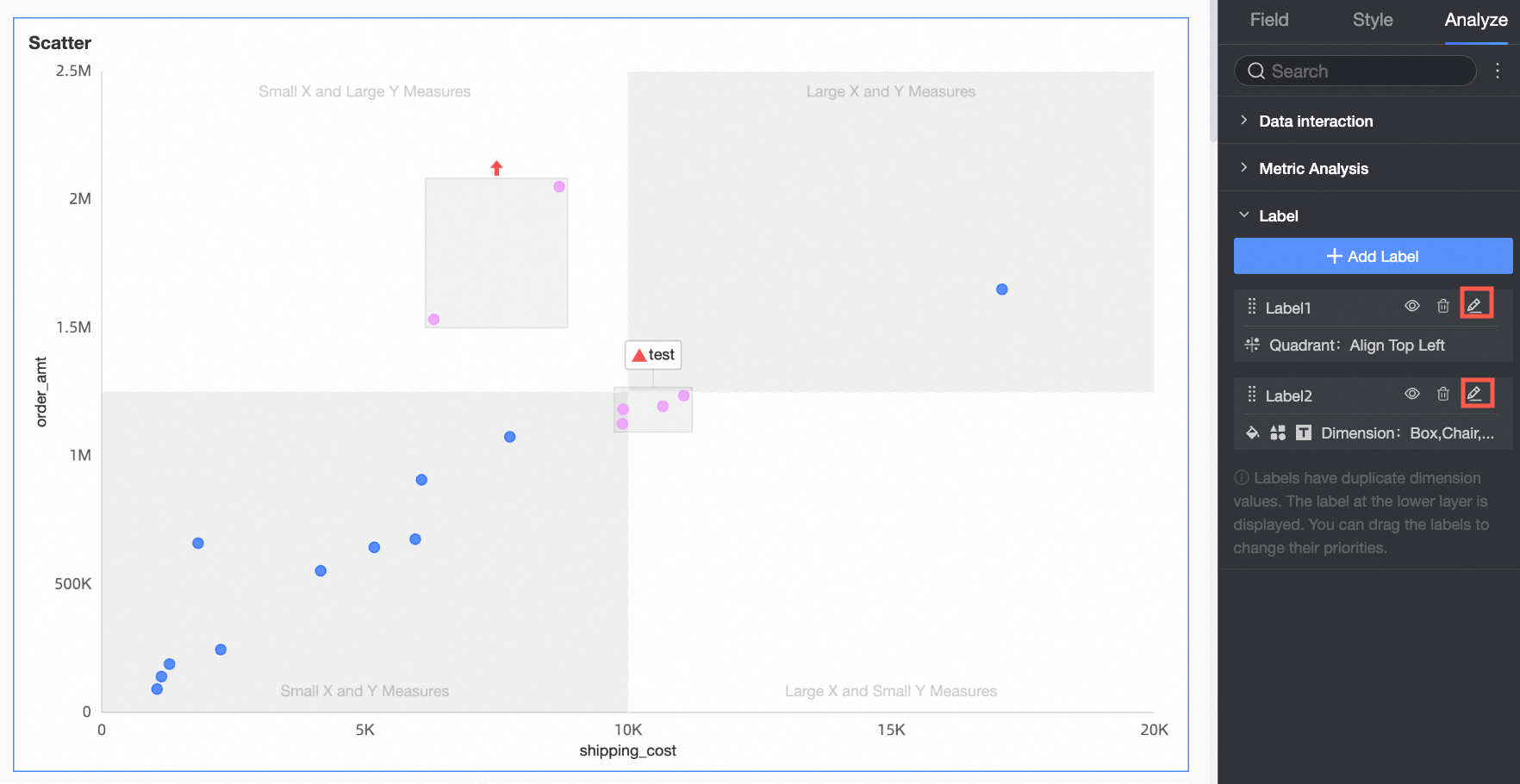
Hide a label
-
On the dashboard editing page, click the chart whose labels you want to edit.
-
Click the Analysis tab of the Data panel.
-
In the Labels section, click the
icon next to the label to hide the label. NoteClick the
icon again to show the label.
 icon next to the label to hide the label.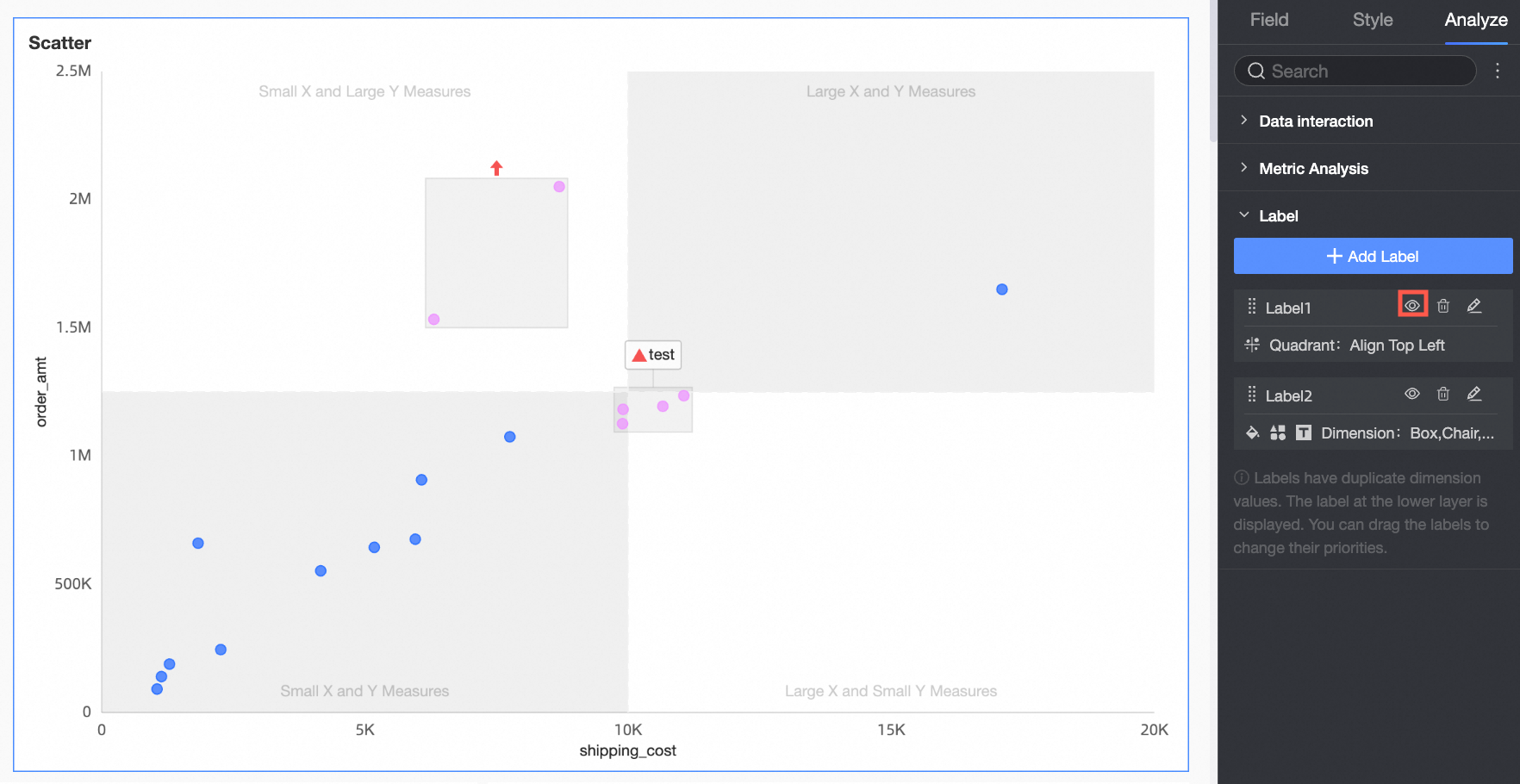
 icon again to show the label.
 Delete a label
-
On the dashboard editing page, click the chart whose labels you want to edit.
-
Click the Analysis tab in the Chart Design section.
-
In the Labels section, click the
icon to the right of the target label.
 icon to the right of the target label.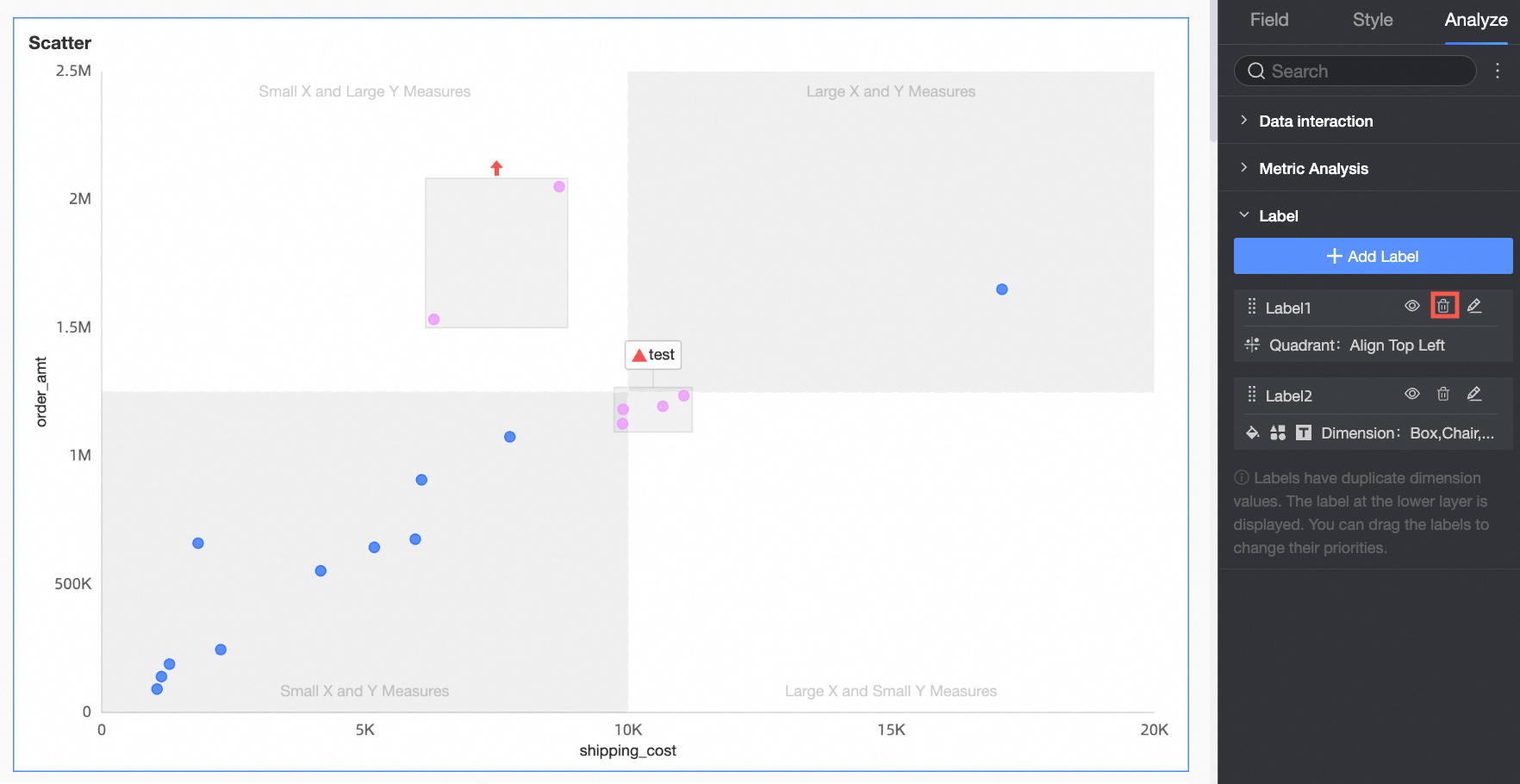
FAQ
What do I do if I want to label an icon and a comment in a dimension?
You can add multiple labels, select the same dimension, and set different label types.