Configure a Text Widget
Add and manage text widgets on a visualization screen.
Prerequisites
A visualization screen is created. For more information, see Create a Data Visualization Screen.
Effect
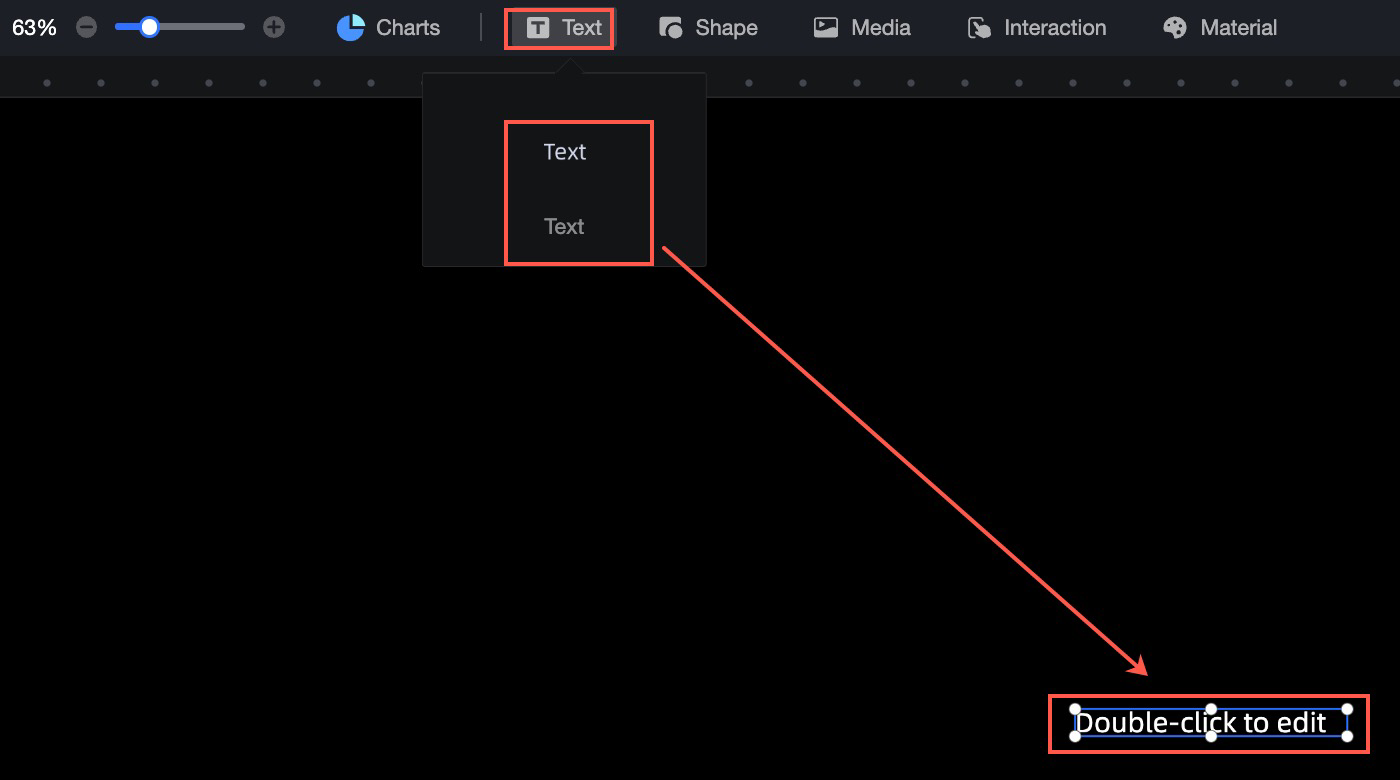
Add text
On the dashboard edit page, click Text in the top navigation bar to add a text widget. Double-click the widget to edit its content.
Configuration text
Size and location
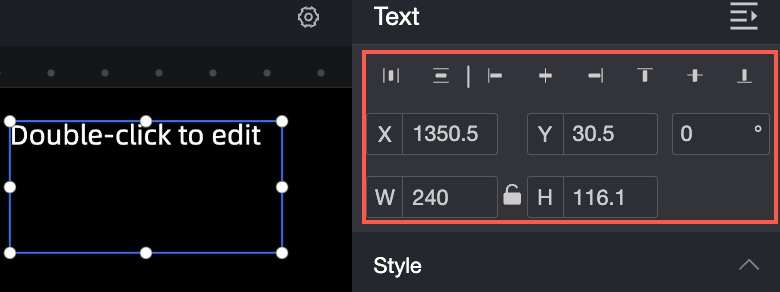
Configure the following settings in the configuration section:
-
Adjust the alignment: left, center, or right.
-
Adjust the position: set the X and Y values relative to the upper-left corner as the origin.
-
Adjust the rotation angle.
-
Resize the widget: set W (width) and H (height).
-
Lock the widget: prevents changes to its size and position.
Style
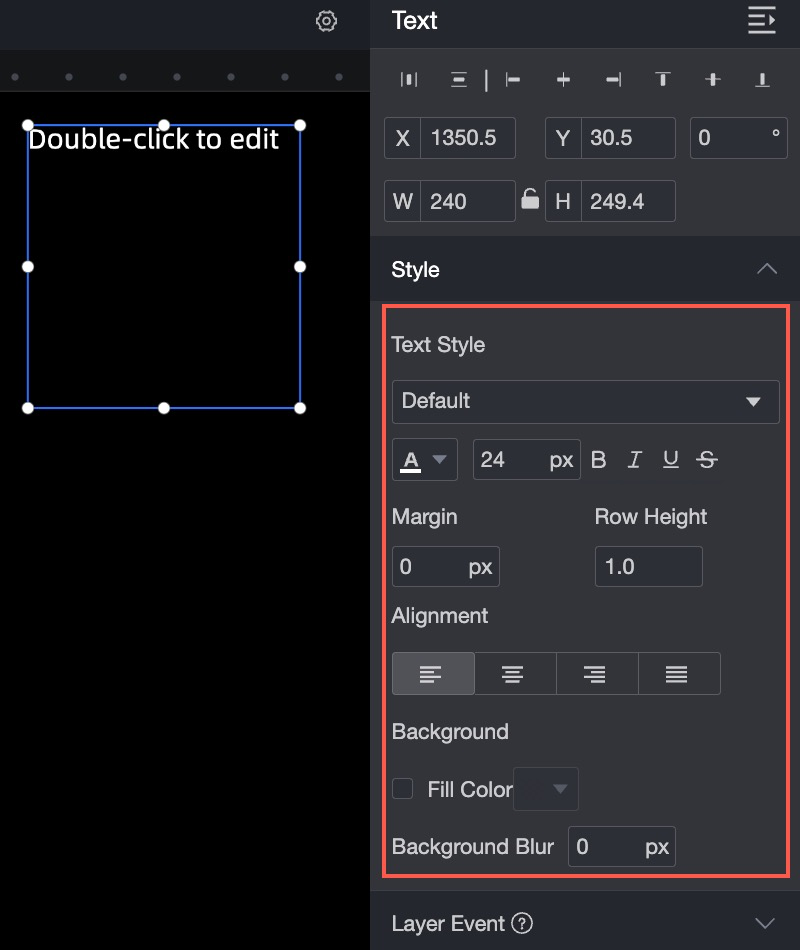
Configure the following text style settings in the configuration section:
-
Font style: set the font family, color, size, bold, italic, underline, and strikethrough. You can also adjust letter spacing and line height.
-
Text alignment: left, center, right, or justified.
-
Background: set the background fill color and blur effect.