Area chart
An area chart shows data trends over time and the proportion each series contributes to the total. This topic describes how to add data to an area chart and configure its style.
Prerequisites
You must have an existing dashboard. For more information, see Create a dashboard.
Chart overview
Use cases
Use an area chart to observe how data changes over time. For example, you can identify trends like growth or decline, cyclical patterns, and exponential growth.
Benefits
Powerful calculations: Configure period-over-period comparisons, cumulative calculations, smart reference lines, trendlines, forecasts, anomaly detection, and fluctuation analysis with one-click settings.
Rich visualization: Supports area, stacked area, and 100% stacked area charts. You can configure data labels, legends, a thumbnail axis, and more.
Data comparison and annotation: Supports period-over-period data comparisons and value-based annotations.
Example
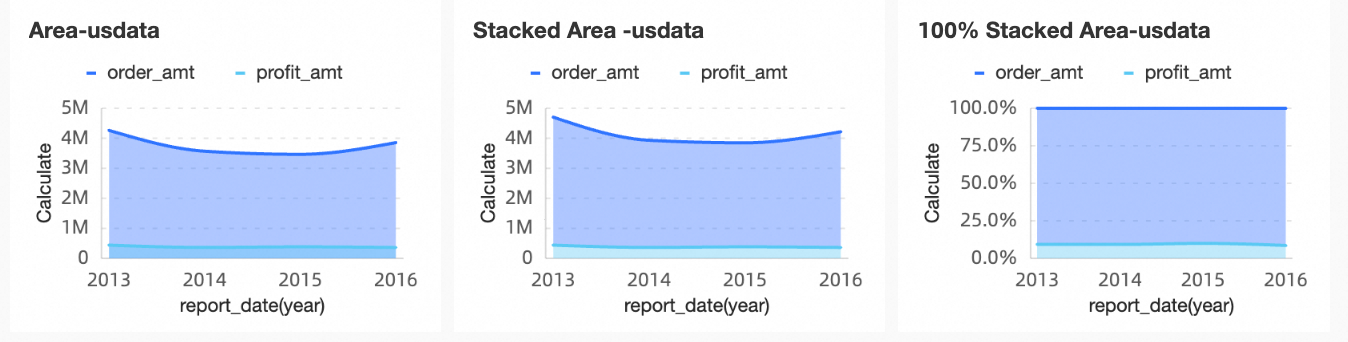
Limitations
You configure an area chart using a Value Axis/Measure, a Category Axis/Dimension, and a Color Legend/Dimension:
The Category Axis requires at least one dimension, such as date, province, or product type.
The Value Axis requires at least one measure, such as order quantity.
The Color Legend accepts only one dimension, such as shipping method.
NoteIf you add multiple measures to the Value Axis and a custom dimension to the Color Legend, you must enable the in-chart measure filter to switch between them.
The Split field accepts only one dimension, such as product type.
Configure chart data
On the Data tab, select the dimensions and measures you need:
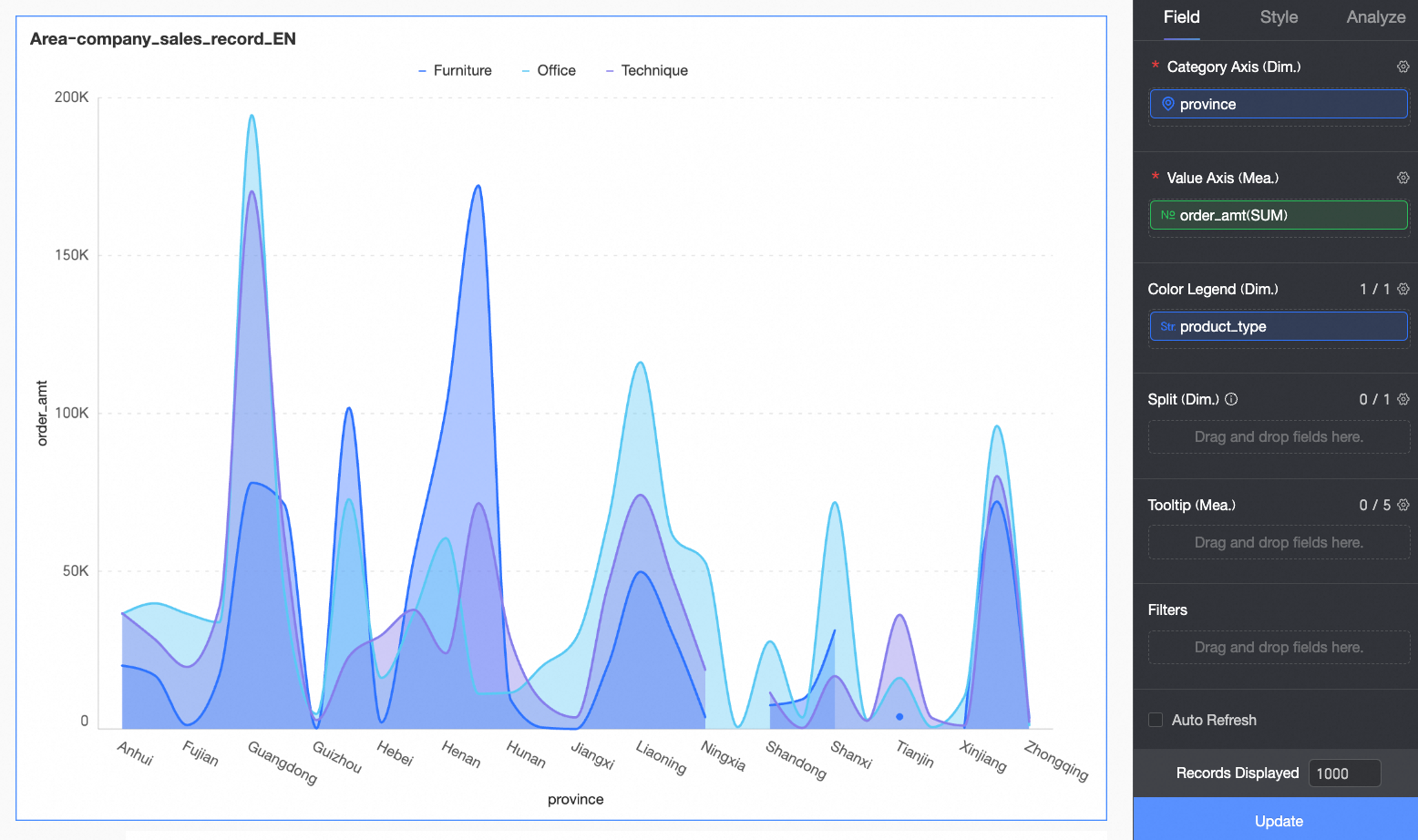
From the Dimensions list, find Province, and then double-click or drag it to the Category Axis/Dimension area.
From the Dimensions list, find Product Type, and then double-click or drag it to the Color Legend/Dimension area.
From the Measures list, find Order Amount, and then double-click or drag it to the Value Axis/Measure area.
Click Update.
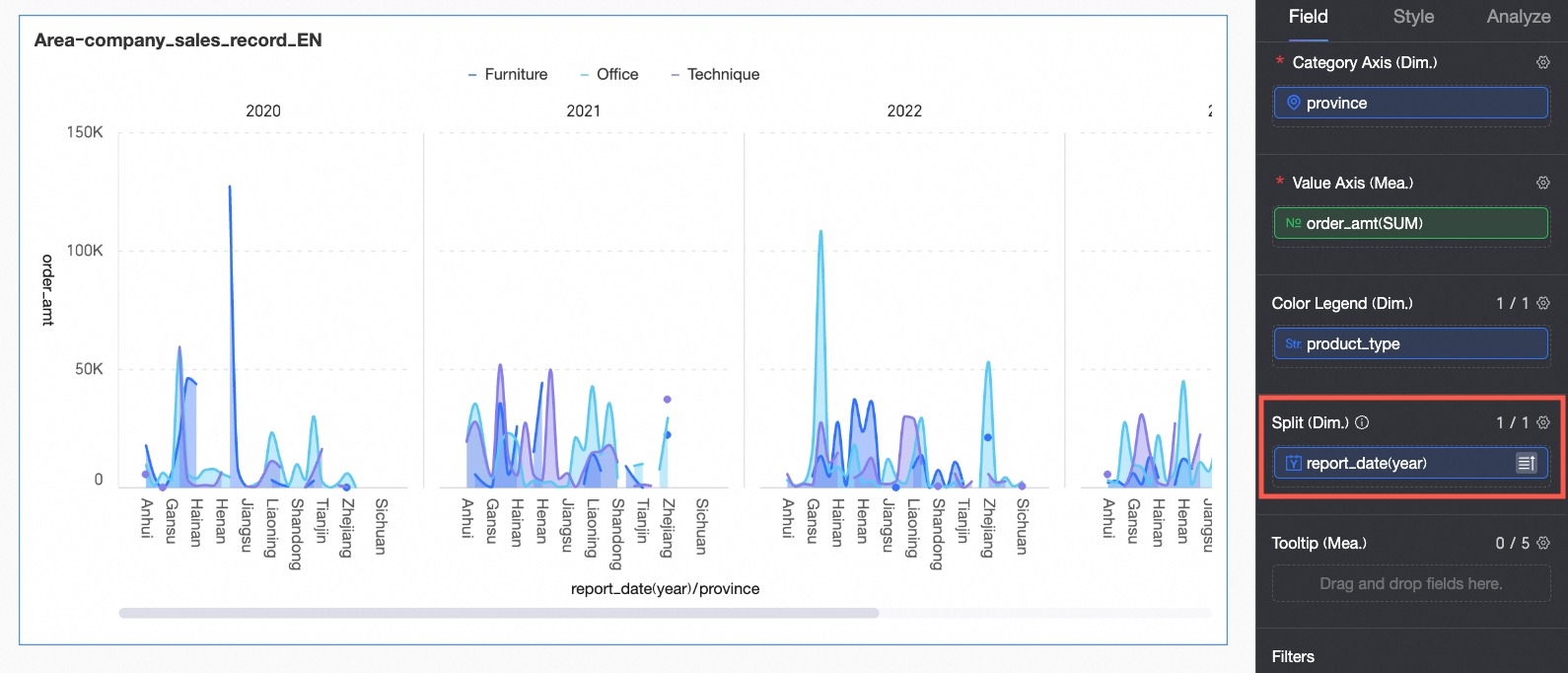
(Optional) You can add a dimension to the Split/Dimension field to use facets to clearly display data trends for different dimension values.
NoteYou can add only one dimension to the split field. Facet mode has the following limitations:
Fields: For the field in the Split/Dimension area, advanced calculations are limited to TopN and None.
Style: A dual Y-axis is not supported. In Auxiliary Display, the thumbnail axis is not supported.
Analysis: Only data interaction is supported. Advanced settings, analysis and alerts, annotations, and smart insights are not supported.
Creating too many facets may cause performance issues. For optimal performance, we recommend creating no more than 500 facets.
Configure chart style
This section describes how to configure the chart styles. For general style settings, see Configure the chart title area.
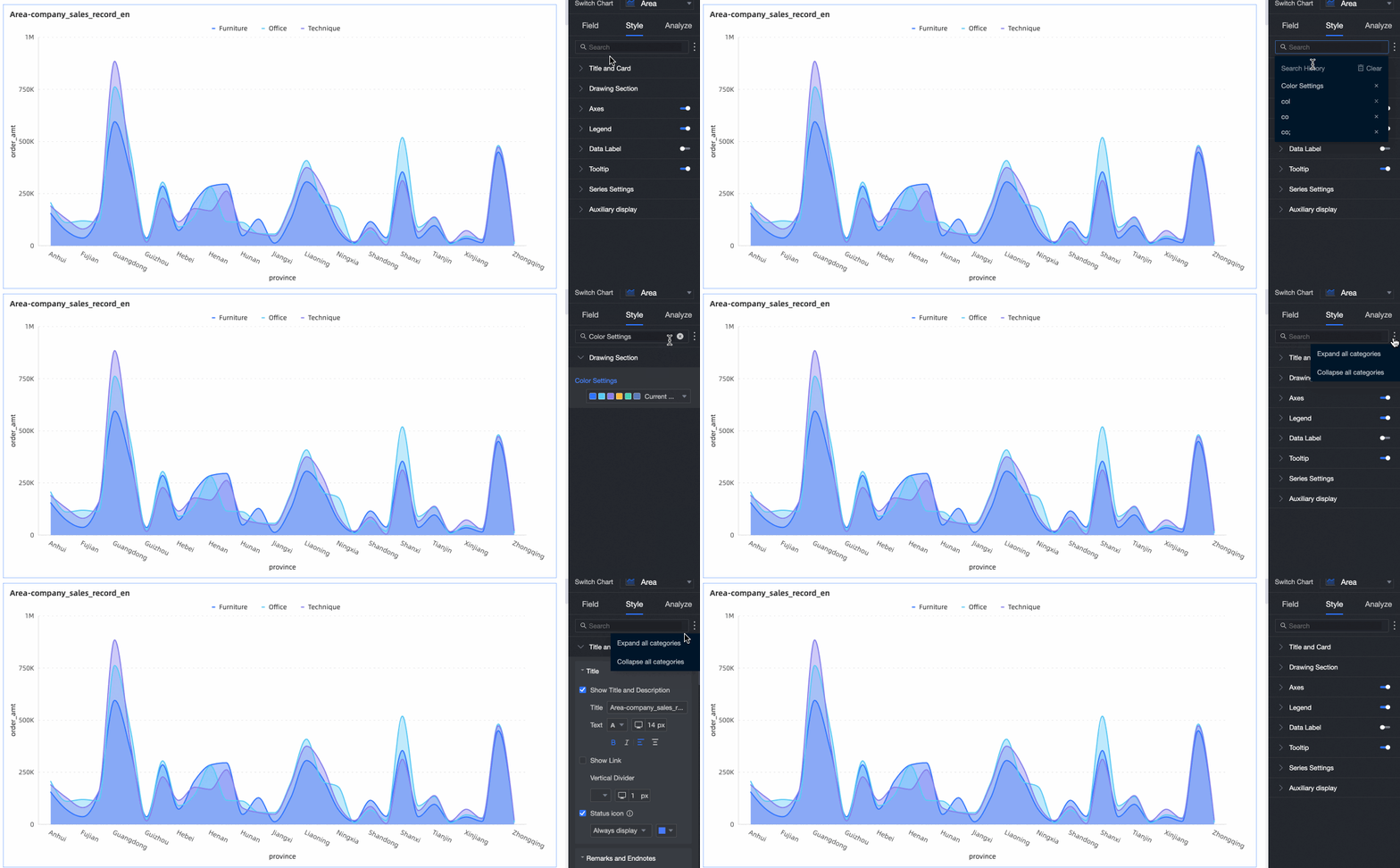
You can enter a keyword in the search box at the top of the configuration pane to quickly find a setting. You can also click the  icon on the right to Expand/Collapse All Categories.
Plot area
In the Plot Area section, configure the area chart style.
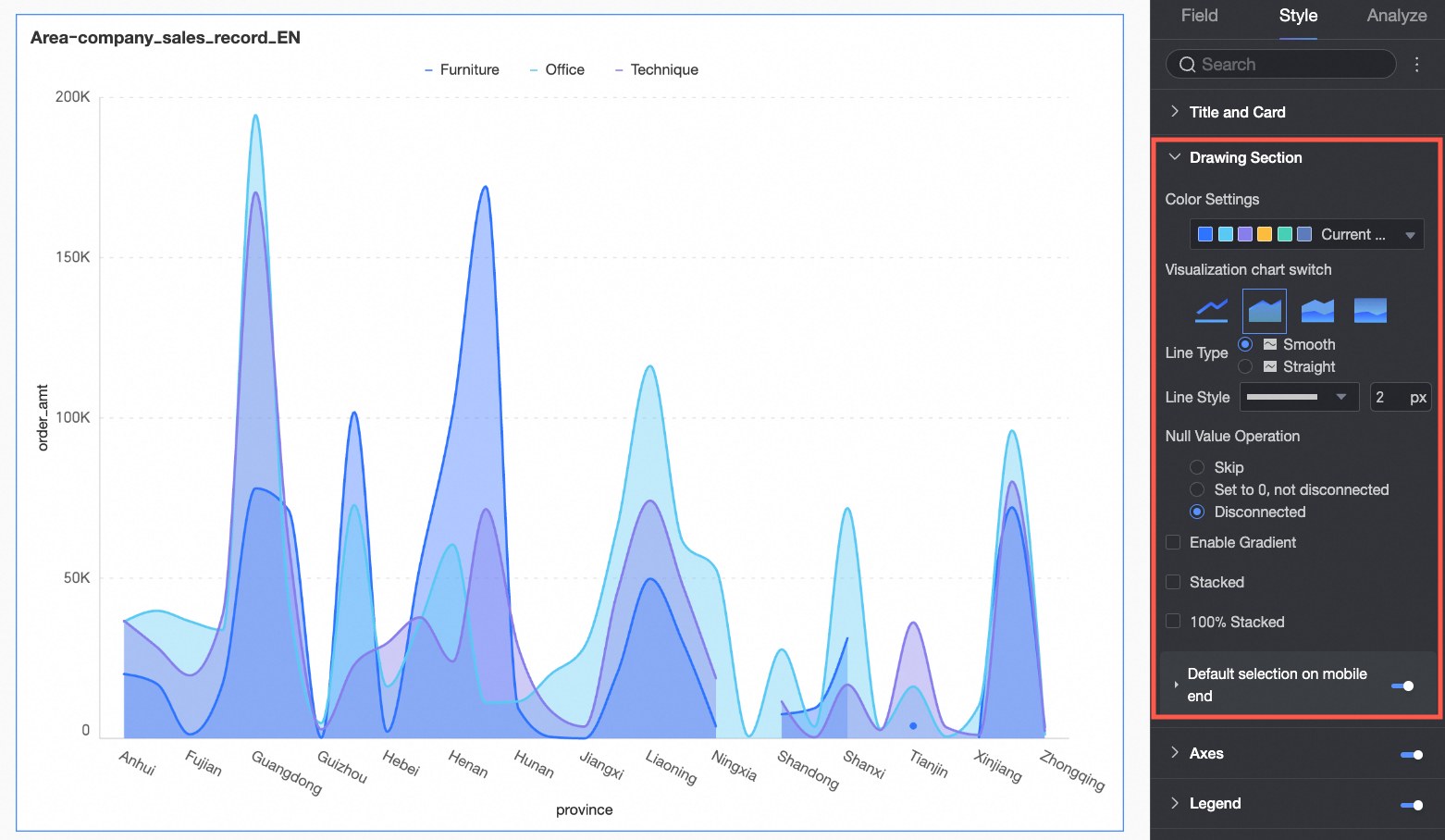
Parameter | Description |
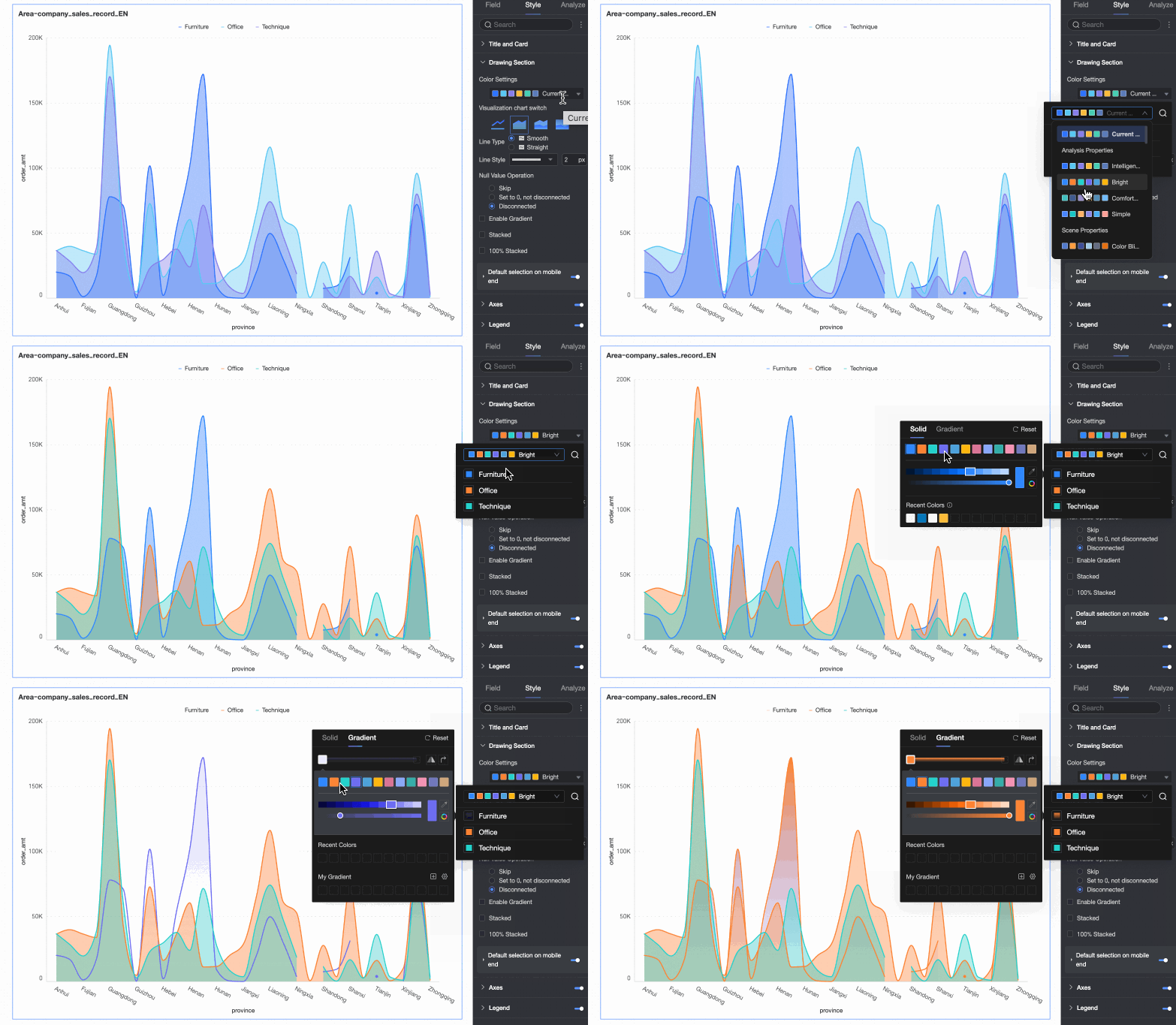
Color Settings | Specifies colors for the chart's area. You can use a system color scheme or define custom colors. |
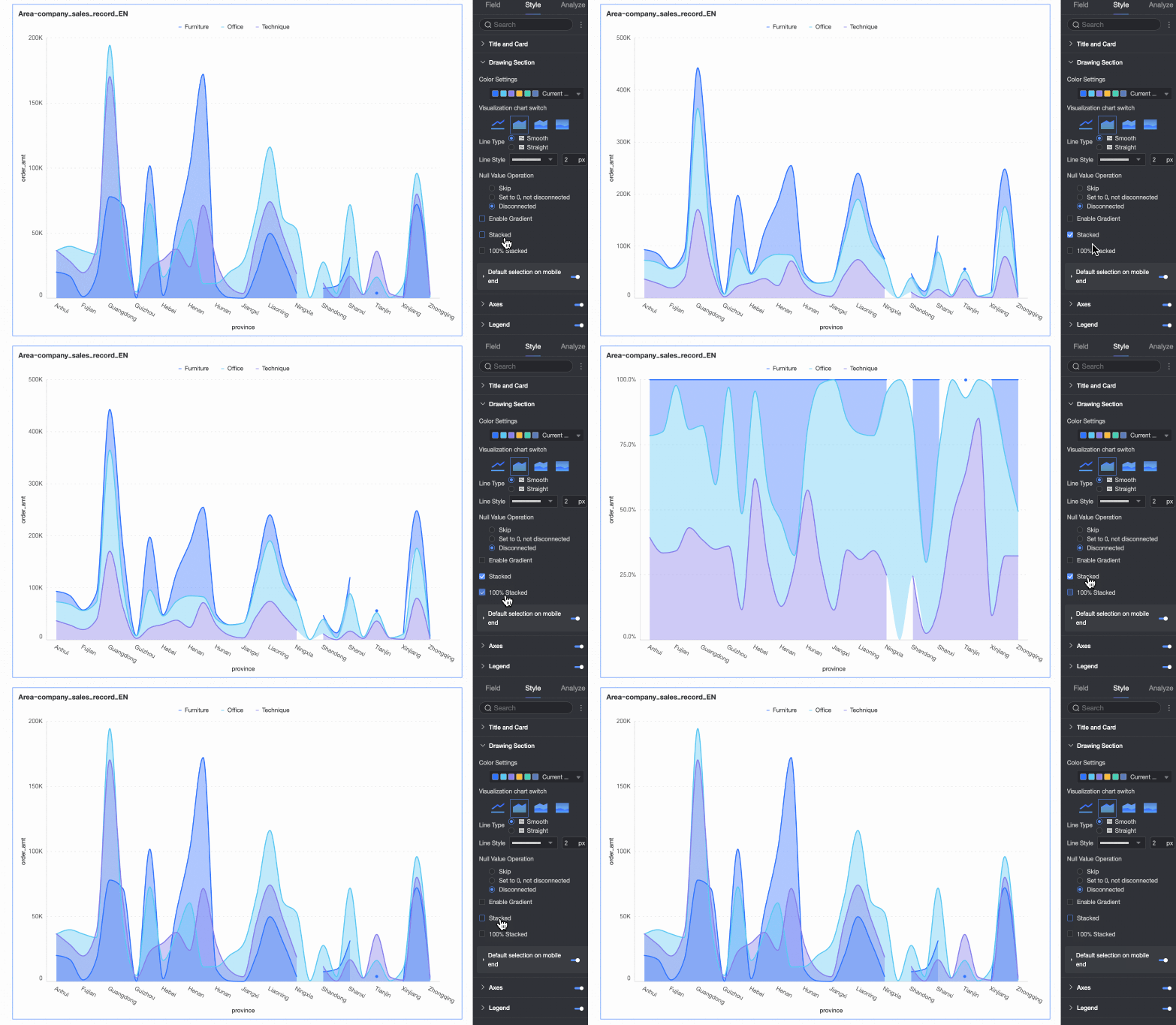
Chart Type Switch | Sets the chart type. Supported types are line chart, area chart, stacked area chart, and 100% stacked area chart. |
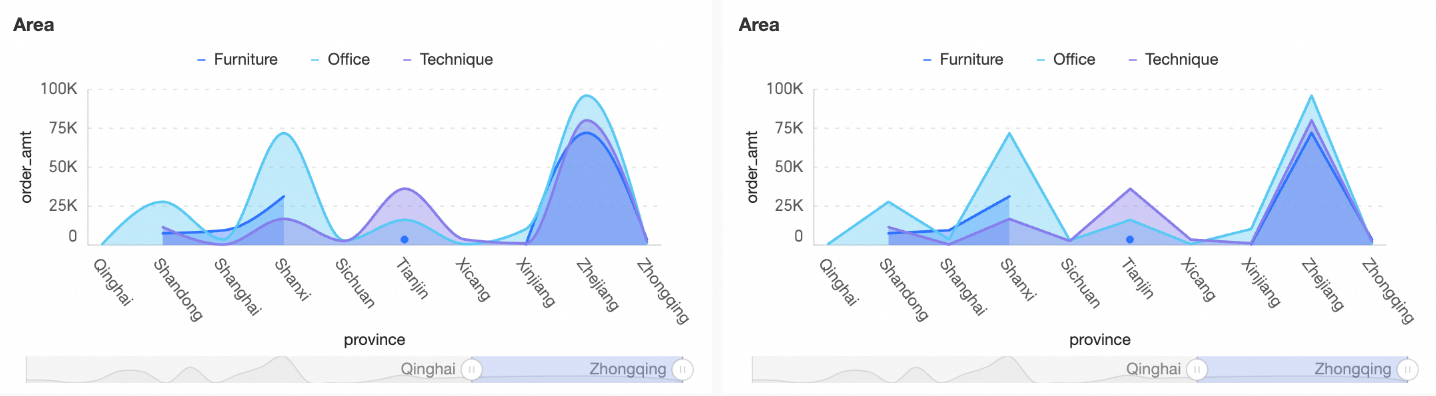
Line Type | Sets the line style for the chart. Options are Curved and Straight. |
Line Style | Sets the line pattern and thickness for the chart. |
Null Value Handling | Three options are supported: Connect, Set to 0, and Break. |
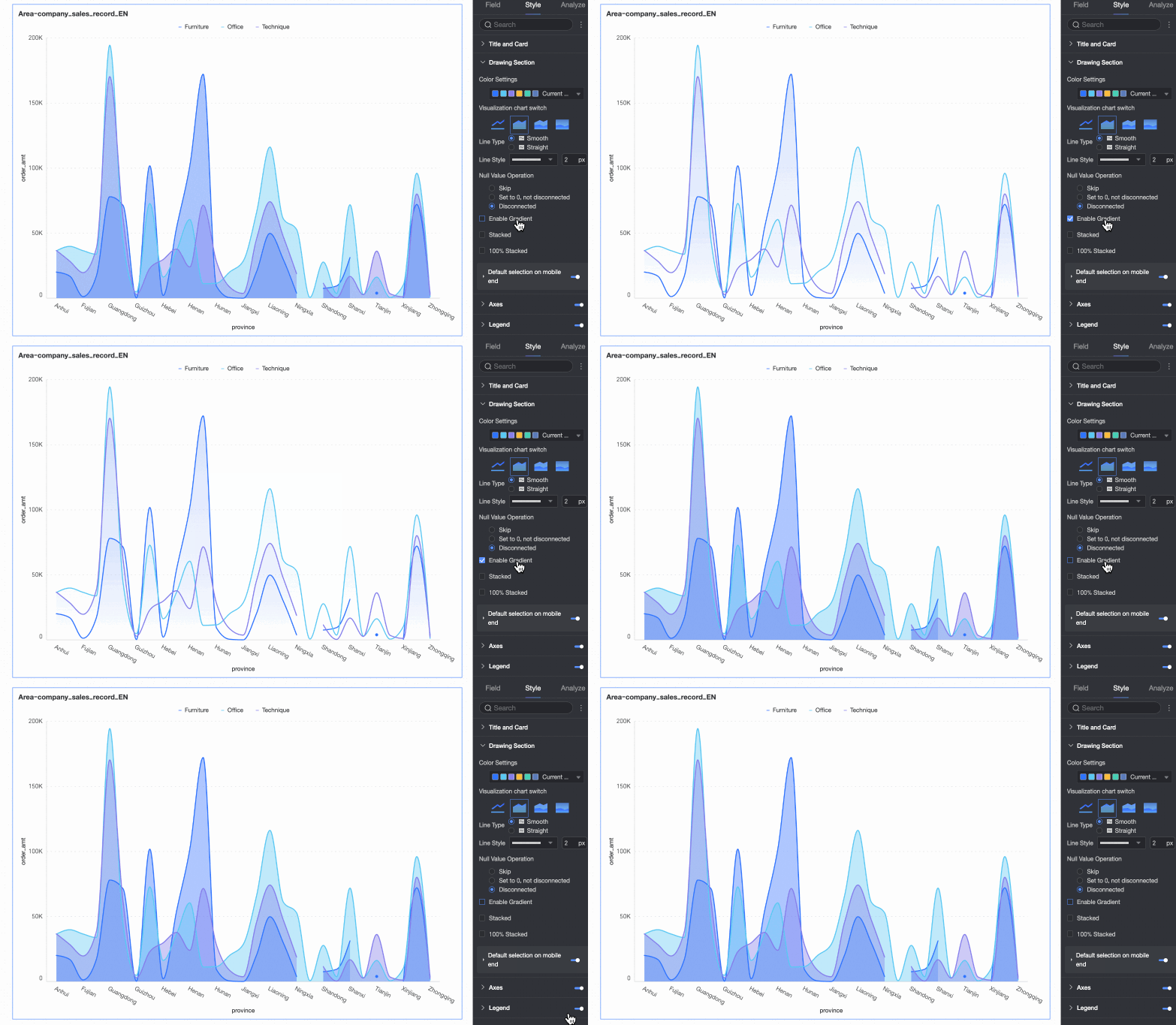
Enable Gradient Effect | When enabled, the chart's area is displayed with a color gradient. |
Stacked and 100% Stacked | Switches between a standard area chart, a stacked area chart, and a 100% stacked area chart.
|
Default Selection on Mobile | When enabled, you can set the Default selection to either Last global dimension value or Last dimension value of a specified series. |
Facet
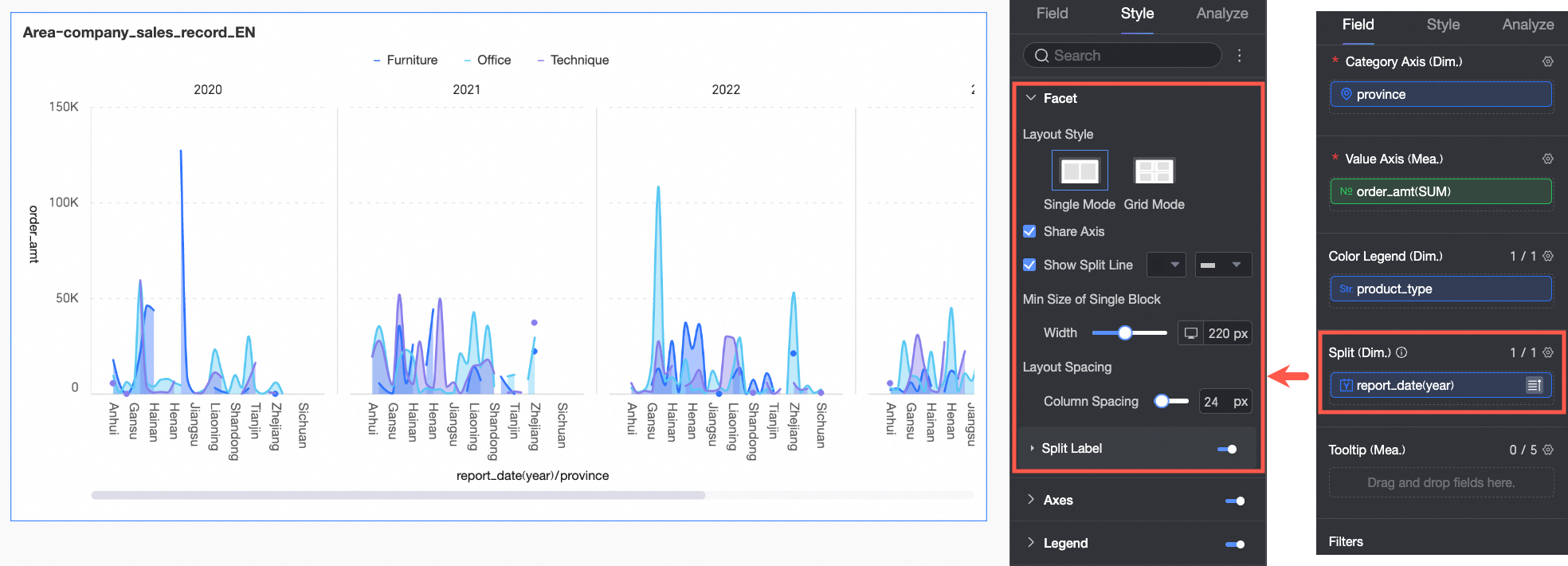
In facet mode, use the Facet section to configure the facet layout and style.
Facet mode is active only when a field is configured in the Split/Dimension area.
Parameter | Description | |
Layout Style | Sets the chart arrangement layout. Options are Single Column Comparison and Grid Distribution. | |
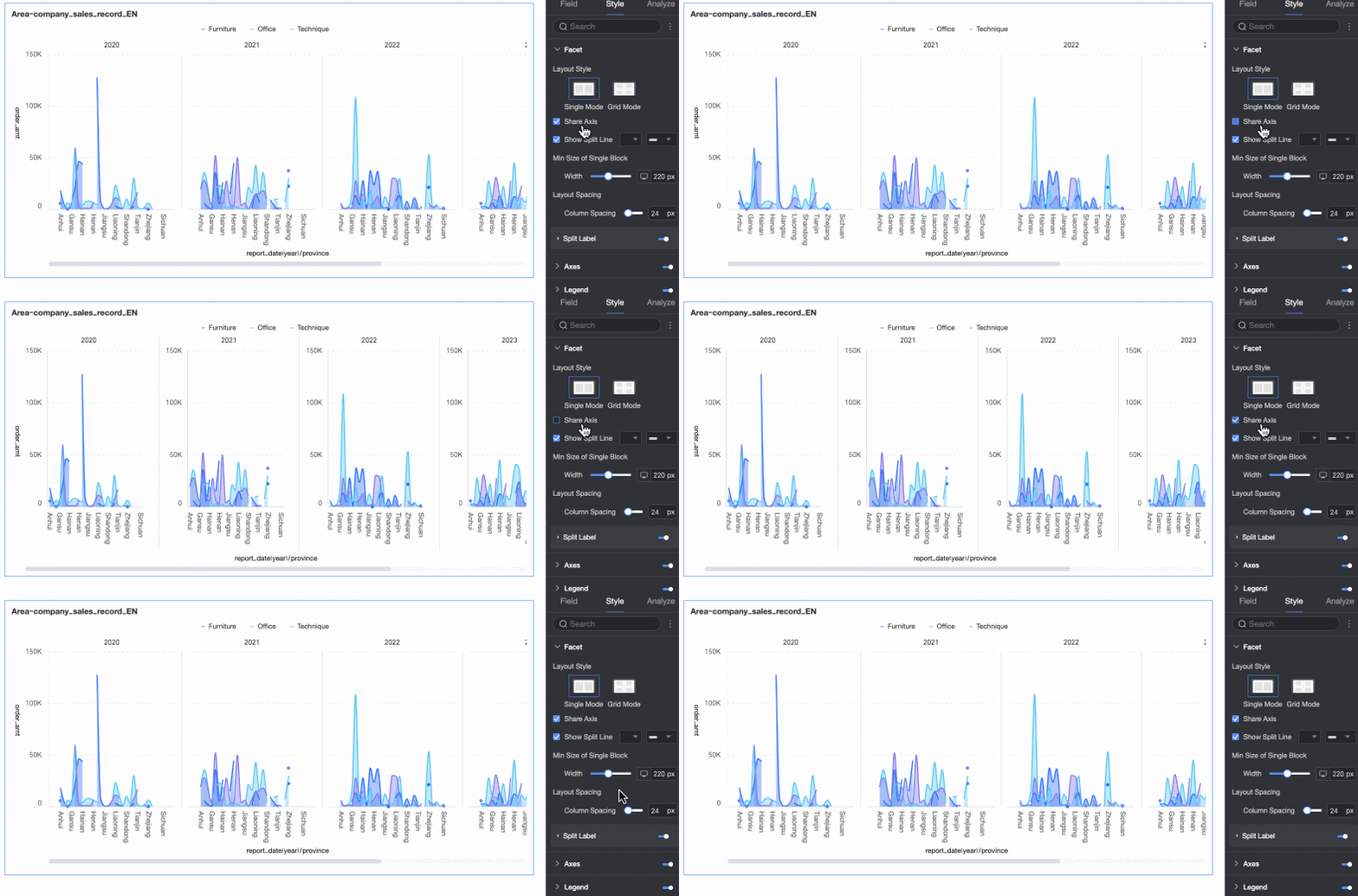
Shared Axis | Specifies whether the faceted charts share an axis.
| |
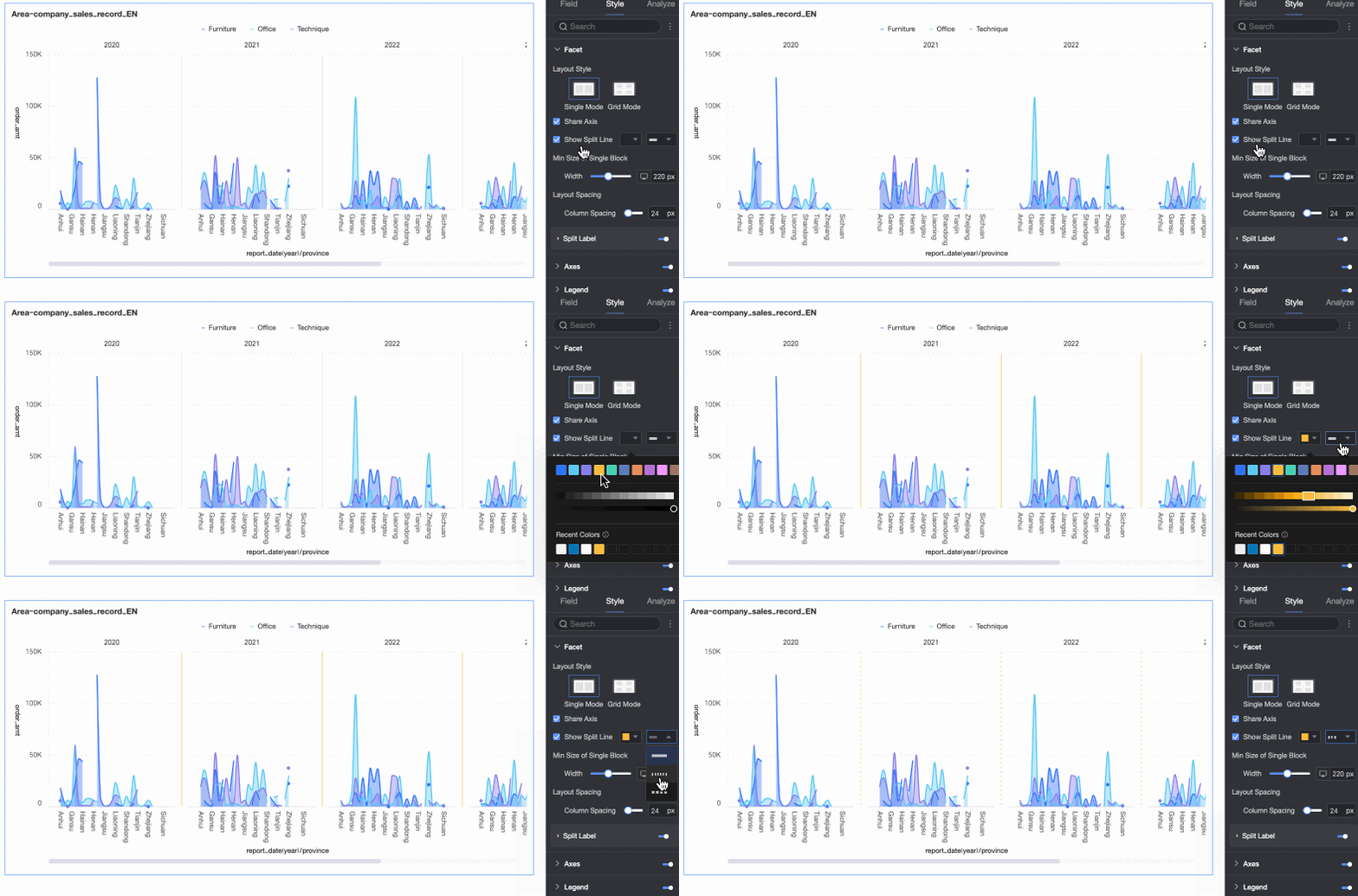
Show Separator | Specifies whether to display a separating line between charts. If enabled, you can configure the separator's color and style. | |
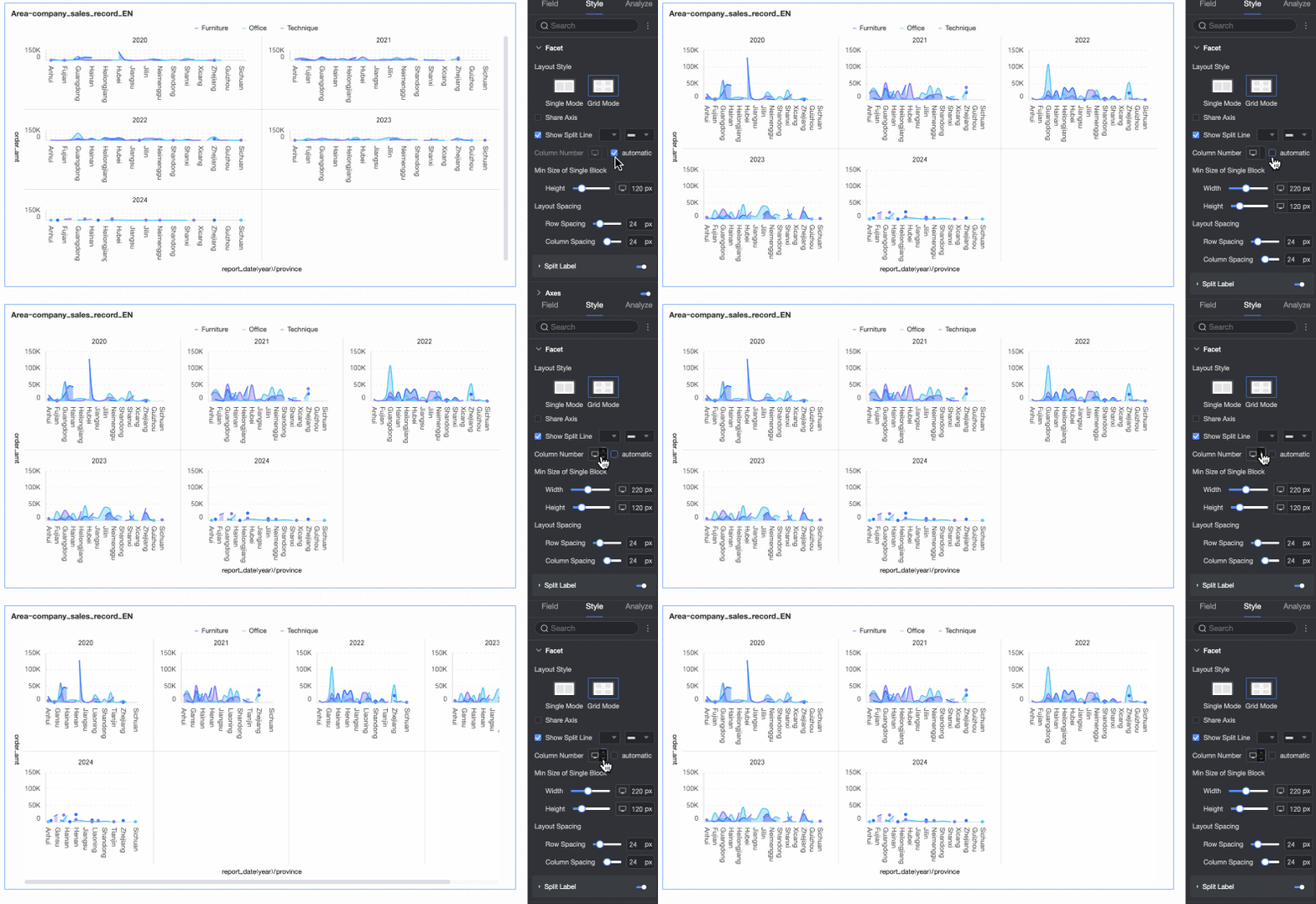
Number of Columns | If the layout style is set to Grid Distribution, you can specify the number of columns for the chart arrangement. The default is Auto, but you can also customize the number of columns. Note
| |
Minimum Facet Block Size | Sets the minimum width and height for each chart. The available options vary by layout style.
| |
Row/Column Spacing | Sets the row and column spacing between charts. The available options vary by layout style.
| |
Split Label | Position | Sets the display position of the dimension value label. Options are Above chart and Below chart. |
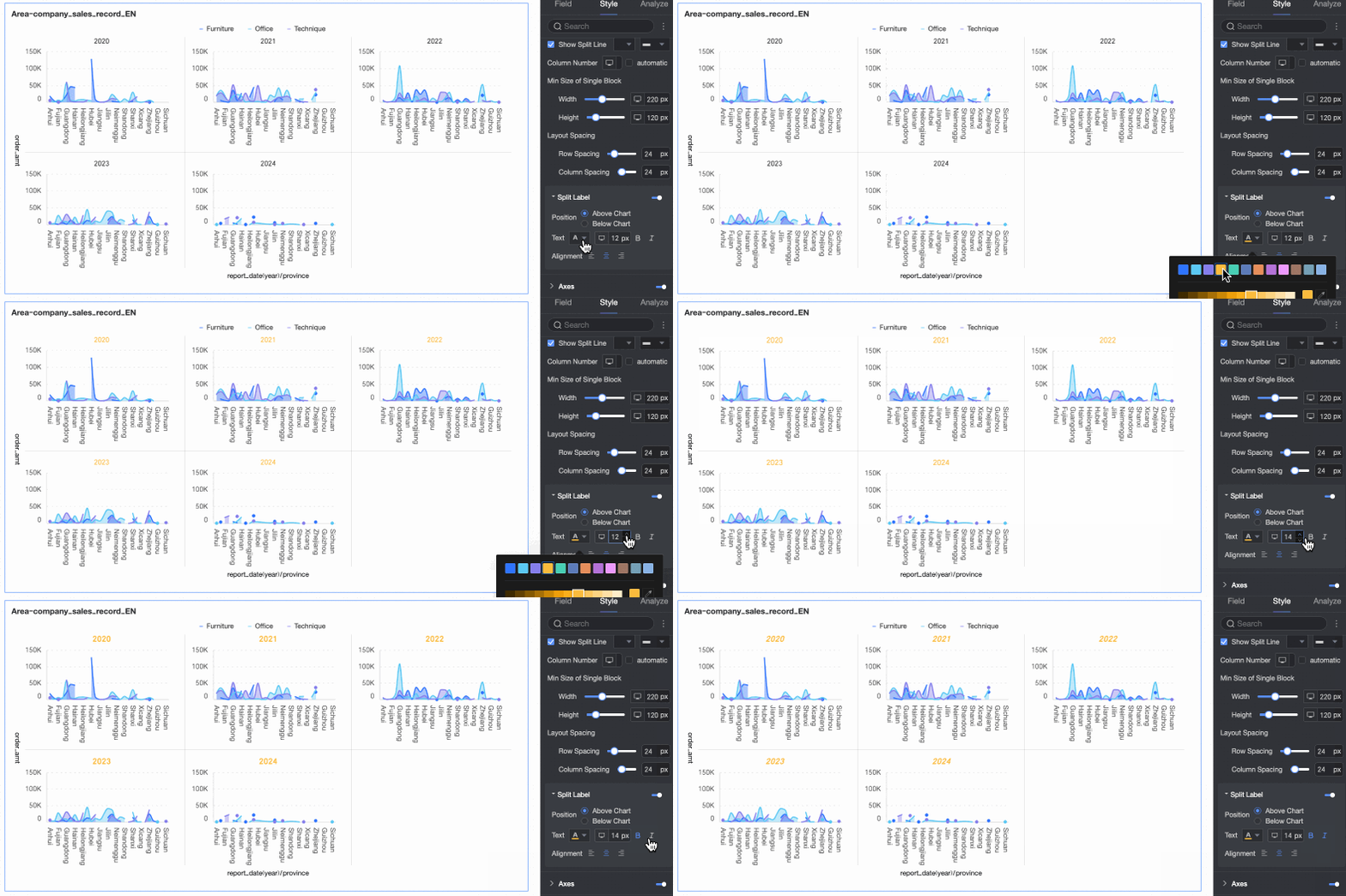
Text | Sets the font color and style for the dimension value label. | |
Alignment | Sets the alignment of the dimension value label. | |
 icon at the top of the page.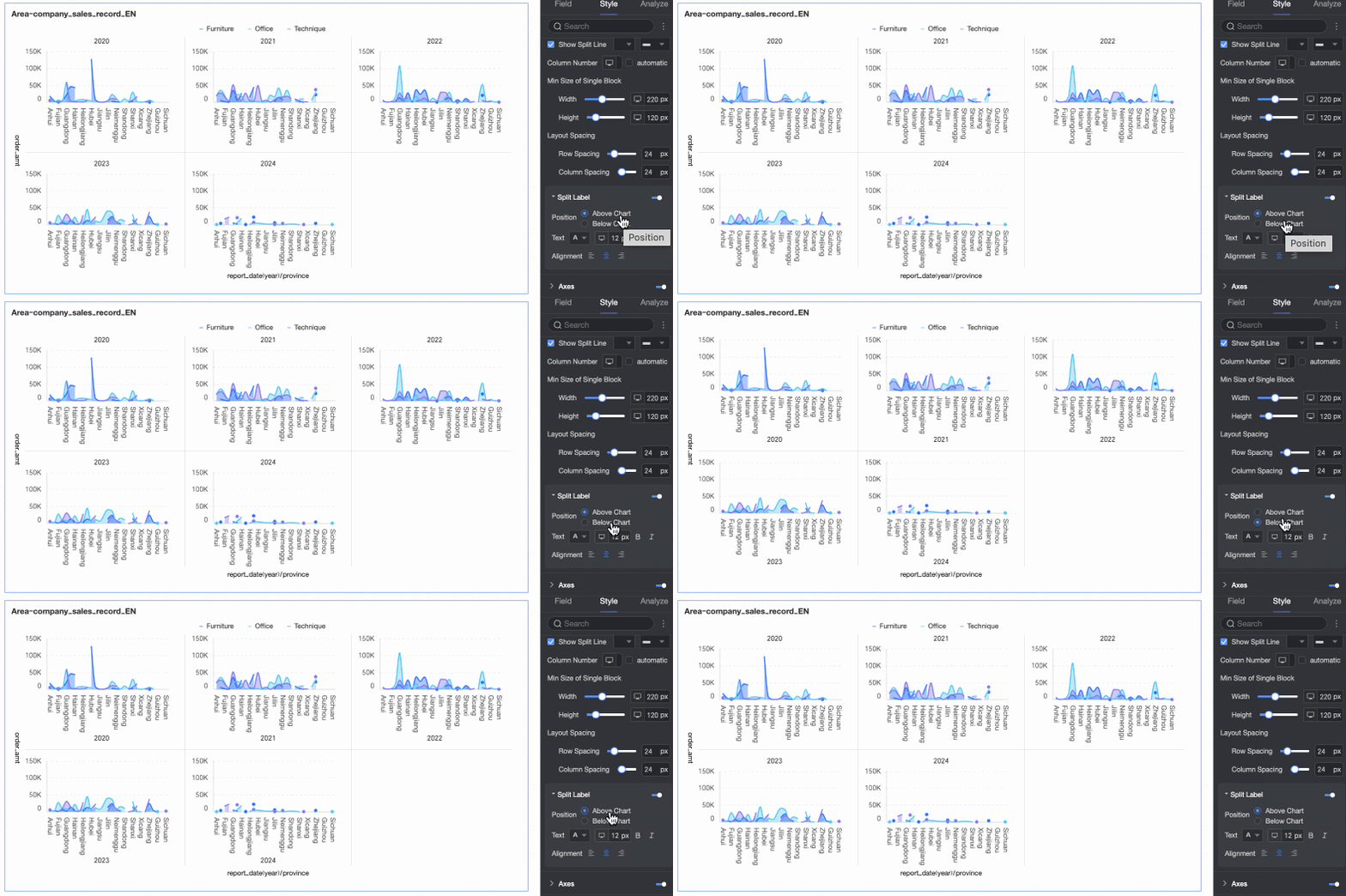
Axes
In the Axes section, you can configure the styles for each axis. By default, all axes are visible.
You can select Show Dual Y-Axis. This option is available only when the chart has two or more measures. Selecting it adds a Right Y-Axis section to the Axes area.
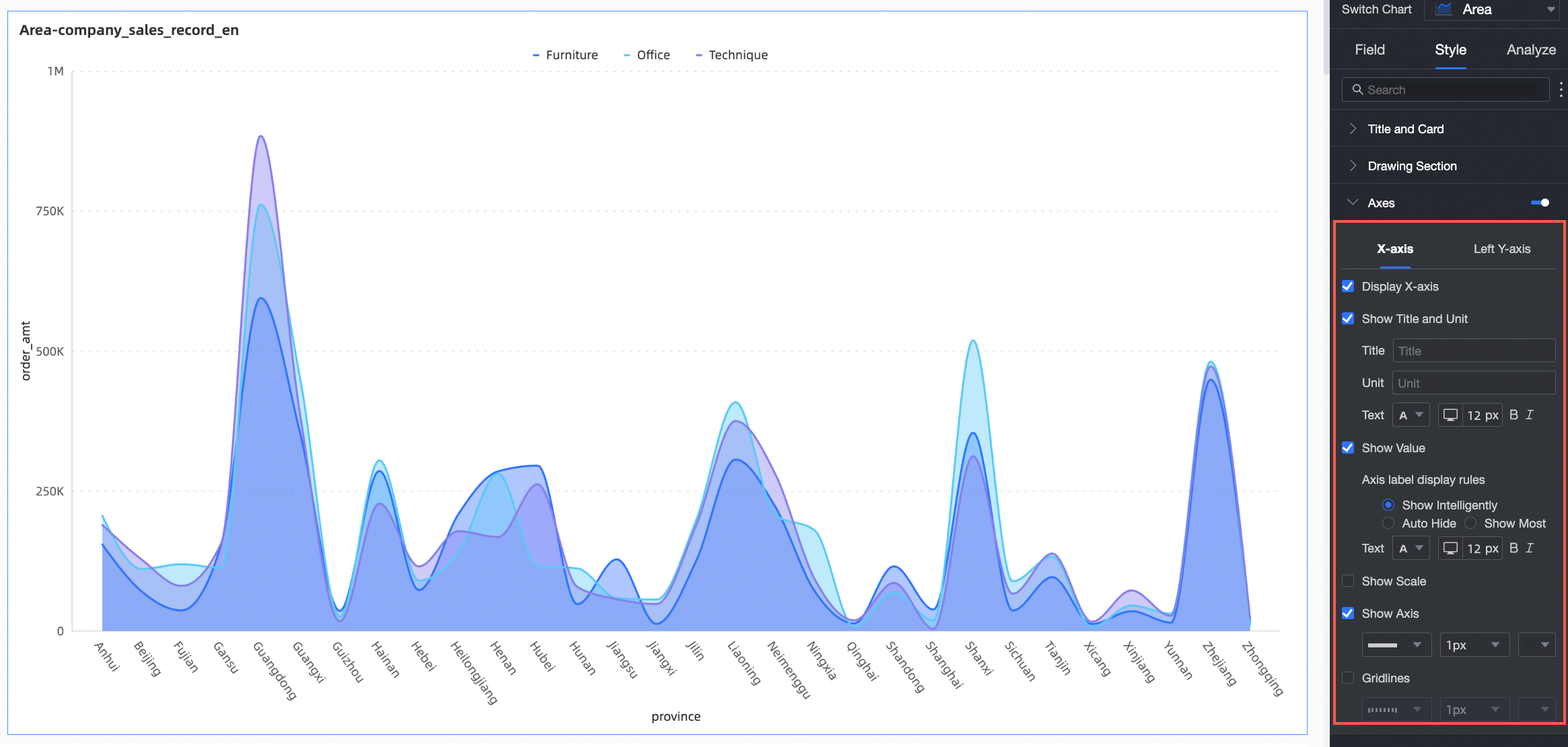
Axis | Parameter | Description |
X-Axis | Show X-Axis | Specifies whether to show the X-axis. |
Show Title and Unit | Specifies whether to show the axis title and unit on the X-axis. | |
Show Axis Labels | Specifies whether to show labels on the X-axis, and configures the axis label display rule and text style. | |
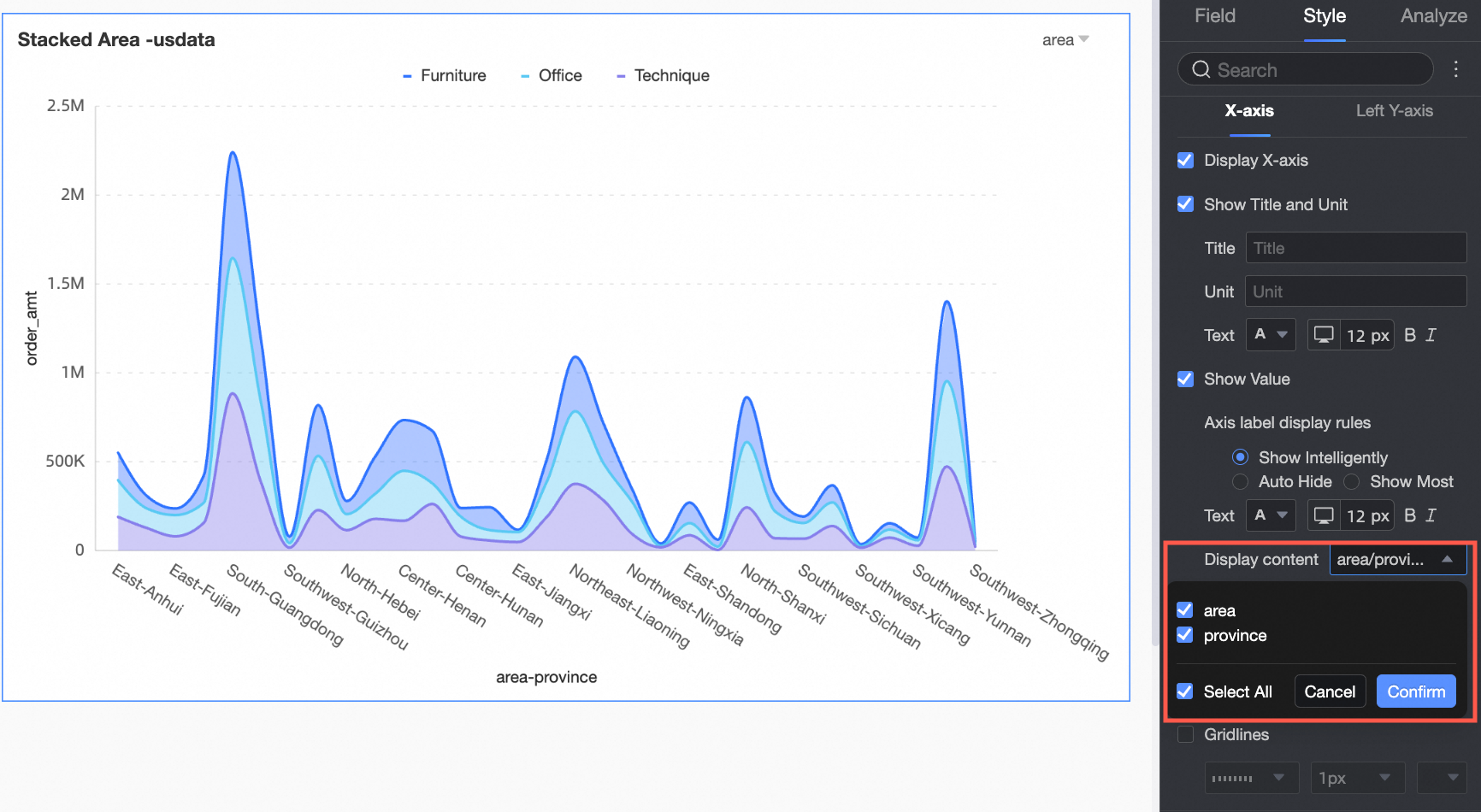
Content to Display | Specifies whether to display some or all dimensions.
| |
Show Tick Marks | Specifies whether to show tick marks on the X-axis. | |
Show Axis Line | Specifies whether to show the X-axis line, and configures its line style, width, and color. | |
Show Axis Labels | Specifies whether to show labels on the X-axis. | |
Show Gridlines | Specifies whether to show gridlines for the X-axis, and configures their line style, width, and color. | |
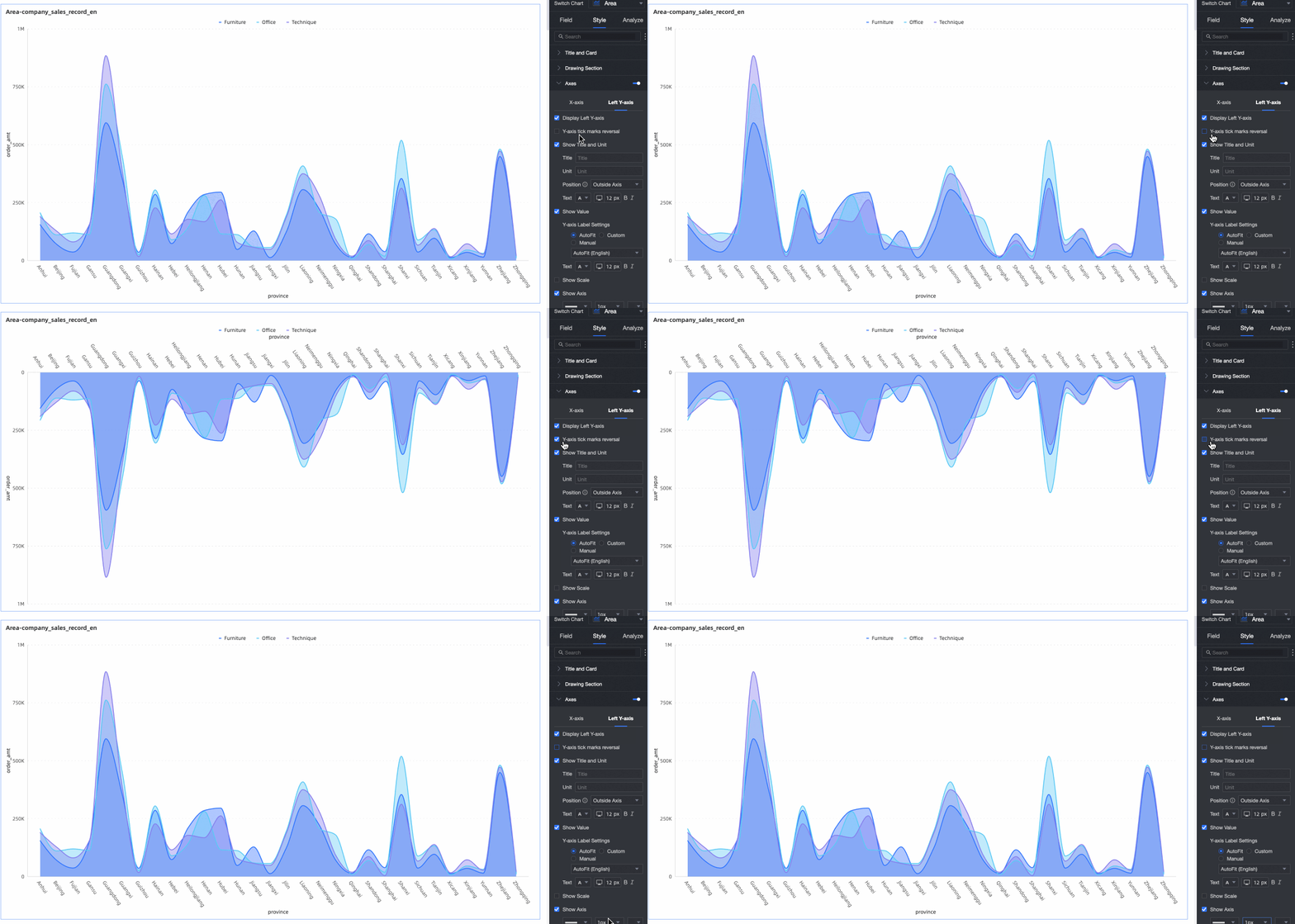
Left Y-Axis | Invert Y-Axis | Reverses the direction of the Y-axis values.
|
Show Left Y-Axis | Specifies whether to show the left Y-axis. | |
Show Title and Unit | Specifies whether to show the axis title and unit. | |
Show Axis Labels | Specifies whether to show labels on the Y-axis. If enabled, you can also configure the axis label display format and text style. The axis label display format can be set to Auto or Custom.
| |
Show Tick Marks | Specifies whether to show tick marks on the left Y-axis. | |
Show Axis Line | Specifies whether to show the left Y-axis line, and configures its line style, width, and color. | |
Show Gridlines | Specifies whether to show gridlines for the left Y-axis, and configures their line style, width, and color. | |
Axis Value Range and Interval |
|
 icon to open the Data Display Format Settings dialog box and configure the data format as needed. For details about the settings in the dialog box, see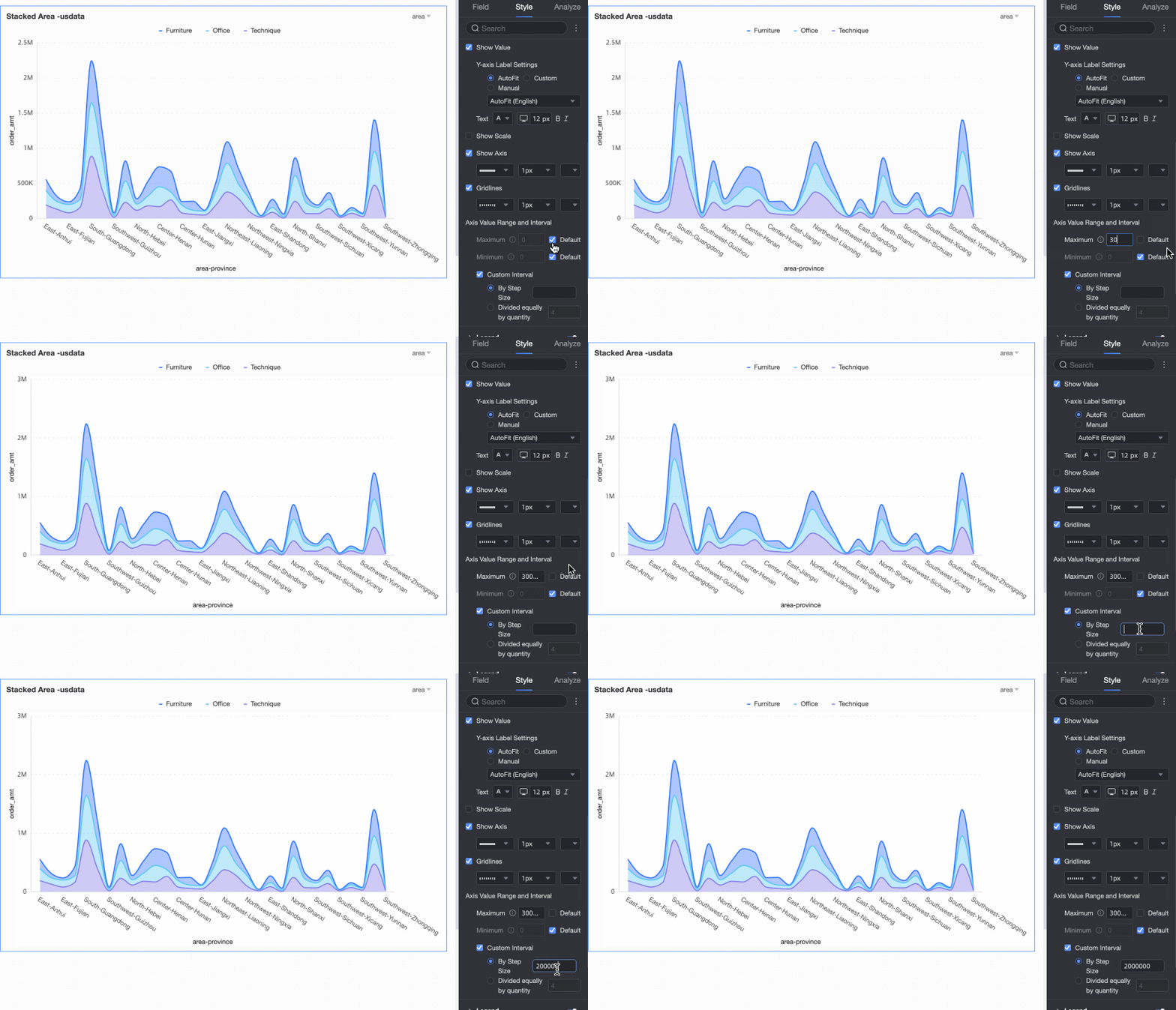
You only need to configure the Right Y-Axis if Show Dual Y-Axis is selected. The settings are the same as for the Left Y-Axis.
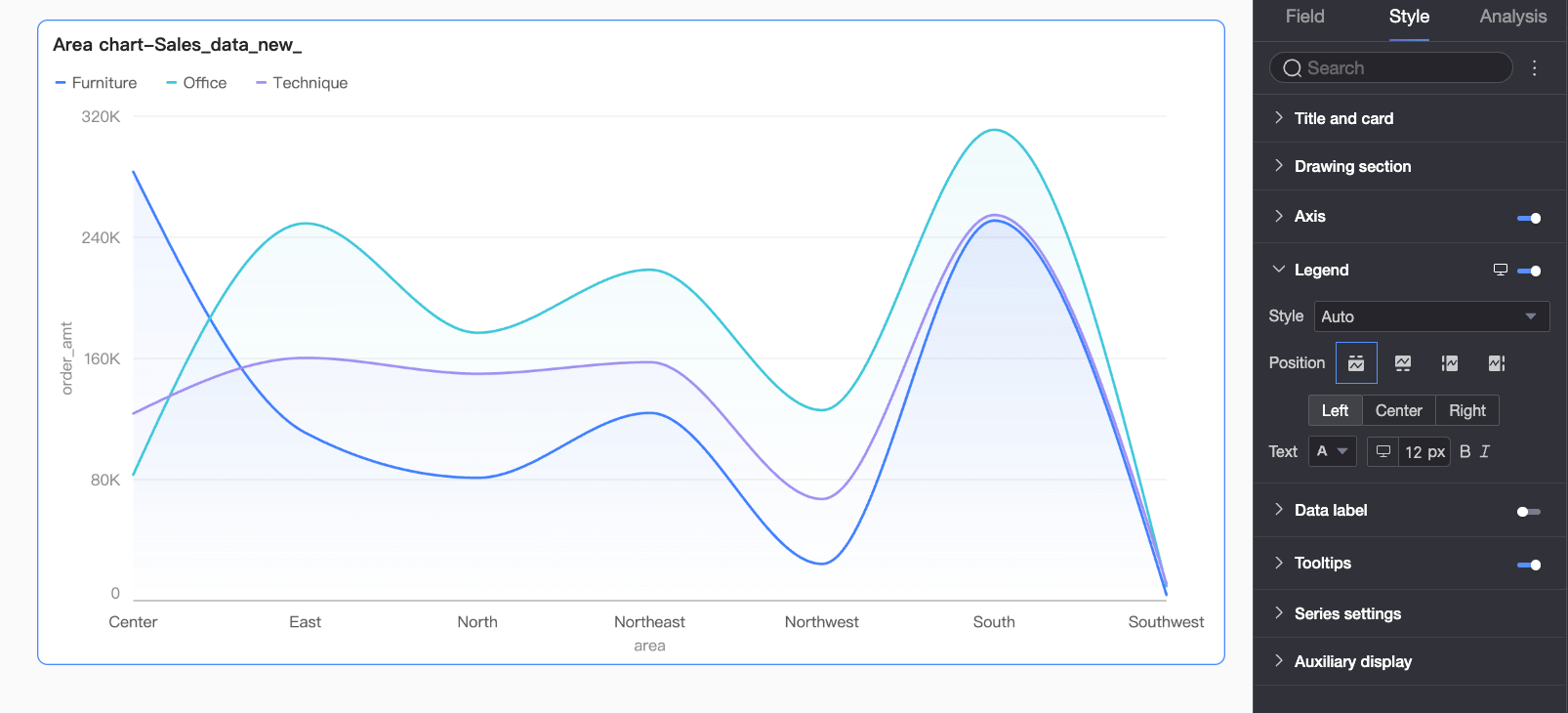
Legend
In the Legend section, click the  icon to enable the chart legend and configure its style.
PC settings

Parameter
Description
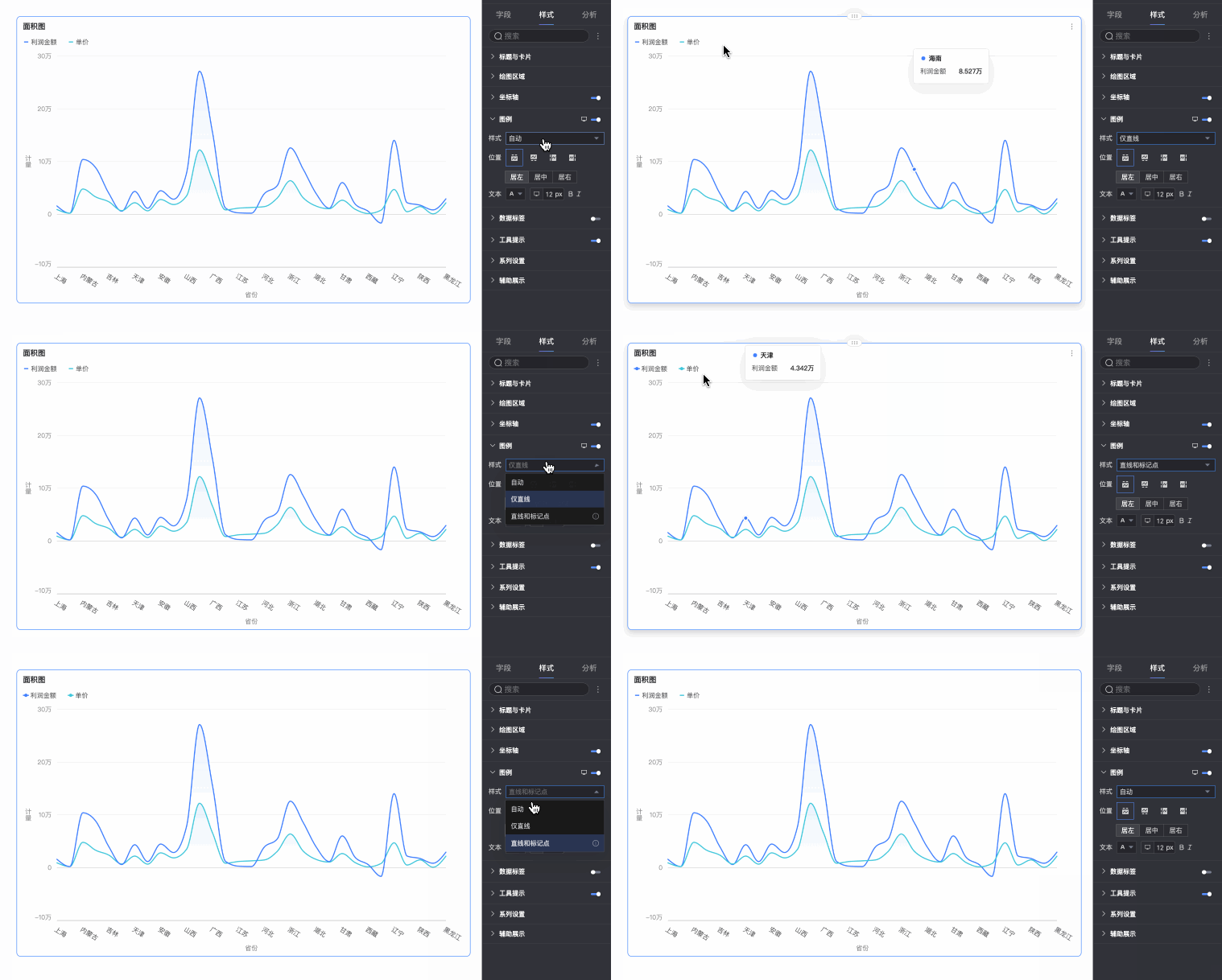
Style
Sets the style of the legend icon. Options are Auto, Line Only, and Line and Marker.
NoteIf you select Line and Marker, the legend will match the marker style set in the chart. If no marker style is configured, a solid circle is displayed by default.
If you select Legend symbol scales with text in Theme Design > General Content Style, the legend icon size and line thickness scale with the chart's line thickness and legend text size.
Position
Sets the display position and alignment of the legend on PC.
If the position is Top or Bottom, you can choose Left, Center, or Right alignment.
If the position is Left or Right, you can choose Top, Center, or Bottom alignment. You can also set the distance between the legend and the chart content.
Text
Sets the text style for the legend on PC, including font color, size, weight, and style (italic).
Mobile settings
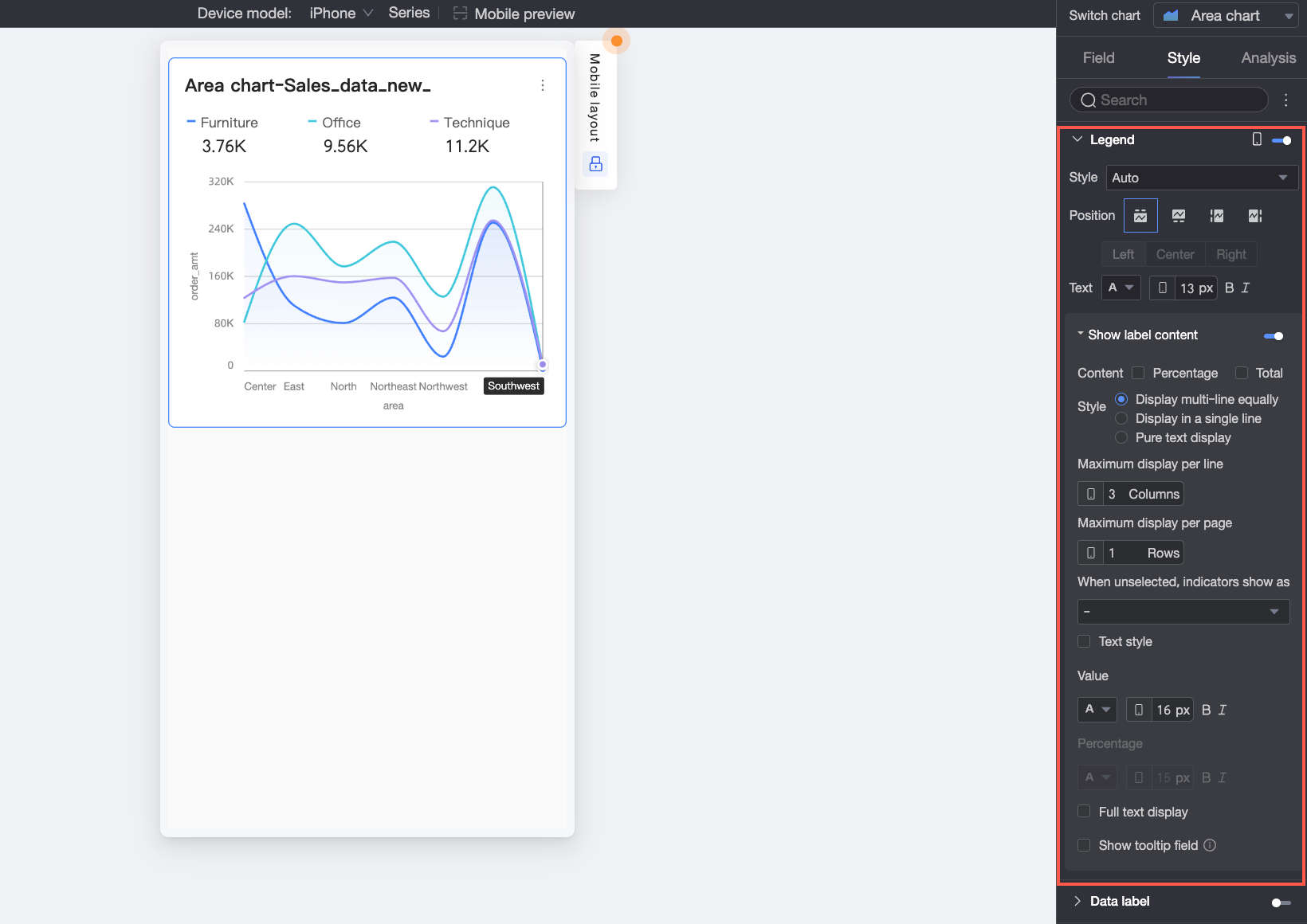
Parameter | Description | |
Style | Sets the style of the legend icon on mobile. Options are Auto, Line Only, and Line and Marker. | |
Position | Sets the display position and alignment of the legend on mobile.
Note When the position is set to Top, you can enable labels below the legend. | |
Text | Sets the text style of the measure name in the mobile legend, including font color, size, weight, and style (italic). | |
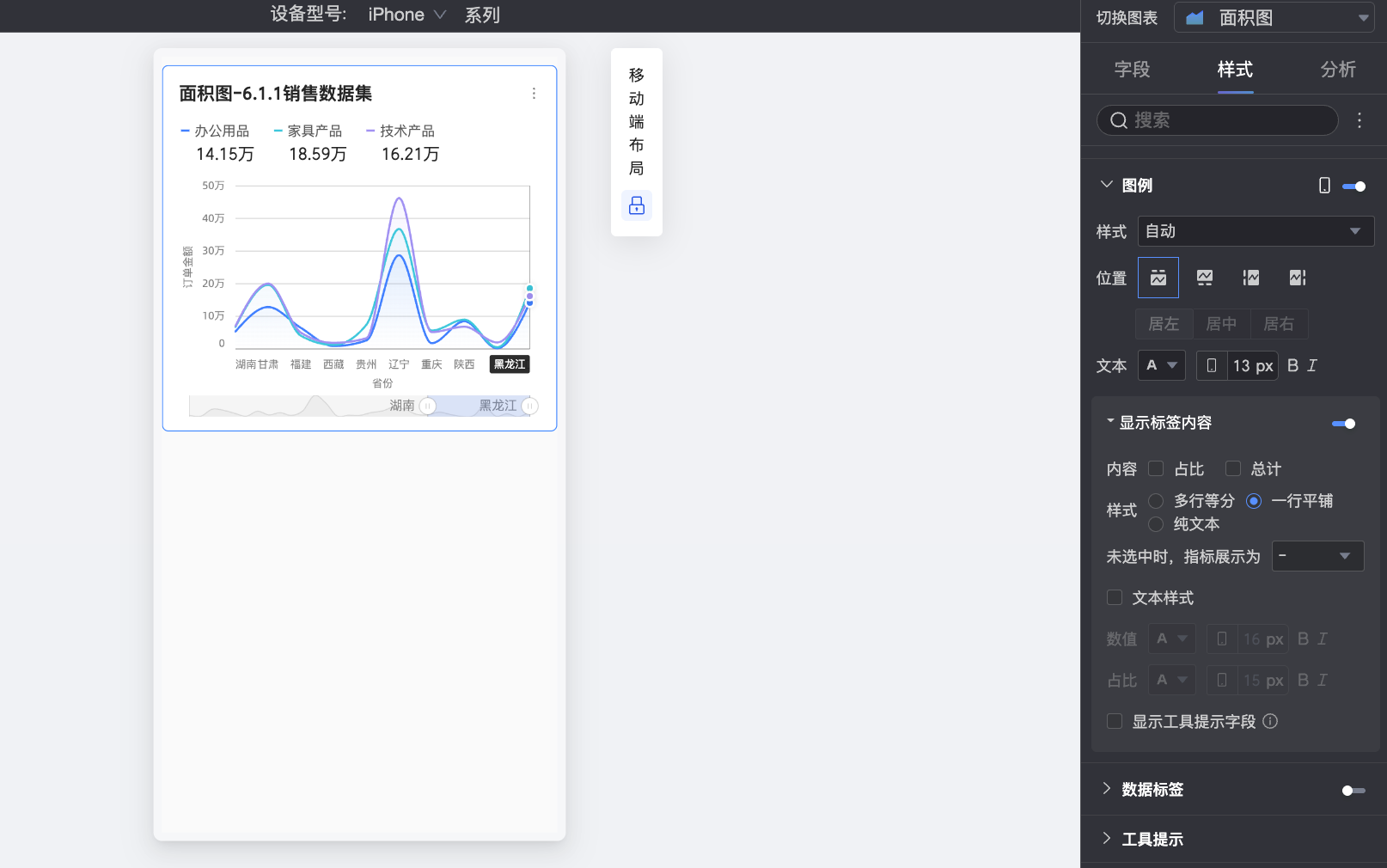
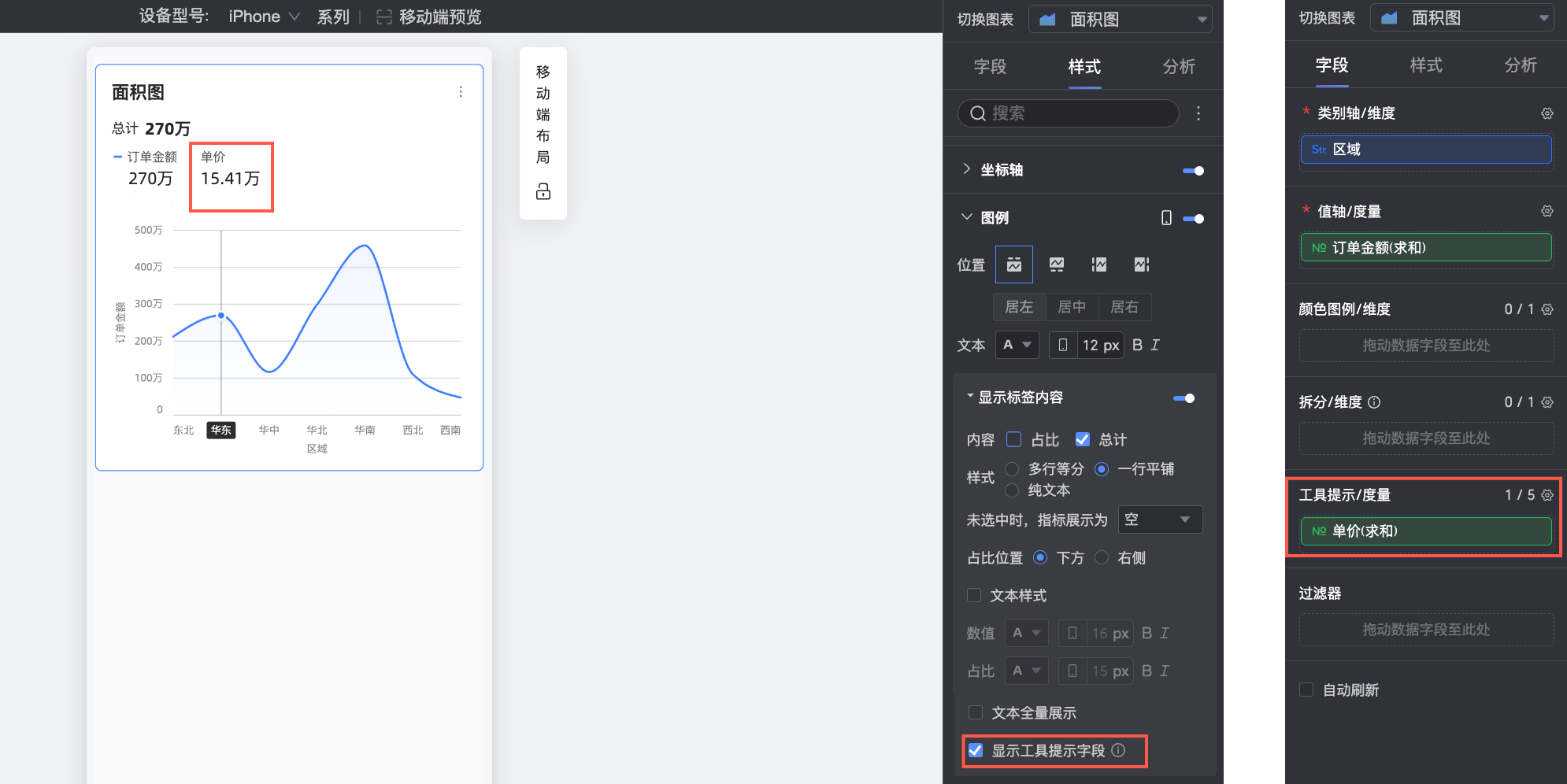
Display Label Content When Position is set to Top, click the | Content | Sets the data content to display in the labels below the legend. Options are Percentage and Total.
|
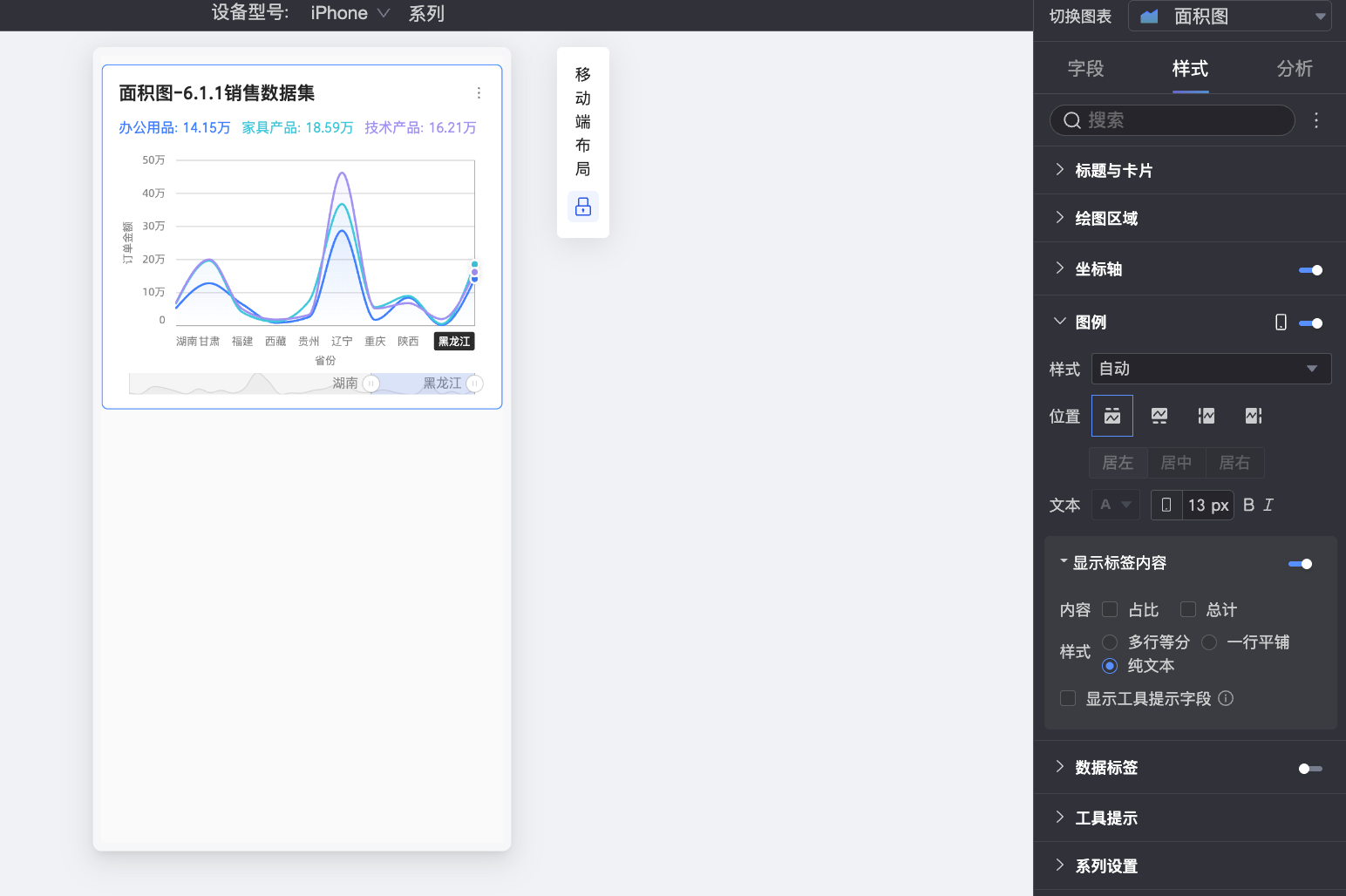
Style | Sets the layout style for the labels below the legend. The following options are available:
| |
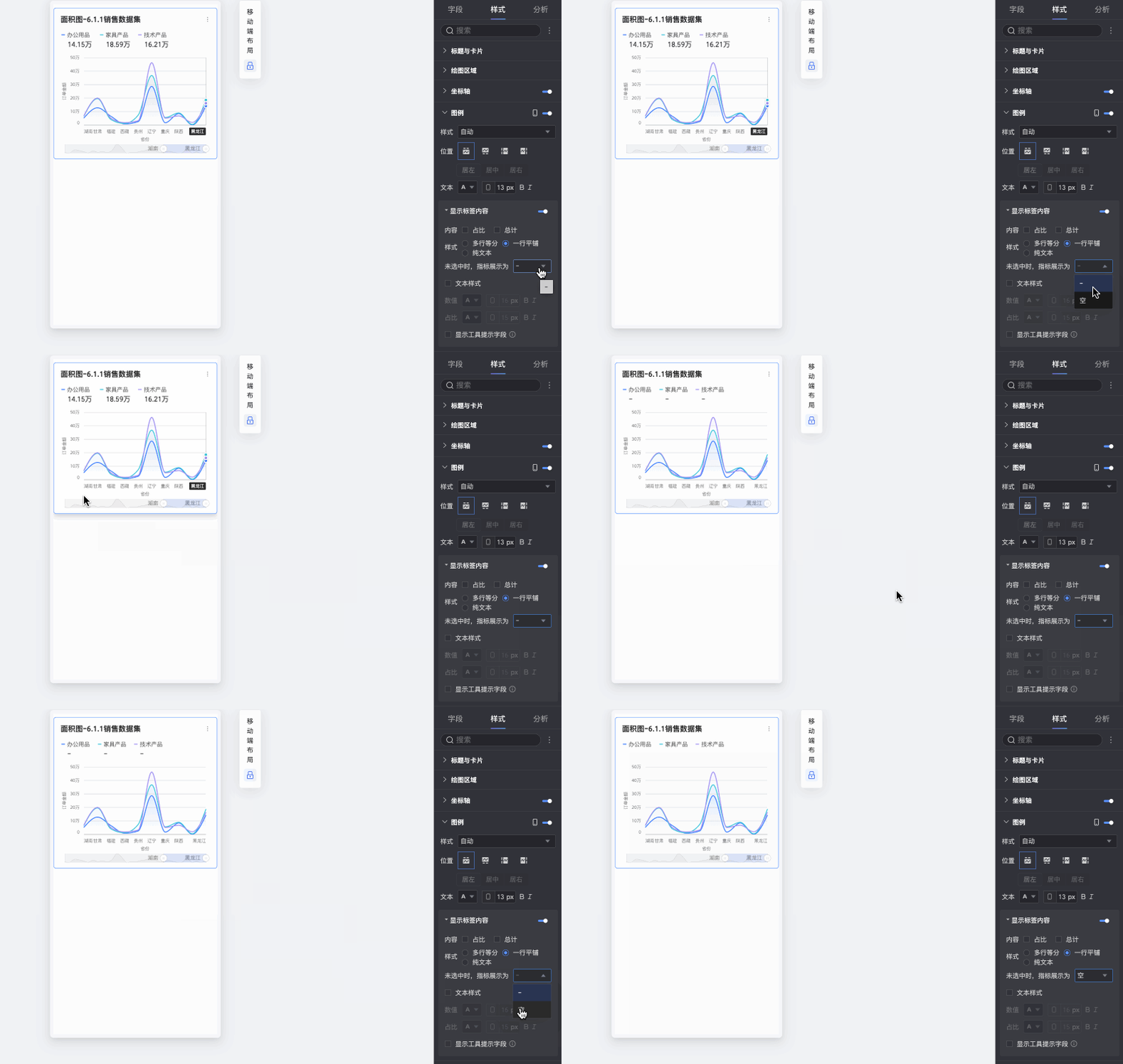
When Not Selected, Show Measure As | When Style is set to Multi-line Equal Distribution or Single-line Tiling, you can specify how to display the measure when a legend item is not selected. You can choose to display it as "-" or as Blank. | |
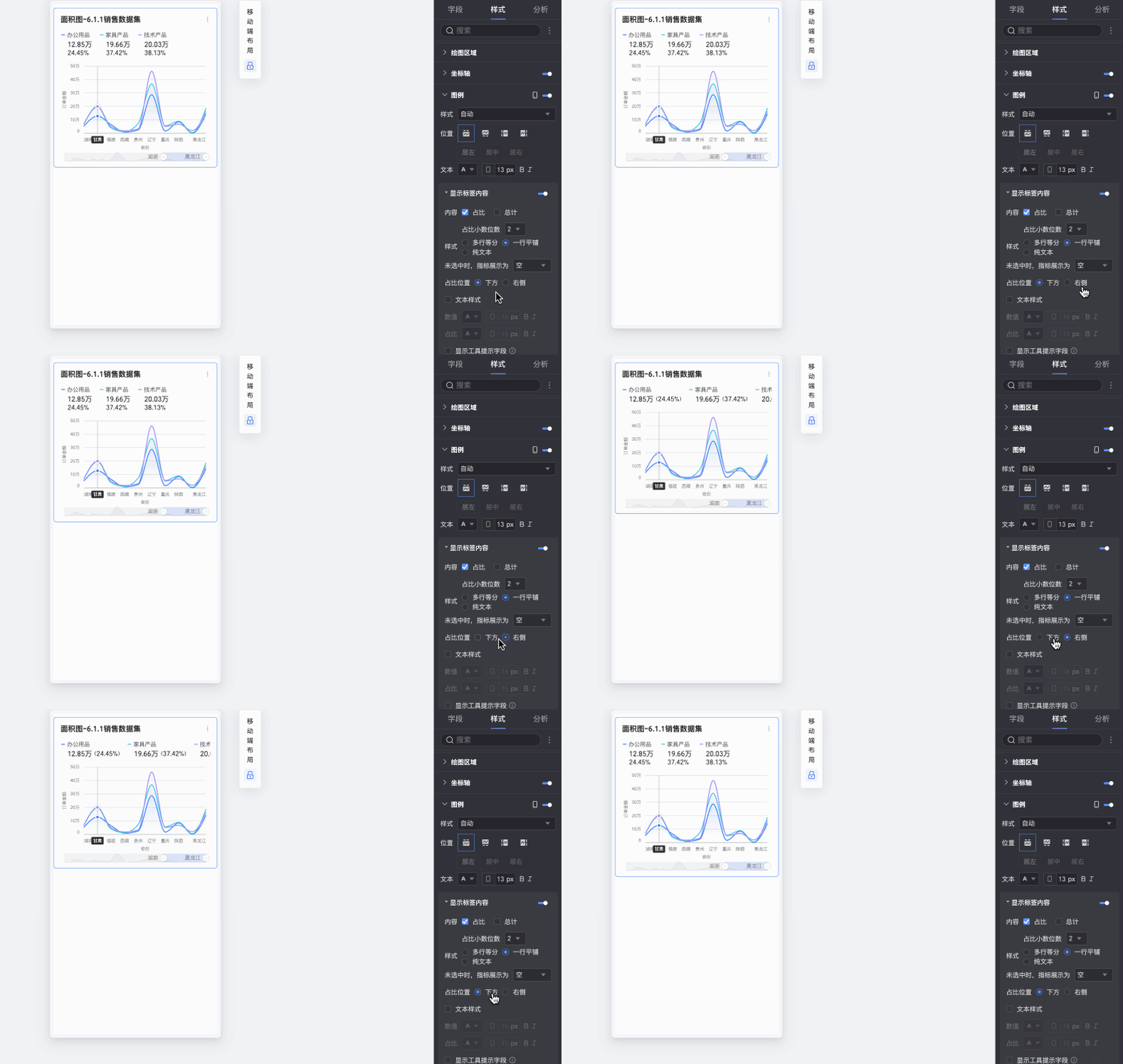
Percentage Position | If you have chosen to display Percentage data in the Content and the Style is set to Multi-line Equal Distribution or Single-line Tiling, you can specify the position of the percentage data. Options are Below or to the Right of the value label. | |
Text Style | When Style is set to Multi-line Equal Distribution or Single-line Tiling, you can configure the style of the Value text. If you choose to display Percentage data, you can set a separate text format for it to visually distinguish it from the Value label content. | |
Display Full Text | When Style is set to Multi-line Equal Distribution, long measure names might be truncated. To display the full measure name, select Display Full Text. | |
Show Tooltip Fields | When selected, the fields configured in the Tooltip/Measure area on the data panel are displayed in the legend area. Note Displaying tooltip fields is not supported when the chart is split by dimension values (that is, when the Color Legend is a dimension). | |
 icon to enable labels below the legend.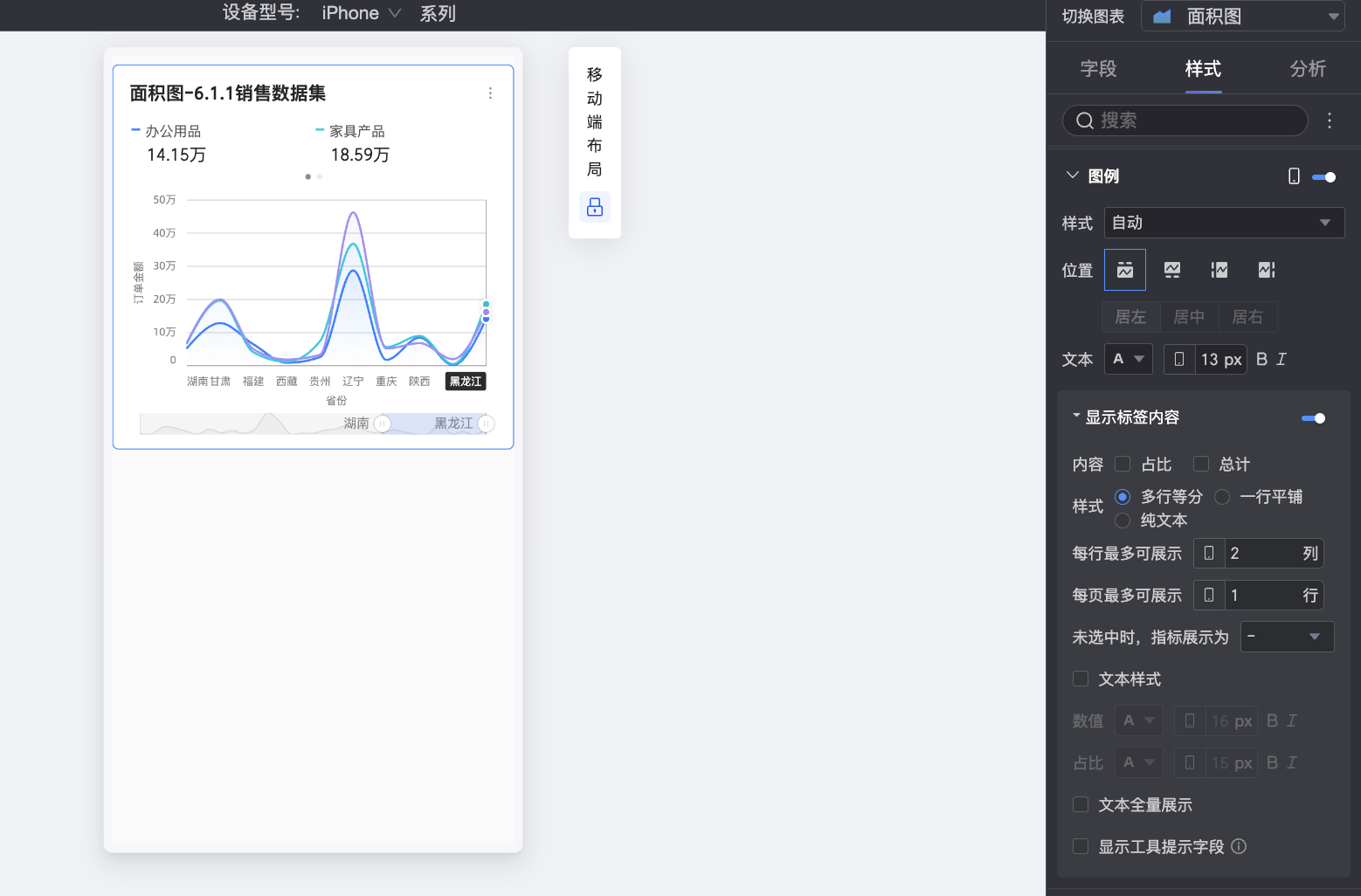
Data labels
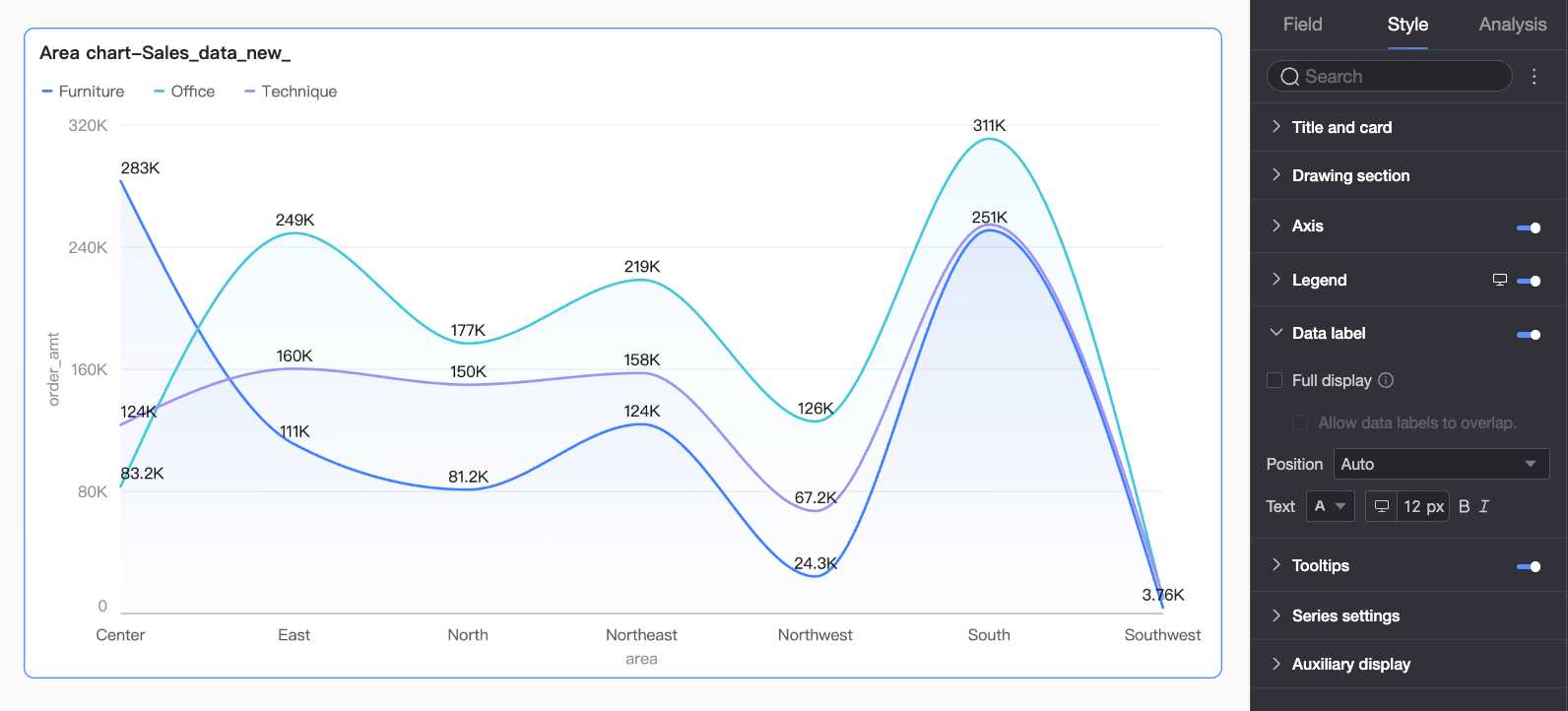
In the Data Labels section, specify whether to show data labels and configure their style.
Parameter | Description |
Content | When the Chart Type in the Plot Area is set to stacked area chart or 100% stacked area chart, you can choose the data to display in the data labels. Options include Measure, Percentage, and Total. When you choose to display Percentage, you can also set the Percentage Decimal Places to 0, 1, or 2. |
Full Display | Enabling Full Display intelligently repositions data labels to prevent overlap. However, some labels may still be hidden if they extend beyond the chart's axis area. With full display enabled, you can also choose whether to Allow data labels to overlap. |
Position | Sets the display position of the labels. |
Text | Sets the text style of the labels. |
Tooltip
In the Tooltip section, click the icon to enable tooltips and configure their settings.
PC settings
Parameter
Description
Display Mode
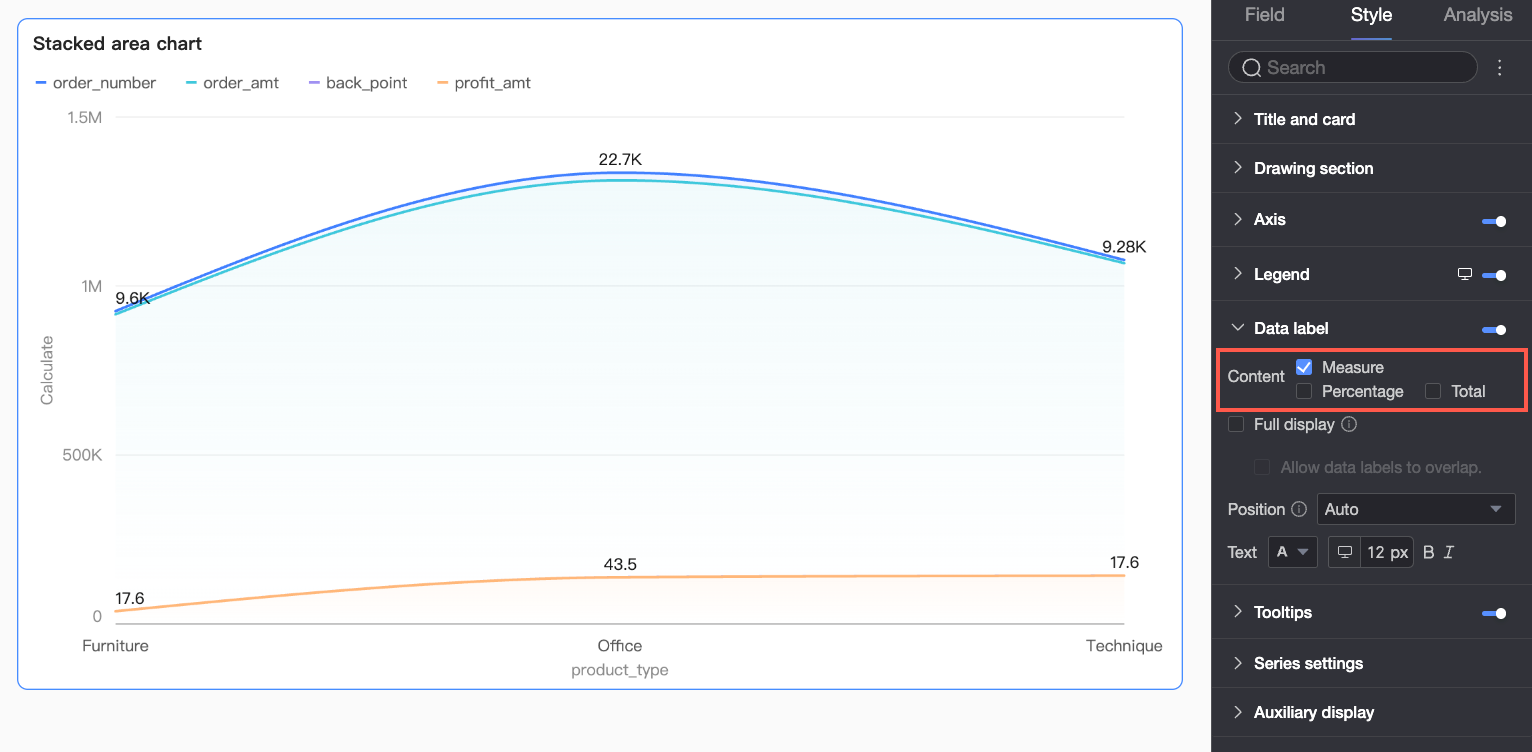
Set the tooltip display method, which supports two methods: by single data point or by dimension value.
Content
Selects the data content to display in the tooltip. The available content varies based on the display mode:
When the display mode is By Single Data Point, Percentage is supported. When the display mode is By Dimension Value, Total and Percentage are supported.
Percentage: The percentage of a data point relative to the total within the current dimension. For example, the profit from office supplies as a percentage of total revenue. When showing the percentage, you can also set the Percentage Decimal Places to 0, 1, or 2.
Total: The sum of all measures in the current dimension. For example, the total sales amount across all regions for 2025.
Background Color
Sets the background fill color of the tooltip.
Text
Sets the style of the text in the tooltip, including font color, size, weight, and style (italic).
Mobile settings
Parameter
Description
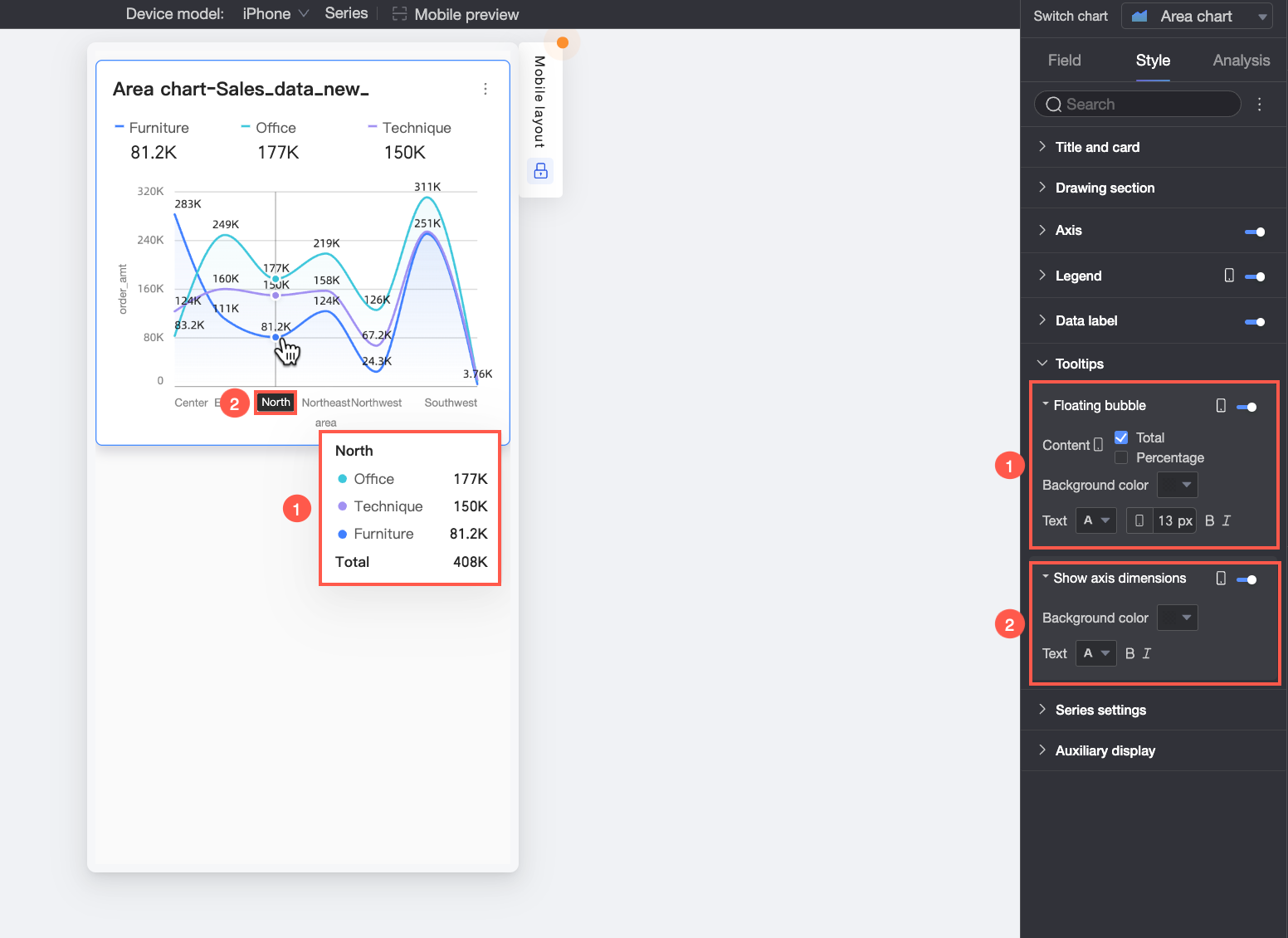
Floating Bubble
Click the
icon to enable the floating bubble display (①).Content
Sets the data content to display in the floating bubble. Options are Percentage and Total.
Percentage: The percentage of a data point relative to the total within the current dimension. For example, the profit from office supplies as a percentage of total revenue. When showing the percentage, you can also set the Percentage Decimal Places to 0, 1, or 2.
Total: The sum of all measures in the current dimension. For example, the total sales amount across all regions for 2025.
Background Color
Sets the background fill color of the floating bubble.
Text
Sets the text style within the floating bubble, including font color, size, weight, and style (italic).
Show Axis Dimension
Click the
icon to enable the axis dimension display (②).Background Color
Sets the background fill color of the axis dimension label.
Text
Sets the text style of the axis dimension label, including font color, weight, and style (italic).
Series settings
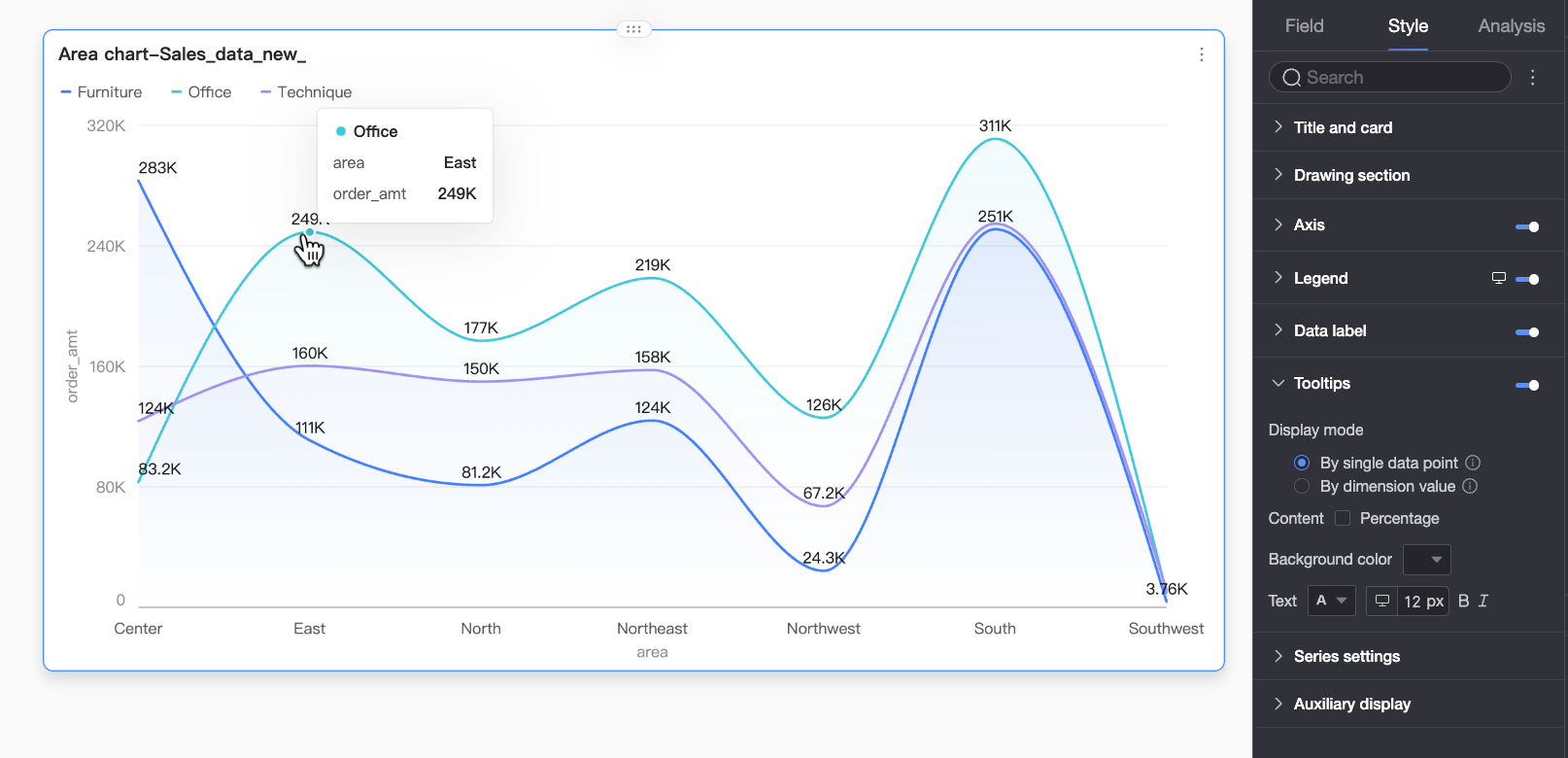
In the Series Settings section, configure the styles for each series.
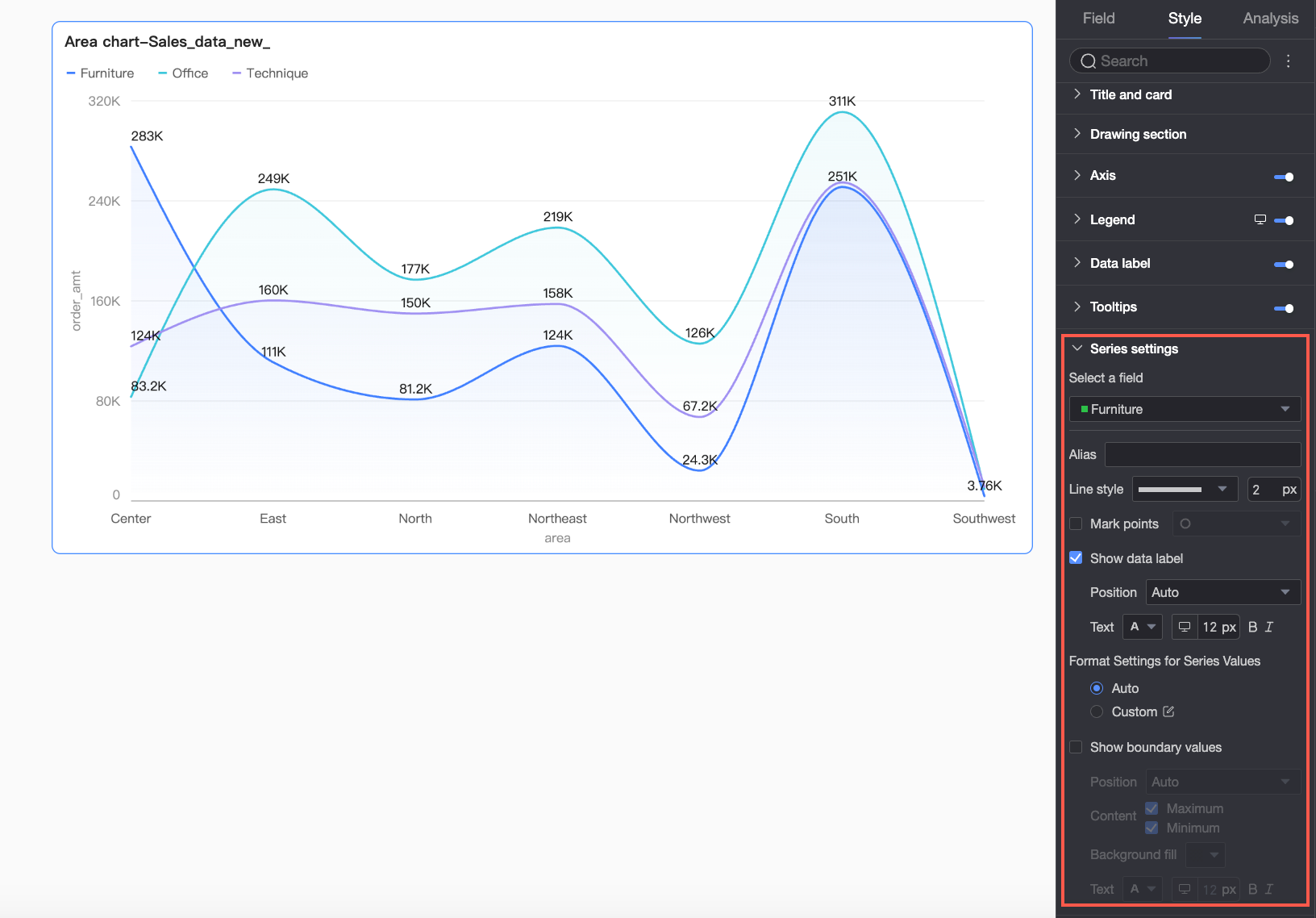
You can configure Alias and Series Value Display Format in the Series Settings section only if a Color Legend/Dimension is configured on the Data tab.
Parameter | Description |
Select Field | Selects a dimension or measure item based on your business scenario. |
Alias | Sets a field name that aligns with your business scenario. This option is available only when a Color Legend/Dimension is configured. |
Line Style | Sets the line pattern and thickness. Note This feature is not supported for stacked or 100% stacked area charts. |
Show Markers | Specifies whether to show markers. If enabled, you can also select the marker style. Note This feature is not supported for stacked or 100% stacked area charts. |
Show Data Labels | Specifies whether to show data labels, and configures their position and text format. |
Series Value Display Format | Configures the display format for series values. You can choose Auto or Custom.
This option is available only when a Color Legend/Dimension is configured. |
Show Boundary Values | Specifies whether to show labels for the maximum and minimum values in the chart. If enabled, you can set the label's Position, Content to Display (Maximum/Minimum), Background Fill Color, and Text Style. Note This feature is not supported for stacked or 100% stacked area charts. |
Auxiliary display
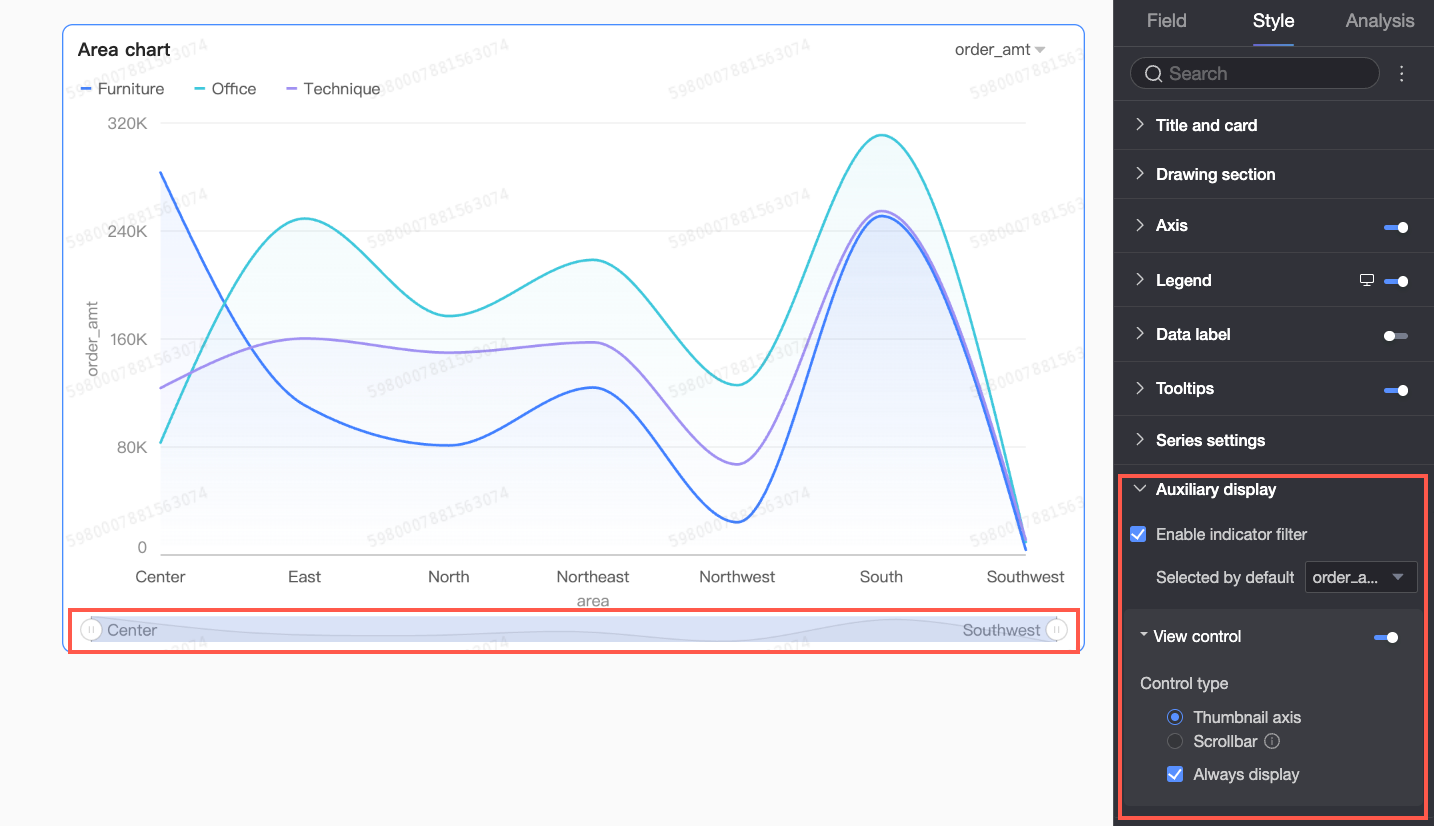
In the Auxiliary Display section, configure the measure filter and view controls.
Parameter | Description |
Enable Measure Filter Display | Specifies whether to enable the in-chart measure filter. If enabled, you can also set the default selected measure field. |
View Controls | When a chart axis contains a large amount of dense data that cannot be fully displayed within the container, you can click the You can control the visible range on the chart axis using two types of controls: a thumbnail axis or a scroll bar.
Note If no view control is configured and the chart size is too small, the system automatically enables view controls, selects thumbnail axis, and displays it only when the data volume exceeds the chart container's width. |
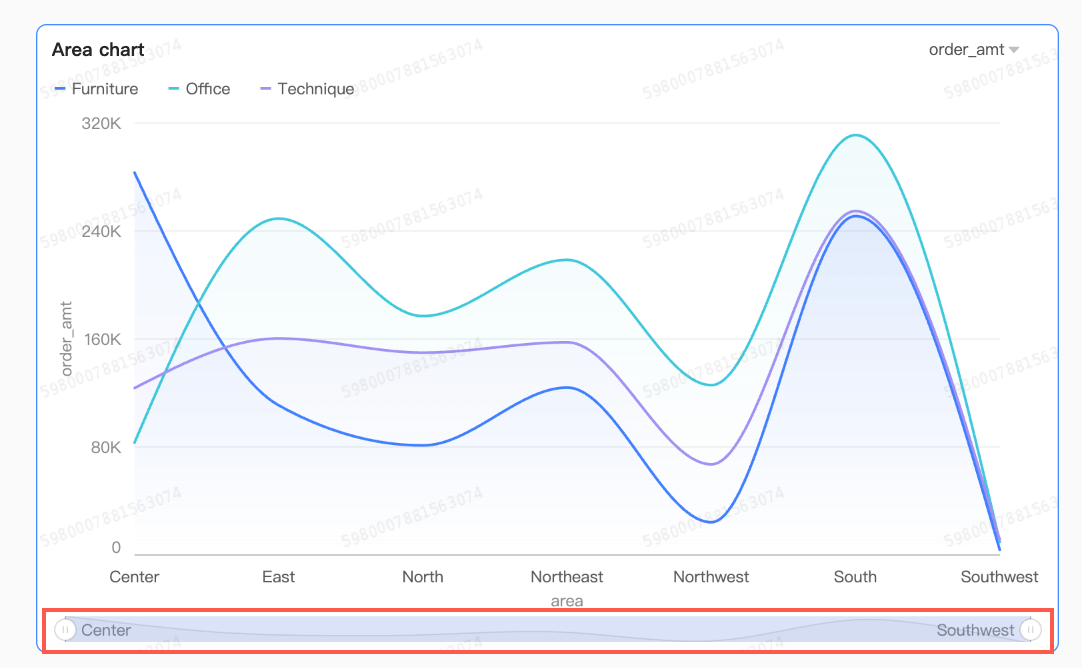 By default, the thumbnail axis is displayed only when the amount of data exceeds the chart container's width. To ensure the thumbnail axis is always visible, select Always Show.
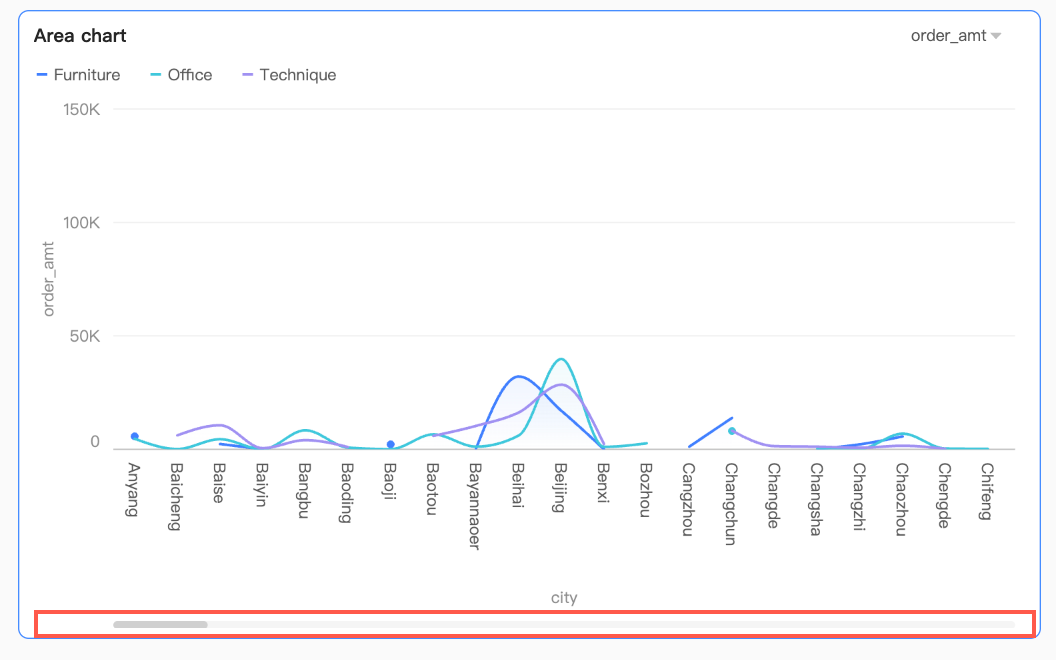 You can also set a minimum category width. This limits the data displayed in the window at one time, ensuring clarity by preventing dense data points and overlapping labels. The minimum category width is 32px by default and ranges from 16px to 100px.
Configure chart analysis
Category | Name | Description |
Interaction Analysis | Drill-down | When you configure the drill-down feature for a chart, you can set the display style for the drill-down hierarchy rows. For more information, see Drill-down. |
Linkage | When the data you need to analyze is in different charts, you can use chart linkage to associate multiple charts and form a linkage for data analysis. For detailed settings, see Linkage. | |
Hyperlink | If the data you need to analyze exists across multiple dashboards, you can use dashboard hyperlinks to associate them for data analysis. Hyperlink types include Parameter Hyperlink and External Link. For more information, see Hyperlink. | |
Analysis and Alerts | Reference line | Use a reference line to compare a measure's value against a set reference value. The reference value can be a fixed value or a calculated value. Calculated values include average, maximum, minimum, and median. For more information, see Reference lines. |
Trendline | Use a trendline to show the overall trend of your data. Trendline types include Intelligent Recommendation, Linear, Logarithmic, Exponential, Polynomial, and Power. For more information, see Trendlines. | |
Smart insights | Enable Auto Insights | When enabled, the system provides intelligent interpretations of the chart. |
Forecast | Use forecasting to view data trends and make predictions. For more information, see Forecast. | |
Anomaly Detection | Use anomaly detection to identify unusual data points. For more information, see Anomaly Detection. | |
Fluctuation Analysis | Fluctuation cause analysis uses intelligent algorithms to automatically break down and analyze the reasons for fluctuations in key measures. You can break down dimensions or measures to analyze the causes. For more information, see Fluctuation Cause Analysis. Note The Fluctuation Analysis feature is currently in Beta. | |
Annotation | - | When data in a chart is anomalous or requires special attention, you can use color highlights, icons, comments, or data points to create annotations. Annotations help you highlight anomalies for further action. For more information, see Annotations. |
Next steps
Share the dashboard with specific users to allow them to view it. For more information, see Share a dashboard.
To build a complex dashboard with a navigation menu for thematic analysis, integrate your dashboards into a BI portal. For more information, see Create a PC BI portal.