Conditional cascading between form controls dynamically generates options for subsequent controls based on user selections, reducing data entry errors. For example, when a user selects a region, the province control automatically updates to show only provinces within that region.
Limits
-
Conditional cascading is supported only for the following control types: Single choice, Multiple choice, Dropdown single choice, Dropdown multiple choice, and Tree dropdown.
-
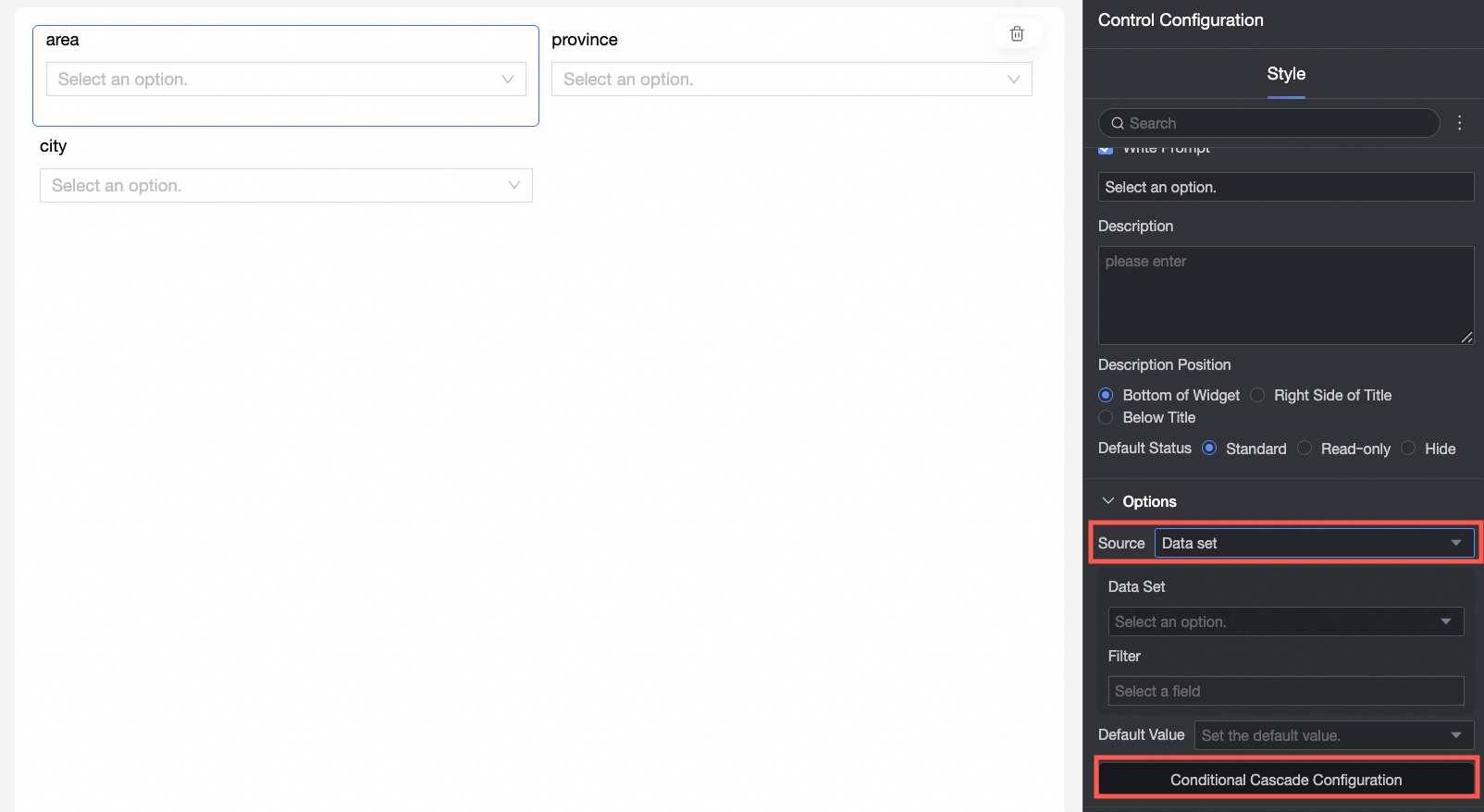
Conditional cascading is supported only for controls with options derived from a dataset.
-
Each cascading configuration item supports a maximum of five conditions. To add more conditions, create additional cascading configuration items.
Prerequisites
-
A data entry form is created. For more information, see Create a form.
-
The form contains controls of the following types: Single choice, Multiple choice, Dropdown single choice, Dropdown multiple choice, or Tree dropdown. For more information, see Single choice, Multiple choice, Dropdown single choice, Dropdown multiple choice, and Tree dropdown.
Procedure
You can access the conditional cascading configuration from the form editing page by using one of the following methods. Quick BI supports Same-source cascading and Different-source cascading. The following example shows how to set up conditional cascading between dropdown single-choice controls for geographic information.
-
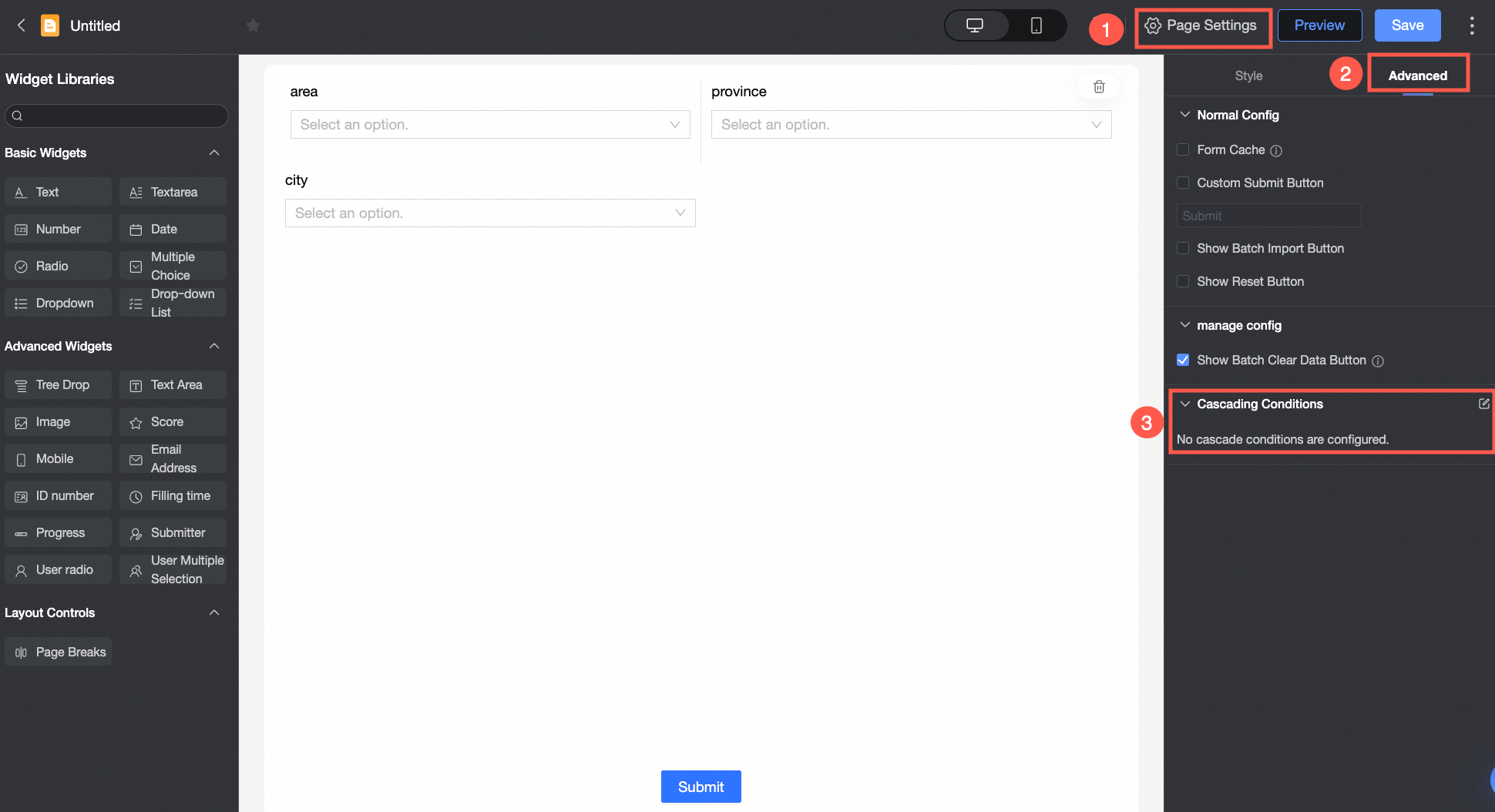
Click Page settings and select Cascading conditions in the Advanced settings panel.
-
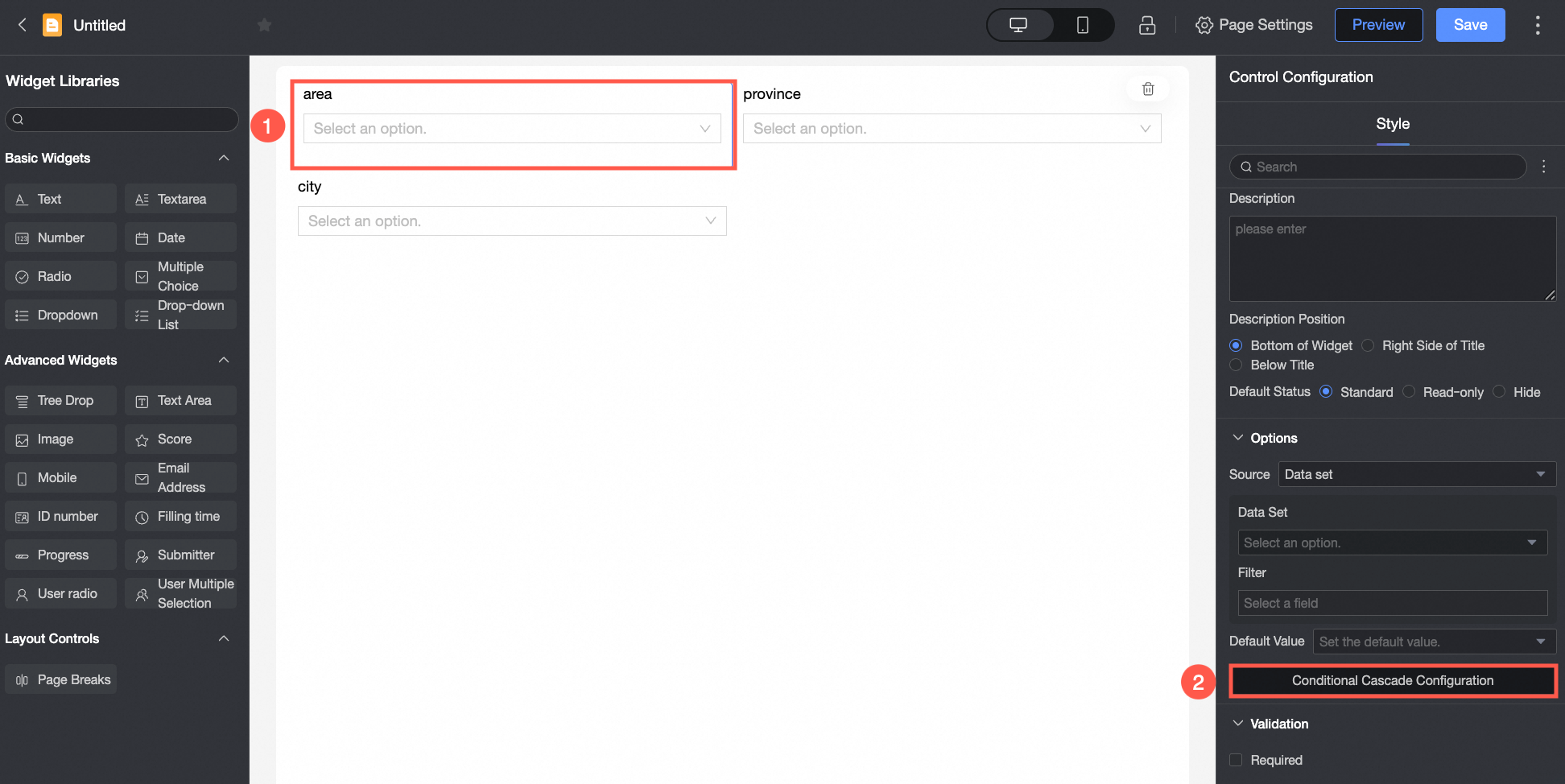
Choose the control you want to configure for conditional cascading. In the Options configuration section of the Style panel, select the conditional cascading configuration.
Different-source Cascading Configuration
Different-source cascading links controls whose options come from different datasets. You configure the associated fields between controls so that the dropdown options of a child control update automatically based on the parent control's value.
In this example, the Region control's options come from the Region field in the Annual Sales Data dataset, the Province control's options from the Province field in the Sales Data dataset, and the City control's options from the City field in the Annual Sales Data dataset.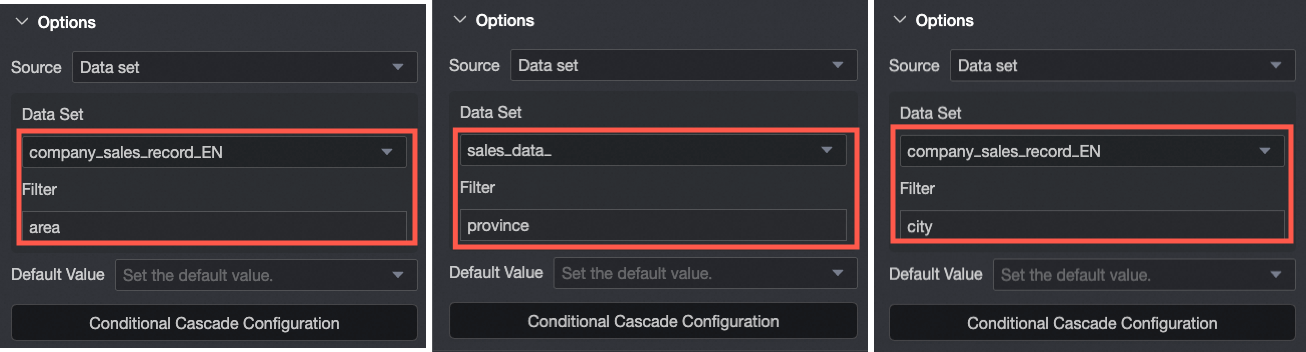
-
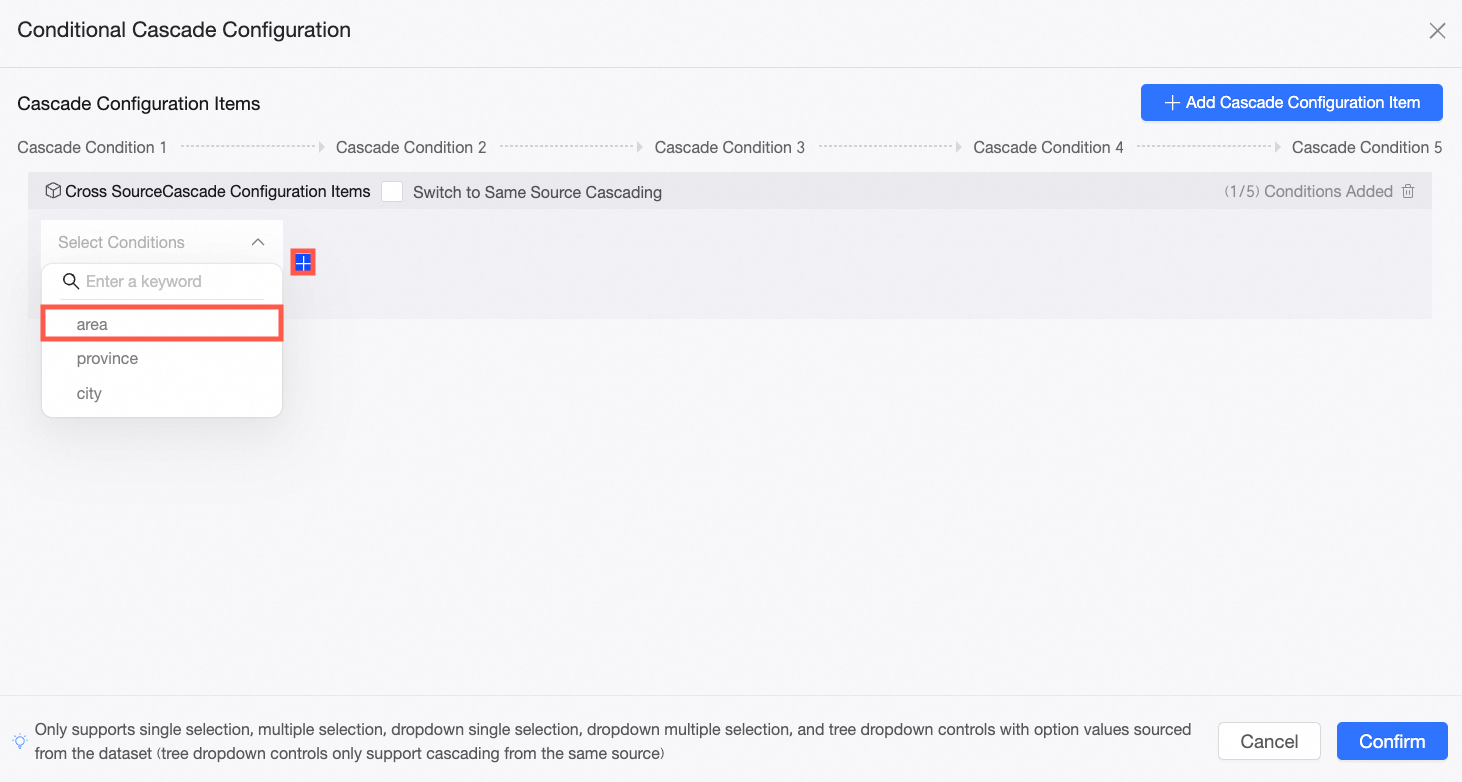
In the Conditional cascading configuration interface, select the Region control as the first condition in the Cascading configuration items section, and click the
 icon to add a new configuration box.
-
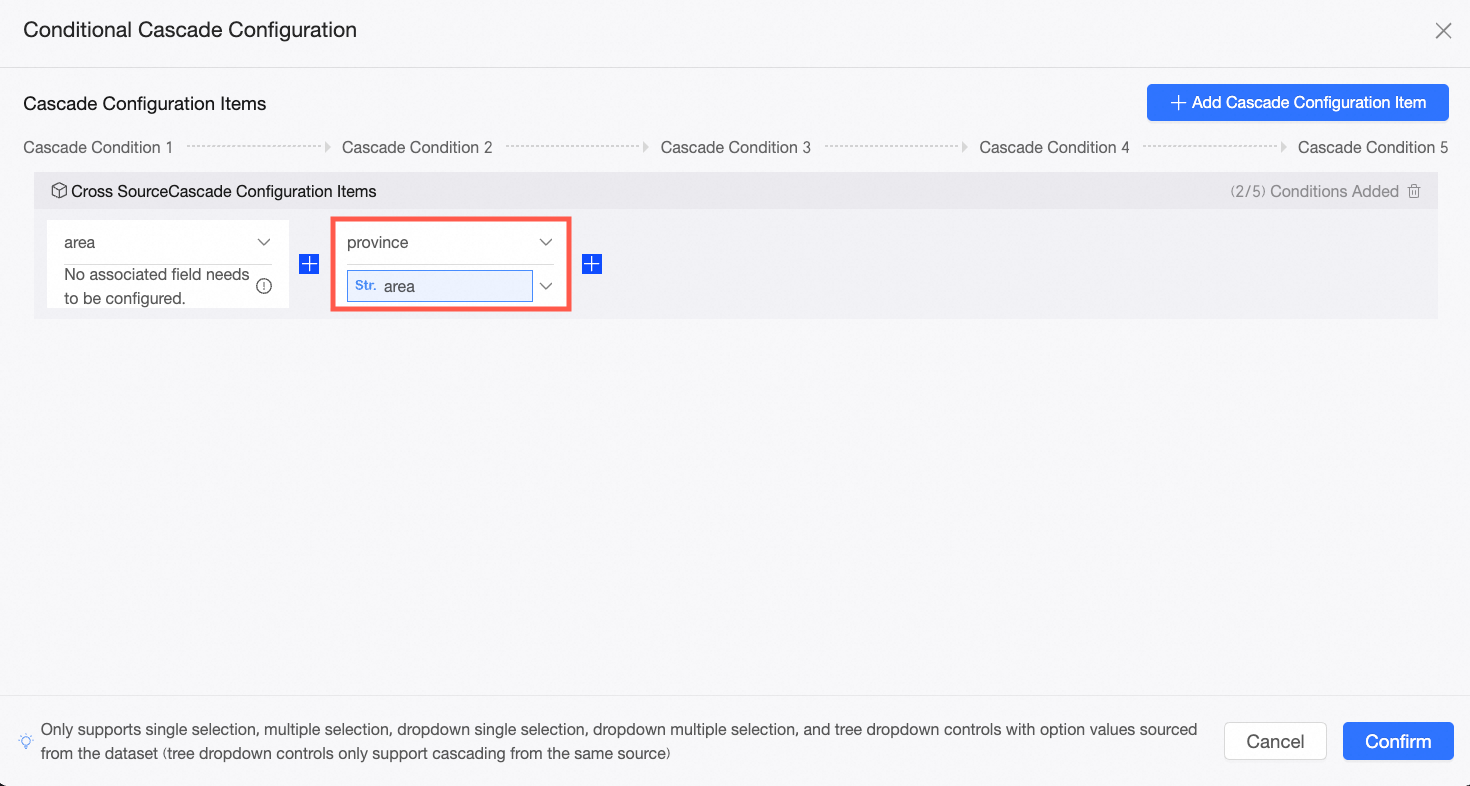
In the new configuration box, select the Province control as the second condition, and link it with the Region field of the first-level control.
NoteThe field selected here must be the higher-level field that passes values to the current control's option value source field. For example, the higher level to a province is the area. By selecting the area field, you accept the value passed from the Area field.
-
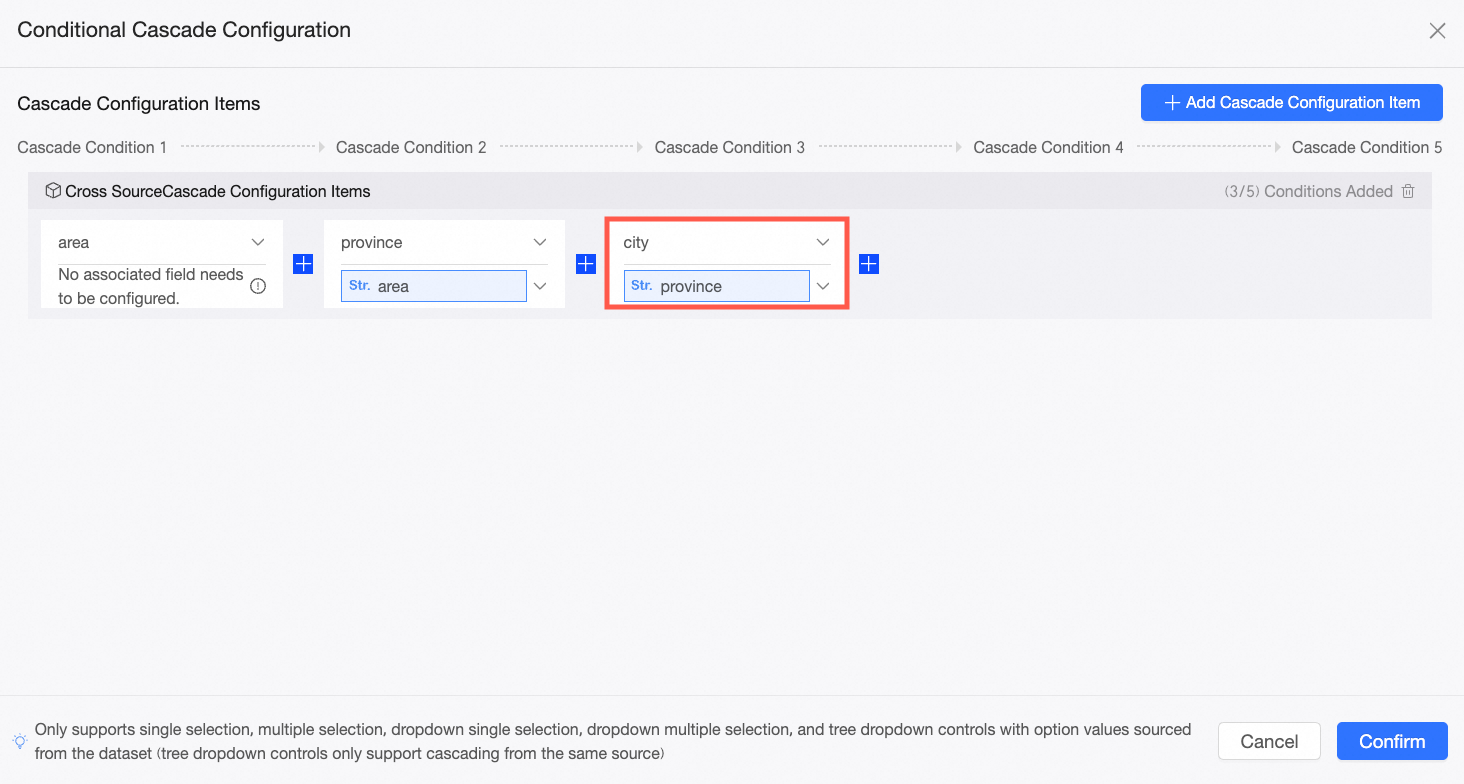
Repeat the previous steps to configure cascading for the City control.
-
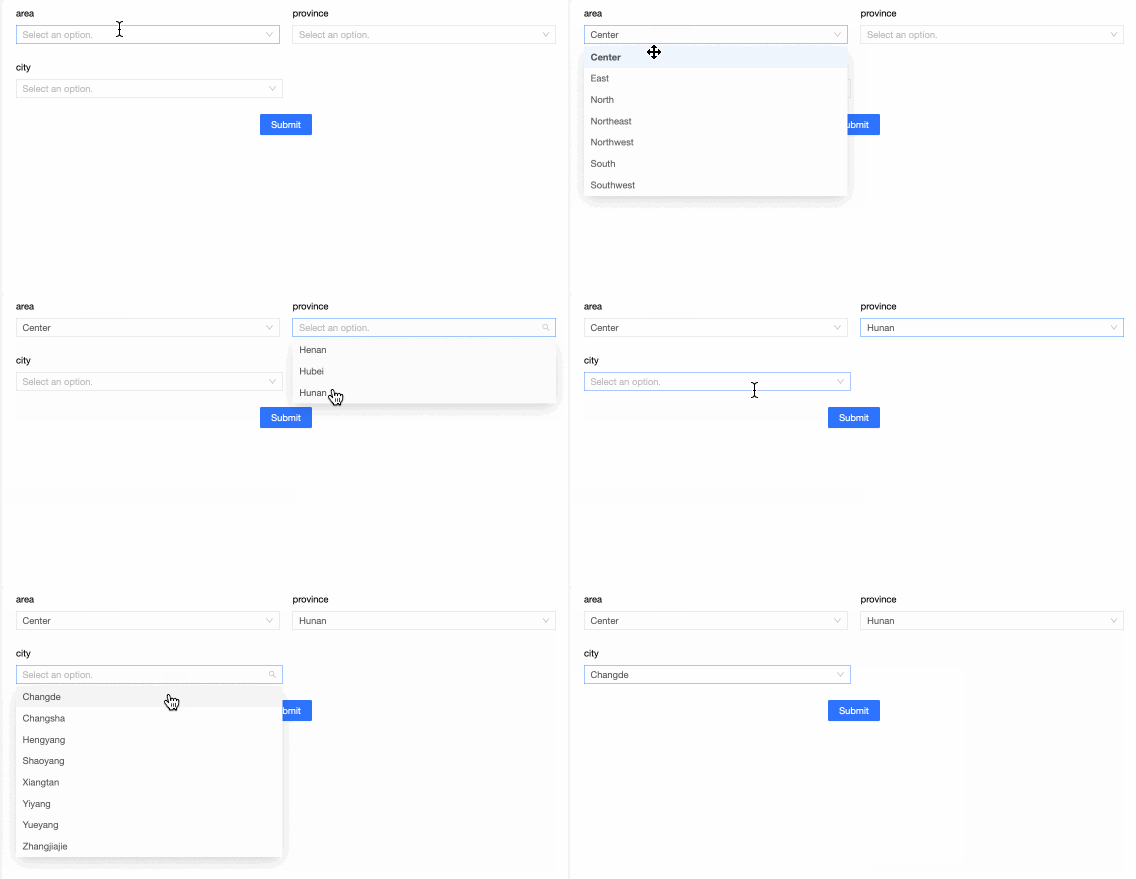
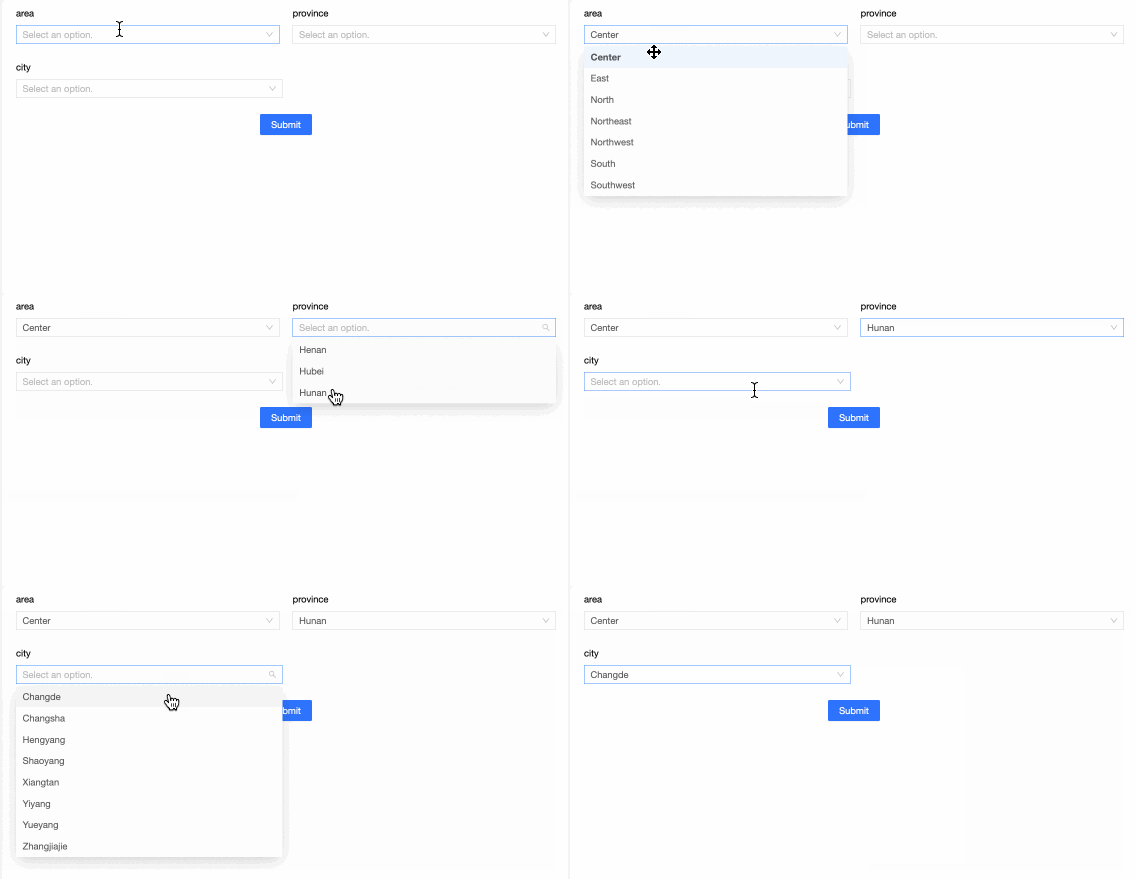
Click Confirm to finalize the configuration. Selecting "Central China" in the Region control will filter the Province control to show only provinces in Central China. Selecting "Hunan" in the Province control will filter the City control to show only cities in Hunan Province.
Same-source Cascading Configuration
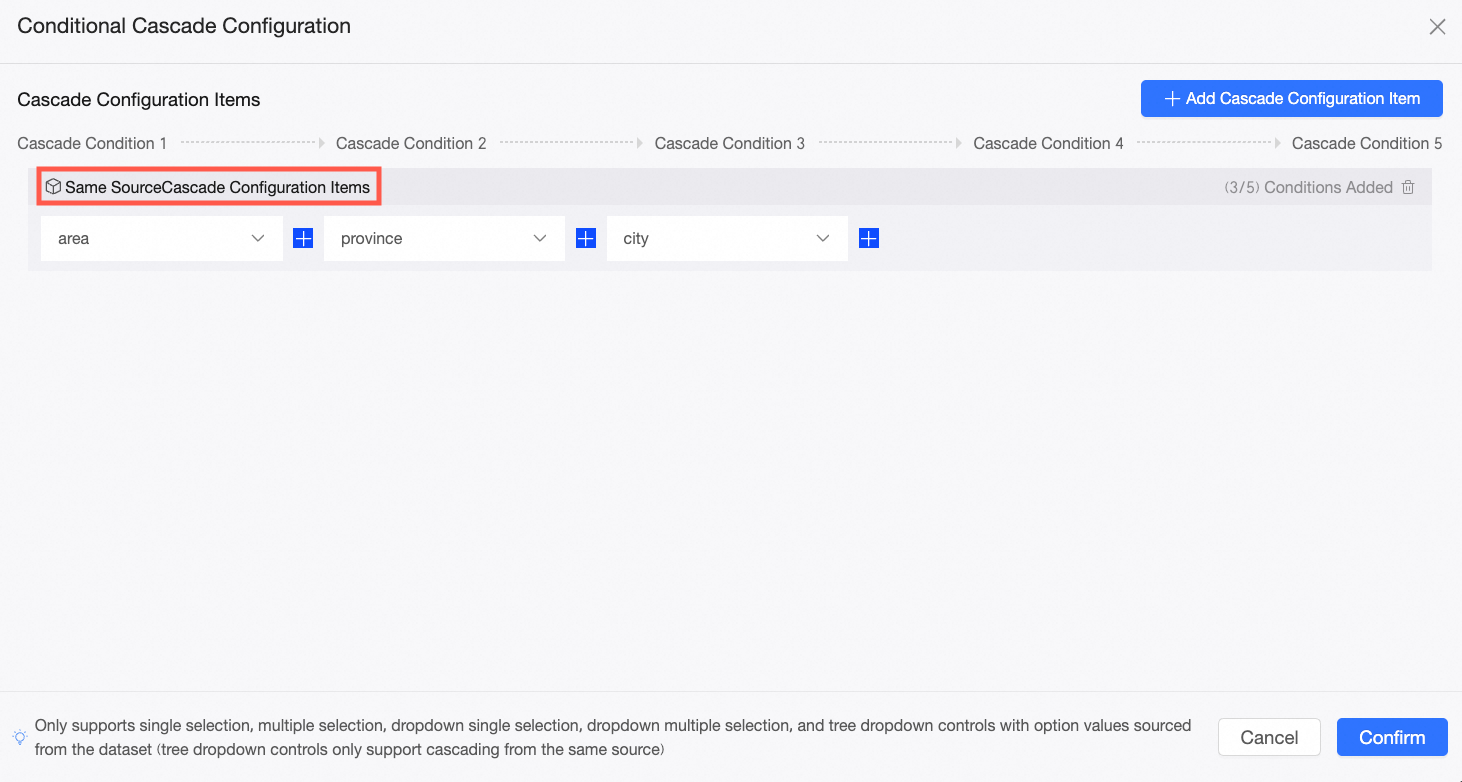
Same-source cascading simplifies configuration when all controls draw options from the same dataset, because you do not need to select associated fields.
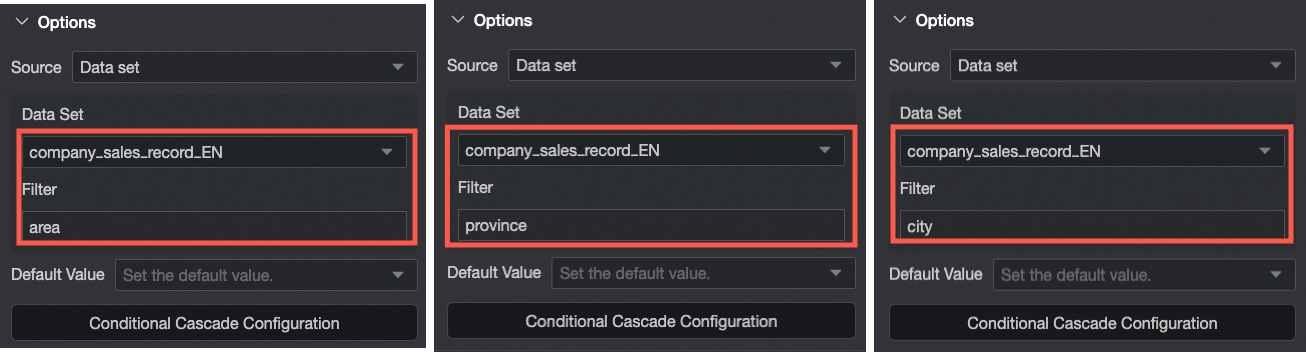
In this example, the area, province, and city control options are all sourced from their respective fields in the Annual Sales Data dataset.
-
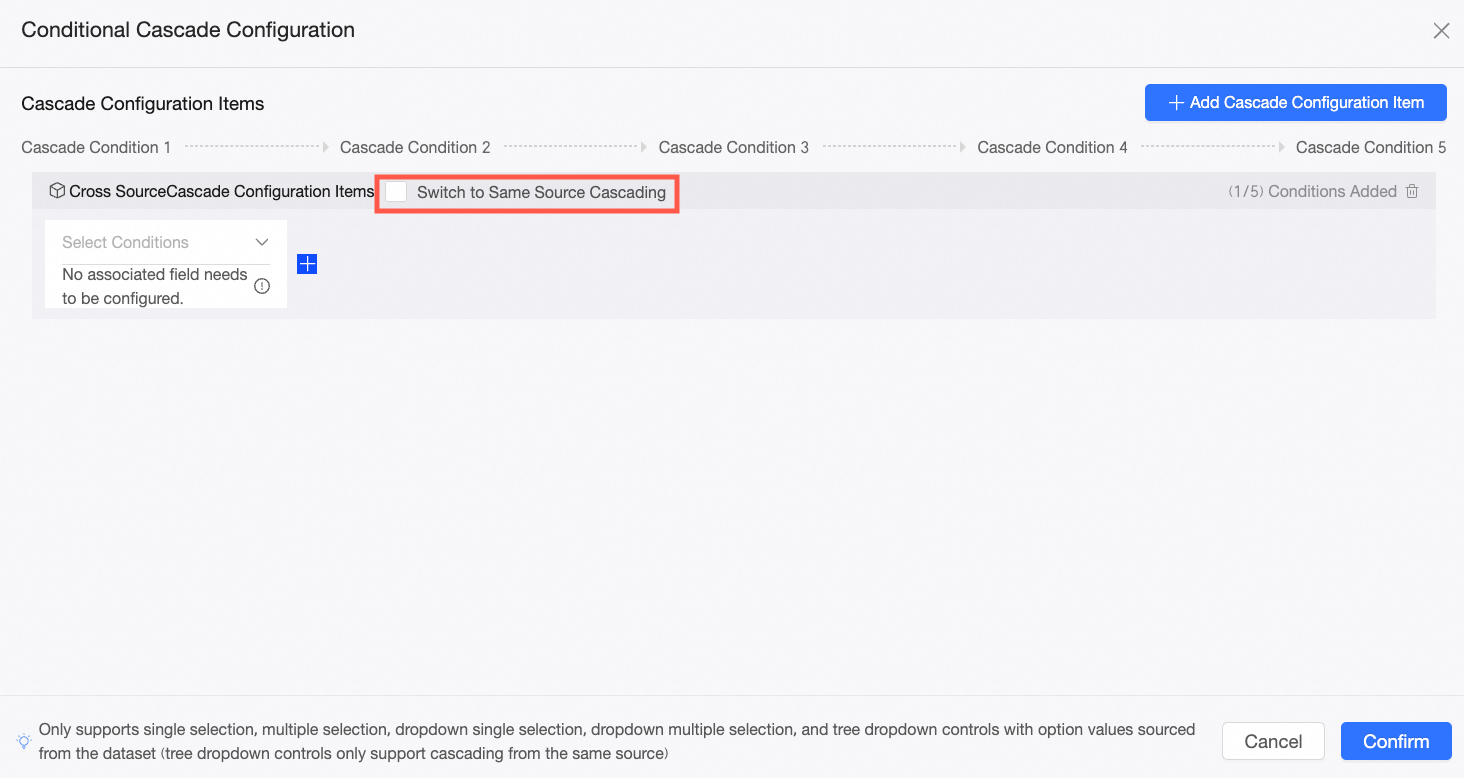
On the Conditional cascading configuration page, select Switch to same-source cascading.
NoteSwitching to same-source cascading is irreversible. Please proceed with caution.
-
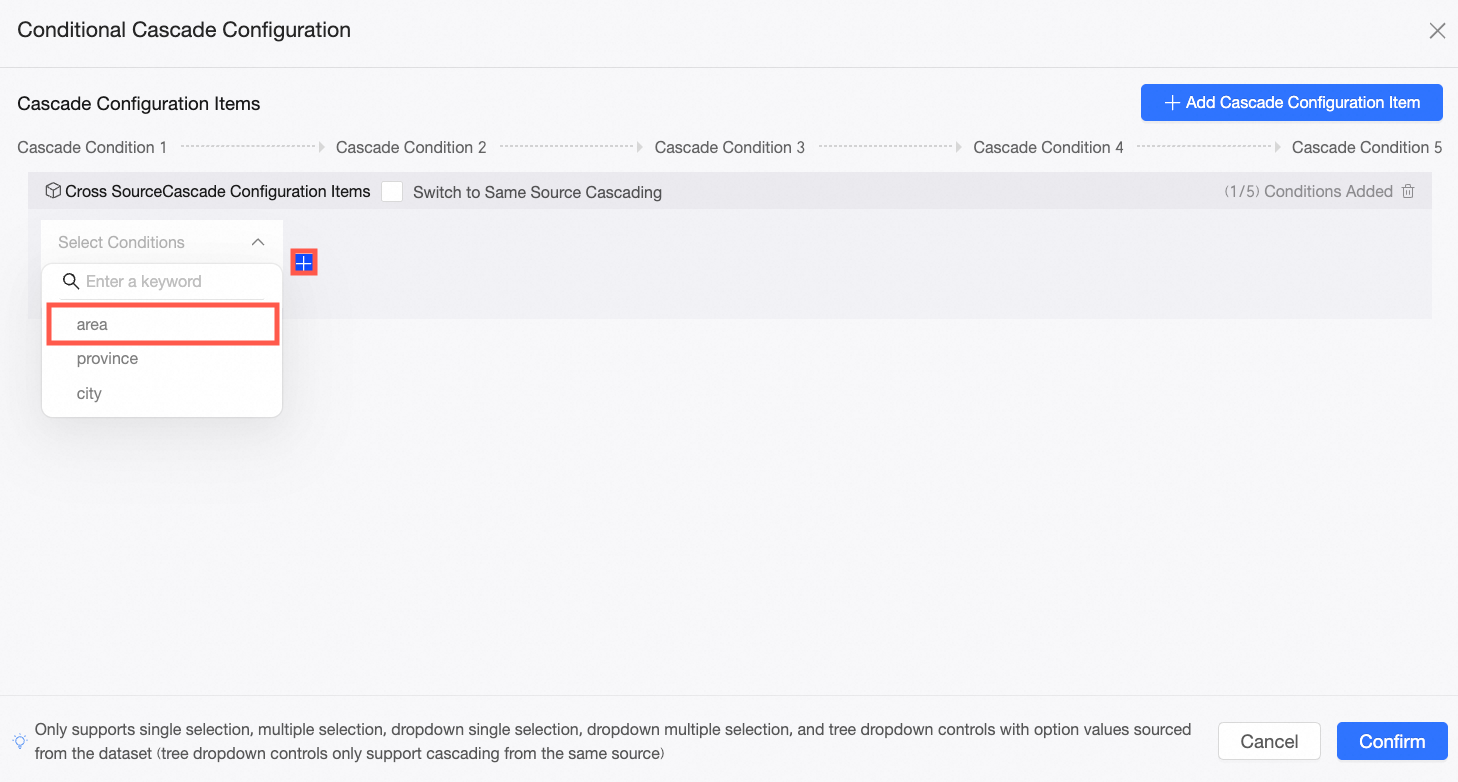
Choose the Region control as the first condition, and click the
icon. -
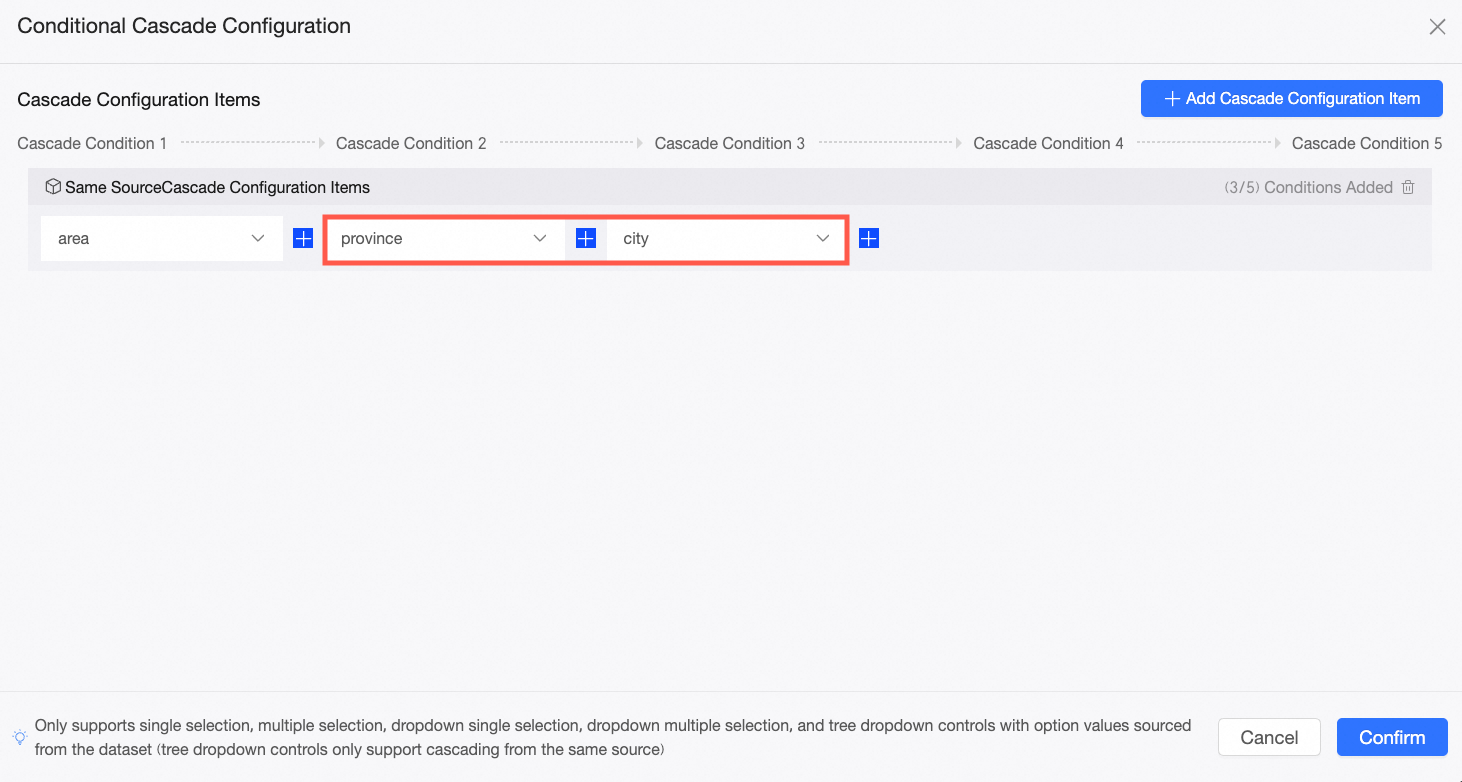
Sequentially add the Province and City controls as the second and third conditions.
-
Click Confirm to complete the setup. Selecting "Central China" in the Region control will filter the Province control to show only provinces in Central China. Selecting "Hunan" in the Province control will filter the City control to show only cities in Hunan Province.
Related Operations
After you complete the cascading configuration, you can rename, delete, or add configuration items in the condition cascade configuration interface.
-
Rename: By default, a newly added cascading configuration is titled "Cascading configuration item." To rename it, click the title area.
-
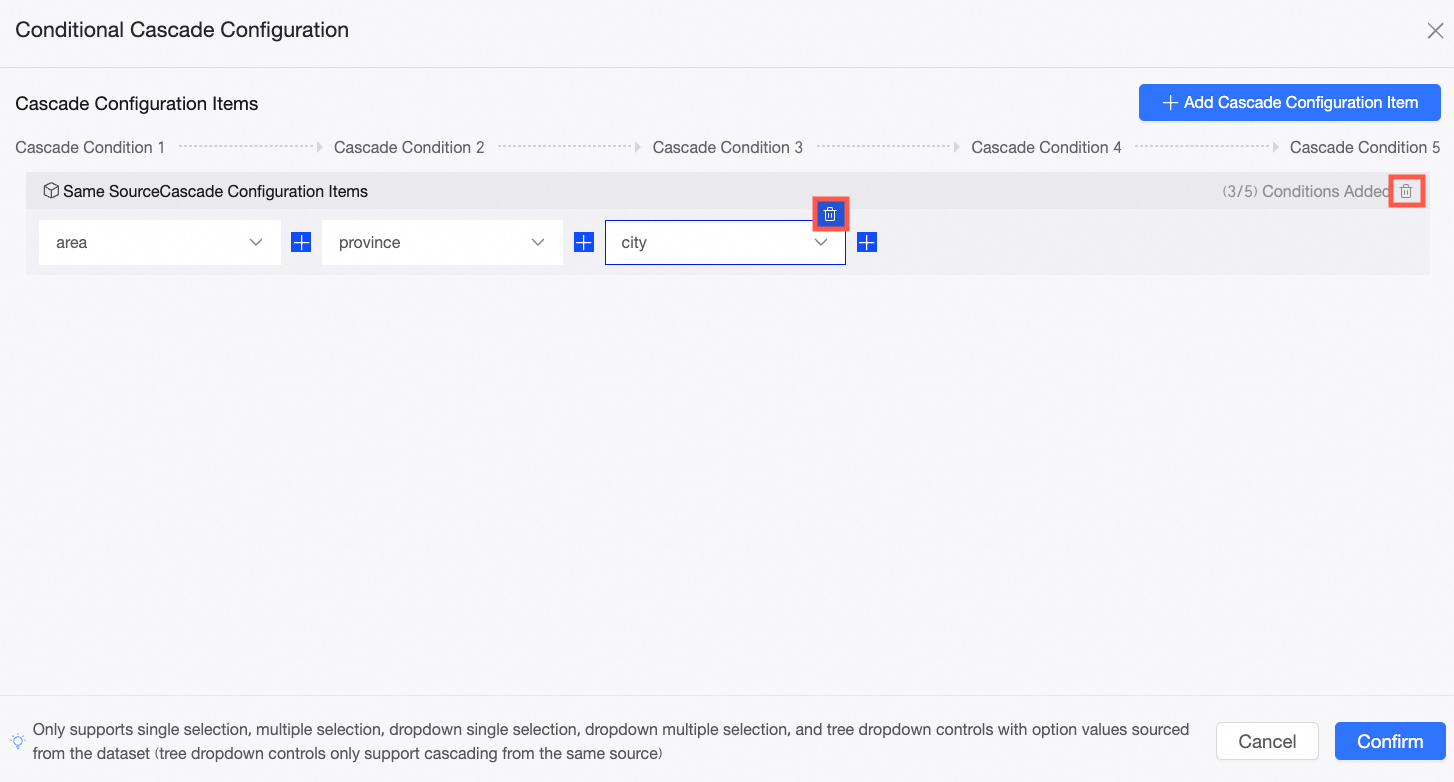
Delete: To remove a condition, click the delete icon above the condition configuration box. To delete an entire cascading configuration item, click the delete icon to its right.
-
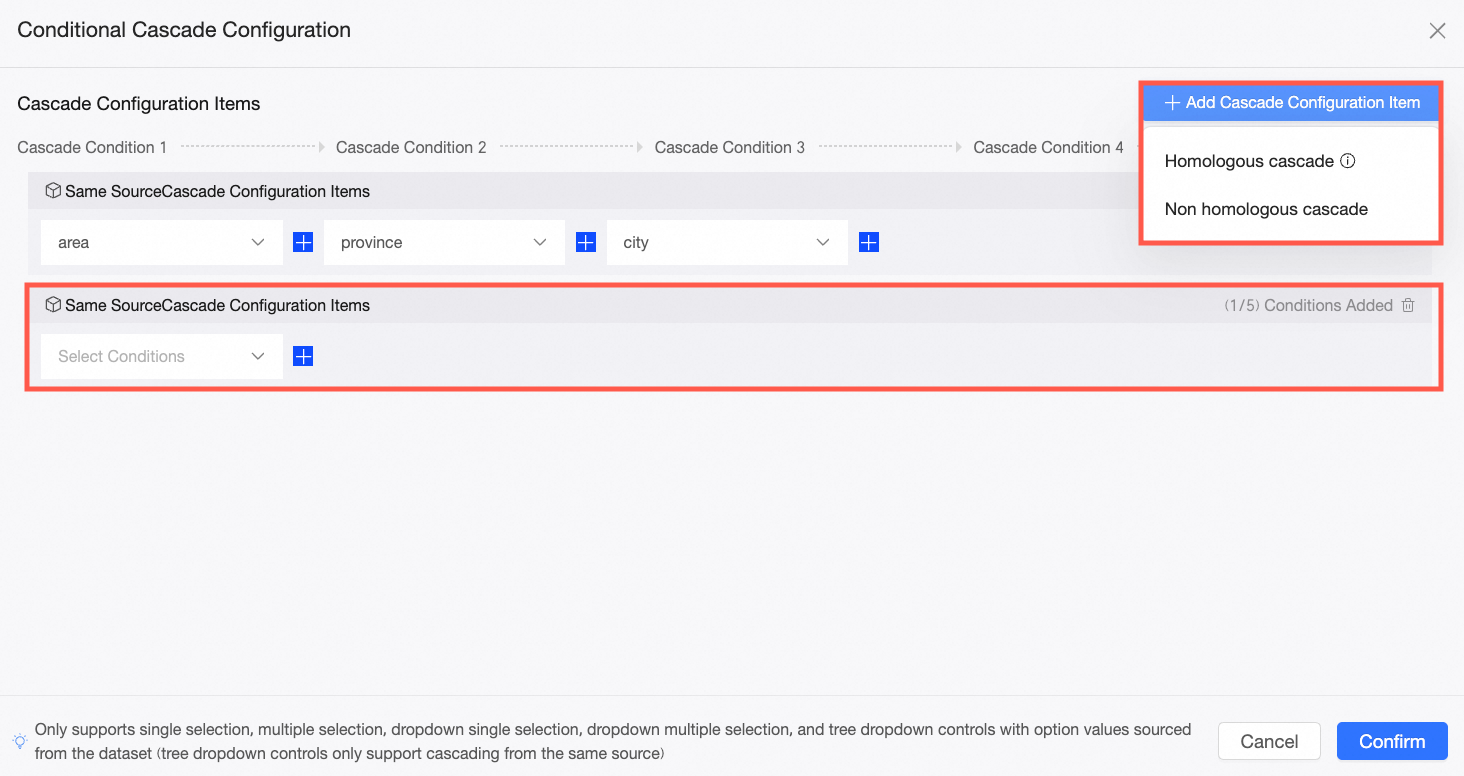
To add configuration items: Click Create cascading configuration and choose either same-source or different-source cascading to add a new cascading configuration item. Existing cascading conditions are not affected.