Content Templates
Scenarios
In analysis scenarios, such as daily business reviews and periodic reporting, companies often have specific standards for report formats. However, when you use Intelligent Q for analysis, the Large Language Model (LLM) generates content based on its default logic and a general structure. This may not align with your company's specific standards. As a result, the output might not match your company's preferred style and may require manual adjustments.
By configuring content templates in the Quick BI enterprise knowledge base, you can define your analysis logic and presentation rules as standardized templates for typical business scenarios, such as weekly reports, event reviews, and business briefings. When you ask a question in one of these business scenarios, Intelligent Q uses the specified template to generate content that meets your company's internal standards. This topic describes how to configure content templates in enterprise knowledge base management.
Feature entry points
You can choose a configuration entry point as needed:
If you have one or more existing business documents, such as review reports or meeting minutes, and want to use AI to automatically identify and extract content templates, you can upload them as knowledge documents. You can also use this method to extract multiple types of business knowledge, such as business logic, analysis methods, and content templates, from the same document. For more information, see Add a knowledge document.
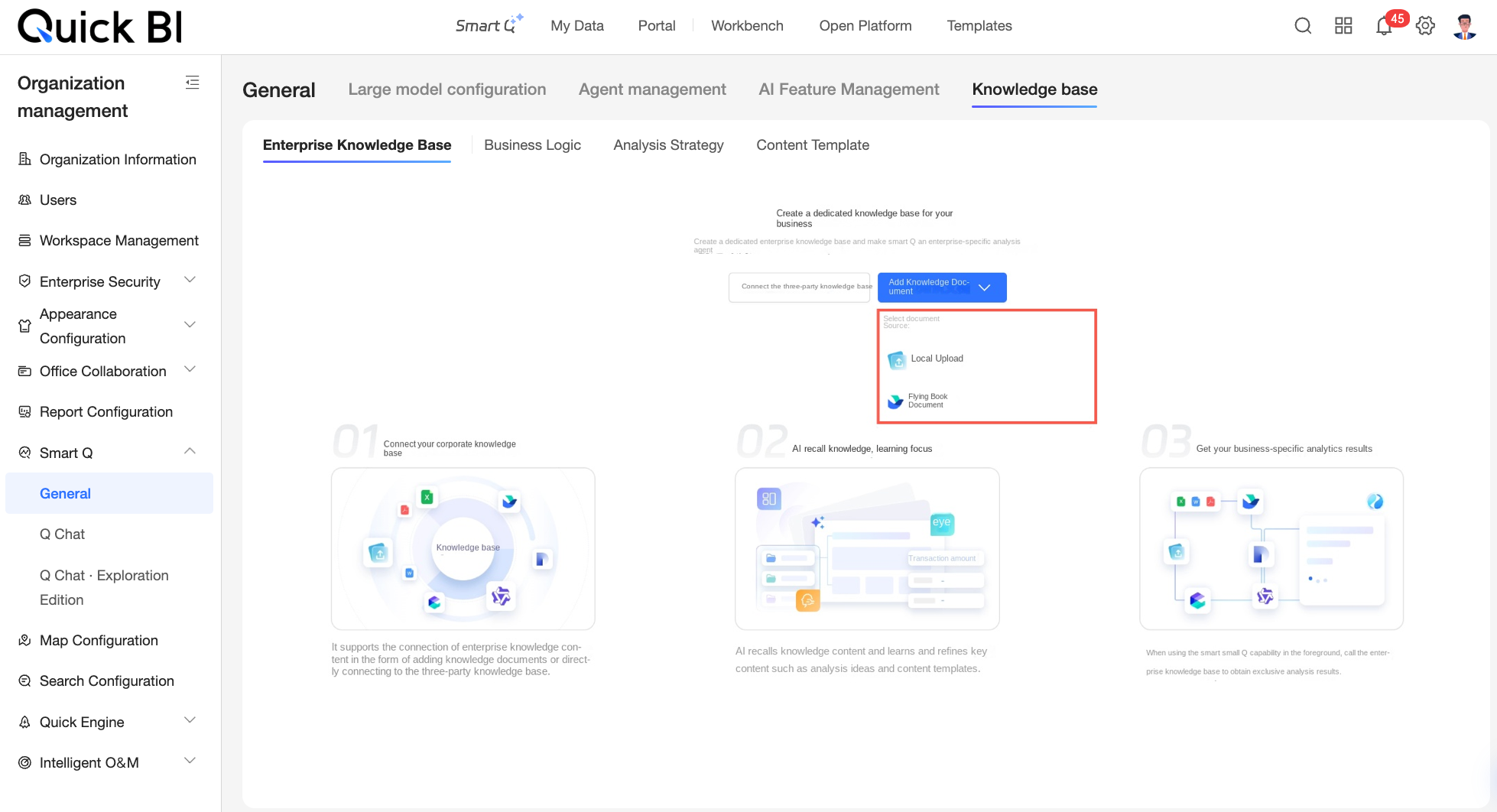
If you already have a clear content template and want to configure it for reuse by Intelligent Q, you can do so on the Content template tab of the Knowledge base management page.
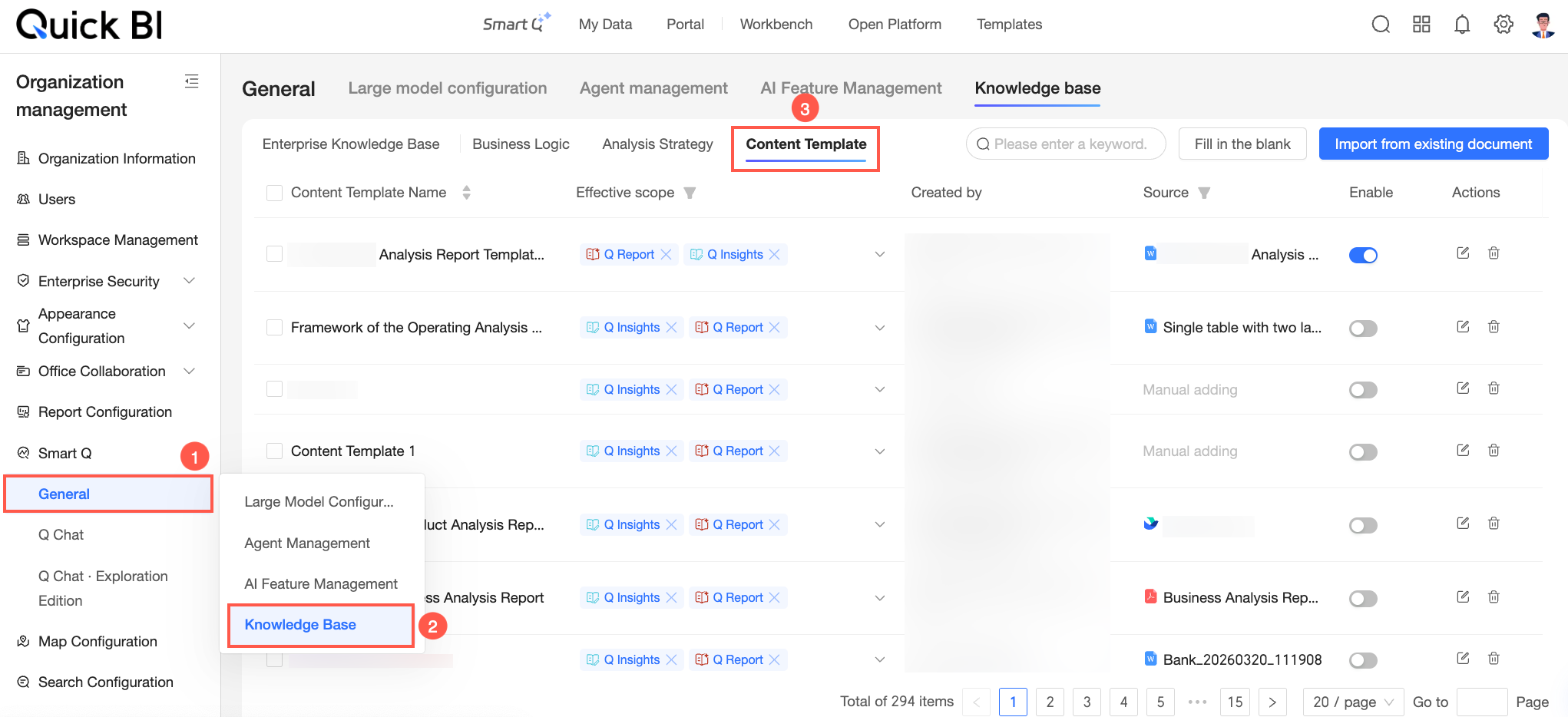
Procedure
On the Content template page, you can add a content template to Quick BI by choosing Create from scratch or Import from an existing document.
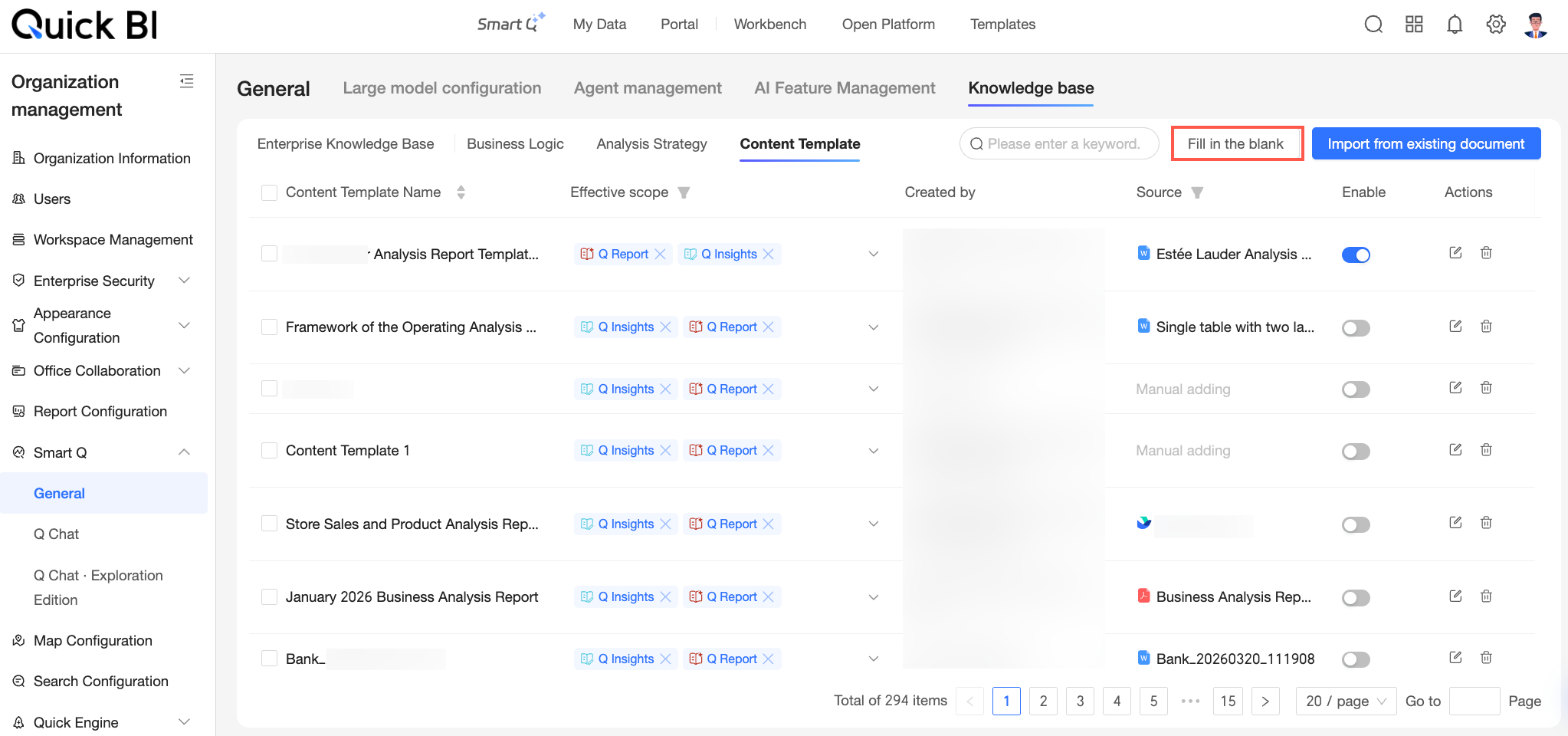
Fill in the blanks
On the Content template page, click Create from scratch.
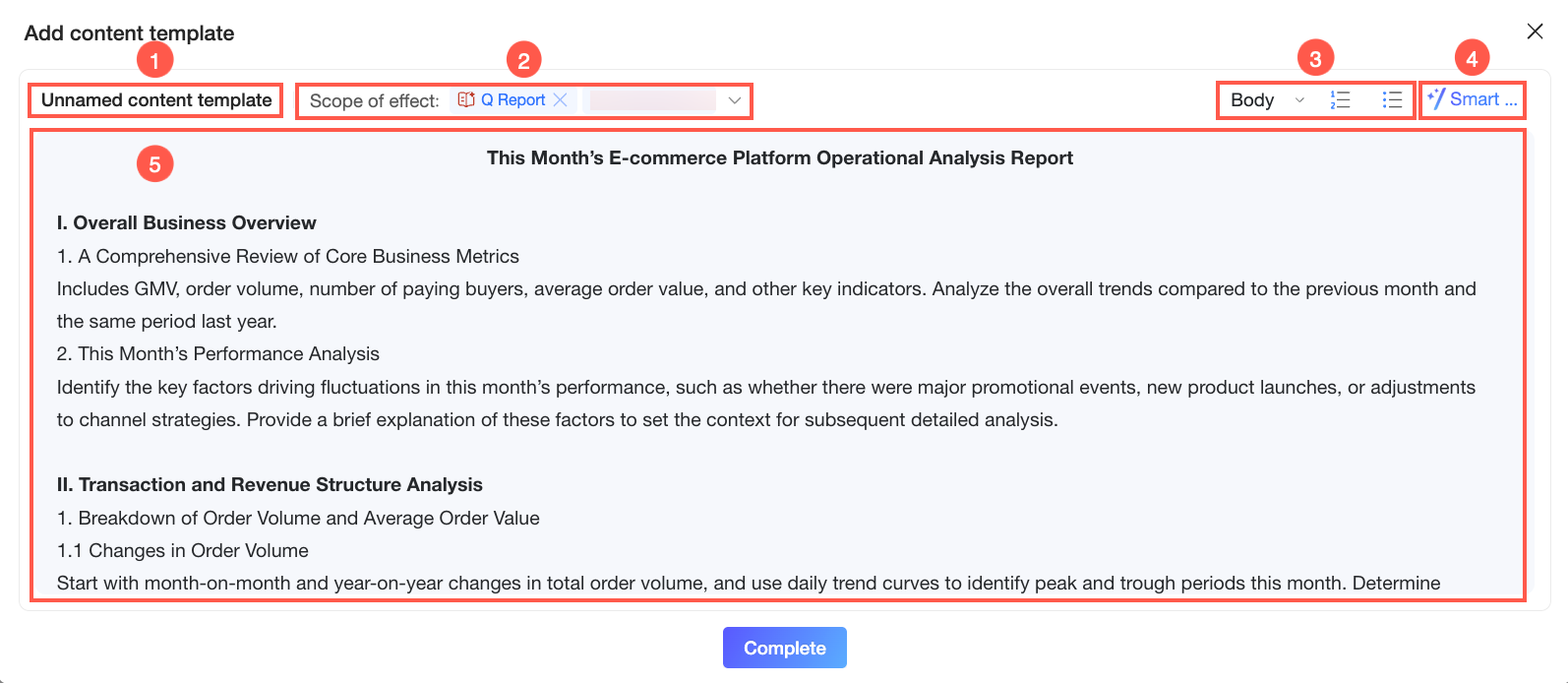
In the Add content template dialog box, enter the content template. You can perform the following operations:
Available Operations
Description
① Edit the content template name
The system names the template Untitled content template by default. Hover your mouse over the name to turn it into an input box. You can rename the template based on its scenario or business purpose. Ensure the name is unique within your organization.
② View the effective scope
View the agents for which the current content template is effective. Intelligent Q reports and Intelligent Q interpretations are supported.
③ Edit the text format
Edit the format of the content text. You can switch between body text and titles and set list ordinal numbers. This helps the system better distinguish the hierarchical structure of the text.
④ Smart optimization
Click Smart optimization to open the AI assistant on the right. The AI assistant helps you polish the content you have entered in the editing area.
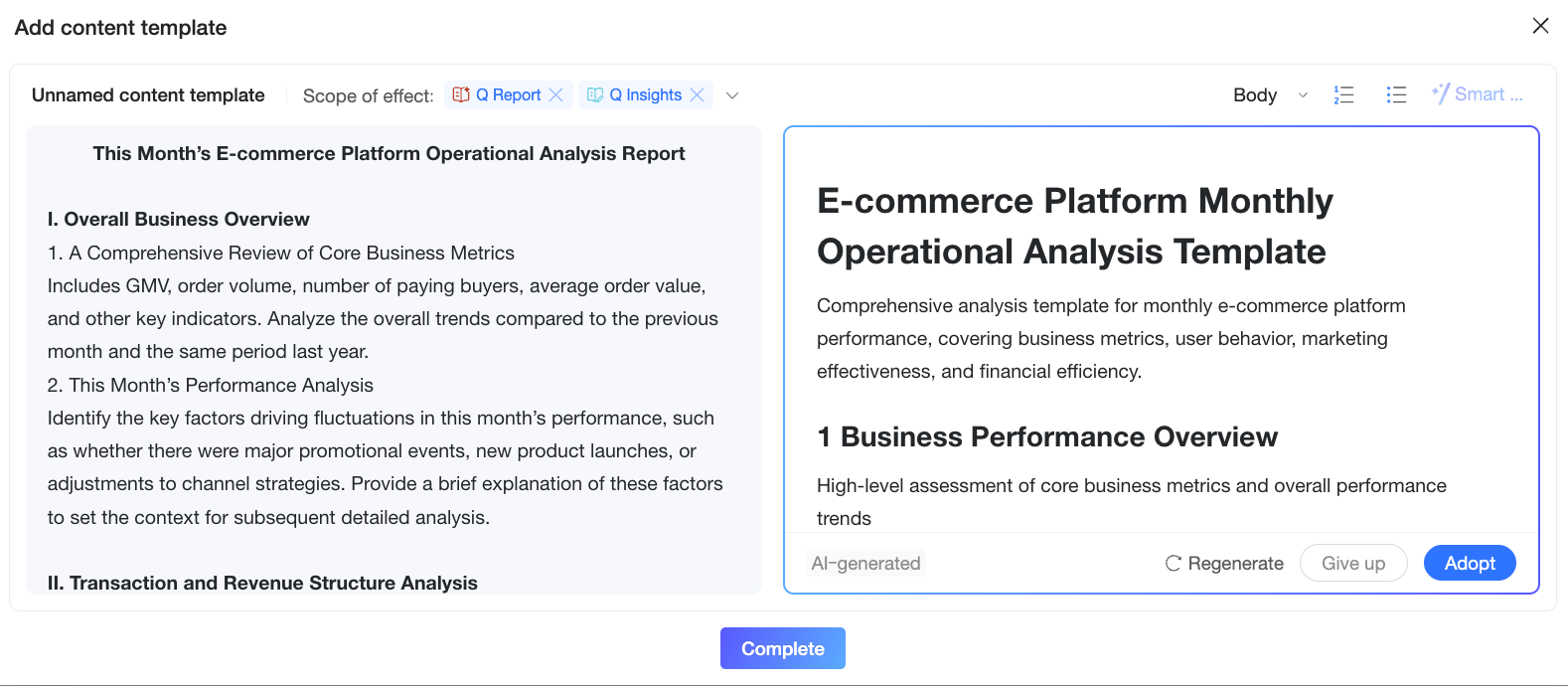
After the content is polished, you can choose to Accept, Discard, or Regenerate. If you accept the changes, the optimized content on the right replaces the original text on the left.
⑤ Edit the content template
Enter the content of the template in the main editor.
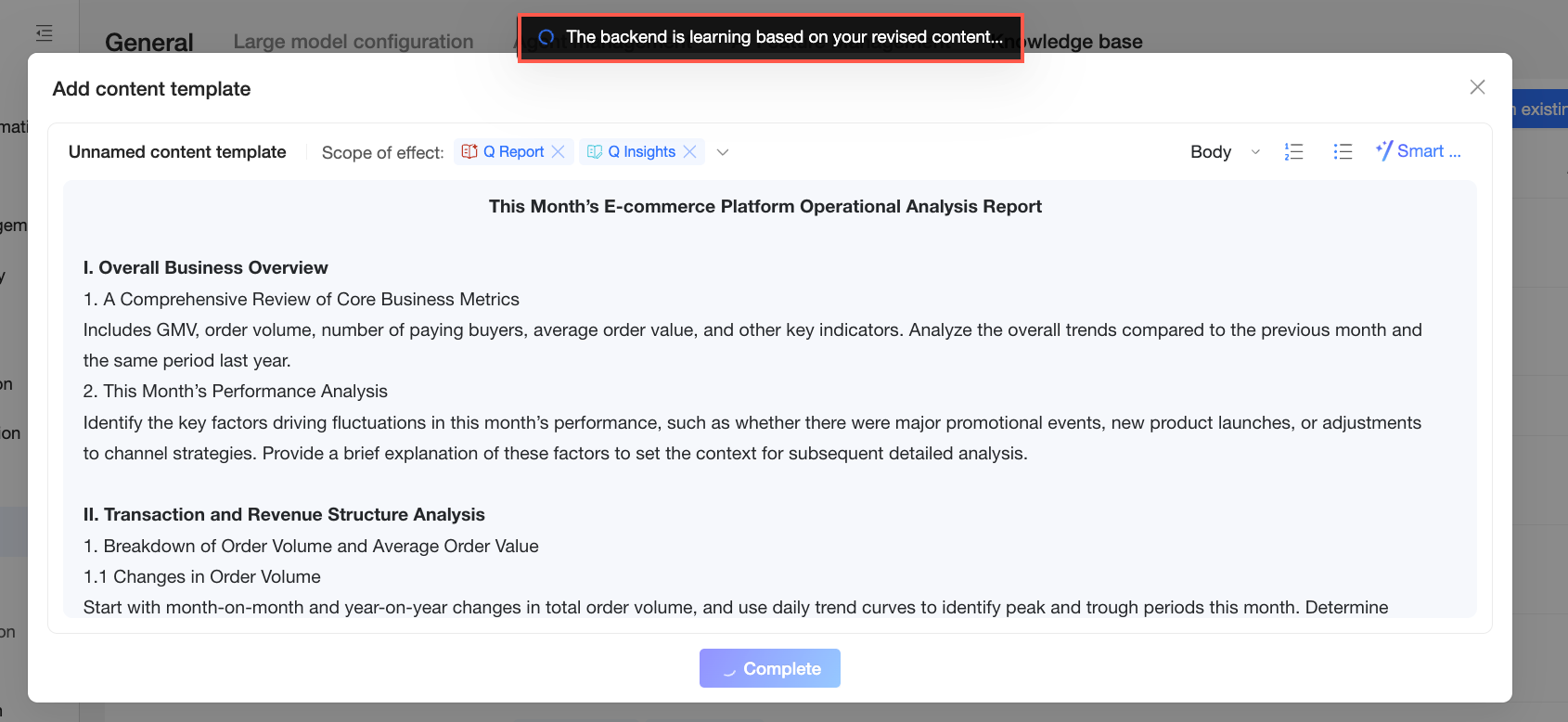
Click Finish. The system automatically learns the content template that you entered.

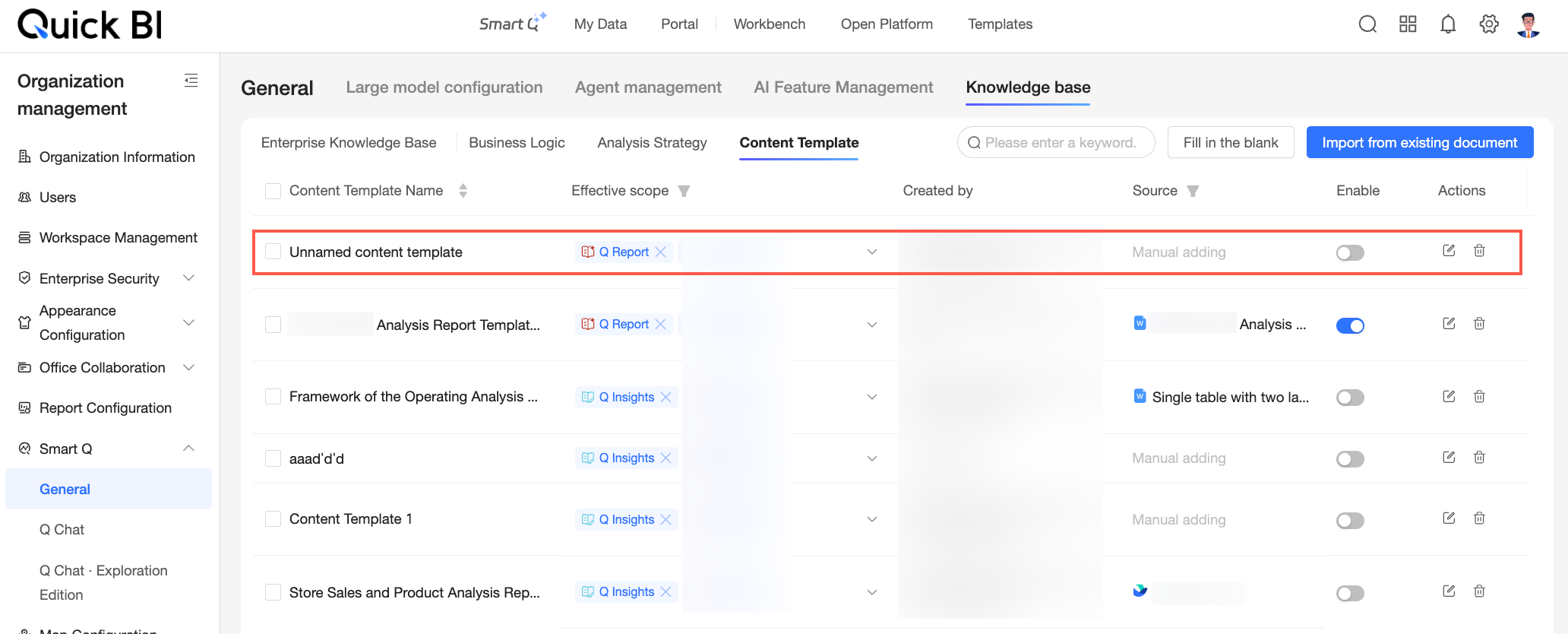
After the system finishes learning, the content template appears on the list page.
Import from an existing document
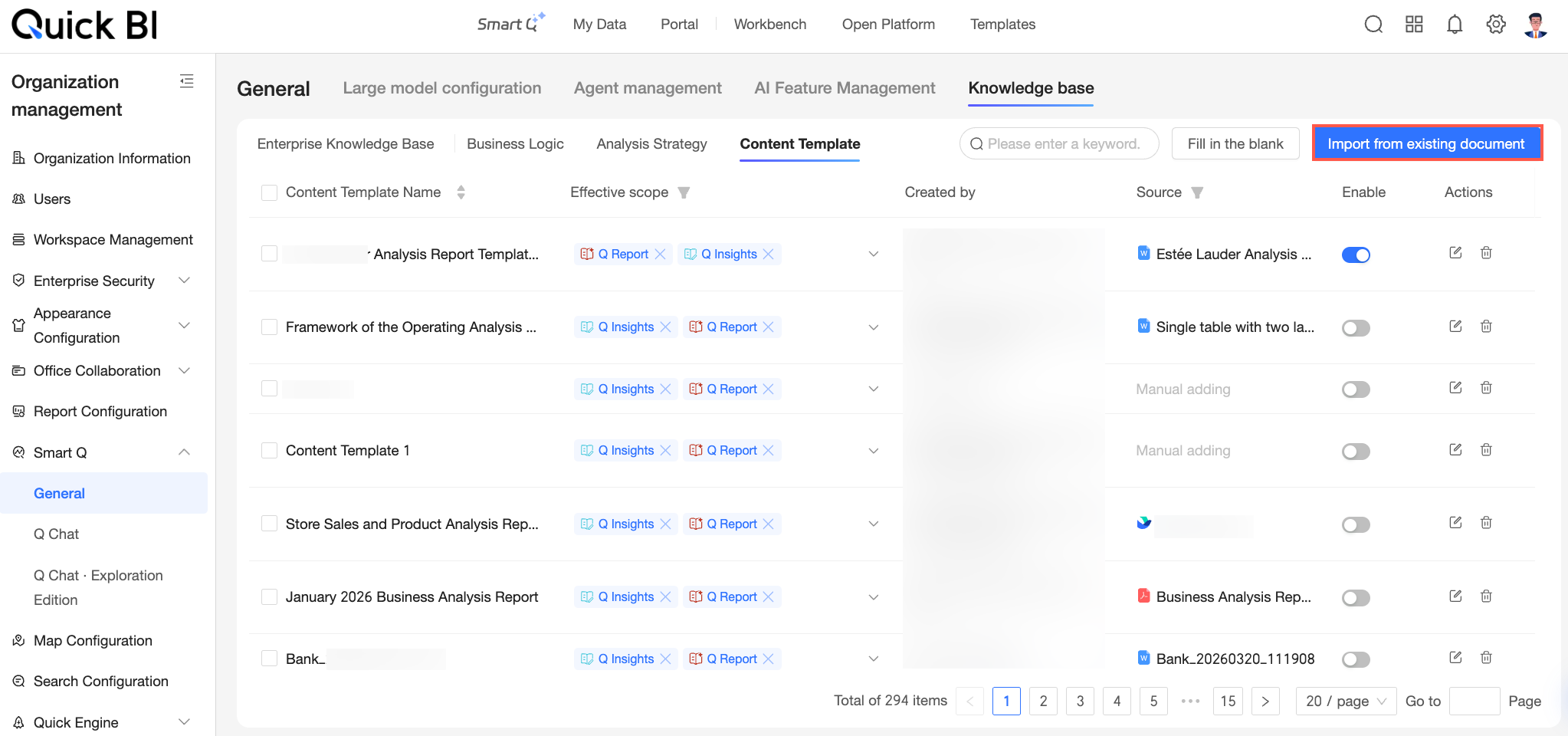
On the Content template page, click Import from an existing file.
In the Select document step of the Import content template dialog box, select the document type to upload and complete the related configuration.
If the document type is Local file, click or drag the file to area ① to upload it.
NoteYou can only upload local files in .doc, .docx, or .pdf format. The file size must be 10 MB or less.
To ensure better parsing accuracy, a sample content template is provided for your reference. Click the
icon in area ② to download the template file and use it as needed.
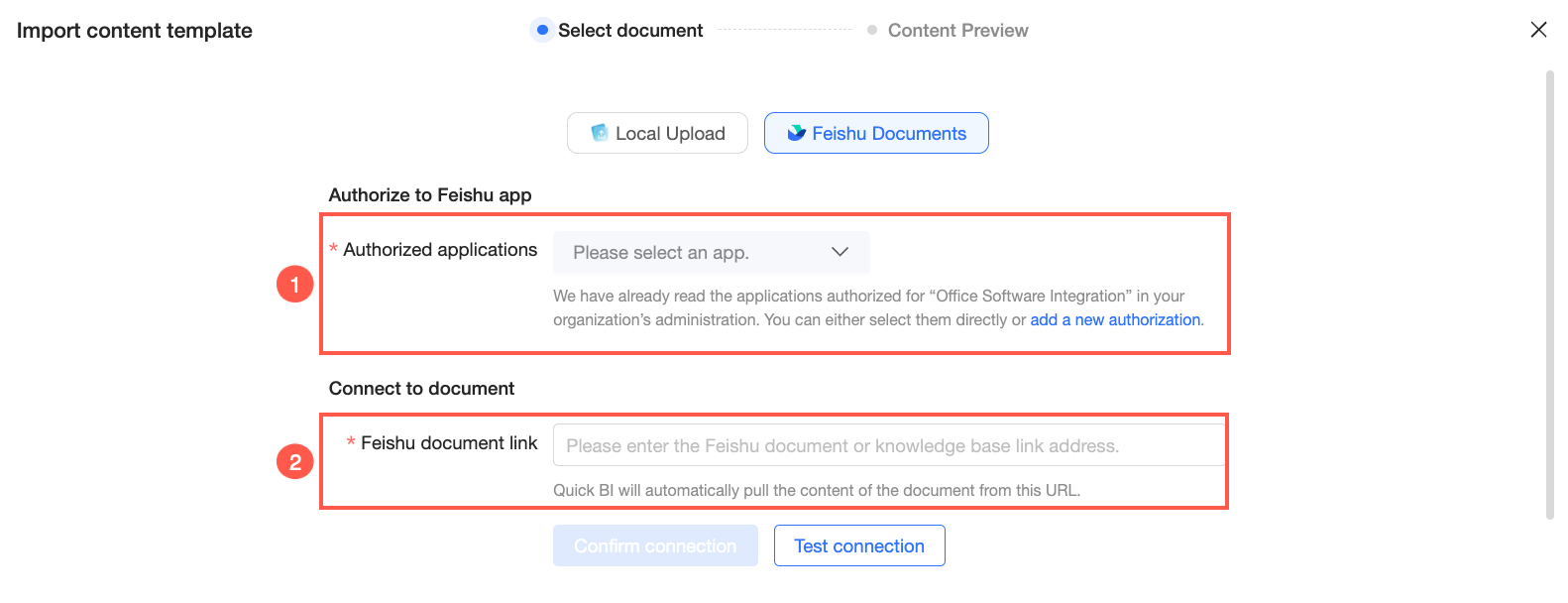
If the document type is Lark document, you must configure the Lark application authorization information (①) and the details of the document to be connected (②). For more information about each configuration and how to obtain the required details, see Connect to a Lark document.
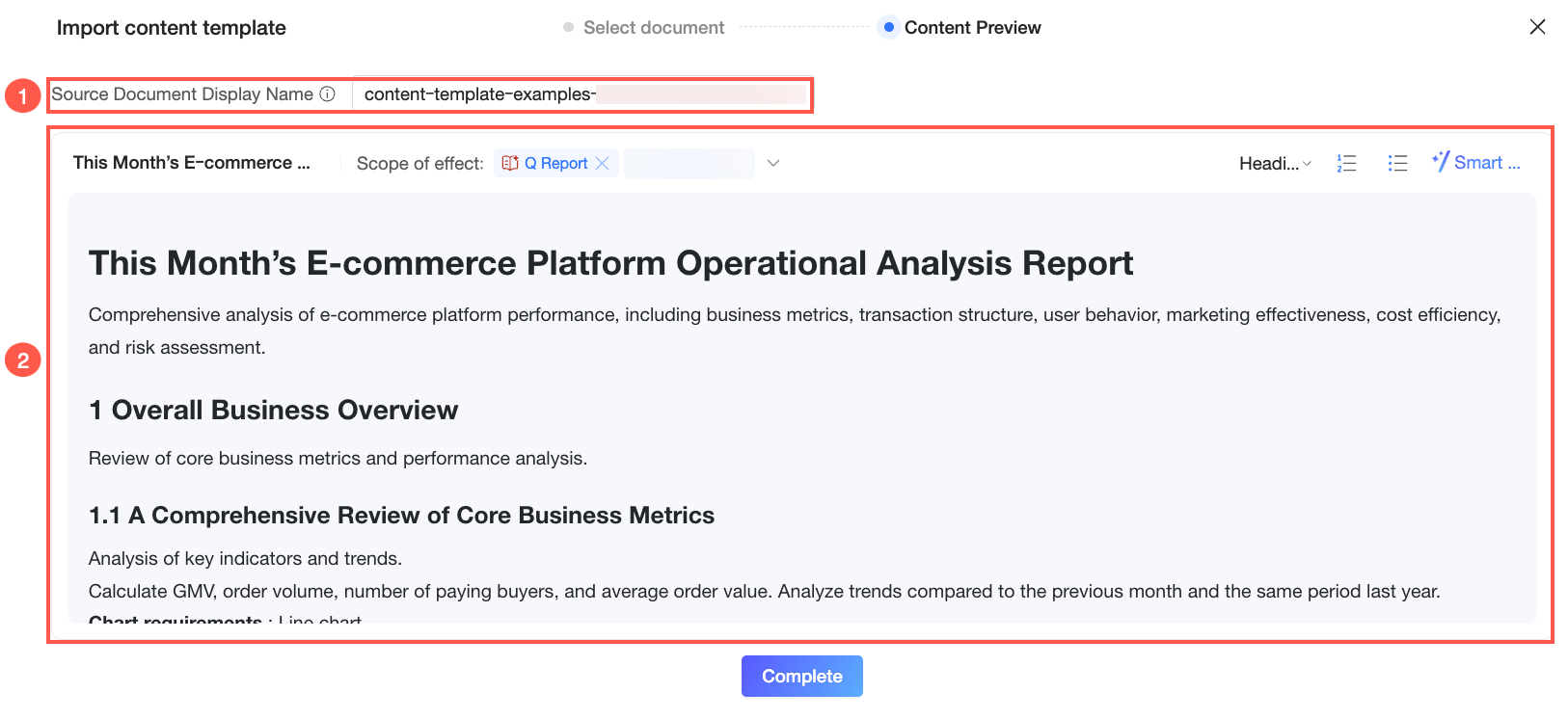
After the upload, AI automatically parses the content templates from the document. When parsing is complete, the process moves to the Content preview step. This step shows the Source document name (①) and the content template details (②). You can adjust the template content in the editing area as needed. For more information, see Edit the content template in this topic.
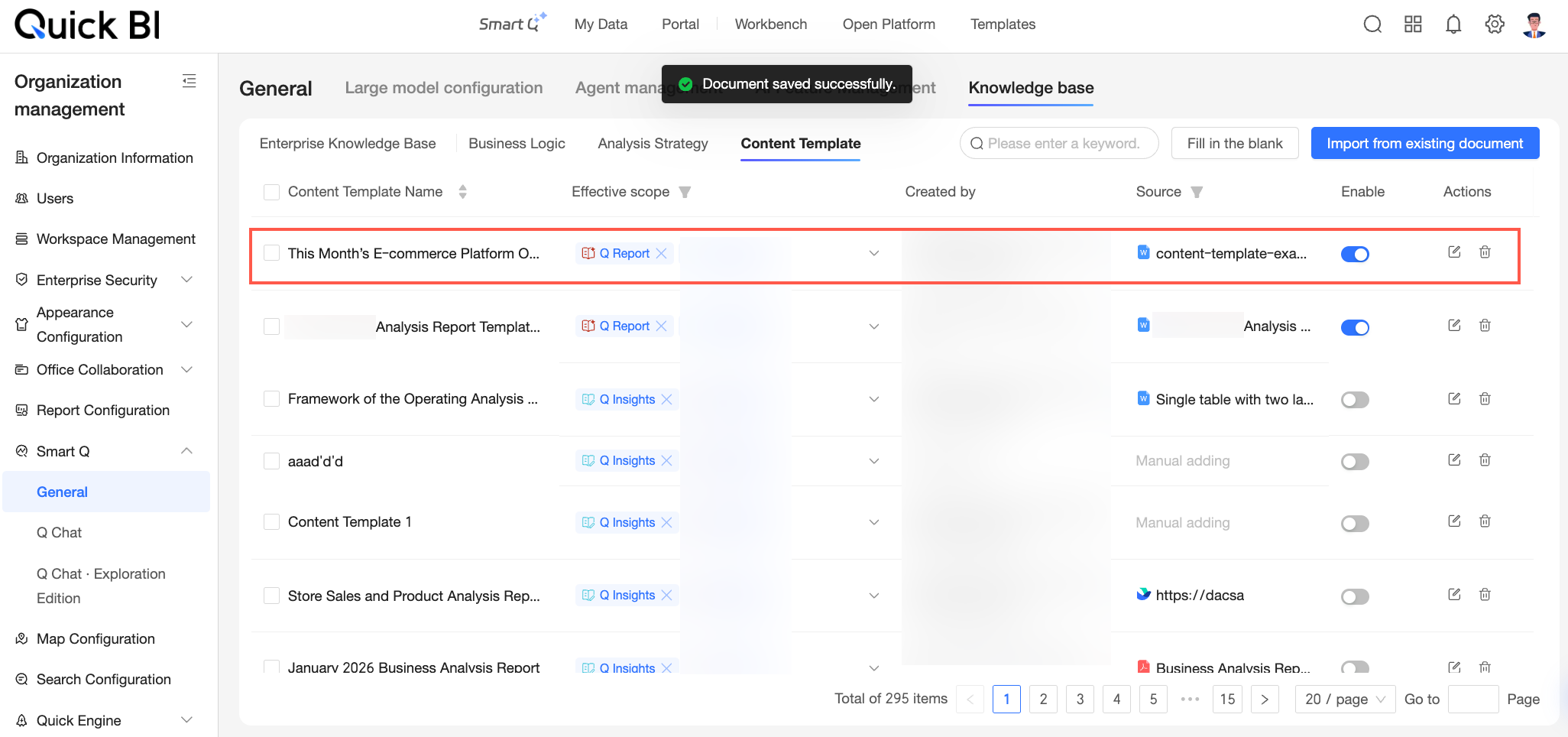
Click Finish. After the template is added, it appears on the list page.
 icon in area ② to download the template file and use it as needed.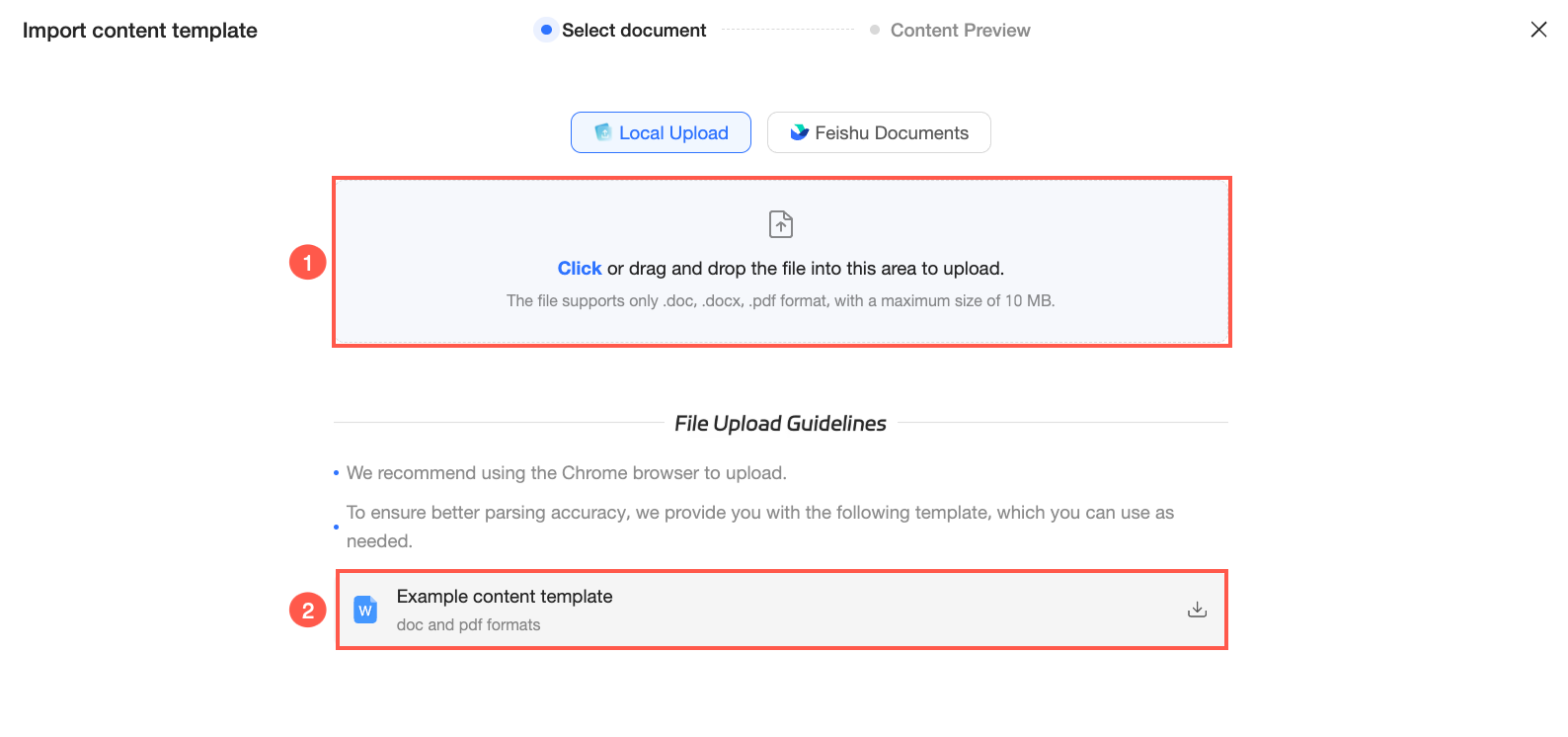
Manage content templates
The Content template list page displays information about the content templates added within the current organization, including their names, effective scopes, and creators. You can perform the following management operations on this page: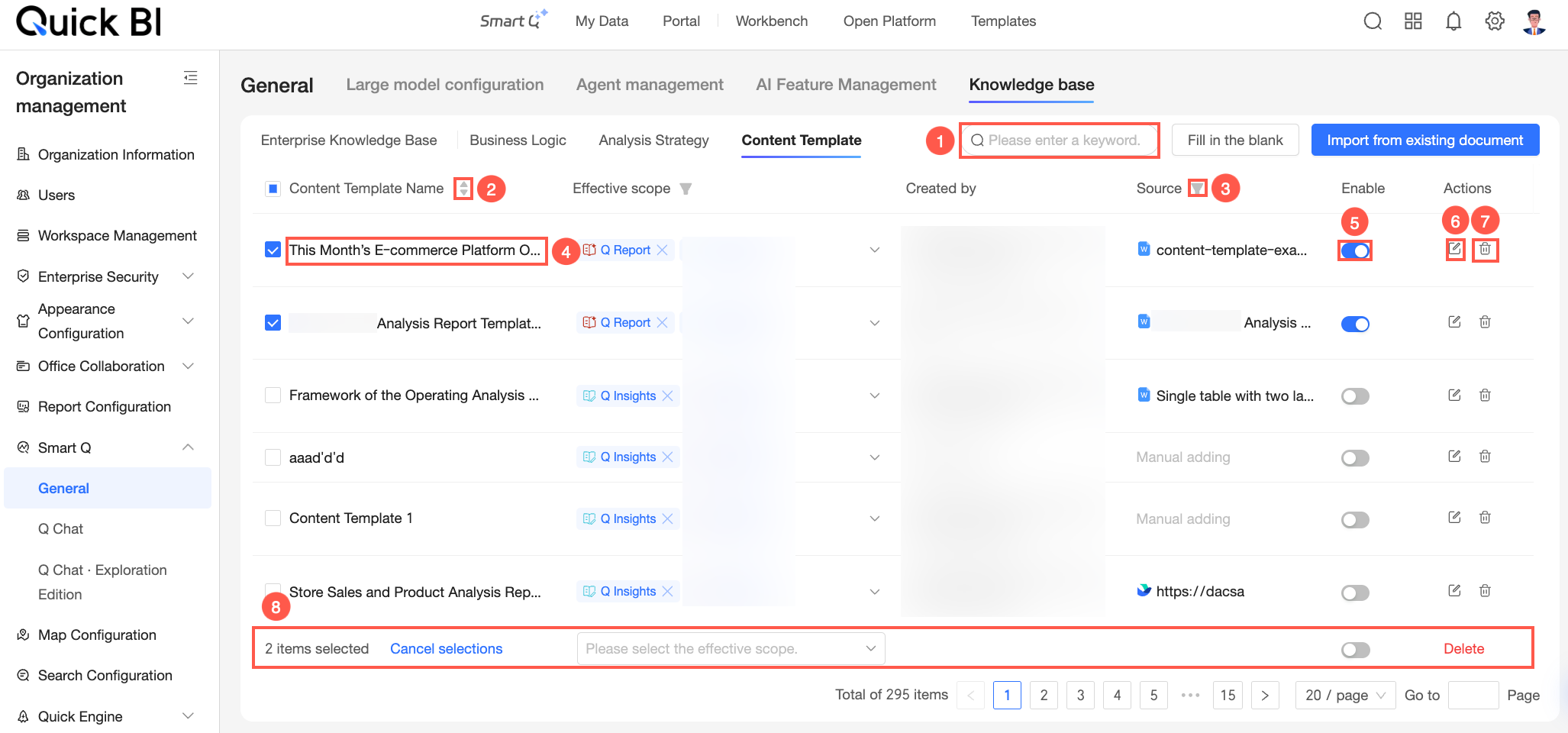
Available operations | Description |
① Search for a content template | If your organization has many content templates, making it difficult to browse quickly, you can enter keywords in the search box in the upper-right corner of the list to quickly filter and locate templates that contain specific keywords. |
② Sort | By default, items are sorted in descending order by update time, meaning the most recently updated content template appears at the top of the list. You can click the |
③ Filter | You can quickly filter content templates by the source document dimension. Click the |
④ View content template details | Click the name of a content template to view its details. On this page, you can:
|
⑤ Enable | Content templates are enabled by default after being added. You can change this using the toggle switch ( |
⑥ Edit | Click the |
⑦ Delete | Click the |
⑧ Batch operations | You can select multiple content templates at once to enable, disable, or delete them in a batch operation. |
 icon next to Content Template Name to switch to alphabetical order.
 icon next to Scope of Effectiveness and Source, check the relevant documents in the filter panel, and click OK to quickly filter.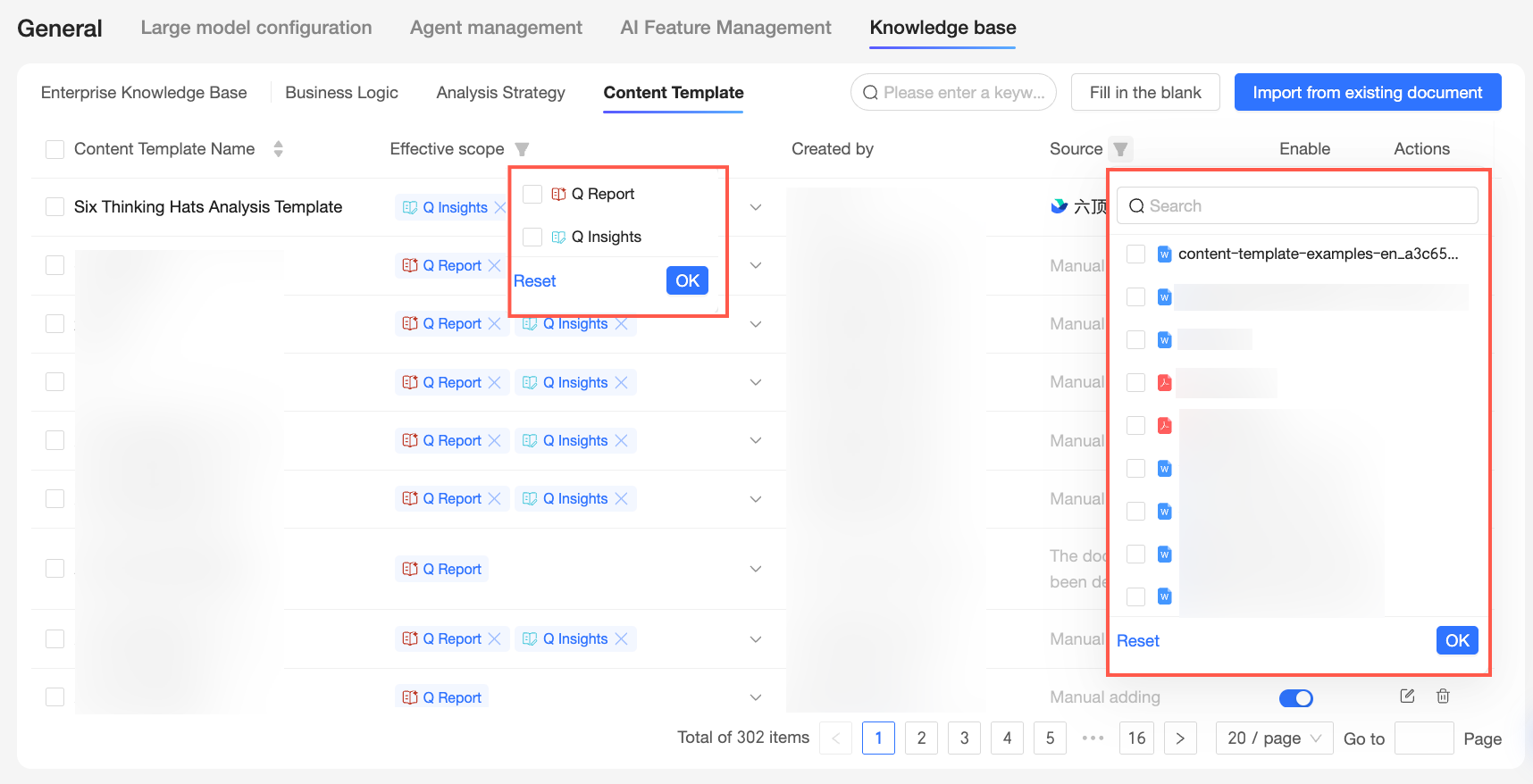
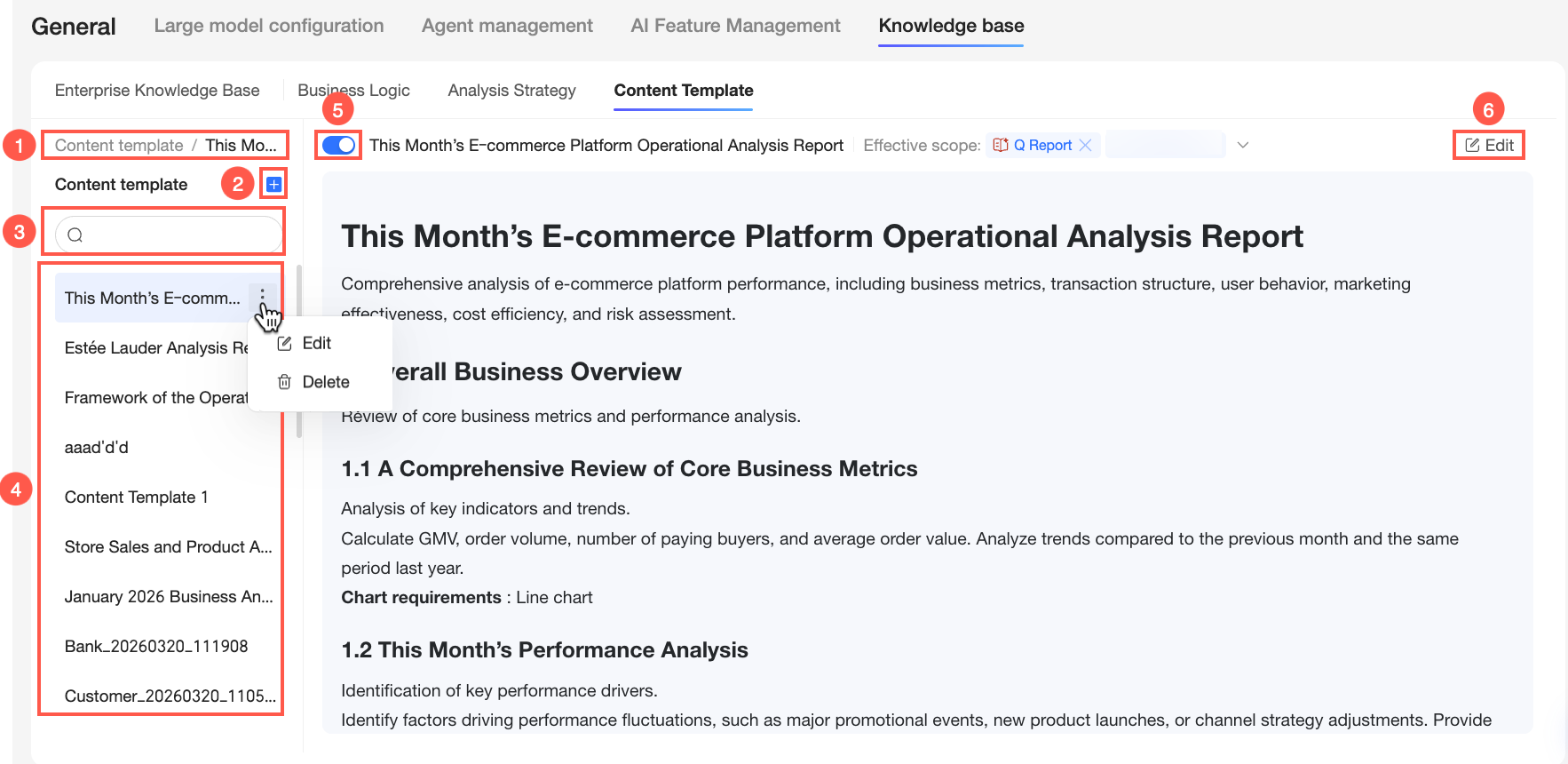
 icon to open the Add content template dialog box and add a new content template from scratch.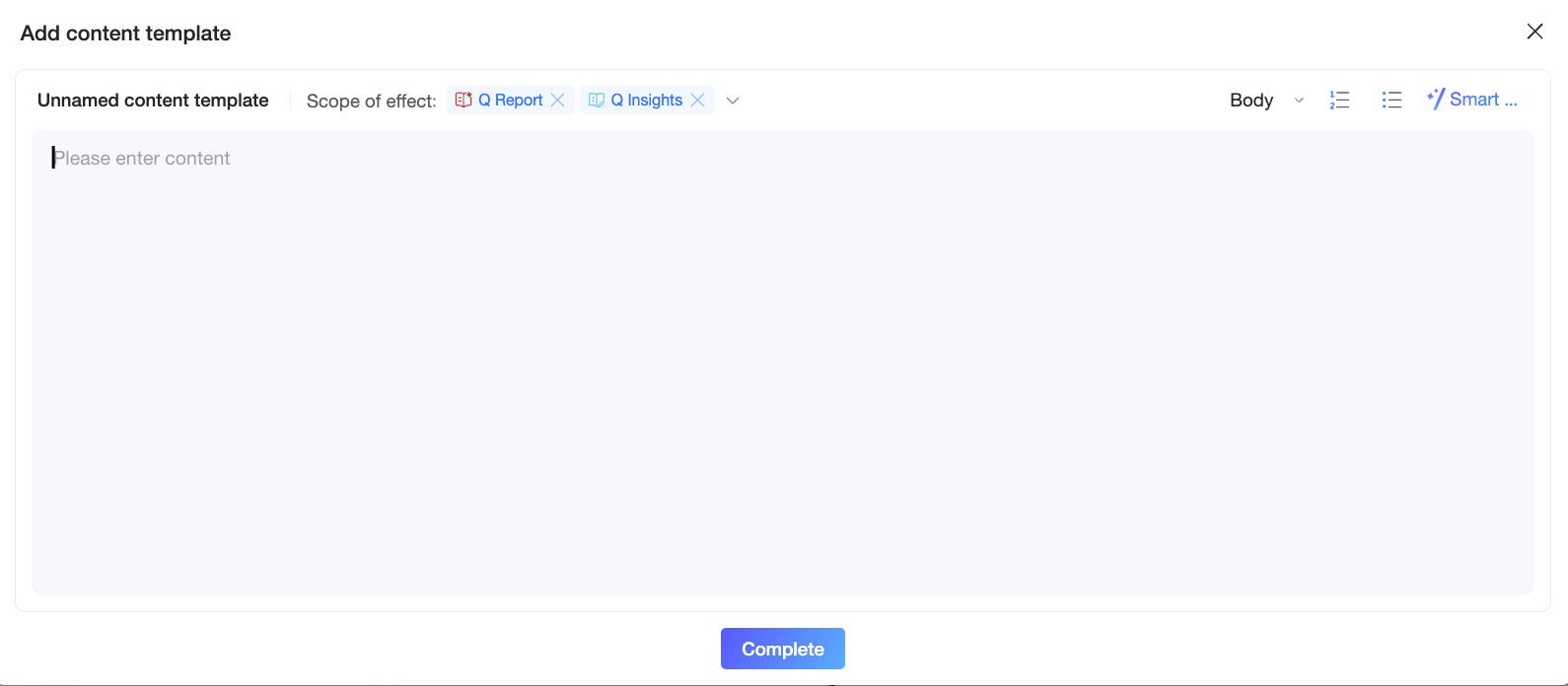
 icon. In the drop-down list, you can choose to Edit or Delete.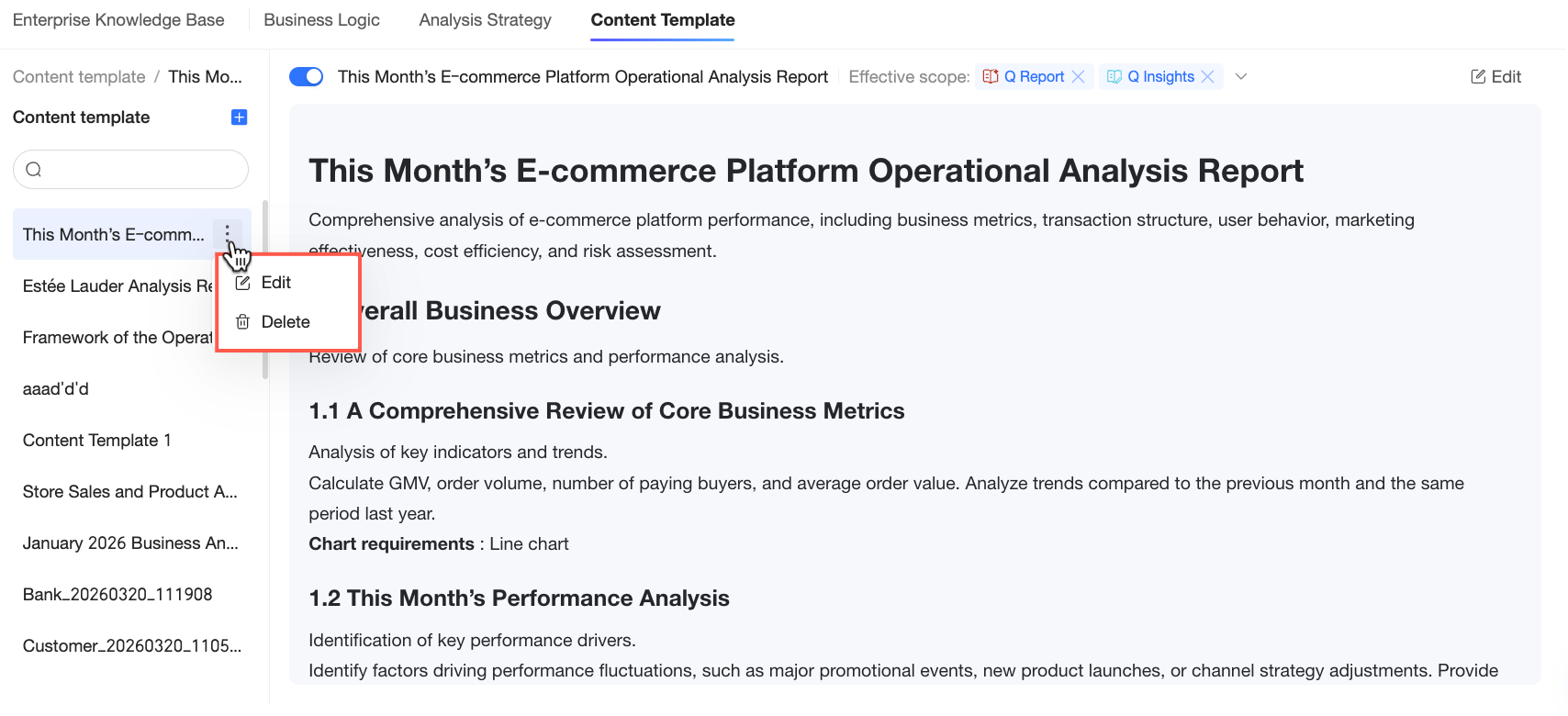
 icon to change the enabled status of the current content template.
 icon to open the Edit content template dialog box and modify the information of the current content template.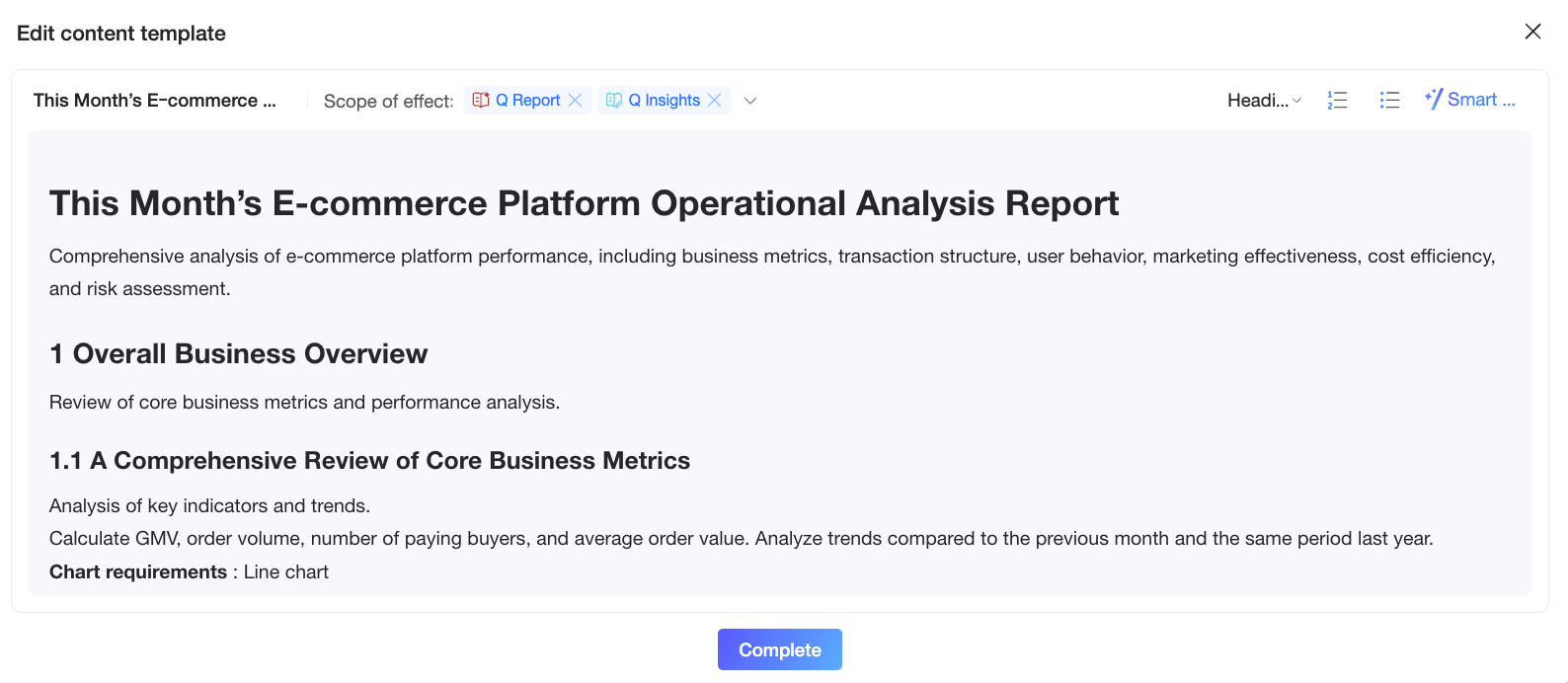
 ) in the Enable column.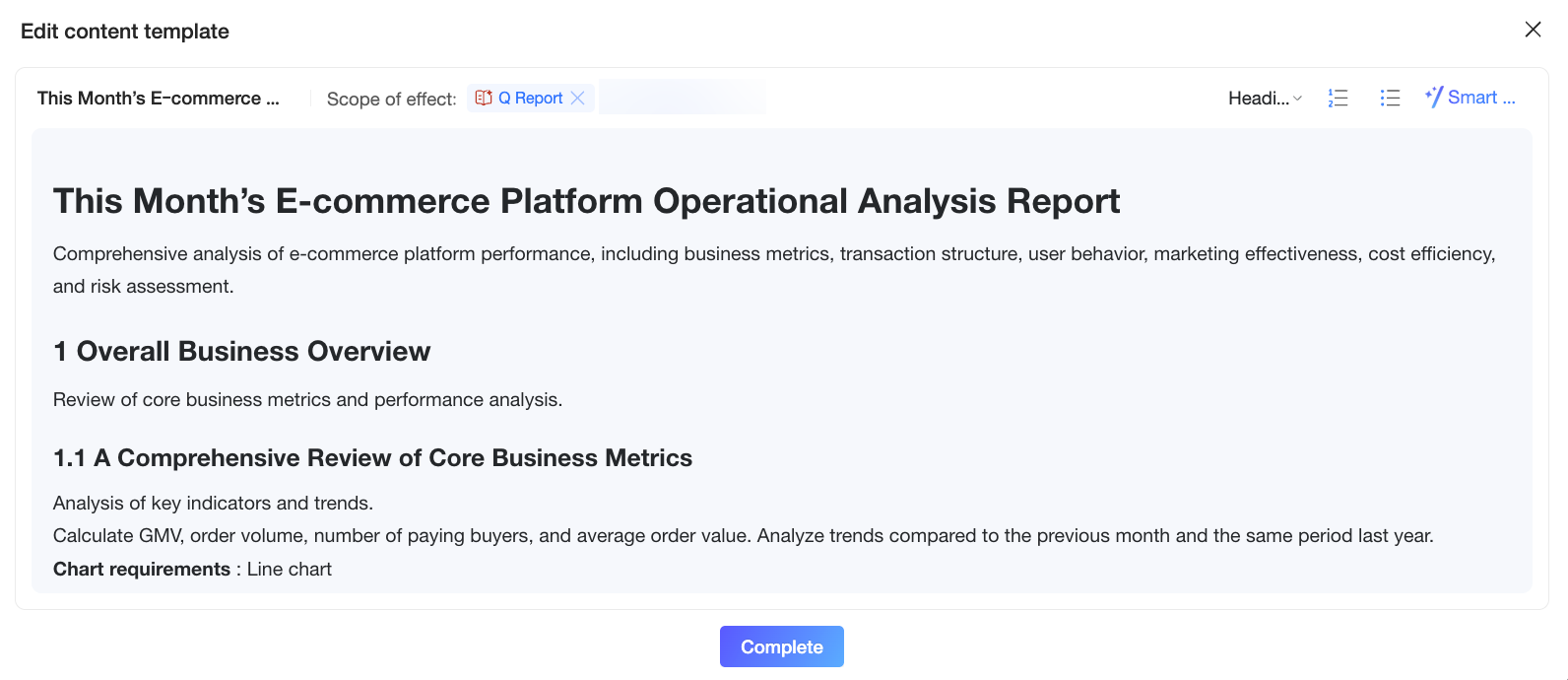
 icon and confirm your choice to delete a content template that is no longer needed.