Create a filter bar
You can use a filter bar to generate one or more filters to query data in one or more charts. You can add multiple filter bars to a dashboard, but you can pin only one to the top.
Prerequisites
A dashboard is created. For more information, see Create a dashboard and Chart visualization overview.
Background information
There are two effective modes for creating filters:
-
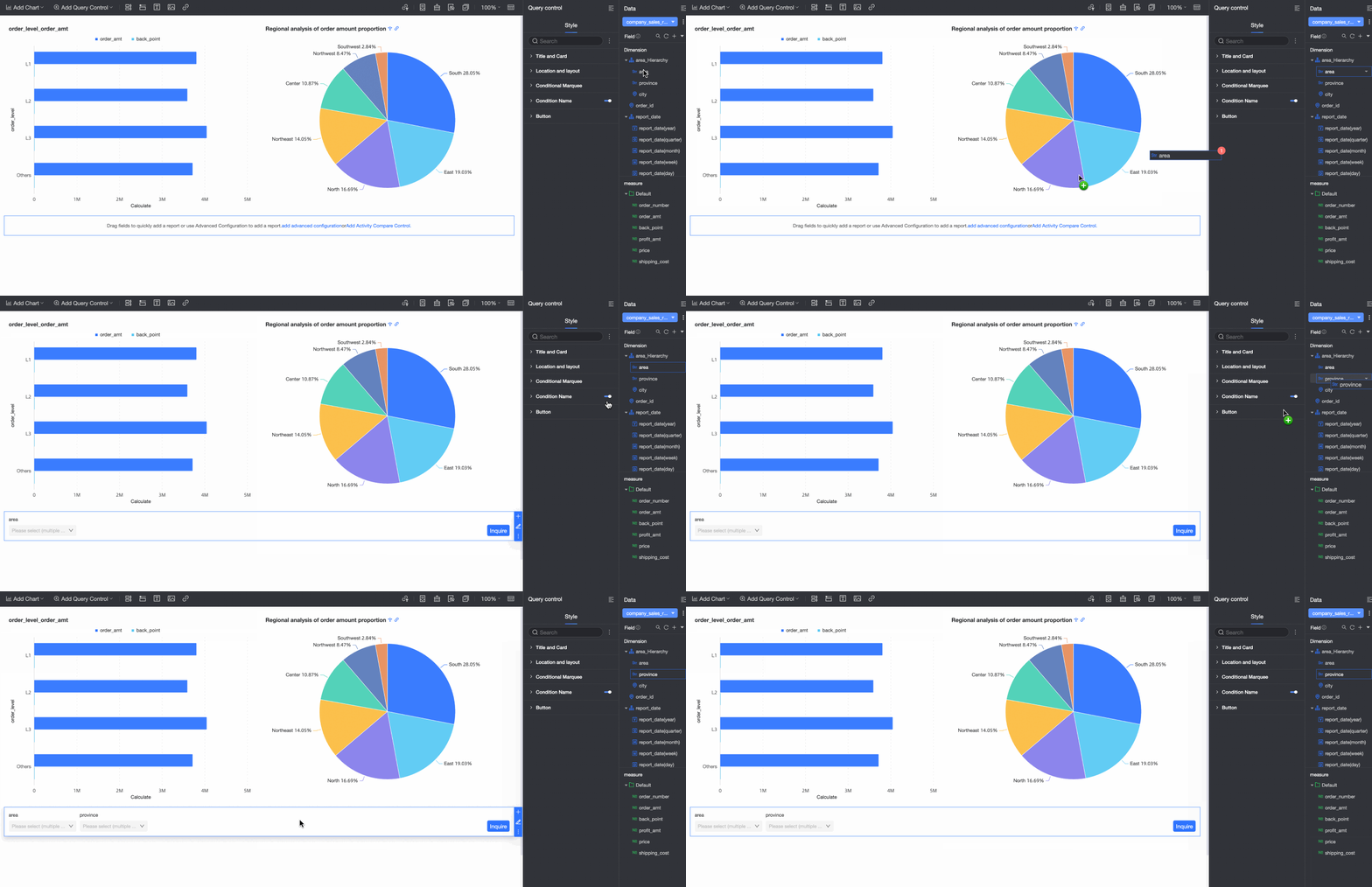
Drag and drop fields to automatically create filters.
You can drag a field to the filter bar to quickly generate a filter. For more information, see Quickly add filters by dragging fields.
-
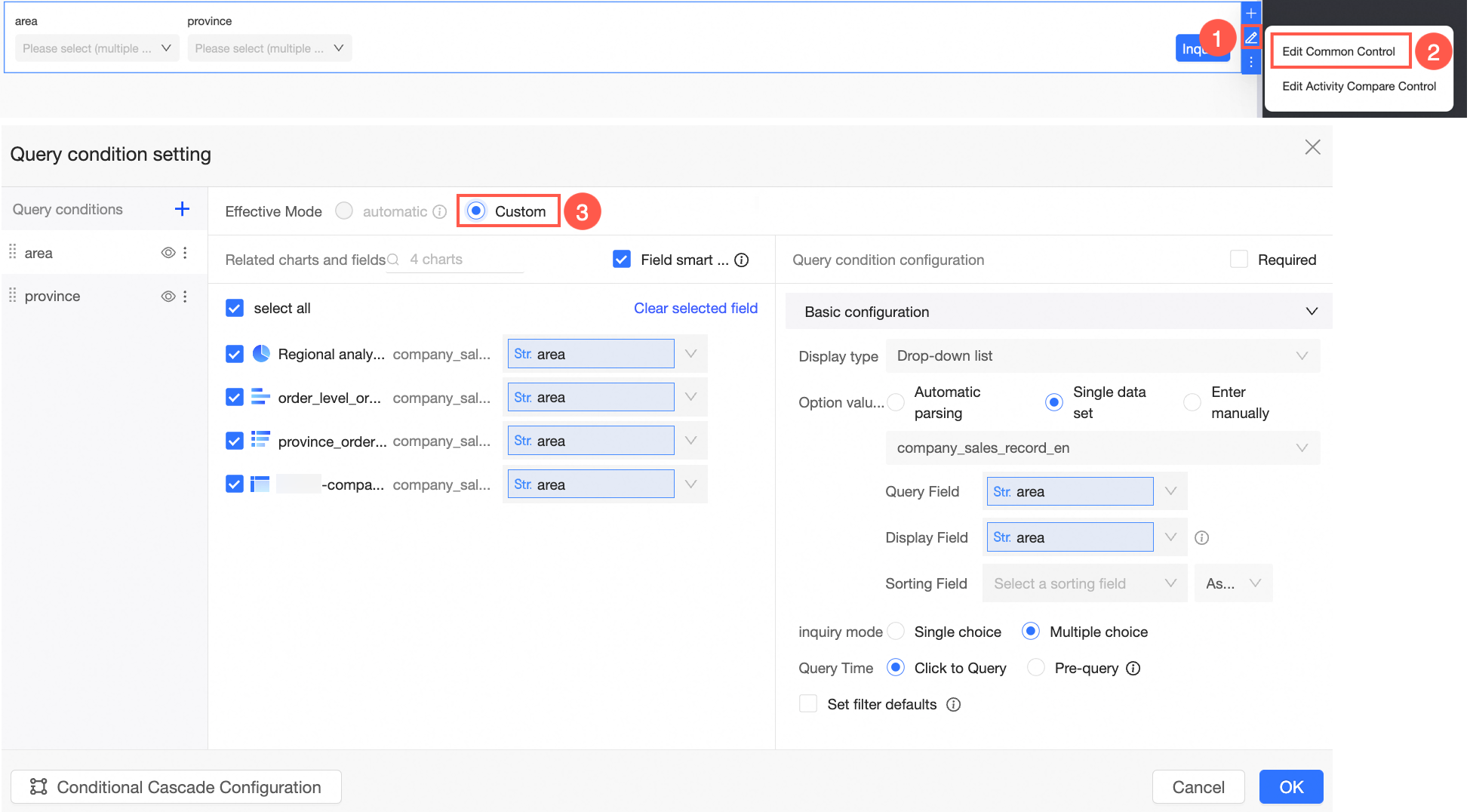
Set custom filters for fields.
If an automatically generated filter does not meet your requirements, you can customize its settings. For more information, see Configure custom filters.
Quickly add filters by dragging fields
You can drag a field to a filter bar to quickly generate a filter.
-
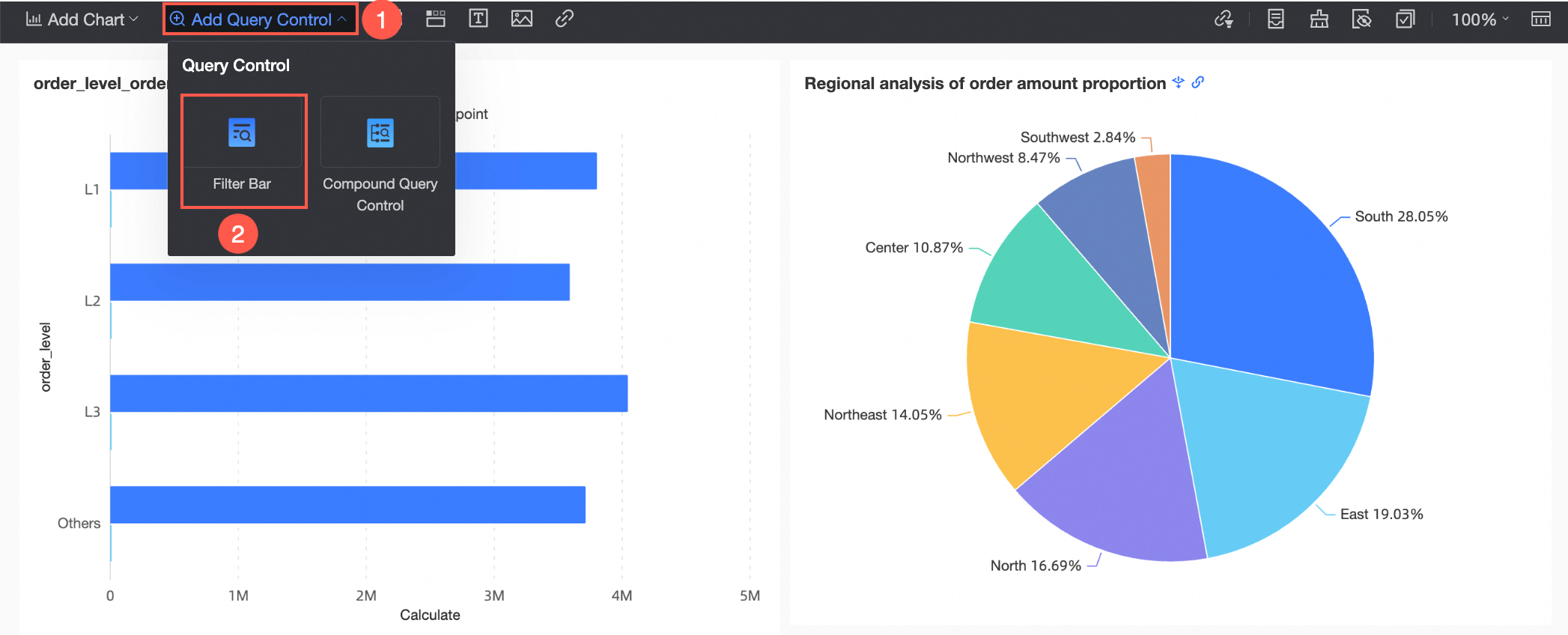
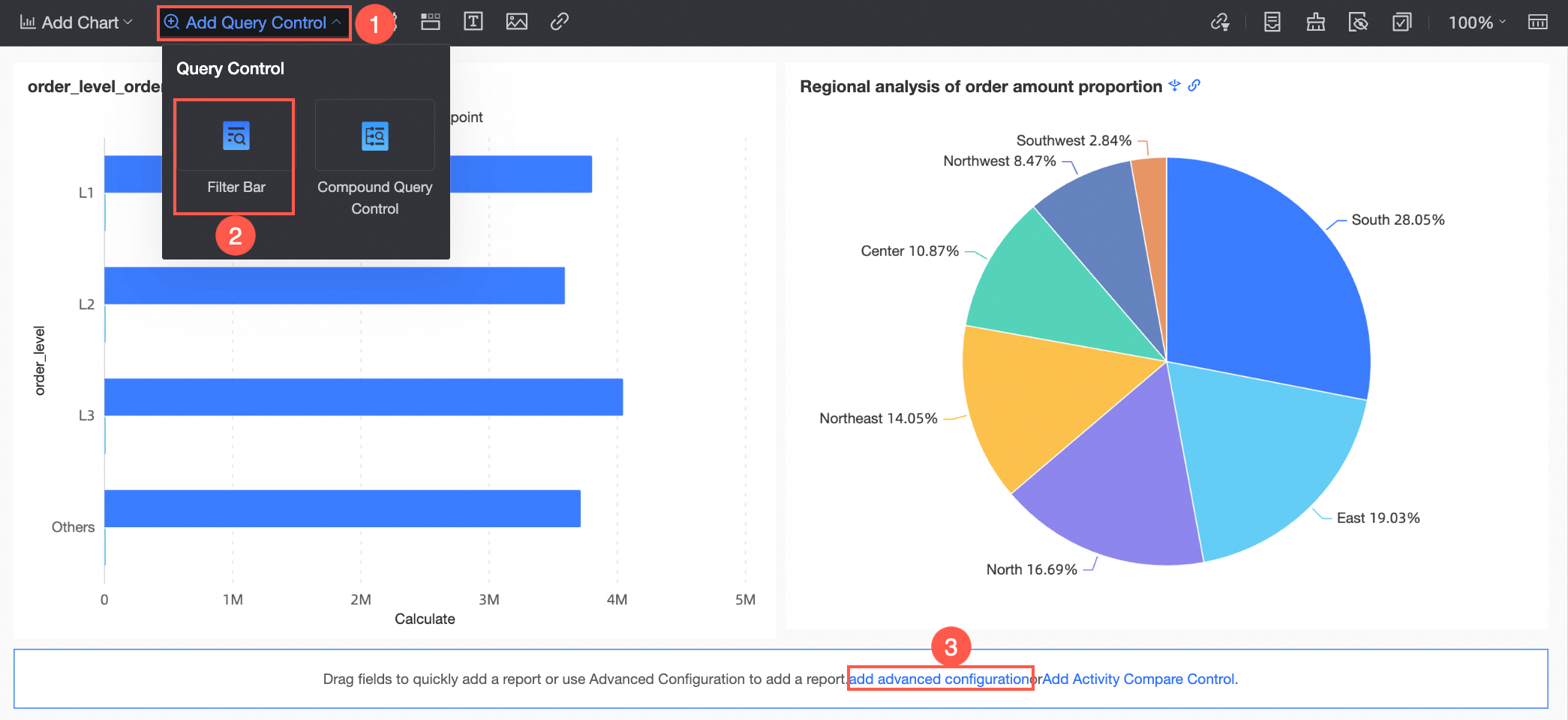
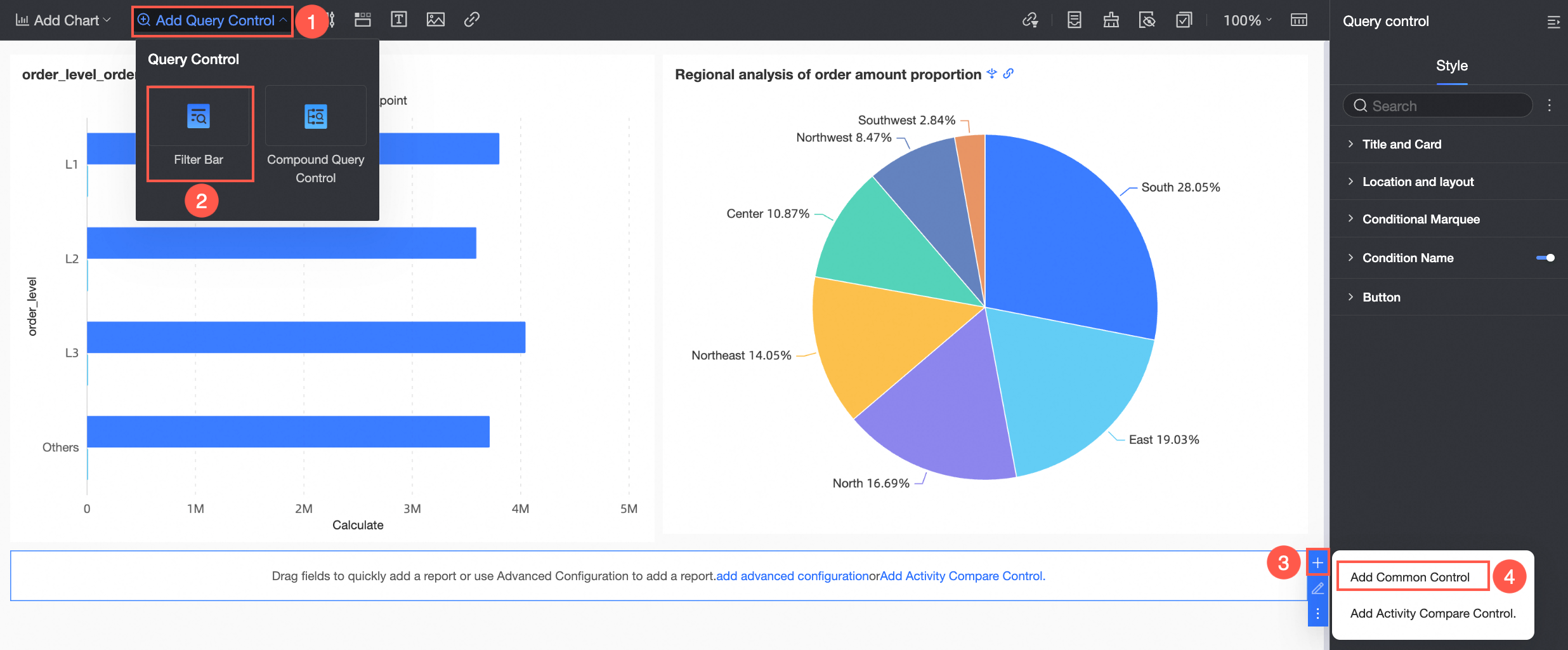
In the dashboard edit area, click Add Filter Bar in the top menu bar, and select a filter control type from the drop-down list.
-
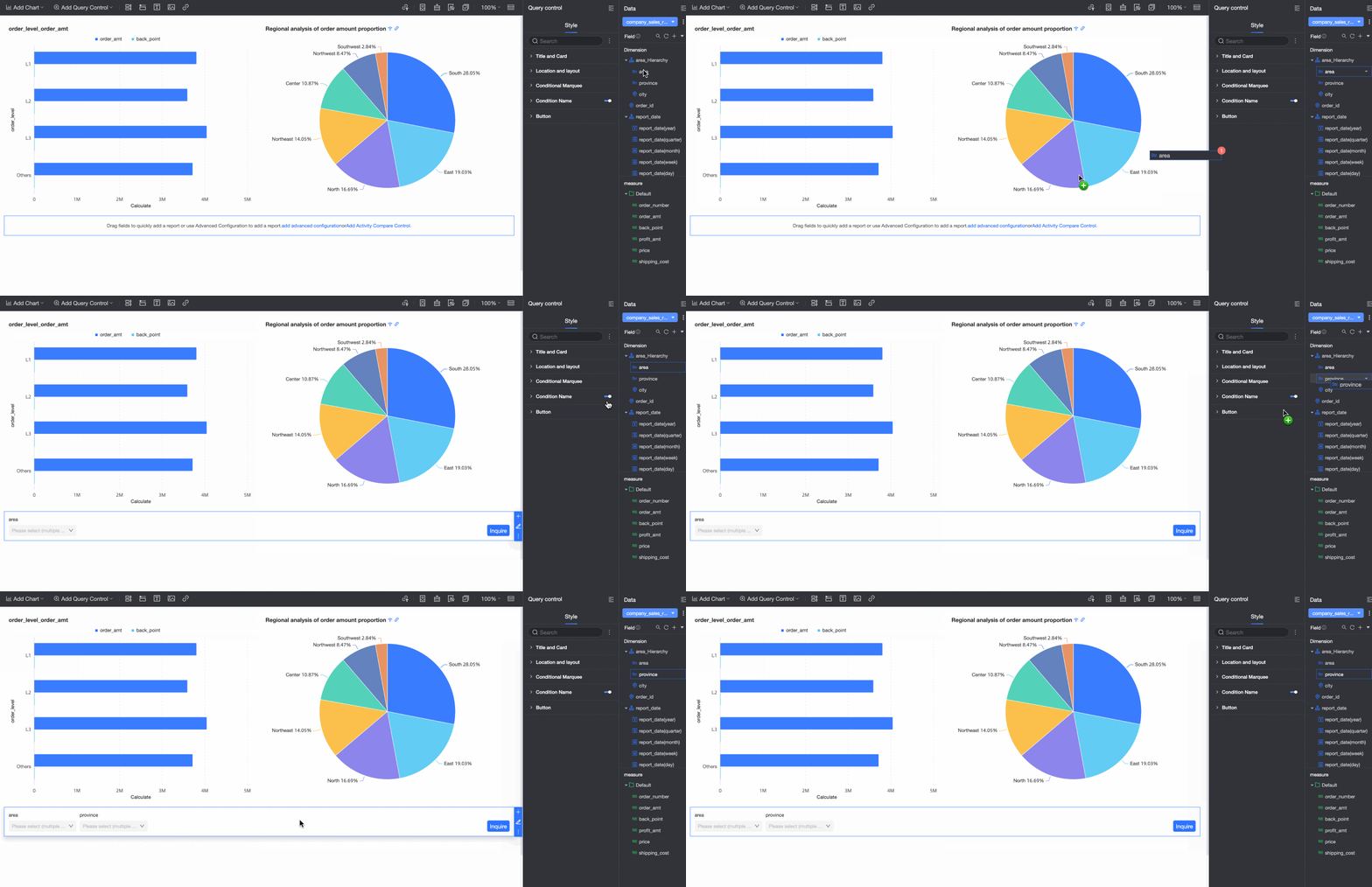
From the Data pane on the right, drag the target field into the filter bar.
The system generates a filter with a display type appropriate for the field's data type.
-
If the charts and filter bar on a dashboard are from the same dataset, the filter automatically applies to all charts from that dataset, including any new ones you create.
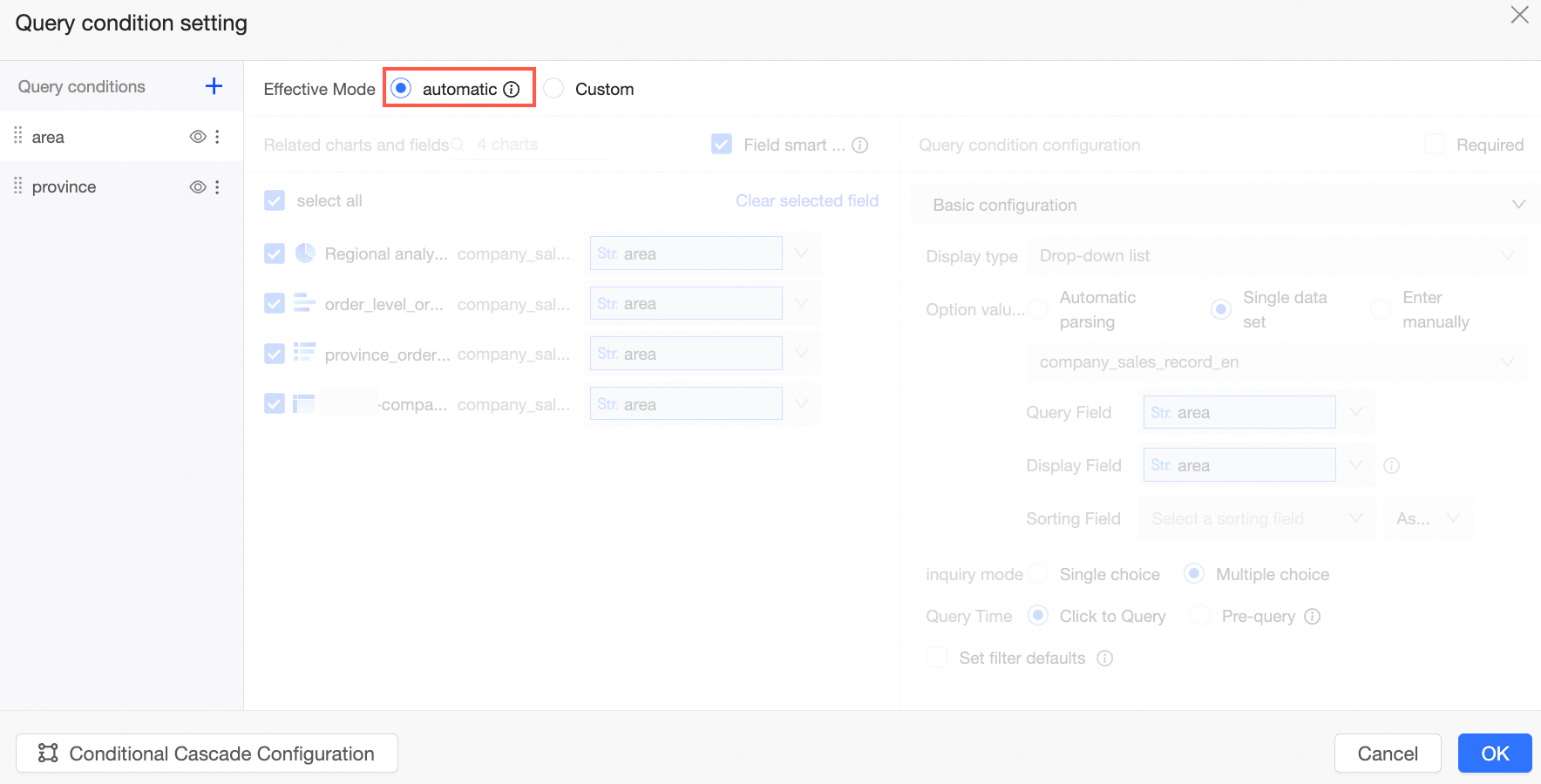
-
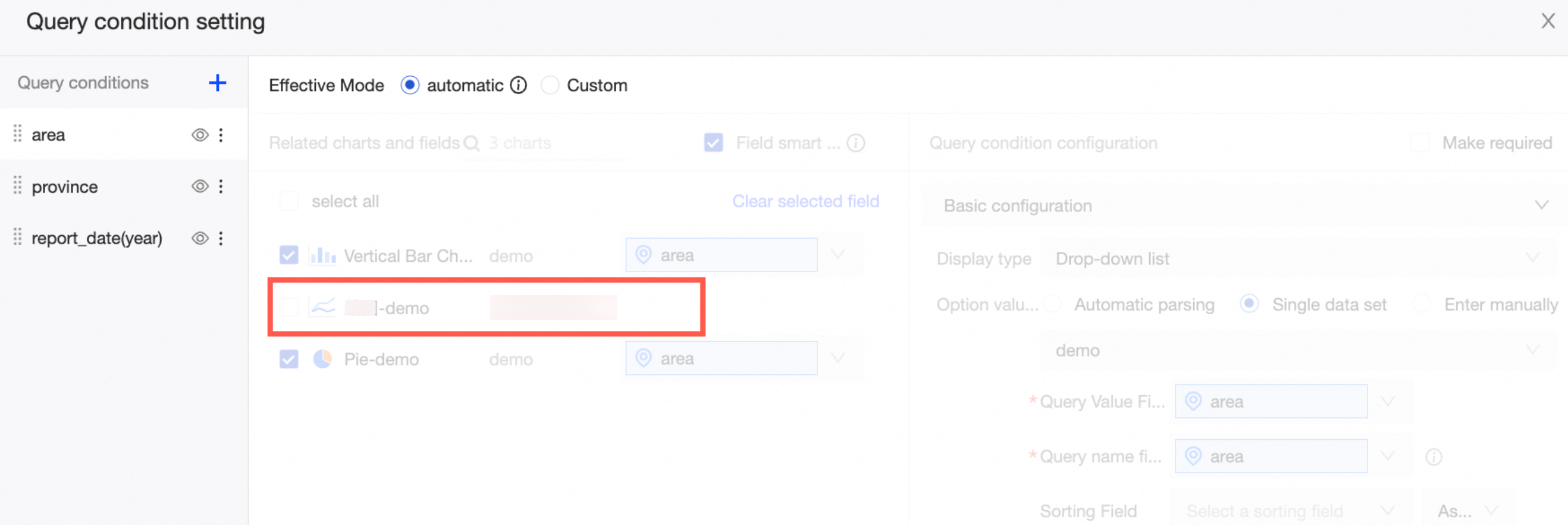
If the charts and filter bar are from different datasets, the filter does not automatically associate with the charts.

To associate charts from different datasets, you must switch to custom mode.
For information about how to configure filters, see Configure the style of a filter bar.
-
-
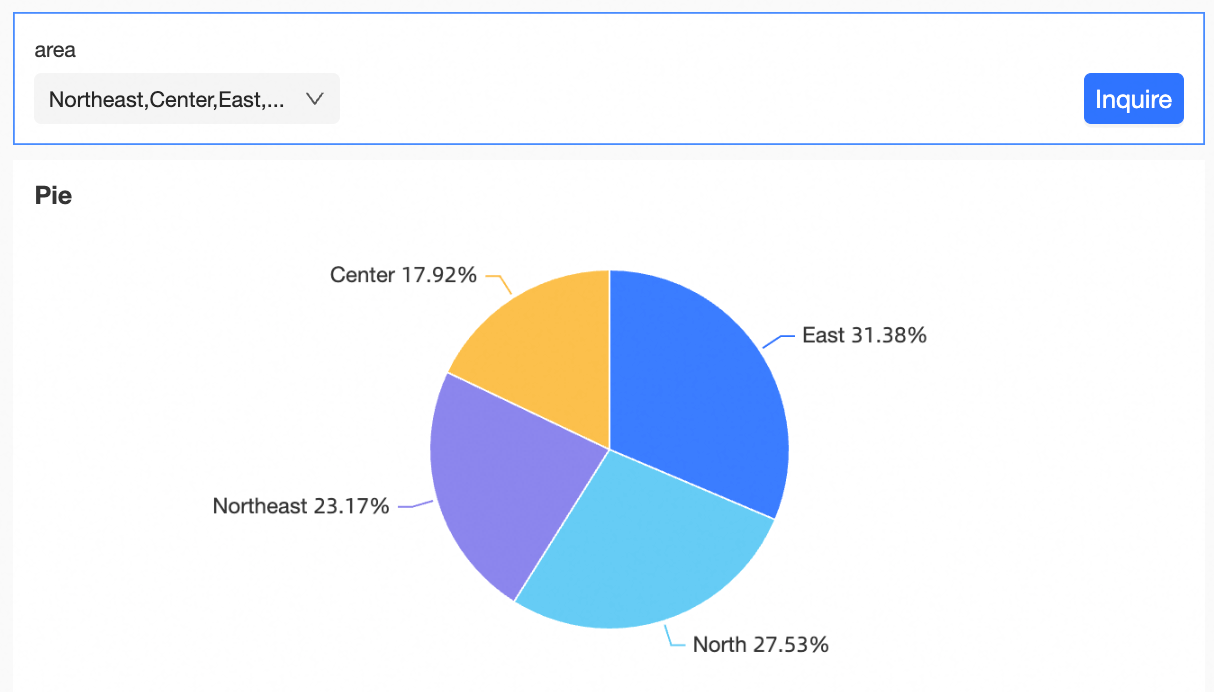
Select the target values and click Query.
After configuring the filter, you can change the style of the filter bar. For more information, see Configure the style of a filter bar.
Configure custom filters
This section describes how to add a custom filter by setting the effective mode to Custom.
-
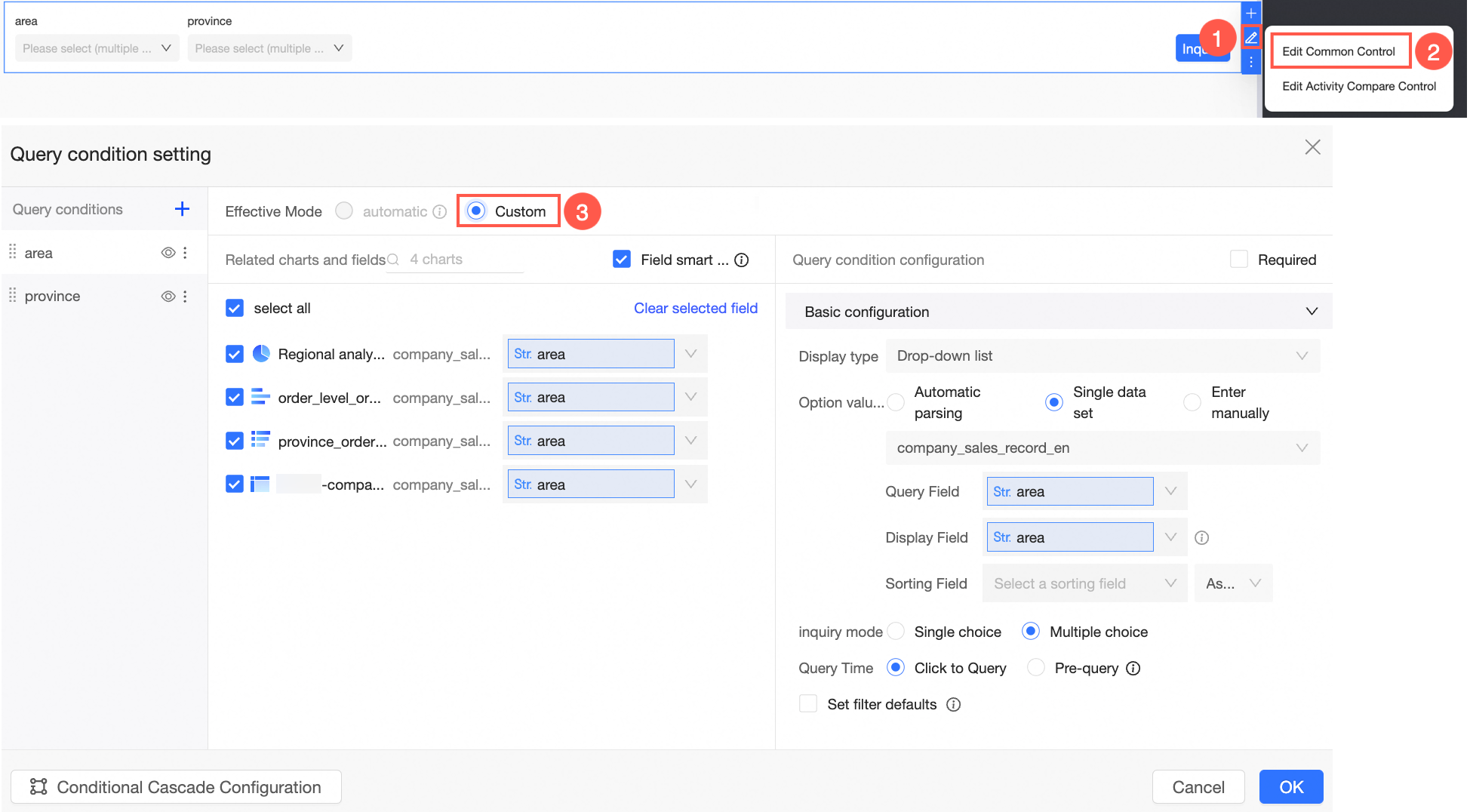
In the dashboard edit area, click the filter bar icon in the top menu bar to configure the filter.
-
Method 1:
-
Method 2:
-
Method 3:
-
-
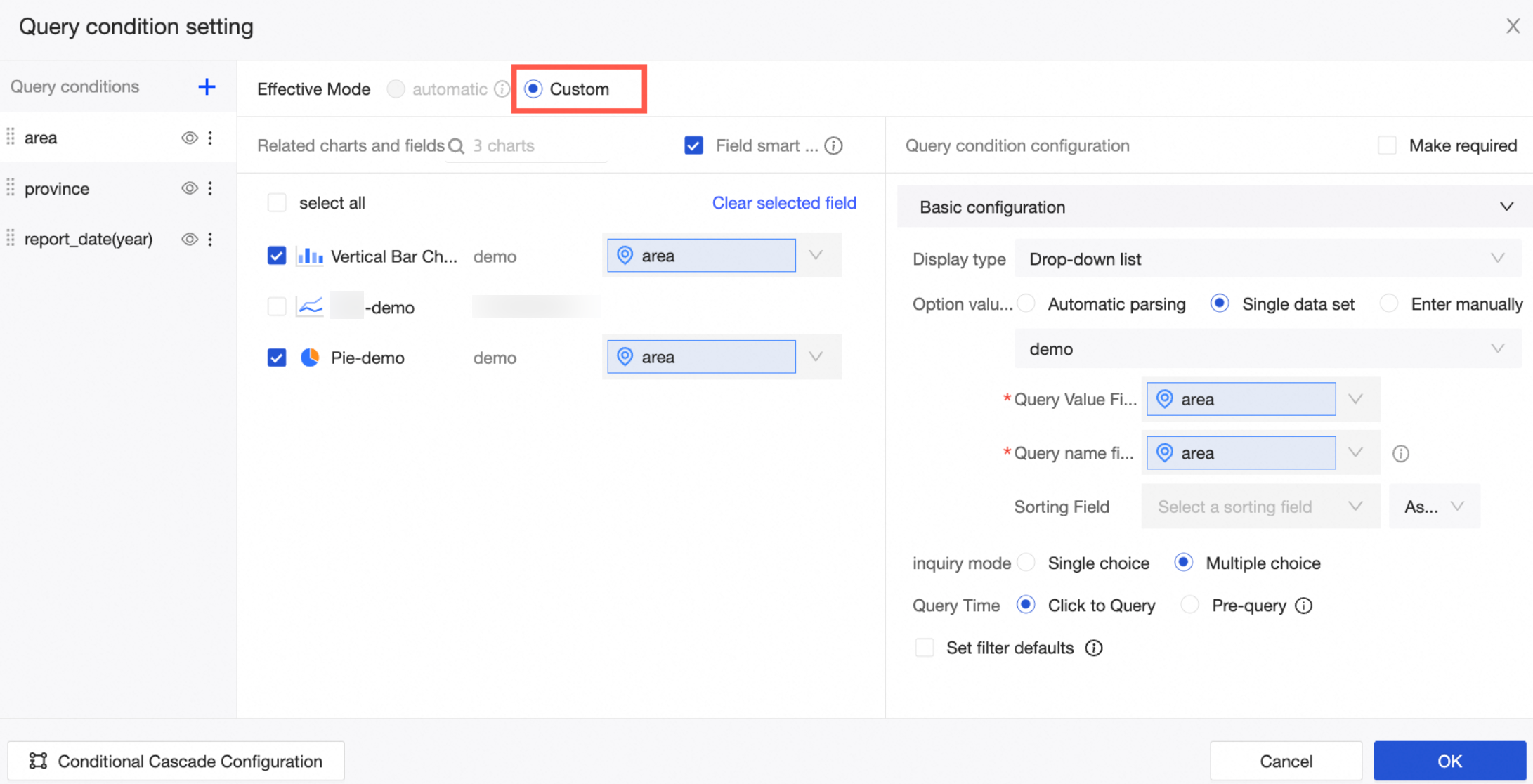
On the Filter Settings page, configure the following:
-
Filters
When you add a new filter by clicking the
icon in the Filters section, it is automatically named Unnamed. You can then rename it.Note-
Clicking outside the input box saves the name.
-
You can click the
icon to hide a filter. Its configuration is retained, but it no longer appears on the dashboard. -
Click the
icon to rename or delete the filter.
-
-
Associated Charts and Fields
-
Select the charts and the associated fields. You can enable the smart field selection feature to automatically populate the associated fields for selected charts from the same dataset. If there are too many charts, you can use the filter feature to select the charts you need.
-
If an associated chart uses a dataset combination, the associated field can apply to both the primary and secondary datasets.
-
If the field you select is an associated field from a dataset combination, the following message appears:
Click Yes to apply the filter to matching fields in both the primary and secondary datasets. Click No to apply the filter only to the currently selected field.
-
If you select a placeholder and other sub-datasets contain a placeholder with the same name, the following message appears:
Click Yes to also select placeholders with the same name in other sub-datasets, applying the filter to both primary and secondary datasets. Click No to apply the filter only to the currently selected placeholder. -
You can also manually select multiple fields of the same type but with different names to associate them.
Note-
You can select only one field or one placeholder from each sub-dataset.
-
When multiple fields from a dataset combination are selected, only basic filtering capabilities are supported. Advanced features, such as dynamically changing date granularity, are not supported.
-
When you select multiple fields from a dataset combination, you cannot set the display type to tree drop-down.
-
-
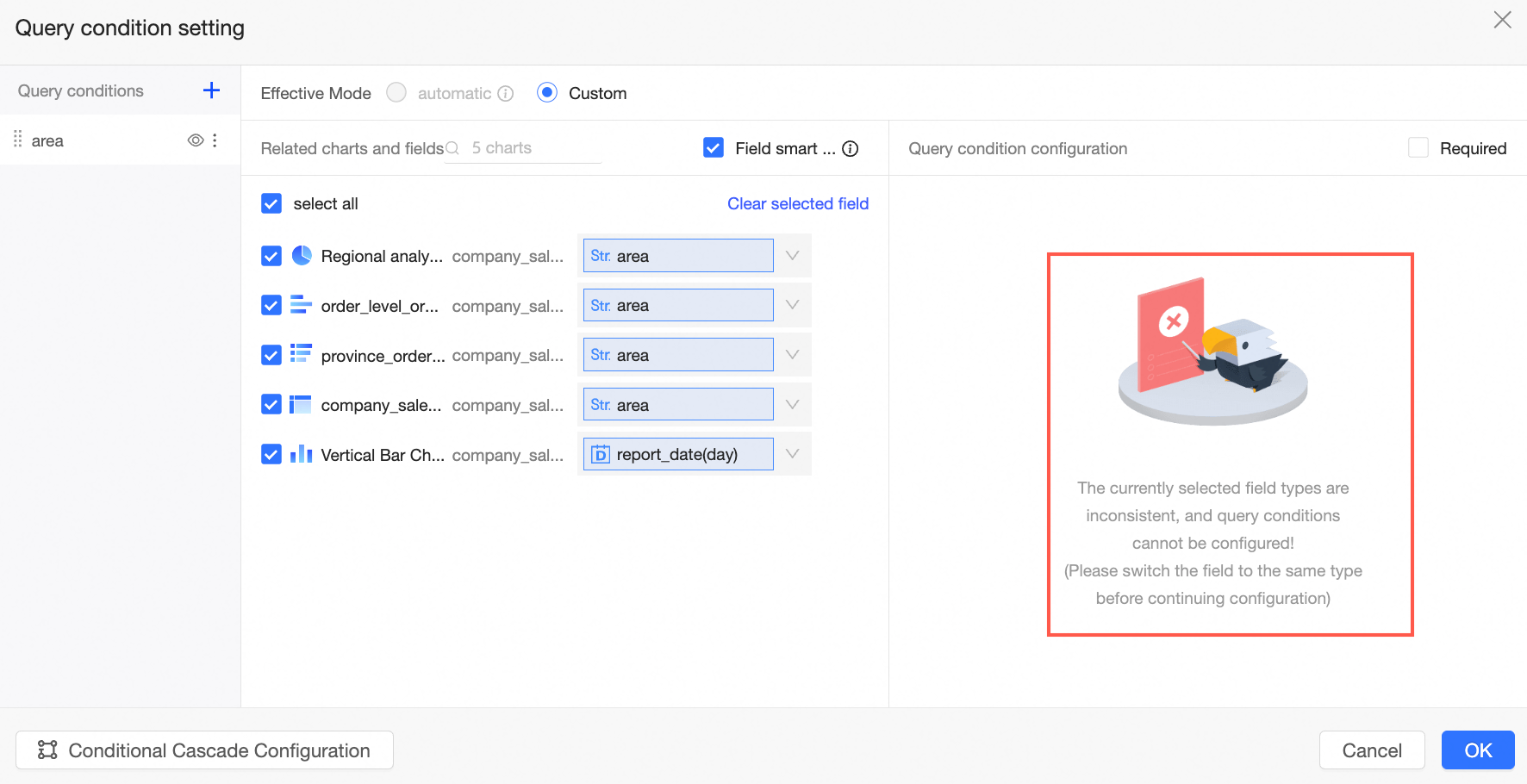
You cannot associate fields of different data types at the same time. For example, if you try to associate a date field and a numeric field, the following message appears.
-
-
Filter Configuration
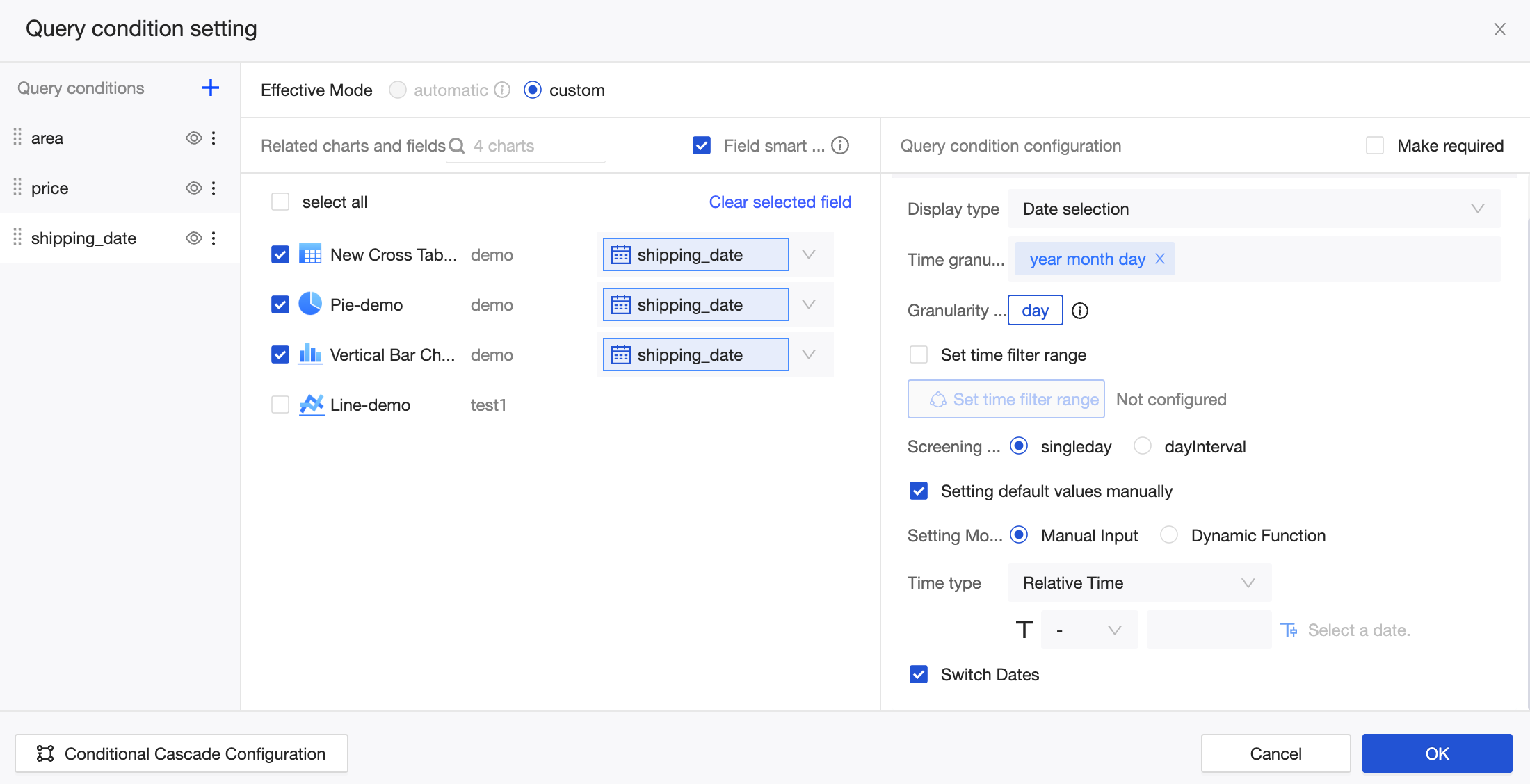
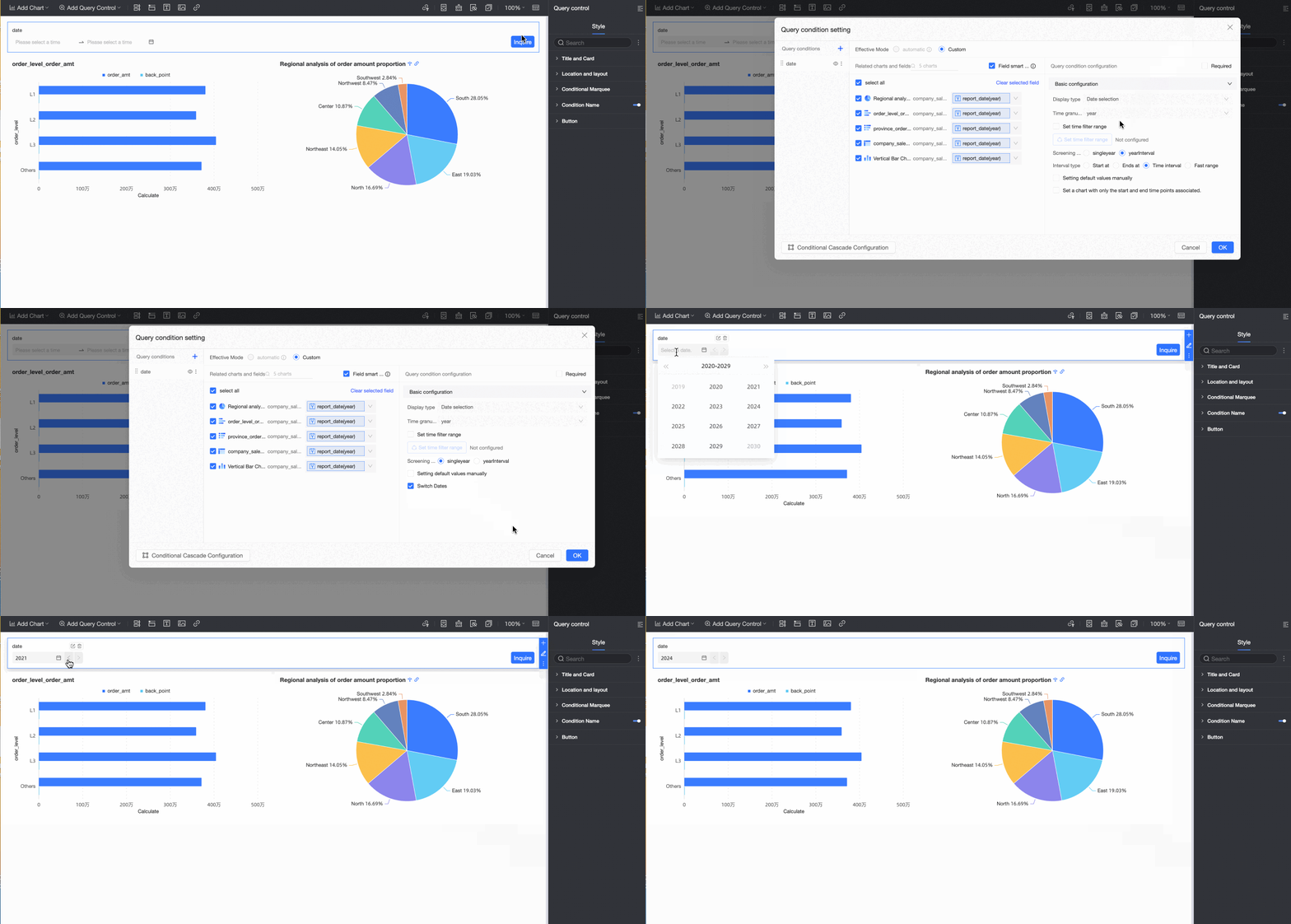
A filter's configuration options vary by the associated field's data type. The following figure shows the configuration for a date field with year-level granularity. For more information on other types, see Filter type configurations.
When you enable the Enable quick date switching feature, shortcut arrows appear next to the date control on the report page. You can click these arrows to quickly switch between years, as shown in the following figure.
-
Filter Cascade Configuration
For more information, see Configure filter bar cascading.
-
 icon in the Filters section, it is automatically named Unnamed. You can then rename it.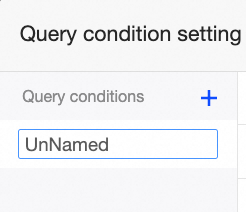
 icon to hide a filter. Its configuration is retained, but it no longer appears on the dashboard.
 icon to rename or delete the filter.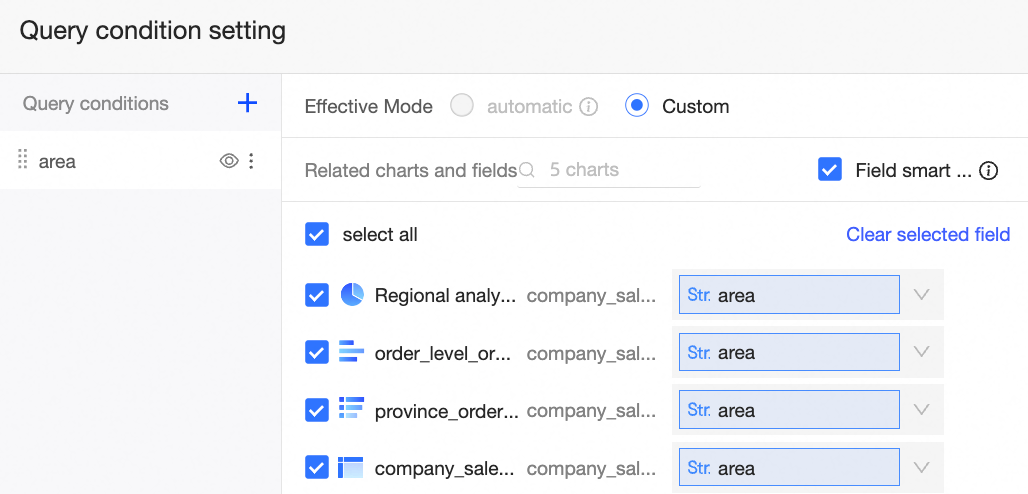

 Click Yes to also select placeholders with the same name in other sub-datasets, applying the filter to both primary and secondary datasets. Click No to apply the filter only to the currently selected placeholder.
Configure a filter group
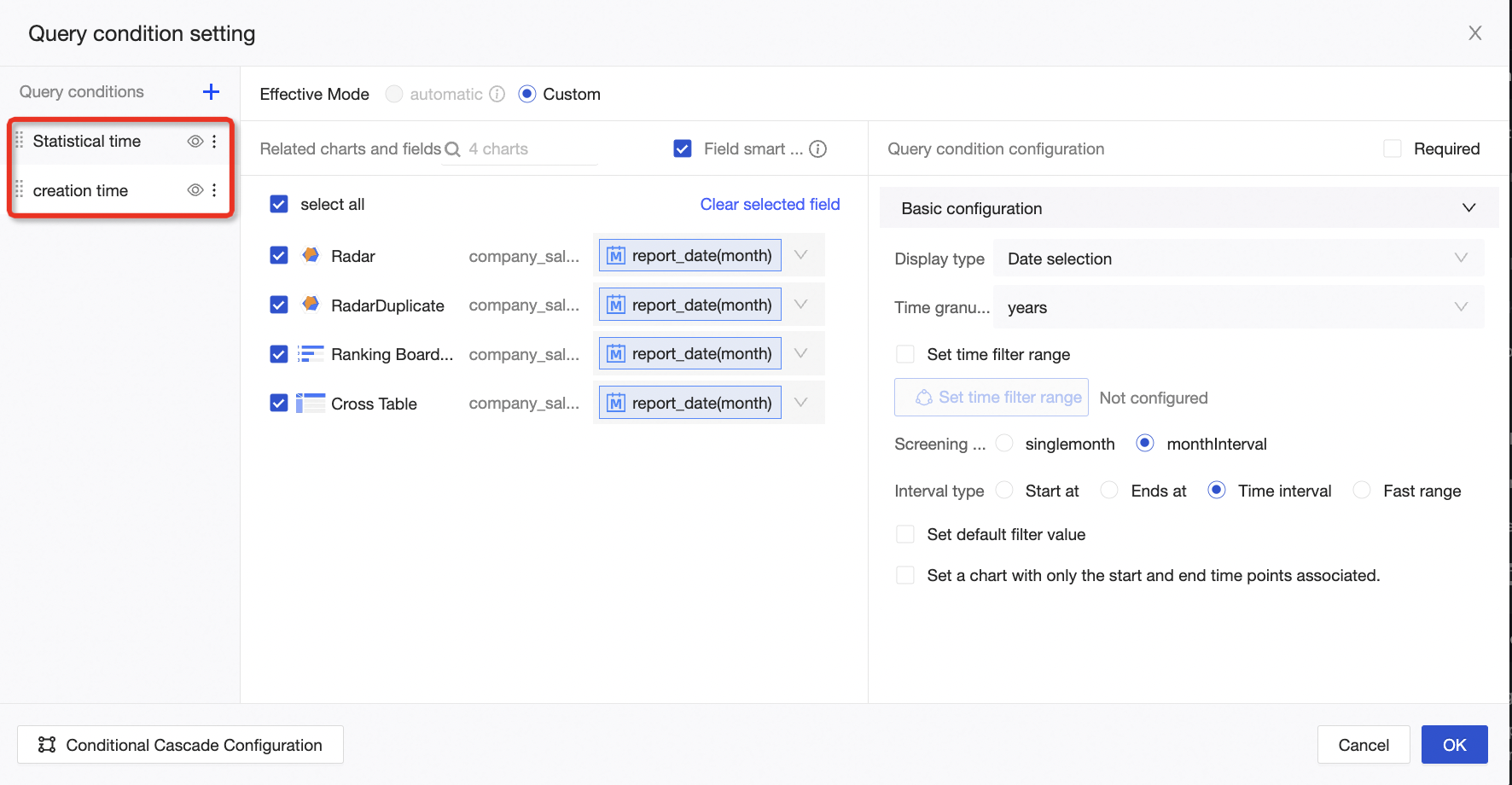
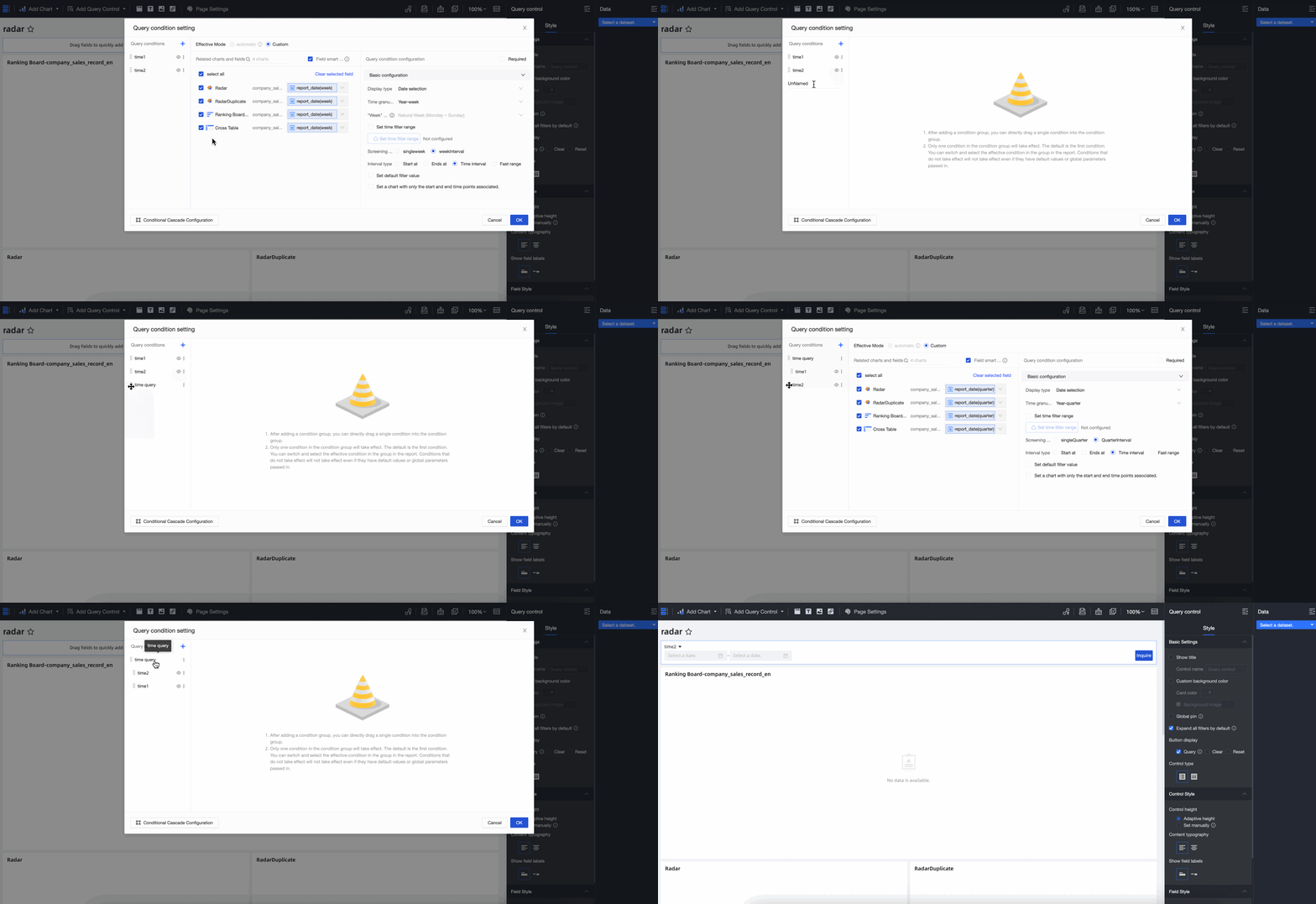
When you add multiple filter controls of the same type, such as the date controls Statistics Time and Creation Time, you can associate them by configuring a filter group. This allows you to use a switch to select which filter is active.
Procedure
-
Configure the date selection controls Statistics Time and Creation Time as described in the previous sections.
-
On the left, next to Filters, click the
icon and select Filter Group from the drop-down list.Note-
After adding a filter group, you can drag individual filters into it.
-
Only one filter within a group can be active at a time. The first filter is active by default. On the dashboard, you can switch to another filter in the group. Inactive filters have no effect, even if they have default values or receive global parameters.
-
-
You can rename the filter group to Time Query. After naming it, drag the Statistics Time and Creation Time filters into the Time Query filter group.
 icon and select Filter Group from the drop-down list.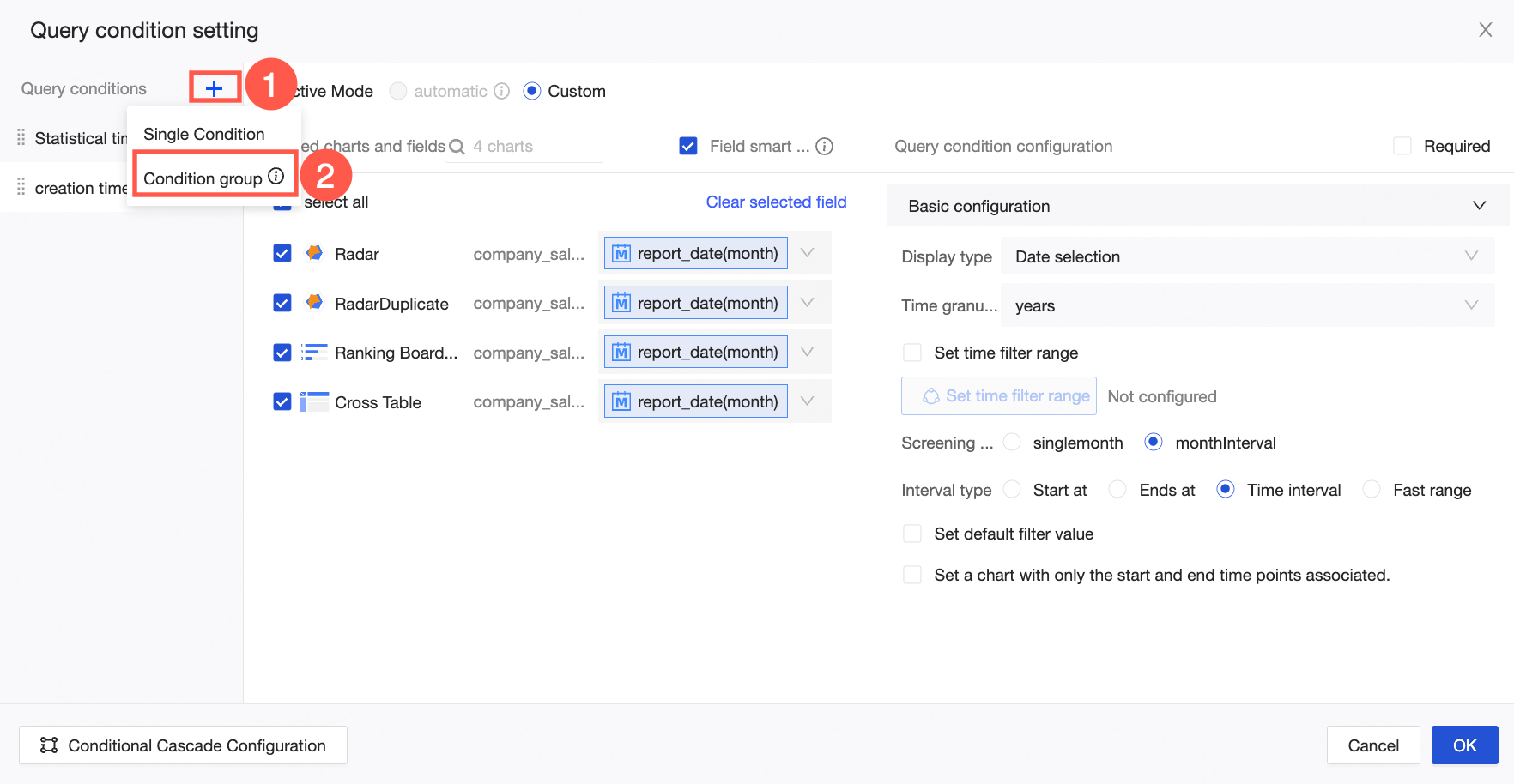
Result
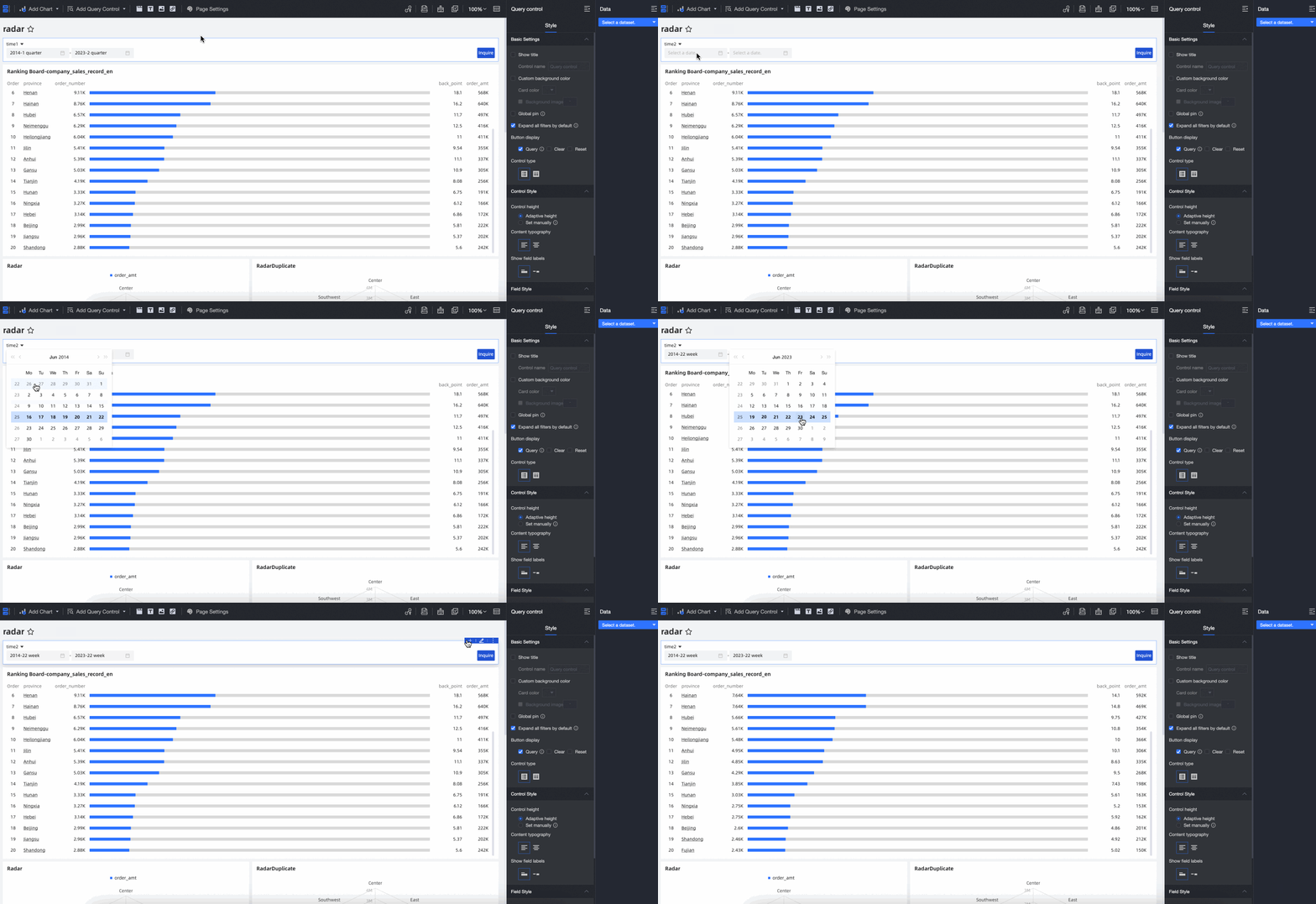
Once configured, the Time Query filter group defaults to the first filter, Creation Time. You can switch to the Statistics Time filter to query the data.
Filter type configurations
A filter bar can apply to parameters, placeholders, and regular fields of the same type.
This section describes the configuration for the following display types.
-
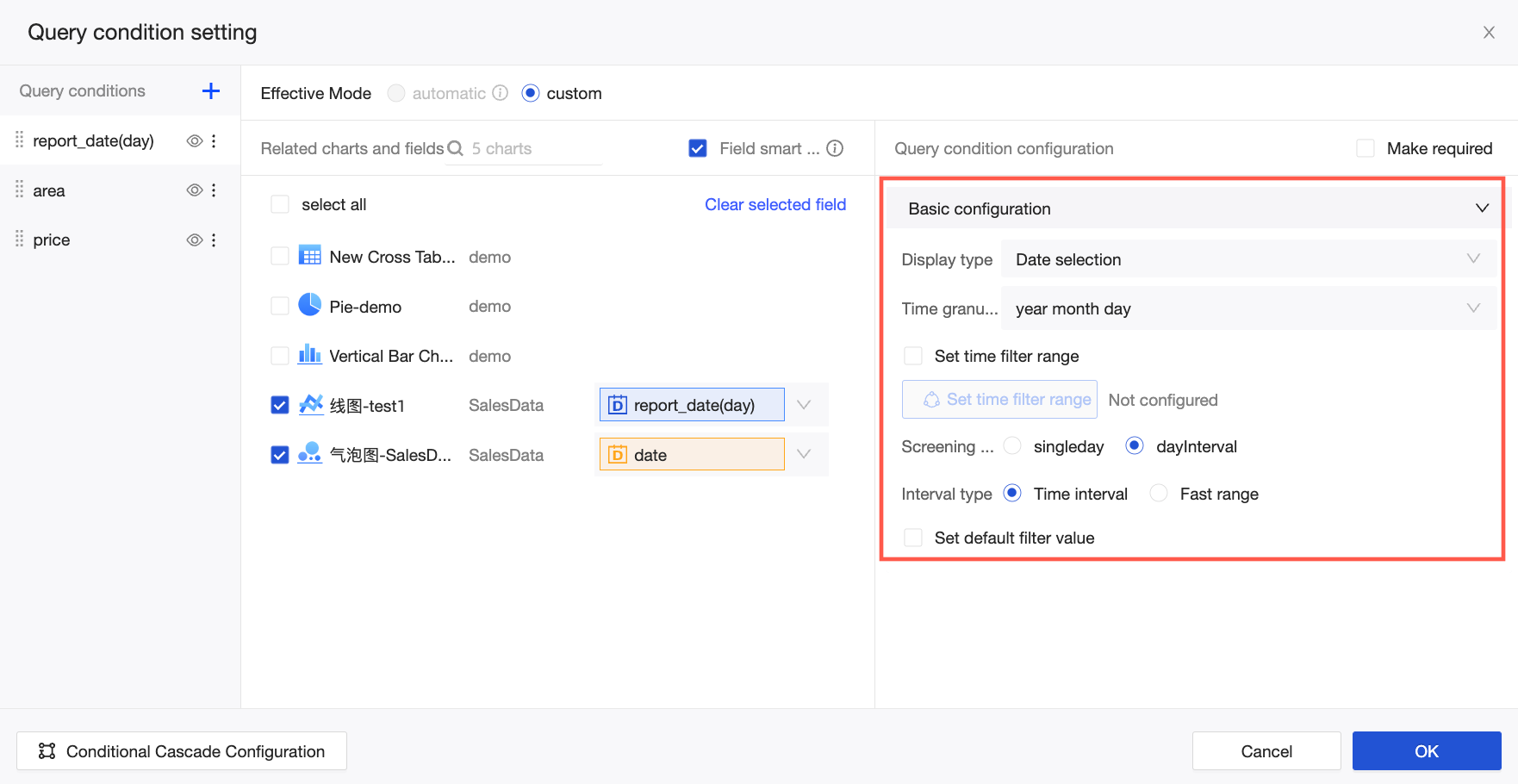
Date selection
Once a date-type field is associated, the filter bar automatically recommends date selection as the display type and a time granularity based on the granularity of the associated date field. Multiple time granularities are supported, such as Year, Year-Quarter, Year-Month, Year-Week, Year-Month-Day, Year-Month-Day-Hour-Minute-Second, Hour, Hour-Minute, and Hour-Minute-Second.
In this example, the selected Time granularity is Year. When the filtering method is Year range, the interval type can be Starts at, Ends at, Time range, or Quick range.
For range filtering, if you select Starts at or Ends at, you can run a query without entering a complete start and end time.
You can customize the quick ranges for different time granularities. The following table shows the available options.
Time granularity
Quick range
Year
-
Last year
-
This year
-
Based on yesterday (excluding today)
-
This year (based on yesterday)
-
Year-Quarter
-
This quarter
-
Last quarter
-
Based on yesterday (excluding today)
-
This quarter (based on yesterday)
-
This year (based on yesterday)
-
Year-Month
-
This month
-
Last month
-
Last 3 months
-
Last 6 months
-
Last 12 months
-
First half of this year
-
Second half of this year
-
Year to last month
-
Year to this month
-
Based on yesterday (excluding today)
-
This month (based on yesterday)
-
This quarter (based on yesterday)
-
This year (based on yesterday)
-
Year-Week
-
This week
-
Last week
-
Based on yesterday (excluding today)
-
This week (based on yesterday)
-
This month (based on yesterday)
-
This quarter (based on yesterday)
-
This year (based on yesterday)
-
Year-Month-Day
-
Today
-
Yesterday
-
Day before yesterday
-
Year to date
-
Month to date
-
Last
-
Last 7 days
-
Last 15 days
-
Last 30 days
-
Last 60 days
-
Last 90 days
-
Last 180 days
-
Last 365 days
-
-
Last (excluding today)
-
Last 3 days
-
Last 7 days
-
Last 15 days
-
Last 30 days
-
Last 60 days
-
-
Current period
-
This week
-
This month
-
This quarter
-
This year
-
-
Current period (excluding today)
-
This week
-
This month
-
This quarter
-
This year
-
-
Previous period
-
Last week
-
Last month
-
Last quarter
-
Last year
-
-
Most recent day of the week
-
Most recent Monday
-
Most recent Tuesday
-
Most recent Wednesday
-
Most recent Thursday
-
Most recent Friday
-
Most recent Saturday
-
Most recent Sunday
-
-
Other
-
First day of this month
-
First day of this year
-
First day of last month
-
Last day of last month
-
Hour, Hour-Minute, Hour-Minute-Second
The quick range feature is not supported.
For more use cases of date filters, see Date query.
-
-
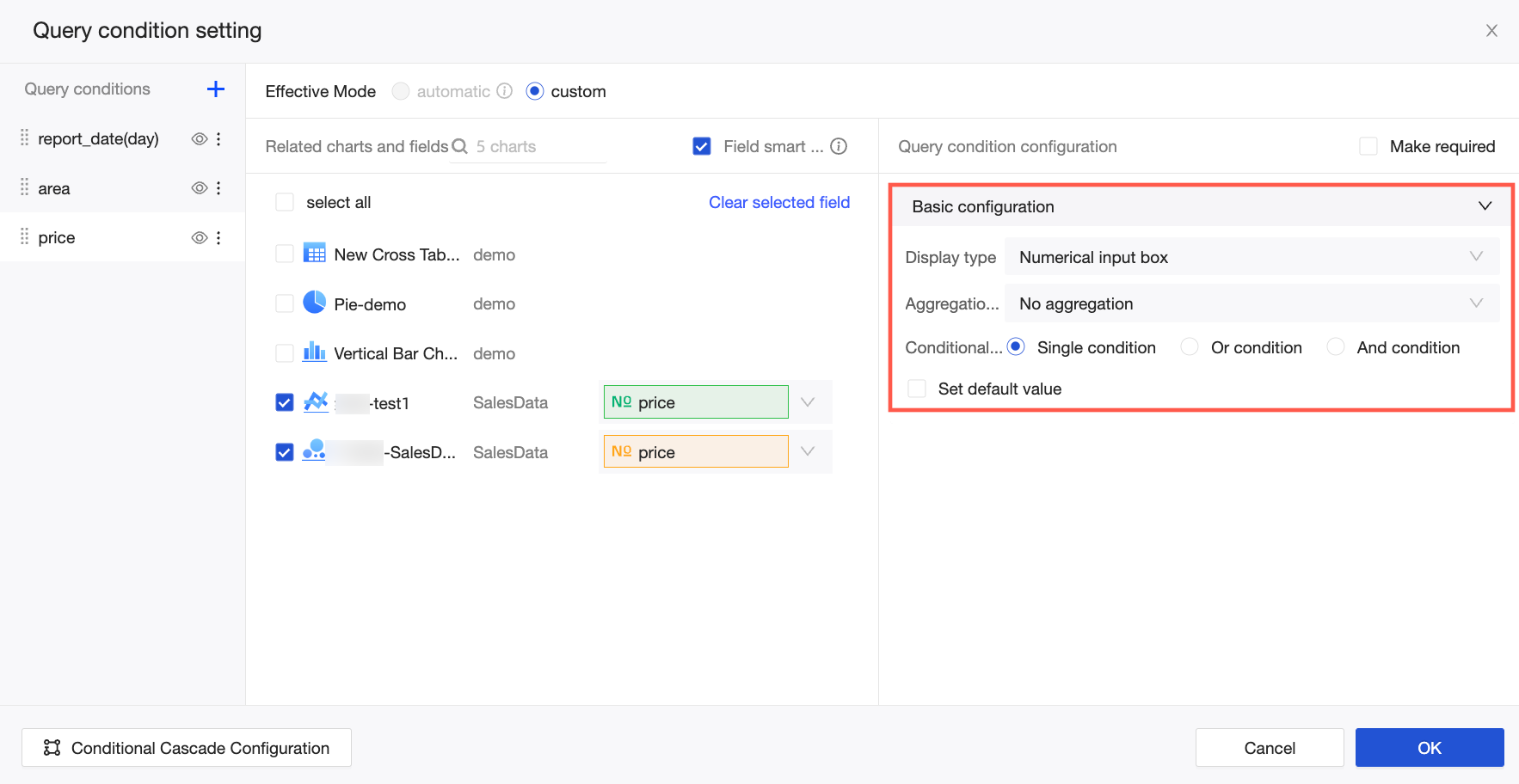
Numerical input box
If the associated field is a measure, you can select an aggregation method for the filter. The default method is Sum, but you can also select No Aggregation or other methods.
NoteFilters with aggregation cannot query detailed data. In the conditional form, you can choose different condition types, such as a single condition or AND/OR conditions. To restrict viewers to a fixed conditional form, such as allowing only the Equals condition, you must select Lock filter conditions.
For more use cases of numerical filters, see Numerical query.
-
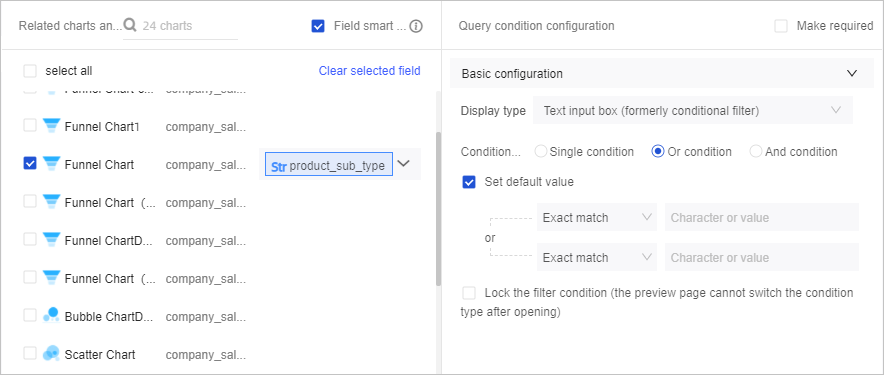
Text input box
Similar to the numerical input box, you can set the Conditional form to Single condition, OR condition, or AND condition.
When setting a default value for the product_sub_type field, the rules and their corresponding SQL syntax are as follows:
Rule
SQL syntax
Equals
product_sub_type='Ruler'Does not equal
product_sub_type!='Ruler'Contains
product_sub_type like '%Ruler%'Does not contain
product_sub_type not like '%Ruler%'Starts with
product_sub_type like 'Ruler%'Ends with
product_sub_type like '%Ruler'Is null
product_sub_type is nullIs not null
product_sub_type is not nullEmpty string
product_sub_type=''Is not an empty string
product_sub_type!=''For more use cases of text filters, see Text filter controls.
-
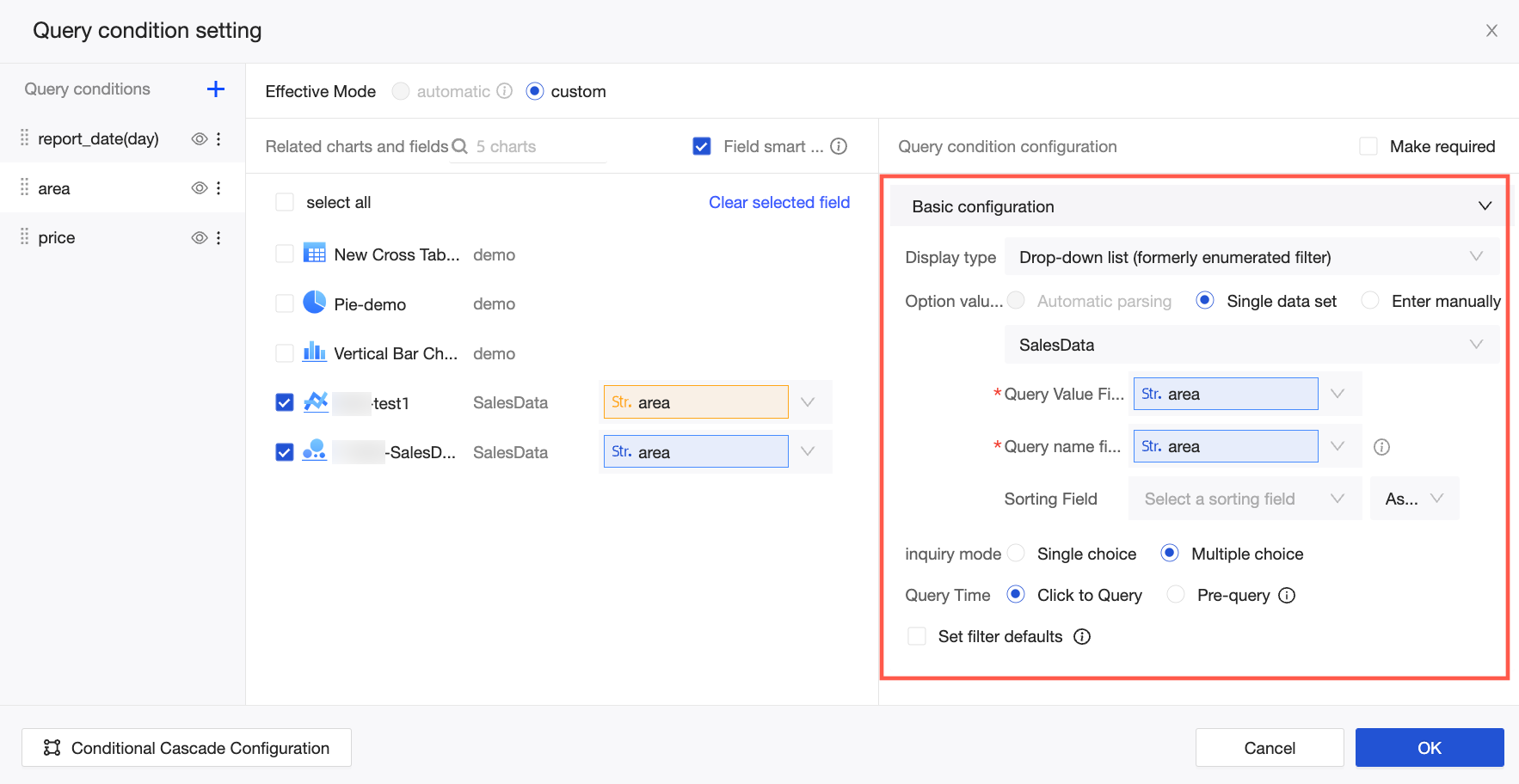
Drop-down list
When the display type is drop-down list, the Option value source setting provides the filter's selectable values. The supported methods are Automatic parsing, Single dataset, and Manual input.
-
When you select Automatic parsing, the system combines values from the fields you selected in the Associated Charts and Fields section and displays up to 1,000 of them.
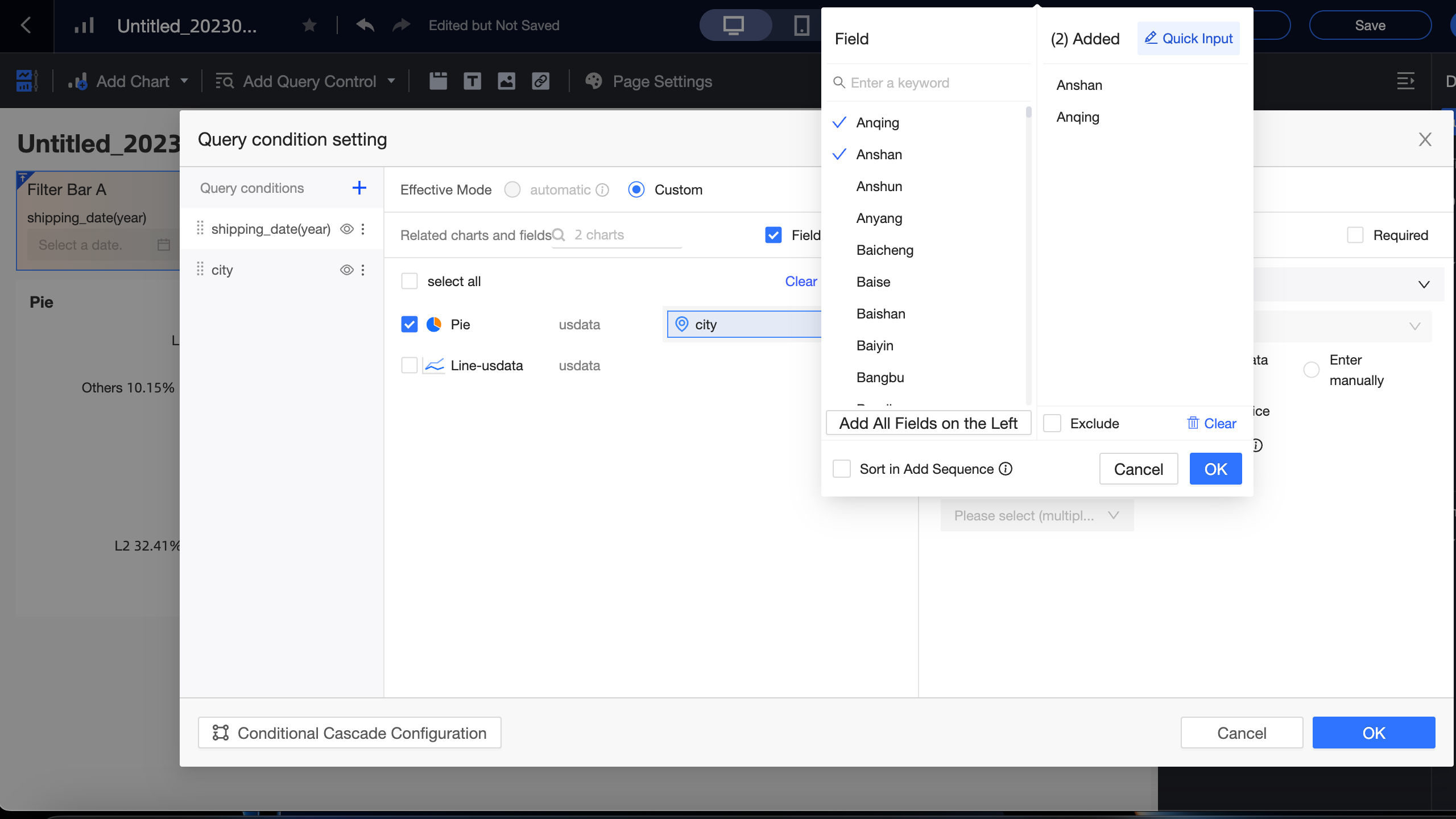
If you set Query mode to Multiple selection and Query time to On-click query, you can select Set filter default value and configure the default values.
On the Fields page, you can perform the following operations:
-
Enter a keyword in the search box and click the keyword below it to add the target field value to the Added list on the right.
-
Click Add all field values from the left to add all field values to the Added list on the right.
-
Select the checkboxes next to field values on the left to add them to the Added list on the right.
-
Click Exclude to exclude the field values in the Added list.
Note-
If you exclude a field value when setting defaults and then switch the drop-down list style to tiled display, selecting that value in the filter will exclude it from the query.
-
If you first set the style to tiled display and then choose to exclude a field value when setting defaults, the style changes to tiled-exclude.
-
-
Click Clear to remove all field values from the Added list.
-
-
When the option value source is Single dataset, you can select any dataset within the current dashboard's workspace. We recommend using the datasets that your associated charts are based on. The relationship between the chart's associated field, the query value field, and the display name field is as follows:
-
Associated Charts and Fields are the charts and fields to be associated in the filter.
-
Query Value Field is the field from the option value source dataset that needs to match the associated field.
-
Display Name Field is the field from the option value source dataset used for filtering, which is the field displayed in the filter control.
Note-
If the Display Name Field and Query Value Field are the same, the system automatically populates the display name field after you select the Query Value Field.
-
If the Display Name Field and Query Value Field are different, you must manually modify the display name field.
-
-
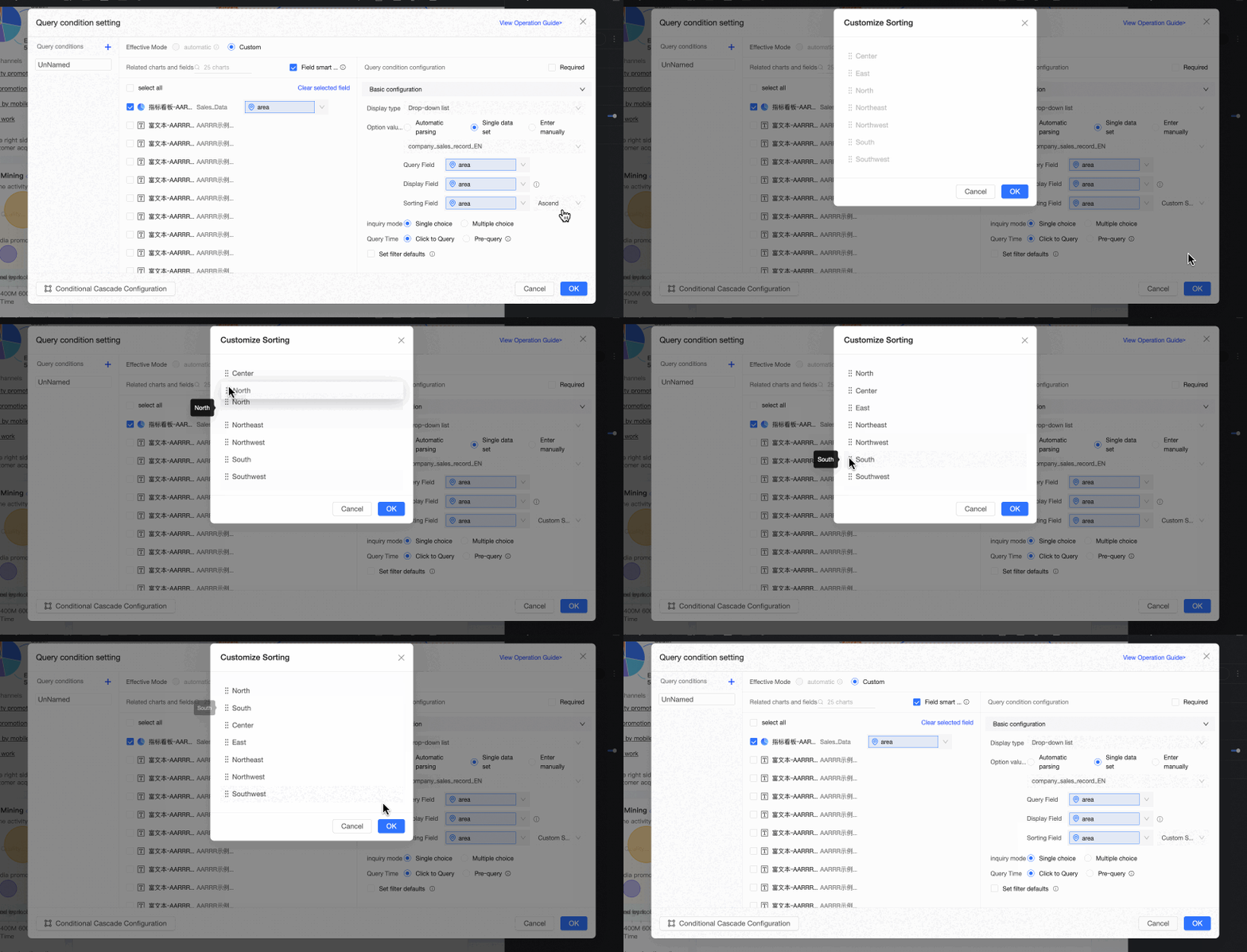
Sort Field: Sorts the values based on a selected field. The supported sorting methods are ascending, descending, and custom. If you select custom sorting, you can drag the field values in the Custom Sort dialog box to arrange their order.
NoteThis is an optional setting. If you do not select a sort field, the values are displayed in their original order from the dataset.
-
Query time: Supports On-click query and Pre-query.
-
On-click query: This is the default setting. The query runs when you click the query button.
-
Pre-query: This feature was introduced in Quick BI v3.12.1. When the dashboard opens, this feature pre-queries the drop-down list content. This allows the drop-down list values to be displayed according to each account's row-level permissions, and each user's default value will vary accordingly.
Pre-query is suitable when the target dataset has row-level permissions and a small data volume; otherwise, it may slow down the dashboard's overall loading time.
-
-
-
When the option value source is Manual input, click the
icon and manually enter the query value and display name fields on the Manual Entry page: -
If you are entering data manually for the first time and the query value is the same as the display name, enter the query value and click OK. The system automatically populates the display name.
-
If you are entering data manually for the first time and the query value is different from the display name, you must enter both values.
-
If this is not the first time you are manually entering data, you must enter both the new query value and display name. If you only enter the query value, the following message appears.
-
-
-
Tree drop-down
When the display type is tree drop-down, you can select datasets from both the same and different sources. The display format supports Tree display and tiled display. The query method supports Single selection and Multiple selection, and the query time supports On-click query and Pre-query.
NoteThe tree structure supports up to 10 levels.
-
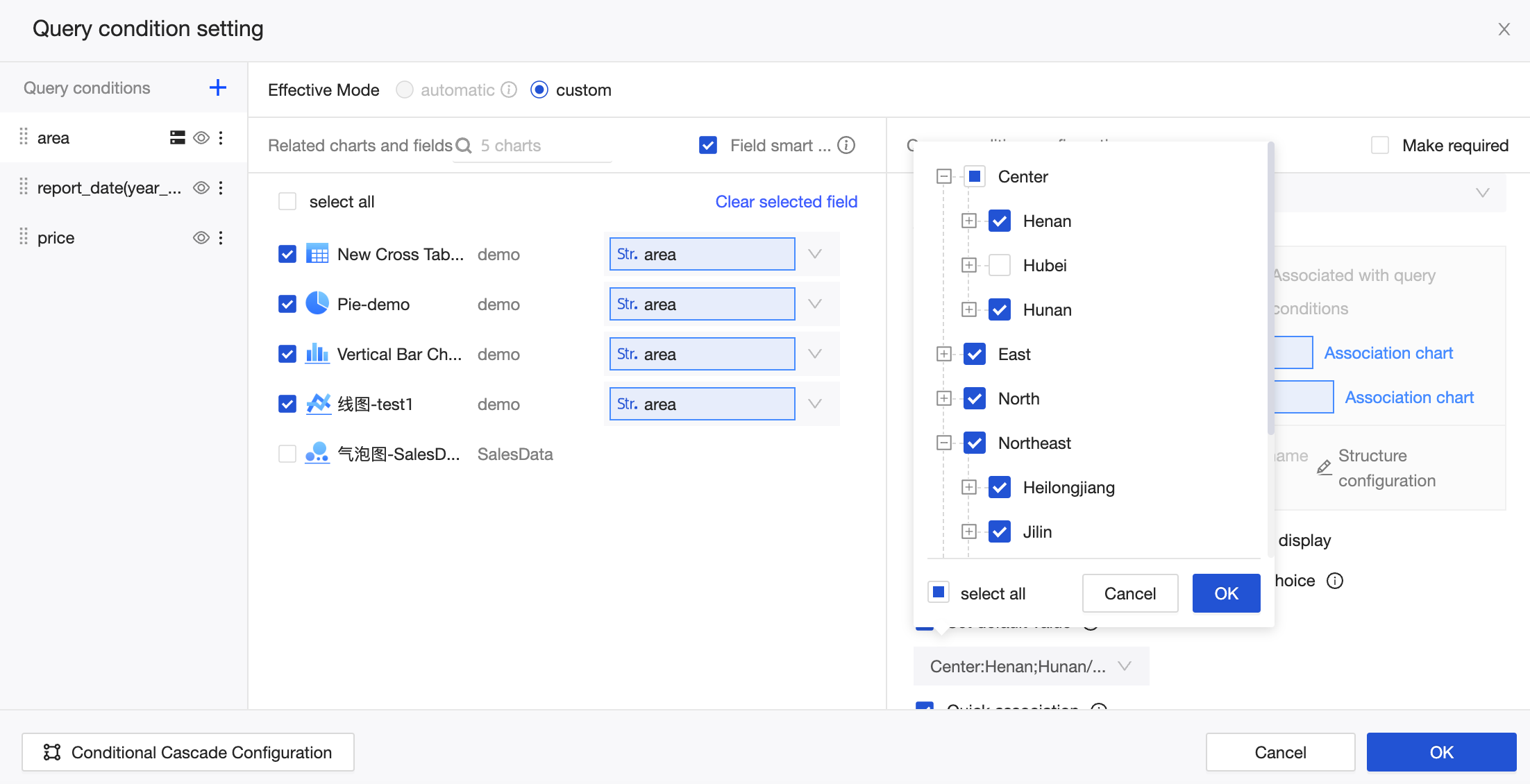
Tree display (single selection)
-
Tree display (multiple selection)
-
The quick association feature is enabled by default, which automatically selects associated charts and fields from the same dataset for the child levels of the tree structure. Click Associate Chart in the tree structure or click the name of a child level on the left to associate charts and fields from other datasets.
For example, in the figure below, when you configure the second level, Province, the associated fields for the Bar Chart and Pie Chart from the same dataset are automatically selected. The associated fields for the Scorecard from a different dataset need to be entered manually. -
On the mobile client, the tree drop-down allows you to clear filters. You can click the clear button at each level to clear the filter conditions.
-
 icon and manually enter the query value and display name fields on the Manual Entry page: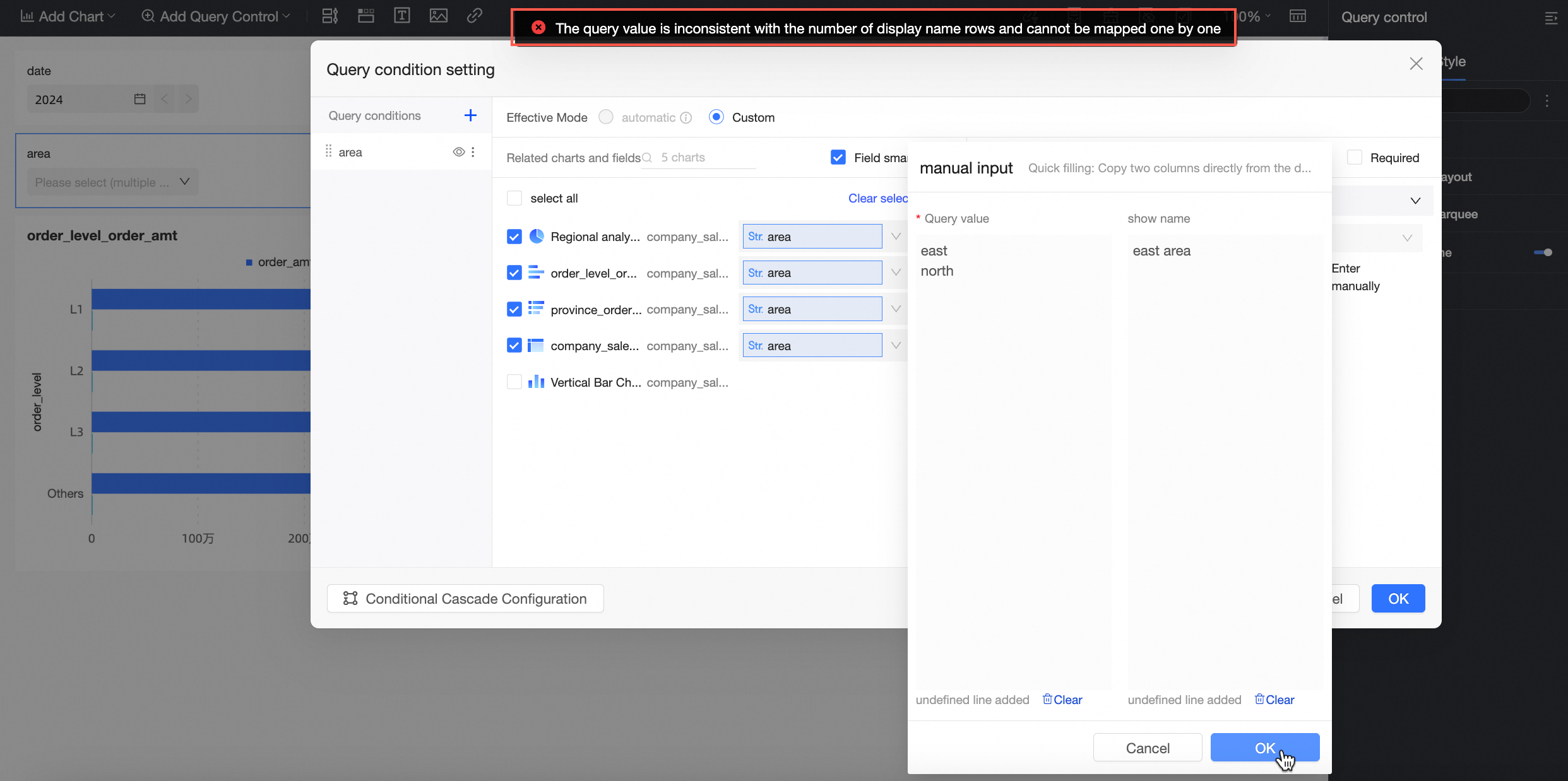
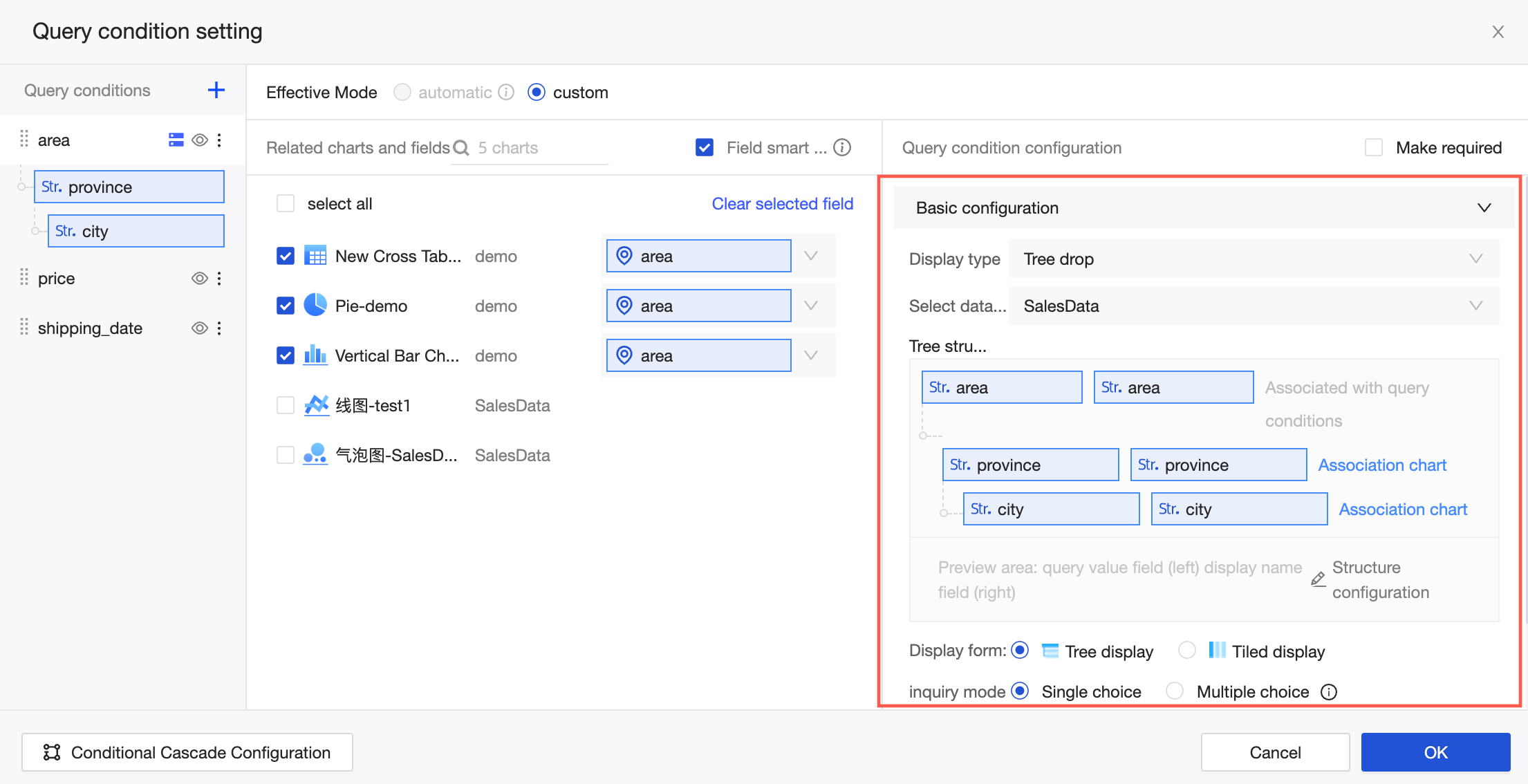
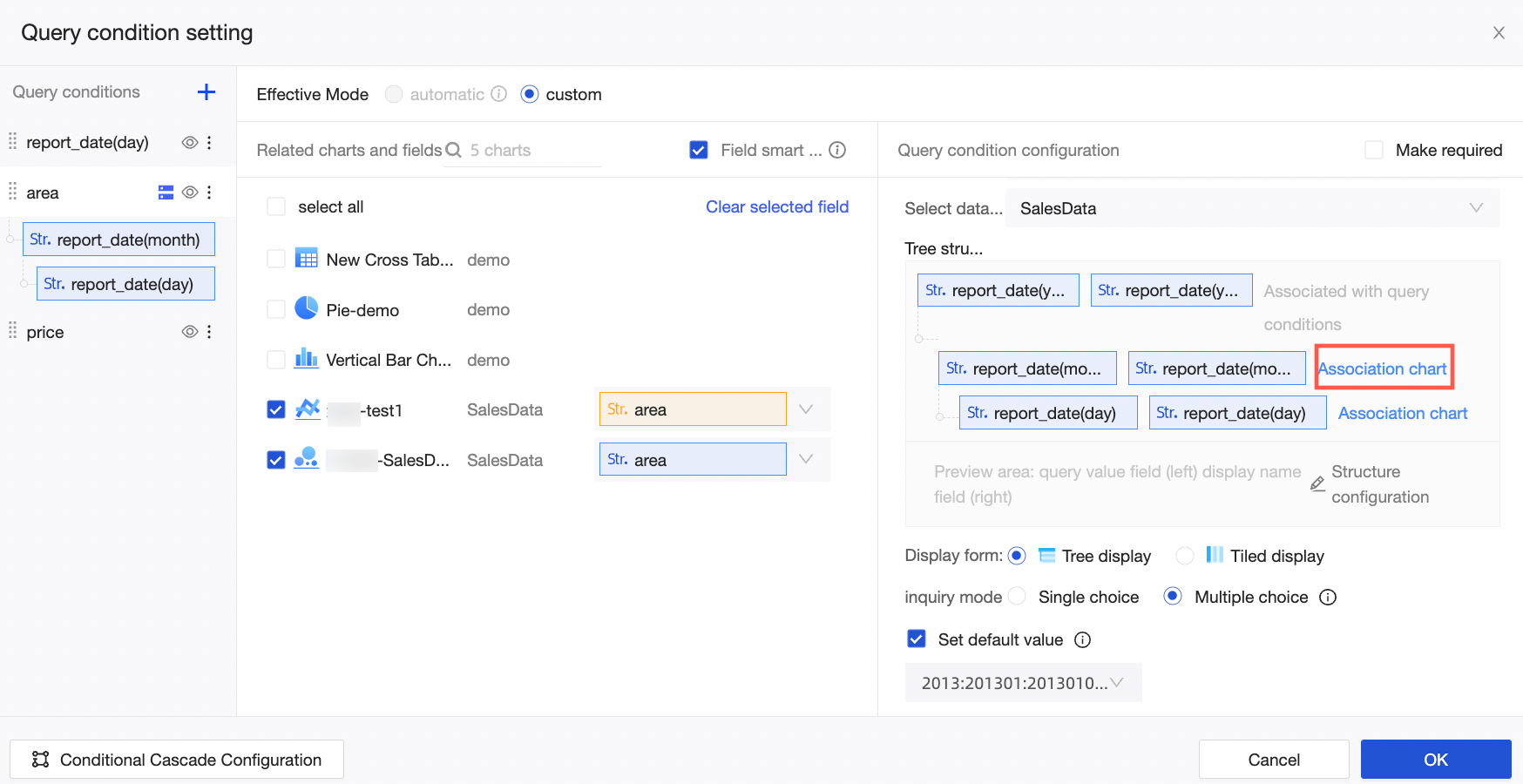 For example, in the figure below, when you configure the second level, Province, the associated fields for the Bar Chart and Pie Chart from the same dataset are automatically selected. The associated fields for the Scorecard from a different dataset need to be entered manually.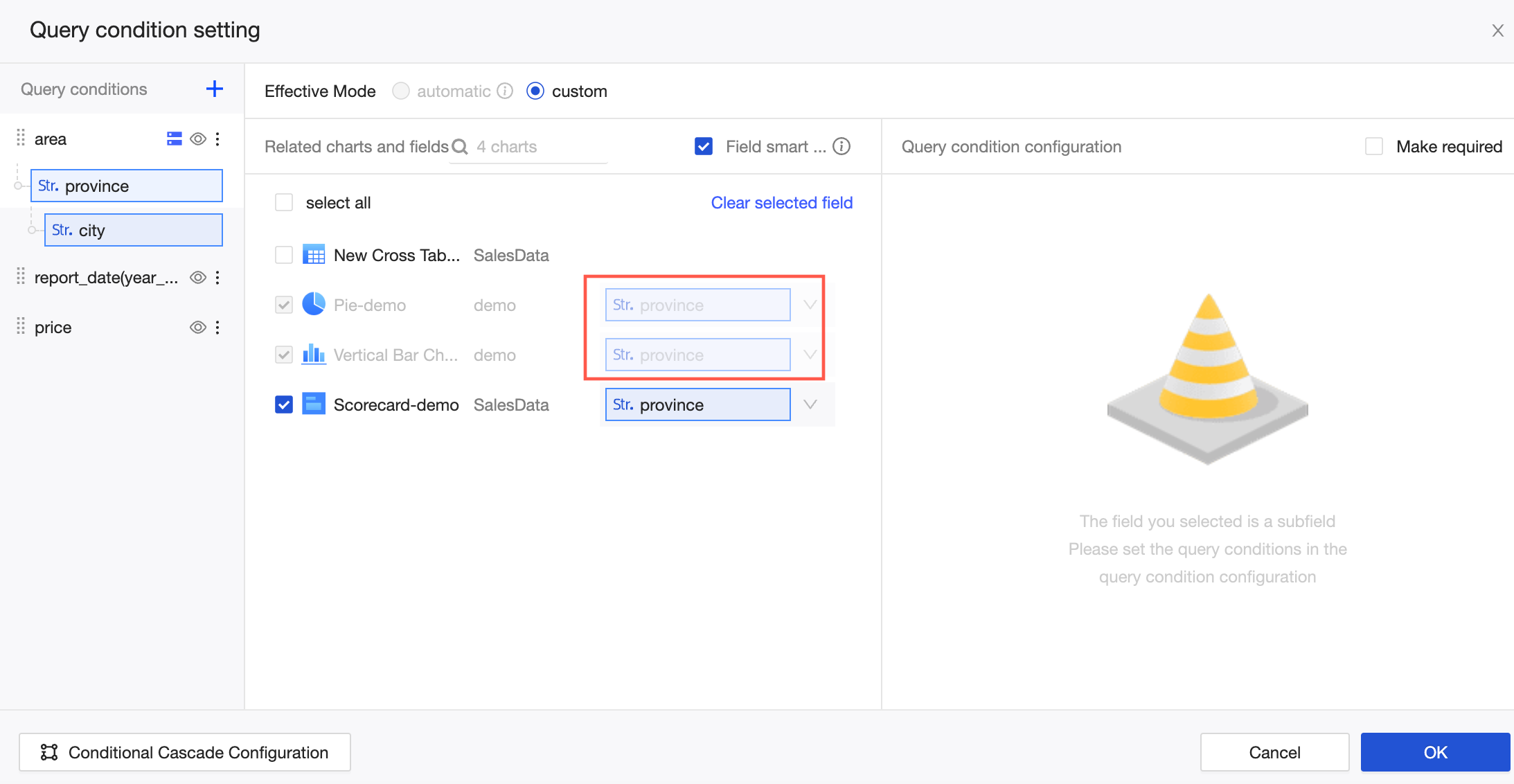
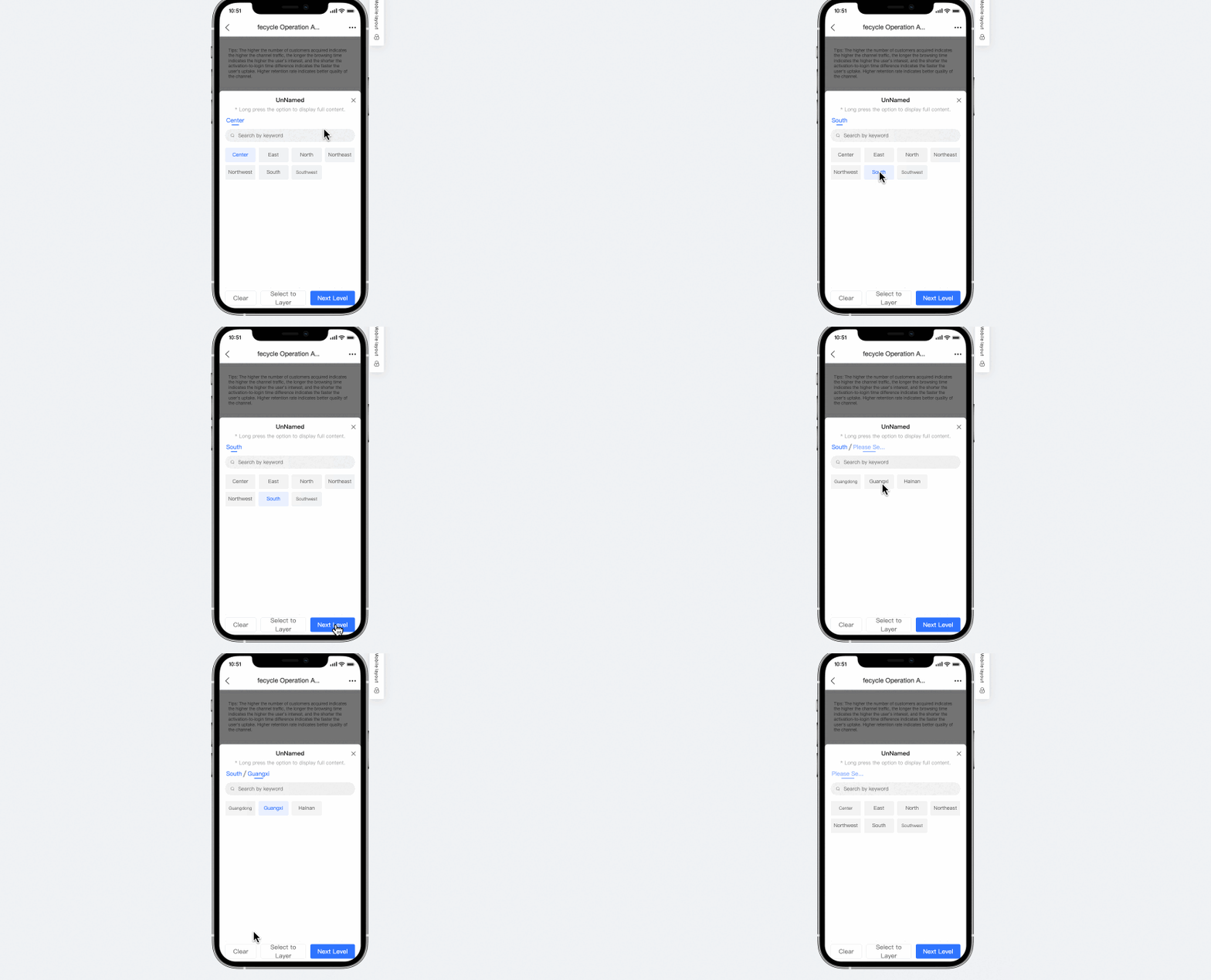
Remember filters
-
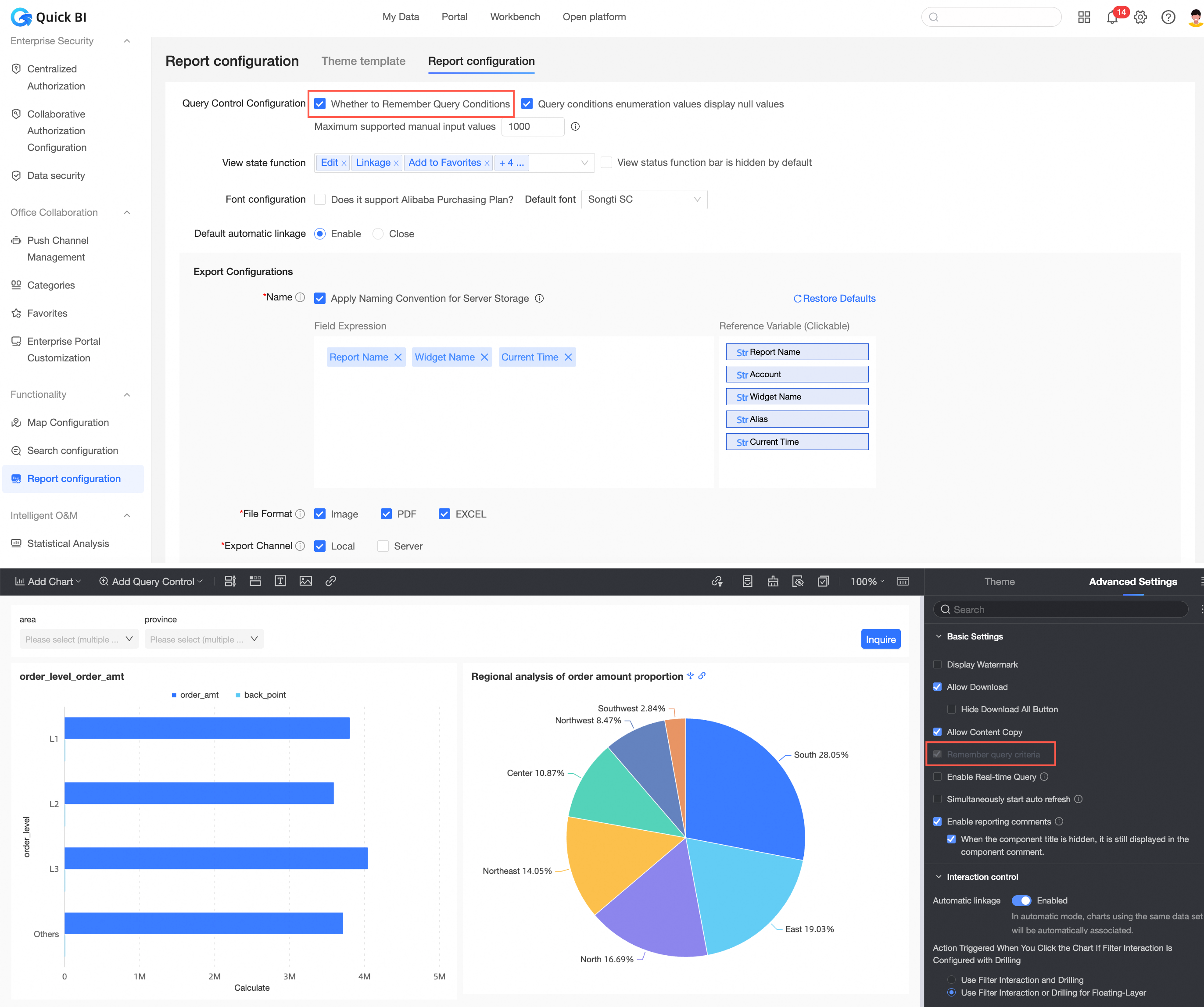
You can enable the system to remember filters at the report level.
If you select this option, the system remembers the last used filters by default. -
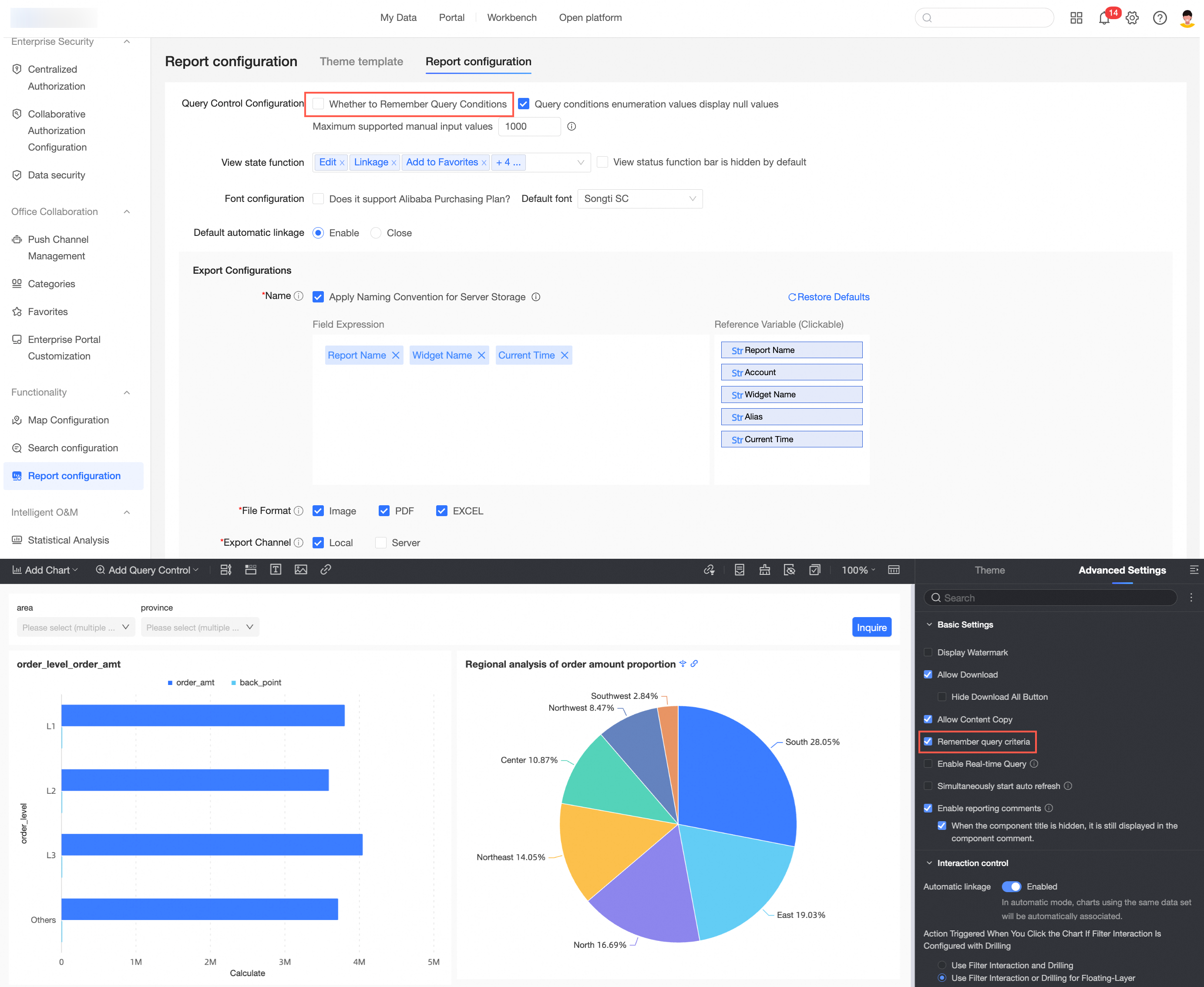
The organization-level configuration affects this report-level setting.
-
If Remember filters is selected in the Report configuration, the corresponding option on the page is grayed out and cannot be deselected.
-
If Remember filters is not selected in the Report configuration, you can configure this setting for each report individually.
-
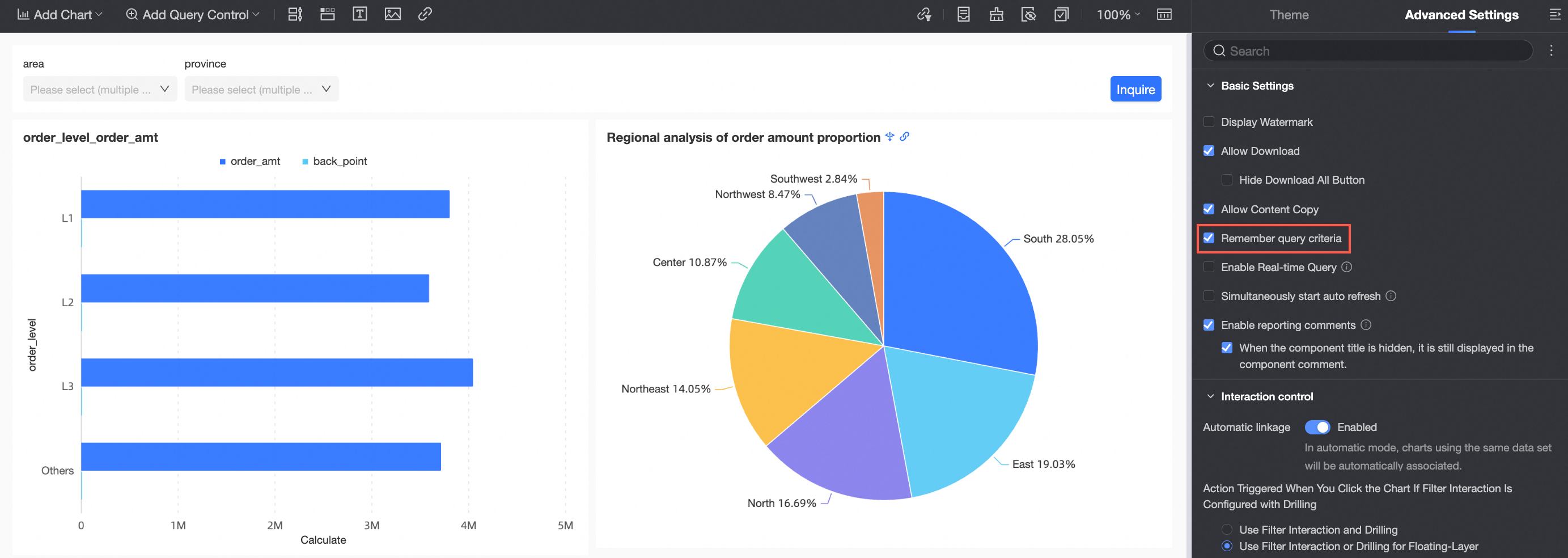 If you select this option, the system remembers the last used filters by default.