Create and manage workspaces
Workspaces help you group and manage resources. Resources in different workspaces are isolated from each other. An organization administrator can assign separate management permissions for each workspace. This topic explains how to create and manage workspaces.
Prerequisites
-
You have activated Quick BI Advanced or Pro. Activate Quick BI.
-
You must have organization administrator permissions to create a workspace.
Limitations
Only organization administrators can create and manage workspaces in Quick BI Advanced or Pro.
Create a workspace
Log on to the Quick BI console.
-
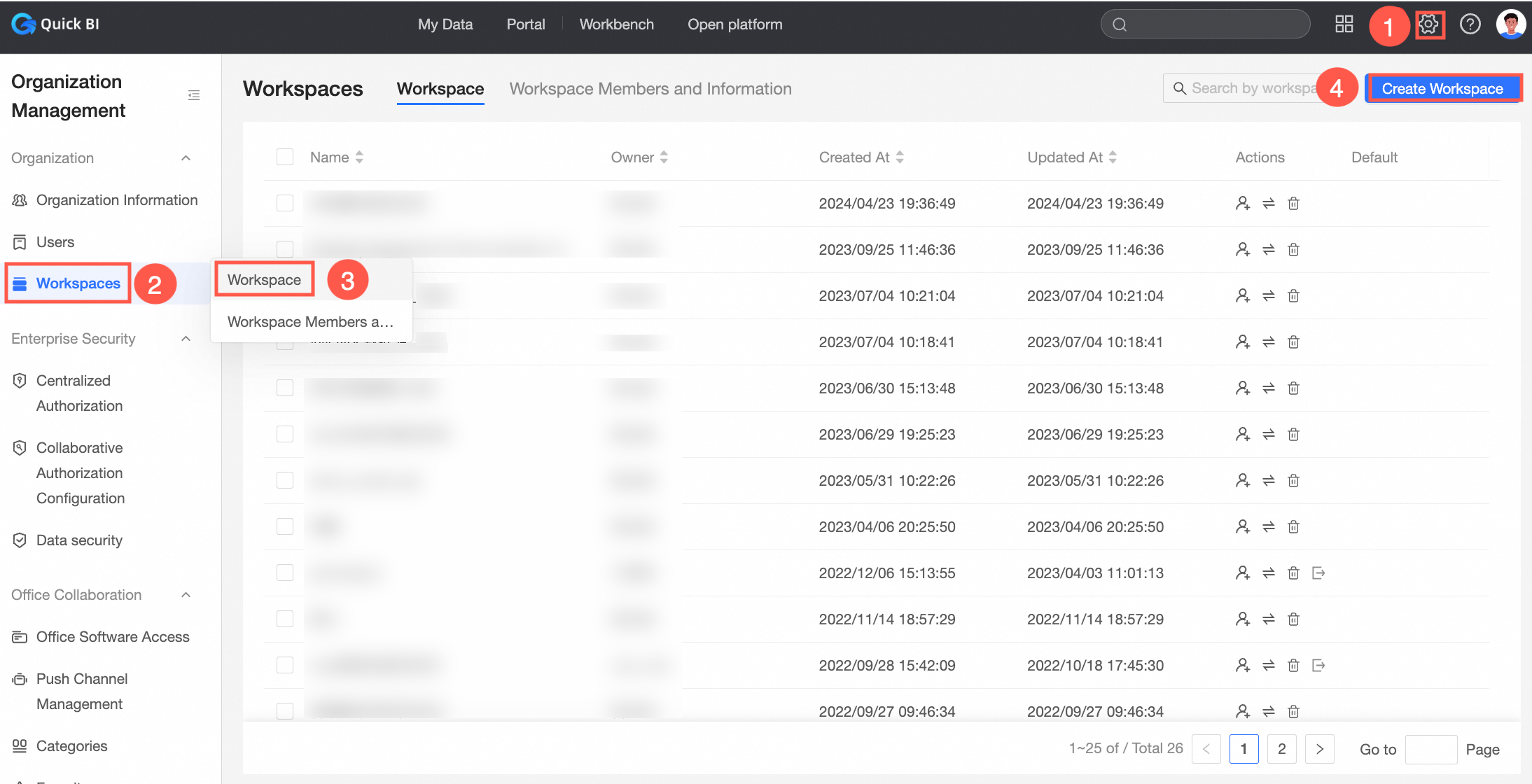
On the Quick BI homepage, go to Configuration Panel > Workspace Management > Workspaces, and click Create Workspace.
-
On the Create Workspace page, configure the following parameters.
Parameter
Description
Workspace name
The name of the workspace.
The name can contain Chinese characters, English letters, digits, and the following special characters: underscores (_), slashes (/), backslashes (\), vertical bars (|), parentheses (()), and brackets ([]). The name can be up to 50 characters long.
Workspace description
An optional description of the workspace, such as its purpose.
Owner
Select the owner of the workspace from the drop-down list.
Workspace mode
Controls the visibility of works within the workspace. You can select collaboration mode or private mode.
-
Select Collaboration mode: Users can view all works in the space.
-
Select Private mode: Users can only see works that are relevant to them (i.e., works they have permission to view).
ImportantWorkspace mode is a new feature introduced in v4.1 that controls the visibility of the work list. Therefore:
-
If you create a workspace in v4.1 or later, you must select a workspace mode. We do not recommend changing the mode after creation, as this may cause changes in work ownership or visibility.
-
If your workspace was created before v4.1, you did not need to select a mode. When modifying the workspace information, you can change the workspace mode as needed.
Permissions
Configure permissions for works within the workspace.
-
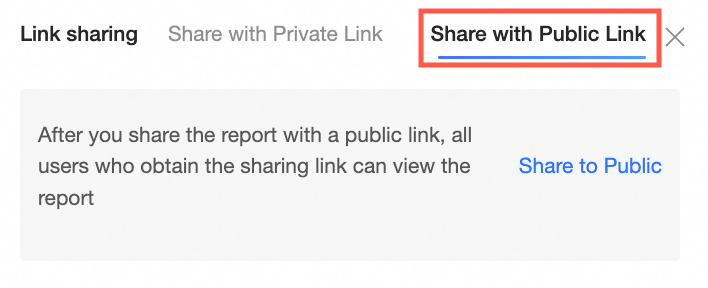
Works can be made public: Allows works in this workspace to be made public.
When selected, anyone can view a work using its link from the public link sharing tab without logging in to an Alibaba Cloud account. If your workspace contains works with sensitive business data, clear this checkbox to prevent members from sharing works via public links.
-
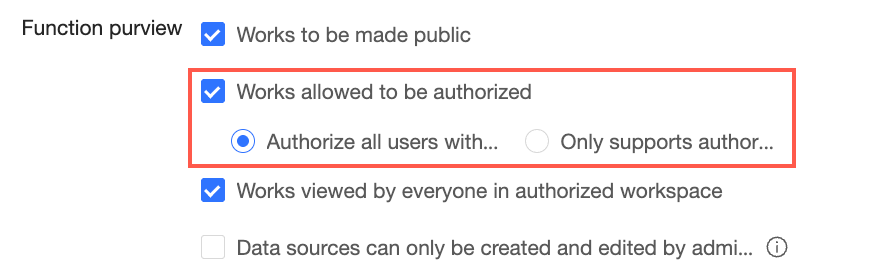
Works can be authorized: Allows works in this workspace to be authorized to other users. You can set this to Authorize to all users in the organization or Authorize only to users in the workspace.
-
Authorize to all users in the organization: Allows you to grant permissions to all members in the organization during collaborative authorization.
-
Authorize only to users in the workspace: Allows you to grant permissions By User only to members within the workspace during collaborative authorization.
Note-
This setting only affects the collaborative authorization page for works and does not affect centralized authorization.
-
This setting does not apply to APIs.
-
Members outside the workspace can still request permissions if they receive a link to a work.
-
When selected, you can perform collaborative authorization on works.

-
-
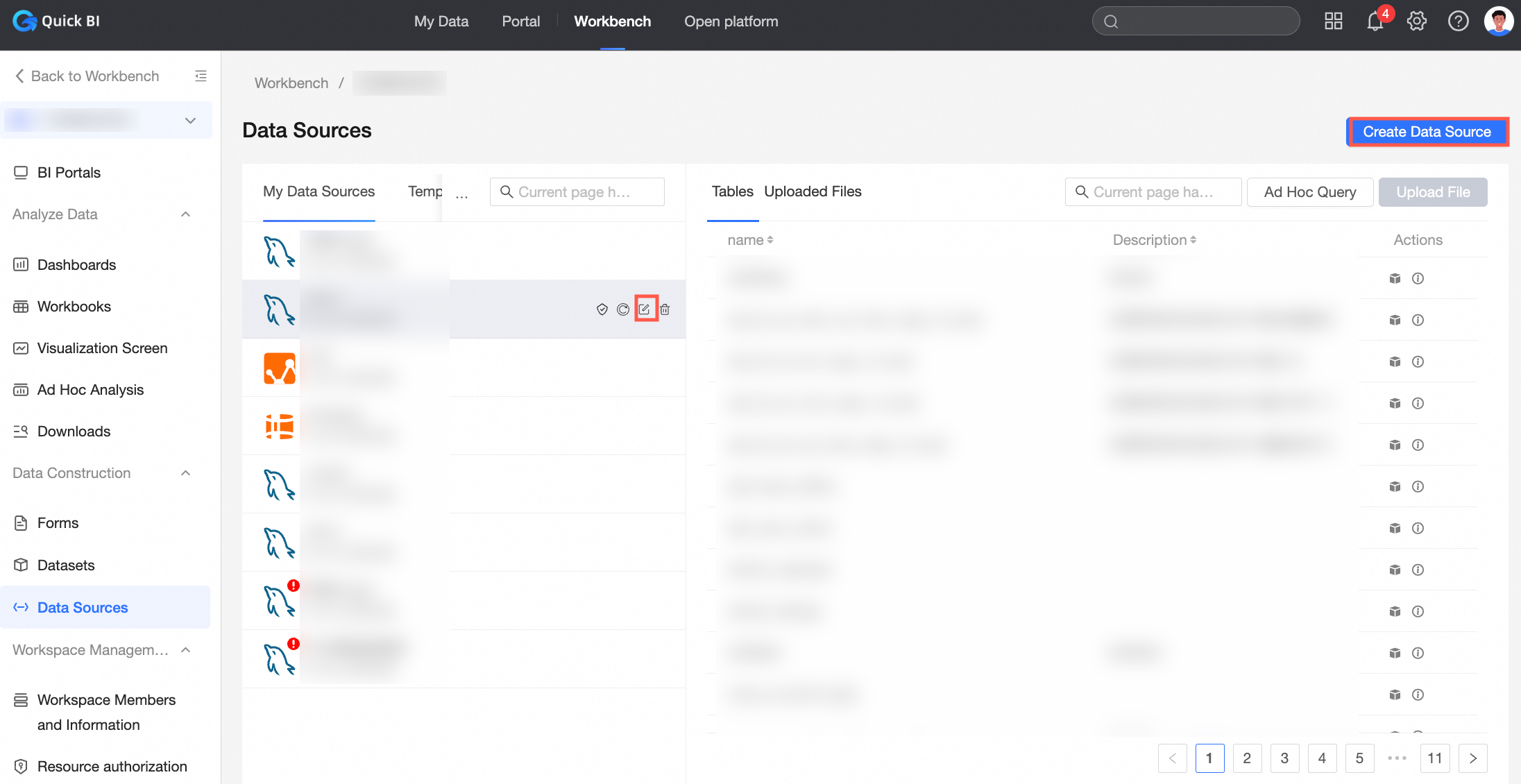
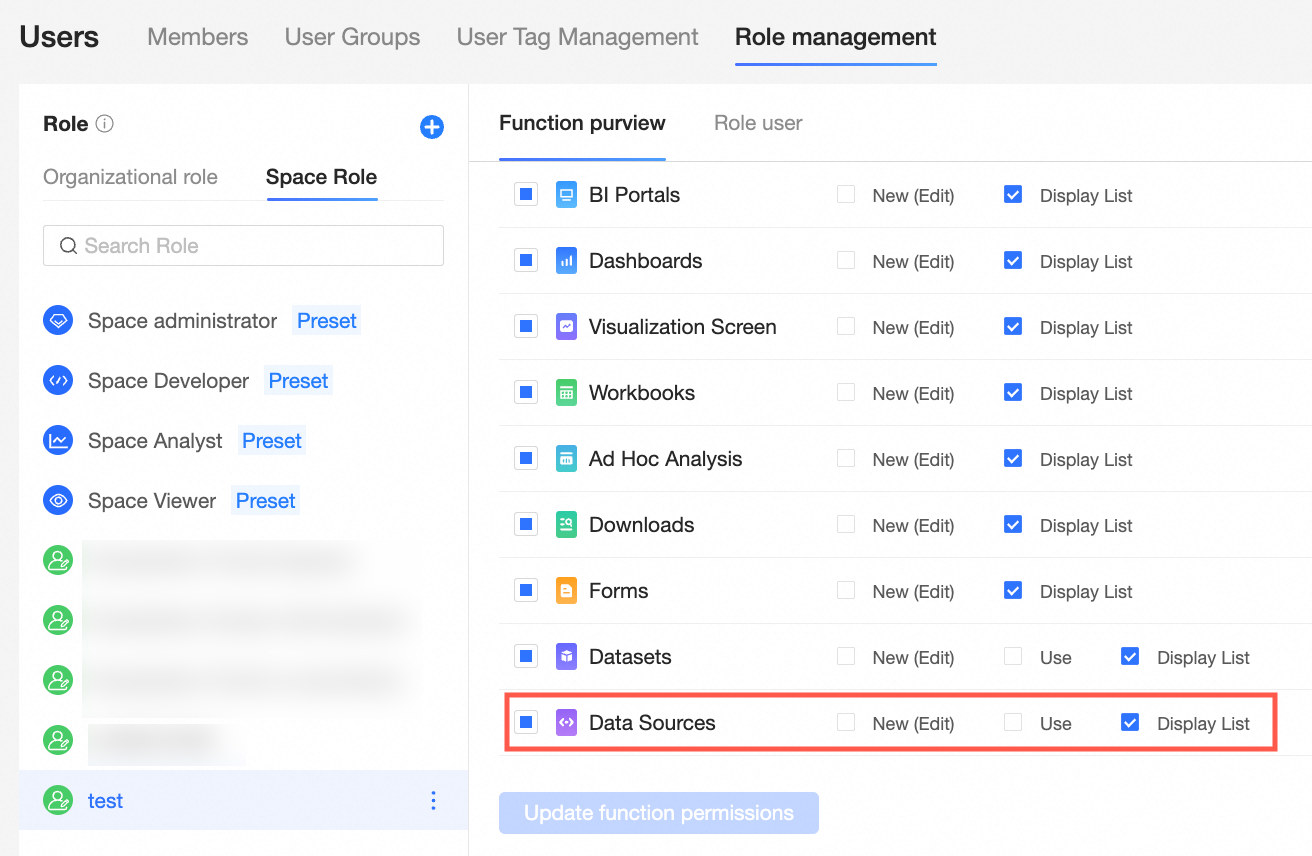
Data sources can only be created and edited by administrators: Restricts data source creation and editing to users with workspace management permissions.
 Note
NoteIf you select this option, other members in the workspace cannot create, edit, replace, or synchronize data sources. Any existing data source editing permissions, including those inherited from usage permissions, will be automatically revoked.
If you need specific members to have data source editing permissions, you can create a custom role with a workspace role. For more information, see Role Management.

Approval settings
Select Work Publication to require approval for every publication (including initial and subsequent publications) of dashboards, spreadsheets, data visualization screens, and ad hoc analysis works in the workspace.
NoteThis action triggers an approval workflow, with the workspace administrator as the approver. This setting is invalid if the organization's approval workflow is disabled. To enable the approval workflow, see Approval settings.
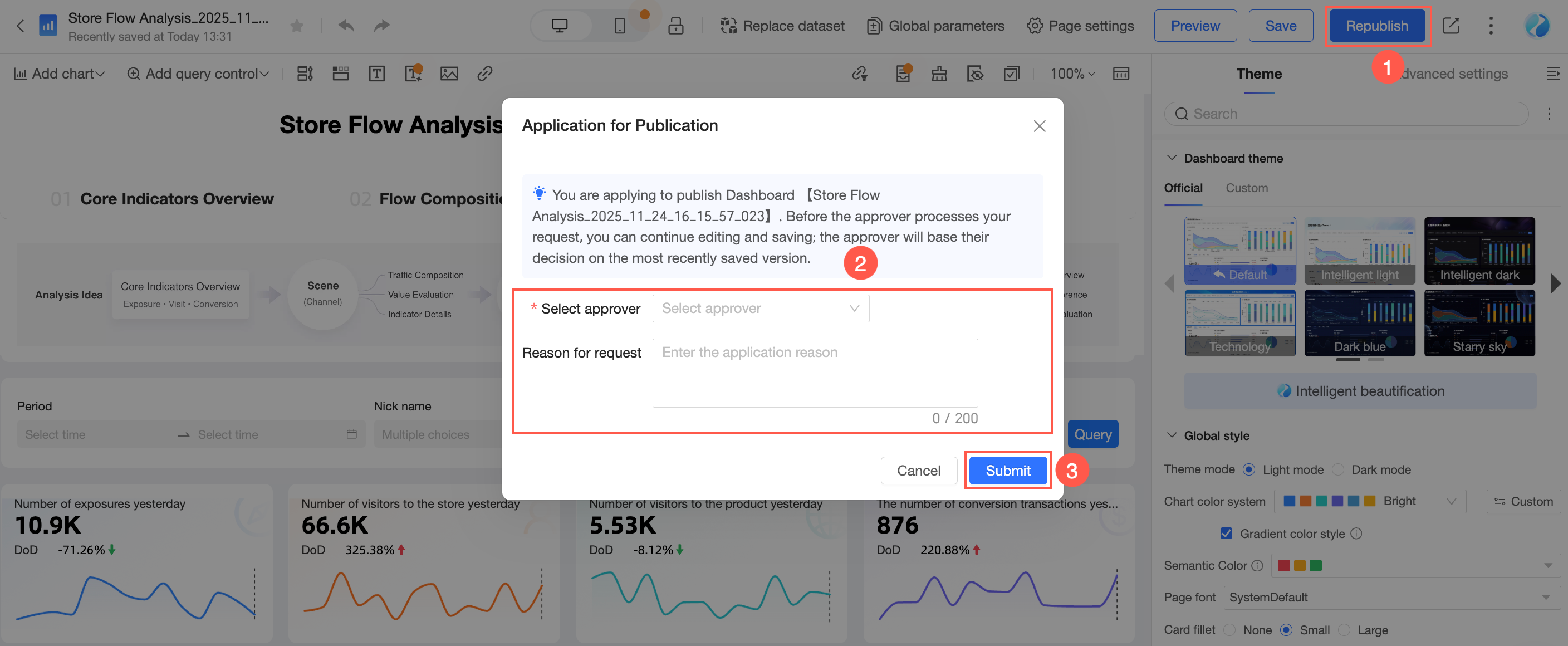
Take publishing a dashboard as an example:
-
When this option is enabled, publishing a work requires you to select an approver, enter a reason for the request if needed, and then click Submit Application.
Note-
You can continue to edit the work after submitting the application. If you save your changes, the last saved version is published upon approval.
-
Workspace administrators can publish works without approval.
-
-
After you submit the application, the approver receives an approval notification in their message center.
-
After the approver clicks Approve, the work is published.
-
The submitter can check the approval status in Message Center > My Applications.
Preference settings
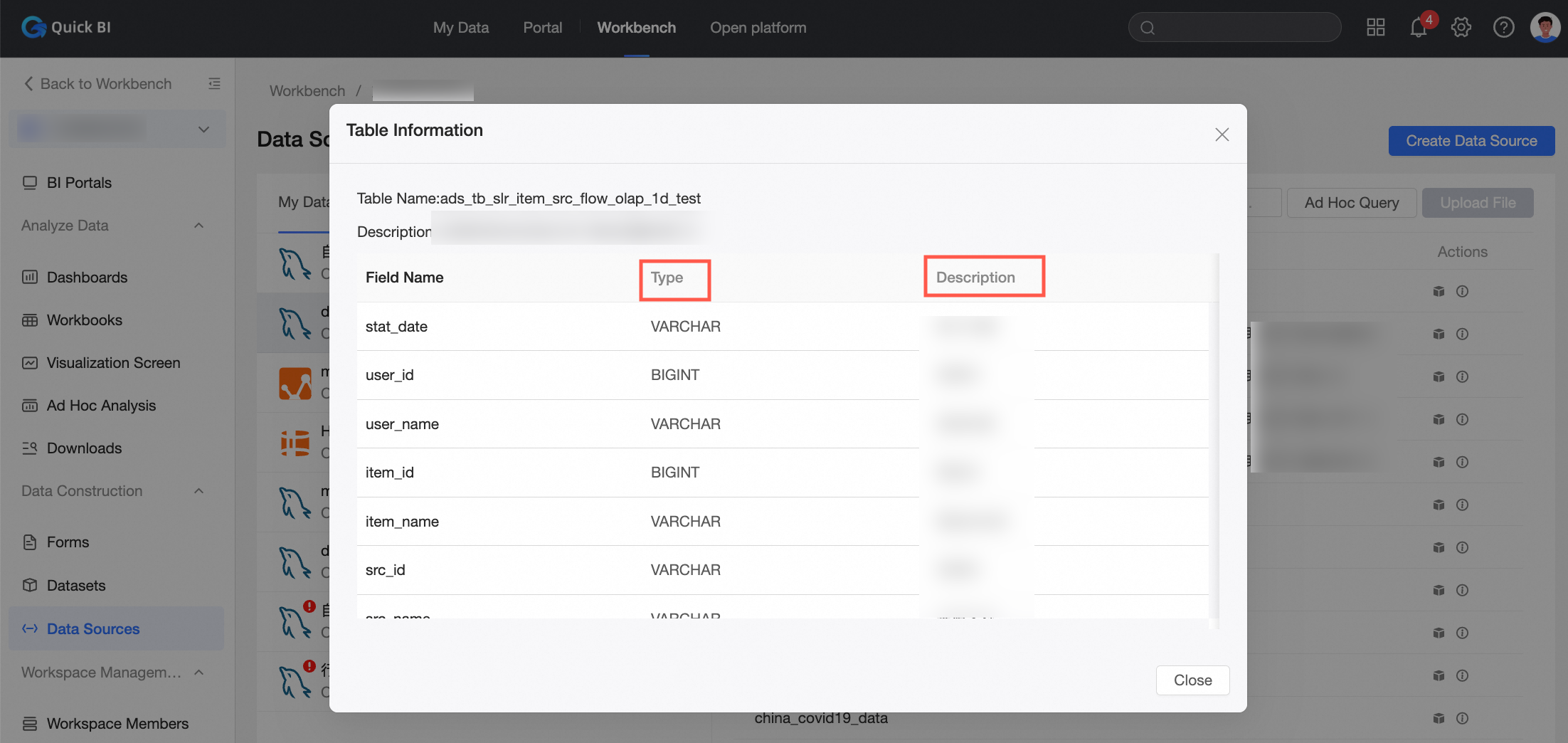
Determines how dataset fields are displayed. You can choose to Use physical field names as dimension and measure names or Use field comments as dimension and measure names.
For example:
-
If you select Use physical field names as dimension and measure names, the values from the Field Name column are used as the names for the dataset's dimension and measure fields.
-
If you select Use field comments as dimension and measure names, the values from the Field Description column are used as the names for the dataset's dimension and measure fields.
NoteThis setting takes effect only if the database table has a Field Description.
Synchronization settings
Configure how dataset field descriptions are synchronized to works:
-
Select Automatically synchronize dataset field descriptions to data works to synchronize the field descriptions from the dataset to the work.
-
After you select Automatically synchronize dataset field descriptions to data works, you can also select Synchronize only the link part of field comments. This syncs only the link content from field descriptions, while plain text descriptions are not synced.
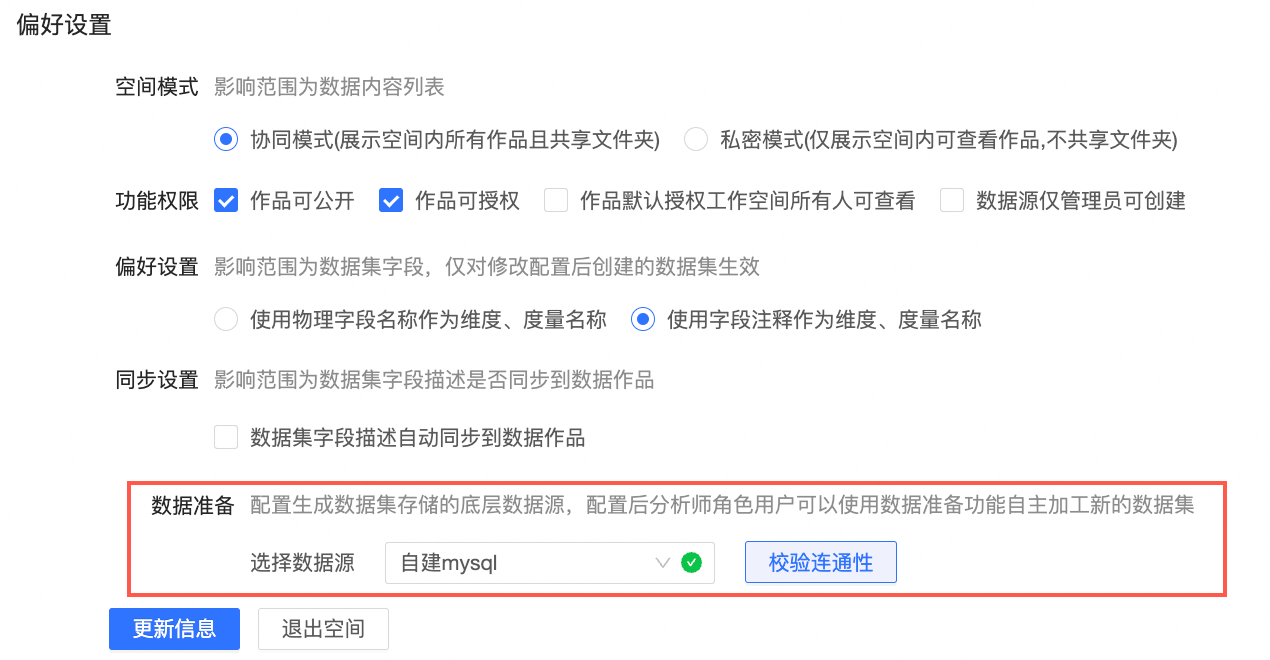
Data preparation
Configure the underlying data source for storing generated datasets. After configuration, users with the analyst role can use the data preparation feature to process and create new datasets. For more information, see Output data.
NoteConfigure data preparation after the workspace is created.
-
-
Click OK.




Modify a workspace
Only a workspace administrator can modify workspace information.
-
If you create a workspace in v4.1 or later, you must select a workspace mode. We do not recommend changing the mode after creation, as this may cause changes in work ownership or visibility.
-
If your workspace was created before v4.1, you did not need to select a mode. When modifying the workspace information, you can change the workspace mode as needed.
You can modify a workspace in either of the following ways:
-
Go to the workspace from the Configuration Panel and modify the workspace settings.
-
Go to the workspace from the workbench and modify the workspace settings.
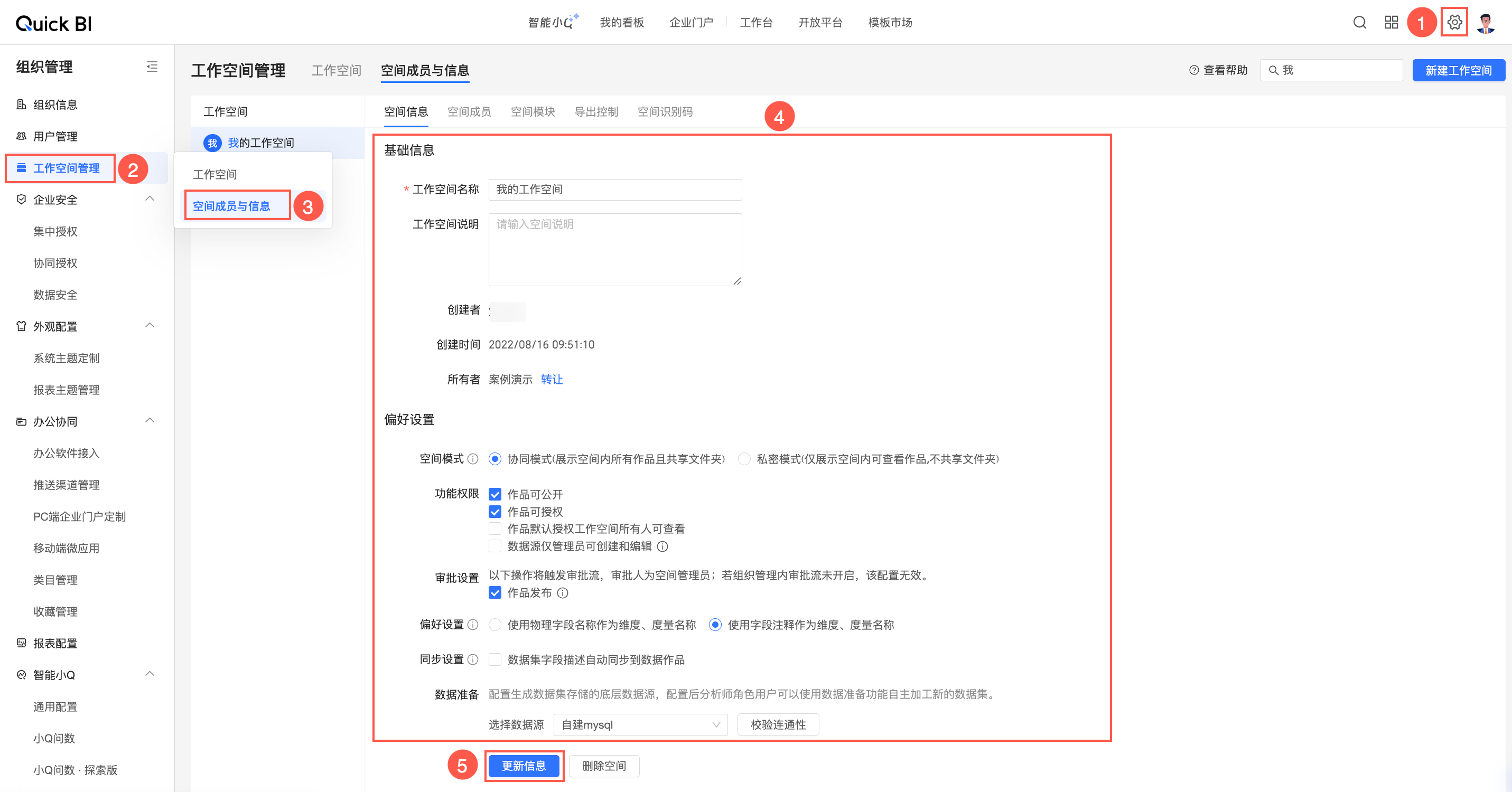
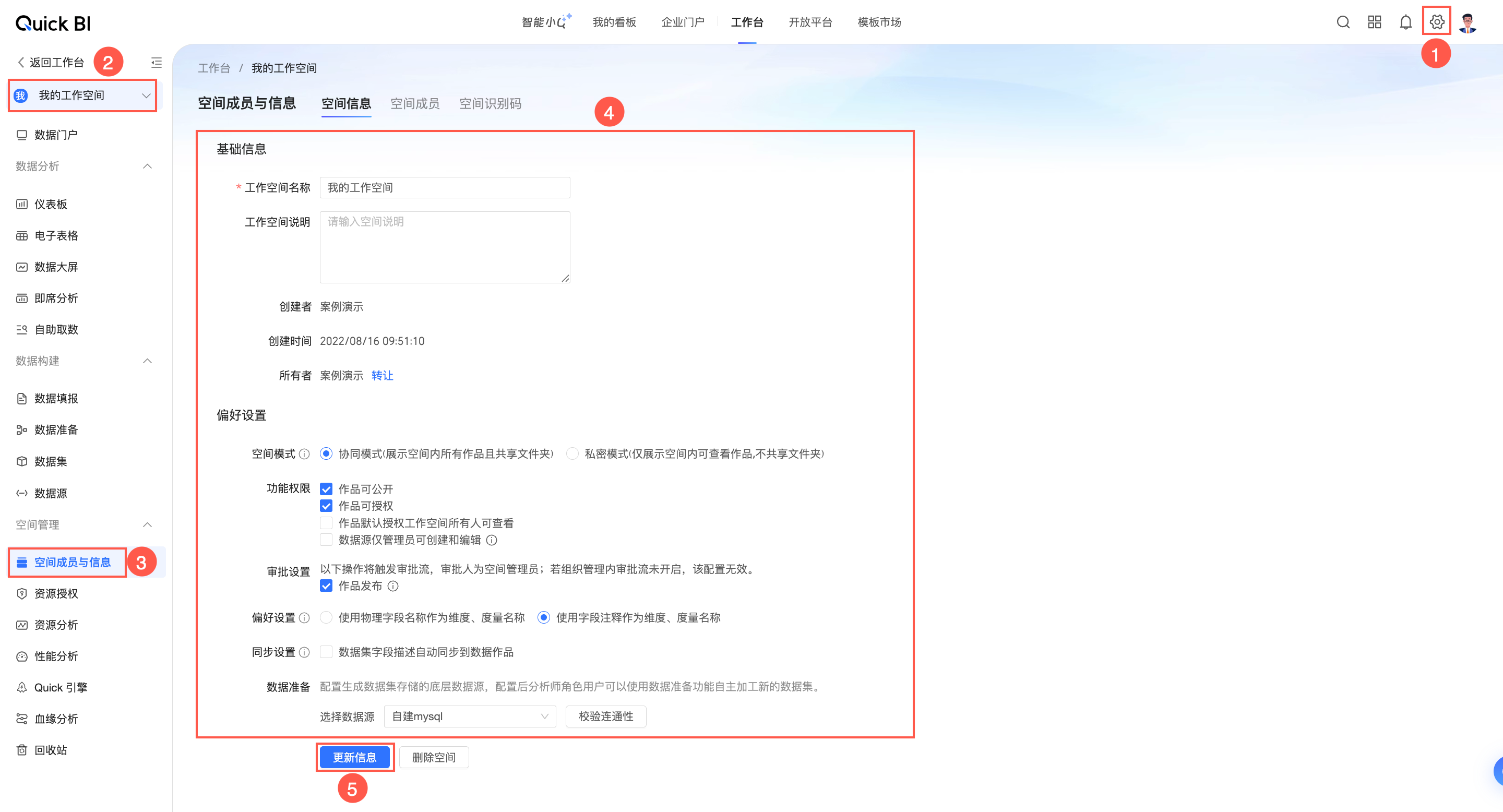
For parameter descriptions, see UI parameter reference.
Set a default workspace
When a workspace is set as the default, new members added to the organization are automatically added to this workspace.
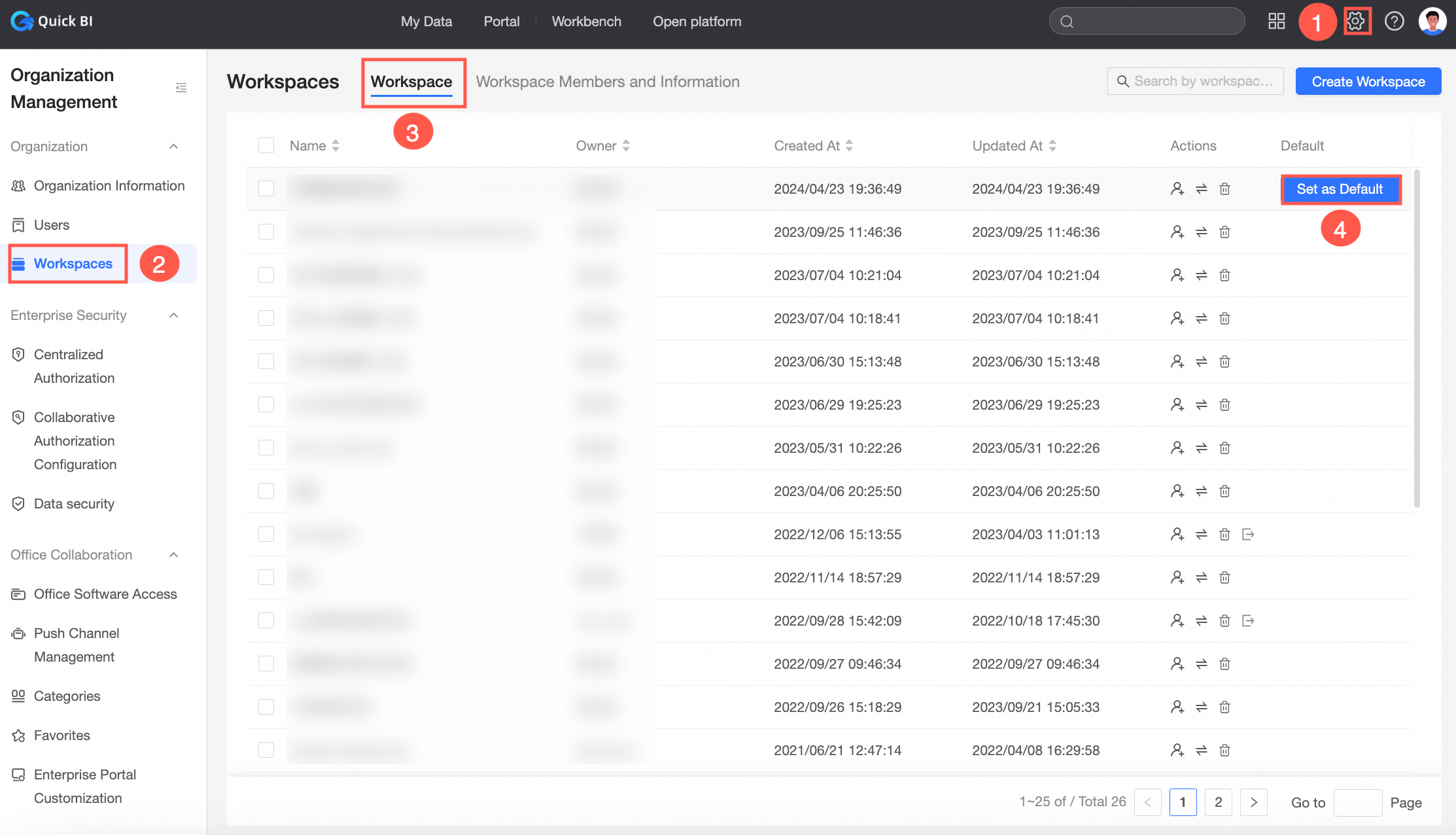
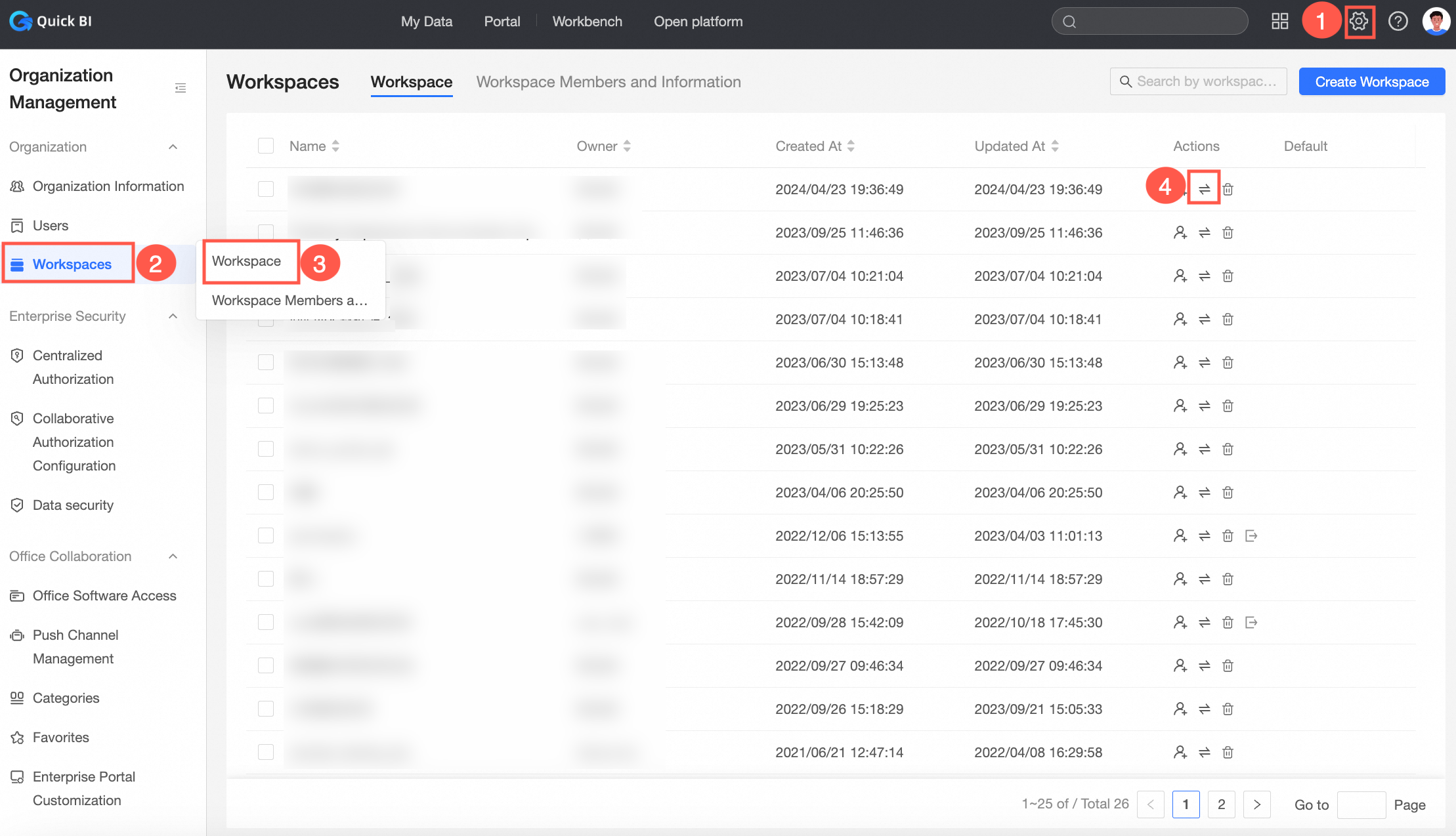
Transfer a workspace
If a workspace creator plans to leave the organization, they can transfer their workspaces to another member. Any member of the Quick BI organization can receive the workspace.
Delete a workspace
Only an organization administrator can delete a workspace.
-
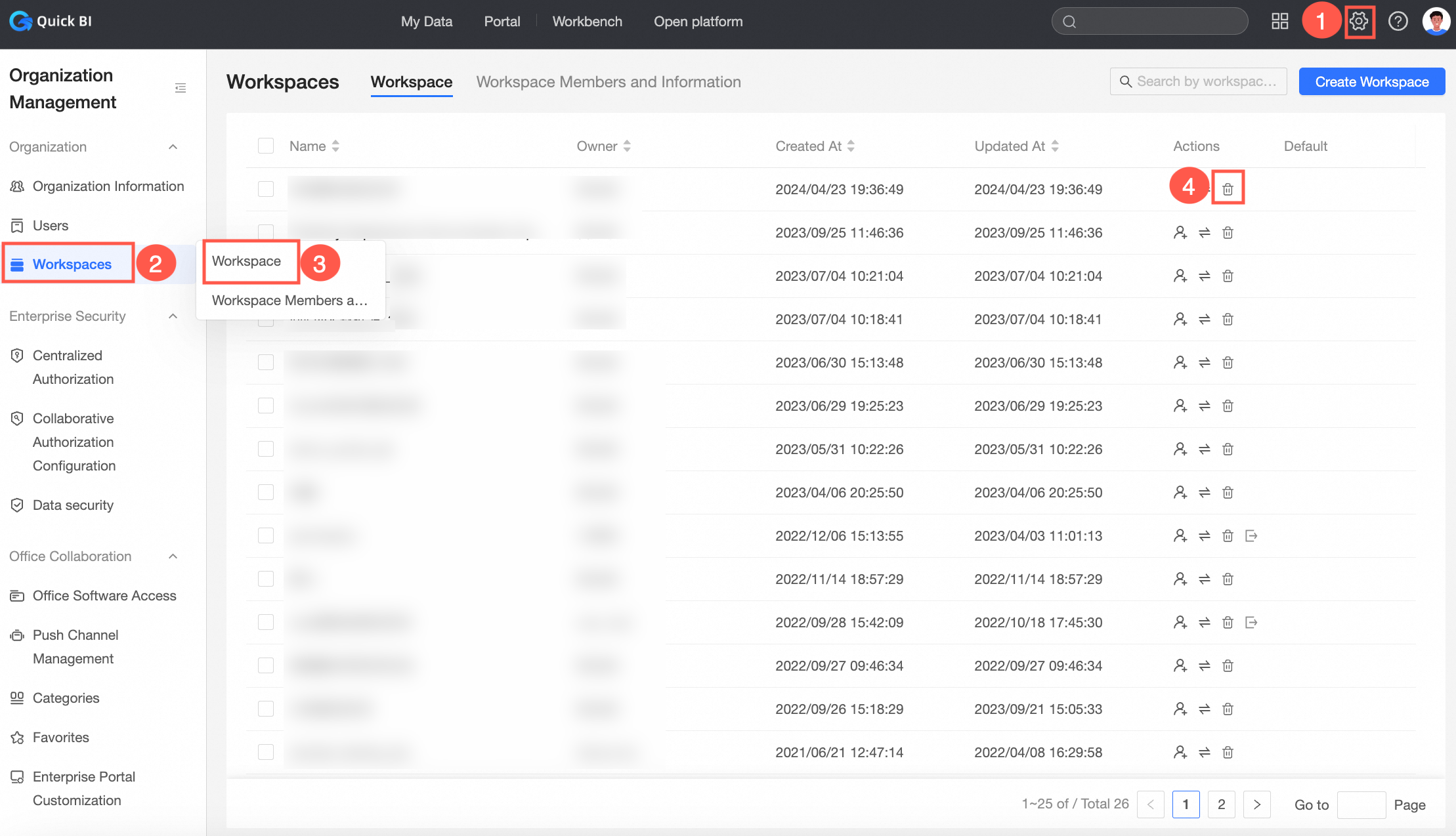
From the configuration management panel, go to Workspace Management > Workspaces to delete the workspace.
-
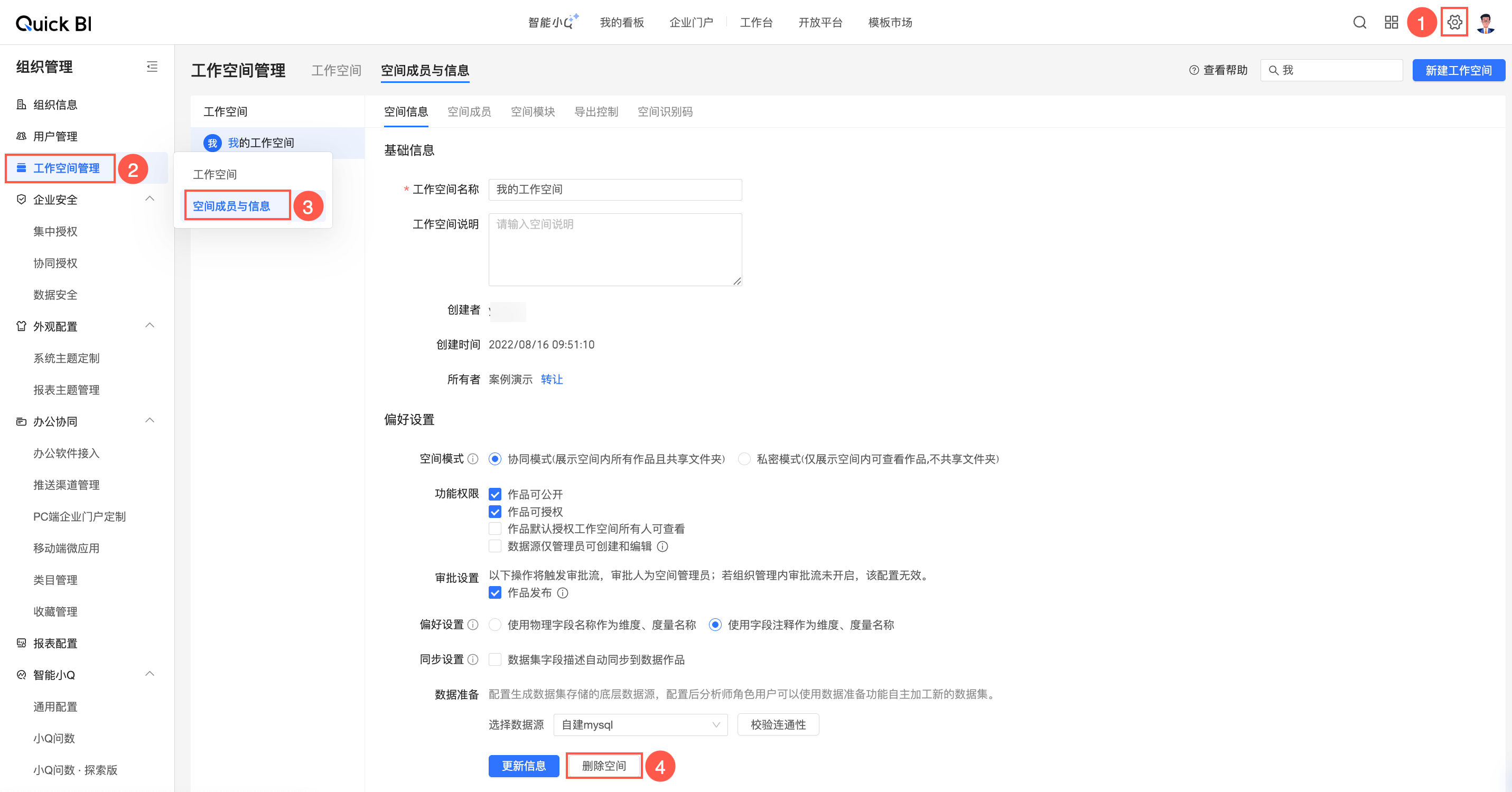
From the configuration management panel, go to Workspace Management > Members and Information to delete the workspace.
-
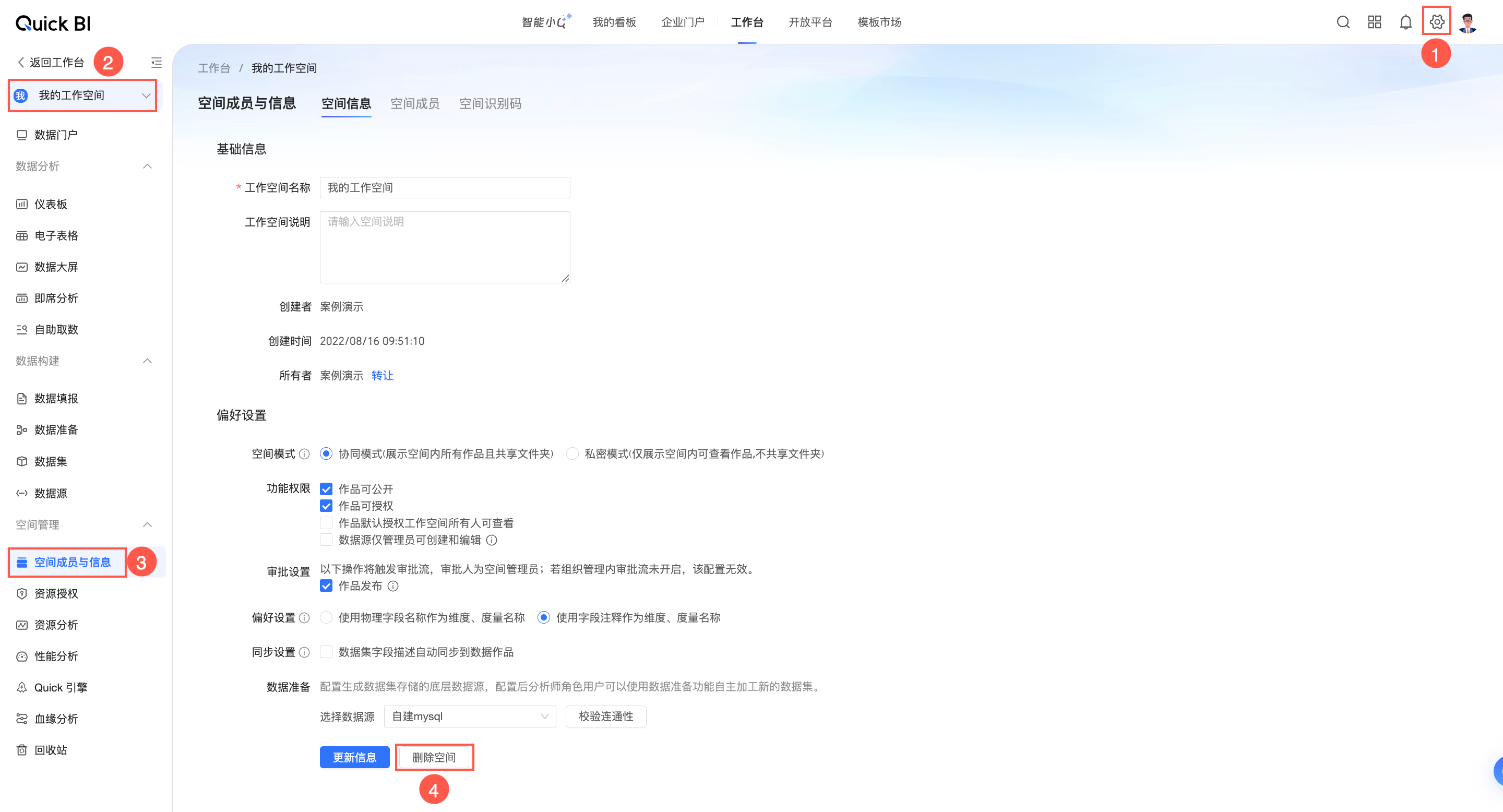
Go to the workspace from the workbench and delete it.
In Quick BI, users must be added to a workspace before they can create works. After you configure a workspace, you must add users to it. For more information, see Manage workspace members.