Credits management
In Quick BI AIPro, a Credit is the core unit for measuring and controlling the use of AI features. It quantifies the resources that business users consume when performing AI operations, such as conversational queries and report generation. Credits Management lets you monitor the resource usage of each user in your organization and apply granular controls for governance and auditing. This topic describes how to manage Credits.
Prerequisites
-
Subscription: Your organization has purchased the Quick BI AIPro edition.
-
Permissions: You must be an organization administrator to manage your organization's Credits.
Access the feature
Go to the Organization page and select Credits Management from the left-side navigation pane.
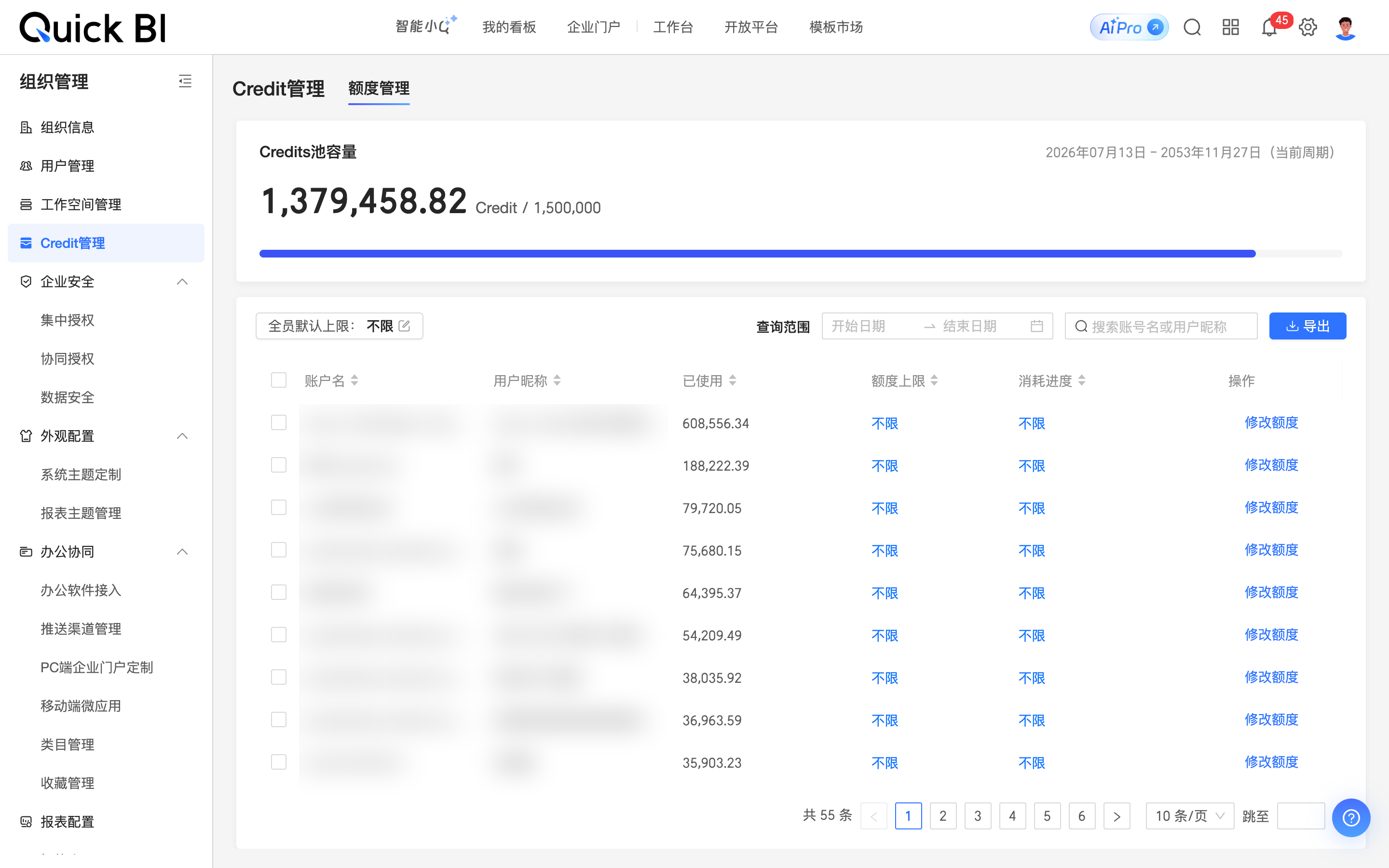
On the Credits Management tab, you can view your organization's total Credit quota, available balance, used quota, and expiration information. You can also manage usage quotas for each member.
Quota management
The Credits Management tab displays the total capacity and remaining balance of your organization's Credit pool for the current billing cycle, along with a breakdown of each user's quota and usage. As an organization administrator, you can monitor overall Credit consumption and individual member usage in real time. You can also manage member quotas to ensure fair resource allocation and prevent misuse. The following table describes the available actions.
|
Actions |
Description |
|
① Modify the default quota for all members |
Click the
This change does not affect users who already have a custom quota. |
|
② Filter by date range |
Select a date range to view Credit consumption for that period. |
|
③ Search by keyword |
Enter a username or nickname in the search box to quickly locate a specific user. |
|
④ Export data |
Click Export to download a detailed Credit usage report for the current billing cycle as an Excel file. This report includes usernames, Credits used, and quota limits. |
|
⑤ Modify an individual quota |
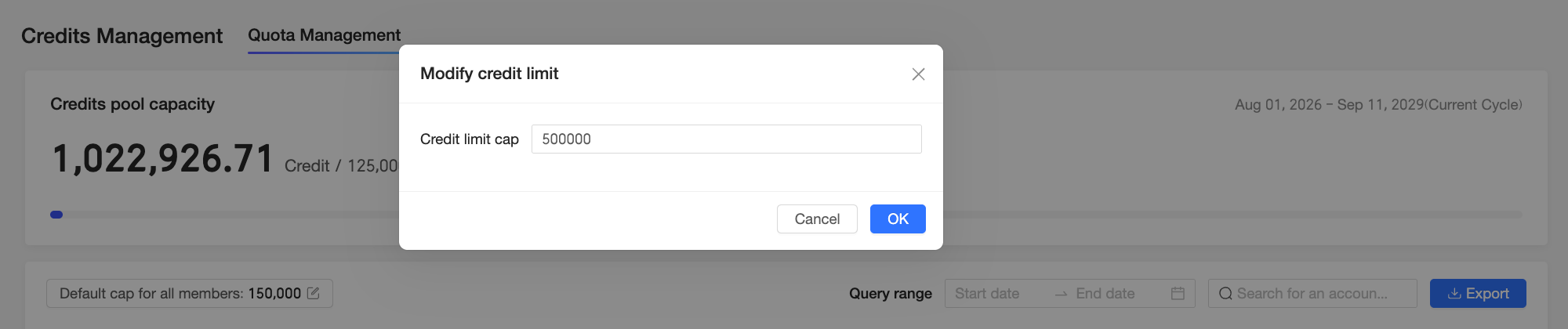
To adjust a member's Credit quota, click Modify Quota in the Actions column for that user. Then, enter a custom value in the dialog box. |
|
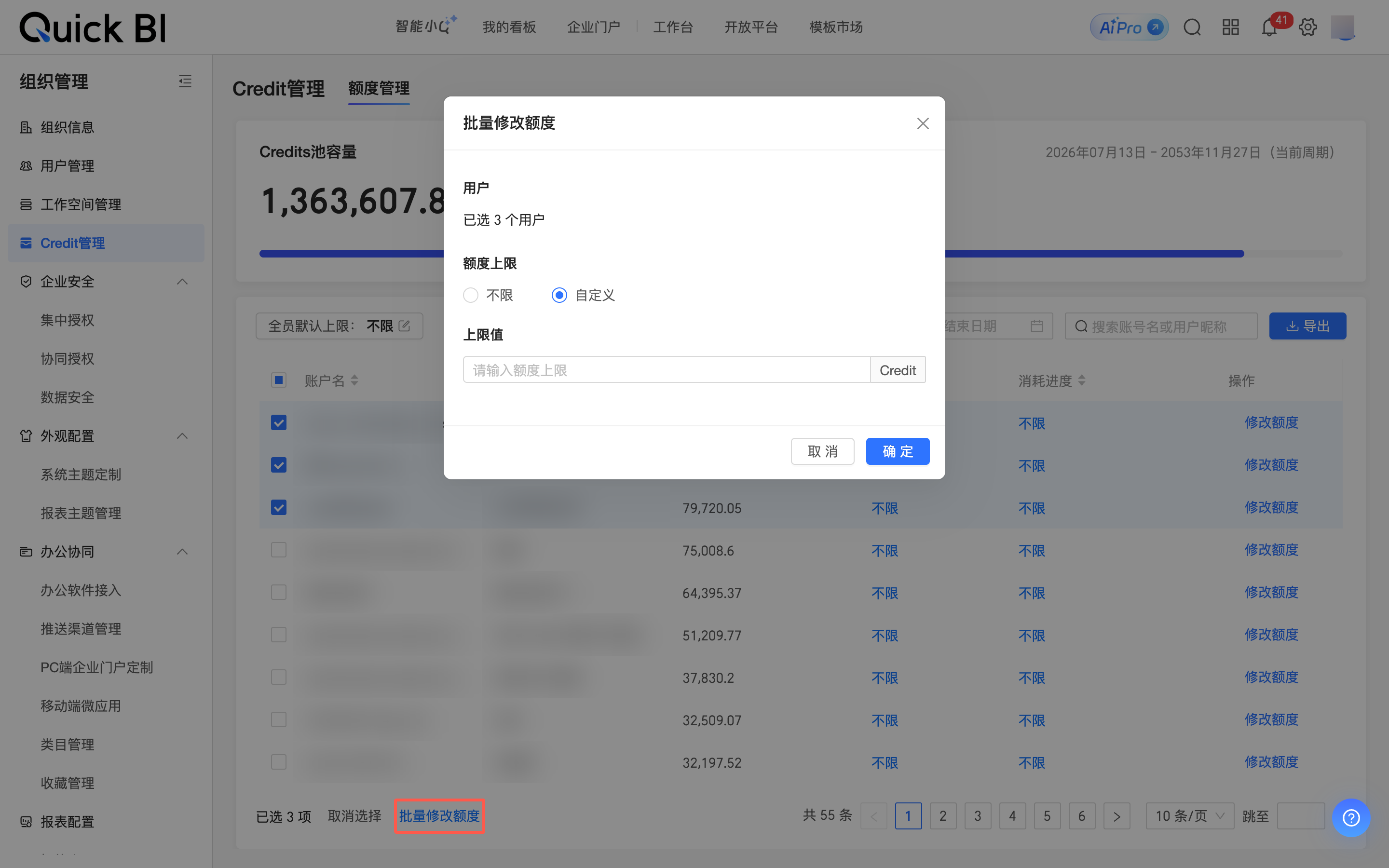
⑥ Bulk modify quotas |
To set the same Credit quota for multiple members, select the users and click Bulk Modify Quota. In the dialog box that appears, enter a common quota. |
 icon to set the default quota for all members. The default setting is Unlimited. You can select a preset tier or enter a custom value.
Related operations
View personal usage
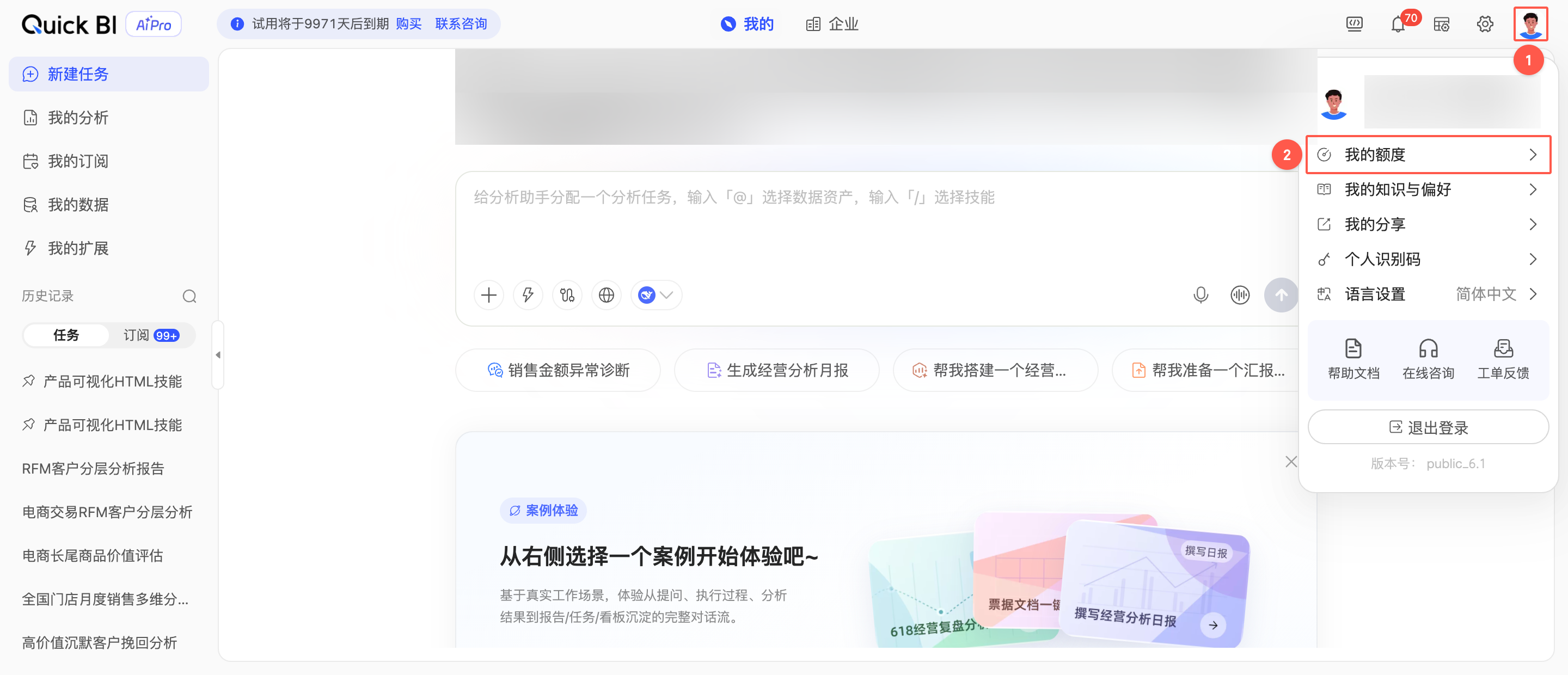
As a business user, you can view your own Credit usage. On the AIPro page, hover over your profile picture in the upper-right corner and click Usage overview from the drop-down list. This opens a dialog box showing your Credit usage and remaining balance for the current billing cycle.
View audit log
On the Intelligent O&M > Audit Log page, the Credit Quota tab records all Credit configuration changes within your organization. An organization administrator can use this log to trace the time, target, change type, and value of each quota adjustment. This helps you audit Credit allocations for compliance and investigate issues caused by improper configurations.
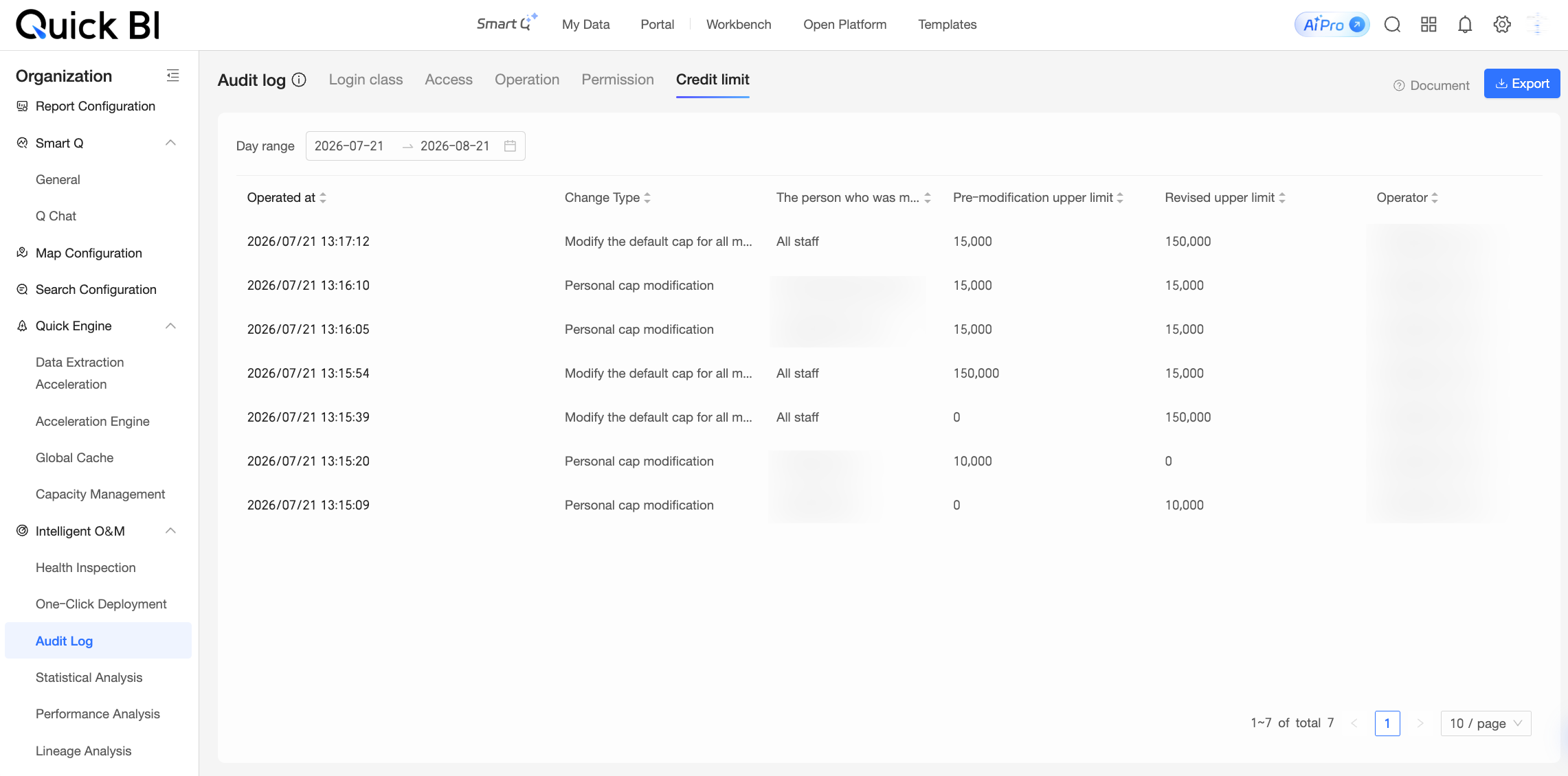
On this tab, you can perform the following actions:
-
Filter the operation history by a date range to find specific quota adjustment records.
-
Export the operation records as an Excel file for offline analysis or archiving.