Corporate Playbook
On the Corporate Playbook tab, an administrator can set the default corporate rules and procedures for the AI to follow during analysis, such as output structure, language, currency, time standards, and compliance requirements. Once configured, these settings apply to all AIPro analyses within the organization, so users do not have to repeat these instructions. This topic describes how to configure and manage the General Playbook and the Data Asset Playbook.
Prerequisites
-
Subscription: Your organization must have an active subscription to the Quick BI AIPro edition.
-
Permissions: Only an administrator (a user with AIPro centralized management permissions) can configure and manage the Corporate Playbook. For details about configuring permissions, see User Permissions.
Access the feature
-
Go to the Quick BI AIPro management center and click Knowledge and Playbooks in the left navigation pane.
-
Click the Corporate Playbook tab. The page contains configuration areas for the General Playbook and Data Asset Playbook.
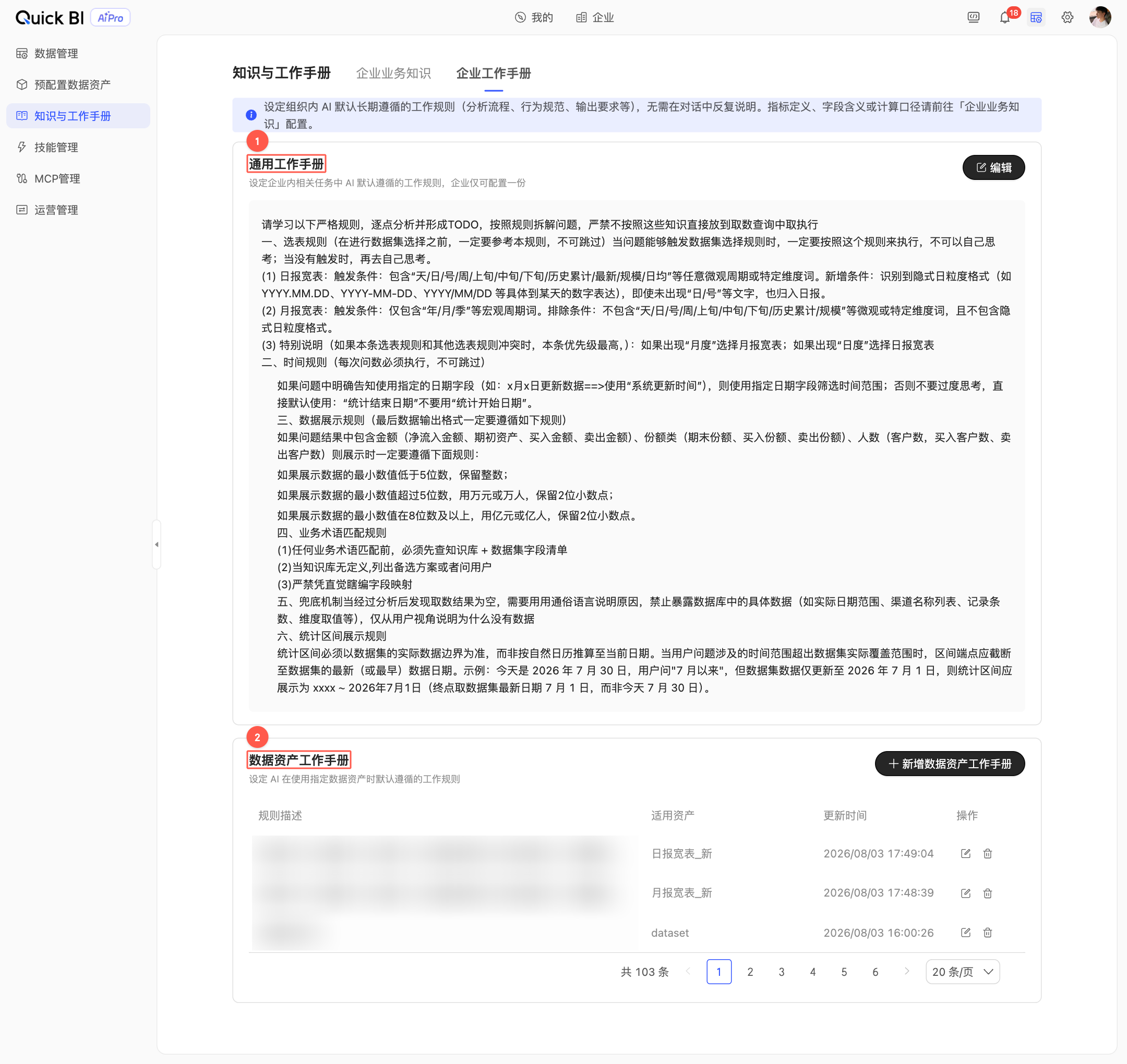
General playbook management
The General Playbook defines default rules for the AI to follow across all tasks in your organization. Follow these steps to configure it.
An organization can have only one General Playbook, which applies to all AIPro analyses.
-
On the General Playbook card, click Edit.
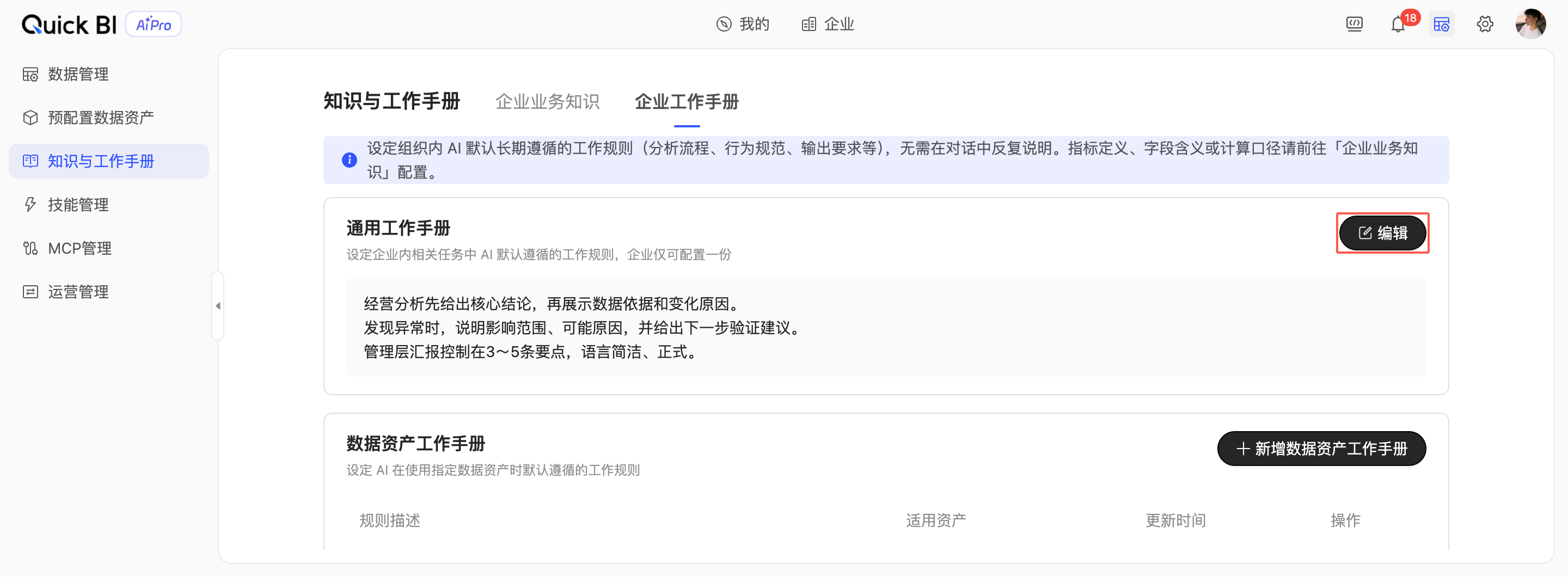
-
Enter the playbook content. The content can include multiple rules. For example:
-
For business analysis, start with key conclusions, followed by supporting data and the reasons for any changes.
-
When an anomaly is detected, describe its scope of impact and potential causes, and then suggest next steps for verification.
-
Keep management reports to 3–5 key points, using concise and formal language.
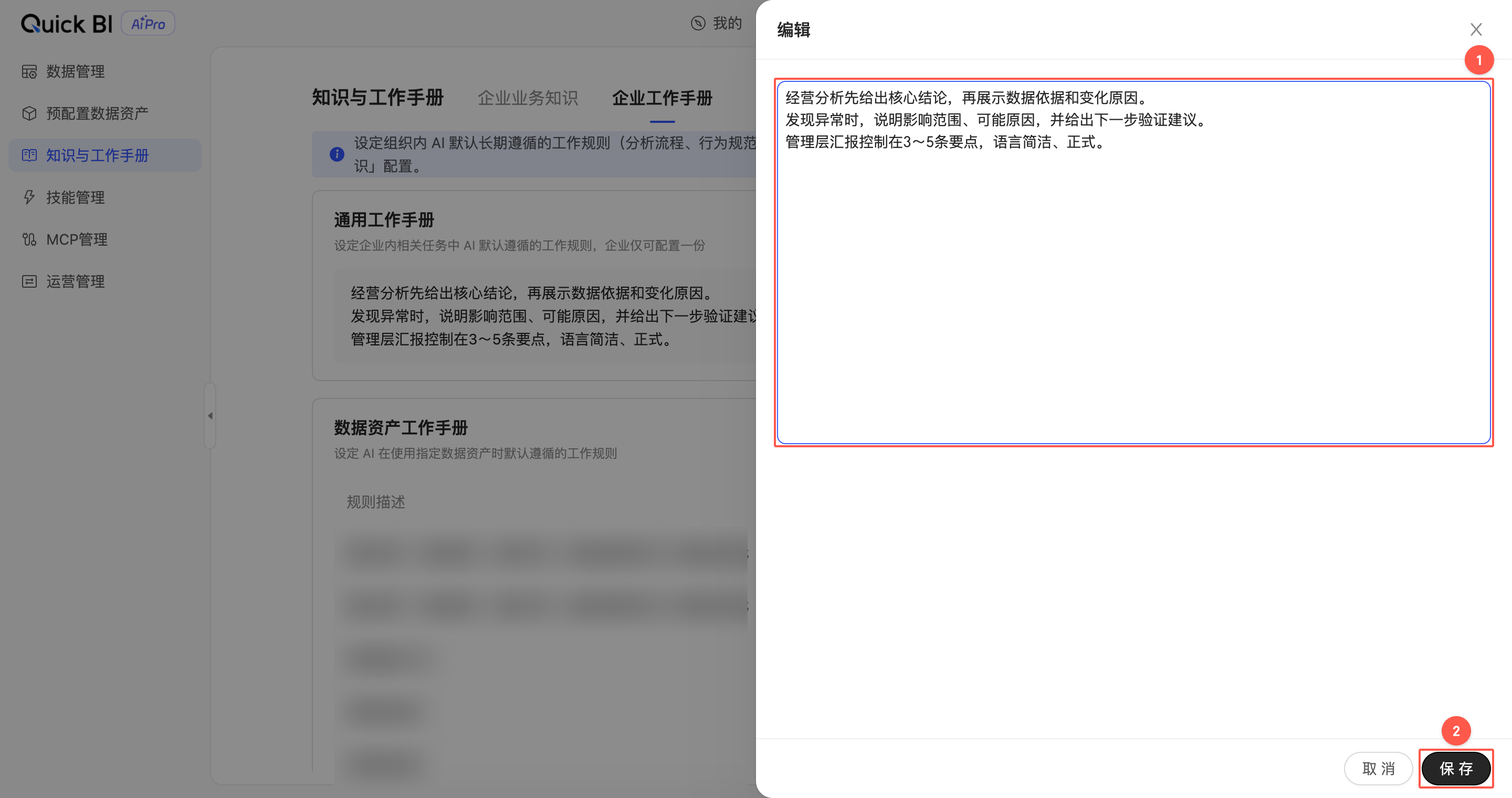
-
-
Click Save to apply the playbook to all AIPro analyses in your organization.
Data asset playbook management
The Data Asset Playbook lets you set rules for the AI to follow when analyzing a specific data asset. For example, you can create a rule such as "For sales analysis, exclude test orders."
The effective scope of each rule can be set to only one data asset. To apply the same rule to multiple data assets, you must create a separate rule for each.
Add a rule
-
In the Data Asset Playbook area, click Add Rule.
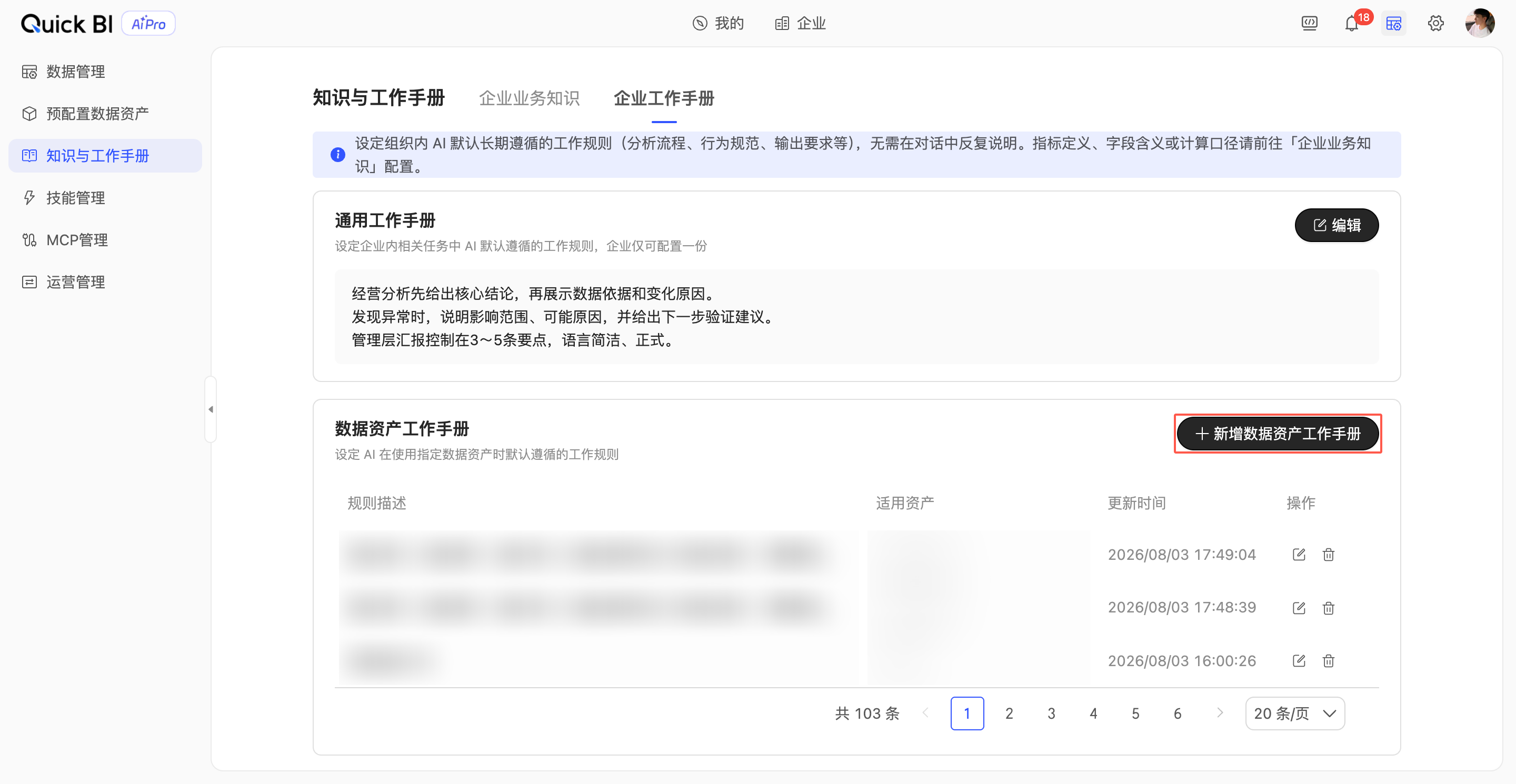
-
Enter the rule description and select the data asset in the effective scope field.
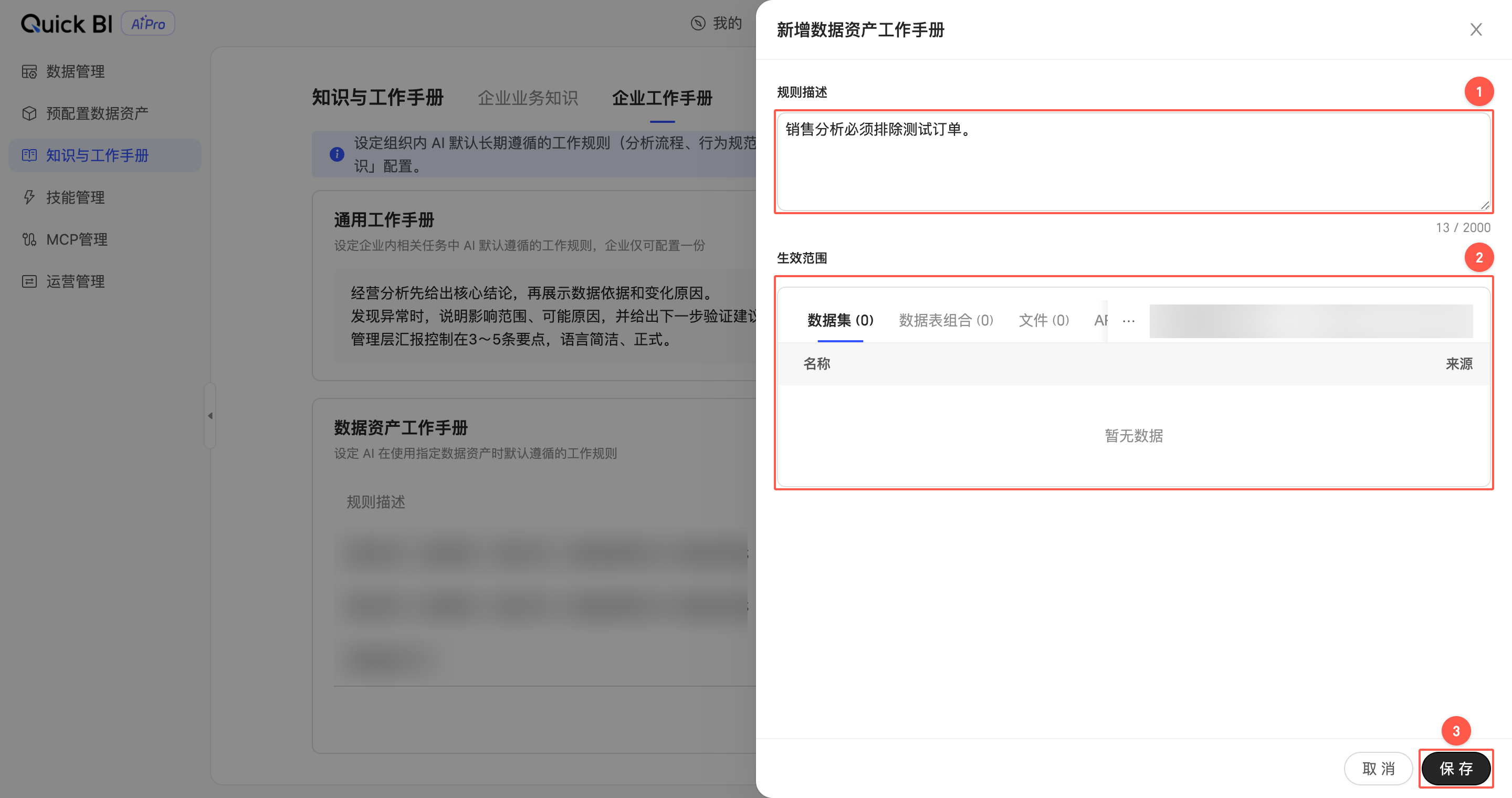
-
Click Save. The AI will then follow this rule when analyzing the specified data asset.
Manage rules
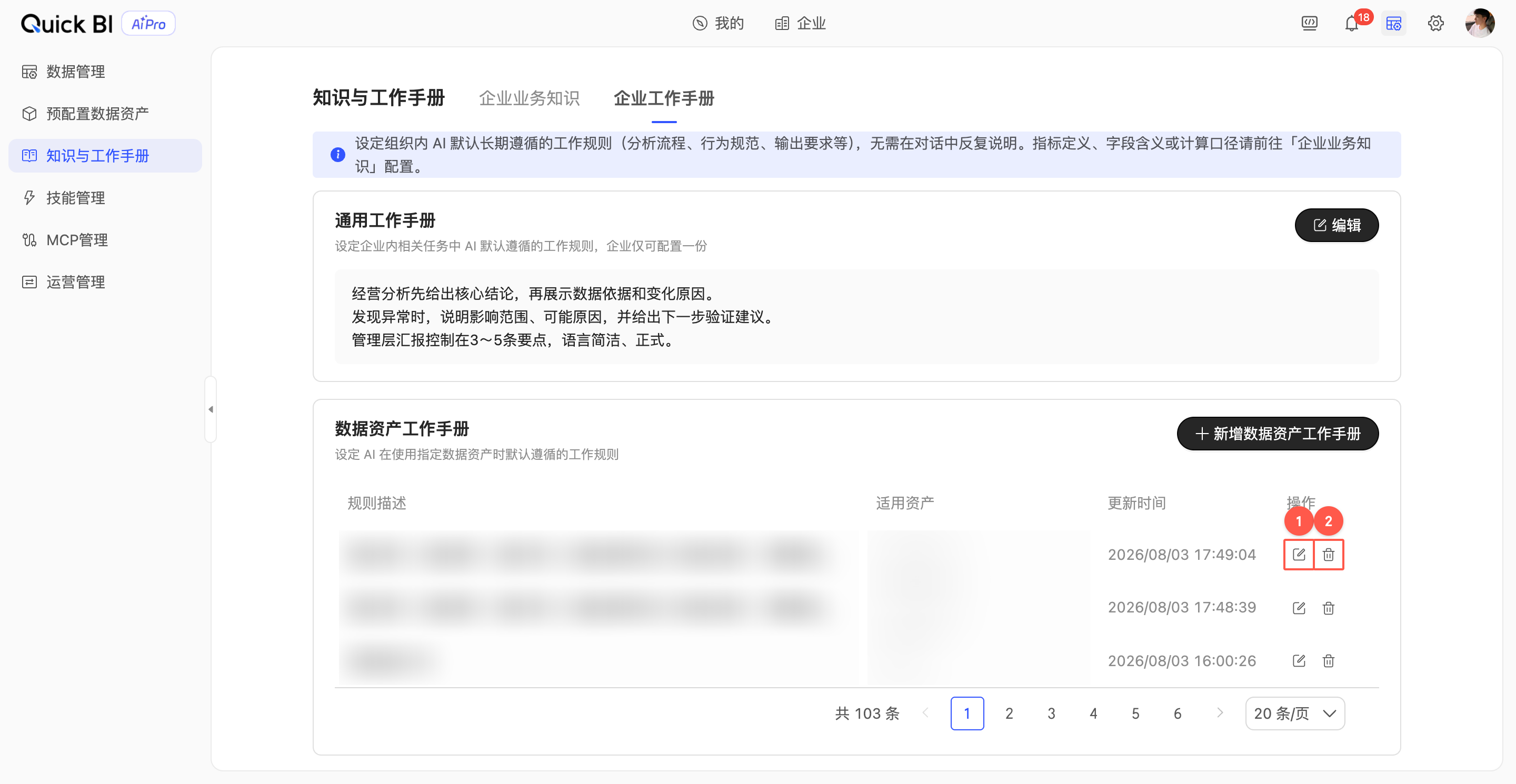
The rule list displays the description, data asset, and last update time for each rule. You can perform the following management actions:
-
Edit: Click Edit next to a rule. In the drawer that opens, modify the rule description or the data asset and save your changes.
-
Delete: Click Delete next to a rule you no longer need. Confirm the action to permanently remove the rule.
Business users can configure a Personal Playbook that applies only to their own analyses. If a rule in the Personal Playbook conflicts with a rule in the Corporate Playbook, the rule from the Personal Playbook takes precedence.
Related topics
-
This topic describes how to configure the Corporate Playbook. To learn how to maintain a personal playbook and knowledge base for your own analyses, see Quick BI AIPro overview.
-
To build a repository of your organization's business knowledge, such as metric definitions, field descriptions, and calculation logic, see Corporate Business Knowledge.