This topic helps you resolve common development issues.
Issue 1: Missing back button on some pages
Symptom
When using the Quick BI embedded SDK, navigation occurs on the current page. If a new page lacks a back button, you cannot return to the previous Quick BI page.
For example, if you click View in new window on a list page, you navigate to a preview page. However, the preview page does not have a back button. This breaks the user flow, and you must reopen the application to return to the list page.
Possible cause
Quick BI pages are designed to navigate in either the current window or a new one. Pages designed to open in a new window do not include a back button. The JS SDK allows you to intercept Quick BI navigation events and customize the destination URL. If you force all navigation to occur in the current window, this user flow may break.
Resolution
Option 1: Use the target parameter
The before-page-change-event listener receives the original route information (src) and navigation target (target) from Quick BI. Use the target parameter to control whether the SDK opens the page in a new window or in the current one.
interface ChangeEventMessage{
  type: EmbedEventType['before-page-change-event'],
  payload: {
    src: EmbedSrcUnion,
    target: '_blank' | '_self',
  }
}


events={{
  [EmbedEventType['before-page-change-event']]: async (message: ChangeEventMessage) => {
    const newSrc = message.payload.src
    if (message?.payload?.target === '_blank') {
      // Open in a new window. You can add a new route in your host application
      // that still renders the EmbedComponent, passing `newSrc` to its `src` prop.
      window.open('xxx/sdk/new');
    } else if (message?.payload?.target === '_self') {
      // Re-render the current component.
      setSrc(newSrc);
    }
    // Block the default Quick BI navigation.
    return false;
  },
}}
Option 2: Trigger navigation from the host
The embedded SDK lets the host environment dispatch actions that control navigation within the embedded Quick BI page. You can add a button to your host environment that navigates the EmbedComponent to a specific page.
const client = useRef<EmbedClient>(null);

/** Bind the ref to the embedded component */
<EmbedComponent ref={client} ...... />

<Button
  onClick={async () => {
    await client.current?.dispatch({
      type: EmbedActionType.embedNavigate,
      payload: {
        src: {
          origin: "xxx",
          /** Route key for the embedded workspace page */
          page: EmbedRouteKey.workspace,
          /** Query parameters for the embedded page */
          search: {
            workspaceId: "xxx",
          },
        },
      },
    });
  }
>
  Navigate to Quick BI Workspace Page
</Button>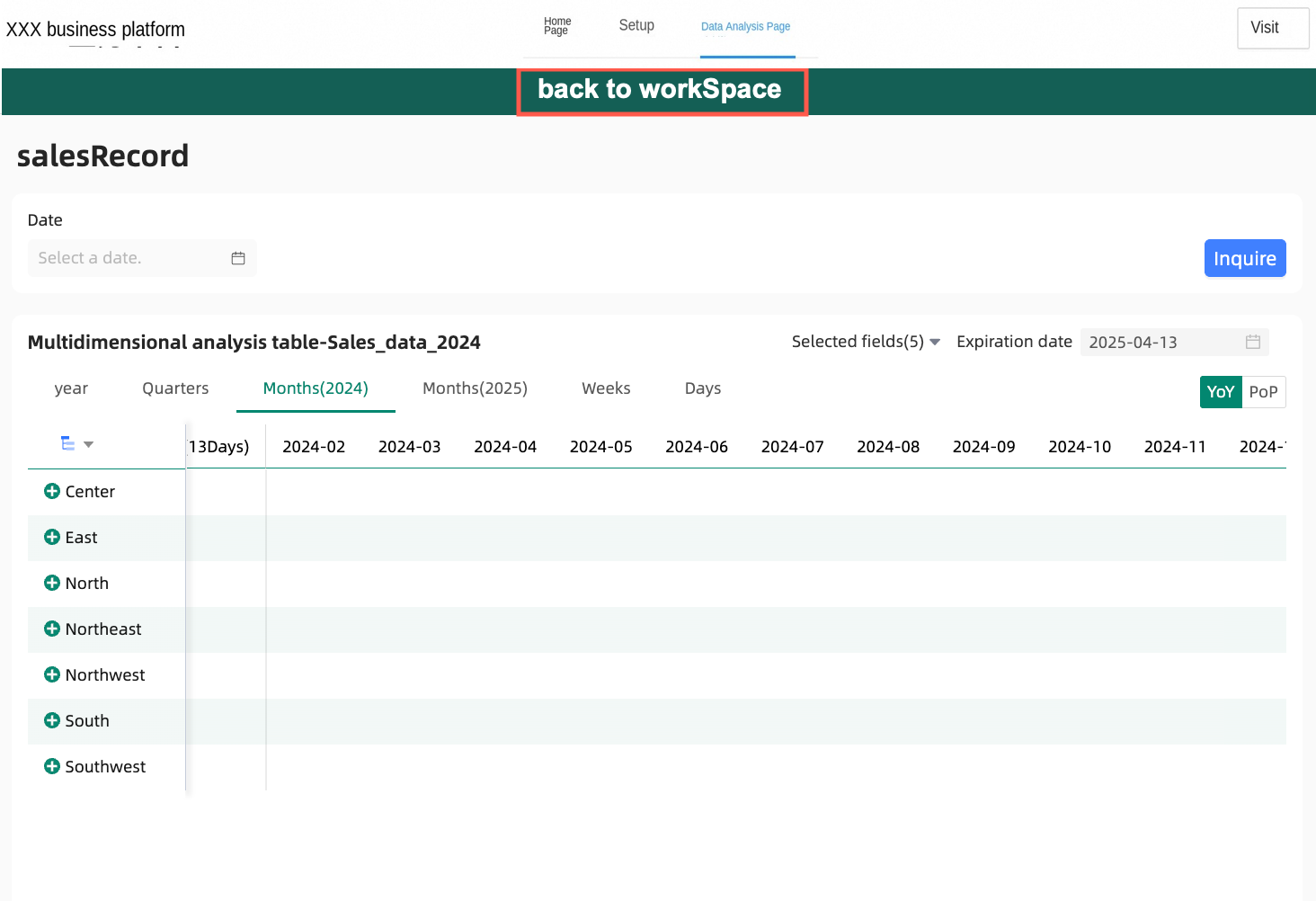
Issue 2: Direct access to Quick BI URLs
Symptom
Accessing a Quick BI domain name directly from a shared or collaborative link takes users to the Quick BI system, bypassing the host environment.
Resolution
First, go to security settings and use domain name controls to restrict direct access to the Quick BI system for all users except the super administrator. Configure a redirect link that points to a page in your host environment. Make sure to include the source URL placeholder ${originUrl} in the redirect link. This placeholder provides the original URL for parsing.
Now, when a non-administrator user tries to access the Quick BI system directly, they are redirected to your designated embedding page. On this page, parse the original URL from the placeholder and use it to render the content in an embedded view. For example:
const urlParams = new URLSearchParams(window.location.search)
const encodedLink = urlParams.get('link')
const href = encodedLink ? decodeURIComponent(encodedLink) : ''
/** Parse the link into an embeddable object */
const src = parsePath(href)
if (src && src.page) {
  /** Replace the embed source of the current page */
  this.$set(this, 'embedSrc', src)
}
Issue 3: "Leave this site" prompt breaks communication
Symptom
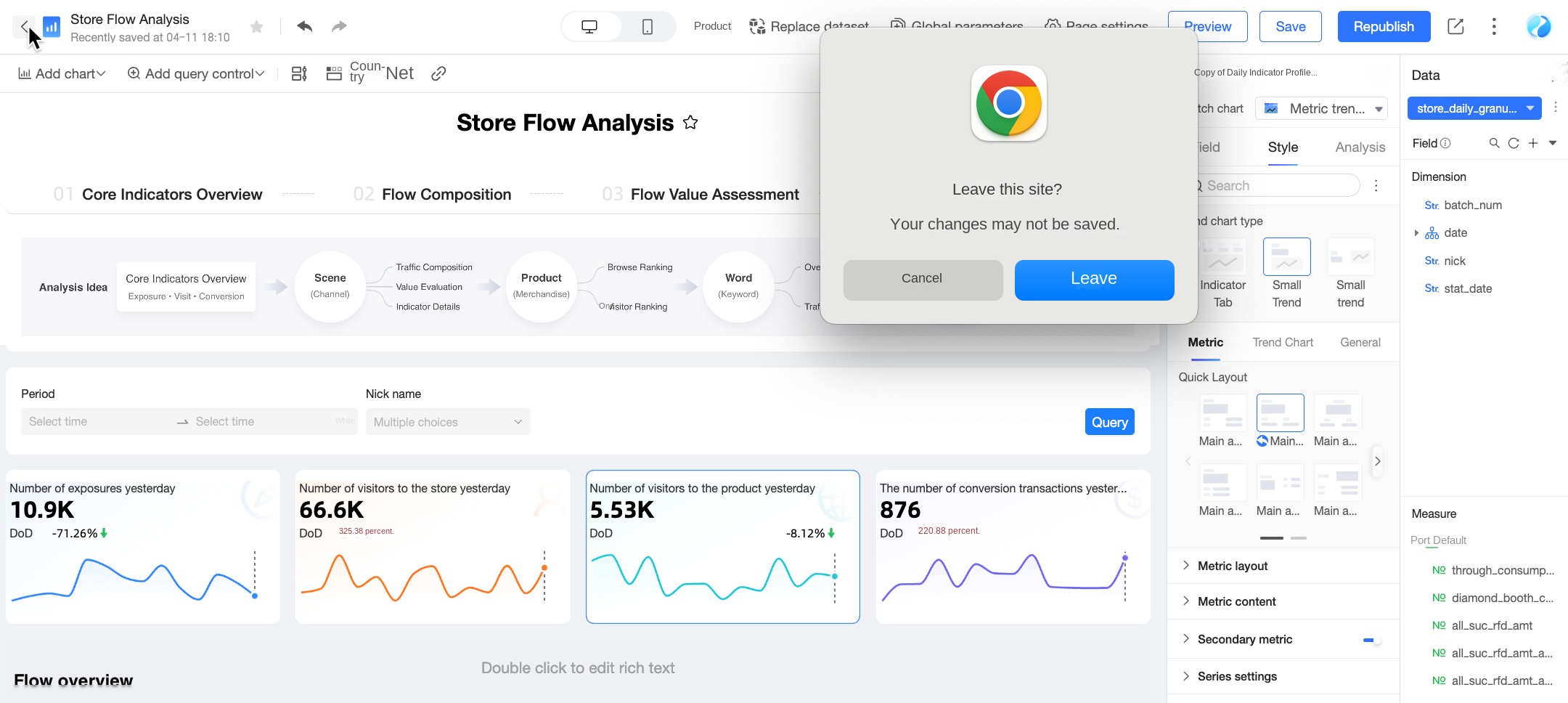
Quick BI binds the browser's beforeunload event to the edit pages of data works. If you try to navigate away from a page with unsaved changes, the browser displays a "Leave this site" prompt. In an embedded dashboard edit page, the SDK typically handles navigation events by changing the src of the embedded iframe, which keeps the user within the host environment. This src change triggers the beforeunload event. If the user then clicks "Cancel", they remain on the current page, but the underlying iframe has already navigated away. This mismatch breaks the communication between the host application and the embedded component.
Resolution
When the route change event callback updates the component's src property, you must re-render the entire <EmbedComponent /> component, not just update the iframe's src. For example, in a React environment, you can achieve this by adding a key to the component. When the key changes, React unmounts the old component and mounts a new one. The same principle applies to other frameworks like Vue.
<EmbedComponent
  src={src}
  key={src.page}
  ......
/>