Calculate a Time Difference
Quick BI provides a Calculate time difference feature that computes the time difference between two date fields. You can also use the BI_DATEDIFF function for the same purpose.
Prerequisites
A dataset is created. For more information, see Create a dataset.
Limits
-
Calculated fields are not supported.
-
Time differences are calculated based only on the calendar year. If a date property is set to a fiscal year, the calculation still uses the calendar year.
Procedure
-
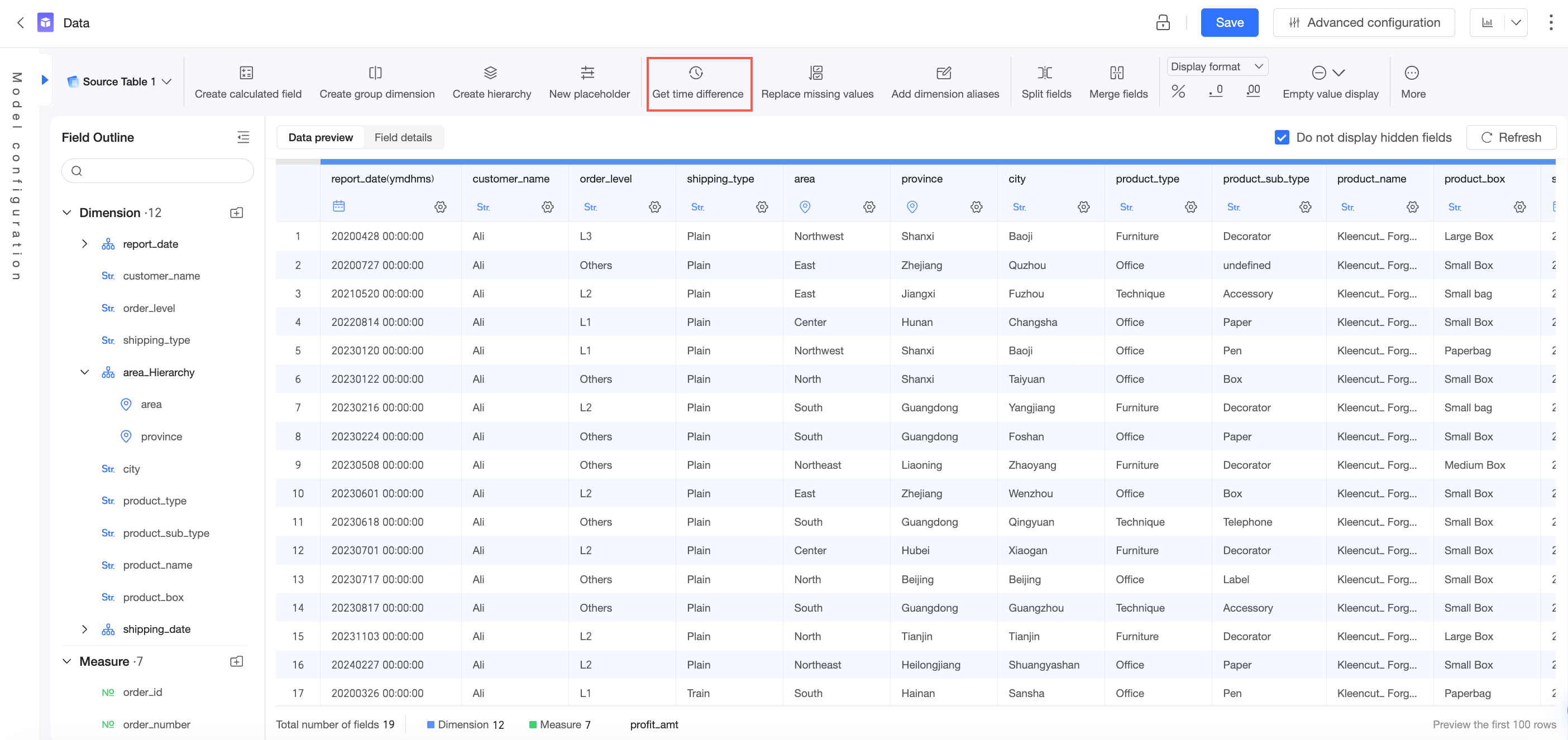
On the data processing page, click Calculate time difference.
-
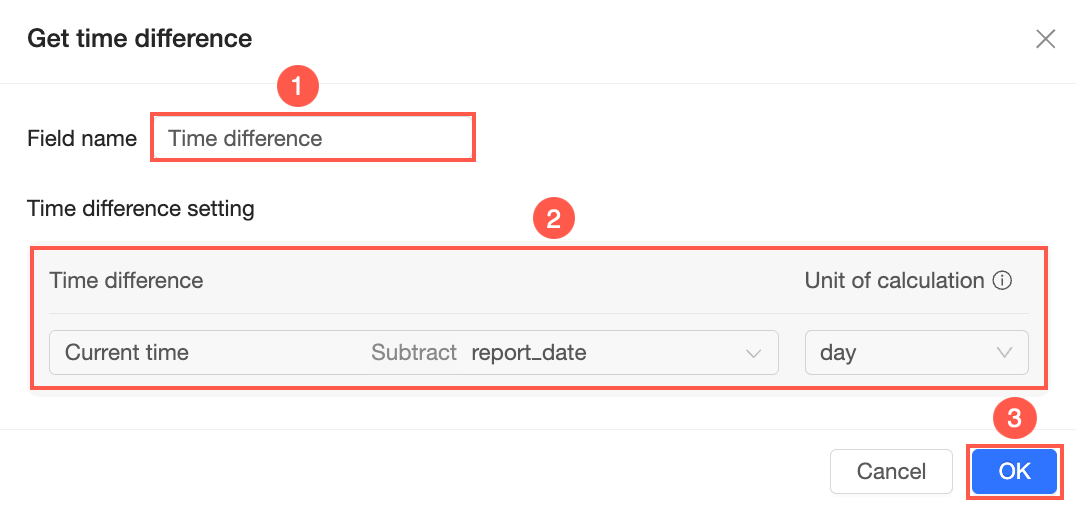
In the Calculate time difference dialog box, configure the parameters.
-
Enter a Field Name.
-
Configure Time Difference Settings.
You can select Current Time or a Date Field from the dataset.
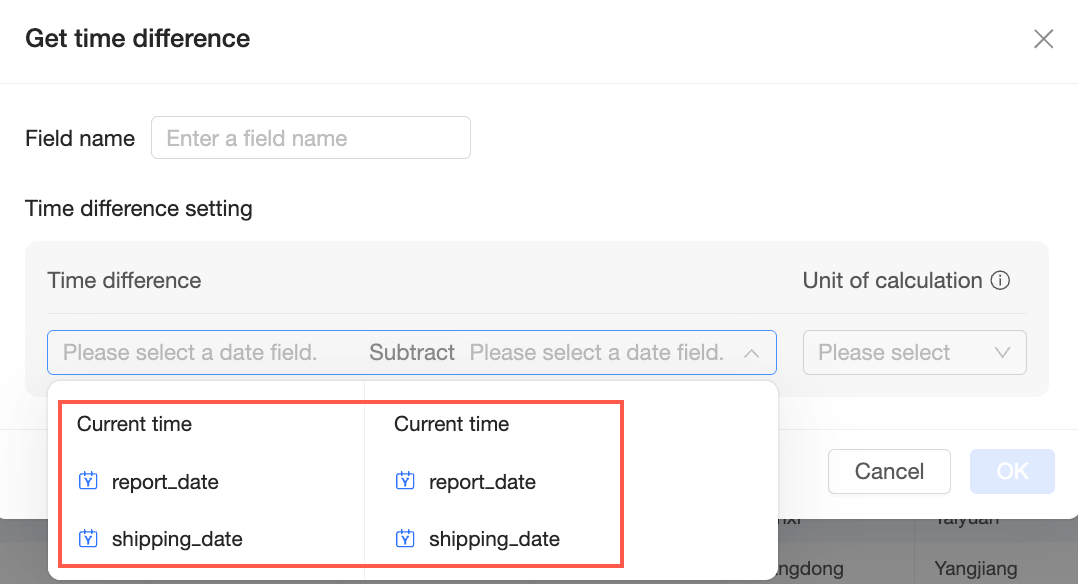
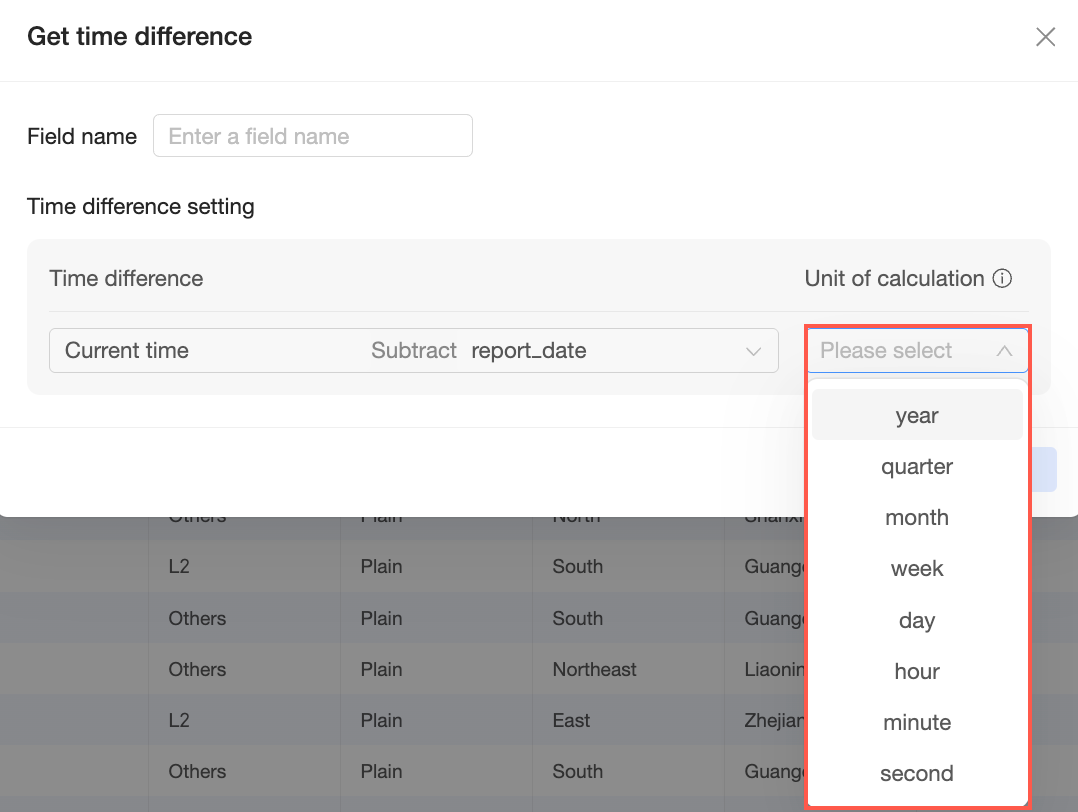
You can set the Unit to Year, Quarter, Month, Week, Day, Hour, Minute, or Second.
NoteThe time difference between two date fields is returned as a number. Only complete units are counted. For example, the difference in months between November 5, 2025 and October 1, 2025 is 1.
-
Click OK.
-
Examples
The resulting Calculate time difference field can be used in dashboards, workbooks, data dashboards, and Downloads. The following examples use a cross table on a dashboard.
Calculate the number of days between today and the order date
-
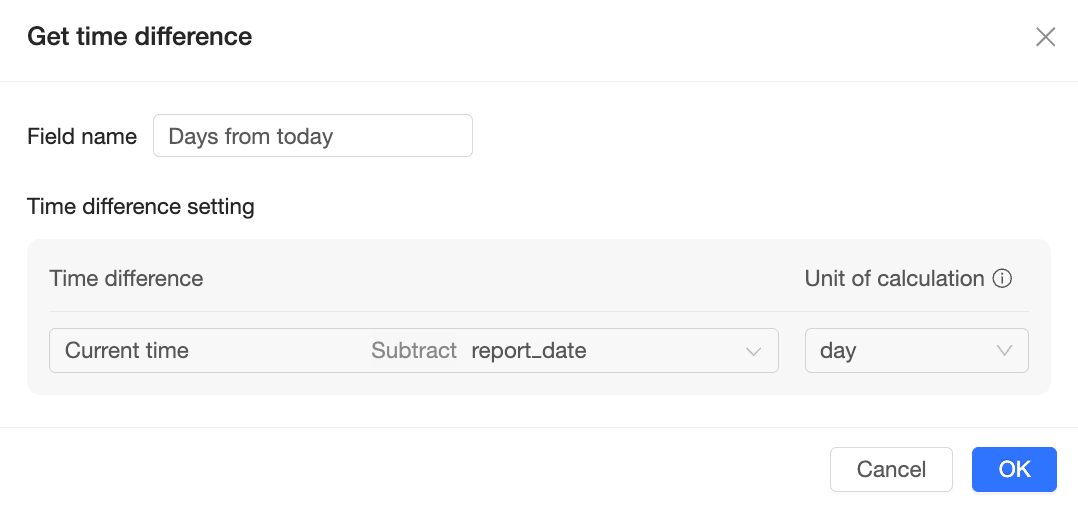
In the Calculate time difference dialog box, subtract the order date from the current time and set the unit to Day.
-
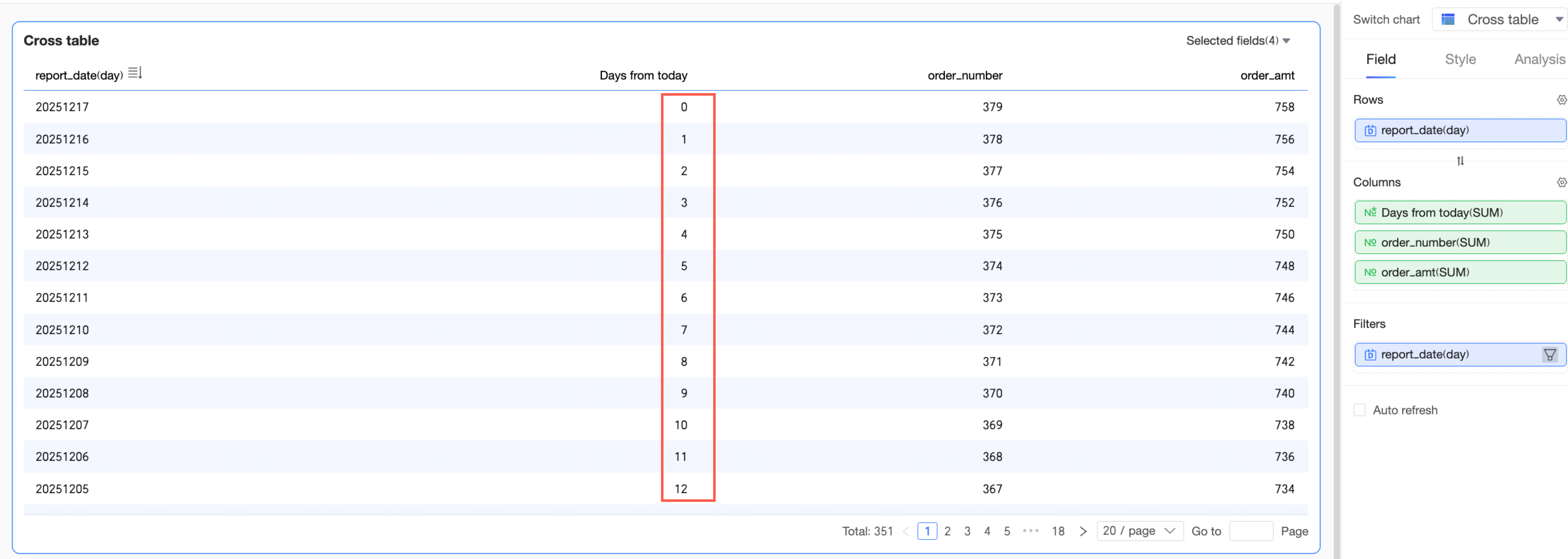
In the cross table on the dashboard, drag the Calculate time difference field to the Columns area.

For example, if the current date is November 5, 2025, a value of 0 represents the current date (20251105), 1 represents the previous day (20251104), 2 represents the day before that (20251103), and so on.
Calculate the number of months between the current month and the sales month
-
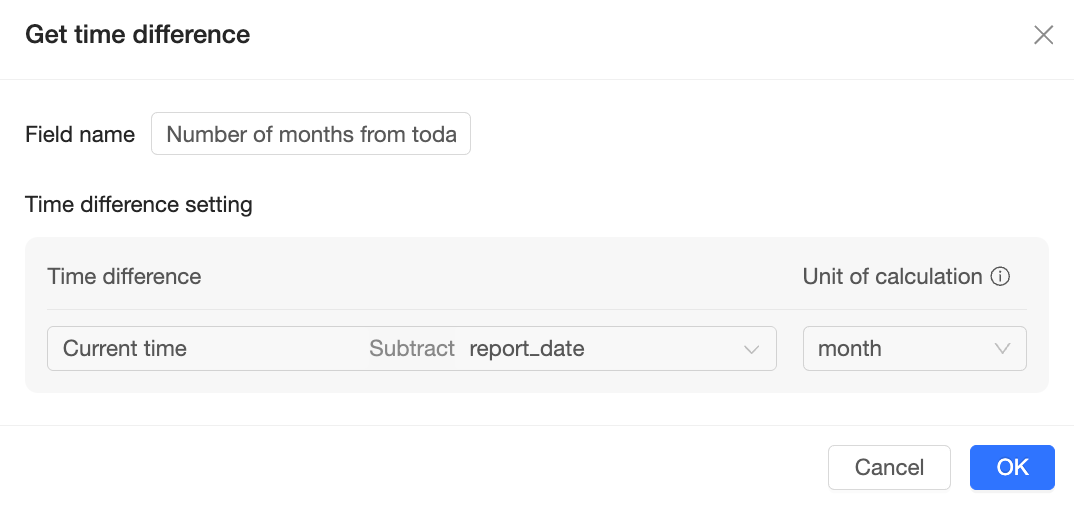
In the Calculate time difference dialog box, subtract the order date from the current time and set the unit to Month.
-
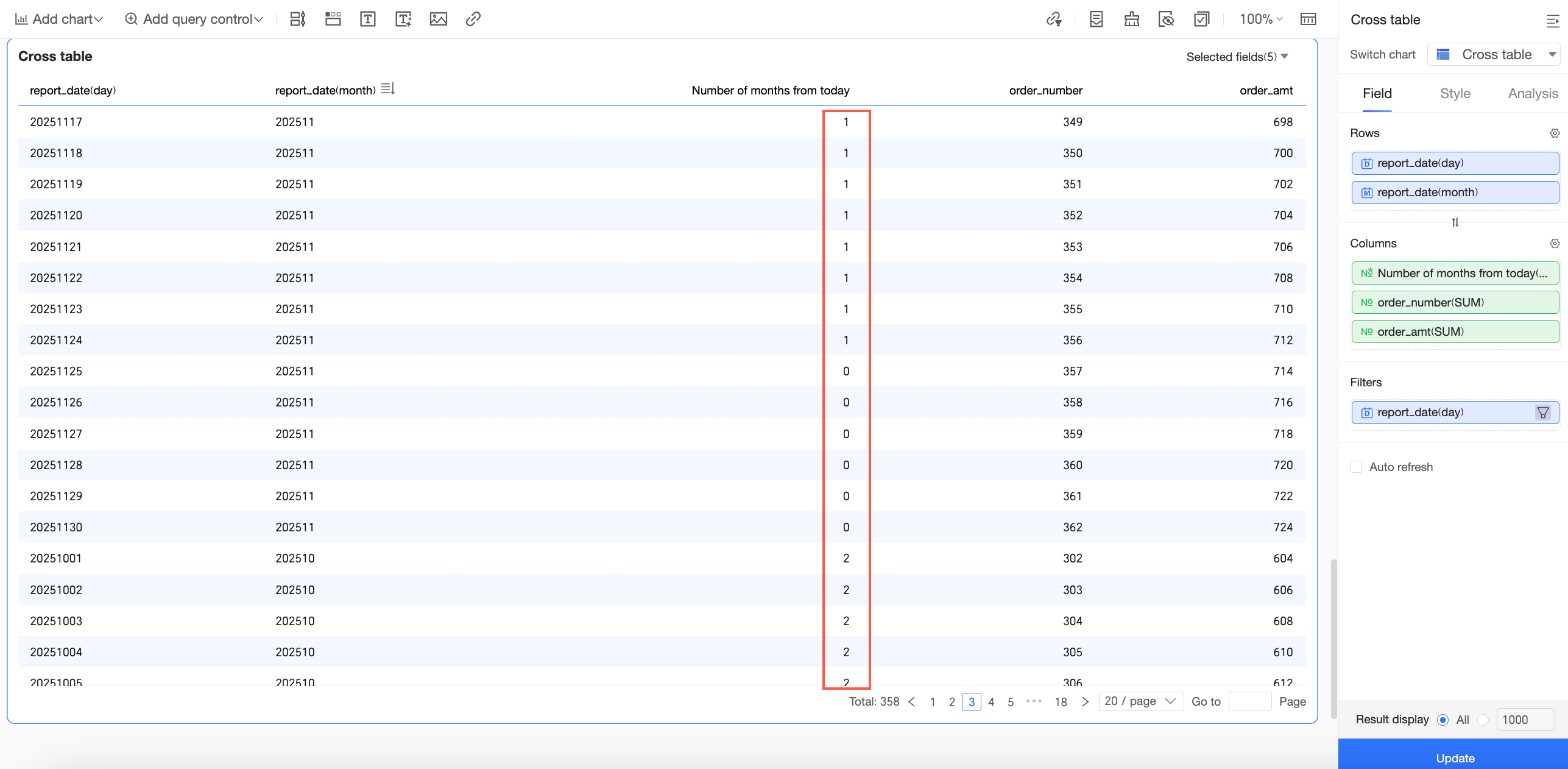
In the cross table on the dashboard, drag the new Calculate time difference field to the Columns area.
For example, if the current date is December 24, 2025, any order date from November 25, 2025 to the present returns a value of 0. Any order date from October 25, 2025 to November 24, 2025 returns a value of 1, and so on.