Grant permissions on data works
Grant collaborative permissions on Quick BI data works, including dashboards, visualization screens, workbooks, and ad hoc analyses.
Permission overview
Organization administrators, permission administrators, workspace administrators, and data work owners can grant permissions to users.
-
 : Authorization required for this user type.
 -
 : Not supported and cannot be authorized.
|
Section |
User type |
Edit |
Export |
View |
|
Member in the workspace |
Developer |
|
|
|
|
Analyst |
|
|
|
|
|
Visitor |
|
|
|
|
|
Member that is not in the workspace |
Developer, analyst, or visitor |
|
|
|
Permission hierarchy:
-
Edit: Includes edit, export, and view permissions.
-
Export (Including View): Includes export and view permissions.
-
View: View-only access.
Access the authorization panel
Log on to the Quick BI console and grant collaborative permissions on a data work in your workspace as shown below.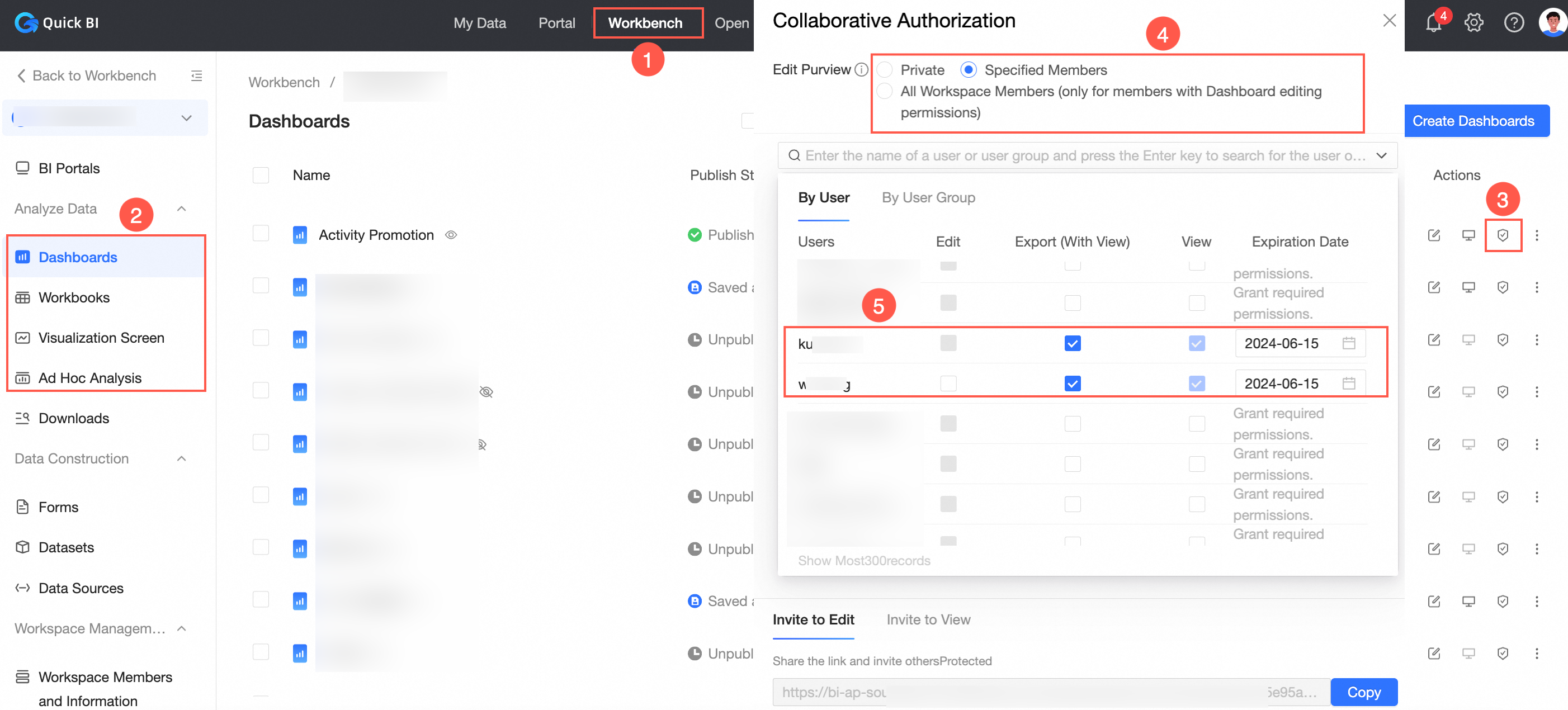
Grant the Edit permission
Users with the Edit permission can edit and unsubscribe a data work. 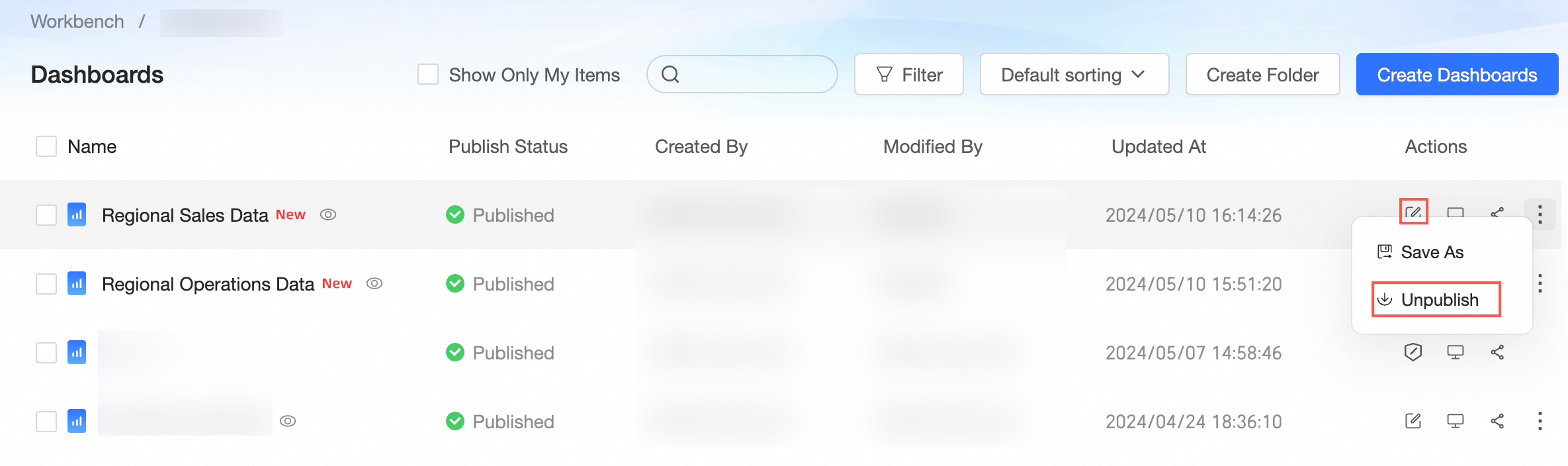
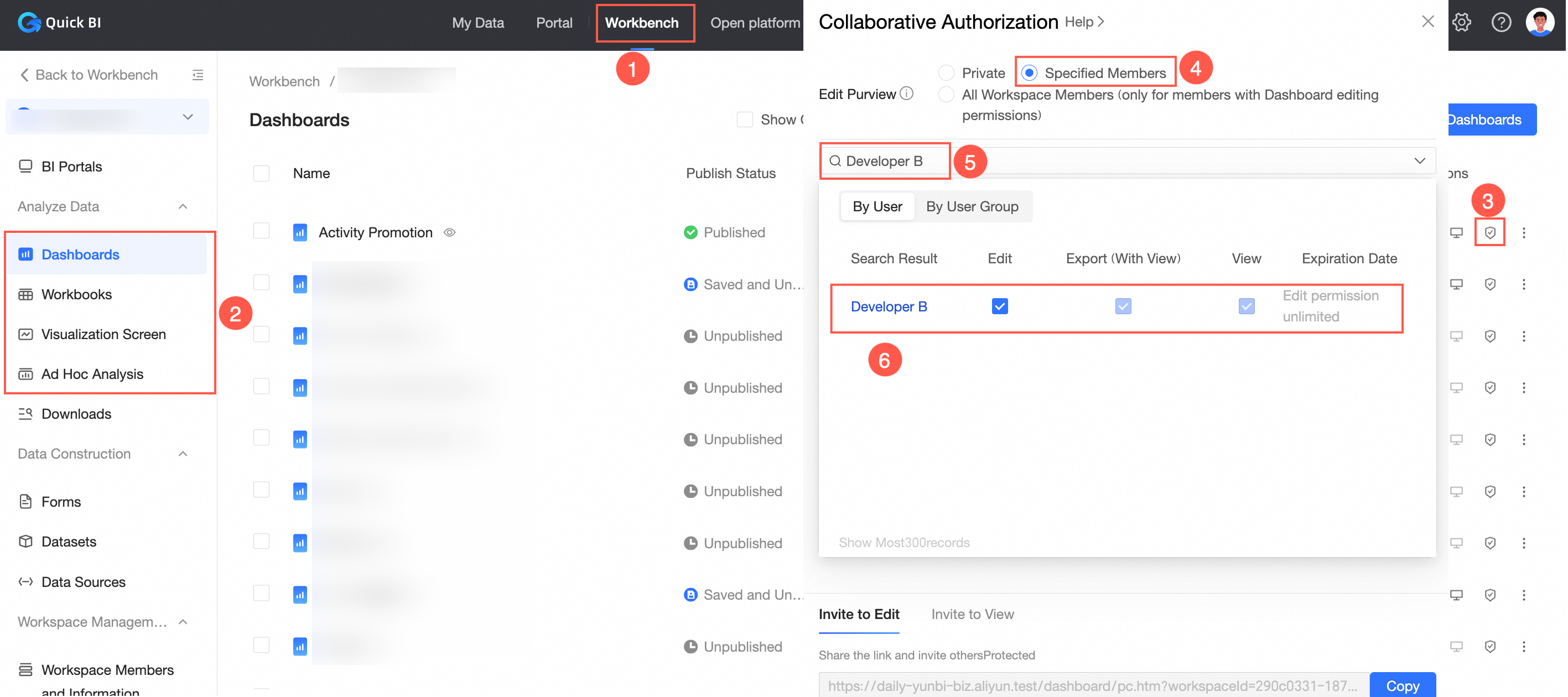
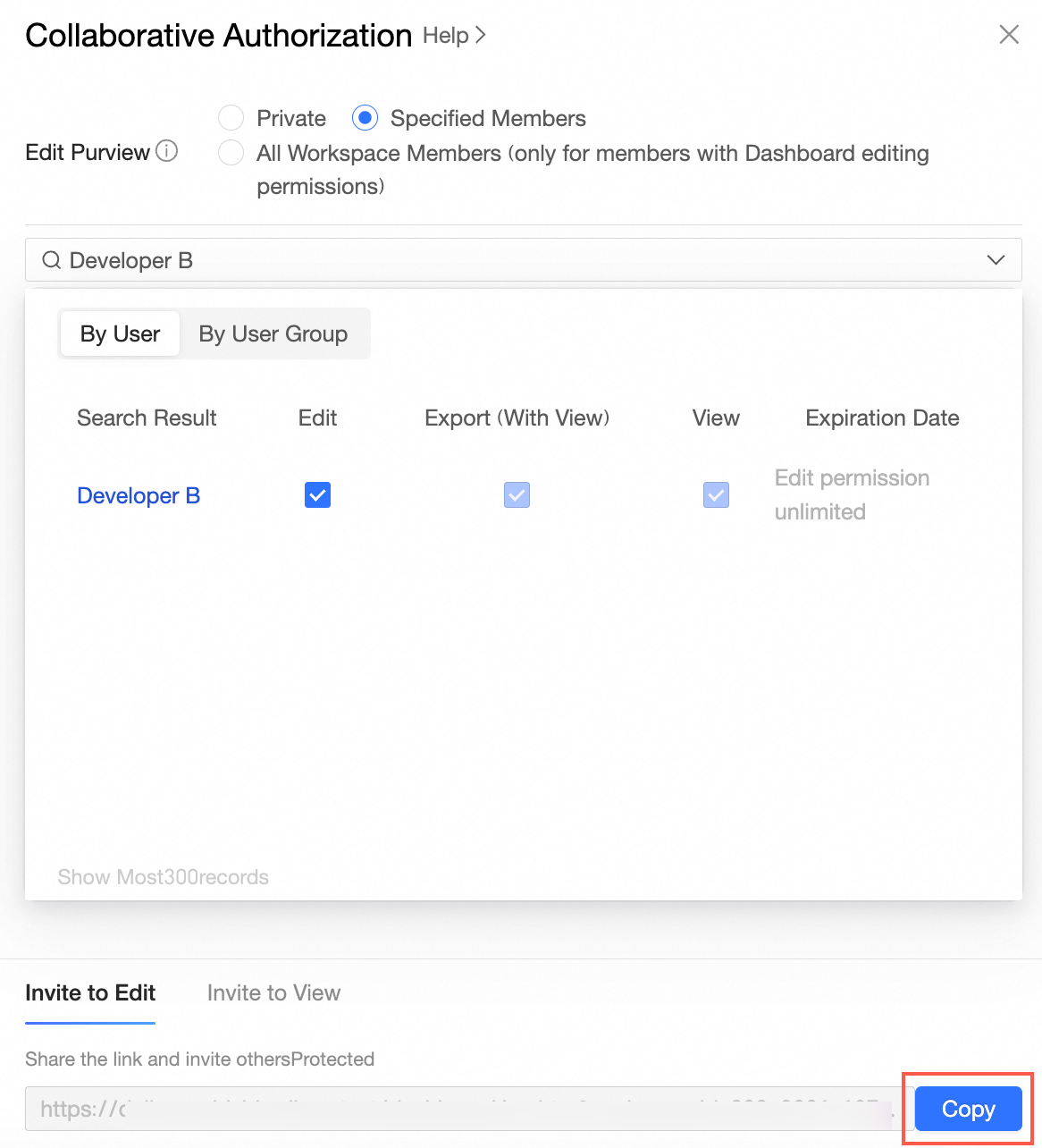
Developers and analysts can receive edit permission only when Editing Permission is set to Specified Members or All Workspace Members(Except viewers). The following example grants Developer B the Edit permission.
-
In the Collaborative Authorization panel, configure the editing permission.
In this example, Editing Permission is set to Specified Members and Developer B is granted the Edit permission.

-
On the Invite to Edit tab, click Copy and send the URL to the authorized user.
Grant the View or Export permission
-
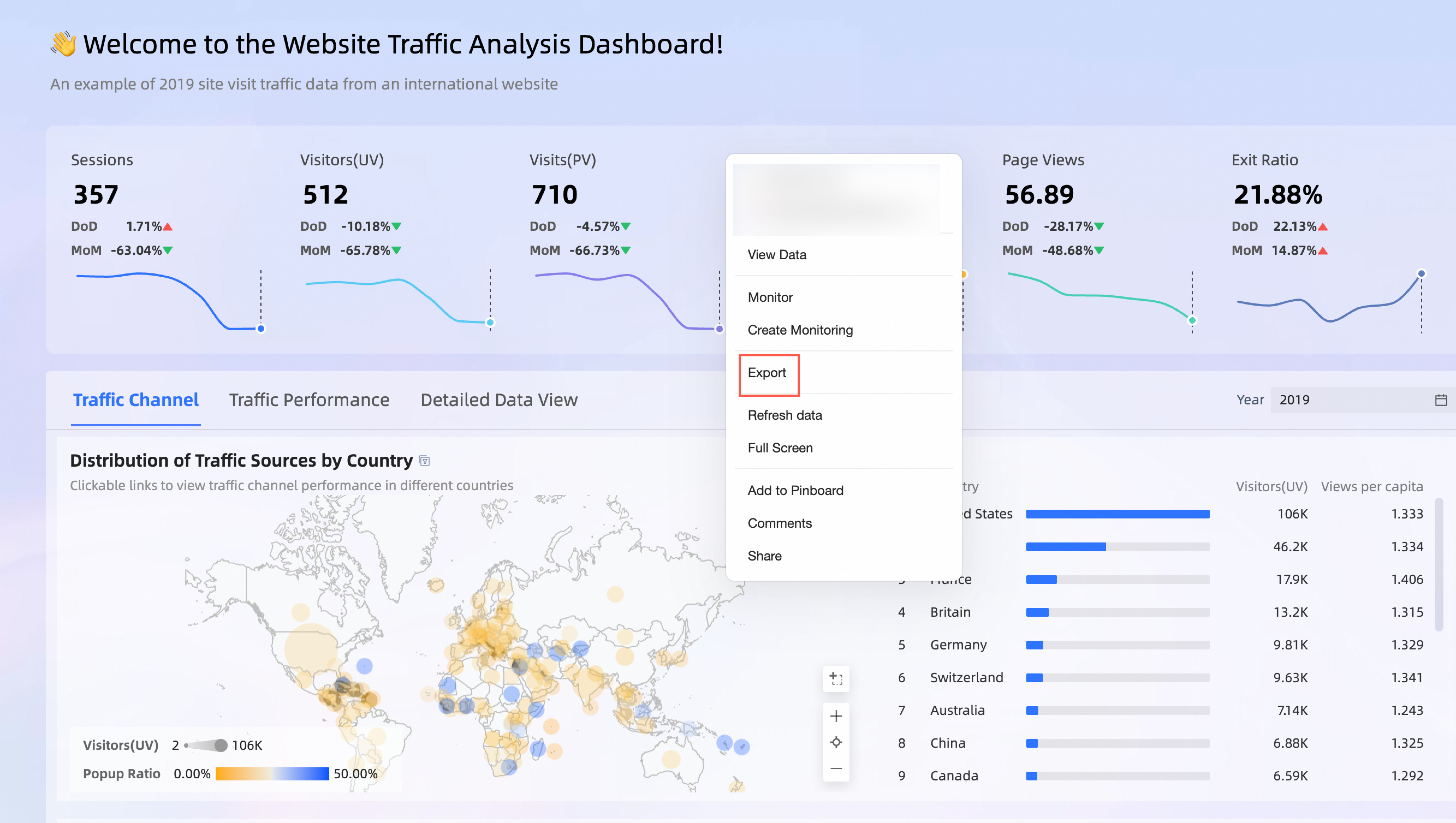
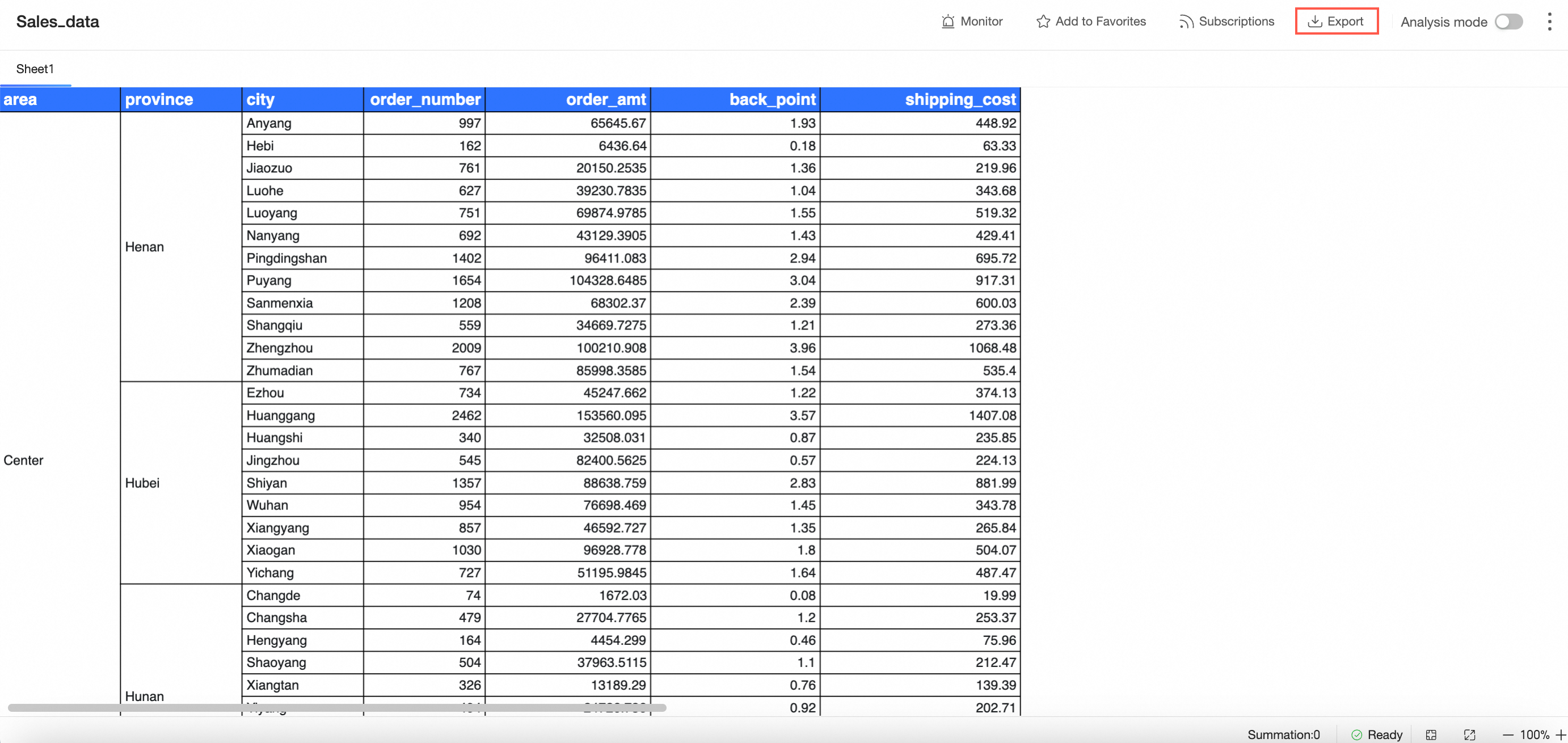
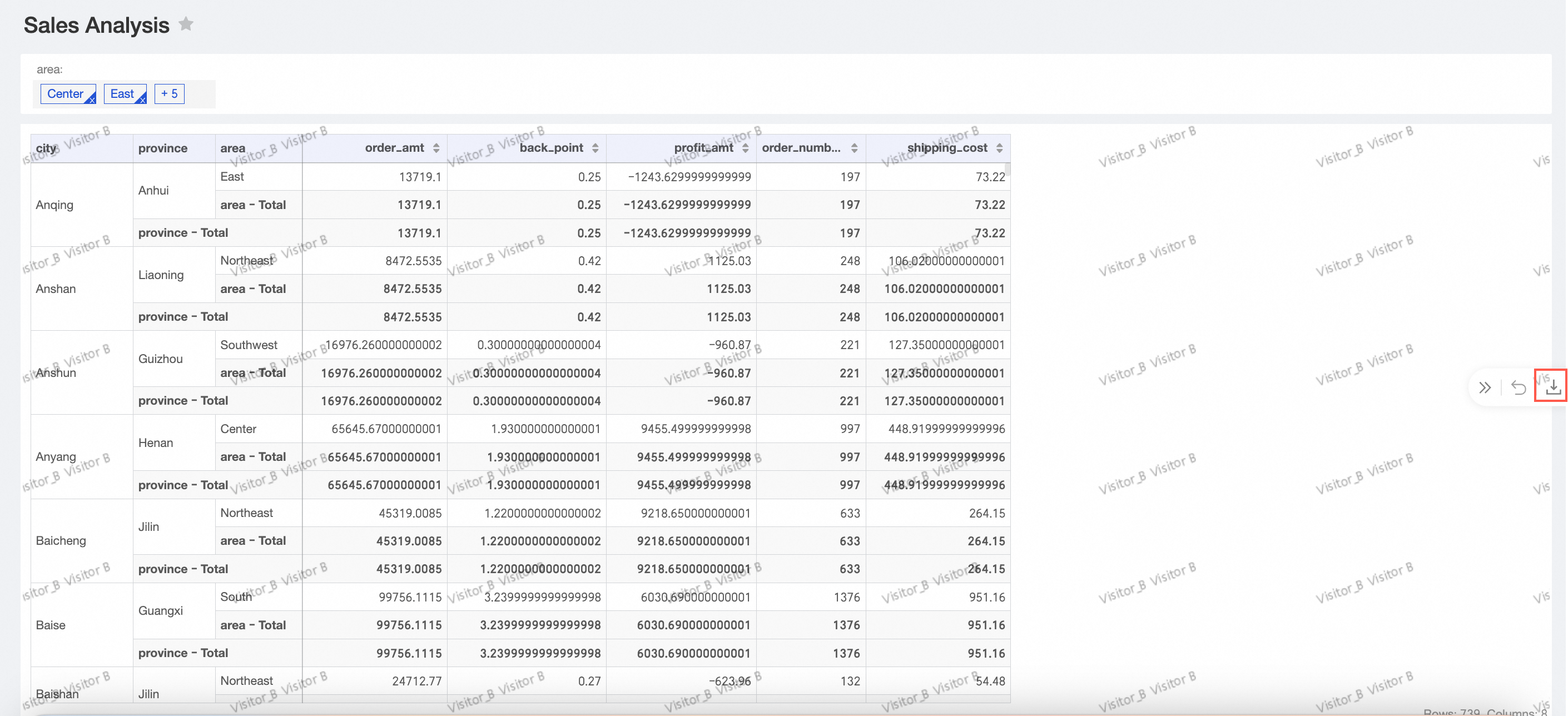
With the Export (Including View) permission, users can export a data work.
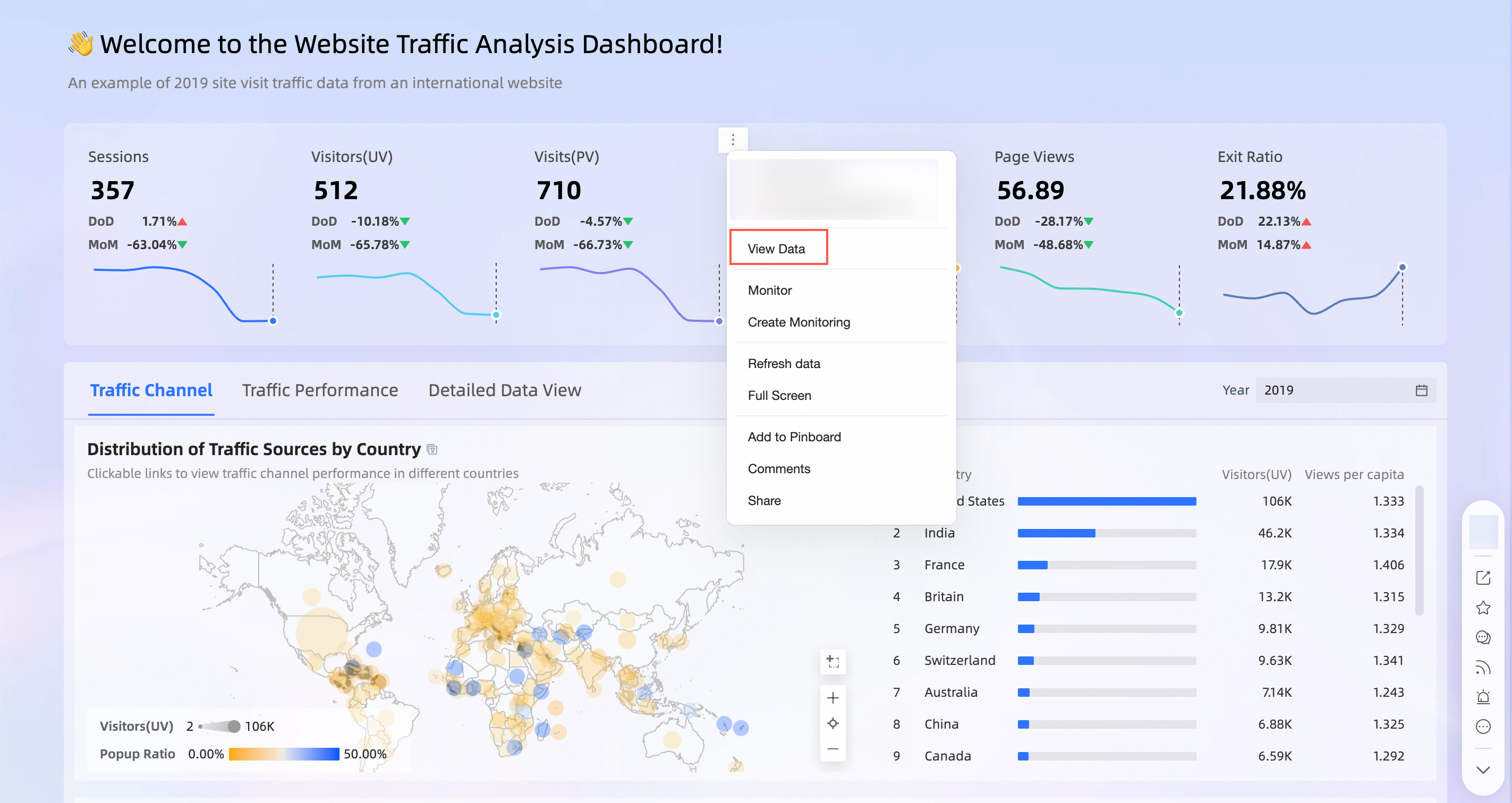
Dashboard export sample
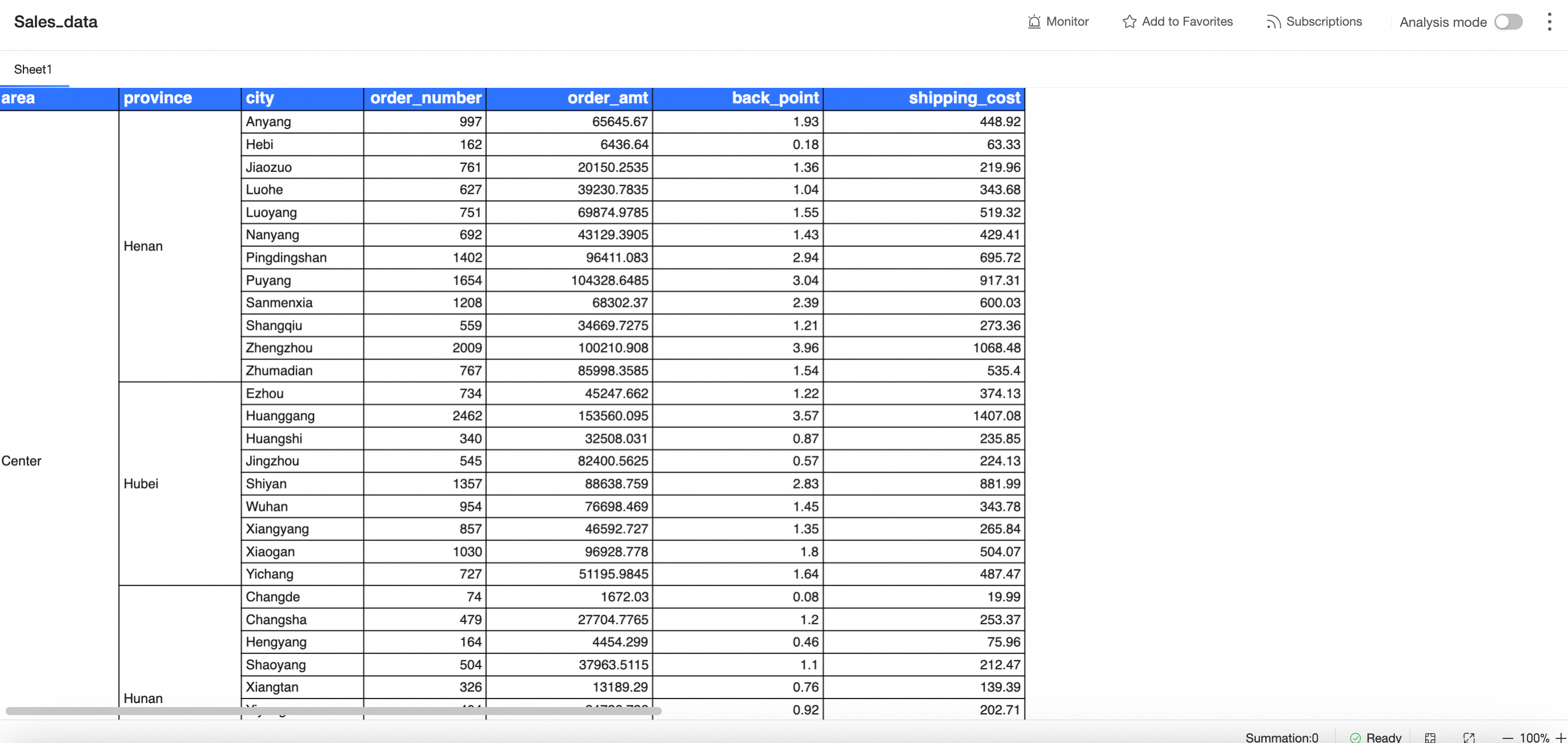
Workbook export sample
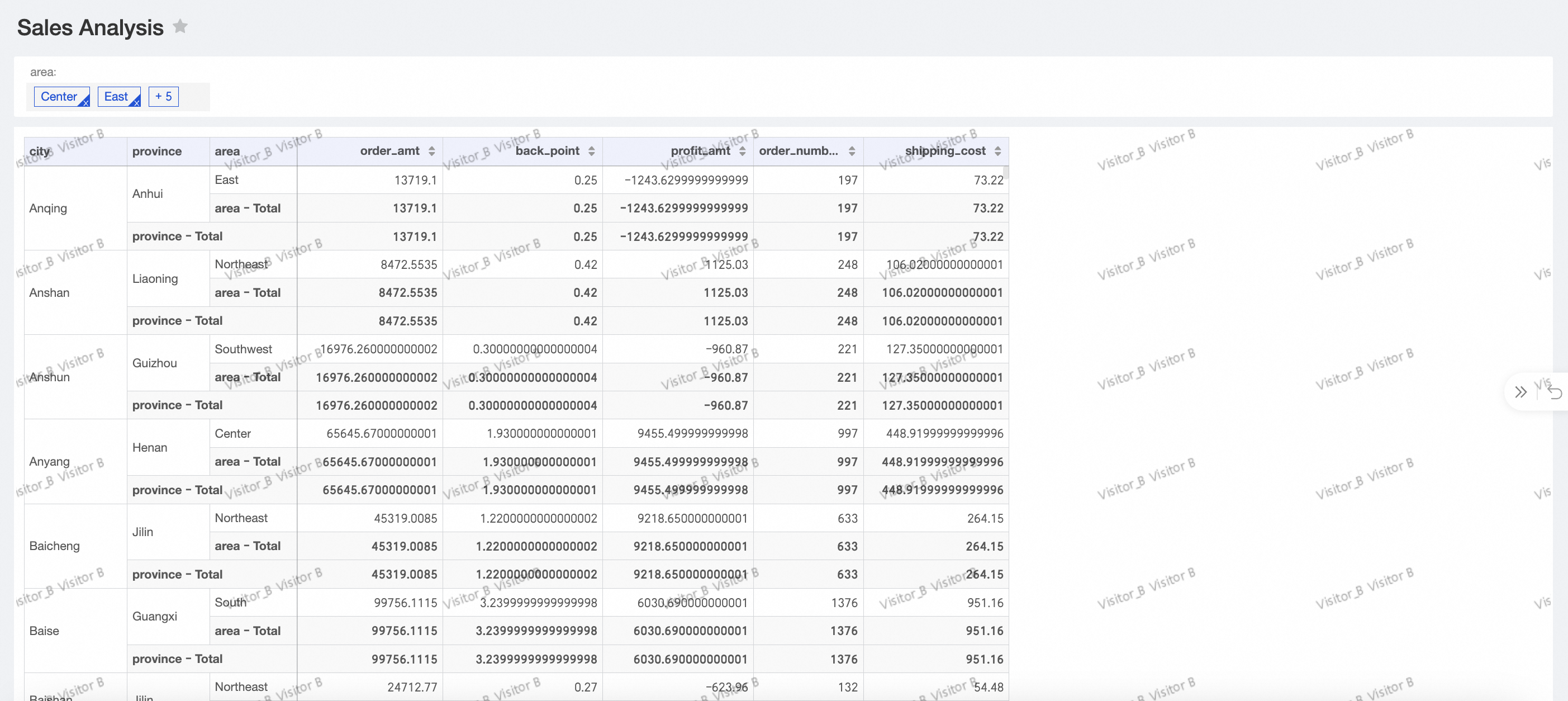
Ad hoc analysis export sample
-
With the View permission, users can view a data work.
Dashboard view sample
Workbook view sample
Ad hoc analysis view sample
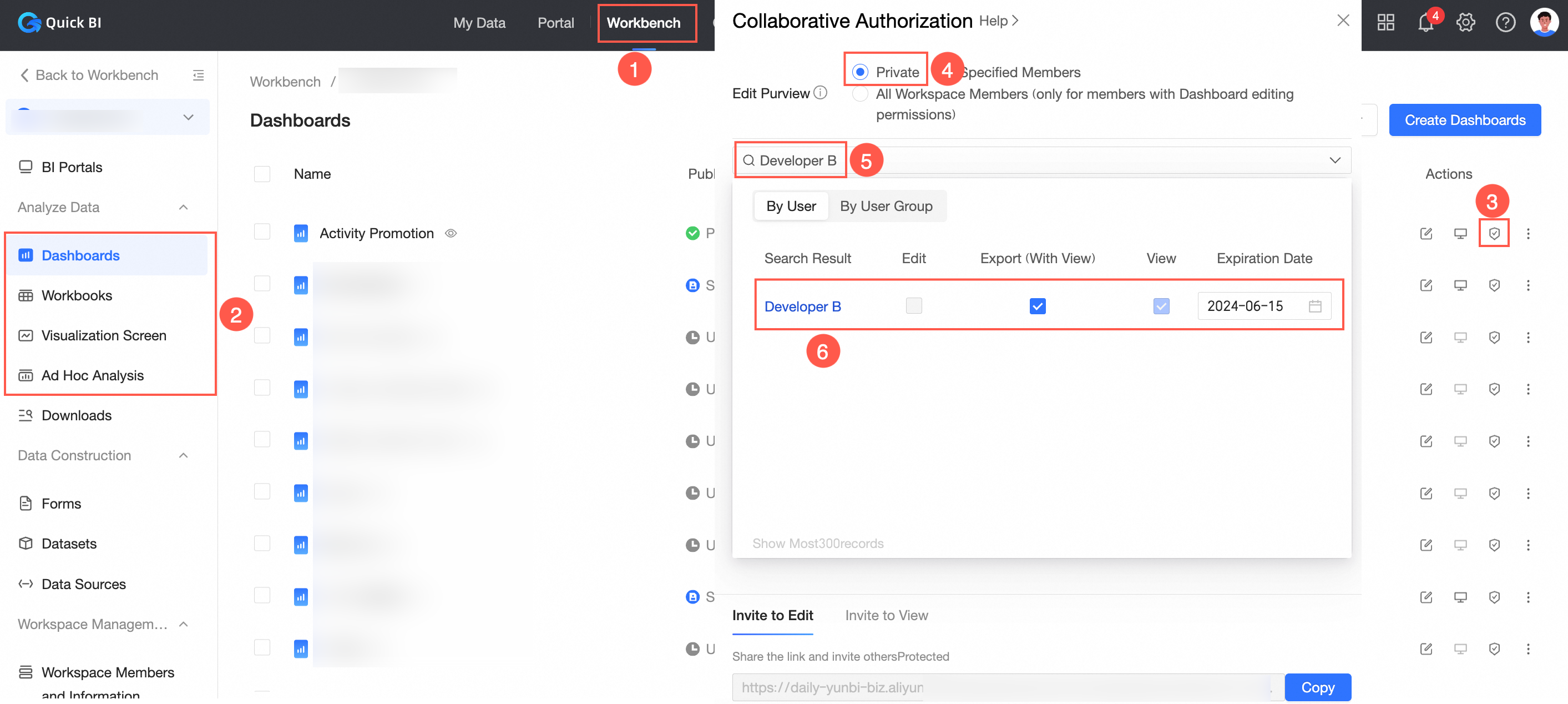
When Editing Permission is set to Private, you can grant view or export permissions. The following example grants Visitor B the Export (Including View) permission.
-
In the Collaborative Authorization panel, configure the editing permission.
In this example, Editing Permission is set to Private and Visitor B is granted the View and Export permission.
-
On the Invite to View tab, click Copy and send the URL to the authorized user.