My skills
A skill is a packaged analytical capability that you can invoke in a conversation with commands like / to perform specific analysis tasks. This topic describes how to view and add skills in My skills.
Access
Log on to Quick BI AIPro and navigate to My account > My skills.
Built-in skills
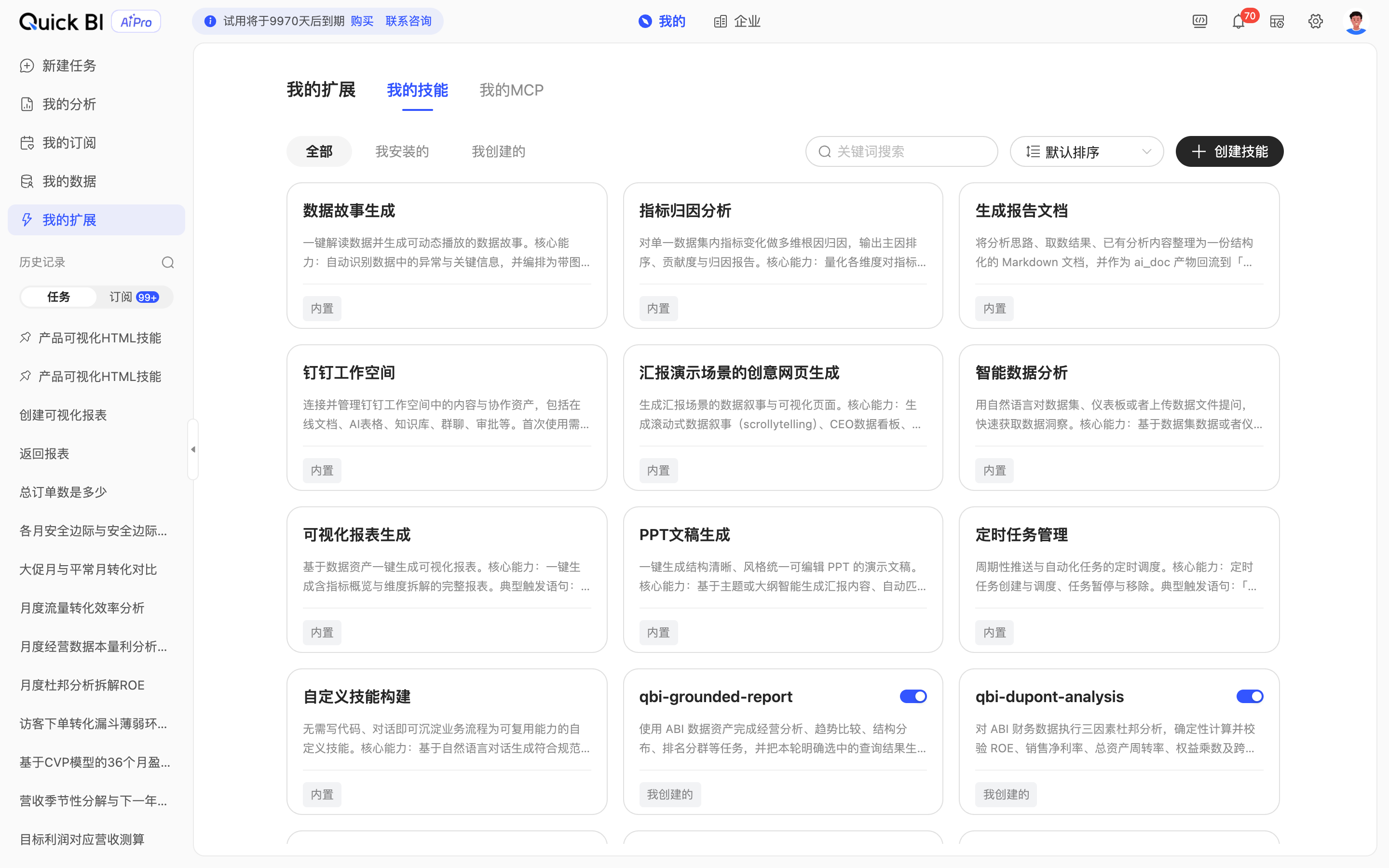
Quick BI AIPro provides the following built-in skills. The cards for these skills have a built-in tag:
|
Name |
Description |
|
Intelligent Data Analysis |
Ask questions in natural language about a dataset, dashboard, or an uploaded data file to quickly gain insights from your data.
|
|
Visual Report Generation |
Generate a visual report from a data asset with a single click.
|
|
Scheduled Task Management |
Schedule recurring push notifications and automated tasks.
|
|
Custom Skill Building |
Capture business workflows as reusable custom skills in a conversation, with no coding required.
|
|
PPT Presentation Generation |
Generate a well-structured, consistently styled, and editable PPT presentation with a single click.
|
|
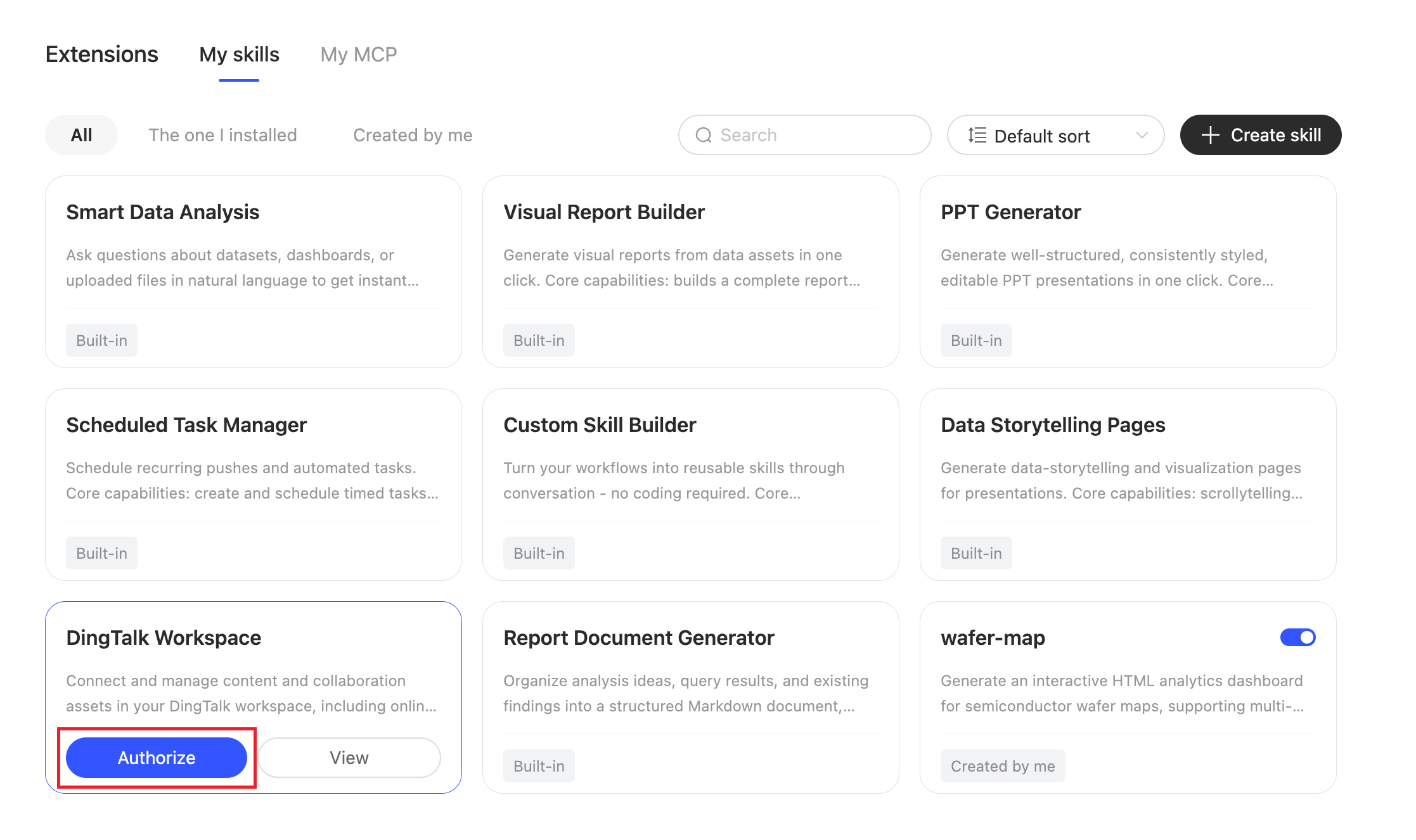
DingTalk Workspace |
Connect to and manage content and collaborative assets in your DingTalk Workspace, including online documents, an AI-powered sheet, a knowledge base, group chats, and approvals.
Note
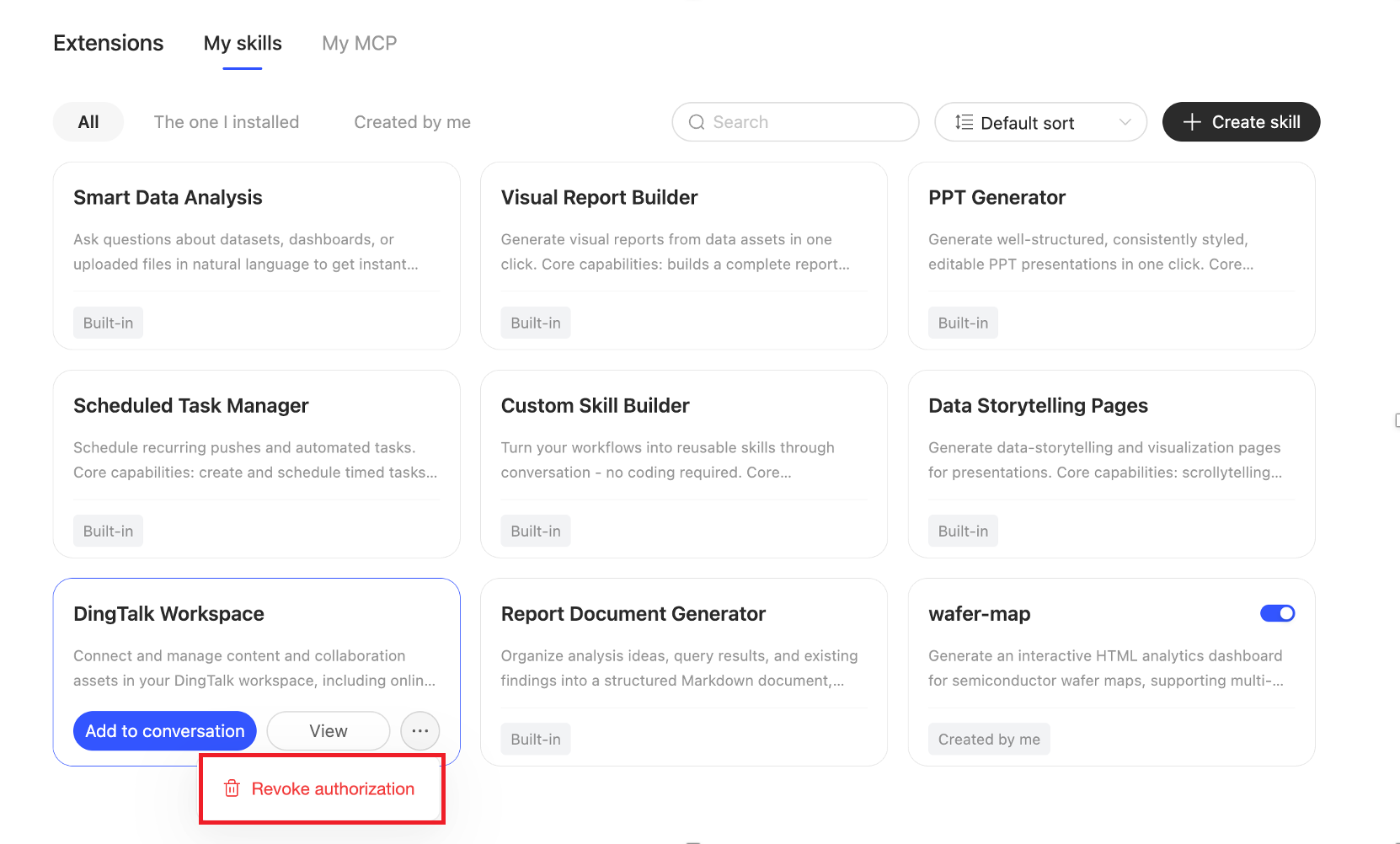
You must authorize your DingTalk account upon first use. To revoke the authorization, use one of the following methods:
|
|
Data Story Generation |
Transforms complex data into animated, illustrated interpretations to help you intuitively understand the meaning behind your data.
|
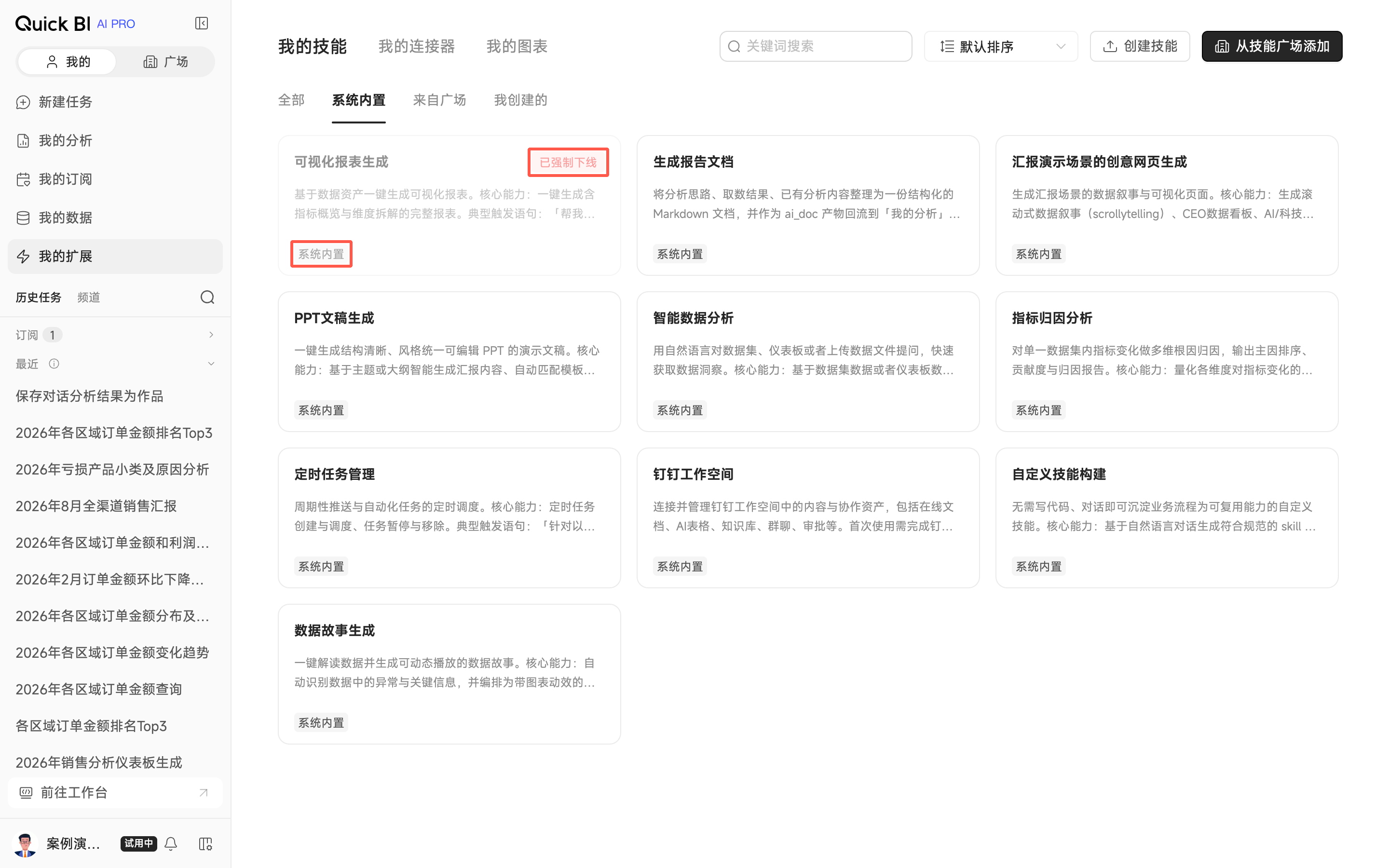
Built-in skills are centrally managed by an administrator in Skill Management. If an administrator unpublishes a built-in skill or removes you from its visibility:
-
The skill's card displays an Unpublished by Administrator status and the skill becomes unusable.
-
The skill no longer appears in the skill selection list within a conversation.
The skill becomes available again after the administrator republishes it or adds you back to its visibility.
Add skill
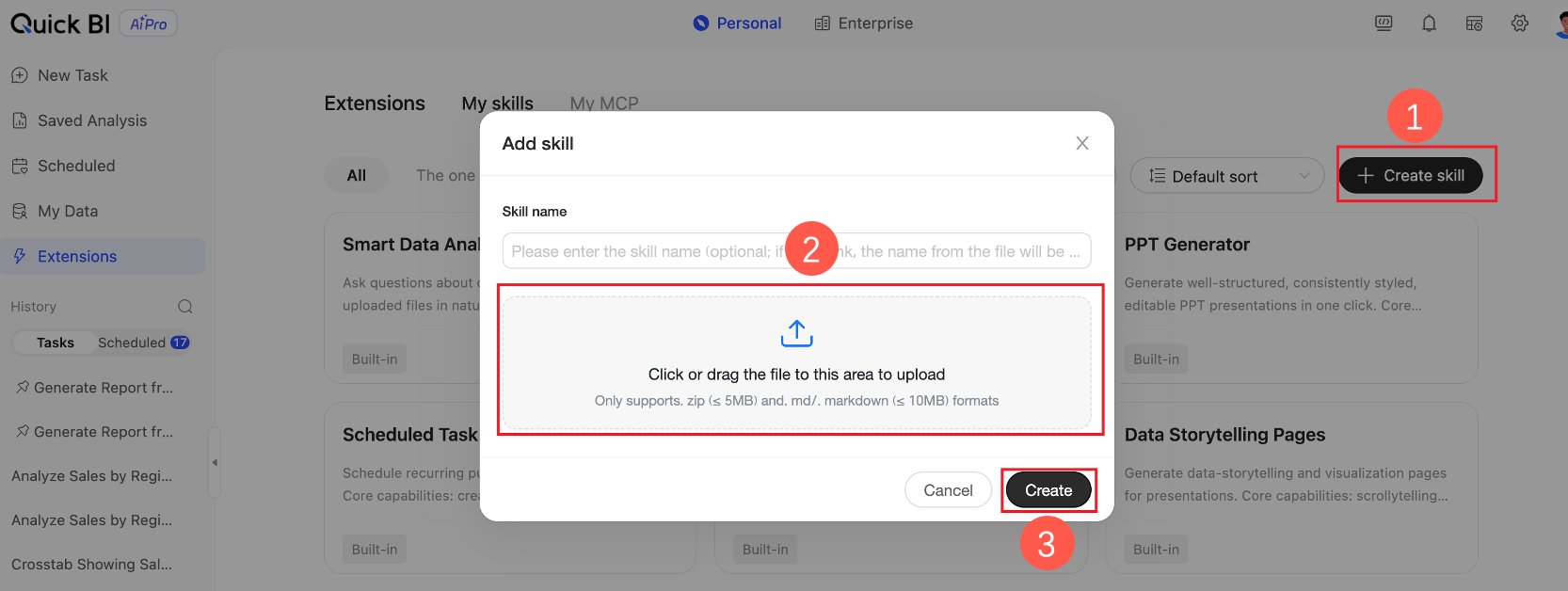
Click the Add Skill icon to upload and create a skill.
Only .zip files (5 MB or less) and .md or .markdown files (10 MB or less) are supported.
View skills
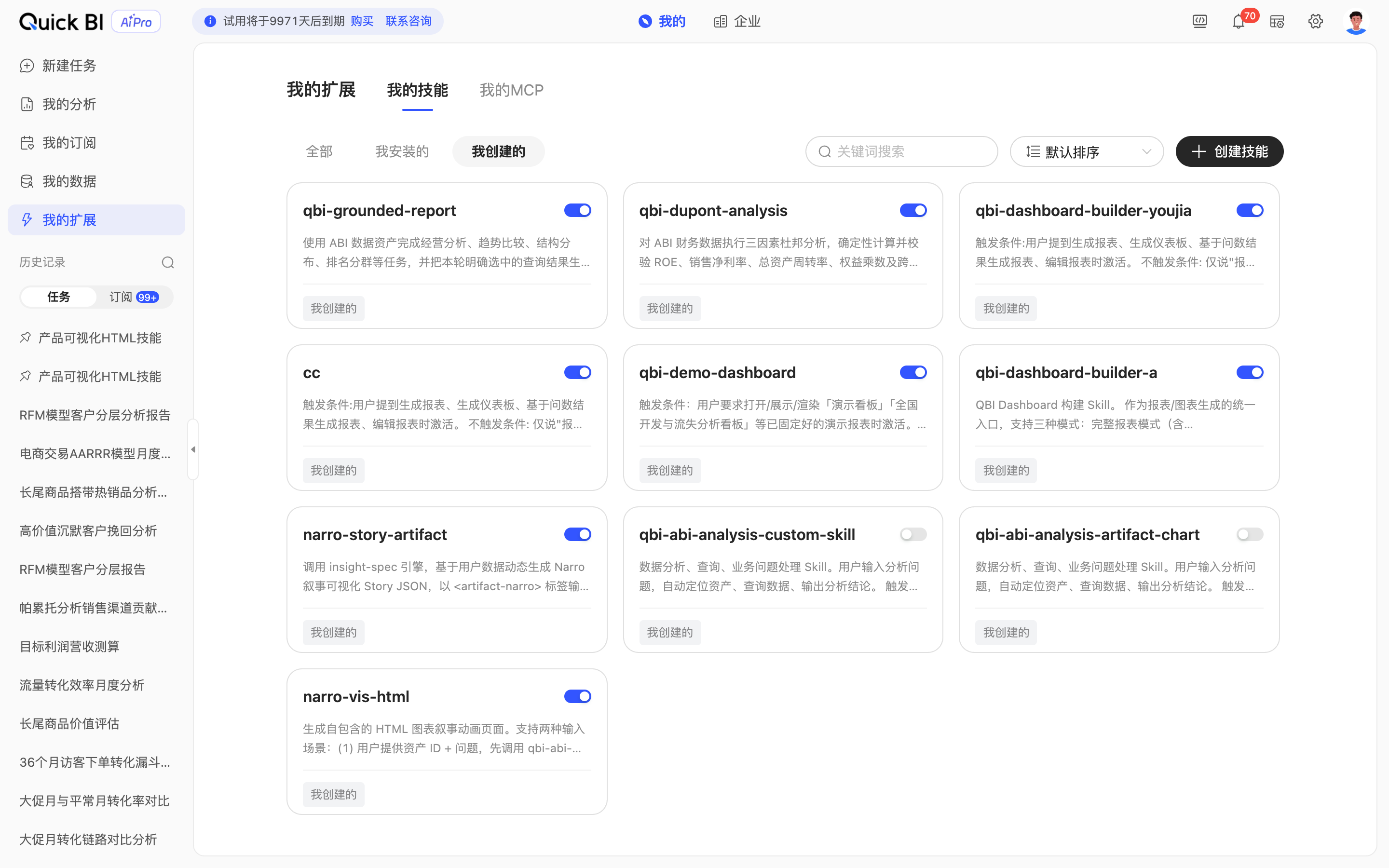
-
You can filter skills by All, Installed, and Created by Me.

-
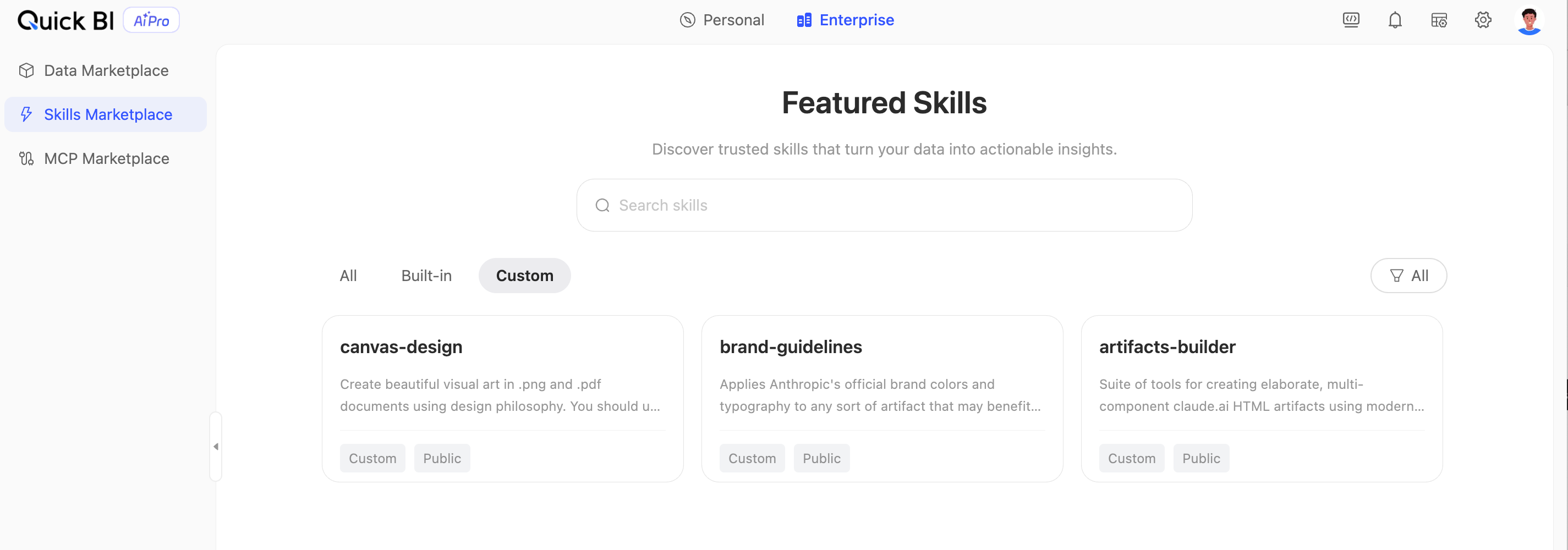
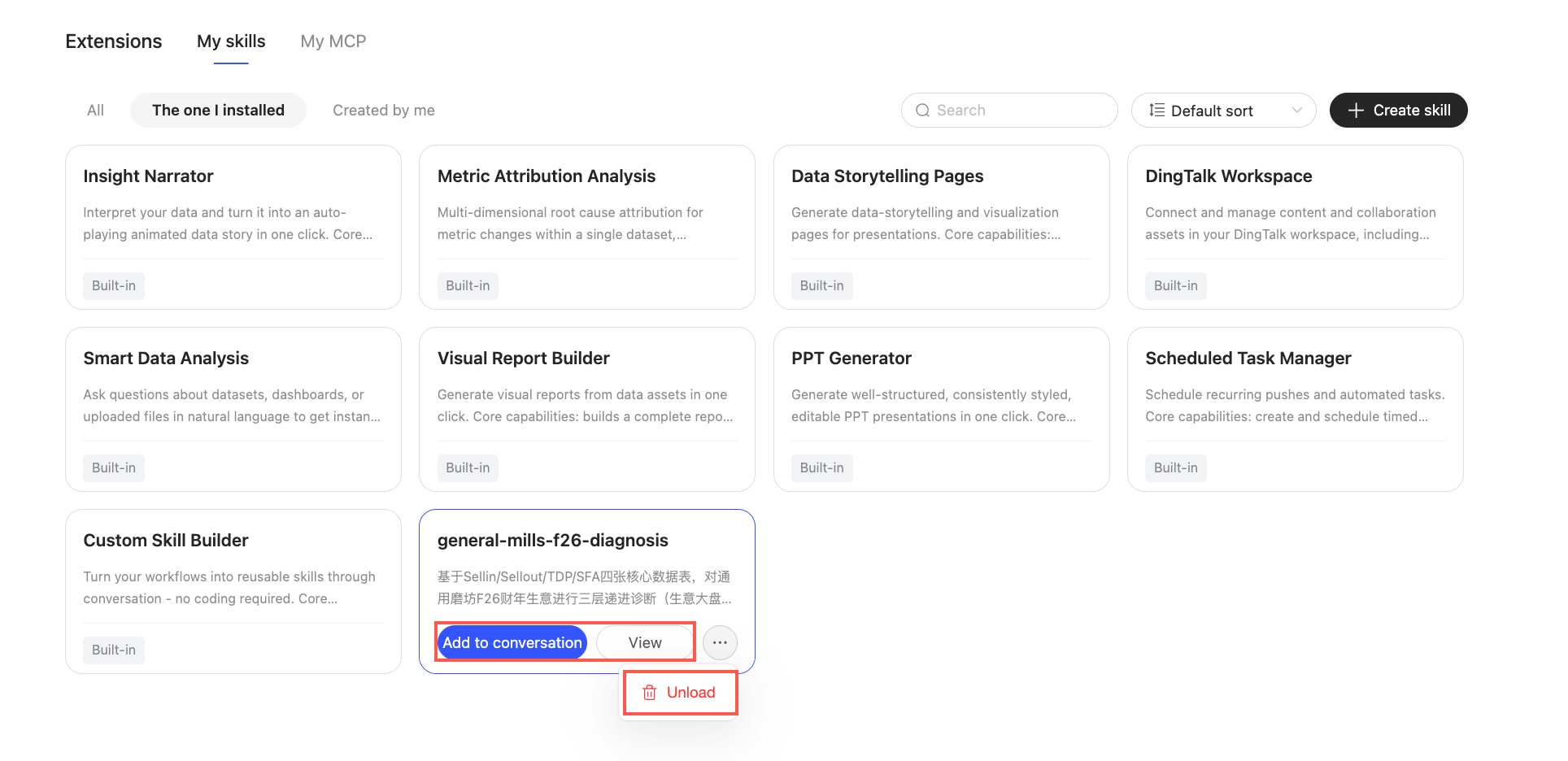
Installed: Includes built-in skills and skills that you installed from the Skills Marketplace.
-
Created by Me: Includes skills that you created on the My skills page or in a conversation.
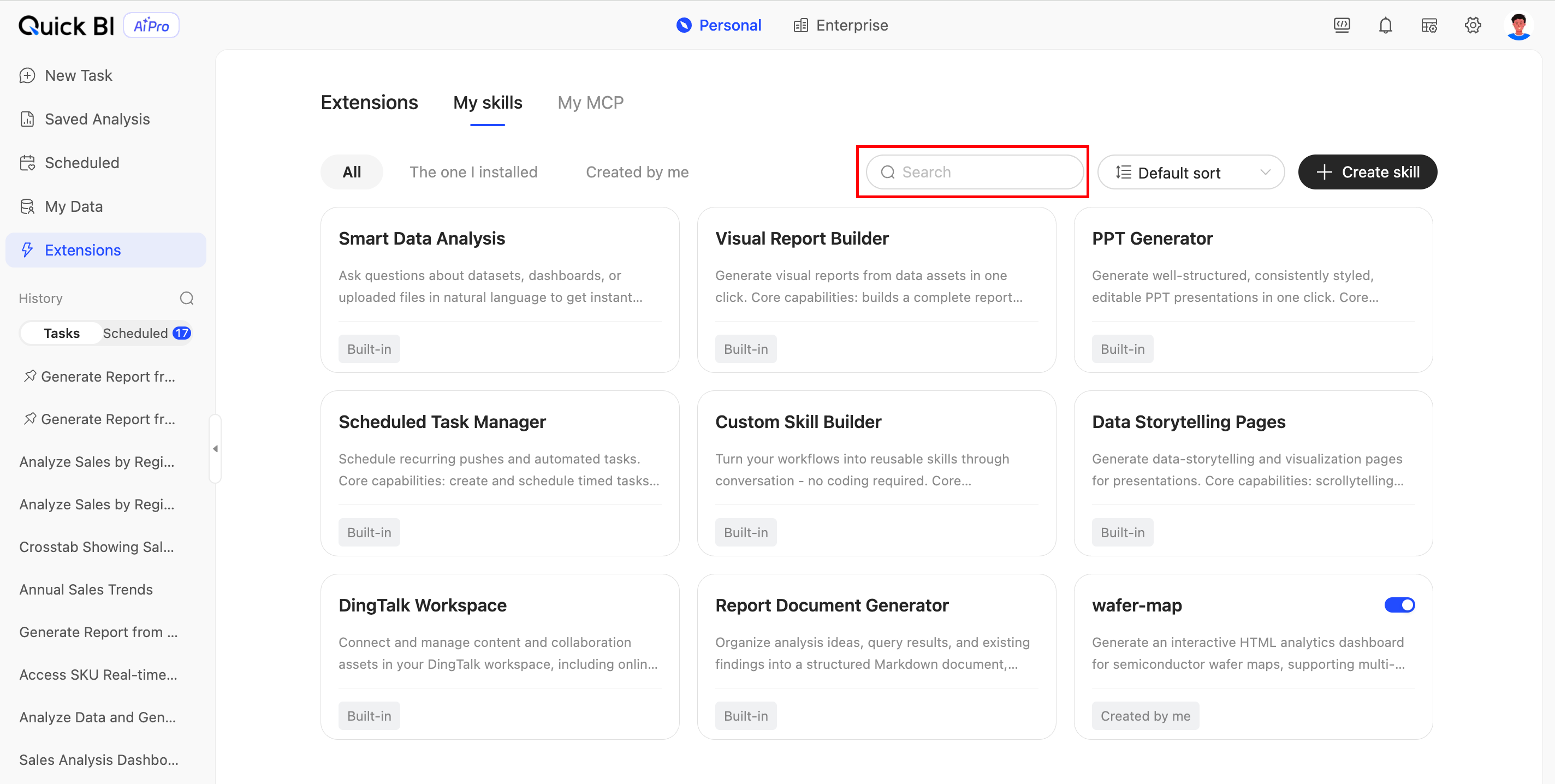
-
-
You can search for your skills by entering keywords.
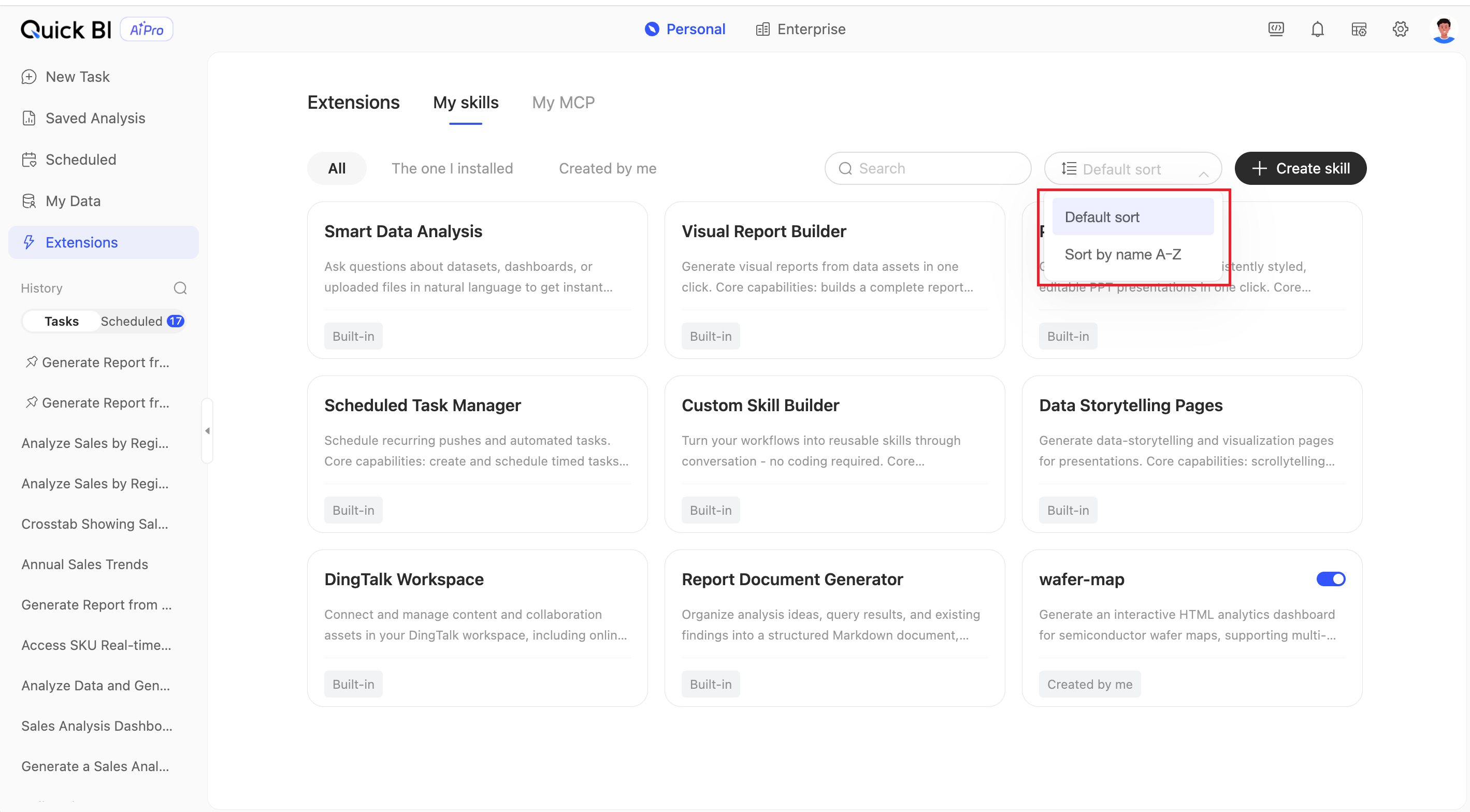
-
You can change the Sort order.
Manage skills
-
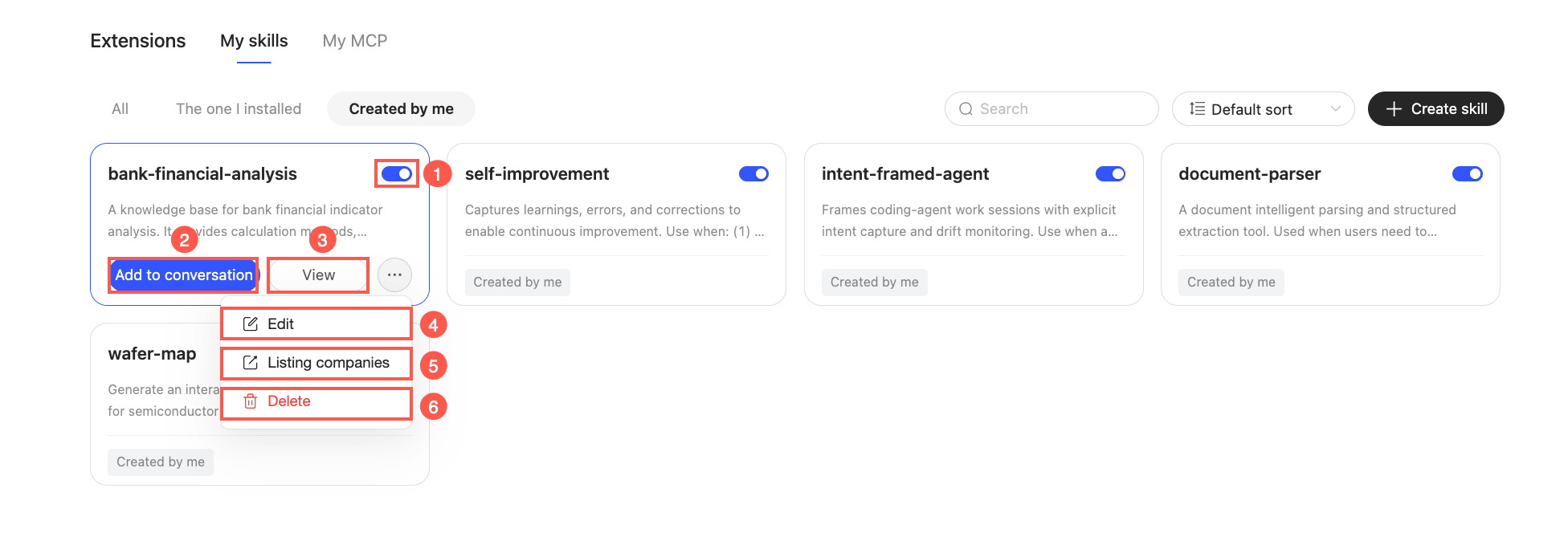
On the My skills page, you can perform the following actions on skills that you created.
No.
Actions
Description
①
Enable Skill
You must enable the skill before you can invoke it.
②
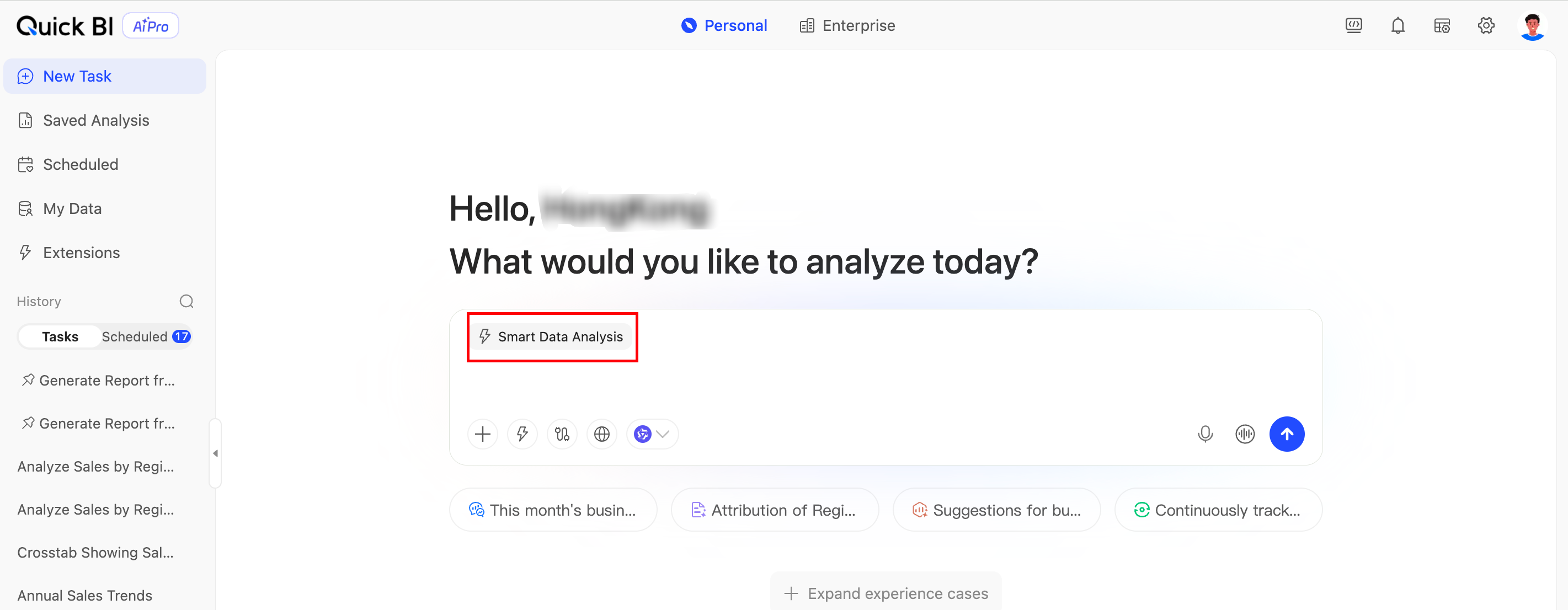
Add to Conversation
Click to automatically select the skill and navigate to the new task page.
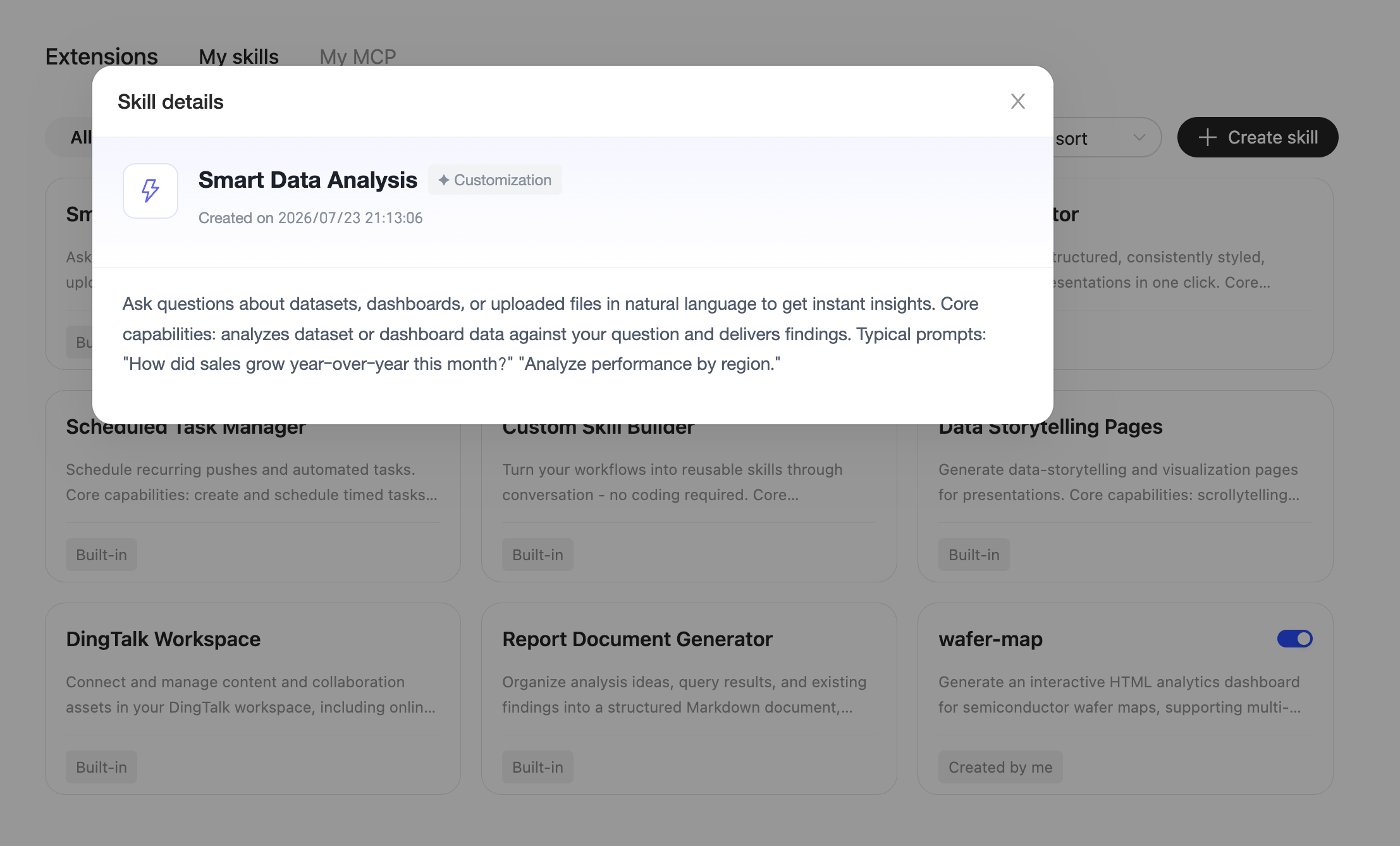
③
View
View Skill Details.
④
Edit
Edit the skill's name, description, and other information.
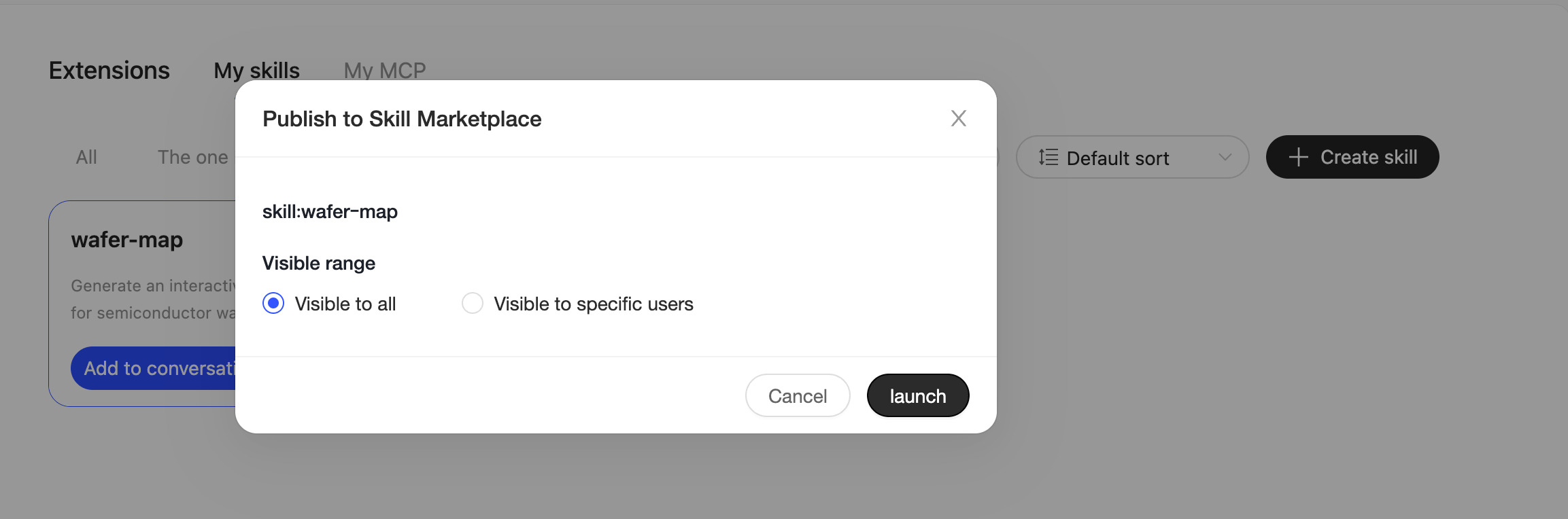
⑤
Publish to Enterprise
Publish the skill to the Skills Marketplace. You can set its visibility to All Employees or Specified Visibility.
NoteOnly an administrator (a user with centralized management permissions for Quick BI AIPro) can publish skills.
After a skill is published, you can find it in the Skills Marketplace.
⑥
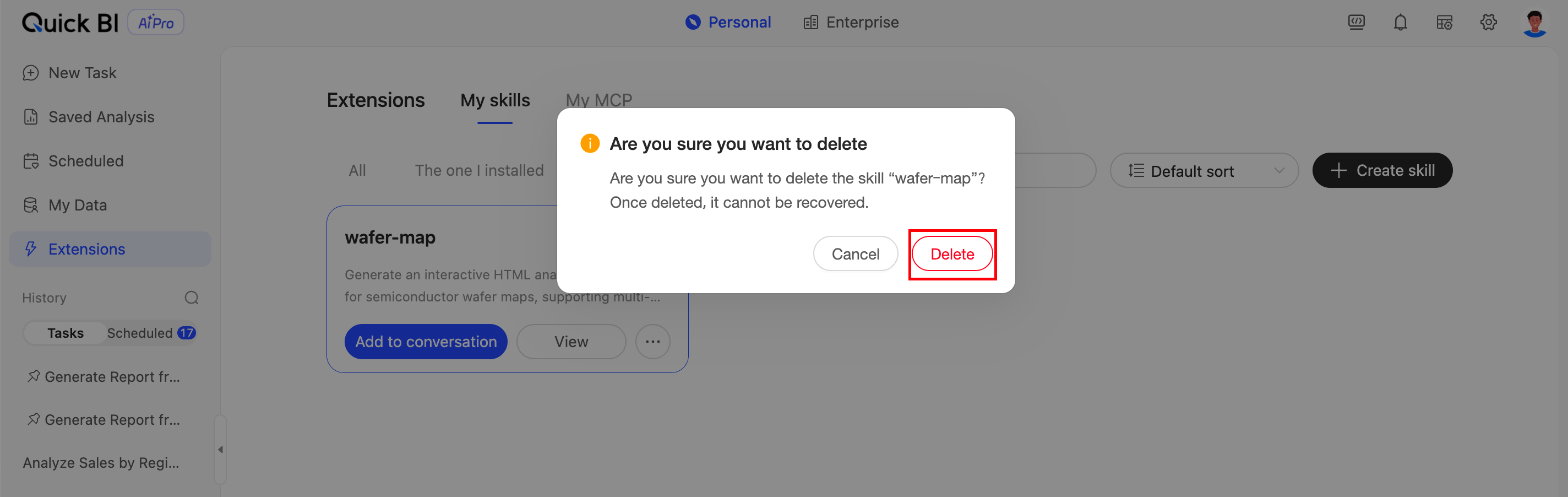
Delete
Click Delete in the confirmation dialog box. This action cannot be undone.
-
For Installed skills, you can add them to a conversation, view their details, or uninstall them.
-
For built-in skills, you can only add them to a conversation and view their details.