Q Insights Subscription delivers scheduled insights to specified recipients, keeping them informed about business trends, data fluctuations, and anomalies.
This feature is currently available only in the China (Hong Kong) , Malaysia (Kuala Lumpur) and Singapore regions. It is being progressively rolled out to other regions.
Overview
Set up recurring scheduled tasks to generate insights from your dashboard. Based on the frequency you configure, such as daily or weekly, the system automatically generates analysis results and sends them through in-app messages or external channels like DingTalk, Feishu, Lark, and email.
Use cases
This feature is ideal for the following scenarios:
-
Monitoring daily changes in key business metrics, such as Gross Merchandise Volume (GMV), order volume, and user activity.
-
Regularly tracking the performance of marketing campaigns, such as post-promotion reviews and advertising Return on Investment (ROI).
-
Reporting on team Key Performance Indicator (KPI) achievements at fixed intervals.
-
Performing long-term, consistent analysis on specific dashboards.
Prerequisites
-
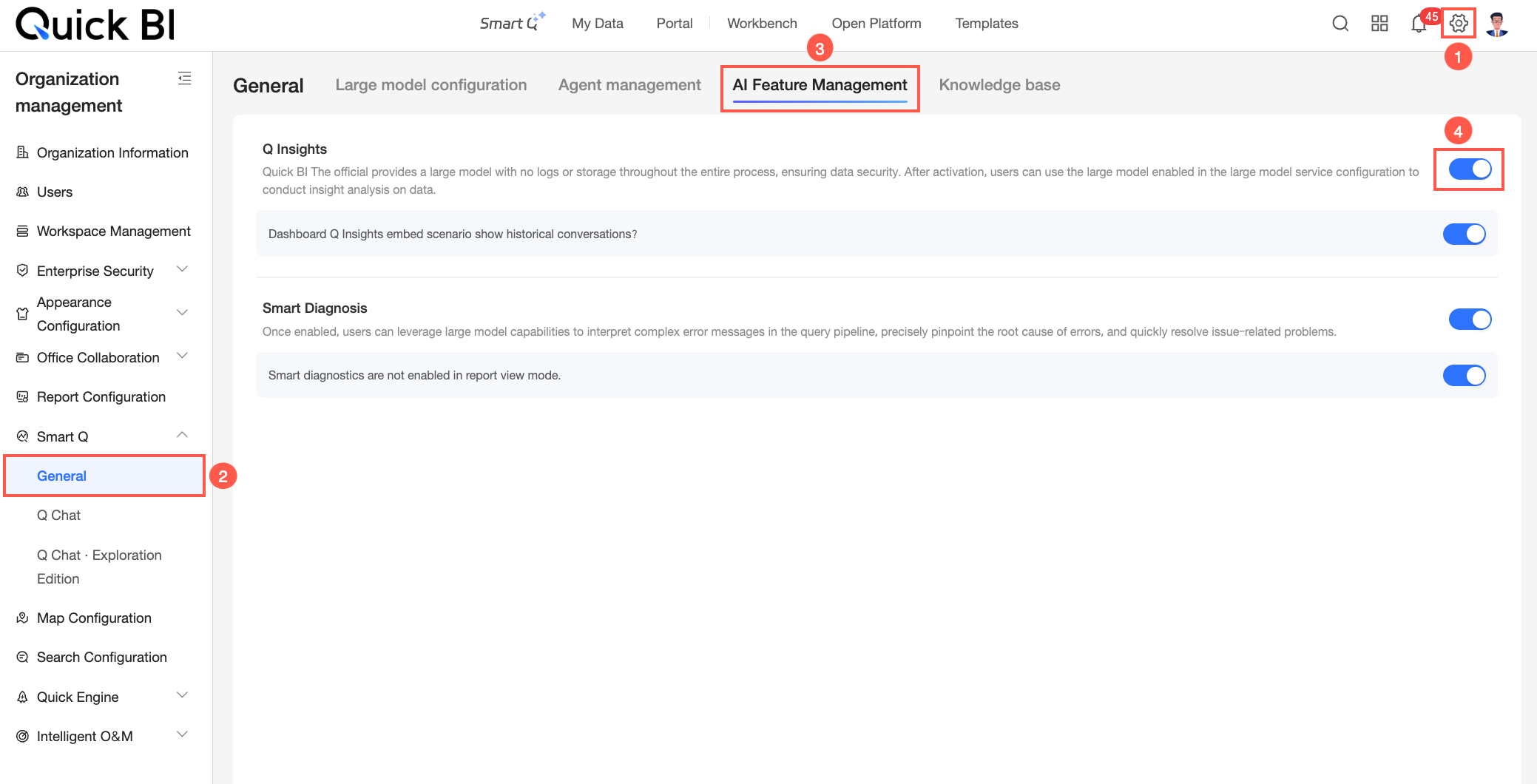
You have enabled Q Insights.
-
You have completed the Q Insights configuration.
Add a scheduled task
-
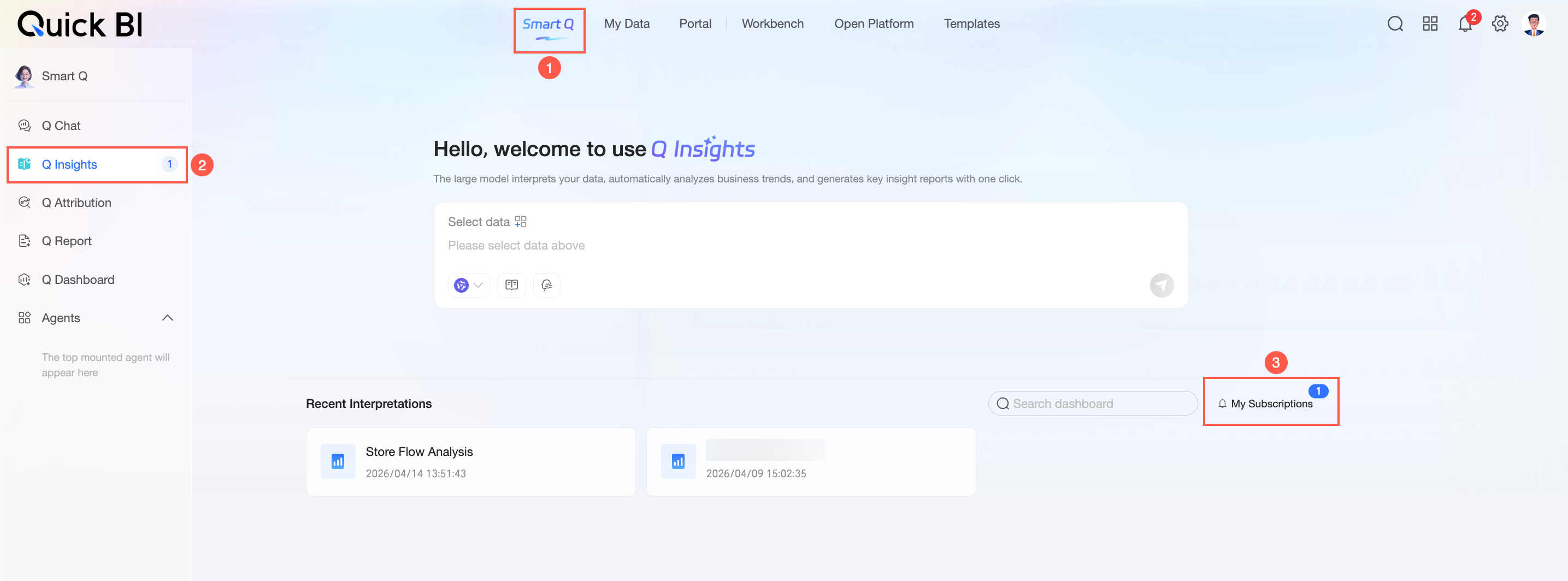
You can access the Q Insights interface from the Q Insights Home page or the dashboard preview page. For more information, see Entry Points.
-
Click the
 icon in the upper-right corner to open the Q Insights subscription task management page.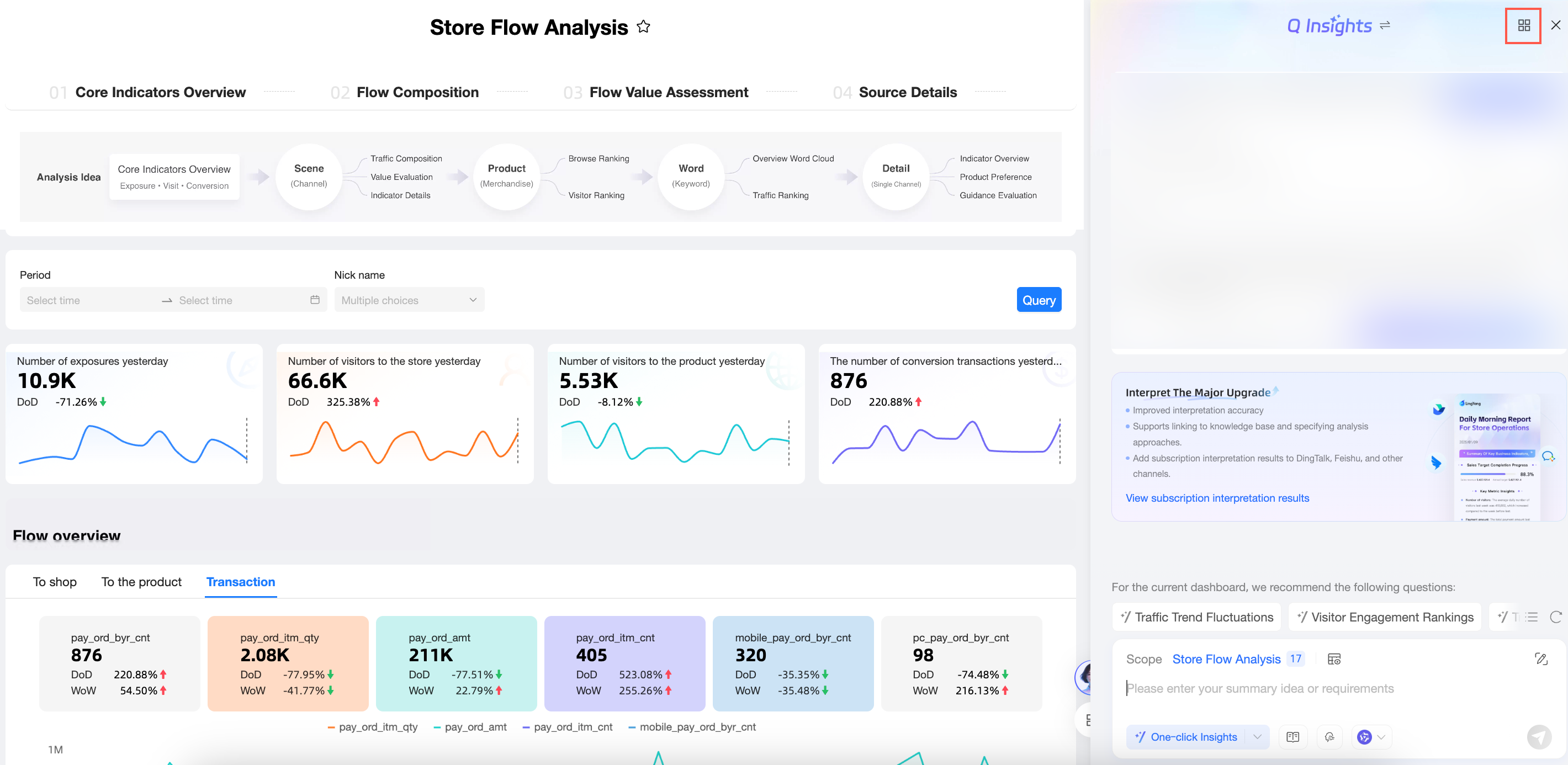
-
Click Add Now.
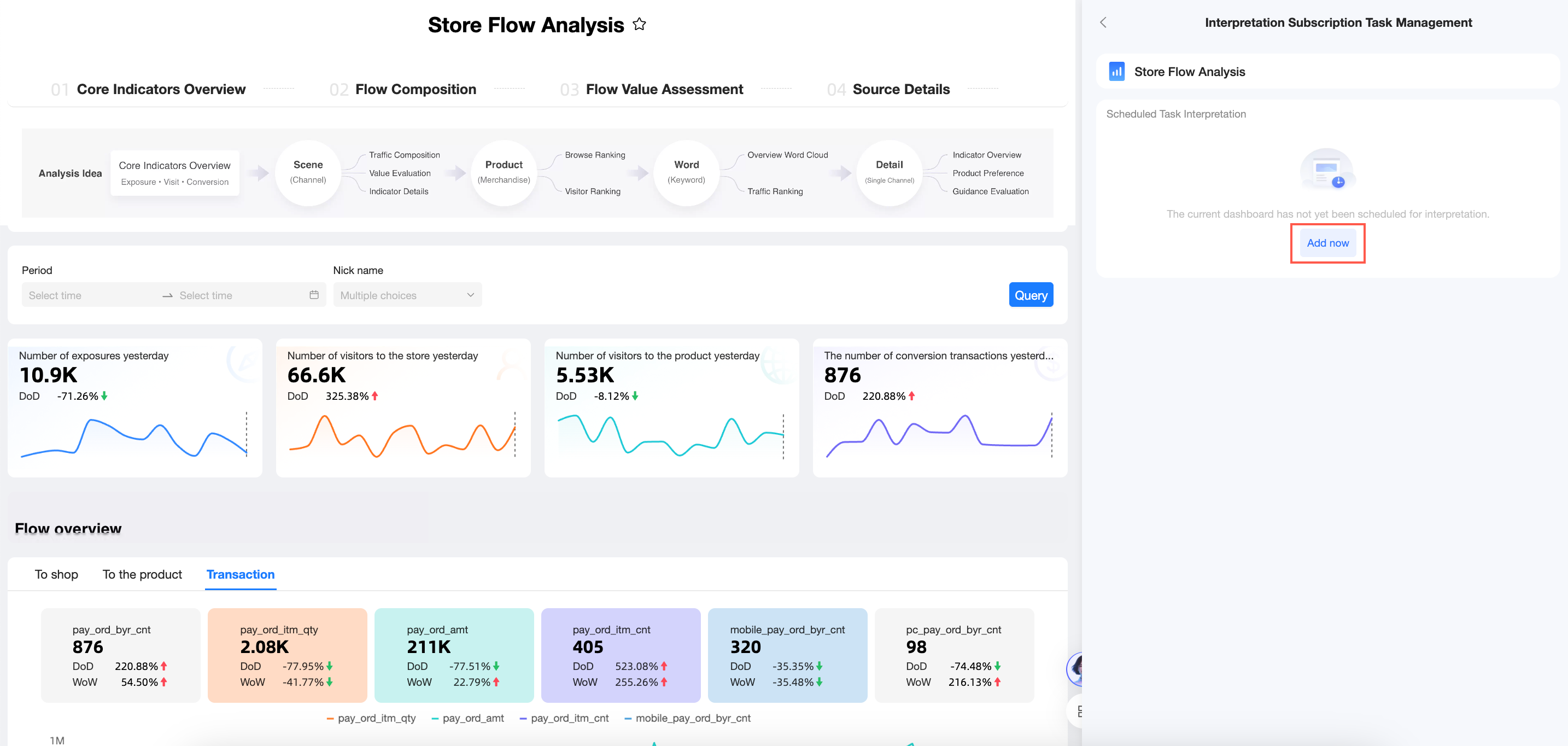
If a subscription task already exists, you can click the Add button at the top of the page to create a new one.
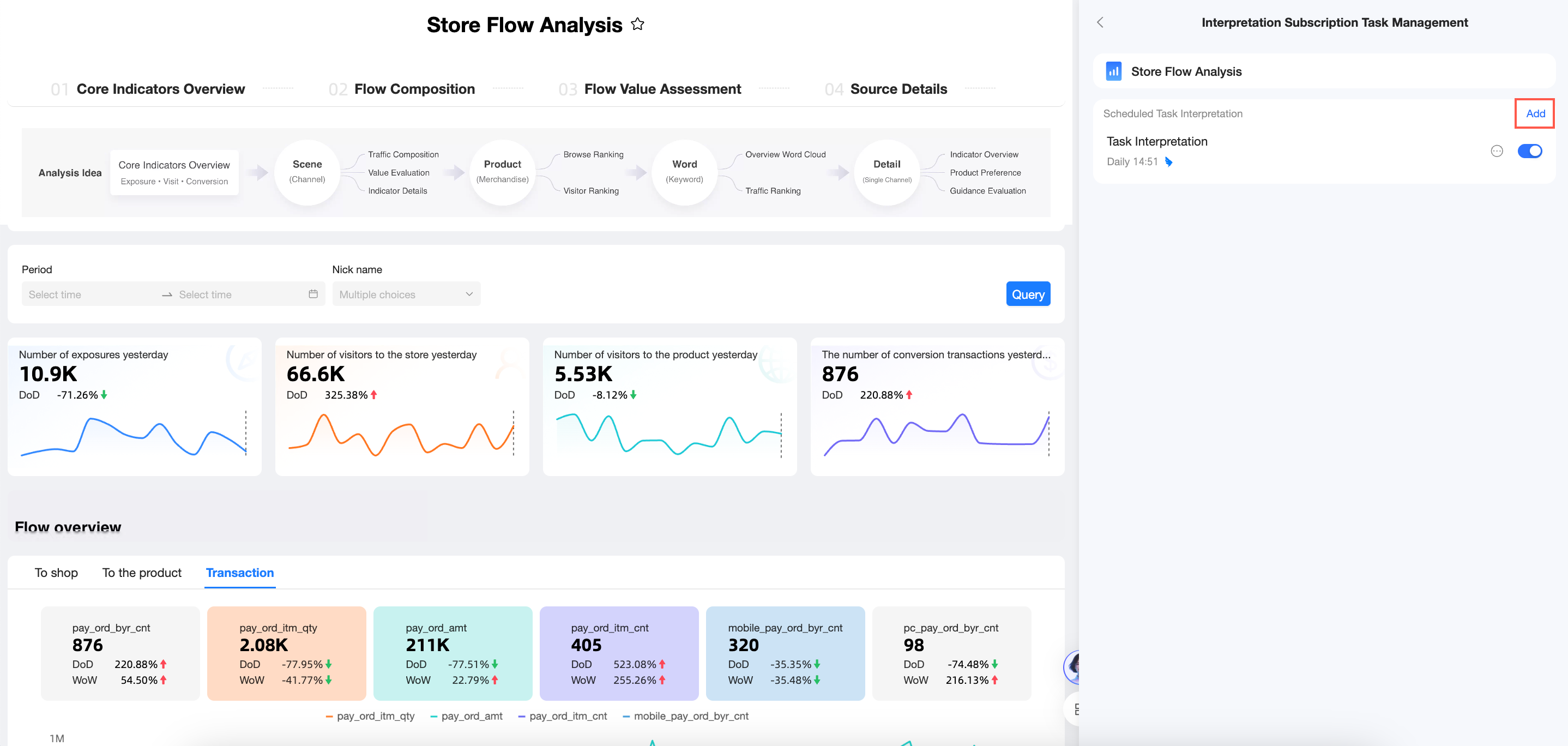
-
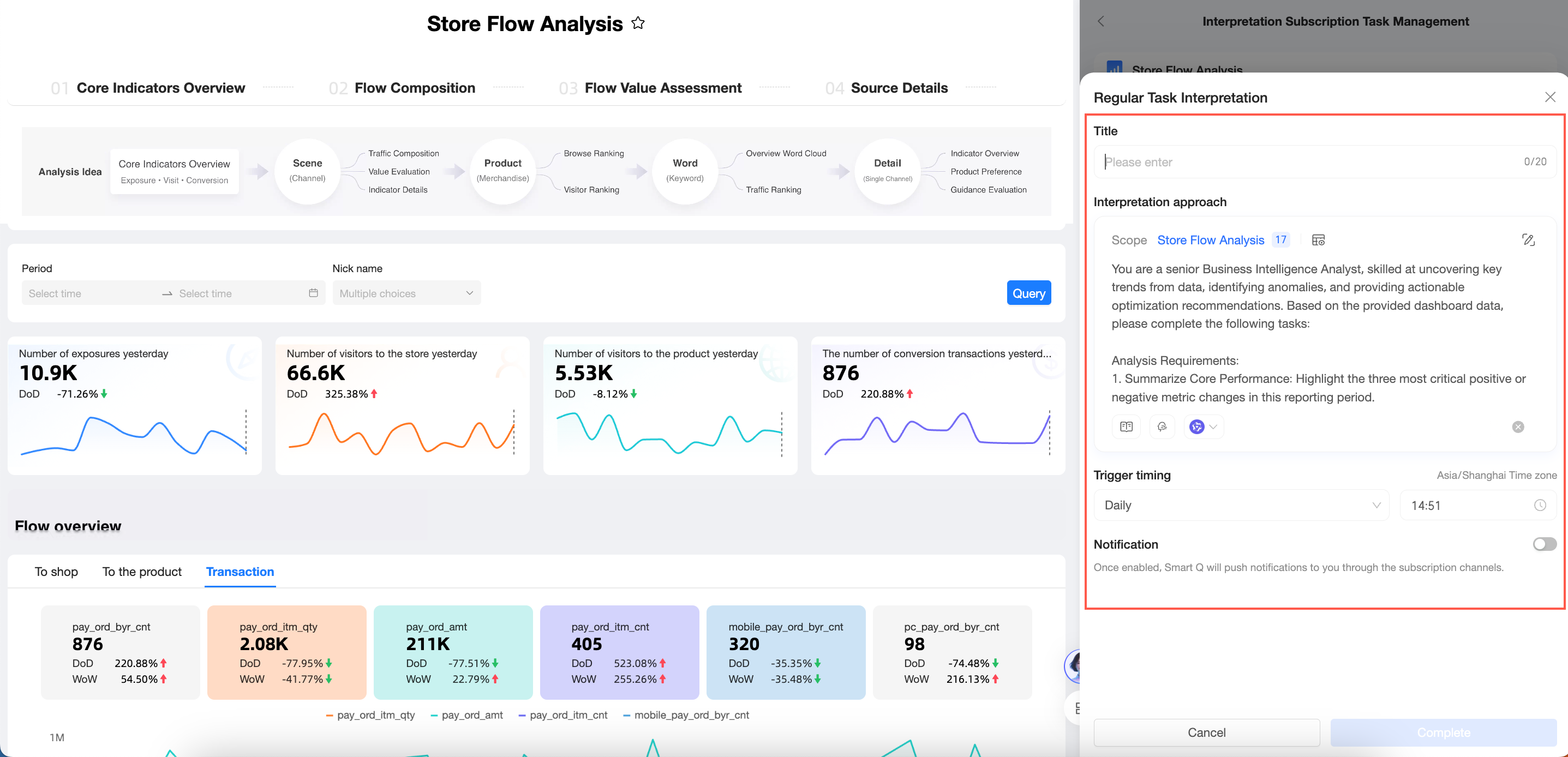
The Scheduled Interpretation Task configuration page appears.

-
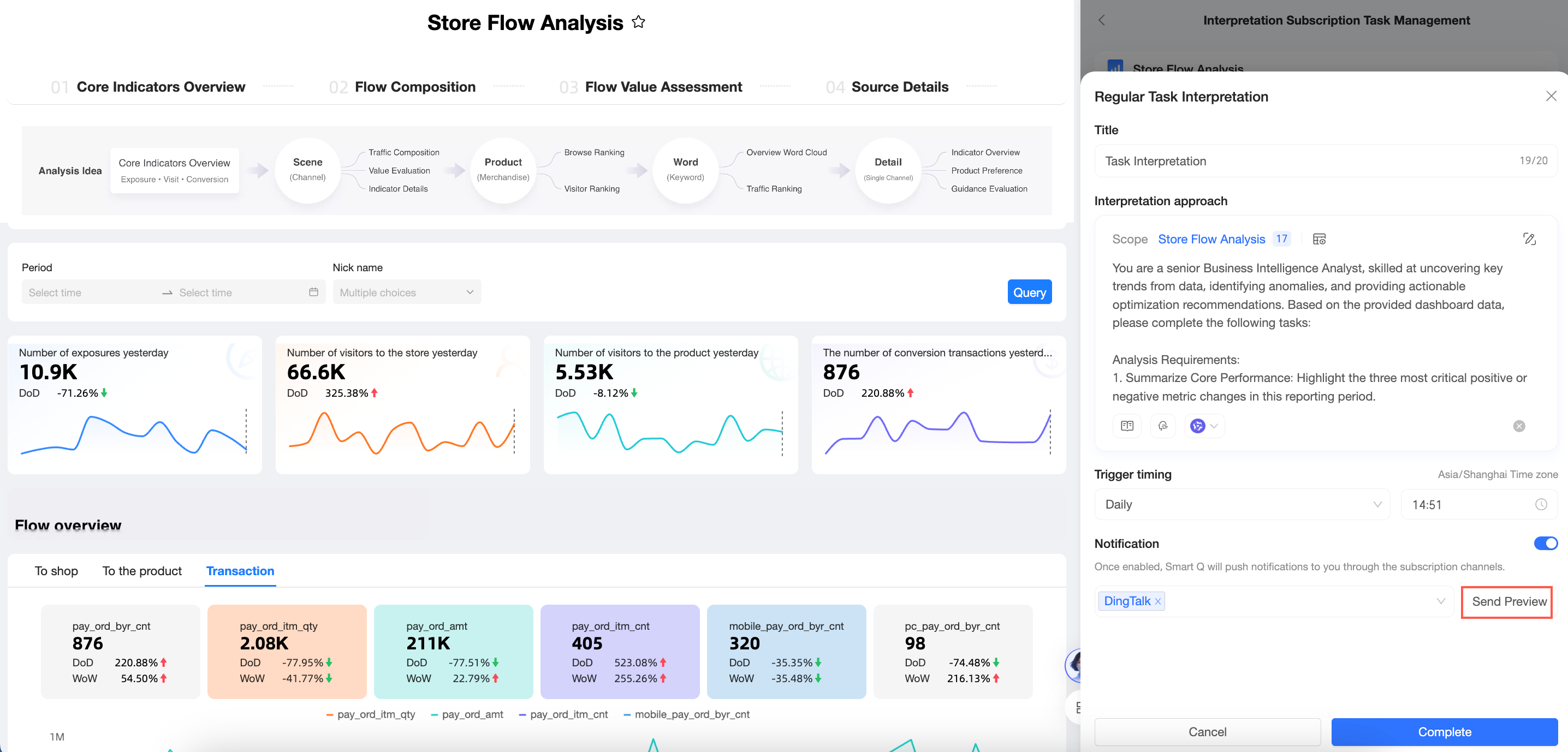
On the Scheduled Interpretation Task configuration page, configure the following settings:
Parameter
Description
Title
Enter a title for the interpretation task. Maximum length: 20 characters.
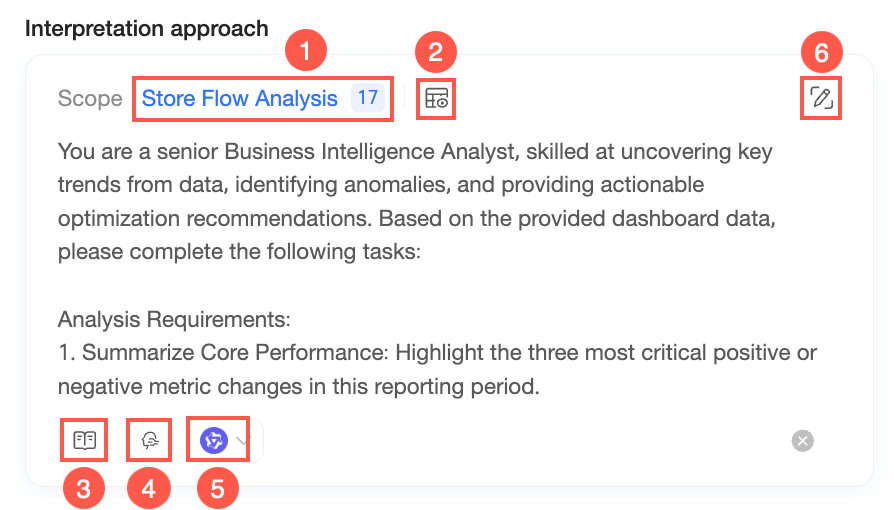
Analysis approach
Configure settings such as Select analysis scope (①), Preview interpretation data (②), Enable enterprise knowledge base search (③), Specify analysis points (④), Select model (⑤), and Composite analysis approach (⑥). For detailed configuration, see Q Insights for dashboards.
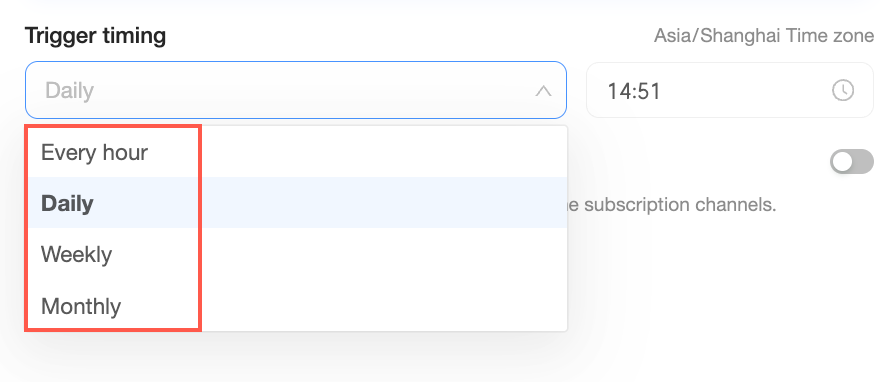
Schedule
Set the task to run Daily, Weekly, Monthly, or Every N Hours.
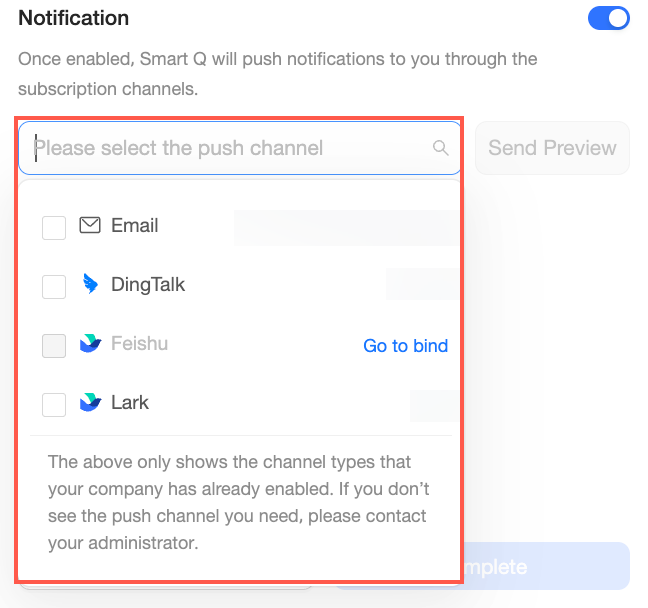
Notification
Send notifications to channels such as email, DingTalk, Feishu, and Lark.
After selecting a channel, you can click Send Preview to check the notification's appearance.
-
Click Done.
View my subscriptions
View subscriptions in-app
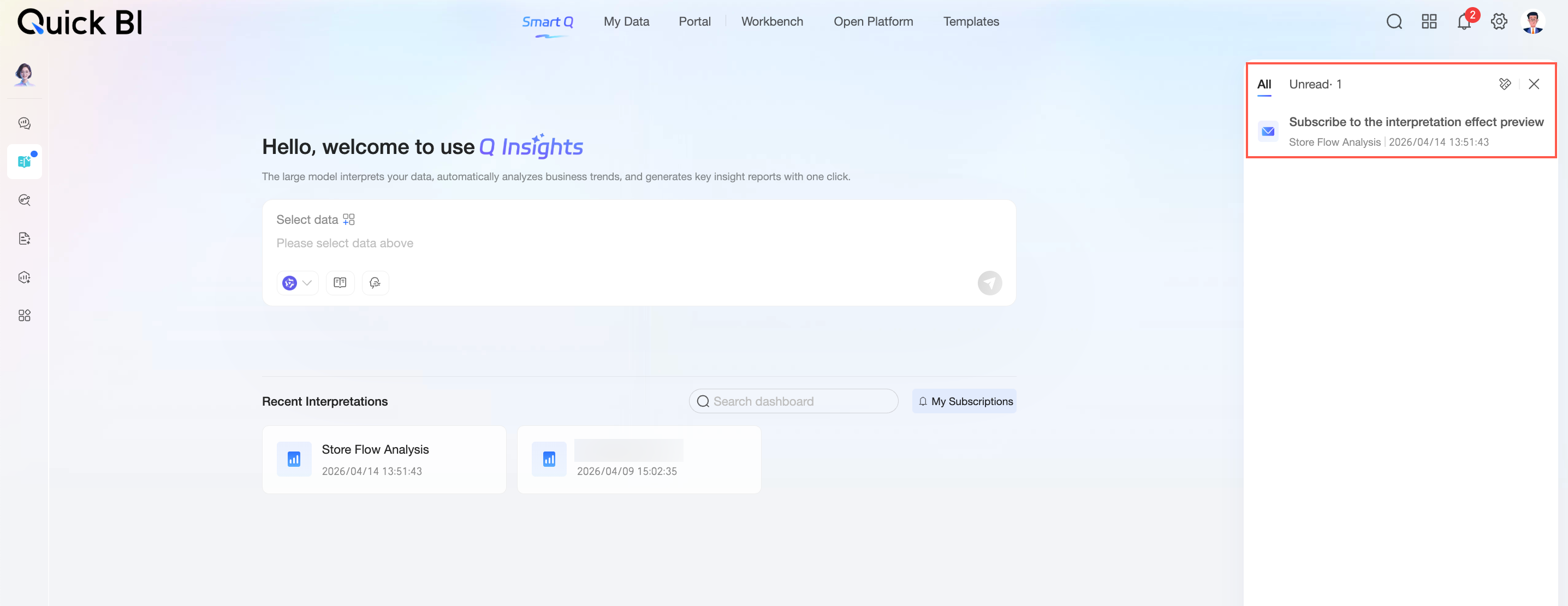
After adding a scheduled task, you can view subscription messages on the Q Insights Home page.
-
You can view All or Unread subscription messages.
-
Click the
icon at the top to Clear Unread messages. -
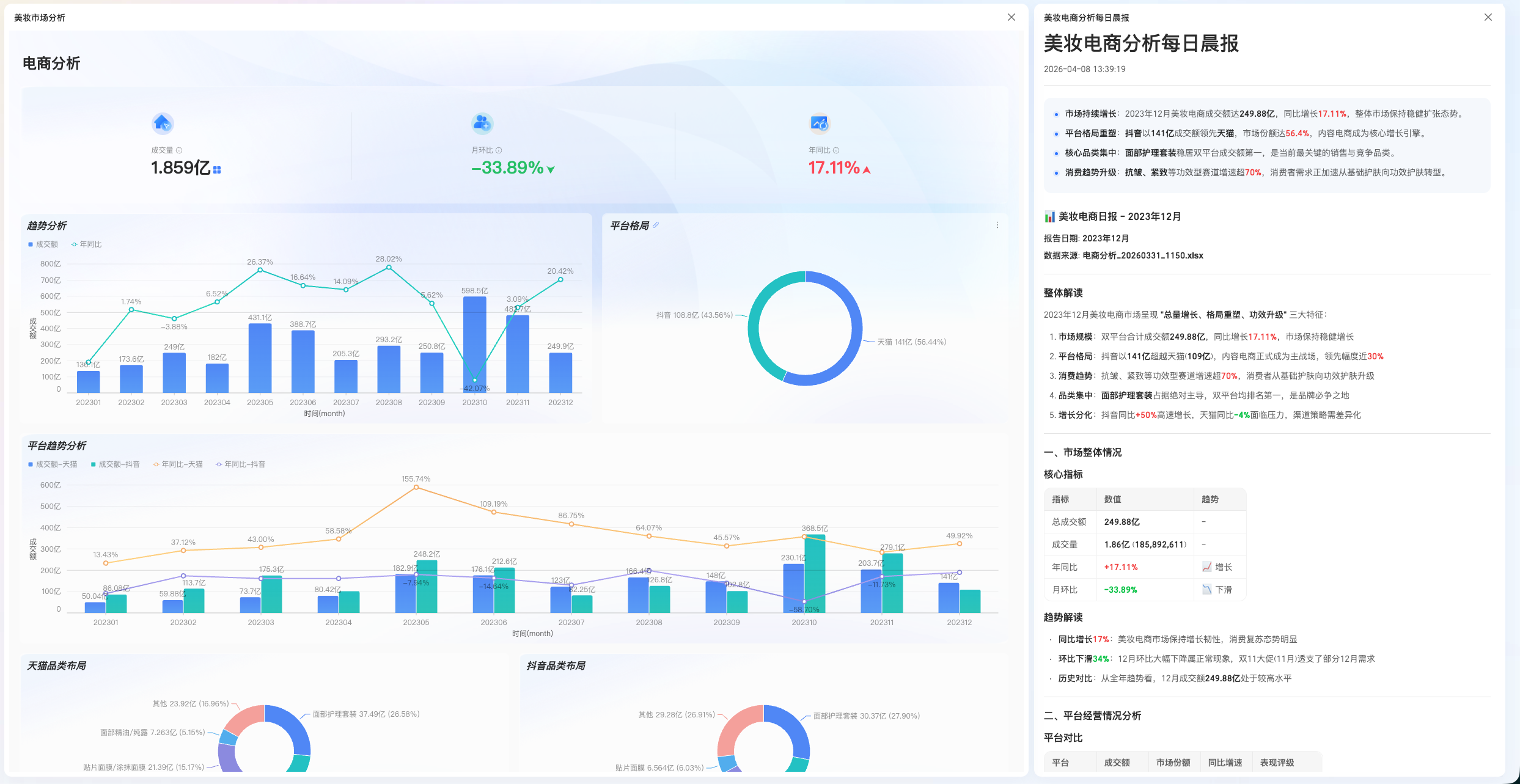
Click a subscription message to open the corresponding Q Insights page.
-
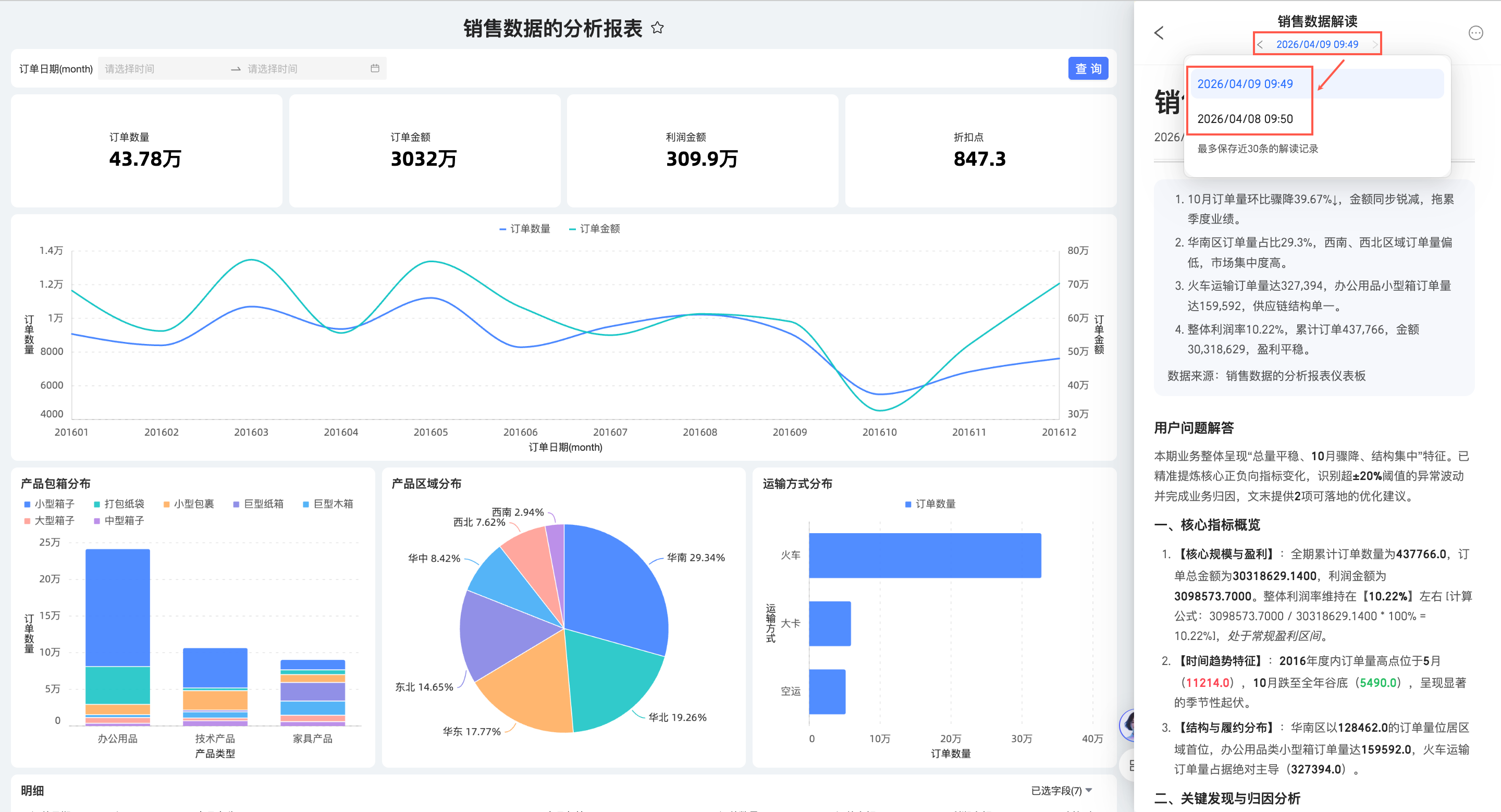
On the details page, you can click the record time to view historical subscription details. Only the 30 most recent records are retained.
 icon at the top to Clear Unread messages.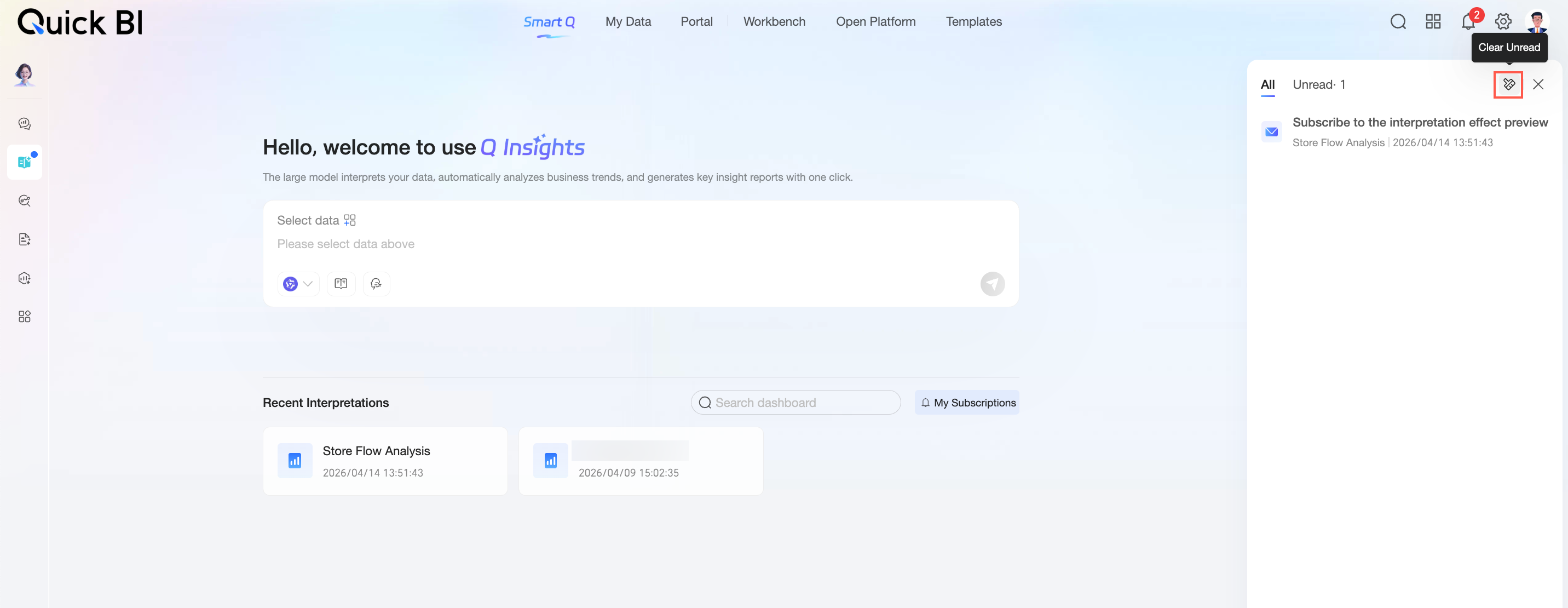
View subscriptions in external channels
If you configured notifications for email, DingTalk, Feishu, or Lark, you can view your subscriptions in those applications.
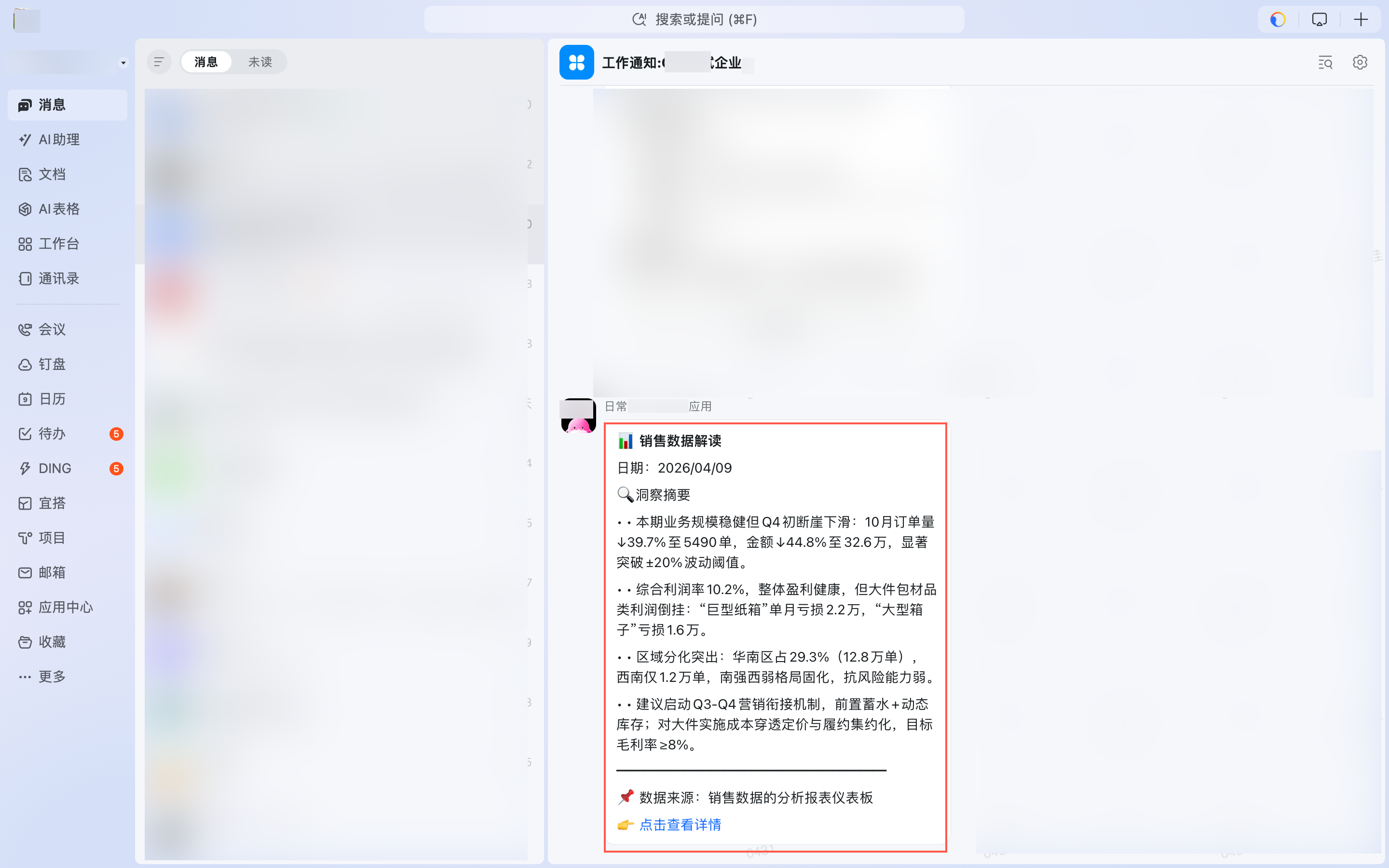
Clicking View Details opens the corresponding Q Insights page.
Q Insights subscription task management
Click the icon in the upper-right corner to open the Q Insights subscription task management page.
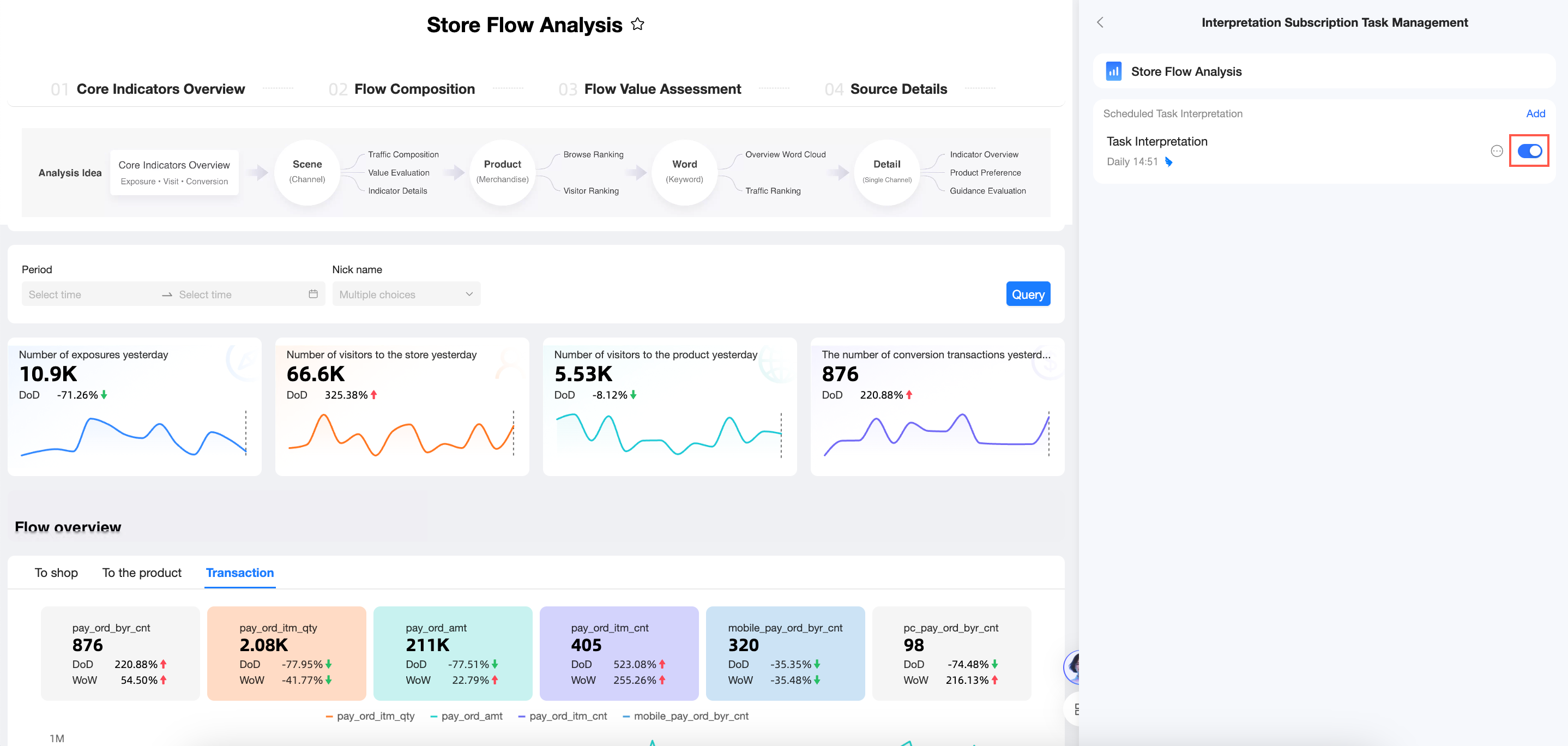
From the Q Insights subscription task management page, you can enable, disable, edit, and delete tasks.
Enable or disable a task
Toggle the switch next to a task to enable or disable it.
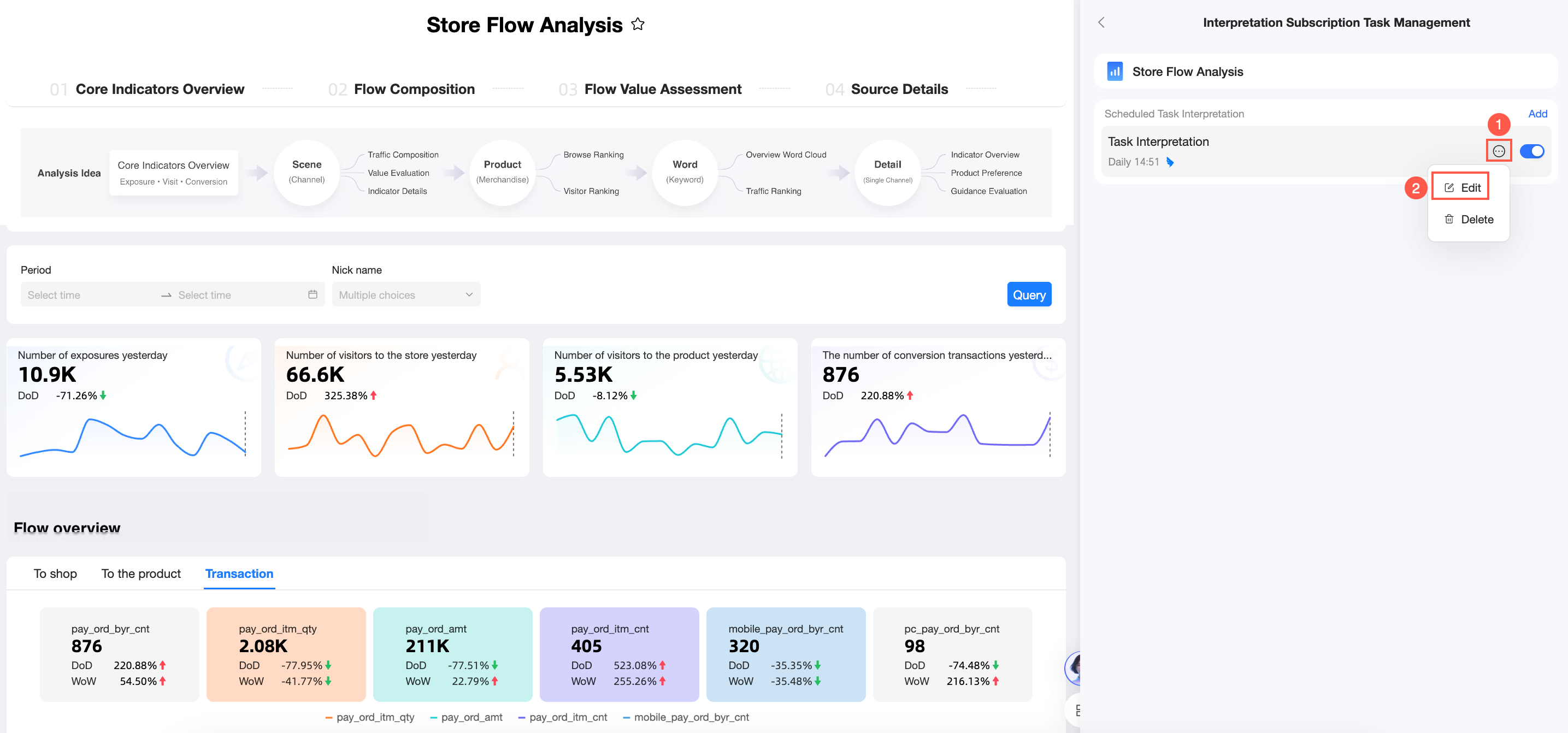
Edit
Click the  icon for a task and select Edit to open its configuration page.
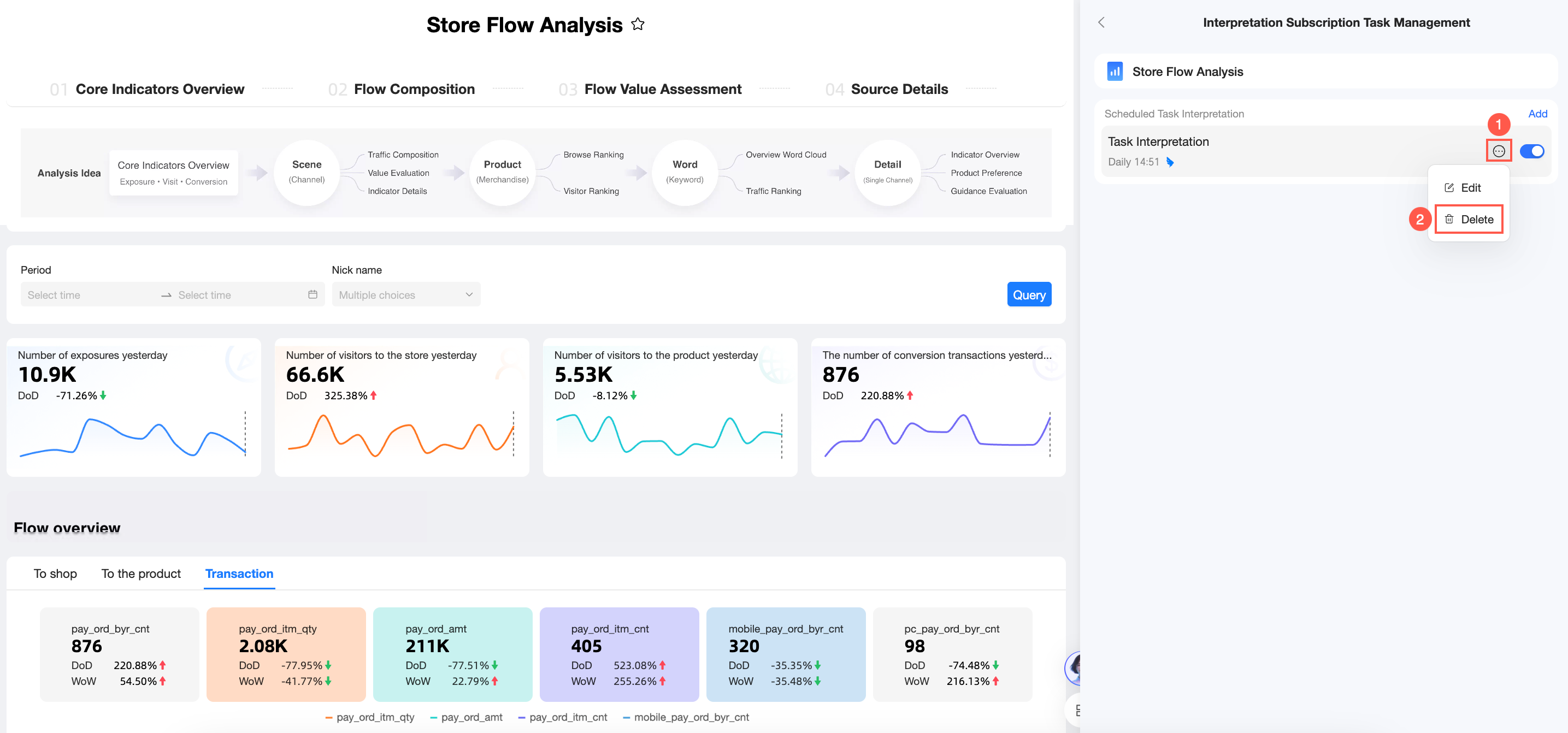
Delete
Click the icon for a task and select Delete to remove the task.
Q Insights task management
In the upper-right corner of the system, click the Enterprise Apps icon -> select Subscription Management -> click Q Insights Task Management to open the Q Insights Task Management page.
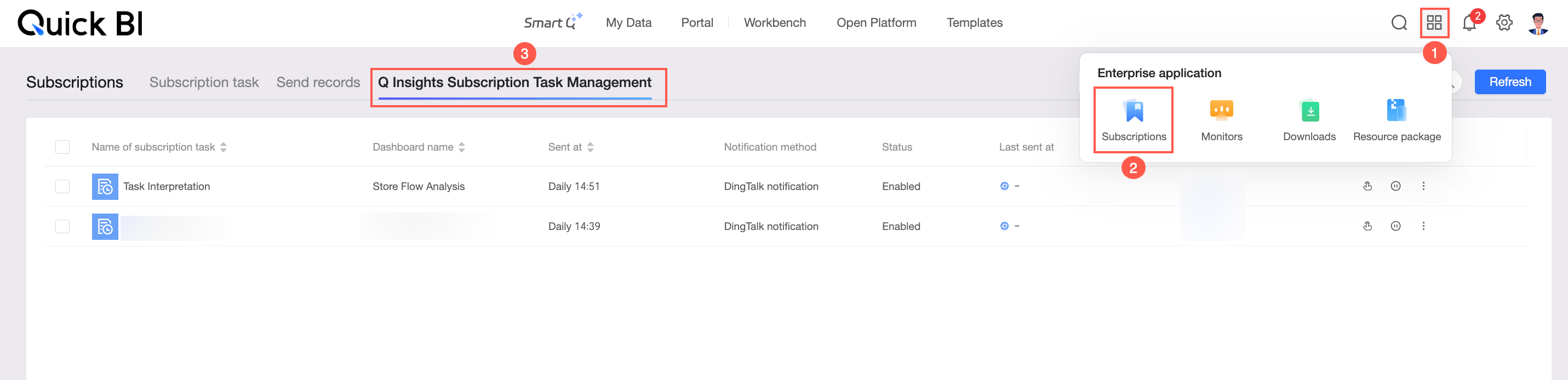
The Q Insights Task Management page supports the following operations:
Search for tasks
Find subscription tasks faster by filtering by task status or searching by task name, dashboard name, or owner.

-
① Select the task status. Statuses include Enabled and Paused.
-
② Select Task Name, Dashboard Name, or Owner, and enter a keyword.

Send now
Click the  icon in the Actions column for a task to send it immediately.
Suspend scheduling
Click the  icon in the Actions column for a task and click OK in the confirmation dialog box to suspend the task.

Resume scheduling
Click the  icon in the Actions column for a task and click OK in the confirmation dialog box to resume the task.

Delete
Click the icon in the Actions column for a task and select Delete.
 In the confirmation dialog box, click OK to delete the task.
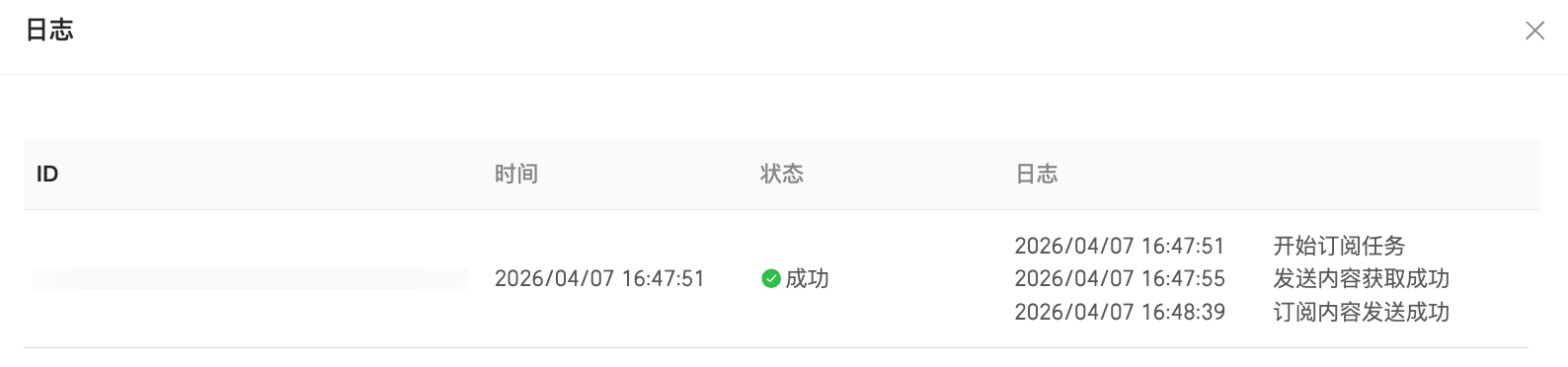
View logs
Click the icon in the Actions column for a task and select Log.

You can then view the logs for the task.
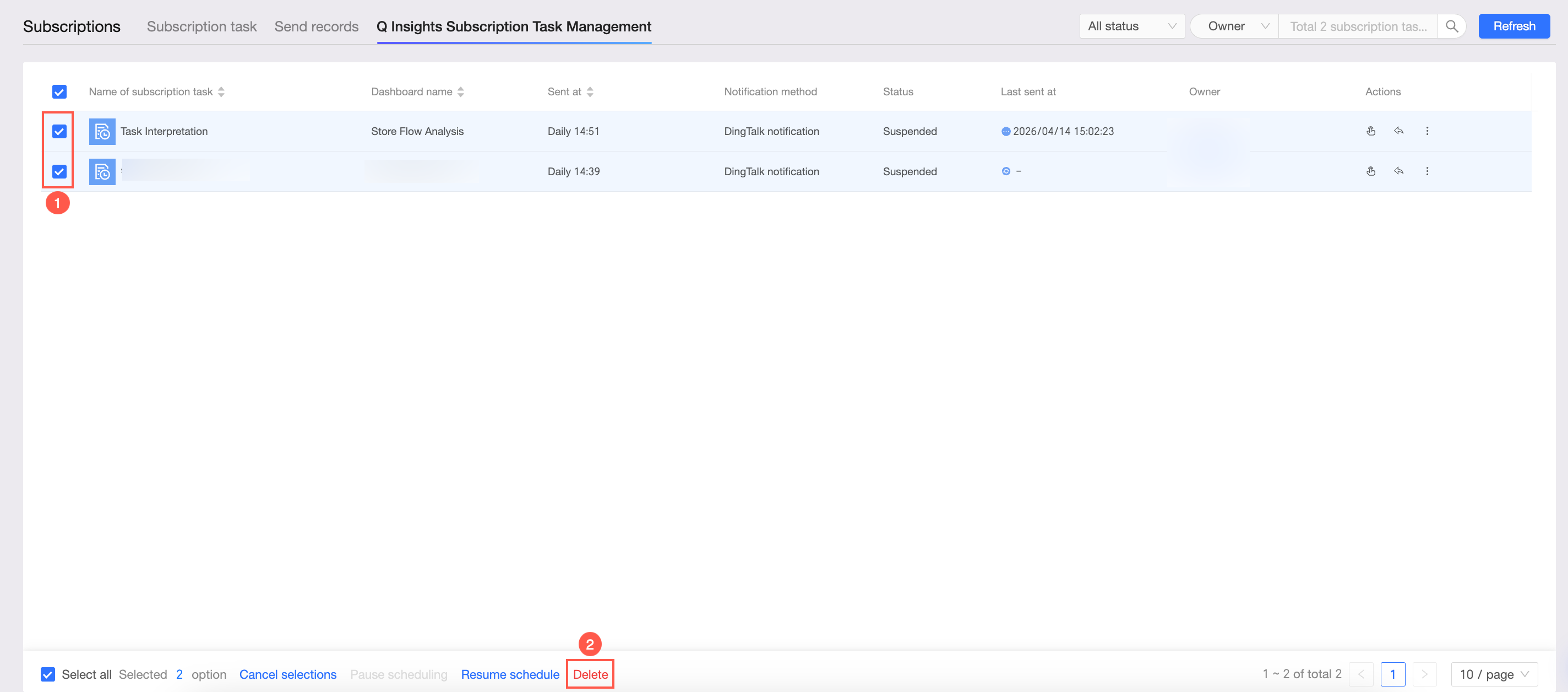
Batch operations
Select multiple tasks to perform batch operations, including suspending scheduling, resuming scheduling, and deleting.
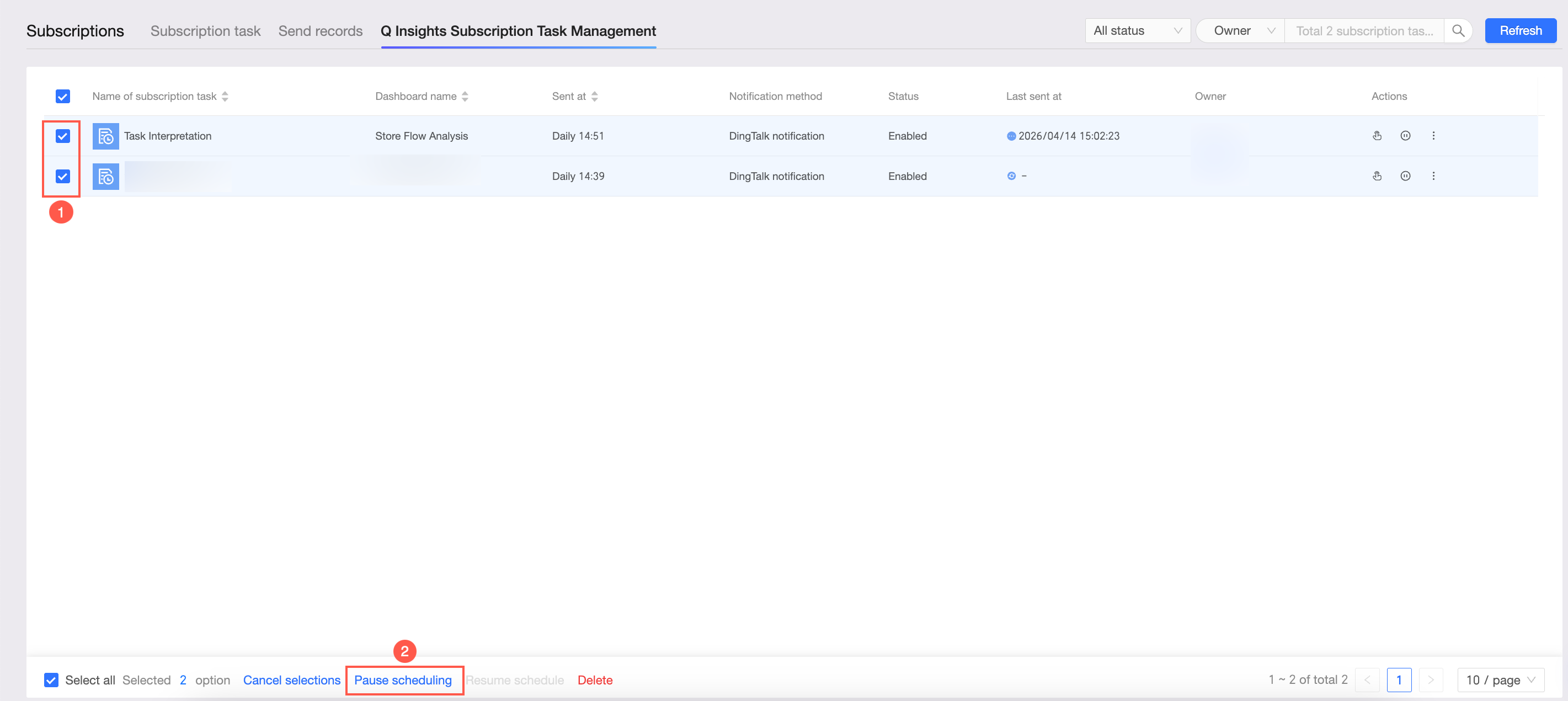
Batch suspend scheduling
Select multiple or all tasks on the current page that are in the Enabled state to suspend them in bulk.
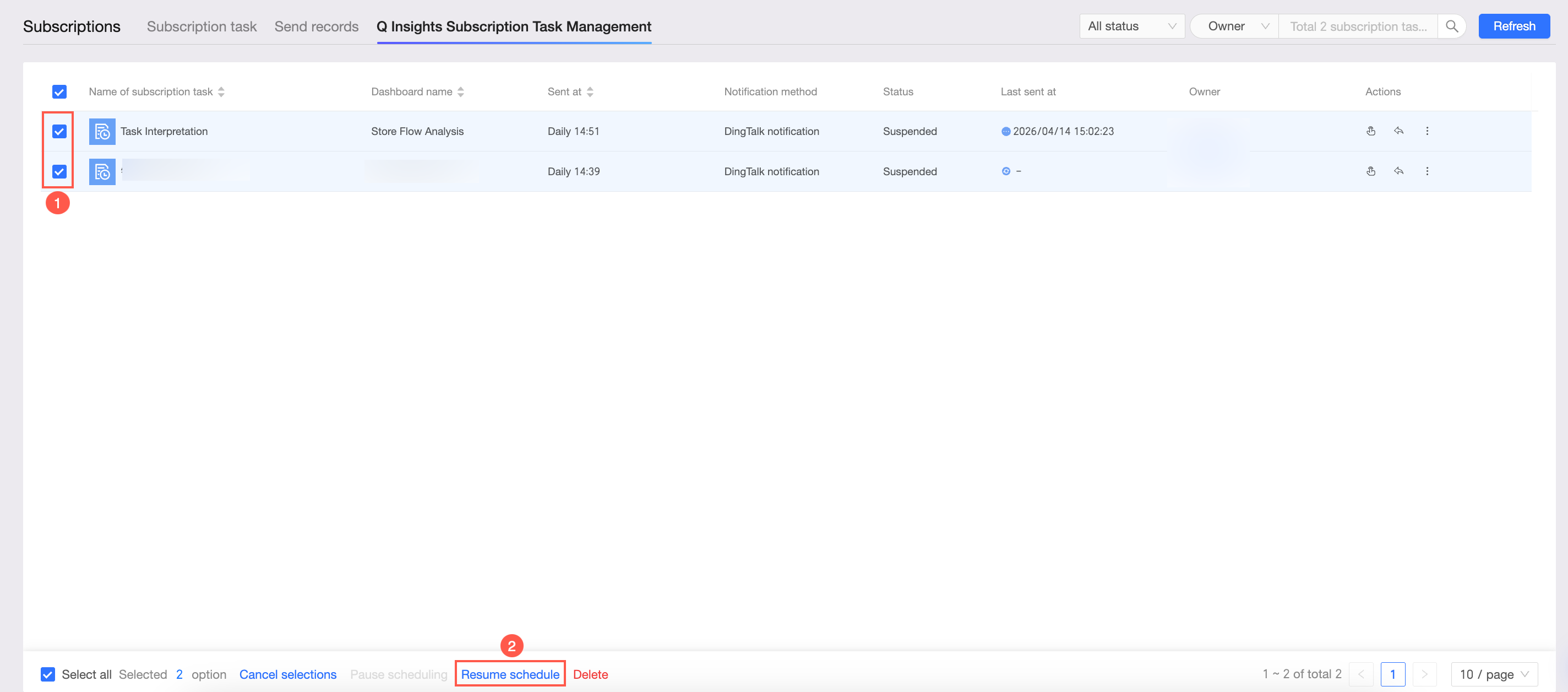
Batch resume scheduling
Select multiple or all tasks on the current page that are in the Paused state to resume them in bulk.
Batch delete
Select multiple or all tasks on the current page to delete them in bulk.