This guide shows new organization administrators and business users how to get started with Quick BI AIPro, from activating the service to running their first AI-powered conversational analysis—all in under 30 minutes.
Quick BI AIPro is currently in a private preview and available only to invited customers. To experience AIPro's capabilities, first activate Quick BI, and then submit an application request through Online Support in the lower-right corner of the Quick BI console.
Background
Quick BI AIPro integrates large language models with its BI platform, letting business users drive data analysis through conversation. This covers the complete decision-making path: overview, breakdown, attribution, diagnosis, and action.
The following table compares Quick BI AIPro with traditional BI:
Dimension | Traditional BI | Quick BI AIPro |
Usage model | Drag-and-drop fields, write SQL, view static dashboards. | Ask questions in natural language, engage in multi-turn follow-ups. |
Response time | Request backlogs can take days or weeks. | Returns data and analysis in seconds. |
Analysis model | Business teams depend on analysts for attribution analysis. | The AI automatically breaks down problems and provides in-depth attribution analysis. |
Analysis method | Manual drill-down and filtering; manual creation of analysis reports. | Explore and analyze through conversation. Use a free-form canvas to connect ideas and focus analysis. Results are generated automatically. |
Barrier to entry | Requires SQL and BI modeling skills, familiarity with module interactions, and has a steep learning curve. | Zero barrier to entry for business users. |
Asset persistence | Dashboards | Analysis artifacts with dynamically updated data (reports, documents), one-time analysis reports, and periodic subscription tasks. |
Use cases:
A business lead asks "last week's sales YoY by region" five minutes before a morning meeting and instantly receives a chart with attribution.
An operations specialist asks "why did GMV in East China decline" and the system automatically performs a three-level drill-down for attribution by category, channel, and store.
A finance specialist uses conversation to generate a "Monthly Business Dashboard" and creates a task to push the report on the first day of every month.
AIPro workflow
Implementing Quick BI AIPro involves two main tracks: administrator configuration and user adoption. We recommend following the sequence in the diagram below for initial setup.
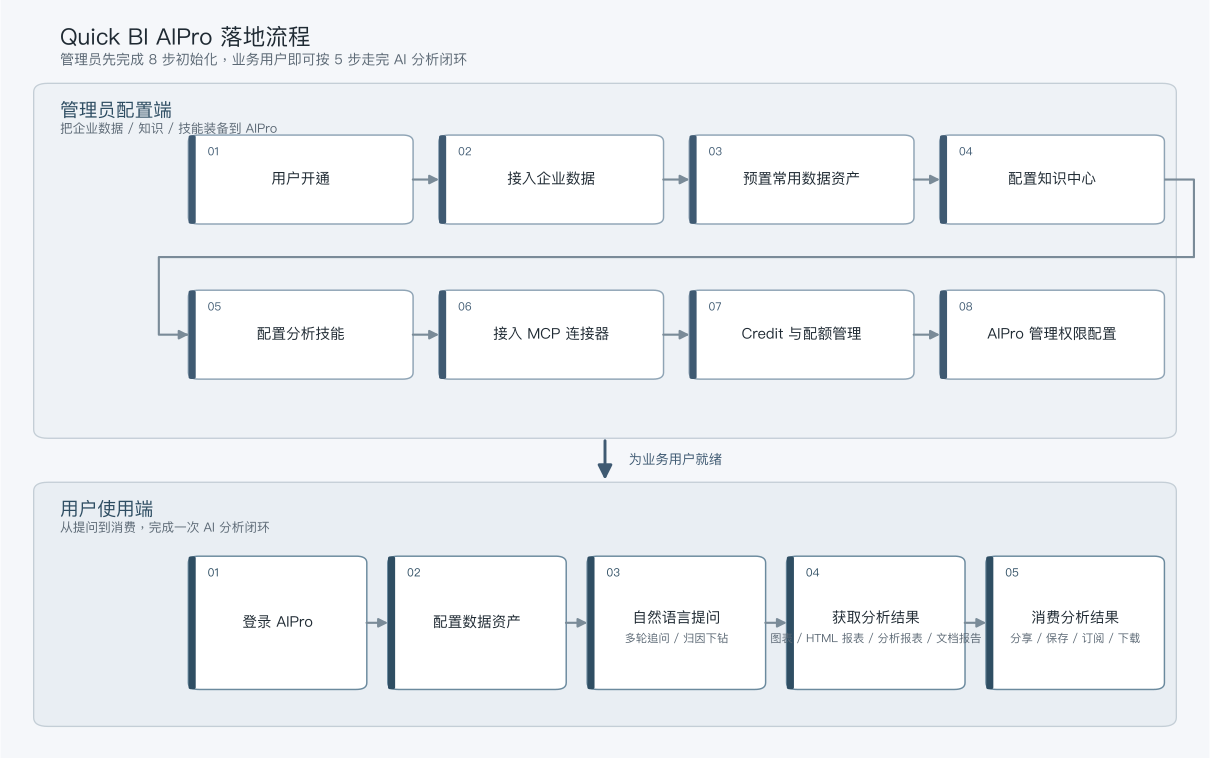
Administrator configuration
An organization administrator or workspace developer should follow these steps to manage users and configure data, knowledge, and skills in AIPro. This preparation ensures a seamless out-of-the-box experience for business users.
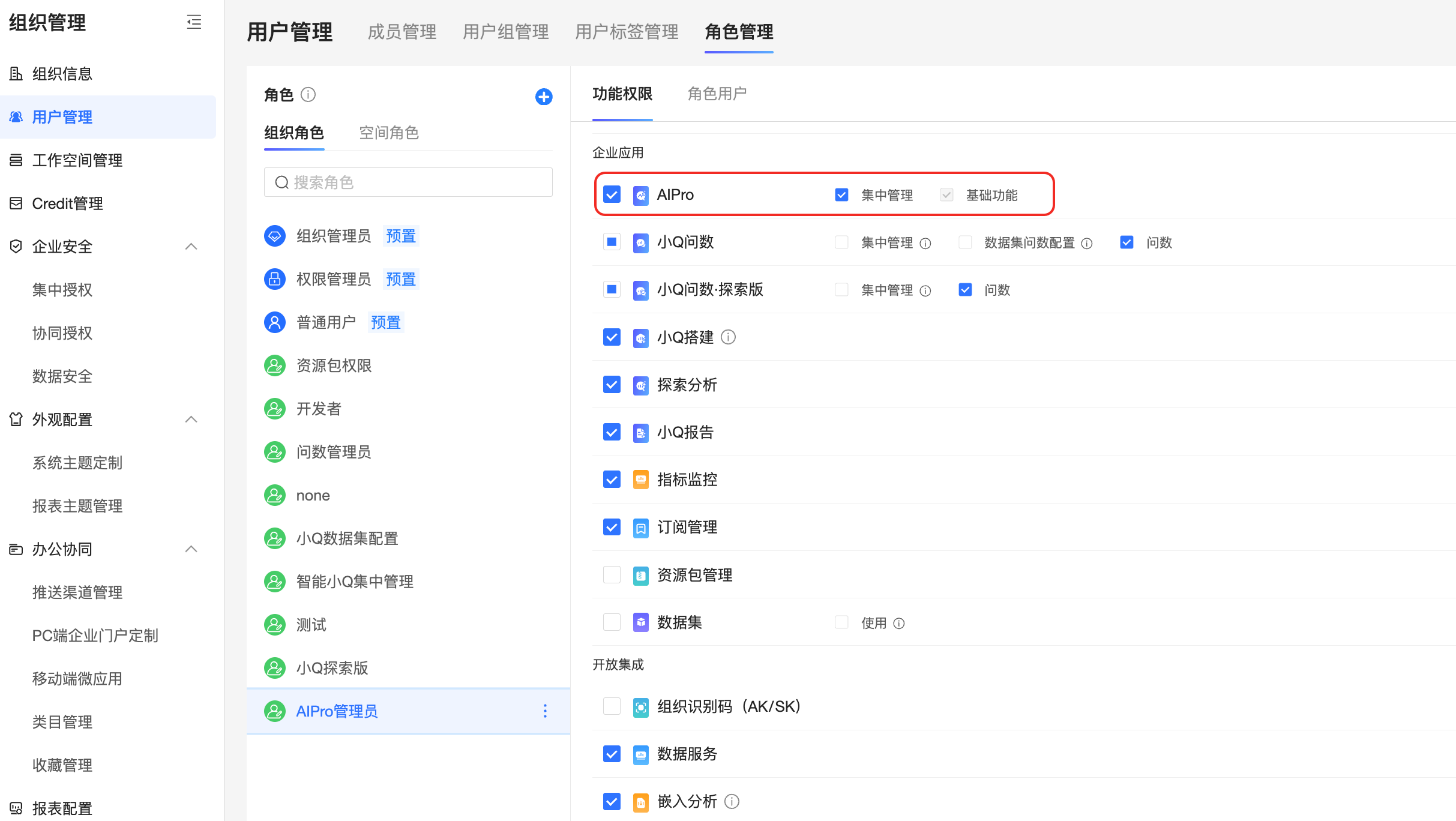
1. User permissions
Log in to the Quick BI Admin Center as an organization administrator.
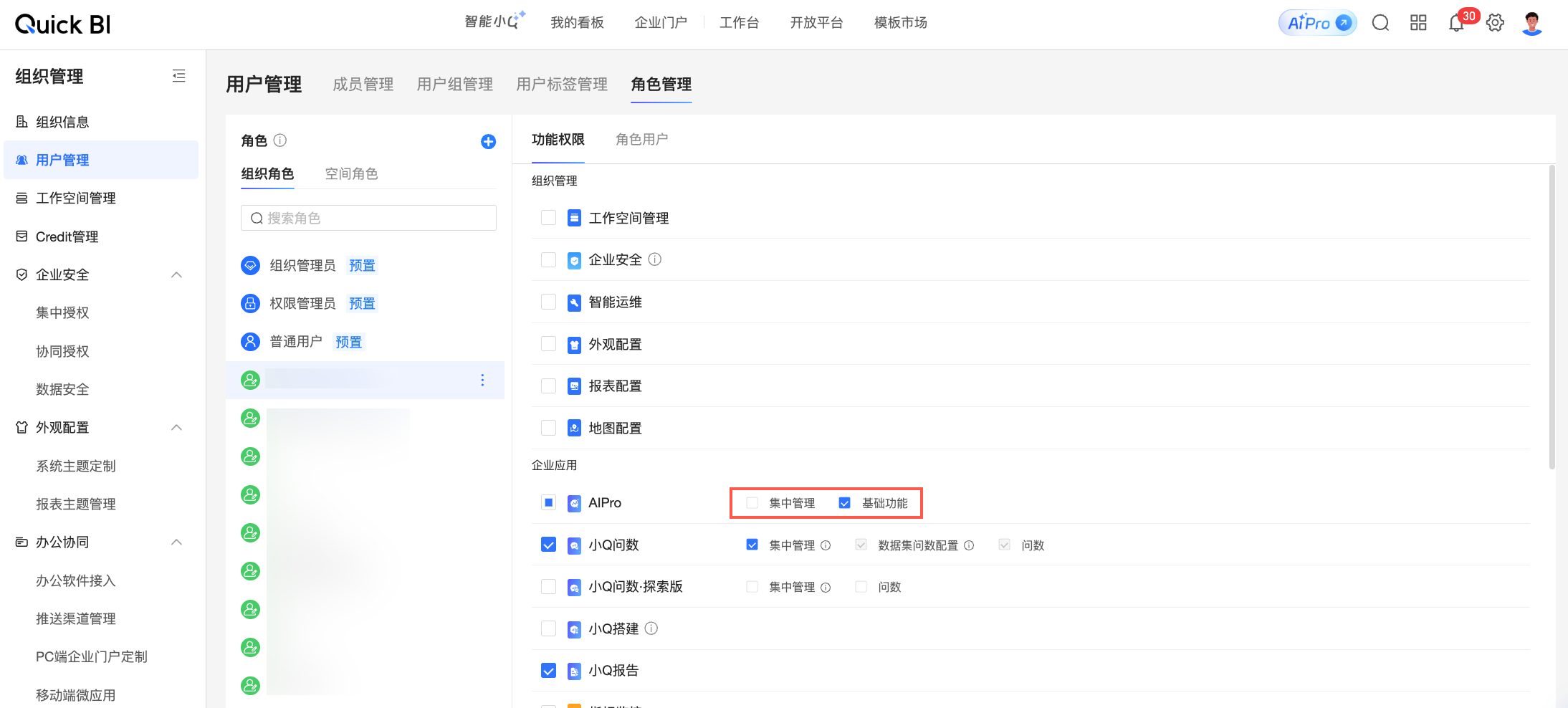
Go to Organization Management → Role Management.
Configure AIPro-related permissions for a custom role.
 Note
NoteQuick BI's preset roles have AIPro-related permissions by default:
The organization administrator role has Centralized Management Permissions and Basic Functional Permissions by default.
The Permissions Administrator role has Basic Functional Permissions by default.
The Standard User role has Basic Functional Permissions by default.
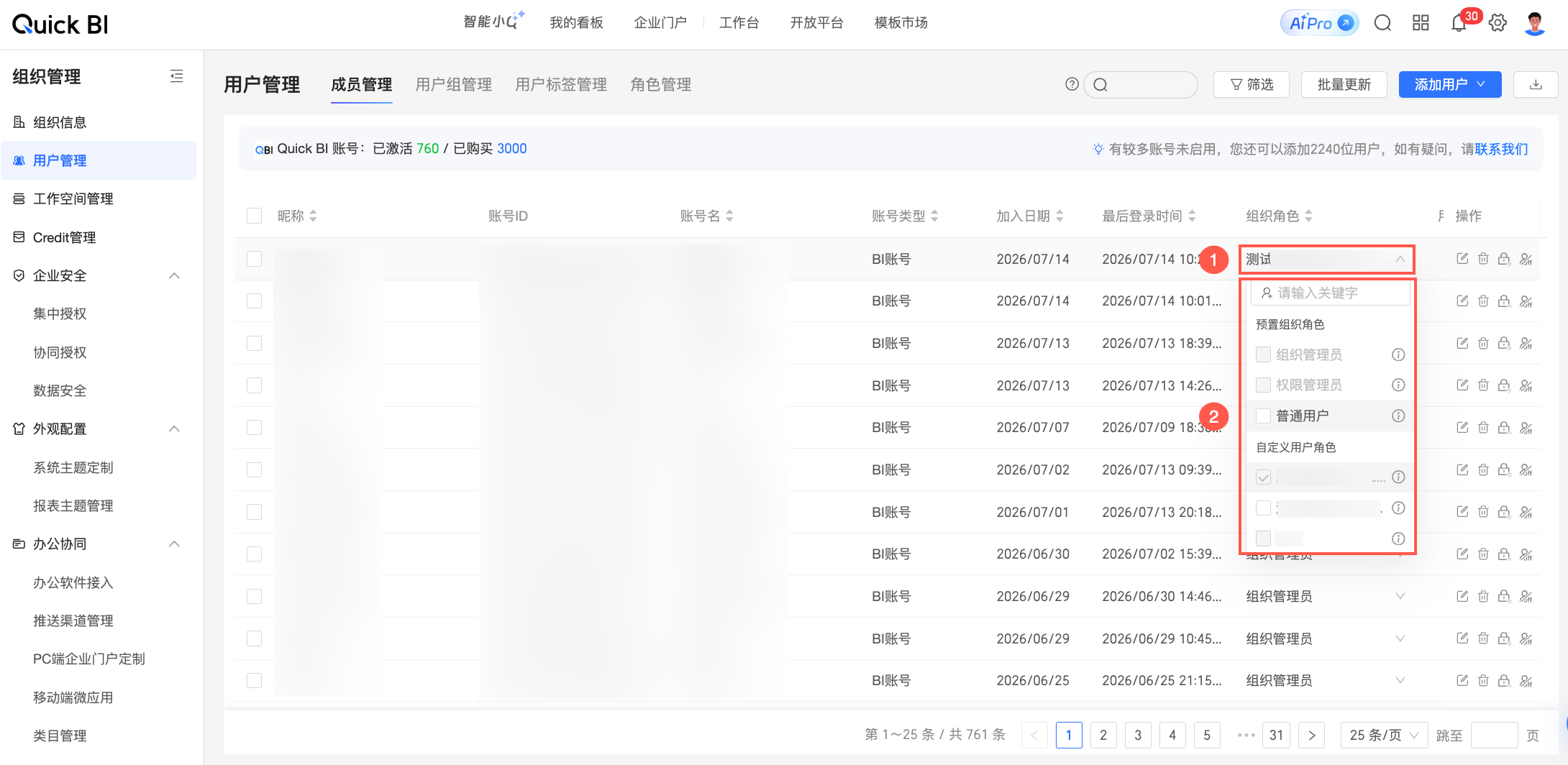
On the member management page, assign roles with AIPro-related permissions to members as needed.
2. Enterprise data
Goal: Enable business users to find and use pre-configured enterprise data assets, including data tables, datasets, files, and APIs.
Create data source and dataset resources in a workspace.
Go to a Quick BI workspace.
Create a data source: On the Workbench, go to data source and add a database connection, such as MySQL, MaxCompute, PostgreSQL, or Oracle.
Create a dataset: On the Workbench, go to datasets and configure a dataset.
In Workspace Management, authorize members or roles to access the dataset.
Create File, Data Table Combination, and API Data resources in AIPro.
Go to AIPro → Enterprise → Data Management.
Create Data Table Combination, File, and API Data resources.
Select a data resource, click More, and then select Collaborate and Authorize to grant access to users.
3. Preconfigure assets (optional)
Goal: Enable business users to see their department's most-used data assets on login, so they don't have to search for or configure data sources.
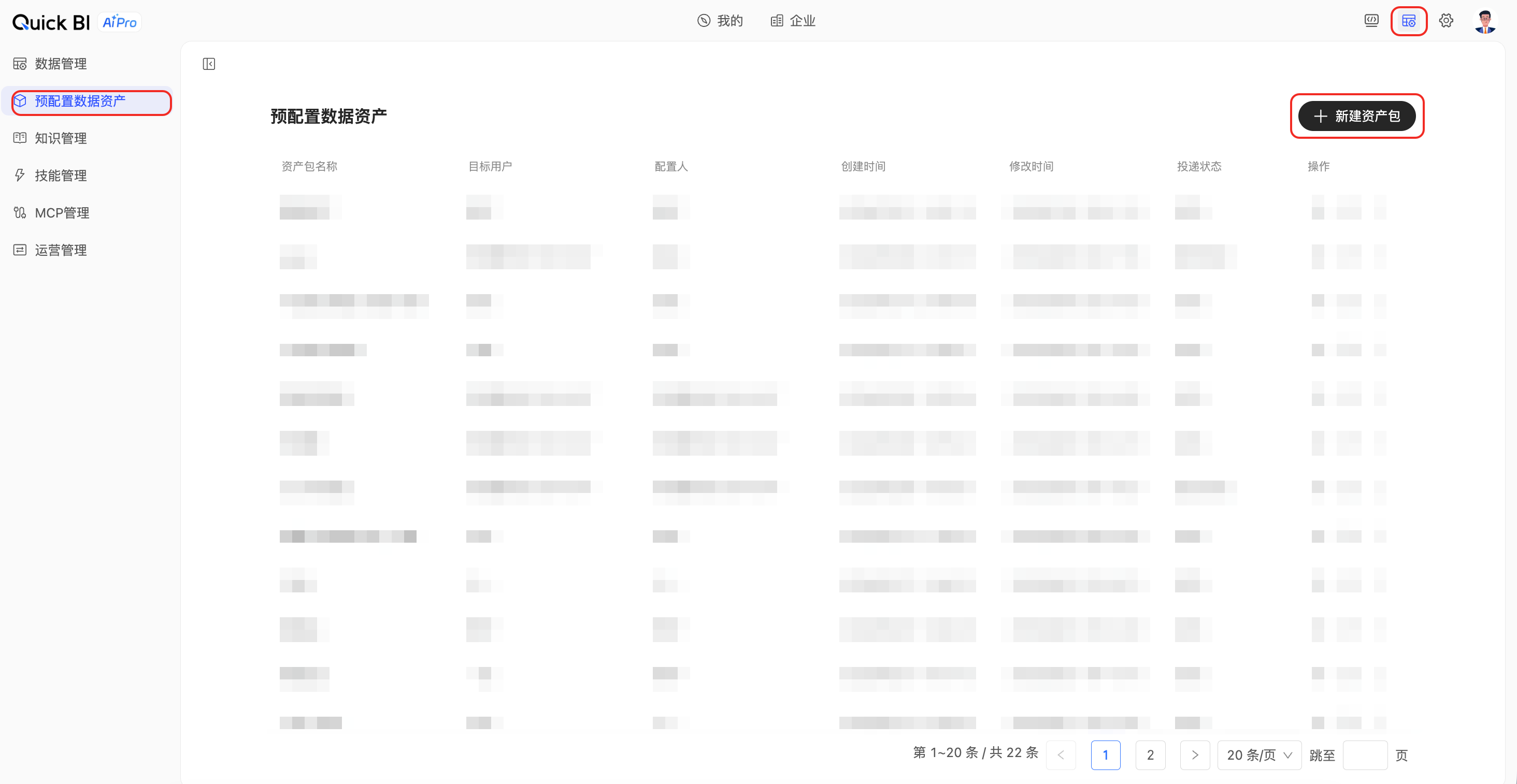
Go to Admin Center → Pre-configured Data Assets (path
ai/org/pre-asset).Select "New Asset Package" to configure the datasets or data tables that you want to recommend to business users.
After saving, business users will see these data assets first when they click @ in the conversation input box.
4. Knowledge center
Goal: Add your company's business terminology, metric definitions, and field descriptions to the AIPro Knowledge Center. This ensures that AI-generated analysis aligns with your company's standards.
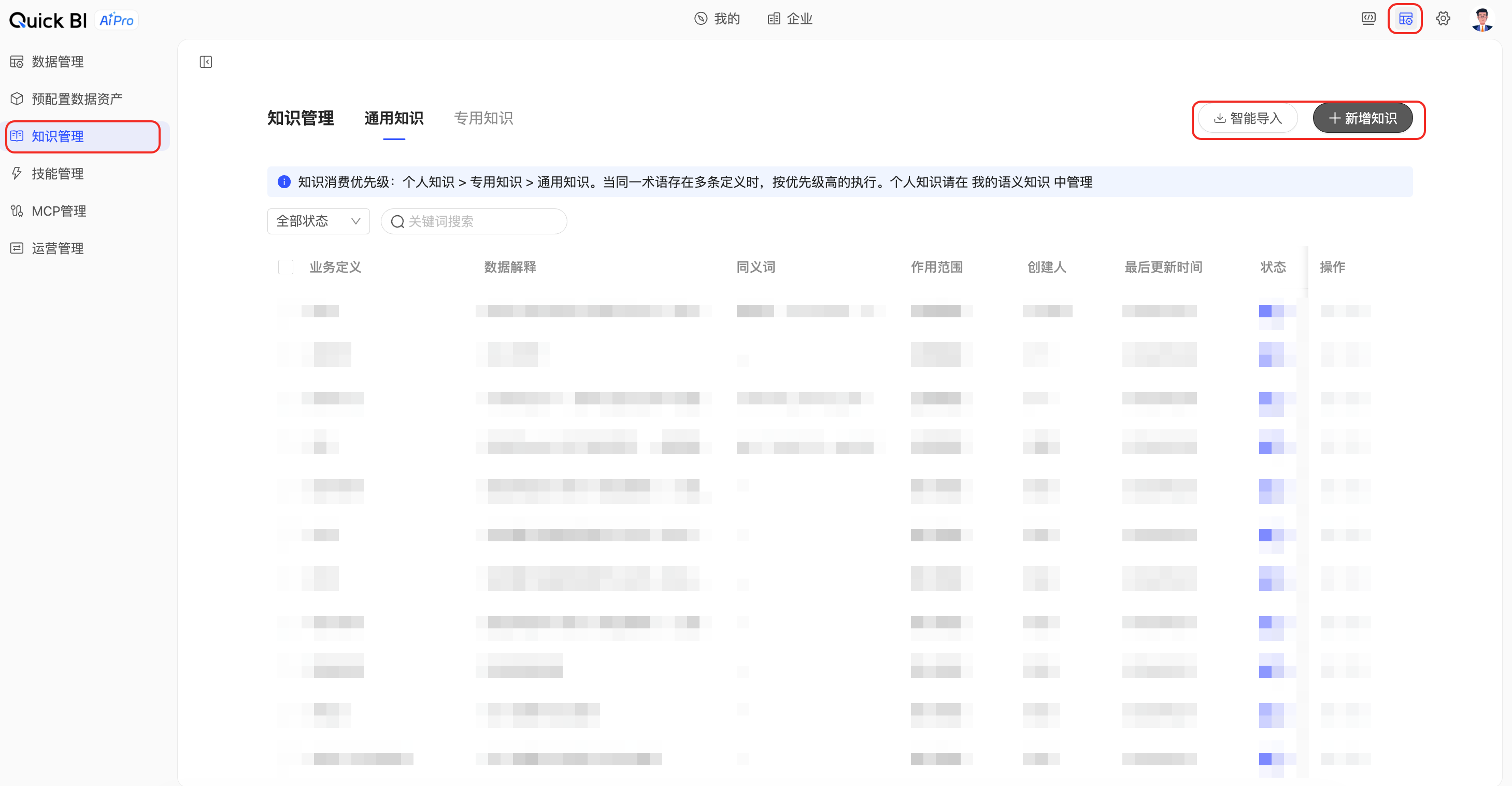
Go to Admin Center → Knowledge management (path
/ai/org/knowledge).Click Add Knowledge to create knowledge entries containing business logic.
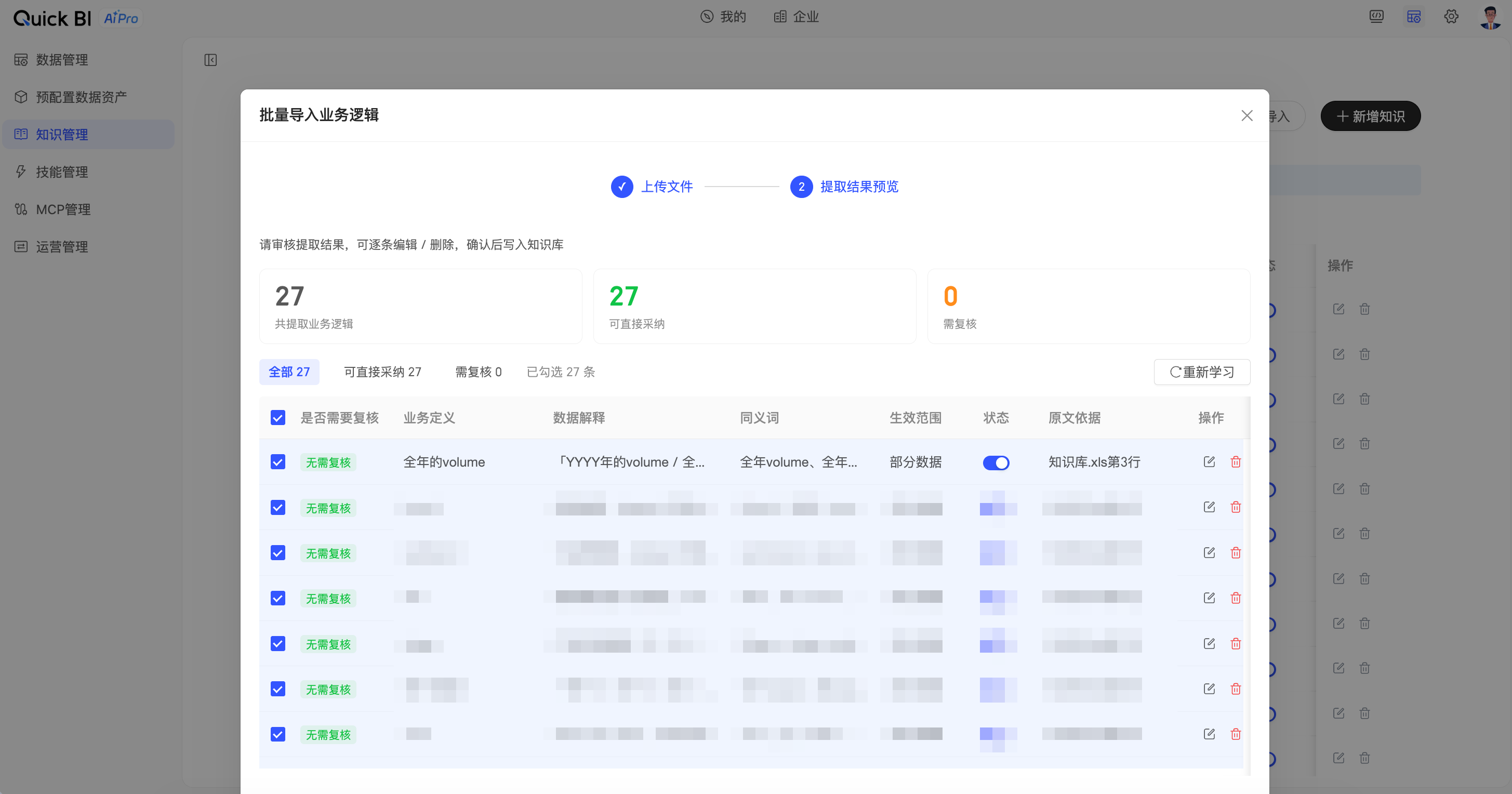
Click Smart Import to parse documents and import their business logic as enterprise knowledge.
After saving, the AI will retrieve and reference this knowledge during conversations about a dataset.
5. Analysis skills (optional)
Goal: Turn your company's standard analysis frameworks and methods (such as monthly business reviews, anomaly attribution, or store performance dashboards) into reusable AI skills.
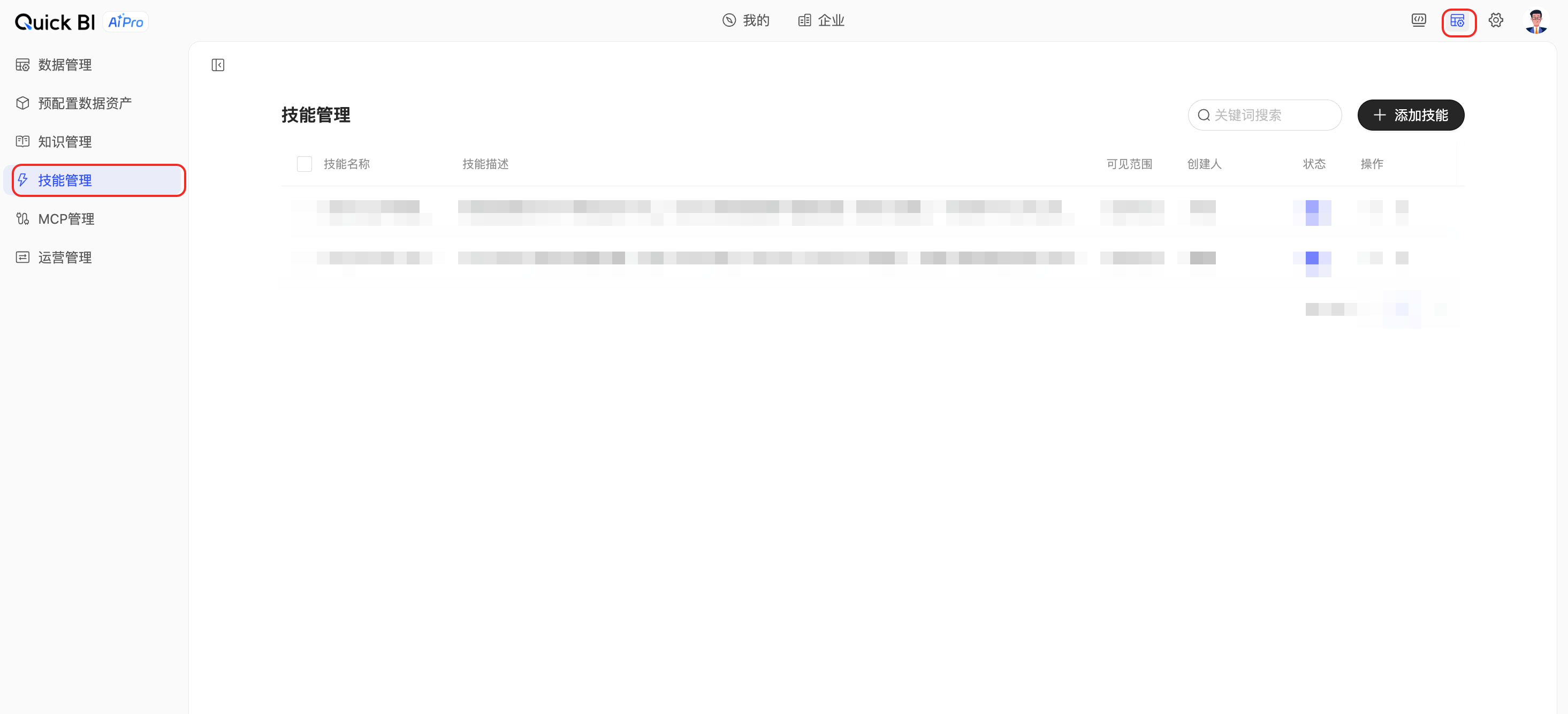
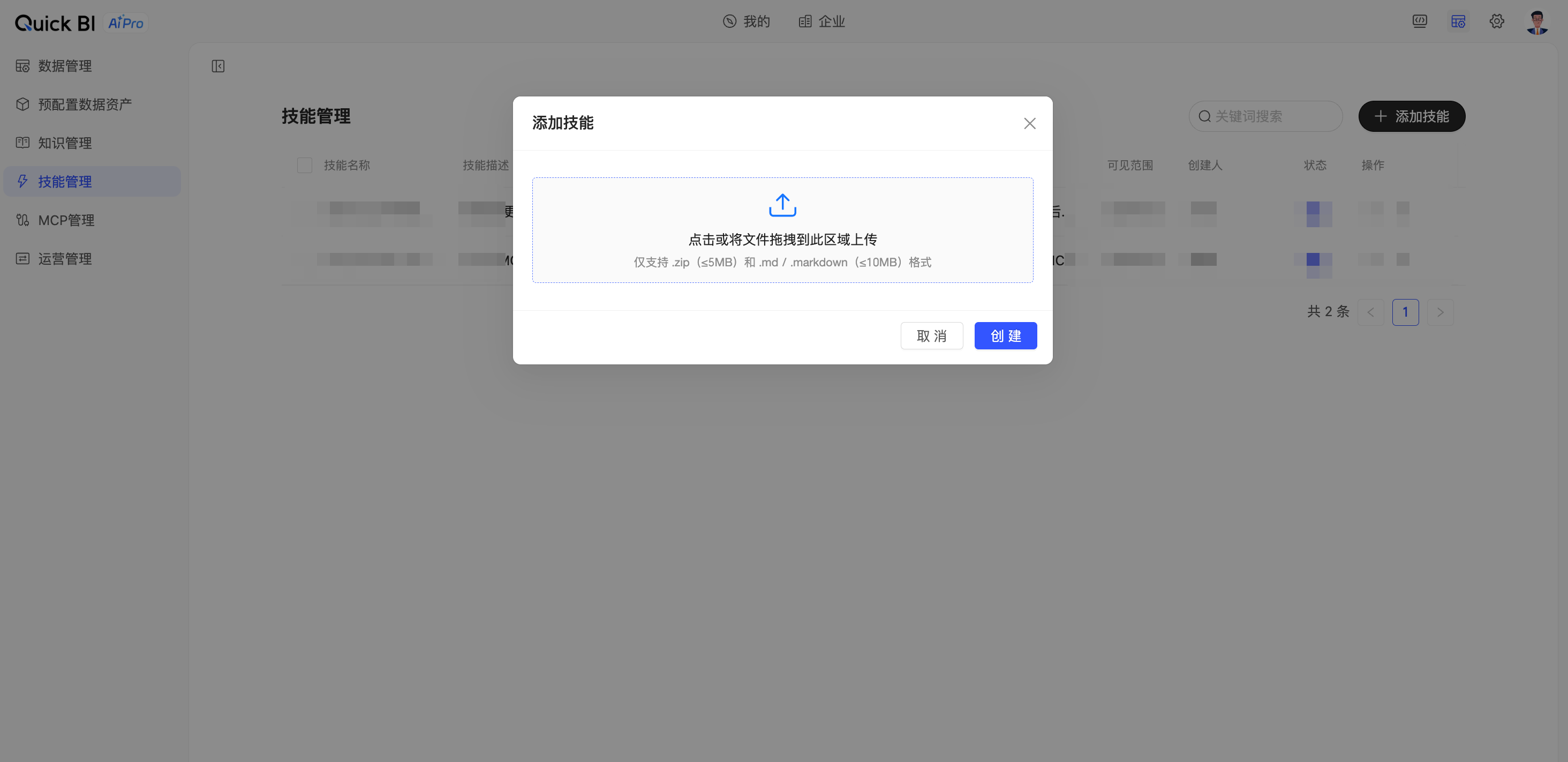
Go to Admin Center → Skill management (path
/ai/org/skill).Click Add skill and upload the skill's ZIP package.
Set the visibility for the skill (all members or specific users).
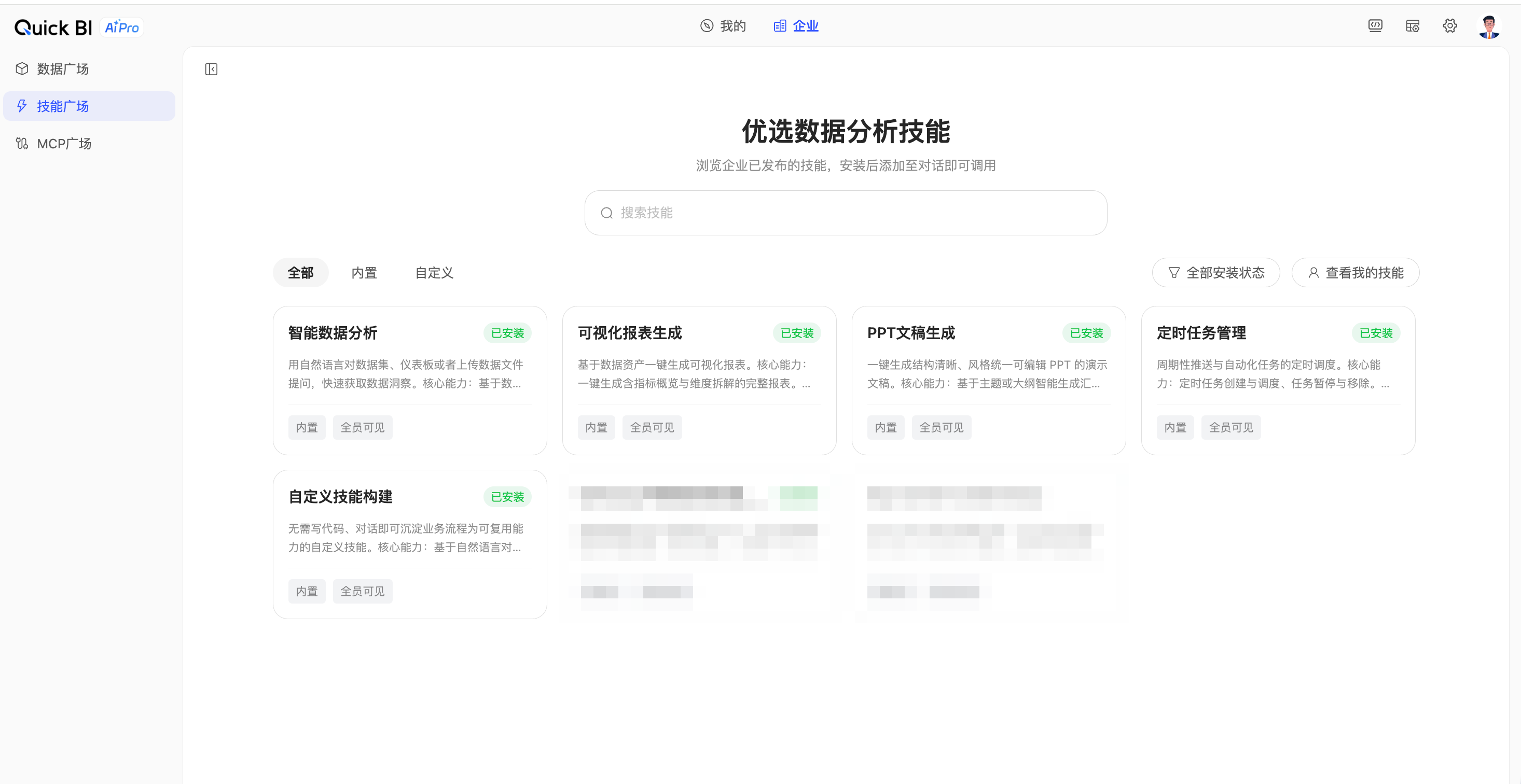
After you save and publish the skill, business users can find and use it in the Enterprise → Skill Marketplace or invoke it in the conversation input box by typing
/.
6. MCP connectors (optional)
Goal: Integrate external tools (like DingTalk, Lark, internal APIs, and industry data sources) into the AI analysis workflow via MCP (Model Context Protocol) to extend its analytical capabilities.
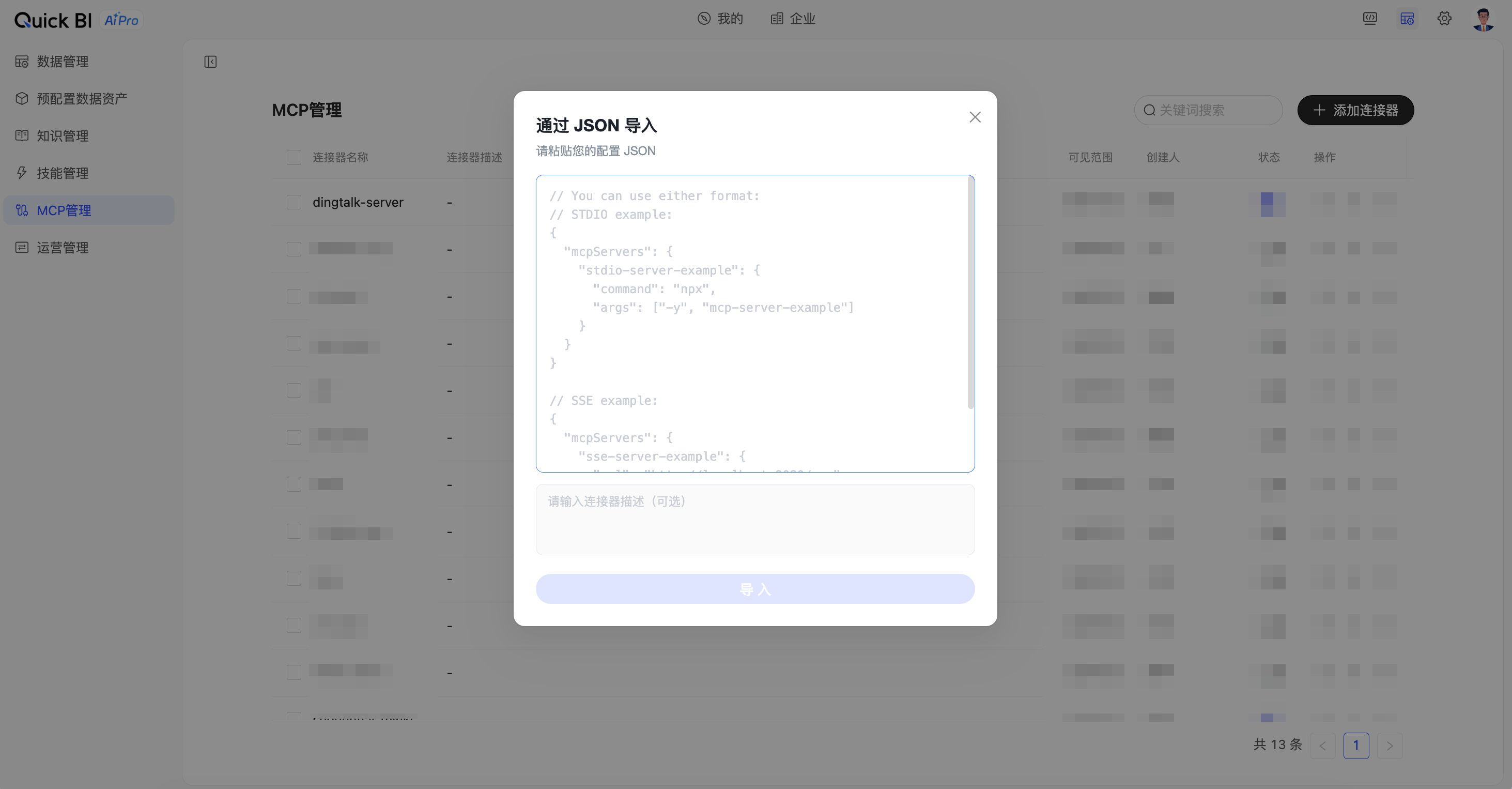
Go to Admin Center → MCP management (path
/ai/org/mcp).Click Add connector to add the MCP configuration information.
Set the visibility and access permissions for the connector.
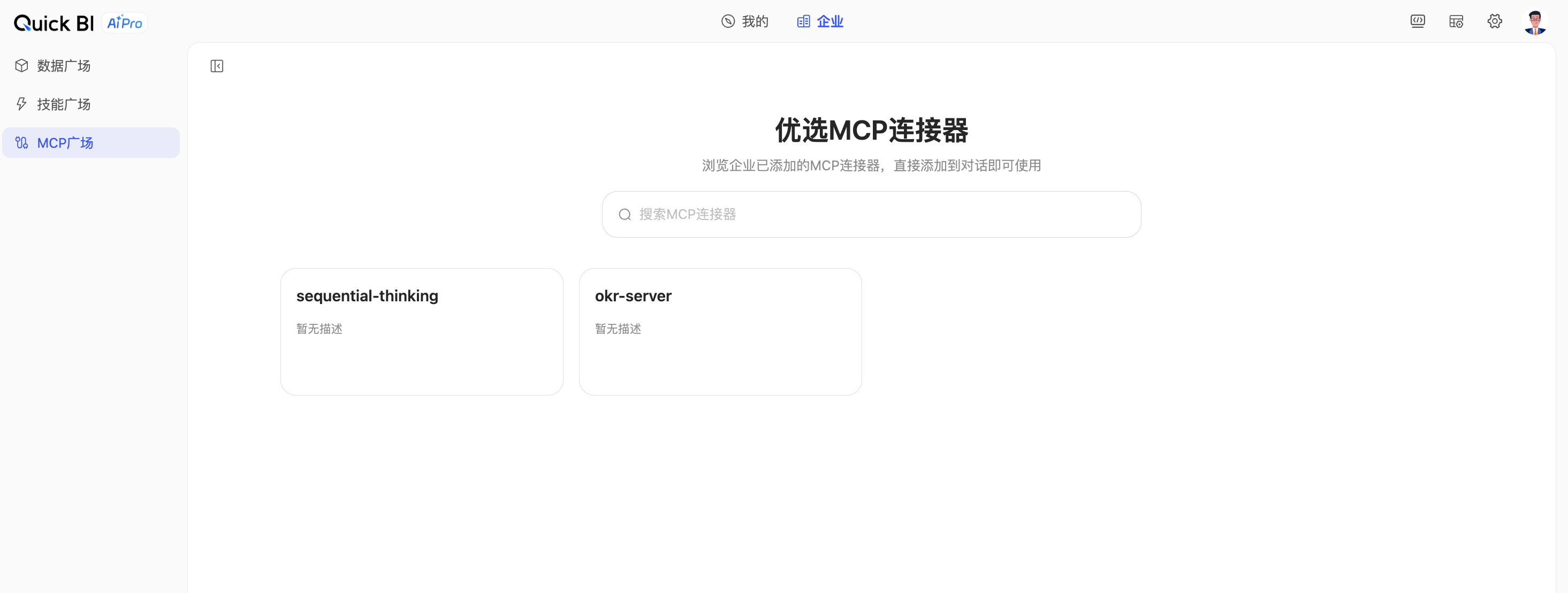
Business users can enable connectors in the Enterprise → MCP Marketplace and invoke them in conversations.
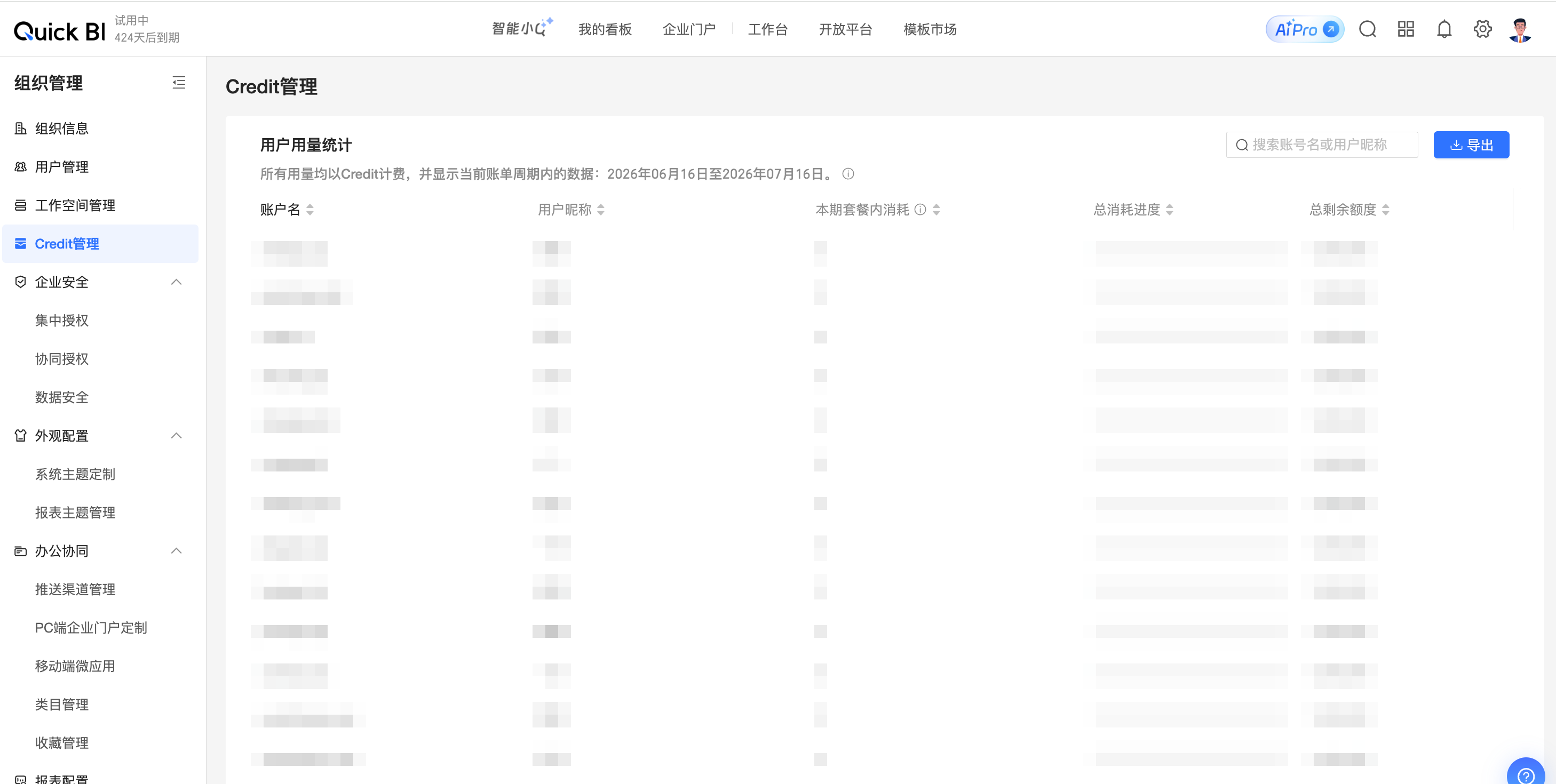
7. Credits and quotas
Goal: Control and audit resource usage across your organization.
Go to Organization Management → credit management (path
/org/admin/creditManage).View the credit balance and consumption details for users in your organization.
8. Management permissions
Goal: Ensure data visibility and operational permissions comply with corporate governance policies. You can delegate AIPro administrative tasks to users by using a custom role.
Go to Admin Center → Organization Management → Role configuration (path
/org/admin/user/role).Quick BI AIPro provides the following preset roles:
Role | Permissions | AIPro management |
organization administrator | Organization-level administration | Yes |
workspace administrator | Manages members, data assets, artifacts, and subscriptions within a workspace. | No |
workspace developer | Creates datasets, reports, and skills, and publishes assets to the enterprise. | No |
custom role | Can assist the organization administrator in managing AIPro capabilities by enabling specific AIPro permissions. | Yes |
User guide
This section guides business users with an AIPro seat through their first conversational analysis.
1. Sign in
Log in to Quick BI with your Alibaba Cloud account.
Click AIPro in the top navigation bar to go to the AIPro homepage.
The homepage has two view tabs: **My** and **Enterprise**. The default view is **My**.
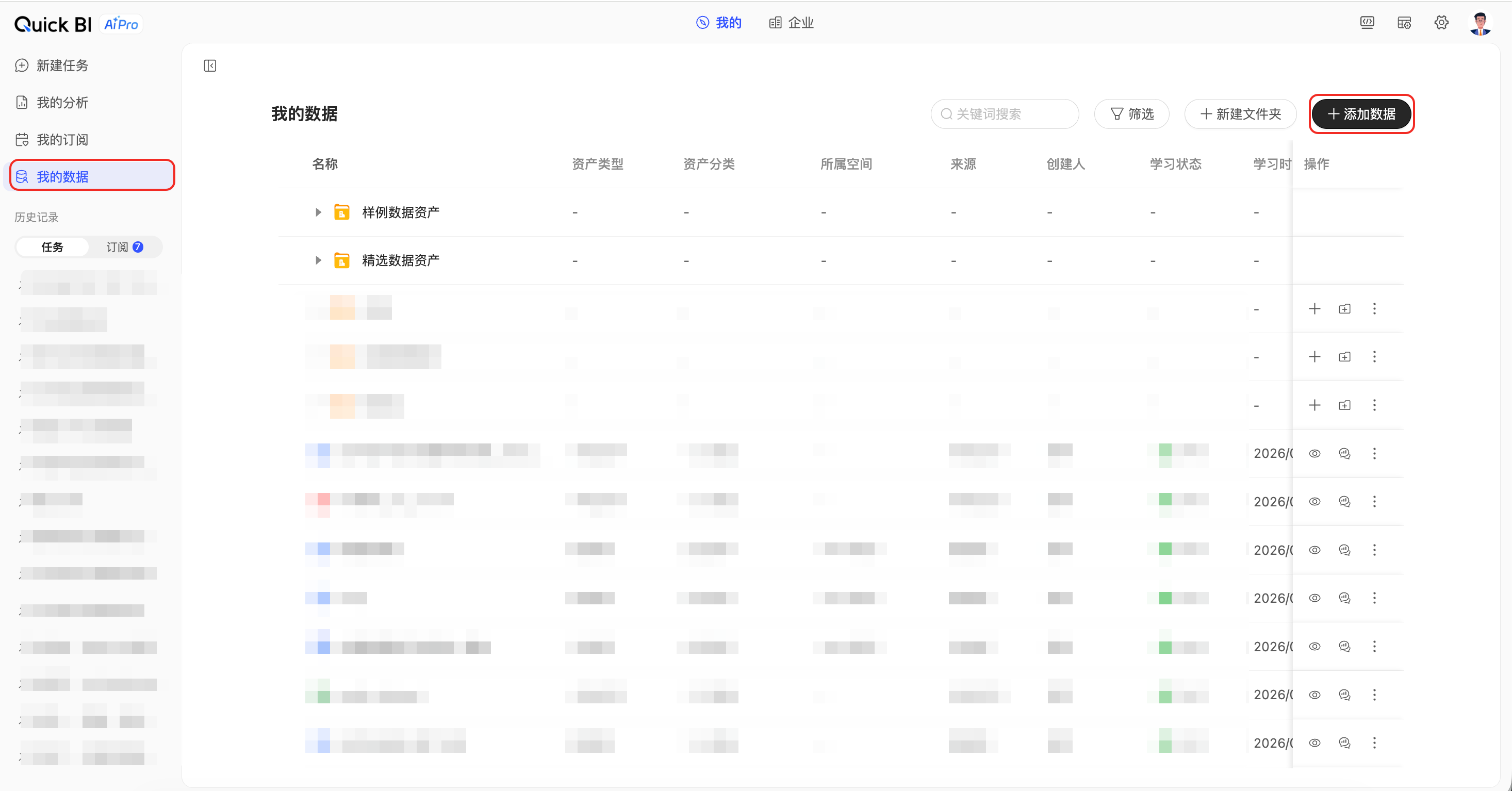
2. Configure data
Go to My Data.
Add data: You can add enterprise data from the Data Marketplace or upload your own local files. Supported file types include Excel, PDF, Word, Markdown, and TXT.
Data processing: After you add data, the AI takes one to two minutes to process it and understand its semantics. Once processing is complete, you can go to New Task to analyze the data.
3. Ask questions
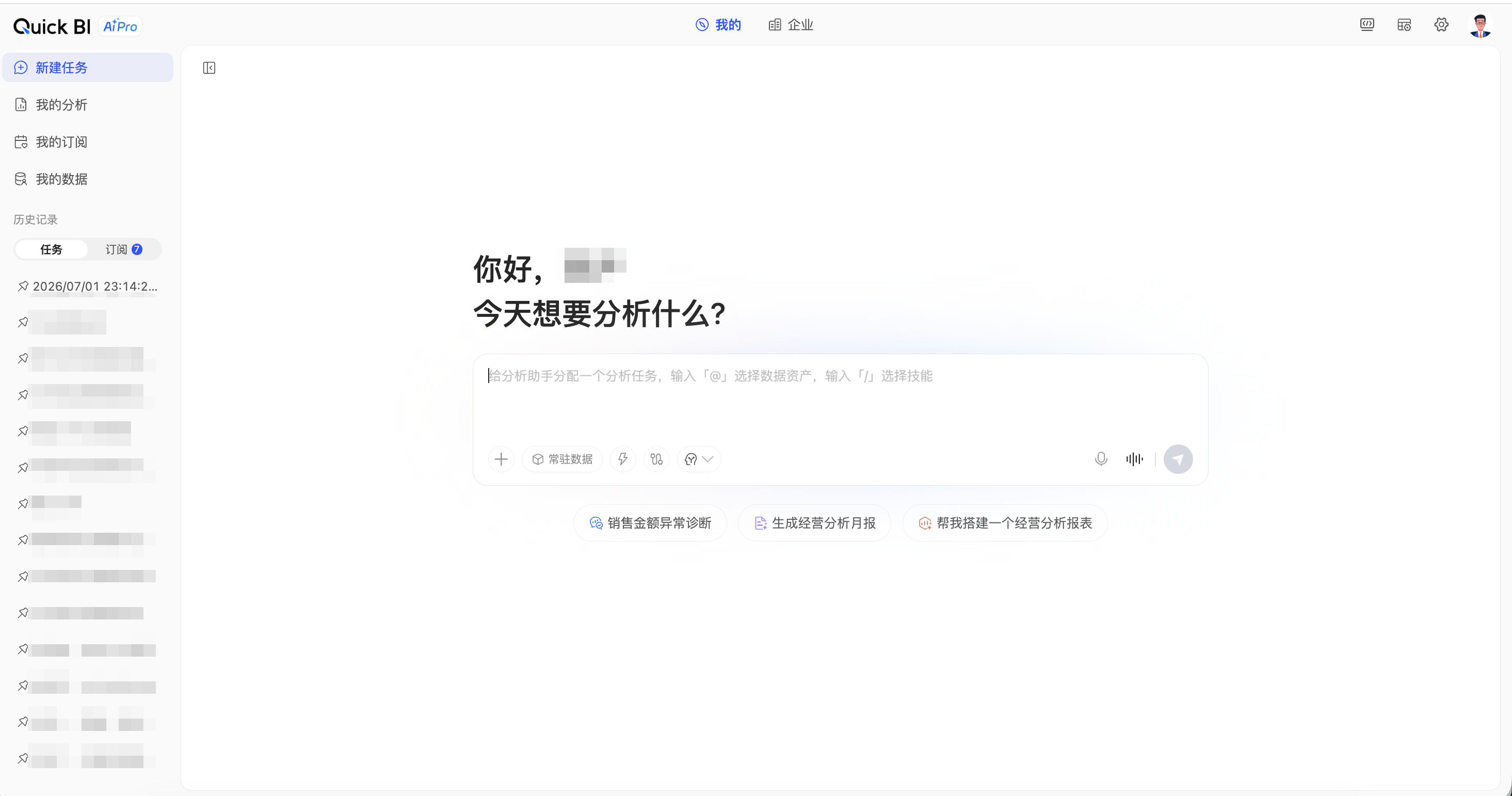
Go to New Task and enter your analysis question in the input box. Examples:
"What is the month-over-month sales change by region for this month?"
"What are the main reasons for the GMV decline in the East China region?"
"Generate a business analysis report for Q2 2026."
You can also ask multi-turn follow-up questions. For example:
"What were the sales for each category in June?"
"Which are the top 5 growing categories?"
"Analyze the reasons for the growth."
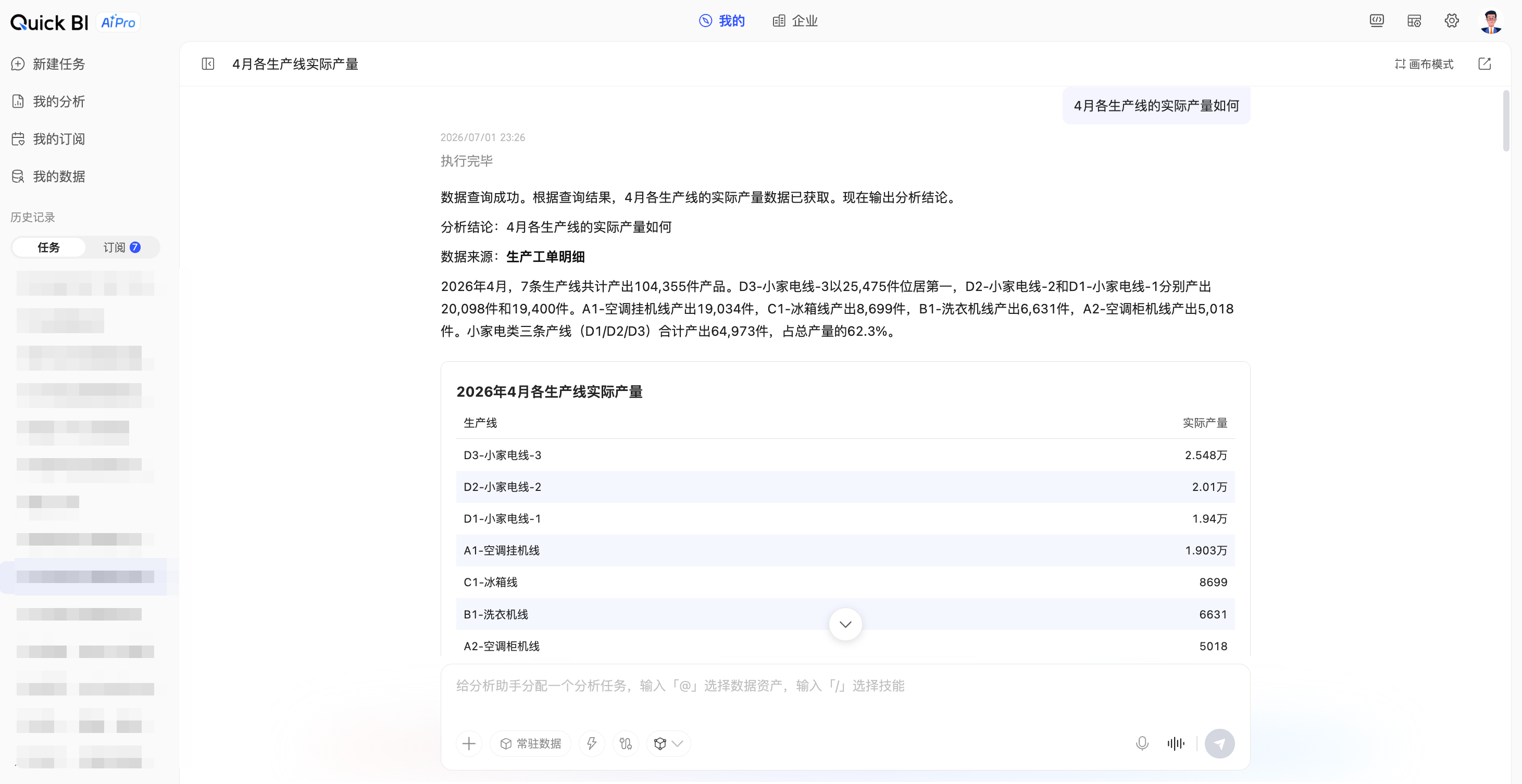
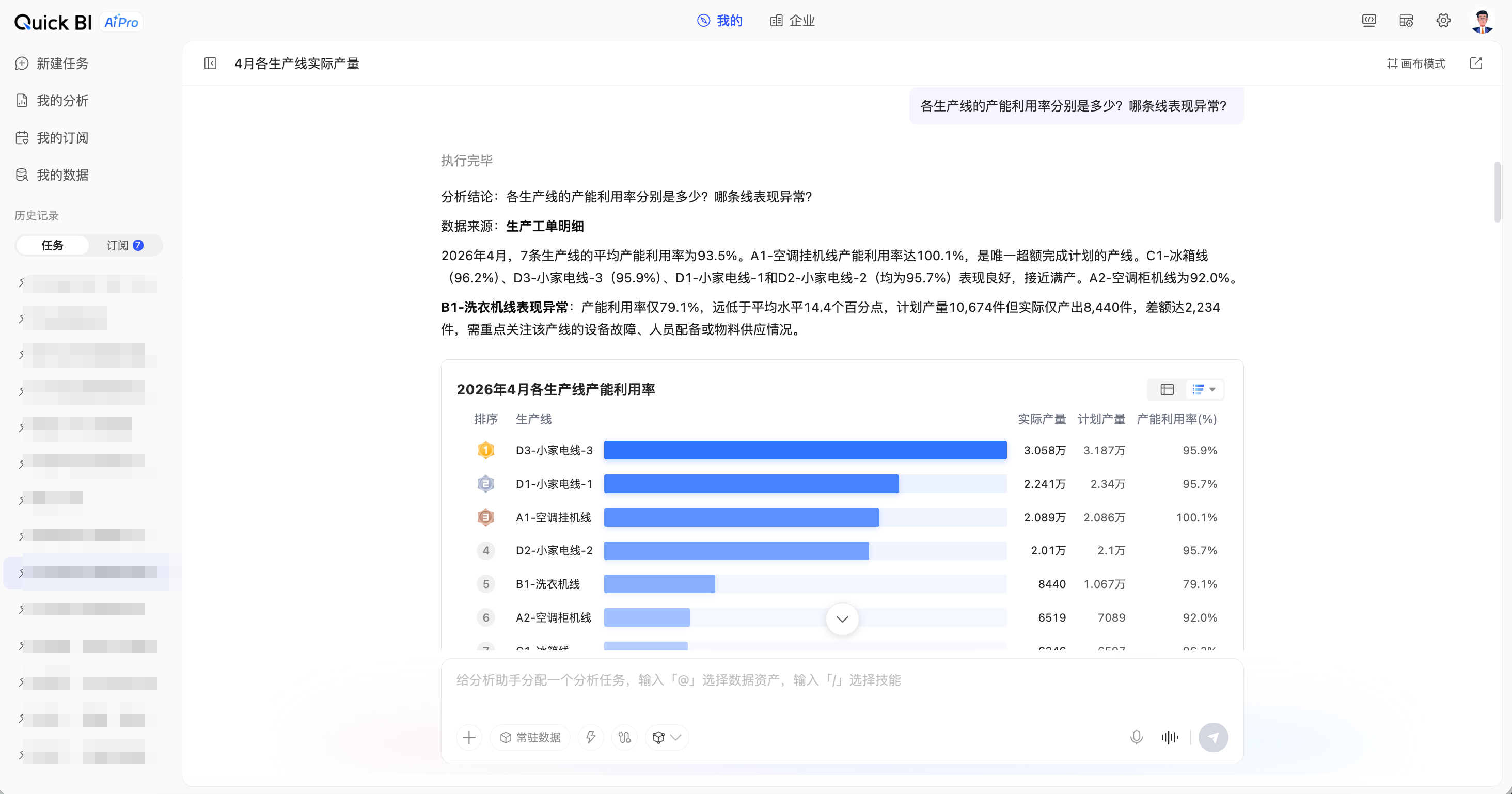
After you enter a question, the AI returns structured analysis results, including charts, tables, and text-based conclusions.
4. Get results
The system generates analysis results based on your questions.
Charts and interpretations: Data is retrieved and visualized.

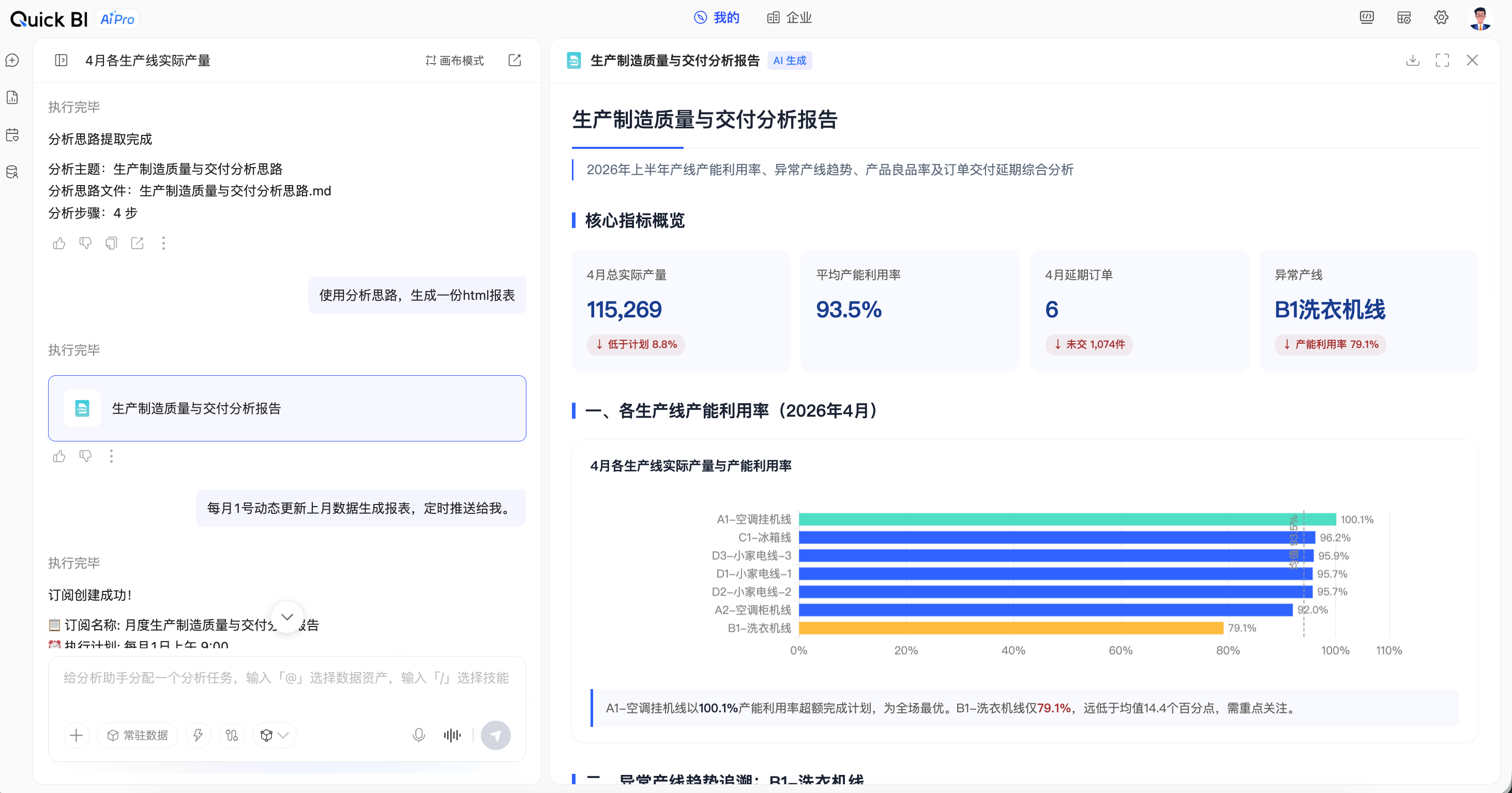
HTML reports: Visually present the conclusions of an analysis. This format is often used for one-time exploratory analysis and personalized report creation.
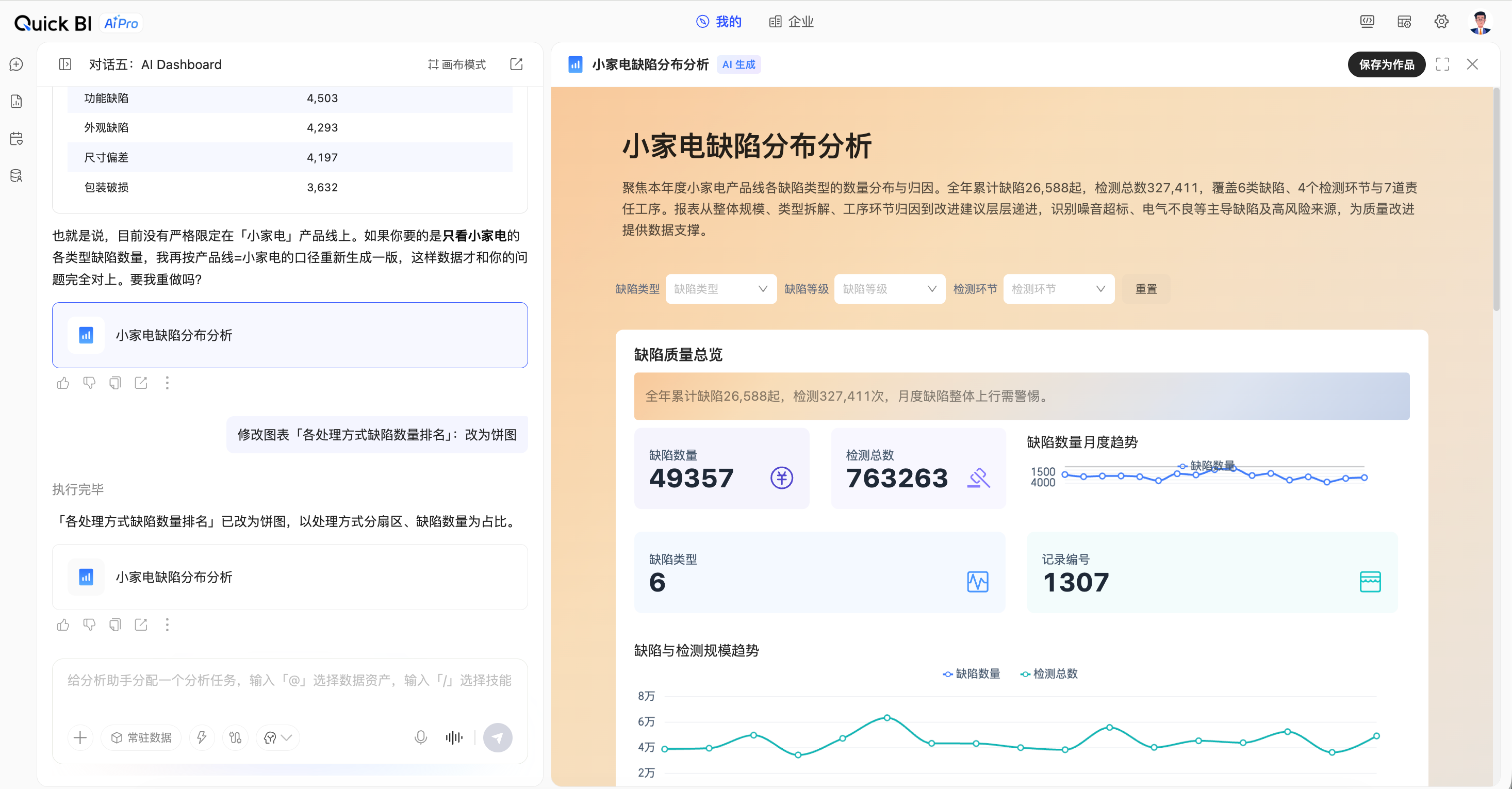
Analysis reports: Support dynamic updates, filtering, and drill-down analysis. This format is typically used for scenarios that require periodic data refreshes and collaborative sharing within an organization.
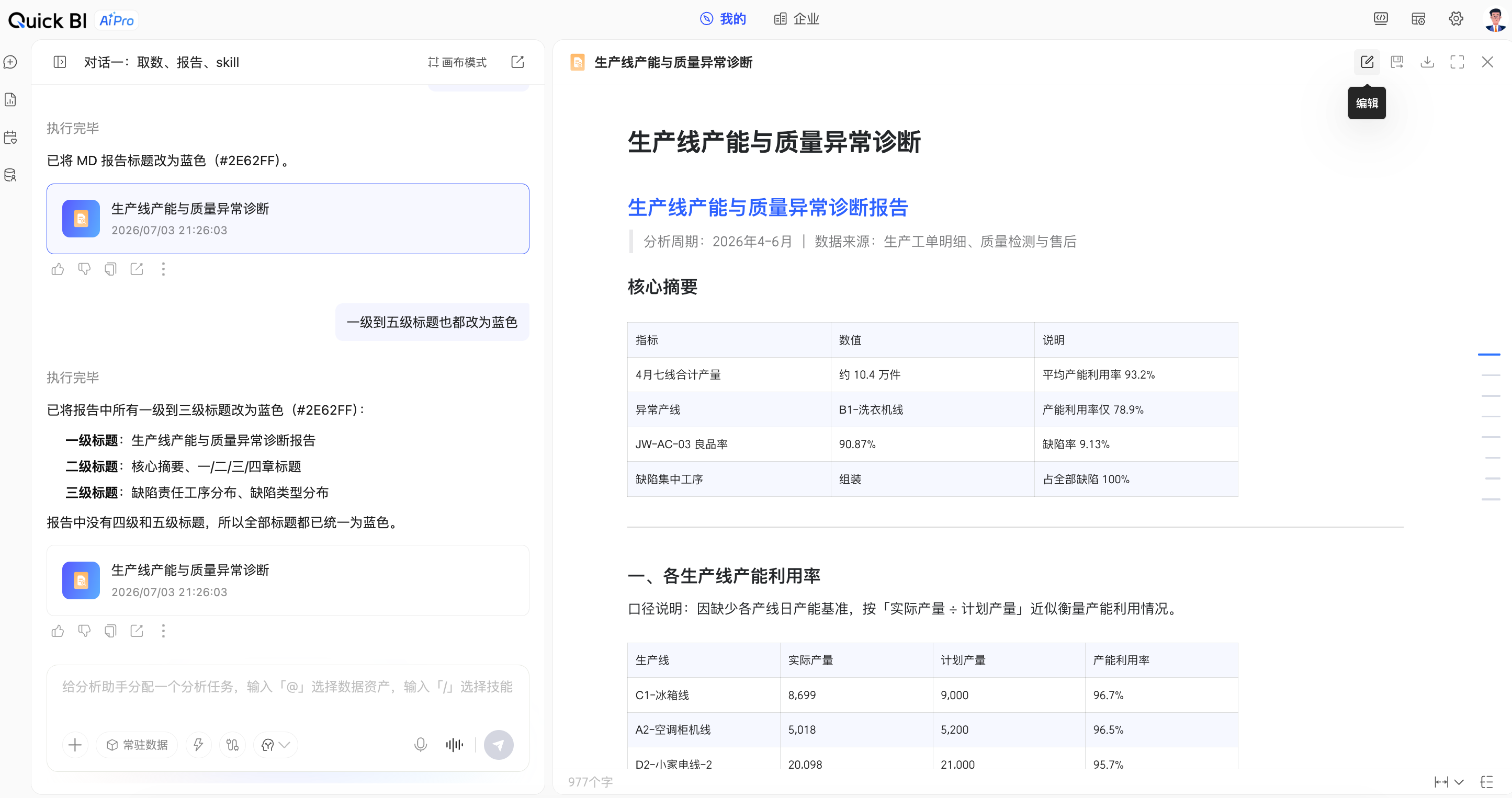
Document reports: Based on charts and interpretations, you can generate document-style analysis. This format supports highly flexible document editing.
5. Use results
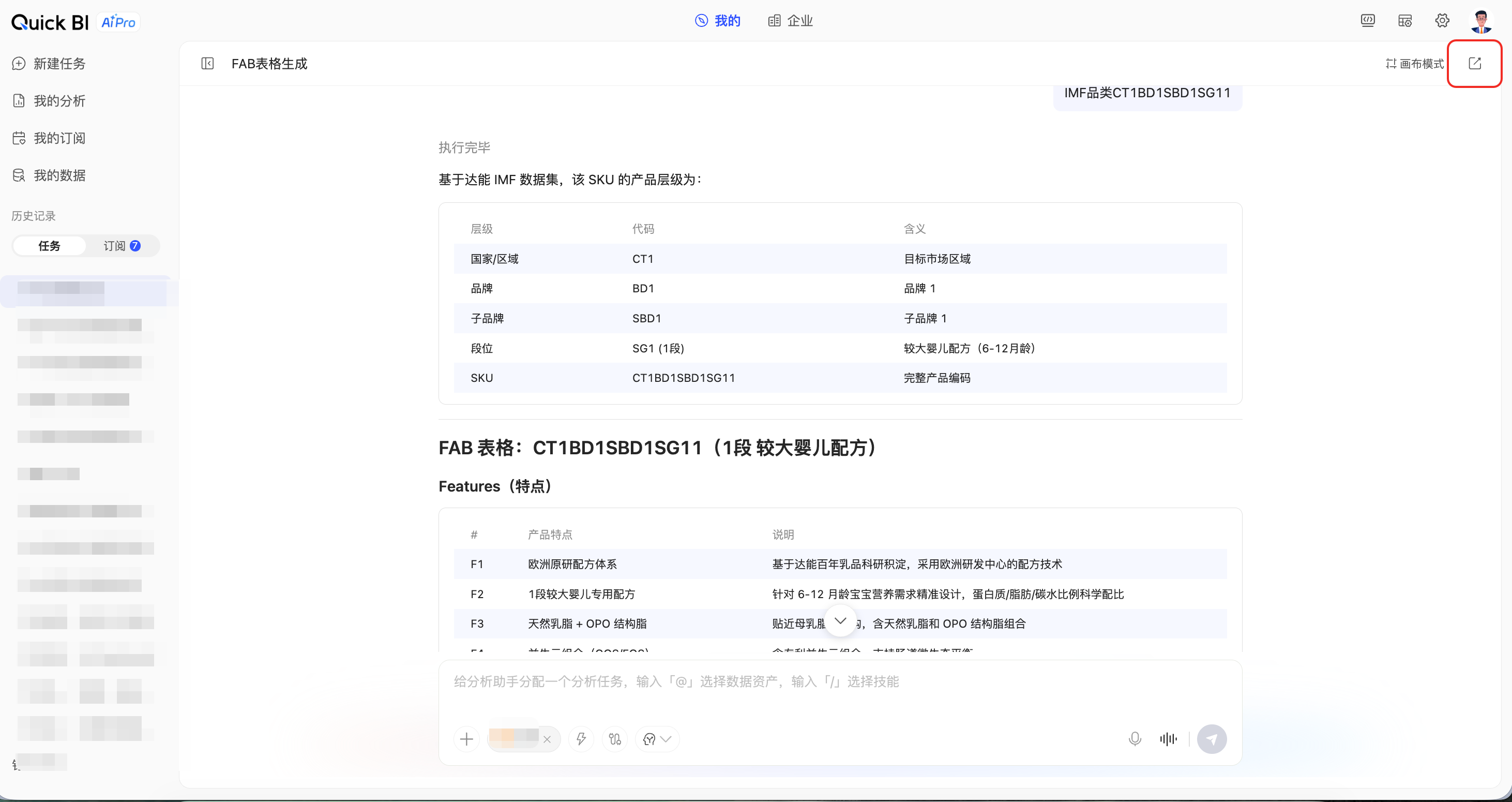
Share: You can share conversation results. Both private and public sharing are supported, and you can configure an expiration period for the share link.
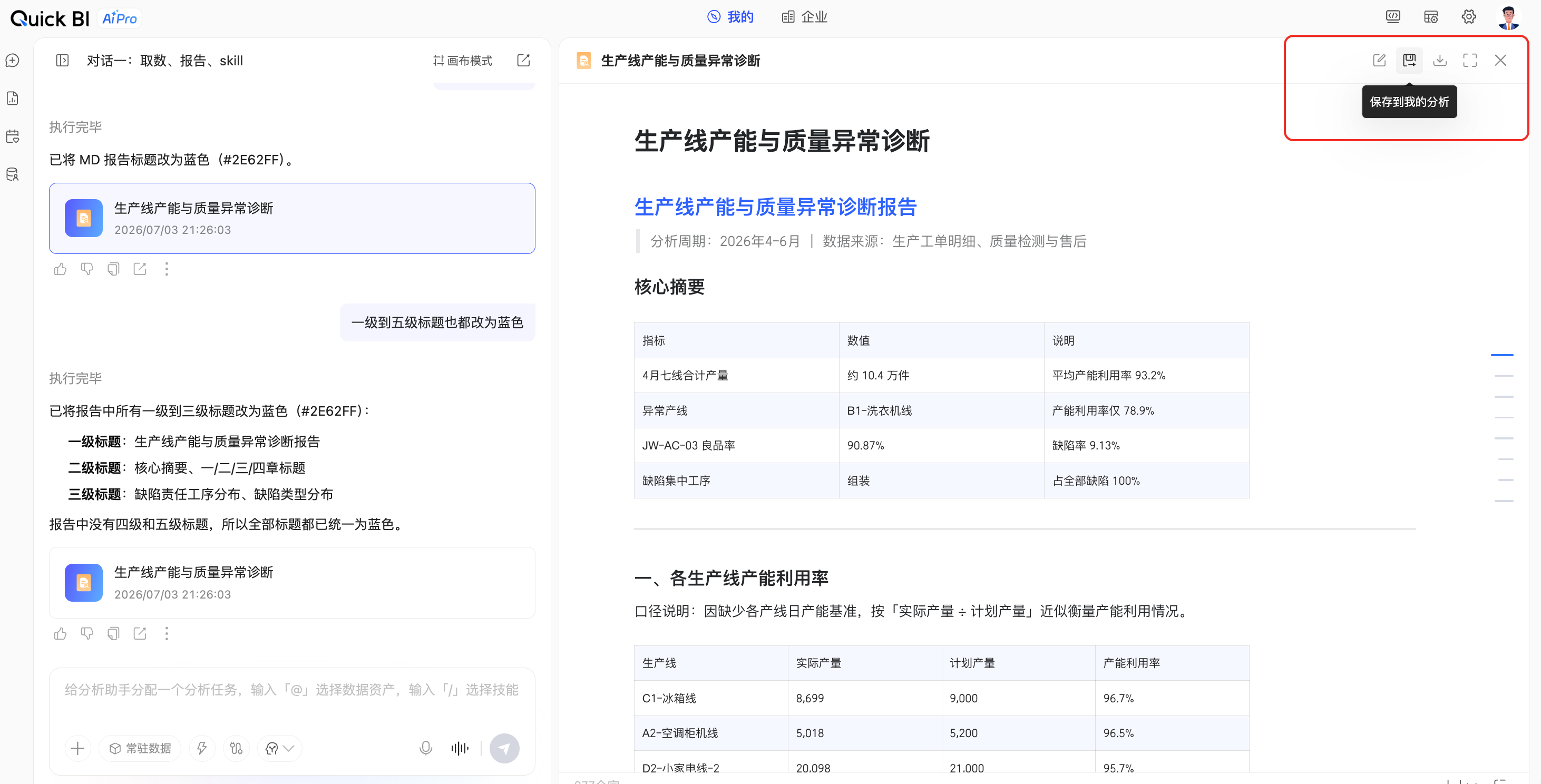
Save: For documents and analysis reports, click Save to My Analytics in the upper-right corner to save the result to your personal library.
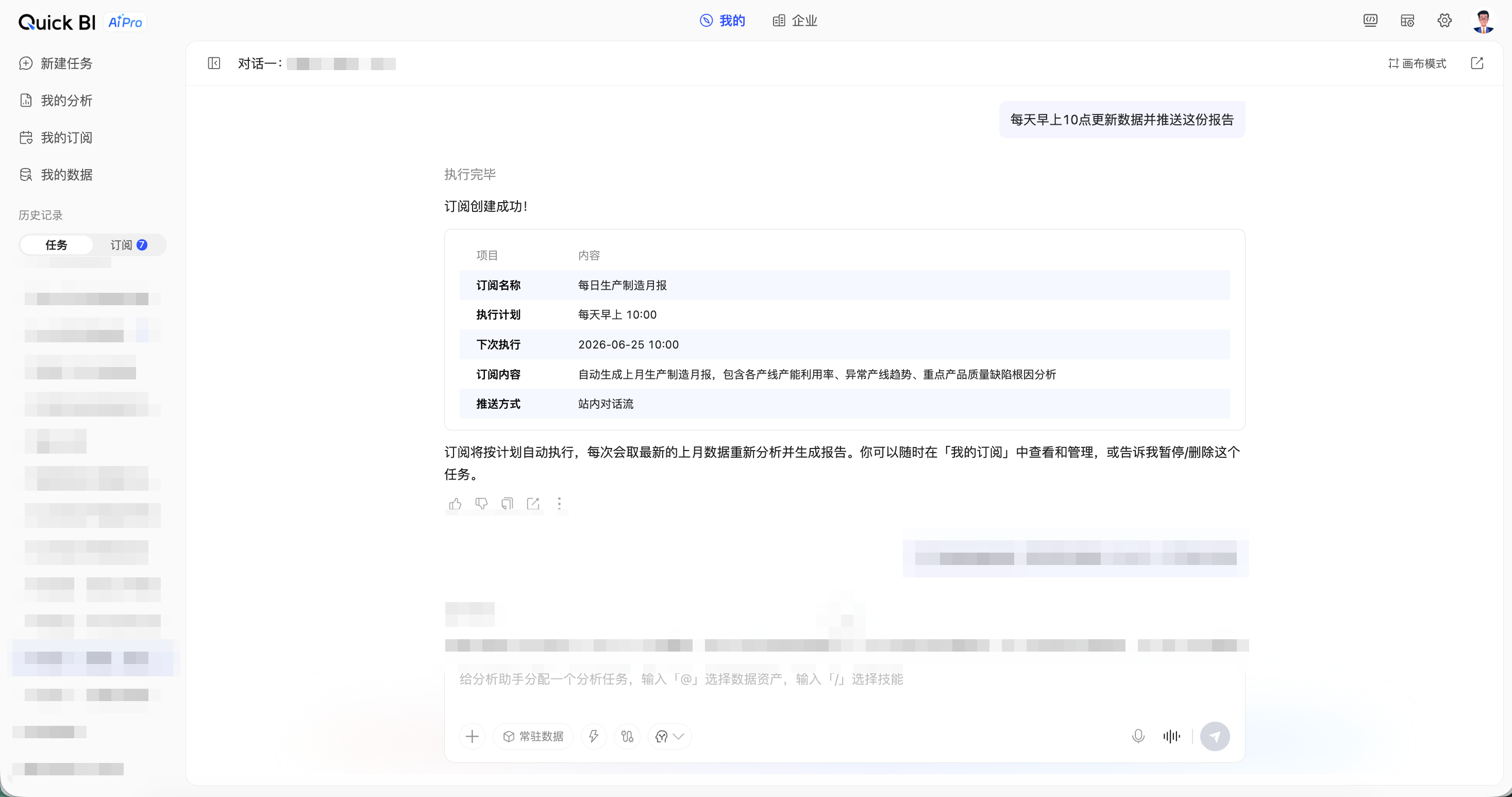
Subscribe: Create a subscription task through conversation. AIPro will then periodically execute the task and push the latest results. You can manually modify the push frequency and channel.
Download: For HTML reports and document reports, you can download them as local files.
Module overview
Quick BI AIPro consists of the following modules, which cover the entire workflow from personal use to enterprise asset management and configuration.
View | Module | Description | Users |
My | New Task | Use natural language to drive AI analysis and generate charts, reports, and presentations. | business user |
My | My Analytics | Saves personal analysis artifacts. Supports further editing and sharing. | business user |
My | My Subscriptions | Manages scheduled push tasks. Supports multi-channel distribution. | business user |
My | My Data | Manages personally uploaded data files and data assets. | business user |
Enterprise | Data Marketplace | Browse enterprise-published datasets, data tables, files, and API data. | All users |
Enterprise | Skill Marketplace | Browse enterprise-published AI analysis skills. Enable them with one click to use in conversations. | All users |
Enterprise | MCP Marketplace | Browse enterprise-integrated MCP connectors to expand AI analysis capabilities. | All users |
Admin Center | AIPro Management | Configuration of data, knowledge, skills, and MCP connectors. | organization administrator, roles with AIPro management permissions |
Admin Center | Role configuration | Organization role and permission management. | organization administrator |
Organization Management | credit management | View AI compute credit balance and consumption details. | organization administrator |
More capabilities
After you complete the basic setup and have your first conversation, you can explore the following advanced capabilities:
Free-form canvas: Drag and drop charts, tables, and conclusion cards from multiple conversations onto the canvas. Freely arrange and combine them to create a thematic analysis board. The canvas can be exported as an HTML snapshot, report, or PPT file.
Scheduled Subscription Push: Convert any analysis result into a subscription task. Select a push frequency (daily, weekly, monthly, or a Cron expression) and a push channel (email, DingTalk, Lark group, or Webhook). The AI then periodically runs the task and pushes the latest data snapshot.
PPT Presentation Generation: Generate a PPTX file based on the analysis results from your data assets. This file can be used directly for business presentations.
FAQ
Q1: Why can't a business user see the AIPro entry point after logging in?
The user may not have the correct role or permissions. Contact an organization administrator to have the appropriate seat assigned.
Q2: Why is the data list empty when I type @ to select data?
Ensure that at least one data asset file exists in My Data and that it has finished processing after being imported.
Q3: Why do I see an "Insufficient Quota" message during a conversation?
Your personal monthly credit has been used up. Contact your organization administrator to request more quota or wait for the next billing cycle.
Q4: Why are the AI-generated results inconsistent with our business terminology?
Contact an administrator to configure the enterprise Knowledge Center. You can also configure personal knowledge. If you are satisfied with the analysis results, this knowledge can be contributed to the enterprise Knowledge Center.
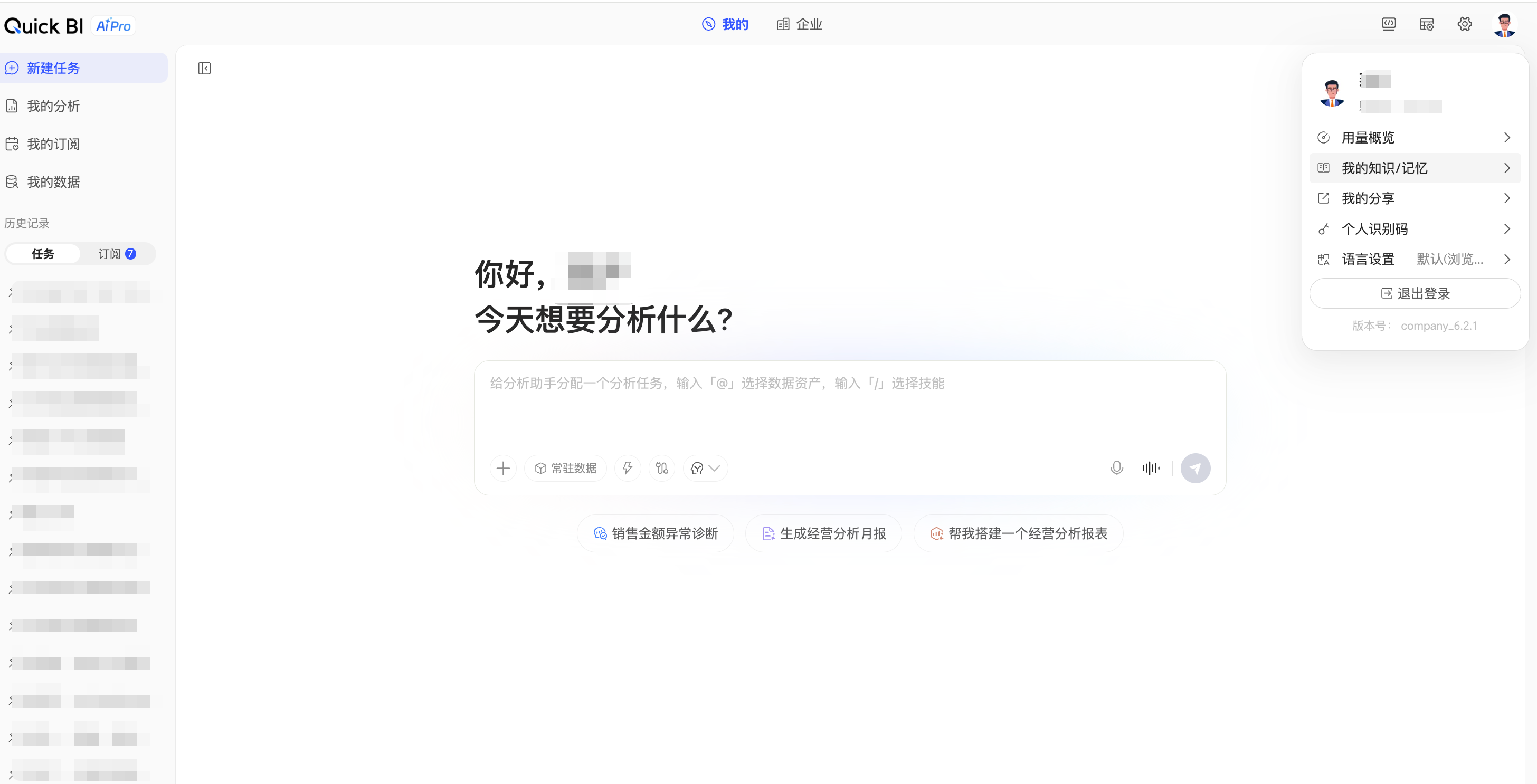
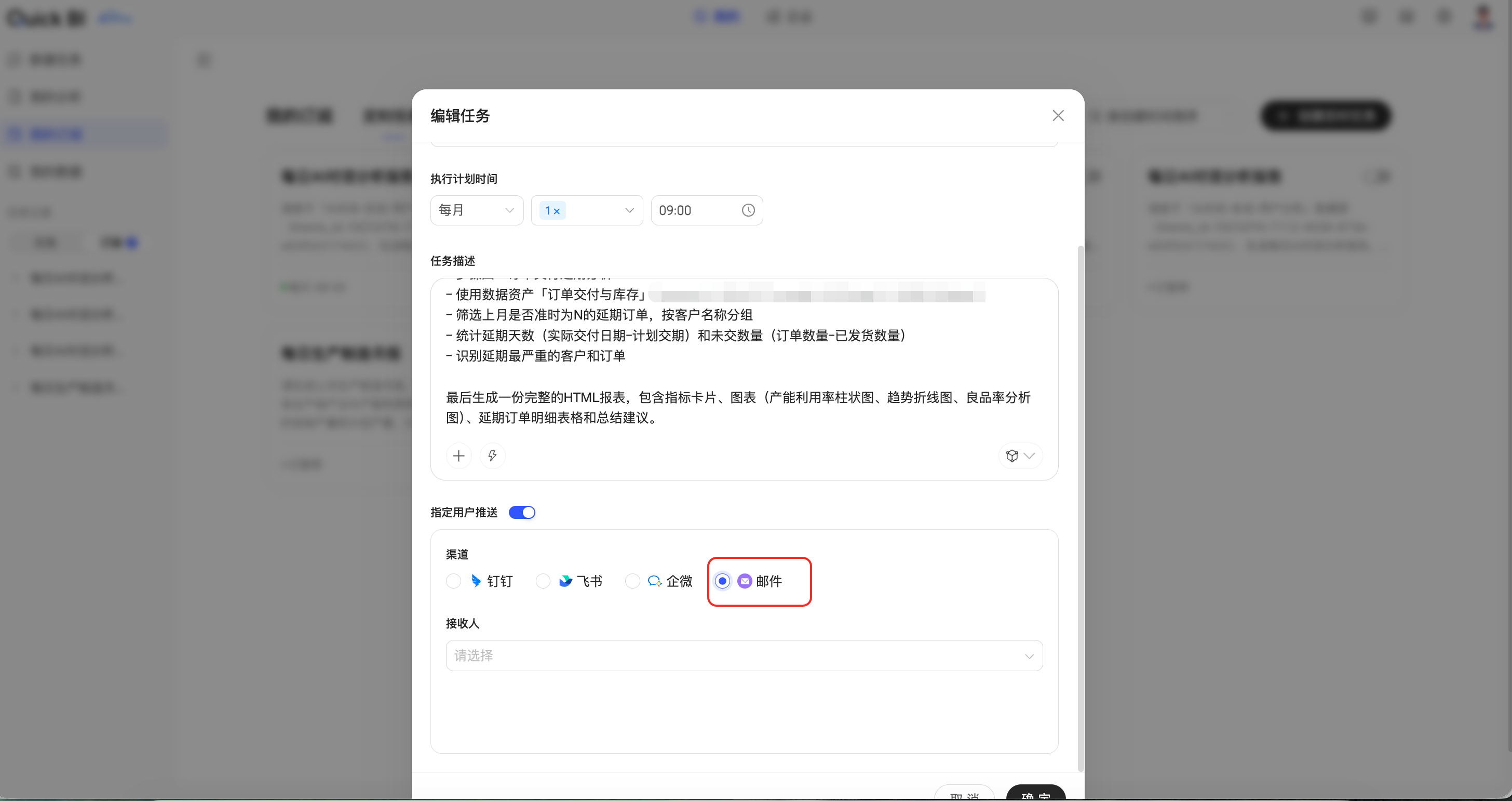
Q5: How can I automatically push analysis results to my personal email or DingTalk?
In My Subscriptions, enable Push to Specified Users and configure the recipients.