Quick BI AIPro overview
Quick BI AIPro is a next-generation, AI-driven business intelligence (BI) analytics platform from Alibaba Cloud that deeply integrates traditional BI capabilities with a large language model (LLM). You can use natural language conversation to perform the entire analytics workflow, from data queries and visual analysis to report generation. This enables a full analysis path from "Overview → Breakdown → Attribution → Diagnosis → Action".
Use cases
A business manager asks for "last week's year-over-year sales by region" five minutes before a morning meeting and instantly receives a chart with attribution analysis.
An operations specialist asks, "Why did GMV decline in East China?", and the AI automatically drills down to a three-level attribution analysis by category, channel, and store.
A finance professional generates a "monthly business dashboard" through conversation and creates a subscription task to send the monthly report on the first of each month.
Core advantages
The following table compares Quick BI AIPro with traditional BI.
Dimension | Traditional BI | Quick BI AIPro |
Usage method | Drag and drop fields, write SQL, and view fixed dashboards. | Ask questions in natural language and ask multi-turn follow-up questions. |
Response time | Requests are queued and can take days or weeks. | Data and analysis results are returned in seconds. |
Analysis mode | Business teams rely on analysts to generate attribution conclusions. | The AI breaks down problems and applies reasoning to generate in-depth, comprehensive attribution insights. |
Analysis methods | Manually perform drill-downs, link data, and create analysis reports. | Explore and analyze through conversation. Use the infinite canvas to connect ideas and focus your analysis. Analysis results are generated automatically. |
Barrier to entry | Requires SQL and BI modeling skills, familiarity with module configurations, and involves a learning curve. | No technical barrier for business users. |
Reusable assets | Dashboards | Analysis outputs with dynamically updated data (reports, documents), one-time analysis reports, and recurring subscription tasks. |
Features
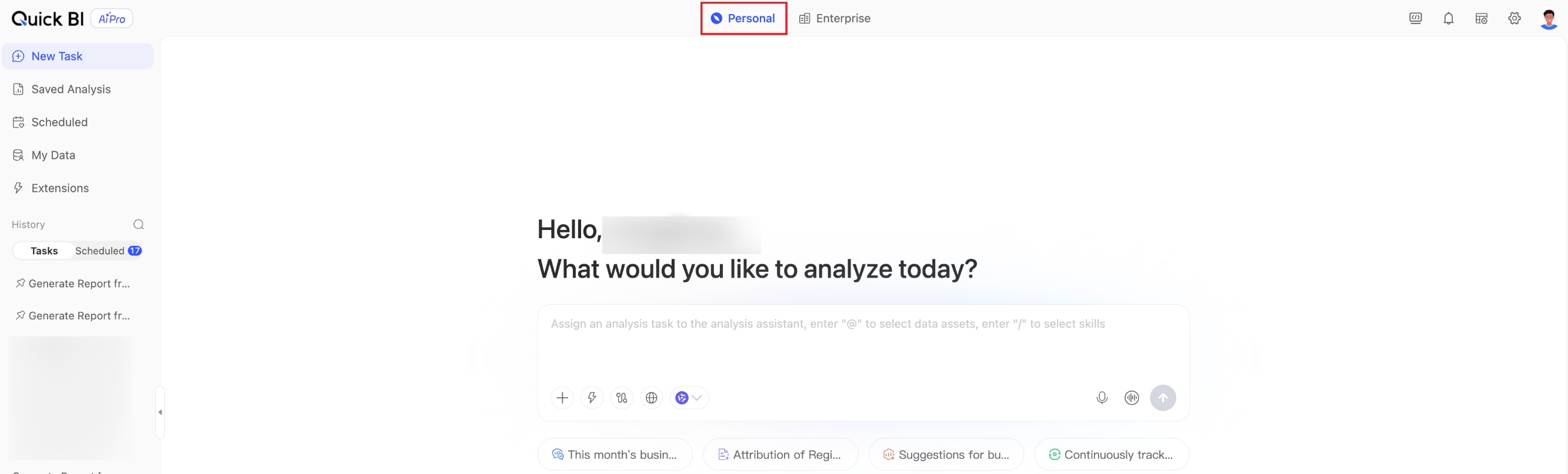
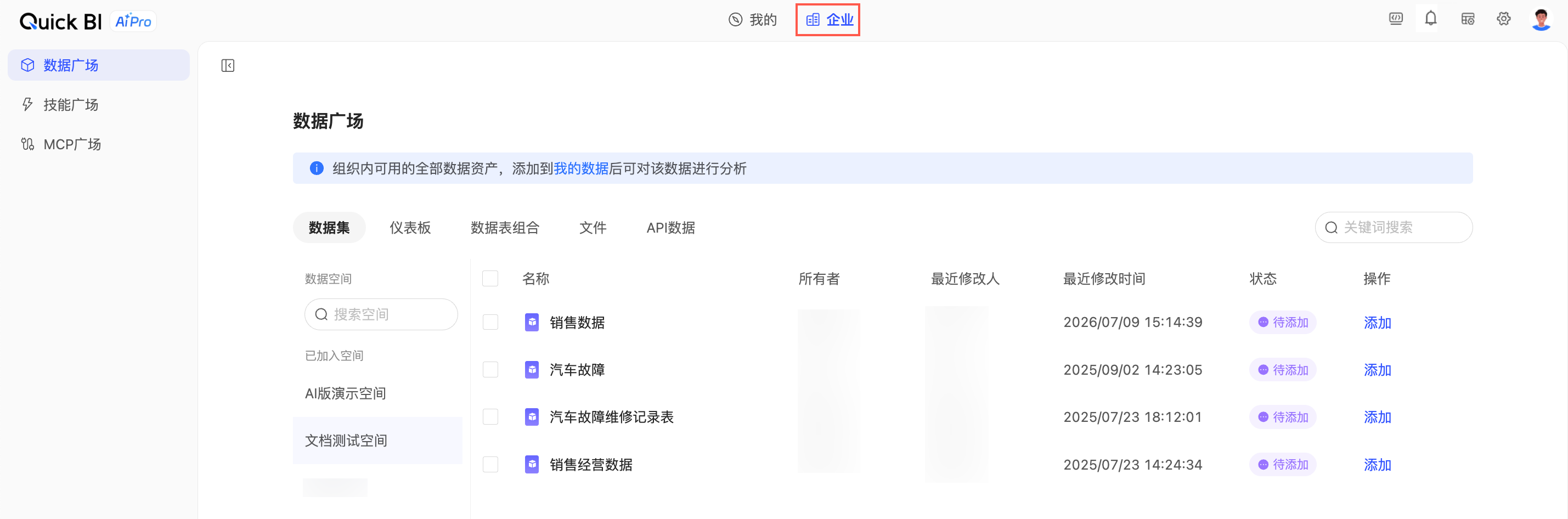
Dual-view navigation: When you log in to Quick BI AIPro, the homepage displays a dual-view navigation structure: Personal and Enterprise.
Personal view: Your personal workspace where you can manage your conversations, analysis outputs, subscription tasks, and personal data assets.
Enterprise view: A public marketplace for enterprise resources, where you can browse the Data Marketplace, Skills Marketplace, and MCP Square.
Platform module switching: You can switch to other modules, such as the Quick BI Workbench and Management Center. You can also view information about your usage, knowledge, and shares in the Personal Center.
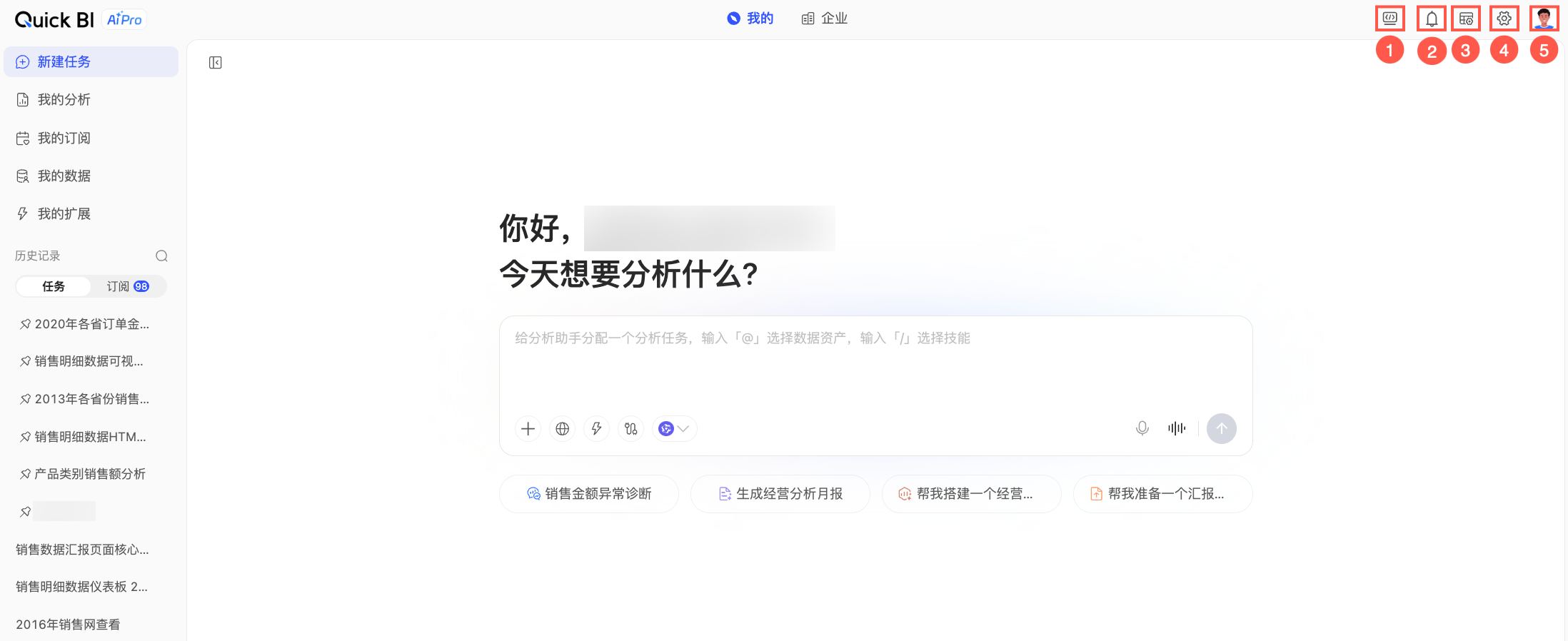
① Switch to Quick BI Workbench
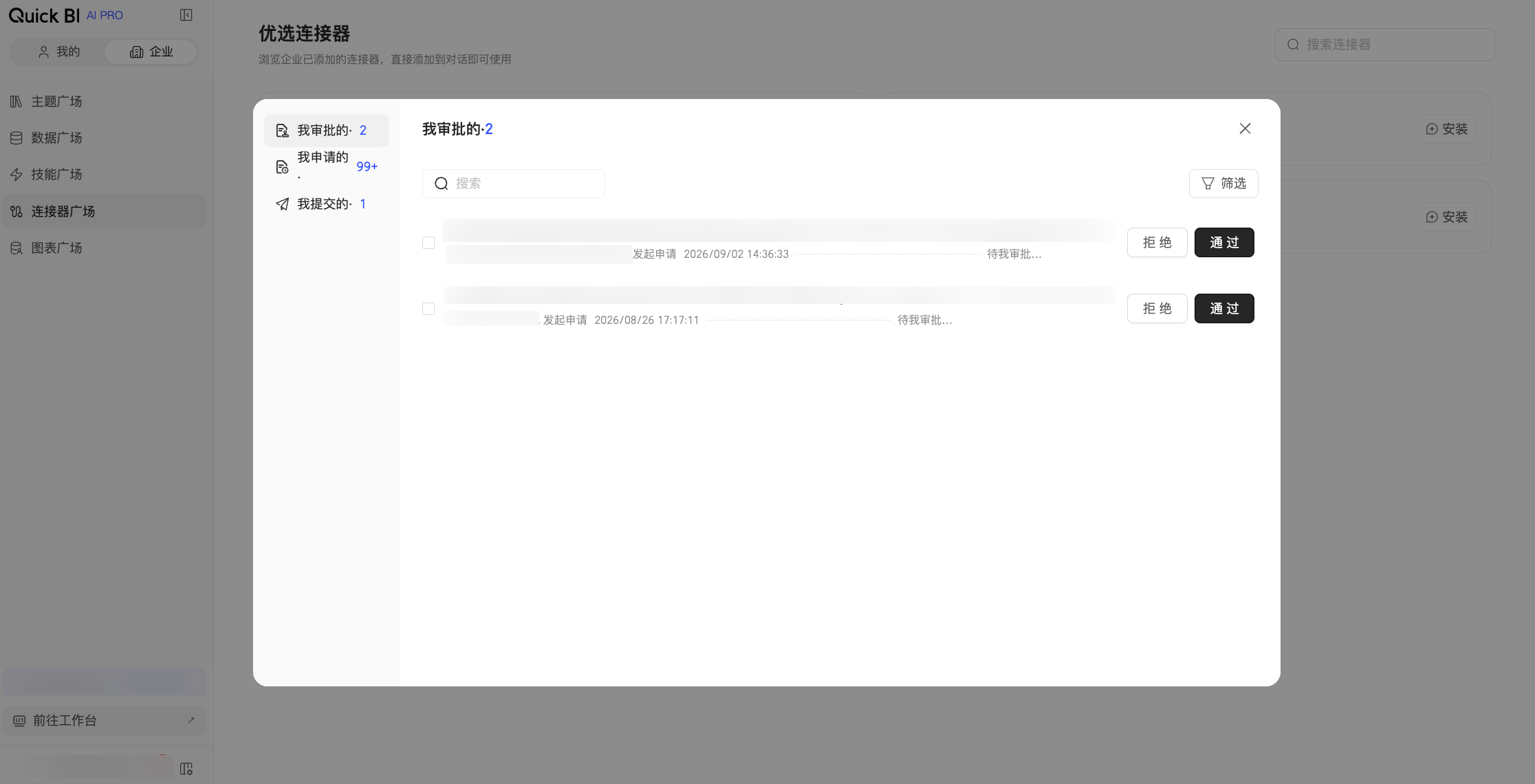
② Go to the Message Center
Here, you can centrally manage and track the permission application process for various resources. The Message Center is displayed as a pop-up window and includes the My Approvals, My Applications, and My Submissions tabs. In the list, pending items appear before processed ones. You can approve, view details, or withdraw applications as needed, and filter records by status such as Pending Approval and Processed.
③ Go to the Management Center
④ Go to the Organization page in Quick BI
⑤ Personal Center
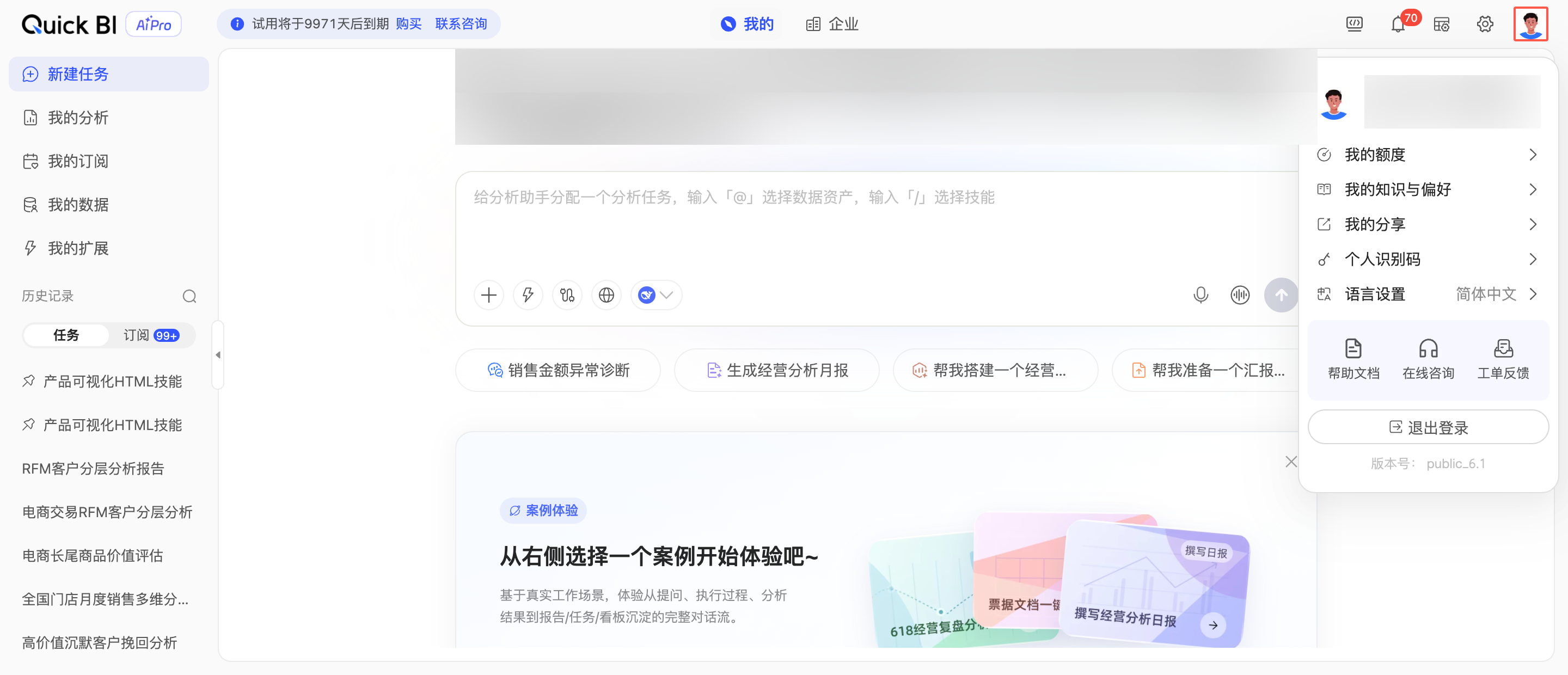 View your Personal Account Information, Usage, Knowledge & Memory, My shares, Personal Identification Code, and Language.
Item
Description
Personal Account Information
View your account name and ID.
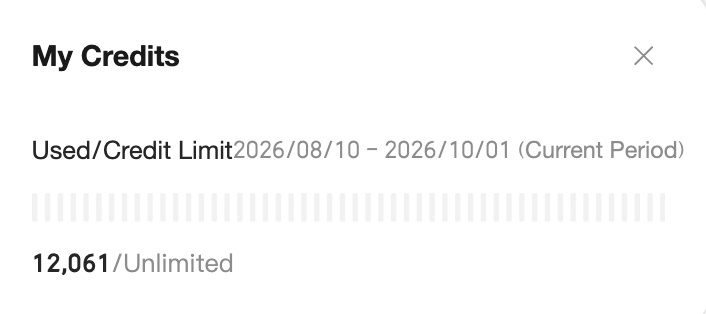
Usage
In Usage, you can view the Credits used and the quota limit for your account in the current billing cycle.

Knowledge & Memory
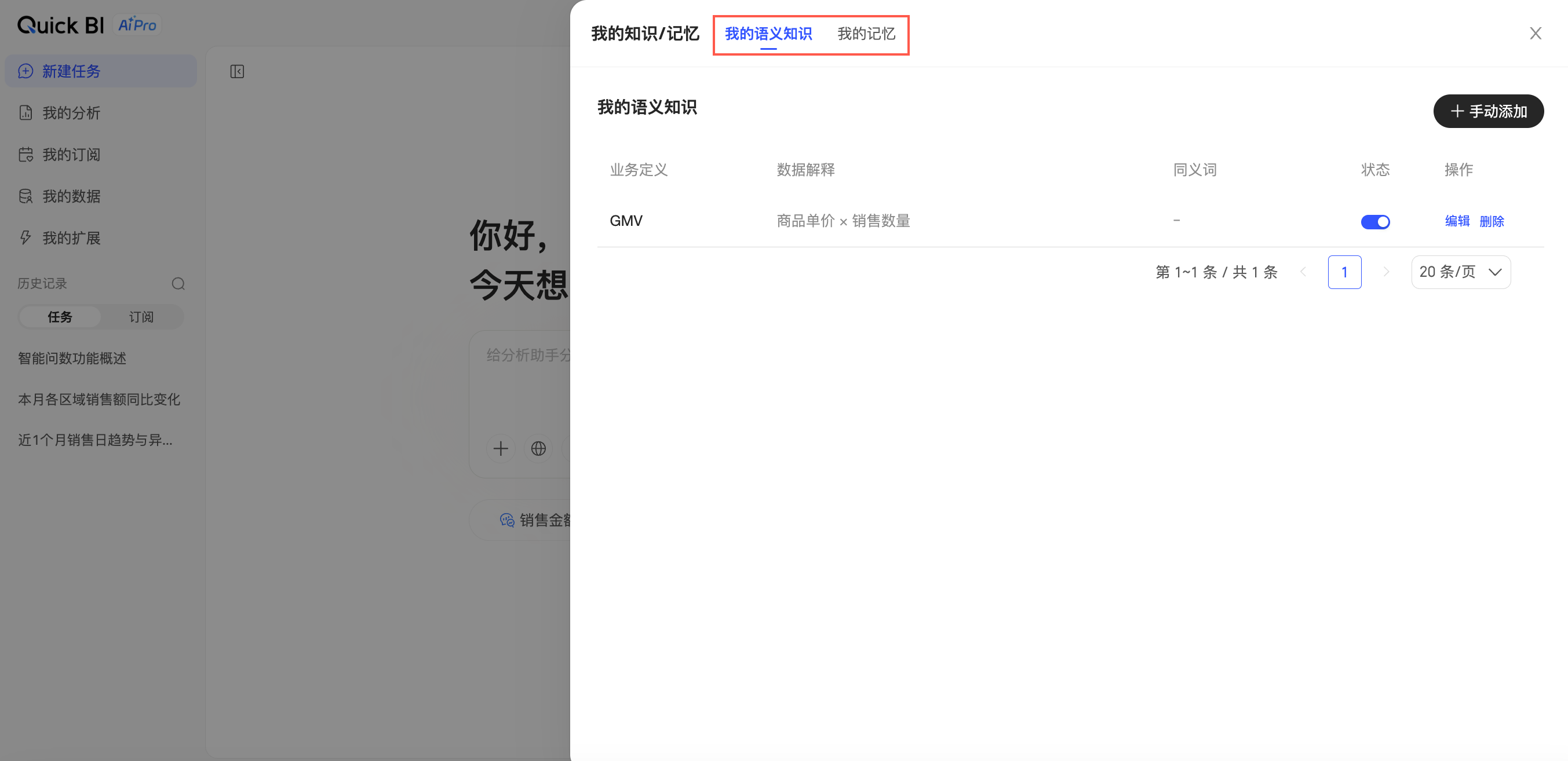
Knowledge & Memory includes three tabs: My Knowledge, My Memory, and Personal Workbook.
My Knowledge: Records the business definitions, term explanations, and calculation standards that you use. This knowledge is visible only to you, and you can add it manually.
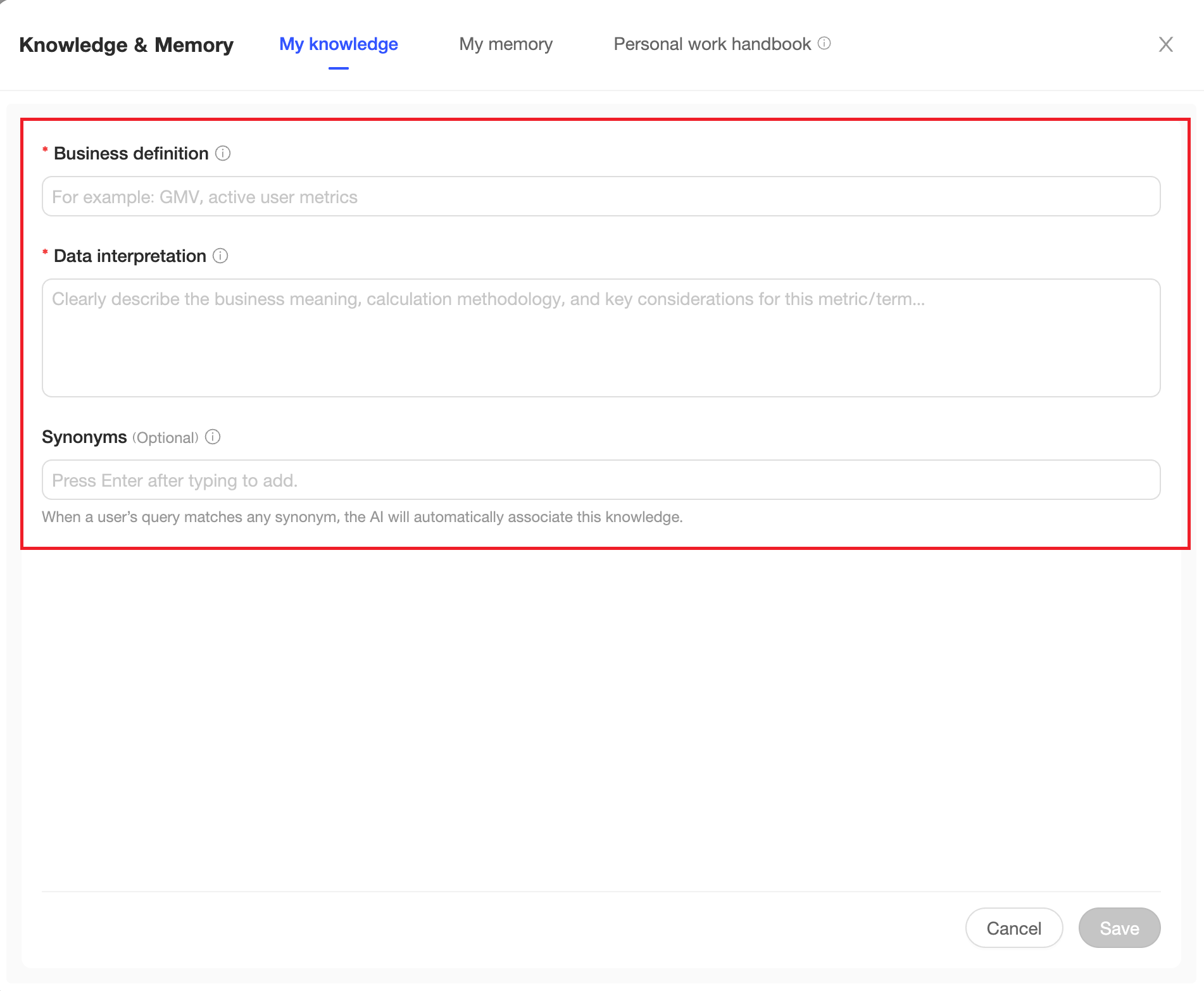
Business Definition: Define common business concepts within your enterprise. You can enter frequently used and standard terms from your business operations, such as "Sales Progress" or "GMV". The maximum length is 100 characters.Data Interpretation: Provide detailed explanations of the current business definition, including its meaning, calculation logic, and important notes. This helps the LLM better understand the business definition. The maximum length is 1,000 characters.
Synonym: Enter other common names or aliases for the current business term. This helps the large language model recognize different phrasings for the same business definition.
Press Enter after typing to add an entry. You can add multiple synonyms at once by separating them with a semicolon (;). Once added, the AI automatically applies this knowledge whenever a synonym is used in a question about the relevant data resources.
My Memory: Stores information related to your role, business context, and history. The system automatically maintains this from your conversations.
You can enable or disable the Automatically extract memory toggle as needed. When enabled, the system automatically extracts and records key information from your conversations. This content cannot be edited. Click the
icon for the target memory, and then click Confirm in the confirmation dialog box. Once a memory is cleared, it cannot be recovered, so proceed with caution.Personal Workbook: Define your preferred analysis and output methods for the AI to follow. These settings apply only to you and can be viewed and edited.
My shares
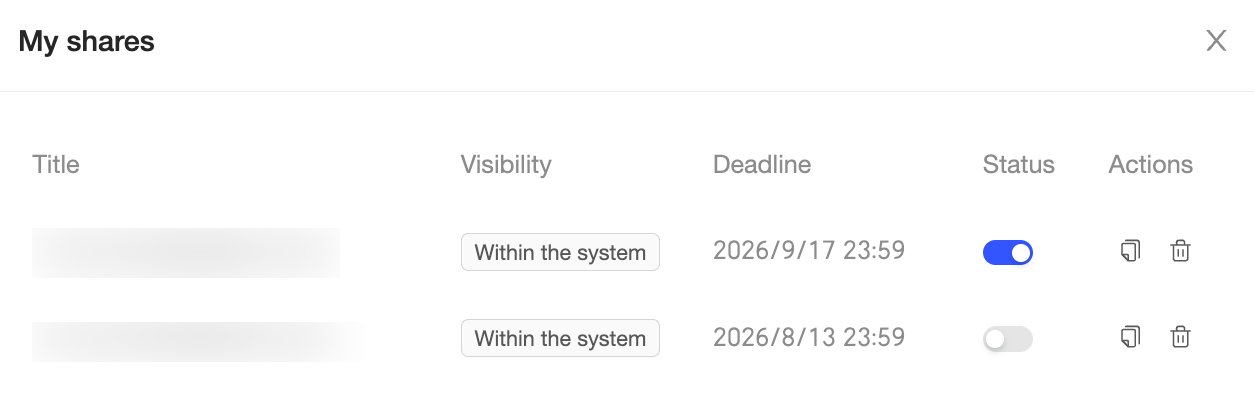
In My shares, you can view your shared resources and enable or disable sharing, copy links, and delete items.
Personal Identification Code
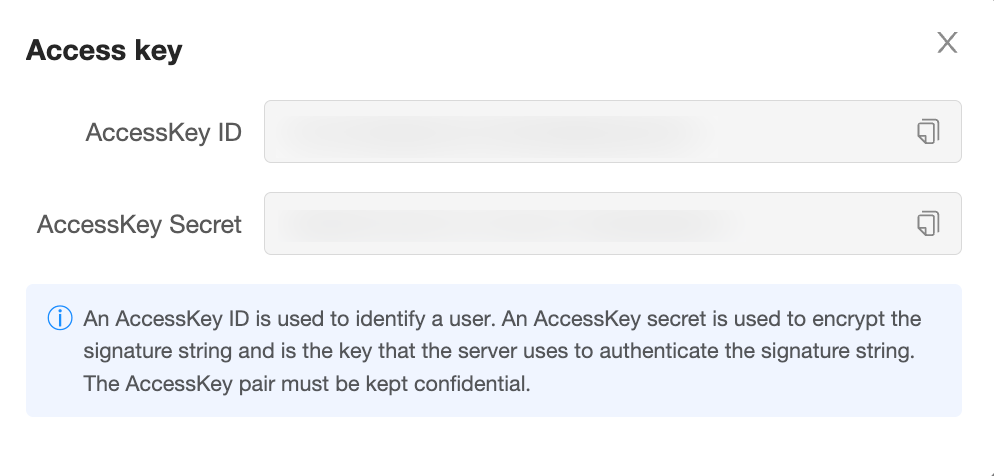
View your Personal Identification Code.
Language
Switch the display language.
The default is your browser's language. You can switch to Simplified Chinese or English.
Analysis mode switching: The platform supports two modes: Chat Mode and Canvas Mode.
Chat Mode: The core module of Quick BI AIPro. You can describe your analysis needs in natural language, and the AI automatically queries data, performs calculations, and returns structured results. It supports multi-turn follow-up questions, output generation, and one-click subscriptions.
Canvas Mode: A visual workbench for conversational analysis. You can move analysis results from your conversation onto the canvas for free-form arrangement and presentation. The canvas accepts all outputs from the conversation, such as charts, text, reports, HTML, and files, and allows you to organize, ask follow-up questions about, and combine these outputs to create new analysis outputs.
Intent recognition: AIPro uses conversational intent recognition to automatically map the natural language you enter to a corresponding action, such as data query, visualization, diagnosis, report generation, or scheduled task creation. This eliminates the need to manually switch to a specific function page. The system then returns relevant analysis results based on your question.
Multiple output formats: The platform can generate various output formats, including document reports, visual reports, HTML reports, PowerPoint presentations, and skills.
Using analysis results: You can share, subscribe to, and download your analysis results.
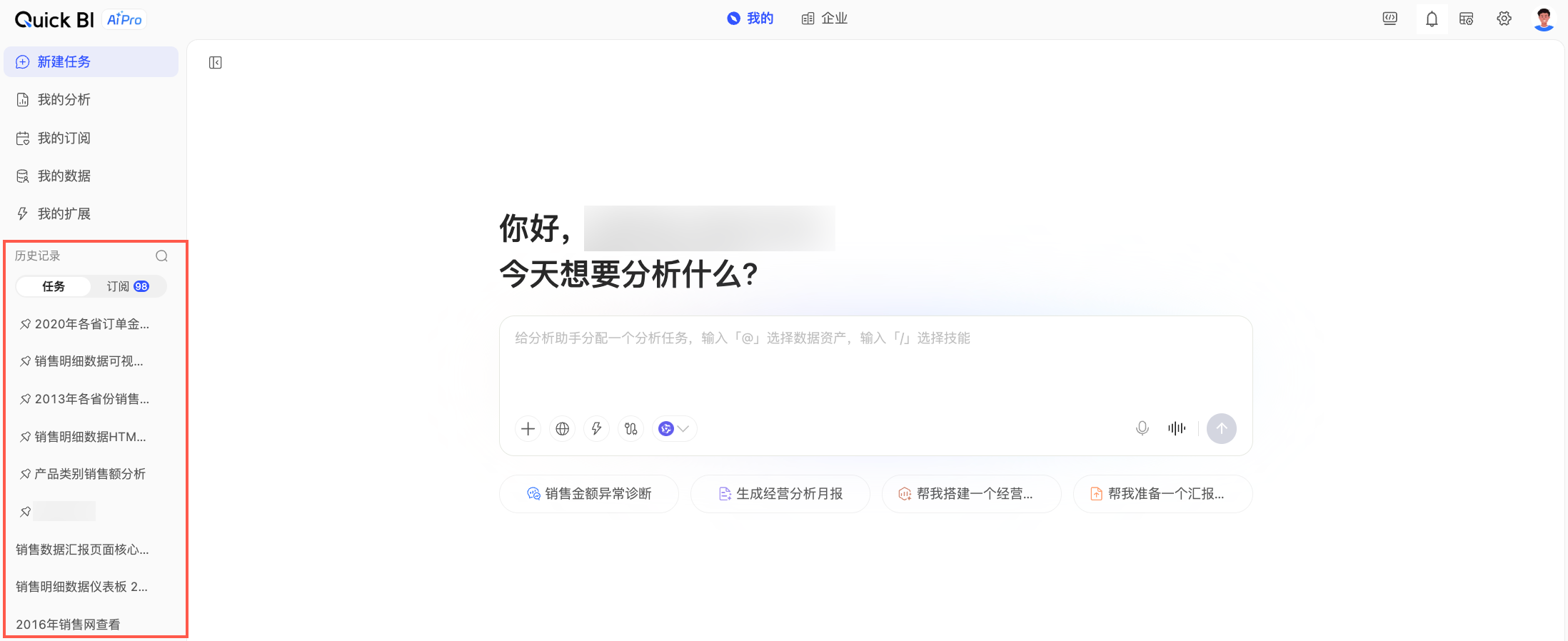
View history: You can view and search the history of your Tasks and Scheduled items in the lower section of the left-side navigation pane.
 Business Definition: Define common business concepts within your enterprise. You can enter frequently used and standard terms from your business operations, such as "Sales Progress" or "GMV". The maximum length is 100 characters.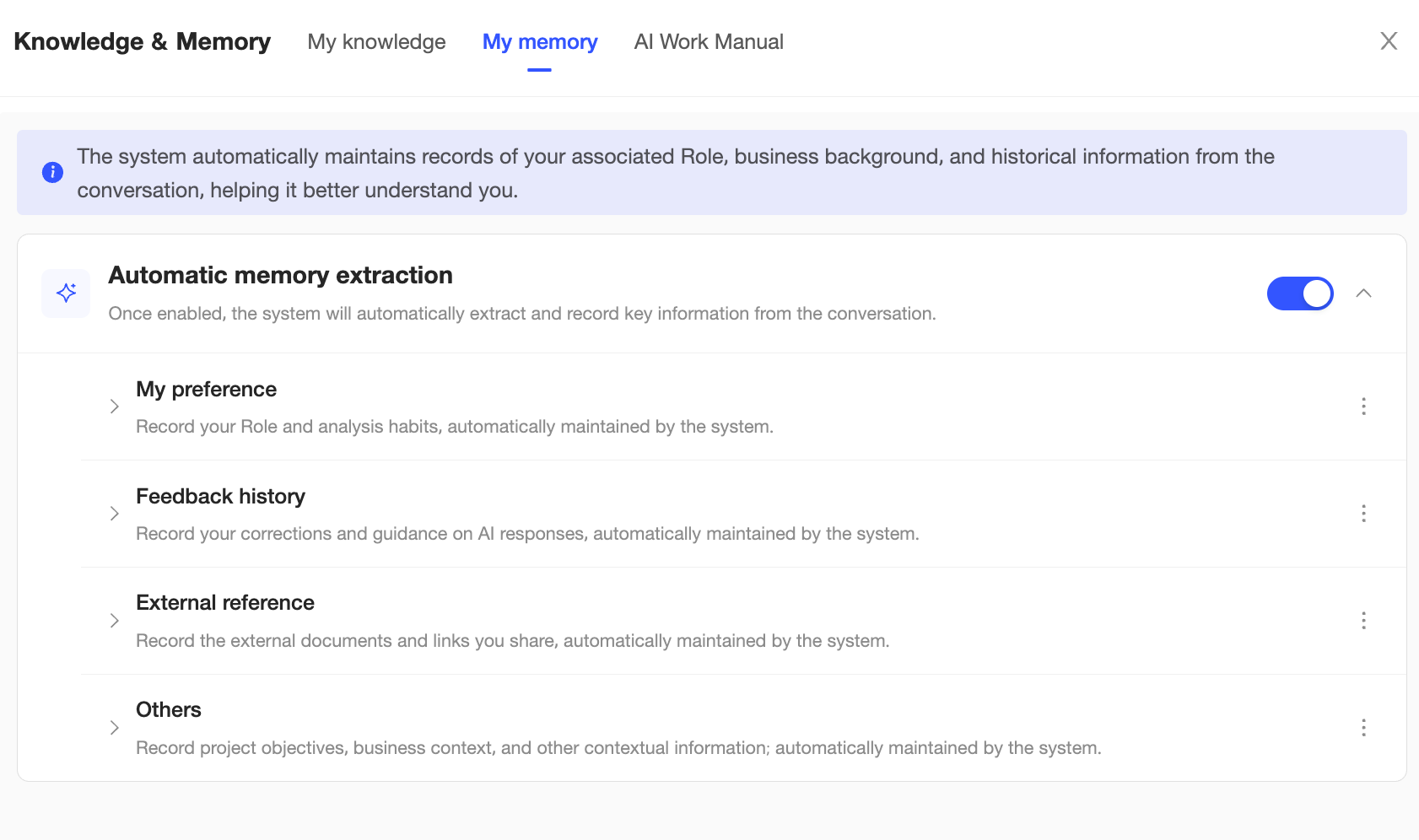
 icon for the target memory, and then click Confirm in the confirmation dialog box. Once a memory is cleared, it cannot be recovered, so proceed with caution.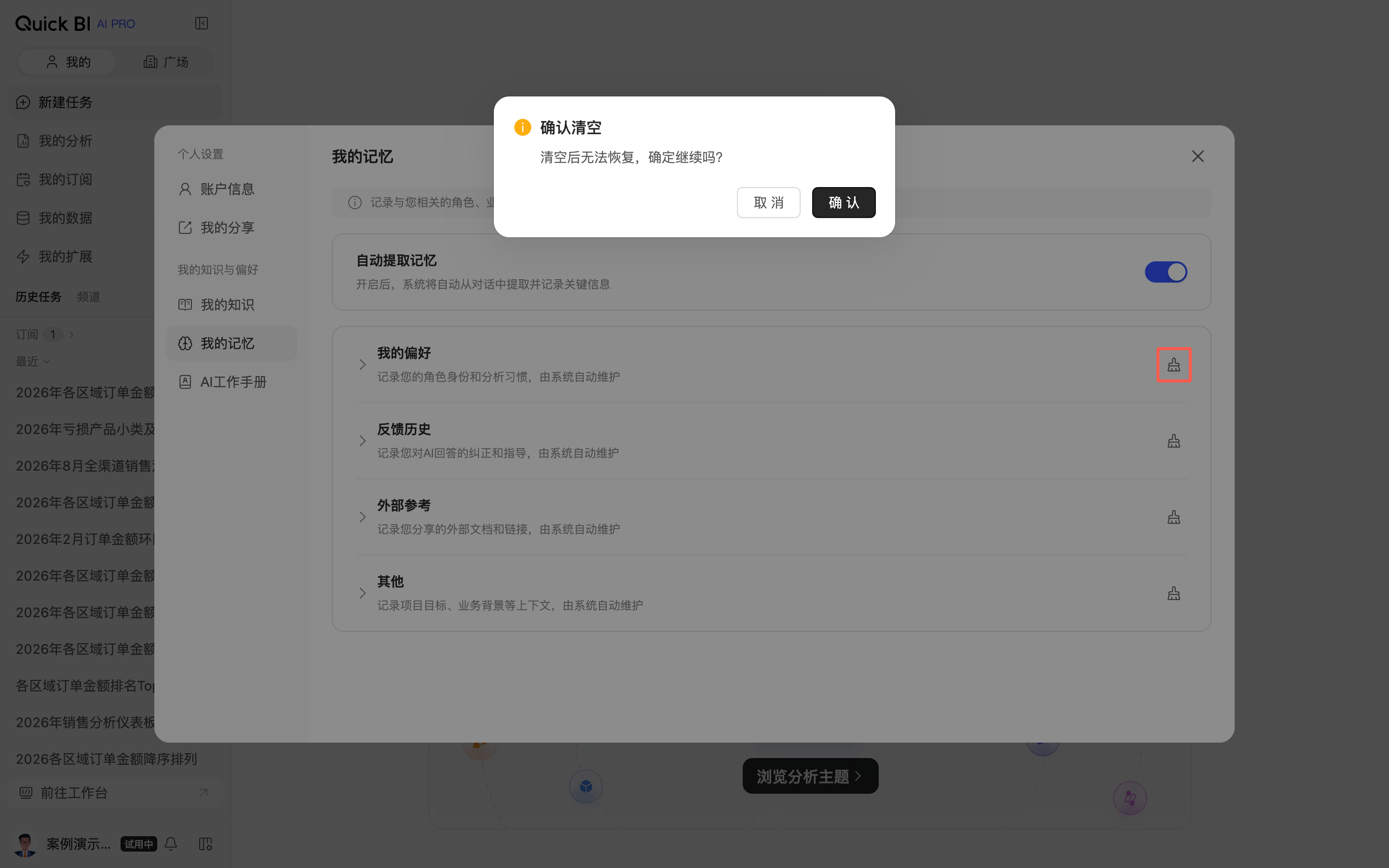
Workflow
The Quick BI AIPro workflow has two main tracks: administrator configuration and user tasks. The following sections describe the steps and provide links to relevant documentation.
Administrator configuration
Step | Actions | Description |
1 | Use a custom role to configure user permissions. | |
2 | Connect your enterprise data. This allows business users to find and use preset enterprise data assets, including data tables, datasets, files, and APIs. | |
3 | (Optional) Pre-configure frequently used data assets. This allows business users to see their department's most common data assets immediately after logging in, without having to configure or search for data sources. | |
4 | Configure the Knowledge Center. Add your enterprise's business metrics, indicator definitions, and field descriptions to AIPro to ensure that AI-generated analysis aligns with your company's standards. | |
5 | (Optional) Configure analysis skills. Turn standard enterprise analysis workflows (such as monthly business reviews, anomaly attribution, and store performance dashboards) into reusable AI skills. | |
6 | (Optional) Connect an MCP connector. Integrate external tools (such as DingTalk, Lark, internal APIs, and industry data sources) into the AI analysis process by using MCP (Model Context Protocol) to expand the scope of analysis. | |
7 | View user activity, including questions, data retrieval processes, and like/dislike feedback. | |
8 | Manage Credits and quotas. Control and audit resource consumption by users within your enterprise. |
User tasks
Step | Actions | Description |
1 | Configure your data assets. You can add enterprise data from the Data Marketplace or upload your own local files. Supported file types include Excel, PDF, Word, Markdown, and TXT. | |
2 | Describe your analysis needs in natural language. The AI automatically queries and analyzes the data, returning structured results. The system supports multi-turn follow-up questions, output generation, and one-click subscriptions. It provides both Chat Mode and Canvas Mode for interaction. | |
3 | A central place to store and manage all the analysis outputs you have created and saved during your conversational analysis sessions. | |
4 | This module helps you manage scheduled analysis tasks. You can configure important analysis tasks to run at scheduled intervals. The system automatically executes them at your specified frequency and delivers the results through various channels, such as email, DingTalk, or WeCom. | |
5 | Add and manage skills for use in your analyses. |
Required permissions
Users must be assigned an organization role with the relevant AIPro permissions.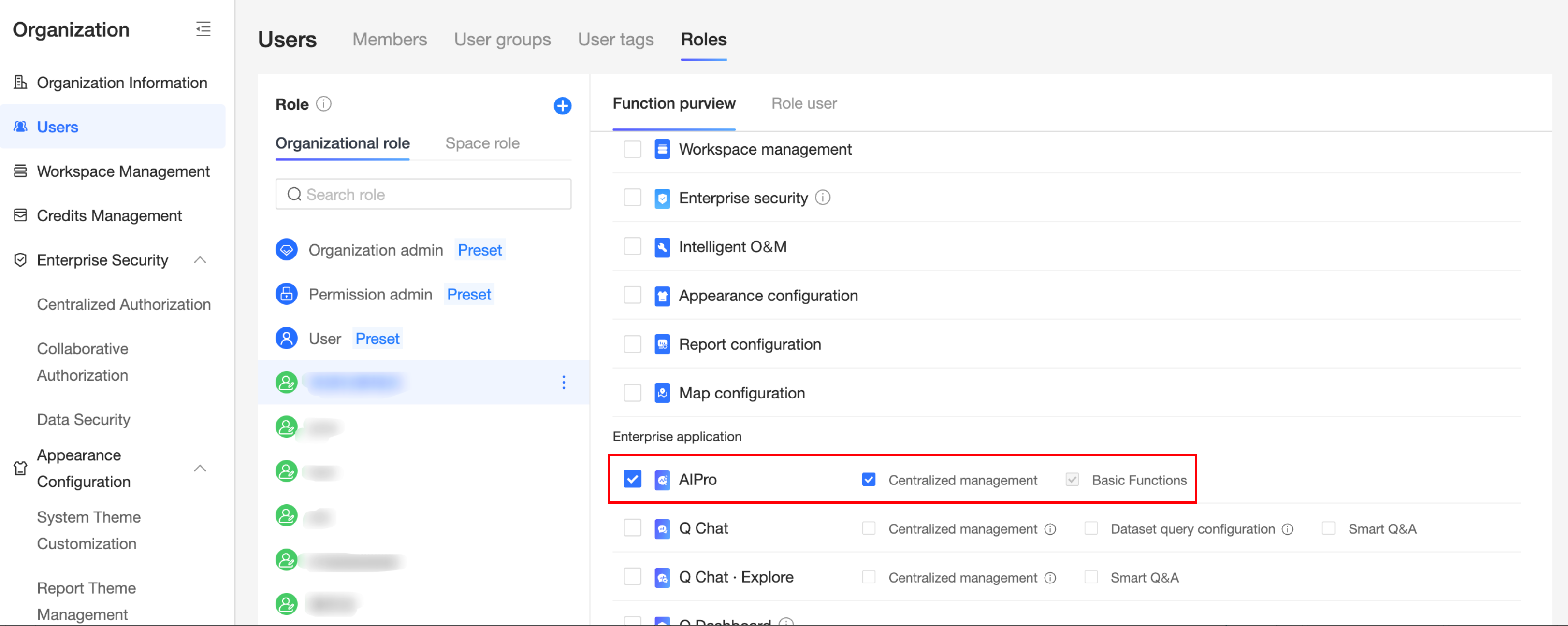
Users with the Basic Features permission for AIPro can use the platform.
Users with the Centralized Management permission for AIPro can manage the platform.