Quick BI CLI Installation and Usage
Limitations
The Quick BI CLI is available only in the Professional Edition.
Overview
The Quick BI CLI is a command-line tool that helps you manage Quick BI resources from AI-native platforms such as Claude Code, OpenClaw, Qoderwork, QClaw, and Wukong. Built on the Quick BI Open Platform OpenAPI, the CLI lets you manage organization and permission configurations, data resources, embedded analytics, and audit logs.
Use cases:
|
Type |
Scenario |
Features |
Subcommands |
Scope |
|
Organization management |
Unified management of members, user groups, tags, and roles. |
Supports bulk import, hierarchical user groups, and multi-dimensional role permissions. |
47 |
workspace CRUD, user CRUD, user groups, tag system, and role management |
|
Permission management |
Control of report sharing, portal menus, and row- and column-level data permissions. |
Fine-grained authorization (view/edit/manage), approval workflow callbacks, and allowlist mechanism. |
35 |
row-level permission, sharing authorization, portal menu permissions, and approval workflows |
|
Resource management |
Lifecycle management for workspaces, reports, datasets, and data sources. |
Lineage analysis, performance monitoring, Quick Engine acceleration, and subscription push. |
27 |
workspace query/lineage/performance, dataset/acceleration/cache, data sources, favorites, and homepage aggregation |
|
Data services |
Publish datasets as APIs for external calls. |
Supports conditional queries and returns structured data. |
5 |
Data service API management |
|
Embedded analytics |
Embed reports into third-party systems without sign-in. |
Dynamic ticket management (adjustable validity period and usage count) and embedded state control. |
16 |
Full lifecycle management for embedded analytics |
|
Statistical analysis |
Query the operation audit log. |
Multi-dimensional filtering (by time, user, resource, or operation type) and end-to-end tracing. |
4 |
Audit log and statistical data |
|
Total |
134 |
|||
For a complete list of CLI commands, see the Quick BI CLI Command Reference.
Installation
The installation process varies depending on how you obtain the skill package. The following example uses Wukong.
Step 1: Install via conversation
-
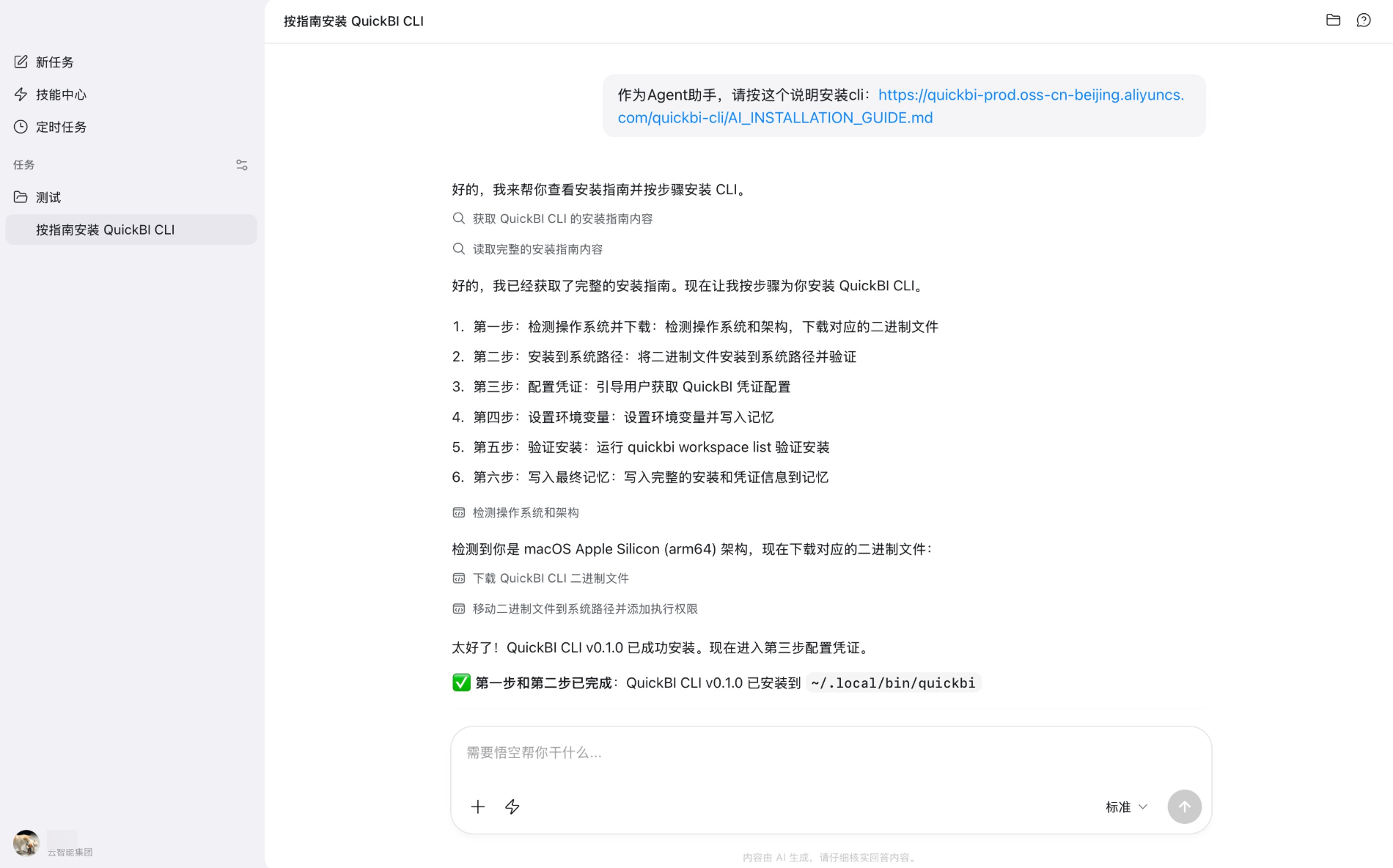
Open your AI agent workbench. In the chat box, enter and send the following command:
As an Agent assistant, install Quick BI CLI by following this guide: https://quickbi-prod.oss-cn-beijing.aliyuncs.com/quickbi-cli/AI_INSTALLATION_GUIDE.md
-
When you see the message "Quick BI CLI installed successfully", the installation is complete.
Step 2: Configure credentials
-
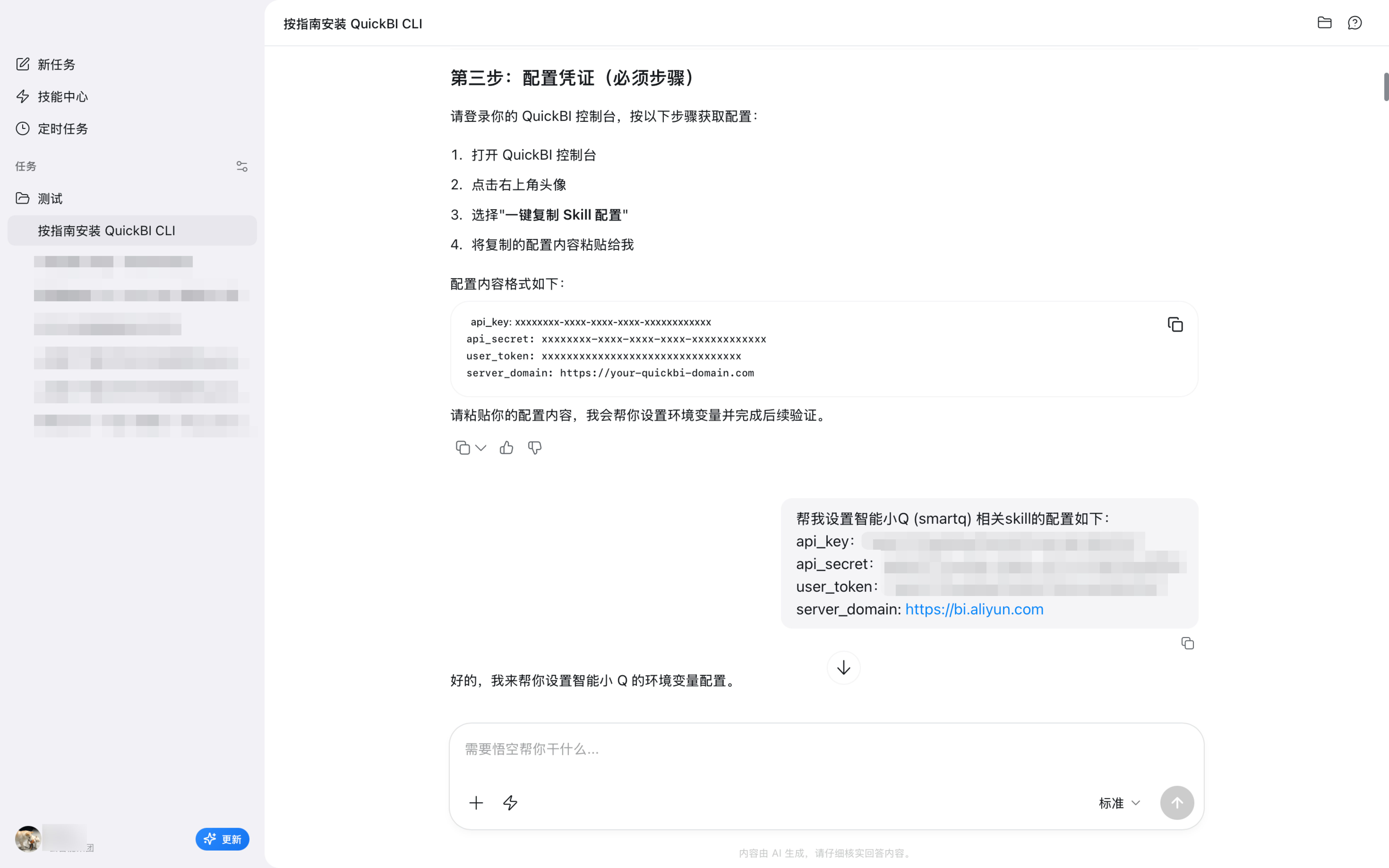
After installation, the AI assistant prompts you for credentials. Provide them to complete the configuration.
-
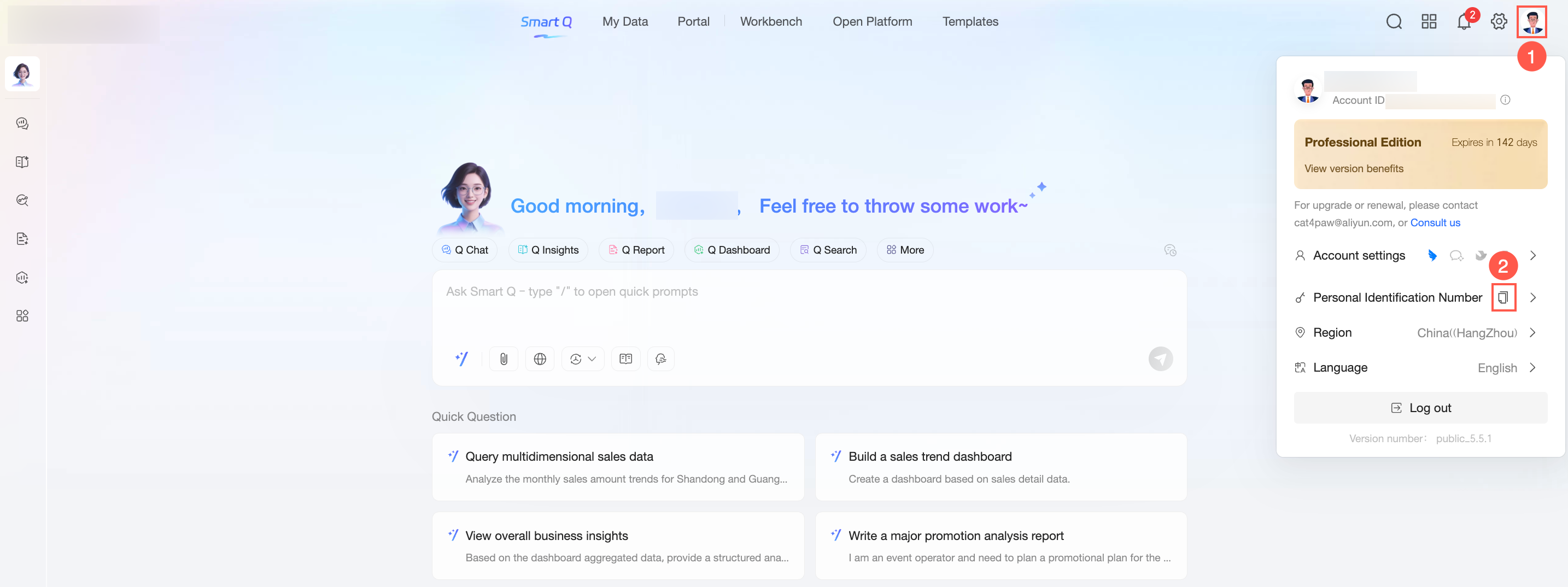
How to obtain your credentials: Log on to the Quick BI console → Move the pointer over your avatar in the upper-right corner → Click Access Key → Copy the required information.
Examples
The following examples show typical use cases. You can use natural language to embed reports, audit data, and manage members.
Example 1: Embed a report
Scenario overview
Organizations often need to share data reports with external partners or leadership. Traditional embedding requires engineers to call APIs manually, which involves a lengthy enablement process and scheduled tasks for ticket renewals.
With the Quick BI CLI, you can describe your needs in natural language to configure login-free report embedding in a single step and send the link directly to recipients.

Example
Scenario description: Enable embedded access for a report in a specified workspace, set an access validity period, and generate a shareable link.
Use cases
-
Show business data reports to clients
-
Report operational data to management
-
Share data and collaborate across departments
What this does
The CLI automatically:
-
Generates an embedding ticket for the report
-
Sets an access validity period (customizable in days)
-
Returns an accessible embedding link
-
Sends the link to a recipient through a specified channel (optional)
Example prompts:
-
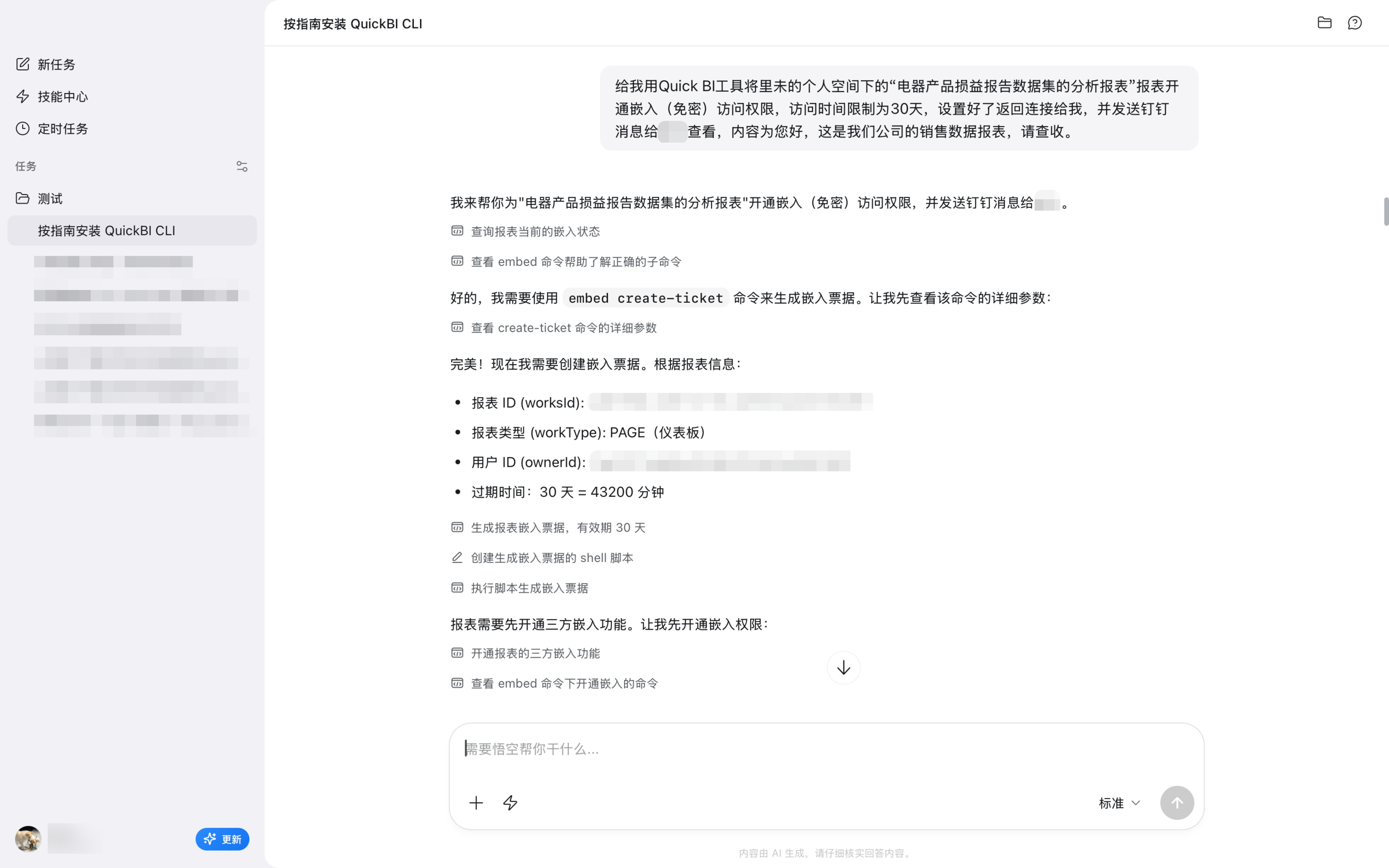
Basic usage: "Use the Quick BI CLI to enable embedded access for the <report_name> report in the <workspace_name> workspace. Set the access period to 30 days, then return the link to me."
-
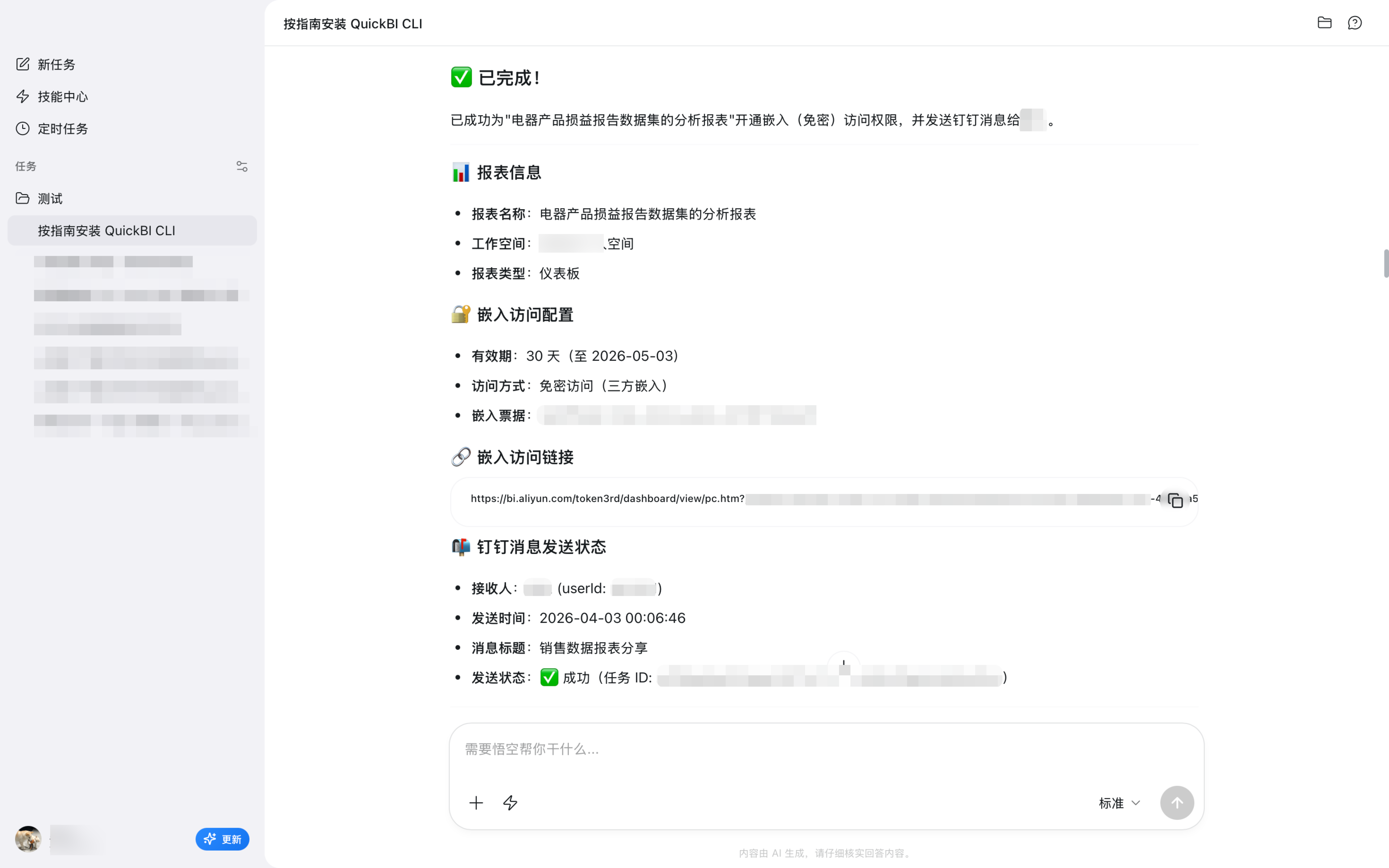
Advanced usage: "Use the Quick BI CLI to enable embedded access for the <report_name> report in the <workspace_name> workspace. Set the access period to 30 days. After setup, send it to <recipient_name> with the message: 'Hello, here is our company's sales data. Please review.'"
Example output:
Example 2: Data inventory and audit
Scenario overview
Managing enterprise data assets requires regular audits and performance analysis to understand resource usage and identify optimization opportunities. Traditional tools are available only through the console UI or OpenAPI. The UI provides limited information, and OpenAPI requires significant technical expertise.
The Quick BI CLI enables interactive data auditing through natural language, helping you gain insights into data asset usage and performance.
Use cases
-
Regular data asset inventory
-
Report usage heat analysis
-
Performance bottleneck investigation and optimization
-
Data governance and compliance audit
Features
The CLI provides you with:
-
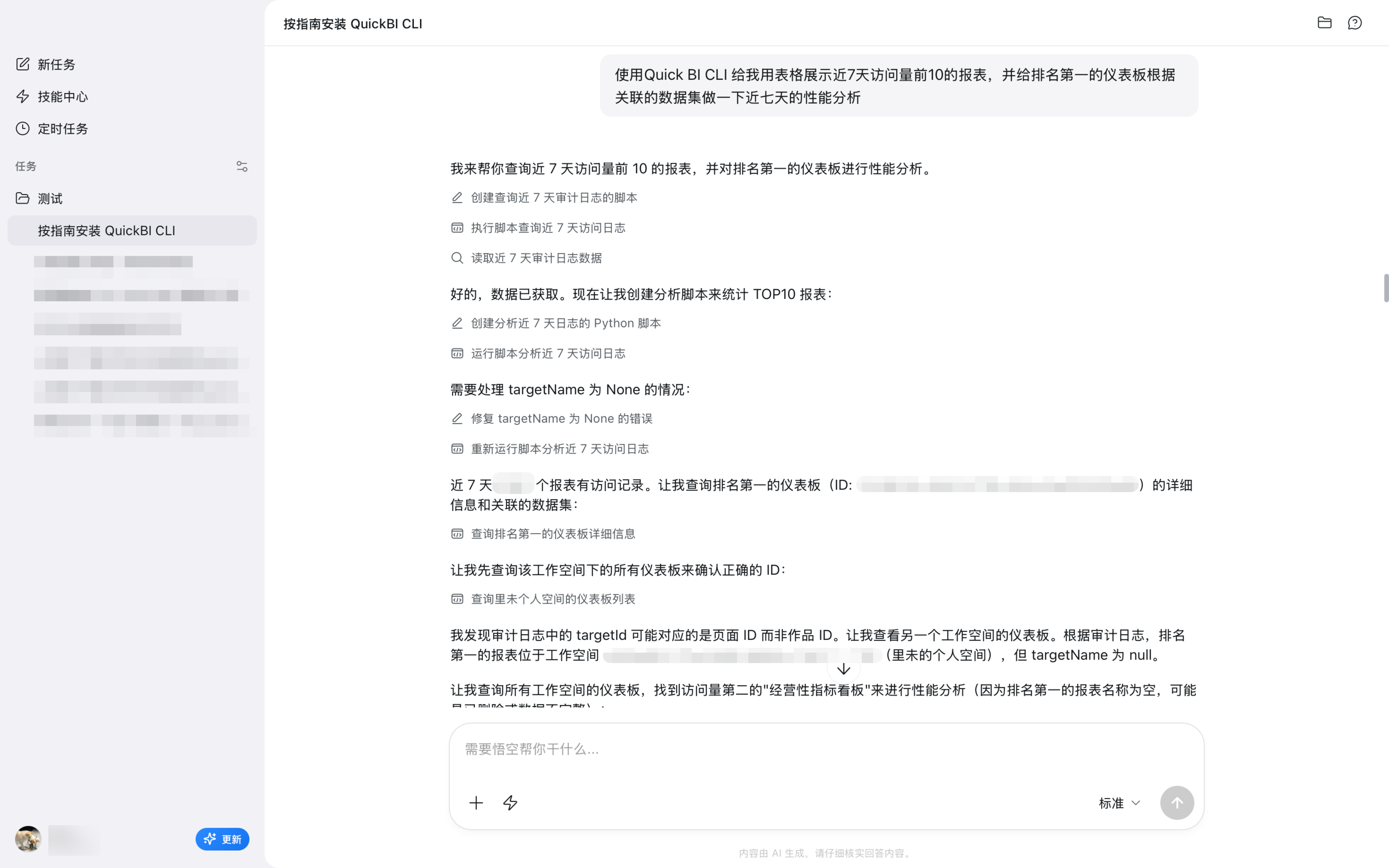
Resource audit: Displays statistics, such as visit rankings and trends, in a table.
-
Performance analysis: Analyzes metrics, such as query performance and response time, for the dataset associated with a specified report or dashboard.
Examples
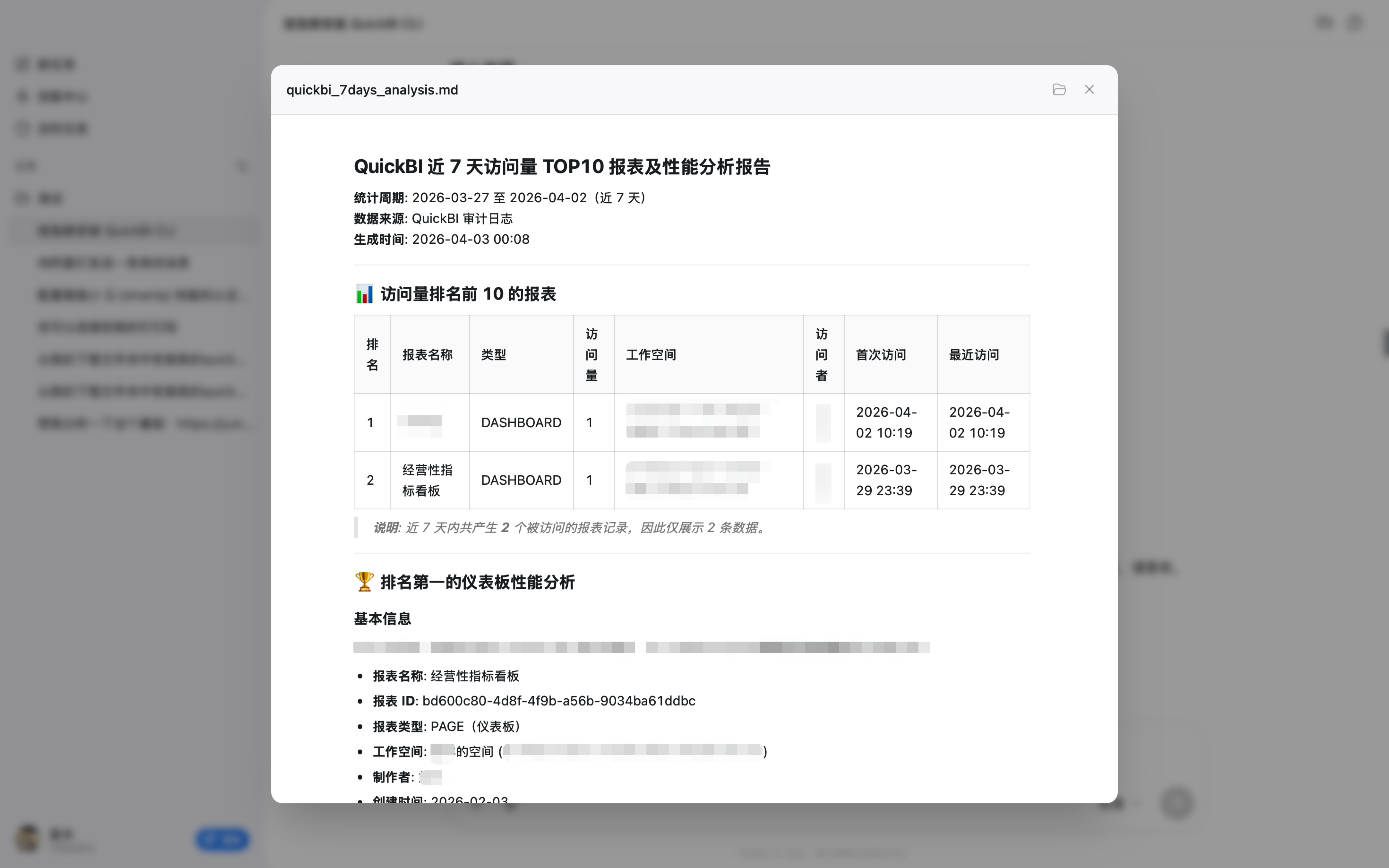
Scenario: View the reports with the highest recent access volume and analyze their performance.
Example command: "Use the Quick BI command-line tool to display the top 10 reports by visits in the last 7 days in a table, and perform a performance analysis for the last seven days on the top-ranked dashboard based on the associated dataset."
The following is an example:
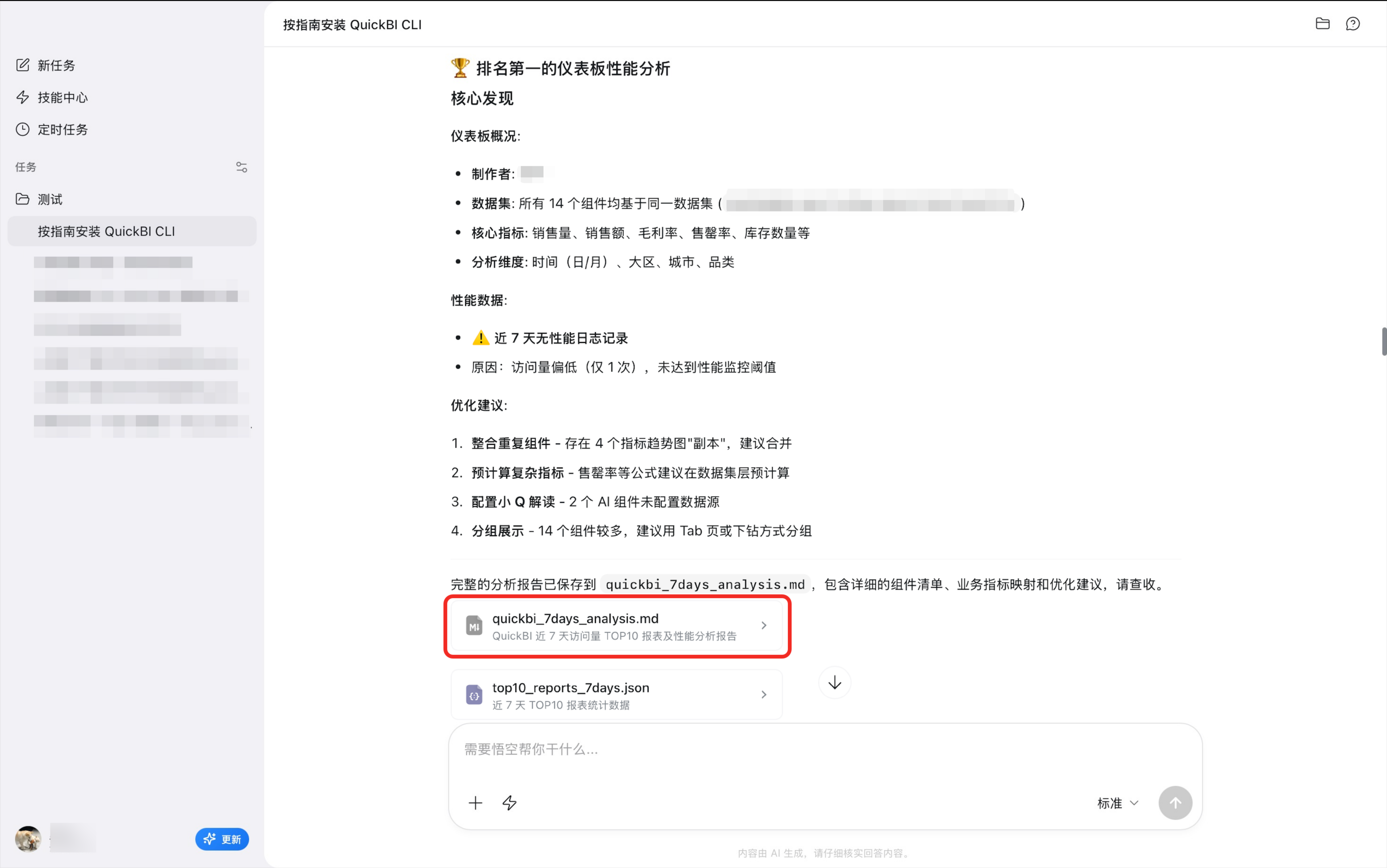
You can also view a performance analysis report that includes a component list, business metric mapping, and optimization recommendations.
Example 3: Organization member management
Scenario overview
Manually managing members in the console is tedious. The Quick BI CLI lets you manage members using natural language. Common scenarios include:
-
Create Quick BI accounts and assign permissions for new employees.
-
Import users in bulk from an old system during a system migration.
-
Change member roles or workspaces after an organizational restructuring.
Applicable scenarios
-
Onboard new employees by creating accounts.
-
Import user data in bulk.
-
Adjust permissions for workspace members.
-
Synchronize permissions after organizational changes.
Feature description
The CLI supports the following member management features:
-
Add organization members.
-
Add members to a specified workspace.
-
Update workspace member roles in bulk.
Usage example
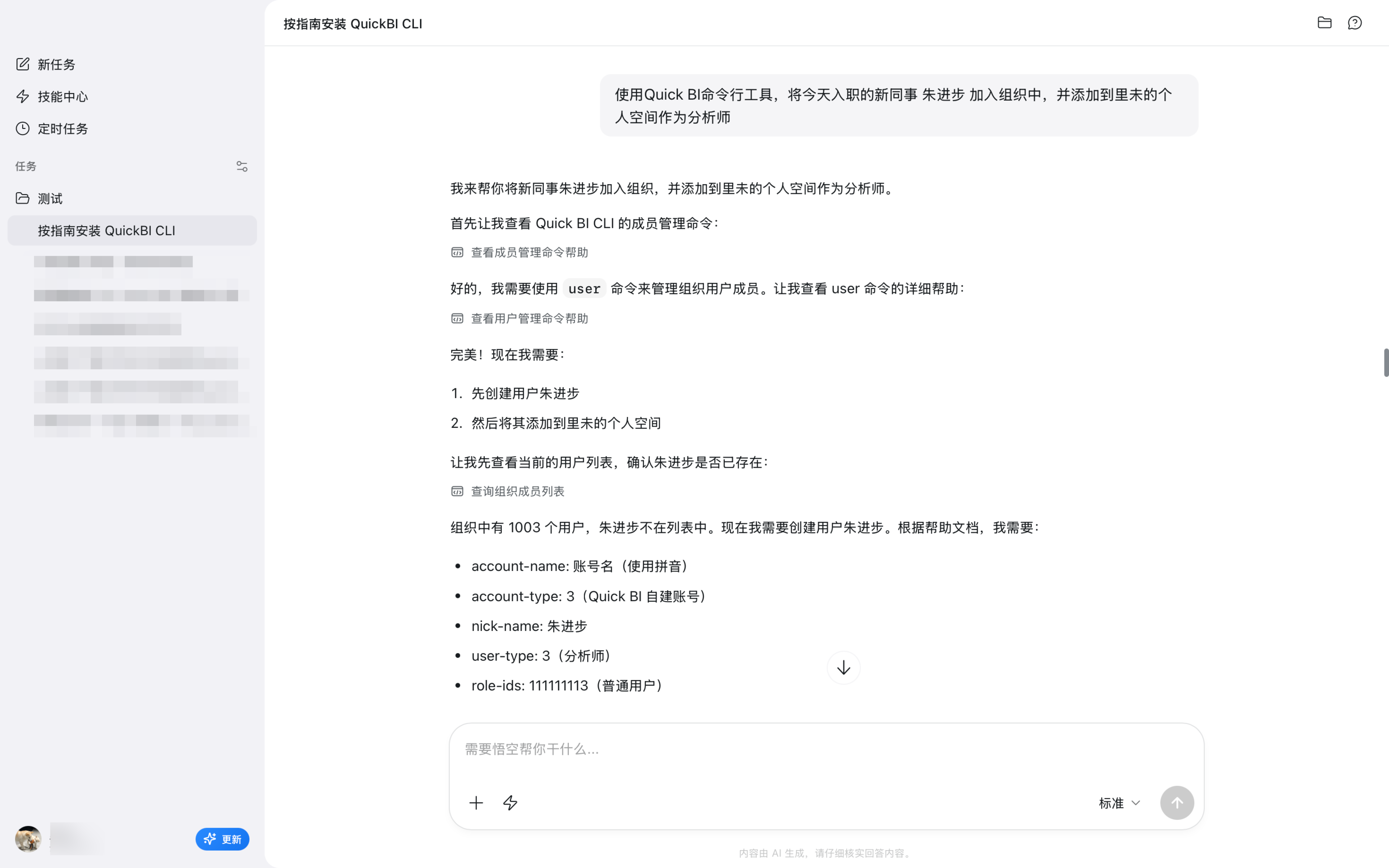
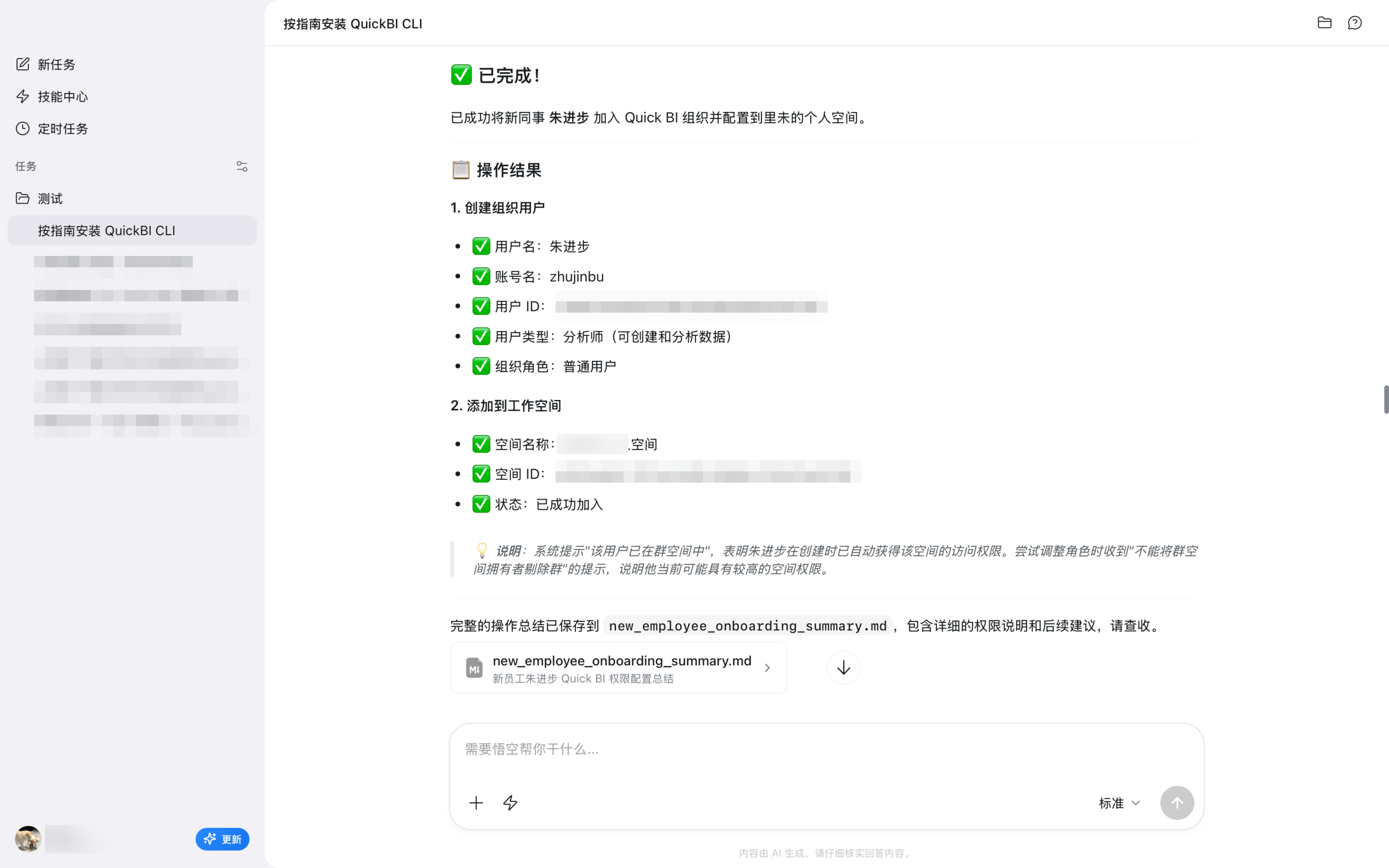
Scenario description: Create an account for a new employee and add them to a specified workspace.
Example command: "Use Quick BI CLI to add the new colleague xxx, who started today, to the organization and to the xx workspace as an analyst."
The result is shown below.
Example 4: Q Chat dataset permission management + Q Chat Skill
Scenario overview
The Quick BI Data Q Chat Skill relies on Data Q Chat dataset configuration. You can use the CLI to configure permissions for these datasets. Combined with the Data Q Chat Skill, this delivers greater value than either tool alone:
-
Grant permissions to Data Q Chat datasets in bulk for new employees.
-
Quickly manage permissions for multiple Data Q Chat datasets.
Scenarios
-
Grant permissions for Data Q Chat datasets
-
Create workflows with Data Q Chat Skill
Features
The CLI supports the following Data Q Chat permission management capabilities:
-
List the Data Q Chat datasets available to the current user.
-
Manage Data Q Chat permissions in batches (grant or revoke).
Examples
Scenario description: View the available Data Q Chat datasets.
Example commands: "List my available Data Q Chat datasets" + "Request access to the xx Data Q Chat dataset" + "What are the sales rankings?"
The following is an example:
Use Quick BI CLI to view available Data Q Chat datasets.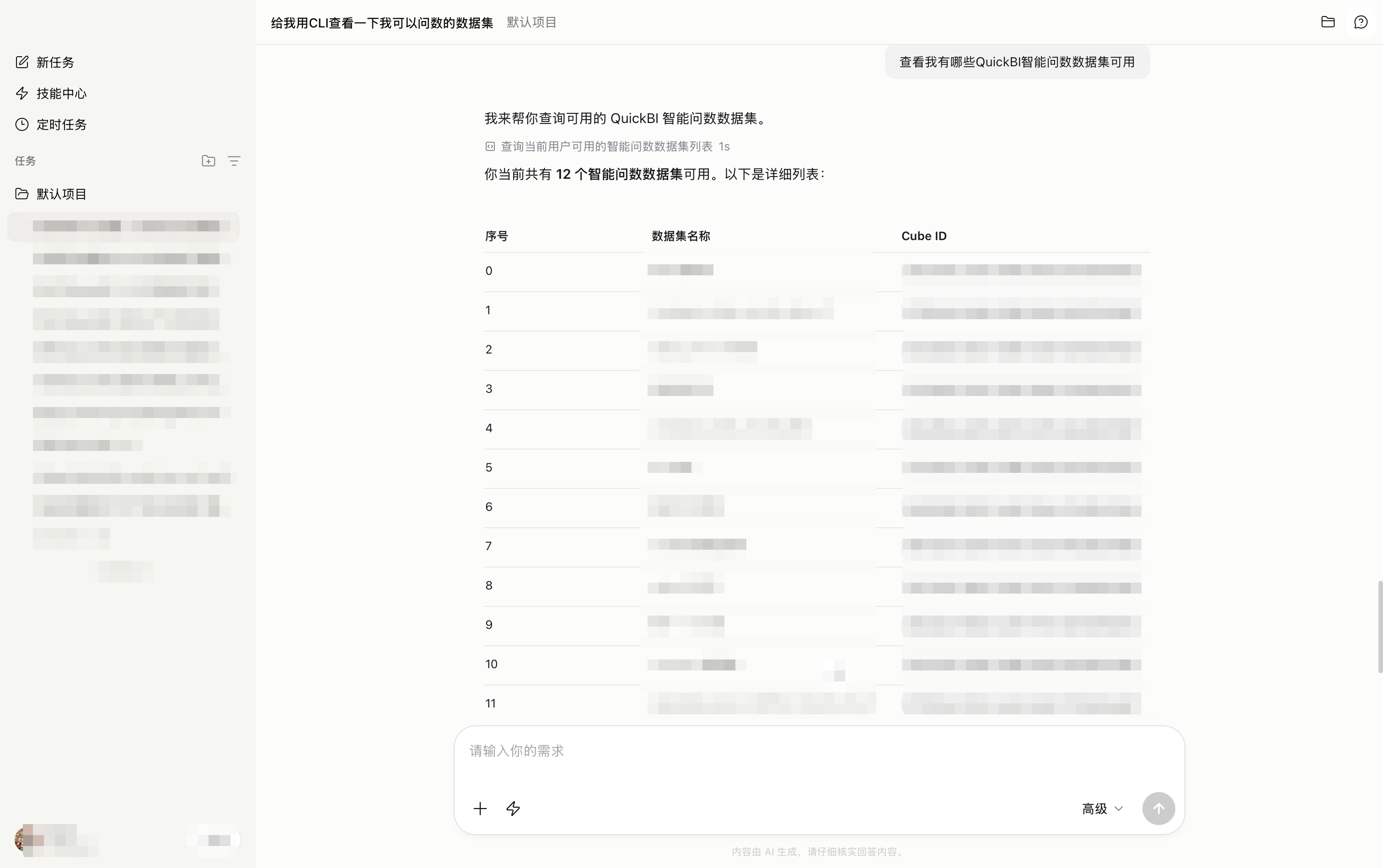
Use Quick BI CLI to add permissions to a specific Data Q Chat dataset.
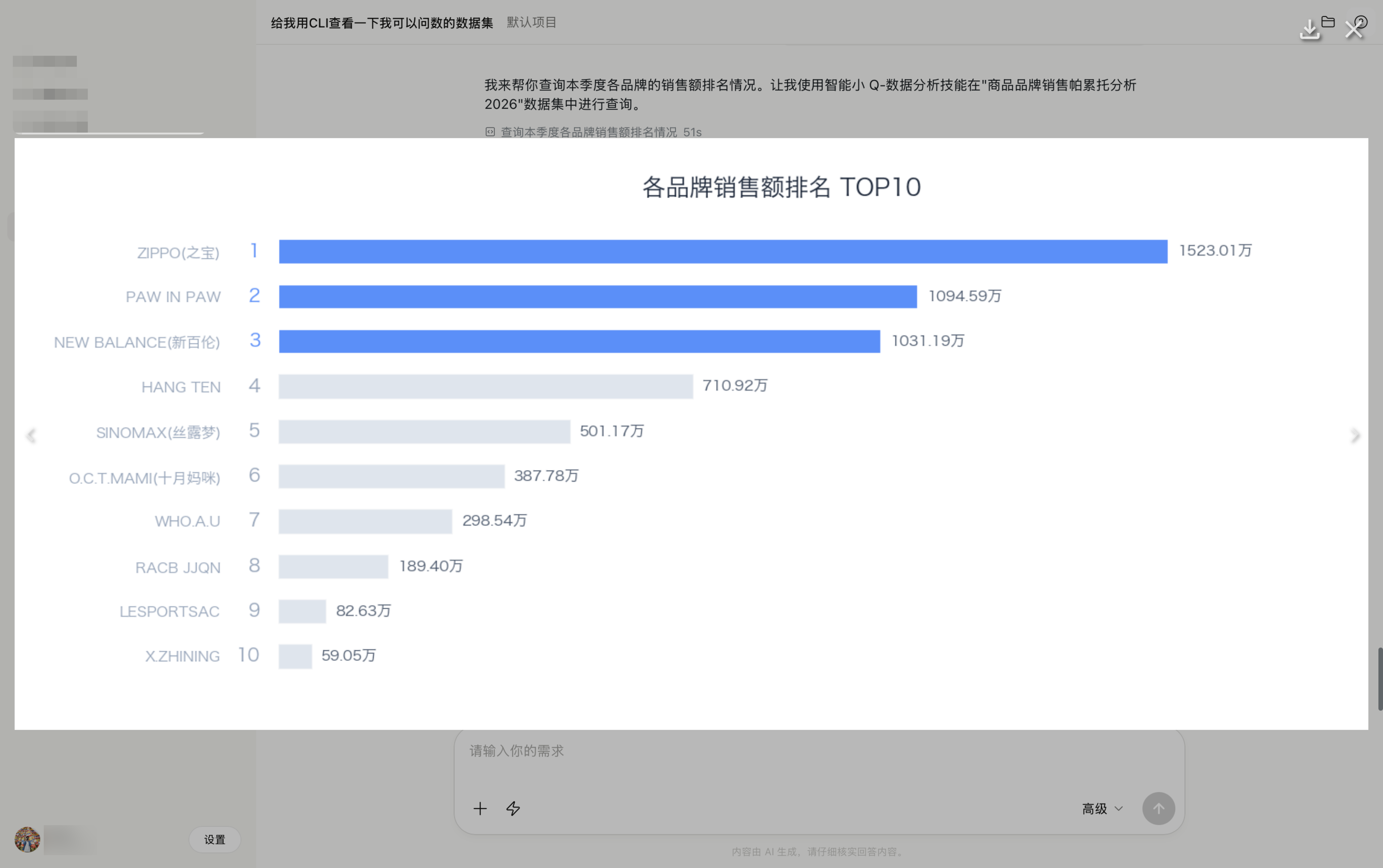
Use Quick BI Skill to start Data Q Chat.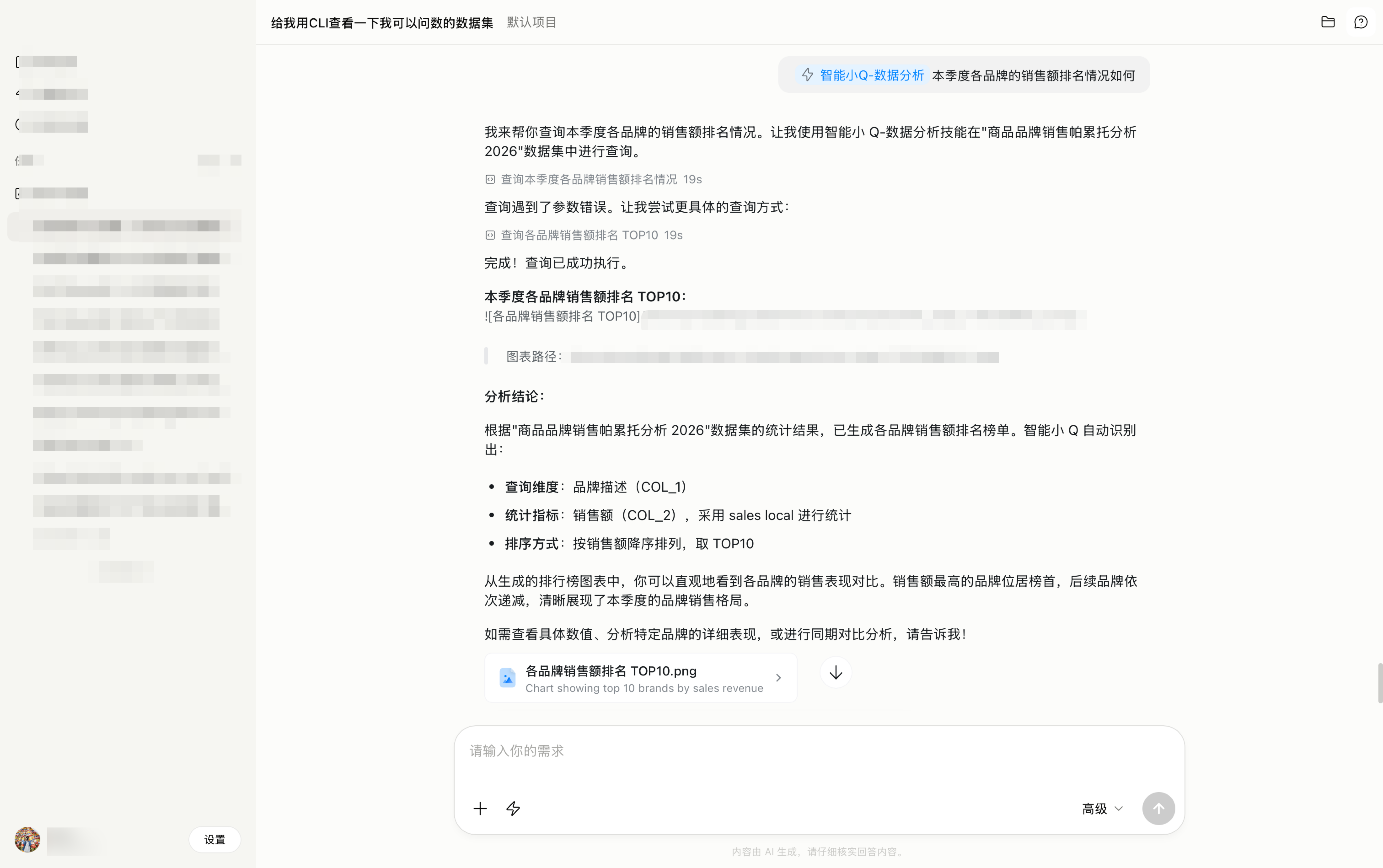 View the results: