Intelligent Q skill
Do not share skill packages that contain your secret keys with others.
1. Core skills
The Intelligent Q analysis skill for Quick BI provides Q&A, Dashboard Q&A, Automated Insights, and Report Generation. It also features automatic intent recognition.
|
Tool |
Description |
|
Q&A |
Ask questions about your data in natural language. The system automatically understands your analytical intent, selects the right data tables, and supports both local Excel/CSV files and Quick BI datasets. Get answers quickly without writing SQL or building models. |
|
Dashboard Q&A |
Ask questions in natural language to analyze the logic and metrics within existing Quick BI dashboards. The feature automatically breaks down complex questions into multiple steps to provide deep, root-cause insights, bringing your static dashboards to life. |
|
Automated Insights |
Automatically analyzes uploaded data files to discover key changes, anomalies, and trends. It generates analytical conclusions with actionable suggestions, eliminating manual data inspection. |
|
Report Generation |
Generate professional analysis reports from multiple data sources with a single click. You can import various file types, including Excel, PDF, and Word. The AI automatically integrates and cross-analyzes the data to produce a well-structured report with charts and text, ready for presentation and decision-making. |
2. Skill package download
You can download the skill package from the following link: https://quickbi-skills.oss-cn-beijing.aliyuncs.com/quickbi-smartq-chat.zip
For usage instructions, see Section 5. Use the Intelligent Q skill.
3. Installation methods
Quick start
Choose an installation method based on your scenario. The following examples use QoderWork for demonstration.
Scenario 1: One-click installation from the official Skill Center
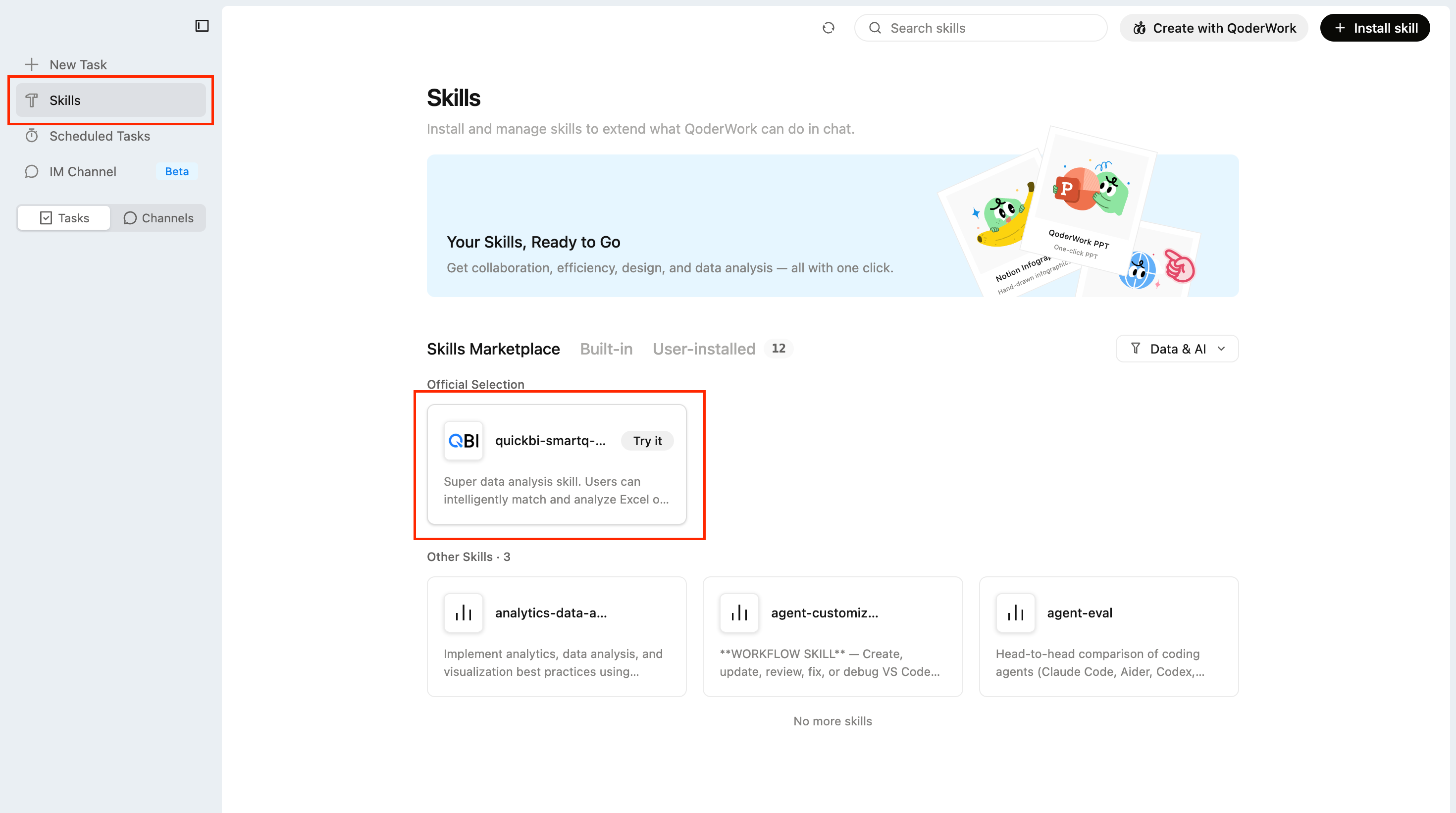
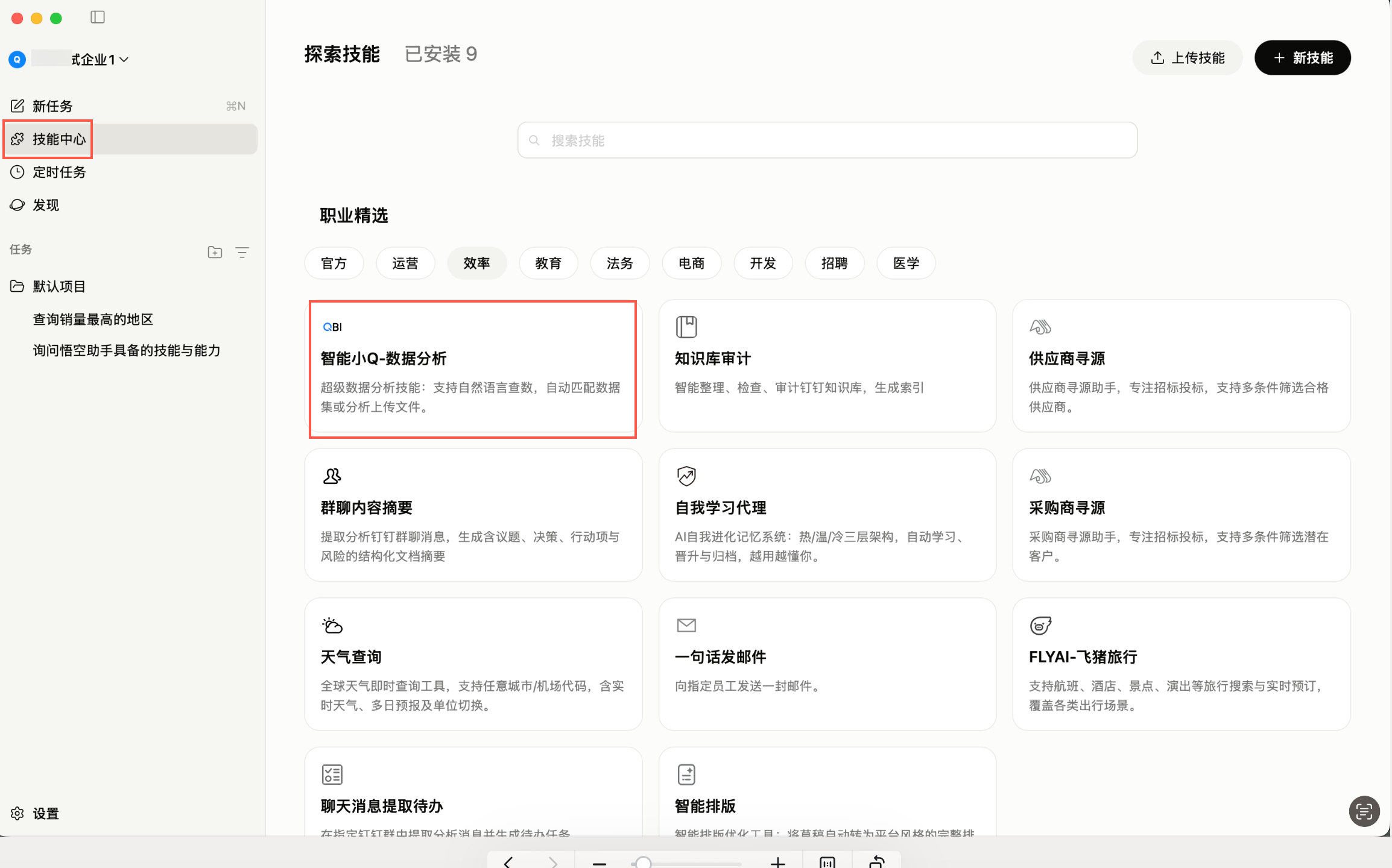
Go to the QoderWork or Wukong workbench, navigate to the Skill Center, find and select "Intelligent Q - Data Analysis", and install it with one click.
-
QoderWork
-
Wukong
Scenario 2: Install through conversation
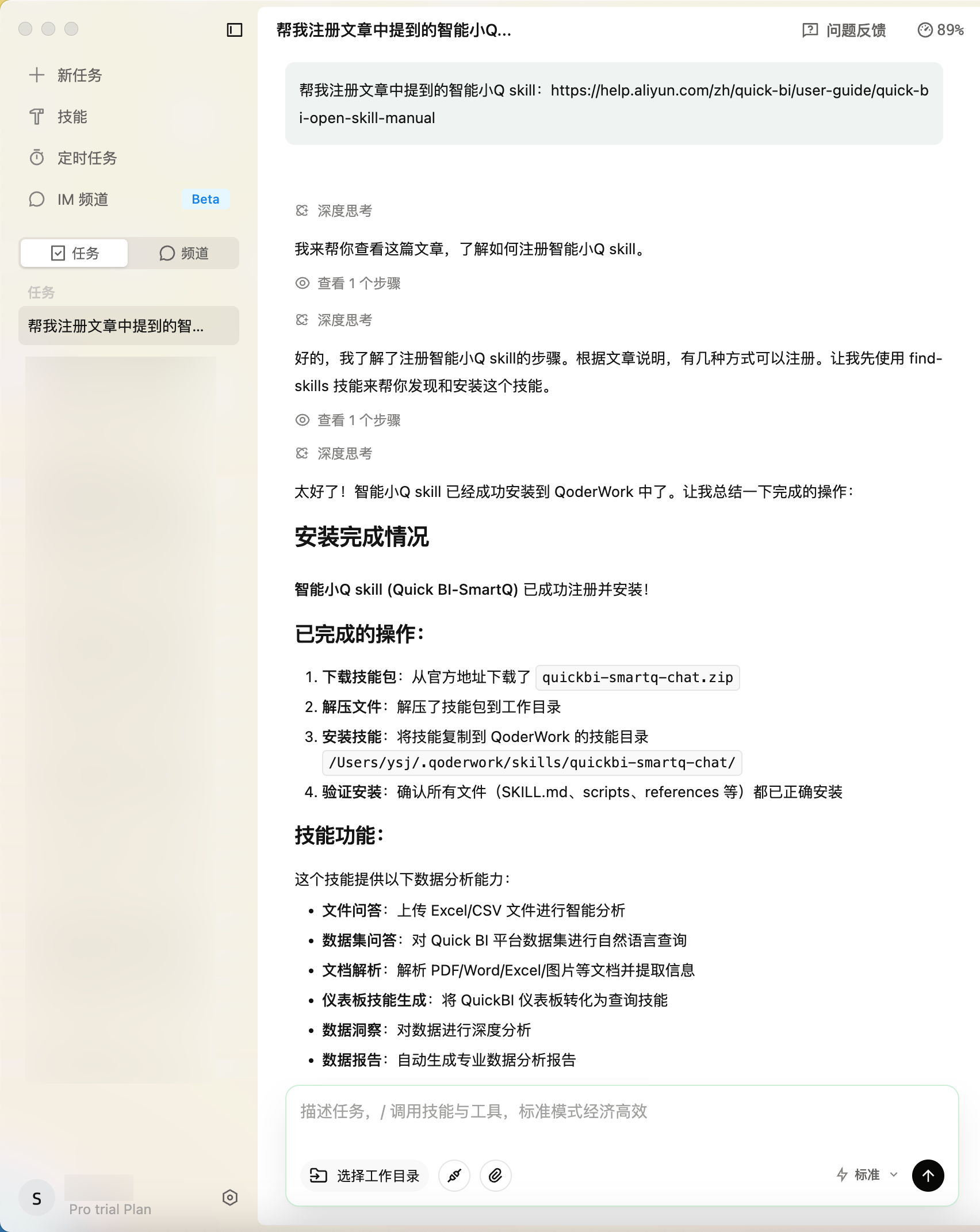
You can install the skill directly with a conversational command:
Send the link to this article to your agent tool and enter "Help me register the Intelligent Q skill mentioned in the article." The tool then automatically installs it.
Scenario 3: Manually upload to the Skill Center
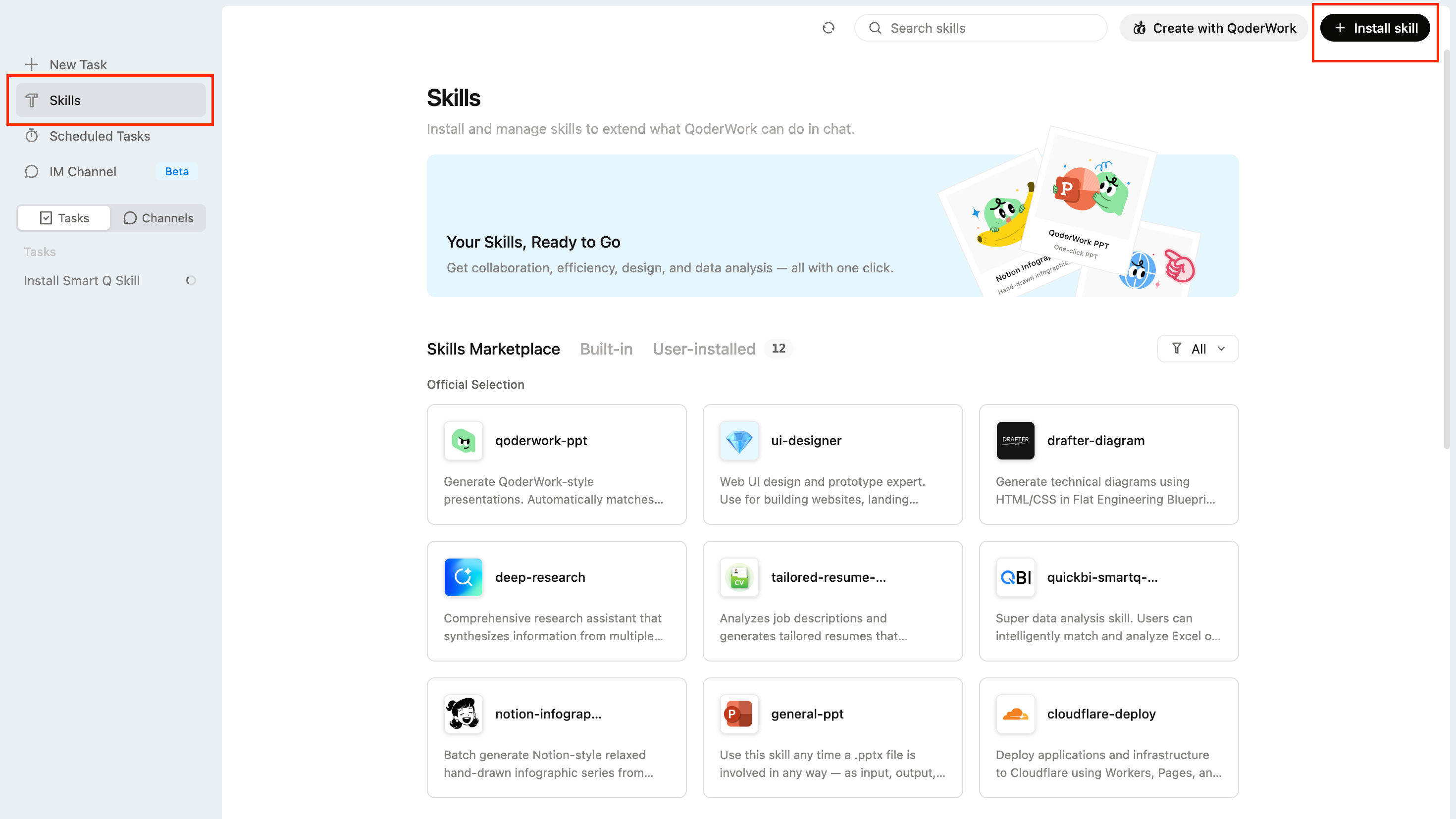
To manually upload and install the skill in the Skill Center, follow these steps:
-
Upload the downloaded
quickbi-smartq-chat.zipfile to the Skill Center.-
Open the Skill Center in your AI-native workbench.
-
Click "Upload skill" or "Install local skill".
-
Select the
quickbi-smartq-chat.zipfile to upload.
-
-
Verify the installation.
-
Confirm that the skill appears in the Skill Center list.
-
Check that the skill status is "Enabled" or "Available".
-
Installation methods vary by agent platform. For details, see Agent platform installation.
Agent platform installation
Wukong installation
Step 1: Navigate to "Skill Center" > "Upload skill".
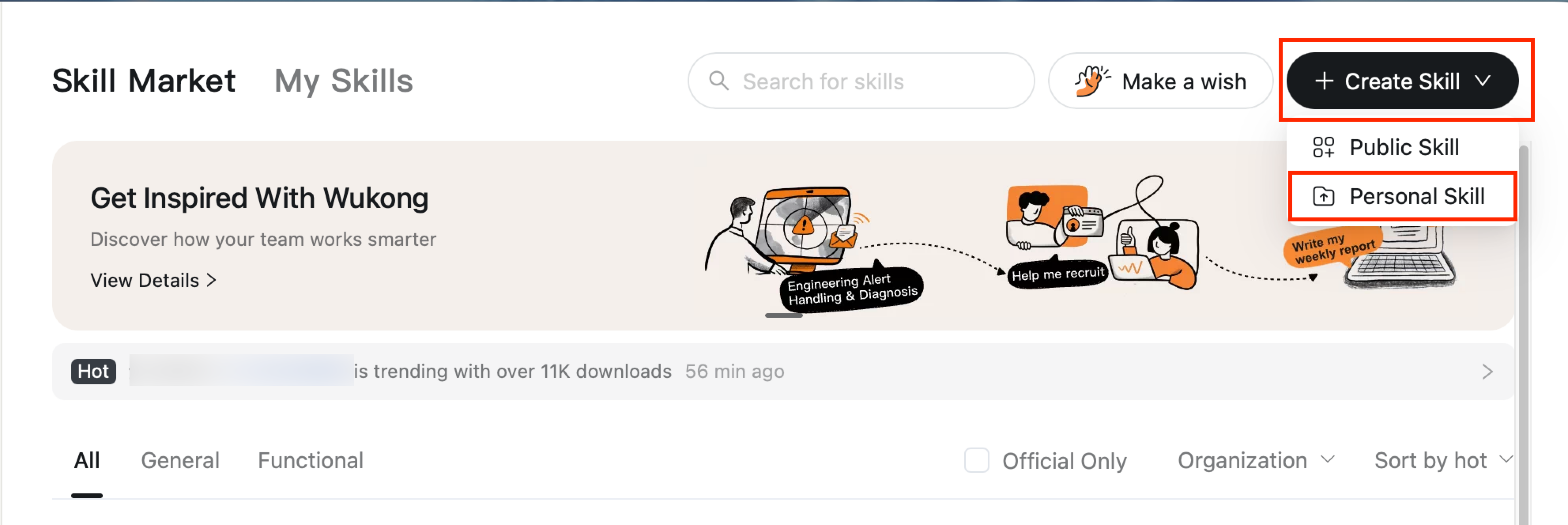
Step 2: Select the downloaded skill package to upload and install.
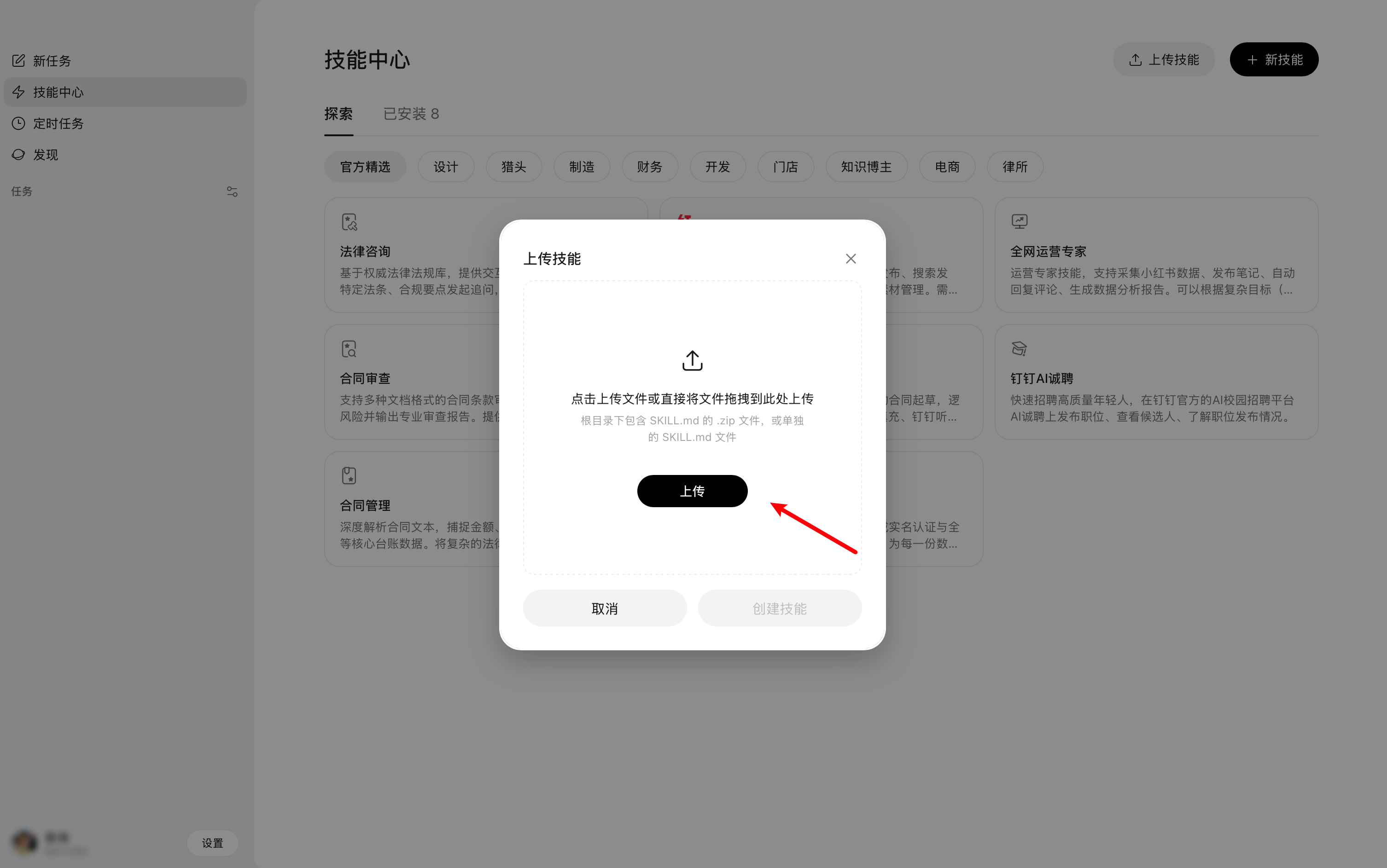
QoderWork installation
Step 1: Navigate to "Skills" > "Install skill".
Step 2: Select the downloaded skill package to upload and install.
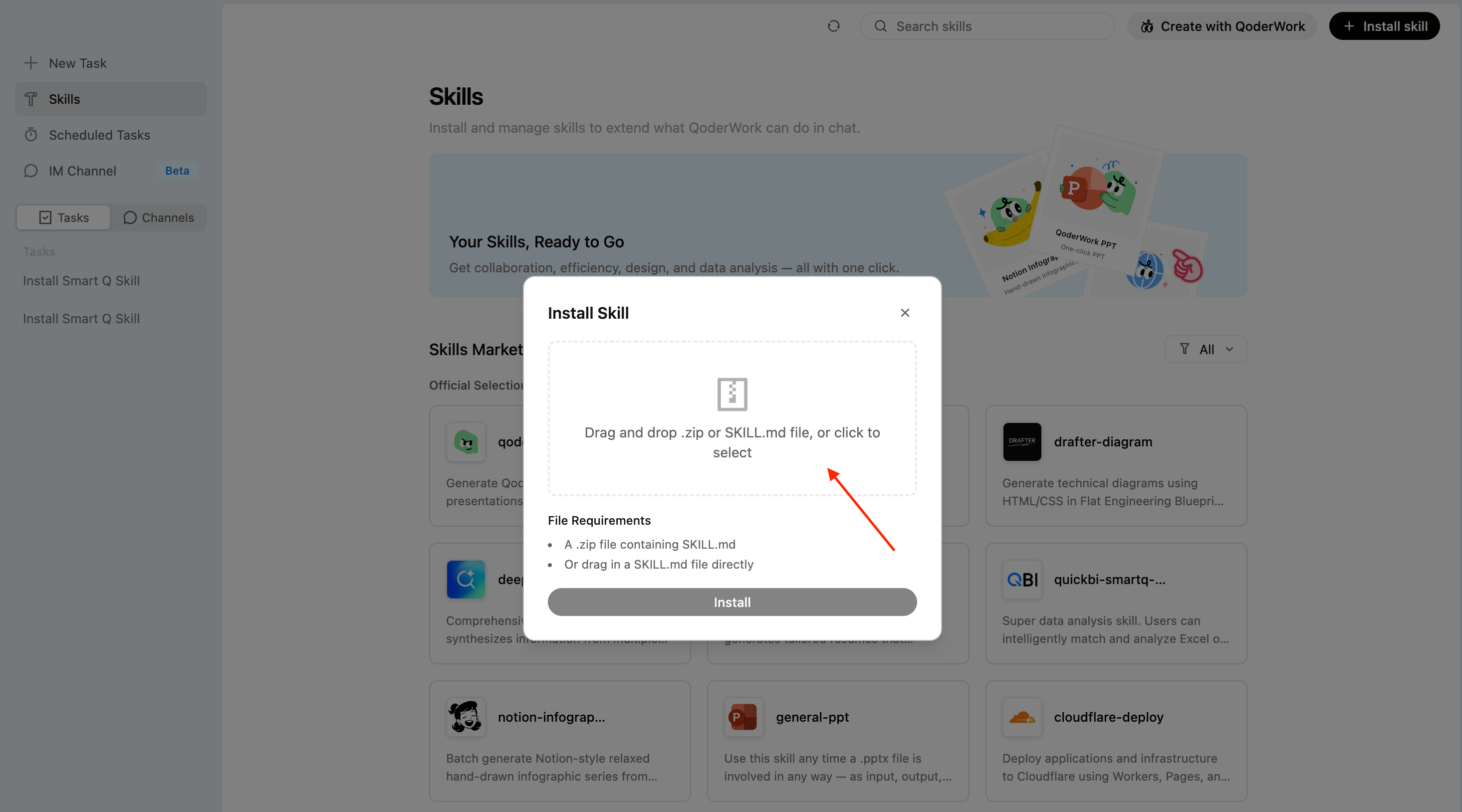
ClaudeCode installation
For details, see the official documentation: https://code.claude.com/docs/en-US/skills
After unzipping the downloaded skill package, move the skill directory to the appropriate ClaudeCode skills folder:
-
Global scope (for all projects): Move the skill to the
~/.claude/skills/directory. -
Project scope (for the current project only): Move the skill to the
project root/.claude/skills/directory.
Restart ClaudeCode to apply the changes.
OpenClaw installation
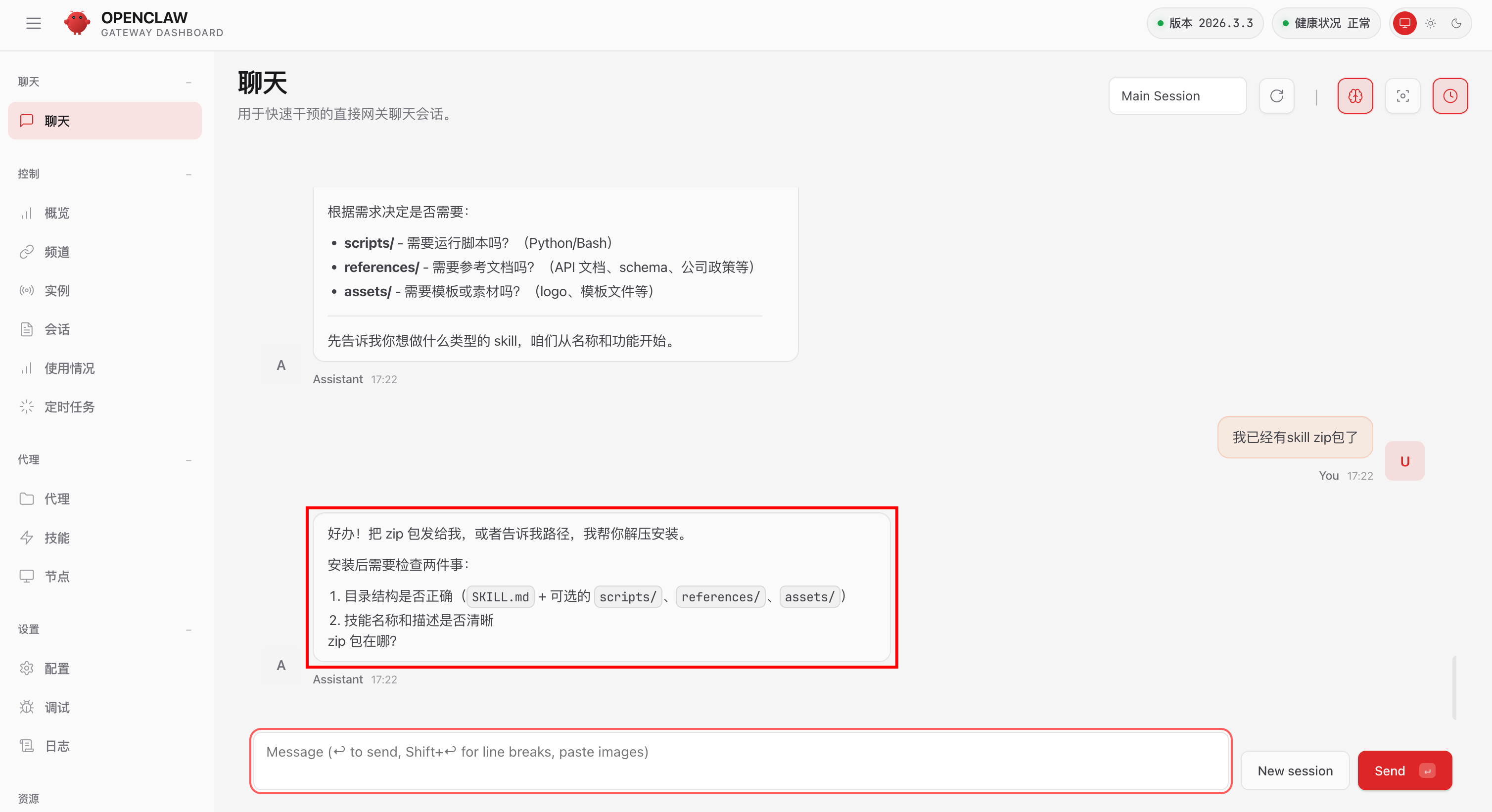
Unzip the downloaded skill package and copy the path to the skill directory. In OpenClaw, paste the path and use the conversational command, "Help me install the skill in this directory." Wait for the confirmation message that the skill is installed and ready to use.
4. Prerequisites
-
To perform Q&A on uploaded files such as Excel or CSV, you can start using the skill immediately after download. You get unlimited use for 30 days. You can proceed to Section 5. Use the Intelligent Q skill.
NoteThe maximum size for uploaded files is 5 MB.
-
To query existing datasets in Quick BI using the Q&A skill or the Dashboard Q&A skill, complete the following configuration steps. After configuration, you can start querying the datasets for which you have permission in Quick BI.
-
Copy skill configuration
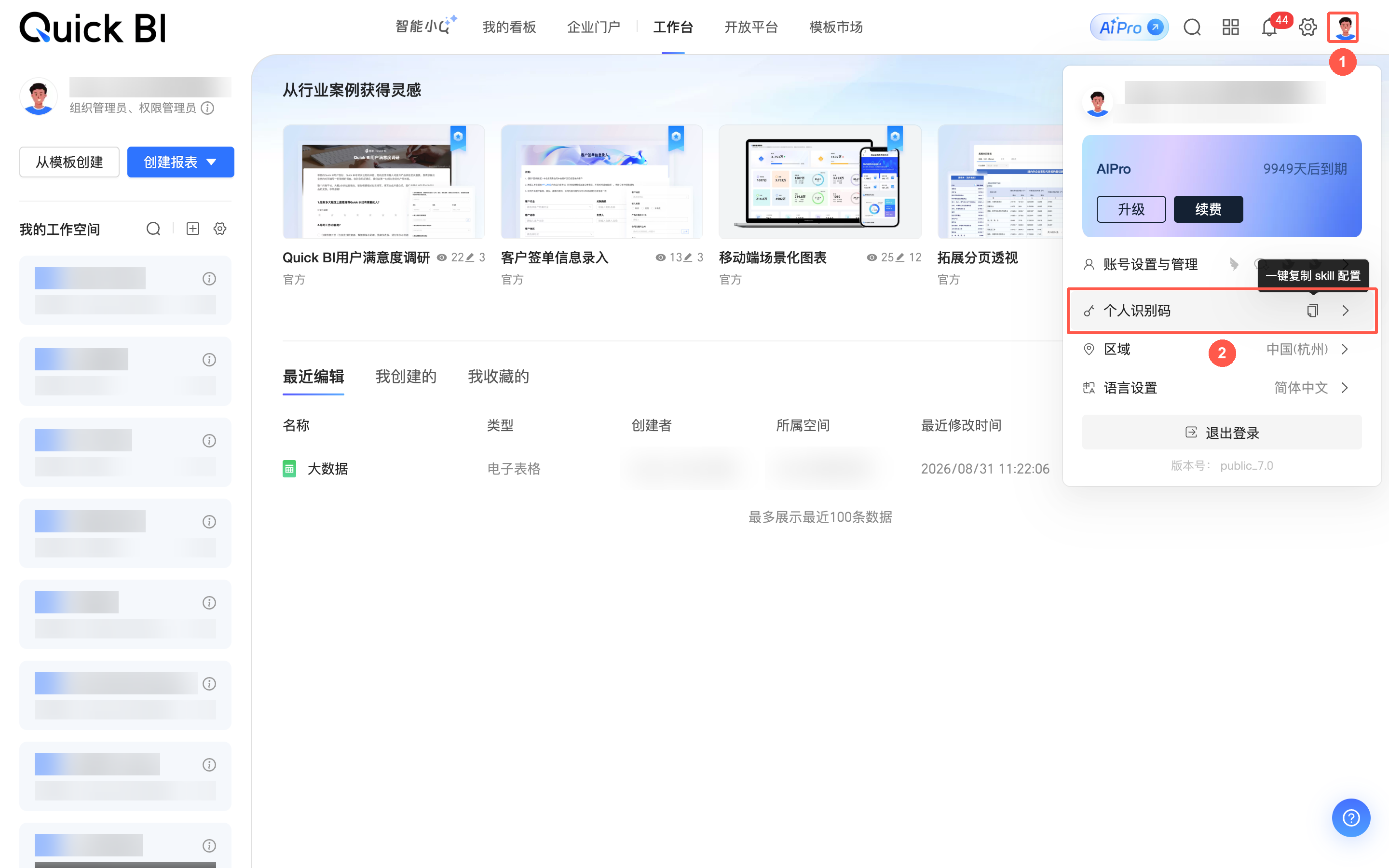
Log on to the Quick BI console. In the upper-right corner, click your profile picture and select Copy skill configuration. Send the copied text to a platform like Wukong or QoderWork to complete the configuration automatically.

You can also find this configuration option in the following locations:
-
If you have purchased Quick BI AIPro, click your profile picture in the Quick BI AIPro interface. Under Personal identification code, click Copy skill configuration.
-
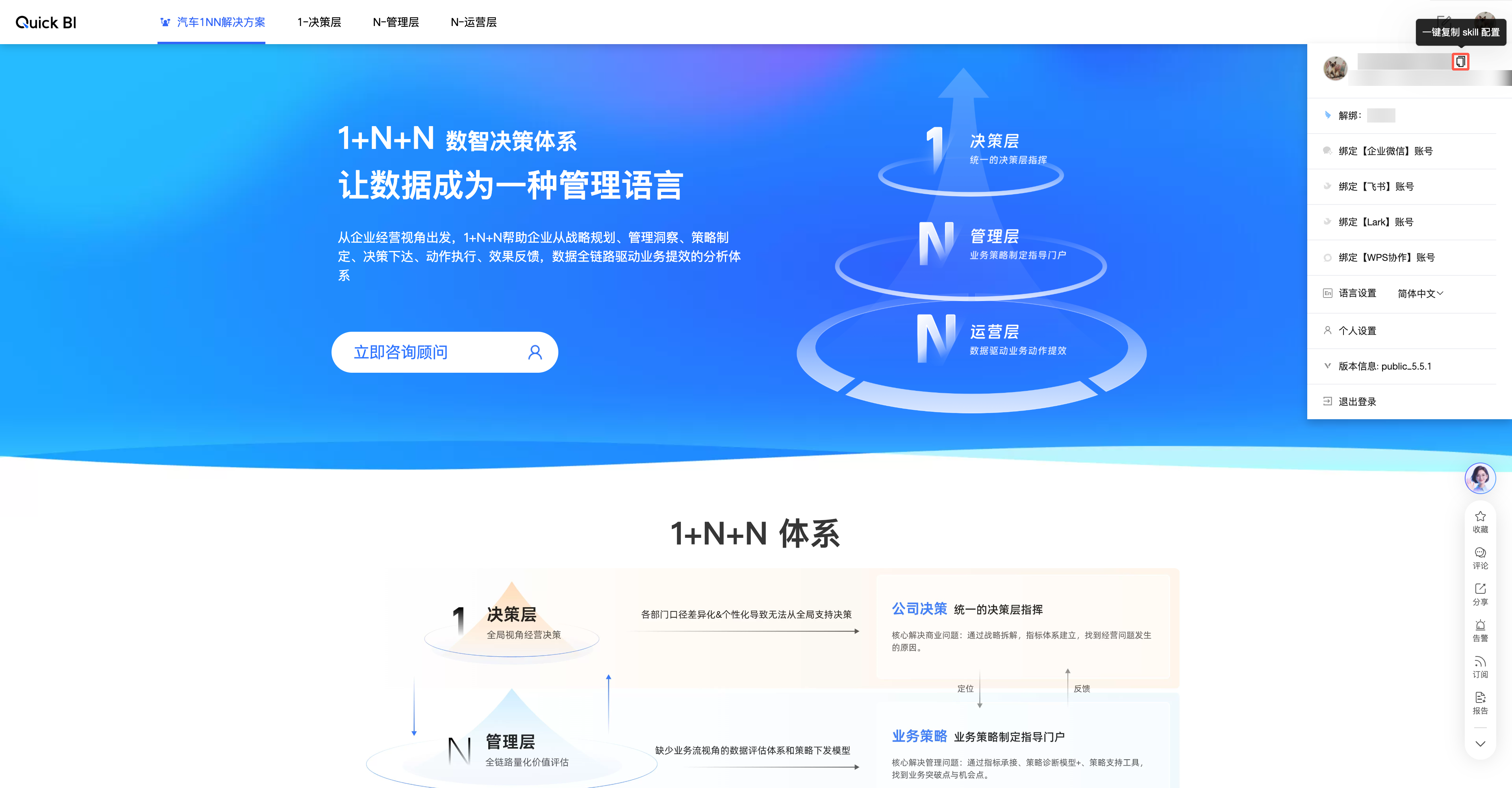
In the workbench, by using the one-click copy feature.
-
On the data portal preview page, by using the one-click copy feature.
The copied configuration contains the following parameters. These are your personal credentials; do not share them.
Parameter
Description
api_keyThe identifier for the API caller.
api_secretThe secret key for the
api_key.user_tokenA token that identifies you and your access scope for data and assets.
server_domainThe Quick BI service address. For the public cloud, the address is
https://bi.aliyun.com.Note:
-
When you use the Q&A skill, the scope of queryable datasets is limited to those for which you have been granted query permission on the Quick BI platform.
-
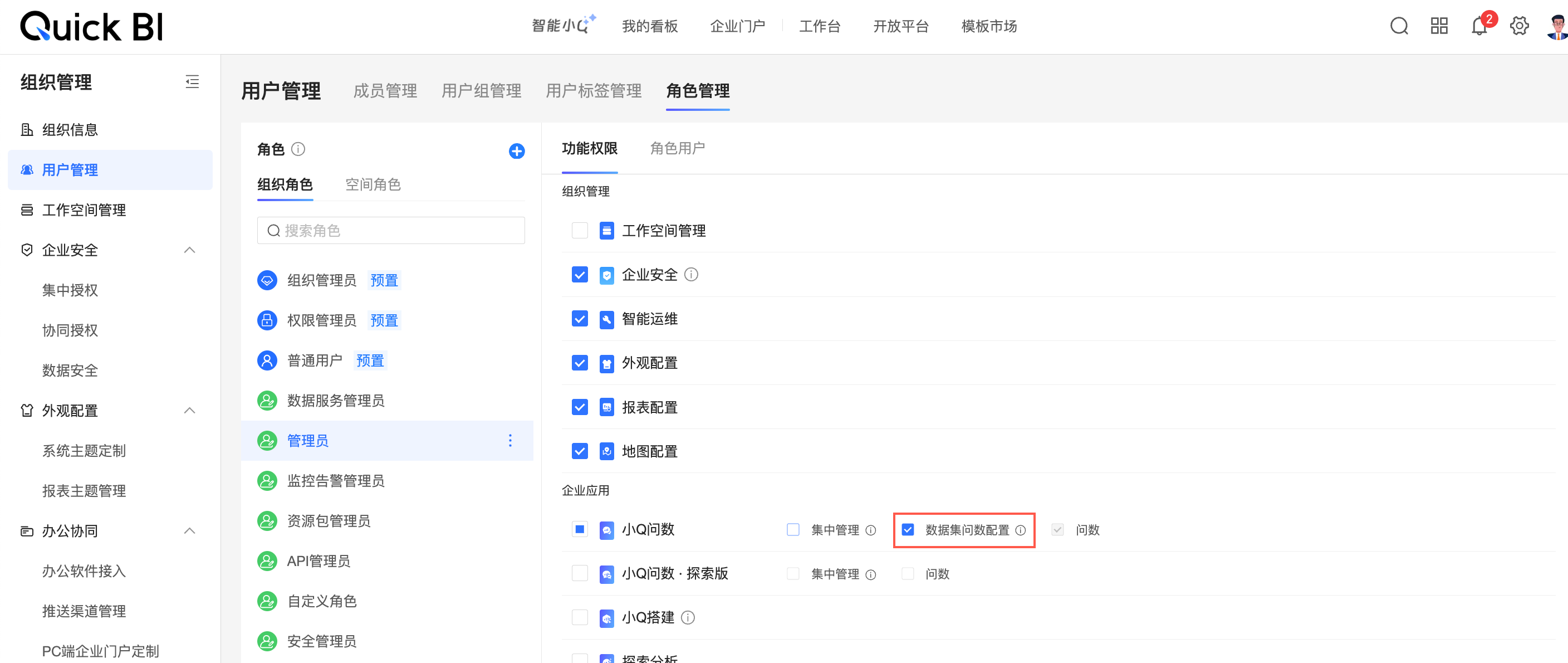
When you use the Dashboard Q&A skill, ensure you have the "Dataset Q&A configuration" permission for Q&A. The system automatically grants you permission to query the associated datasets.
For information about how to obtain the required permissions, see role management.
-
-
5. Intelligent Q skill usage
Q&A skill
This skill uses the Quick BI Q&A open API to run intelligent queries on specified datasets based on natural language descriptions. The process includes automated reasoning, SQL generation, OLAP data retrieval, and visualized results.
Key features:
-
Query Quick BI datasets using natural language, with no SQL required.
-
Automatically selects the most relevant dataset from those you have permission to access if you do not specify one.
-
Provides real-time output of the reasoning process, SQL, charts, and analytical conclusions.
Procedure:
-
To perform Q&A on uploaded Excel or CSV files, download the skill and start using it. You get unlimited use for 30 days.
-
To query datasets within Quick BI, complete the configuration described in Section 4. Prerequisites. You can then query any Quick BI dataset for which you have permission.
Example:
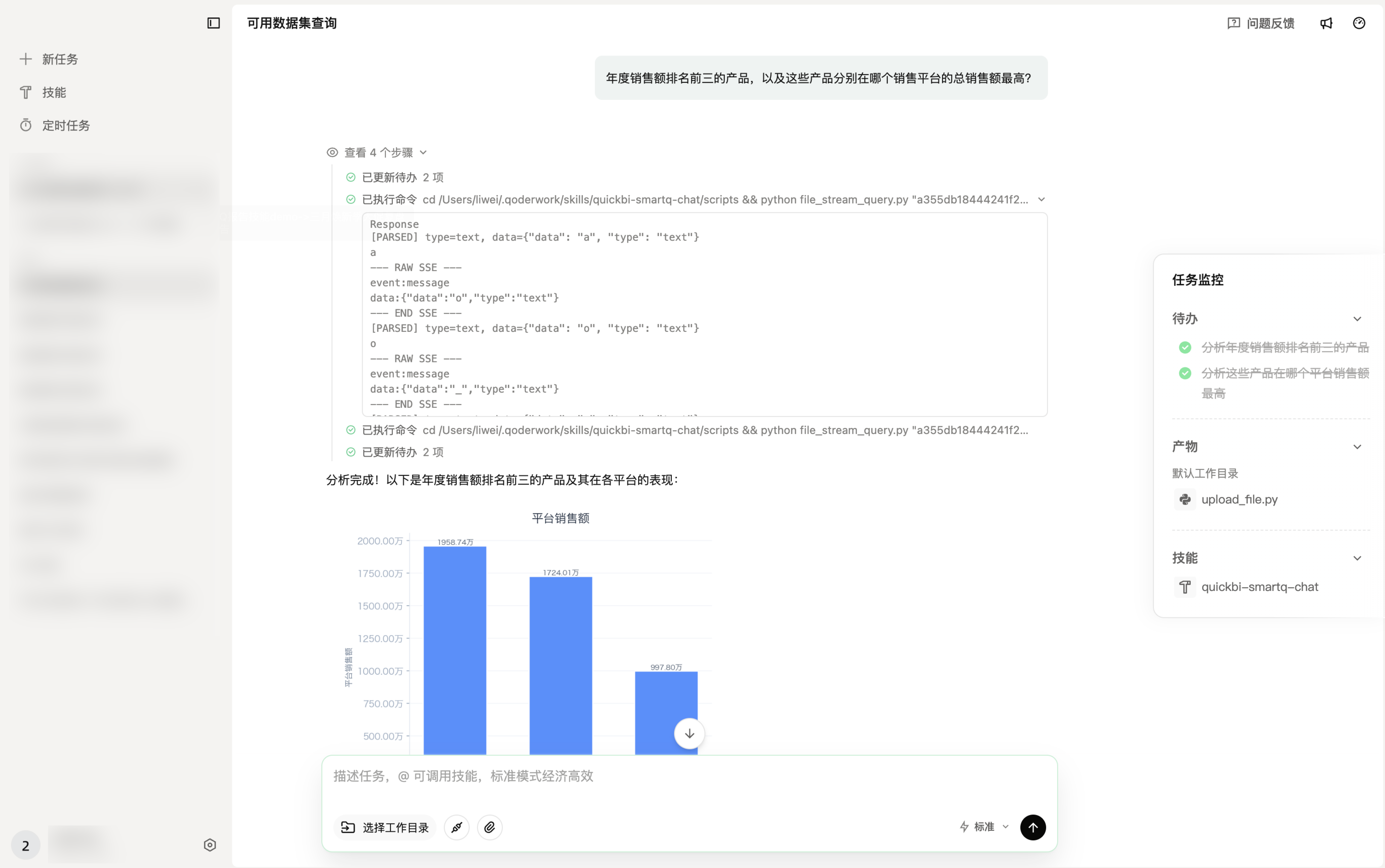
Video demonstration:
Report Generation skill
This skill uses the Quick BI Report Generation open API to automatically create data analysis reports based on a user's natural language questions and optional file attachments.
Key features:
-
Automatically generates data analysis reports, such as product sales or user growth trend reports, from natural language descriptions.
-
Supports uploading Excel, CSV, and Word data files for in-depth analysis.
-
Supports various scenarios, including competitor analysis, market research, operational reviews, and financial overviews.
-
Combines web search results with your own data to generate comprehensive analysis reports.
-
Provides an online link to view the generated report.
Procedure:
-
You can directly upload Excel, CSV, Word, or PDF data files. The skill is ready to use right after download, with unlimited use for 30 days.
Example:
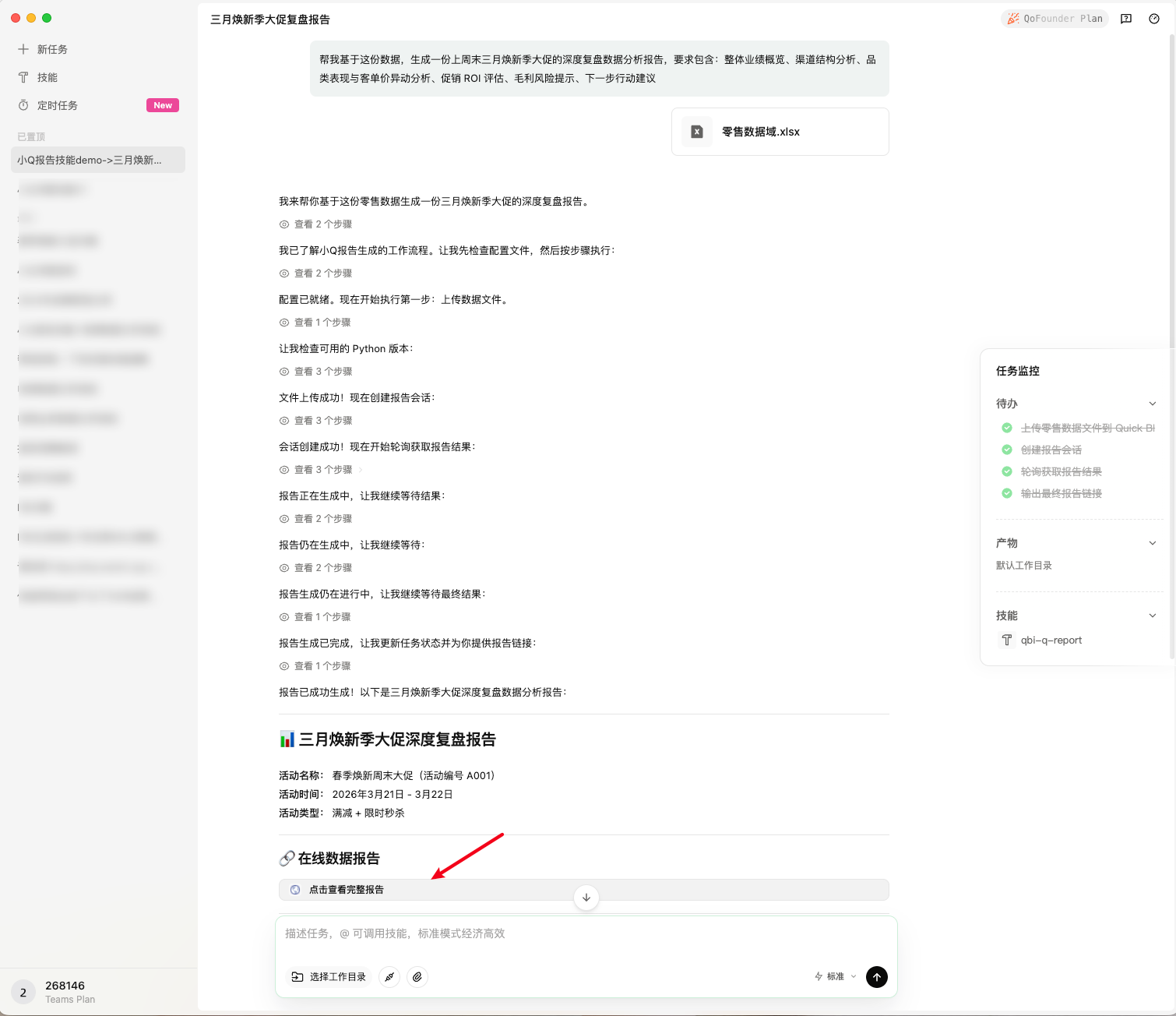
Video demonstration:
Automated Insights skill
This skill uses the Quick BI Automated Insights open API to provide in-depth analysis and insights from uploaded Excel files (.xls or .xlsx) based on natural language questions. The process includes automated data parsing, reasoning, and generation of analytical insights.
Key features:
-
Ask questions about Excel data in natural language without needing to analyze the data manually.
-
Parses multiple sheets and automatically identifies headers to convert data into a structured format.
-
Provides real-time output of the reasoning process and data insight conclusions.
Procedure:
-
You can directly upload Excel data files. The skill is ready to use right after download, with unlimited use for 30 days.
Example:
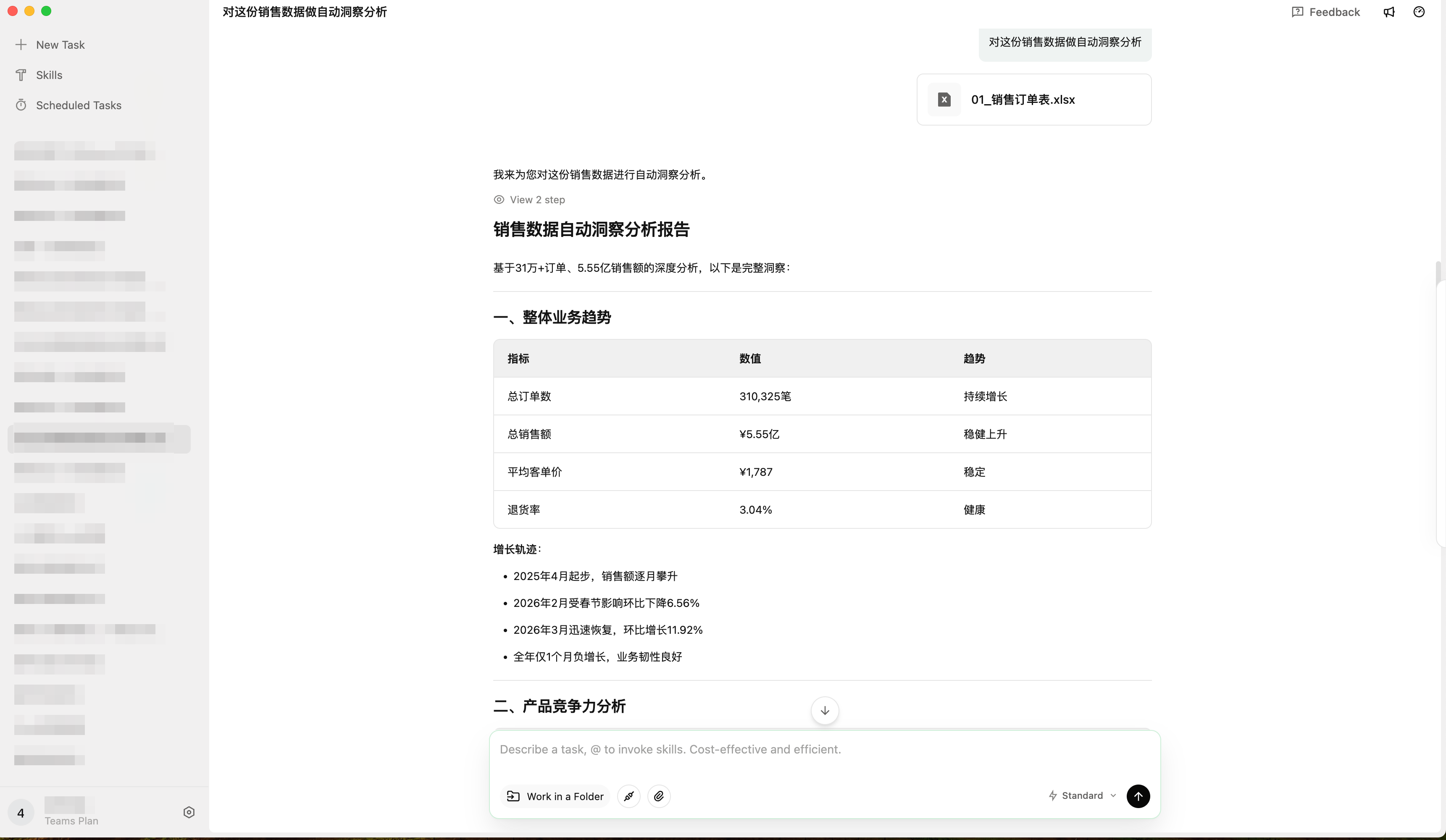
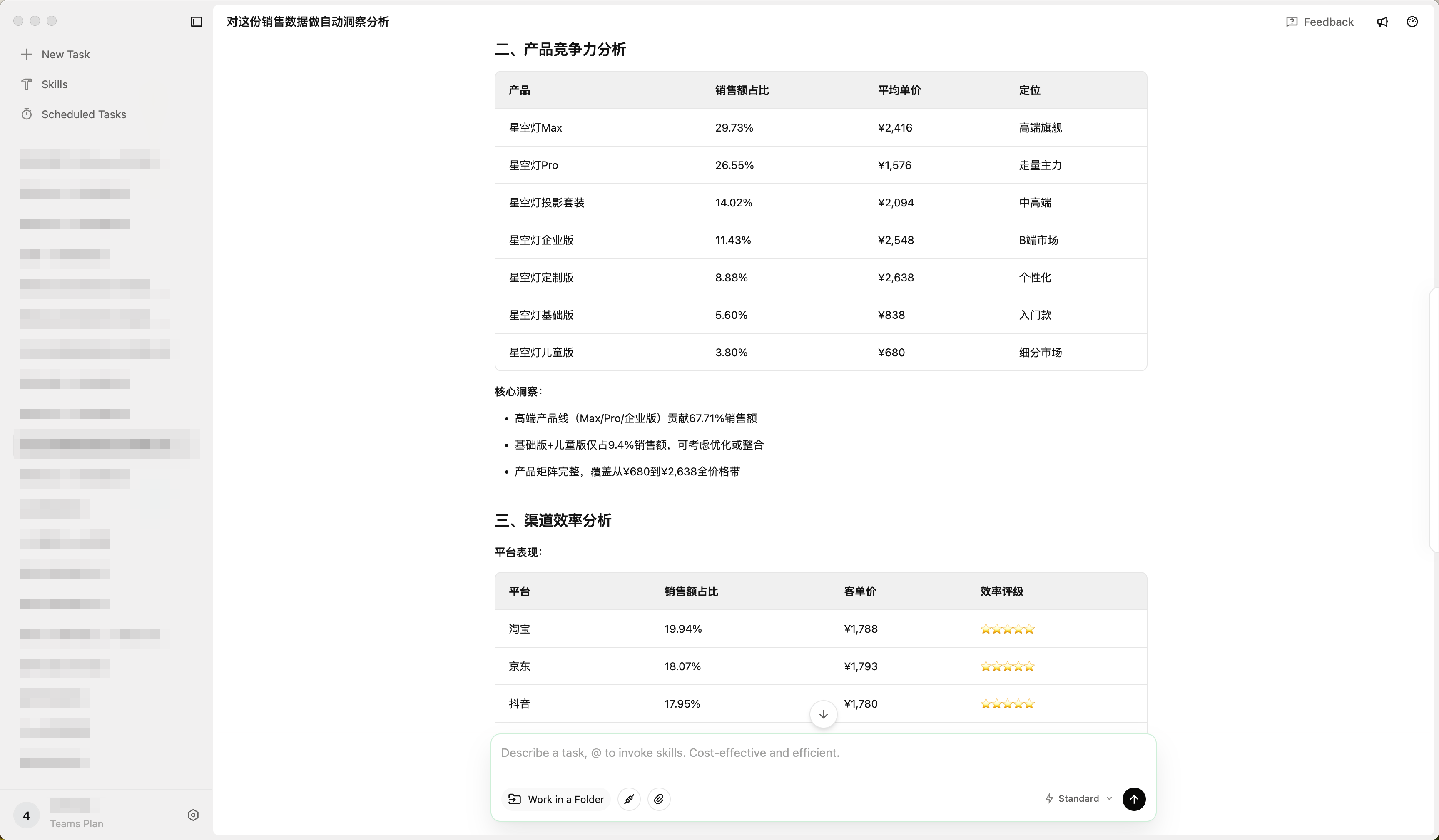
Video demonstration:
Dashboard Q&A skill
Prerequisite: You must have purchased the Quick BI Q&A module, and your account must have permission to manage or authorize datasets for querying.
This skill uses browser automation to inspect the structure of a Quick BI dashboard. It automatically generates a custom data query skill that allows an AI agent to understand the business context and analytical framework of the dashboard. You can then use natural language to query data related to that specific dashboard and receive intelligent summaries.
Key features:
-
Input a Quick BI dashboard URL to automatically generate a custom query skill that extracts all chart components, field configurations, query controls, and layout relationships.
-
Automatically infers the dashboard's analytical framework (such as DuPont analysis, RFM, or L1-L4 pyramid) and builds it into the generated skill, enabling the query process to understand business context.
-
Creates an intent routing matrix to accurately map user questions to target charts and dataset IDs. Complex questions are automatically broken down into multiple sub-queries that are executed in a logical order.
-
Query results include a data table, an intelligent summary, and a source link.
Procedure:
-
Ensure the Dashboard Q&A skill is installed successfully.
-
Select the dashboard you want to analyze. Invoke the skill and enter the following command in the chat box: "Help me generate a skill for this dashboard [dashboard URL]".
NoteNote: The first time you use this feature, you will be prompted to enter configuration information. For details, see Section 4. Prerequisites.

After the custom dashboard skill is generated, you can invoke it to ask questions.
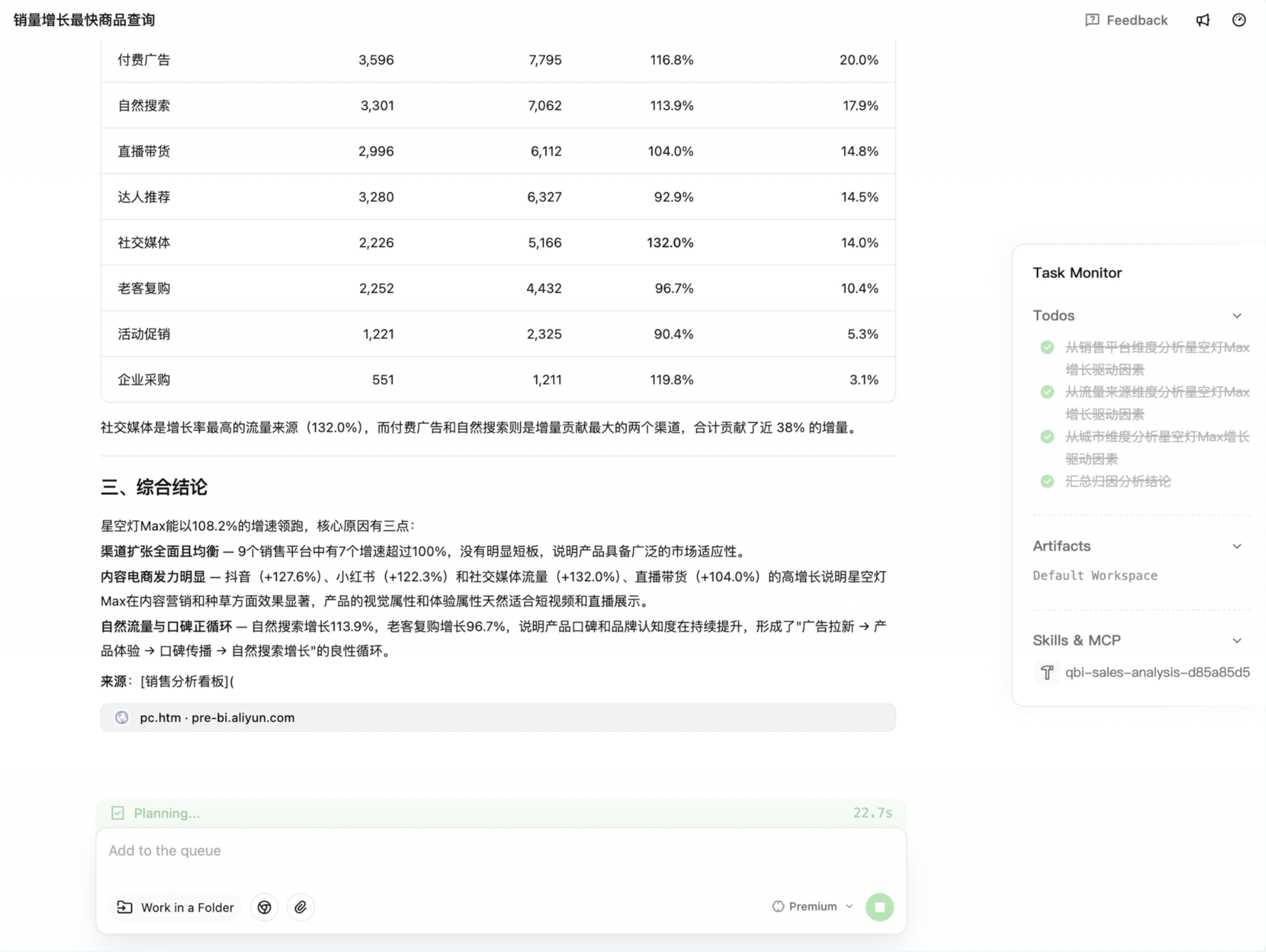
Example:
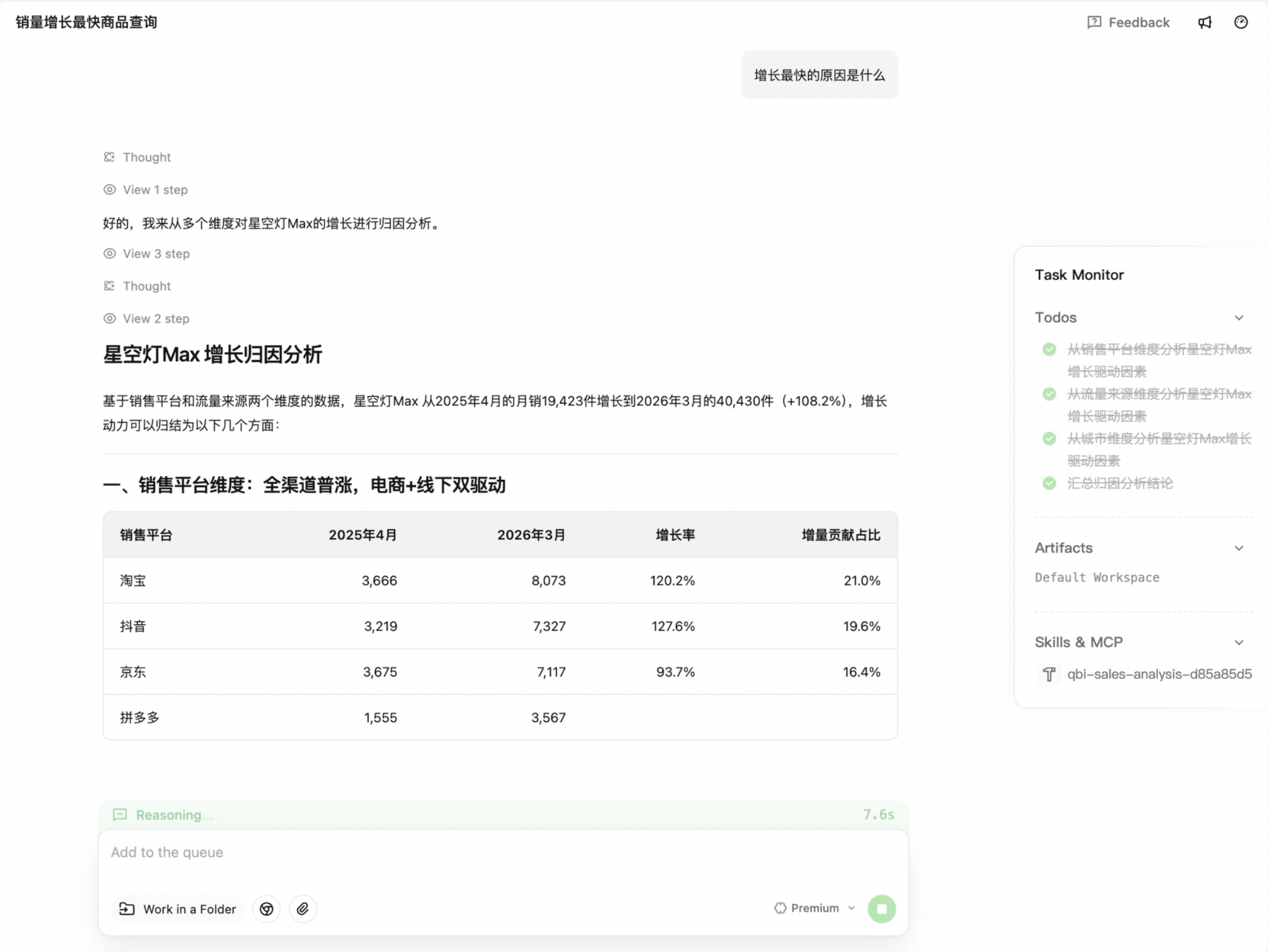
Video demonstration: