The Quick BI relational model is a data modeling system for multi-table joins and analysis. It solves common problems in traditional physical modeling, such as inefficiency, inaccuracy, and limited analytical flexibility. This model is ideal for multidimensional data analysis in complex business scenarios. This topic explains how to create a relational model.
Prerequisites
You have created a dataset. See Create a dataset.
Procedure
On the dataset creation page, double-click or drag a data table to the canvas, or create a table using Custom SQL.
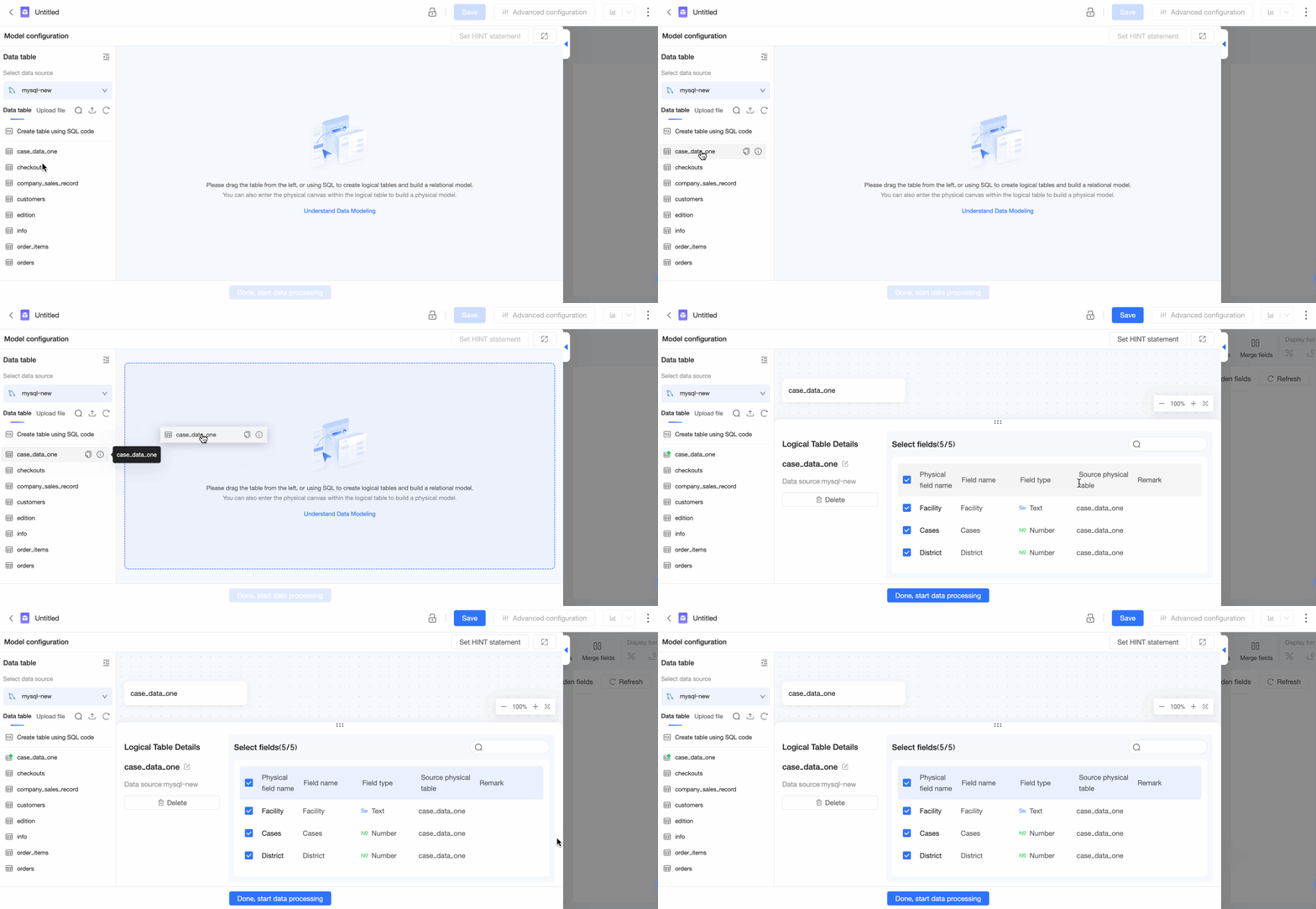
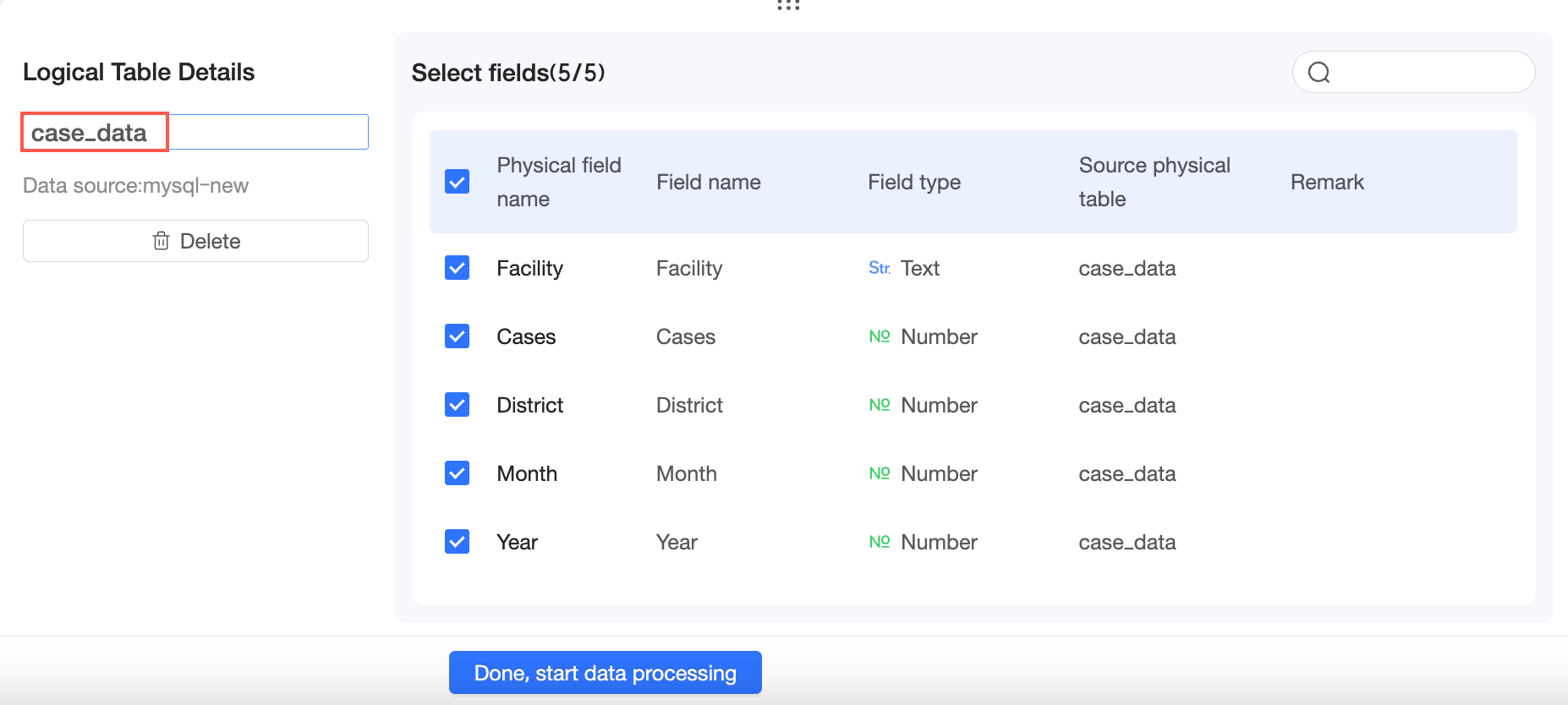
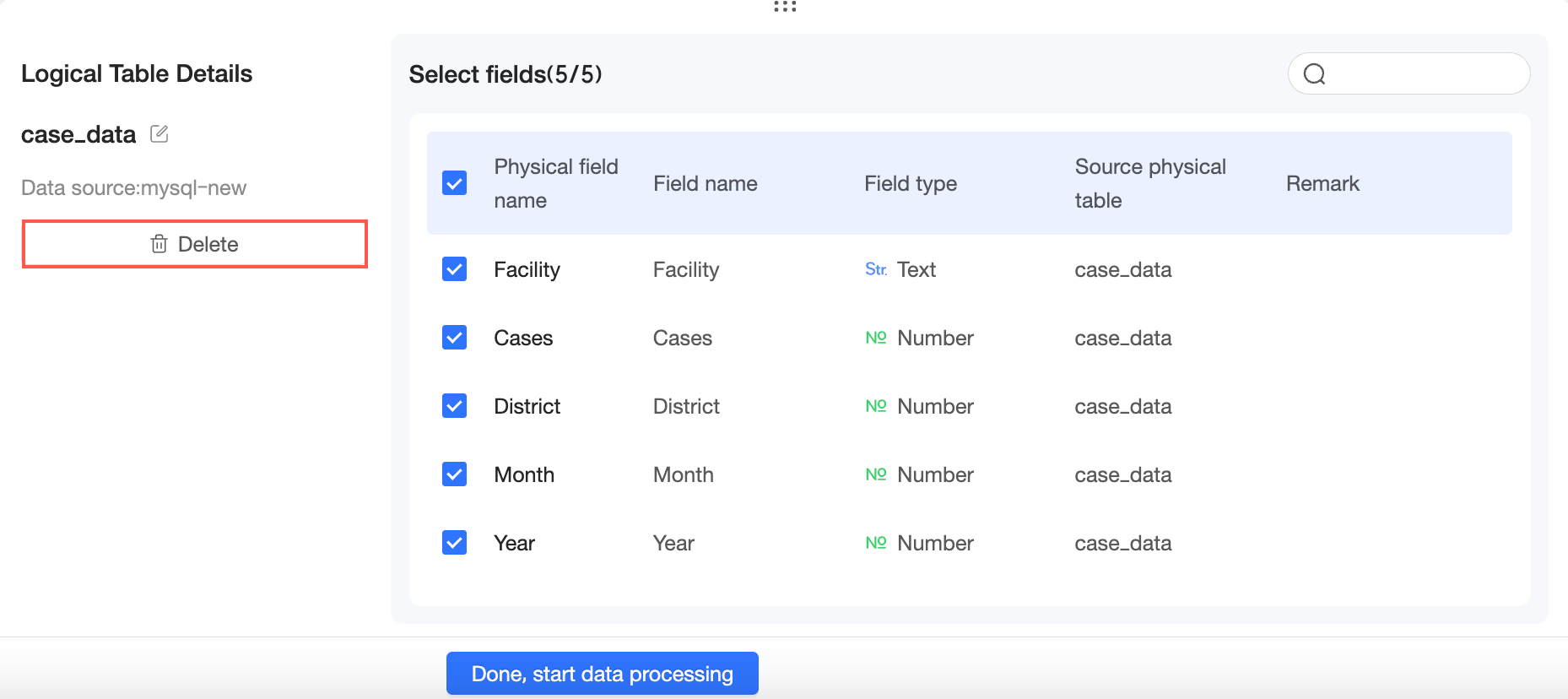
After you select a data table, you can view the Logical Table Details.
You can Rename the logical table.
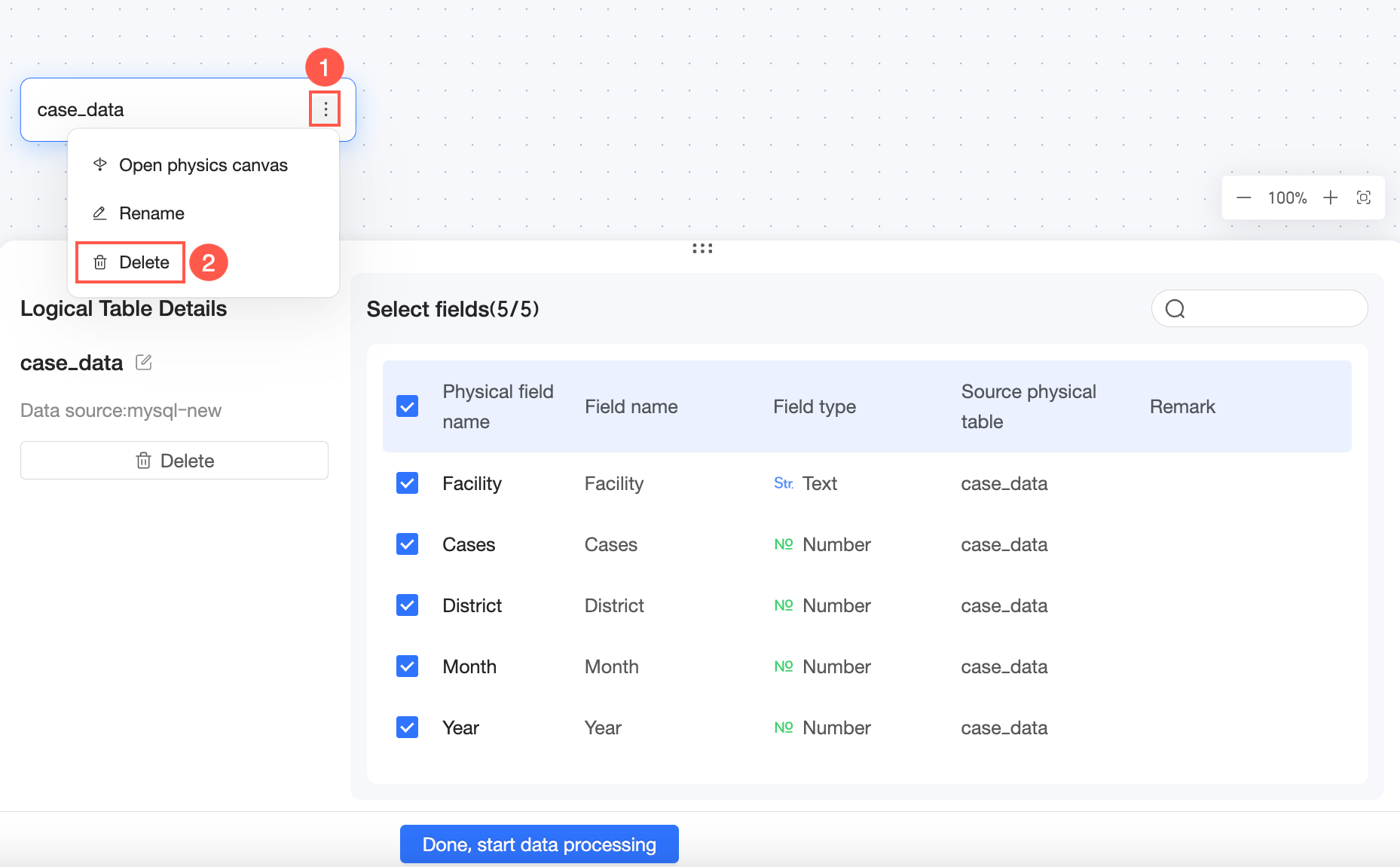
You can also click the
 icon to the right of the logical table and select Rename.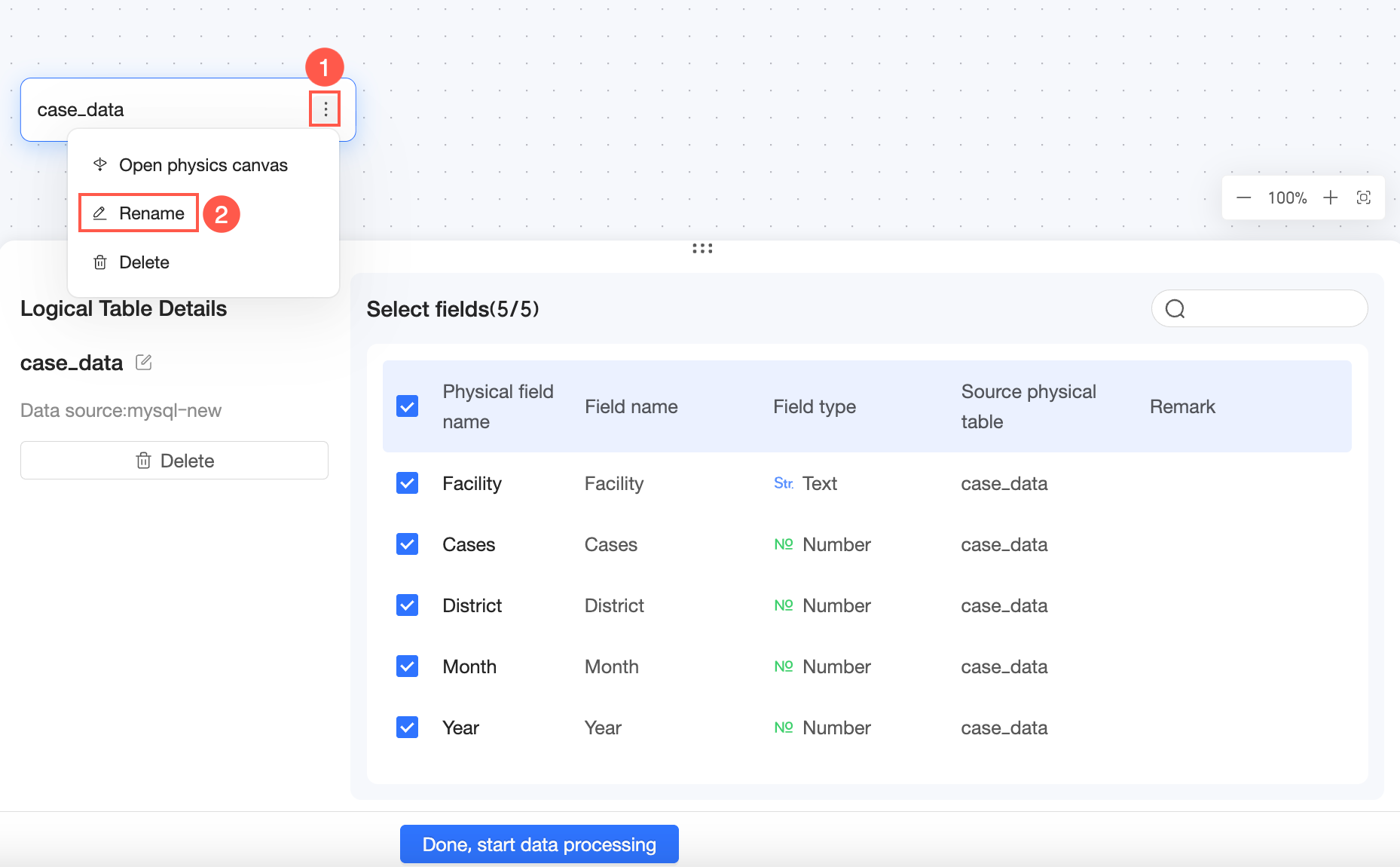
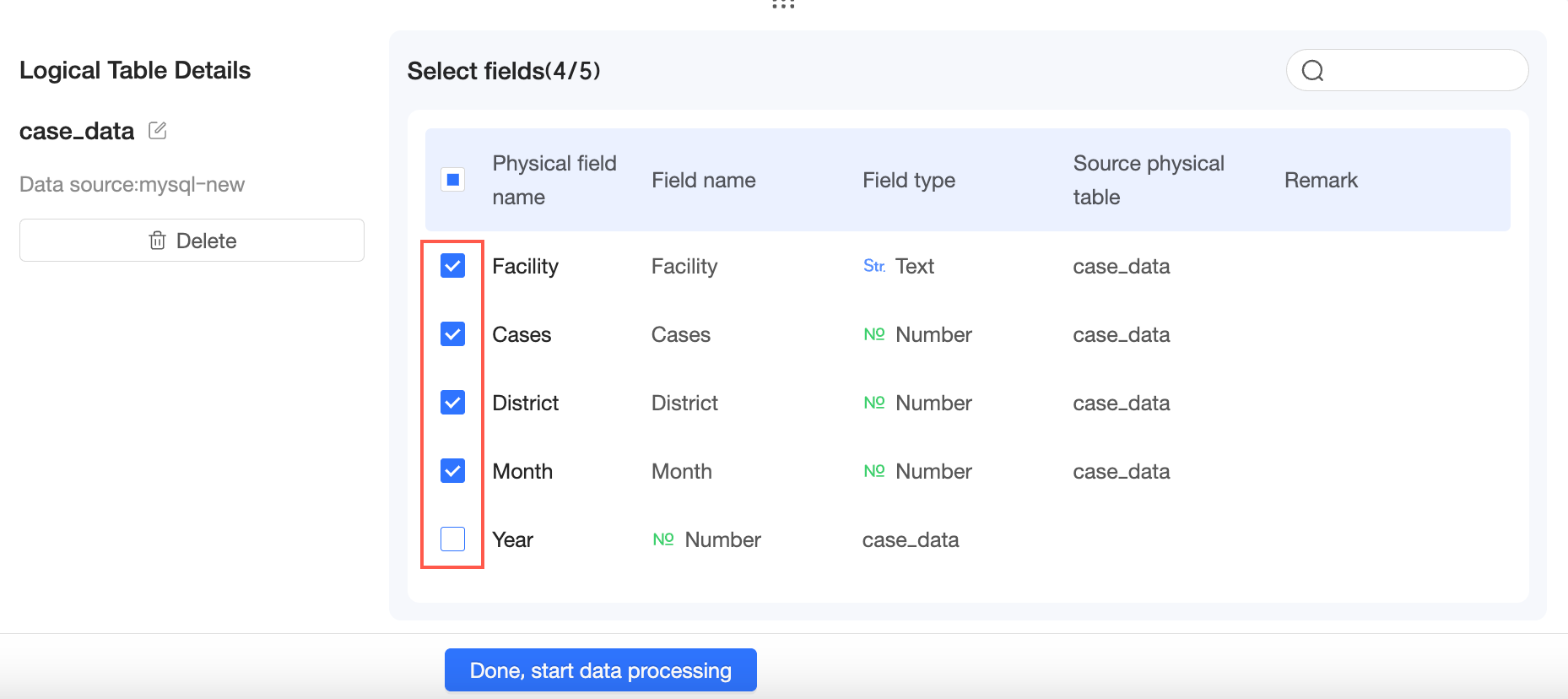
You can select the fields to include in the table.
If you no longer need the data table, you can Delete it.

You can also click the
icon to the right of the logical table and select Delete.
Drag another data table to the canvas and configure the logical relationship.
Select join fields
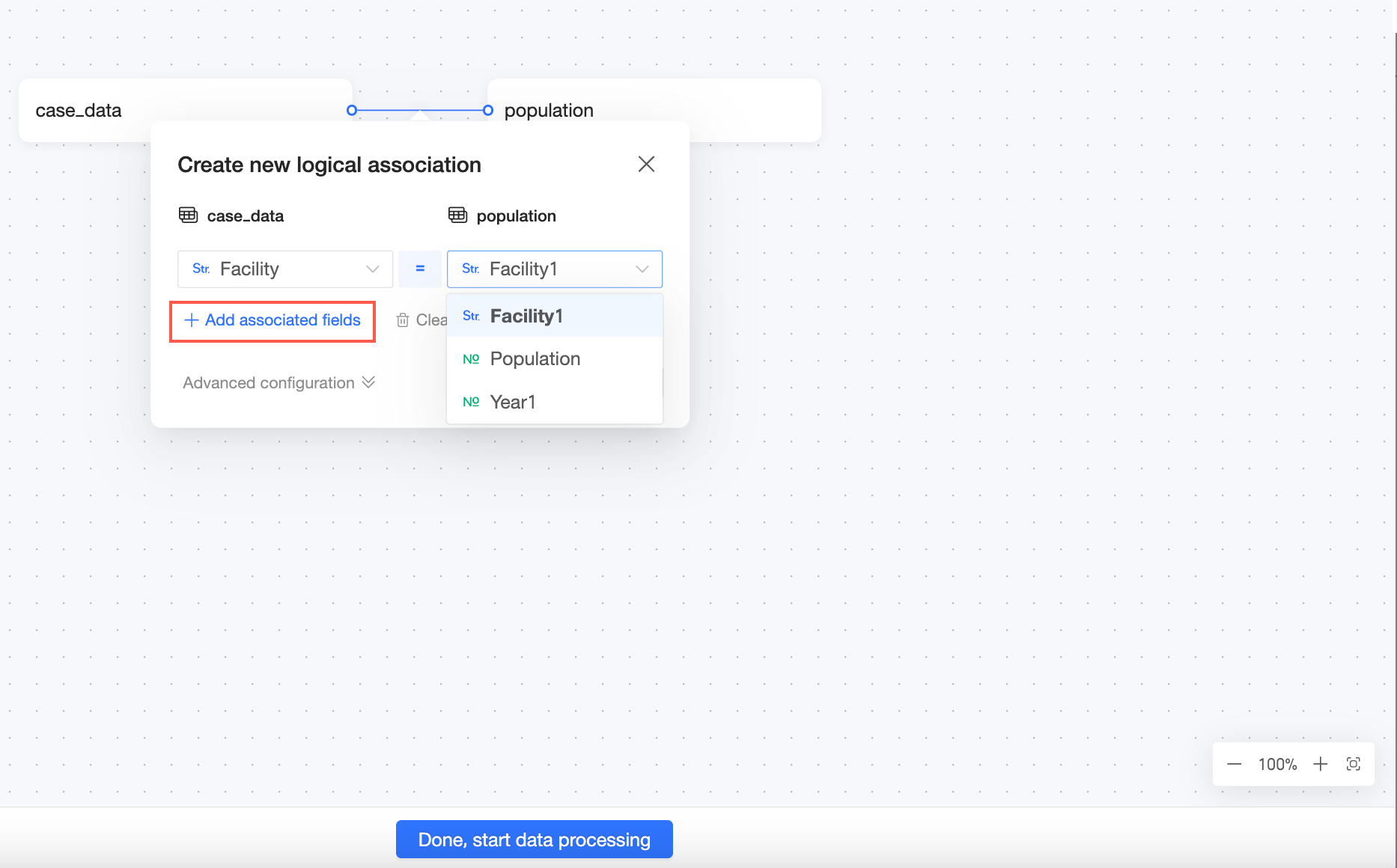
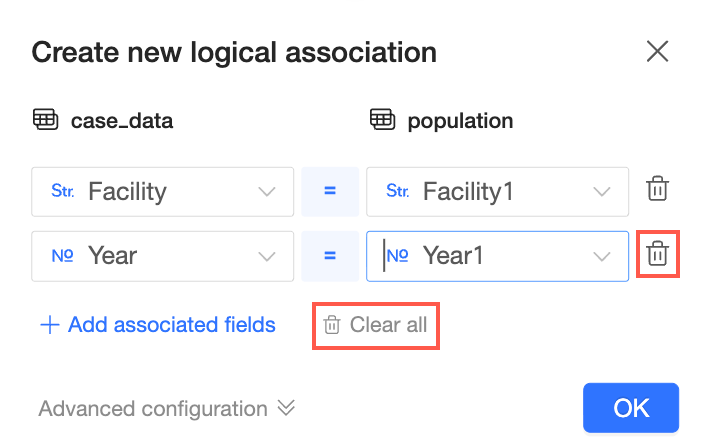
The system automatically suggests join fields, or you can select them manually.
NoteTo ensure calculation accuracy, only a dimension field can be used as a join field in a relational model.
If you select a measure field as a join field, the system converts it to a dimension field when you confirm the operation. If you have already used this field in other features, we recommend manually duplicating the field and then converting it to a dimension to avoid affecting existing assets like reports.
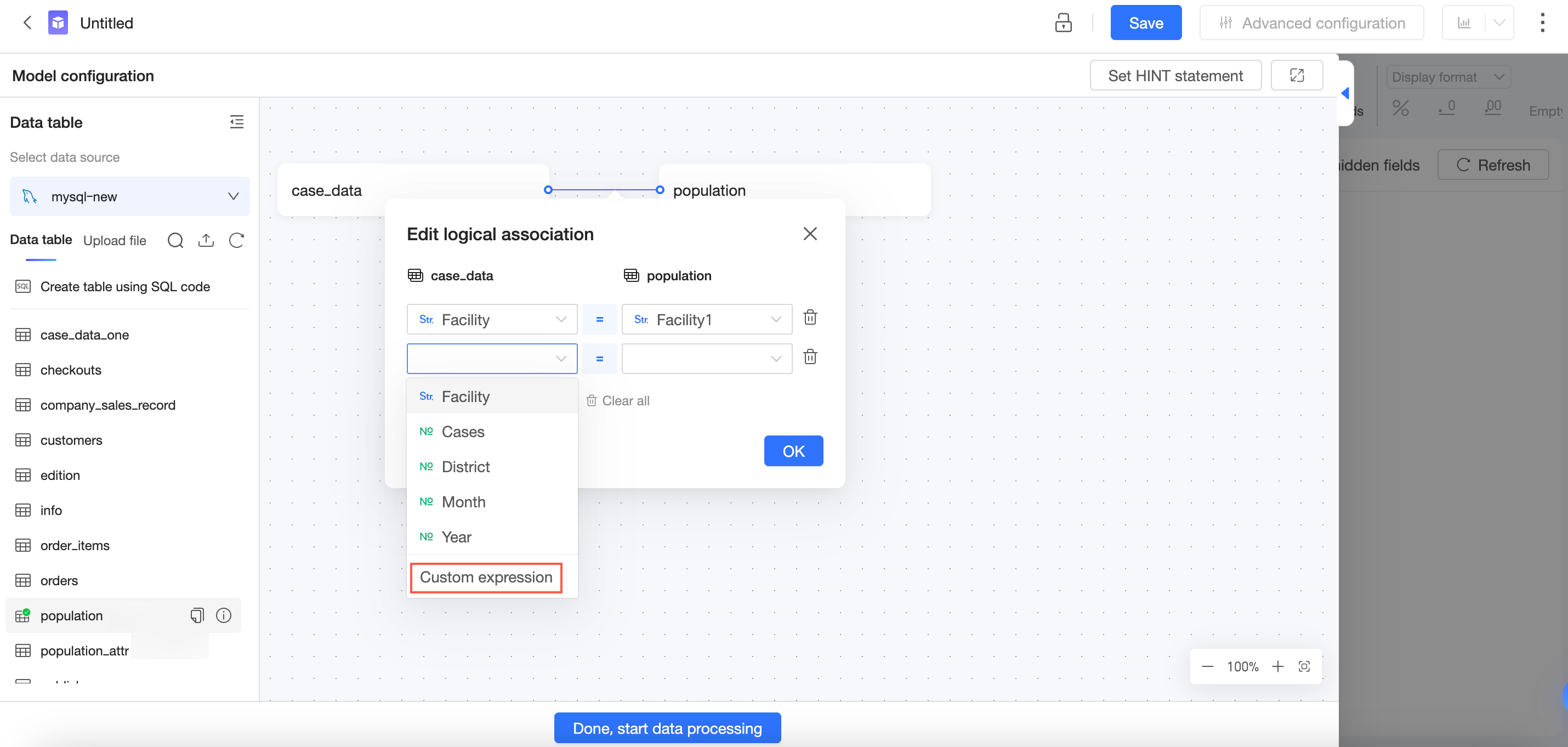
You can use a Custom Calculation as a join field.
Click Add a join field to add more join fields.
You can Delete a specific join field or Clear All join fields at once.
Advanced settings
Click More Options to open the Advanced Settings page.
Cardinality
You can configure the relationship cardinality as 1:1, 1:N, N:1, or N:N. For more information, see Cardinality.
Data integrity
You can set the Data Integrity to partial match or full match. For more information, see Data Integrity.
Click OK to create the logical table relationship.

You can repeat these steps to join multiple logical tables as your business requires.
Each logical table in a relational model can represent a physical model. When you drag a table onto the logical canvas, its corresponding physical model is a single-table model. If you need to perform more complex physical modeling, click the icon to the right of the logical table and select Go to Physical Canvas, or double-click the logical table. This opens the physical canvas for that logical table, where you can configure physical joins and unions. For more information, see Join and union tables.