User-created Greenplum data source
Add a Greenplum data source to connect Quick BI to your Greenplum database for data analysis and visualization. Quick BI supports connecting to Greenplum databases over the public internet or through a VPC.
Prerequisites
-
You have created a Greenplum database.
-
You have the username and password for your Greenplum database.
Limitations
Greenplum version 6.10.0 is supported.
Procedure
-
Add IP addresses to the whitelist.
Before connecting, you must add the IP addresses of Quick BI to your Greenplum data source's whitelist.
Log on to the Quick BI console.
-
Follow the instructions in Create a data source to navigate to the data source creation page.
-
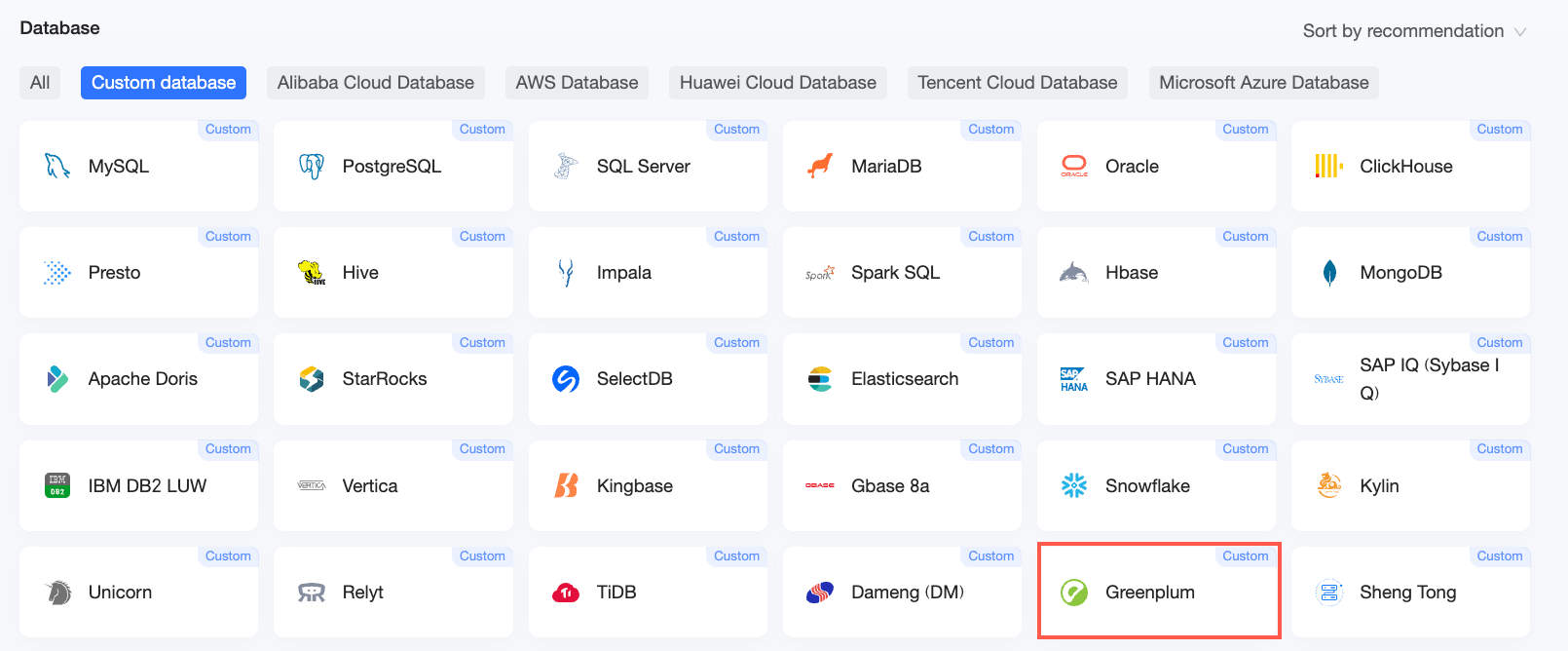
On the user-created data sources tab, click Greenplum.
-
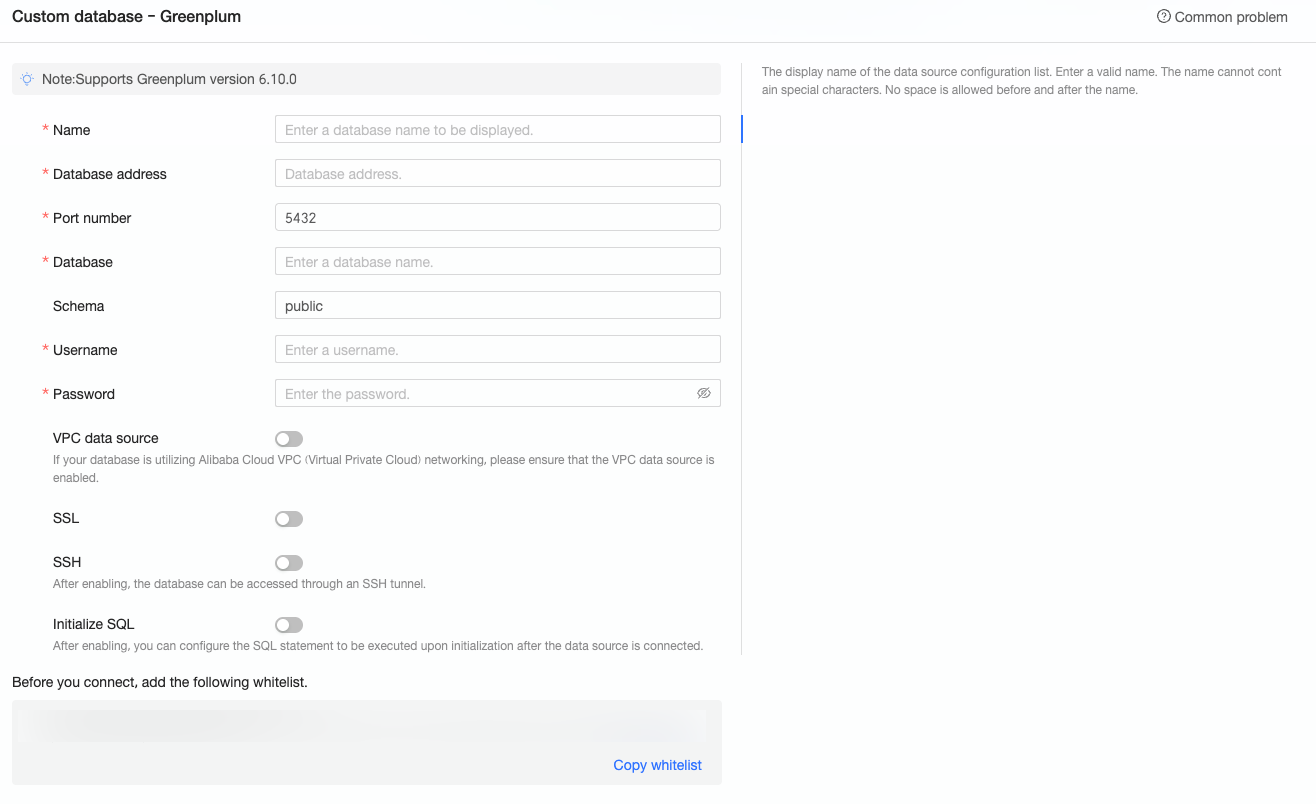
In the Configure Connection dialog box, configure the following parameters.
Parameter
Description
Display name
A unique name for the data source, shown in the data source list. Do not use special characters or leading or trailing spaces.
Database address
The IP address or domain name of the Greenplum database.
If you connect through a VPC, enter the internal address.
Port
The port number for connecting to the database. Default: 5432.
If you connect through a VPC, enter the internal port.
Database
The name of the Greenplum database you want to connect to.
Schema
The name of the schema you want to connect to. Case-sensitive.
Username and password
The username and password for the Greenplum database.
The account must have CREATE, INSERT, UPDATE, and DELETE permissions on the tables in the database.
VPC data source
Select this option if your database requires a VPC connection. Then, configure the following parameters:
-
AccessKey ID and AccessKey Secret: The AccessKey pair of an account that has permissions to manage the target Greenplum database. The account must have Read permissions on the target instance. If the account also has Write permissions, the system automatically adds the required IP addresses to the whitelist. Otherwise, you must add them manually. For more information, see Create a custom policy.
You can get the AccessKey ID and AccessKey Secret from the RAM console.
 Note
NoteThe AccessKey Secret is displayed only when you create it.

-
Instance ID and Region: The ID of the Greenplum database instance and its region.
You can find the instance ID and region on the RDS console in the Basic Information section. For more information, see View instance information.

NoteIf you select VPC data source, you must enter the internal address and internal port in the Database address and Port fields, respectively.
SSL
If your data source uses SSL, select this option to encrypt data in transit.
SSH
Use an SSH tunnel through a bastion host to connect to your database. Contact your system administrator for bastion host details.
If you select SSH, configure the following parameters:
-
SSH host: Enter the IP address of the bastion host.
-
SSH username and SSH password: The username and password for logging on to the bastion host.
-
SSH port: The port of the bastion host. The default port is 22.
Initial SQL
SQL statements that run automatically after the connection is established.
You can specify only SET statements. Separate multiple statements with semicolons (;).
-
-
Click test connection to verify the connection.

-
After a successful test, click OK to add the data source.

What to do next
After you create a data source, create a dataset and start analyzing data.
-
To add data tables or custom SQL queries from your Greenplum database to Quick BI, see Create a dataset.
-
To create visualizations and analyze data, see Create a dashboard and Overview of visualizations.
-
To perform in-depth analysis with the drill down feature, see Step 3: Configure and display drill-down.