User-created Shentong data source
Add a Shentong data source to connect your Shentong database to Quick BI for data analysis and visualization. Quick BI supports connecting to Shentong databases over the public network.
Prerequisites
-
A Shentong database has been created.
-
You have the username and password for your user-created Shentong database.
Limitations
Version 8.0 is supported.
Procedure
-
Configure the allowlist.
Before connecting to the user-created Shentong data source, you must add the IP addresses of Quick BI to the allowlist of the Shentong database.
Log on to the Quick BI console.
-
Navigate to the data source creation page. For instructions, see Create a data source.
-
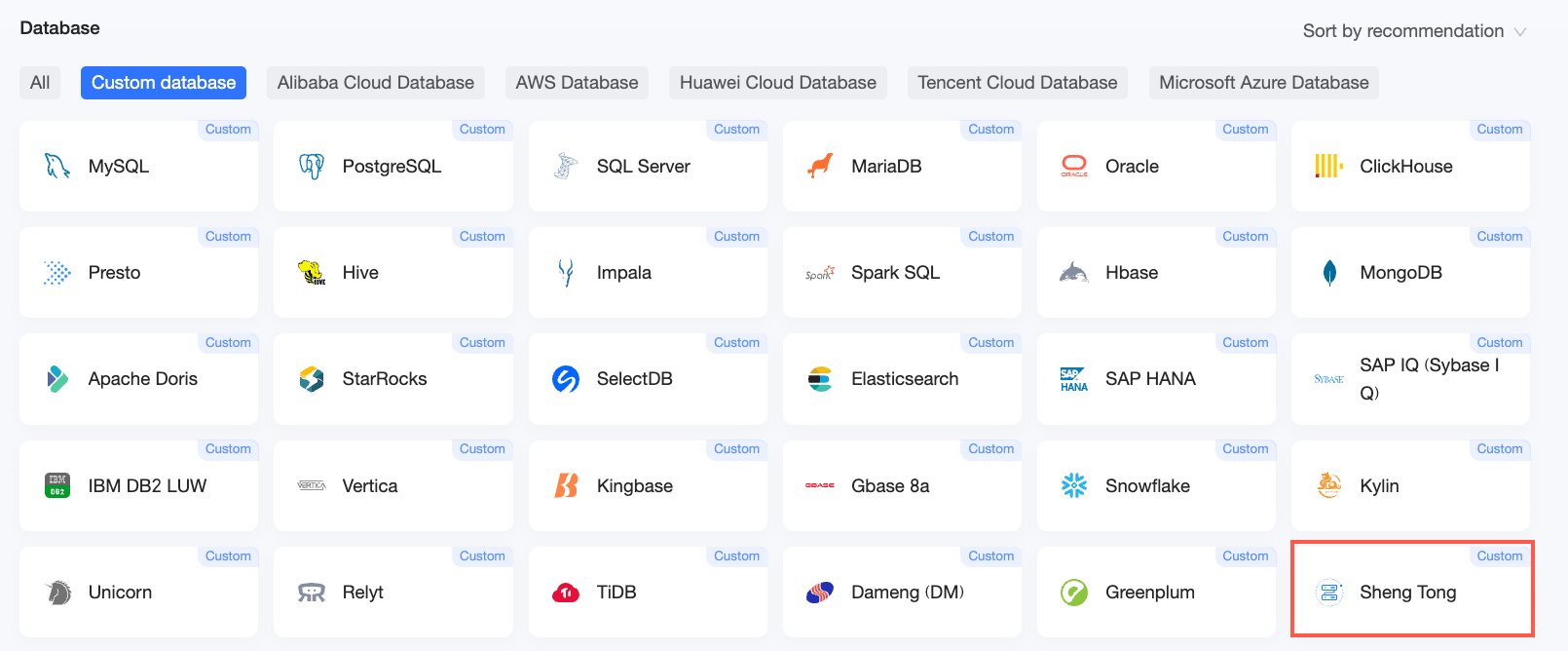
On the User-Created Data Sources tab, click Shentong.
-
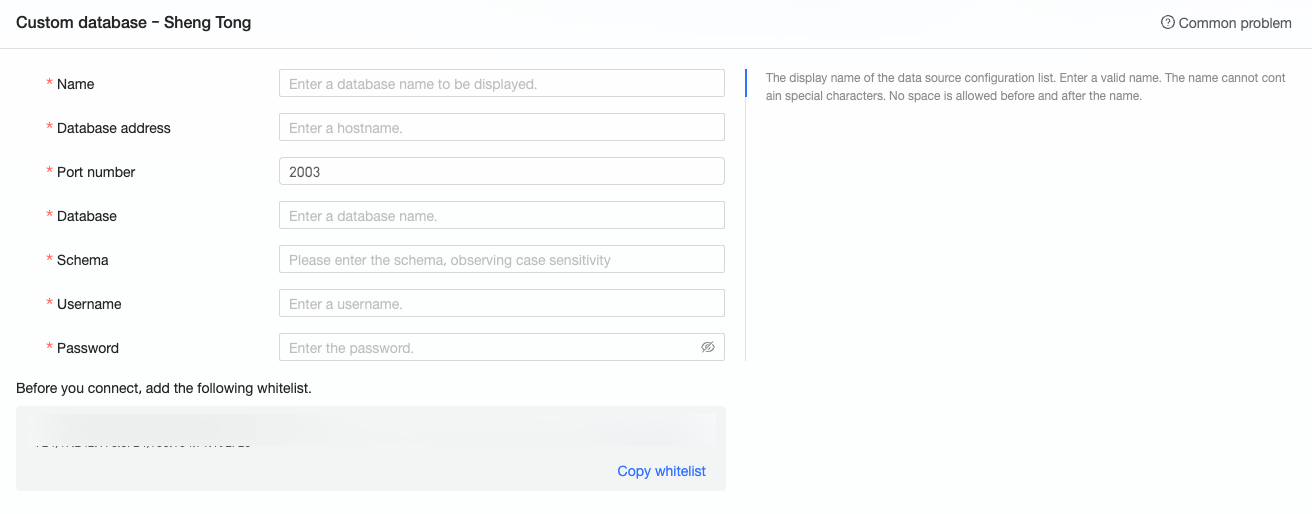
In the Configure Connection dialog box, set the following parameters.
Parameter
Description
Display Name
The name of the data source as it appears in the data source list.
The name cannot contain special characters or leading or trailing spaces.
Database Address
The IP address or domain name of your Shentong database.
Port
The port number of the database. The default port is 2003.
Database
The name of the database you specified when deploying the Shentong database.
Schema
The name of the schema to connect to. Case-sensitive.
Username and Password
The username and password used to connect to the Shentong database. The user must have CREATE, INSERT, UPDATE, and DELETE permissions on the tables in the database.
-
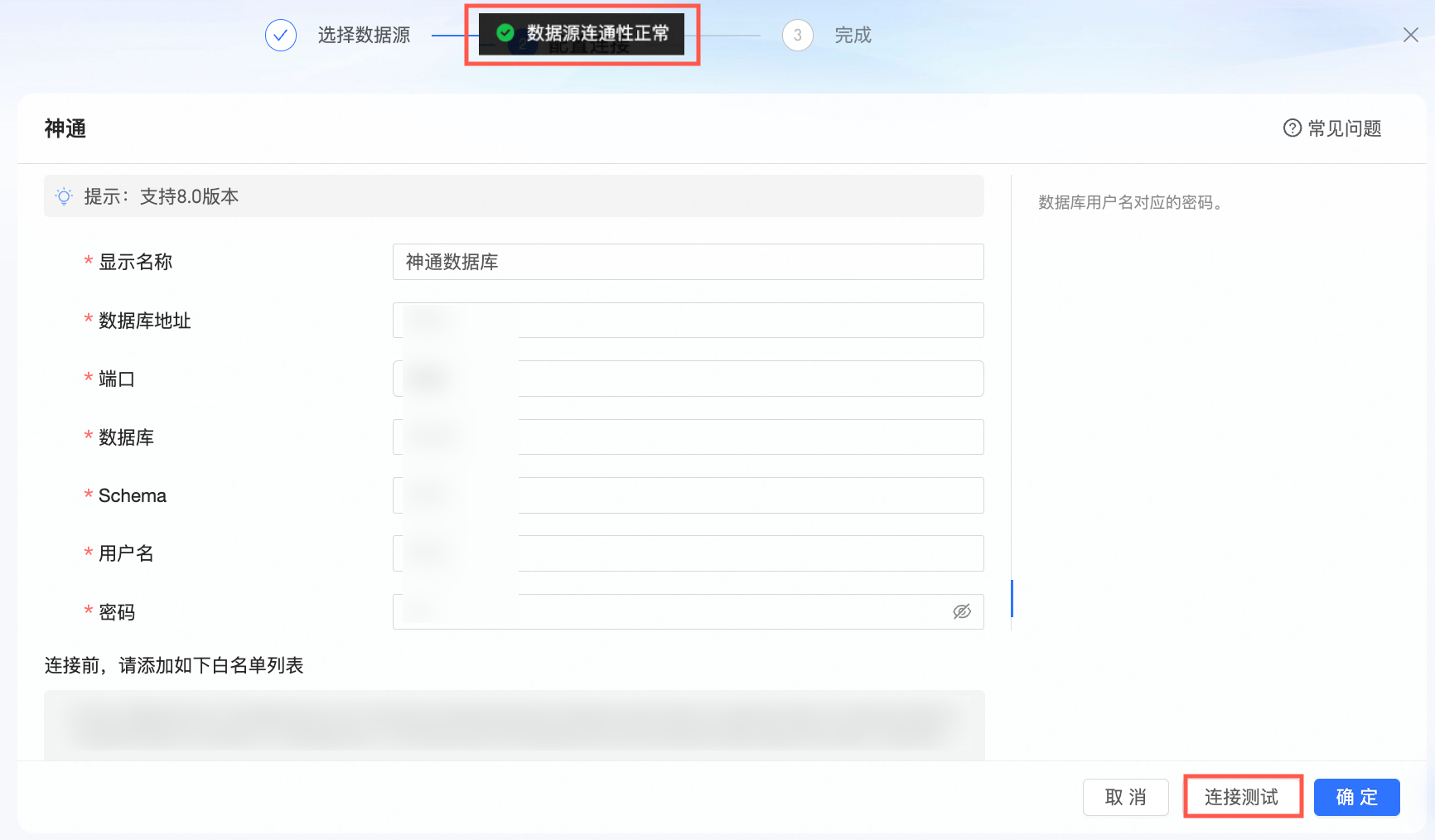
Click Test Connection to verify the connection.
-
After a successful connection test, click OK to add the data source.
Next steps
-
To add data tables or custom SQL queries from your Shentong database to Quick BI, see Create a dataset.
-
To add visual charts and analyze data, see Create a dashboard and Overview of visual charts.
-
To drill down and perform in-depth data analysis, see Step 3: Configure and display drill-downs.