User-created data source: ClickHouse
Add a ClickHouse data source to connect your ClickHouse database to Quick BI. Once connected, you can analyze and visualize your data in Quick BI. Quick BI can connect to ClickHouse over the public network or through an Alibaba Cloud VPC.
Prerequisites
Ensure network connectivity:
If you connect to your ClickHouse database over the public network, add the Quick BI IP addresses to the database allowlist. For more information, see Use a security group.
If you connect to your ClickHouse database over a private network, ensure network connectivity between the data source and Quick BI using one of the following methods:
If your ClickHouse database is deployed on an Alibaba Cloud ECS instance, you can connect through an Alibaba Cloud VPC.
You can also set up a bastion host and connect to your database through an SSH tunnel.
Ensure you have the username and password for your user-created ClickHouse database.
Limitations
Only users with the workspace administrator or organization administrator role can create data sources.
ClickHouse data sources are available only in Quick BI Advanced and Professional editions.
Supported versions are 20.3, 22.8, and 23.8.
Procedure
Log on to the Quick BI console.
Add a data source.
Navigate to the page for creating a data source. For more information, see Create a data source.
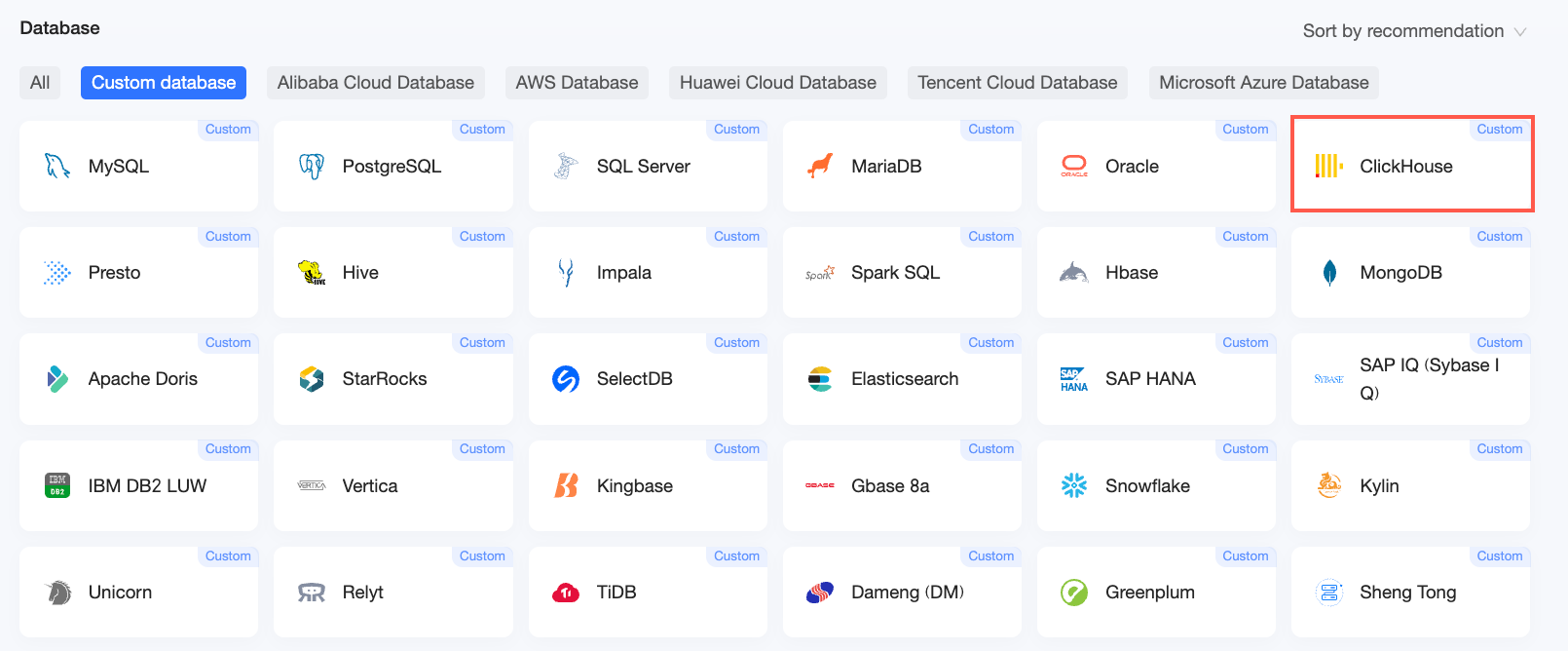
On the User-created Data Sources tab, select the ClickHouse data source.
In the Configure Connection dialog box, configure the following parameters.

Parameter
Description
Display Name
The name that appears in the data source list. The name cannot contain special characters or leading or trailing spaces.
Database Address
The IP address or domain name of your ClickHouse database.
Port
The port number of the database. The default value is 8123.
Database
The name of the database you specified when you deployed ClickHouse.
Username and Password
The username and password for the ClickHouse database.
Time Zone
The time zone where the ClickHouse database is deployed.
Database Version
Select the version of your ClickHouse database.
Select 23.8 for versions 23.8 and later. Select 22.8 for versions earlier than 23.8, such as 22.8 and 20.3.
SSL
If the data source is configured with SSL, select this option to encrypt the connection.
VPC Data Source
Select VPC Data Source and configure the following parameters only if your ClickHouse database is deployed on an Alibaba Cloud ECS instance and uses an Alibaba Cloud VPC network:
Purchaser AccessId: The AccessKey ID of the account used to purchase the instance.
For more information, see Obtain an AccessKey pair.
NoteThe AccessKey ID must have read permission on the target instance. With write permission, Quick BI automatically adds its IP addresses to the allowlist. Otherwise, you must add the IP addresses manually. For more information, see Create a custom policy.
Purchaser AccessKey: The AccessKey Secret of the account used to purchase the instance.
For more information, see Obtain an AccessKey pair.
Instance ID: The ID of the ECS instance. You can obtain the instance ID from the Instances page in the ECS console.
For more information, see View instance information.
Region: The region where the ECS instance is located.
For more information, see View instance information.
SSH
If you select SSH, you must configure the following parameters:
Set up a bastion host to access your database through an SSH tunnel. Contact your system administrator for the bastion host details.
SSH Host: The IP address of the bastion host.
SSH Username: The username used to log on to the bastion host.
SSH Password: The password for the specified username.
SSH Port: The port of the bastion host. The default value is 22.
For more information, see Log on to a Linux instance by using a password.
NoteThe SSH host address must be a public IP address. A private IP address is not supported.
Initialize SQL
If enabled, you can specify SQL statements to run after a connection to the data source is established.
Only SET statements are allowed. Separate multiple statements with semicolons (;).
Enable File Upload
If you enable this option, you can upload files.
Click Test Connection to test the connection to the data source.
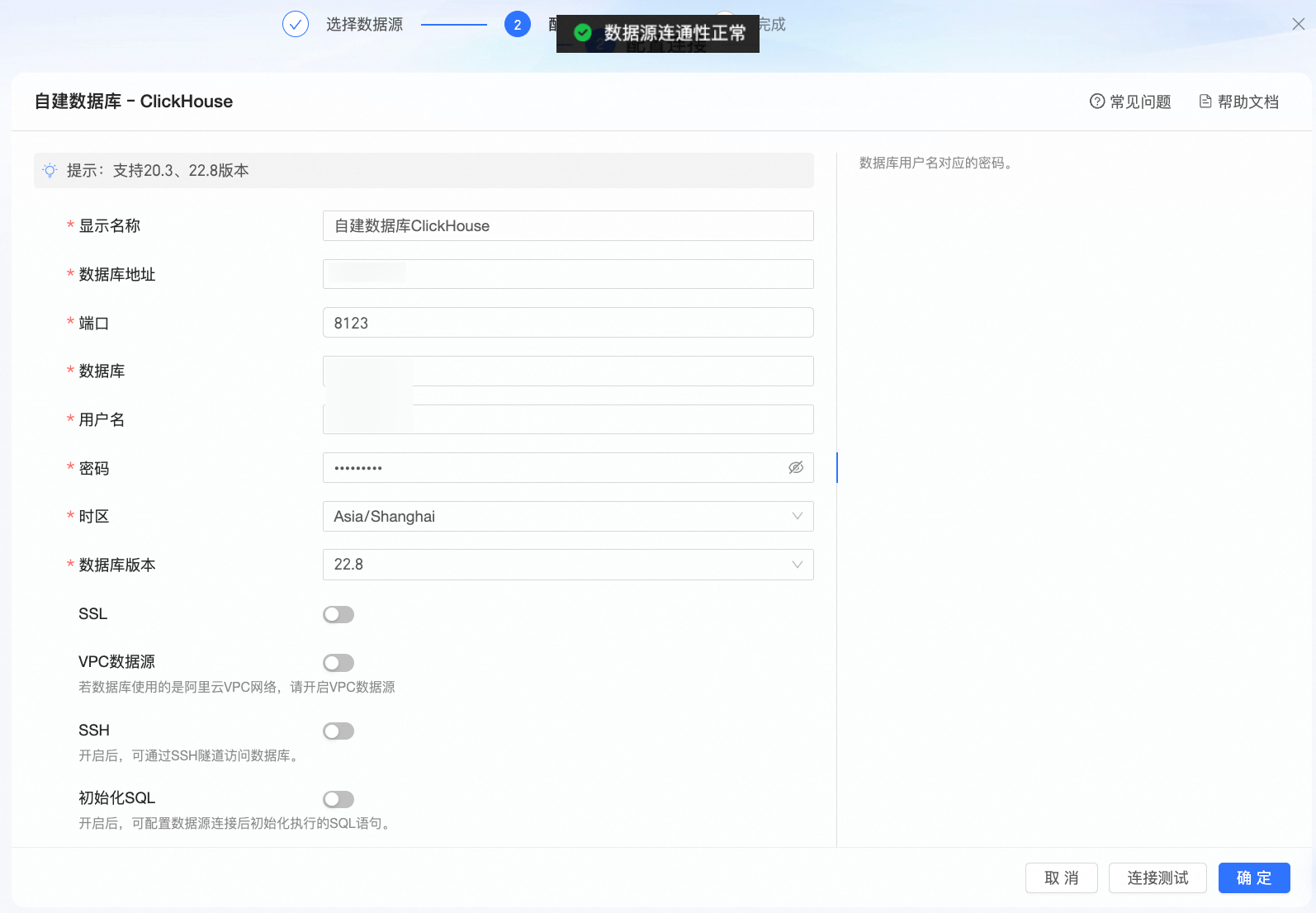
Once the connection test succeeds, click OK to add the data source.
Next steps
After creating the data source, you can create a dataset to analyze your data.
Add tables from your ClickHouse database or create custom SQL queries in Quick BI. For more information, see Create a dataset.
Add charts to a dashboard to visualize and analyze data. For more information, see Create a dashboard and Chart overview.
Use the drill-down feature for in-depth analysis. For more information, see Step 3: Configure and use drill down.