View alert information
After you configure metric monitoring, you can view the alert overview for all metrics on the metric monitoring management page, or select a specific metric to view its alert details.
Alert overview
Access points
Navigation bar
On the homepage, in the upper-right corner of the navigation bar, click the  icon. In the applications list, click Metric Monitoring to open the Metric Monitoring Center, which shows an overview of all metric monitoring items.
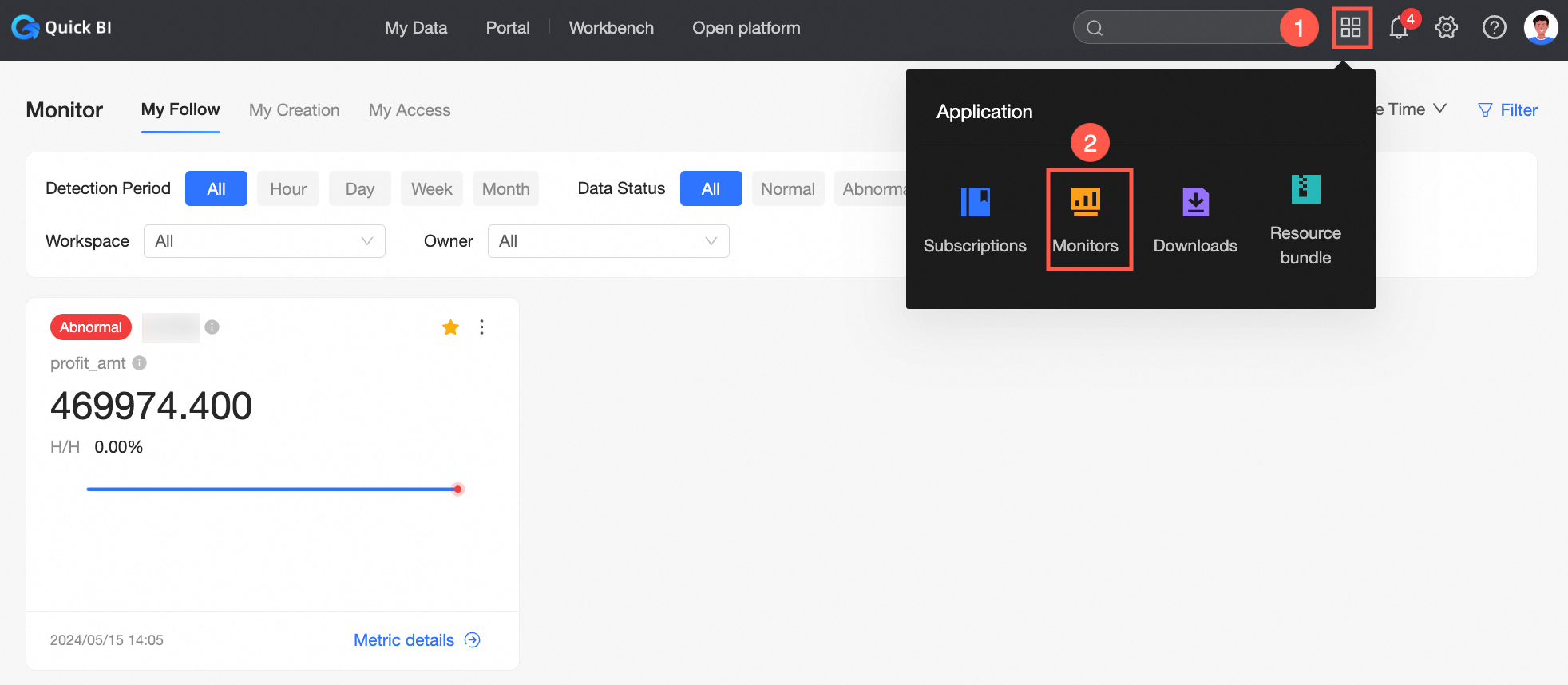
Chart preview page
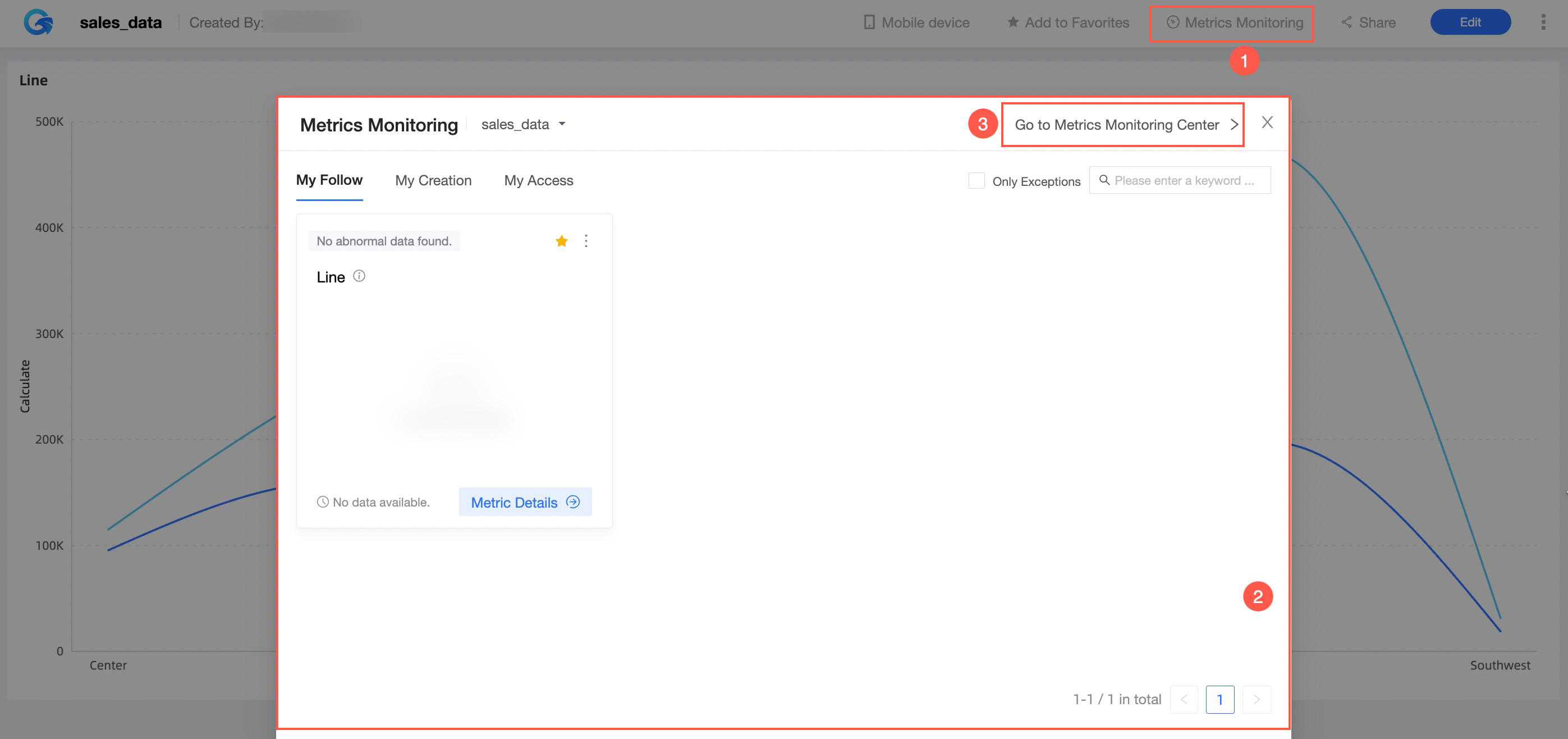
On the Preview page of a dashboard chart, click Metric Monitoring (①) in the upper-right corner. A dialog box appears, showing the current dashboard's metric monitoring settings (②). In the upper-right corner of the dialog box, click Go to Metric Monitoring Center (③) to open the metric monitoring management page and view the alert overview.
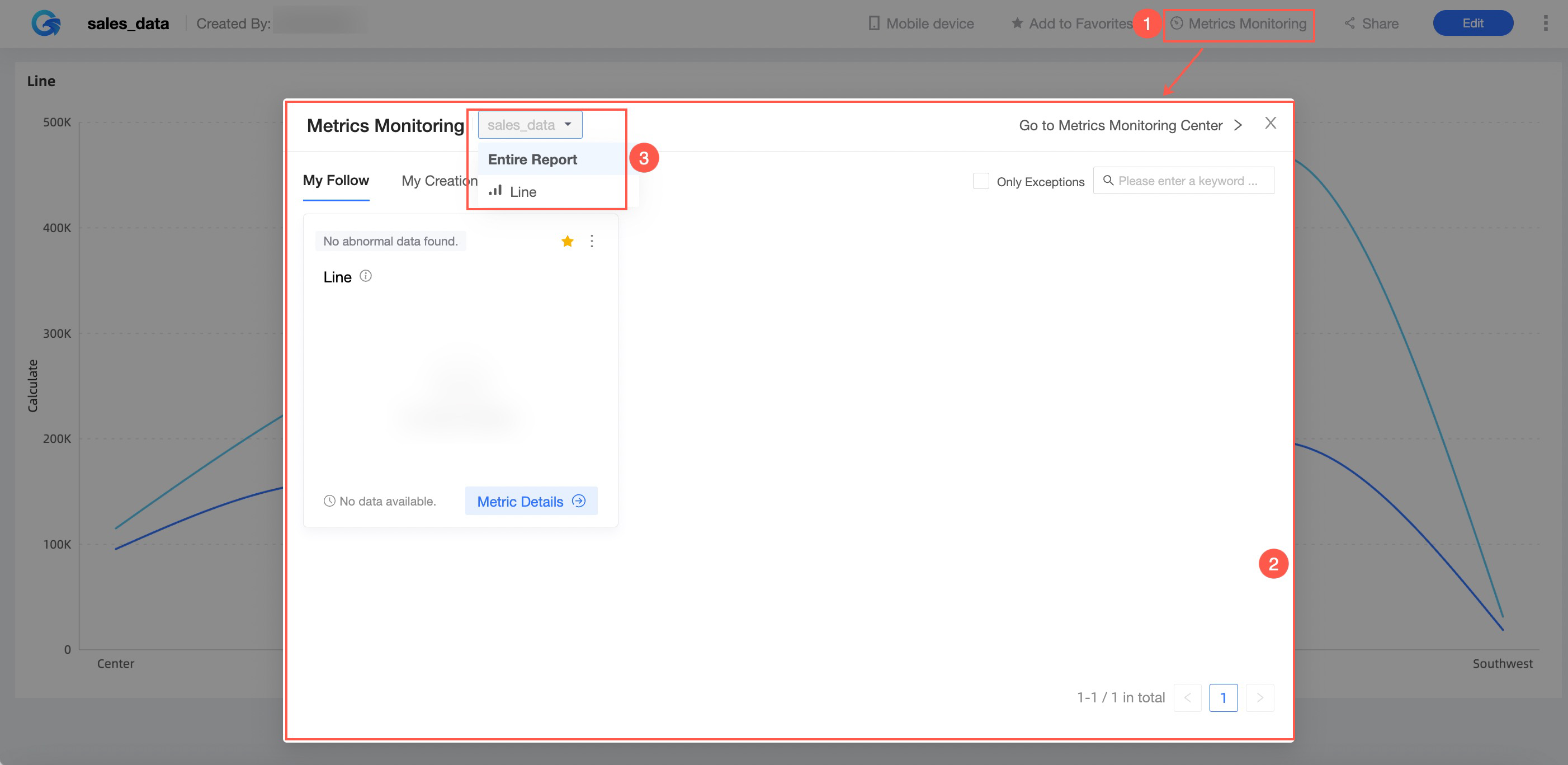
To view the metric monitoring overview for the current dashboard only, browse the information in the Metric Monitoring dialog box. You can also use the dropdown menu at the top to switch to the chart granularity and view the metric monitoring status for a specific chart.
Metric monitoring overview
Tabs
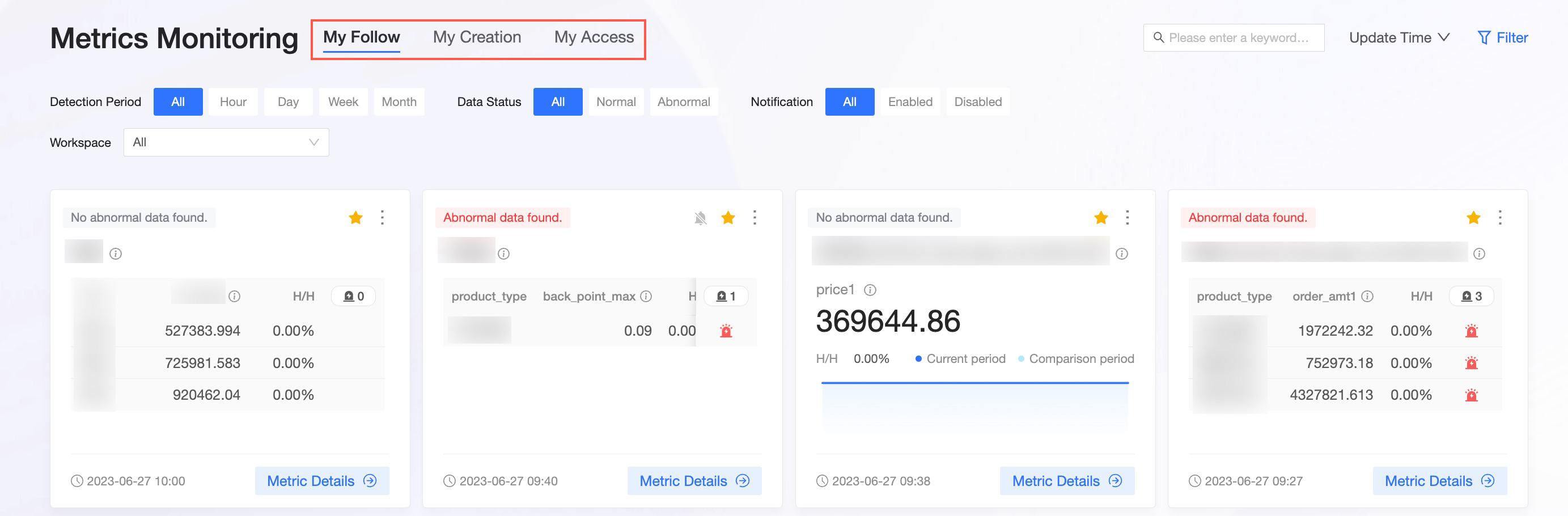
In the Metric Monitoring Center, you can view the alert overview. At the top of the page, you can switch between the Favorites, Created by Me, and Authorized tabs.
Favorites: If push notifications are enabled for a metric monitoring item, message recipients automatically favorite it. You can click the
 icon in the upper-right corner of the corresponding metric card to unfavorite it.
Created by Me: Displays all metric monitoring items that you created.
Authorized: Displays all the metric monitoring items that you have permission to view.
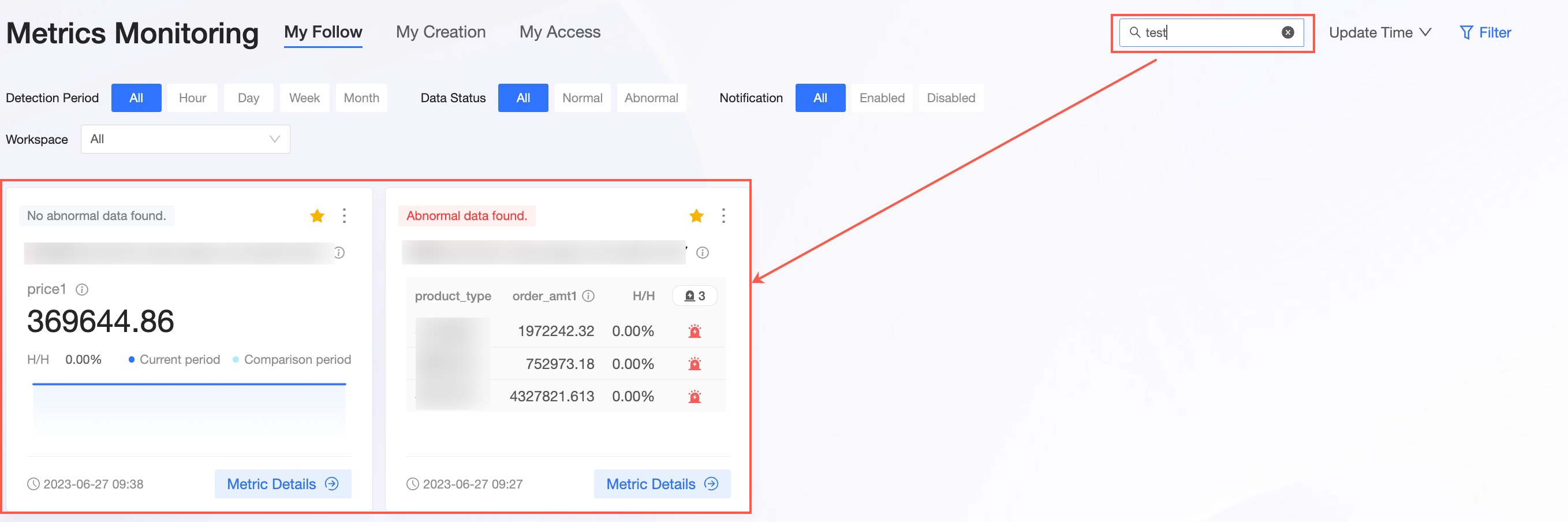
Search
To find a specific metric monitoring item, enter its name in the search box in the upper-right corner of the overview page.
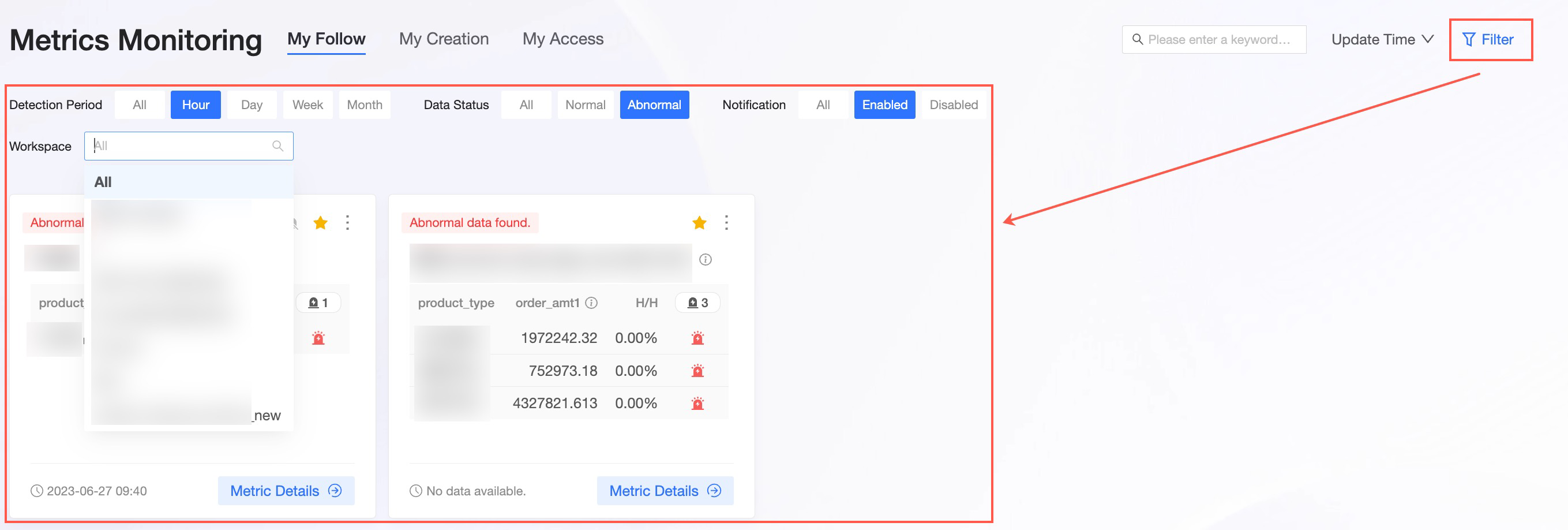
Filter box
You can expand and collapse the filter area. To filter alerts by dimension, click Filter in the upper-right corner of the overview page to expand the filter area and configure your settings.
To filter for only abnormal alert information, switch the Data Status filter to the Abnormal option.
To monitor alerts in a specific workspace, you can select a target workspace and its corresponding Report Type and Report.
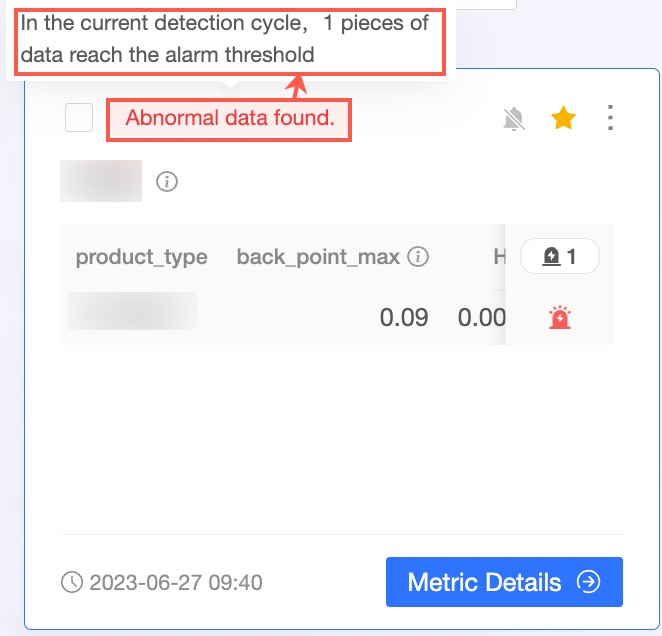
Metric monitoring cards
You can view anomalous alert data on each metric monitoring card.
Detecting anomalies: When anomalous data is detected for a metric, an Alert label appears in the upper-left corner of the card. When you hover over the label, a tooltip with the anomaly details appears.

Metric alert details: Click the metric name or the Metric Details button in the lower-right corner of the card. A pane opens on the right, displaying detailed alert information for the metric.
Metric setting details: Hover over the
icon to the right of the metric name to view its metric monitoring settings.Favorite/Unfavorite:
You can click the
icon in the upper-right corner of a metric card to favorite it, which automatically enables push notifications. If you do not want to receive push notifications, click the icon and select Disable Push Notifications from the More actions list.If push notifications are enabled for a metric monitoring item, message recipients automatically favorite it. You can click the
icon in the upper-right corner of the metric card to unfavorite it. This action does not disable push notifications; you must disable them manually.
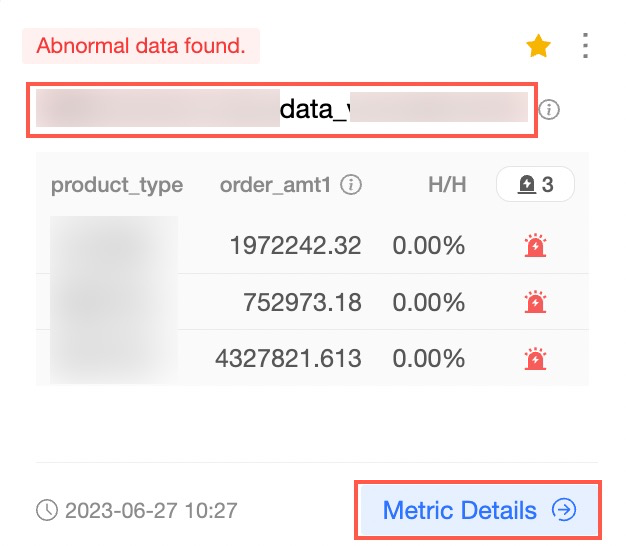
 icon to the right of the metric name to view its metric monitoring settings.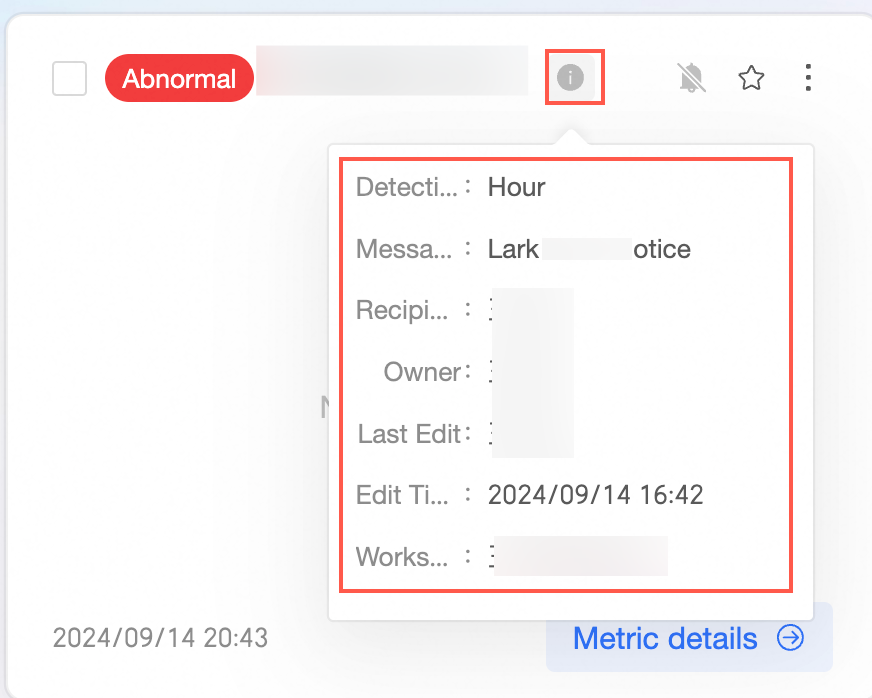
 icon in the upper-right corner of a metric card to favorite it, which automatically enables push notifications. If you do not want to receive push notifications, click the
  icon and select Disable Push Notifications from the More actions list.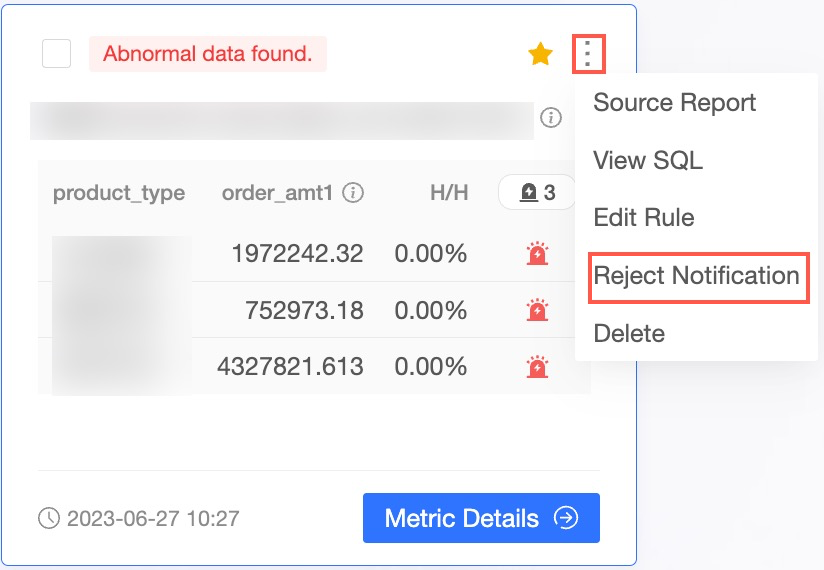
Alert details
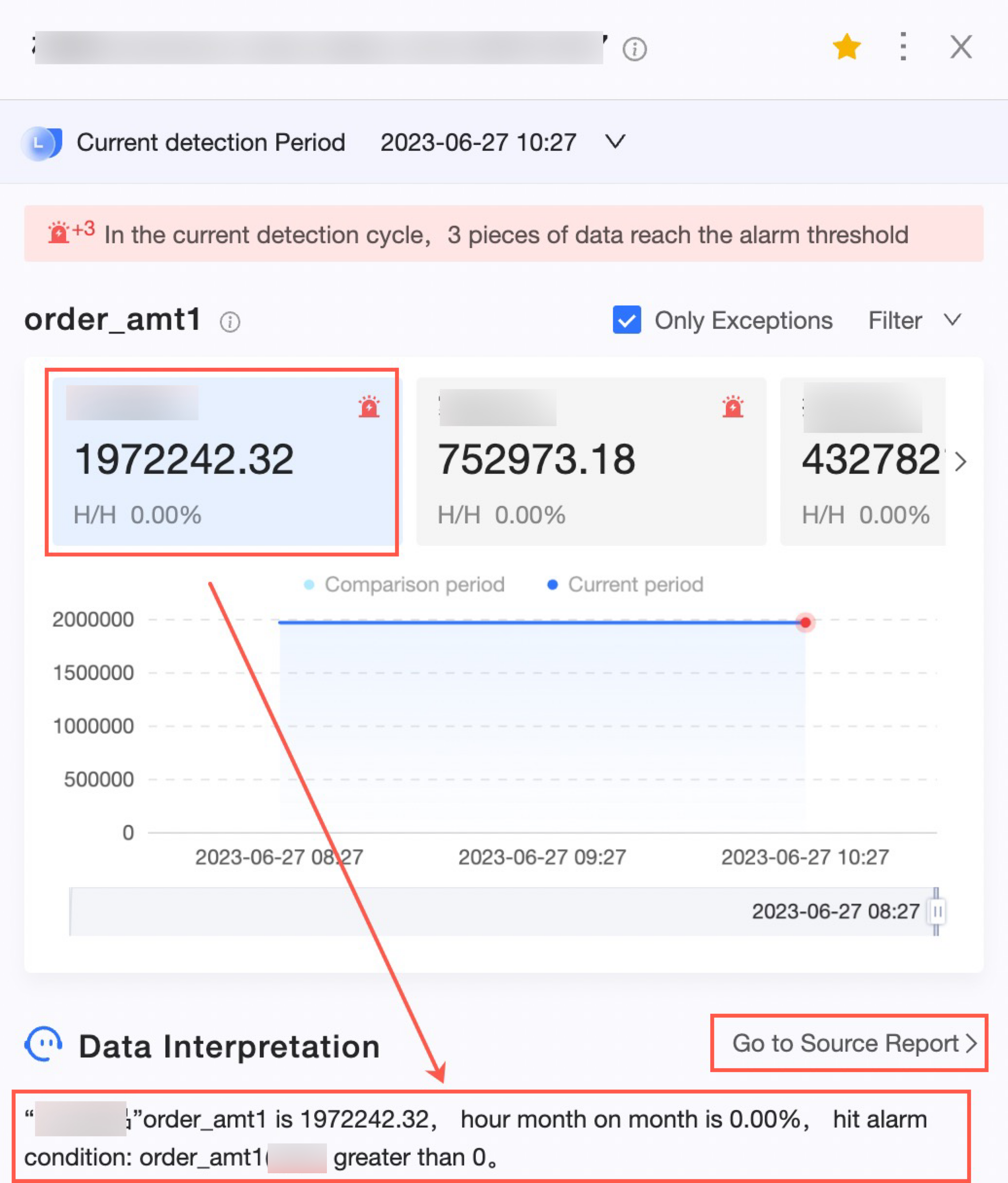
On the Metric Monitoring Center page, click the metric name on a specific metric card or click the Metric Details button in the card's lower-right corner. A pane opens on the right side of the page, displaying detailed alert information for the metric.
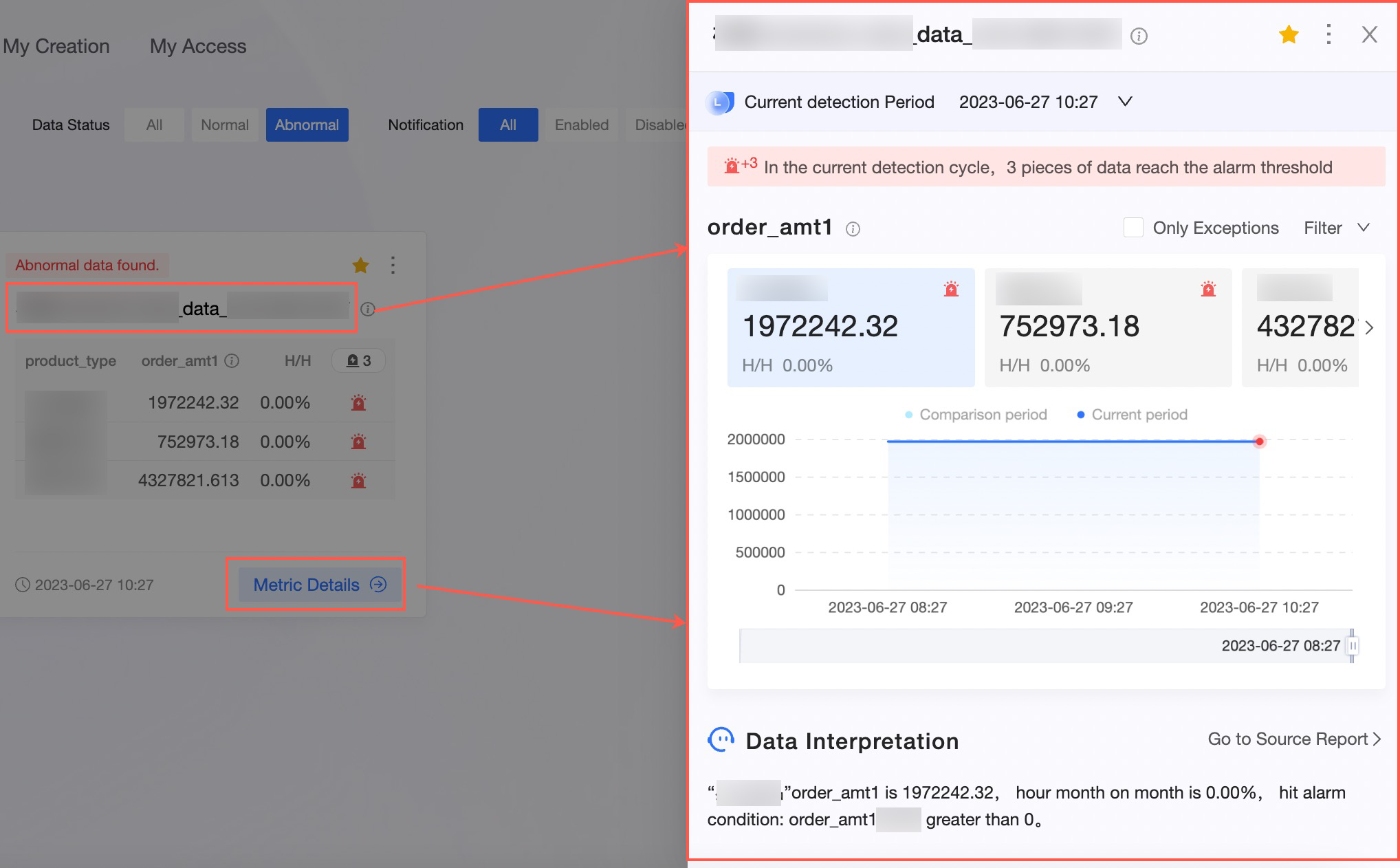
Metric alert overview
In the metric alert overview section, you can view the detection history, Metric Exceptions by Dimension, and Metric Alert Trend.
Detection history
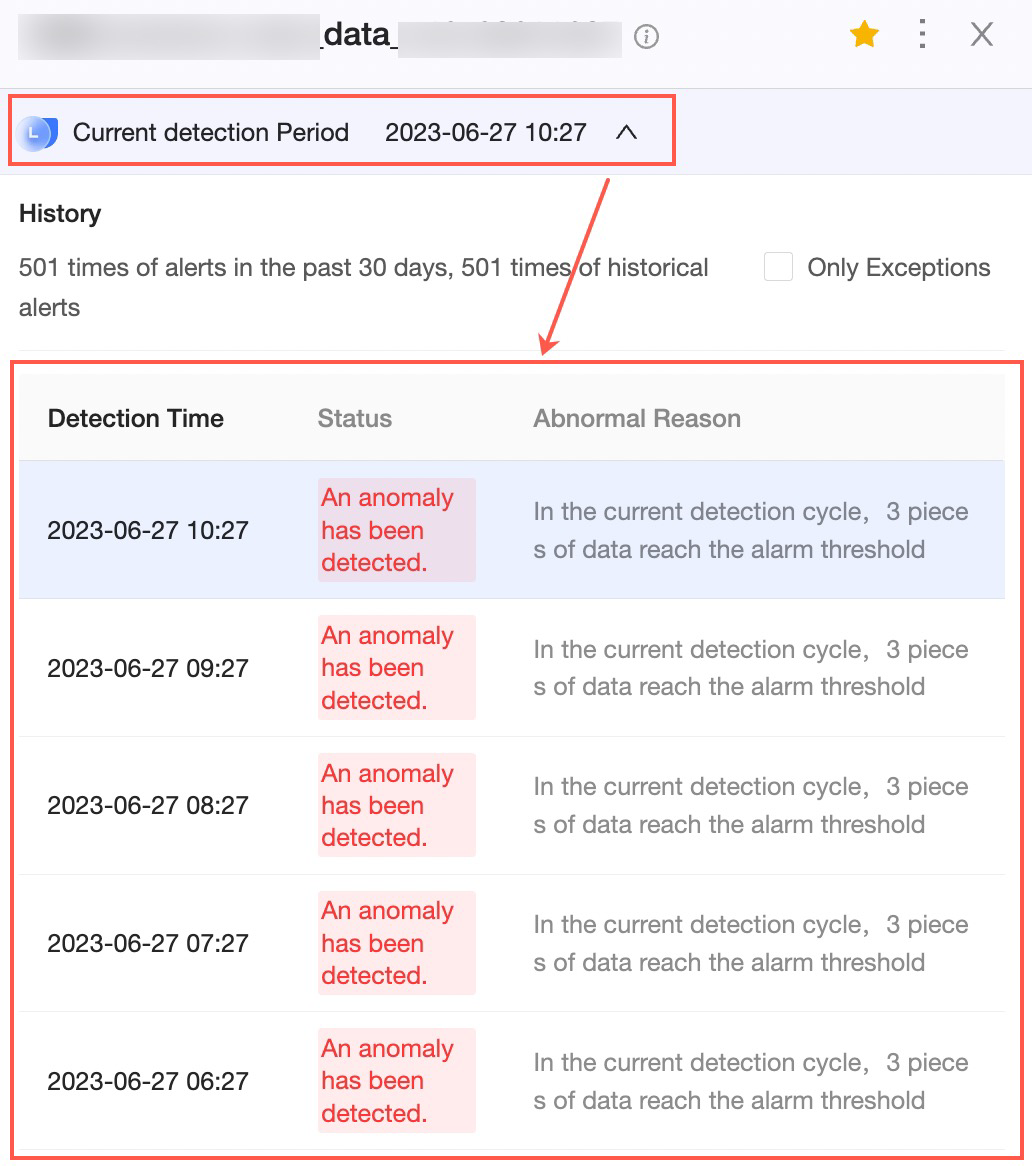
Click the  icon to the right of Detection Period to expand the detection history. You can view the Detection Time, Detection Status, and Exception Reason. To view anomalous data for a specific check, click the corresponding Detection Time.
Metric anomaly details
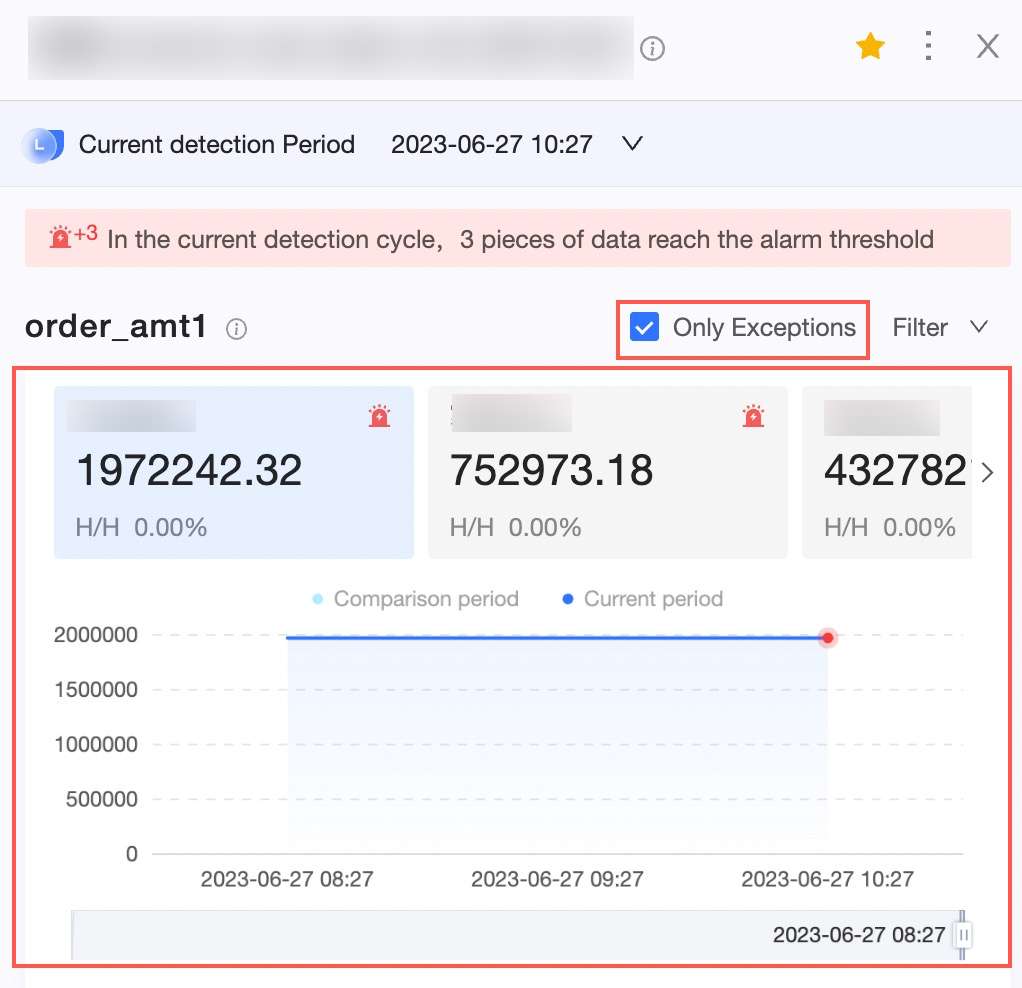
In this section, you can view the data details for the monitored metric. If Split by Dimension is configured, you can switch between dimensions to view the details. You can also select the Only show anomalies checkbox in the upper-right corner to quickly locate the metric's anomalous data.
Data interpretation
When viewing anomalous metric data, you can click a specific data point. The data interpretation section at the bottom of the details pane displays the reason for the anomaly. Click Go to Source Report in the upper-right corner to open the source report.