Configure OAuth for Alibaba Cloud CLI
Authenticate Alibaba Cloud CLI with OAuth instead of AccessKey pairs. OAuth obtains short-lived STS credentials through a browser-based PKCE login flow, eliminating plaintext keys from local configuration files.
Overview
Alibaba Cloud CLI v3.0.299 and later supports OAuth as a credential type. OAuth uses an interactive browser sign-in based on the OAuth 2.0 PKCE flow to obtain a token for accessing Alibaba Cloud resources.
Advantages over AccessKey pair authentication:
Improved security: No plaintext AccessKey pairs in local configuration files, reducing credential leakage risk.
Existing authentication integration: Works with passkeys, MFA, and SSO (user-based and role-based).
Prerequisites
Ensure the following requirements are met:
CLI version: Alibaba Cloud CLI
v3.0.299or later installed.Administrator permissions: The RAM administrator performing initial setup has the
AliyunRAMFullAccesspermission.Environment: The CLI and the browser must run on the same device. Headless environments (such as SSH-connected Linux terminals) are not supported.
Procedure
An administrator creates the CLI application. A RAM administrator creates the CLI application in RAM using one of two methods:
Create through administrator consent. A RAM administrator initiates the first OAuth login from the CLI and grants consent in the browser. The system automatically creates an OAuth application named
official-cli.Provision from the console. A RAM administrator provisions the
official-cliapplication from the RAM console, bypassing the consent step.
An administrator assigns identities. A RAM administrator (not the root account) assigns RAM users or RAM roles to the application. Only assigned identities can sign in through OAuth.
A user authorizes and signs in to the CLI. The assigned RAM user runs the configuration command, which opens a browser. After the user signs in and grants authorization, the CLI obtains a token to complete authentication.
Step 1: Create the CLI application
A RAM administrator with AliyunRAMFullAccess permissions performs this step.
Create through administrator consent
Select OAuth authentication mode. Run the following command to start configuring OAuth sign-in. Specify a profile name such as
OAuthProfile.aliyun configure --profile OAuthProfile --mode OAuthSelect the sign-in site. When prompted, enter the
OAuth Site Type.aliyun configure --profile OAuthProfile --mode OAuth Configuring profile 'OAuthProfile' in 'OAuth' authenticate mode... OAuth Site Type (CN: 0 or INTL: 1, default: CN):Enter
0orCNfor Alibaba Cloud China.Enter
1orINTLfor Alibaba Cloud International.Press Enter to use the default (CN).
Sign in as an administrator. The CLI opens a browser automatically. If the browser does not open, copy the SignIn url from the CLI prompt and paste it into your browser.
Example:
If the browser does not open automatically, use the following URL to complete the login process:

SignIn url: https://signin.aliyun.com/oauth2/v1/auth?response_type=code&client_id=...
Provide administrator consent. On the Official Application Authorization page, click Grants. This creates an OAuth third-party application named
official-cliin your account. This consent is a one-time action and is required again only if theofficial-cliapplication is deleted.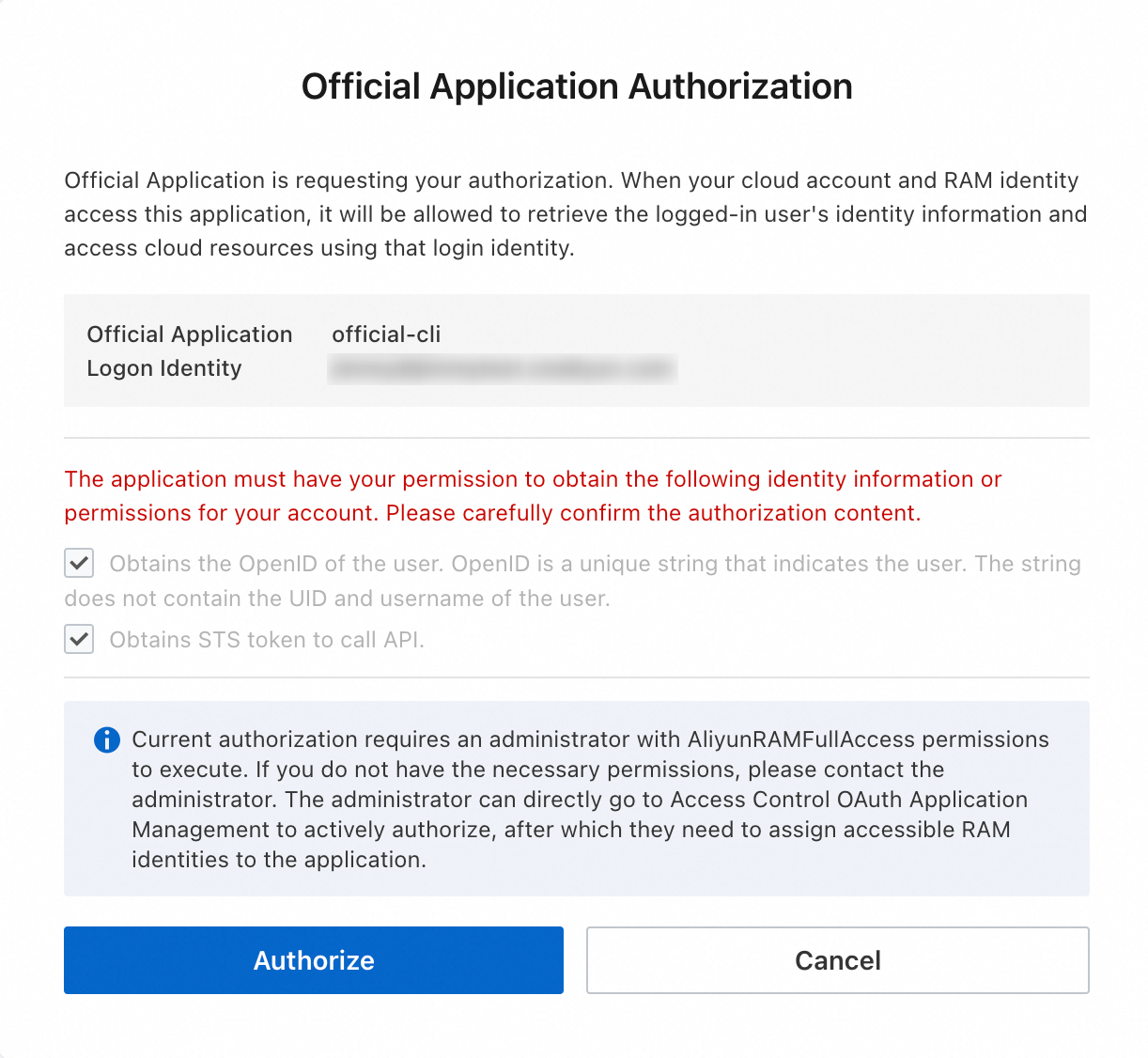
The CLI requests the following OAuth scopes during authorization. Scopes define the permissions the application can exercise on the user's behalf.
OAuth scope
Description
openidObtains the OpenID of the RAM user — a unique identifier that does not expose sensitive information such as the Alibaba Cloud UID or username.
/internal/ram/userstsObtains an STS credential to call Alibaba Cloud service APIs.
NoteThis scope is currently available only to the official CLI application.
Provision from the console
Log on to the RAM console.
In the left-side navigation pane, choose , and then click the Third-party Application tab.
On the Third-party Application tab, click Provision Official Application.
In the Provision Official Application dialog box, select Official CLI, and click OK.
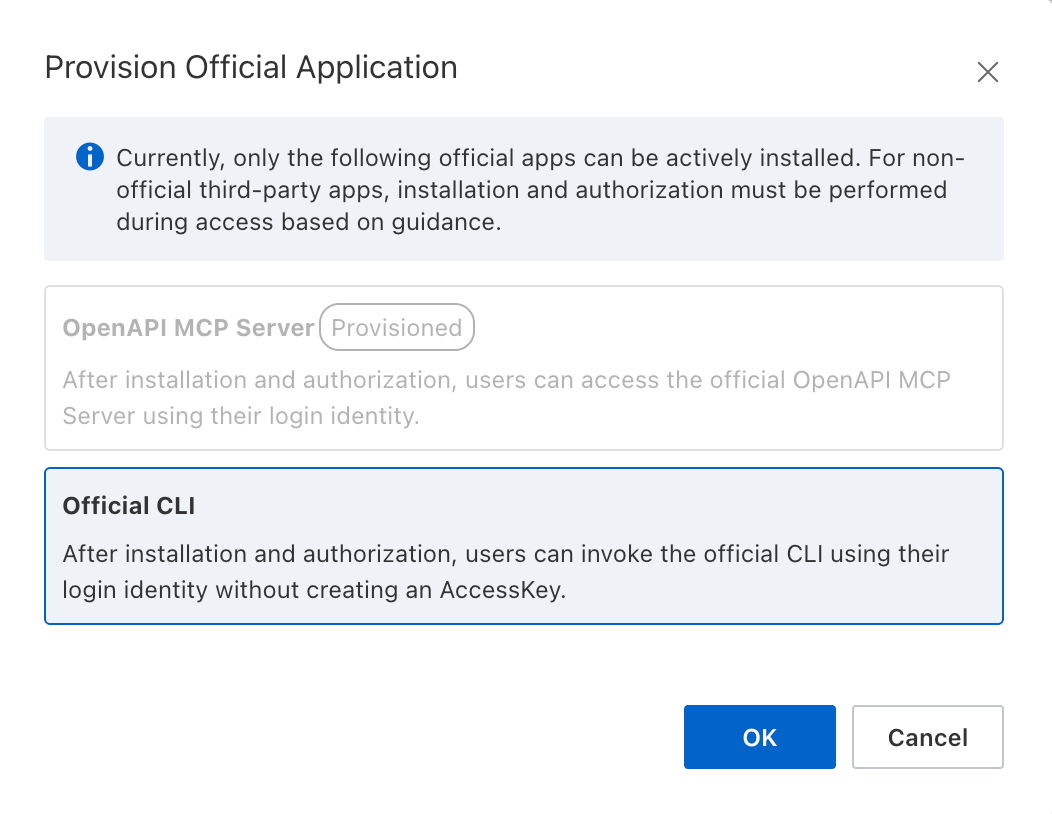
On the Third-party Application tab, verify that the
official-cliapplication is created.
Step 2: Assign identities
If you created the CLI application through administrator consent, you are prompted to assign users after authorization. If you provisioned the application from the console, skip step 1.
Click Go now. The page redirects to the OAuth application details in the RAM console.
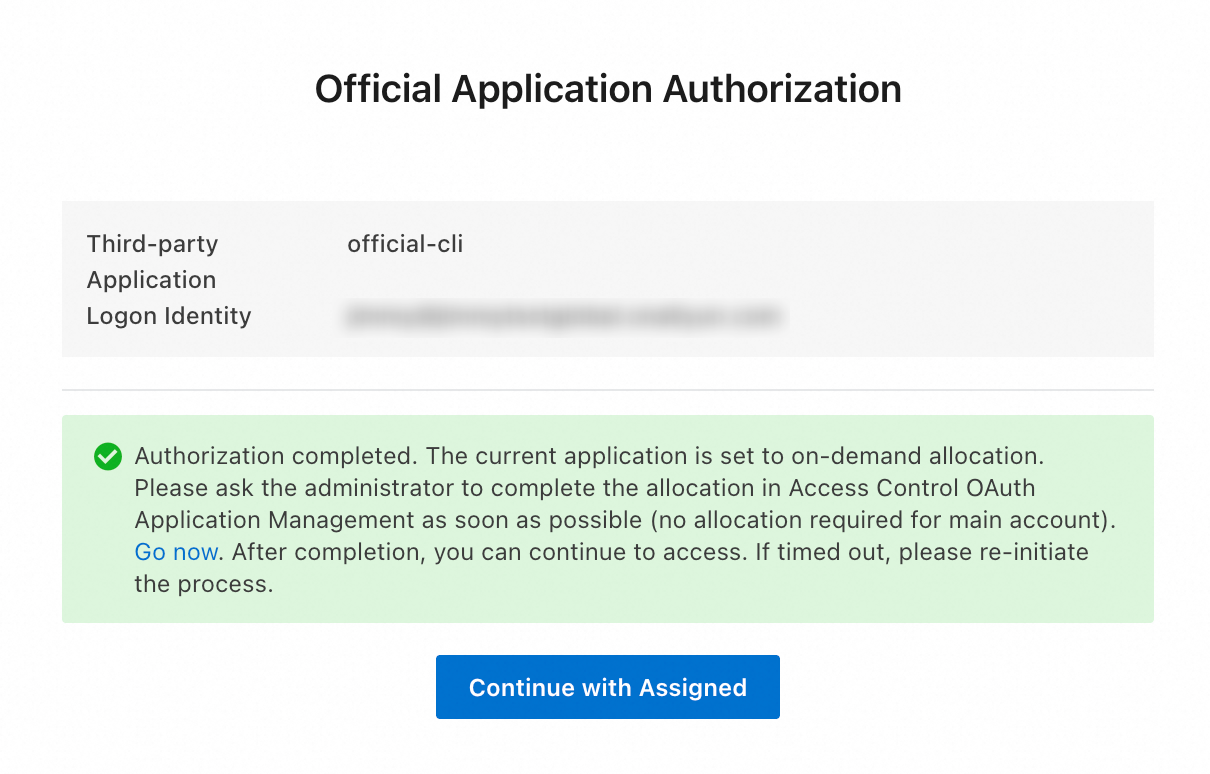
Alternatively, log on to the RAM console, navigate to , click the Third-party Application tab, and in the Third-party Application list, find and click the
official-cliapplication.On the
official-cliapplication details page, click the Allowed Identities tab, and then click Add Users or roles.In the Add Users or roles panel, select the RAM users or RAM roles to authorize, and then click OK.
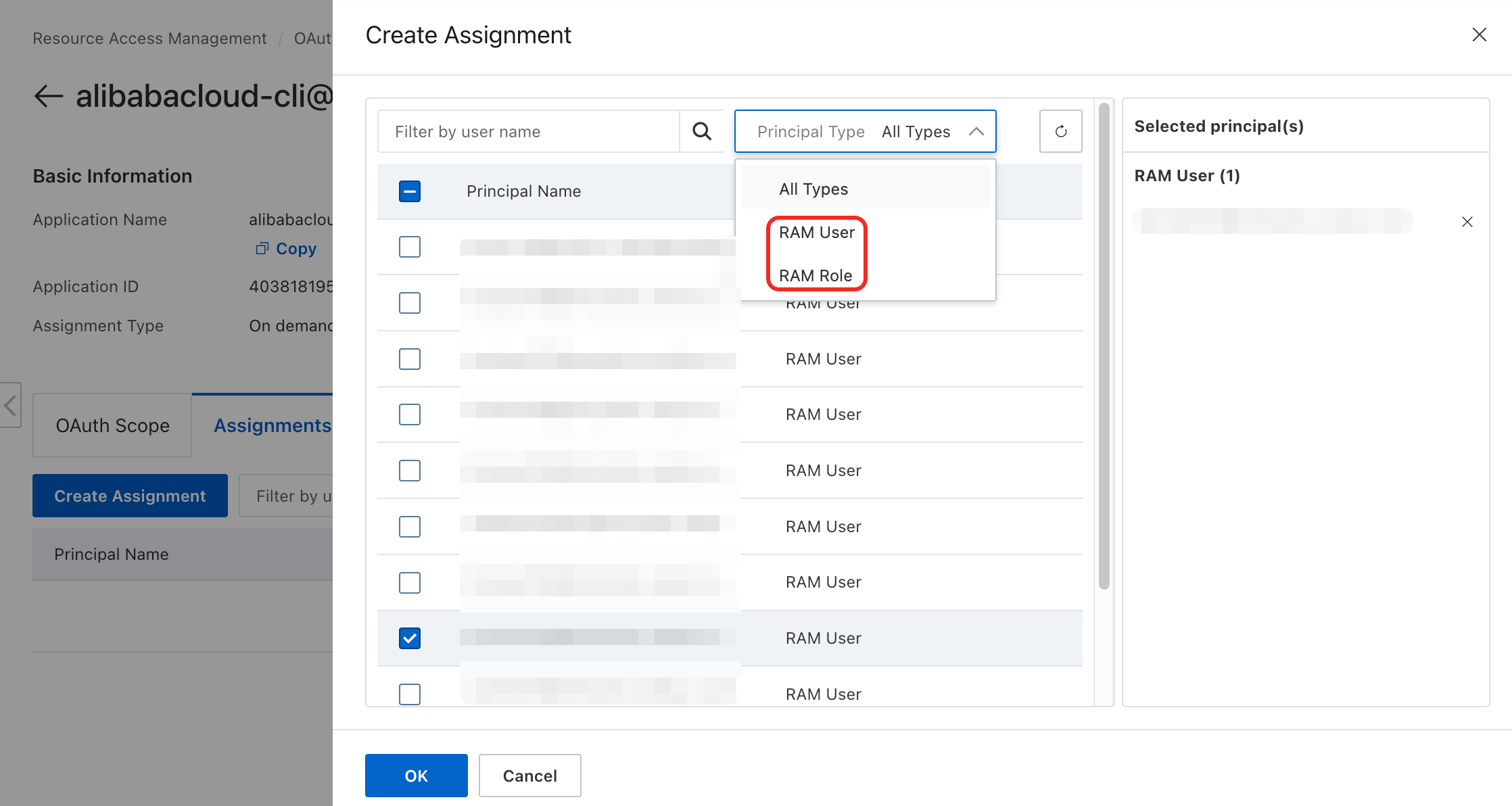
Step 3: Authorize and sign in to the CLI
A RAM user assigned to the official-cli application performs this step on their own device.
Select OAuth authentication mode. Run the following command to start OAuth sign-in configuration.
aliyun configure --profile OAuthProfile --mode OAuthSelect the sign-in site. When prompted, select
CNorINTL.Sign in as the user. In the browser window that opens, sign in with your RAM user identity.
Provide user authorization. On the User Authorization page, click Grants. User authorization is required only for the first sign-in. Subsequent sign-ins skip this step unless the
official-cliapplication is deleted.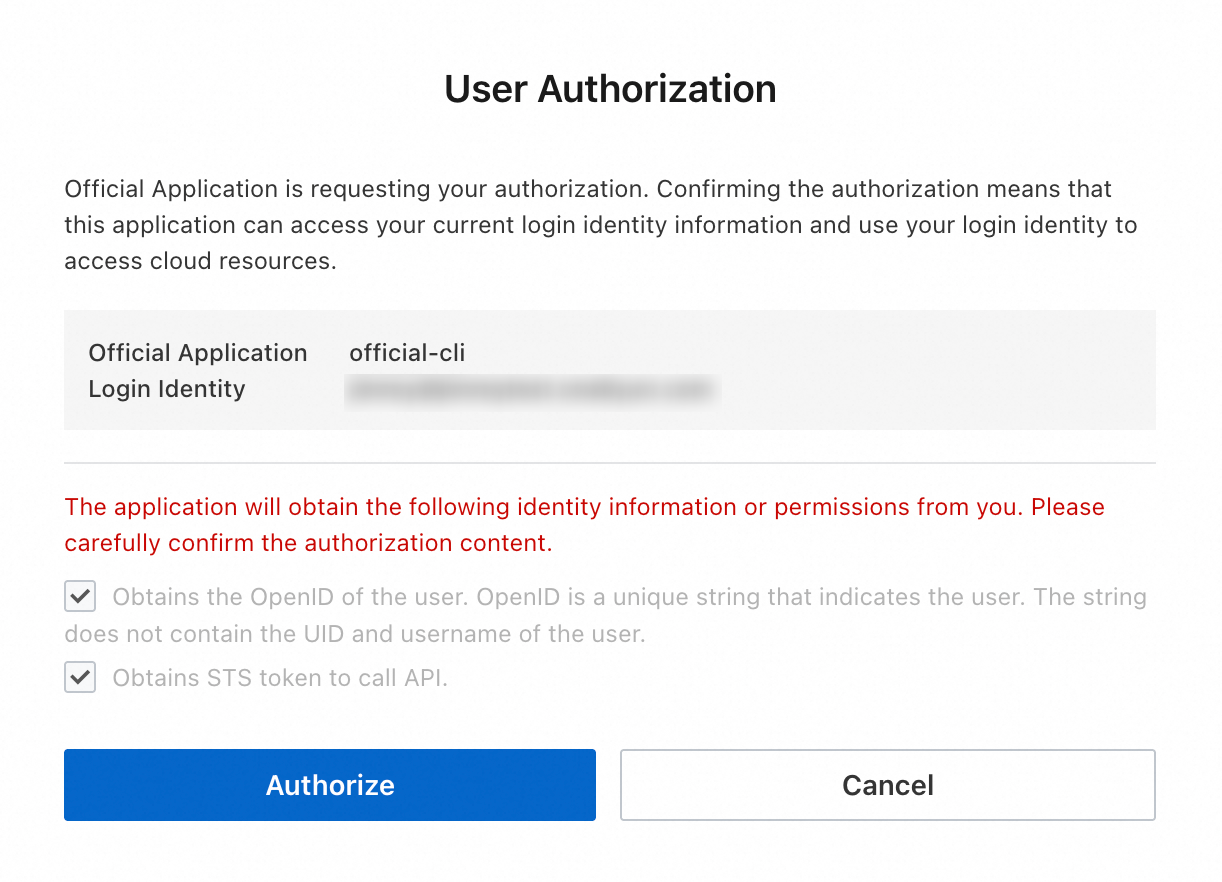
Sign in with a role. You can also sign in with a RAM role. Use role-based SSO from your IdP, or sign in to the console and switch role. After establishing the role session, run the configuration command. The CLI uses this active session to complete authentication.
NoteAdministrator consent and user authorization serve different purposes. User authorization is required even after administrator consent is granted.
Administrator consent: Registers the
official-cliapplication in your Alibaba Cloud account and allows assigned identities to access it.User authorization: Grants the CLI permission to access Alibaba Cloud resources or perform specific actions on the user's behalf.
Set the default region. After authorization succeeds, return to the terminal and enter a default region.
Default Region Id []: cn-hangzhouNoteSome cloud products do not support cross-region access. Set the default region to where your resources are located.
When the terminal displays
Configure Doneand a welcome message, the configuration is complete.(Optional) Verify the signed-in identity. Run the following command to check the current CLI identity:
aliyun sts get-caller-identity --profile OAuthProfile
Limitations
The
official-cliapplication cannot be assigned to a user group. Assign it to specific RAM users or RAM roles.The CLI and browser must run on the same device. Headless environments (such as SSH-connected Linux servers) are not supported.
Troubleshooting
"Unauthorized call" error during admin consent
Cause: The account signed in to the browser does not have the AliyunRAMFullAccess permission and is not a RAM administrator account.
Solution: Sign out, sign in with a RAM administrator account that has AliyunRAMFullAccess, and retry. Contact your administrator if you do not have the required permissions.