Create and manage outbound tasks
Outbound tasks are the command center for the Raascall to execute outbound calls. The system supports two modes: general tasks (upload customer lists in the console for batch outbound calls) and API tasks (trigger outbound calls by calling API endpoints). With smart exclusion rules, flexible retry policies, and real-time progress monitoring, you can precisely reach customers and improve conversion efficiency.
Access: After logging in to the console, select Outbound Tasks in the left navigation pane.
Outbound tasks provide two functional modes: General Tasks (upload customer lists for batch outbound calls) and API Tasks (trigger outbound calls through API endpoints).
General tasks
Switch to the General Tasks tab to view and manage batch outbound tasks created from customer lists.
Task overview
The top of the page displays five key statistical metrics to help you quickly understand the overall task status:

-
Total Tasks: The total number of all tasks created under the account (including all statuses).
-
Completed: The number of tasks where all numbers have been called.
-
In Progress: The number of tasks currently executing outbound calls.
-
Paused: The number of tasks manually paused or paused due to resource exhaustion.
-
Terminated: The number of tasks that have been manually terminated and cannot be resumed.
Task list
The task list displays the task ID, task name, customer list, task progress, task status, and creation time for all tasks. You can view details, edit, start, pause, or stop tasks.
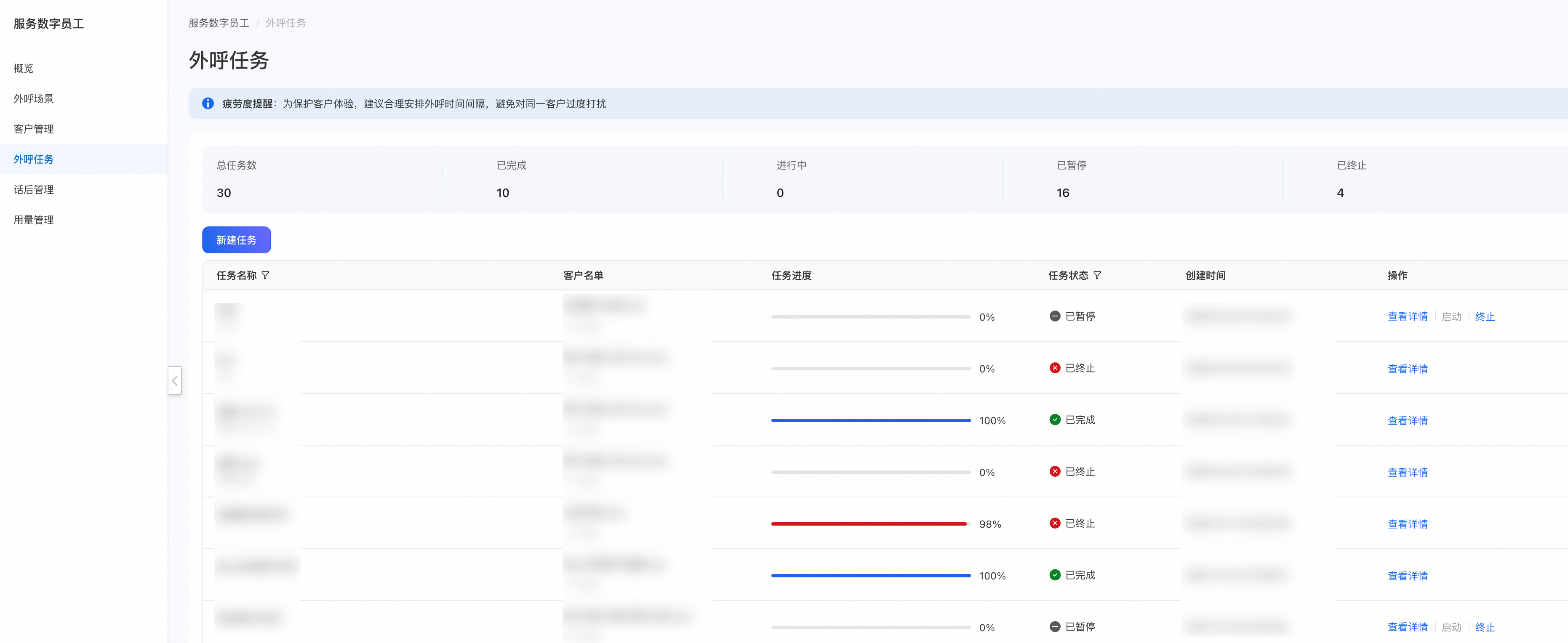
Task statuses include the following:
-
Completed: All numbers have been called (you can view details or copy).
-
In Progress: Currently making outbound calls (you can pause or stop). In-progress tasks consume agent resources and call minutes.
-
Paused: Manually paused or resources exhausted (you can view details, edit, start, or stop). Paused tasks do not consume resources and can be started at any time to resume execution.
-
Terminated: Irreversibly terminated (you can view details or copy). Terminated tasks cannot be restarted. The termination action cannot be undone. For temporary interruptions, use "Pause" instead.
Create a general task
On the General Tasks tab, click the Create General Task button in the upper-right corner of the page and complete the following three steps to create an outbound task.
Step 1: Basic configuration
Configure the basic information of the task.
|
Parameter |
Required/Optional |
Description |
|
Task Name |
Required |
Up to 20 characters. Recommended format: Example: Membership Renewal-High-Value Customers-0114 |
|
Task Description |
Optional |
Up to 40 characters. Additional notes and remarks. |
|
Customer List (Who to call) |
Required |
Select from uploaded lists. The selection cannot be modified after choosing. |
|
Outbound Scenario (What script to use) |
Required |
Select a matching business scenario, which determines the script and response strategies. |
|
Voice Type (Who speaks) |
Required |
Select a digital agent voice. Preview is supported. The system currently provides 4 digital agent voices to choose from:
|
Step 2: Configure outbound call policies
In this step, you configure the execution policy for the task, which determines when and how the task makes outbound calls.
|
Parameter |
Required/Optional |
Description |
|
Time Range |
Required |
Select the start and end dates for the outbound task. |
|
Call Time |
Required |
Set the daily outbound call time periods. Recommended: 10:00-12:00, 14:00-17:00, 19:00-21:00 Avoid: Before 9:00, after 21:00, and lunch break hours |
|
Smart Exclusion Rules |
Optional |
Recommended to enable. Once enabled, the system automatically excludes the following time periods to protect the customer experience and improve connection rates:
|
|
Digital Agent Seats |
Required |
|
|
Retry Policy |
Optional |
Disabled by default. When enabled, configure the following: • Retry count: 1 to 3 times • Retry interval: 30 minutes, 1 hour, or 2 hours • Retries are only performed for unanswered, powered off, or busy signals. Explicitly rejected calls are not retried. |
Step 3: Publish settings
Review all configuration information and publish after confirmation. Once published, the task starts automatically.
API tasks
Switch to the API Tasks tab to view and manage outbound tasks initiated through API endpoints. You can integrate outbound calling capabilities into your own business systems. After creating a task, the system generates a unique task ID and API key.