Classic network ECS: Connect to a VPC-based RDS for PostgreSQL
This topic shows how to use ClassicLink to create a private connection between an Elastic Compute Service (ECS) instance in the classic network and an ApsaraDB RDS for PostgreSQL instance in a virtual private cloud (VPC).
Background
ApsaraDB RDS for PostgreSQL instances that use cloud disks no longer support the classic network. We recommend that you use a VPC, which provides better security. If your ECS instance is in the classic network, we recommend that you migrate the classic network ECS instance to the same VPC as the ApsaraDB RDS for PostgreSQL instance for a more secure private connection. If you do not plan to migrate the ECS instance immediately, follow the instructions in this topic to connect the classic network ECS instance to an ApsaraDB RDS for PostgreSQL instance in a VPC.
Prerequisites
-
The ECS instance is in the classic network.
-
The ApsaraDB RDS for PostgreSQL instance is in a VPC.
-
The ECS instance and the ApsaraDB RDS for PostgreSQL instance are in the same region.
-
The IP address whitelist for the ApsaraDB RDS for PostgreSQL instance includes the internal IP address of the ECS instance. For more information, see Configure an IP address whitelist.
Procedure
-
Enable ClassicLink for the VPC that the ApsaraDB RDS for PostgreSQL instance uses.
Log on to the ApsaraDB RDS console and go to the Instances page. In the top navigation bar, select the region in which the RDS instance resides. Then, find the RDS instance and click the ID of the instance.
-
In the left-side navigation pane, click Database connection.
-
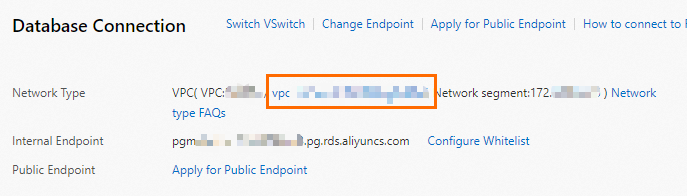
Click the VPC ID next to Network Type to open the VPC console.
-
In the upper-right corner of the VPC console, click Enable ClassicLink.

-
In the dialog box that appears, click OK.
-
Configure ClassicLink security group rules for the ECS instance.
-
Log on to the ECS console.
-
In the left-side navigation pane, choose . In the top navigation bar, select a region.
-
Find the target ECS instance that is in the classic network. In the Actions column, choose
 > Network and Security Group > Set VPC Connection Status.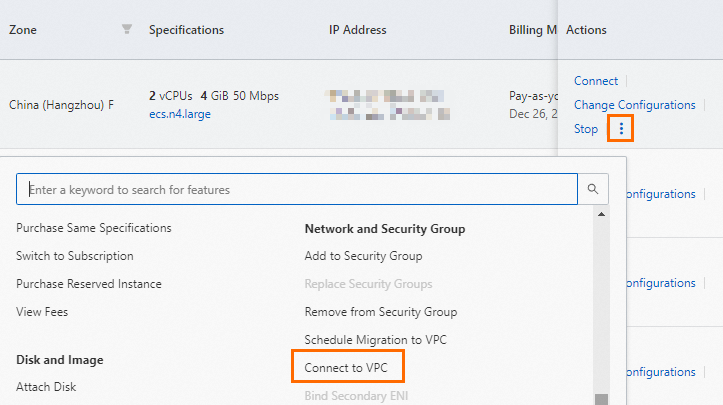
-
In the dialog box that appears, select the target VPC and click OK.
-
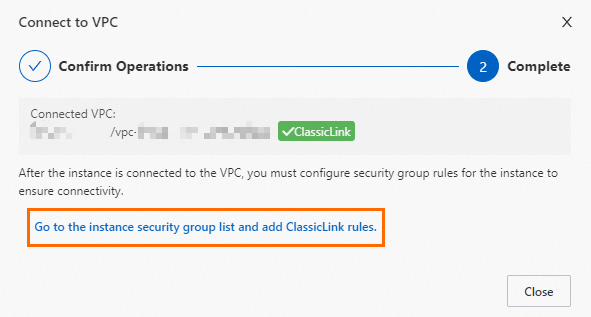
Click Go to instance security group list to add ClassicLink security group rules.
-
In the Actions column of the target security group, click Manage Rules.
-
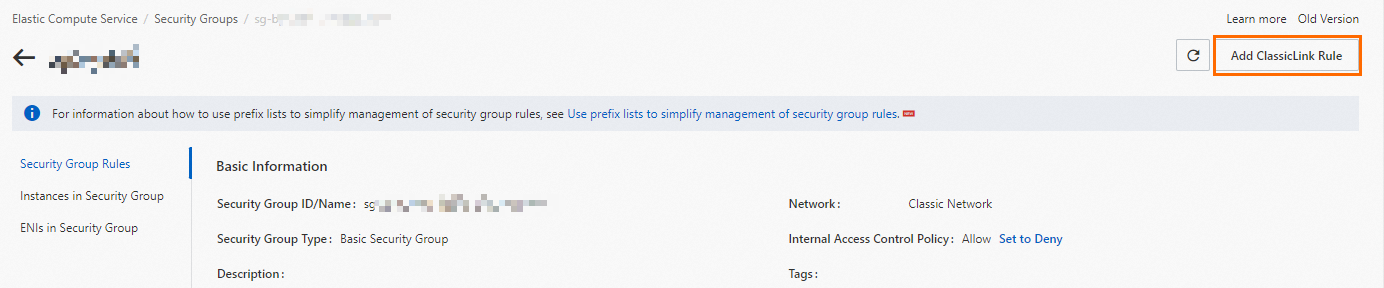
On the Security group rules page, click Add ClassicLink Rule in the upper-right corner. Configure the ClassicLink security group rule based on the following information, and then click OK.

Parameter
Description
Classic network security group
This parameter displays the name of the classic network security group. This parameter is read-only.
Select VPC
Select the target VPC.
Select VPC security group
Select the target security group in the VPC.
Authorization method
Select an authorization method. This example uses Classic Network <=> VPC.
-
Classic Network <=> VPC: (Recommended) Allows bidirectional access between the classic network and the VPC.
-
Classic Network => VPC: Allows the ECS instance in the classic network to access cloud resources in the VPC.
-
VPC => Classic Network: Allows cloud resources in the VPC to access the ECS instance in the classic network.
Protocol type
Select the protocol for communication. This example uses Custom TCP by default. No changes are required.
Port range
Enter the port range in the
xx/xxformat. To authorize a single port, such as port 5432, enter 5432/5432.Priority
Set the priority of the rule. A smaller value indicates a higher priority. For example, enter
1.Description
Enter a description for the security group rule.
-
-
-
Connect to the ECS instance and run the following command to connect to the ApsaraDB RDS for PostgreSQL instance by using its internal endpoint.
psql -h <Internal endpoint of the ApsaraDB RDS for PostgreSQL instance> -U <username> -p <port number> -d <database name>NoteBefore you run this command, make sure that a PostgreSQL client is installed on the ECS instance and that an account is created on the ApsaraDB RDS for PostgreSQL instance. For more information about how to connect to an ApsaraDB RDS for PostgreSQL instance, see Connect to an ApsaraDB RDS for PostgreSQL instance.