Back up an ApsaraDB RDS for SQL Server instance
ApsaraDB RDS for SQL Server supports automatic and manual backups. Configure a backup policy to protect your data automatically, or trigger a backup on demand. With log backup enabled, restore your instance to any point in time within the backup retention period.
To restore from a backup, see Overview of restoration scenarios.
Prerequisites
Before you begin, ensure that you have:
-
An ApsaraDB RDS for SQL Server instance
-
Authorization for the service-linked role (AliyunServiceRoleForDBS). If this is your first time using RDS backup features, use your Alibaba Cloud account to authorize AliyunServiceRoleForDBS
Backup features
Data backup
RDS for SQL Server supports two data backup methods: physical backup and snapshot backup.
| Physical backup | Snapshot backup | |
|---|---|---|
| How it works | Creates a full replica of instance data. Supports full and incremental backups. Logical backups are not supported. | Captures the data state of a disk at a specific point in time. Full snapshots only — incremental backup is not supported. |
| Backup speed | Slow. Consumes significant I/O resources and can affect instance performance. Schedule physical backups during off-peak hours. | Fast. Minimal I/O impact. Can run at any time without significant performance impact. |
| RPO (log backup) | Every 5 minutes, every 30 minutes, or same as data backup cycle | Every 5 minutes or every 30 minutes |
| Restoration speed (RTO) | Fast. Speed varies based on instance specifications. | Extremely fast. Speed is independent of data volume. Restoring from a snapshot typically takes approximately 30 minutes for a new instance and approximately 10 minutes for an existing instance. |
| Data volume | Unlimited | Unlimited |
| Backup file download | Supported | Not supported |
For a detailed comparison, see Differences between snapshot backup and physical backup.
Log backup
The system generates log backup files at the frequency you configure. Higher frequency means a lower Recovery Point Objective (RPO) — that is, less potential data loss in a failure scenario.
| Frequency | RPO | Notes |
|---|---|---|
| Same as data backup | Same as your backup cycle | Default option |
| Every 30 minutes | 30 minutes | Supports point-in-time recovery to within the last 30 minutes in case of cloud disk failure (Basic Edition) |
| Every 5 minutes | 5 minutes | Supports point-in-time recovery to within the last 5 minutes in case of cloud disk failure (Basic Edition) |
The total size of log backup files does not change based on frequency — higher frequency creates more, smaller files. The log backup retention period matches the data backup retention period and cannot be set separately on the standard backup policy page.
Log backup is enabled by default and cannot be disabled. The retention period ranges from 7 to 730 days. Download log backup files for archiving or local restoration.
If you do not need to retain instance log backups, you can set the recovery model to the Simple recovery model. You cannot switch back to the Full recovery model after you make this change. The Simple recovery model does not retain instance log backups, but data backups are not affected.
Backup data protection
Tamper-proofing: Physical backup files and log backups are stored in Object Storage Service (OSS). Snapshot backups are stored in the snapshot service of enterprise SSD (ESSD). Both storage methods use Write Once Read Many (WORM) technology, which prevents data tampering after write.
Protection against deletion:
-
Automatic backups expire based on the retention period you configure. The minimum retention period is 7 days, and the minimum backup frequency is twice per week, so your instance always retains recent backup data.
-
Manual deletion of backup sets is not supported.
Billing
Each RDS instance includes a free backup storage quota. No charge applies unless your backup storage exceeds this quota. The free quota scales with your instance's storage space — for example, when the backup method is physical backup, expanding storage from 150 GB to 300 GB increases the free quota from 75 GB to 150 GB.
For pricing details, see Backup fee.
Usage notes
-
After you modify the backup time, a backup may be triggered approximately two minutes later, causing a temporary spike in I/O bandwidth on the primary instance. Make backup time changes during off-peak hours.
-
Physical backup runs at full speed with no throttling, which can cause high I/O bandwidth and affect workloads. Schedule physical backups during off-peak hours.
-
Large instances may require a long time to complete a backup.
-
Cold storage databases cannot be backed up or restored. This applies if you have enabled data archiving to OSS and the database has been converted to cold storage.
-
Backup files are retained only for the configured retention period. Download backup files that need long-term retention before they expire to avoid data loss.
-
Traffic consumed by data backups is counted in your instance's network statistics. Expect a traffic surge during backup runs.
Configure automatic backup
After you configure a backup policy, the system backs up your instance automatically on the configured schedule.
RDS for SQL Server offers two backup policy pages with different parameter options. In some regions, you can access the advanced backup policy page from the Backup Strategy tab. If the entry point is not visible, submit an application.
Standard backup policy
-
Go to the Instances page. In the top navigation bar, select the region where your instance resides. Find the instance and click its ID.
-
In the left navigation pane, click Backup and Restoration.
-
On the Backup Strategy tab, click Edit in the Data backup settings area.
-
Set the following parameters and click Save.
| Parameter | Description |
|---|---|
| Data backup retention days | Default: 7 days. Range: 7–730 days. |
| Backup cycle | Select at least two days per week. |
| Backup method | Physical backup (default): Creates a full replica of instance data. Slow backup speed. Snapshot backup: Captures disk data at a point in time. Fast backup speed. After switching to snapshot backup, physical backup remains available for manual backups. |
| Backup priority | Available for Cluster Edition instances using physical backup. Back up from primary database only: Backups always run on the primary instance. Prioritize backup from secondary instance: Backups run on the secondary instance to reduce I/O load on the primary instance. Falls back to the primary instance if the secondary instance is unavailable. Enabling this option disables incremental backup and 5-minute log backup. |
| Incremental backup | Enable or disable incremental backup. Not available when Backup method is Snapshot backup or when using Cluster Edition with physical backup. |
| Backup time | The time window in which the backup starts, for example, 06:00–07:00. Set this to off-peak hours. |
| Backup frequency | The frequency at which log backup files are generated. Options: Same as data backup, Every 30 minutes, Every 5 minutes. When backup priority is set to secondary instance backup, Every 5 minutes is not available. |
Advanced backup policy
-
Go to the Instances page. In the top navigation bar, select the region where your instance resides. Find the instance and click its ID.
-
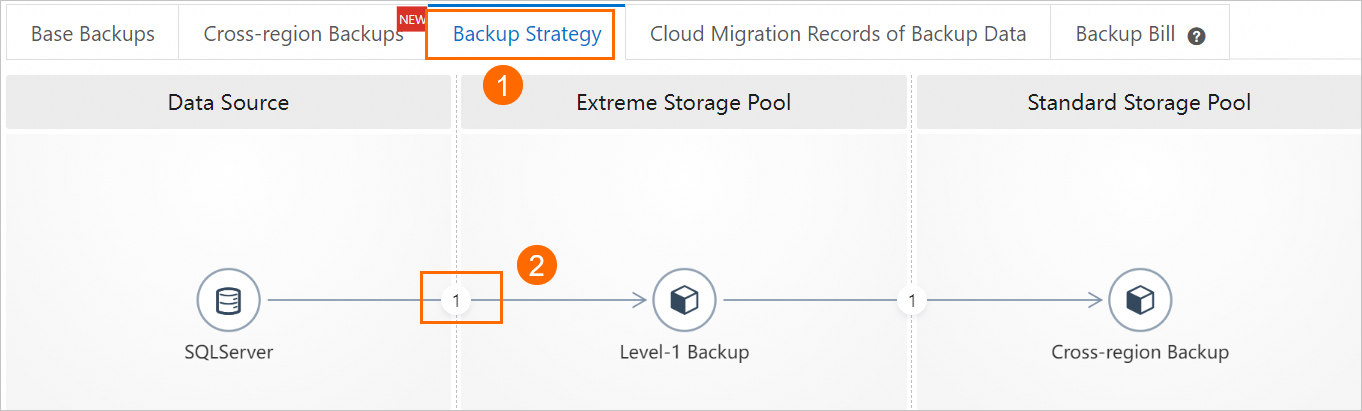
In the left navigation pane, click Backup and Restoration.
-
On the Backup Strategy tab, click the circled number between SQL Server and Level-1 Backup.
-
Set the following parameters and click OK.
| Parameter | Description |
|---|---|
| Backup policy | Select the backup time and backup set retention period. Set at least two backups per week. Click Add backup policy to add a sparse backup policy for more flexible scheduling with fewer backup sets. |
| Backup time | The time when data backup starts, for example, 07:00–08:00. Set this to off-peak hours. |
| Incremental backup | Enable or disable incremental backup. Not available when Backup method is Snapshot backup. |
| Backup method | Physical backup (default): Creates a replica of instance data. Slow backup speed. Snapshot backup: Captures disk data at a point in time. Fast backup process. After switching to snapshot backup, physical backup remains available for manual backups. |
| Backup frequency | The frequency of log backups. Options: Same as data backup or Every 30 minutes. The log backup retention period matches the data backup retention period and cannot be set separately. |
| Log backup retention | Must be less than or equal to the data backup retention period. Range: 7–7300 days. Default: 7 days. |
-
Click Save in the lower-left corner of the Backup policy page.
Create a manual backup
-
Go to the Instances page. In the top navigation bar, select the region where your instance resides. Find the instance and click its ID.
-
In the upper-right corner of the page, click Backup instance.
-
Configure the following parameters and click OK.
| Parameter | Description |
|---|---|
| Backup policy | Snapshot backup: Fast point-in-time copy of disk data. Physical backup (default): Full replica of instance data. Slow backup speed. When the automatic backup policy is set to snapshot backup, this field defaults to Snapshot backup. |
| Select backup mode | Full backup: Runs a full backup immediately. Automatic backup: The system determines whether to run a full backup or a differential backup based on the last backup. If the instance has had a full backup within the last three days, the system performs a differential backup (backing up all data changed since the last full backup). Otherwise, a full backup runs. For Cluster Edition instances using physical backup with Prioritize backup from secondary instance set, only Full backup is supported. |
| Backup policy (when Select backup mode is Full backup) | Instance backup: Backs up the entire instance. Single-database backup: Available only when Backup policy is set to Physical backup. Select specific databases to back up and configure a retention period (7–730 days, or -1 for long-term retention). In the database list, select the databases to back up and click  to add them. If no databases exist, create a database first. to add them. If no databases exist, create a database first. |
-
After the backup task is created, click
 in the upper-right corner of the page. On the Tasks page, set Task type to Manual backup to view the backup progress.
After the backup completes, download data and log backups from Backup and Restoration > Base Backups > Data backup (or Log backup).
More operations
Extend the expiration time of a single-database backup set
Use the RDS console or the ModifyBackupSetExpireTime API to extend the expiration time of single-database backup sets (physical backups, full backups, and single-database backups) created by manual backups. Shortening the expiration time is not supported.
When using the API, pass a UTC time. The RDS console displays the time in UTC+8. For example, passing2025-07-15T12:10:23Zthrough the API displays as20:10:23 on July 15, 2025in the console.
-
In the Actions column of the target backup set, click
 and select Change expiration time.
-
In the dialog box, set a new expiration time and click OK.

The updated expiration time appears in the Expiration time column. The system retains the backup set until the new expiration time.
FAQ
What's next
-
Download data and log backup files for archiving or local restoration.
-
Restore data to an existing instance, a new instance, or a local database using your data and log backups.
-
Enable cross-region backup to replicate backup data to another region. By default, backups are stored in the same region as your instance.
API reference
| API | Description |
|---|---|
| CreateBackup | Create a backup set |
| DescribeBackups | List backup sets |
| DescribeBackupPolicy | View backup settings |
| ModifyBackupPolicy | Modify backup policy |
| DescribeBackupTasks | Query backup job list |
| DescribeLogBackupFiles | Query log backup files |
References
-
DescribeBackups - View the backup set list of an RDS instance
-
DescribeBackupPolicy - View the backup settings of an instance
-
ModifyBackupPolicy - Modify the backup policy of an instance
-
DescribeBackupTasks - Query the backup job list of an instance
-
DescribeLogBackupFiles - Query the log backup files of an instance