Configure the SSL encryption feature
SSL encryption protects data in transit between ApsaraDB RDS for SQL Server instances and clients, preventing eavesdropping, interception, and tampering. You can use Alibaba Cloud-generated certificates or upload a custom certificate.
Choose your approach before you begin
There are two ways to use SSL:
-
Force SSL for all connections: When enabled, all client connections to the instance must be encrypted, regardless of which endpoint is used. Non-encrypted connections are rejected, and no CA certificate is required on the client. Requires a VPC instance.
-
Encrypt specific connections (internal or public endpoint): SSL is enabled on a chosen endpoint. Clients must present a CA certificate to establish an encrypted connection.
NoteTransport Layer Security (TLS) is the direct successor to SSL. In this topic, SSL refers to both TLS and SSL. RDS for SQL Server supports TLS 1.0, TLS 1.1, and TLS 1.2.
How SSL works
When an encrypted connection is established:
-
The RDS instance sends a server certificate (containing the public key) to the client.
-
The client encrypts a symmetric key using that public key.
-
The RDS instance decrypts the symmetric key using the private key.
-
Both sides use the symmetric key to encrypt and decrypt all subsequent data.
Optionally, the client uses the CA certificate to verify the server certificate — confirming the RDS instance's identity and preventing man-in-the-middle attacks.
Prerequisites
Prerequisites apply only when using a custom certificate. Before you begin, make sure:
-
Object Storage Service (OSS) is activated. See Activate OSS.
-
The ApsaraDB RDS service account is authorized to access your OSS bucket via your Alibaba Cloud account.
-
Your custom certificate is in PFX format and uploaded to an OSS bucket. To get started, see Get started with the OSS console. For uploading large files, see Multipart upload. For browser-based uploads, see Common operations.
Limitations
-
SSL is not supported for serverless ApsaraDB RDS instances. See Serverless ApsaraDB RDS for SQL Server instances.
-
SSL is not supported for connections to the read/write splitting endpoint. See Enable read/write splitting by enabling the read-only routing endpoint.
-
When SSL is enabled, the following operations are unavailable: upgrading the major engine version, updating the minor engine version, creating a temporary instance that runs a later major engine version, and migrating the instance across zones. See Update the minor engine version and Create a temporary instance that runs the required SQL Server version.
Usage notes
-
Certificate validity: An SSL certificate is valid for one year. Renew it before it expires — expired certificates prevent applications and clients from establishing encrypted connections. See Update the validity period of a certificate.
-
Instance restarts: Enabling SSL, disabling SSL, or renewing a certificate triggers an instance restart. The instance is unavailable for a few minutes. Perform these operations during off-peak hours.
-
CPU overhead: SSL encryption can significantly increase CPU utilization. Enable SSL only when encryption is required — for example, when connecting over a public endpoint.
Step 1: Enable SSL
-
Log on to the ApsaraDB RDS console and go to the Instances page. Select the region, find the instance, and click the instance ID.
-
In the left-side navigation pane, click Data Security.
-
On the SSL tab, turn on Disabled.
-
In the Configure SSL dialog box, select an encryption method and configure the parameters.
Choose one of the following methods:
Use keys automatically generated by Alibaba Cloud
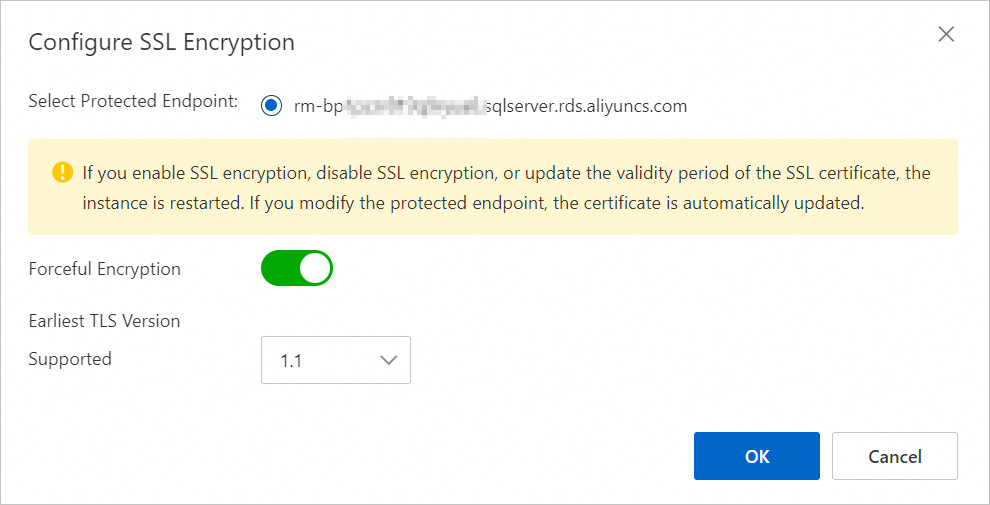
|
Parameter |
Required |
Description |
|
Select Protected Endpoint |
Yes |
Select the endpoint to encrypt: internal or public. You can only encrypt one endpoint type at a time. Note
To encrypt the public endpoint, you must first apply for one. See Apply for or release a public endpoint. |
|
Forceful Encryption |
No |
When enabled, force encryption applies to the entire instance. All connections — over both internal and public endpoints — must be encrypted, regardless of whether the endpoint is the protected one. The instance no longer accepts non-encrypted connections, and no CA certificate upload is required. Note
Available only for instances in virtual private clouds (VPCs). To change the network type, see Change the network type. |
|
Earliest TLS Version Supported |
No |
The minimum TLS version the server accepts. Valid values: 1.0, 1.1, 1.2. For example, setting this to 1.1 means the server only accepts TLS 1.1 and TLS 1.2. |
Use a custom certificate
Complete the Prerequisites before proceeding.
-
In the Upload PFX format certificate to OSS step, click Next step.
-
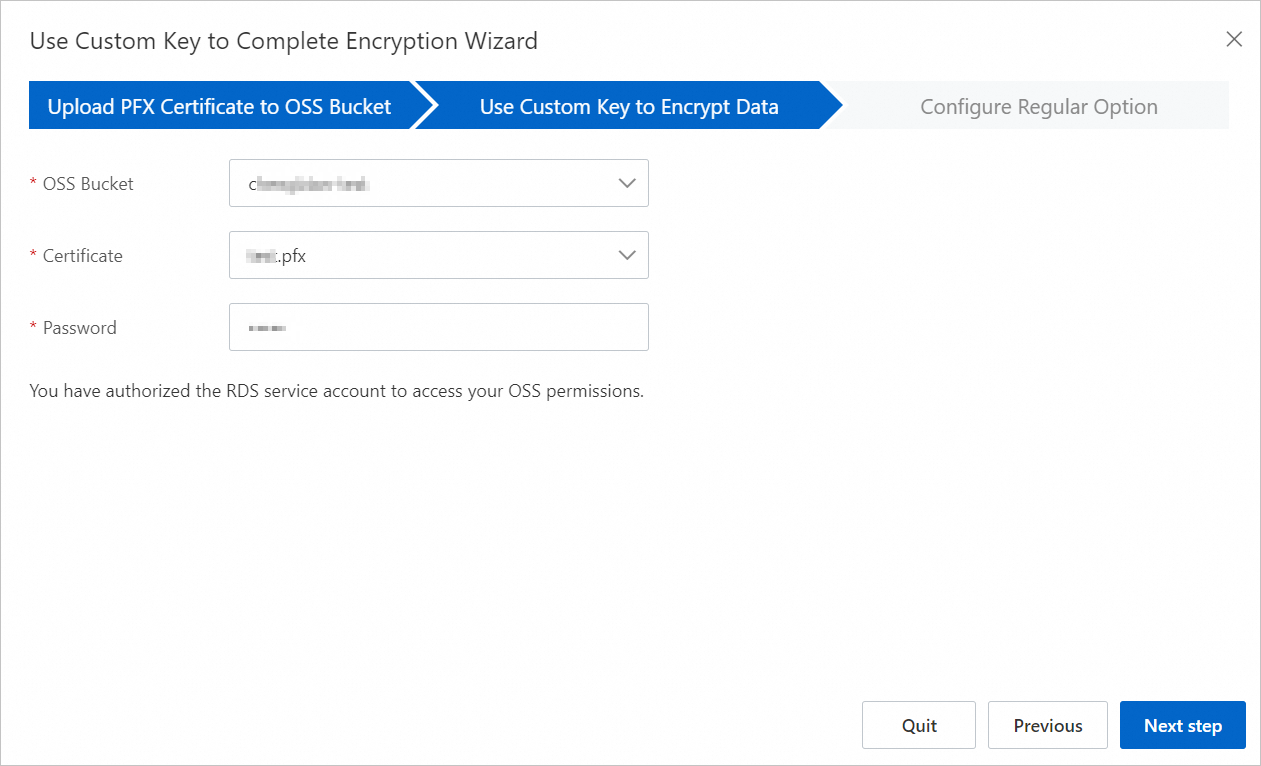
In the Use custom key encryption step, configure the following parameters and click Next step.
Parameter
Description
OSS Bucket
Select the OSS bucket where the certificate resides.
Certificate
Select the PFX certificate.
Password
Enter the certificate password.
-
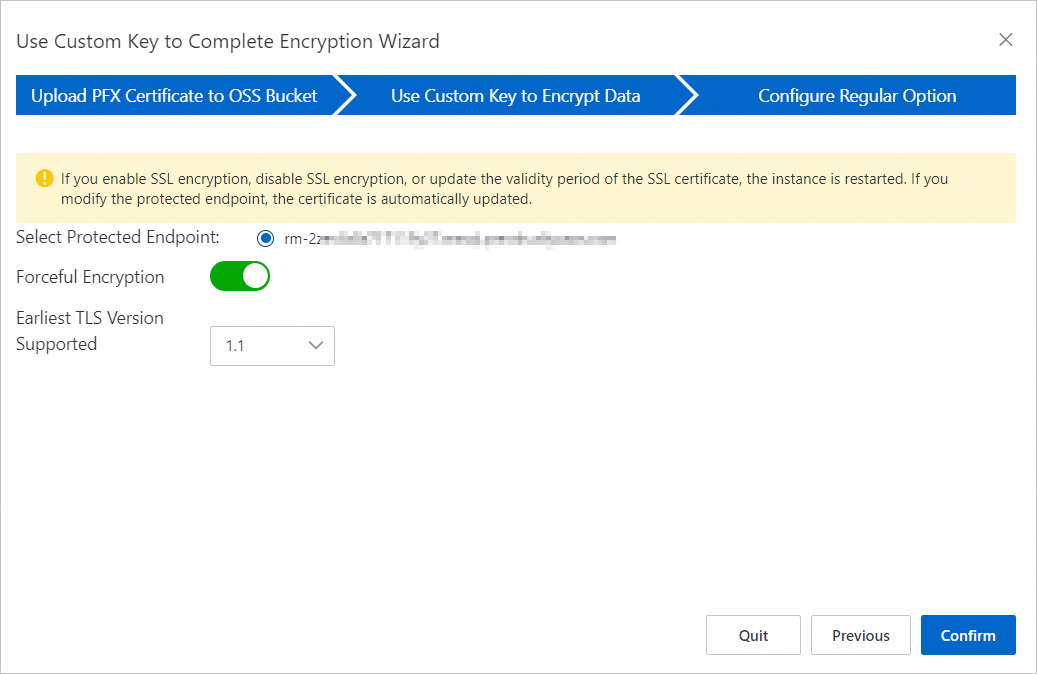
In the Set General Options step, configure the following parameters.
Parameter
Required
Description
Select Protected Endpoint
Yes
Select the endpoint to encrypt: internal or public. You can only encrypt one endpoint type at a time.
NoteTo encrypt the public endpoint, you must first apply for one. See Apply for or release a public endpoint.
Forceful Encryption
No
When turned on, the RDS instance rejects non-encrypted connections. Applies only to the internal endpoint — no CA certificate upload is required.
NoteAvailable only for instances in VPCs. To change the network type, see Change the network type. When both internal and public endpoints exist, you must release the public endpoint before turning on Forceful Encryption — see Apply for or release a public endpoint.
Earliest TLS Version Supported
No
The minimum TLS version the server accepts. Valid values: 1.0, 1.1, 1.2.
-
Click OK.
Enabling SSL takes about one minute. Refresh the page to check the instance status.
Step 2: Download the CA certificate
You can connect to an RDS instance over SSL without a CA certificate, but downloading and using it is recommended. The CA certificate lets your client verify the server certificate during the SSL handshake — confirming the instance's identity and preventing man-in-the-middle attacks.
-
Log on to the ApsaraDB RDS console and go to the Instances page. Select the region, find the instance, and click the instance ID.
-
In the left-side navigation pane, click Data Security.
-
On the SSL tab, click Download CA Certificate.
The downloaded package contains three certificate files:
|
File |
Use |
|
P7B |
Windows clients |
|
PEM |
Non-Windows clients and applications |
|
JKS |
Java-based applications (truststore format). Default password: |
When using the JKS file with JDK 7 or JDK 8, update the following entries in jre/lib/security/Java.security on the host running your application: Without this change, connections fail with: Most similar errors with JDK 7 or JDK 8 are caused by the same misconfiguration.
jdk.tls.disabledAlgorithms=SSLv3, RC4, DH keySize < 224
jdk.certpath.disabledAlgorithms=MD2, RSA keySize < 1024
javax.net.ssl.SSLHandshakeException: DHPublicKey does not comply to algorithm constraintsStep 3: Configure SSL on your client
After enabling SSL, configure the certificate on your application or client. The following steps use SQL Server Management Studio (SSMS) as an example.
Import the certificate into Windows
-
Open the Start menu, search for
certmgr.msc, and open it. -
In the certmgr dialog box, right-click Trusted Root Certification Authorities.
-
Choose All Tasks > Import.
-
Click Next.
-
In the Certificate Import Wizard, click Browse, select the SSL certificate you downloaded in Step 2, and click Next.
-
Select a directory to store the certificate and click Next.
-
Click Finish and wait for the import to complete.
Configure SSMS
-
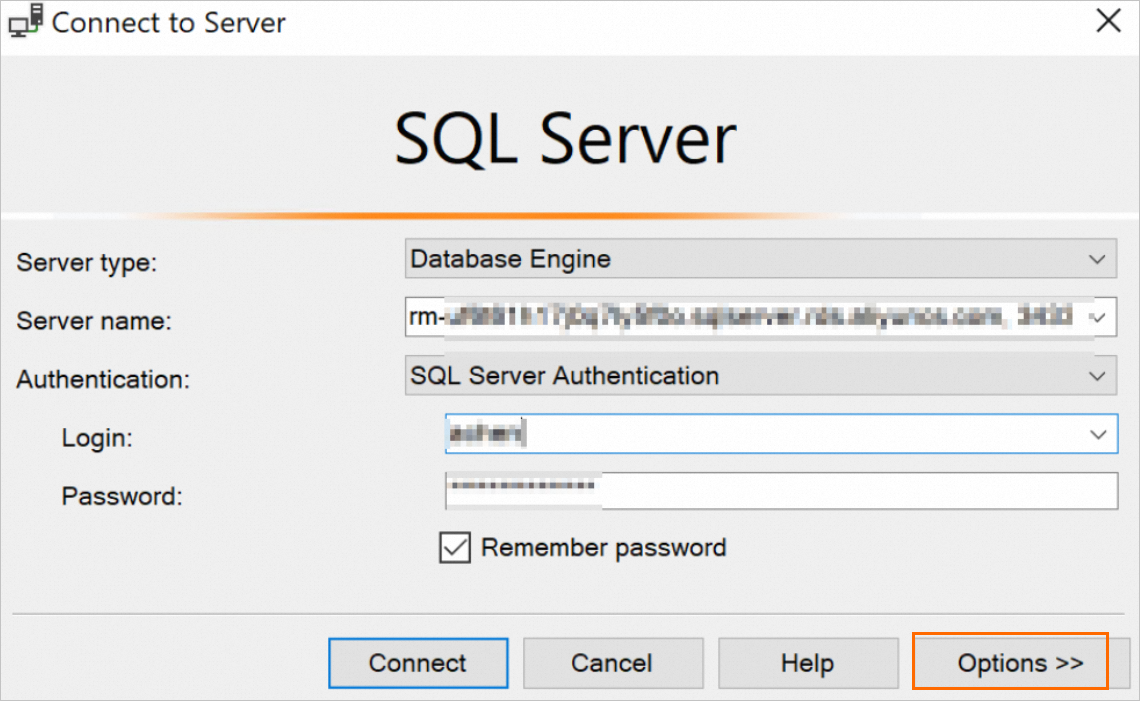
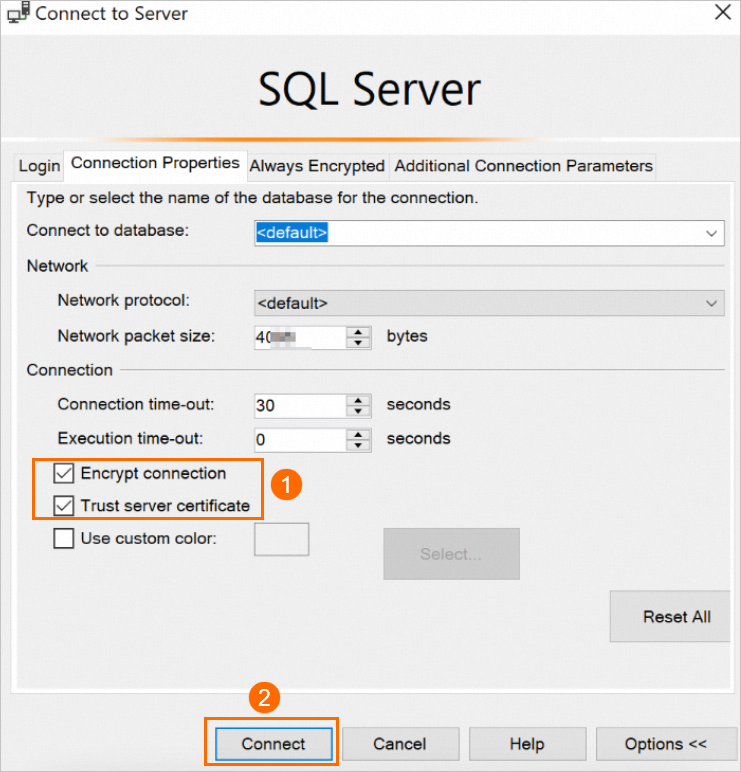
Open SSMS and click Options in the lower-right corner.
-
On the Connection Properties tab, select Encrypt connection and Trust server certificate, then click Connect.
-
Run the following query to verify the connection is encrypted. A result of
TRUEconfirms encryption is active.SELECT ENCRYPT_OPTION FROM SYS.DM_EXEC_CONNECTIONS WHERE SESSION_ID = @@SPID
Appendix: Sample code for SSL connections
Python
# -*- coding:utf-8 -*-

import ssl
import pyodbc

# Create an SSL context using the downloaded PEM certificate
context = ssl.create_default_context(purpose=ssl.Purpose.SERVER_AUTH, cafile="D:\ca\ApsaraDB-CA-Chain.pem")

# Connect to the RDS instance
# Replace the placeholders with your actual values:
#   SERVER   - RDS instance connection string
#   DATABASE - database name
#   UID      - username
#   PWD      - password
conn = pyodbc.connect('DRIVER={ODBC Driver 17 for SQL Server};SERVER=rm-2zec********.sqlserver.rds.aliyuncs.com;DATABASE=master;UID=zhttest;PWD=zht****;Encrypt=yes', ssl=context)
cursor = conn.cursor()
cursor.execute('SELECT @@version')

rows = cursor.fetchall()
for row in rows:
    print(row)

conn.close()
C#
using System;
using System.Data.SqlClient;

namespace SqlConnectionSSLExample
{
    class Program
    {
        static void Main(string[] args)
        {
            // Connect to the RDS instance with SSL encryption enabled
            // Replace the placeholders with your actual values:
            //   Data Source     - RDS instance connection string
            //   Initial Catalog - database name
            //   User ID         - username
            //   Password        - password
            string connectionString = "Data Source=rm-2ze********.sqlserver.rds.aliyuncs.com;Initial Catalog=master;User ID=zhttest;Password=zht****;Encrypt=true;";

            using (SqlConnection connection = new SqlConnection(connectionString))
            {
                connection.Open();
                try
                {
                    SqlCommand cmd = new SqlCommand("SELECT @@version", connection);
                    string result = cmd.ExecuteScalar().ToString();
                    Console.WriteLine(result);
                }
                catch (Exception ex)
                {
                    Console.WriteLine($"Error: {ex.Message}");
                }
            }
        }
    }
}
What's next
Update the validity period of a certificate
SSL certificates are valid for one year. Renew before expiry — expired certificates prevent applications and clients from establishing encrypted connections.
When a custom-certificate SSL is about to expire, Alibaba Cloud notifies users who enable SSL encryption by using custom certificates by email and internal message. View internal messages on the Event Center page.
Updating certificate validity restarts the RDS instance. Perform this during off-peak hours.
-
Log on to the ApsaraDB RDS console and go to the Instances page. Select the region, find the instance, and click the instance ID.
-
In the left-side navigation pane, click Data Security.
-
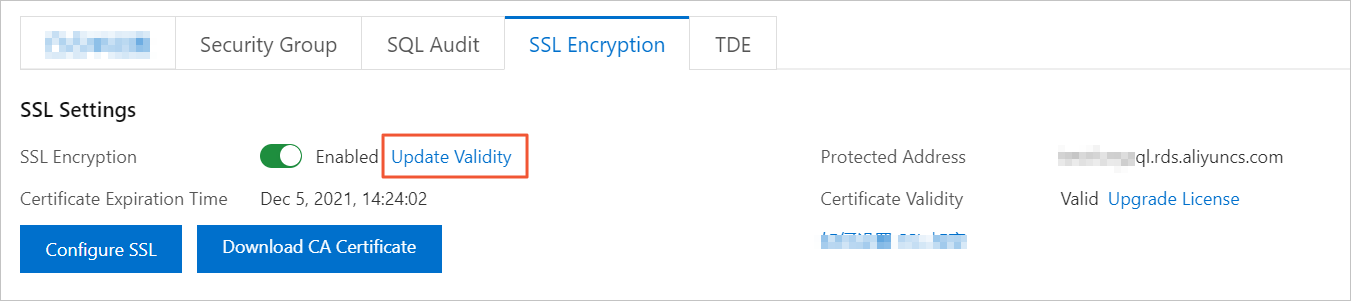
On the SSL tab, click Update Validity.

Disable SSL
-
Disabling SSL restarts the instance. A primary/secondary switchover is triggered to minimize impact, but perform this during off-peak hours.
-
After disabling SSL, your application can only connect over non-encrypted connections.
-
Access performance improves after disabling SSL, but security decreases. Only disable SSL in secure environments.
-
Go to the Instances page. Select the region, find the instance, and click the instance ID.
-
In the left-side navigation pane, click Data Security.
-
Click the SSL tab.
-
Turn off SSL Encryption. In the confirmation message, click OK.
Check connection encryption status
Run the following query in SQL Server to see whether SSL is enabled for each active connection:
SELECT session_id, encrypt_option
FROM sys.dm_exec_connections;
GO
If encrypt_option returns true for a session ID, SSL is enabled for that connection.
API reference
FAQ
What happens if I don't renew an expired SSL certificate? Does my RDS instance fail or become less secure?
The RDS instance continues running normally — no errors occur and no security risks arise. However, applications and clients cannot establish encrypted connections until the certificate is renewed.