Runtime credential rotation for ApsaraDB RDS in Spring
This guide describes how to implement runtime credential rotation for ApsaraDB RDS data sources in your Spring applications. By integrating Key Management Service (KMS) and Nacos, you can achieve encrypted credential hosting, dynamic updates, and seamless connection switching to ensure the security and stability of your application during credential changes.
Solution overview
If your applications are primarily built with the Spring Boot or Spring Cloud framework and they frequently access databases like MySQL, SQL Server, PostgreSQL, or MariaDB, we recommend implementing runtime data source rotation to enhance security. The solution architecture is shown in the following figure:

This solution uses KMS to host database credentials securely, Nacos for dynamic configuration management, and Druid to manage database connections. This solution provides the following features:
-
Centralized and encrypted data source configurations: Manage database connection information centrally and use encryption to secure configuration data during storage and transmission.
-
Fully managed credentials with dual-layer access control: The system fully manages database credentials with a dual-layer authentication mechanism for enhanced access security.
-
Scheduled runtime credential rotation and rapid leak remediation: Automatically rotate database credentials at runtime based on a defined policy and quickly remediate leaks to reduce security risks.
-
Zero-downtime account switching: Switch database access accounts dynamically with zero downtime, ensuring high availability and simplifying maintenance.
-
Application-side performance tuning: Flexibly adjust key performance parameters such as connection pool size and timeout settings to improve system stability and responsiveness.
-
Exception protection mechanism: Prevents disruptive misconfigurations by validating and protecting critical parameters, ensuring safe and controlled changes.
Prerequisites
-
Activate ApsaraDB RDS and create an instance.
-
Activate Key Management Service (KMS), create a dedicated KMS instance, and create a key ID.
-
Activate MSE and create an Enterprise Edition instance.
Create a KMS secret
-
Go to the Secrets Manager page in the KMS console and select Database Credential.
-
Select an Instance ID and click .
-
In the Create Database Credential panel, for the RDS Credential, select a Database Type, enter a Secret Name, and select the associated RDS Instance.
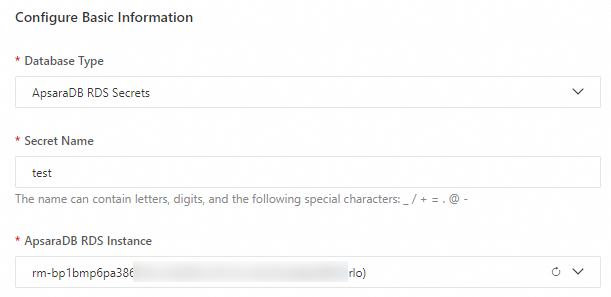
-
Select Dual-account hosting, enter a Custom Account Name, Select Database, and Specify Permissions.
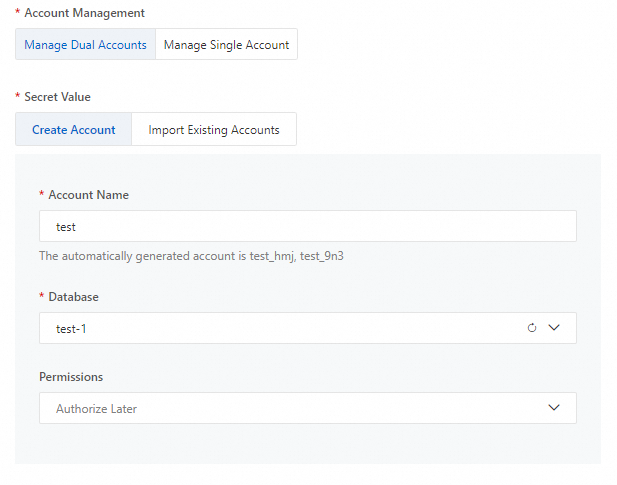
-
Select an Encryption Key, set the Rotation Period, and click OK.
KMS automatically creates a database account and password with a strong password policy.
Create a data source
The data source feature is built on the Nacos configuration center, where data source configurations are stored in an encrypted format.
-
Go to the Instance List page in the MSE console. Select a region from the top menu bar.
-
Click the name of the target Enterprise Edition instance. In the left-side navigation pane, choose Data Source Management.
If the instance is not bound to a KMS key, follow the prompts in the dialog box to bind a key.
-
On the Data Source Management page, select a target namespace and click Create Data Source.
-
In the Create Data Source panel, configure the data source parameters. For more information about the parameters, see Create a data source.
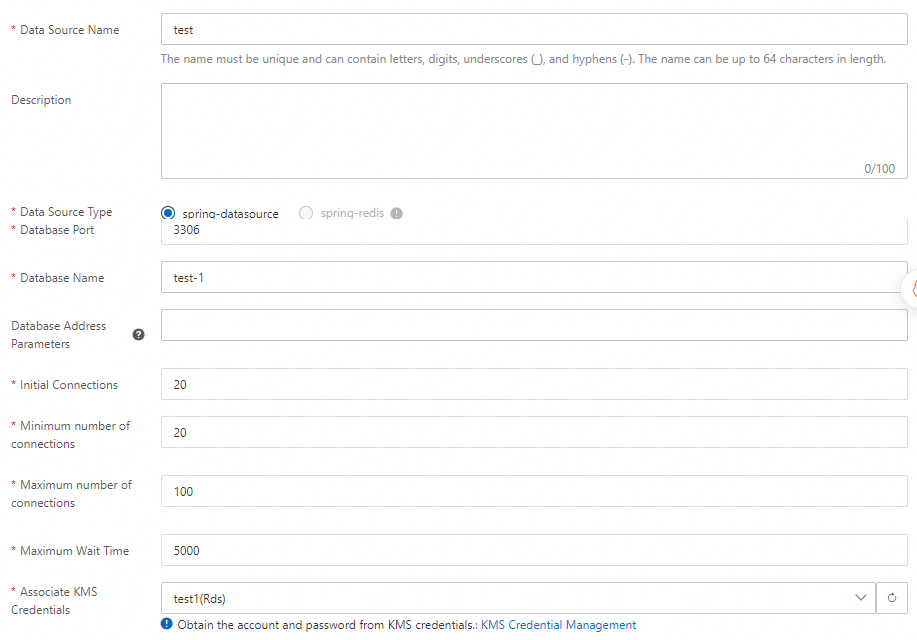
-
Click OK. In the Confirm Data Source Creation dialog box, click OK again to submit the data source.
Credential rotation
KMS provides two methods for rotating data source credentials:
-
Scheduled rotation: You can set a rotation period when you create a secret, and KMS will automatically rotate the secret on schedule.
-
Immediate rotation: If a credential leak occurs or you need to rotate credentials immediately, you can use the KMS Secrets Manager console to trigger a rotation.
When a KMS secret is rotated, either on a schedule or on demand, KMS notifies MSE Nacos to update the encrypted data source configuration. Nacos then pushes the update to the application in real time. Druid gracefully replaces active connections with no disruption to your business.
Credential rotation is managed by KMS Secrets Manager. If you directly modify the password of a managed account through the ApsaraDB RDS console, an API, or a high-privilege account in the database, the application will not receive the changes in real time.
Application access
On the data source details page, click the Application Access tab to view the access steps for each data source.
For parameter configurations, use the actual settings displayed in the Application Access tab of the console. These settings are specific to the binding relationships and dynamic adaptation rules of your instance and data source.
Step 1: Upgrade versions
-
Upgrade Spring Cloud Alibaba to version 2023.0.3.3 or later.
-
Upgrade Druid to version 1.2.27 or later.
<!--  Druid connection pool, including Spring Starter and Druid core -->
<dependency>
	<groupId>com.alibaba</groupId>
	<artifactId>druid-spring-boot-3-starter</artifactId>
	<version>1.2.27</version>
</dependency>
<dependency>
    <groupId>com.alibaba</groupId>
    <artifactId>druid</artifactId>
    <version>1.2.27</version>
</dependency>

<dependency>
    <groupId>com.alibaba.cloud</groupId>
    <artifactId>spring-cloud-starter-alibaba-nacos-config</artifactId>
    <version>2023.0.3.3</version>
</dependency>

<!--  Commercial KMS encryption and decryption plugin -->
<dependency>
	<groupId>com.alibaba.nacos</groupId>
	<artifactId>nacos-client-mse-extension</artifactId>
	<version>1.0.5</version>
</dependency>
Step 2: Modify configuration
-
Modify
application.propertiesto enable dynamic data source rotation and specify the Nacos configuration for the data source.
# Import the data source configuration into Spring to initialize the data source
spring.config.import[0]=optional:nacos:cipher-kms-aes-256-proxy-spring-{resourceName}.properties?group=nacos-datasource

# Specify the Nacos address. The public endpoint is used by default. Modify it as needed.
spring.cloud.nacos.config.server-addr={nacos server}
# Specify the namespace ID
spring.cloud.nacos.config.namespace={namespace ID}
# Specify the KMS region ID
spring.cloud.nacos.config.kms_region_id={instance region}

# Enable Druid data source management and specify the data ID for the encrypted rotation configuration
spring.nacos.config.proxy.druid.enabled=true
spring.nacos.config.proxy.druid.data-id={dataID}
Step 3: Configure access credentials
The data source's encrypted configuration is decrypted in memory at runtime. To enable this, you must provide credentials with decryption permissions. Two credential management methods are supported:
AK-free access credential
If your application runs on Alibaba Cloud ECS or ACK, we recommend using an AK-free access credential. Set the following JVM parameters:
-
For ECS RAM roles:
-Dspring.cloud.nacos.config.ramRoleName=${ramRoleName} -
For OIDC Role ARNs:
-Dspring.cloud.nacos.config.alibabaCloudRoleSessionName=${sessionName}
Traditional AK/SK
Set the following JVM parameters:
-Dspring.cloud.nacos.config.accessKey=${accessKey}
-Dspring.cloud.nacos.config.secretKey=${secretKey}
Replace ${accessKey} and ${secretKey} with your actual AccessKey ID and AccessKey secret.
For either method, you must grant the "Decryption permission for KMS encrypted configurations" to the corresponding account or role. This allows the application to decrypt the configuration into plaintext in its memory.
Go to the instance details page and choose . Select Decryption permission for KMS encrypted configurations as the authorization granularity and follow the instructions to complete the authorization. For more information about credential types, see Configure client access credentials.
FAQ
1. Old credential invalidation after rotation
During rotation, KMS notifies MSE to update the credentials and keeps two credential versions active. Credentials older than the two most recent versions become invalid. In the future, this process will integrate with data source session management to invalidate old credentials only after all active connections using them have closed, which will further enhance stability.
2. Detecting exception protection
When Nacos pushes a configuration update, if the application's connection pool triggers the exception protection mechanism, the application reports an update failure to Nacos. You can check the config.log file in Nacos for the keyword "notify-error" to detect these failures. Future versions of Nacos will report the callback status of the client listener, allowing you to directly view client callback failures in the listener query results.