Deploy a LAMP environment
Use a Resource Orchestration Service (ROS) public template to install a LAMP environment on a new or existing ECS instance. The template supports web development and testing environments and PHP applications such as WordPress.
Solution overview
This solution uses a ROS public template to create an ECS instance or use an existing ECS instance, and then installs LAMP (Linux, Apache, MySQL, and PHP). Select the deployment mode that matches the resources available in your environment.
What is LAMP?
LAMP is a widely used web application architecture that consists of four open source components.
Component | Full name | Purpose |
L | Linux | Operating system. This solution uses CentOS 7. |
A | Apache | Web server that processes HTTP requests and returns HTML and PHP pages. |
M | MySQL | Relational database that stores application data. |
P | PHP | Server-side programming language that generates dynamic web content. |
LAMP is a standard infrastructure for PHP web applications because it is general-purpose, cross-platform, high-performance, and cost-effective.
Choose how to deploy the environment
This template lets you select a deployment mode for your business scenario.
Deployment mode | Applicable scenario | Description |
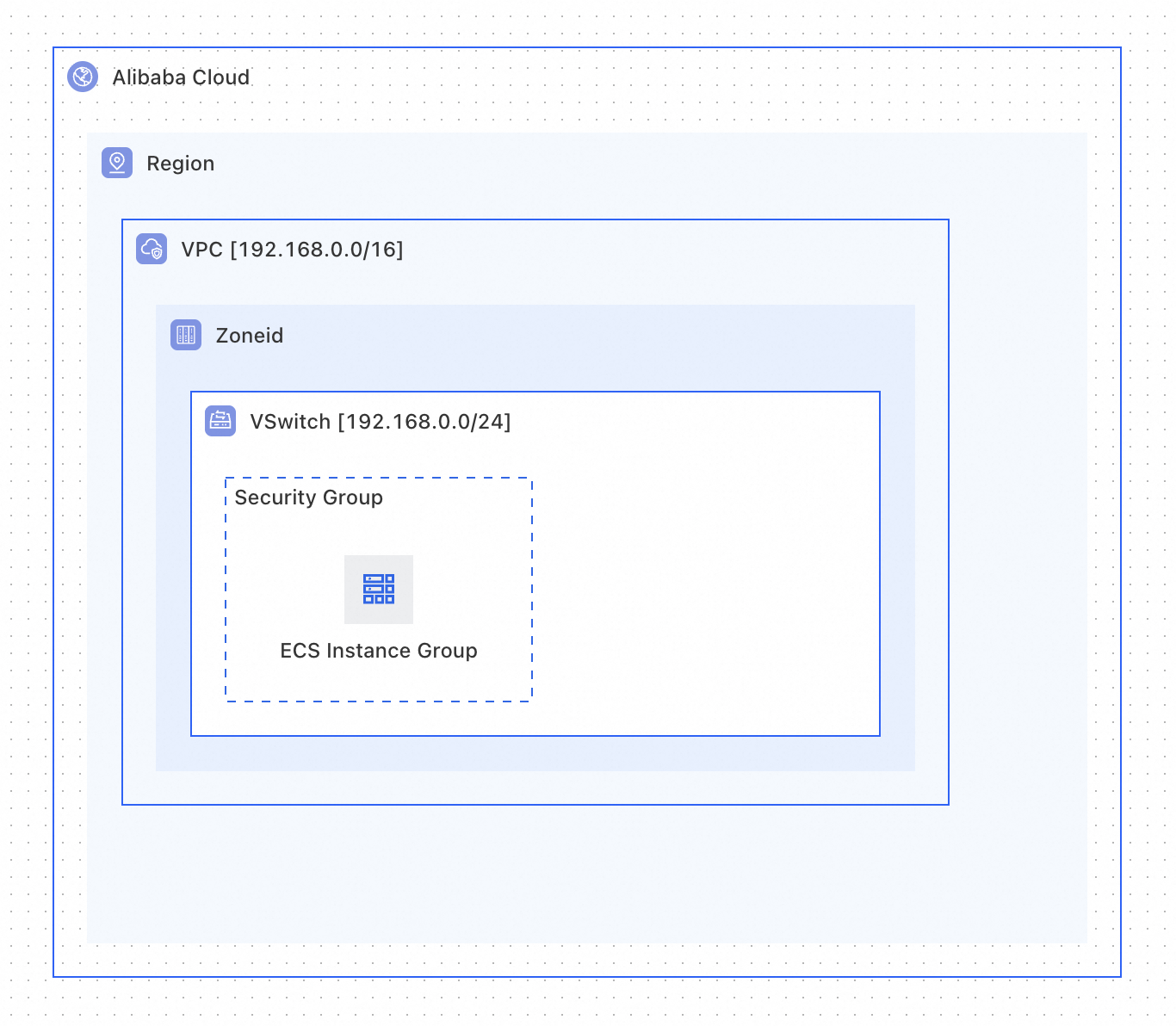
Create a new instance | Build an environment from scratch. | The template creates a VPC, vSwitch, security group, and ECS instance, and then installs LAMP. |
Select an existing instance | Add LAMP services to an existing ECS instance. | The template creates no resources and runs the LAMP installation script only on the selected ECS instance. |
Resources created for a new instance
The following resources are created when you select Create New Instance. When you select Select Existing Instance, these resources are not created and LAMP is installed only on the specified ECS instance.
No. | Resource name | ROS resource type | Purpose |
1 | VPC |
| Provides an isolated network environment. |
2 | vSwitch |
| Divides the VPC into subnets and specifies an availability zone. |
3 | Security group |
| Controls inbound and outbound network traffic for the ECS instance. |
4 | ECS instance |
| Runs the LAMP environment and has a public IP address. |
Results after deployment
After the template is successfully executed, you obtain the following results:
An ECS instance that runs CentOS 7 and is assigned one of the public IP addresses of Elastic Compute Service (ECS) instances.
An Apache web server that is installed and running on the ECS instance and listens on port 80.
A locally running MySQL database with a database and user already created.
A PHP runtime configured to work with Apache and MySQL.
An
ApacheWebURLvalue on the stack Outputs tab that provides the Apache access URL.An Apache or PHP test page that you can view in a browser by opening that URL.
Architecture diagram
Prerequisites
Before you use this template, make sure that the following requirements are met:
Your Alibaba Cloud account has permissions to create ECS and VPC resources.
Meet the prerequisite for your deployment mode:
For Create New Instance, no additional prerequisite is required. The template creates all required resources.
For Select Existing Instance, create the VPC, vSwitch, and ECS instance in advance. Create the required network resources by following VPCs and vSwitches and Create an ECS instance.
Deploy the LAMP environment
Deployment parameters
Common parameter
Complete this parameter for both deployment modes.
Parameter | Type | Description |
| String | Select the instance source: Create New Instance or Select Existing Instance. |
Parameters for creating a new instance
Complete these parameters only when InstanceSource is set to Create New Instance.
Parameter | Type | Description | Example value |
| String | Availability zone of the vSwitch. |
|
| String | Operating system image. |
|
| String | ECS instance type. |
|
| String | ECS sign-in password. The password is 8 to 30 characters long and contains uppercase letters, lowercase letters, digits, and special characters. | N/A |
Parameters for selecting an existing instance
Complete this parameter only when InstanceSource is set to Select Existing Instance.
Parameter | Type | Description | Example value |
| String | ID of the existing ECS instance. |
|
Deploy from a ROS public template
This method is recommended.
Log on to the ROS console.
In the left-side navigation pane, choose .
Enter
etcdin the search box on the Example templates tab, and then find the Deploy LAMP environment template.Click Create Stack.On the Configure Parameters page, enter a Stack Name and configure the parameters described in the preceding table.
Click Next: Check and Confirm, and then click Create.
In the left-side navigation pane, choose . On the Stacks page, click the ID of the stack that you created, and then check the stack status on the Stack Information tab. Wait until the status changes to
CREATE_COMPLETE.Click the Output tab and obtain Click the Output tab of the stack and obtain the value of
SparkWebSiteURL.Open the URL in a browser. The Apache default page indicates that deployment is successful.
Deploy by using IaC Code
IaC Code is an AI infrastructure-as-code assistant for cloud infrastructure. It generates ROS templates from natural language descriptions and deploys them. For more information, see IaC Code quick start.
Help me create an ECS instance in an existing VPC and install a LAMP environment (Apache, MySQL, and PHP).
Requirements:
1. Use an existing VPC and vSwitch. Do not create network resources.
2. Create a security group that allows ports 80 (HTTP), 443 (HTTPS), and 22 (SSH).
3. Use a CentOS 7 image for the ECS instance and assign a public IP address.
4. Use a UserData script to install Apache, MySQL 5.7, and PHP automatically.
5. Automatically change the MySQL database administrator (root) password after installation and create an application database and user.
6. Create a PHP information page (`info.php`) to verify the environment.
7. Provide the Apache web access URL in the stack **Outputs**.
Verify the LAMP environment
On the stack Output tab, obtain
ApacheWebURLin the formathttp://<ECS-public-IP-address>.Open the following URLs in a browser:
http://<ECS-public-IP-address>displays the Apache default welcome page.http://<ECS-public-IP-address>/info.phpdisplays the PHP configuration page, where you can confirm the PHP version and loaded modules.
FAQ
Why does deployment fail with “The specified InstanceType is not available”?
Cause: The selected ECS instance type has no available inventory in the specified availability zone.
Solution:
Confirm that the availability zone of the vSwitch supports the instance type.
Check which instance types are available in the target zone on the ECS pricing page.
Switch the vSwitch to another zone and deploy the stack again.
Why cannot I access the Apache page after deployment succeeds?
Troubleshoot the issue as follows:
Confirm that the inbound rules of the security group allow TCP port 80.
Confirm that the ECS instance has a public IP address in the ECS console.
Connect to the ECS instance and check the service status.
systemctl status httpd    # Check whether Apache is running.
systemctl status mysqld   # Check whether MySQL is running.
php -v                    # Check whether PHP is installed.
View the UserData execution logs.
cat /var/log/messages | grep cloud-init
How do I migrate the database to an independent RDS instance?
As your workload grows, migrate MySQL from the ECS instance to an independent RDS instance.
Export the local database by using
mysqldump.mysqldump -u root -p --all-databases > /tmp/all_db.sqlCreate an RDS MySQL instance in the RDS console.
Import the data into RDS.
Change the application database connection configuration to use the RDS internal endpoint.
For additional resource deployment troubleshooting, use the FAQ collection.