Handle dynamic controls
This topic describes how to dynamically capture and interact with controls in an automation flow at runtime.
Overview
When you automate tasks on a software interface, you may need to interact with elements based on dynamic content. Common scenarios include:
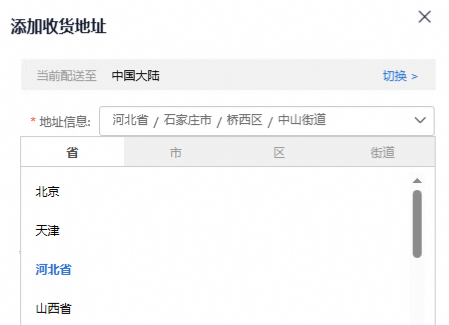
Selecting a hierarchical address, such as province, city, and then county. Each selection depends on the previous one, and the interface may not support direct text input. The required address can also change each time the automation flow runs.
Choosing a specific date from a calendar. The target date often changes each time the automation flow runs.

Interacting with custom drop-down lists. These lists offer a better user experience but are not built with standard HTML
<select>elements. Instead, they might use other tags like<ul>and<li>. This prevents you from using standard components like option or Set Drop-down List (Web) designed for HTML<select>elements. Additionally, the list options can be dynamic and vary with each automation run.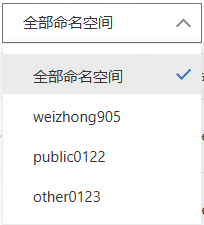
To handle these scenarios, you can use a control attribute variable to dynamically capture and interact with the target control.
Examples
Example: Select from a dynamic drop-down list
This example shows how to dynamically select an option from the Select namespace drop-down list in the Alibaba Cloud Container Registry console. Since these options are user-created, they cannot be predefined in the automation flow and must be selected dynamically.
Approach
First, click the drop-down list to reveal the options. Then, you dynamically set a control attribute to interact with a specific option.
Configure the controls as follows:
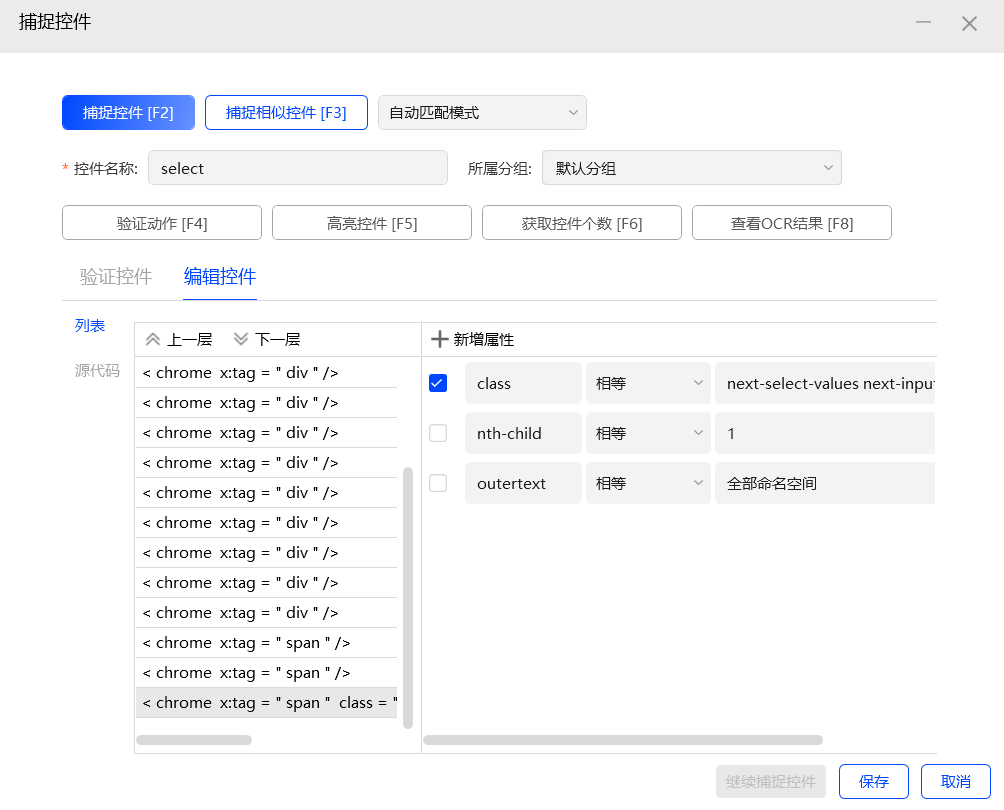
The drop-down list control.
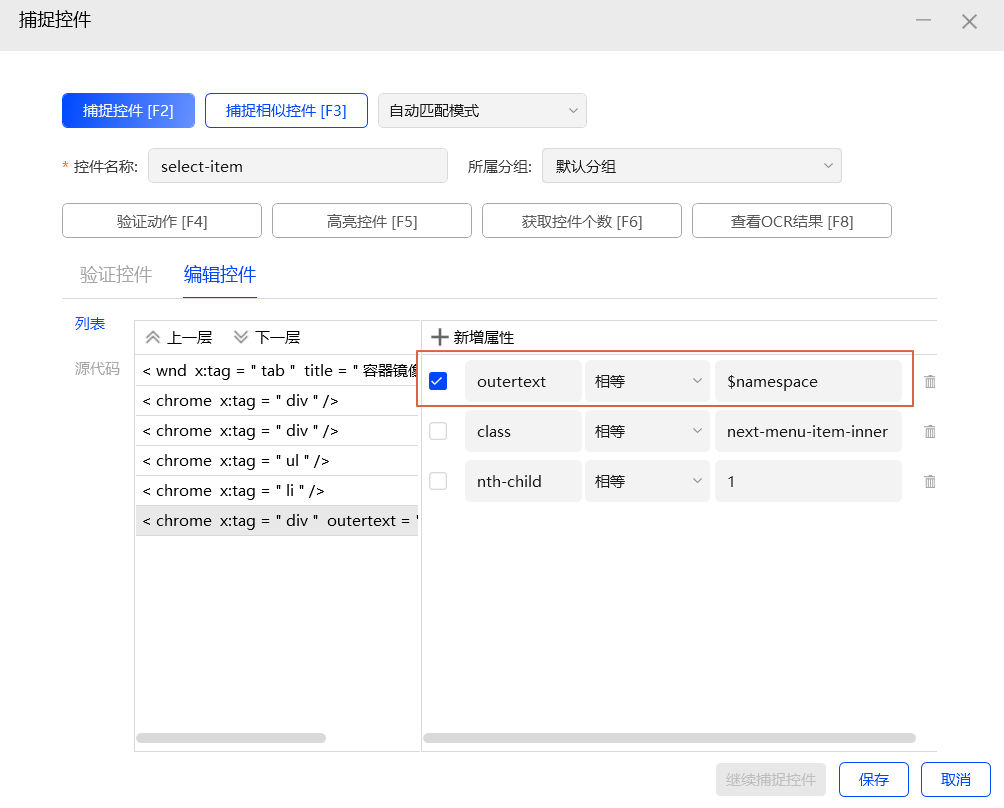
The option control. Set its
outertextattribute to$namespace, which is a control attribute variable. At runtime, you can dynamically assign a value to this variable. This allows the flow to capture and interact with the correct control.
In the code-based development mode, use the
ctrls.variable.assignmethod to assign a value to the control attribute variable.page = rpa.app.chrome.create('https://cr.console.aliyun.com/cn-hangzhou/instance/repositories') # Click the drop-down list page.click('select') # Use the ctrls.variable.assign method to set $namespace to 'other0123' ctrls.variable.assign('$namespace','other0123') # Click the option page.click('select-item')The following shows the implementation in visual development mode.
NoteWhen the client version is 4.12.0.1117 or later, you can use the Set Control Attribute Variable component in visualizations. If your editor version is earlier than this version, you can use
ctrls.variable.assignin a custom script to assign values, as shown in the following figure.
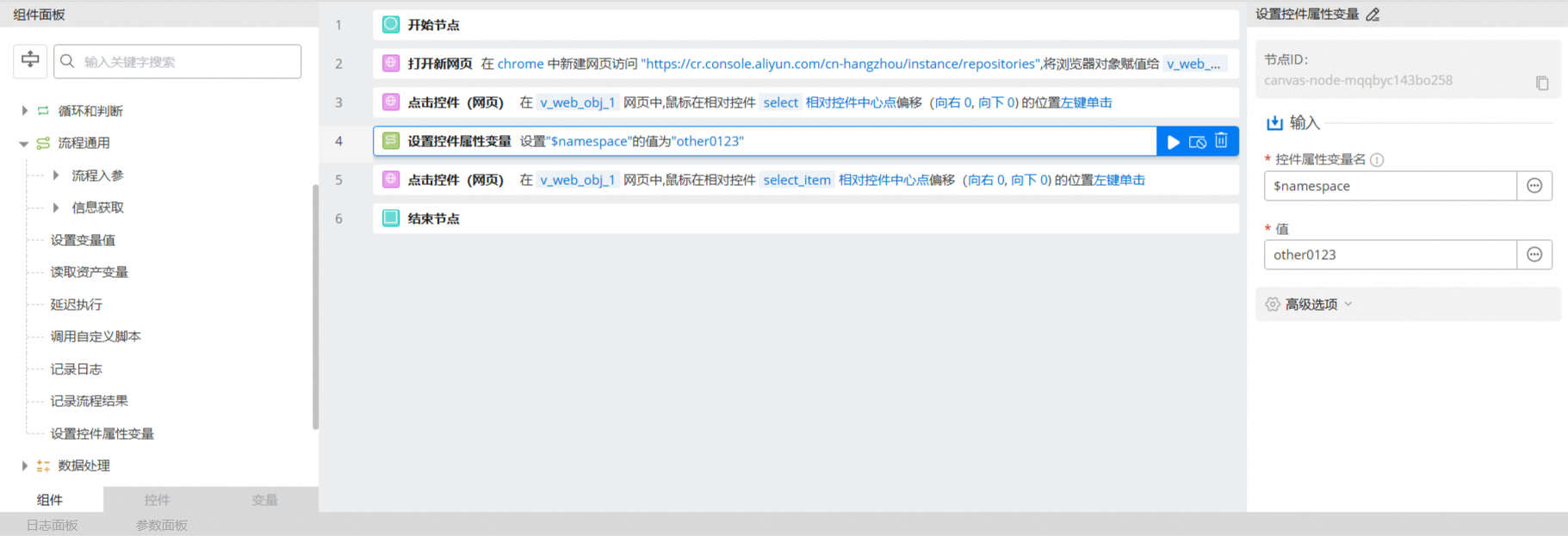
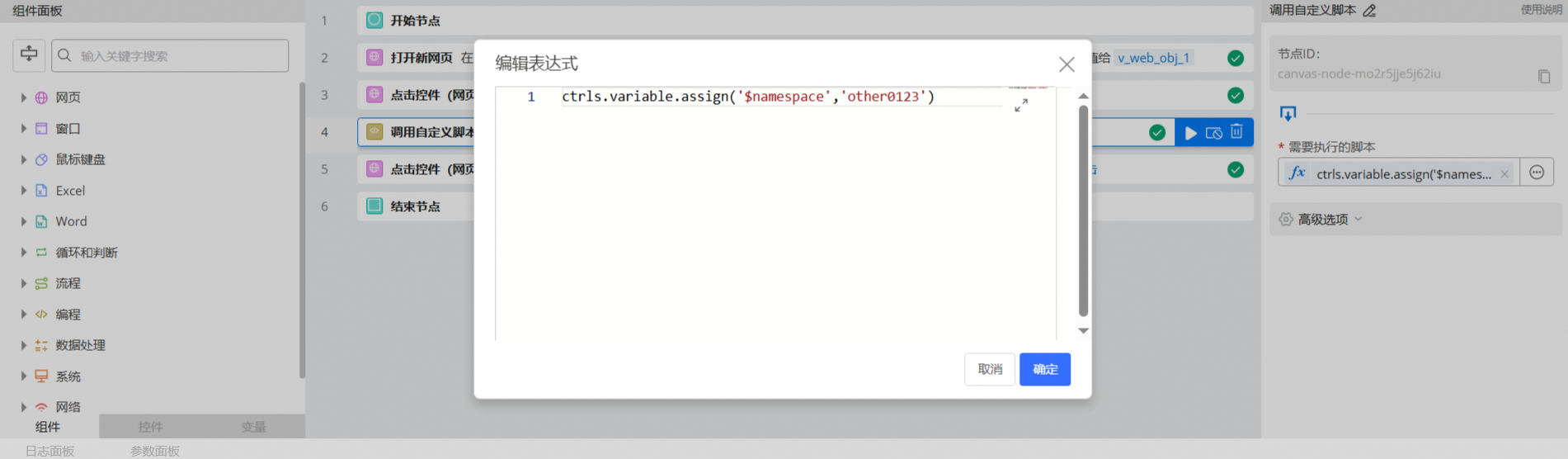
Example: Select a specific date in a calendar
This example shows how to select a specific year, month, and day in a calendar.
Approach
Selecting the year and month is similar to selecting from a drop-down list. First, click to open the options, then dynamically select the target value. Finally, click the target day.
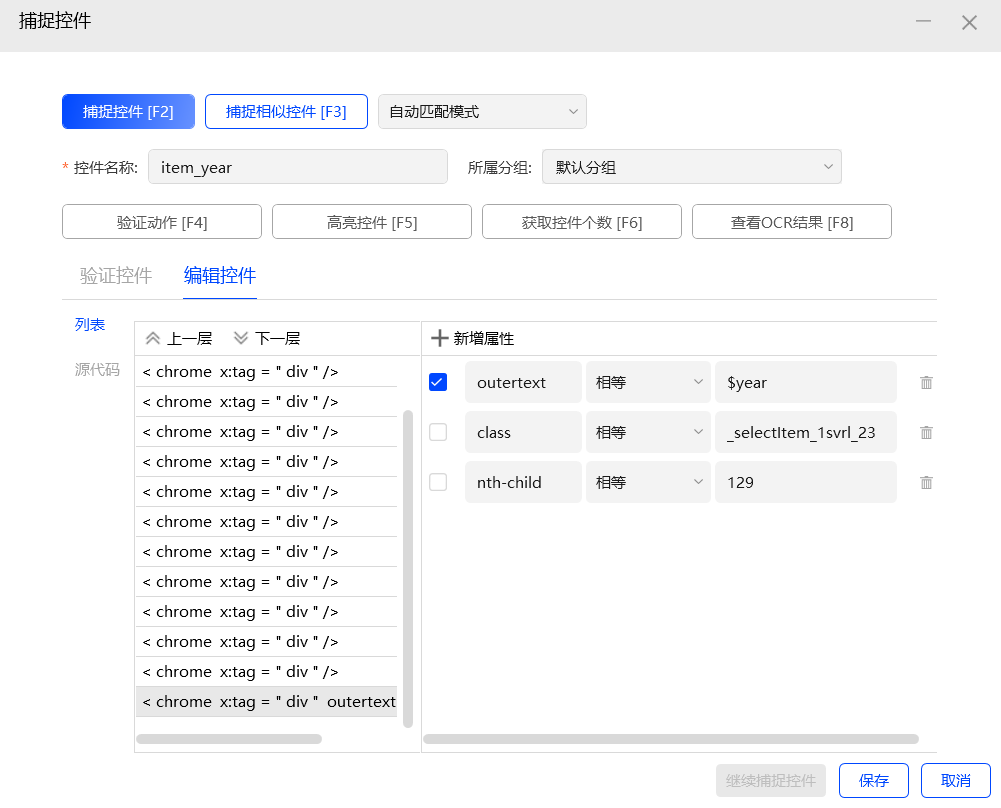
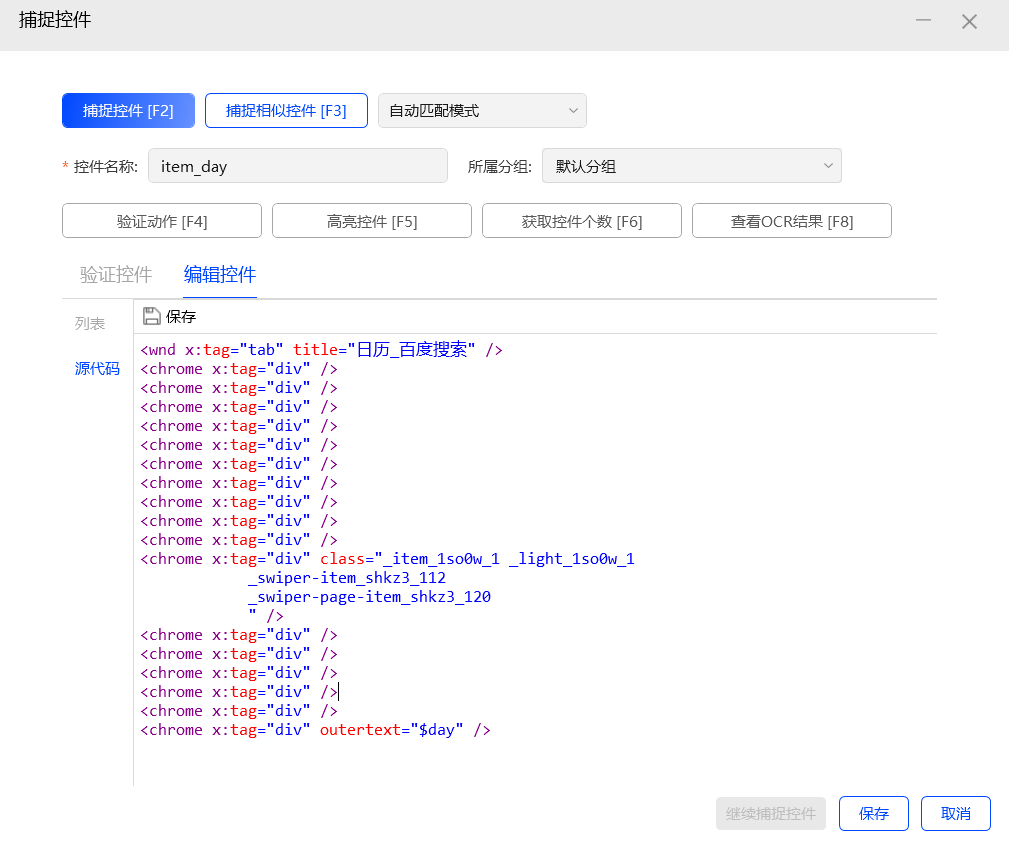
Configure the controls as follows:
After opening the year selection drop-down, set the
outertextattribute of the option control to$year, which is a control attribute variable. You can use a similar approach for the month by setting the attribute to$month.For the day control, set its
outertextattribute to$day.
In code-based development mode, use
ctrls.variable.assignto assign a value to the control attribute variable, which selects March 11, 2024.page = rpa.app.chrome.create("https://www.baidu.com/s?wd=%E6%97%A5%E5%8E%86") # Select the year page.click('select_year') ctrls.variable.assign('$year','2024年') page.click('item_year') # Select the month page.click('select_month') ctrls.variable.assign('$month','3月') page.click('item_month') # Select the day ctrls.variable.assign('$day','11') page.click('item_day')
Control attribute variables
A control attribute variable name must start with a dollar sign (
$).You can use control attribute variables only in control attributes. Multiple controls can reference the same control attribute variable.
The scope of a control attribute variable is limited to controls within the current project (listed in the Project Control List) and does not extend to imported custom components.
ctrls.variable.assignsupports assigning a value to the same control attribute variable multiple times. The value must be a string.