Handling privacy data
This topic describes how to handle privacy data, such as credentials, in automation workflows.
Solution summary
Automation workflows often use privacy data, such as credentials and AK/SK, to sign in to systems or call APIs. For security, avoid hardcoding this data as plaintext in your workflows. The following table summarizes the recommended solutions for different scenarios.
Scenario | Recommended solution |
The privacy data is static, meaning it is pre-configured and remains the same for each workflow run. Examples include:
| Use the asset variable feature (for details, see Asset variables) to securely store the privacy data on the server side. When an automation workflow runs, it dynamically retrieves the data from the server side without saving it to the robot's local disk. |
The privacy data is dynamic and varies based on the end user. For example:
| Solution 1: The workflow does not handle the sign-in process. Instead, it checks if the user is already signed in to the target system. If not, the workflow ends and prompts the user to sign in manually before running the workflow again. |
Solution 2: Use the workflow's input parameters (for details, see Use the parameter panel to create input parameters for a process). The user provides the necessary credentials when the workflow runs. Note that if you use plaintext, the input parameters are saved in the robot's local logs or the server-side task information. For enhanced security, encrypt the input parameters. | |
Solution 3: Use OSS to pass the privacy data to the automation workflow. The workflow then parses the file to retrieve the data (for details, see Use a presigned URL). This solution provides stronger security when combined with OSS. However, end users cannot run the workflow manually from the robot client. You typically use this solution only after you integrate our product into your system. | |
Solution 4: The workflow dynamically retrieves credentials or other privacy data by calling your KMS-like product. This method requires you to first add the Python library provided by your KMS product (for details, see Reference a third-party library), and then write code to make the call. |
Asset variables
Create an asset variable
To create and manage asset variables, go to Asset Management in the console.
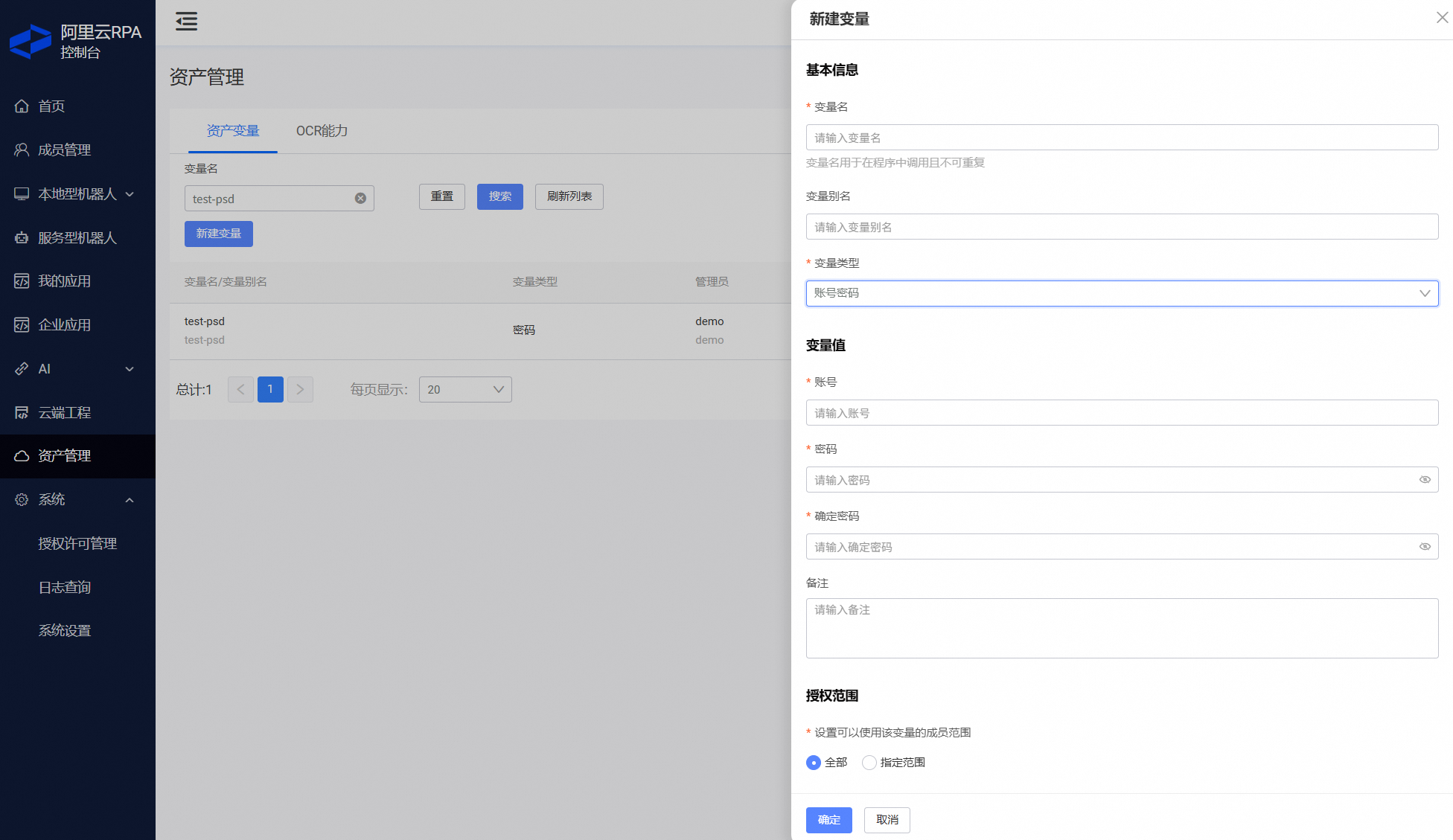
Three types of asset variables are supported: Text, Password, and Credential.
Variable names must be unique within the same enterprise.
Scope of asset variables
Only accounts with the required permissions can automatically read the value of an asset variable when running a workflow.
You can set the scope to "All" or "Specified Range".
Management of asset variables: The creator of an asset variable is its administrator by default. The administrator can transfer ownership to another account. A super administrator can change the administrator of any asset variable within the enterprise.
Use an asset variable
The following table summarizes the usage of asset variables.
Type | Usage | Coding mode | Visual mode |
Text | Reads the variable's content for use in subsequent steps, such as writing it to a specific input field. | ||
Password | |||
Credential | Autofill a web page. |
When you use a "Credential" asset variable, you can only enter the password into a password input field (that is, an input field with the attribute input type="password").
When using an asset variable, the account running the workflow must have the necessary permissions for that asset variable. Otherwise, the workflow will fail at runtime and report a permission error.
Usage example
This example uses the Alibaba Cloud sign-in page.
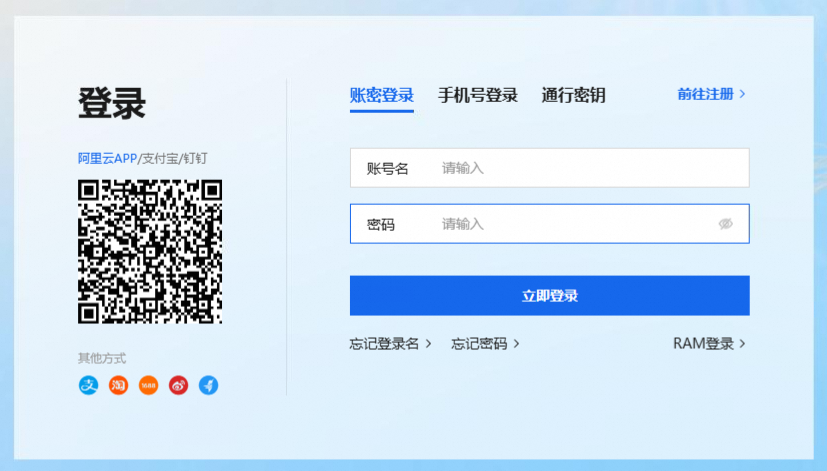
Using "Text" and "Password" asset variables
The two asset variables are configured as follows:
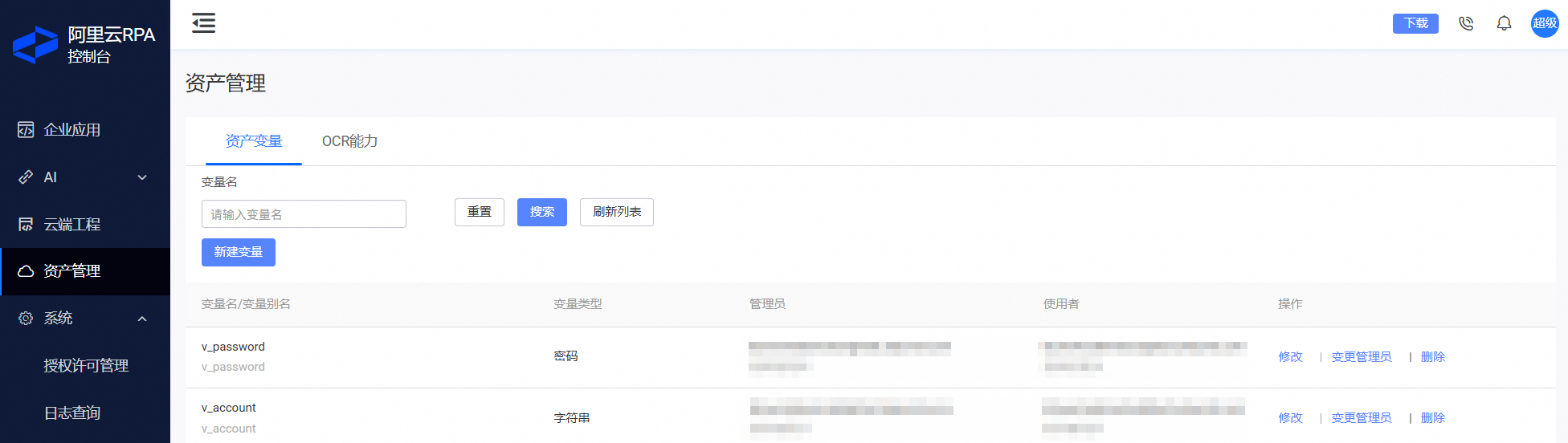
The following shows an example in visual mode:
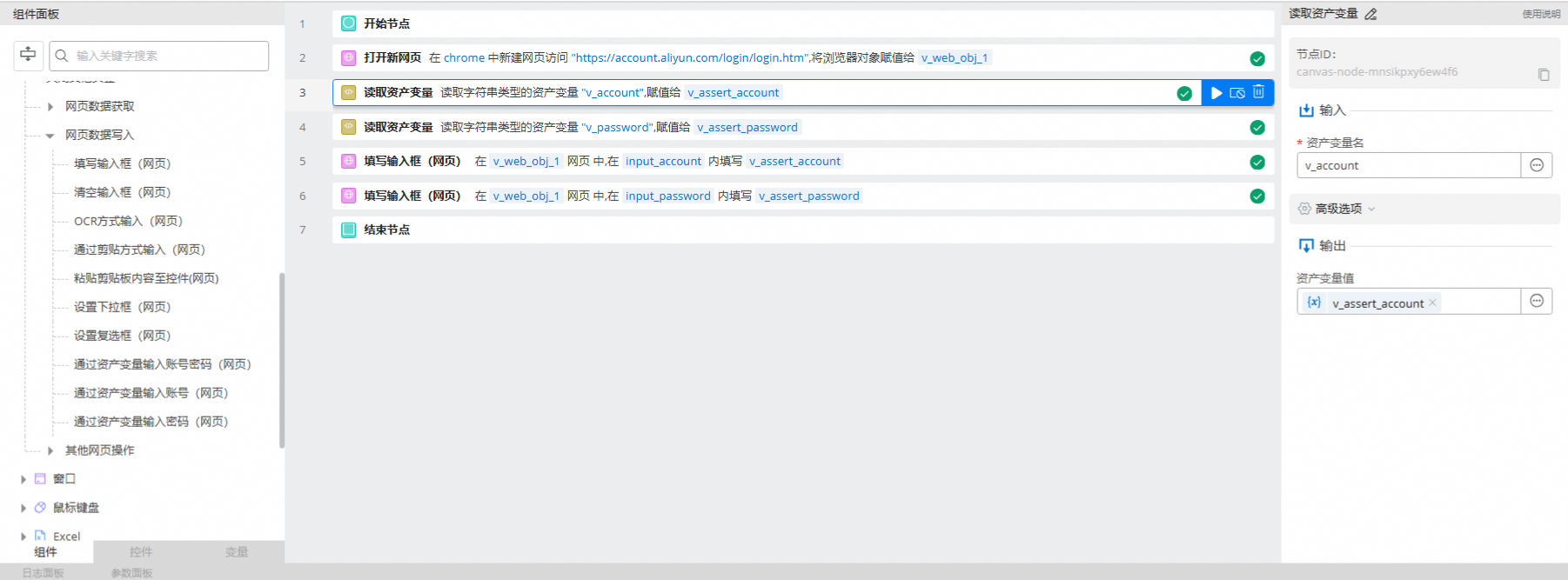
The following shows an example in coding mode:
page = rpa.app.chrome.create('https://account.aliyun.com/login/login.htm')
str_account = rpa.console.asset.get_value('v_account')
str_password = rpa.console.asset.get_value('v_password')
page.input_text('input_account', str_account, index = 1, replace = True)
page.input_text('input_password', str_password, index = 1, replace = True)
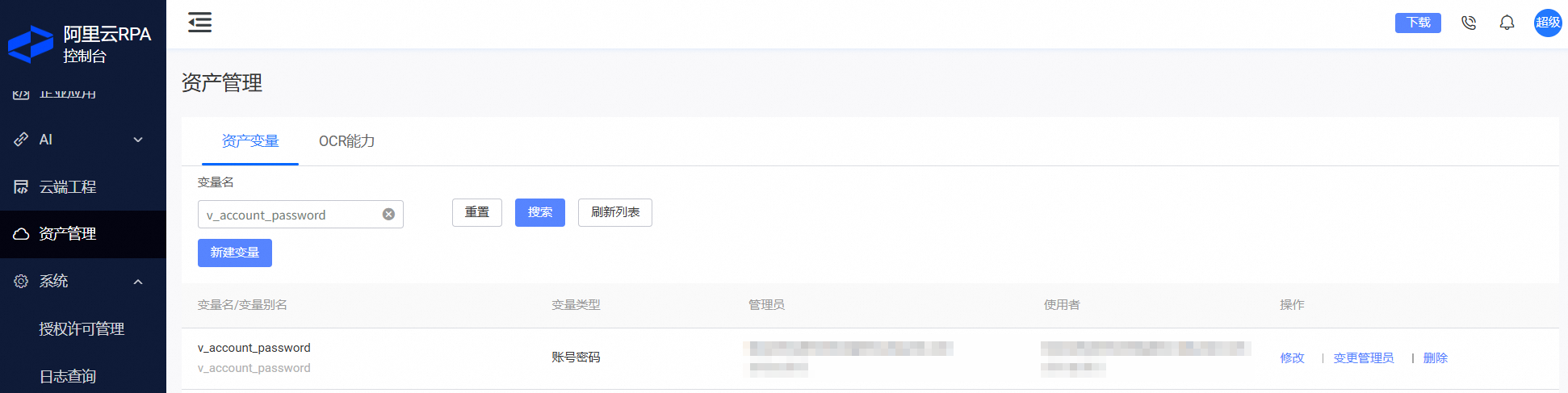
Using a "Credential" asset variable
The asset variable is configured as follows:
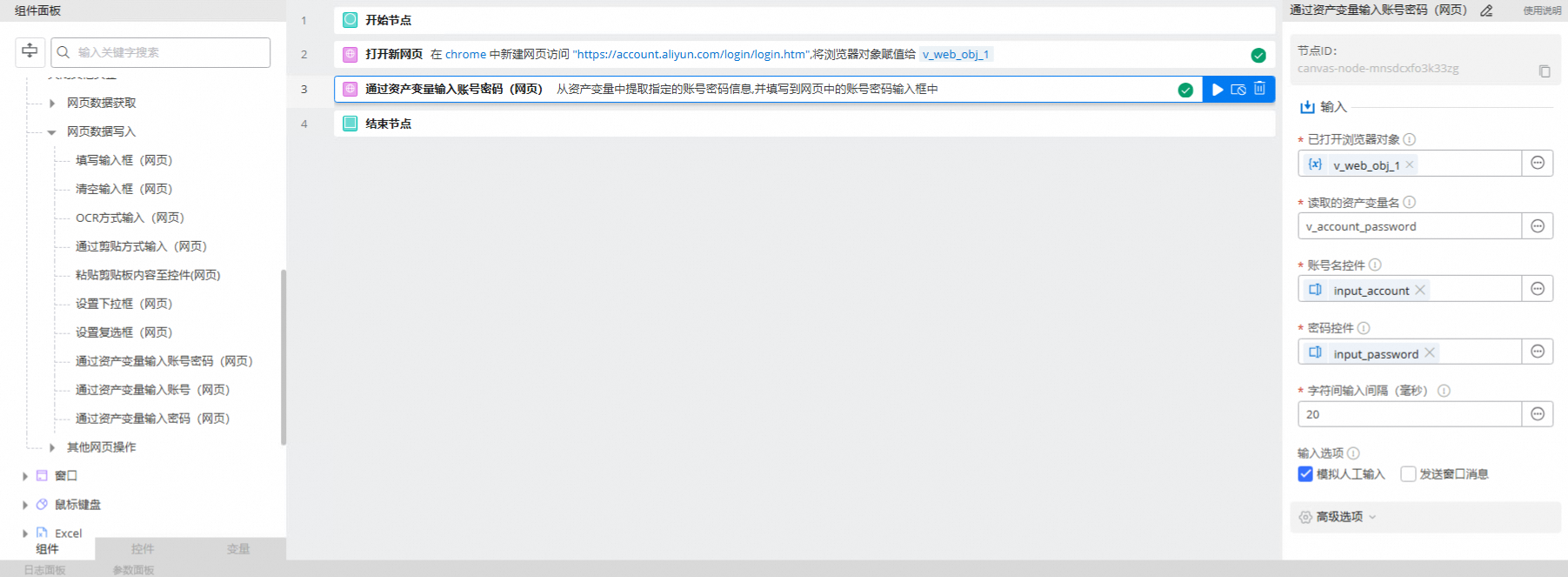
The following shows an example in visual mode:

The following shows an example in coding mode:
page = rpa.app.chrome.create('https://account.aliyun.com/login/login.htm')
rpa.console.asset.fill_account_to_page('v_account_password','input_account','input_password',page)