Click Control (CV)
1. Introduction
This component uses the Computer Vision (CV) method to click a control.
2. Inputs
For details about each input parameter, see the help text in the component's properties in the visual editor.
3. Outputs
None
4. Component usage example
4.1. Component configuration example
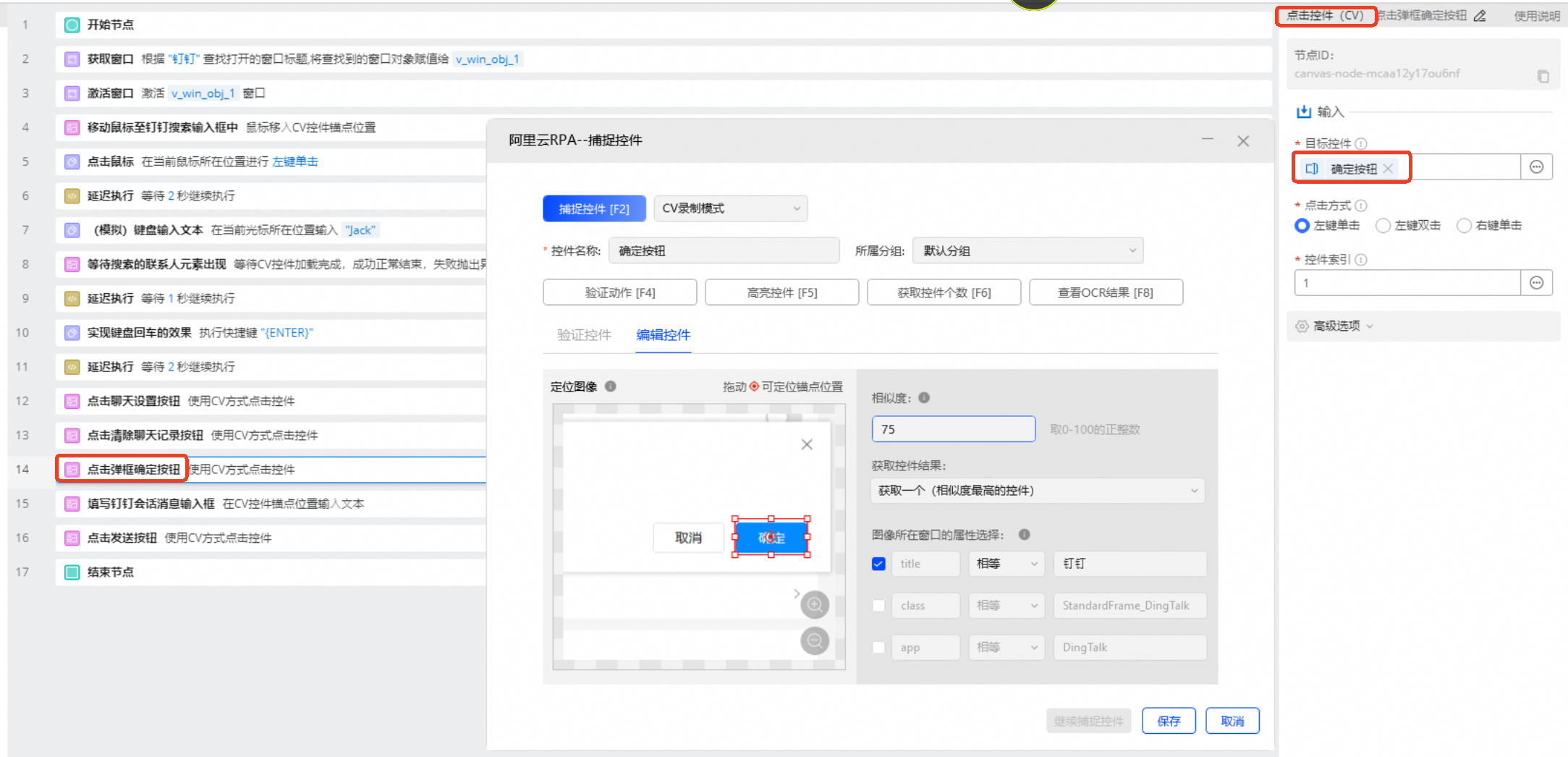
For Target Control, select the control element captured in CV mode.
For Click Type, keep the default selection, Left-click.
For Control Index, keep the default value of 1.
Keep the default values for the advanced options.
4.2. Example execution result
None
5. Example flow
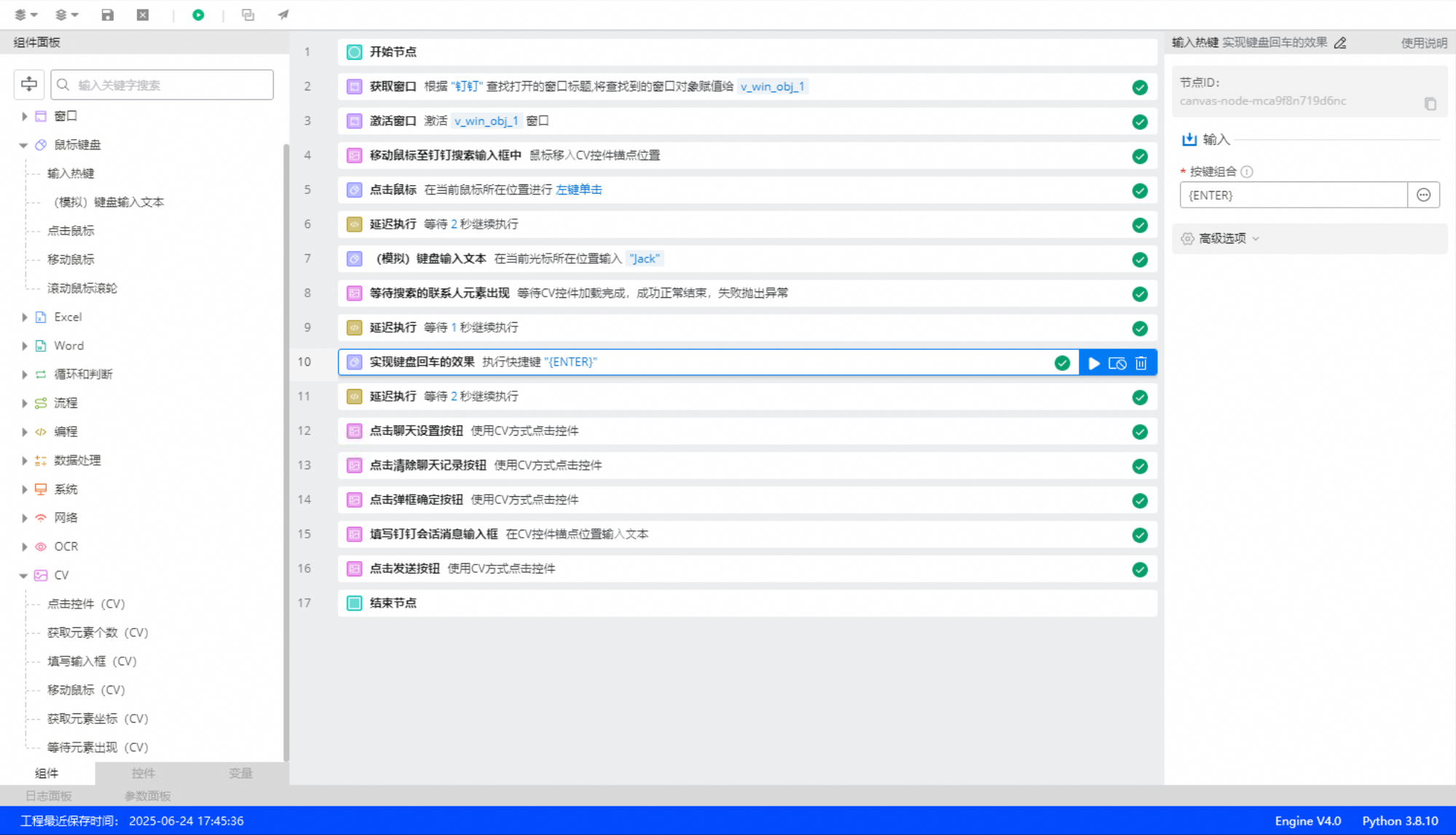
Workflow
Use the Get Window component to obtain the DingTalk window object, `v_win_obj_1`. Pass this object to the Opened Window Object parameter of the Activate Window component.
Use the Activate Window component to bring the DingTalk window to the foreground.
Use the Move Mouse (CV) component to move the mouse to the DingTalk search box.
Use the Click Mouse component to click the DingTalk search box.
Use the Delayed Execution component to add a 2 second delay. This ensures that the cursor is in the input box.
Use the (Simulate) Keyboard Input component to enter the name of the contact or group.
Use the Wait For Element to Appear (CV) component to wait for the searched contact to appear.
Use the Delayed Execution component to add a 1 second delay. This increases the success rate of the subsequent Enter key press.
Use the Input Hotkey component to press the Enter key.
For example, when you press Enter, the delayed execution component performs an automatic switchover to the session of the corresponding contact. Then, execute the following steps.
Use the Click Control (CV) component to click the Settings button in the chat session.
Use the Click Control (CV) component to click the Clear Chat History button.
Use the Click Control (CV) component to click the OK button in the dialog box to clear the chat history.
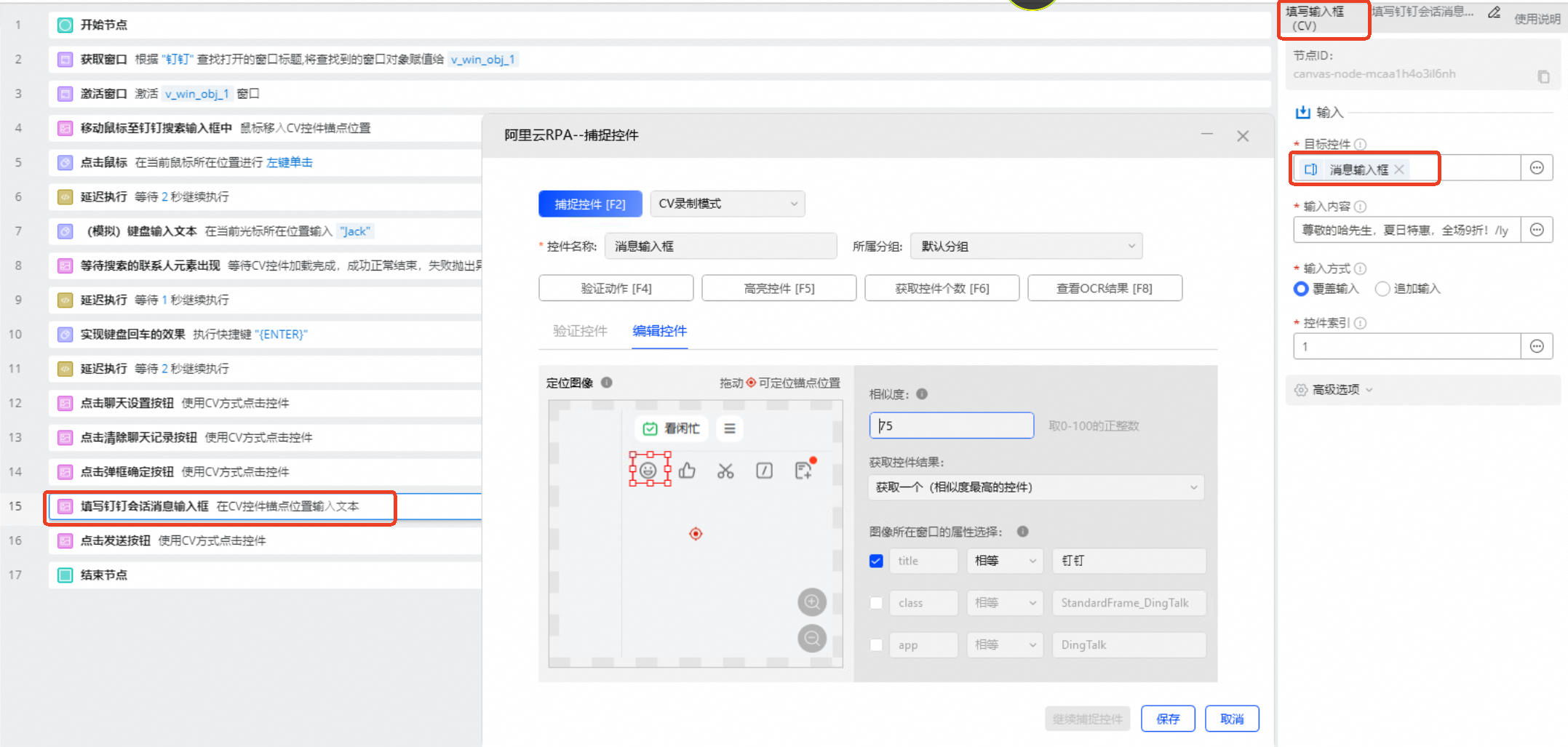
Use the Fill Input Box (CV) component to enter a message in the input box of the chat session.
Use the Click Control (CV) component to click the Send button.
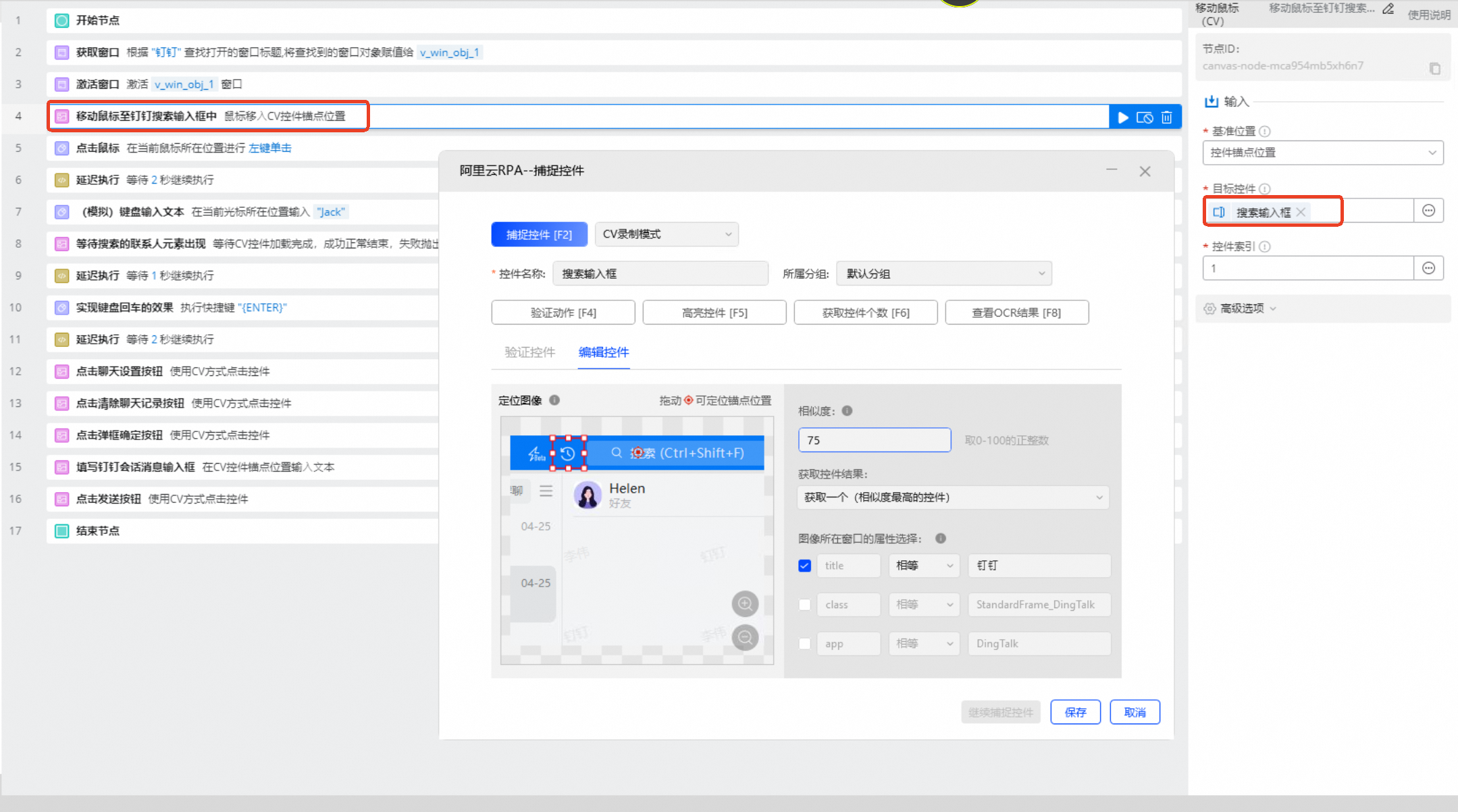
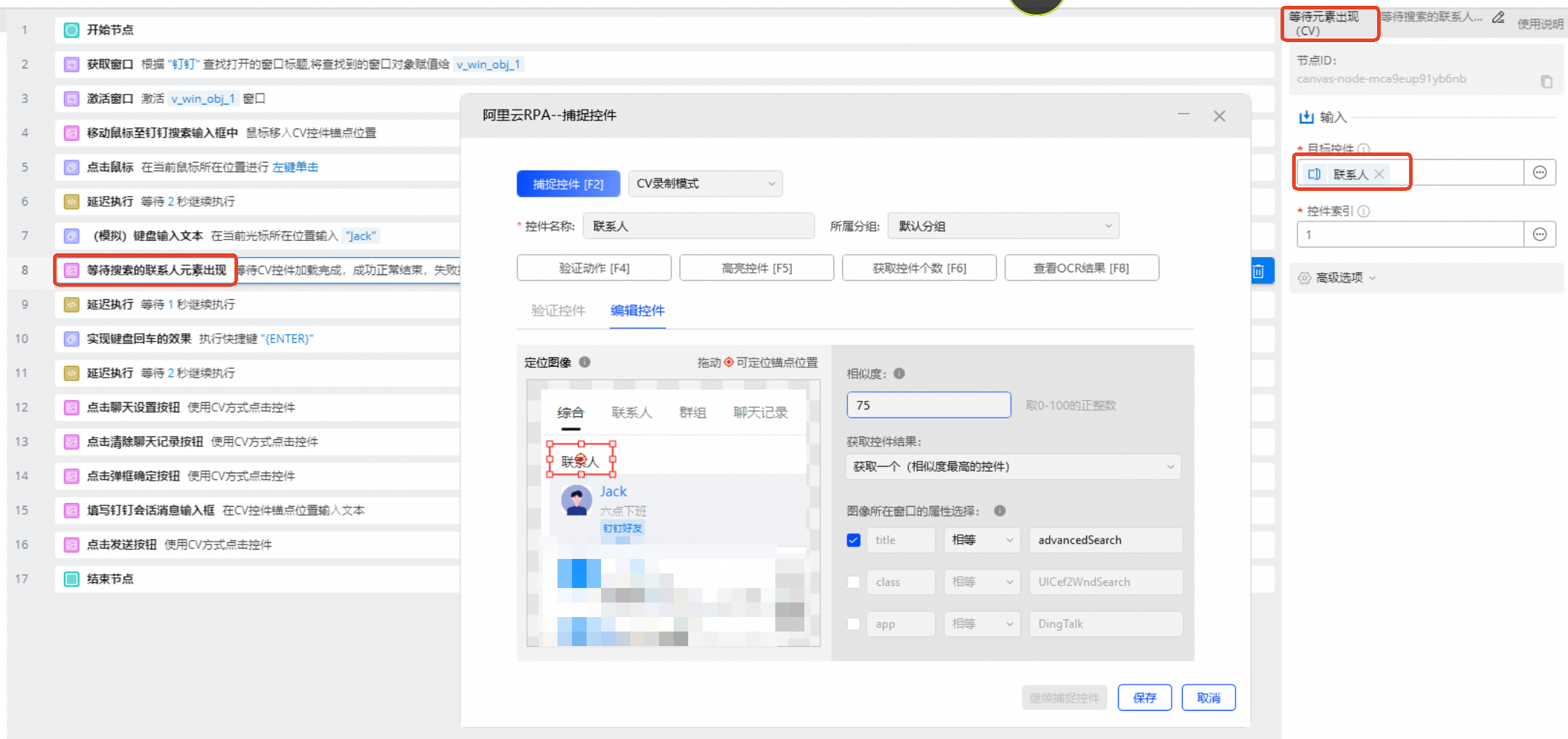
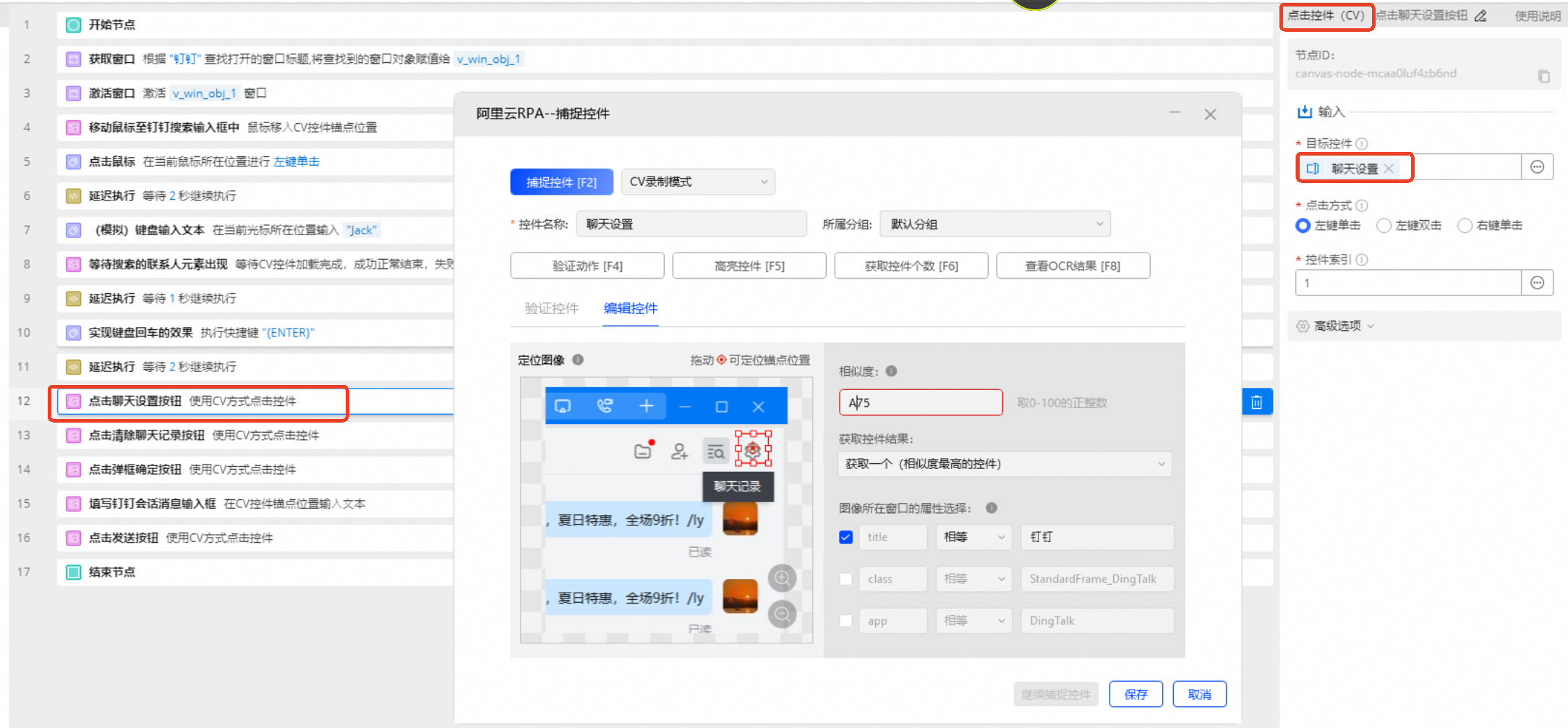
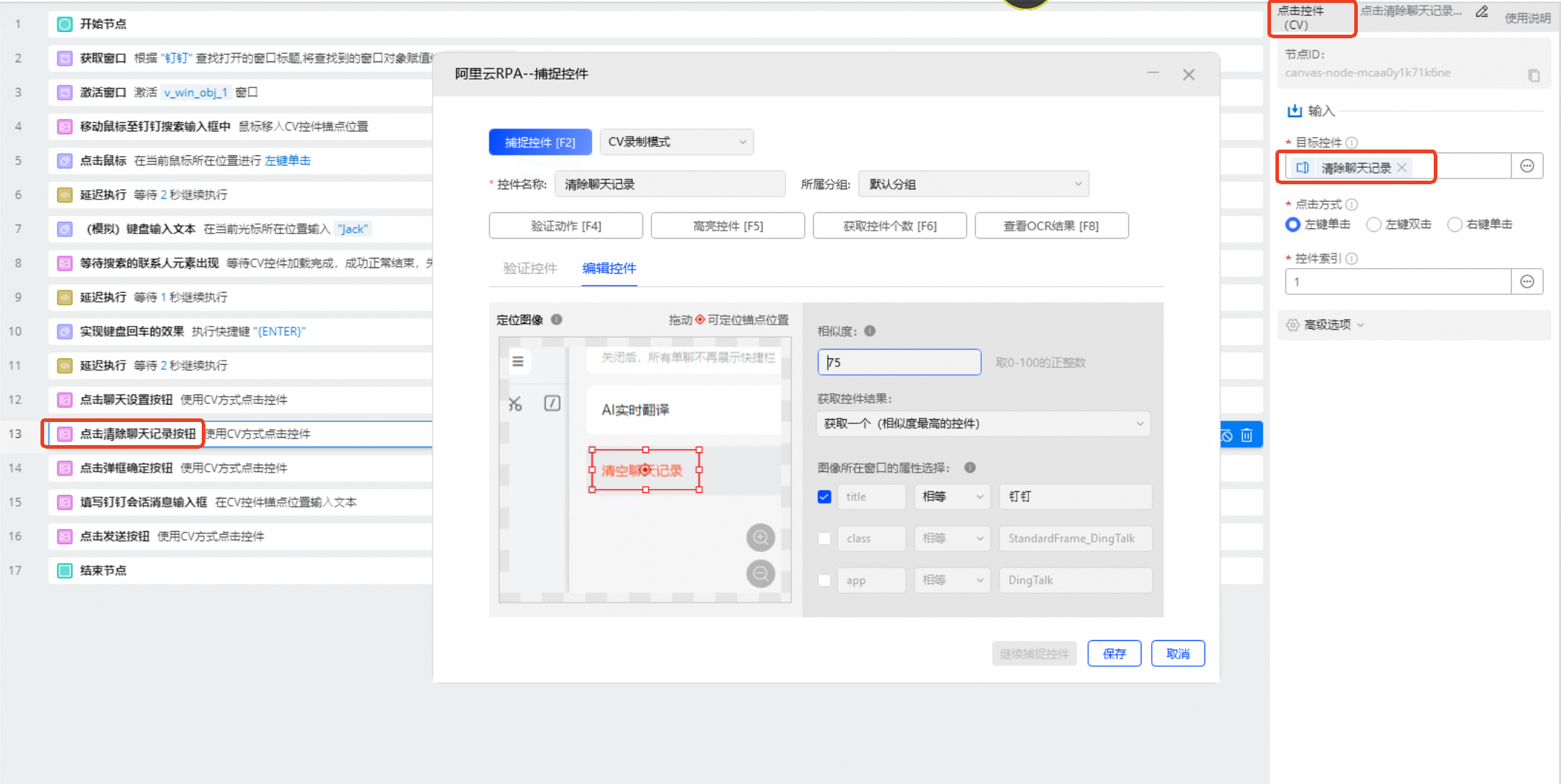

Result
The flow sends a message to a specified contact in DingTalk, as shown in the following figure.
The flow activates the DingTalk window, enters a contact name in the search box, and presses Enter to open the chat session. The flow then clears the chat history, which is an optional step, and sends a message to the contact.